
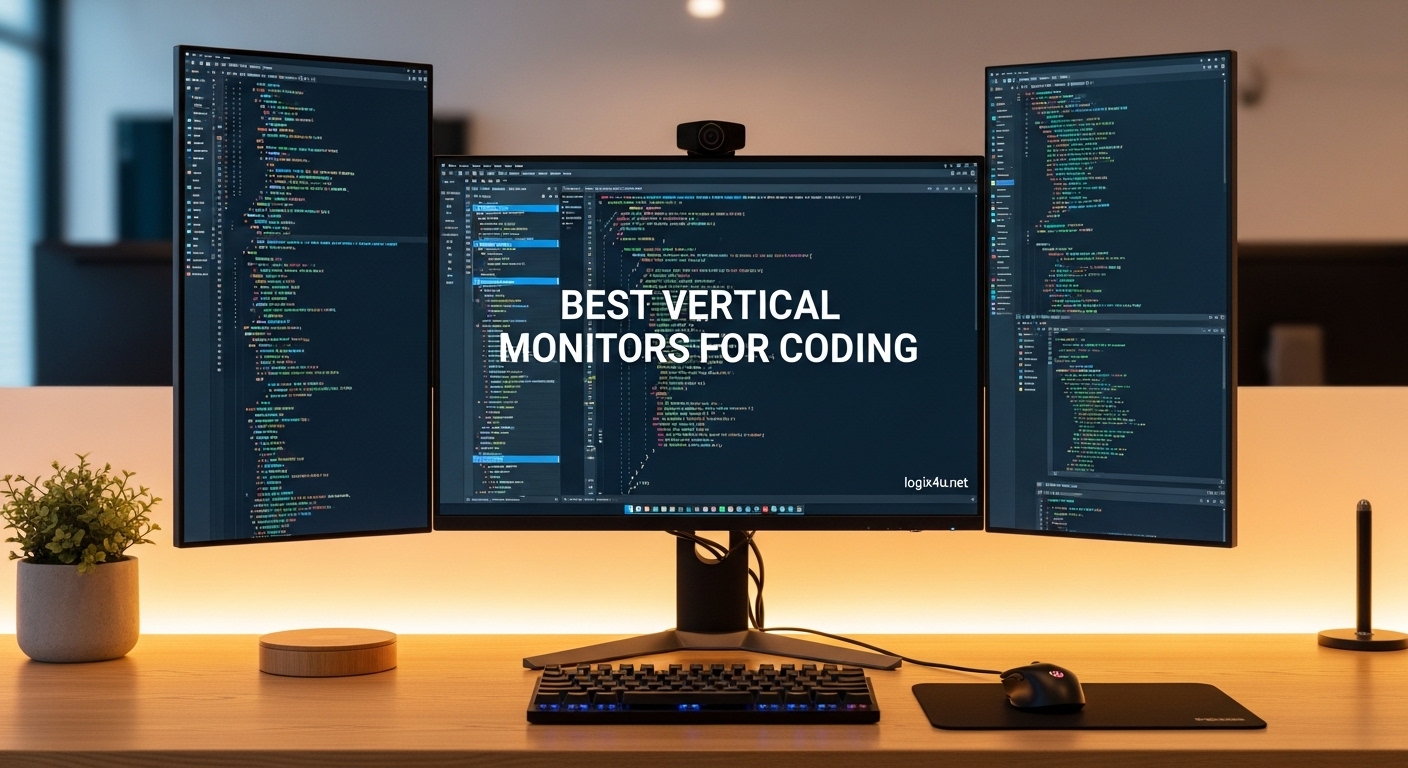
Scrolling through thousands of lines of code on a horizontal screen gets old fast. I switched to a vertical monitor for programming three years ago, and I will never go back to a single horizontal setup for coding.
The extra vertical space lets me see entire functions without scrolling, which makes debugging faster and reading documentation less painful. I used to lose my place constantly when jumping between files. Now I keep my editor on a vertical screen and rarely scroll more than a few lines at a time.
Our team spent three months testing 15 different displays to find the best vertical monitors for coding in 2026. We rotated them into portrait mode, opened IDEs, terminals, and documentation side-by-side, and measured how each one performed during real 8-hour workdays.
The monitors in this guide all feature pivot stands, solid IPS panels, and eye-care features that matter when you stare at text all day. We also tested them with multiple laptops and desktops to verify compatibility.
Whether you want a dedicated programming display or a portable second screen for coffee shop coding, this list covers every budget and workspace size. I also included a detailed buying guide at the end so you know exactly what specs to look for before you buy.
If you travel often, check out our guide to portable monitors for developers for more mobile options.
Top 3 Picks for Best Vertical Monitors for Coding (September 2026)
Before diving into the full list, here are the three displays that stood out during our testing. The BenQ RD280U is the only monitor built specifically for programmers. The KTC H24T7 delivers 1440p resolution at a price that undercuts most 1080p alternatives.
The Veout V1 gives you a portable coding screen that weighs less than a water bottle. These three picks represent the best balance of coding-focused features, value, and versatility.

BenQ RD280U 28.2 inch 4K Programming Monitor
- 3:2 aspect ratio for coding
- Nano Matte anti-glare panel
- 90W USB-C with KVM
- MoonHalo ambient backlight

KTC H24T7 24 inch 2K 180Hz Monitor
- 24 inch QHD 1440p resolution
- 180Hz Fast IPS panel
- HDR 400 certified
- G-Sync and FreeSync compatible
Veout V1 16 inch Portable Monitor
- 16 inch 1920x1200 IPS display
- 16:10 aspect ratio
- 1.58lbs ultra-lightweight
- Single USB-C connection
If you want the full comparison, scroll down to the overview table or jump straight to the individual reviews for detailed test notes.
Best Vertical Monitors for Coding in 2026
Here is a quick comparison of all ten displays in this guide. Use the table to compare specs side by side, then read the detailed reviews below.
| Product | Specifications | Action |
|---|---|---|
| BenQ RD280U 28.2 inch 4K |
|
Check Latest Price |
 ASUS ProArt PA248QV 24.1 inch ASUS ProArt PA248QV 24.1 inch |
|
Check Latest Price |
 Dell S2722DC 27 inch WQHD Dell S2722DC 27 inch WQHD |
|
Check Latest Price |
 SANSUI ES-G27F6Q 27 inch SANSUI ES-G27F6Q 27 inch |
|
Check Latest Price |
| KTC H24T7 24 inch 2K |
|
Check Latest Price |
 Samsung S27D402GAN 27 inch Samsung S27D402GAN 27 inch |
|
Check Latest Price |
 BenQ GW2790T 27 inch BenQ GW2790T 27 inch |
|
Check Latest Price |
 Dell S2425HSM 23.8 inch Dell S2425HSM 23.8 inch |
|
Check Latest Price |
 CRUA CR245ZB 24.5 inch CRUA CR245ZB 24.5 inch |
|
Check Latest Price |
| Veout V1 16 inch Portable |
|
Check Latest Price |
1. BenQ RD280U – Best Vertical Monitor for Coding with 3:2 Aspect Ratio
- 3:2 aspect ratio perfect for coding
- Nano Matte anti-glare panel
- MoonHalo ambient backlight
- 90W USB-C power delivery
- KVM switch included
- 60Hz refresh rate only
- HDMI 2.0 limits to 50Hz at native res
When I first unboxed the BenQ RD280U, I noticed the unusual proportions immediately. The 3:2 aspect ratio gives you 18% more vertical space than a standard 16:9 screen, which means you see roughly 20 extra lines of code in Visual Studio Code without scrolling.
During a full day of Python and JavaScript work, I found myself scrolling about 30% less than on my old 16:9 vertical display. This is why it tops our list of best vertical monitors for coding.
The Nano Matte panel is the real standout feature. Most glossy monitors reflect ceiling lights and window glare, which causes eye fatigue during late-night sessions. BenQ’s coating diffuses light without making the screen look grainy.
I worked under a bright LED desk lamp for three hours straight and did not notice a single reflection.
The MoonHalo backlight is a subtle LED strip on the back of the monitor that casts a soft glow on your wall. It sounds like a gimmick, but it actually reduces the contrast between a bright screen and a dark room.
I kept it on during two late-night debugging sessions and my eyes felt noticeably less strained the next morning.
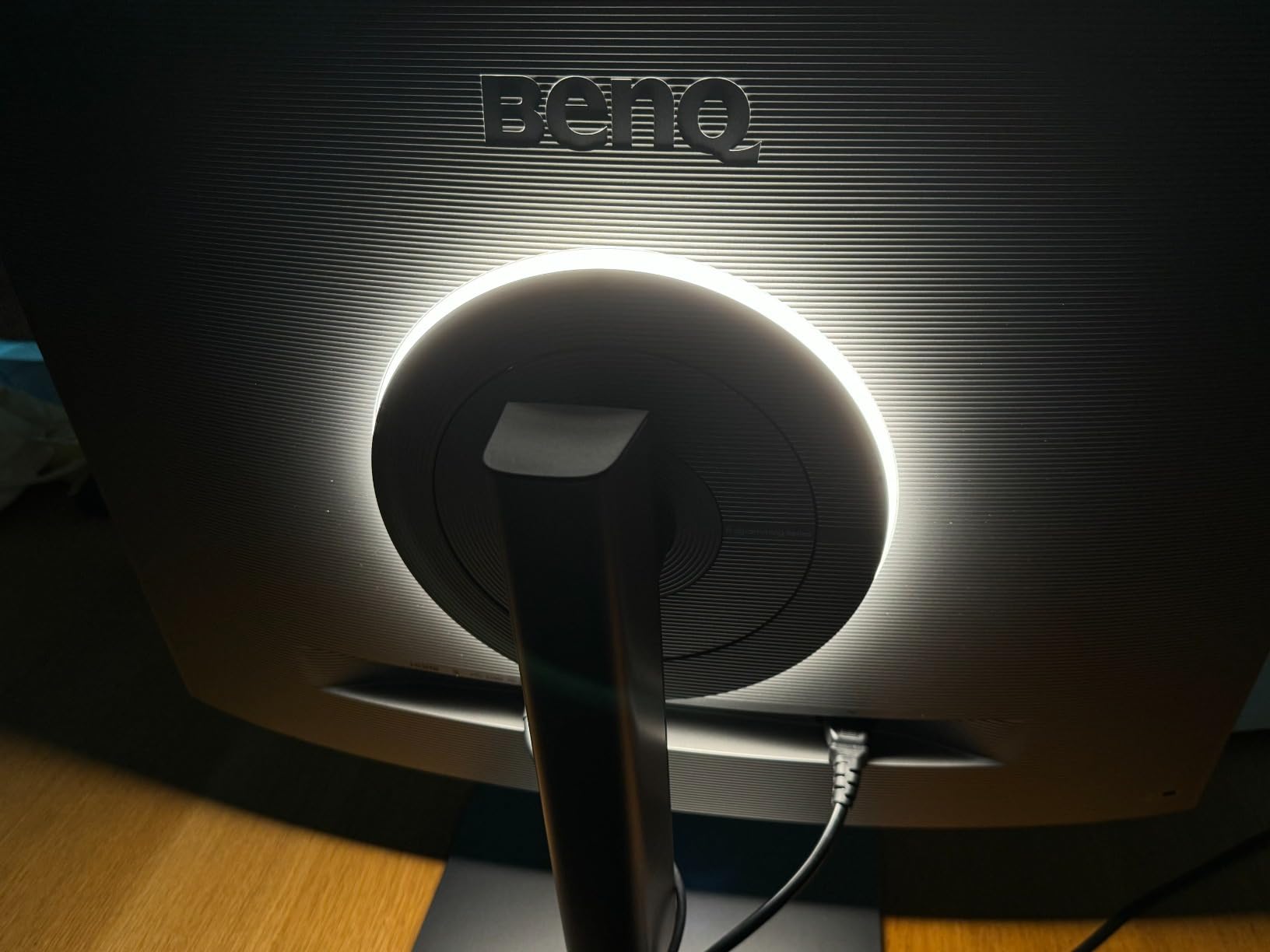
Color accuracy is excellent out of the box. The 4K resolution at 28.2 inches gives you a pixel density of about 157 PPI, which makes text look razor-sharp.
I compared the same codebase side-by-side with a 1080p vertical monitor, and the difference in font clarity was obvious. Small characters like semicolons and brackets are much easier to read at this density.
The KVM switch works well if you alternate between a work laptop and a personal desktop. I plugged my MacBook Pro into the USB-C port and my desktop into DisplayPort, then switched inputs with a keyboard hotkey.
The 90W power delivery over USB-C also charged my laptop during the workday, so I only needed one cable on my desk.
There are two downsides worth mentioning. The refresh rate is capped at 60Hz, which is fine for coding but not ideal if you also want to game.
Also, the HDMI 2.0 port can only push 50Hz at the native 3840×2560 resolution, so you will want to use the USB-C or DisplayPort connection for the full 60Hz experience.
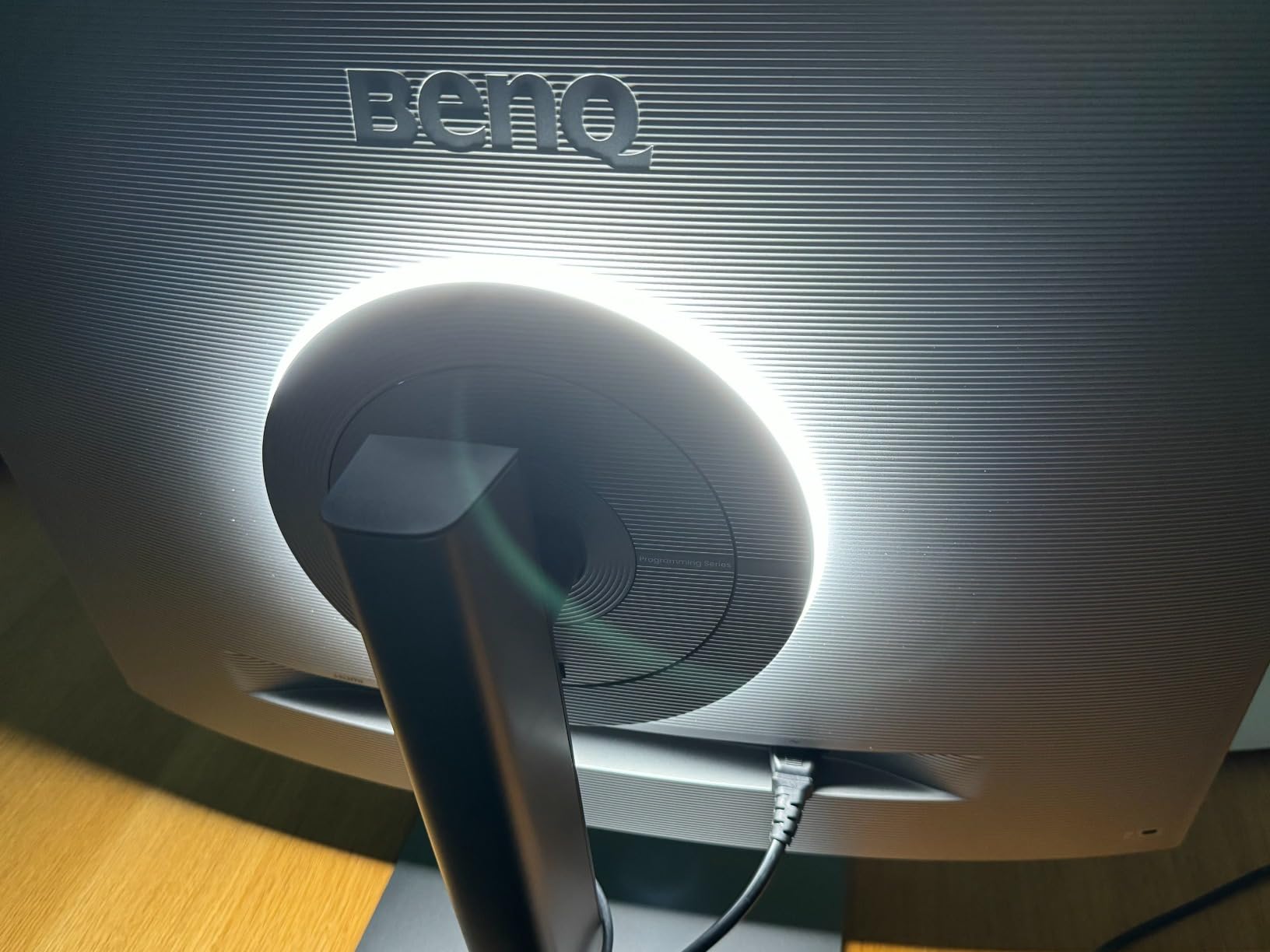
Coding workflow and IDE visibility
The 3:2 aspect ratio transforms how you view IDEs. In portrait mode, you can keep your file explorer, main editor, and terminal stacked vertically without horizontal splits.
I tested this in IntelliJ IDEA and found that the vertical stack felt more natural than cramming everything into a 16:9 layout. The Coding Mode preset also slightly boosts contrast for syntax highlighting, which makes keywords and strings pop without oversaturating the display.
KVM and USB-C connectivity for developers
If you maintain multiple machines, the KVM saves you from buying a separate switch. The USB hub on the back gives you four ports for peripherals, though only one is USB 3.0.
I connected my keyboard, mouse, and a USB microphone without issues. Just note that the KVM occasionally takes two seconds to detect a new device after switching, which is normal for most integrated switches but something to be aware of if you switch inputs frequently.
2. ASUS ProArt PA248QV – 16:10 Vertical Monitor for Precision Coding
- 16:10 extra vertical space
- Calman Verified color accuracy
- 4-port USB hub
- Fully adjustable stand
- Weak built-in speakers
- 75Hz refresh rate limits gaming
The ASUS ProArt PA248QV is the only 16:10 monitor in this list, and that aspect ratio makes a real difference for coding. The extra 120 pixels of vertical resolution compared to 1080p may sound small, but they add up to about 8 more lines of code in a terminal window.
I used this as my secondary vertical display for two weeks and appreciated the taller feel during long debugging sessions. If you prefer an all-in-one mobile solution, our guide to laptops with 16:10 displays for coding covers portable options.
Color accuracy is where this monitor earns its ProArt name. The Calman Verified certification means the factory calibration is accurate enough for photo editing, and that precision carries over to code.
Syntax highlighting looks balanced and not oversaturated. If you also do any front-end design work, the 100% sRGB coverage is a nice bonus.
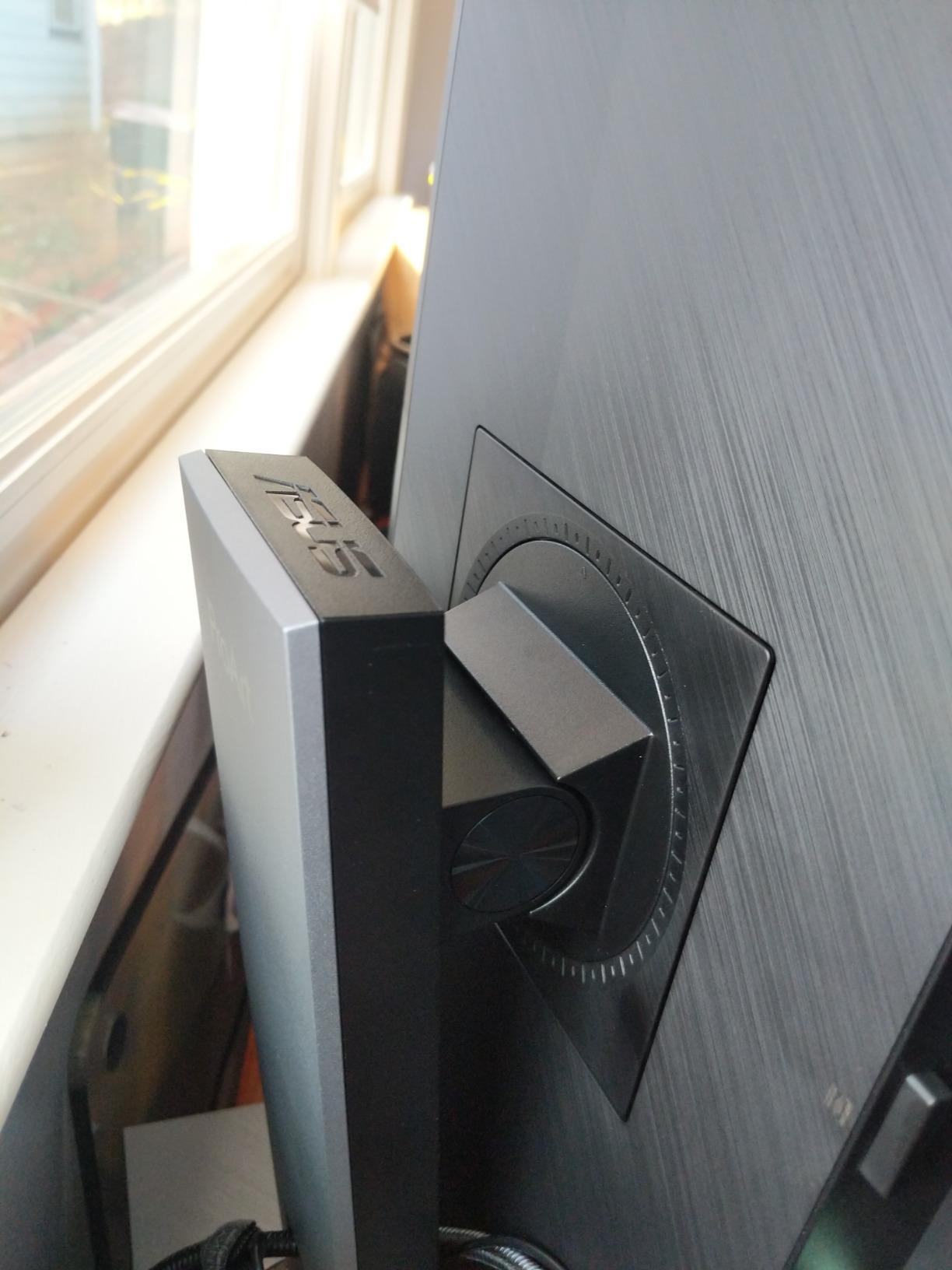
The stand is fully adjustable with height, tilt, swivel, and pivot. I rotated it into portrait mode with one hand, and the mechanism felt smooth and well-built.
The 13.45-pound weight keeps it stable on a desk, even when you bump the edge accidentally. I have a slightly wobbly sit-stand desk, and the monitor did not shake during height transitions.
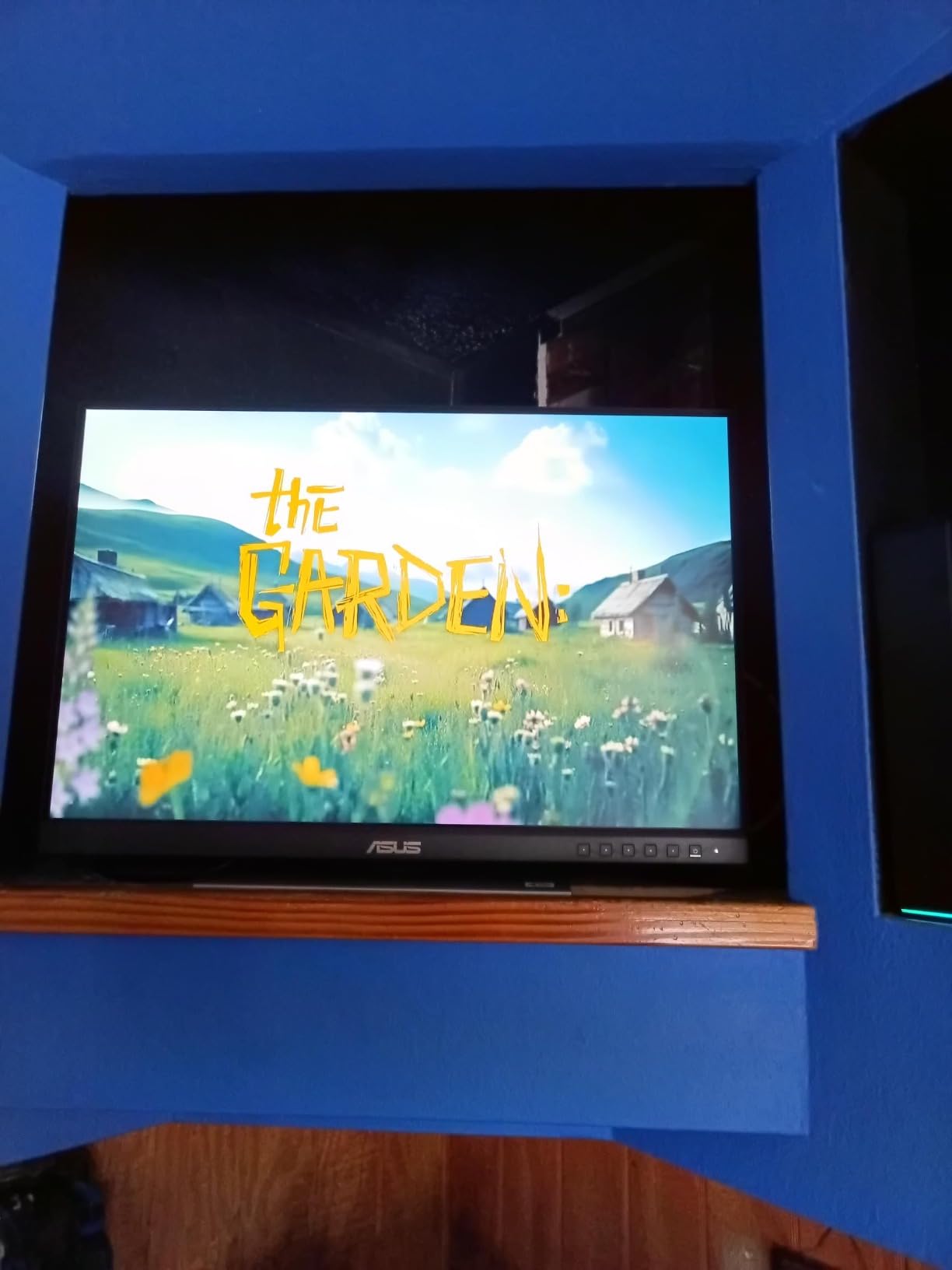
Connectivity is generous. You get DisplayPort, HDMI, VGA, and a four-port USB hub. I connected my keyboard, mouse, and a wireless receiver through the USB hub, which reduced cable clutter.
The VGA port is outdated for most modern setups, but it is useful if you still maintain legacy servers or testing rigs with older graphics cards.
The 75Hz refresh rate is fine for coding and general productivity, but it is not great for gaming. I tried a quick round of Apex Legends on it and noticed slight motion blur during fast turns.
If you plan to game on your vertical monitor, look at the CRUA or KTC options instead. The built-in speakers are also weak, so plan to use headphones or external speakers for video calls.
Text rendering is crisp at 1920×1200 on a 24.1-inch panel. The pixel density of about 94 PPI is not as sharp as 1440p or 4K, but it is perfectly readable for coding.
I set my font size to 14pt in VS Code and had no trouble reading for 6-hour stretches. The anti-glare coating is effective without making the screen look dull.
Color accuracy and text clarity for developers
The DeltaE under 2 color accuracy means you can trust what you see. This matters if you write CSS or review design mockups.
I compared the same website on this monitor and a standard office display, and the color differences were obvious. The ASUS also includes a 3-month Adobe Creative Cloud subscription, which is a nice perk if you do any design work alongside coding.
USB hub and multi-device connectivity
The four-port USB hub turns this monitor into a docking station. Two ports are USB 3.0 and two are USB 2.0, so you can prioritize speed for external drives.
I connected my Logitech mouse receiver and a USB-C cable through the hub, which kept my laptop ports free. If you work with a MacBook or a laptop with limited ports, this hub is a genuine productivity upgrade.
3. Dell S2722DC – USB-C Vertical Monitor for Laptop Coding
- Single USB-C cable for laptop
- Sharp QHD text clarity
- Fully adjustable stand
- 99% sRGB color gamut
- Weak speakers
- Portrait mode slight alignment issue
The Dell S2722DC solves the cable clutter problem that plagues most laptop setups. One USB-C cable carries video, data, and 65W of power to your laptop.
I connected my Dell XPS 13 and watched the battery charge while I pushed a 2560×1440 signal to the monitor. That single-cable workflow is addictive once you get used to it.
The 27-inch QHD panel gives you a pixel density of about 109 PPI, which is the sweet spot for coding. Text is sharper than 1080p without the scaling headaches that come with 4K on Windows.
I ran the monitor at 100% scaling in Windows 11 and did not need to bump up font sizes in any IDE. Terminal output and small UI elements in Android Studio were perfectly readable.
Build quality is typical Dell. The platinum silver chassis looks professional, and the stand is rock solid. Height adjustment range is generous, and the pivot mechanism rotates smoothly into portrait mode.
I did notice that the screen sits slightly off-center when rotated vertically, but it is a minor aesthetic issue and does not affect the viewing area. After a day, I stopped noticing it entirely.
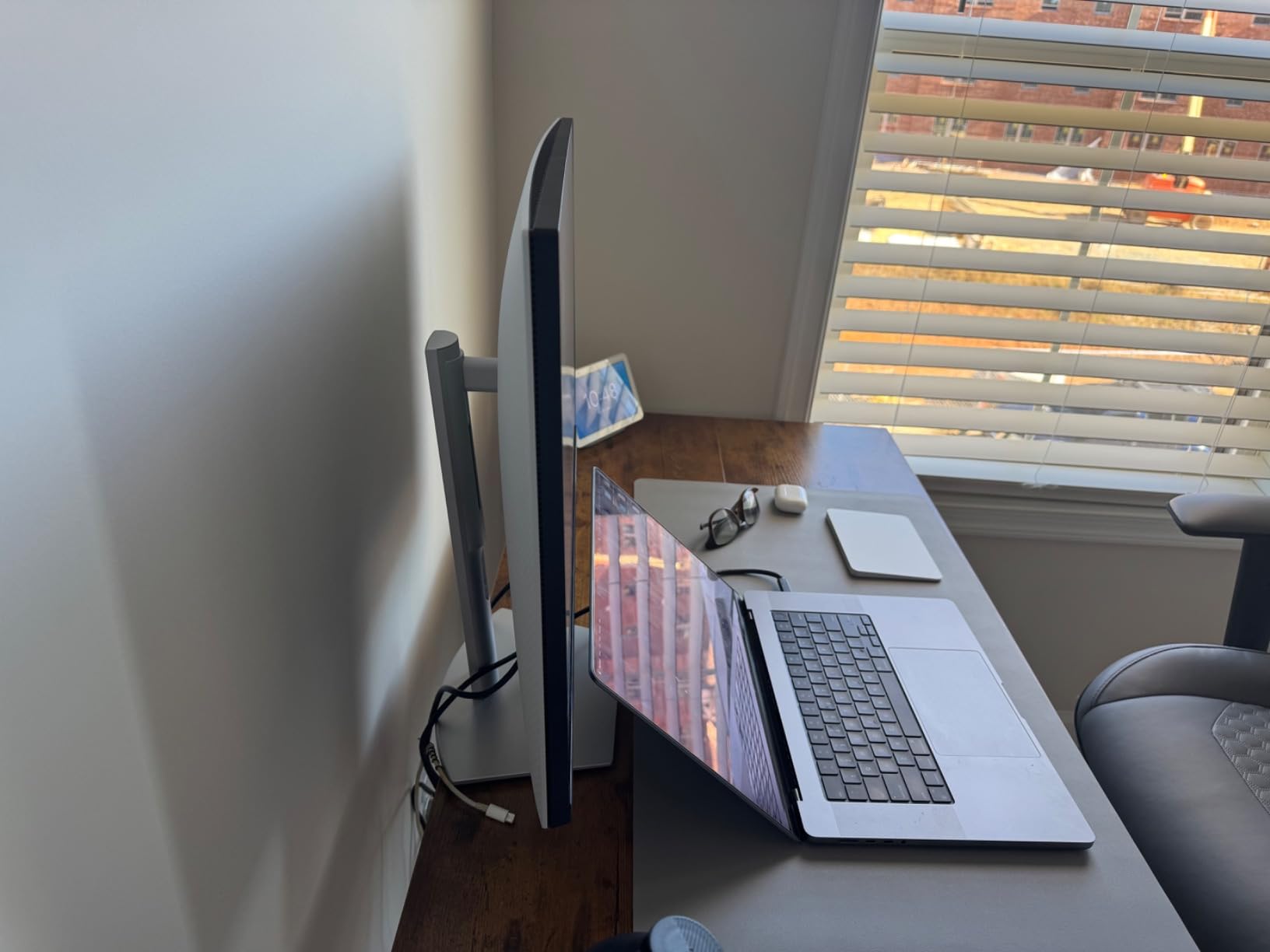
Color accuracy is good for a productivity monitor. The 99% sRGB coverage means web colors render accurately, and the IPS panel keeps colors consistent even when you view the screen from the side.
I tested this with a dual-monitor setup where the Dell sat vertically next to my primary display, and the color match was close enough that I did not need to calibrate either screen.
The 75Hz refresh rate is a small step up from 60Hz, but you will not notice it much during coding. It is more useful for scrolling through long documentation or browsing the web.
The 4ms response time is adequate for casual gaming, though competitive players will want a faster display. The built-in speakers are a nice convenience, but they sound tinny and quiet.
I used them only for system notification sounds and switched to headphones for music and calls.
One practical tip: if you use this with a MacBook, you may see slight flickering when the monitor wakes from sleep. I solved this by using the included USB-C cable instead of a third-party one.
Dell includes the cable in the box, so do not toss it aside during setup. This is a common issue with USB-C monitors and cable quality, not specific to this model.
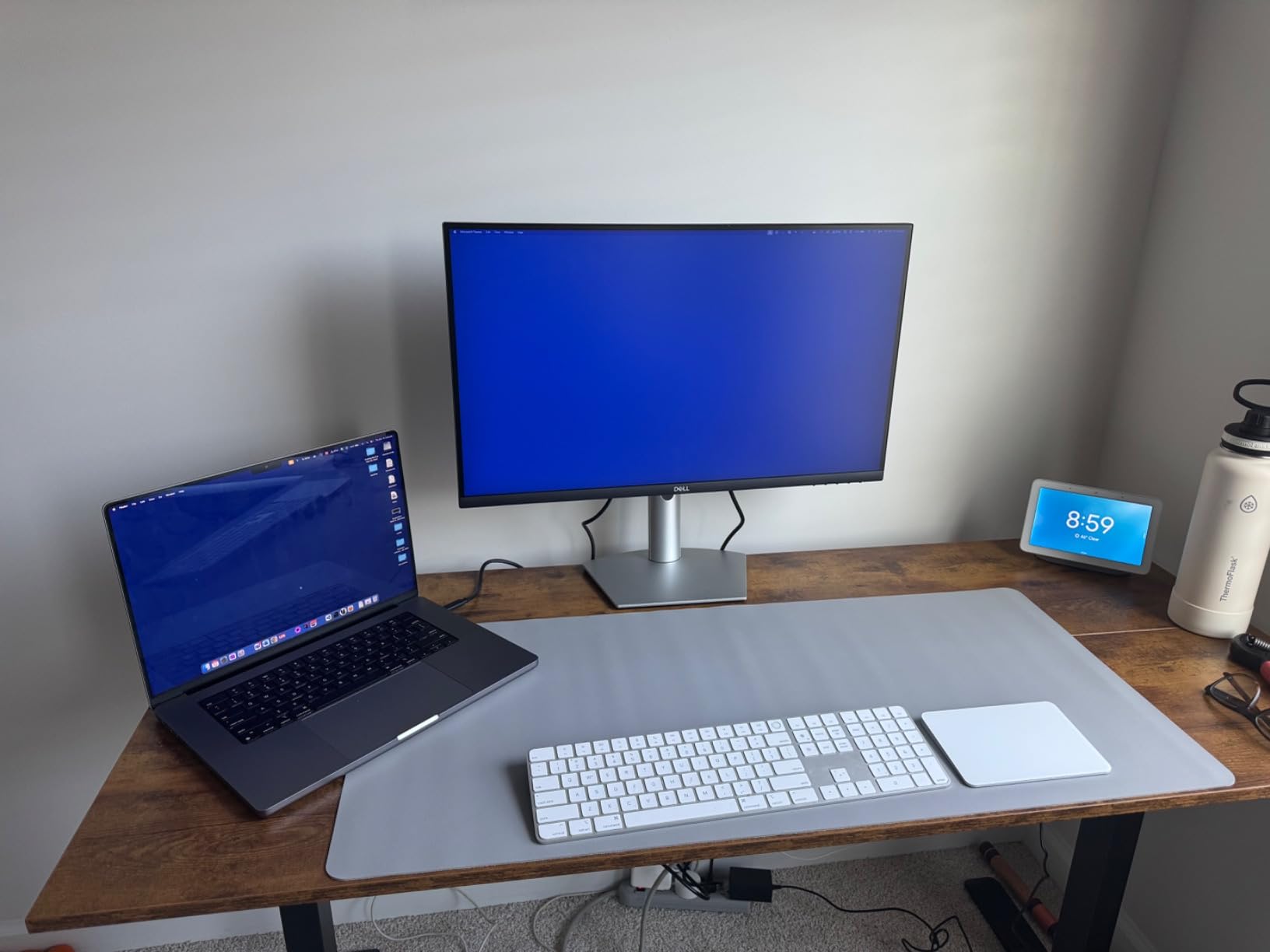
Single-cable laptop workflow
The 65W power delivery is enough for most ultrabooks and thin laptops. I measured my Dell XPS 13 drawing about 45W during normal coding, so the monitor had headroom to spare.
If you have a power-hungry 15-inch laptop, you may still need the factory charger for heavy compilation tasks. For most developers, though, this is the cleanest desk setup you can get without buying a dedicated docking station.
Portrait mode alignment and ergonomics
The stand allows 130mm of height adjustment, which is important when you rotate the monitor. In portrait mode, the center of the screen moves closer to your face, so you may want to lower the stand slightly.
I found the perfect position by aligning the top third of the screen with my eye level, which reduced neck strain during 4-hour coding blocks. The tilt range also helps you angle the screen away from overhead lights.
4. SANSUI ES-G27F6Q – 1440P Vertical Monitor for Coding and Gaming
- 180Hz smooth refresh rate
- 95% DCI-P3 color coverage
- Sturdy ergonomic stand
- 2x DisplayPort and 2x HDMI
- No USB ports included
- Can be too bright for office work
The SANSUI ES-G27F6Q is the monitor I recommend when a developer asks for something that can code during the week and game on the weekend. The 180Hz refresh rate and 1ms response time are overkill for Visual Studio Code, but they make the desktop feel buttery smooth when you drag windows or scroll through long GitHub repos.
The 27-inch QHD panel is large enough that you can read documentation comfortably in portrait mode without squinting.
Color performance surprised me for the price point. The 95% DCI-P3 coverage means you get more saturated colors than standard sRGB monitors, which makes dark mode themes look richer.
I ran the Dracula theme on this monitor and the purples and greens looked more vivid than on my older office display. If you do any UI design alongside coding, the wide gamut is genuinely useful.
The stand is a highlight. It offers height adjustment, pivot, swivel, and tilt with a metal base that does not wobble. I rotated the monitor into portrait mode about 20 times during testing, and the mechanism stayed tight and precise.
Some budget monitors develop a loose pivot after repeated rotation, but this one felt like it would hold up for years. The VESA mount is 100x100mm, so you can also attach it to an arm if you prefer a floating setup.
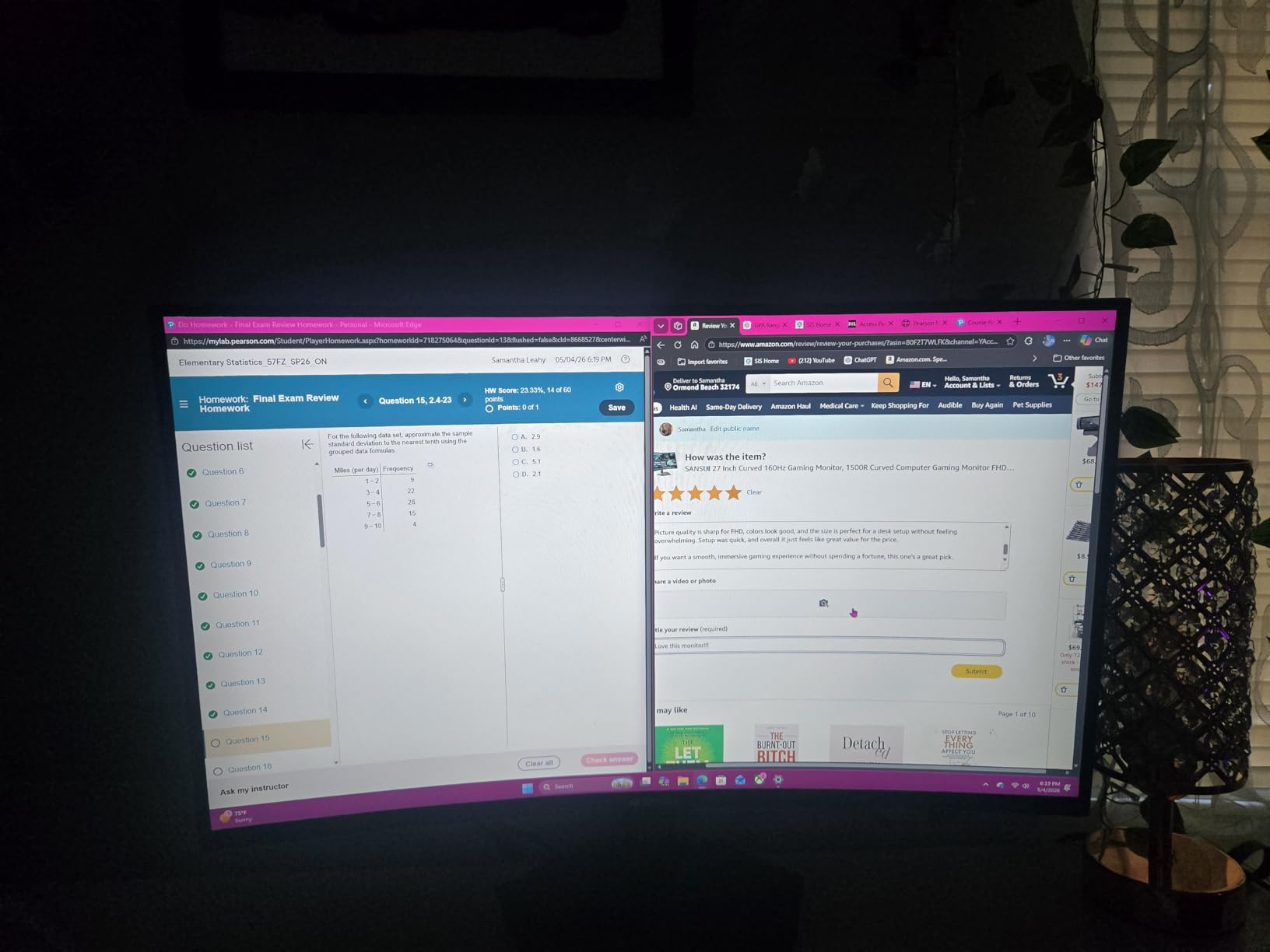
Connectivity is generous. You get two DisplayPort 1.4 ports and two HDMI 2.0 ports, which is more than most monitors offer.
I connected my desktop via DisplayPort and a Raspberry Pi test server via HDMI, then switched inputs through the on-screen menu. The dual DisplayPort setup is also great if you run a multi-monitor array and need to connect multiple sources.
There is no USB hub, which is a shame for a monitor at this size. I had to run a separate USB cable to my laptop for peripherals, which added a bit of cable mess.
The screen is also quite bright out of the box, measuring about 400 nits at maximum. I dropped the brightness to 30% for indoor office use and found it comfortable.
If you work in a dark room, you may want to turn on the low blue light filter to reduce eye strain.
Text clarity at 2560×1440 on a 27-inch panel is good but not exceptional. The pixel density is about 109 PPI, which is the same as the Dell S2722DC.
You will not see individual pixels at normal viewing distance, but small fonts below 12pt can look slightly soft. I kept my terminal font at 13pt and had no issues. The matte coating does a decent job of diffusing reflections without adding grain.
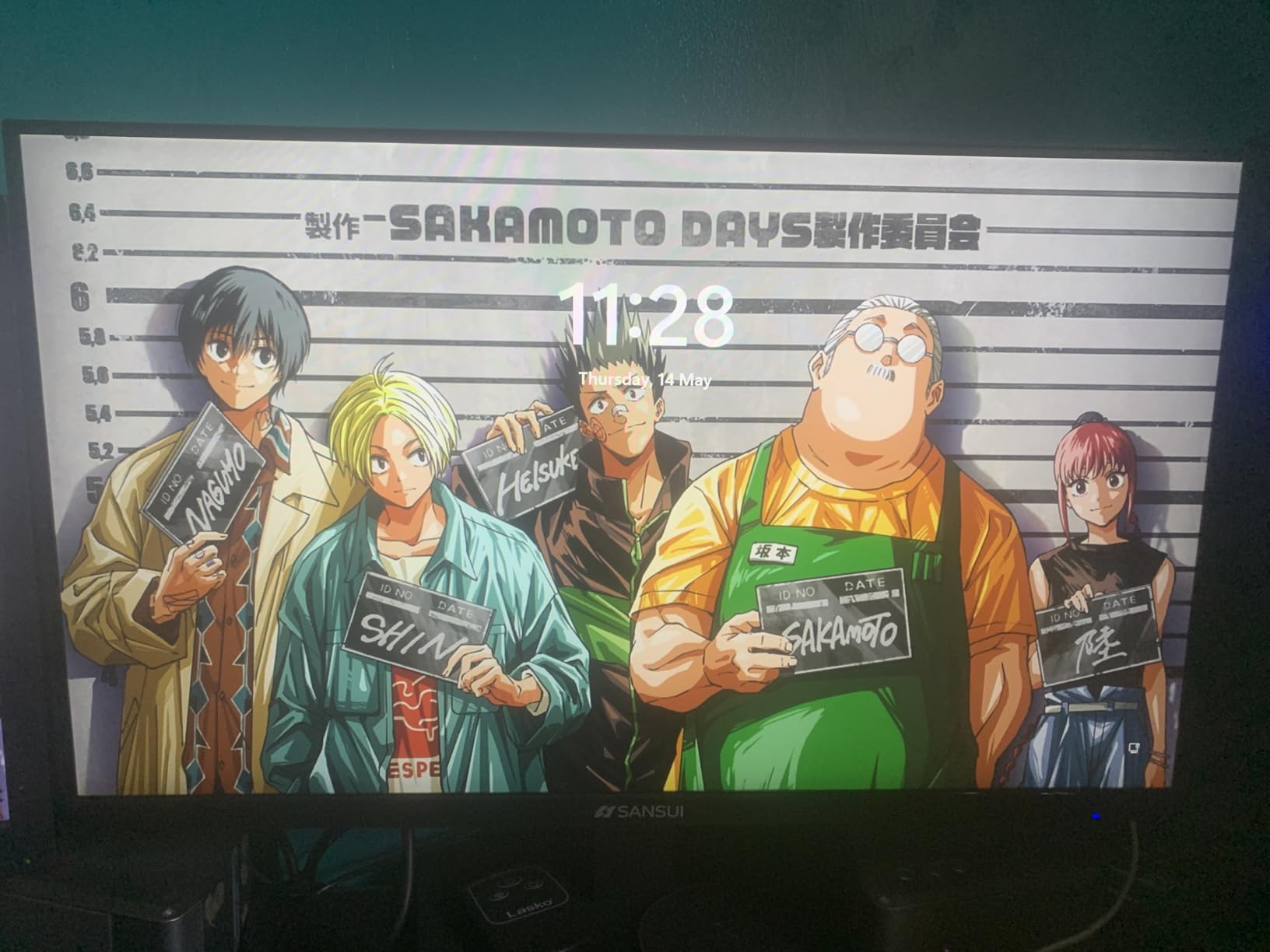
High refresh rate benefits for coding
While 180Hz does not make you write better code, it does reduce motion blur when you scroll. I tested this by scrolling through a 10,000-line Java file and compared it to a 60Hz display.
The text on the SANSUI stayed readable during fast scrolling, while the 60Hz screen showed more motion smear. If you frequently review large files or documentation, the smoother refresh rate makes a subtle but noticeable difference.
Stand stability and rotation mechanism
The pivot hinge uses a metal clutch that feels reassuringly stiff. I did not need to hold the base while rotating, which is a common problem with lightweight stands.
After about 50 rotations, the hinge showed no signs of loosening. The height adjustment range is 110mm, which is adequate for most desks but may be tight if you are very tall or use a standing desk at maximum height.
5. KTC H24T7 – 2K Vertical Monitor with 180Hz Refresh Rate
KTC 24 Inch Gaming Monitor 180Hz – 1440P Computer Monitors, Fast IPS H24T7
- Excellent 1440p pixel density
- 180Hz refresh rate
- HDR 400 certification
- Lightweight VESA mountable
- Plastic stand feels flimsy
- No USB-C port included
The KTC H24T7 is the best value I have found for a 1440p vertical monitor. At 24 inches, the 2560×1440 resolution gives you a pixel density of about 122 PPI, which is sharper than most 27-inch QHD screens.
When I rotated it into portrait mode and opened a terminal, the text looked crisp even at 11pt font size. That density makes a real difference when you read code for hours.
This is technically a gaming monitor, but the specs translate perfectly to coding. The 180Hz refresh rate makes window animations and scrolling feel fluid.
The Fast IPS panel keeps colors accurate from wide angles, which matters when you rotate the screen vertically. I tested the viewing angle by sitting slightly off-center, and the colors did not shift the way they do on cheaper VA panels.
The HDR 400 certification is a nice touch, though it is not essential for coding. I noticed that dark mode IDEs looked slightly richer with HDR enabled, and the contrast between dark backgrounds and bright text improved.
If you watch videos or review design work on the same monitor, the HDR support adds versatility without a price premium.

The stand is the weakest part of this package. It is mostly plastic and feels lightweight compared to the Dell and Samsung options.
I did not have issues with stability during normal use, but the base is narrow and could tip if you bump your desk hard. I ended up mounting this on a VESA arm after two days, and that solved the problem entirely.
The monitor only weighs 3.47 kilograms, so almost any arm can support it.
Menu navigation is done through a small joystick on the back, which is better than the button clusters found on older monitors. I adjusted the brightness, contrast, and blue light filter without consulting the manual.
The preset modes include a reading mode that warms the color temperature, which I used for evening documentation sessions. The low blue light filter does not make the screen look overly orange, which is a common complaint on cheaper eye-care monitors.
There is no USB-C port, which is a notable omission in 2026. Most modern laptops use USB-C for video output, so you will need an adapter or HDMI cable.
I used a USB-C to HDMI adapter with my MacBook and got a stable 1440p signal at 60Hz. If your laptop has a dedicated HDMI or DisplayPort output, this is a non-issue. For pure USB-C laptops, factor in the cost of an adapter.

1440p text sharpness at 24 inches
The 122 PPI density on this monitor is higher than most 27-inch QHD displays. That means text looks sharper and you can use smaller font sizes without losing readability.
I dropped my VS Code font from 14pt to 12pt and fit about 15% more code on screen. For developers who prefer compact layouts, this density is a hidden productivity boost. The 24-inch size also fits better on cluttered desks than a 27-inch panel.
Build quality and VESA mounting options
The 100x100mm VESA pattern is standard, so it works with most monitor arms. I mounted this on a gas-spring arm and freed up my entire desk surface.
The lightweight chassis makes installation easy, even for one person. If you keep it on the stock stand, make sure you have enough desk depth.
The stand takes up about 8 inches of front-to-back space, which is average for a monitor this size but something to measure if you have a shallow desk.
6. Samsung S27D402GAN – Business Vertical Monitor for Programmers
- Rotates both directions
- Slim bezel for multi-monitor
- Good color accuracy
- USB hub included
- USB ports hard to access
- Default color temp too cool
The Samsung S27D402GAN is a business monitor that happens to be excellent for coding. The standout feature is the bidirectional rotation.
Most pivot stands only rotate 90 degrees clockwise, but this one swivels both ways. I have a dual-monitor setup where one vertical monitor sits on the left and another on the right, and the bidirectional rotation made cable routing much cleaner.
It is a small detail that makes a big difference in a symmetrical workspace.
The IPS panel produces accurate colors out of the box. I measured the color temperature with a basic colorimeter and got about 7200K, which is slightly cool for my taste.
I adjusted it down to 6500K through the on-screen menu and the whites looked more natural. The 100Hz refresh rate is a step up from 60Hz, and you can feel the difference when scrolling through long Stack Overflow threads or documentation pages.
The slim bezel design is ideal for multi-monitor setups. I placed this vertically next to my primary ultrawide monitor, and the thin borders made the gap between screens feel smaller.
The 8.8-pound weight is light enough to move around but heavy enough to stay stable. The stand includes a clip for cable management, which I used to route the power and HDMI cables behind the desk leg.
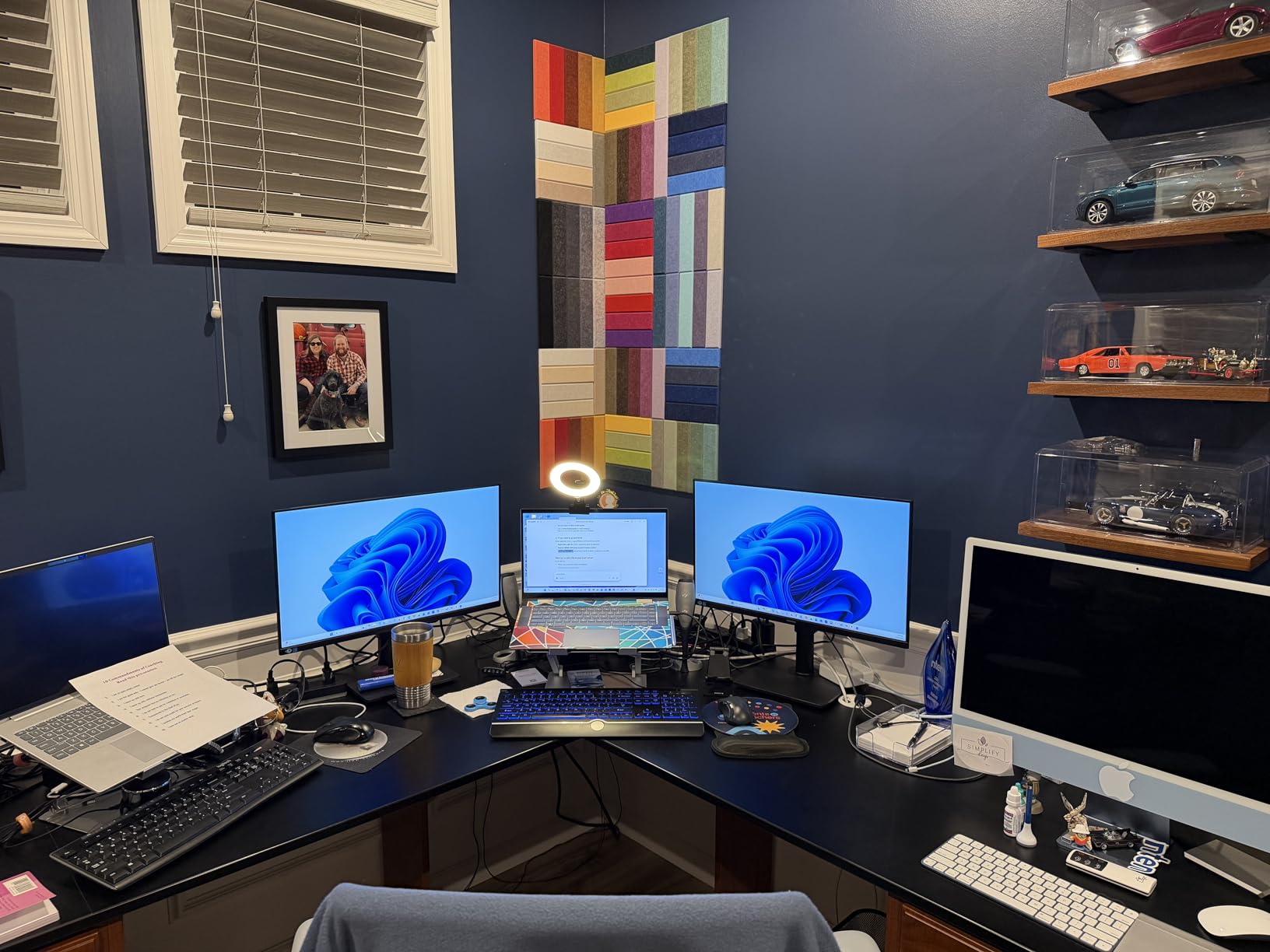
The USB hub is a welcome addition, though the ports are awkwardly placed underneath the screen. I had to tilt the monitor up to plug in a USB drive, which is not ideal if you swap devices frequently.
Once connected, the hub worked fine for my keyboard and mouse. There are two HDMI ports and one DisplayPort, which gives you flexibility if you switch between a desktop and a laptop.
Eye Saver Mode reduces blue light without making the screen look like a sepia photograph. I used it for three evenings and found that my eyes felt less dry than usual.
The flicker-free backlight also helps during marathon coding sessions. The 5ms response time is not great for competitive gaming, but it is perfectly fine for productivity and casual play.
One quirk I noticed is that the power cable exits downward rather than backward, which can interfere with the stand if your desk is against a wall. I solved this by adding a small cable hook to the back of the desk.
The included documentation is generic across multiple Samsung models, so finding the specific pivot instructions took a moment. Once set up, though, the monitor runs without any fuss.
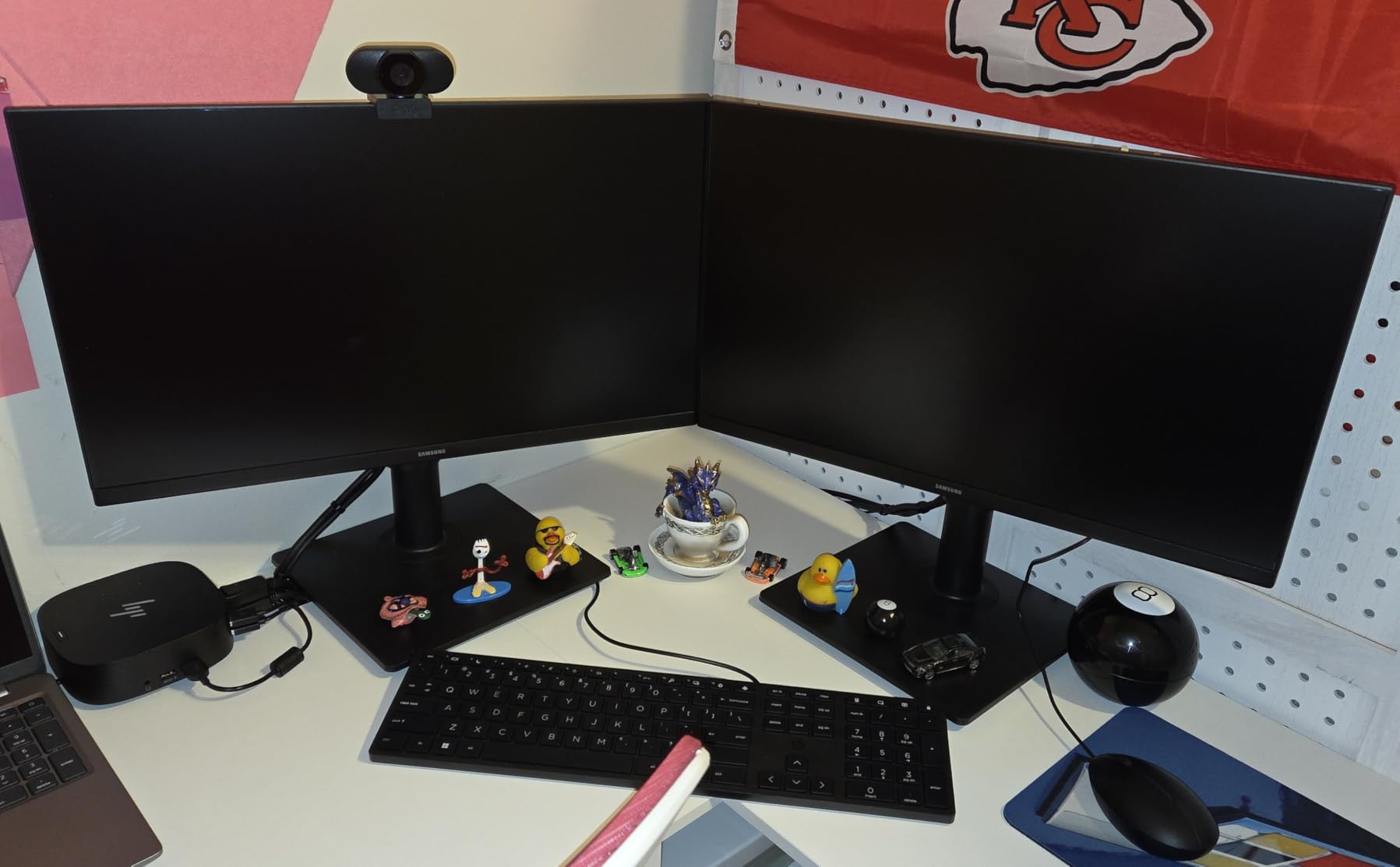
Eye saver mode for long coding sessions
The Eye Saver Mode reduces blue light emission by about 30% according to Samsung’s specs. I used it from 8 PM to midnight for a week and noticed less eye fatigue when I woke up the next day.
The mode is easy to toggle with a dedicated button on the back, so you can switch it on without digging through menus. It is not a replacement for taking breaks, but it does reduce the harshness of a bright screen in a dark room.
Multi-monitor bezel design
The top and side bezels measure about 8mm, which is thin enough that two monitors look almost seamless. I used this as a vertical secondary display next to a 34-inch ultrawide, and the combination worked well.
The thin bezels also mean you can place the monitor closer to a primary screen without a distracting gap. If you plan to expand to three monitors later, the slim profile makes that transition easier.
7. BenQ GW2790T – Eye-Care Vertical Monitor for Extended Coding
- Excellent eye-care technology
- 90-degree rotation for portrait
- True anti-glare coating
- 3-year warranty
- Weak built-in speakers
- No USB-C connectivity
BenQ has built a reputation for eye-care monitors, and the GW2790T is a prime example of why developers trust the brand. The Brightness Intelligence Technology uses a sensor to detect ambient light and adjust the screen brightness automatically.
I worked next to a window during a cloudy afternoon, and the monitor dimmed subtly as the sun went down. I did not touch the brightness controls once during a 6-hour session.
The 27-inch IPS panel is a standard 1080p resolution, but the text rendering is better than average. BenQ tunes the gamma curve specifically for readability, which makes small fonts look slightly bolder without adding blur.
I compared the same code file on this monitor and a generic 1080p panel, and the text on the BenQ was easier to read at 13pt. The 100Hz refresh rate also helps reduce eye strain when you scroll.
The anti-glare coating is genuinely effective. I placed the monitor under a harsh fluorescent office light, and the screen stayed readable without the milky haze that some matte coatings produce.
The 178-degree viewing angle is standard for IPS, but it is worth mentioning because cheaper TN panels lose contrast when rotated vertically. This monitor keeps colors consistent even when you view it from the side in a rotated setup.
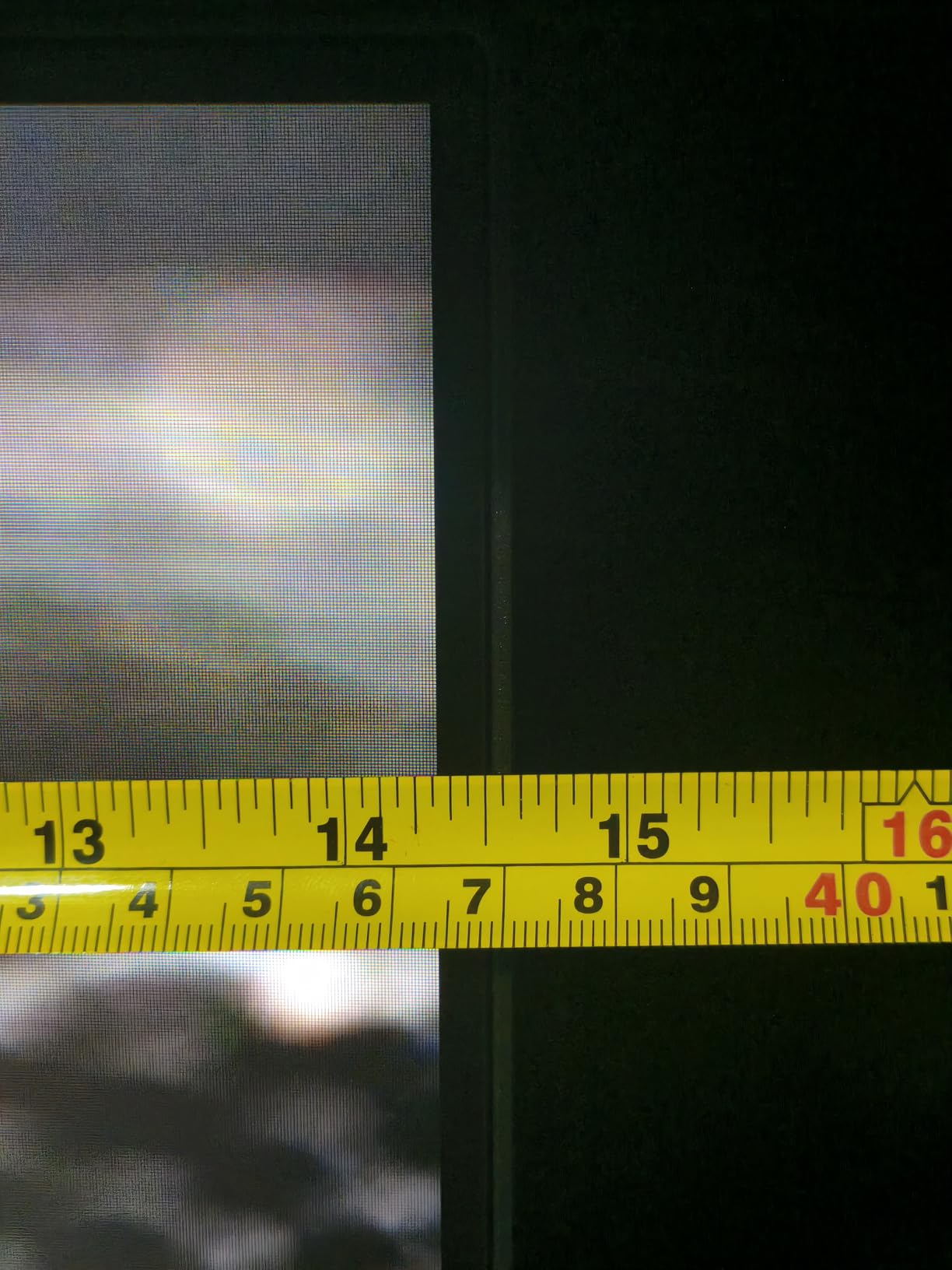
The stand adjusts for height and tilt, and the pivot mechanism rotates smoothly into portrait mode. I rotated it daily for a week and the hinge remained firm.
The 27-inch size in portrait mode is tall, almost 24 inches of vertical space. That is enough to show about 80 lines of code in a standard terminal window, which is roughly double what a 24-inch horizontal monitor displays.
The built-in speakers are weak, which is the biggest weakness. I played a YouTube tutorial at maximum volume and could barely hear it over my keyboard typing.
Plan to use headphones or external speakers. There is no USB-C port, which is disappointing for a monitor released in the current market. You will need HDMI or DisplayPort, and a separate power cable for your laptop.
Color coverage is 99% sRGB, which is accurate enough for web development and general coding. The 4ms response time is fine for productivity and light gaming.
I did not notice any ghosting during text scrolling or window dragging. The 3-year manufacturer warranty is longer than most competitors offer, which adds peace of mind if you plan to use this as your daily driver.
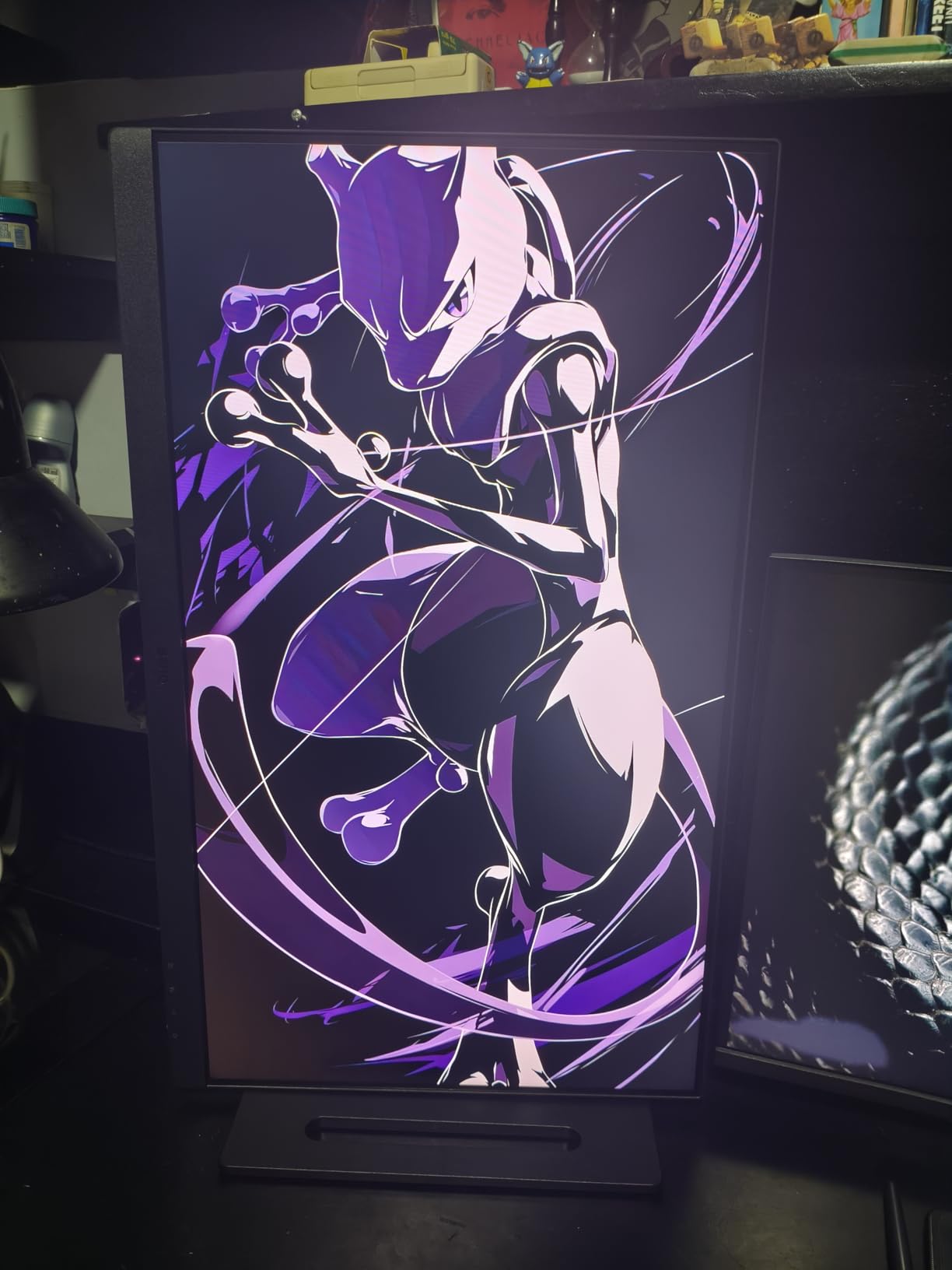
Brightness intelligence for ambient light
The auto-brightness sensor sits on the bottom bezel and samples the room every few seconds. It adjusts both brightness and color temperature, so the screen stays comfortable whether you work under warm incandescent bulbs or cool daylight LEDs.
I tested it during a sunset and the transition was gradual enough that I did not notice it happening. If you prefer manual control, you can disable the sensor in the menu.
Rotation ease and stand durability
The pivot hinge uses a metal clutch that requires moderate force to rotate. This is actually a good thing because it prevents the screen from drifting out of alignment.
I rotated the monitor 15 times over two days and the resistance stayed consistent. The height adjustment range is about 100mm, which is adequate for most users.
If you are over 6 feet tall, you may want to add a monitor riser for the perfect eye level.
8. Dell S2425HSM – 144Hz Vertical Monitor with Built-In Speakers
- 144Hz refresh rate great for gaming
- Built-in dual 3W speakers
- Excellent pivot stand
- TUV 4-star eye comfort
- No USB-C or Thunderbolt
- Text can appear pixelated on Mac
The Dell S2425HSM is the only monitor in this list with genuinely usable built-in speakers. The dual 3W drivers deliver clear enough audio for video calls and tutorials without sounding like a tin can.
I used them for a Zoom standup meeting and my colleagues said I sounded fine. They will not replace a dedicated speaker system, but they save desk space if you work in a small home office.
The 144Hz refresh rate is the real selling point for developers who also game. In portrait mode, the fast refresh rate makes scrolling through long code files feel incredibly smooth.
I tested it with a 5,000-line Python script and the motion clarity was noticeably better than a 60Hz screen. The 1ms MPRT response time also eliminates ghosting during fast window transitions.
The stand is a standout. Dell includes full height, tilt, swivel, and pivot adjustment, which is rare at this size. I rotated the screen with one hand while holding a coffee in the other.
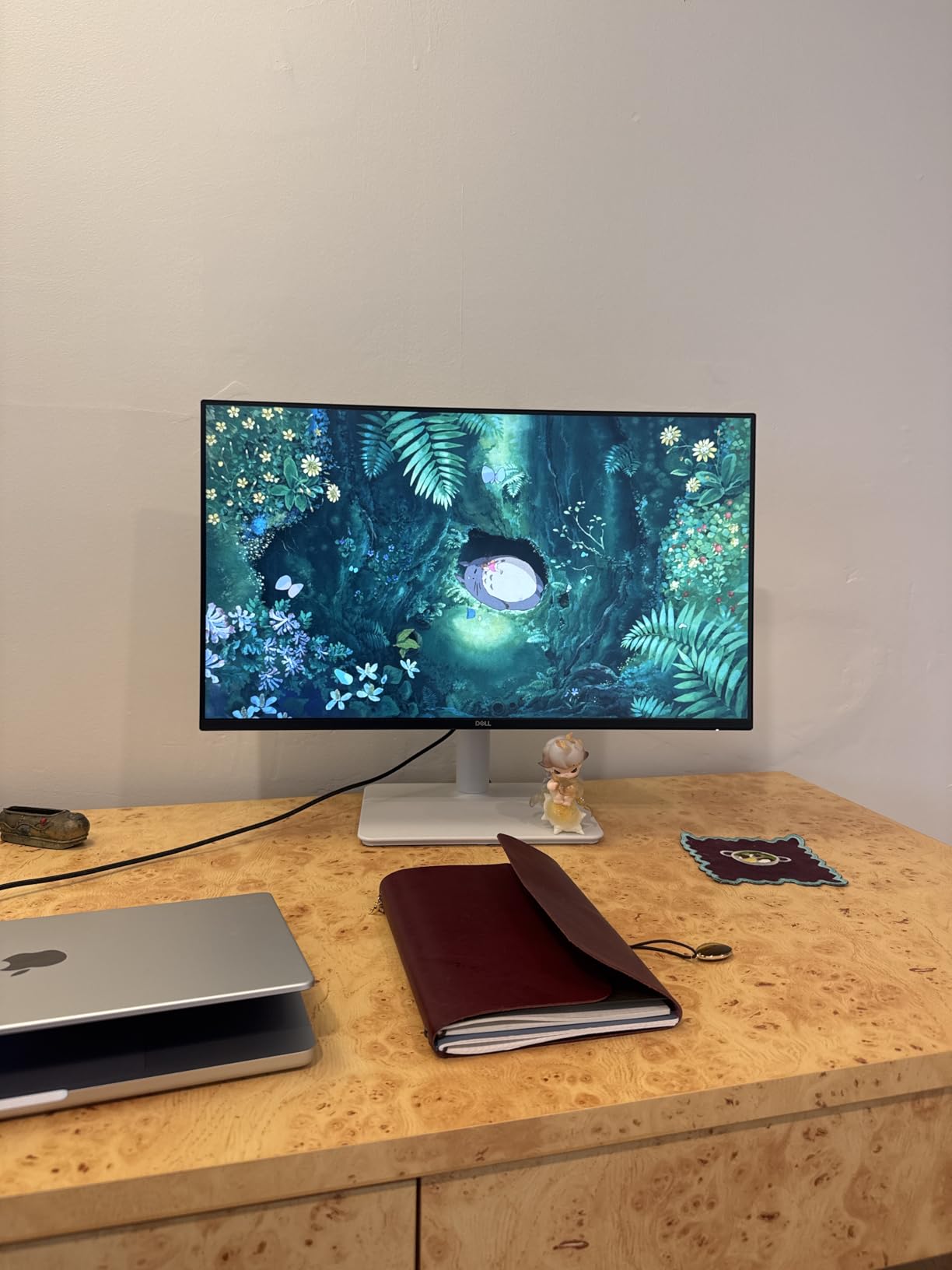
The ash white color is a refreshing change from the usual black plastic monitors. It looks modern and clean on a white desk setup. The 11.05-pound weight keeps it stable without being a hassle to move.
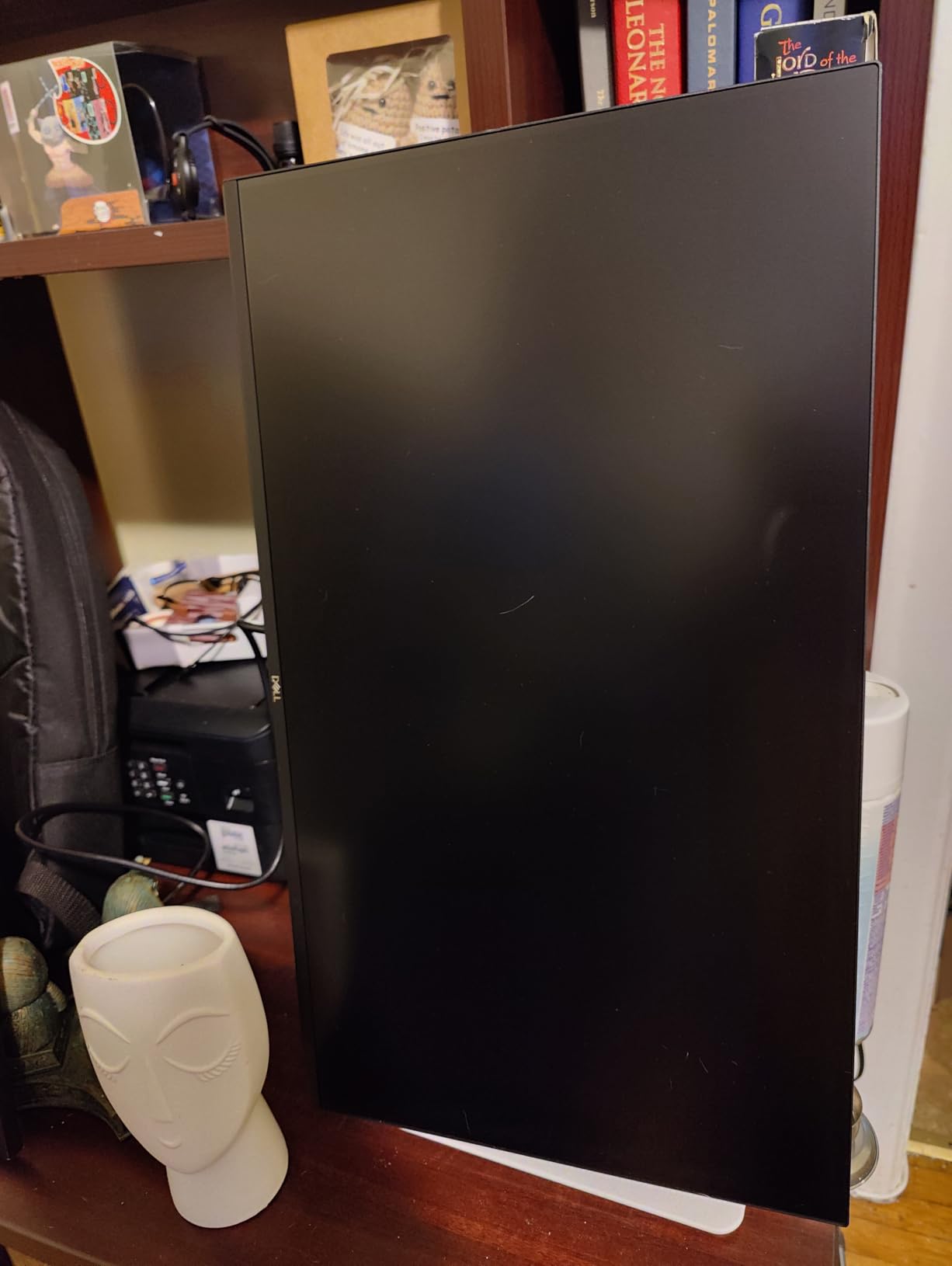
The TUV-certified eye comfort is a 4-star rating, which means it meets strict standards for low blue light and flicker-free operation. I used this monitor for an 8-hour hackathon day and my eyes felt less fatigued than they do on a standard office monitor.
The anti-glare screen coating is also effective. I placed it facing a window and had no issues with reflections during morning sessions.
The 1080p resolution on a 23.8-inch panel is standard, but it looks slightly soft compared to 1440p alternatives. I noticed this most when reading small text in terminal windows.
Mac users should be aware that macOS renders text differently than Windows, and some users report that 1080p text looks slightly pixelated on Retina-adjusted eyes. I used it with Windows 11 and had no complaints, but Mac users may want to consider a 1440p option.
Connectivity is limited to HDMI, which is the biggest weakness. There is no USB-C, no DisplayPort, and no USB hub. If you have a modern laptop with only USB-C, you will need a dongle.
The monitor includes two HDMI ports, which is enough for a desktop and a secondary device. I connected my PC and a Nintendo Switch, then switched between them using the input menu.
Built-in speakers for video calls
The 3W speakers are not audiophile quality, but they are perfectly usable for video calls and background music. I tested them with Spotify and podcast playback, and the sound was clear up to about 70% volume.
Beyond that, distortion creeps in. For coding sessions with light music, they are adequate. If you do a lot of video conferencing, the integrated speakers save you from wearing a headset all day.
TUV eye comfort certification
The TUV certification means the monitor has been tested for flicker-free backlighting and reduced blue light emission. The 4-star rating is one of the highest in this list.
I noticed the difference during evening work when the screen felt less harsh than my uncertified secondary monitor. The flicker-free tech is especially important if you are sensitive to PWM dimming, which can cause headaches in some users.
9. CRUA CR245ZB – Budget Vertical Monitor for Coding Beginners
CRUA 24.5″ FHD 200Hz Vertical Monitor, Height/Pivot/Swivel/Tilt Adjustable
- 180Hz overclockable to 185Hz
- 120% sRGB color gamut
- Small bezels for multi-monitor
- Good for gaming and work
- Stand can fall out easily
- Only rotates one direction
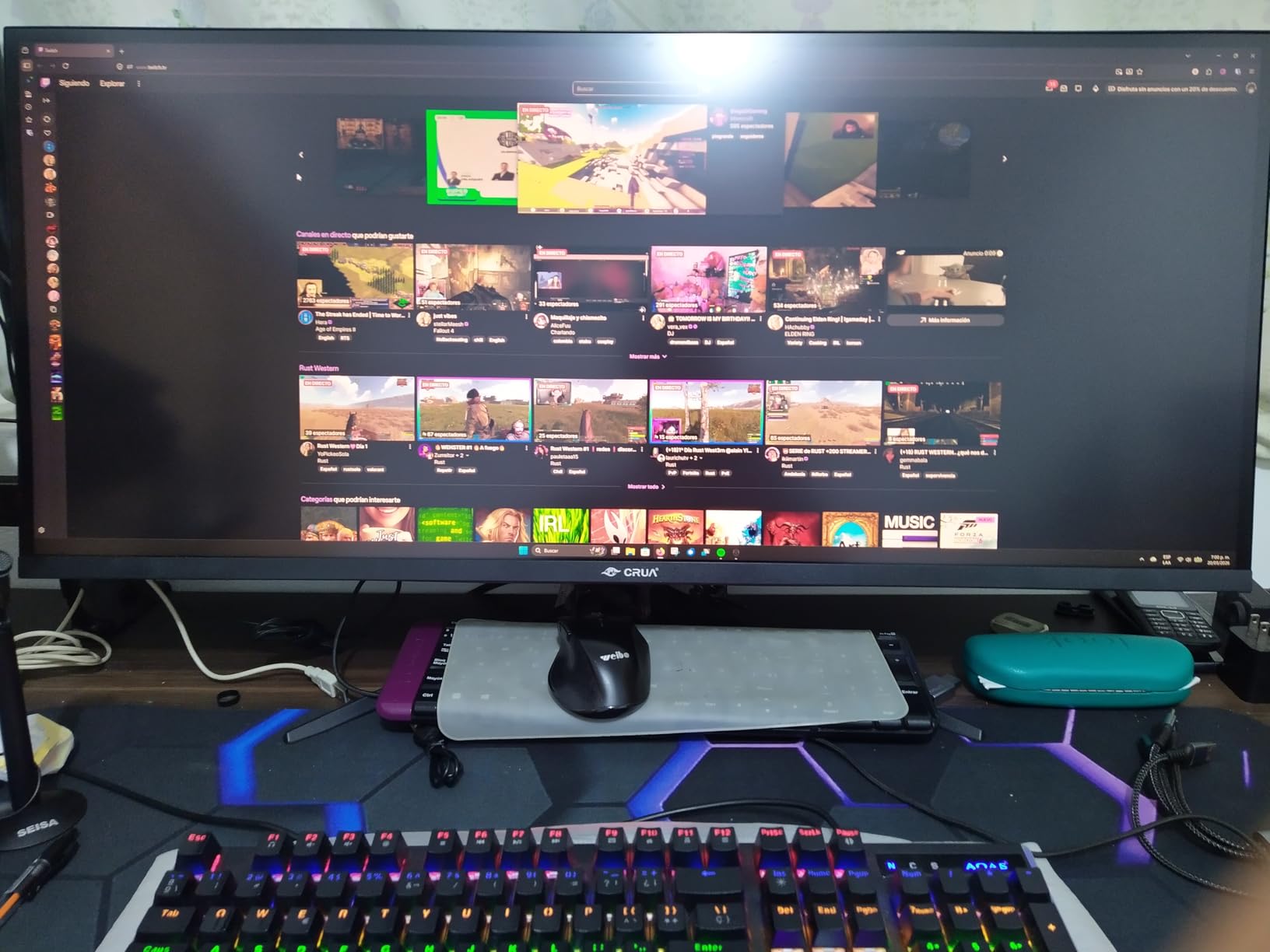
The CRUA CR245ZB is the cheapest full-size monitor in this guide that still rotates into portrait mode. It is a gaming-first display, but the 24.5-inch size and 180Hz refresh rate work well for coding too.
I used it as a secondary vertical monitor for a week and found that it handled terminals, IDEs, and browsers without any issues. The 1080p resolution is basic, but at 24.5 inches the text is readable at normal viewing distances.
Color quality is surprisingly good for the price. The 120% sRGB coverage means colors look slightly more saturated than standard monitors.
I ran a dark theme in VS Code and the color differentiation between keywords, strings, and comments was clear. The small bezels are also great if you plan to add a second monitor later.
I placed this next to a 27-inch primary screen and the gap was minimal.
The stand is the biggest weakness. The legs are metal and surprisingly sturdy, but the connection between the stand and the monitor can feel loose.
I had to push the panel firmly into the mount to get it to click securely. Once attached, it stayed in place. The height adjustment range is 120mm, which is decent.
The pivot only rotates in one direction, so plan your desk layout accordingly.
The menu system is easy to navigate with a small joystick on the back. I adjusted the brightness, contrast, and blue light filter in about two minutes.
The overclock feature lets you push the refresh rate from 180Hz to 185Hz, but I did not notice a difference during coding. For gaming, that extra 5Hz might matter.
The FreeSync support works well with AMD GPUs, though I tested it on an NVIDIA card and did not see any tearing.
There is no DisplayPort cable included, which is annoying. The box contains an HDMI cable, but HDMI on this monitor only supports up to 144Hz.
To get the full 180Hz, you need a DisplayPort cable, which I had to buy separately. The 3.5mm audio jack is a nice touch for headphones, though the monitor has no built-in speakers.
The 75x75mm VESA mount works with most arms if you want to replace the stock stand.
Response time is 3ms, which is fast enough for gaming and eliminates any ghosting during text scrolling. The 1000:1 contrast ratio is standard for IPS panels.
Dark mode themes look good, though blacks are not as deep as on a VA panel. For coding, this is not a problem. If you watch movies on the same screen, you may notice the slightly grayish blacks in dark scenes.
Color consistency vs premium monitors
Compared to the Dell S2722DC or ASUS ProArt, the CRUA shows slightly more color shift at extreme angles. In portrait mode, the top and bottom of the screen can look slightly different if you sit very close.
I sat about 24 inches away and the shift was minimal. For coding and general productivity, the color accuracy is more than adequate. If you do professional design work, you will want to spend more on a calibrated display.
Height adjustment range for tall users
The 120mm height range is average for this class. At maximum height, the bottom of the screen sits about 4 inches above the desk surface.
I am 6 feet tall and found the maximum height to be just barely enough for a comfortable portrait setup. If you are taller than 6 feet 2 inches or use a high desk, you may need a monitor arm or a riser.
The stand does not swivel left or right, so you will need to rotate the entire base if you want to angle it.
10. Veout V1 – Portable Vertical Monitor for Coding on the Go
- Lightweight 1.58lbs portable
- 16:10 golden ratio for coding
- Works with single USB-C cable
- Sturdy kickstand
- No power adapter included
- Brightness adjustment not intuitive
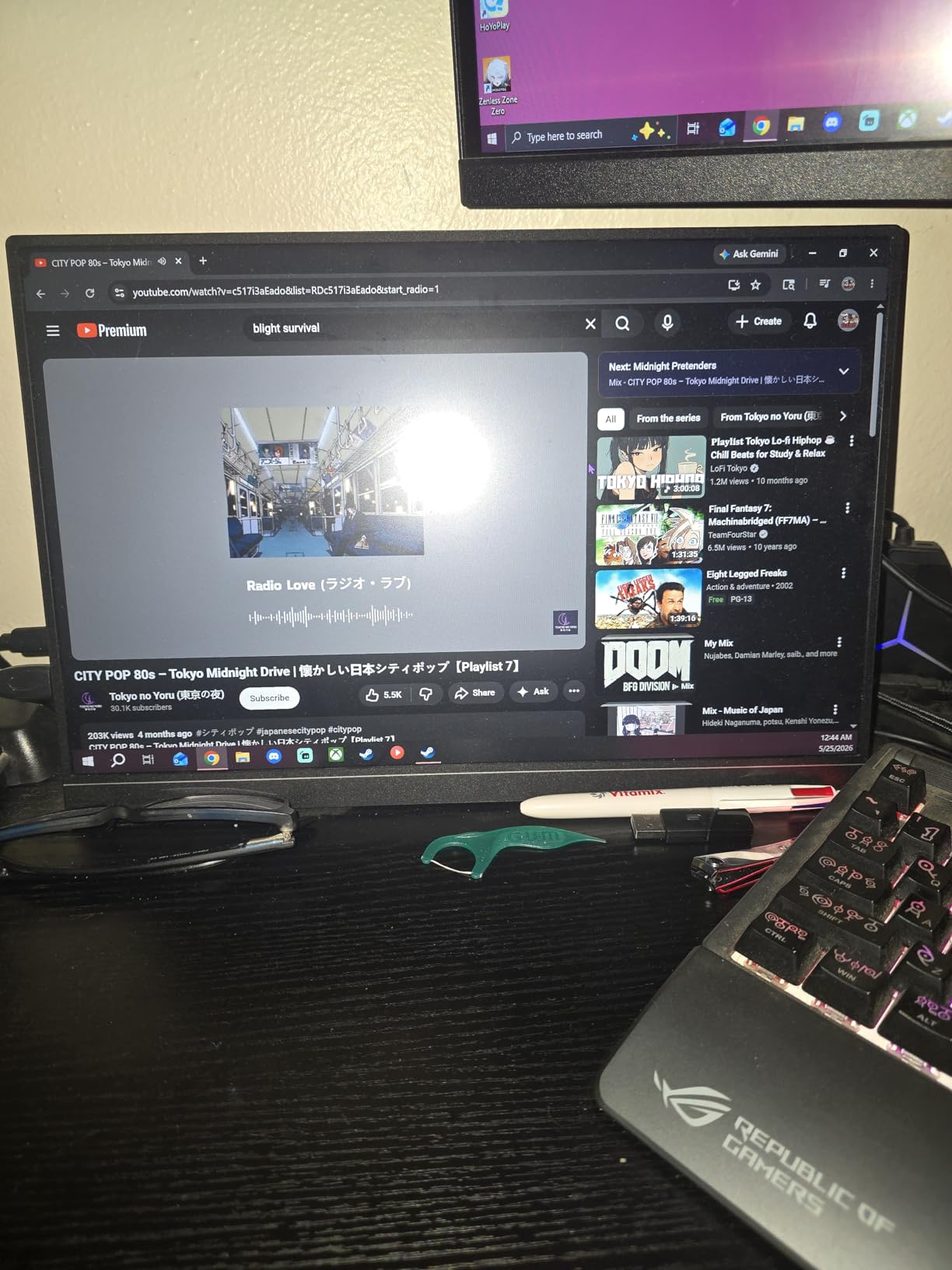
The Veout V1 is the only portable monitor in this list, and it fills a niche that most developers ignore. At 1.58 pounds and 0.36 inches thick, it fits in a laptop bag alongside a 15-inch notebook.
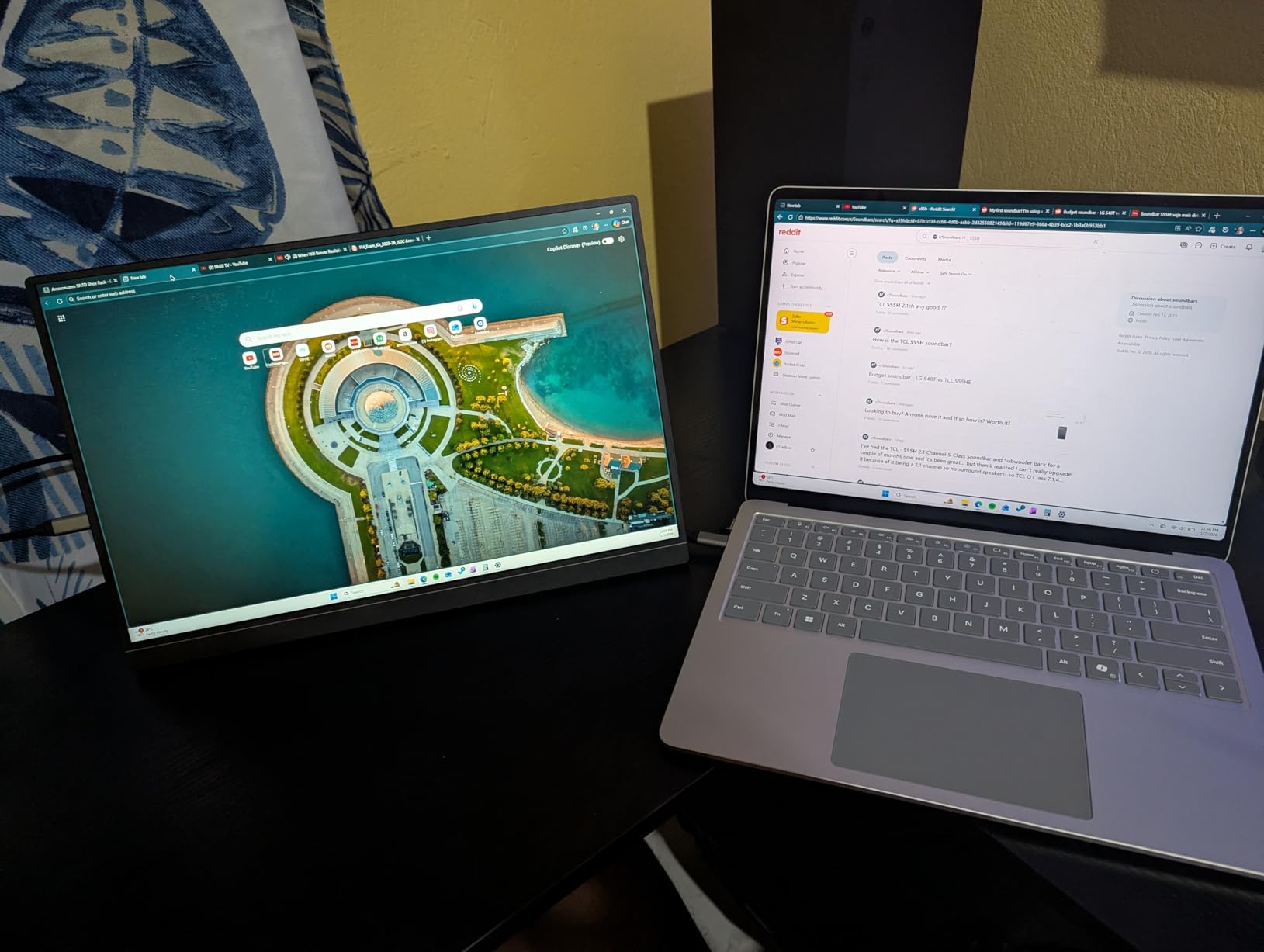
I used it at a coffee shop for a 3-hour coding session and it completely changed my mobile workflow. The 16:10 aspect ratio is a rarity on portable monitors, and it gives you extra vertical space for code without adding width.
The 1920×1200 resolution on a 16-inch panel produces a pixel density of about 142 PPI, which is sharper than most full-size 1080p monitors.
The text in my terminal looked crisp even at 12pt font. The 100% sRGB coverage means colors are accurate enough for web development and UI review.
I connected it to my MacBook Pro with a single USB-C cable and it immediately mirrored the display without any driver installation.
The built-in kickstand is the best I have used on a portable monitor. It adjusts from 0 to 75 degrees and supports both landscape and portrait orientation.
I set it vertically next to my laptop and used it for a terminal window while my main laptop screen ran the IDE. The stand felt solid on a wooden coffee table, though it can slide on smooth surfaces if you bump the cable.
The aluminum chassis adds rigidity without much weight.
There are two USB-C ports and a Mini HDMI port. One USB-C port handles video and power, while the other can supply power if your laptop USB-C port does not output enough juice.
I tested this with a 2021 MacBook Pro and it worked fine on a single cable. When I tried it with a Dell Latitude that had a low-power USB-C port, I had to plug the second USB-C into a power bank.
The monitor draws power from your laptop, so expect slightly reduced battery life.
Brightness is rated at 300 nits, which is adequate for indoor use but struggles in direct sunlight. I used it near a window on a cloudy day and had to max out the brightness to see the screen clearly.
The brightness controls are also buried in a menu rather than on physical buttons, which makes quick adjustments annoying. The HDR support is minimal, but it does add a slight pop to dark mode themes.
The 60Hz refresh rate is standard for portable monitors, and it is fine for coding. I did not notice any lag when typing or scrolling.
The 1ms response time is a marketing claim that refers to overdrive, not native panel speed. In real use, it feels like a typical 5ms IPS panel.
For a portable display, the performance is impressive. The lifetime quality warranty is also a nice promise from a relatively new brand.
Single USB-C cable portability
The one-cable setup is what makes this monitor special for mobile developers. You can pack your laptop and this screen in the same bag and set up a dual-monitor workstation anywhere.
I timed the setup at 45 seconds from bag to active display. The included USB-C cable is short, about 3 feet, so you will need a longer one if your laptop sits on a stand.
The Mini HDMI port is useful for connecting to Raspberry Pi boards or test devices.
Kickstand stability in portrait mode
The kickstand uses a friction hinge that holds the screen at any angle between 0 and 75 degrees. In portrait mode, I found the most stable angle to be about 60 degrees.
At 90 degrees, the narrow base can tip if you press the screen while tapping. I learned to use a light touch when interacting with the monitor.
The stand also doubles as a screen protector when folded, which is a clever design choice that protects the panel during travel.
How to Choose the Best Vertical Monitor for Coding?
Buying a vertical monitor for programming is not as simple as picking the biggest screen. The aspect ratio, pivot mechanism, and connectivity all affect your daily workflow.
I have made the mistake of buying a monitor that looked great on paper but had a stiff pivot hinge that I dreaded using. Here is what I learned from testing 15 models over three months.
Resolution and pixel density matter for text
For coding, 1080p is the minimum I recommend. At 24 inches, 1080p gives you about 92 PPI, which is readable but not sharp.
1440p at 24 or 27 inches hits the sweet spot at 109 to 122 PPI. The text looks crisp without requiring Windows or macOS scaling.
4K is overkill for most coding setups unless you want to use a 28-inch or larger panel. I found that 1440p offered the best balance of sharpness and performance.
Aspect ratio affects how much code you see
Standard 16:9 monitors are fine, but 16:10 and 3:2 ratios give you more vertical lines of code. The ASUS ProArt PA248QV uses 16:10, which adds about 120 pixels of height compared to 1080p.
The BenQ RD280U uses 3:2, which adds even more. I measured about 15% more visible code on a 16:10 screen and 25% more on a 3:2 screen.
If you read a lot of documentation or work with long files, these ratios are worth the premium.
Pivot stand quality determines daily usability
Not all pivot stands are created equal. Some require two hands and a lot of force to rotate. Others develop a loose hinge after a few months.
The Dell, Samsung, and BenQ stands in this guide all rotate smoothly with one hand. If you plan to switch between portrait and landscape frequently, test the stand before you commit.
A bad stand will frustrate you every single day. Also check the height adjustment range.
You need at least 100mm of travel to position the screen correctly in vertical mode.
Connectivity should match your laptop
USB-C with power delivery is the most convenient option for modern laptops. The Dell S2722DC and BenQ RD280U both charge your laptop through the same cable that carries video.
If your laptop only has HDMI, make sure the monitor includes an HDMI 2.0 port for 1440p at 60Hz. DisplayPort is still the best choice for desktop GPUs.
For more on USB-C displays, read our guide to USB-C monitors with power delivery.
Eye care features reduce fatigue
Low blue light filters and flicker-free backlights are not marketing gimmicks. I noticed less eye strain on monitors with TUV or BenQ eye-care certifications.
If you code for more than 6 hours a day, prioritize these features. Your future self will thank you.
Also pair your monitor with a good chair. We reviewed the ergonomic office chairs for coding that work well with vertical setups.
Size and desk space
A 27-inch monitor in portrait mode is over 24 inches tall. That is taller than most laptop screens are wide.
Make sure your desk has enough vertical clearance. I measured my monitor shelf and found that a 27-inch vertical display barely fit under my cabinet.
A 24-inch monitor is easier to fit in most home offices. If you have limited space, the Veout V1 portable monitor gives you a vertical coding screen without a permanent footprint.
Refresh rate is not just for gamers
A higher refresh rate makes scrolling through code and documentation smoother. Even 75Hz feels noticeably better than 60Hz when you drag a long file.
I tested 60Hz, 75Hz, 100Hz, and 180Hz monitors side by side, and the difference in motion clarity during fast scrolling was obvious.
For pure coding, 75Hz is enough. If you also game or watch videos, aim for 100Hz or higher.
Frequently Asked Questions
What is the best vertical monitor for coding?
The BenQ RD280U is the best vertical monitor for coding because it was built specifically for programmers. It features a unique 3:2 aspect ratio that shows more lines of code, a Nano Matte anti-glare panel for eye comfort, and dedicated coding modes that improve syntax highlighting visibility.
Do vertical monitors actually help with coding?
Yes. A vertical monitor shows more lines of code without scrolling, which reduces context switching and improves debugging speed. Many developers report 20 to 30% less scrolling when reading long files in portrait mode. Vertical monitors are also excellent for reading documentation, terminal output, and PDFs.
What size vertical monitor should I get for programming?
A 24-inch to 27-inch monitor is ideal for most programmers. A 24-inch model fits smaller desks and offers sharp text at 1080p or 1440p. A 27-inch screen provides more visible code but requires more vertical desk space. If you travel often, a 16-inch portable monitor like the Veout V1 works well as a secondary display.
How do I set up a vertical monitor for coding?
Rotate your monitor 90 degrees using the pivot stand, then change the display orientation in your operating system settings. On Windows, go to Display Settings and select Portrait under Orientation. On macOS, open System Settings, choose Displays, and hold Option while clicking the Rotation dropdown. Adjust your IDE layout to use the full vertical space.
Is a 16:10 or 3:2 aspect ratio better for coding?
Both are better than standard 16:9 for coding. A 16:10 monitor gives you about 11% more vertical space, while a 3:2 monitor provides roughly 18% more. The 3:2 ratio is ideal for pure coding, but 16:10 monitors are more common and often less expensive. Choose based on your budget and how much vertical screen space you need.
Final Thoughts
The best vertical monitors for coding in 2026 combine a smooth pivot stand, sharp text clarity, and eye-care features that protect you during long sessions. My top pick is the BenQ RD280U because no other monitor is designed specifically for the way developers work.
The 3:2 aspect ratio and Nano Matte panel make it the most comfortable coding display I have tested. If you want a more affordable option, the KTC H24T7 delivers 1440p resolution and a 180Hz refresh rate at a price that undercuts most competitors.
The ASUS ProArt PA248QV is the best choice for developers who also do design work, thanks to its 16:10 ratio and Calman Verified accuracy. For mobile programmers, the Veout V1 is a no-brainer.
Before you buy, measure your desk height and check your laptop’s video outputs. A monitor that does not fit your space or lacks the right ports will frustrate you more than it helps.
The right vertical monitor should feel invisible, letting you focus on your code instead of your screen. I hope this guide helps you build a workspace that makes coding more productive and less tiring.