
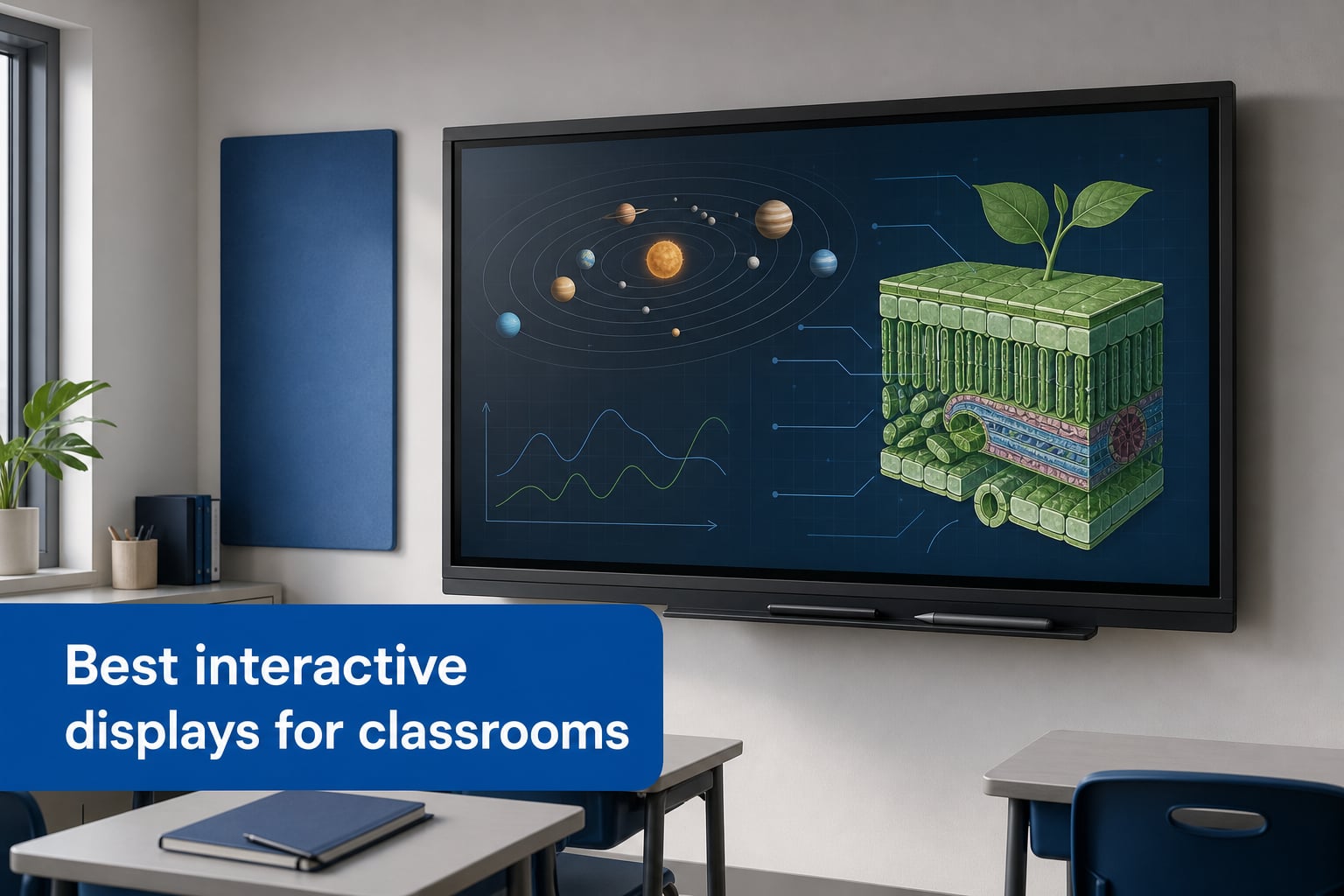
The best interactive displays for classrooms combine a readable 4K screen, accurate multi-touch input, an app environment teachers can learn, and ports that work with the devices already in the room. A large touchscreen can replace the separate projector surface and whiteboard for lessons, annotation, student presentations, and group work.
I approached this list as a school selection exercise rather than a list of headline specifications. The right classroom smart display has to work for the teacher at the front, students at the sides, and the IT team that must connect, mount, secure, and support it.
All ten products below have a 4K panel, but their classroom fit differs sharply. Some center on Google EDLA and Android 14, some include conferencing hardware, and others stand out for a high touch-point count, display size, or a more established hardware name.
My short answer is simple: choose the JASZDOT 86-inch for a large room needing extensive wired connectivity, the NEWORK NewBoard P for hybrid teaching hardware, and the COOLHOOD 65-inch where a well-reviewed, open-app display makes sense. Before ordering any interactive whiteboard for classroom use, confirm wall structure, sightlines, network rules, account policy, and the included accessories with the supplier.
Top 3 Picks in September 2026
These three cover three common school needs: a very large panel and a broad port selection, an all-in-one hybrid teaching screen, and a 65-inch model with the largest review sample in this group. Their badges reflect that classroom role, not an unsupported hands-on score.
All 10 Interactive Displays for Classrooms are Compared Below
This overview keeps the decision factors visible: panel size, touch capacity, operating system, collaboration hardware, and the one limitation that merits a closer check. Use it to make a shortlist, then read the matching review before committing to a teaching display screen.
| Product | Specifications | Action |
|---|---|---|
| JASZDOT 86 Inch Smart Board |
|
View product details |
 NEWORK NewBoard E 75 Inch NEWORK NewBoard E 75 Inch |
|
View product details |
 NEWORK NewBoard P 75 Inch NEWORK NewBoard P 75 Inch |
|
View product details |
 COOLHOOD 65 Inch Smart Board COOLHOOD 65 Inch Smart Board |
|
View product details |
 Shiarffe X5 86 Inch Shiarffe X5 86 Inch |
|
View product details |
 Shiarffe R9 65 Inch Shiarffe R9 65 Inch |
|
View product details |
 KEINONE 55 Inch Smart Board KEINONE 55 Inch Smart Board |
|
View product details |
 JAV H10S Pro 65 Inch JAV H10S Pro 65 Inch |
|
View product details |
 BIG VUE Plus 65 Inch BIG VUE Plus 65 Inch |
|
View product details |
 Samsung FLIP PRO 65 Inch Samsung FLIP PRO 65 Inch |
|
View product details |
1. JASZDOT 86-inch Smart Board is the strongest large-room connectivity pick
- 86 inch 4K screen
- 20 point touch
- Broad front and rear ports
- 70 kilogram unit
- Wall mounting only
The JASZDOT is built around an 86-inch 4K UHD panel, so it is the model I would put first on a list for a wide classroom or lecture-style space. Its stated brightness exceeds 400 nits, and the listing calls out flicker-free and eye-care technology, which matters when the screen stays on through several class periods.
Android 14, 8GB of RAM, and 128GB of storage give the board enough published hardware to run its own apps and save work locally. Its 20-point infrared system is rated at plus or minus 1 mm precision with a 6 ms response time, a useful combination for multiple students annotating a diagram or solving a problem together.
The connection list is unusually extensive: front USB, HDMI, and touch connections sit alongside rear USB, HDMI, and RS232, while the lower panel adds LAN in and out, VGA, DisplayPort, audio, and more. That makes this digital whiteboard for education a practical candidate for rooms still using a mix of older computers and newer USB accessories.
There is a physical planning issue: it weighs 70 kilograms and is listed for wall mounting. Treat installation as a facilities project, verify the wall and mount specification in advance, and decide where teachers will plug in the most-used cables before the display goes up.
The JASZDOT is best where screen size and ports matter most
Choose it for a large general classroom, science room, or shared teaching space where students in the rear need a larger image and the instructor connects varied sources. The included wall mount, touch pen, remote, and screen-casting box reduce the number of separate items to source.
It also makes sense for hybrid lessons because the feature list includes a built-in video-conferencing hub. Schools should still confirm the exact conferencing workflow and account compatibility before standardizing it across multiple rooms.
The JASZDOT needs a fixed installation plan
This is not the one to select when a team needs to move the display between rooms. Its published mounting orientation is wall mount, and its weight calls for experienced installers rather than an improvised classroom setup.
Teachers who use only a laptop and one HDMI cable may not need its many legacy and modern connections. In that situation, a smaller panel with a simpler connection layout can be easier to manage day to day.
2. NEWORK NewBoard E 75-inch is the best large Google-focused collaboration board
NEWORK 75 Inch 4K Smart Board, Google EDLA-Certified Interactive Whiteboard
- Google Play access
- 50 point touch
- 16 device casting
- 64GB storage
- No built in camera listed
The NewBoard E gives a 75-inch 4K display a strong classroom collaboration emphasis. It is Google EDLA-certified, which the listing ties to Google Play Store and Workspace access, so it deserves close attention from schools already organized around Google accounts and Classroom.
Its 50-point multi-touch specification is the headline differentiator. The maker says up to ten users can interact at once, and wireless screen sharing supports up to 16 devices, making this an interesting student collaboration display for group presentations and whole-class comparison activities.
The 450 cd/m² brightness and 178-degree viewing angle are promising on paper for students seated off center. It has three HDMI ports, eight USB ports, USB-C connectivity, and compatibility with either a wall mount or mobile cart, which gives a school more placement flexibility than a wall-only unit.
The trade-off is 64GB of stated internal storage and no built-in camera mentioned in the data. Those are not deal breakers, but staff should plan cloud storage habits and specify a separate camera if distance learning is part of the room brief.
The NewBoard E is best for Google Workspace classrooms
Schools using Google accounts can benefit from an EDLA-certified Android 14 environment rather than asking every teacher to work through a tethered computer. The 8GB RAM specification also supports the kind of switching between whiteboard, browser, and shared screen that happens in a busy lesson.
A 75-inch panel fits a standard classroom better than an 86-inch option when wall space is limited. Check the actual seating depth and keep a clear sightline from the back corners before finalizing the size.
The NewBoard E needs a storage and camera decision
64GB is less spacious than some 128GB alternatives in this roundup, so do not treat local storage as a permanent file cabinet. Shared drives and a deletion routine are safer for lesson recordings and downloads.
For remote students, add camera selection to the deployment checklist. The board can share screens wirelessly, but the supplied specifications do not identify a built-in camera.
3. NEWORK NewBoard P 75-inch is the most complete hybrid-teaching package
NEWORK Smart Board, 75 Inch All-in-One Interactive Whiteboard, Google EDLA
- Integrated camera
- 12 meter voice pickup
- USB-C with charging
- 64GB storage
- Heavy for mobile use
The NewBoard P is the clearer choice when a school wants conferencing hardware built into the teaching display screen. It combines a 75-inch 4K anti-glare panel with a 48MP camera, a 100-degree field of view, eight microphones, speakers, and Android 14.
The microphone array is specified for voice pickup up to 12 meters, with AI noise and echo cancellation. That stated hardware package is more relevant to hybrid lessons than a basic screen-plus-laptop arrangement because it can keep the teacher and board in the same front-of-room setup.
Google EDLA certification brings Google Play and Workspace integration, while the 50-point touch system is listed at under 5 ms latency. A front USB-C connection carries video, audio, touch, and up to 65W charging, which can make a teacher laptop connection less cluttered.
There are practical limits. Internal storage is listed as 64GB, and the product data calls it heavy for mobile use without a cart, even though it supports both cart and wall mounting.
The NewBoard P is best for live hybrid instruction
Pick this one for a classroom where remote students join regularly and the school wants the camera and microphone system to be part of the display rather than an accessory chain. The 48MP camera’s auto exposure, focus, and white balance are relevant specifications for a changing classroom environment.
Its HDMI out and LAN out can matter in rooms that feed another screen or connect into a managed network setup. Ask IT to map those connections before installation.
The NewBoard P needs a cart and file-management review
A compatible cart can make shared-room use possible, but it does not make a large panel lightweight. Plan the path, door clearance, cable routing, and storage location if the unit will move.
Teachers should use cloud folders or a connected computer for larger files because the stated internal capacity is 64GB. That routine also makes handoff between teachers simpler.
4. COOLHOOD 65-inch Smart Board is the proven-review 65-inch choice
- 724 reviews
- 128GB storage
- Wide platform compatibility
- One HDMI port
- Wall mount only
The COOLHOOD model stands apart because it has 724 reviews, far more than the other products here. Its 4.5 rating is based on a broader review sample, while its 65-inch 4K IPS panel, 20-point touch, and 128GB storage provide a familiar baseline for a typical classroom smart display.
Its Android 13 system runs on an octa-core processor, and the listed software compatibility includes Zoom, Google Meet, Microsoft Teams, and Webex. Wireless sharing works with Mac, Windows, iOS, and Android, a sensible inclusion in classes where students bring different device types.
There are teacher-facing extras worth noticing: smart voting, screenshots, timers, and QR-code file sharing. Those are not a substitute for lesson design, but they can speed up a formative check or a quick distribution of annotated material after class.
Its main physical limitation is a single HDMI port, and it ships as a wall-mount unit. A school with several permanent video sources should use an HDMI switch or pick a display with more inputs.
The COOLHOOD is best for a standard multi-device classroom
This is a credible pick for a room using Chromebooks, tablets, teacher laptops, and video platforms in the same week. The IPS panel and stated blue-light filter are also helpful features to weigh for a screen used across long teaching days.
The broad platform support is especially useful where IT cannot dictate a single student operating system. Establish a simple casting protocol so class transitions do not become a hunt for the right connection method.
The COOLHOOD needs an input plan
One HDMI port can become restrictive when a document camera, desktop, and teacher laptop are all part of the lesson. List every wired source before purchasing and assign a switch if needed.
The 2000:1 listed contrast ratio is lower than some displays in this guide. If the room has strong window light, evaluate the wall position and closeable shades instead of relying on the specification alone.
5. Shiarffe X5 86-inch is the feature-rich large display with a two-year warranty
- Built in camera
- Wi-Fi 6 and NFC
- Two year warranty
- 148 pounds
- External 4K camera needed
The Shiarffe X5 packs a large 86-inch anti-glare IPS screen, Google EDLA certification, Android 14, 8GB RAM, and 128GB storage into one all-in-one unit. It also includes a front-facing 48MP camera, microphones, and speakers, which gives the panel hybrid-learning credentials without an added webcam.
Its automatic brightness adjustment is a thoughtful listed feature for rooms where daylight changes during the day. The screen has 20-point touch, while split-screen and multi-zone whiteboard modes give teachers ways to keep a lesson resource and student work visible together.
Connectivity is broad: Bluetooth 5.0, NFC, Wi-Fi 6, HDMI, USB, Type-C, LAN, and VGA are all identified. The NFC feature may help with quick pairing, but a school should test it against its actual device fleet and account restrictions.
The physical warning is clear: this board weighs 148 pounds. The two-year manufacturer warranty is a useful support signal, yet installation planning remains non-negotiable for a panel of this scale.
The Shiarffe X5 is best for large connected classrooms
Select it when students need an 86-inch image, the room has varied input sources, and hybrid teaching is a regular expectation. The listed 450 cd/m² maximum brightness and anti-glare IPS surface support its large-room role.
Google EDLA access can reduce friction for schools that use Google Classroom and Play-based education apps. Confirm which apps fit district privacy rules before asking teachers to rely on them.
The Shiarffe X5 needs professional mounting
At 148 pounds, this is the heaviest product in the group. Have facilities confirm mounting hardware, wall load capacity, display height, and cable access before delivery.
The board’s built-in camera is 48MP, while the supplied data says an external camera is required for 4K video capture. Teams with a precise remote-video standard should clarify that distinction before deployment.
6. Shiarffe R9 65-inch is the high-memory Google EDLA classroom panel
- High memory capacity
- Built in camera and NFC
- Two year warranty
- Mobile cart separate
- Wall mounting included
The Shiarffe R9 gives a 65-inch 4K UHD IPS touchscreen 16GB of RAM and 256GB of storage, the largest published memory configuration in this roundup. For a classroom that keeps multiple resources open, stores local media, or regularly uses the Android interface, that headroom is meaningful.
It is Google EDLA-certified and has anti-glare glass, 20-point multi-touch, a built-in camera, NFC, and three 20W speakers. The source data also identifies HDMI and wireless screen mirroring, so it can run as an independent digital whiteboard or as an extension of a teacher device.
Wall-mount hardware, HDMI and power cables, a USB 3.0 touch cable, remote, and NFC card are listed in the included components. That detail is worth checking because packages vary and missing cables create avoidable setup delays.
A two-year warranty is stated, but a mobile cart is an extra accessory rather than an included item. Keep the room assignment fixed unless the school deliberately adds a compatible cart and movement procedure.
The Shiarffe R9 is best for app-heavy classroom use
Teachers who want to keep several apps, browsers, and lesson assets on the display itself have more published memory here than on the 8GB and 64GB alternatives. That does not remove the need for district file-management rules, but it makes multitasking more realistic.
Its 65-inch footprint is a sensible middle ground for a standard room. It is easier to place than an 86-inch unit while still offering a meaningful shared canvas.
The Shiarffe R9 needs mobility planning
Wall mounting is the included arrangement, so do not assume it can circulate between classes out of the box. A cart needs separate compatibility verification and a safe route through the building.
Review the built-in camera and speaker settings with IT before the first hybrid session. A simple privacy and mute routine is important in rooms used by many classes.
7. KEINONE 55-inch Smart Board is the compact Android 14 classroom option
- Compact 55 inch format
- 8GB and 128GB
- Type-C and Wi-Fi
- Glossy screen
- One HDMI port
The KEINONE is the most natural fit for a small classroom, intervention room, tutoring space, or studio where an 86-inch screen would overwhelm the wall. It pairs a listed 55-inch 4K display with Google EDLA-certified Android 14, 8GB RAM, 128GB storage, and 20 touch points.
Its teaching tools include text recognition, multiple brush options, and annotation over content. With a 6 ms stated latency, it should be considered by teams that need a compact interactive flat panel for writing and shared mark-up rather than a giant lecture-room canvas.
HDMI, USB-C, Wi-Fi, AirPlay, and built-in speakers give it a usable set of connections. It is also described as supporting remote collaboration, though the product data does not offer detailed camera specifications, so confirm the exact video setup required.
The main caution is its glossy screen finish. Glossy panels can reflect windows and ceiling fixtures, so the display position needs more attention in bright classrooms.
The KEINONE is best for small learning spaces
A 55-inch panel works when student groups sit close or when an educator needs an interactive screen beside a desk. It is also a useful size for a pull-out room, library nook, or smaller specialized classroom.
The 8GB RAM and 128GB SSD configuration gives it a stronger local Android specification than basic external-touchscreen setups. Google EDLA adds a familiar app route for schools that approve it.
The KEINONE needs glare control
Do not put a glossy display directly opposite a window or under a strong unshielded fixture. Check reflections at standing and seated student heights before wall mounting.
It has one listed HDMI port, so plan for a switch if the room uses several wired sources. USB-C and wireless sharing may reduce that pressure for some teacher devices.
8. JAV H10S Pro 65-inch is the security-minded all-in-one selection
- Screen lock security
- Built in camera
- Mac and Windows casting
- One year warranty
- 80 pound wall mount unit
The JAV H10S Pro is a 65-inch 4K touchscreen with Android 14, an EDLA-licensed operating system, 8GB RAM, and 128GB storage. Its anti-glare tempered glass, built-in webcam, speakers, and wireless compatibility with Mac, Windows, iOS, and Android make it a flexible classroom contender.
What makes it distinctive is the published security list: screen lock, USB password protection, and QR-based secure file sharing. Those features are relevant to shared classrooms, where several teachers, devices, and classes can otherwise leave content exposed or files mixed together.
The data lists Wi-Fi and Bluetooth along with the 4K screen and camera for video conferencing. It is also sold in several sizes, but this review covers the stated 65-inch H10S Pro configuration because size determines sightlines and mounting work.
It weighs 80 pounds and is listed with a one-year manufacturer warranty. The unit should go on a properly assessed wall and be included in the IT team’s support plan from the start.
The JAV H10S Pro is best for shared rooms with basic security rules
Its screen lock and USB password protection can support a cleaner handoff between teachers than an open device arrangement. They are only useful if staff receive a brief setup guide and follow the same sign-out routine.
The built-in webcam makes it more ready for remote meetings than a display that requires an added camera. Confirm platform policy and device permissions before first use.
The JAV H10S Pro needs support coverage review
A one-year manufacturer warranty is shorter than the two-year coverage stated for the Shiarffe products and the longer on-site term stated for BIG VUE. Schools should compare support response, parts process, and installation coverage as part of their procurement check.
Its wall-mounted 80-pound design favors a permanent room assignment. If teachers rotate between spaces, a cart-compatible alternative may be more practical.
9. BIG VUE Plus 65-inch is the maximum-touch collaborative panel
- 60 touch points
- OPS expansion slot
- Three year onsite warranty
- OPS module excluded
- No cart option listed
The BIG VUE Plus is the unusual choice for classes that want the highest stated simultaneous touch capacity: up to 60 IR touch points. Its 65-inch native 4K panel, Android 14 A16 CPU, 8GB RAM, 128GB storage, and 48MP camera create a strong collaboration-oriented feature set.
It lists support for Windows, Chrome OS, and macOS alongside an OPS slot for a separate expandable computing module. That matters for schools that prefer a managed Windows environment but still want the screen’s Android functions available.
The published display specification includes a 178-degree viewing angle, 10.7 billion colors, and 1200:1 contrast ratio. Two pen tip sizes are mentioned, which may appeal to teachers who alternate between broad diagram work and smaller handwriting.
Its stated three-year onsite warranty is a notable support feature. The OPS module is not included, however, so do not assume the expansion path arrives in the box.
The BIG VUE Plus is best for active multi-user projects
Sixty stated touch points are more than most class activities need, but they offer headroom for whole-group brainstorming, science sorting tasks, and collaborative art or map work. The 48MP camera and microphone also support teacher-led remote collaboration.
The OPS slot gives IT departments a way to consider a standardized computing module rather than treating the display as an isolated endpoint. Verify compatible modules and image-management requirements with the manufacturer.
The BIG VUE Plus needs an expansion decision
The board is OPS-ready, not OPS-equipped. Decide whether Android alone is sufficient or whether the school needs to add an OPS computer for its existing software and management practices.
The supplied details identify wall mounting but do not mention a mobile cart option. Confirm the mounting plan instead of treating its listed 5-kilogram weight as a complete installation specification.
10. Samsung FLIP PRO 65-inch is the durable mainstream-brand collaboration panel
- Matte screen
- 50 device sharing
- Four year manufacturer warranty
- 14 review sample
- 350 cd per square meter
The Samsung FLIP PRO takes a different route from the Android-heavy boards above. Its 65-inch 4K display uses a matte screen, has 20 touchpoints, built-in speakers, Wi-Fi, Bluetooth, SmartView+, and a 4000:1 stated contrast ratio.
SmartView+ is listed for wireless screen sharing from up to 50 devices while showing up to six screens. That makes it a compelling option for rapid student presentation handoffs, provided the school has a clear method for managing who connects and when.
The 350 cd/m² brightness is lower than the 450 cd/m² figures listed for several alternatives, but its matte surface can help reduce reflections. It also supports wall or table mounting, carries a stated 105-pound weight, and includes two HDMI and three USB connections.
Samsung lists a four-year manufacturer warranty in the data, a reassuring figure for a device that will see daily classroom use. The review sample is only 14, though, so the 4.2 rating should be read with less confidence than the COOLHOOD’s much larger review base.
The Samsung FLIP PRO is best for polished wireless sharing
Choose this display when the teaching pattern revolves around student devices, quick screen sharing, and a matte surface in a room with potential reflections. Its compatibility list includes laptops, desktops, tablets, and phones.
The panel’s durability language and longer stated manufacturer warranty may also appeal to schools looking at a long-lived classroom installation. Confirm the exact warranty terms through the current seller before ordering.
The Samsung FLIP PRO needs brightness and review-sample context
At 350 cd/m², it deserves a placement check in bright rooms even with the matte finish. Compare the room’s window direction, lighting controls, and student seating angles rather than judging from a brightness number alone.
Fourteen reviews are useful but limited. Pair the rating with the product specifications, support terms, and a local demonstration where possible.
Buying Guide
Start with the room rather than the specification sheet. An interactive display is a shared visual surface, so its diagonal size, mounting height, and daylight exposure affect every lesson more than a long list of app icons.
A 55-inch display fits small groups and a 75-inch or 86-inch display suits larger rooms
A 55-inch display such as the KEINONE works best when learners sit close, as in tutoring, intervention, or a small seminar room. A 65-inch panel is often the practical middle size for a standard classroom, while 75-inch and 86-inch screens help when seating is deeper or the board serves a wide teaching wall.
Measure the usable wall, not just the wall. Leave room for speakers, cable access, door swings, existing whiteboards, and the viewing angles from the far corners.
A Google EDLA display suits schools that already use Google accounts and approved apps
EDLA-certified products in this list include the NEWORK E and P, Shiarffe X5 and R9, and KEINONE. The listings connect EDLA to Google Play, Workspace, or Classroom access, but that convenience should be matched to the district’s account, privacy, and app-approval rules.
Before rollout, ask whether teachers will sign in individually, use managed shared accounts, or connect a district computer. A clear answer keeps a classroom interactive display from becoming a personal-device workaround.
Twenty touch points are enough for most lessons, while higher counts help large group activities
Twenty touch points can support a teacher and several students writing, dragging, or annotating together. NEWORK’s 50-point units and the BIG VUE’s 60-point panel provide more headroom, but touch count alone does not tell you whether students can comfortably reach the board.
Look at stated latency, pen support, palm rejection where documented, and the position of the board. A fast panel mounted too high is still inaccessible for many younger learners.
Front USB-C and multiple HDMI ports reduce lesson-change friction
Count what teachers actually connect: laptops, document cameras, assistive devices, audio, and sometimes a second display. The JASZDOT has the broadest stated selection, the NEWORK P’s front USB-C handles video, audio, touch, and charging, while the COOLHOOD and KEINONE each list one HDMI port.
Wireless casting is convenient but should not be the only lesson path. Keep a wired fallback available for assessment days, guest teachers, or a crowded wireless network.
Professional mounting protects students, staff, and the equipment
Large interactive panels are not ordinary televisions. The JASZDOT is listed at 70 kilograms, the Shiarffe X5 at 148 pounds, the JAV at 80 pounds, and the Samsung at 105 pounds, so wall type, bracket rating, cable strain relief, and mounting height need formal review.
A mobile cart can make a display more flexible, but it adds its own questions about stability, door thresholds, power routing, and storage. The NEWORK models list cart compatibility; for any other model, verify cart support directly rather than making an assumption.
Accessibility improves when the display is placed for reach, contrast, and shared control
Mount the panel at a height that allows younger students and wheelchair users to participate, not only the teacher. Keep physical pens available, provide a wired input option, and make text large enough for the farthest seat.
Anti-glare panels such as the NEWORK P, Shiarffe X5, Shiarffe R9, and JAV can help with reflections, while the KEINONE’s glossy finish needs careful placement. Built-in speakers support accessibility, but the room may still need captioning and assistive-listening practices through the connected teaching platform.
Support terms and teacher training matter as much as the panel hardware
Forum discussions repeatedly raise teacher learning curves, software changes, integration problems, and long-term maintenance. Give staff a short routine for opening the whiteboard, connecting a device, saving material, signing out, and reporting a fault before the display becomes part of daily instruction.
Check stated coverage too: the Shiarffe X5 and R9 list two-year manufacturer warranties, BIG VUE lists a three-year onsite warranty, Samsung lists a four-year manufacturer warranty, and other models list shorter terms. Confirm current support conditions, replacement process, and any software-account requirements with the seller before a school-wide commitment.
FAQs
What are the best interactive displays for classrooms?
The strongest choices depend on classroom needs: JASZDOT suits a large room needing many ports, NEWORK NewBoard P suits hybrid teaching with an integrated camera and eight microphones, and COOLHOOD suits a standard multi-device classroom with a large review sample. Match the panel size, software environment, touch capacity, mounting plan, and support terms to the room.
How much does an interactive classroom display cost?
Product pricing changes by screen size, seller, included accessories, installation, support coverage, and software requirements. Schools should request a current written quote and compare the full deployment scope, including mount or cart, cabling, network setup, teacher training, and support, rather than comparing a display alone.
What features should I look for in a classroom interactive display?
Look for an appropriate screen size, a readable 4K panel, anti-glare treatment for bright rooms, enough touch points, accurate pen input, ports for teacher devices, reliable wired and wireless sharing, an approved software environment, mounting compatibility, and clear warranty support. A built-in camera and microphones matter when hybrid learning is routine.
What is the difference between SMART Board and ViewSonic?
SMART Board and ViewSonic are established education-display brands with different software ecosystems, display lines, support arrangements, and deployment tools. Compare the exact model’s panel size, touch capability, ports, built-in operating system, classroom software, management controls, and warranty instead of choosing by brand name alone.
What size interactive display do I need for a classroom?
A 55-inch display generally fits small groups and compact rooms, 65 inches is a versatile standard-classroom size, and 75- or 86-inch models suit deeper or wider classrooms. Measure the wall, seating depth, viewing angles, mounting height, window glare, and student reach before selecting a screen size.
Conclusion
For a large permanent classroom, the JASZDOT’s 86-inch panel and broad port selection are the most compelling published combination. For routine hybrid lessons, the NEWORK NewBoard P brings the clearest integrated camera and microphone package, while the COOLHOOD is a well-reviewed 65-inch alternative for mixed-device teaching.
The best interactive displays for classrooms in 2026 are the ones staff can see, reach, connect, and support without adding friction to a lesson. Shortlist the models that fit your room, verify current warranty and included-hardware details, and ask teachers and IT to review the workflow together before ordering.