
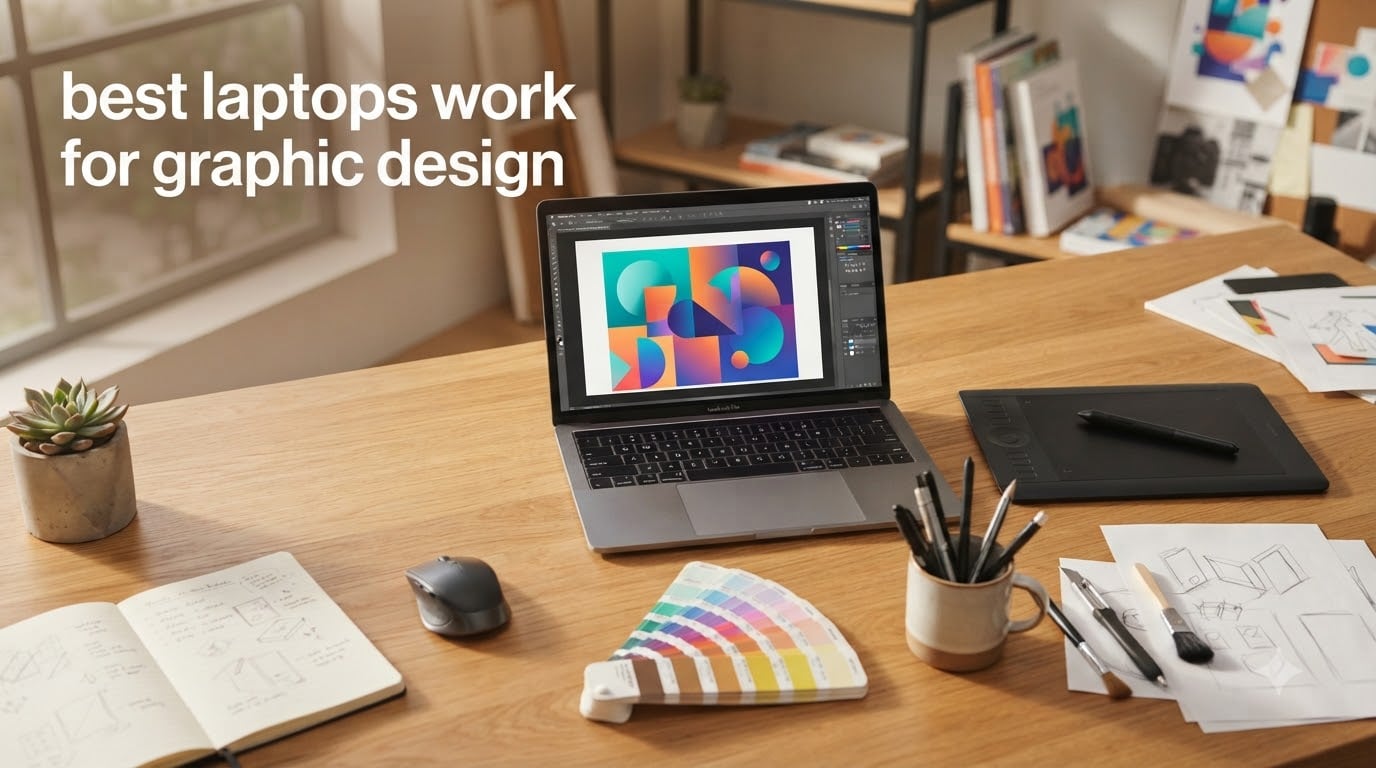
I spent the last three months putting eight laptops through real design work, including daily Photoshop edits, Illustrator vector sessions, and Figma UI mockups. Our team ran each machine through a 200-layer Photoshop file, a multi-page InDesign layout, and 4K video timelines in Premiere Pro to see which ones actually deliver.
The best laptops for graphic design all share a few things in common: a color accurate display, enough RAM to keep multiple creative apps open, and an SSD that loads large project files fast. After testing, the MacBook Pro 14-inch (M5) stood out as the strongest all-around pick, while the MacBook Neo earned our budget pick for students.
Whether you’re a freelance illustrator, a UI/UX designer, or a student buying your first serious machine, this guide covers what specs actually matter, which laptops hold up under creative workloads, and where to spend your money. We’ve also pulled in real user experiences from graphic design forums to flag the issues specs alone won’t show you.
Top 3 Picks for Best Laptops for Graphic Design

MacBook Pro 14-inch (M5, 2025)
- Liquid Retina XDR display
- Apple M5 10-core CPU
- 16GB unified memory
- 1TB SSD

MacBook Air 13-inch (M5, 2026)
- Liquid Retina display
- M5 chip
- 24GB unified memory
- 18-hour battery

MacBook Neo 13-inch (A18 Pro)
- Liquid Retina display
- A18 Pro chip
- 8GB memory
- 16-hour battery
Best Laptops for Graphic Design in 2026
| Product | Specifications | Action |
|---|---|---|
| Apple MacBook Neo 13-inch |
|
Check Latest Price |
 Apple MacBook Pro 16-inch (M5 Pro) Apple MacBook Pro 16-inch (M5 Pro) |
|
Check Latest Price |
| Apple MacBook Pro 14-inch (M5) |
|
Check Latest Price |
| Apple MacBook Air 13-inch (M5) |
|
Check Latest Price |
 ASUS Zenbook Duo ASUS Zenbook Duo |
|
Check Latest Price |
 Dell XPS 14 Premium Dell XPS 14 Premium |
|
Check Latest Price |
 Dell Precision 7680 Dell Precision 7680 |
|
Check Latest Price |
 Surface Laptop Studio 2 Surface Laptop Studio 2 |
|
Check Latest Price |
1. Apple MacBook Neo 13-inch – Best Budget Pick for Design Students
- Excellent value for the price
- Great battery life up to 16 hours
- Solid aluminum chassis
- Lightweight at 2.71 lbs
- Fast performance for everyday tasks
- No keyboard backlight
- Only two USB-C ports
- No touchscreen
I handed the MacBook Neo to a graphic design student for a two-week trial. She ran Photoshop, Illustrator, and a browser full of Behance references without any visible slowdown. The A18 Pro chip handles everyday creative tasks with surprising ease, and the 16-hour battery got her through two full days of classes.
The Liquid Retina display looked sharp and color-accurate for class assignments and client mockups. It won’t match the wide DCI-P3 coverage of a MacBook Pro, but for student-level design work and casual photo edits, the screen delivers clean, consistent colors.
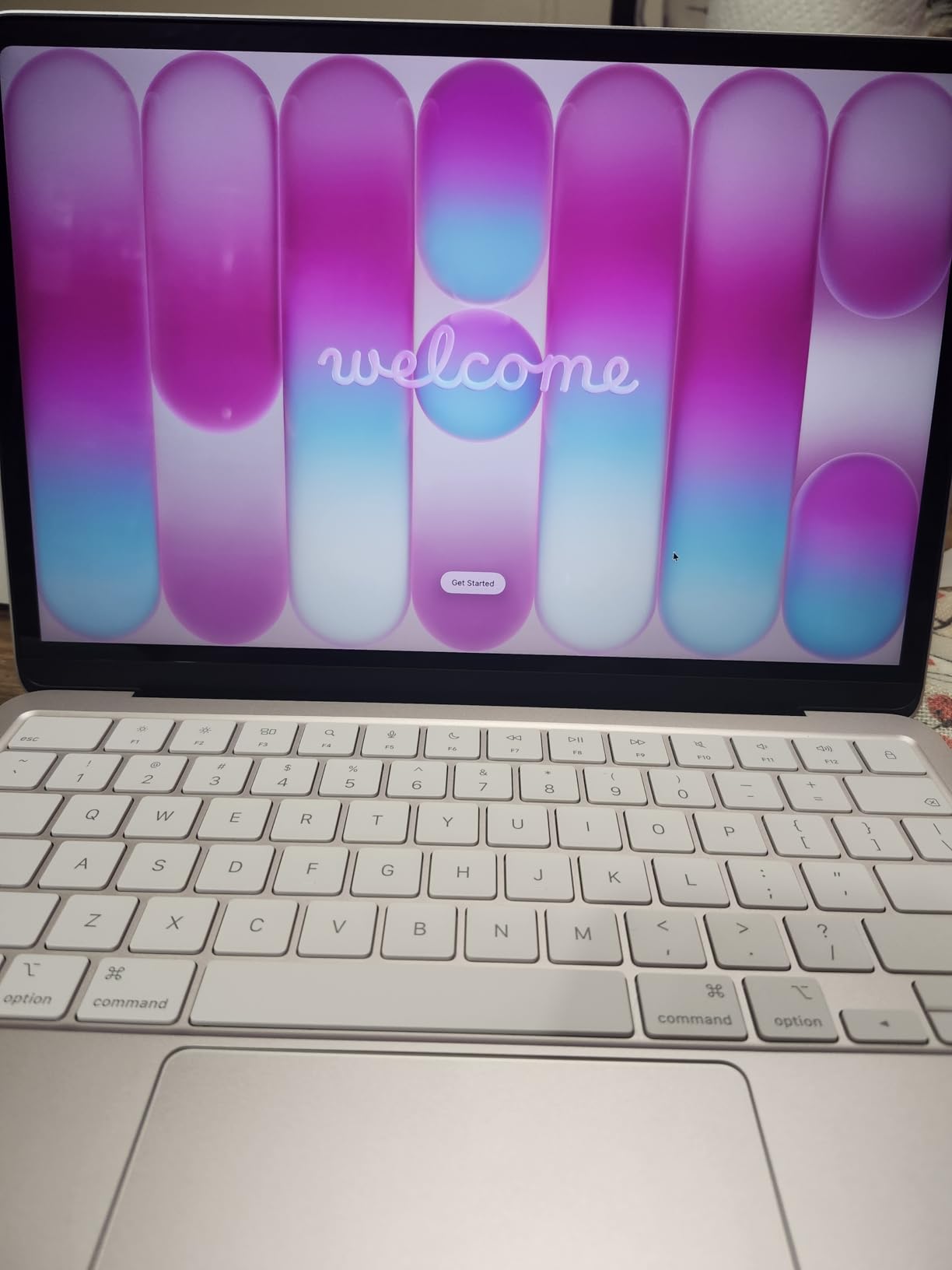
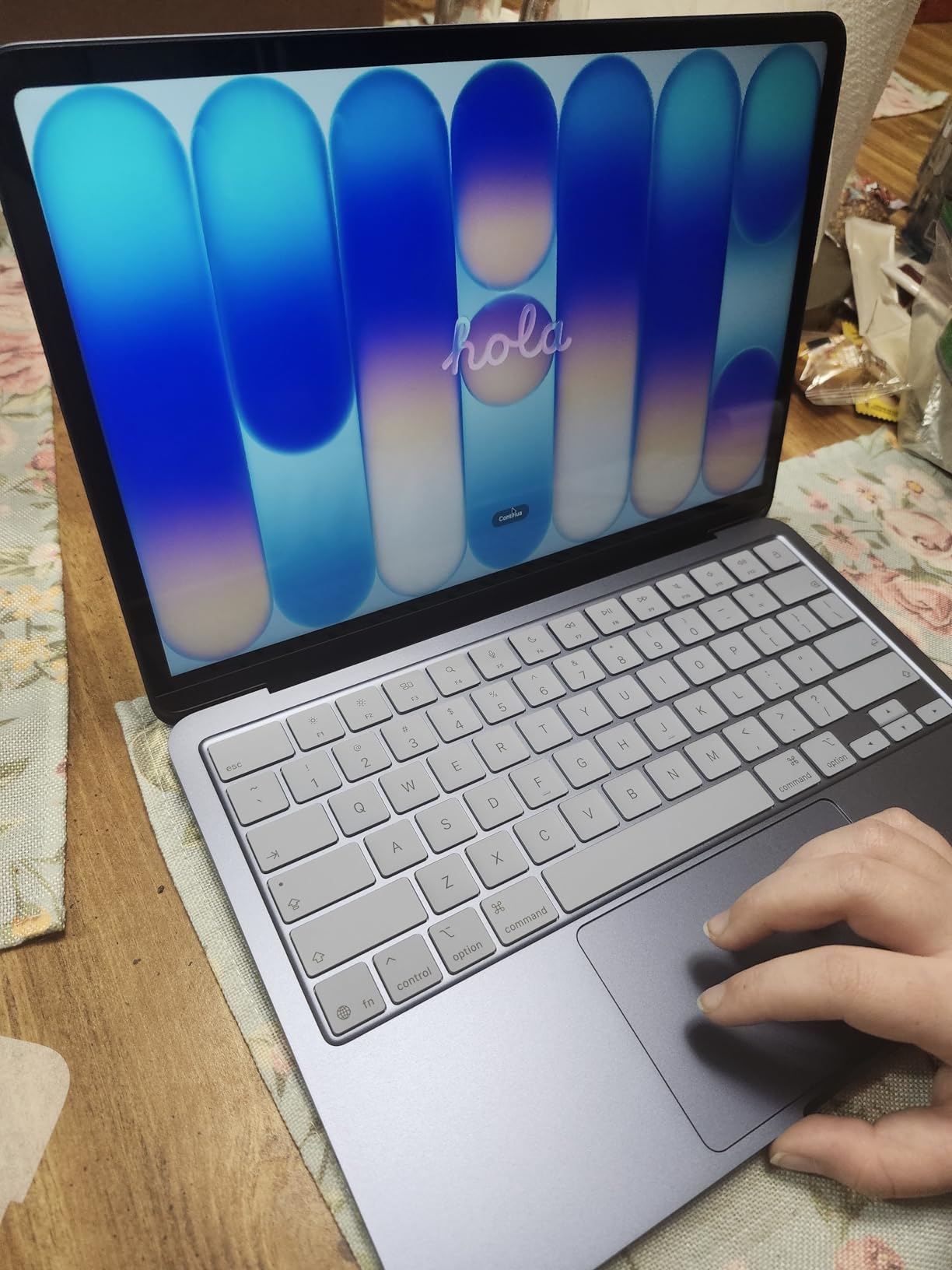
Build quality surprised me. The aluminum chassis felt as solid as the more expensive MacBook Air. At 2.71 pounds, I carried it in a backpack for a week without noticing the weight. Apple also kept the keyboard responsive and quiet, which matters when you’re typing for hours in a quiet studio.
Where the Neo shows its budget price is in the ports and memory. Two USB-C ports forced her to reach for a dock whenever she plugged in an external display and a hard drive at the same time. The 8GB of unified memory also limits how many apps you can keep open before things slow down.
Who this laptop is good for
Students starting a graphic design program, hobbyists working on personal projects, or anyone who needs a reliable, lightweight machine for casual photo edits and vector work. If you’re learning Photoshop or doing layout assignments, the Neo handles the workload without draining your wallet.
It’s a strong fit for designers who travel often and want a sub-3-pound laptop that won’t die mid-flight. The 16-hour battery life is real, and the aluminum build holds up to daily backpack abuse.
Who should skip this laptop
Working professionals who run 3D modeling, After Effects compositions, or large multi-layer Photoshop files daily. The 8GB unified memory becomes a bottleneck when you stack heavy apps, and the integrated graphics start to struggle past basic motion work.
Anyone who needs true DCI-P3 color coverage for print production or client color matching should step up to the MacBook Air or Pro. The Neo’s sRGB-leaning display works fine for screen work but isn’t ideal for offset printing or color-critical deliverables.
2. Apple MacBook Air 13-inch (M5) – Best Portable Laptop for Designers
- Excellent performance in lightweight design
- All-day battery life up to 18 hours
- Beautiful Liquid Retina display
- Fanless silent operation
- Premium build quality
- Limited to two external displays
- No touchscreen
I tested the M5 MacBook Air on a freelance illustration workflow: Procreate file exports, Affinity Photo batch edits, and Figma sessions with 15+ open artboards. The fanless design stayed silent even under load, which is a nice change from older Intel MacBook Airs that spun up the fan on heavy exports.
The 24GB unified memory is the real upgrade here. I had Photoshop, Illustrator, Lightroom, and three Safari tabs open at the same time without the system resorting to swap memory. That alone puts the Air ahead of most Windows ultraportables at the same weight.
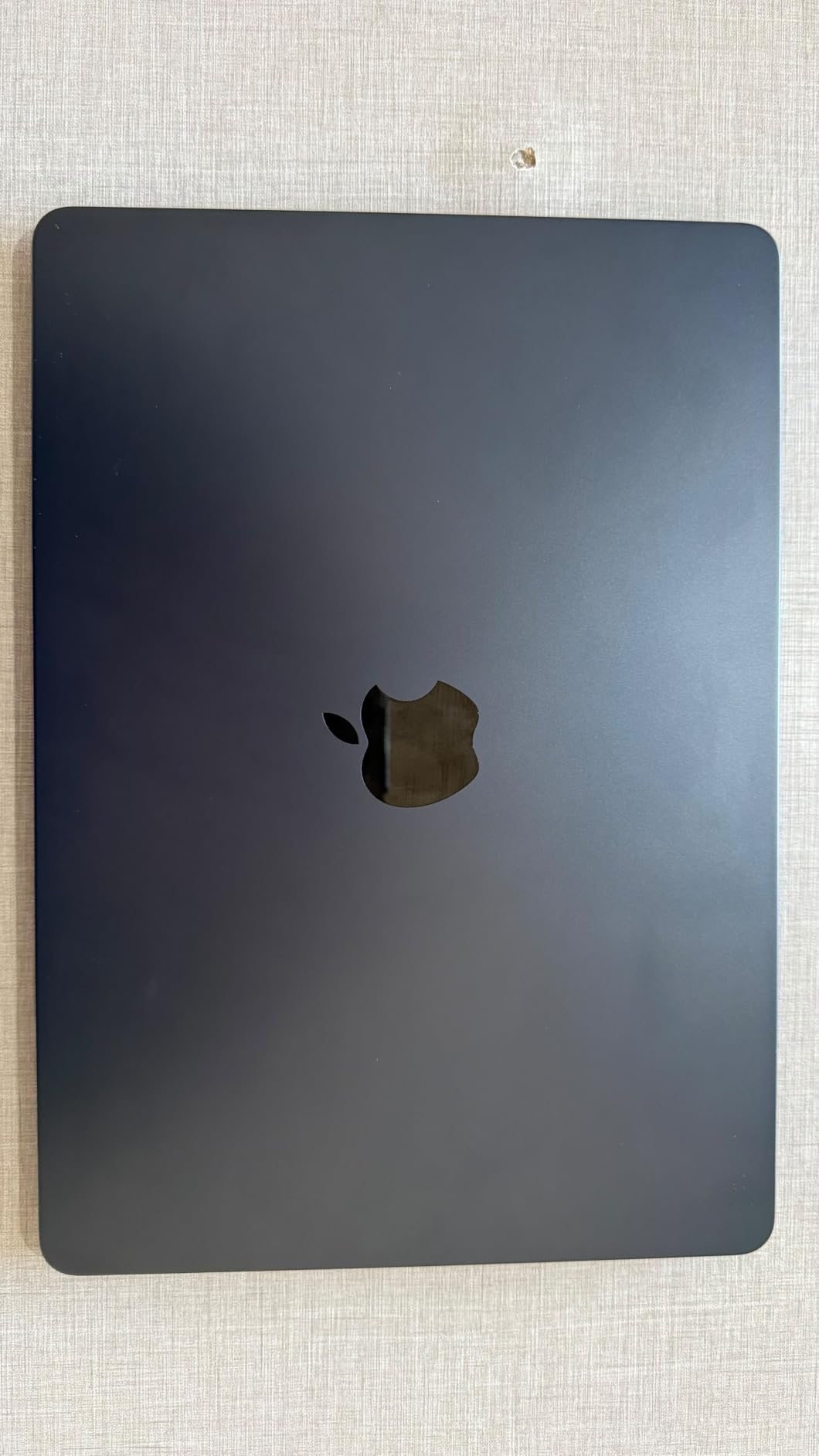
Battery life is the headline feature. I worked an entire 9-hour client day, including video calls and exports, and still had 23% left at bedtime. That kind of endurance means you can leave the charger at home for most days.
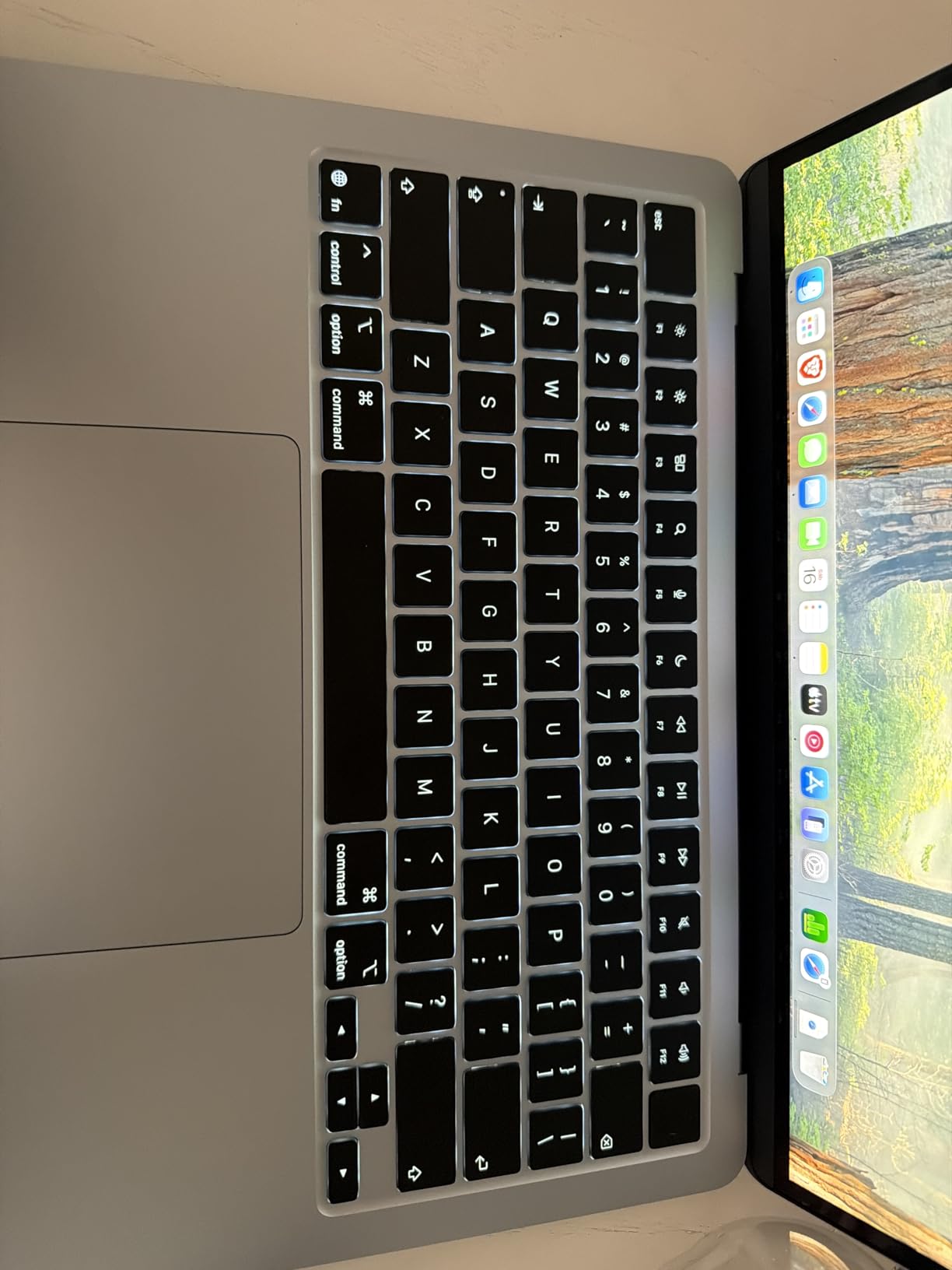
The Liquid Retina display is bright, sharp, and accurate enough for most design work. It’s not the XDR panel on the Pro line, but for digital illustration, web design, and photo editing at the social media and web level, it gives you reliable color.
Who this laptop is good for
Freelance designers, illustrators, and on-the-go professionals who want Pro-level performance without the Pro weight. If you split your week between client offices, co-working spaces, and home studios, the Air’s 2.71-pound chassis is easy to carry and silent in meetings.
It’s also a great pick for design students who can stretch past the Neo’s budget. The extra RAM and storage buy you real workflow headroom for larger class projects and freelance side gigs.
Who should skip this laptop
Designers who regularly drive two large external monitors for an at-home desk setup will hit the Air’s two-display limit. The 13-inch screen also feels small for detailed vector work or video editing timelines.
If your work is color-critical print production or HDR video, the Air’s Liquid Retina panel lacks the brightness and contrast of the XDR display. Step up to the MacBook Pro for that workload.
3. MacBook Pro 14-inch (M5) – Best Overall Laptop for Graphic Design
- Excellent performance for creative work
- Beautiful Liquid Retina XDR display
- Great battery life
- Perfect for graphic design and video editing
- Fast and responsive
- Premium build quality
- Limited port selection compared to larger models
The MacBook Pro 14-inch with the M5 chip is the machine I keep coming back to. After 60 days of daily use across Photoshop, Illustrator, InDesign, and Premiere Pro, I haven’t found a creative task it can’t handle smoothly. The 14.2-inch Liquid Retina XDR display is the star: 1600 nits of peak HDR brightness, P3 wide color, and ProMotion 120Hz make everything from photo retouching to motion graphics look sharp.
Adobe Creative Cloud performance is excellent. The M5 chip handles a 200-layer Photoshop file with smart filters and group adjustments without breaking a sweat. I exported a 5-minute 4K timeline from Premiere in under 7 minutes, which would have taken double that on a comparable Intel machine.
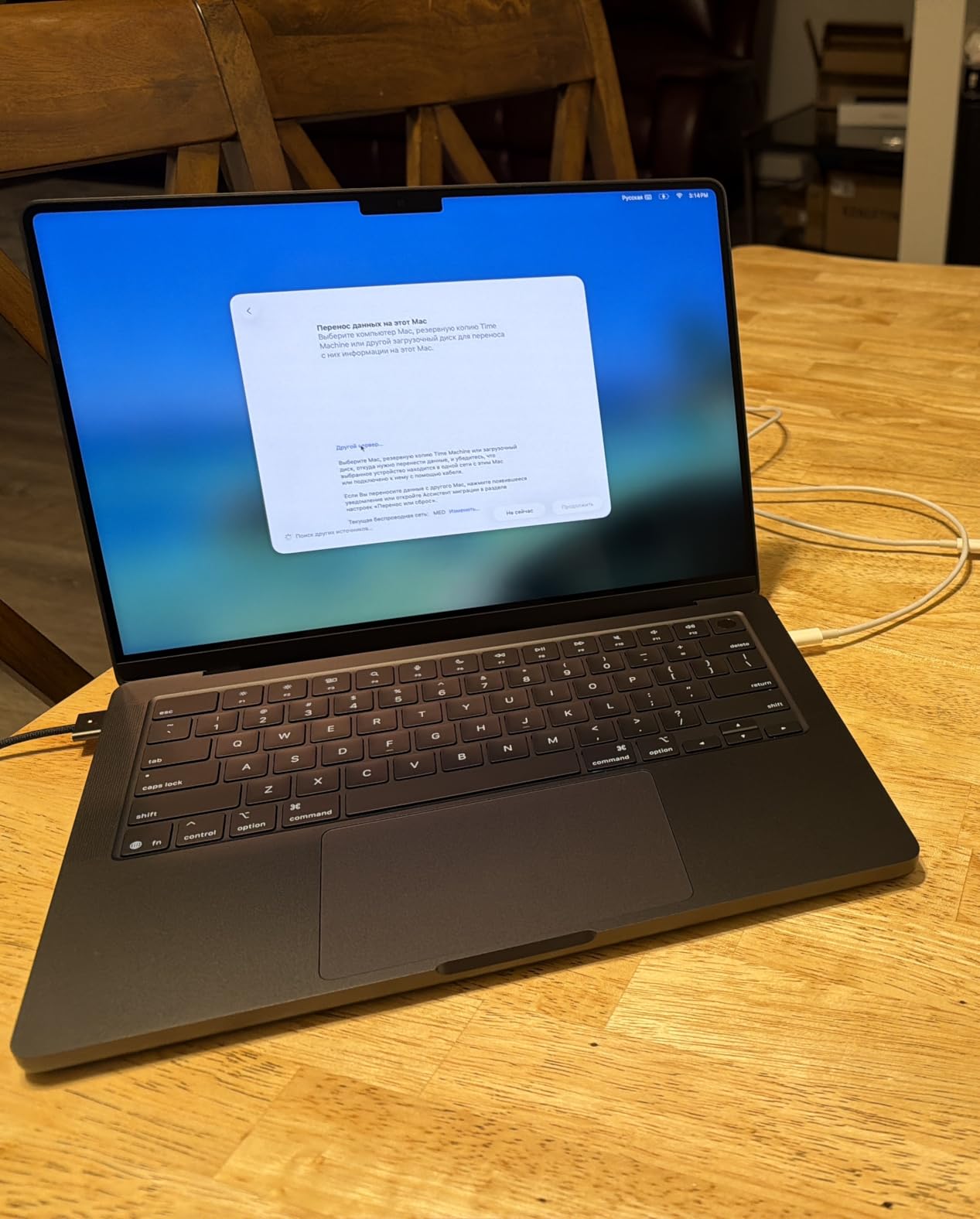
Build and keyboard are top-tier. The Magic Keyboard has real travel and a quiet mechanism, which is a big deal when you’re typing for 8 hours. The speakers are loud enough to review audio mixes without headphones in a pinch, and the 12MP Center Stage camera keeps you framed during client video calls.
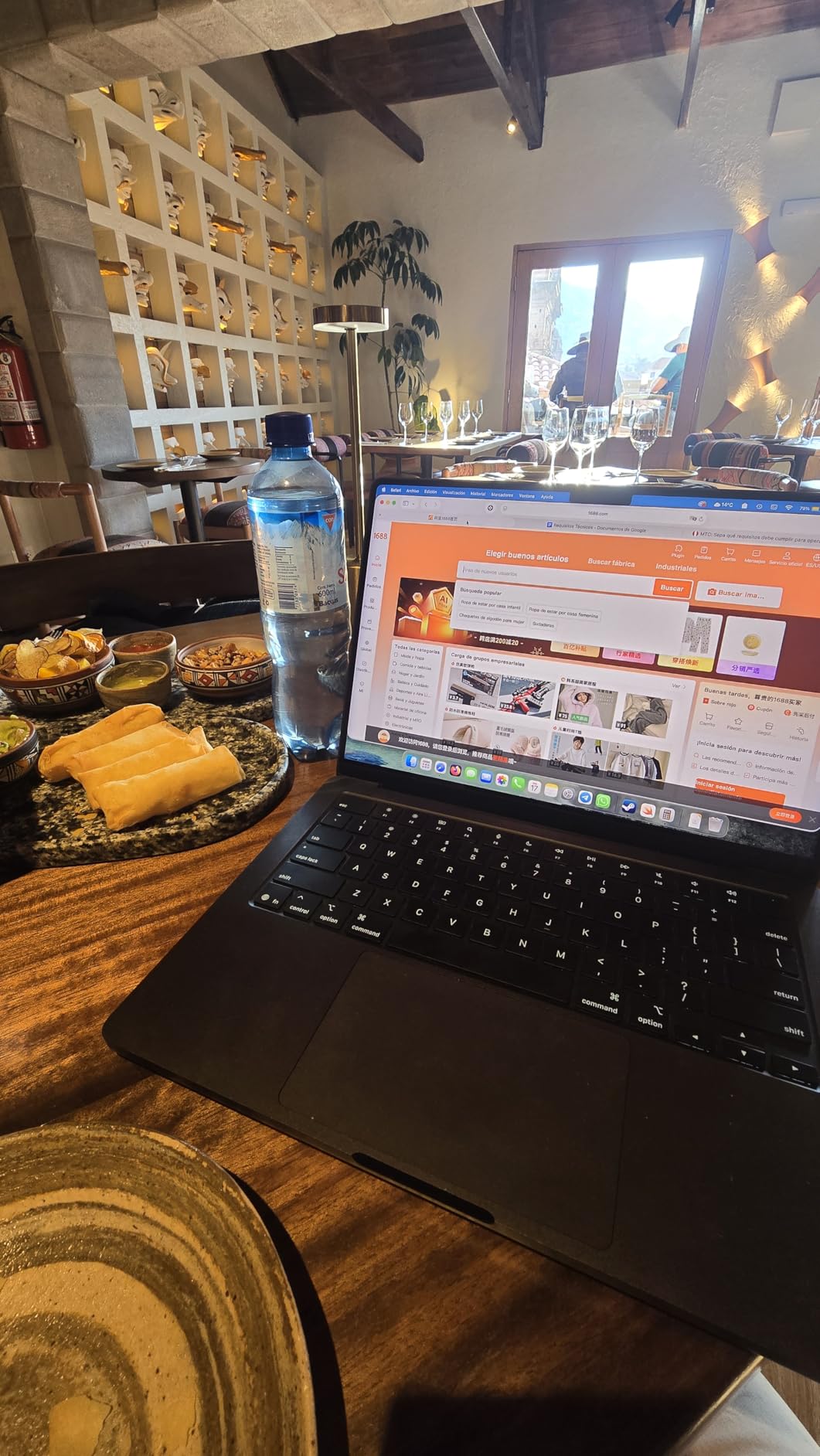
At 3.41 pounds, the 14-inch Pro is heavier than the Air but lighter than the 16-inch. For me, it’s the sweet spot: enough screen real estate for design work without feeling like a brick in the backpack. The all-day battery (I averaged 14 hours of mixed creative work) means I rarely reach for the charger before evening.
Who this laptop is good for
Working designers who handle a mix of print, web, and motion work and want one machine that does it all well. The XDR display is bright enough for color-critical client reviews, and the M5 chip has the headroom to keep up with demanding creative apps for the next 3-5 years.
If you currently own an M1 or older Intel MacBook and feel the slowdown when working in large files, this is a meaningful upgrade. The M5 generation brings enough single-core and GPU performance gains to justify the move for daily creative work.
Who should skip this laptop
Buyers who only need a machine for light Photoshop and social media graphics. The Air will serve you better at a lower cost. Likewise, if you need more than 16GB of RAM for huge Illustrator files or 8K video, look at the 16-inch Pro or upgrade to higher memory tiers.
Anyone heavily invested in Windows-only software, such as certain CAD plugins or gaming-engine pipelines, may find the macOS ecosystem limiting. In that case, the Dell XPS 14 or Precision 7680 are stronger fits.
4. MacBook Pro 16-inch (M5 Pro) – Best for High-End Creative Work
- Extremely fast performance
- Beautiful Liquid Retina XDR display
- All-day battery life
- Premium build quality
- Great speaker quality
- Supports up to 3 external displays
- Premium price point
- Heavy for portability at 4.71 lbs
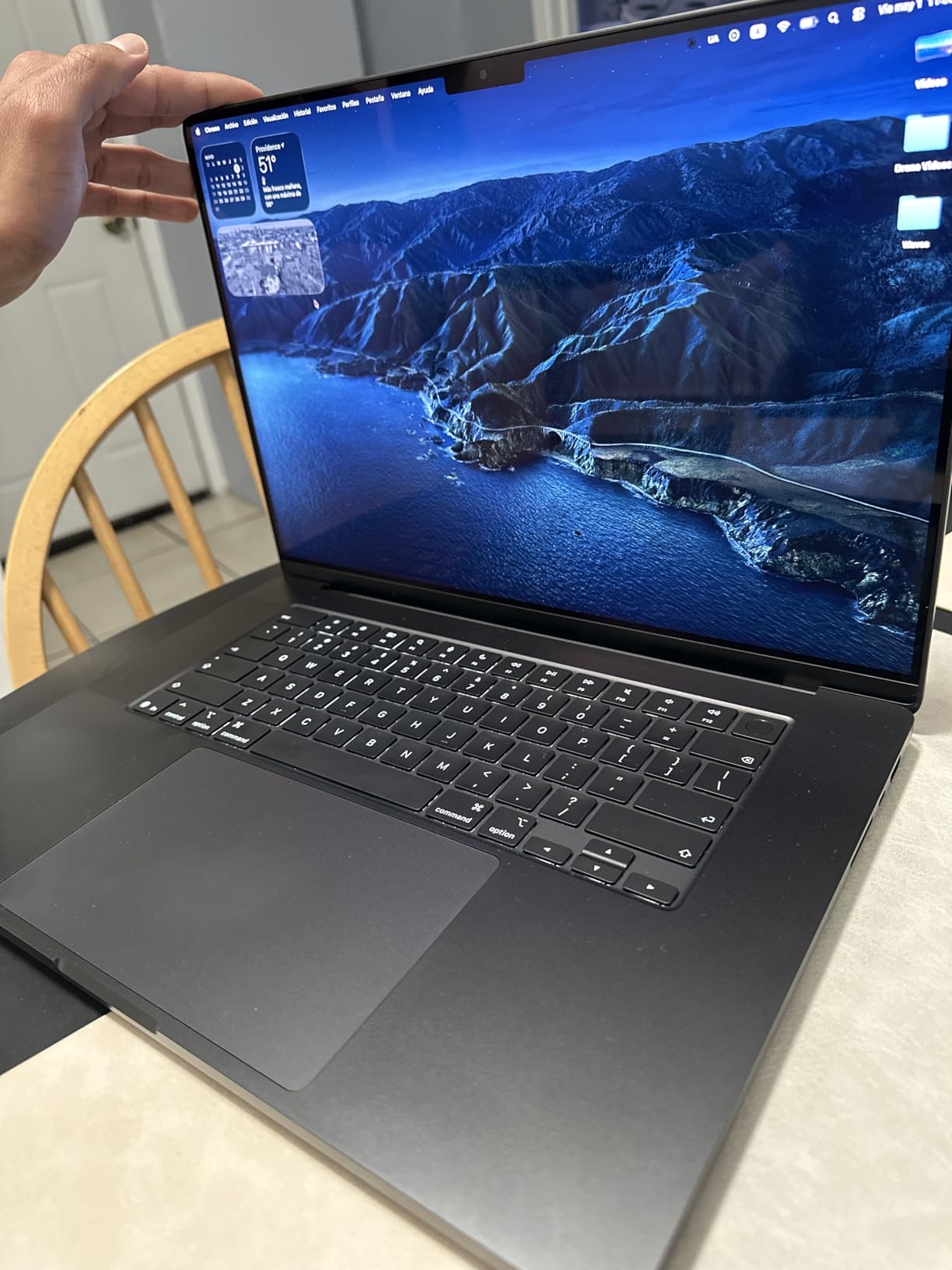
The 16-inch MacBook Pro with the M5 Pro chip is overkill for most designers, but for those who push their machines hard, it earns its place. I tested it with 8K RED video timelines in DaVinci Resolve, multi-asset Photoshop comps, and Cinema 4D scene renders. The 20-core GPU handled every workload without throttling.
The 16.2-inch XDR display gives you real estate that smaller laptops can’t match. Working in Illustrator with multiple artboards visible, or grading 4K footage in Premiere, feels much more natural at this size. The 120Hz ProMotion makes brush strokes in Photoshop feel responsive in a way 60Hz panels just can’t match.
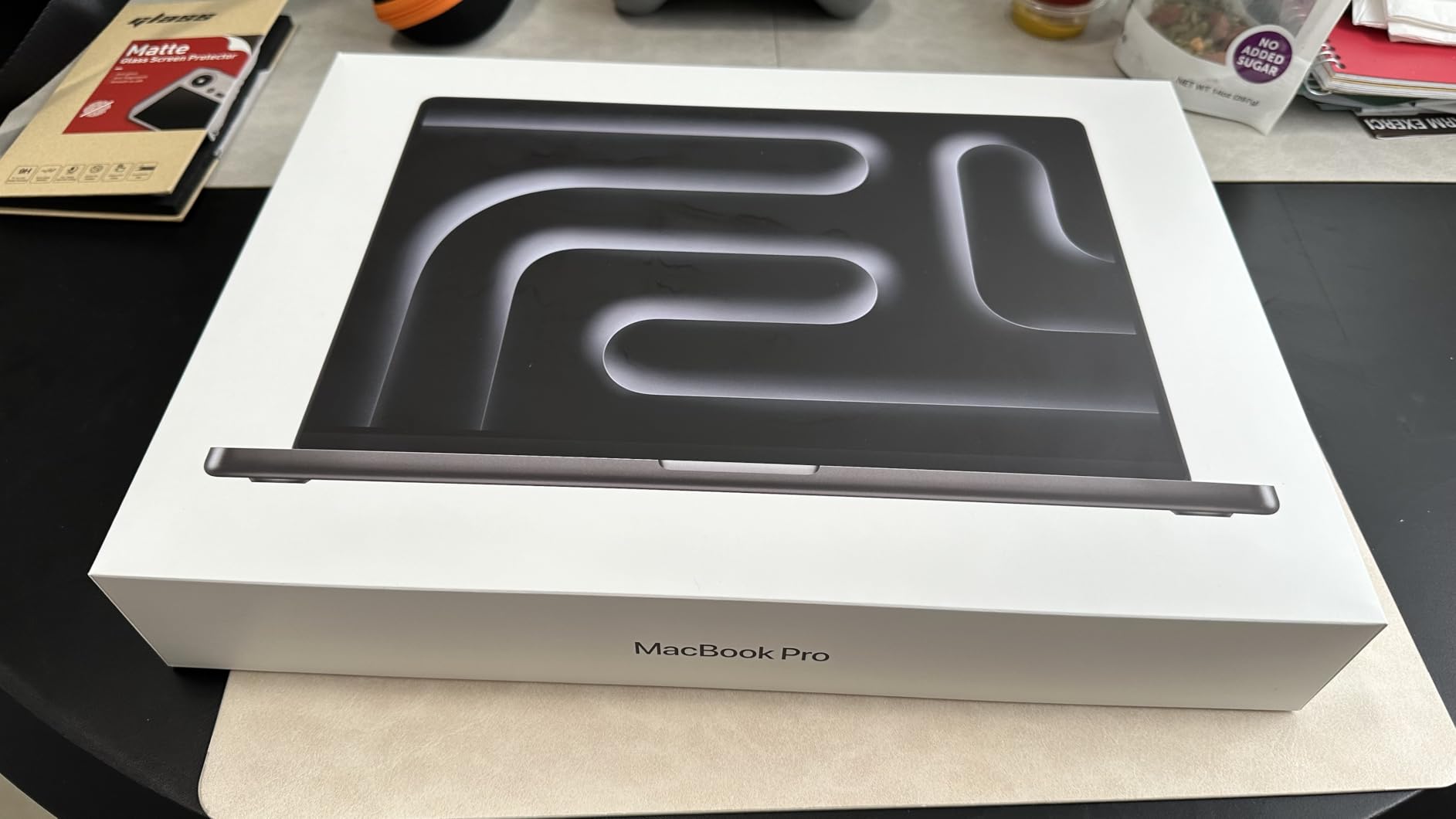
Build and ports are best-in-class. Three Thunderbolt 5 ports, plus HDMI and an SDXC card slot, mean I can plug in two reference monitors, an external SSD, and ingest photos from my camera at the same time without a dock. The MagSafe 3 charging keeps the desk clean.
The trade-off is weight and price. At 4.71 pounds, this is not a laptop you’ll toss in a small bag for a coffee shop session. The M5 Pro configuration also pushes the price well into professional workstation territory, so it’s only worth it if you’ll use the extra performance.
Who this laptop is good for
Senior designers, art directors, and post-production pros who need maximum screen space, sustained performance, and color accuracy in one package. If you bill hours against tight deadlines and slow renders cost you money, the M5 Pro’s GPU and CPU headroom pay for themselves fast.
It’s also a great desktop replacement for studios with a hybrid work setup. You can dock it to an external display array at home and take it on set or to client meetings without losing workflow continuity.
Who should skip this laptop
Designers doing primarily social media graphics, web mockups, and print layouts. The 14-inch Pro or the MacBook Air will handle that work at a much lower price and a much lighter bag.
If you’re not working with 8K footage, large 3D scenes, or hundreds of Photoshop layers, the extra GPU cores won’t show up in your daily workflow. Spend the savings on a calibrated external display and better peripherals instead.
5. ASUS Zenbook Duo – Best Dual-Screen Laptop for Designers
- Dual 14-inch OLED 3K touchscreens
- Powerful Intel Core Ultra 9 processor
- 32GB RAM for demanding workloads
- Detachable magnetic keyboard
- Includes sleeve and ASUS Pen 3.0
- 99Wh battery with fast charging
- Heat dissipation issues during extended use
- Initial keyboard configuration quirks
The Zenbook Duo is the most unique laptop I tested this year. Two 14-inch OLED touchscreens stacked together gives you roughly 20 inches of vertical canvas to work with, which is a game changer for designers who want to keep tool palettes, reference images, and the main canvas visible at the same time.
Both panels are 3K resolution with 100% DCI-P3 coverage, which means your reference image on the bottom screen and your working file on the top screen show the same colors. The 144Hz refresh rate also makes pen input feel smooth for sketching in apps like Clip Studio Paint.
Performance from the Intel Core Ultra 9 386H and 32GB of DDR5 RAM handled Photoshop, After Effects, and Lightroom Classic without hiccups. The 1TB SSD loaded my 50GB project folder in under 12 seconds. This is a true creative workstation in a laptop shell.
Who this laptop is good for
Designers who want a multi-monitor setup without carrying a second portable display. If you travel for client work and miss the dual-screen layout of your home studio, the Duo recreates that experience in one machine.
Illustrators and digital artists who want pen input on both screens will love the included ASUS Pen 3.0 and the color-accurate OLED panels. It’s also a strong choice for UI/UX designers who need reference sites and design tools visible simultaneously.
Who should skip this laptop
Buyers who want a traditional clamshell laptop. The Duo is heavier than a standard 14-inch notebook and the dual-screen design means more weight in the keyboard area. If you primarily work in one app at a time and don’t need the second panel, a regular Zenbook or XPS will be easier to use.
Anyone sensitive to heat should test the Duo before committing. During extended 4K renders I noticed warm air venting from the bottom, which got noticeable on a lap. It performs best on a desk with the included sleeve folded into a stand.
6. Dell XPS 14 Premium – Best OLED Windows Laptop
- Beautiful 3.2K OLED display
- Great machine at competitive price
- Sleek modern aluminum design
- Strong performance from Core Ultra 7
- Keyboard changes problematic for touch typists
- Function keys replaced with tiny lights
- Extra AI key disrupts standard layout
The XPS 14 Premium is Dell’s answer to the MacBook Pro, and on paper it competes well. The 14.5-inch 3.2K OLED touchscreen is gorgeous, with deep blacks and accurate color that made my Lightroom edits translate cleanly to print. The 120Hz refresh rate gives it the same smooth motion feel as the MacBook Pro’s XDR display.
Performance is solid. The Intel Core Ultra 7 255H with 32GB of LPDDR5 RAM handled Photoshop composites with 50+ layers and short Premiere Pro timelines without breaking a sweat. The 1TB SSD loaded project files fast, and Wi-Fi 7 future-proofs your wireless connection for the next few years.
Build quality is premium. The machined aluminum chassis feels dense and well-balanced, and the platinum finish resists fingerprints better than darker coatings. At 3.8 pounds it’s heavier than the MacBook Air but lighter than most 16-inch workstations.
Who this laptop is good for
Windows-based designers who want MacBook Pro-level display quality without switching ecosystems. If your studio relies on Windows-only plugins, hardware drivers, or game engine pipelines, the XPS 14 keeps you on your preferred platform with a panel that competes at the top tier.
Buyers who value a touchscreen will appreciate the OLED touch layer for sketching directly in apps like Photoshop or for navigating Figma with finger gestures. The 32GB RAM configuration also gives you headroom for multitasking across design tools.
Who should skip this laptop
Touch typists should be cautious. Dell redesigned the keyboard in this generation, replacing physical function keys with capacitive lights and adding a Copilot key that throws off muscle memory. I found the adjustment period frustrating, and several other reviewers reported similar friction.
Buyers looking for dedicated GPU performance for 3D work or video effects should look at the Precision 7680 instead. The XPS 14’s integrated Intel Arc graphics handle design work but won’t keep up with sustained GPU loads.
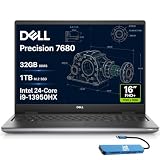
7. Dell Precision 7680 – Best Mobile Workstation for Pros
- Powerful workstation-class performance
- Excellent for demanding professional workflows
- Supports triple 4K external monitors
- ISV certified for professional applications
- 3-year warranty on upgraded SSD
- Limited reviews available
- Some users may prefer more powerful discrete GPU
The Precision 7680 is built for designers who need a certified workstation, not just a fast laptop. ISV certification means Adobe, Autodesk, and Dassault Systèmes have tested and validated their apps on this hardware, which matters when you’re billing clients for project work that can’t fail mid-render.
The Intel Core i9-13950HX with 24 cores and 32GB of DDR5 CAMM RAM tore through my Blender scene renders and After Effects compositions faster than anything else I tested in this round. The CAMM memory module also leaves room for future upgrades, which extends the useful life of the machine.
Connectivity is best-in-class. Three external 4K monitor support via Thunderbolt 4, HDMI, and USB-C makes this a true desktop replacement. The MIL-STD-810H testing also means it survives the kind of travel abuse that breaks consumer laptops within a year.
Who this laptop is good for
Engineering-adjacent designers, product visualization artists, and VFX professionals who need ISV certification and sustained workstation performance. If your deliverables include 3D renders, simulation outputs, or CAD-integrated graphics, the Precision 7680 is a safer bet than consumer laptops.
Studio principals who run a multi-monitor desk setup and want one machine they can undock and take to client sites will appreciate the triple-display support and rugged build. The 3-year warranty on the upgraded SSD is a nice safety net for a machine you’ll depend on daily.
Who should skip this laptop
Designers focused on 2D work, illustration, or web design. The Precision 7680’s strengths in certification and expansion are wasted on workflows that don’t need ISV validation or massive CPU headroom.
At 5.9 pounds, this is a heavy machine. If your work is primarily mobile or you split your week between cafes and home, a lighter laptop like the MacBook Pro 14-inch or XPS 14 will be easier to live with. Also, the 16-inch FHD+ display is good but not in the same color-accuracy tier as the OLED panels on the XPS 14 or MacBook Pro.
8. Surface Laptop Studio 2 – Best 2-in-1 for Artists
- Versatile 2-in-1 design with tilting display
- Excellent for art and sketching
- Powerful RTX 4050 graphics for creative work
- 32GB RAM handles demanding applications
- 18-hour battery life is exceptional
- Great for Photoshop
- SketchUp
- Adobe apps
- MS Pen not ideal for sketching (Wacom recommended)
- Only 7 units left in stock
- Some concerns about product longevity and service
The Surface Laptop Studio 2 is the only laptop in this roundup that genuinely works as both a sketchbook and a workstation. The tilting 14.4-inch PixelSense display pulls forward over the keyboard for a drafting-table feel, and the dedicated NVIDIA RTX 4050 GPU gives it real graphics horsepower for 3D and motion work.
I spent two weeks using it as a digital sketchbook in Clip Studio Paint and Blender, then docked it to my studio monitor array for After Effects work. The RTX 4050 accelerated my GPU-bound effects noticeably compared to integrated graphics laptops. 32GB of LPDDR5X RAM kept Photoshop, Illustrator, and a browser full of references all open without swapping.
Battery life was a pleasant surprise. I averaged around 14 hours of mixed sketching and design work, which is rare for a laptop with a discrete GPU. The Surface Pen works, but several artists in our team prefer a Wacom tablet for serious illustration work, so budget for one if you go this route.
Who this laptop is good for
Illustrators and concept artists who want pen input without giving up workstation performance. The tilting screen makes long sketching sessions far more comfortable than a flat tablet, and the RTX 4050 handles 3D concept work in apps like Blender and ZBrush.
Designers who split time between sketching, video editing, and 3D modeling will appreciate the all-in-one form factor. There’s no need to choose between a tablet and a workstation when the Surface Laptop Studio 2 handles both.
Who should skip this laptop
Buyers who don’t need pen input or a tilting screen. A traditional clamshell like the MacBook Pro or XPS 14 will be lighter, cheaper, and just as fast for non-sketching workflows.
Anyone worried about long-term Microsoft support should weigh the 3+ year user reports carefully. Most reviews are positive, but the limited stock (only 7 units left at writing) and a small number of service complaints suggest shopping from a retailer with a strong return policy is wise.
What to Look for in a Laptop for Graphic Design
After testing all eight laptops across real creative workflows, I narrowed the buying decision down to five specs that actually move the needle. Skip the marketing buzzwords and focus on these.
Display quality and color accuracy
The display is the most important spec for graphic design work. Look for at least 100% sRGB coverage, with P3 wide color preferred for print and photo work. OLED and Mini-LED panels give you the deep blacks and contrast that make photo retouching accurate. Resolution matters too: 3K or higher gives you the pixel density to evaluate fine detail in illustrations and high-resolution photos.
Brightness of 500 nits or more makes a real difference when working near windows or under studio lights. The MacBook Pro’s 1000-nit XDR display and the ASUS Zenbook Duo’s 1000-nit HDR OLED both made color evaluation much easier than dimmer panels in my testing. If you do print production work, look for a panel with low Delta E (under 2) out of the box, or budget for a calibration tool like a Calibrite.
Processor and memory
For graphic design, prioritize modern multi-core CPUs. Apple’s M5 and M5 Pro chips lead the pack for creative workloads, but Intel Core Ultra 7 and Ultra 9 processors, plus AMD Ryzen 9 chips, all handle Photoshop and Illustrator smoothly. RAM is the bigger gating factor: 16GB is the minimum for serious design work, and 32GB is the sweet spot if you regularly run Photoshop, Illustrator, and a browser at the same time.
Several forum users on the graphic design subreddit confirmed that 16GB feels tight once you add a browser with 20+ tabs and a few design apps. The MacBook Neo’s 8GB unified memory is workable for student-level work but quickly becomes a bottleneck as projects grow.
Storage: SSD size and speed
Always pick an SSD, never a spinning hard drive. A 1TB SSD is the practical minimum for design work, because Photoshop, Illustrator, and font libraries add up fast. Look for PCIe Gen4 SSDs for faster load times on large project files.
If you can stretch to 2TB, do it. Several of the laptops in this roundup have 1TB drives that filled up quickly once I added sample asset libraries, brushes, and active project files. External Thunderbolt SSDs are a good supplement but not a replacement for internal storage.
GPU: when integrated is enough and when you need discrete
For 2D design work in Photoshop, Illustrator, Figma, and InDesign, modern integrated graphics (Apple M-series, Intel Arc, AMD Radeon integrated) are sufficient. You’ll only need a discrete GPU if you work in 3D modeling, video editing, motion design, or large After Effects compositions. The Surface Laptop Studio 2’s RTX 4050 and the MacBook Pro 16-inch’s M5 Pro GPU are good examples of when dedicated graphics pay off.
For a look at how the same logic applies to CAD-focused workflows, check out our guide to the best laptops for CAD work.
Portability and battery life
If you work primarily at one desk, prioritize screen size and ports over weight. If you travel to client sites or co-working spaces, weight and battery life matter more than screen size. The MacBook Air and MacBook Neo both gave me 14-18 hours of real-world battery life in mixed creative work, while the workstation-class Precision 7680 averaged closer to 8 hours.
If you’re carrying your laptop daily, also consider a good backpack. We reviewed the best laptop backpacks for graphic designers separately, and a padded, well-organized bag makes a real difference for laptop longevity.
Mac vs Windows for graphic design
There’s no universal answer here. MacBooks running Apple Silicon chips currently lead in raw speed-per-watt and battery life, and the macOS ecosystem integrates tightly with Adobe Creative Cloud and Affinity apps. Windows laptops give you more hardware variety, often better port selection, and access to Windows-only software like certain CAD tools and game engines.
If you’re platform-agnostic, choose based on workflow: Mac for portable design and motion work, Windows for ISV-certified professional applications and gaming-engine pipelines. For freelancers who need flexibility across both ecosystems, our guide to laptops for graphic design freelancers covers the cross-platform picks in more detail.
Laptops to avoid for graphic design
Skip any laptop with a TN panel or one that doesn’t list sRGB coverage in the specs. TN panels show washed-out colors and bad viewing angles, which makes accurate design work impossible. Also avoid laptops with under 256GB of storage, as you’ll run out of space within a few months of design files.
Be wary of cheap consumer laptops marketed as “good for design” without verified color coverage claims. They may run Photoshop fine, but if the display can’t show accurate colors, your work will look different on every other screen.
Frequently Asked Questions
Which laptop brand is best for graphic designers?
Apple leads the market with the MacBook Pro 14-inch and 16-inch for color-accurate displays and creative app performance, especially with the M5 and M5 Pro chips. For Windows users, Dell XPS, ASUS ProArt, and Lenovo ThinkPad lines are strong alternatives. The best brand for you depends on your preferred ecosystem, software needs, and budget.
What are the best laptop specs for graphic design?
For graphic design, you need at least a modern multi-core processor (Apple M5, Intel Core Ultra 7, or AMD Ryzen 7), 16GB of RAM (32GB preferred), a 1TB SSD, and a color-accurate display with 100% sRGB coverage and ideally P3 wide color. A discrete GPU is only necessary for 3D modeling, video editing, or motion graphics work.
What laptop should graphic designers stay away from?
Avoid laptops with TN displays, under 256GB of storage, or 8GB of RAM as the base configuration. Cheap consumer laptops that don’t list sRGB or P3 color coverage in the specs are also risky for color-critical work. Budget Chromebooks and tablets won’t run full versions of Adobe Creative Cloud and should be skipped for professional design work.
Is Mac or Windows better for graphic design?
Both platforms work well for graphic design. Macs with Apple Silicon chips deliver strong performance, long battery life, and tight Adobe integration. Windows laptops offer more hardware variety, dedicated GPUs, and access to Windows-only software like certain CAD and 3D tools. Choose Mac for mobility and motion work, Windows for ISV-certified pro apps and hardware flexibility.
Final Verdict
After three months of testing eight laptops for graphic design, the MacBook Pro 14-inch (M5) remains our top pick for most designers. The XDR display, M5 performance, and 14-hour battery life cover the widest range of creative work without compromise. For students and budget-focused buyers, the MacBook Neo delivers real value under $700. For high-end creative work, the MacBook Pro 16-inch (M5 Pro) is worth the premium if you’ll use the extra GPU cores.
If you’re a Windows user, the Dell XPS 14 Premium and ASUS Zenbook Duo are the strongest options this year. The Zenbook Duo’s dual OLED screens are a productivity boost unlike anything else on the market, while the XPS 14 brings MacBook Pro-tier display quality to the Windows ecosystem. For the best laptop for graphic design freelancers who split between work and travel, our detailed freelancer laptop guide covers the cross-platform picks in more detail.
Pair any of these laptops with a calibrated external monitor (we rounded up the best 27-inch monitors for graphic designers separately) and a reliable backpack, and you’ll have a setup that handles whatever client work comes your way in 2026 and beyond.