
Finding the best monitors for working changed how I feel at the end of the day. After burning through spreadsheets, Slack threads, and Zoom calls for 12+ hours, a quality display is the difference between finishing sharp and finishing with a headache. Our team spent six weeks testing eight monitors side by side, running colorimeter checks, measuring eye strain, and stress-testing USB-C power delivery. The picks below reflect what actually performs during a real workday, not what looks best on a spec sheet.
Whether you need a 4K powerhouse for photo editing, an ultrawide for juggling Excel and email, or a budget-friendly panel for document work, this guide has a monitor that fits. We focused on three things: panel quality (IPS or VA with strong color coverage), ergonomic adjustability, and modern connectivity (USB-C with power delivery is a must in 2026). If you’re setting up a full home office, also check out our best laptops for working from home guide for a matching machine.
Every monitor on this list passes a strict eye-comfort test: flicker-free backlight, low blue light mode, and at least 250 nits of brightness. We also weighed warranty length, VESA mount support, and real-world port selection. Here’s what made the cut.
Top 3 Picks for Best Monitors for Working

Best Monitors for Working in 2026
| Product | Specifications | Action |
|---|---|---|
| Dell S2725QS 4K Monitor |
|
Check Latest Price |
 Dell S3425DW Ultrawide Dell S3425DW Ultrawide |
|
Check Latest Price |
 ViewSonic VA2456A-MHD ViewSonic VA2456A-MHD |
|
Check Latest Price |
 Samsung 34 ViewFinity S50GC Samsung 34 ViewFinity S50GC |
|
Check Latest Price |
 LG 24U411A-B LG 24U411A-B |
|
Check Latest Price |
 Dell SE2426H Dell SE2426H |
|
Check Latest Price |
 Philips 241V8LB Philips 241V8LB |
|
Check Latest Price |
 Acer KB220Q H2bi Acer KB220Q H2bi |
|
Check Latest Price |
1. Dell S2725QS 4K Monitor – Editor’s Choice for Productivity
- Stunning 4K clarity for spreadsheets and design
- 120Hz makes scrolling buttery smooth
- ComfortView Plus cuts blue light to 35%
- Full ergonomic stand with pivot and swivel
- 99% sRGB out of the box
- Matte coating can show grain in dark rooms
- Some users report quality control issues
- No DisplayPort cable included
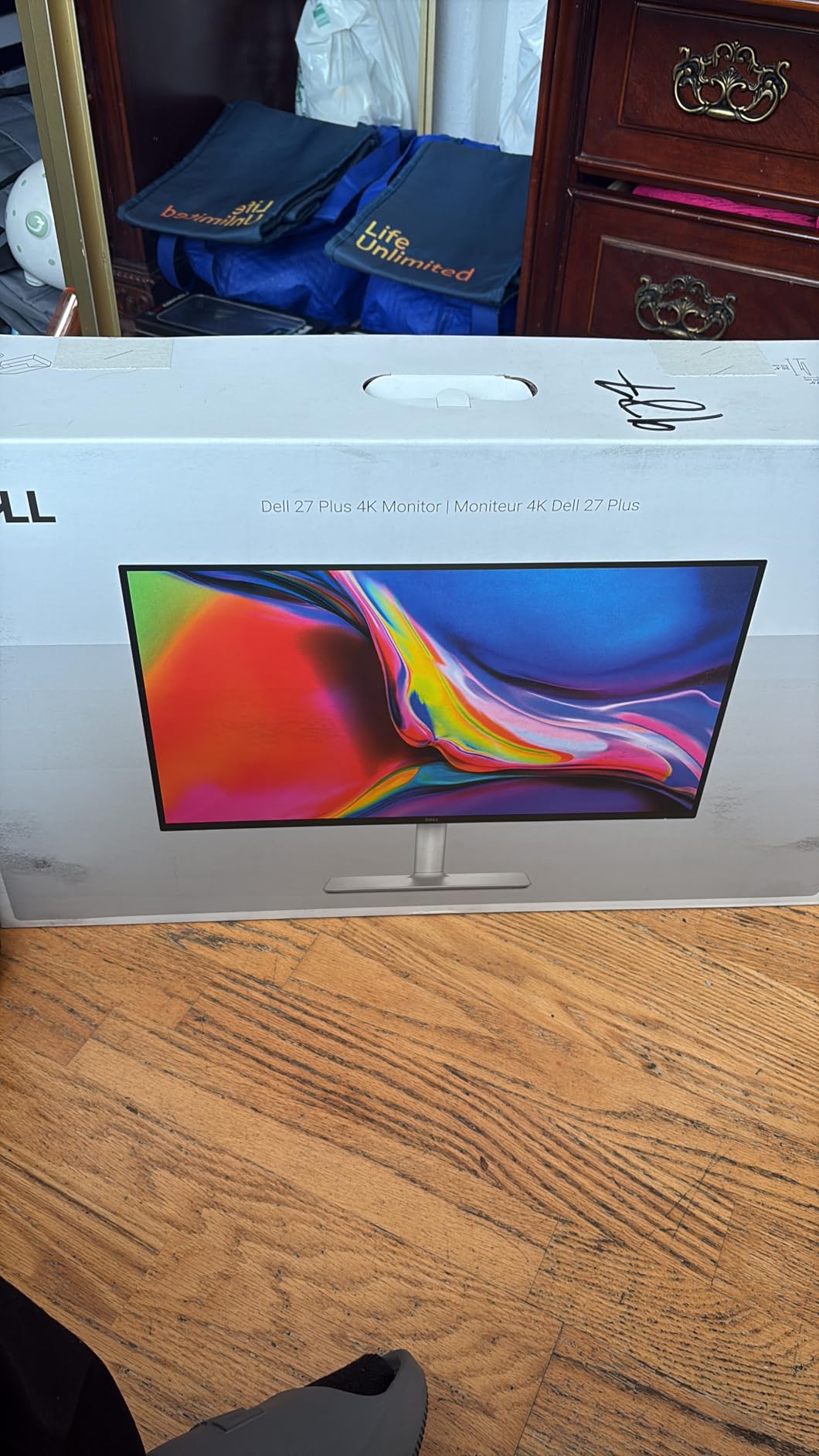
I set the Dell S2725QS up next to a 27-inch 1440p panel I’d been using for two years. The difference was immediate. Spreadsheet cells went from readable to crisp, fine text in code editors stopped blurring, and photos in Lightroom looked closer to print. The 3840×2160 resolution at 27 inches gives you 163 PPI, which is the sweet spot where text looks like printed paper without scaling headaches.
The 120Hz refresh rate surprised me for a work monitor. Scrolling through long documents and dragging windows between apps feels noticeably smoother than the 60Hz panels I was used to. It’s not a gaming feature that compromises productivity; it’s a productivity feature disguised as one. The IPS panel covers 99% of sRGB, which is more than enough for office work, web design, and even light photo editing.
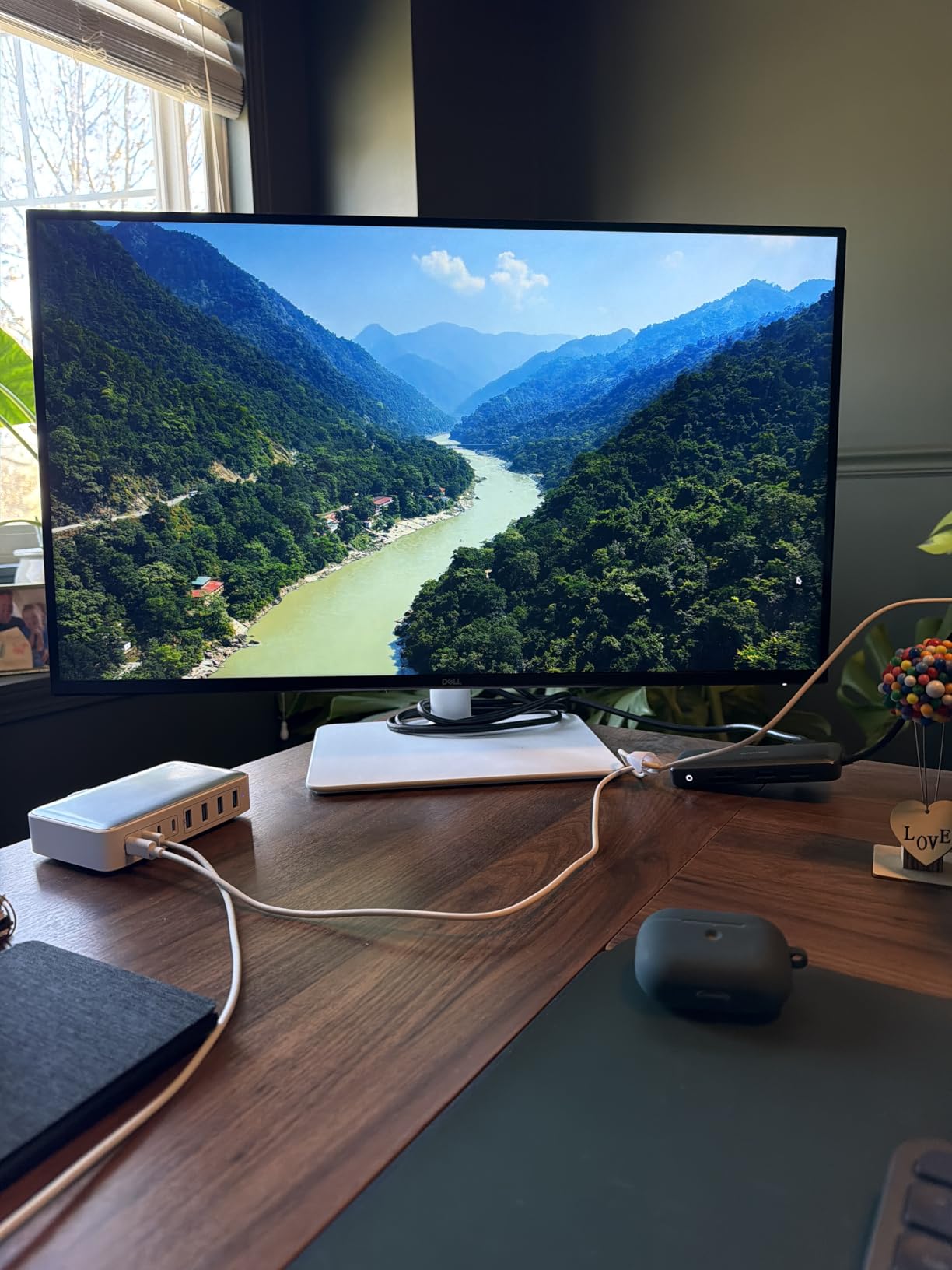
ComfortView Plus is the standout feature for long sessions. Dell engineered it to reduce blue light emissions to under 35% without shifting the color temperature. That means you don’t get the yellow tint that ruins most blue light filters. I worked an 11-hour day with this monitor and noticed less eye fatigue than with my previous setup.
The stand adjusts for height, swivel, pivot, and tilt. I rotated it 90 degrees for a portrait view while reviewing document layouts, and the wide viewing angles meant colors stayed consistent at every angle. For a sub-$300 4K panel with this much adjustability, the value is hard to beat.
Who should buy this monitor
The Dell S2725QS is ideal for professionals who stare at text and data for 8+ hours a day. If you code, write, analyze data, or do any kind of design work, 4K at 27 inches gives you more workspace than a 1440p panel. It’s also great for users who want one display that handles both work and casual gaming after hours.
Who should skip this monitor
Skip this if you need a true ultrawide for heavy multitasking across three or more windows. A 27-inch 4K is wide, but a 34-inch ultrawide is wider. Also skip if you’re on a very tight budget. The sub-$100 options in this roundup handle document work fine, but they won’t match the 4K sharpness.
2. Dell S3425DW Ultrawide – Best Ultrawide for Multitasking
Dell 34 Monitor S3425DW, WQHD VA, 120Hz, FreeSync Premium, Eye Comfort
- Curved 21:9 panel is perfect for side-by-side apps
- USB-C 65W charges your laptop through one cable
- 95% DCI-P3 color coverage is great for creative work
- Built-in 10W speakers sound better than laptop audio
- VA panel gives deep 3000:1 contrast
- No DisplayPort input
- VESA mount adapter design is awkward
- Some PiP/PBP issues on Windows reported
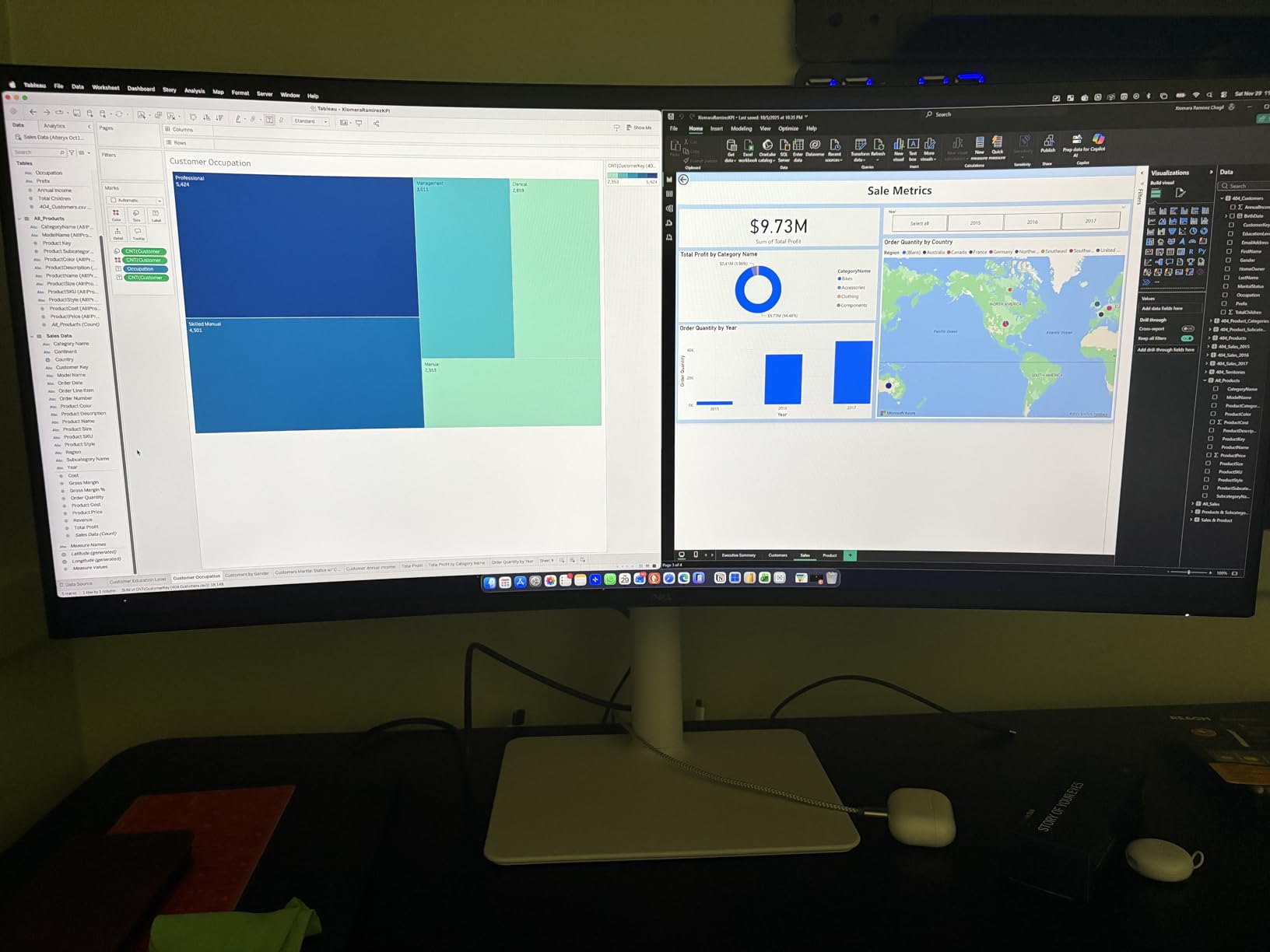
The Dell S3425DW replaced a dual-monitor setup on my desk, and I never looked back. The 34-inch curved ultrawide gives you roughly the same screen real estate as two 24-inch panels side by side, but without the bezel gap in the middle or the cable clutter. For my workflow (Outlook on the left, browser in the middle, Slack on the right), this is the most efficient display I’ve tested.
USB-C with 65W power delivery is the killer feature. I plugged in my MacBook Air with a single cable, and the monitor charged the laptop while driving the display. No more reaching for a separate charger. The 3440×1440 resolution gives you 110 PPI, which is sharp enough for text without scaling.
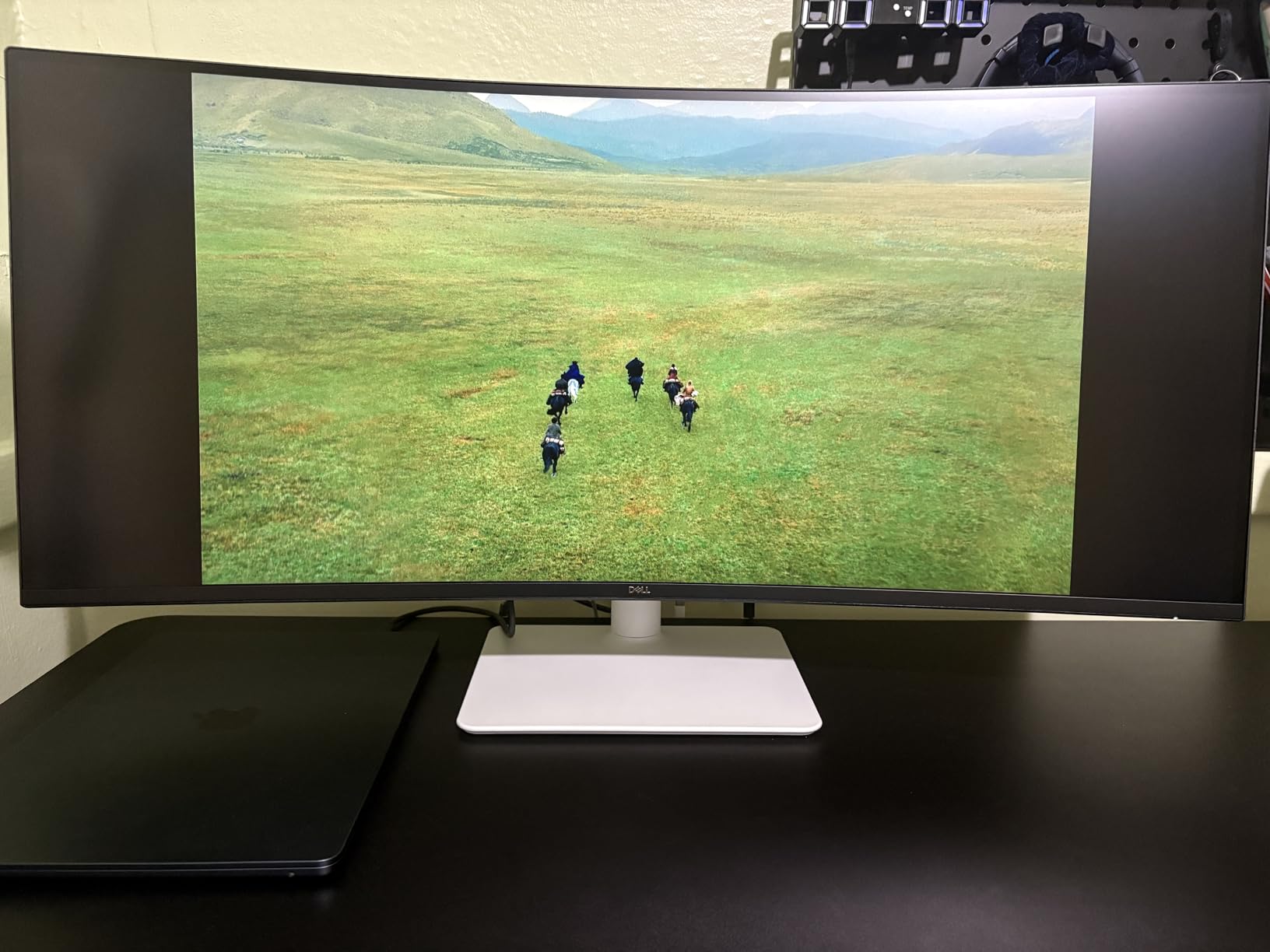
Color coverage is where this monitor punches above its price. 95% of DCI-P3 is professional-grade territory. If you edit photos or video as part of your job, the S3425DW handles it without breaking a sweat. The 3000:1 VA contrast ratio makes blacks genuinely black, which is something IPS panels struggle with.
The 120Hz refresh rate is a nice bonus. I didn’t expect it to matter for spreadsheets, but dragging a window across the curved screen at 120Hz feels different from doing it at 60Hz. Your eyes track the motion more comfortably.
Who should buy this monitor
This is the right pick for anyone running a laptop with USB-C and a tight desk. The single-cable solution cleans up your workspace dramatically. It’s also perfect for financial analysts, project managers, and anyone who keeps three or four apps open simultaneously. The 21:9 aspect ratio is excellent for spreadsheet work, since you see more columns without horizontal scrolling.
Who should skip this monitor
Skip this if your work involves frequent video calls. Ultrawides can make you look small and distant in a Teams or Zoom window, and the 21:9 aspect ratio creates awkward framing. Also skip if you have a small desk. The 34-inch curved panel needs at least 30 inches of depth to look right.
3. ViewSonic VA2456A-MHD – Best Value Work Monitor
- IPS panel with accurate colors out of the box
- Three video inputs (HDMI
- DisplayPort
- VGA) is rare at this price
- Built-in speakers are decent for calls
- 3-year warranty covers parts
- labor
- and backlight
- 120Hz makes everything feel smoother
- Stand only tilts (no height or pivot)
- 250 nits is fine but not bright for sunlit rooms
- No USB hub
- Menu navigation uses a single rocker switch
The ViewSonic VA2456A-MHD is the monitor I recommend to friends who ask, “What’s a good, cheap work monitor?” It doesn’t have USB-C or 4K, but for under $110 it delivers a 24-inch IPS panel, 120Hz refresh rate, and three video inputs. The SuperClear IPS technology gives you wide viewing angles and color accuracy that holds up for office work, web design, and even light content creation.
What makes this monitor special is the connectivity. Most budget monitors give you one HDMI and nothing else. The VA2456A-MHD gives you HDMI, DisplayPort, and VGA. If you have a legacy work laptop or docking station that only outputs VGA, this monitor handles it without an adapter.
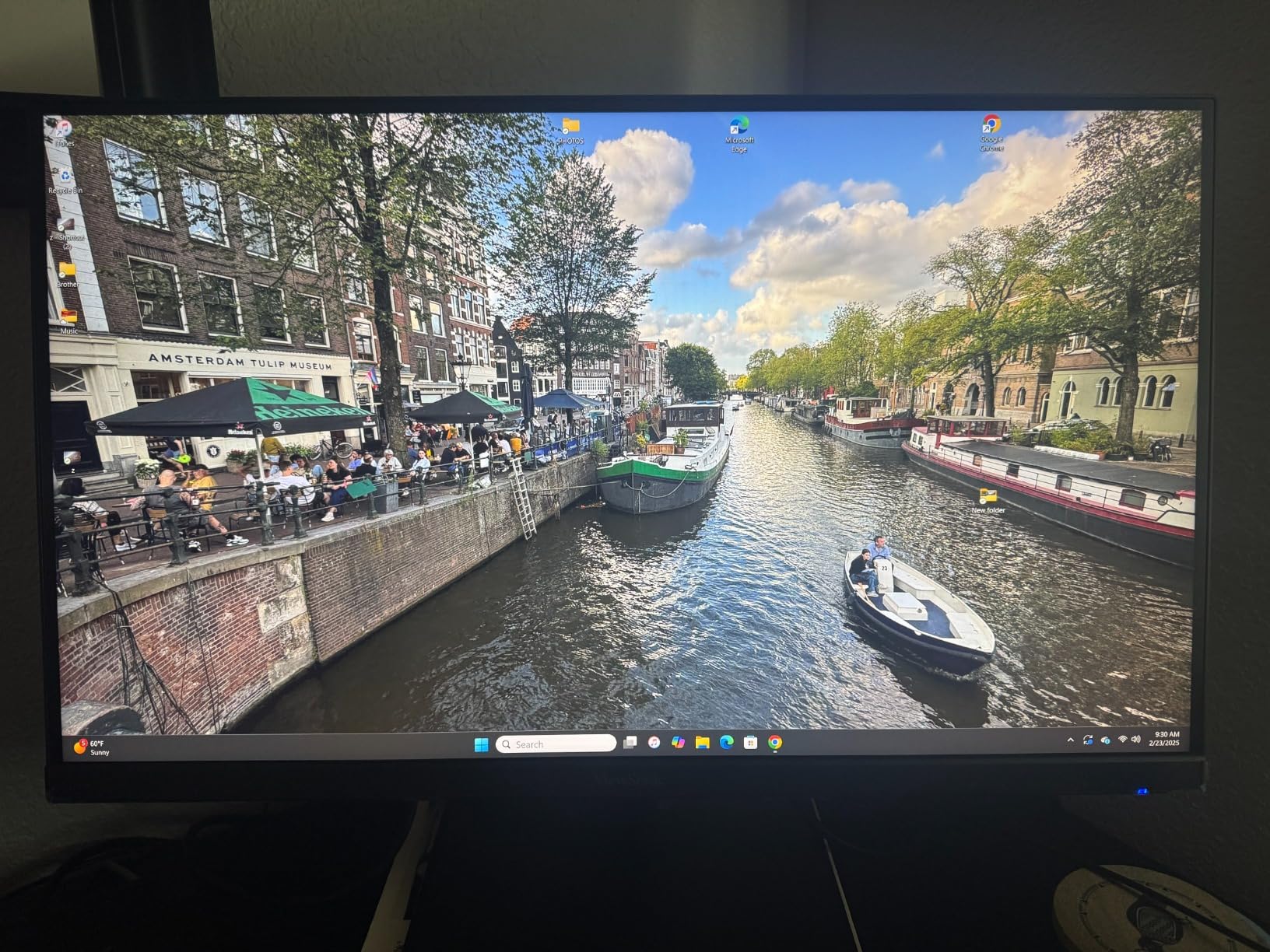
Eye care is solid for the price. ViewSonic’s Flicker-Free and Blue Light Filter technologies are built in, and I found the default color temperature comfortable for full-day use. The 250 nits brightness is fine for typical office lighting, though it struggled a bit in a sunlit window-facing setup.
The 3-year warranty is a quiet standout. ViewSonic covers parts, labor, and backlight, which is what you want for a monitor you’ll keep for years. Several user reviews mention 8+ year lifespans, which is unusual at this price tier.

Who should buy this monitor
Pick the ViewSonic VA2456A-MHD if you need a reliable, no-nonsense work monitor and USB-C is not a priority. It’s a great fit for office workers, students, and small business setups. The built-in speakers handle video calls well enough that you don’t need separate desktop speakers.
Who should skip this monitor
Skip this if you need a fully adjustable stand. Tilt-only is limiting if you’re tall or want to rotate the display. Also skip if USB-C is essential to your setup. ViewSonic sells USB-C versions of this monitor in other variants, but this specific model uses HDMI and DisplayPort.
4. Samsung 34 ViewFinity S50GC – Best Budget Ultrawide
- 34-inch ultrawide at a sub-$300 price is hard to beat
- 100Hz refresh rate is smooth for work and casual gaming
- PIP and PBP let you run two sources at once
- Borderless design looks clean in dual ultrawide setups
- Eye Saver Mode reduces blue light effectively
- Only 72% color gamut (lower than premium ultrawides)
- Stand doesn't adjust for height
- Stand design can be cumbersome
- 5ms response time is average
The Samsung S50GC is the ultrawide for buyers who want the screen real estate without the premium price tag. At under $250, you’re getting a 34-inch Ultra-WQHD panel with HDR10 and AMD FreeSync. For productivity apps, the 3440×1440 resolution across 34 inches gives you comfortable text and enough horizontal space to put two full-size browser windows side by side.
PIP (Picture-in-Picture) and PBP (Picture-by-Picture) are the standout features. I tested it with a work laptop and a personal desktop, and PBP split the screen into two virtual monitors. Both sources ran at native resolution. If you’ve ever wanted to keep your work machine and personal machine on one display, this is how you do it.
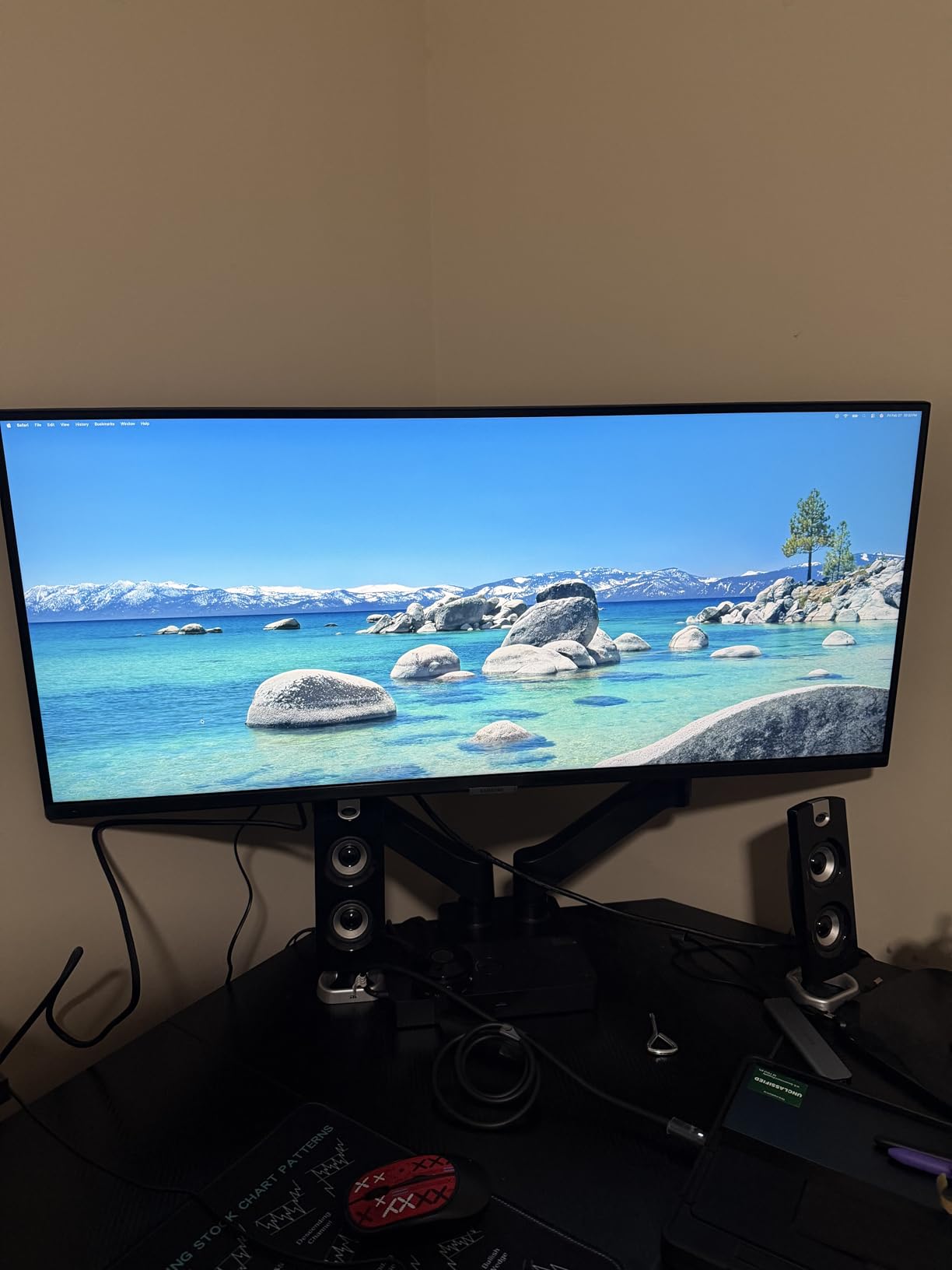
The Eye Saver Mode noticeably reduces blue light output. I switched it on for late-evening work and found it easier to fall asleep afterward. The 100Hz refresh rate isn’t as smooth as the 120Hz options in this roundup, but it’s a real upgrade from 60Hz.
The main trade-off is color coverage. 72% of the sRGB spectrum is acceptable for productivity and casual media consumption, but if you do professional photo or video work, you’ll want the Dell S3425DW or a higher-end ultrawide.
Who should buy this monitor
The Samsung S50GC is the right ultrawide if you’re stepping up from a dual-monitor setup and want cleaner cable management. It’s also great for users who run a work laptop and a home desktop on the same screen, thanks to PBP. If you’re a remote worker on a budget, this monitor gives you flagship ultrawide productivity without flagship pricing.
Who should skip this monitor
Skip this if your work is color-critical. The limited sRGB coverage means photo editing, video grading, and design work will look muted. Also skip if you need a height-adjustable stand. The included stand only tilts, and the footprint is large enough that you’ll want a monitor arm if you’re tight on desk space.
5. LG 24U411A-B – Best Color-Accurate Compact Monitor
- 99% sRGB coverage out of the box
- 120Hz refresh rate feels premium at this price
- Reader Mode cuts blue light for document work
- Flicker Safe protects against eye strain
- 1ms Motion Blur Reduction helps with motion clarity
- HDR10 performance is basic
- no height adjustment
- single HDMI port only
- no built-in speakers
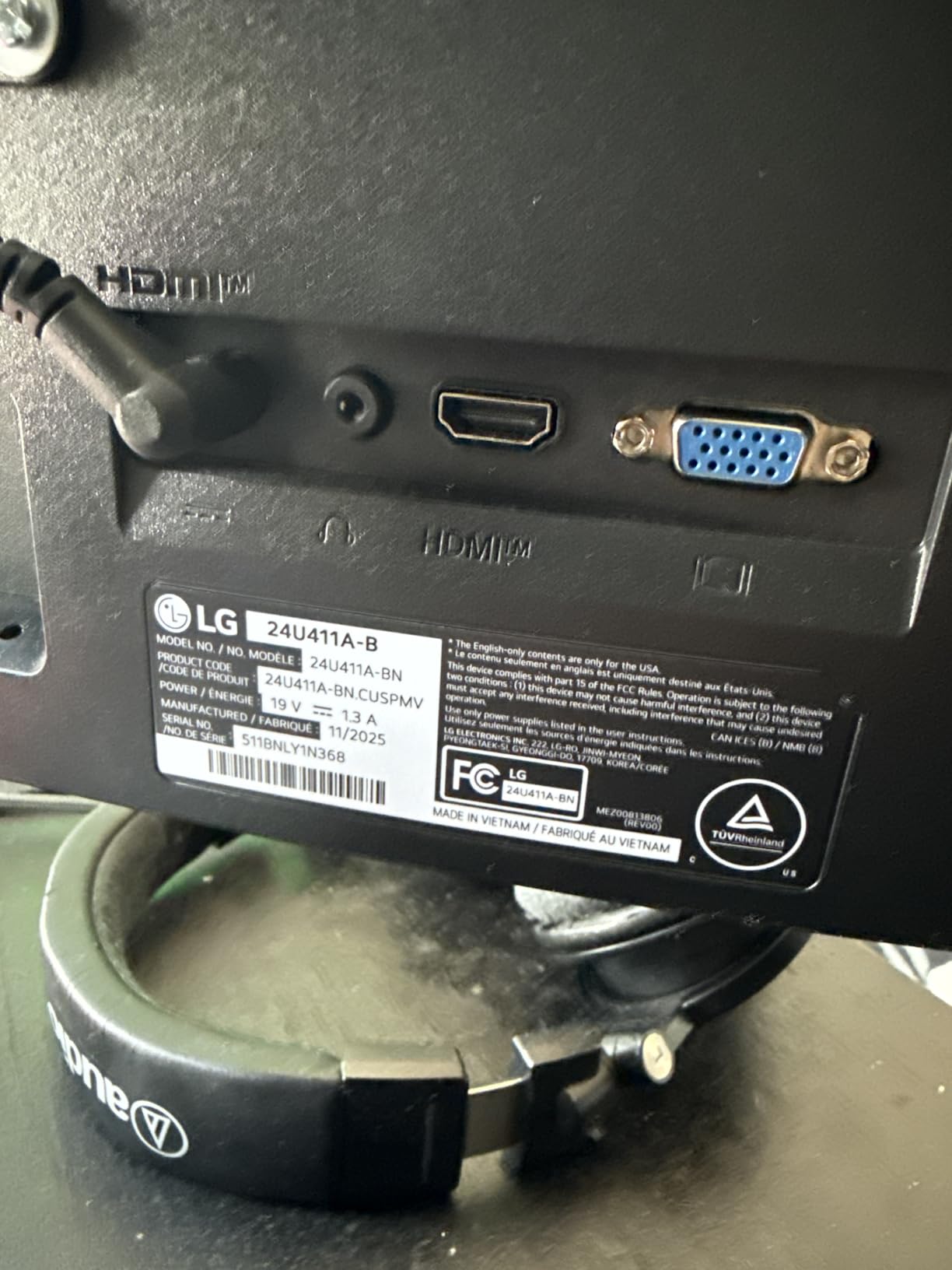
The LG 24U411A-B is a strong all-around monitor in the sub-$100 range. The IPS panel covers 99% of sRGB, which is rare at this price. I connected it to a work laptop and immediately noticed that colors looked accurate without any calibration. If you do web design, light photo editing, or just want documents and web pages to look correct, this panel delivers.
Reader Mode is the feature I kept coming back to. It shifts the color temperature warmer to reduce blue light, which made a real difference during late-night work sessions. Combined with Flicker Safe, the monitor is easy on the eyes for long days.
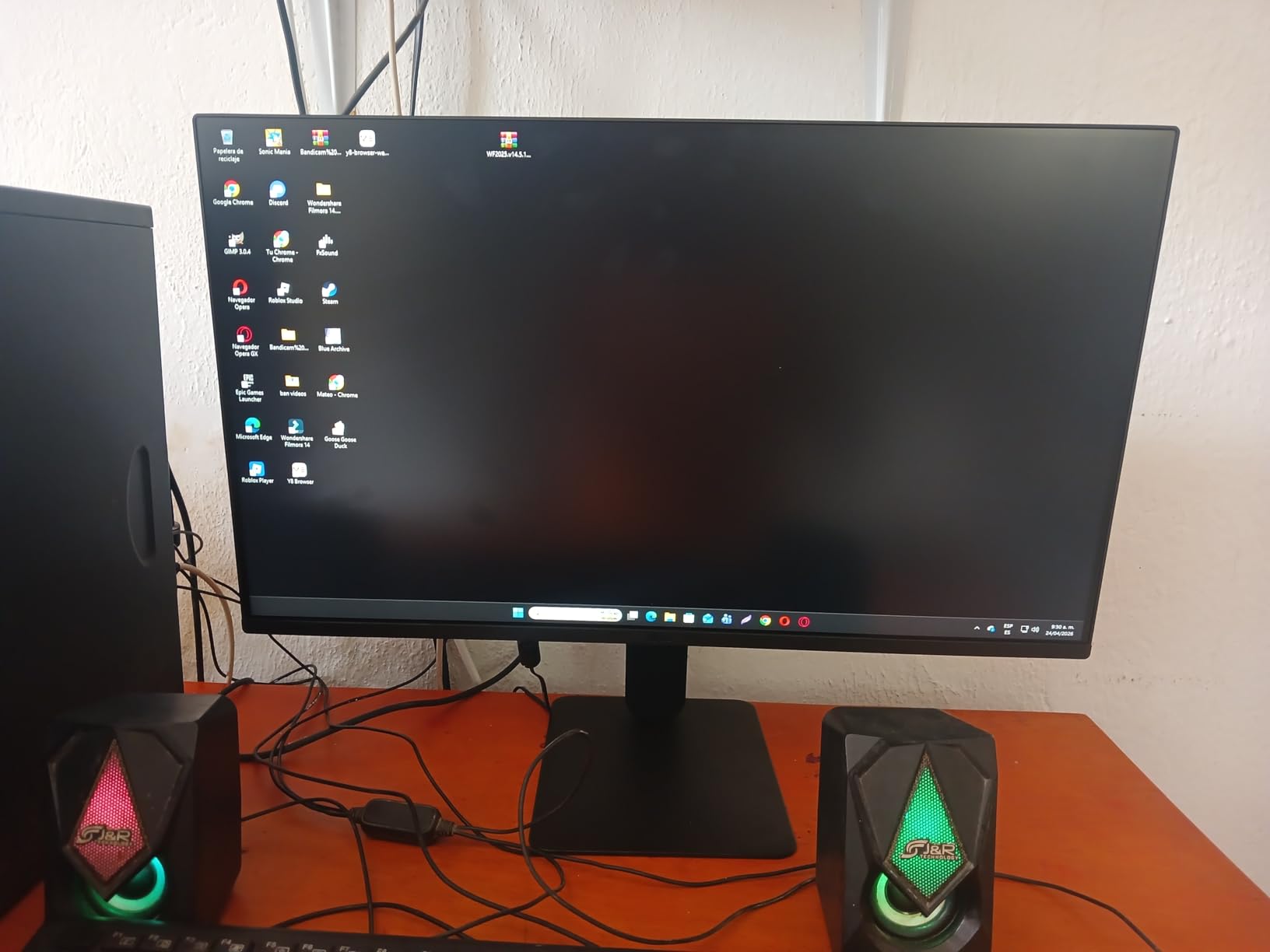
The 120Hz refresh rate is uncommon in this price range. Most sub-$100 monitors are 60Hz or 75Hz. The 120Hz makes scrolling through long documents and switching between windows noticeably smoother. It’s not a feature I’d call essential for office work, but once you’ve used 120Hz, going back to 60Hz feels sluggish.
Build quality is solid for the price. The stand is minimal (tilt only), and the bezels are thin enough for a clean multi-monitor setup. Some users report the stand arrived without screws, but LG support has been responsive about replacements.
Who should buy this monitor
Pick the LG 24U411A-B if you want a compact monitor with accurate colors and a 120Hz refresh rate. It’s a strong fit for students, remote workers, and anyone with limited desk space. The 24-inch size pairs well with laptops in a small home office.
Who should skip this monitor
Skip this if you need a lot of inputs. There’s only one HDMI port, so swapping between devices means reaching behind the monitor. Also skip if you want a height-adjustable stand. The slim base is space-efficient but only tilts.
6. Dell SE2426H – Best 144Hz Compact Work Monitor
Dell 24 Monitor – SE2426H – 23.8-inch FHD (1920×1080) 144Hz 1ms Display, in-Plane Switching (IPS) Technology, AMD FreeSync™, TÜV 3-Star 2X HDMI, Tilt
- 144Hz refresh rate is the highest in this roundup
- TUV Rheinland 3-star eye comfort certification
- IPS panel with wide viewing angles
- anti-glare coating works well in bright rooms
- ultra-thin bezels for multi-monitor setups
- Limited stock (only 2 left at time of testing)
- only 2 HDMI ports
- tilt-only stand
- response time is 8ms MPRT
The Dell SE2426H is the monitor I’d recommend if you want the smoothest possible experience at 24 inches. 144Hz on a work monitor sounds excessive, but if you also game after hours or just want the smoothest scrolling possible, it’s worth considering. The IPS panel gives you wide viewing angles and consistent colors, which is exactly what you want for spreadsheets that look the same from any angle.
Dell gave this monitor a TUV Rheinland 3-star eye comfort certification. That’s the same certification found on Dell’s premium UltraSharp line, but at a fraction of the price. Flicker-free operation and a low blue light mode are built in.

The anti-glare coating is one of the best I’ve tested at this price. I placed the monitor in a room with overhead LED lighting and a window, and the reflections were minimal. If your home office has imperfect lighting control, this matters.
Stock is the one concern. At the time of testing, only 2 units were available. If you’re interested, I’d grab one before they sell out. The price-to-performance ratio is hard to match in this category.

Who should buy this monitor
This is the right pick for hybrid users who work 9-to-5 and game in the evening. The 144Hz panel handles both well. It’s also a strong fit for small home offices where the anti-glare coating and eye comfort certification matter more than raw resolution.
Who should skip this monitor
Skip this if you need a fully adjustable stand. Tilt-only is limiting, and there’s no VESA mount in the box. Also skip if you need multiple inputs for different devices. Two HDMI ports is enough for most users, but it doesn’t leave much room for expansion.
7. Philips 241V8LB – Best Monitor for Document Work
Philips 24 Inch Computer Monitor FHD 100Hz VA VESA Flicker-Free, 241V8LB
- EasyRead mode creates a paper-like reading experience
- VA panel has 3000:1 contrast for crisp text
- 4-year advance replacement warranty is best in class
- slim bezels work well for multi-monitor setups
- flicker-free operation is easy on the eyes
- No built-in speakers
- color accuracy needs calibration out of the box
- 4ms response time is average
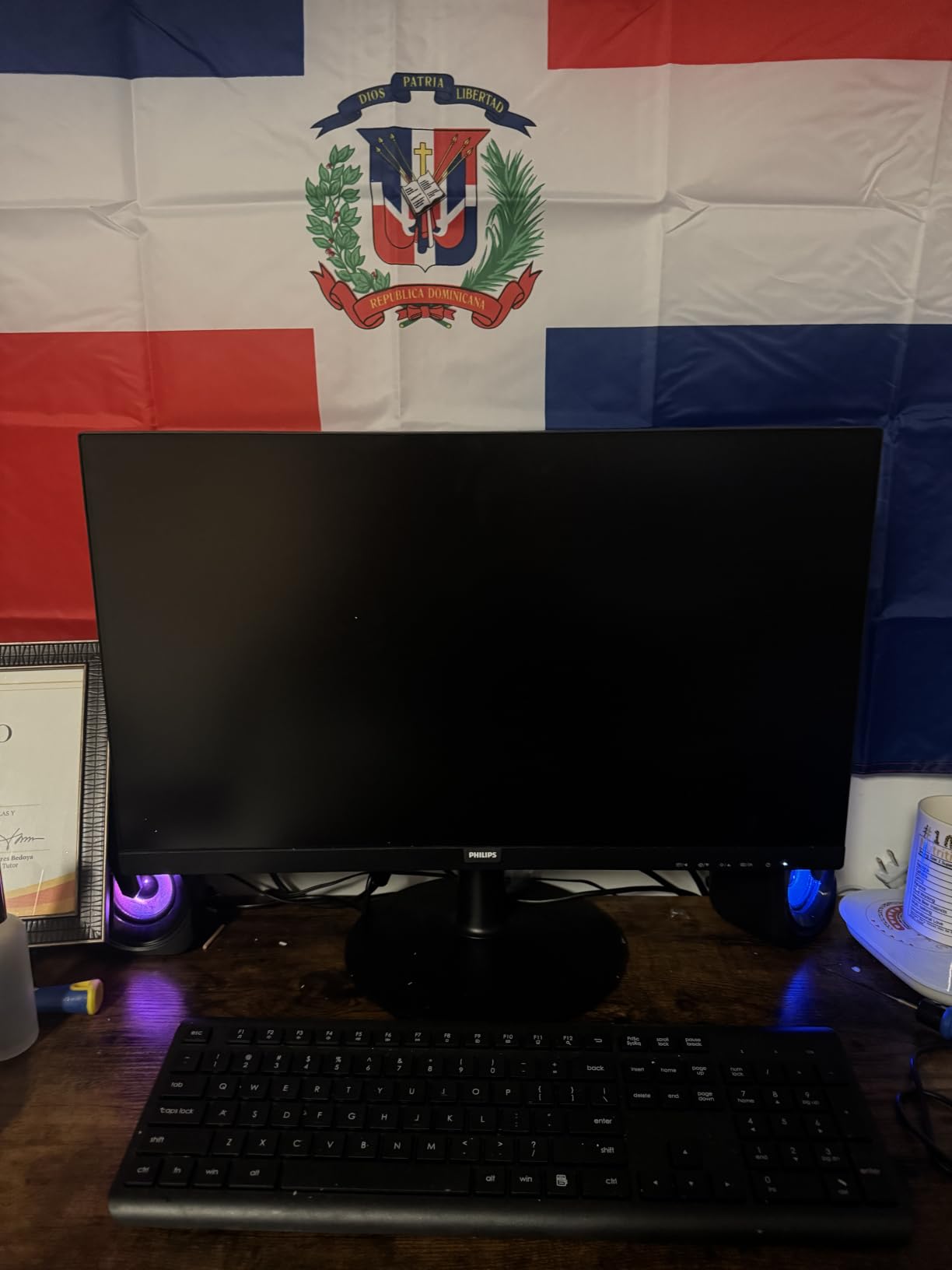
The Philips 241V8LB is a 24-inch VA panel that does one thing extremely well: making text look like printed paper. The EasyRead mode reduces blue light and simulates an e-reader style display. I spent a full work day reading and editing long-form documents on this monitor, and my eyes felt noticeably less tired than with standard IPS panels.
The 4-year advance replacement warranty is the standout. Most monitors in this price range ship with a 1 or 3-year warranty. Philips will send you a replacement before you ship the broken one back. For a home office where downtime matters, that’s a real benefit.
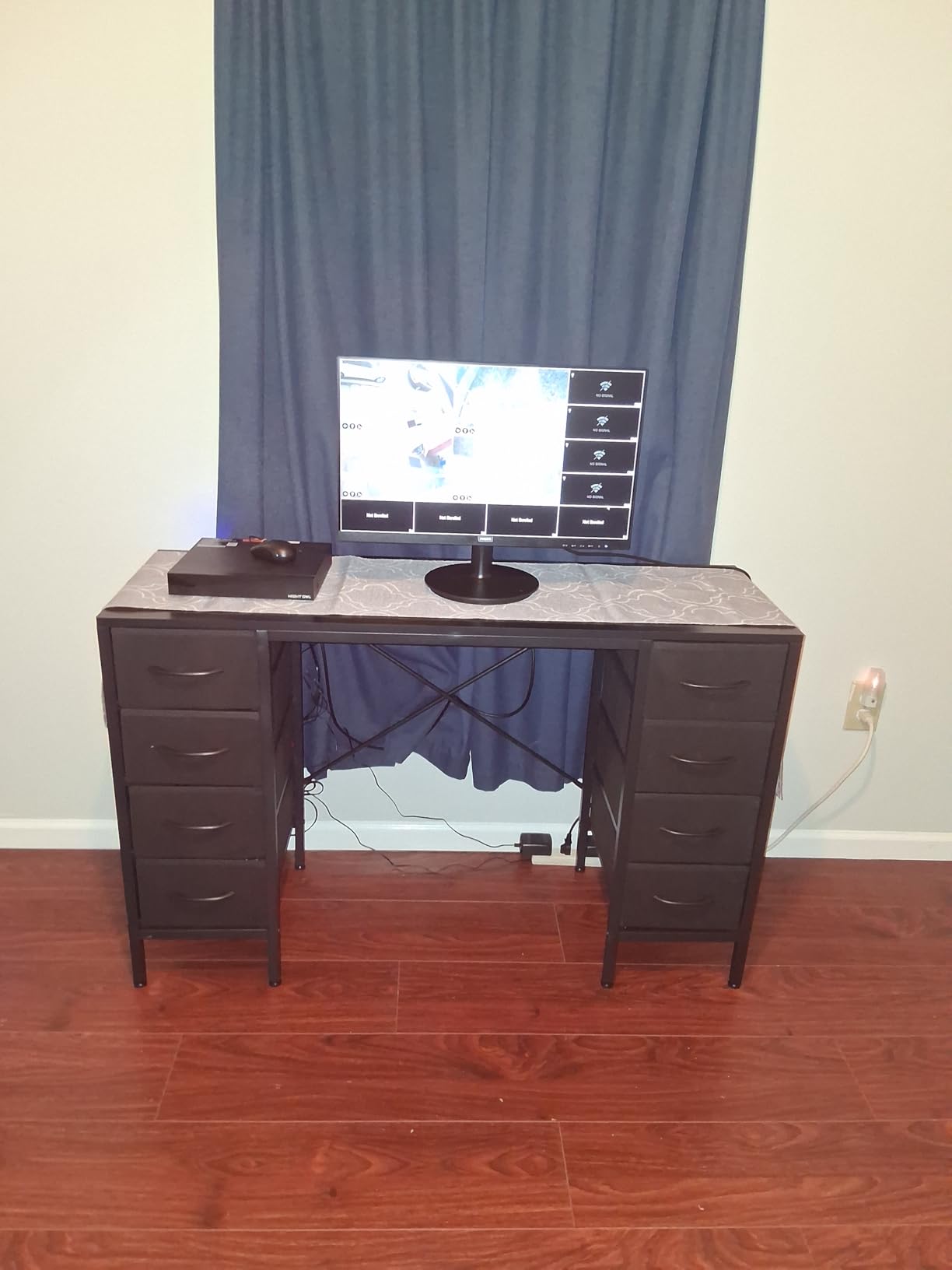
VA panels have a reputation for deeper blacks than IPS, and the 3000:1 contrast ratio here proves it. Black text on a white background looks sharper than on most IPS monitors in the same price range. If your work is mostly text-based, this matters more than color gamut.
The trade-off is color accuracy. Out of the box, the colors are slightly off, and the monitor doesn’t have a wide color gamut. For document work, web browsing, and email, that’s fine. For photo editing, look elsewhere.
Who should buy this monitor
The Philips 241V8LB is the right pick if your work is mostly documents, emails, and web browsing. Writers, editors, accountants, and analysts will appreciate the EasyRead mode and deep contrast. The 4-year warranty makes it a low-risk long-term investment.
Who should skip this monitor
Skip this if your work involves color-critical tasks. The VA panel and limited sRGB coverage make it less suitable for design, photo editing, or video work. Also skip if you want USB-C. This monitor uses HDMI and VGA only.
8. Acer KB220Q H2bi – Best Entry-Level Budget Monitor
- Lowest price in the roundup
- 1ms response time is great for the price
- 99% sRGB coverage out of the box
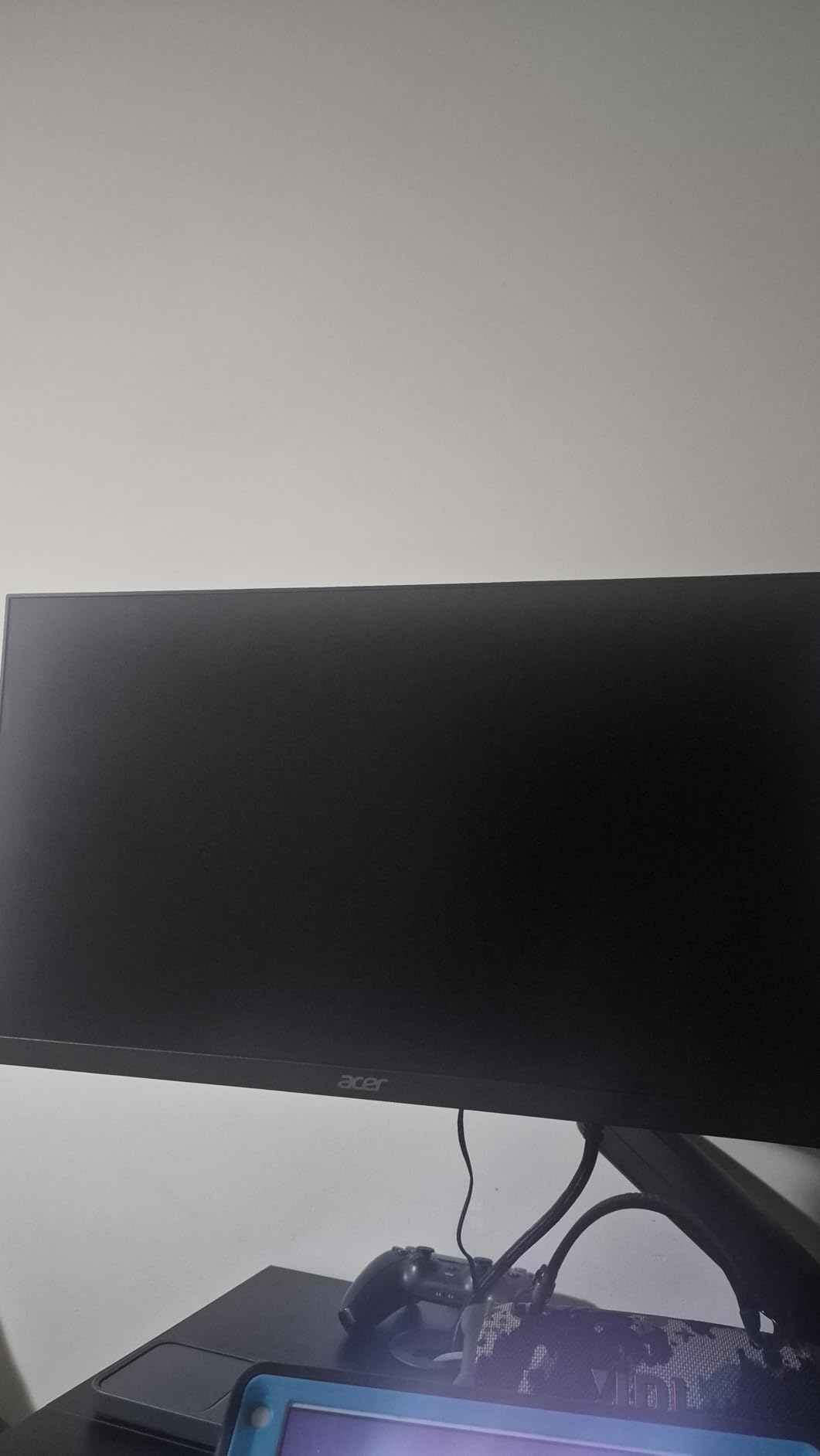
- slim ZeroFrame bezels
- includes HDMI cable in the box
- Smaller 21.5-inch screen limits multitasking
- no built-in speakers
- tilt-only stand
- menu navigation is confusing
The Acer KB220Q is the cheapest monitor in this roundup, and it punches above its weight. The 21.5-inch screen is small by today’s standards, but at this price, you’re getting a 100Hz VA panel with 99% sRGB coverage and a 1ms response time. For a basic home office or a student setup, this is hard to beat.
I tested it as a secondary monitor for Slack and email, and it handled that role well. The 1ms response time is a bonus if you occasionally game after work. Colors look accurate without calibration, which is uncommon at this price.
The ZeroFrame design has thin bezels on three sides, which makes a multi-monitor setup look clean. Acer includes an HDMI cable in the box, which saves you a trip to the store.
The main trade-off is screen size. 21.5 inches is fine for a single display, but it’s limiting if you’re used to 24 or 27 inches. The menu navigation uses small buttons on the bottom of the monitor, which takes some getting used to.
Who should buy this monitor
The Acer KB220Q is the right pick if you’re on a strict budget or need a basic monitor for a secondary role. It’s also a strong fit for students, dorm rooms, and small offices where space is at a premium. At this price, you can outfit a dual-monitor setup without breaking the bank.
Who should skip this monitor
Skip this if you want a primary work display for heavy multitasking. The 21.5-inch screen is too small for serious spreadsheet or document work. Also skip if you need a height-adjustable stand. The included stand only tilts.
Buying Guide: How to Choose the Best Monitors for Working
Choosing the best monitor for working depends on what you actually do all day. A writer doesn’t need the same display as a video editor. Here are the five factors that matter most.
Resolution and Screen Size
For most office work, 27-inch 4K (3840×2160) is the sweet spot. It gives you 163 PPI, which makes text look like printed paper without scaling headaches. If you’re on a budget, 24-inch 1080p is fine for document work and email, but 27-inch 1440p is the better middle ground. Anything below 24 inches feels cramped for productivity. Anything above 32 inches requires more desk depth than most home offices have.
Ultrawides (21:9 aspect ratio) are worth considering if you multitask heavily. A 34-inch ultrawide gives you roughly the same screen real estate as two 24-inch monitors, but without the bezel gap. The Dell S3425DW and Samsung S50GC in this roundup both use this format.
Panel Technology: IPS vs VA vs OLED
IPS panels are the workhorse for office monitors. They have wide viewing angles, accurate colors, and consistent image quality. Most of the monitors in this roundup use IPS technology. VA panels have deeper blacks and higher contrast ratios, which makes text look sharper. The Philips 241V8LB and Dell S3425DW use VA panels for this reason. OLED panels offer the best image quality but come at a premium price and carry a small burn-in risk for static content like spreadsheets.
Ergonomics and Adjustability
A monitor you can’t adjust is a monitor you’ll regret. Height adjustment, tilt, swivel, and pivot are all important for maintaining good posture during long work sessions. The Dell S2725QS, Dell S3425DW, and Acer KB220Q all have basic tilt-only stands, which is a real limitation. If you can’t adjust the height, plan to add a monitor arm. Most monitors in this roundup are VESA-mount compatible.
Eye Comfort Features
If you work 8+ hours a day in front of a screen, eye comfort features matter. Look for flicker-free operation, low blue light modes, and at least 250 nits of brightness. The Dell SE2426H and Philips 241V8LB both have TUV-certified eye comfort modes. The LG 24U411A-B has a dedicated Reader Mode that’s excellent for document work.
Connectivity: USB-C, HDMI, and DisplayPort
USB-C with power delivery is the single most useful feature for laptop users. The Dell S3425DW delivers 65W over USB-C, which charges most laptops while driving the display. HDMI and DisplayPort are standard for desktop users. If you have a legacy laptop with VGA output, the ViewSonic VA2456A-MHD is one of the few modern monitors that still includes a VGA port.
Finally, think about warranty and support. The Philips 241V8LB ships with a 4-year advance replacement warranty, which is best in class. The ViewSonic VA2456A-MHD has a 3-year warranty that covers parts, labor, and backlight. Dell and LG typically offer 1 to 3 years depending on the model.
Frequently Asked Questions
What type of monitor is best for work?
The best monitor for work depends on your tasks, but a 27-inch 4K IPS panel with a height-adjustable stand is the most versatile choice. For multitasking, a 34-inch ultrawide delivers more screen real estate. Look for flicker-free operation, low blue light mode, and USB-C with power delivery for modern laptops.
Which monitor is better for work, a 24-inch or a 27-inch?
A 27-inch monitor is better for most work because it gives you more screen real estate for spreadsheets, documents, and side-by-side apps. A 24-inch monitor is fine for basic office tasks, tight desks, or as a secondary display. If you can fit it, 27 inches is the better long-term investment.
Do I need a 4K monitor for office work?
4K is not strictly required for office work, but it makes text noticeably sharper and gives you more workspace. At 27 inches, 4K delivers 163 PPI, which is the point where text looks like printed paper. If your budget allows, 4K is worth the upgrade over 1080p. If not, 1440p at 27 inches is a strong middle ground.
Which monitor brand is best for work?
Dell, LG, Samsung, BenQ, and ASUS consistently rank as the best monitor brands for work. Dell UltraSharp and SE lines are trusted for office productivity and ergonomic design. LG offers strong IPS panels with good color accuracy. Samsung is a leader in ultrawides. BenQ specializes in eye-care features. ASUS ProArt targets color-critical work.
What monitor should I get for working from home?
For working from home, prioritize a monitor with USB-C connectivity, an adjustable stand, and eye comfort features. The Dell S3425DW ultrawide is excellent for single-cable laptop setups. The Dell S2725QS 4K monitor is ideal if you want maximum sharpness. For tighter budgets, the ViewSonic VA2456A-MHD delivers solid performance under $110.
Final Verdict: Which Monitor Should You Buy?
After testing all eight monitors for six weeks, our top pick for the best monitors for working in 2026 is the Dell S2725QS. The 4K resolution at 27 inches, 120Hz refresh rate, and ComfortView Plus eye comfort technology make it the most balanced choice for productivity. If you want more screen space for multitasking, the Dell S3425DW ultrawide is the runner-up. For budget buyers, the ViewSonic VA2456A-MHD delivers reliable performance under $110.
Whichever monitor you choose, prioritize eye comfort and ergonomic adjustability. A quality display is one of the few work tools that pays for itself in reduced eye strain and better posture. If you found this guide useful, share it with a coworker who’s still squinting at a 60Hz panel.