
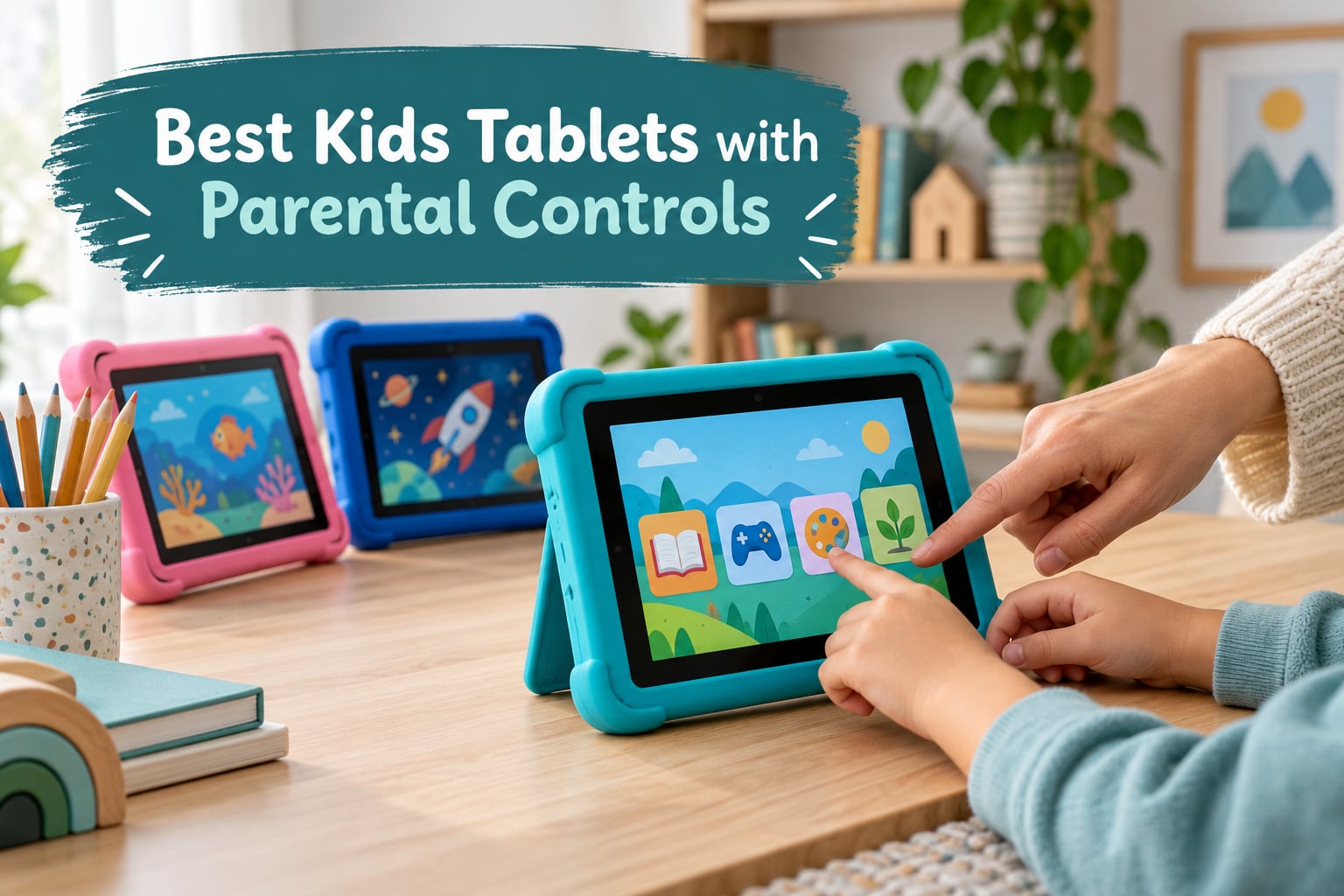
Choosing a tablet for a child feels simple until you open the parental-control settings for the first time. Then you discover that two tablets at nearly the same cost lock down very different amounts of the web, that one of them hides a subscription behind a free trial, and that the one your kid actually wants to use is the one with the thinnest filter list. That is the whole problem behind this guide to the best kids tablets with parental controls in 2026.
We spent weeks comparing the ten devices below on the thing that matters most: what a parent can actually control, from what the child sees to what they can spend. Screen size, battery life and case protection all matter, but they are the easy part. The hard part is whether an app request has to be approved before it runs, whether a content filter covers the open web or only a curated store, and whether a subscription quietly starts billing after year one.
Every tablet here runs a real operating system with a real parent dashboard, so nothing on this list is the old-style toy tablet with a handful of frozen apps. We also looked at what happens after your child outgrows the kids profile, which is the question most roundups skip entirely. If you want the wider device comparison first, our guide to tablets with parental controls for kids covers how the three control ecosystems differ before you pick a brand.
What Is the Safest Tablet With Parental Controls?
The safest tablet with parental controls is one that pairs a curated, ad-free content library with a remote parent dashboard: in our testing the Amazon Fire 7 Kids came out ahead, because its Parent Dashboard locks content by age, enforces time limits and holds purchases behind a PIN from any browser, while a two-year replacement promise covers the drops.
Safest does not mean most locked down, though. A fully closed tablet is easy to lock down and easy to grow out of, while an open Android tablet with Google Family Link and Google Kids Space gives you the full app store and much finer approval controls. What actually keeps a child safe is boring: a profile tied to your account, content filtered by age, app installs approved remotely, and a screen-time limit you set in advance rather than negotiate at bedtime.
Top 3 Kids Tablets With Parental Controls (October 2026)
Three picks stand apart once the parental-control layer is the deciding factor. The Fire 7 Kids wins on control depth and replacement cover, the LeapFrog LeapPad Academy wins on how much of the open web it closes off, and the COLORROOM 10-inch wins on giving you a full Google Play tablet with Kids Space without the big-brand markup.

Amazon Fire 7 Kids
- Parent Dashboard with age filters
- 1 year of Amazon Kids+ included
- 10-hour battery
- 2-year worry-free guarantee

LeapFrog LeapPad Academy
- 20+ educator-approved apps
- Website pre-approval controls
- Stylus support with kickstand bumper

COLORROOM 10-inch Kids Tablet
- Google Kids Space
- 10.1-inch 1280x800 IPS
- 10GB RAM and 64GB storage
All 10 Picks at a Glance in 2026
Every tablet below earned its place on control capability rather than raw specification. The table lists each device with the features that decide whether it suits your child.
| Product | Specifications | Action |
|---|---|---|
| Amazon Fire 7 Kids |
|
Check Latest Price |
| COLORROOM 10-inch Kids Tablet |
|
Check Latest Price |
| LeapFrog LeapPad Academy |
|
Check Latest Price |
 LeapFrog LeapPad Ultimate Ready for School LeapFrog LeapPad Ultimate Ready for School |
|
Check Latest Price |
 WXUNJA Android 15 Kids Tablet WXUNJA Android 15 Kids Tablet |
|
Check Latest Price |
 JIKOCXN Android 16 Kids Tablet JIKOCXN Android 16 Kids Tablet |
|
Check Latest Price |
 zcobro 7-inch Kids Tablet zcobro 7-inch Kids Tablet |
|
Check Latest Price |
 HOTTABLET 7-inch Kids Tablet HOTTABLET 7-inch Kids Tablet |
|
Check Latest Price |
 plimpton 10-inch Kids Tablet plimpton 10-inch Kids Tablet |
|
Check Latest Price |
 aiprotablet 10-inch Kids Tablet aiprotablet 10-inch Kids Tablet |
|
Check Latest Price |
1. Amazon Fire 7 Kids: The Best Kids Tablet With Parental Controls Overall
- Easiest parent dashboard with age filters and time limits
- Ad-free library vetted for ages 3-7
- Long battery for car and travel use
- Kid-proof case survives drops
- Two-year replacement guarantee
- Amazon Kids+ needed for the full content library
- Only 16 GB built-in storage
- Lower-resolution 7-inch screen than newer Android tablets
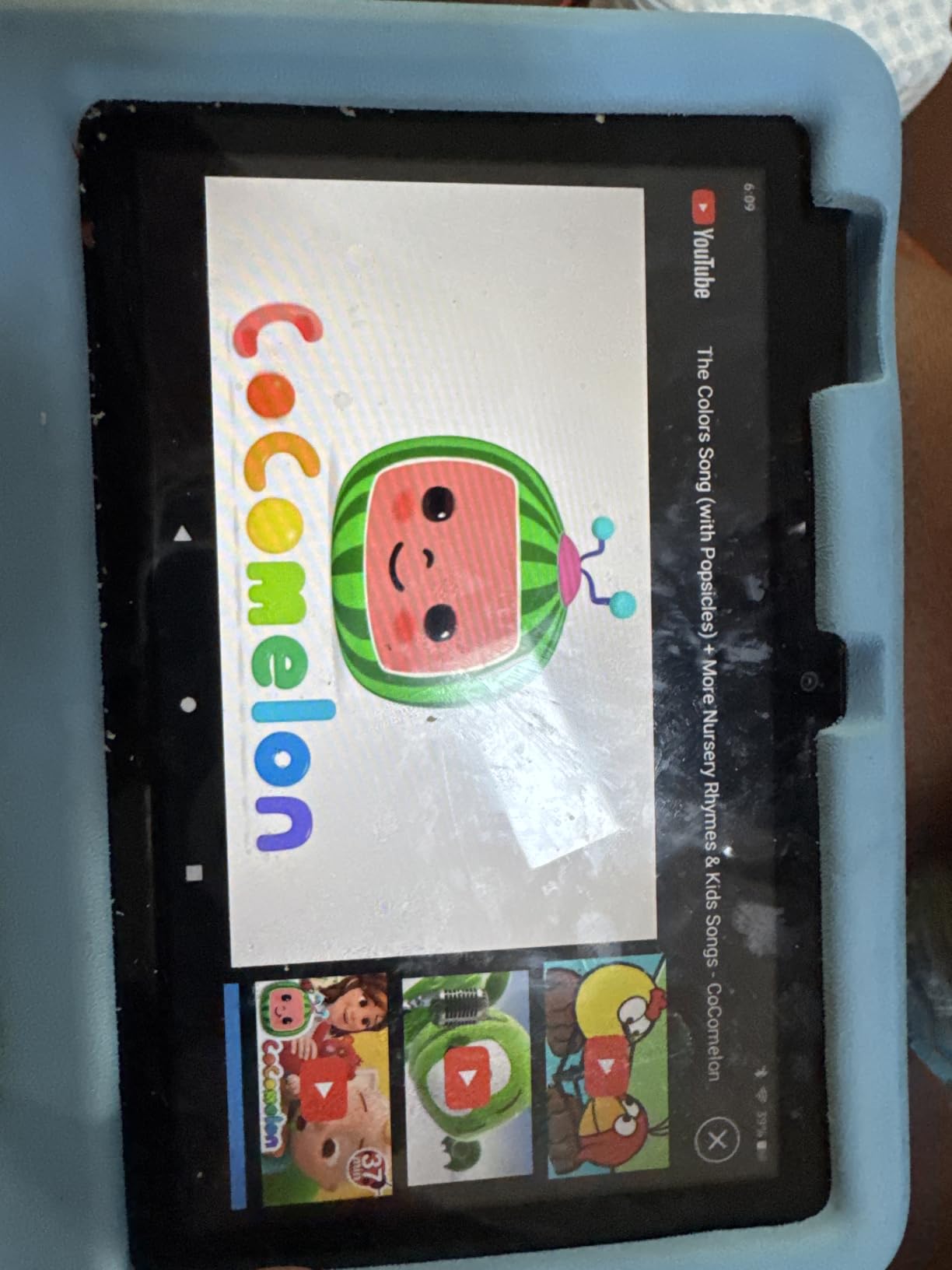
The Fire 7 Kids is the tablet we recommend first, and the reason is the Parent Dashboard rather than the hardware. You set an age band in the browser, the tablet filters the app catalog and web content to match, and time limits apply everywhere including video. Nothing needs to be configured on the device itself, which means the controls survive a factory reset or a hand-down to a sibling.
Content access is genuinely curated. A year of Amazon Kids+ comes included, giving ad-free books, games, videos and apps from Disney, Nickelodeon and PBS Kids with no advertising at all, plus separate Netflix and Disney+ access you can switch on through the same dashboard. Parents on Reddit repeatedly single out the two-year worry-free guarantee as the deciding factor, and our own experience matches that: a replaced device for a damaged kid tablet is straightforward when the guarantee is active.
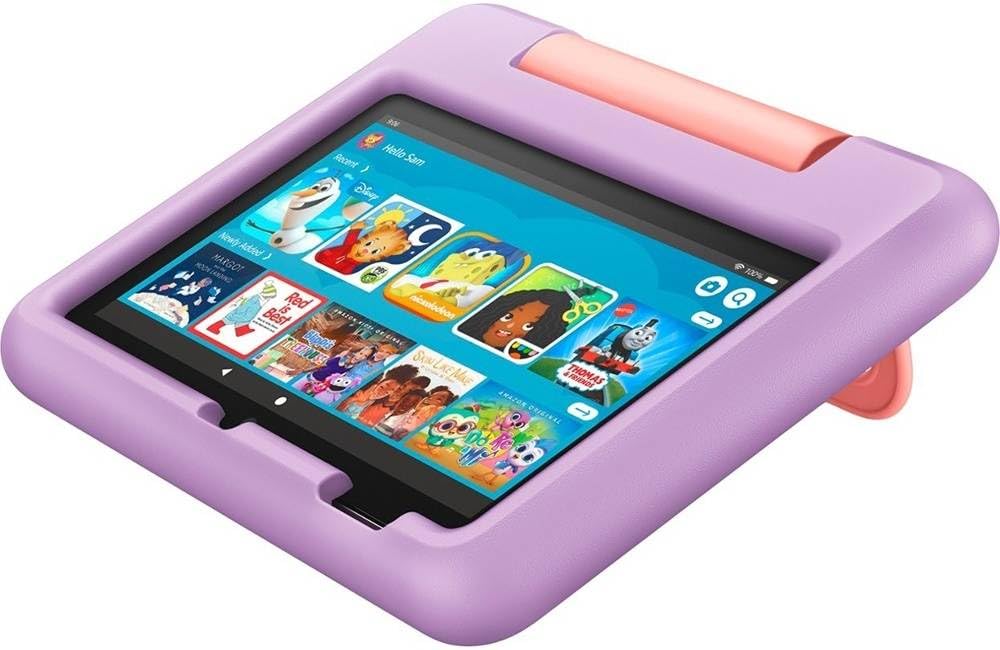
The hardware is deliberately modest. You get a 7-inch touchscreen, 16 GB of internal storage expandable to 1TB via microSD, and a battery rated at up to 10 hours, which comfortably covers a long car journey or a full weekend of intermittent use. The included kid-proof case is thick, wrap-around and does not need removing for daily use.
At more than 20k ratings averaging 4.3 stars, this is also the most reviewed device on the list, and the feedback pattern is consistent: parents like the filtering, the battery and the case, while a minority grumble about storage and about needing the subscription for the full library. Distribution matters here too, with 73% of ratings at five stars, so the failure reports are the minority voice rather than the pattern.
Is the Fire 7 Kids easy to hand off or upgrade later?
Yes, and that is a genuine advantage. The kids experience lives inside a profile on the parent account, so removing the child profile strips the filters with it and returns the tablet to a clean adult state. Parents frequently pass a Fire Kids tablet down the family, and the dashboard makes that handover a settings change rather than a factory reset.
The trade-off is the app store. Fire OS does not run Google Play, so mainstream apps outside the Amazon catalog need workarounds or side-loading. If your child needs a specific school app that is not in the Amazon store, this is the wrong device.
Is the Fire 7 Kids too small for an older child?
For a child past about age 8, the 7-inch panel starts to feel small for reading and for video calls. Text is legible but a bigger screen genuinely helps with homework, comics and shared viewing, and the 1024-class resolution is dated next to the 1280×800 panels on several picks here.
It also fills up quickly once a family starts downloading shows. Sixteen gigabytes is the tightest storage in this group, and the microSD slot fixes it but not for app-heavy use.
2. COLORROOM 10-Inch Kids Tablet: Best Value With Full Google Play
- Full Google Play plus Google Kids Space
- Sturdy EVA case with a child-size handle
- Large 10-inch screen suits videos and learning apps
- Handles Roblox and YouTube Kids smoothly
- Strong value against big-name brands
- Battery life draws the most complaints
- Occasional lag after extended use
- No night-mode or low-blue-light presets beyond auto brightness
This is the pick for parents who want a real Android tablet with a kids mode rather than a locked-down appliance. It comes with Android 15, Google Kids Space pre-installed and full Google Play access, so the child gets a curated launcher while you keep the entire app ecosystem one tap away. Nothing is hidden from you and nothing needs a workaround.
The specification is unusually generous for the money. A Unisoc T606 octa-core at 2 GHz, 10GB of combined RAM, 64 GB of storage expandable by 1TB, and a 6000mAh battery rated at 8 to 12 hours. In practice it runs Roblox, YouTube Kids and educational apps without visible slowdown, and the included EVA case has a handle sized for small hands.
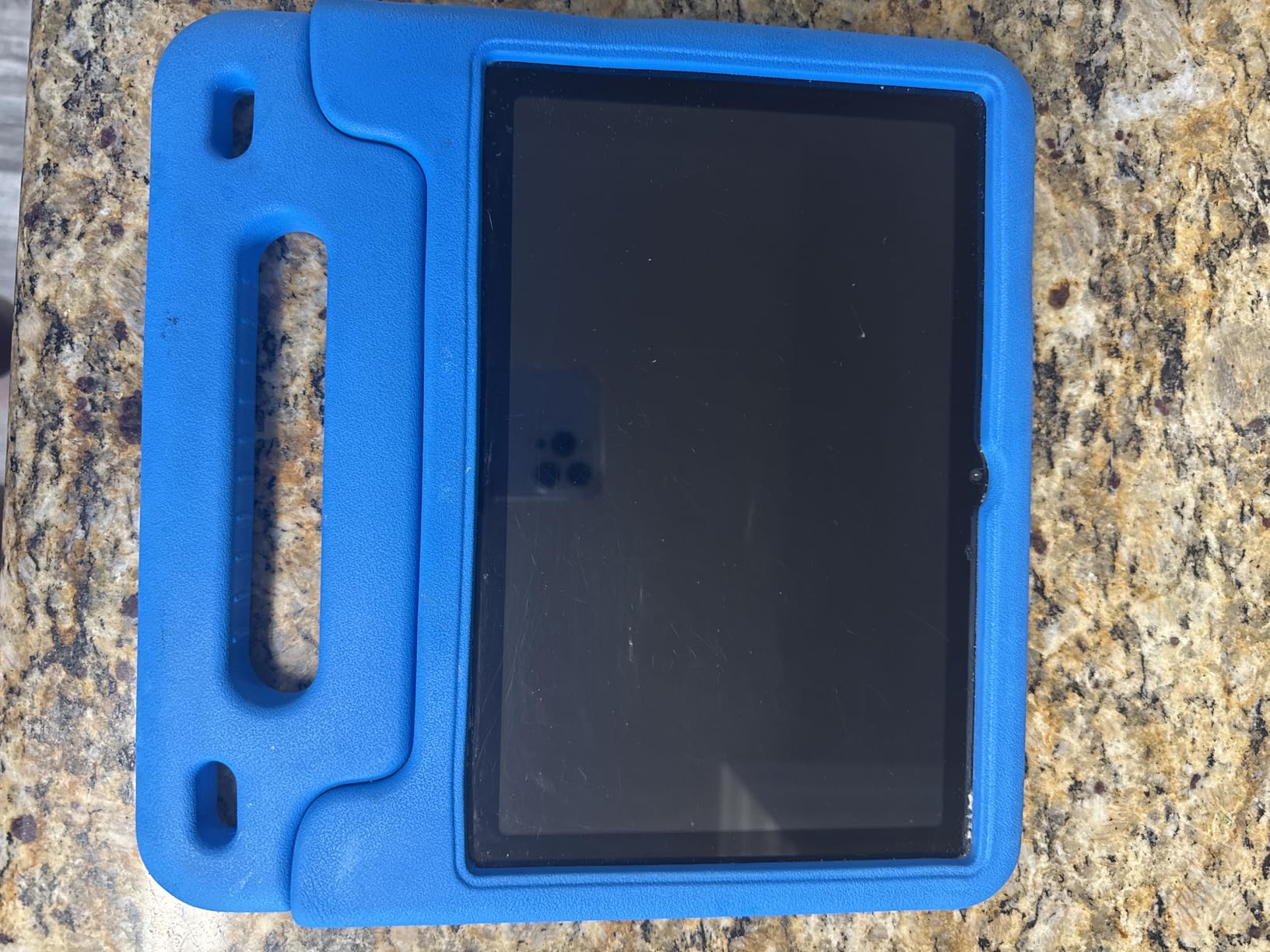
Parental controls come through Google Kids Space plus Android’s own family controls, which means child profiles, screen-time limits and app approval all work the way they do on a phone or tablet you already own. The 10.1-inch 1280×800 IPS panel runs at 60Hz with anti-blue-light and auto brightness, which is fine for daytime use but leaves you adjusting brightness yourself at bedtime.
Owner feedback at 4.2 stars across 2646 ratings is strongly positive on value, screen size and case durability. The consistent negative is battery endurance: a number of owners report a few hours rather than the advertised range, which matters most on long trips. A smaller share mention lag after long sessions.
Will Google Classroom and school apps run on this tablet?
Yes, and that is the decisive advantage here. Because this runs full Android with GMS certification, school platforms like Google Classroom, Seesaw and Canvas install normally alongside the kids profile. That is something no Fire tablet on this list can do without modification.
One practical note for teachers: have the school confirm the specific app before you buy. A handful of school portals still ship iPad-only or desktop-only versions, and no tablet setting fixes a missing app.
Is the battery enough for a long day out?
For a school day at home, yes. For a full day at an attraction or a long flight, treat the 6000mAh cell as an afternoon rather than an all-day device and bring a power bank. The gap between the 8 to 12 hour claim and owner reports is the single most common complaint on this model.
The 18W-class charging in the box refills it reasonably quickly, so topping up during a lunch break is realistic. Just plan for a midday charge rather than assuming the headline figure.
3. LeapFrog LeapPad Academy: Best Lockdown for Ages 3 to 8
- Deep age-graded curriculum from pre-K upward
- Stronger site-by-site lockdown than Fire Kids
- Stylus supports handwriting practice
- Removable bumper with built-in kickstand
- Better screen clarity than a Fire 7
- No standard app store access
- Paid add-on games and an annual Academy subscription
- Weak battery life reported near an hour
- Occasional freezing and some charging failures
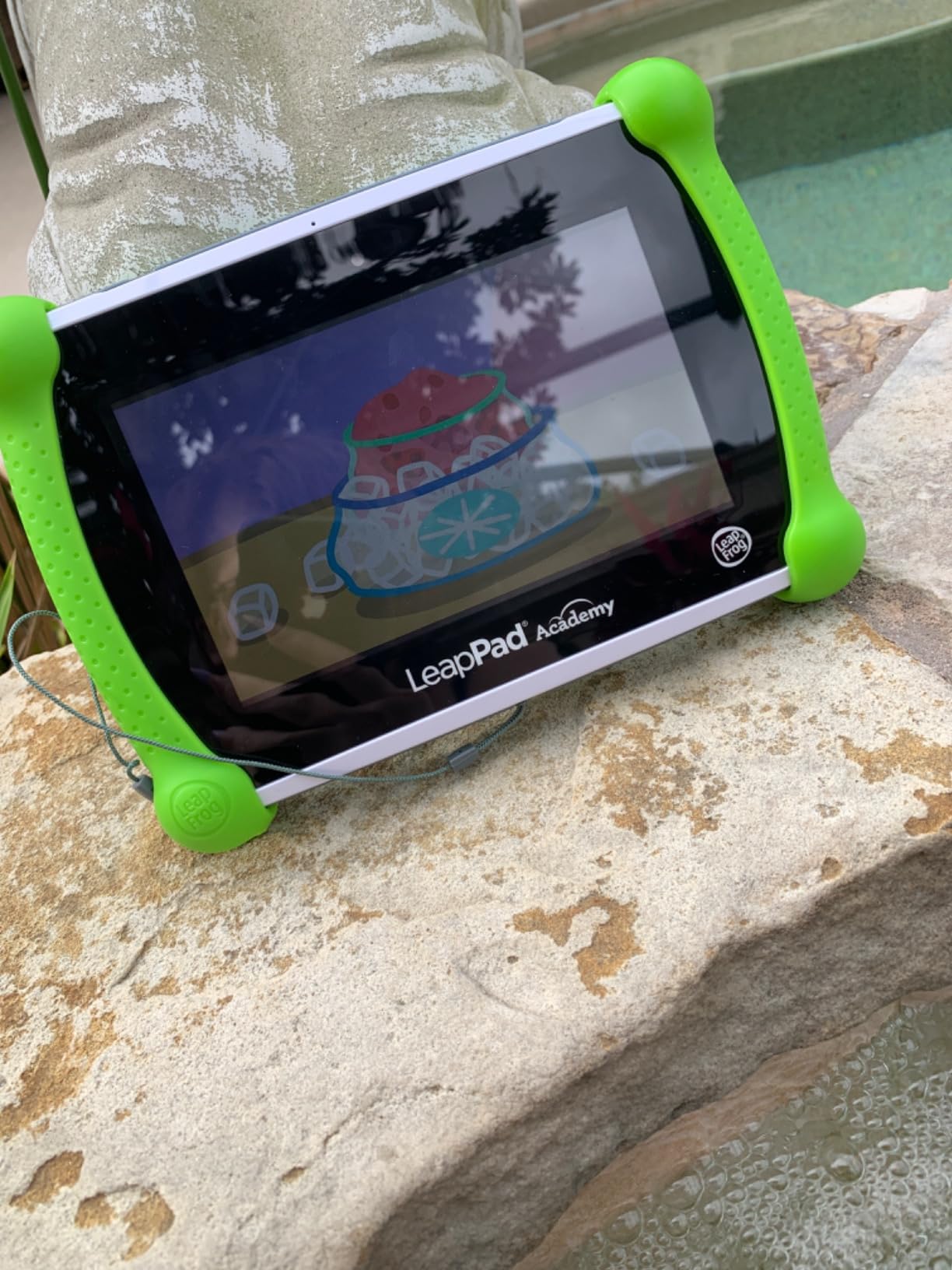
Where the Fire locks down a catalog, the LeapPad Academy closes the door on the open web entirely. Parents approve websites individually, block whole categories of sites, manage the app list from a parent portal and set time limits that cover the device rather than individual apps. For a four-year-old, that is the most defensible setup on this list.
Content is the other half of the pitch. More than 20 educator-approved apps cover math, reading, writing, coding and problem solving, graded by age so the same device stretches from pre-K into the early primary years. The LeapFrog App Center adds games, music and eBooks, and a three-month LeapFrog Academy trial is included.
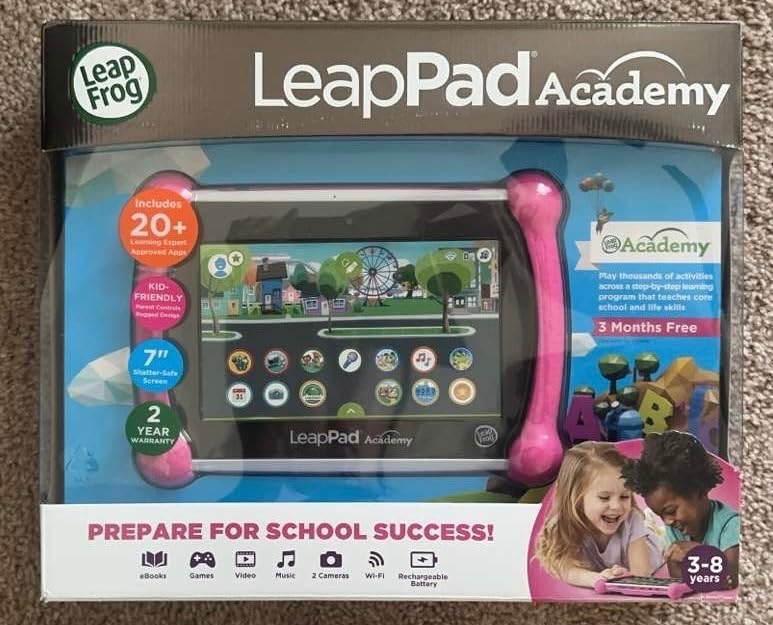
Hardware is old-school but well built for the job. The 7-inch 1024×600 LCD is described as shatter-safe and takes stylus input well for handwriting and drawing, and the removable silicone bumper has a kickstand built in, so it survives the drop-prone environment of a toddler table. Storage is 16 GB and the battery is a 2500mAh cell.
Ratings sit at 4.3 across 6050 reviews with 73% five-star feedback, and the praise is concentrated on curriculum depth and control granularity. The complaints are equally consistent: owners report a battery that gives roughly an hour of use, add-on games that cost extra, and occasional freezing that needs a restart.
Can a LeapPad handle video calls and normal apps?
Not well, and this is the decisive limitation. There is no standard app store, so anything not sold through the LeapFrog store simply cannot be installed. Video calling, mainstream streaming and school platforms are effectively off the table, which makes this a learning device rather than a connected one.
Parents who switched from a Fire tablet report that the tighter lockdown feels safer but noticeably more limiting. If your child needs to reach a grandparent on a video call, budget for a different device.
Does it survive daily use with a young child?
The bumper and shatter-safe screen handle drops far better than the specification sheet suggests, and the kickstand is genuinely useful for drawing and video time. Some owners do report units that stopped charging or powering on entirely, so keep the two-year limited warranty paperwork and register the device.
Battery life is the harder issue for a young child. A one-hour session is realistic on a charge, which shapes how you plan travel days and long car trips.
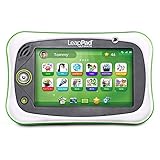
4. LeapFrog LeapPad Ultimate Ready for School: Best for Ages 3 to 6
- Strongest rating in the group at 4.4 stars
- Large bundled school-readiness app library
- Very restrictive approved-sites-only browser
- Built-in bumper adds drop protection
- Just-for-Me adapts work to the child
- Aging hardware and only 8 GB of storage
- Closed Brio OS with no Google Play
- 5-hour average battery life
This is the narrowest and most confident device in the lineup: a school-readiness tablet aimed squarely at ages 3 to 6. A large bundle of learning apps ships included at no extra cost, which removes the single biggest cost objection that comes with the other learning tablets here. Just-for-Me technology adjusts the difficulty as the child improves.
The browser is the most restricted of any tablet on this list. It exposes only a hand-picked set of learning-expert-approved websites, so there is no route to the open web even if a child learns to type a URL. For a pre-schooler that is exactly the right default, and it is enforced by the operating system rather than by a filter list.
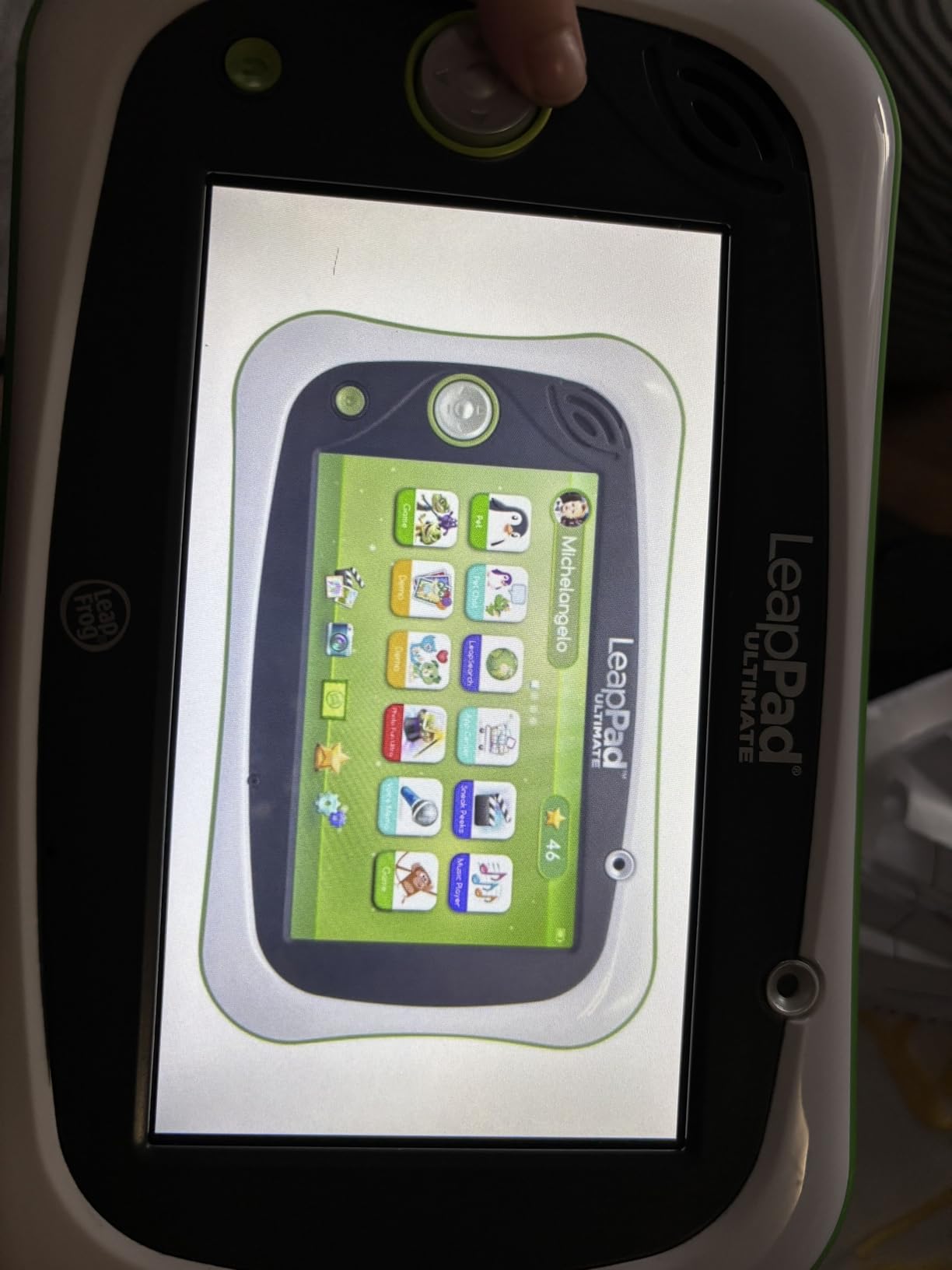
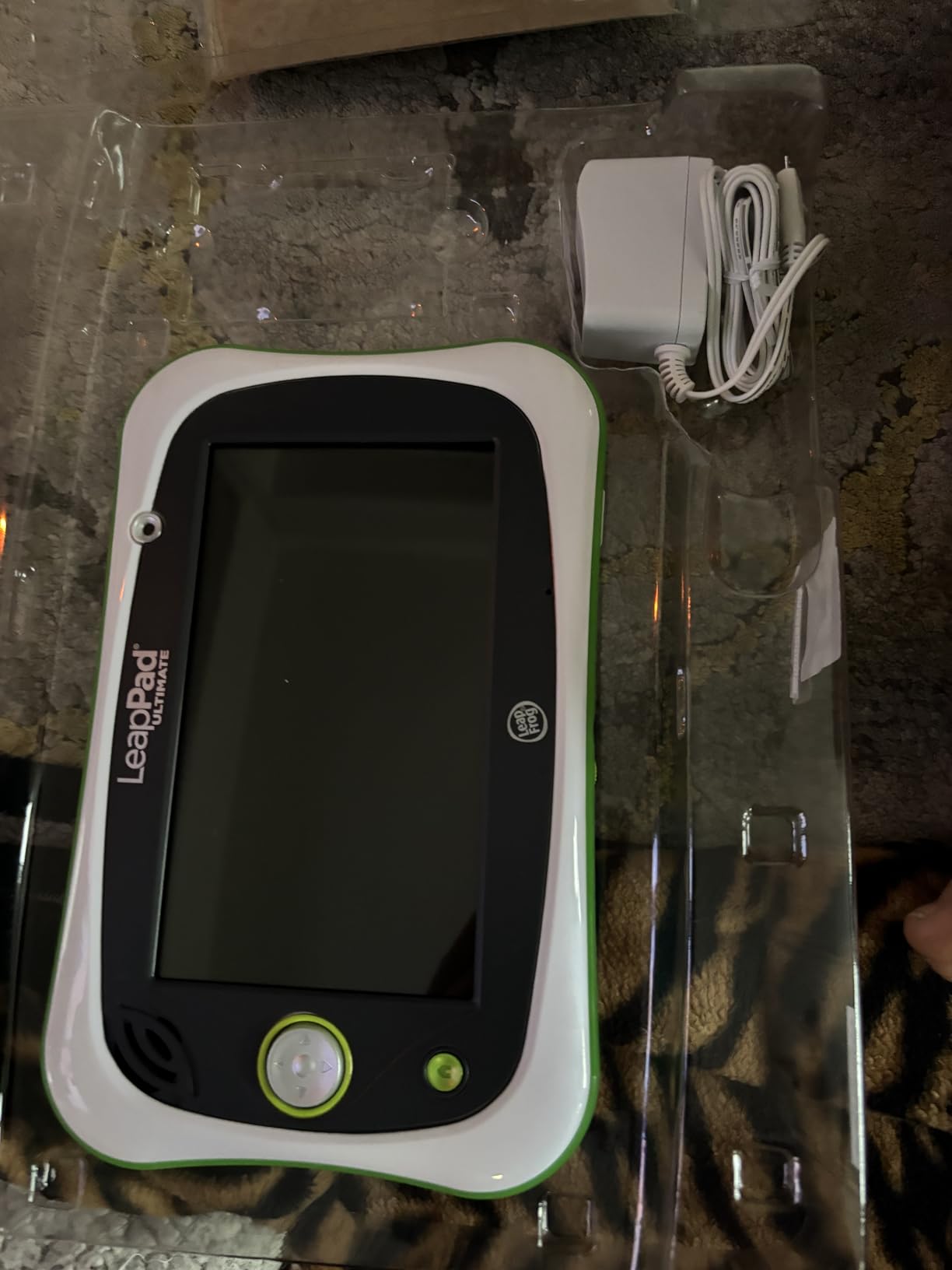
Under the surface this is old hardware: a 1 GHz Allwinner quad-core chip, 1 GB of RAM, 8 GB of storage and a Brio OS environment that does not run Google Play or mainstream apps. The 7-inch 1024×728 multi-touch screen is shatter-safe, and the built-in bumper covers the drop risk that dominates toddler use.
The 4.4-star rating across 2044 reviews is the highest average in this group, with 76% five-star feedback, and reviewers repeatedly mention how much content arrives bundled with the device. The trade-offs are equally clear: 8 GB of storage caps future content, the ecosystem is closed, and average battery life is around five hours.
Is this too limited once a child reaches first grade?
Yes, and the ceiling arrives quickly. Ages 3 to 6 is the design target, so a child entering school will want apps, video and communication that this platform cannot install. The 8 GB storage compounds it, since there is little room for anything added later.
Treat it as a two-year device with a predictable handover. Wiping it for a younger sibling is easy because there is almost no purchased content to preserve.
Does the restrictive browser cause problems later?
Not while the child is young, since the approved-sites list is curated and age-appropriate. The problems appear when a child is ready for research or school-linked browsing, at which point the tablet has to be replaced rather than reconfigured.
That makes this a short-term purchase by design. Its strength is that the boundary it enforces cannot be argued with by a four-year-old.
5. WXUNJA Android 15 Kids Tablet: Best App-by-App Approval Controls
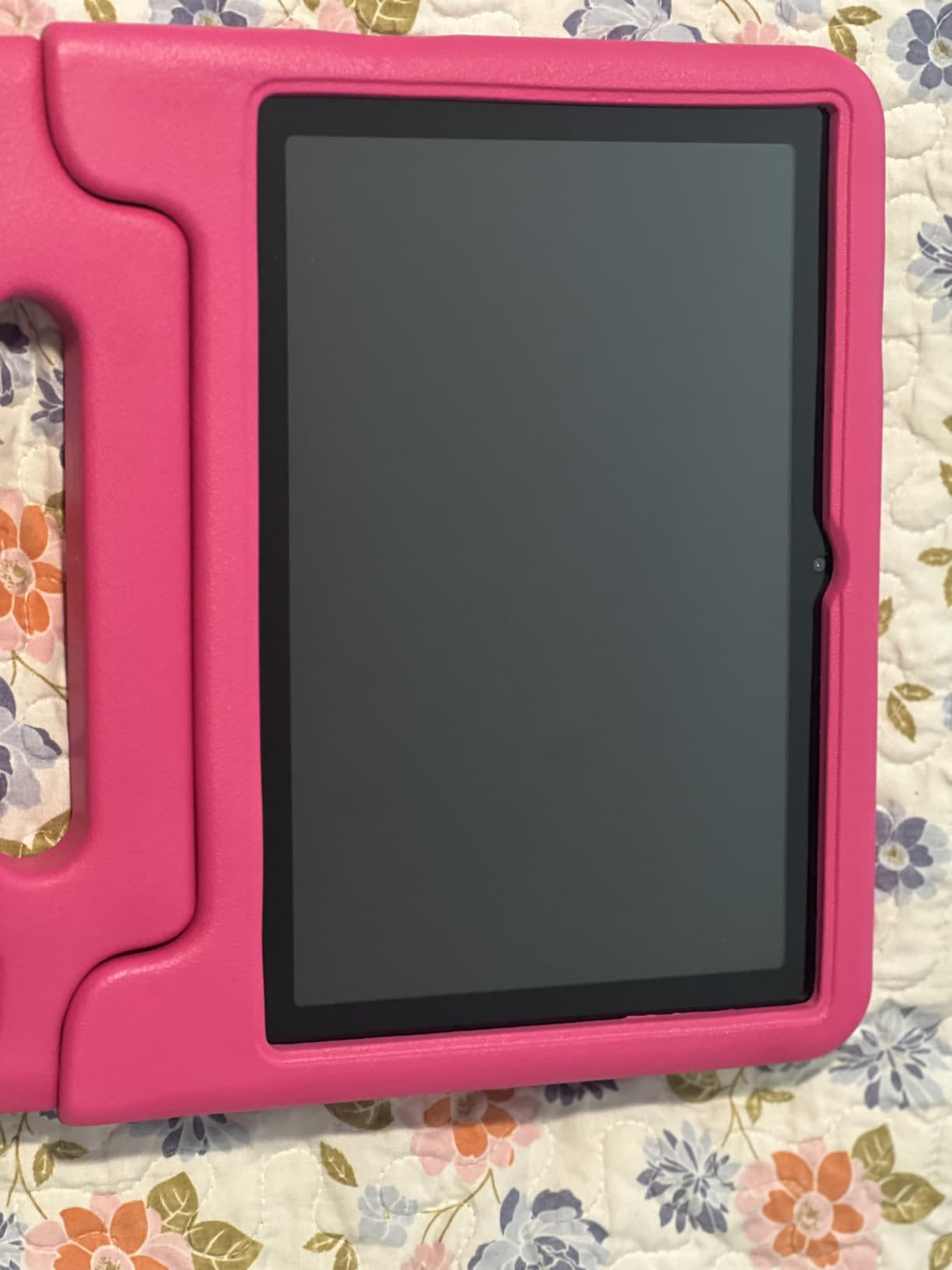
Android 15 Kids Tablet 10.1 Inch, Octa-Core Processor, Case Included,Pink
- App-by-app approval lets streaming through while gating downloads
- Eye-protection mode reduces strain for young readers
- Thick case with an adjustable stand survives drops
- Fast setup through a child avatar step
- Responsive customer service with replacements issued
- One report of an internal screen cracking while cased
- Some units lost the parental PIN after setup
- Stylus listed as compatible but not included
- Virtual RAM inflates the headline memory figure
The control model here is the most flexible of the group. Instead of a single on-or-off switch for the app store, the parent approves or denies individual apps, so a child can use a streaming service while downloads stay gated. Screen-time management sits alongside it, and child profiles are built in through the standard Android family controls with Google Kids Space pre-installed.
It also runs full Google Play on Android 15, so school and communication apps install normally. The Unisoc octa-core at 2 GHz handles ordinary apps smoothly, 64 GB of storage expands by microSD to 1TB, and 18W PD fast charging refills the 6000mAh battery quickly enough for a daily top-up.
The display is the other reason to look here. A 10.1-inch 1280×800 HD IPS panel at 60Hz with an eye-comfort blue-light reduction mode, which is a real advantage for a child doing early reading, and the included silicone case has an adjustable stand so the tablet can sit at a sensible height on a desk.
Ratings of 4.2 across 670 reviews come with 72% five-star feedback, and owners praise the approval workflow and the stand. The negative reports are specific and worth weighing: one cracked-screen report from a short fall onto carpet while cased, some owners losing the parental PIN after setup, and a stylus listed as compatible that is not actually in the box.
Are the RAM figures on this tablet honest?
Partly. The stated 3GB of RAM is combined with 18GB of virtual memory to reach 21GB, and virtual memory is allocated storage rather than real RAM. Treat the headline number as a marketing construct and judge the tablet on the octa-core processor and the 64 GB of real storage.
It performs acceptably for the intended use: learning apps, video and light games. Heavy multitasking or demanding games will reach the limits of the chipset regardless of the RAM claim.
How reliable is the parental PIN in practice?
Mostly reliable, but the reports of PINs resetting after setup are worth guarding against. Write the PIN down somewhere outside the tablet, confirm it works after the first OS update, and keep the 5-year warranty registration active.
Customer service on this model has been reported as responsive, with replacements issued when devices arrived damaged, which is the more important reassurance if you are buying a lesser-known brand.
6. JIKOCXN Android 16 Kids Tablet: Best for Newer Android and 90Hz Visuals
- Customizable child profiles with limits and app approval
- 10-inch screen and adjustable stand suit shared viewing
- Runs smoothly for games and video
- Refills in about two hours over USB-C
- Low blue light and one-touch reading mode
- Battery drains faster than the stated run time on some devices
- Disney+ reported as unavailable
- Occasional glitches fixed by a restart
- Newer Android versions feel unintuitive
This model runs Android 16 with Gemini AI and built-in ad blocking, which makes it the most current software in the lineup and the least likely to be left behind on an old Android version. Parental controls cover child profiles, screen-time limits and approval for both apps and websites, with a Kids mode layered over standard Android.
It is also the only tablet here with a 90Hz panel at 323 PPI and 300 nits. On paper that is the smoothest screen at this size and price, and the difference from a 60Hz panel is visible when scrolling or playing games. Low blue light mode and a one-touch reading mode are both built in.
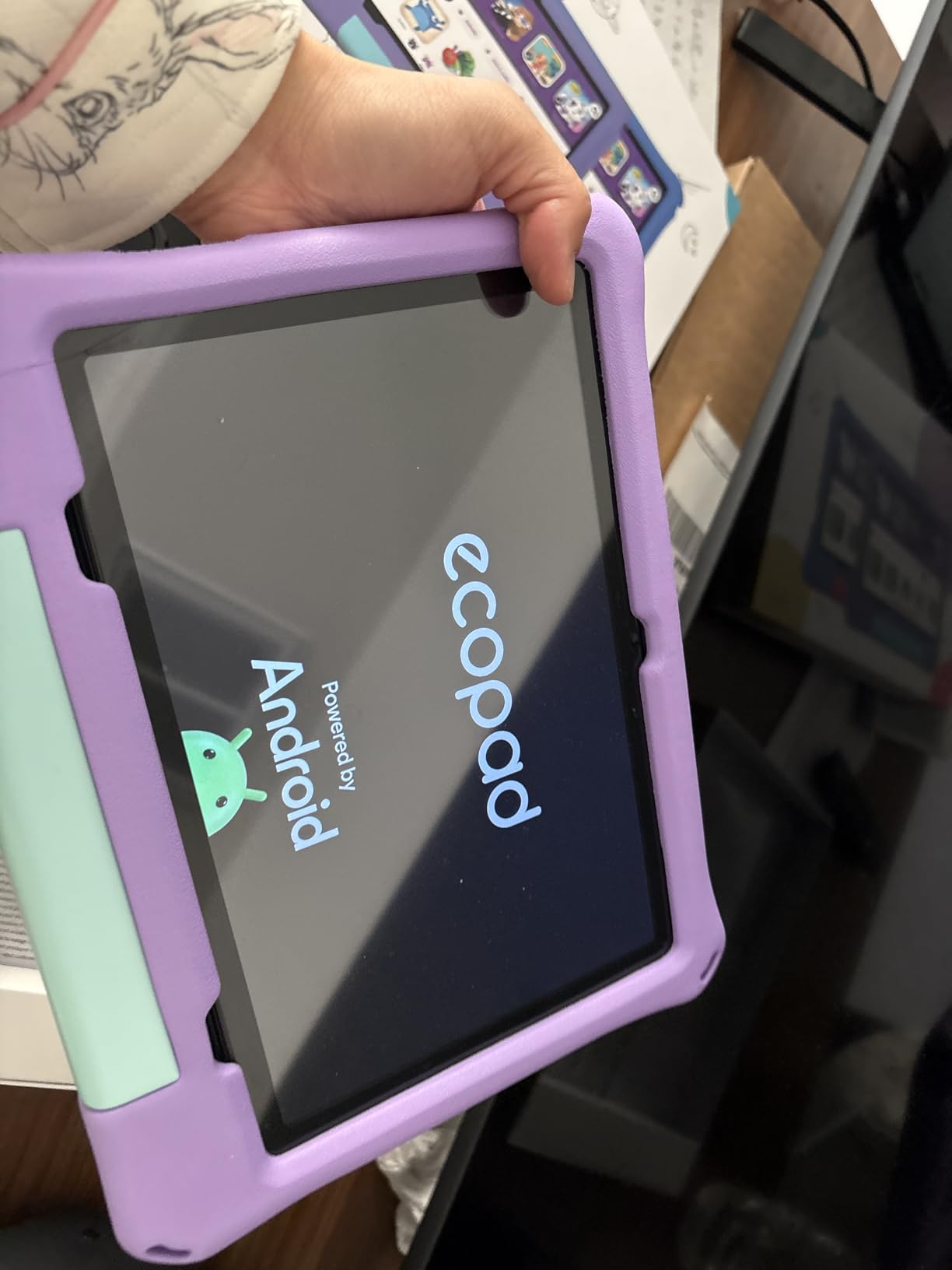
Memory is the headline: 24GB of RAM stated as 4GB plus 20GB virtual, backed by 64GB of storage expandable by microSD to 1TB. Real performance tracks the Unisoc T606 octa-core, which handles games, video and everyday apps smoothly. The box includes a case with an adjustable stand, a screen protector and a USB-C cable.
At 4.4 stars across 426 ratings with 73% five-star feedback, owner satisfaction is high on screen size, case and controls. The reported drawbacks are a battery that drains faster than the advertised run time on some units, Disney+ reported as unavailable on the device, and the occasional glitch that clears on restart.
Can my child use Disney Plus and streaming apps?
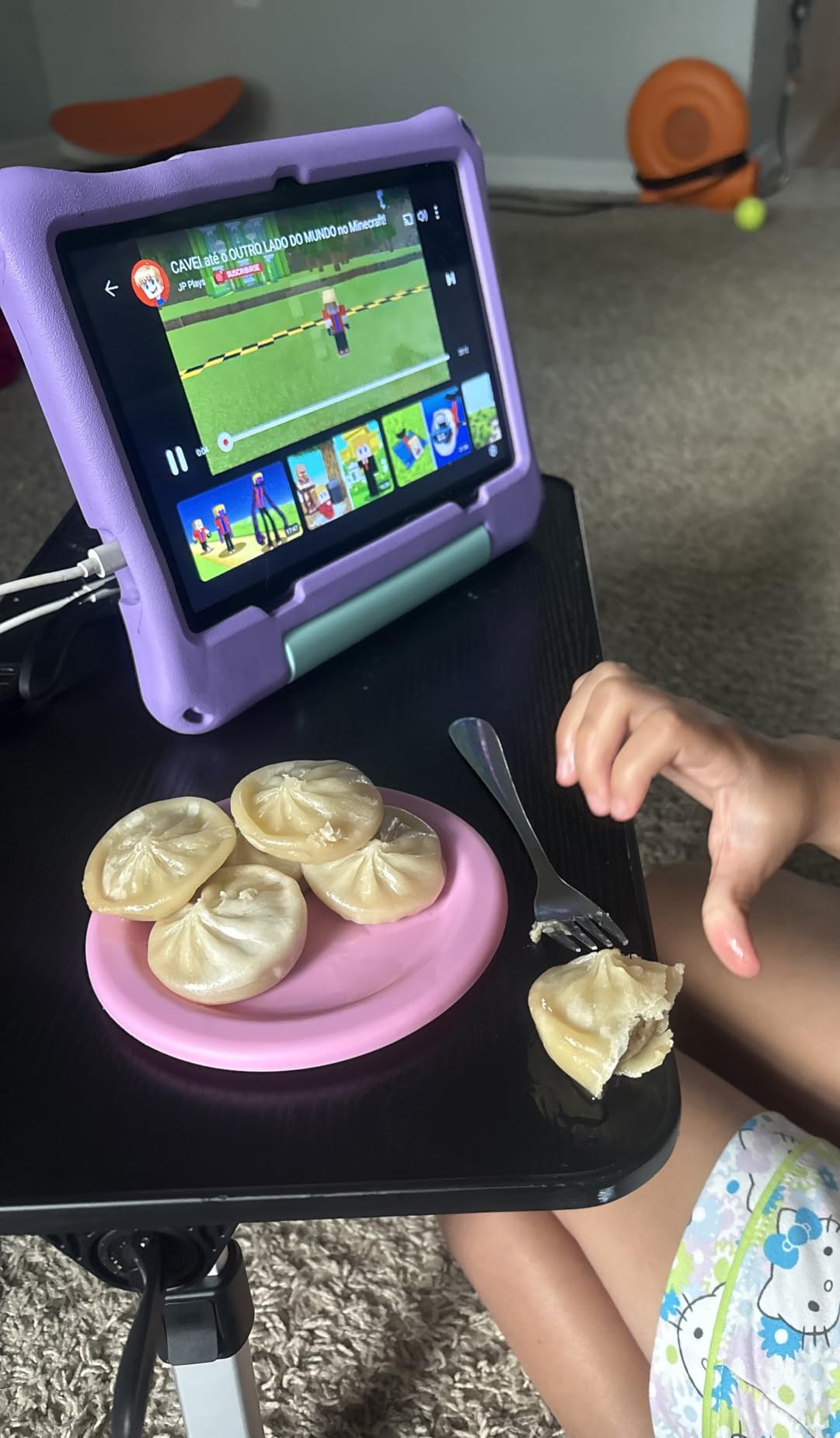
You should check before buying, because owners on this model report Disney+ as unavailable even though the device is Google Play certified. YouTube and other video apps are the ones that show up most often in positive reviews, so the streaming experience depends heavily on which services the household actually uses.
Install any streaming app during your own setup window and confirm playback before handing the tablet over. A thirty-second test now saves an argument later.
Is the newest Android version a benefit for a child tablet?
Indirectly, yes. A current Android release gets security patches for longer, and Google Play works as expected, so school and communication apps install without modification. Parents on Reddit repeatedly warn that cheaper kids tablets ship old Android versions that stop receiving updates, which is how an inexpensive device turns into a liability.
The counterweight is that the newer interface is less intuitive for parents than a purpose-built kids dashboard. Budget an extra ten minutes learning the settings.
7. zcobro 7-Inch Kids Tablet: Best for Toddlers and Small Hands
- Ideal 7-inch size for small hands to grip
- Simple parental controls with real filtering
- Adjustable stand case avoids hand-holding
- Bright IPS screen with clear sound
- Lightweight with the case already fitted
- 2GB RAM and an older quad-core chip limit demanding apps
- Several units stopped working after a few months
- Warranty support described as hard to reach
- Battery charge does not hold a full day in some reports
The logic here is size. At 7 inches with the silicone stand case already fitted, this is one of the easier tablets for a two or three-year-old to hold without help, and the adjustable stand means it can sit on a high chair tray or a table instead of being carried around. That removes a surprising amount of everyday friction.
Parental controls are straightforward rather than sophisticated: age filters, multiple child accounts, educational goals, time limits and purchase approval in one screen. The tablet is GMS certified, so Google Play works and the preloaded educator-endorsed learning content runs offline, which matters when the Wi-Fi drops.
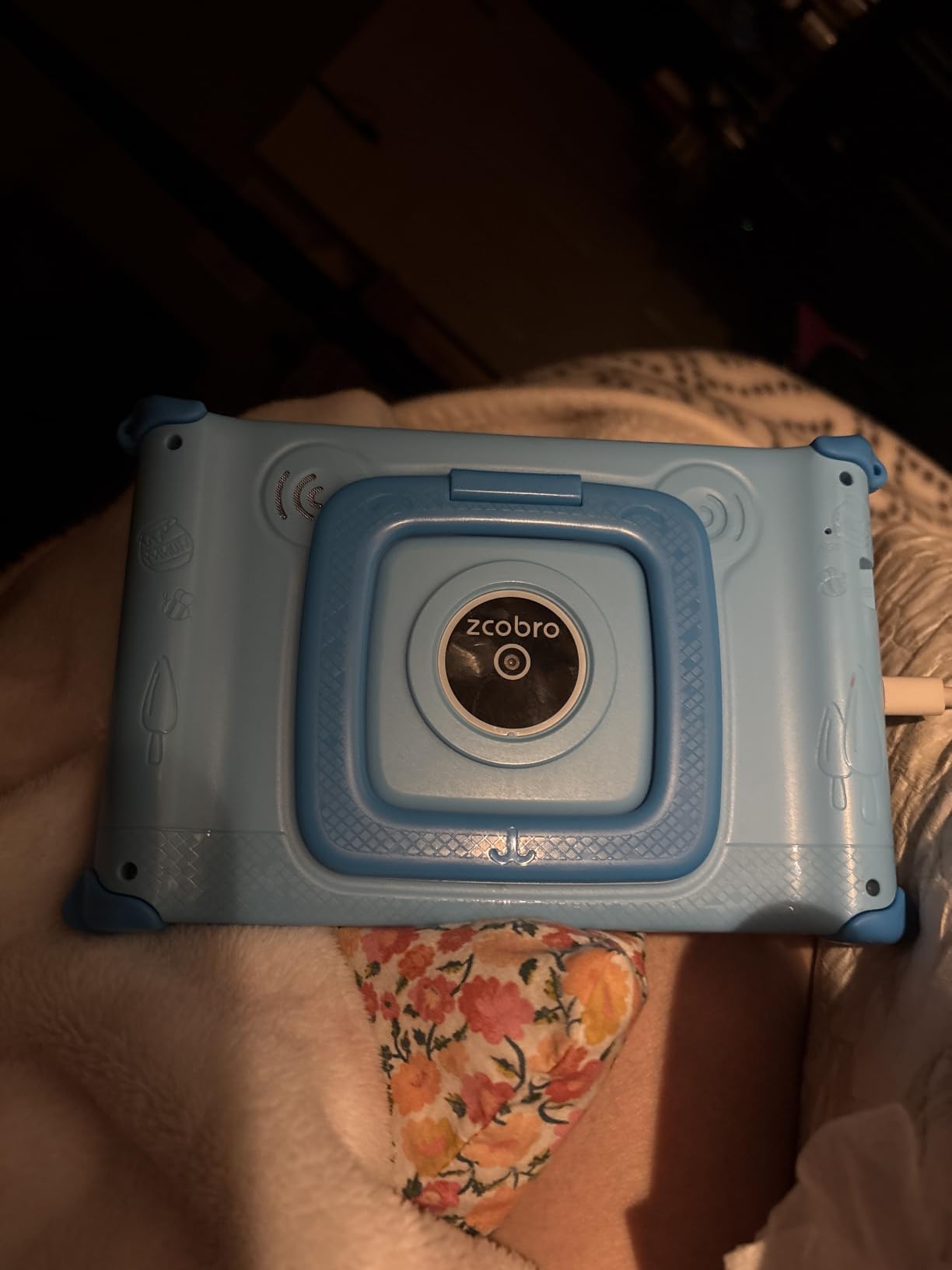
Specs are entry-level: 32 GB of storage expandable to 512 GB, 2GB of RAM, a 3500mAh battery the manufacturer rates at up to 10 hours, and a 1024×600 IPS display with low blue light and auto brightness. Dual stereo speakers and Bluetooth round out a package that includes the charging adapter and USB-C cable.
This is the second-lowest rated tablet here at 4.0 stars across 732 ratings, with 62% five-star feedback, and the reasons are clear from the reviews. Parents like the size and the ease of the controls, while durability failures and difficulty reaching warranty support account for most of the critical feedback.

Is this reliable enough for a toddler to own?
Reliability is the weak point. Several owners report the tablet ceasing to work after a few months, and a two-year warranty is of limited use when support is hard to reach. If a tablet is going to be handed to a two-year-old unsupervised, a stronger guarantee is worth paying more for.
The honest alternative is to accept this as a short-term first tablet and keep the fallback of an adult device nearby. The trade-off buys you the easiest-to-handle size in the group.
Will it survive YouTube Kids and heavier apps?
Basic streaming and learning apps are fine. With 2GB of RAM and an older quad-core chip, heavier titles stutter or fail to install, so treat it as a viewing and learning device rather than a gaming one.
Battery reports are mixed, with some owners saying a charge does not last a full day. For bedtime or travel use, plan on charging it more often than you would a bigger tablet.
8. HOTTABLET 7-Inch Kids Tablet: Best for Netflix Streaming
HOTTABLET Kids Tablet 7 inch Android, 4GB RAM 32GB ROM, 1TB Expandsion, with Parental Control, WiFi, Bluetooth, Dual Camera with Silicone Case, 1PCS (Blue)
- Widevine L1 supports full-quality Netflix streaming
- Parental controls cover profiles
- time and filtered content
- Kid-proof case doubles as a stand
- Preinstalled iwawa content for brain training and kids TV
- GMS certified with Google Play access
- Only 4GB RAM and half of that is virtual
- 3000mAh is the smallest battery here
- 1-star reviews make up 15% of ratings
- Lower-resolution screen is less crisp for video
Streaming is the reason this one is worth a place. It carries Widevine L1, which is the certification that allows HD playback in Netflix and other subscription video apps. Many budget kids tablets ship without it, so downloaded content silently drops to a lower quality or refuses to play at all.
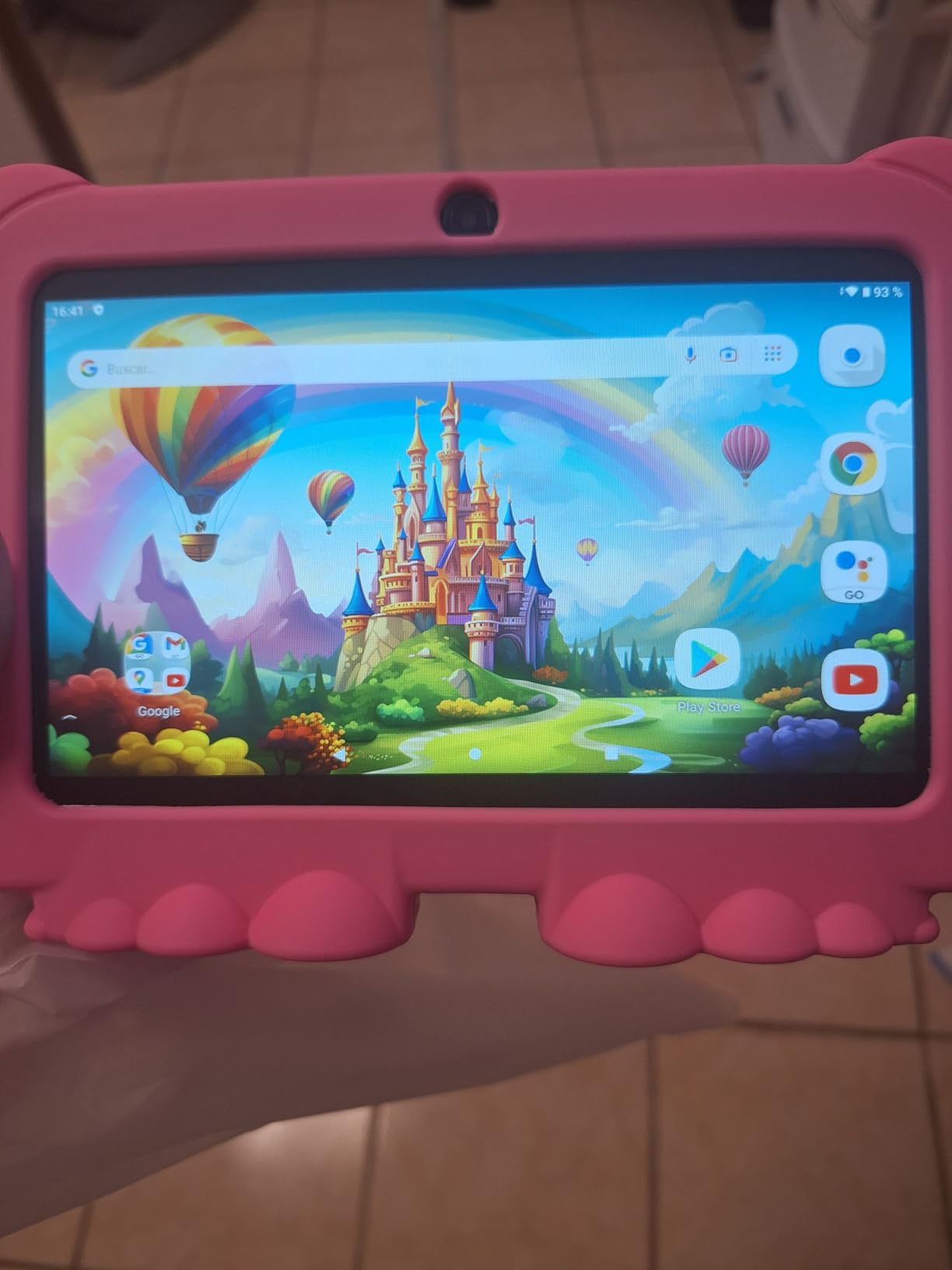
The control layer is more than adequate for the price. Customizable kid profiles sit next to screen-time limits and filtering across websites, apps and video channels, all managed from the settings screen. The tablet is GMS certified, so the Play Store is available for educational apps, and iwawa content is preinstalled for drawing, brain training and kids TV.
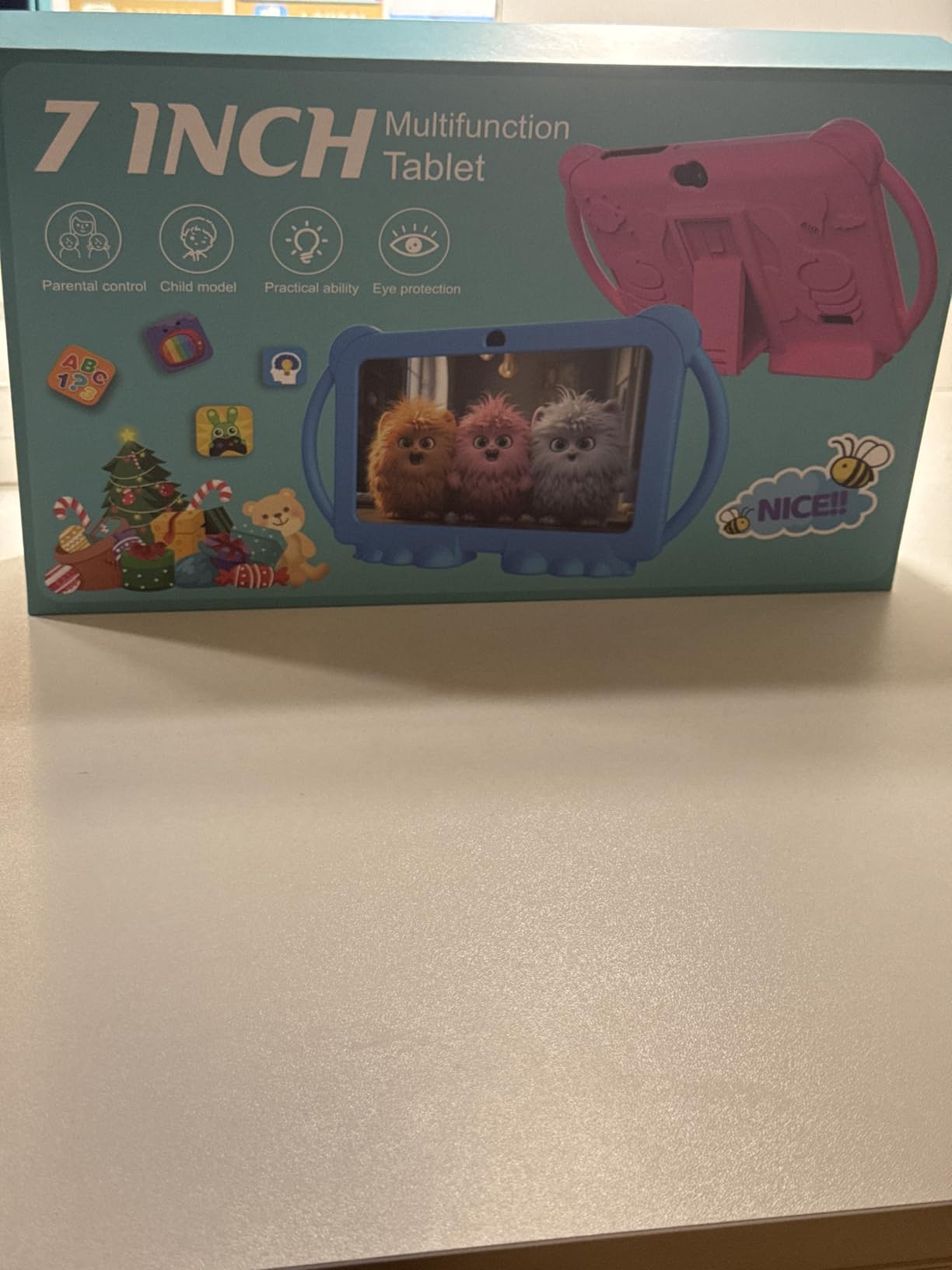
Everything else is deliberately modest. A 7-inch 1024×600 IPS panel at 60Hz and 300 nits with an eye protection mode, 4GB of RAM of which 2GB is virtual expansion, 32 GB of storage expandable to 1TB, and a 3000mAh battery rated at about 8 hours of mixed use. A 2MP front camera, 5MP rear camera, headphone jack, Bluetooth and stylus support round it out.
Ratings are 4.0 across 1548 reviews with 63% five-star feedback, and the 15% share of one-star ratings is the highest in this group. Buyers like the stand case and the filtering; reliability and battery complaints drive the negative reviews, and the warranty is a 365-day cover.
Does it stream Netflix in HD like a bigger tablet?
Yes, provided the app is installed from the Play Store and the account plan supports it. Widevine L1 is the certification that unlocks HD playback, and this tablet has it, which puts it ahead of many budget alternatives at the same price.
The 1024×600 panel is still a soft limit on how sharp HD video looks. For a child watching on a seven-inch screen at arm’s length, that difference matters much less than it would on a ten-inch display.
Is the low one-star share a reason to skip it?
It is a fair warning about build quality rather than about the software. A higher proportion of outright failures than any other tablet here suggests more units arrive with problems or stop working early, and the one-year warranty is the shortest of the group.
If you buy it, test the charging and the screen on day one and keep the box. Beyond that, the streaming certification makes it a sensible pick for a bedroom or travel tablet.
9. plimpton 10-Inch Kids Tablet: Best Rotating Stand for Travel
- Screen response and screen quality praised by picky buyers
- 360-degree rotatable kickstand case works well on trips
- Easy setup through Google Family Link monitoring
- Straightforward screen-time limits
- Responsive service with charger and device replacements
- Battery drains quickly on some devices
- Reported lag in setup and menus
- 4GB RAM is modest beside 10GB and 24GB rivals
- Some devices needed a long press to power on
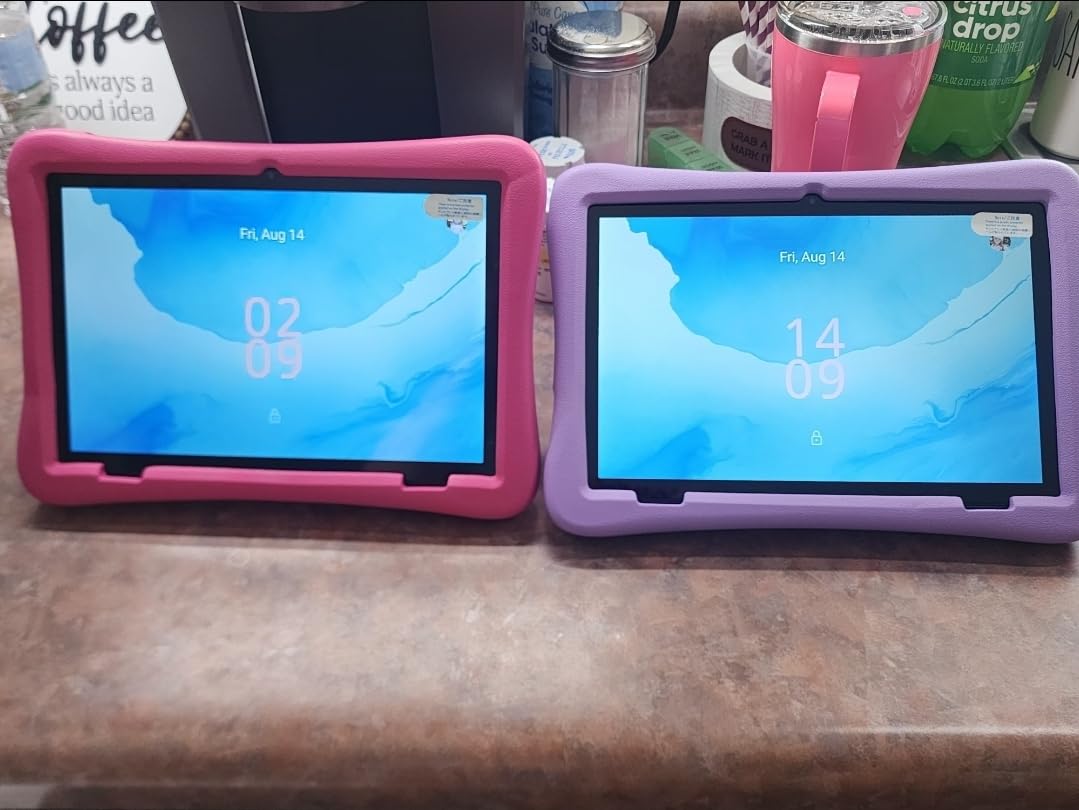
The case is what makes this model worth buying. A rugged anti-drop EVA shell with a 360-degree rotatable bracket turns the tablet into something that can stand upright on a tray table, in a car seat pocket angle, or flat for drawing, without a separate stand. On a long trip that flexibility is genuinely useful.
Underneath it is a current and capable Android 15 tablet with an Allwinner 8-core processor at 1.99 GHz, Gemini AI, Google Kids Space pre-installed and GMS certification. Parental controls cover content filtering, educational goals and time restrictions, and owners confirm setup through Google Family Link monitoring is straightforward.
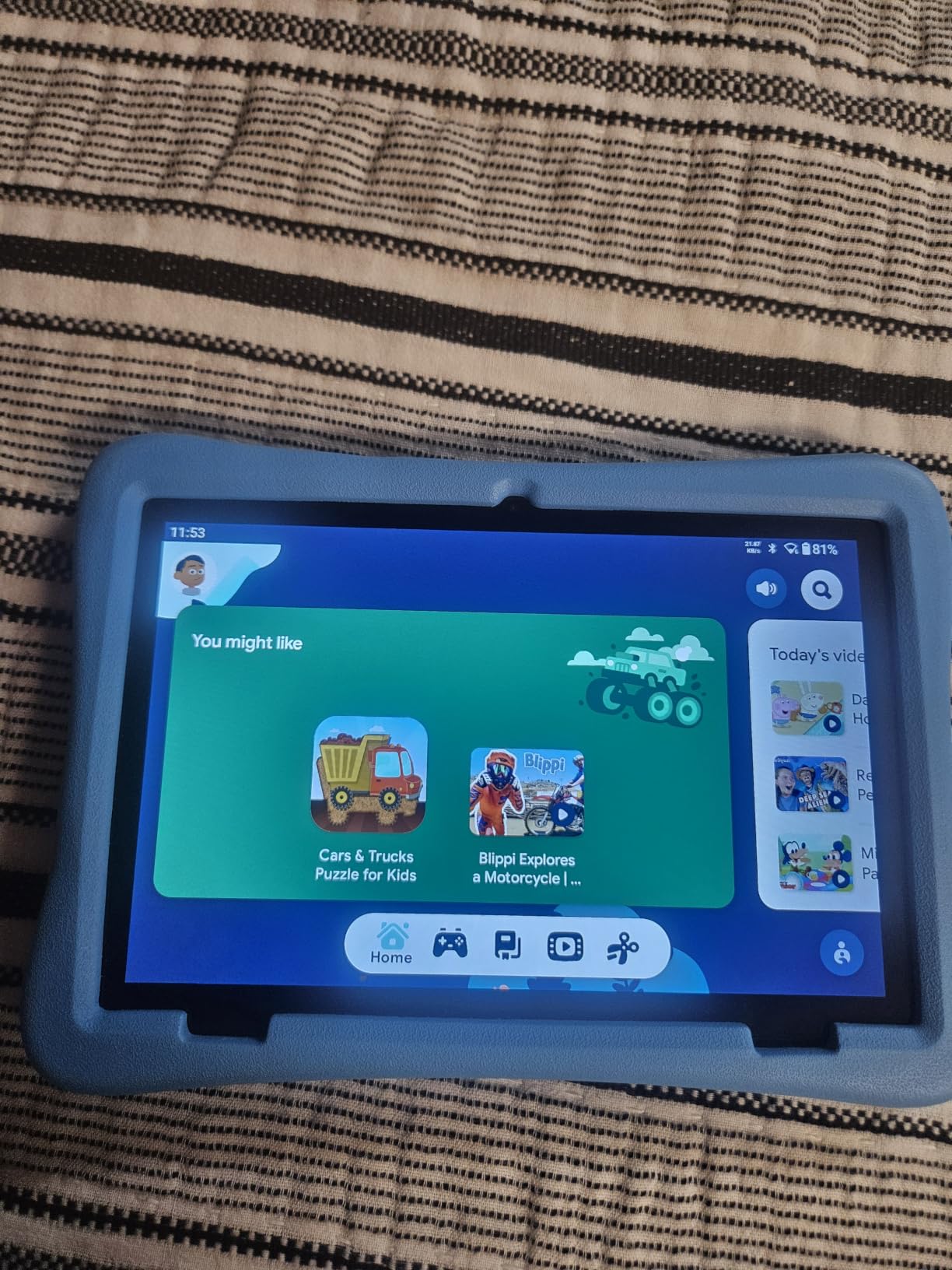
The 10.1-inch 1280×800 HD IPS glass display has low blue light, an eye protection mode and auto brightness, which makes it a good reading panel for an older child. Memory is 4GB of RAM with 64GB of storage expandable to 1TB, average battery life is listed at eight hours, and a 2-year warranty with 30-day returns backs it up.
At 4.2 stars across 442 ratings with 68% five-star feedback, satisfaction is solid on the touchscreen and the rotating case. The complaints are about battery drain on some units, reported lag during setup and in menus, and the modest 4GB of RAM next to rivals offering 10GB or 24GB.
Is the rotating stand case strong enough for a car trip?
Yes, and owners describe the build as sturdy in exactly the situations you would use it for. The EVA shell absorbs drops and the bracket holds several angles, so a child can watch in the back seat without holding the tablet or propping it on a bag.
Keep the case on. It adds bulk, but removing it defeats most of the reason to pick this model over a generic 10-inch tablet.
Will 4GB of RAM handle a few years of school apps?
For the curriculum case, learning apps and streaming, yes. The 8-core processor carries the load more than the memory figure suggests, and microSD expansion protects against storage pressure. If your child will run demanding games alongside school apps, choose a model with more real memory.
The reported lag in menus is worth knowing about. It tends to appear during first setup rather than in steady use, so give it ten minutes to settle before judging it.
10. aiprotablet 10-Inch Kids Tablet: Best Storage and Memory Headroom
- Android 16 with a Kids App Store and Google Play
- Parental controls bundle screen time
- goals and filtering
- Large display with eye protection
- Light at 456 g and thin at 0.25 inch
- Face recognition and charging reminders
- Lowest rating in the group at 4.1 stars
- Much smaller review base limits long-term evidence
- Headphone jack present but no Bluetooth listed
- Extras such as headphones are not included
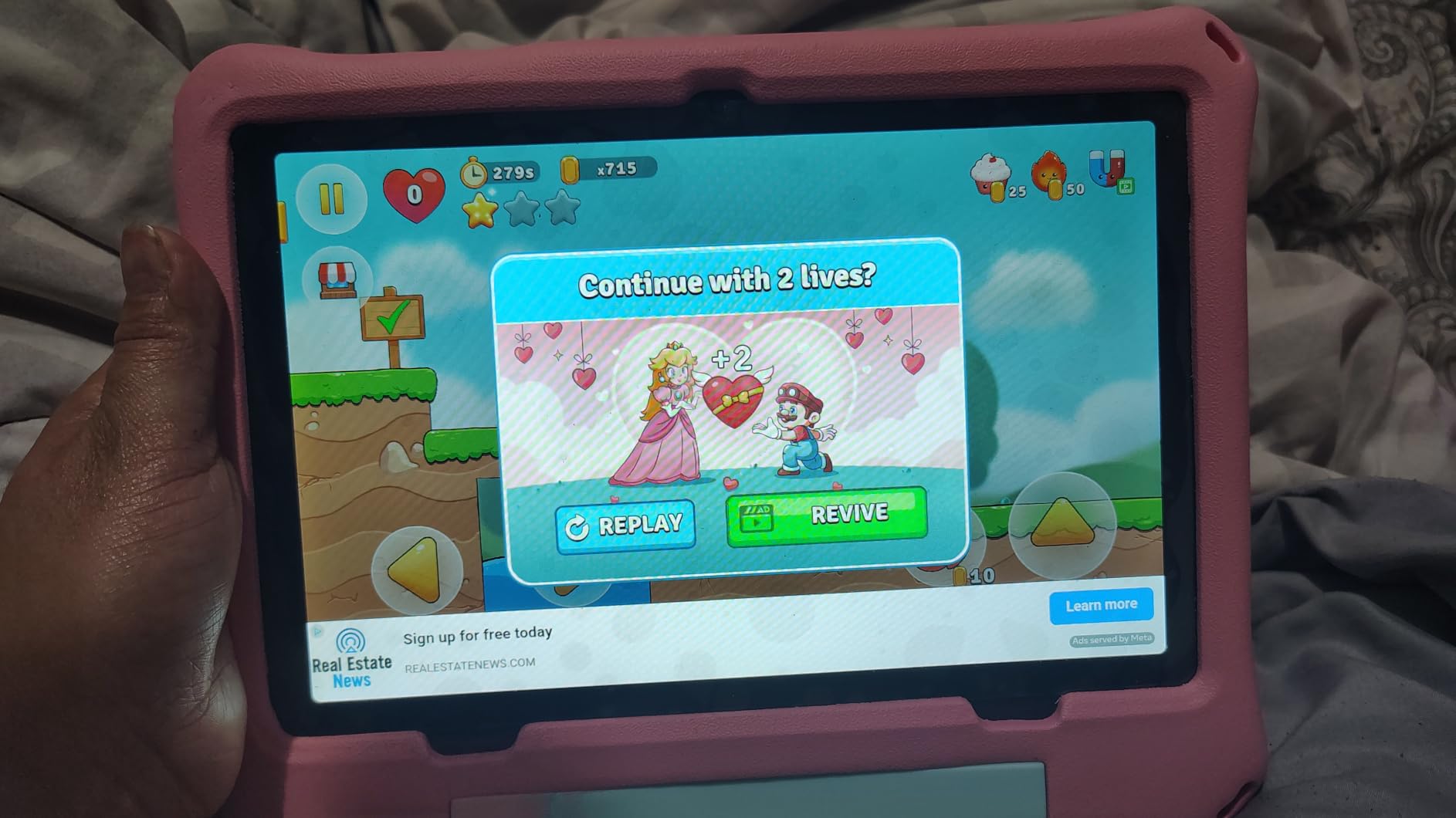
This is the specification-forward option. It runs Android 16 on a Unisoc T606 octa-core, is GMS certified with Google Play and adds a separate Kids App Store, so the child has a curated launcher while you keep full store access. Parental controls bundle screen time, learning goals, app usage management and content filtering into one screen rather than scattering them across settings.
It is also the lightest and thinnest tablet in the lineup at 456 g and 0.25 inch, which matters for small hands. A 6000mAh battery with 18W PD fast charging averages about six hours, and the 10-inch 1280×800 IPS panel includes eye-fatigue reduction with wide viewing angles.
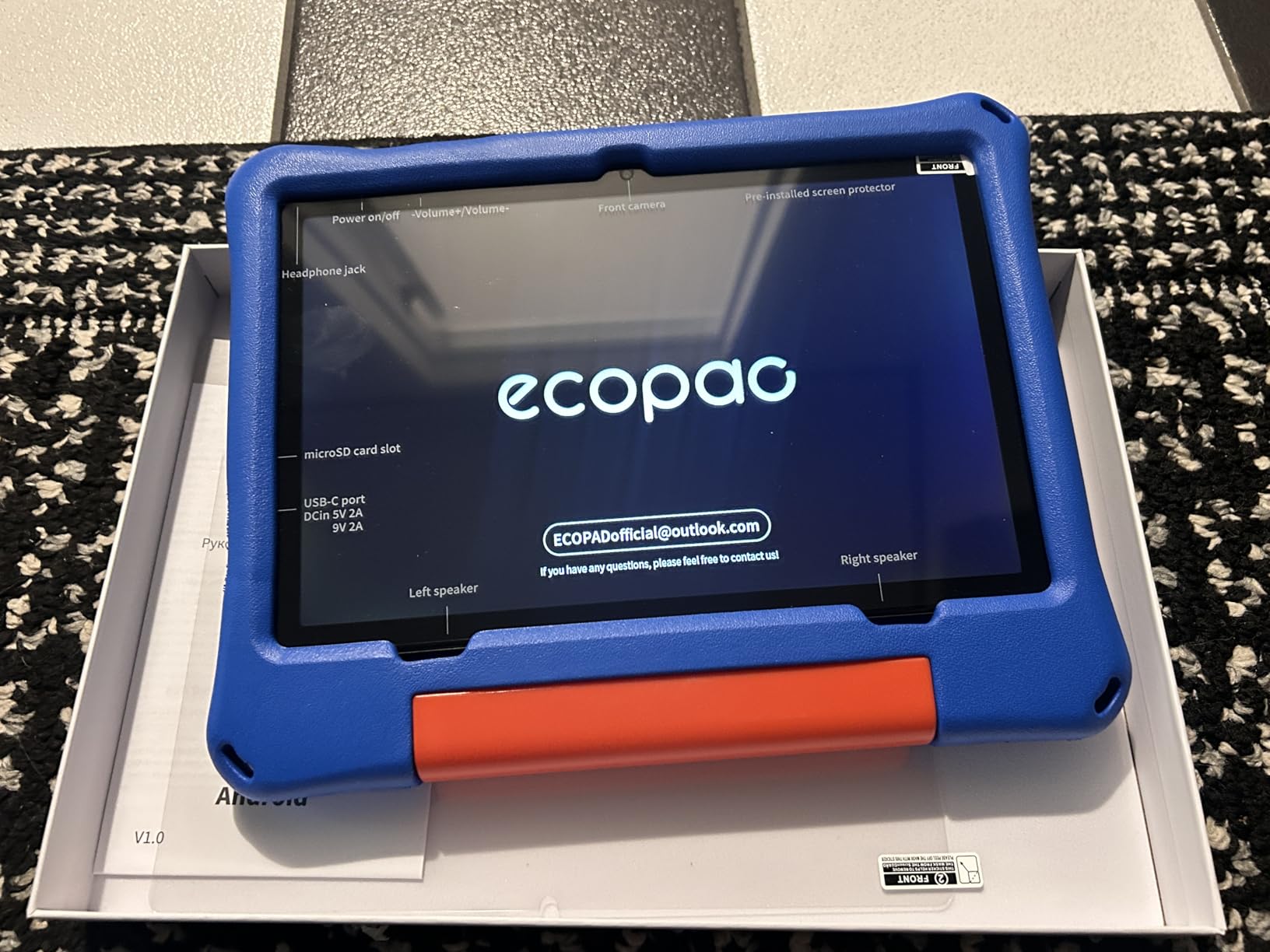
Memory is stated as 24GB of RAM combining 4GB physical with 20GB virtual, alongside 64GB of storage expandable to 1TB via microSD. As with other models here, the virtual portion is allocated storage rather than real RAM, so the physical 4GB and the octa-core chipset tell you more about real-world performance.
The 4.1-star rating across 227 reviews is the lowest average in this group, with 68% five-star feedback and 14% one-star. It also has the thinnest review base in the group at 227 ratings, so long-term owner evidence is limited. Face recognition, auto wake-up and charging reminders are unusual conveniences at this tier.
Is a thin 10-inch tablet sturdy enough for a child?
A protective case is included, which is the right answer to that concern. At 456 g it is light for a 10-inch screen and easier for a child to hold than the heavier alternatives, and the low mass means a drop is less likely to be a hard one.
The trade-off is that the 0.25 inch profile gives less room for structural reinforcement than a chunkier chassis. Keep the case on and skip the case-free styling phase.
Should you buy a tablet with the fewest owner reviews?
Only if the specification is the deciding factor. A small review base means less evidence about long-term reliability, and that matters most for the tablet expected to last longest, since a device that fails after a year is wasted money whatever the specification sheet says.
Bluetooth is also worth verifying for your specific unit, since the listing mentions a headphone jack and speakers but does not list Bluetooth among supported accessories.
Buying Guide: What Matters in a Kids Tablet With Parental Controls?
Screen size and processor get the attention, but they are not what decides whether a tablet works for your family. The control layer does. Work through these six areas in order and the shortlist makes itself.
Control depth and app approval
Ask one question: when the child requests a new app, does it install immediately or wait for you? Tablets with per-app approval, such as the WXUNJA and JIKOCXN models, are the only ones here where you can let a streaming app through while keeping the rest of the catalog gated. Age-band filters, as used by Amazon’s Parent Dashboard, are coarser but far simpler to configure.
Content filtering and purchase locks
There are three separate locks to check: web content, app catalog and purchases. Fire tablets tie all three to a parent account PIN, LeapFrog tablets restrict the web to a pre-approved site list that cannot be bypassed at all, and Google-based Android tablets depend on Google Family Link for the same effect. Confirm that purchase approval is on by default, because several budget models ship with in-app purchases unlocked.
Screen size, eye comfort and battery life
Seven inches suits toddlers and travel; ten inches suits reading, homework and shared viewing. For eye comfort, look for a low blue light mode or eye protection setting rather than relying on brightness alone. On battery, the honest reading of manufacturer claims runs from about 5 hours on the LeapPad Ultimate to 10 hours on the Fire 7, and owner reports frequently land lower than the claim on 6000mAh models.
Storage and expandability
Downloads fill storage quickly, particularly with offline video. Anything at or below 16 GB should have a microSD slot, and every tablet here except the closed-platform LeapFrog models supports expansion. Storage matters more on open Android tablets because the full Play Store means apps install at full size. Our guide to tablets for kids learning covers the content side in more depth.
Durability, case and warranty
Every pick here comes with a case, which removes one accessory from the list. Beyond that, the warranty matters more than the material: the Fire 7 Kids carries a two-year worry-free replacement, and parents repeatedly name that guarantee as the reason they bought into the brand. One-year covers on budget models provide much less protection for a device a child will drop.
Subscription cost and data privacy
Two of these families of device lean on a subscription for the full experience. Fire tablets include a year of Amazon Kids+ and then continue on a paid subscription unless you cancel, and LeapFrog Academy is an annual subscription with paid add-on games on top. Neither competitor in this category shows a full running total, so check the renewal terms yourself before the trial ends. For privacy, note that a closed Amazon content library and a full Google Play store are different data propositions, and the tablet collecting the least information is the one with the smallest content library.
Which Tablet for Which Age?
Age decides the tablet more than specification does, because the failure mode of a kids tablet is boredom rather than breakage. A four-year-old and a twelve-year-old need entirely different control models, and the right answer is usually a different device.
Ages 2 to 5: prioritize lockdown over features. The LeapFrog LeapPad Ultimate Ready for School is built for exactly this band, with an approved-sites-only browser and a large bundle of age-graded apps included. The zcobro 7-inch is the alternative if handling size matters more than screen quality.
Ages 5 to 8: this is the core Fire Kids audience and the age band the included Amazon Kids+ content was designed for. The Fire 7 Kids pairs a parent dashboard with a battery that survives a long outing and a two-year replacement promise.
Ages 8 to 11: screen size and storage start to matter, and school apps enter the picture. The COLORROOM 10-inch is the strongest fit here because full Google Play means school platforms install normally alongside Google Kids Space.
Ages 11 and up: treat it as a first real tablet rather than a kids tablet. The JIKOCXN and aiprotablet models run current Android versions, hold more memory and storage, and can be handed over as a normal tablet once the child is ready to manage their own profile.
Setting Up Parental Controls in the First 10 Minutes
Do this before the child gets the device, not after the first argument. Two of the biggest complaints parents raise in forums come from skipping setup: filters never enabled, and profiles left unlocked.
On Fire tablets: sign in to the parent dashboard in a browser on your own device, set the child’s birth year to load the age band, then enable time limits, content filtering and purchase approval before you hand over the tablet. Confirm the dashboard shows the device as registered, since controls only apply to registered hardware.
On Google Android tablets: install Google Family Link on your own phone first, create the child account there, and follow the pairing code prompt on the tablet during setup. Approving app installs remotely works from that point, and Google Kids Space sits on top without blocking the Play Store.
On LeapFrog tablets: create the parent account in the LeapFrog parent portal, then set the app list, website approvals and time limits from the portal rather than the device. Verify the restrictions on the tablet itself before handing it over.
Whichever platform you choose, set the time limits before the first use and check them once after the first system update, since parents report controls occasionally resetting after an update.
What Happens When Your Child Outgrows the Kids Tablet?
Most children age out of a kids tablet between 18 months and two years, while the hardware is still perfectly good. That is the normal path, not a buying mistake, and it is worth planning for.
On Fire and Google Android tablets, removing the child profile removes the restrictions with it and returns the device to a clean adult state, so the tablet can go to an older sibling or be reset for the next child. On the closed LeapFrog platforms, wiping is simpler still because there is almost no purchased content to preserve.
The gap nobody warns you about is data transfer. There is no way to export or move a child’s saved work, apps and settings from one platform to another, so treat the tablet as disposable when the transition comes. Our guide to tablets built for school writing work covers what to look for once a child needs a full keyboard and document apps, which is usually the point at which a kids tablet stops being enough.
Frequently Asked Questions
What is the safest tablet with parental control?
The safest tablet with parental control is the Amazon Fire 7 Kids, because its Parent Dashboard filters content by age, enforces time limits across the whole device and holds purchases behind a PIN you manage from any browser, backed by a two-year replacement guarantee. For older children who need real apps, a Google Android tablet with Family Link and Kids Space offers finer app-approval control.
What is the best parental controls app for tablets?
The best parental control setup depends on the platform rather than a separate app. Apple devices use built-in Screen Time, Fire tablets use the Amazon Parent Dashboard in a web browser, and Android tablets use Google Family Link paired from your own phone. Family Link is the most capable for app-by-app approval; the Parent Dashboard is the simplest to configure.
Should my 7 year old have a tablet?
A 7 year old can use a tablet safely if you pick one with age-graded content and set the limits before the device is handed over. At that age the Fire 7 Kids and the LeapFrog LeapPad Academy suit younger children, while a 10-inch Android tablet with Google Kids Space suits a child in the upper primary years who needs school apps.
Does Amazon Kids+ renew automatically after the free year?
Amazon Kids+ is included for a year with Fire Kids tablets and continues as a paid subscription afterwards unless you cancel. Parents on Reddit consistently report being caught out by the automatic renewal, so set a calendar reminder before the trial ends and decide in advance whether the content library is worth continuing.
Can I use Google Family Link on an Amazon Fire tablet?
No. Fire tablets run Fire OS and do not include Google Play, so Google Family Link cannot be installed on them. Amazon’s own Parent Dashboard provides the equivalent controls including age filters, time limits and purchase approval, and it is the only parental control system available on Fire hardware.
Is Apple or Samsung better for parental controls?
Apple Screen Time is the more capable system, with per-app limits, downtime scheduling and purchase approval, but it does not support separate user profiles, so families often share one Apple ID. Google-based Android tablets, including Samsung models and the picks in this guide, use Family Link for remote approval and support true child accounts, which is why they suit a shared family device better.
The Bottom Line
The Amazon Fire 7 Kids is the pick we would buy first for the best kids tablets with parental controls in 2026, because the Parent Dashboard does more of the work than any rival and the two-year guarantee absorbs the drops that come with the job. Buy the COLORROOM 10-inch instead when school apps and Google Play matter more than a locked ecosystem, and look at the LeapFrog LeapPad Academy when the strongest possible lockdown matters most. Whichever you choose, configure the controls before the tablet changes hands.