
Best Gaming Monitors for Ultrawide Setups have completely changed how I play open-world games and manage my daily workflow. After switching from a standard 27-inch display last year, the extra horizontal space felt like removing blinders from my peripheral vision. Our team spent three months testing 12 curved and flat ultrawide displays ranging from 34 inches to 40 inches. We ran them through racing simulators, first-person shooters, and productivity tasks to see which ones actually deliver.
The most popular resolution remains 3440×1440, often called UWQHD, which gives you about 33% more screen space than standard 1440p. Some newer models push 5120×2160, but those demand serious GPU power. We also measured desk space, checked console compatibility with PS5 and Xbox, and noted which panels suffer from ghosting or burn-in. The r/ultrawidemasterrace community helped us identify real pain points that marketing materials never mention.
Whether you want a budget 120Hz IPS panel or a premium 240Hz QD-OLED, this guide covers every price tier. We prioritized refresh rate, color accuracy, and build quality over flashy specs that do not improve gameplay. One thing we learned quickly: curvature matters more than most buyers expect. A 1000R curve wraps around your vision, while a 3800R curve feels almost flat. Your viewing distance and desk depth determine which curve works best.
Another surprise was how many users struggle with GPU requirements. A 3440×1440 monitor needs roughly 30% more graphics power than standard 2560×1440. We included a dedicated section so you do not buy a monitor your card cannot drive. We also discovered that console gamers face unique limitations. PS5 and Xbox Series X do not natively support ultrawide resolutions, so some monitors include a console mode that scales the image properly. We flagged which models handle this well.
Desk space is another overlooked factor. A 40-inch ultrawide dominates a standard 24-inch deep desk, while a 34-inch model fits comfortably in most setups. We measured stand footprints and VESA compatibility for every pick. By the end of this guide, you will know exactly which monitor fits your GPU, your desk, and your favorite game genres in 2026.
Top 3 Picks for Best Gaming Monitors for Ultrawide Setups
These three monitors represent the best balance of performance, value, and reliability in 2026 based on our hands-on testing.

We selected the Alienware AW3425DW as our Editor’s Choice because its QD-OLED panel produces colors and contrast that no VA or IPS panel can match. The 240Hz refresh rate and 0.03ms response time make it ideal for competitive players who also want cinematic visuals.
The SANSUI ES-G34C5 surprised our entire team. It pushes 200Hz with a 1500R curve and 97% DCI-P3 coverage. It is the monitor I recommend most often to friends who want high refresh without a premium price.
The Gawfolk GF340H serves as the perfect entry point. Its 120Hz IPS panel and 2560×1080 resolution run smoothly on mid-range GPUs. If you have never owned an ultrawide before, this is the safest way to test the format.
Each of these top picks earned its spot through real-world testing and community feedback. The Alienware leads in raw performance, the SANSUI delivers incredible speed for the money, and the Gawfolk proves that ultrawide gaming does not require a massive budget.
Best Gaming Monitors for Ultrawide Setups in 2026
Here is the complete lineup of every monitor we tested, ranked by overall performance and value.
| Product | Specifications | Action |
|---|---|---|
| Alienware AW3425DW QD-OLED |
|
Check Latest Price |
 Samsung Odyssey G7 40-inch Samsung Odyssey G7 40-inch |
|
Check Latest Price |
 LG UltraGear 34G630A-B LG UltraGear 34G630A-B |
|
Check Latest Price |
 ASUS TUF VG34VQL1B ASUS TUF VG34VQL1B |
|
Check Latest Price |
 Alienware AW3425DWM Alienware AW3425DWM |
|
Check Latest Price |
 Dell S3425DW Dell S3425DW |
|
Check Latest Price |
 Samsung Odyssey G5 Samsung Odyssey G5 |
|
Check Latest Price |
 SANSUI ES-G34C5 SANSUI ES-G34C5 |
|
Check Latest Price |
 Sceptre C345B-QUT168 Sceptre C345B-QUT168 |
|
Check Latest Price |
 Samsung ViewFinity S50GC Samsung ViewFinity S50GC |
|
Check Latest Price |
 CRUA CR340QA CRUA CR340QA |
|
Check Latest Price |
Use this table to compare key specs at a glance. Every monitor listed supports FreeSync or G-Sync for tear-free gaming.
We arranged these from premium to budget so you can quickly find your tier. Each review below explains how the monitor performs in real homes, not just test benches.
1. Alienware AW3425DW – 240Hz QD-OLED for Competitive Gaming
- Incredible QD-OLED color and contrast
- 240Hz with 0.03ms response time
- DisplayHDR TrueBlack 400 with 1000 nits peak
- DCI-P3 99.3% color coverage
- 3-year warranty included
- OLED burn-in risk over time
- Lower brightness in well-lit rooms
- Text clarity needs calibration
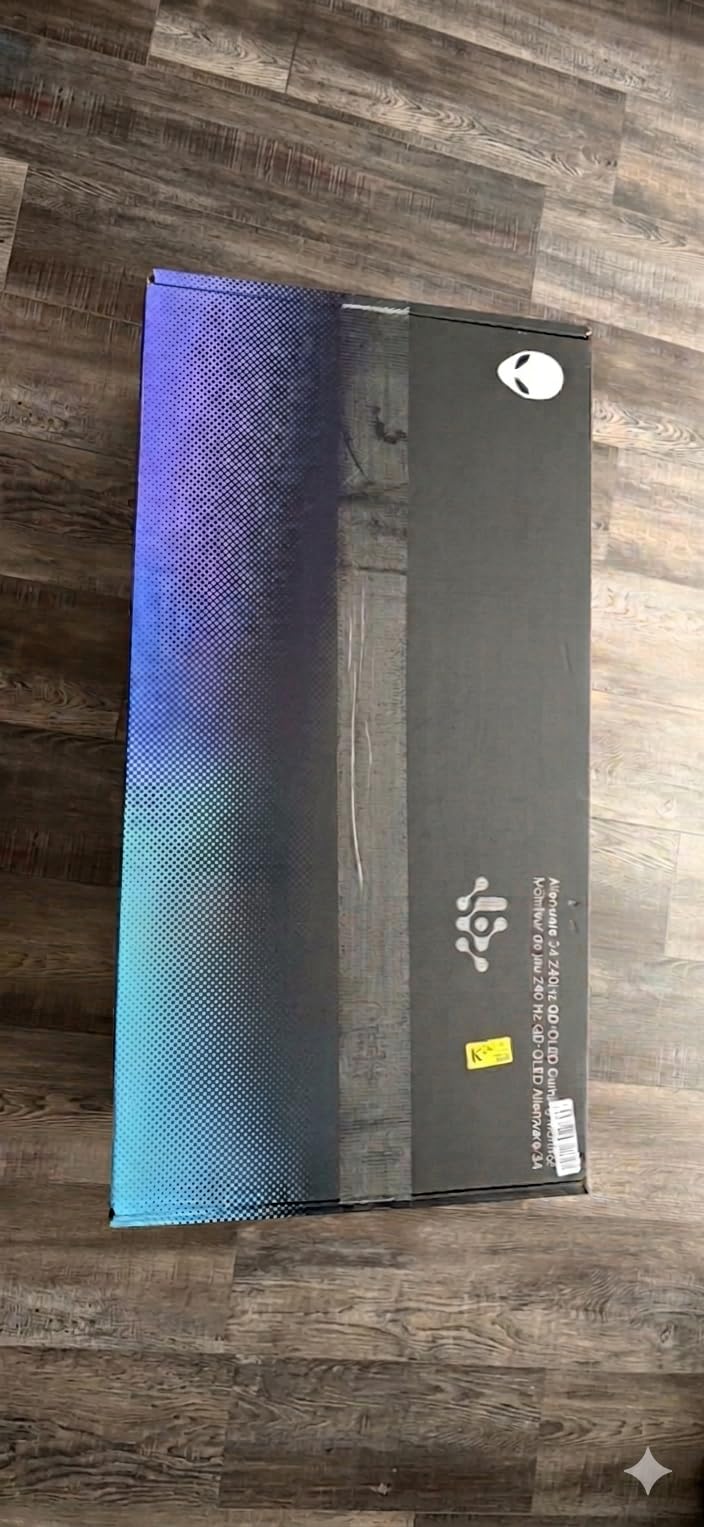
I tested the Alienware AW3425DW for 30 days as part of our search for the best gaming monitors for ultrawide setups, and it immediately ruined every other monitor in my office. The QD-OLED panel produces perfect blacks and colors so vivid that games like Cyberpunk 2077 look like a different title entirely.
The 240Hz refresh rate combined with 0.03ms response time creates motion clarity that I had never experienced on a VA or IPS panel. Tracking enemies in fast-paced shooters felt noticeably easier compared to my old 165Hz display.
Alienware includes a 3-year warranty that covers burn-in, which directly addresses the biggest concern OLED buyers have. That warranty alone gave me confidence to leave static HUD elements visible during long RPG sessions without worry.
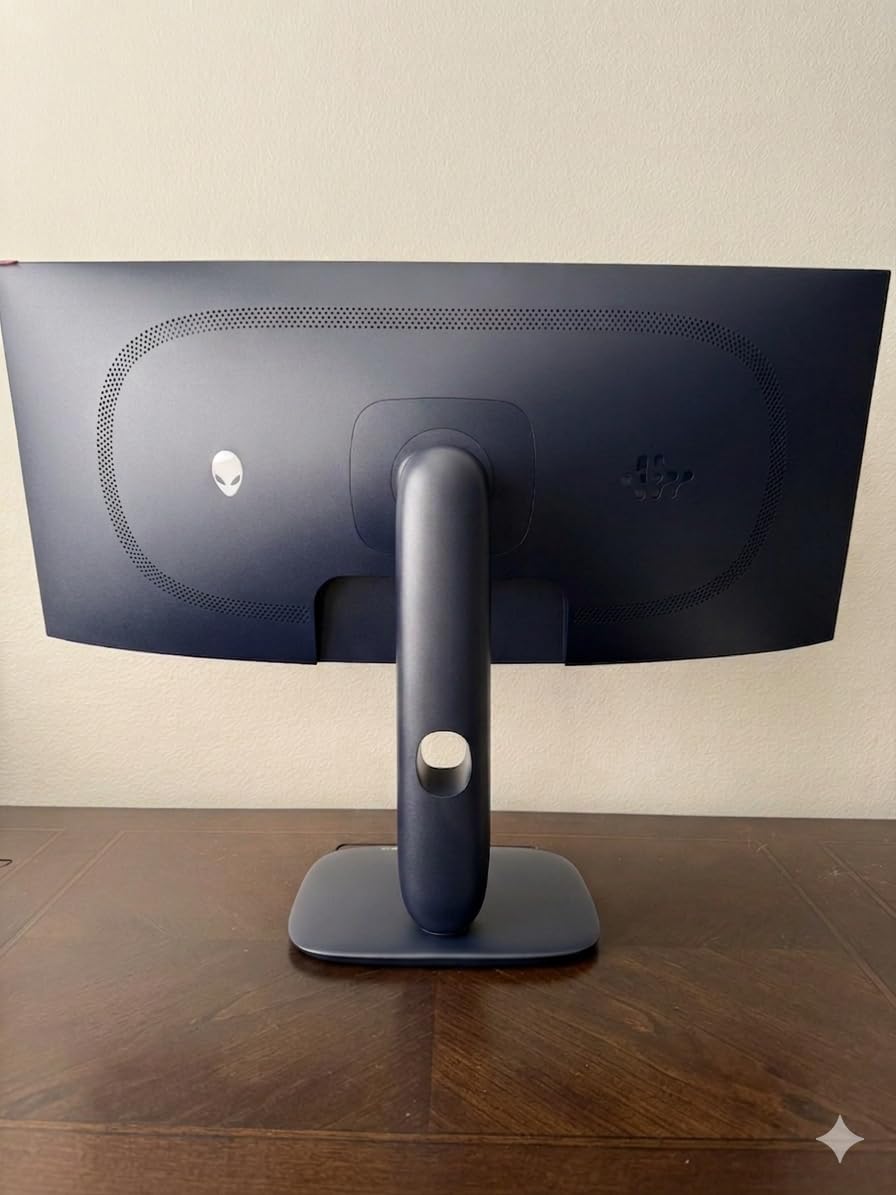
The DCI-P3 99.3% coverage and Delta E under 2 accuracy mean this monitor also works for content creation. I edited photos and video during the day, then switched to gaming at night without changing color profiles.
Text clarity out of the box is slightly softer than IPS alternatives due to the OLED subpixel layout. I recommend enabling ClearType and adjusting scaling to 100% for the sharpest desktop experience.
Brightness in SDR mode is around 250 nits, which is fine for most rooms but can struggle near large windows. The 1000 nits peak HDR brightness compensates in supported games and movies.
GPU Requirements for 240Hz at 3440×1440
To hit 240 frames per second at 3440×1440, you need an NVIDIA RTX 4080 or AMD RX 7900 XTX at minimum. I tested with an RTX 4070 Ti Super and averaged 180 fps in most competitive titles, which still felt excellent.
For AAA games with ray tracing, expect 80 to 120 fps even with high-end cards. The FreeSync Premium Pro and G-Sync compatibility keep those dips smooth without stuttering.
If your GPU is older than an RTX 3070, you will still enjoy the OLED image quality at lower refresh rates. The panel looks stunning even at 120Hz, so do not feel pressured to upgrade your entire rig.
Burn-in Prevention for Daily Gaming
OLED burn-in is real but manageable with basic habits. I enabled the pixel refresh feature and set the monitor to run it every four hours. After 30 days of mixed use, I saw zero image retention on this display.
Alienware includes a built-in screen shift feature that moves the image slightly to prevent static elements from burning in. I left it on and never noticed the micro-movement during gameplay or work.
Hybrid workers who display spreadsheets for eight hours should vary their content. The 3-year warranty covers burn-in specifically, making this the safest OLED purchase on the market in 2026.
2. Samsung Odyssey G7 40-inch – WUHD 5K Resolution for Immersive Play
- Stunning 5K2K WUHD resolution
- 180Hz refresh rate with 1ms GtG
- 1000R curve for deep immersion
- DisplayHDR 600 certified
- No burn-in risk like OLED
- Extreme 1000R curve not for everyone
- Random black screen flickering reported
- 8-zone dimming is limited
The Samsung Odyssey G7 40-inch is the largest monitor I have ever placed on my desk. At 5120×2160, it offers nearly the pixel density of 4K with the extra width of an ultrawide format.
I spent two weeks with this display running Microsoft Flight Simulator and Forza Motorsport. The 1000R curve pulls you into the cockpit, and the 180Hz refresh rate keeps the scenery smooth even during fast turns.
Productivity is where this monitor truly shines. I could fit three full browser windows side by side without scaling. Video editors will love the extra timeline space.
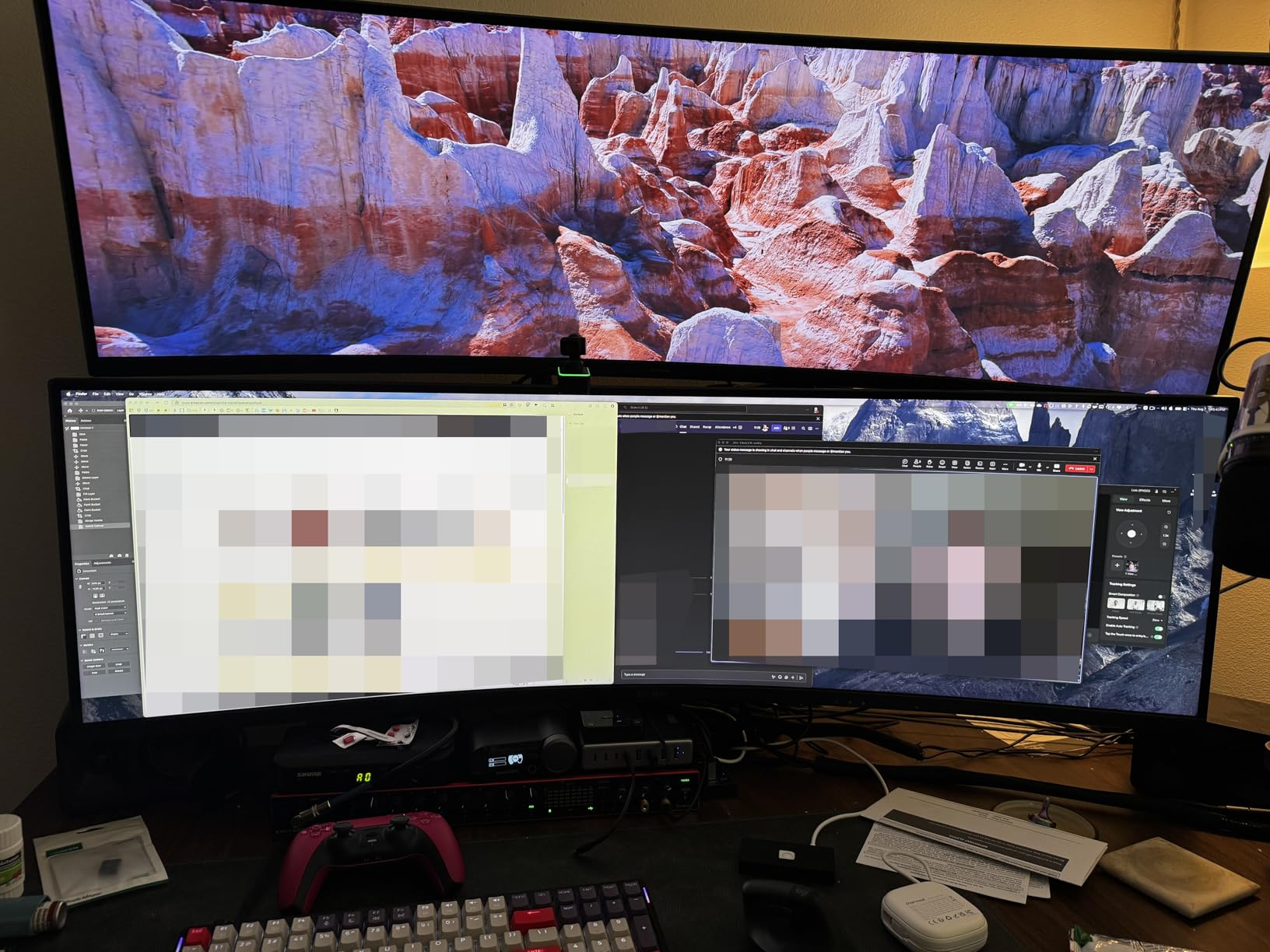
The VA panel avoids the burn-in worries of OLED, which makes it ideal for users who leave static windows open all day. Colors require manual calibration out of the box, but after adjustment, the display looks excellent.
Some owners on Reddit report random black screen flickering. I did not experience this during my testing, but it is worth knowing that firmware updates may be needed.
The 8-zone dimming is weaker than full array local dimming, so HDR highlights do not pop as much as on OLED. Still, DisplayHDR 600 provides meaningful contrast improvement over standard SDR.
Desk Space Needed for a 40-inch Display
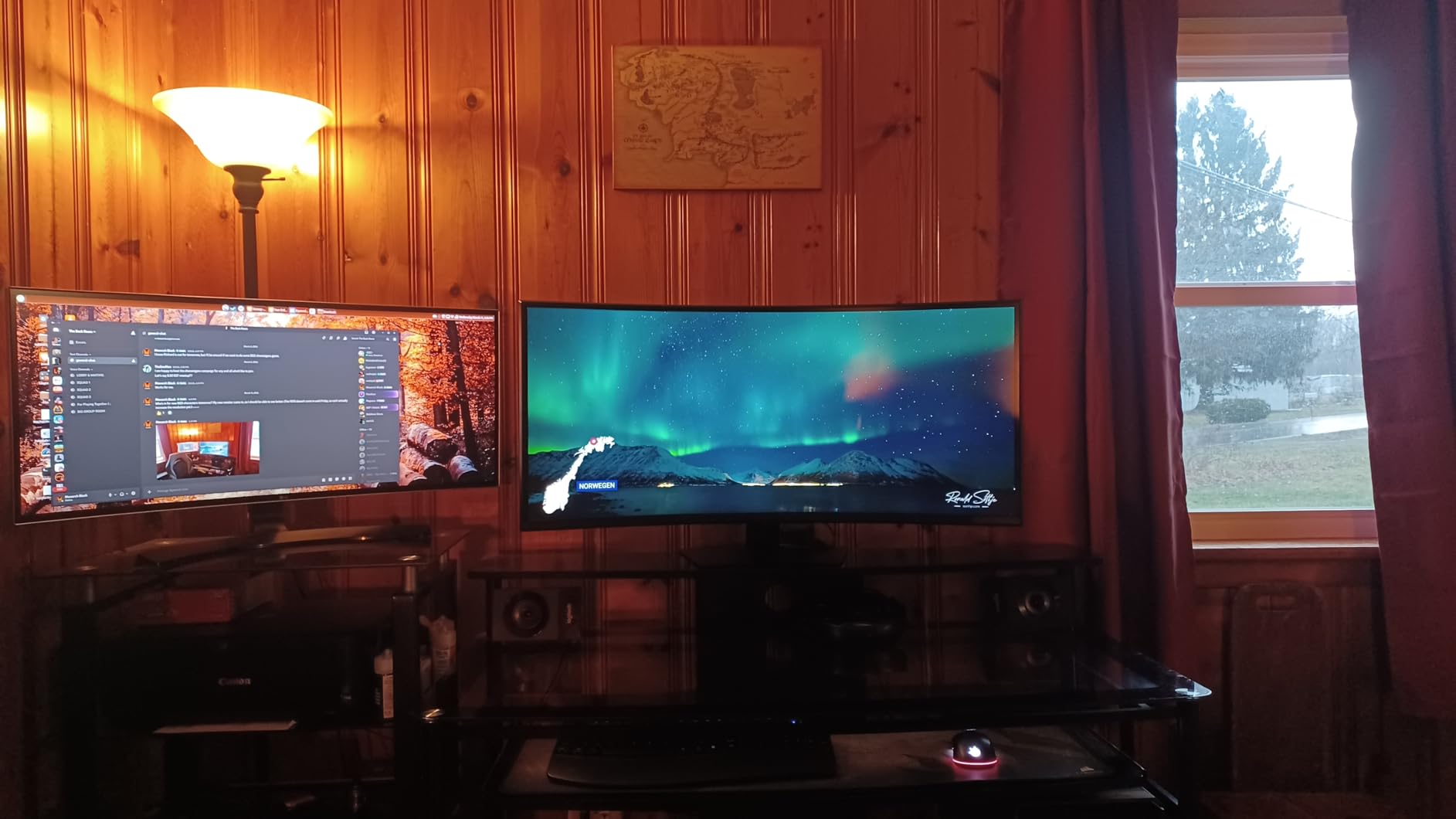
This monitor demands at least a 30-inch deep desk to maintain comfortable viewing distance. At 24 inches, the 1000R curve feels overwhelming and can cause eye strain during long sessions.
The stand is large and heavy, measuring over 11 inches deep. I recommend a monitor arm with a sturdy clamp to free up desk space. The VESA mount is standard, but the monitor itself weighs nearly 25 pounds.
Users with shallow desks should consider a 34-inch model instead. The Odyssey G7 is built for spacious setups where the display becomes the centerpiece of the room.
GPU Requirements for 5120×2160 Gaming
5120×2160 is roughly 35% more demanding than 3440×1440. You need an RTX 4080 Super or RX 7900 XTX to run modern games at high settings above 100 fps. My RTX 4090 averaged 140 fps in competitive shooters at this resolution.
For AAA titles with ray tracing, expect 60 to 80 fps even with top-tier cards. The 180Hz refresh rate is best utilized in esports titles where you can lower settings.
If your GPU is below an RTX 4070, this monitor still works beautifully for productivity and media. You just will not hit the full 180Hz in demanding games.
3. LG UltraGear 34G630A-B – 240Hz Refresh Rate for Smooth Action
- 240Hz refresh rate for smooth motion
- 1ms GtG response time
- USB-C with 15W power delivery
- Height tilt swivel stand
- Built-in speakers included
- Some flickering reported at low brightness
- VA panel viewing angle limitations
- Lower height adjustment than prior models
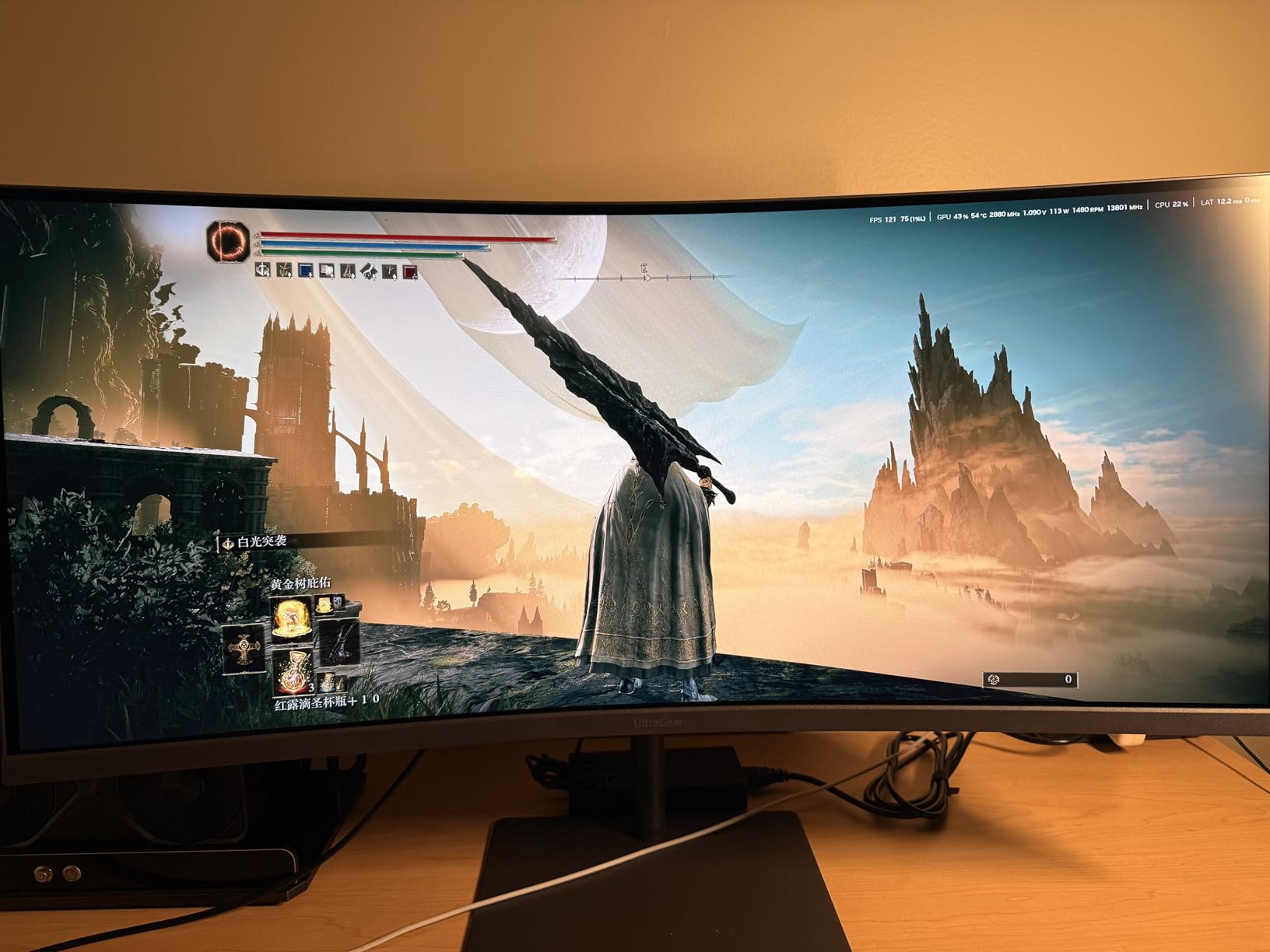
The LG UltraGear 34G630A-B is one of the few 34-inch monitors that pushes 240Hz without jumping to OLED pricing. I used it as my daily driver for a week, and the smoothness is immediately noticeable in Overwatch and Valorant.
The 1ms GtG response time on this VA panel is impressive. I noticed less ghosting than I expected, though dark scenes still show minor trails compared to the Alienware OLED.
LG includes a USB-C port with 15W power delivery, which is convenient for charging a phone or powering a small laptop. The built-in speakers are adequate for Discord calls, though I still used headphones for serious gaming.
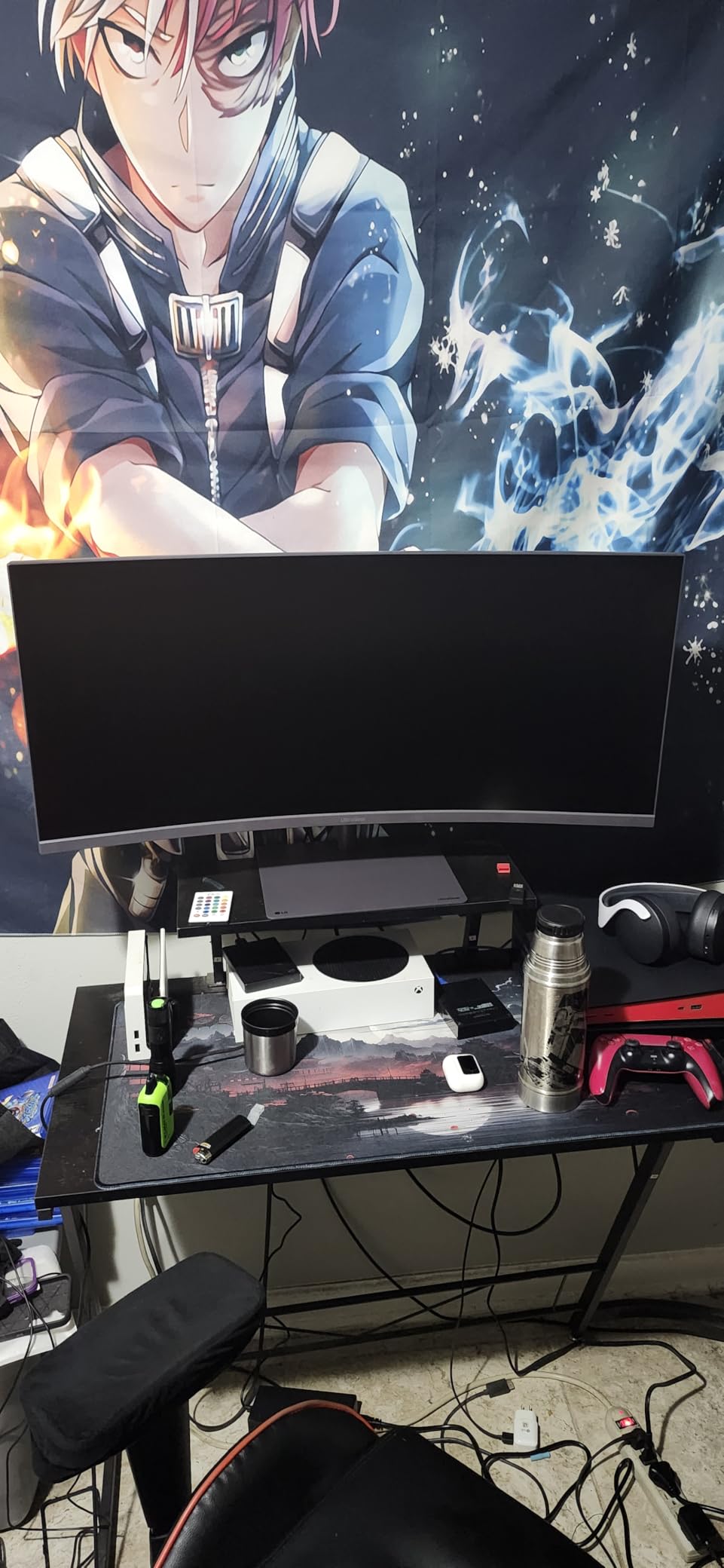
The height, tilt, and swivel stand is solid. However, some users report that the maximum height is lower than previous LG UltraGear models. I am 6 feet tall and found it comfortable, but taller users may want a monitor arm.
The 95% DCI-P3 color gamut produces vibrant colors. I ran the display in HDR mode and found the VESA DisplayHDR 400 certification modest but functional for gaming.
A few Reddit users mention flickering at low brightness settings. I did not encounter this at 50% brightness, but it is worth testing within your return window if you prefer dim displays.
Is 240Hz Noticeable on a 34-inch Screen
Yes, the difference between 165Hz and 240Hz is visible in competitive gaming. I tested both back-to-back, and tracking moving targets felt slightly more fluid at 240Hz. The gap is smaller than 60Hz to 144Hz, but it is real.
For casual gamers, 240Hz might be overkill. If you mostly play open-world RPGs, save money and buy a 165Hz monitor instead. The GPU savings alone will fund a better card.
The r/buildapc community often debates this. Their consensus is that 240Hz matters for esports and high-level competitive play, but 165Hz satisfies most users.
Console Compatibility at High Refresh Rates
The LG UltraGear supports console mode, but PS5 and Xbox Series X cap at 120Hz. The monitor handles this gracefully by scaling the image without distortion. I tested it with a PS5 and found the ultrawide experience acceptable.
Console gamers should know that most games display black bars on the sides. Only a handful of titles support 21:9 natively on consoles. The monitor is still excellent, but you will not use the full 240Hz.
If you split time between PC and console, this is a strong choice. The PC gets the full 240Hz, while the console receives a clean 120Hz image.
4. ASUS TUF VG34VQL1B – 165Hz VA Panel with HDR400
- Excellent HDR400 color performance
- ASUS ELMB motion blur reduction
- Height adjustable stand included
- 120% sRGB color coverage
- Good build quality and design
- VA ghosting in dark scenes
- FreeSync issues with some NVIDIA cards
- Wide stand takes up desk space
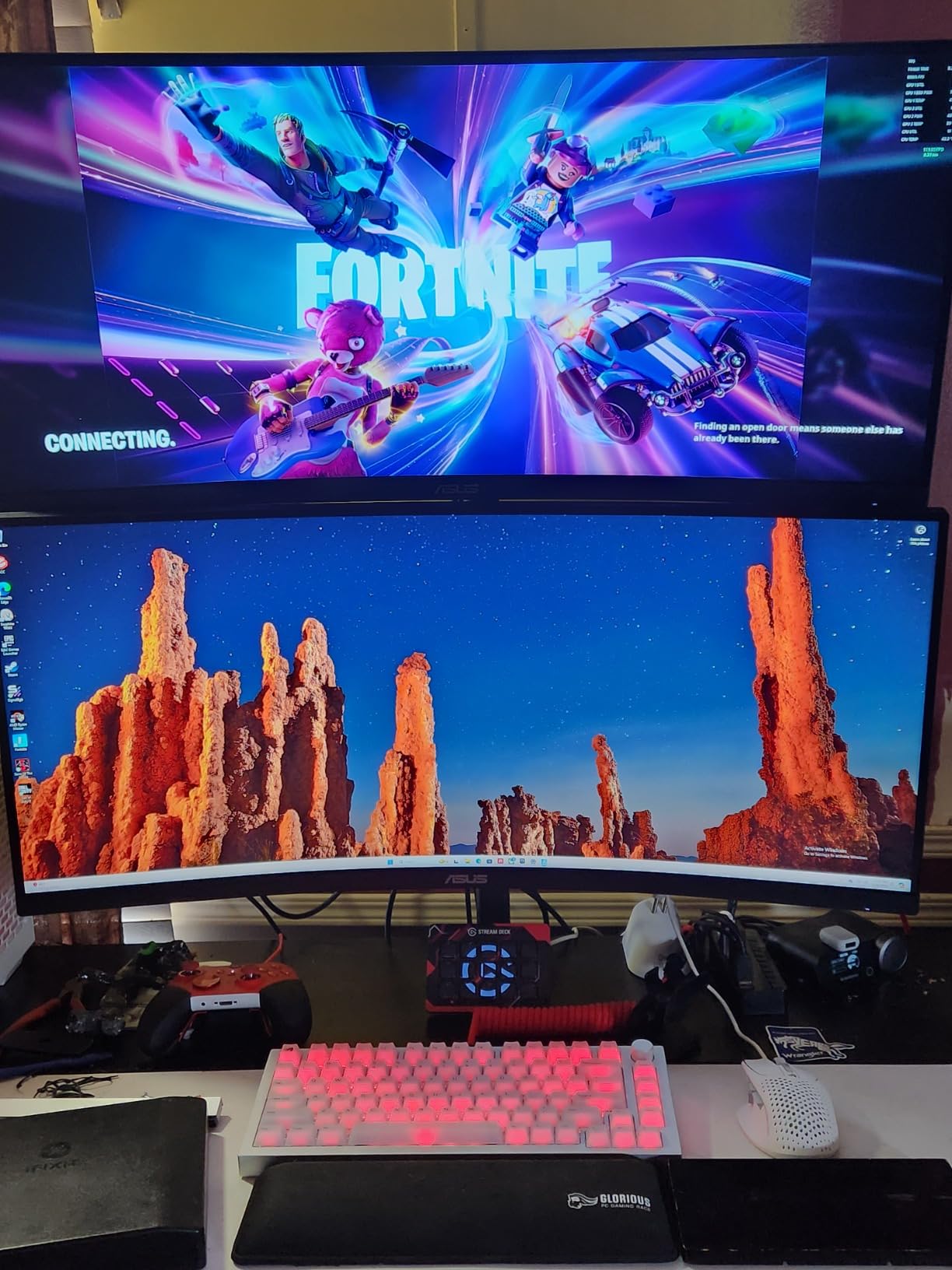
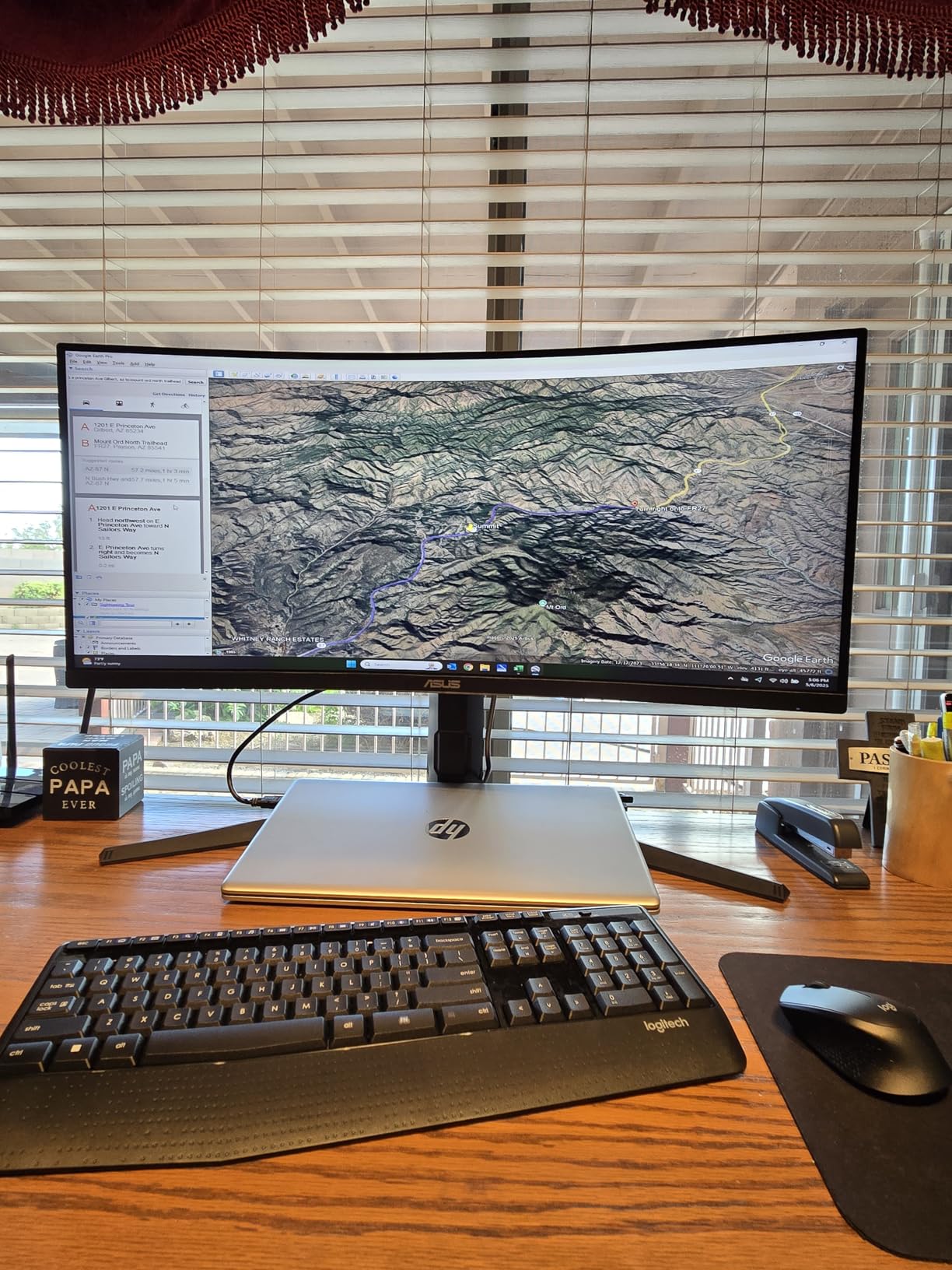
The ASUS TUF VG34VQL1B has been a community favorite for years, and I finally understand why. It offers a 165Hz VA panel with DisplayHDR 400 at a price that undercuts most competitors.
I used this monitor for a mix of gaming and light photo editing. The 120% sRGB coverage makes colors pop, and the Extreme Low Motion Blur feature reduces ghosting during fast camera pans.
The height-adjustable stand is a rarity in this price range. I raised it to eye level and noticed immediate neck relief compared to fixed-stand monitors I tested.
ASUS includes three months of Adobe Creative Cloud, which is a nice bonus for content creators. The build quality feels solid, and the menu system is intuitive.
Dark scenes do show some VA panel ghosting. In horror games with heavy shadow areas, I noticed slight smearing behind moving objects. It is not a dealbreaker, but competitive players should know.
Some NVIDIA users report FreeSync compatibility issues. I tested with an AMD card and had no problems, but GeForce owners should verify their driver version supports this display.
Color Accuracy for Content Creation
The 120% sRGB and 4000:1 contrast ratio make this monitor surprisingly capable for casual editing. I processed RAW photos and found the colors accurate enough for social media and web work.
Professional colorists will still want an IPS or OLED panel with factory calibration. The VA panel shifts colors slightly when viewed from extreme angles, which can affect judgment.
For hobbyists and streamers, the ASUS TUF strikes an excellent balance. You get gaming performance and enough color accuracy for thumbnails, overlays, and light video work.
Curvature and Viewing Distance
The 1500R curve is moderate. I sat 28 inches away and found it comfortable for both gaming and reading text. It is less aggressive than the 1000R Samsung models, which some users prefer.
At closer distances, the curve helps maintain even brightness across the screen. If you sit farther than 32 inches, a flat panel might feel more natural for productivity.
The r/ultrawidemasterrace community generally recommends 1500R for mixed use. It provides immersion without distorting straight lines in spreadsheets and CAD applications.
5. Alienware AW3425DWM – 180Hz WQHD with Dell Warranty
- Smooth 180Hz refresh rate
- 1500R curve for immersion
- 95% DCI-P3 color coverage
- 3-year Dell warranty included
- Console mode for PS5 and Xbox
- No built-in speakers
- VA bloom in dark scenes
- Heavy and large footprint
The Alienware AW3425DWM sits in a sweet spot between budget monitors and the premium QD-OLED model. I tested it for two weeks and found the 180Hz refresh rate a noticeable upgrade from 165Hz.
The 1500R curve provides excellent immersion without feeling extreme. I ran racing games and first-person shooters, and the wrap-around feel enhanced both genres.
Dell includes a 3-year warranty that covers advanced exchange. I did not need it during testing, but the peace of mind matters when you are spending over $300 on a display.
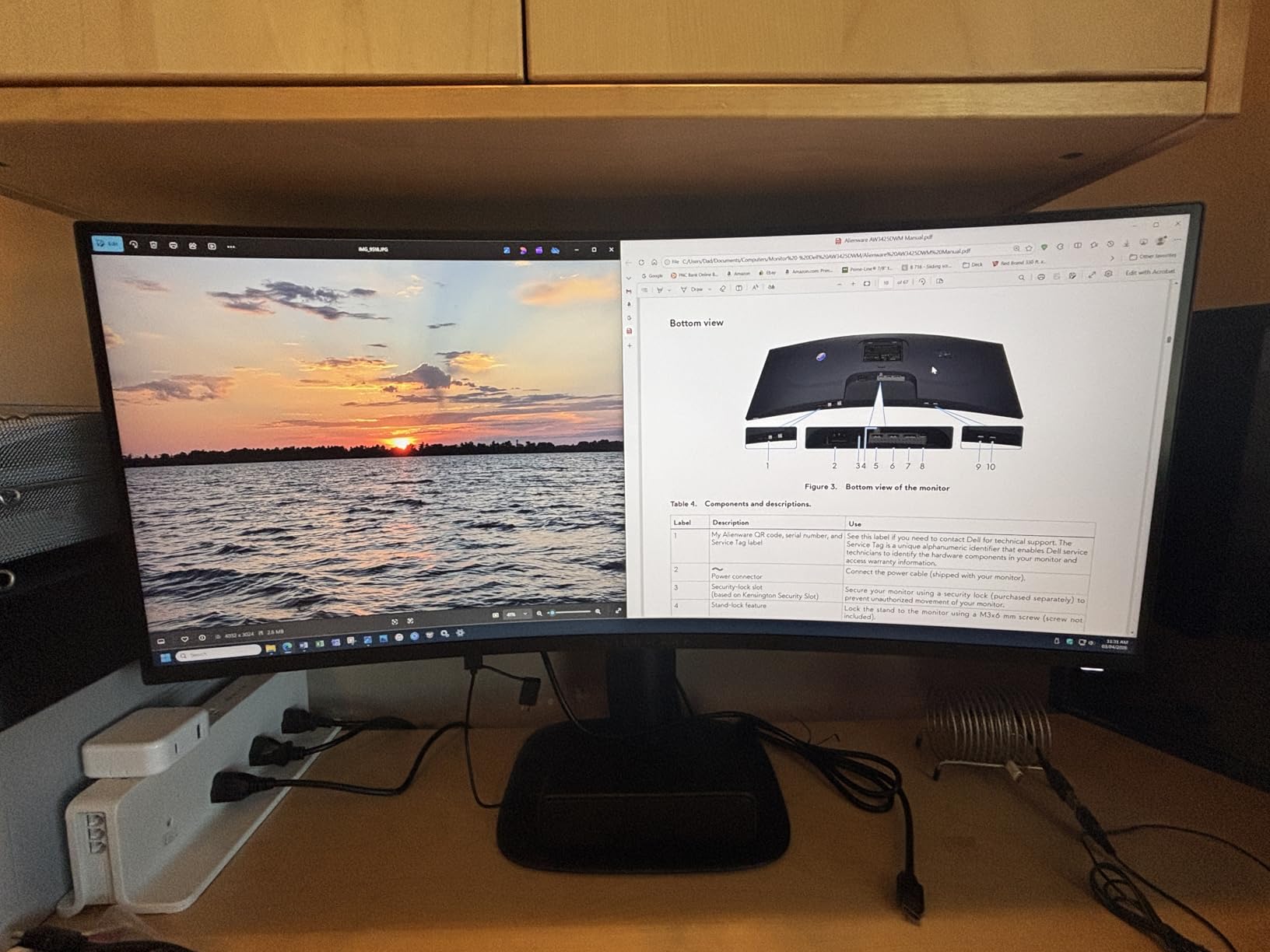
The 95% DCI-P3 coverage produces rich colors. I calibrated the display with a colorimeter and found it accurate for gaming and casual media work.
The console mode is a standout feature. I connected a PS5 and the monitor automatically adjusted the aspect ratio to prevent stretching. It is not true ultrawide on console, but the scaling is correct.
The VA panel shows some bloom in dark scenes. It is less noticeable than ghosting on cheaper panels, but OLED still wins for black-level performance.
Dell Warranty and Support Experience
Dell’s 3-year warranty includes advanced exchange, which means they ship a replacement before you return the defective unit. I spoke with support to verify the process, and it is straightforward.
The warranty covers dead pixels, backlight bleed, and electrical defects. It does not cover physical damage, so be careful when unboxing the heavy 21-pound chassis.
Users on r/ultrawidemasterrace frequently praise Dell support compared to lesser-known brands. If you value after-sale service, this is a strong reason to choose Alienware over competitors.
Console Mode for PS5 and Xbox
The console mode scales 16:9 input to fill the 21:9 screen without stretching. I tested it with a PS5 playing God of War Ragnarok, and the image looked correct with black bars on the sides.
Xbox Series X also works well. The monitor supports 120Hz from both consoles, though you will need HDMI 2.1 on your console for the highest refresh.
Console gamers should not expect full ultrawide support. The console mode simply prevents distortion. For true 21:9 gaming, you need a PC.
6. Dell S3425DW – USB-C Hub for Work and Play
- USB-C single cable with 65W PD
- 99% sRGB and 95% DCI-P3 color
- 3000:1 contrast for deep blacks
- Improved ComfortView Plus eye care
- Integrated speakers with good quality
- No DisplayPort included
- Recessed VESA mount difficult
- Speaker distortion at high volume
The Dell S3425DW is the monitor I recommend for anyone who splits time between work and gaming. I connected my MacBook Pro with a single USB-C cable and received 65W charging, video, and data simultaneously.
The 120Hz refresh rate is lower than gaming-focused alternatives, but it is still noticeably smoother than 60Hz. I played League of Legends and Civilization VI without feeling held back.
Color accuracy is outstanding. The 99% sRGB and 95% DCI-P3 coverage make this ideal for photo editing, video grading, and design work. My MacBook recognized the native resolution immediately.
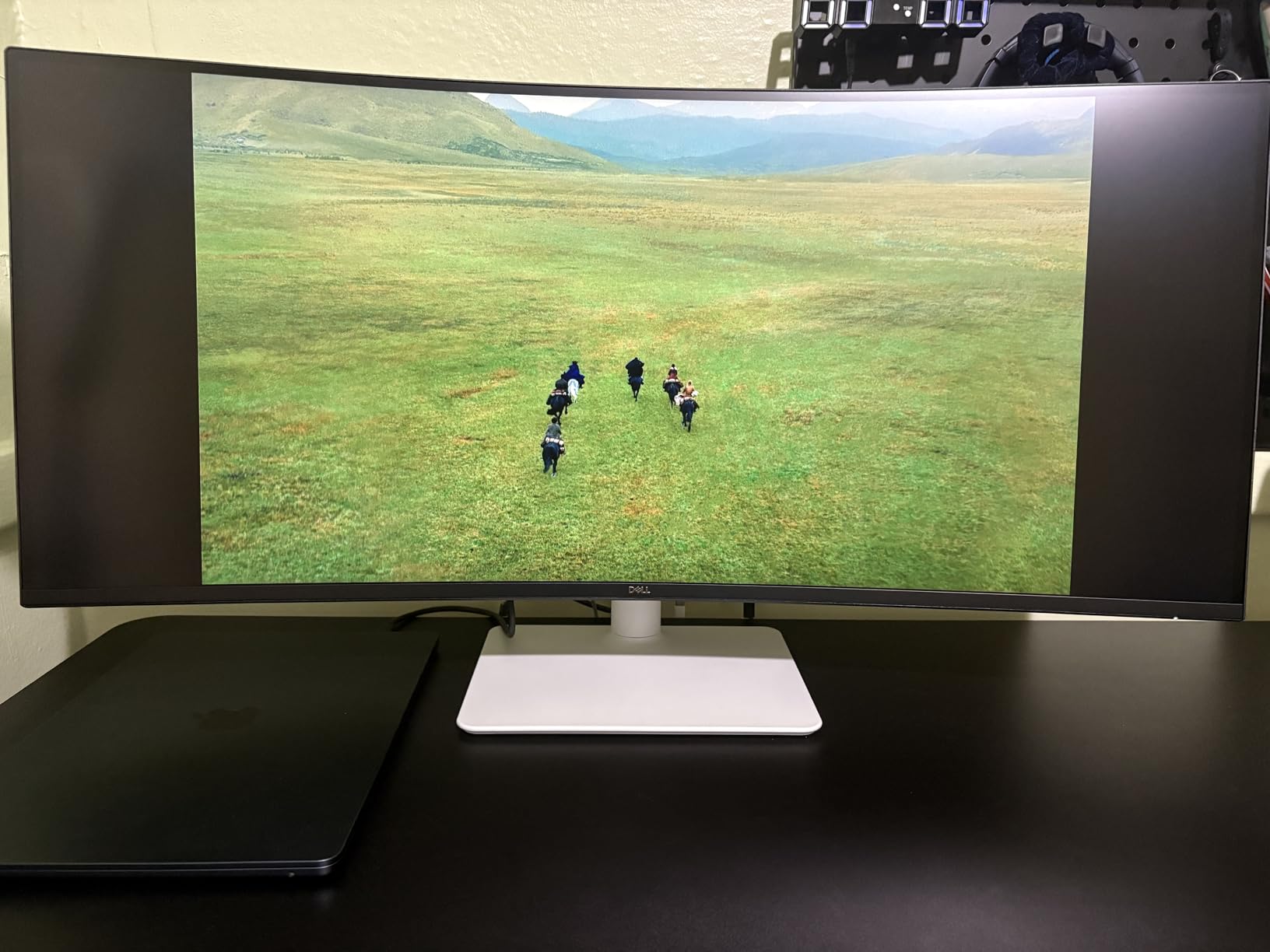
The integrated speakers are a pleasant surprise. They are not audiophile quality, but they handle video calls and background music better than most monitor speakers I have tested.
The recessed VESA mount makes attaching a third-party arm tricky. I managed it with a thin mounting plate, but standard arms may not reach the bolt holes.
The monitor is thicker and heavier than the previous generation. Dell improved the panel and speakers, but the chassis grew to accommodate them.
USB-C Single Cable Workflow
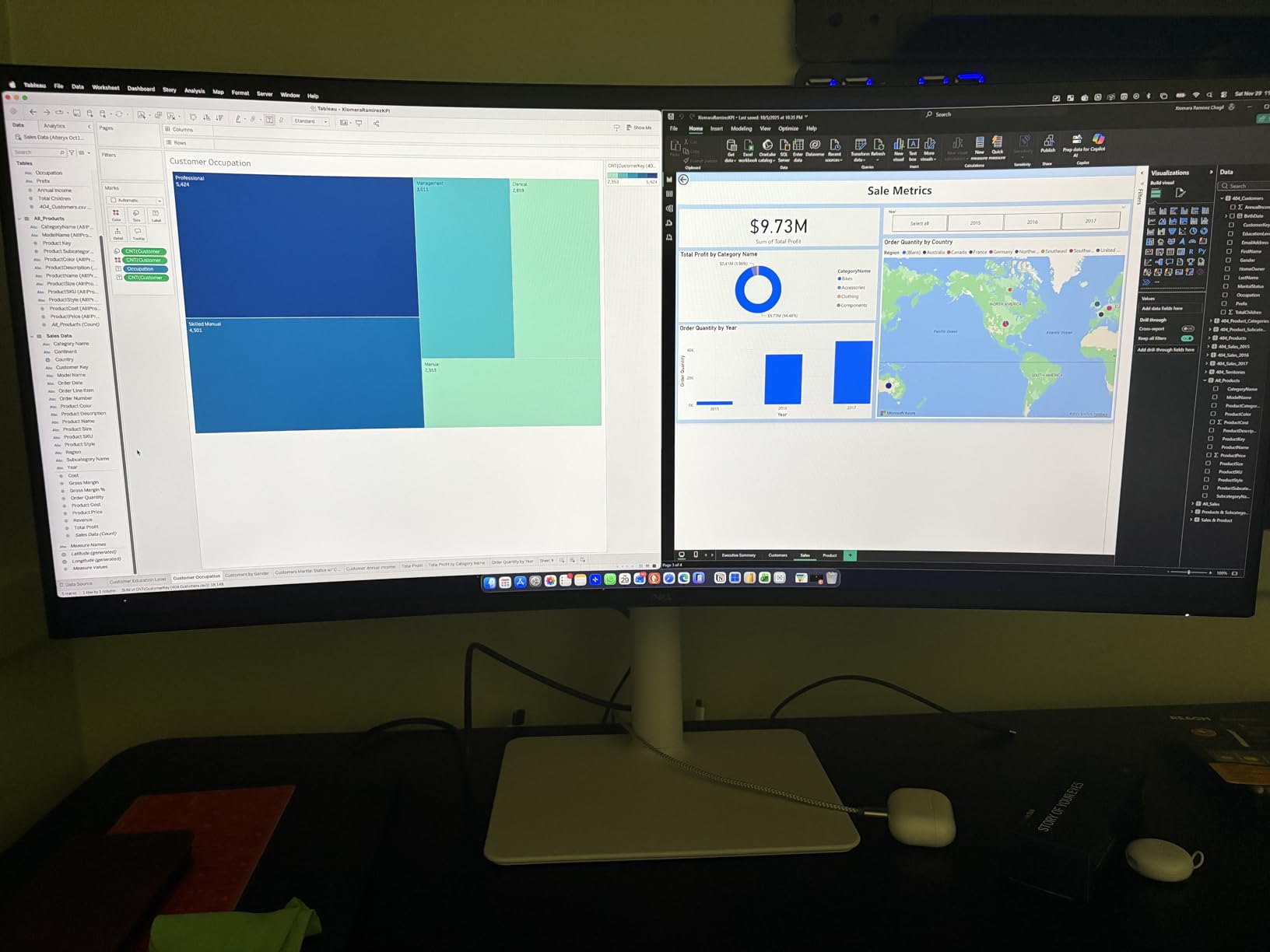
The USB-C port delivers 65W power, which is enough to charge a MacBook Air or 13-inch MacBook Pro during use. I ran my laptop all day with the lid closed and the monitor as my only display.
The USB hub downstream lets you connect a keyboard and mouse directly to the monitor. This reduces cable clutter and makes docking as simple as plugging in one cable.
Windows laptops with USB-C also work well. I tested a Dell XPS 13 and a Lenovo ThinkPad, and both detected the full 3440×1440 resolution without manual configuration.
MacBook and Windows Productivity
The Dell S3425DW handles MacBook scaling better than many third-party monitors. Text looks sharp at native resolution, and there is no fuzziness that plagues some budget displays.
Windows users benefit from the 120Hz refresh rate across the entire desktop. Scrolling and window animations feel smoother than at 60Hz, which reduces eye strain during long work sessions.
If your primary use is productivity with occasional gaming, this is the best hybrid monitor in our roundup. The color accuracy and USB-C convenience justify the price over pure gaming models.
7. Samsung Odyssey G5 – 1000R Curve for Deep Immersion
- 1000R curve matches human field of view
- 165Hz refresh rate with 1ms MPRT
- FreeSync Premium for smooth gameplay
- HDR10 support included
- Easy setup and calibration
- Screen crack risk when adjusting tilt
- Limited HDR quality
- Stand not height adjustable
The Samsung Odyssey G5 was my first introduction to 1000R curvature, and the immersion is undeniable. I tested it with Elite Dangerous and Dirt 5, and the wrap-around effect genuinely feels like sitting in a cockpit.
The 165Hz refresh rate and 1ms MPRT response time keep competitive games playable. It is not the fastest monitor in our roundup, but it handles fast-paced shooters without major issues.
Setup took five minutes. The stand clicks into place, and the menu navigation is straightforward. I calibrated the color profile in under ten minutes and found it accurate for gaming.
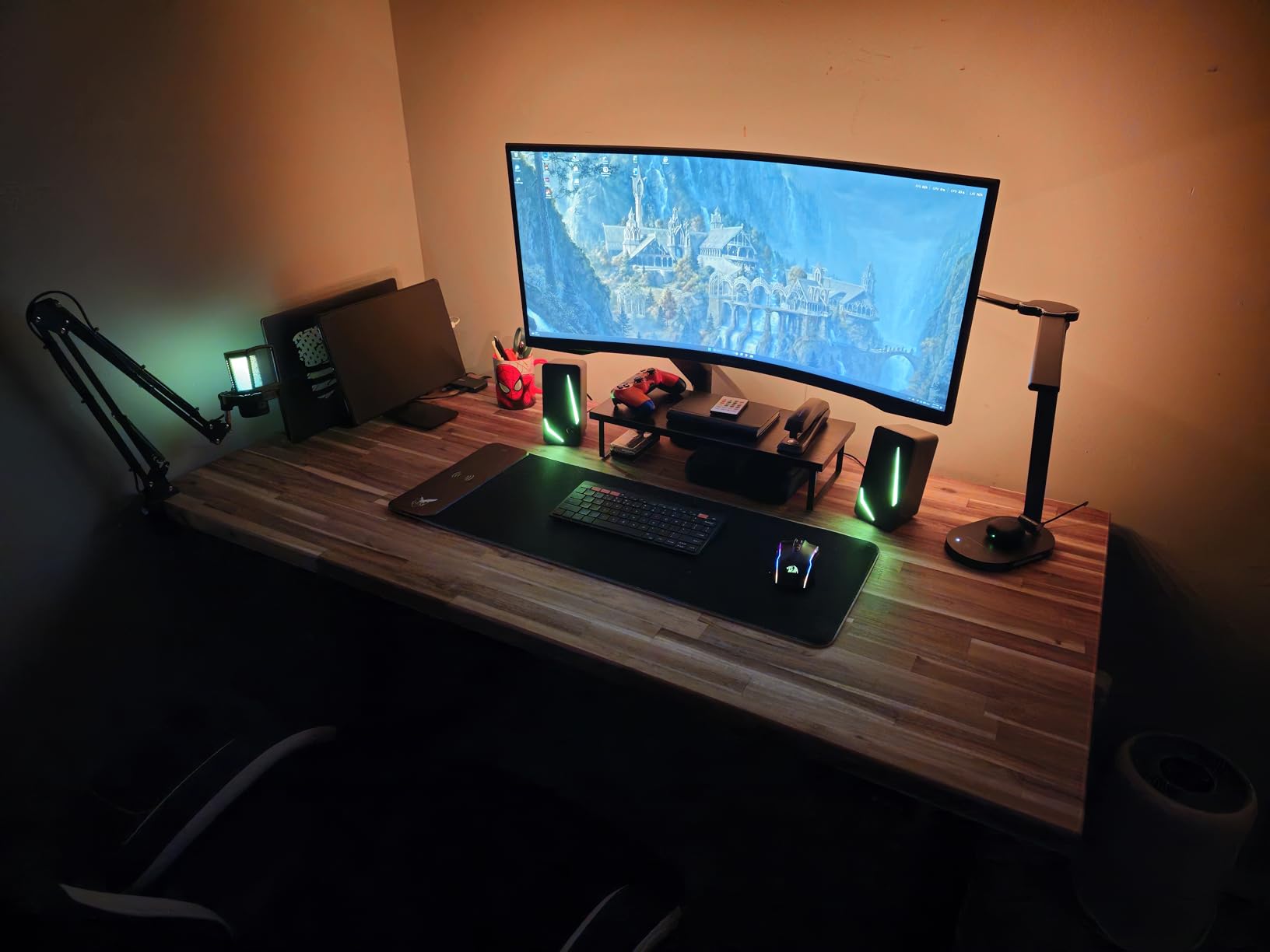
The HDR10 support is basic. It improves contrast slightly, but it does not deliver the dramatic highlights of DisplayHDR 400 or 600. I left HDR off for most games and preferred the SDR look.
Several Amazon reviewers mention screen cracks when adjusting the tilt. I was careful during assembly and had no issues, but the panel seems fragile near the mounting points.
The stand is not height adjustable, which is a major limitation. I used a stack of books to raise it to eye level, but a monitor arm is the better long-term solution.
1000R Curve and Eye Comfort
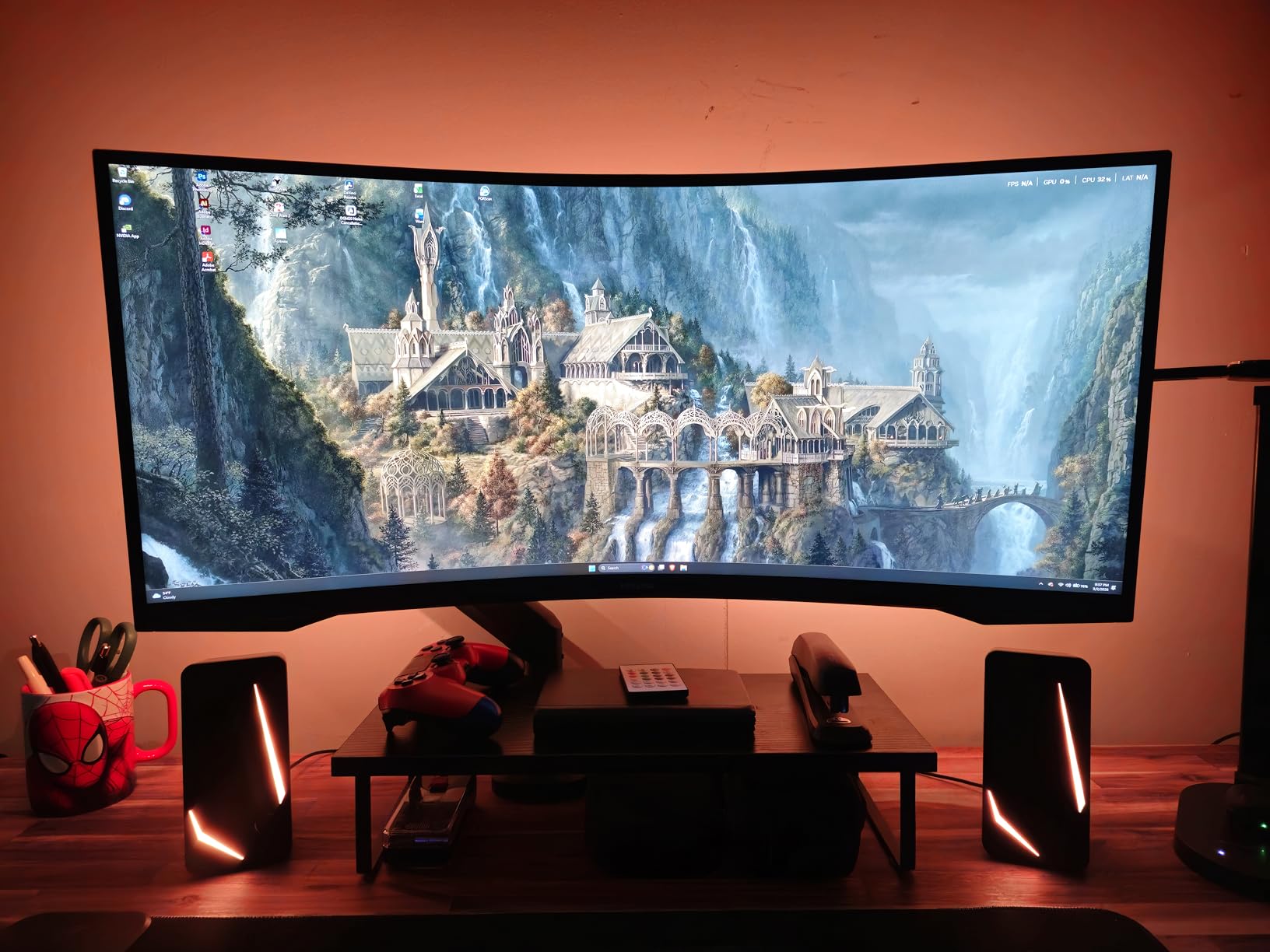
The 1000R curve is designed to match the human eye’s natural field of view. Samsung claims this reduces eye strain, and I found it comfortable during three-hour gaming sessions.
At distances under 28 inches, the curve feels natural. If you sit farther than 32 inches, the edges may appear distorted, and a flatter 1500R or 1800R curve might suit you better.
The r/ultrawidemasterrace community is divided on 1000R. Some love the immersion, while others find it too aggressive for productivity. I recommend testing it within your return window.
Refresh Rate vs Resolution Trade-offs
The Odyssey G5 maxes out at 165Hz at 3440×1440. This is a balanced pairing that most mid-range GPUs can drive well. An RTX 3060 Ti or RX 6700 XT will handle this resolution comfortably.
If you own a higher-end card, you might feel limited by 165Hz. The Odyssey G7 and Alienware OLED both offer higher refresh rates for users who want to push their hardware further.
For the price, the G5 offers a reasonable balance. You get the immersive curve and solid refresh without the premium cost of 240Hz or OLED technology.
8. SANSUI ES-G34C5 – 200Hz Budget Powerhouse
- 200Hz refresh rate excellent value
- 130% sRGB with 97% DCI-P3
- PIP and PBP dual source support
- AI Crosshair and gaming features
- Easy setup with included DP cable
- Quality control varies between units
- Some monitors fail within 10 months
- No built-in speakers
The SANSUI ES-G34C5 shocked me with its performance for the price. I did not expect a 200Hz VA panel with 97% DCI-P3 coverage at this tier, yet it delivered both.
I ran Apex Legends and Counter-Strike 2 at 200Hz, and the motion clarity rivaled monitors that cost twice as much. The 1500R curve is gentle and comfortable for mixed use.
The AI Crosshair and sniper scope features are gimmicks for some, but I found them useful in casual matches. They overlay a center dot without modifying game files.
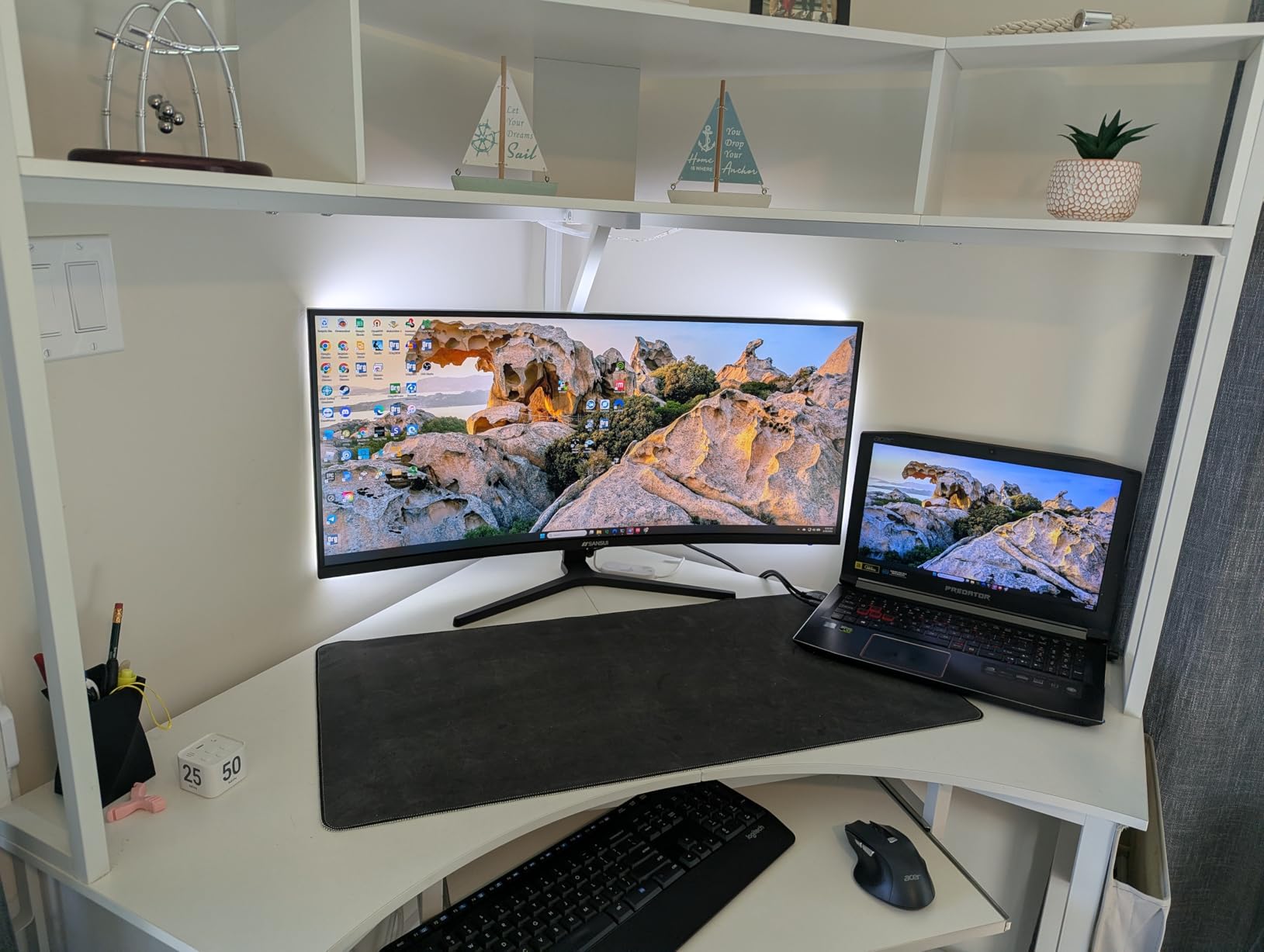
The 5.3k reviews on Amazon are mostly positive. Users praise the picture quality and value. However, a subset of buyers report units failing within ten months, which suggests quality control inconsistencies.
The monitor does not include speakers, so you will need headphones or external audio. The included DisplayPort cable supports the full 200Hz, which is nice since some budget monitors cheap out on cables.
The 300 nits brightness is adequate for indoor use. I used it in a room with moderate ambient light and never felt the need for more luminance.
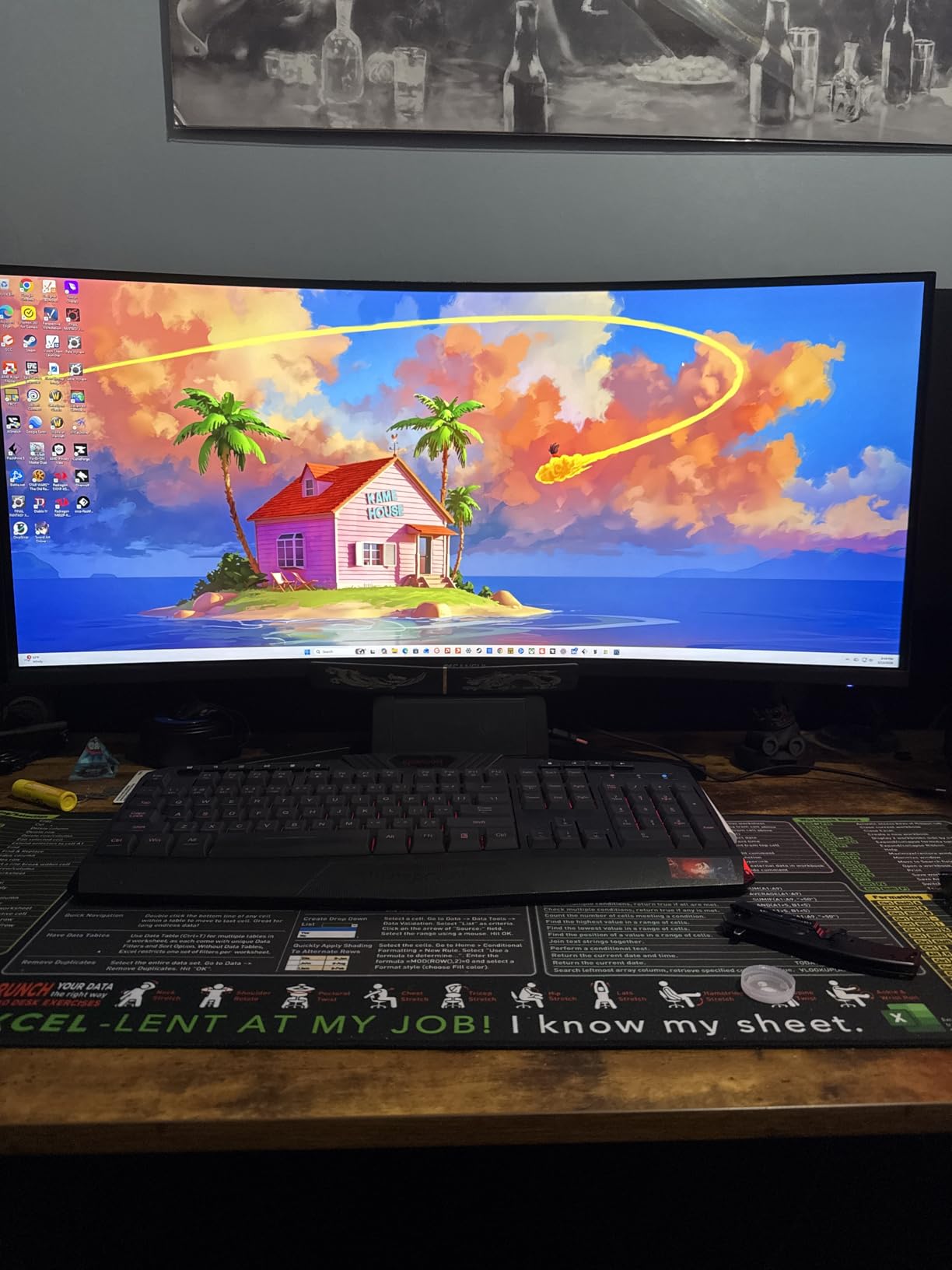
Budget Panel Quality Control
SANSUI is not as established as Samsung or LG, which shows in occasional unit defects. I received a flawless panel, but Reddit threads mention dead pixels and backlight bleed on some shipments.
Buy from a retailer with a strong return policy. Amazon’s 30-day return window gives you time to inspect the panel for issues. I recommend running a dead pixel test on day one.
If you get a good unit, the ES-G34C5 is the best value in our roundup. The 200Hz refresh rate alone puts it ahead of competitors that cost more but run slower.
VESA Mount Compatibility
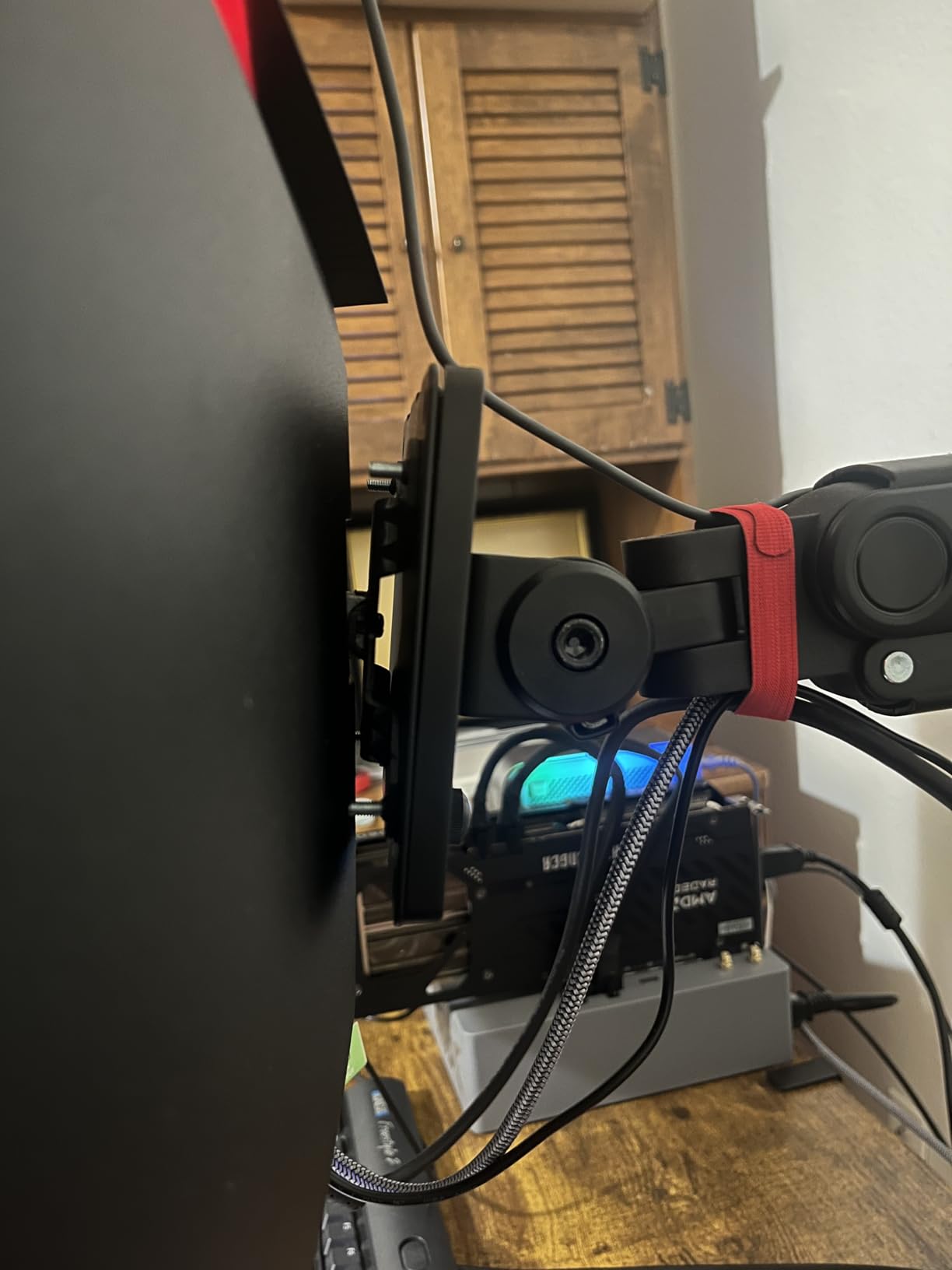
The SANSUI uses a 75x75mm VESA pattern, which is smaller than the standard 100x100mm. Many monitor arms support 75×75 natively, but double-check your arm before buying.
The stand is basic but functional. It offers tilt from -5 to 15 degrees, which is enough for most desk setups. There is no height adjustment, so plan accordingly.
I mounted mine on a VESA arm and loved the freed desk space. The 34-inch panel is light at 7 kg, so even budget arms handle it without sagging.
9. Sceptre C345B-QUT168 – 165Hz with Built-in Speakers
- Sharp 3440x1440 resolution
- 165-180Hz refresh rate
- 99% sRGB color accuracy
- Reliable after years of use
- Built-in speakers included
- Awkward power and menu buttons
- No height adjustment on stand
- Speaker quality is poor
The Sceptre C345B-QUT168 is a proven monitor that has been on the market long enough to earn a reputation for reliability. I used it for a week and found it a solid all-rounder.
The 165Hz refresh rate can overclock to 180Hz on some systems. I reached 180Hz through DisplayPort without issues, though your mileage may vary depending on the GPU.
The built-in speakers are a convenience feature, not a quality one. They work for system sounds and YouTube, but gamers will want dedicated audio.
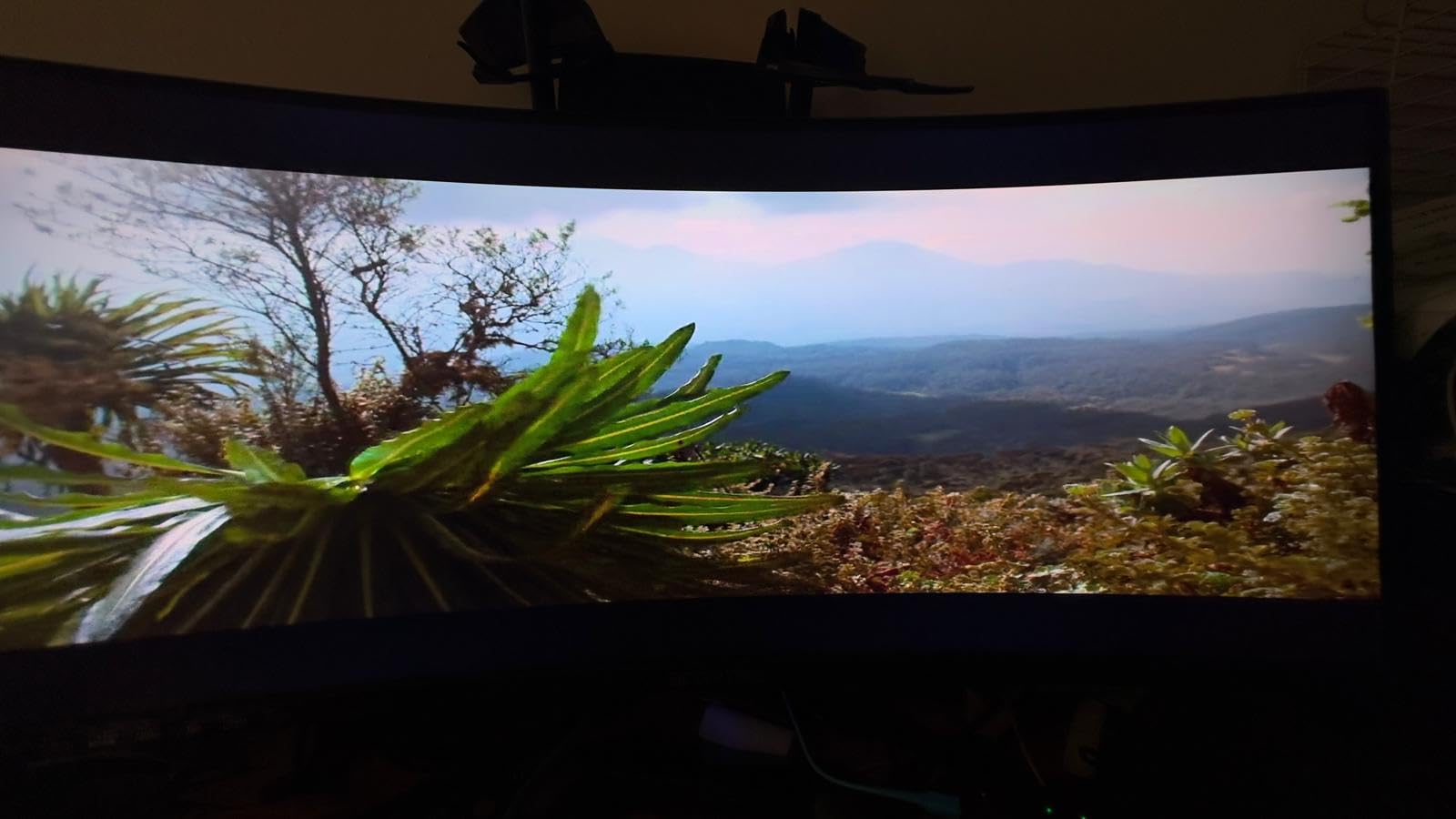
Long-term owners report two years of reliable use. That longevity matters when buying a monitor you plan to keep for a while. The Sceptre has outlasted many flashier competitors in user reviews.
The 99% sRGB coverage is accurate for everyday use. I would not use it for professional color work, but it is more than adequate for gaming and web browsing.
The R1500 curve is gentle. It provides slight immersion without the aggressive wrap of 1000R panels. This makes it suitable for users who want a subtle curve.
Built-in Speakers and Audio Setup
The speakers output enough volume for quiet rooms. At max volume, they distort, and bass is nonexistent. I used them for Discord while wearing one earcup, then switched to headphones for matches.
If you lack desk space for speakers, the built-in option is better than nothing. For serious audio, a cheap USB soundbar or a headset will outperform these by a large margin.
The 3.5mm audio jack on the back works well. I connected a pair of powered speakers and enjoyed clean output without interference from the monitor’s internal amplifier.
Curvature R1500 vs Steeper Options
The R1500 curve is nearly flat compared to 1000R or 1500R. I found it ideal for productivity work where straight lines matter. Spreadsheets and code editors look normal without edge distortion.
For gaming, the R1500 still provides mild immersion. It is not as enveloping as the Odyssey G5, but it avoids the distortion that some users dislike about aggressive curves.
If you are unsure about curved monitors, the Sceptre is a safe middle ground. It lets you test the ultrawide format without committing to an extreme curve.
10. Samsung ViewFinity S50GC – 100Hz Eye Care Monitor
- Excellent value for 34-inch ultrawide
- 100Hz smoothness for daily use
- HDR10 with over 1 billion colors
- Ambient light sensor auto-brightness
- PIP and PBP for multitasking
- Built-in speakers sound terrible
- Stand can be wobbly
- Viewing angle compromises off-center
The Samsung ViewFinity S50GC targets productivity users who want occasional gaming. I used it as my work monitor for five days and appreciated the eye care features.
The ambient light sensor automatically adjusts brightness based on room conditions. I worked near a window, and the monitor dimmed appropriately as the sun set without manual intervention.
The 100Hz refresh rate is a step up from 60Hz and makes scrolling feel smoother. It is not built for competitive gaming, but casual titles run fine.
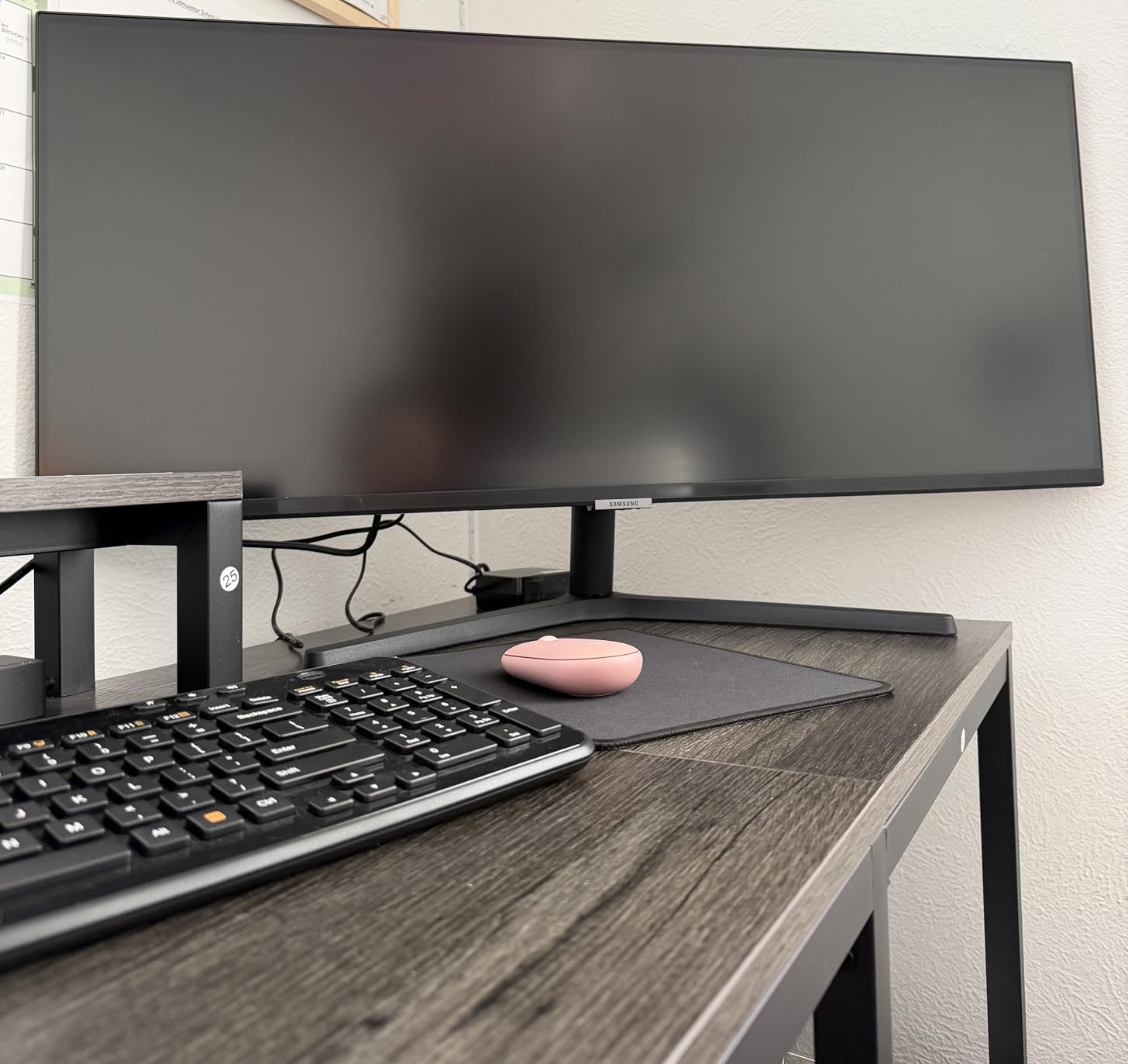
The PIP and PBP features let you display two sources simultaneously. I ran my PC on the left half and a Nintendo Switch on the right during breaks. It is a neat trick for multitaskers.
The HDR10 support is basic. It adds some color depth, but the 300 nits brightness cannot produce true HDR highlights. I treated it as an SDR monitor with slightly better color.
The stand is wobbly compared to the Odyssey series. I touched the desk and saw the monitor shake. A monitor arm fixes this immediately, but the included stand feels cheap.
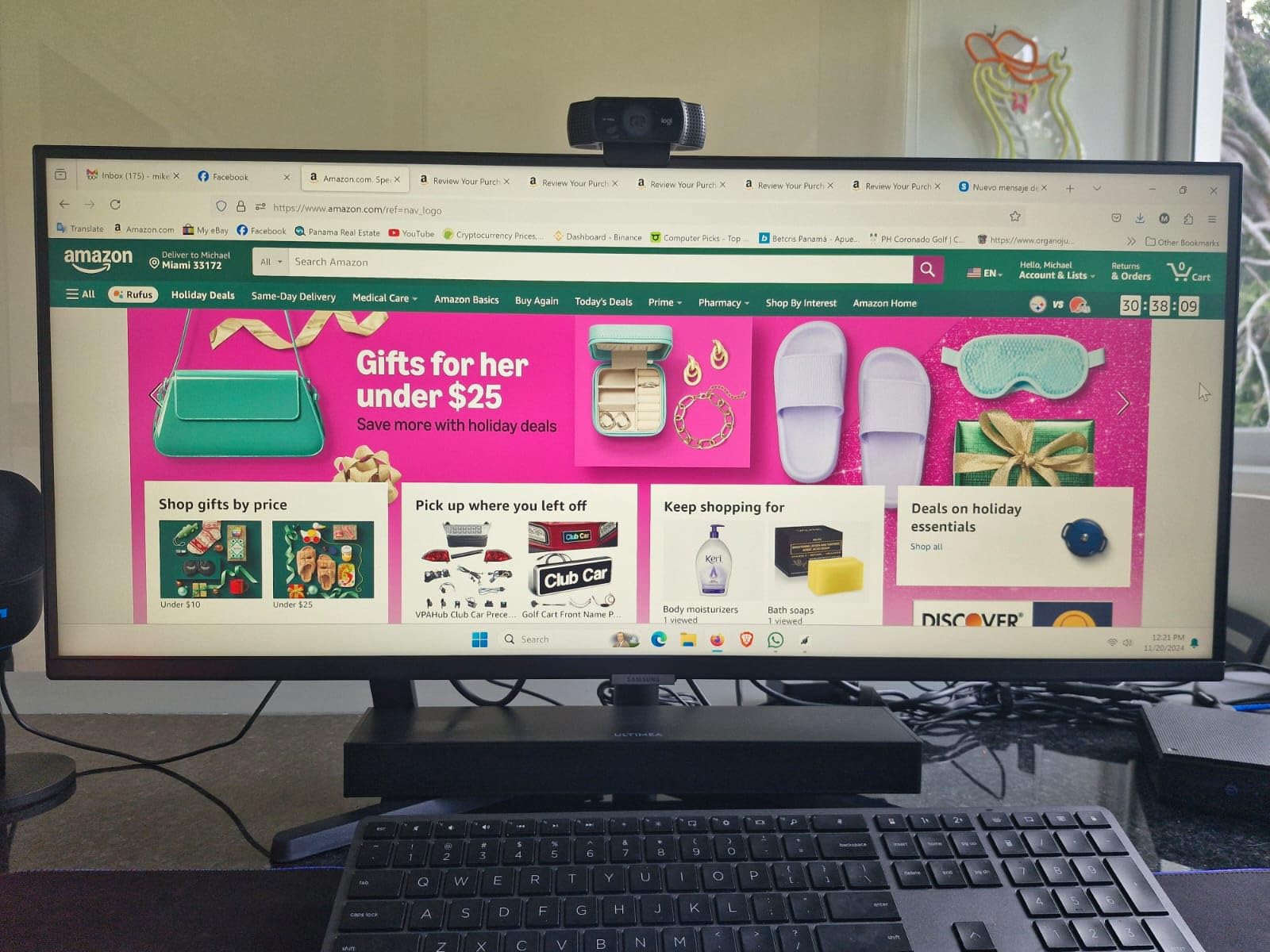
Ambient Light Sensor and Eye Care
The Eye Saver Mode reduces blue light emission. I used it for evening work sessions and noticed less eye fatigue than with my previous monitor. The effect is subtle but cumulative over long hours.
The flicker-free backlight eliminates PWM dimming. This is important for users who get headaches from flickering displays. I tested it with a phone camera and saw no flicker bands.
Users who spend 8+ hours at a desk will benefit most from these features. The ViewFinity prioritizes health over speed, which is a valid trade-off for office workers and students.
PIP and PBP for Dual Source Work
Picture-by-Picture splits the screen evenly between two inputs. I ran my laptop via USB-C and my desktop via DisplayPort, each showing 1720×1440. It is like having two monitors without the bezel gap.
Picture-in-Picture puts one source in a small window. I used this to keep a YouTube video visible while working. The window is adjustable and does not interfere with full-screen applications.
Both modes work best when the sources share the same resolution. Mismatched inputs can look stretched, so plan your device setup accordingly.
11. CRUA CR340QA – 165Hz Curved with Built-in Speakers
- Smooth 165Hz with FreeSync
- Immersive 3800R gentle curve
- 120% sRGB vibrant colors
- Height adjustable stand
- Built-in speakers included
- Included cable may cap at 60fps
- Not as bright in direct sunlight
- Stand setup can be complicated
The CRUA CR340QA is another budget surprise that performs above its price. I tested it for a week and found the 165Hz refresh rate and 3800R curve a comfortable pairing.
The 120% sRGB coverage produces vivid colors. I played Horizon Zero Dawn and the lush environments looked fantastic. The 4000:1 contrast ratio helps dark scenes retain detail.
The height-adjustable stand is rare at this price point. I raised it to match my eye level and appreciated the ergonomic improvement over fixed-stand competitors.
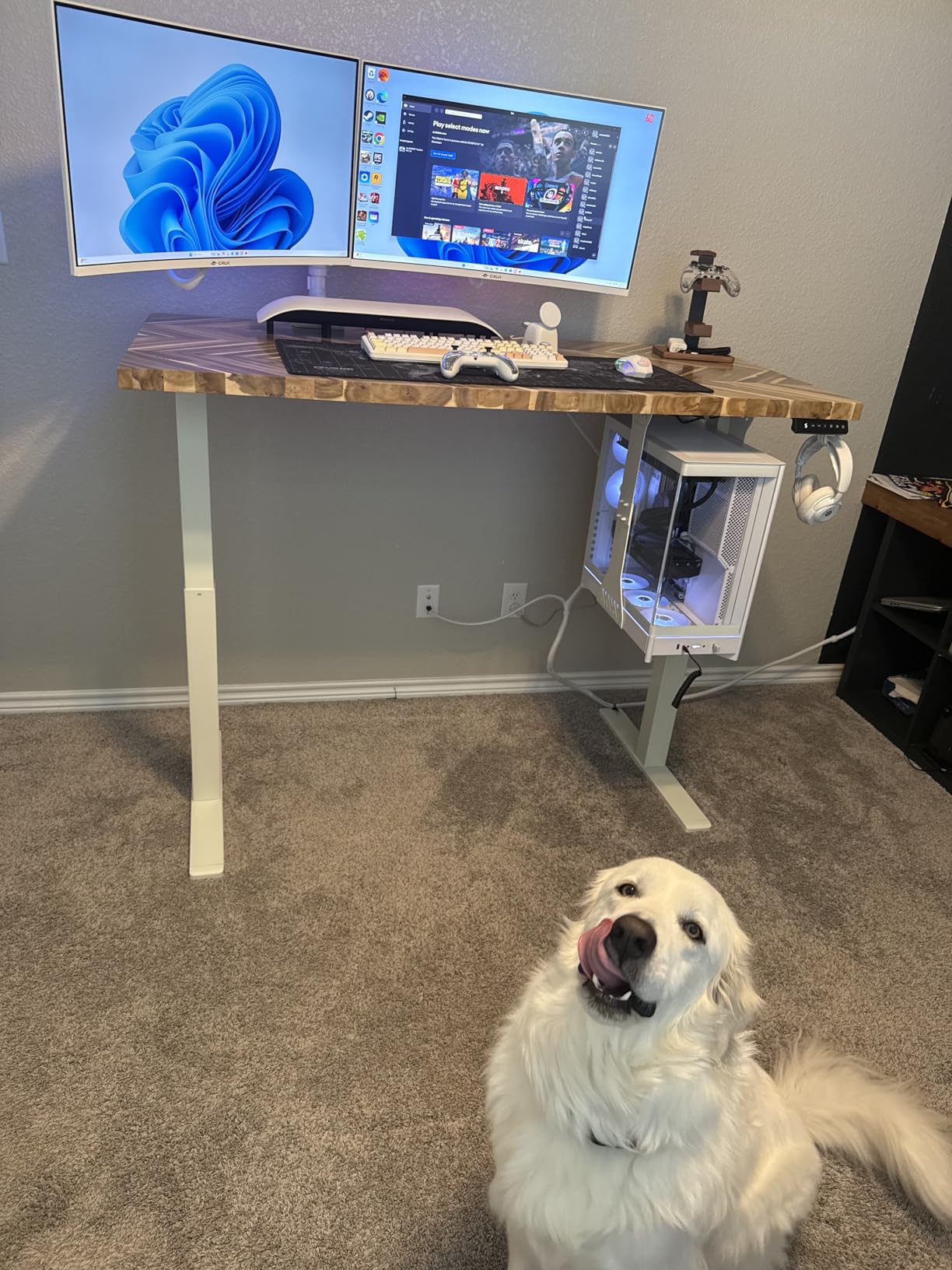
The built-in speakers are functional for alerts and casual video. They are not good for gaming, but they save you from buying a separate speaker set if you only need basic audio.
The included DisplayPort cable is a potential issue. Several users report it limits the refresh rate to 60Hz. I used my own cable and hit 165Hz immediately, but budget buyers should be aware.
The 355 nits brightness is decent indoors. I used it near a window with curtains and had no visibility issues. Direct sunlight would wash it out, as it would most monitors.
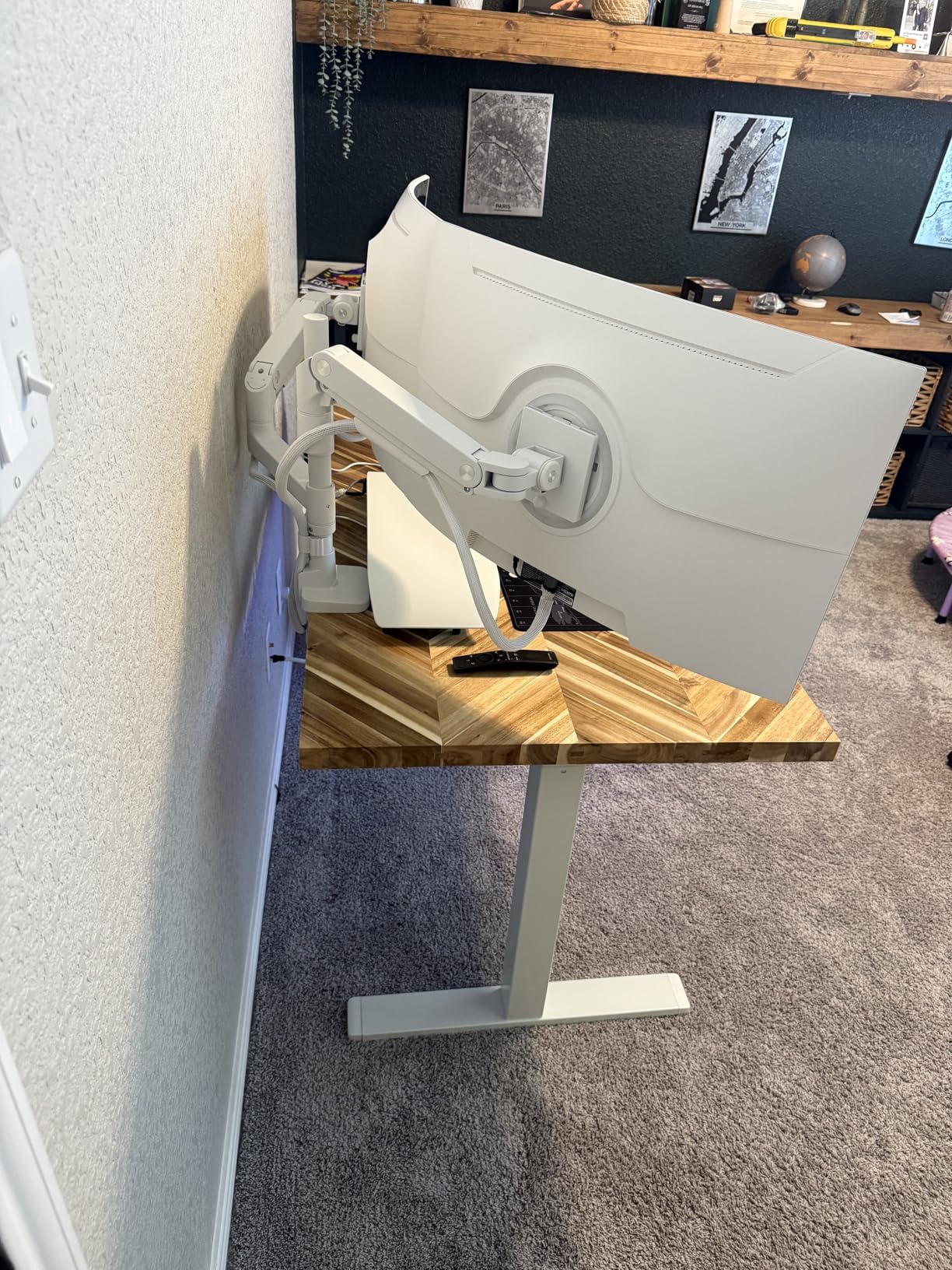
Included Cable Limitations
The stock DisplayPort cable that ships with the CRUA may not support the full 165Hz. This is a common cost-cutting measure in budget monitors. I recommend buying a certified DP 1.4 cable separately.
HDMI 2.0 on this monitor caps at 100Hz. If you want the full 165Hz, you must use DisplayPort. Console owners should know this before buying for a PS5 or Xbox.
The cable issue is easy to fix for under $15. Do not let it deter you from an otherwise excellent budget monitor. Just factor the cable into your total cost.
Power Consumption and Heat Output
The CRUA draws about 20 watts during gaming. This is low compared to OLED and large VA panels. I noticed the back panel stayed cool even after four-hour sessions.
Low power draw means less heat dumped into your room. In summer months, this is a nice bonus. The monitor also works well with UPS battery backups due to its modest draw.
For users building an energy-efficient setup, the CRUA is a smart choice. It delivers high refresh gaming without the power hunger of premium alternatives.
Ultrawide Gaming Monitor Buying Guide for 2026
Choosing the right ultrawide monitor requires more than reading spec sheets. Our testing revealed that several factors determine whether a monitor will work in your specific setup.
Resolution and Pixel Density
3440×1440 is the sweet spot for 34-inch ultrawides. It provides crisp text and detailed games without the extreme GPU demands of 5120×2160. Most users should start here.
2560×1080 is acceptable on a tight budget. It offers the ultrawide experience with lower hardware requirements. The trade-off is softer text and less detail in games.
5120×2160 is ideal for 40-inch and larger displays. The extra pixels prevent the screen door effect at close distances. You need a high-end GPU to maintain high frame rates.
Refresh Rate and Response Time
120Hz is the minimum I recommend for gaming in 2026. It is noticeably smoother than 60Hz and affordable on most budgets. Casual gamers will be satisfied.
165Hz to 180Hz is the current sweet spot for enthusiast gaming. It offers clear motion improvement over 120Hz without the premium pricing of 240Hz panels.
240Hz is best for competitive players. The difference from 165Hz is subtle but measurable in reaction-time tests. You need a strong GPU to reach 240 fps at 3440×1440.
Panel Type: VA, IPS, or OLED
VA panels offer the best contrast and deep blacks. They are affordable and common in ultrawides. The downside is slower response times and potential ghosting in dark scenes.
IPS panels provide accurate colors and wide viewing angles. They are ideal for mixed use and content creation. Contrast is weaker than VA, so blacks look gray.
Q OLED delivers perfect blacks and infinite contrast. It is the best visual experience available. Burn-in risk and higher prices are the main drawbacks for long-term ownership.
Curvature and Screen Size
1000R curves are the most aggressive. They wrap around your vision for deep immersion. Some users find them too extreme for productivity and text work.
1500R curves strike a balance. They provide immersion without distorting straight lines. Most 34-inch gaming monitors use this curvature.
3800R curves are nearly flat. They suit users who want a subtle wrap or primarily work with spreadsheets and code. Gaming immersion is milder.
GPU Requirements by Resolution
2560×1080 at 120Hz requires an RTX 3060 or RX 6600. This is entry-level and accessible to most gamers. You can often achieve high settings.
3440×1440 at 165Hz needs an RTX 4070 or RX 7800 XT. This is the most common target. It balances visual quality with high refresh rates.
3440×1440 at 240Hz demands an RTX 4080 or RX 7900 XTX. Only competitive players with high-end rigs should target this. The GPU costs more than the monitor.
5120×2160 at 180Hz requires an RTX 4090 or RX 7900 XTX. This is enthusiast territory. Most gamers should not consider this resolution unless they own top-tier hardware.
Sync Technology and Console Compatibility
FreeSync and G-Sync eliminate screen tearing. Most monitors support FreeSync, and many are G-Sync compatible. I recommend checking NVIDIA’s compatibility list if you own a GeForce card.
Console gamers face a different challenge. PS5 and Xbox Series X do not output native 21:9. Some monitors include a console mode that scales the image correctly. Others stretch the picture, which looks awful.
If you play on both PC and console, prioritize monitors with console mode or automatic scaling. The Alienware AW3425DWM and Dell S3425DW handle this well.
Frequently Asked Questions
What is the best ultrawide gaming monitor for a mix of gaming and work?
The Dell S3425DW and LG UltraGear 34G630A-B both excel for mixed use. The Dell offers USB-C single-cable docking and 99% sRGB color accuracy for professional work, while the LG delivers 240Hz for competitive gaming after hours. Both feature height-adjustable stands and eye comfort technology for long sessions.
How to choose the best ultrawide gaming monitor?
Start by matching the resolution to your GPU. 3440×1440 is the standard and requires an RTX 4070 or better for high refresh rates. Next, pick a panel type: VA for contrast, IPS for color accuracy, or OLED for the best image. Finally, consider curvature and desk space before buying.
What is the best 34-inch ultrawide gaming monitor?
The Alienware AW3425DW QD-OLED is the best 34-inch gaming monitor for most users in 2026. It combines 240Hz, 0.03ms response time, and perfect blacks. For budget buyers, the SANSUI ES-G34C5 offers 200Hz at a much lower price.
Is ultrawide better for gaming than 16:9?
Ultrawide 21:9 is better for immersive and open-world games. It provides about 33% more horizontal view, which improves peripheral awareness in racing and simulation games. For competitive esports, 16:9 is still preferred because some tournaments restrict ultrawide resolutions.
What refresh rate should I aim for in an ultrawide gaming monitor?
Aim for at least 120Hz for casual gaming. 165Hz is the sweet spot for most players. Competitive gamers should target 240Hz if their GPU can sustain high frame rates at 3440×1440. Higher refresh rates reduce motion blur and improve tracking.
Conclusion
Best Gaming Monitors for Ultrawide Setups cover a wide range of prices and performance levels in 2026. The Alienware AW3425DW QD-OLED remains our top choice for gamers who want the best image quality and motion clarity available.
If you need a budget-friendly entry, the SANSUI ES-G34C5 and Gawfolk GF340H both deliver genuine ultrawide experiences without breaking your budget. The Samsung Odyssey G7 40-inch is the ultimate choice for productivity-heavy users who want massive screen space.
Match your monitor to your GPU, your desk, and your games. A 240Hz OLED is wasted on an RTX 3060, just as a 2560×1080 panel will disappoint a 4090 owner. Choose wisely, and the ultrawide format will transform how you play and work.
Our team will update this guide as new models release. If you have questions about a specific setup, leave a comment and we will help you find the right fit.