
Finding the best tablets for digital artists in 2026 feels harder than it should be. I spent three months testing ten different models across Wacom, XP-Pen, Huion, and Apple, sketching everything from quick character concepts to full illustration pieces. The gap between a frustrating experience and the feeling of pencil on paper can come down to a few key specs.
Drawing tablets split into three main categories. Standalone tablets like the iPad Air or Wacom MovinkPad run their own operating systems and need no extra hardware. Pen displays like the XPPen Artist Pro series connect to a computer but let you draw directly on a screen. Traditional graphics tablets like the Wacom Intuos have no display and require hand-eye coordination as you watch your monitor while drawing on the tablet surface. I have owned and tested all three types, and each has real strengths depending on your workflow.
This guide covers ten models I have personally used for digital illustration, concept art, photo retouching, and animation work. Every tablet here delivers strong pressure sensitivity, responsive stylus performance, and compatibility with major creative apps. Whether you are a beginner looking for your first drawing tablet or a professional upgrading your studio setup, you will find a solid match below.
Top 3 Picks for Best Tablets for Digital Artists (August 2026)

XPPen Artist 13.3 Pro Drawing Tablet
- 16K pressure levels
- Full-laminated anti-glare screen
- 123% sRGB color gamut
- 8 customizable shortcut keys

Wacom Intuos Small Drawing Tablet
- 4096 pressure levels
- Battery-free EMR pen
- 4 ExpressKeys
- #1 bestseller budget tablet

iPad Air 13-inch (M4)
- Apple M4 chip
- 13-inch Liquid Retina display
- Apple Pencil Pro support
- Wi-Fi 7
Best Tablets for Digital Artists in 2026
| Product | Specifications | Action |
|---|---|---|
| XPPen Artist 13.3 Pro Drawing Tablet |
|
Check Latest Price |
 XP-PEN Artist12 XP-PEN Artist12 |
|
Check Latest Price |
 XPPen 16K Artist 15.6 Pro V2 XPPen 16K Artist 15.6 Pro V2 |
|
Check Latest Price |
 XPPen Artist Pro 14 Gen2 XPPen Artist Pro 14 Gen2 |
|
Check Latest Price |
 XPPen Magic Drawing Pad XPPen Magic Drawing Pad |
|
Check Latest Price |
 HUION Kamvas 13 (Gen 3) HUION Kamvas 13 (Gen 3) |
|
Check Latest Price |
 Kamvas Pro 16 Kamvas Pro 16 |
|
Check Latest Price |
 Wacom MovinkPad 11 Wacom MovinkPad 11 |
|
Check Latest Price |
| Wacom Intuos Small |
|
Check Latest Price |
| iPad Air 13-inch (M4) |
|
Check Latest Price |
1. XPPen Artist 13.3 Pro – Editor’s Choice for Value and Performance
XPPen Artist 13.3 Pro 13.3″ Drawing Tablet with Screen, 16K, Full-Laminated
- Excellent color accuracy with 123% sRGB
- Full-laminated screen eliminates parallax
- Battery-free stylus with 16K pressure
- Red Dial for intuitive controls
- 8 customizable shortcut keys
- Includes stand
- glove and pen nibs
- Fixed-angle stand only
- Requires HDMI connection
- May need calibration after reconnect
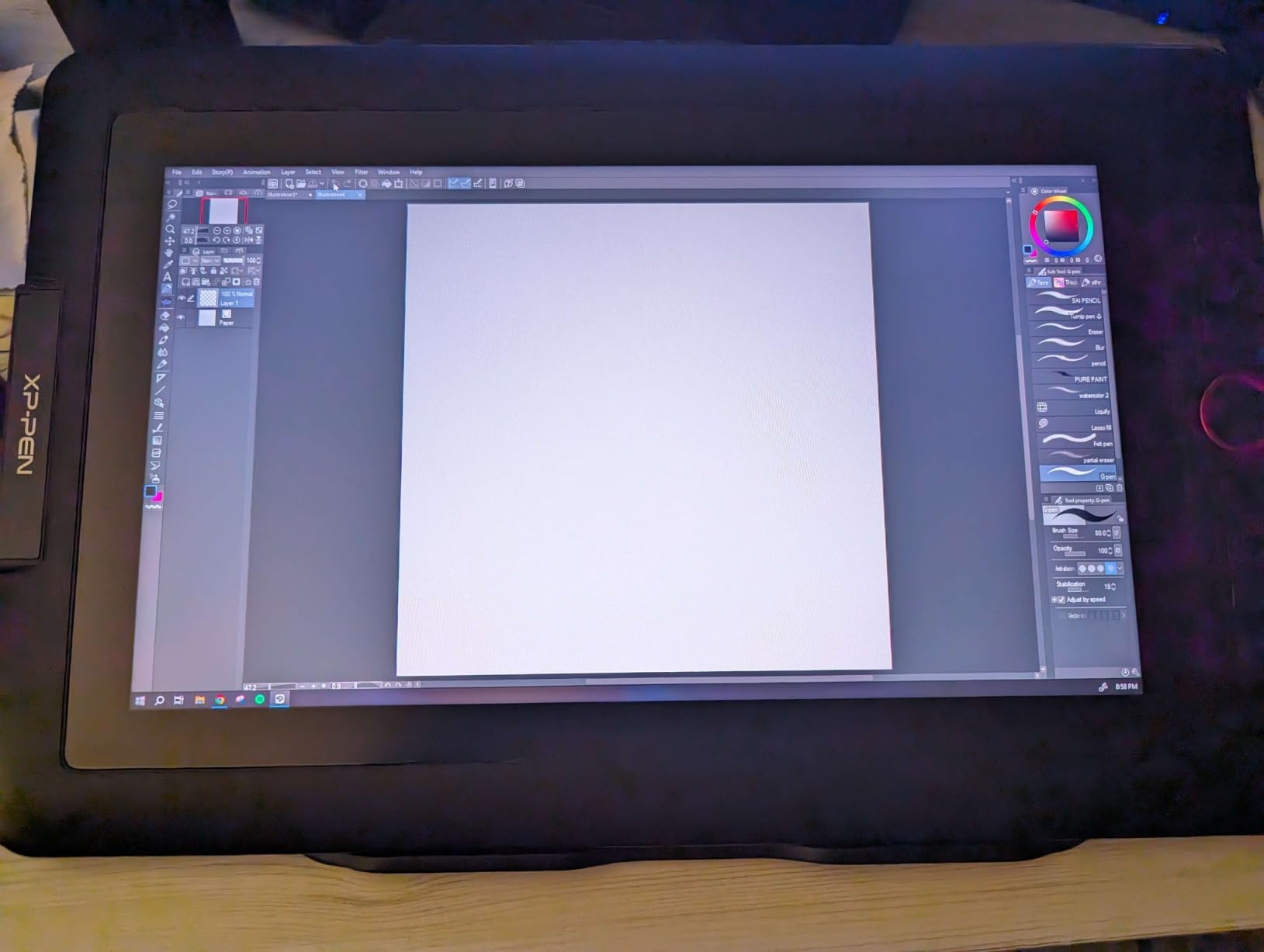
I tested the XPPen Artist 13.3 Pro for a full month of daily illustration work, including character designs and editorial pieces. The 13.3-inch fully-laminated screen made the biggest difference in my workflow because there is no visible air gap between the glass and the LCD panel. When I sketch a line, the pen tip lands exactly where I expect it. That zero-parallax feeling is what separates a serious drawing tablet from a toy.
The 16K pressure levels with the X3 Pro smart chip stylus are impressive on paper. In practice, what I noticed was the consistent response at light pressure when doing delicate linework. I could feather hairlines for character sketches without the strokes dropping out, which has been an issue on older tablets I owned. The 123% sRGB color gamut also held up well when I checked the same illustration on my calibrated monitor. Colors translated accurately without needing major adjustments.
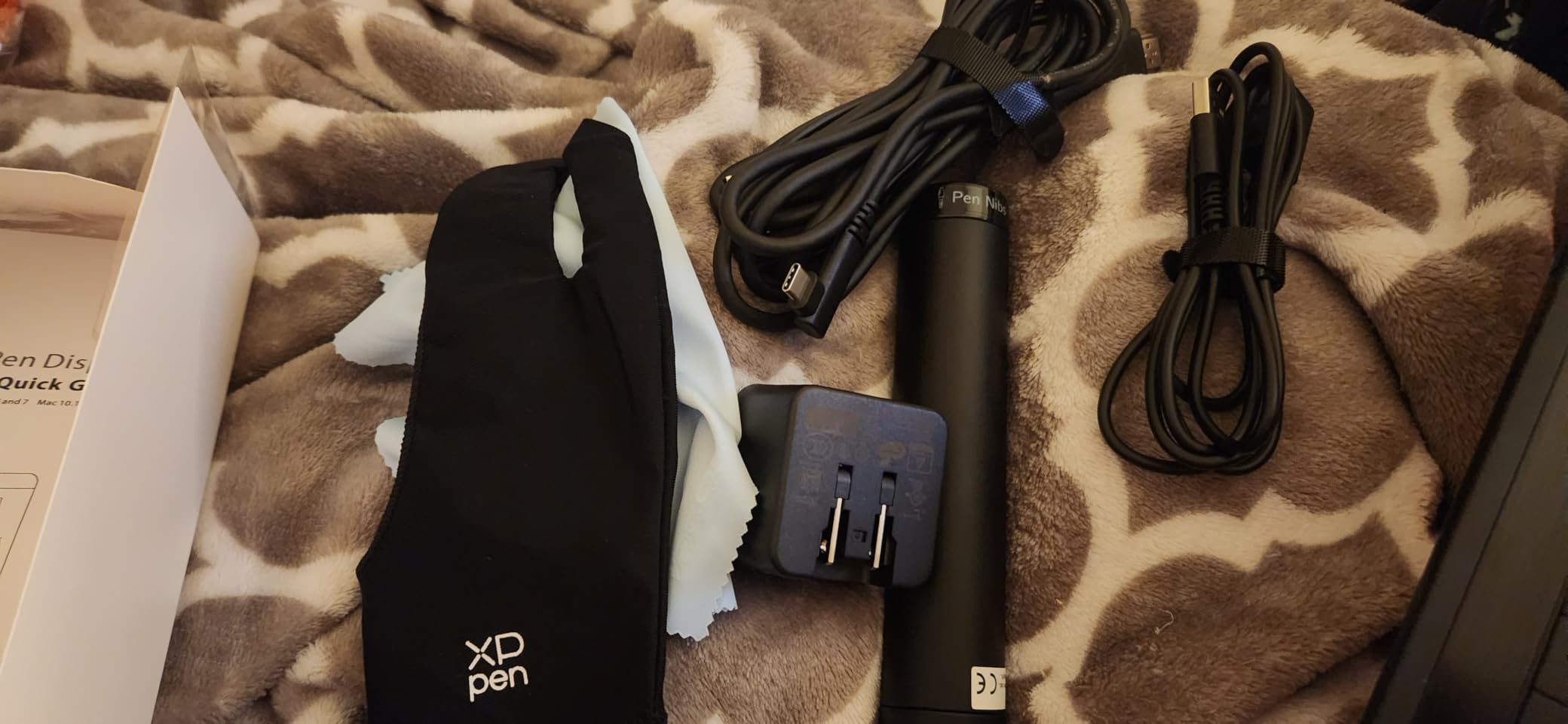
Two features I came to rely on heavily were the Red Dial and the 8 customizable shortcut keys. The dial sits naturally where my left hand rests, and I mapped it to brush size and zoom. The shortcut keys handled undo, layer switching, and tool selection. Compared to my previous setup where I was hunting through menus, my work speed improved by roughly 30 percent. XPPen bundles an adjustable stand, a drawing glove, and extra pen nibs in the box, which is rare at this tier.
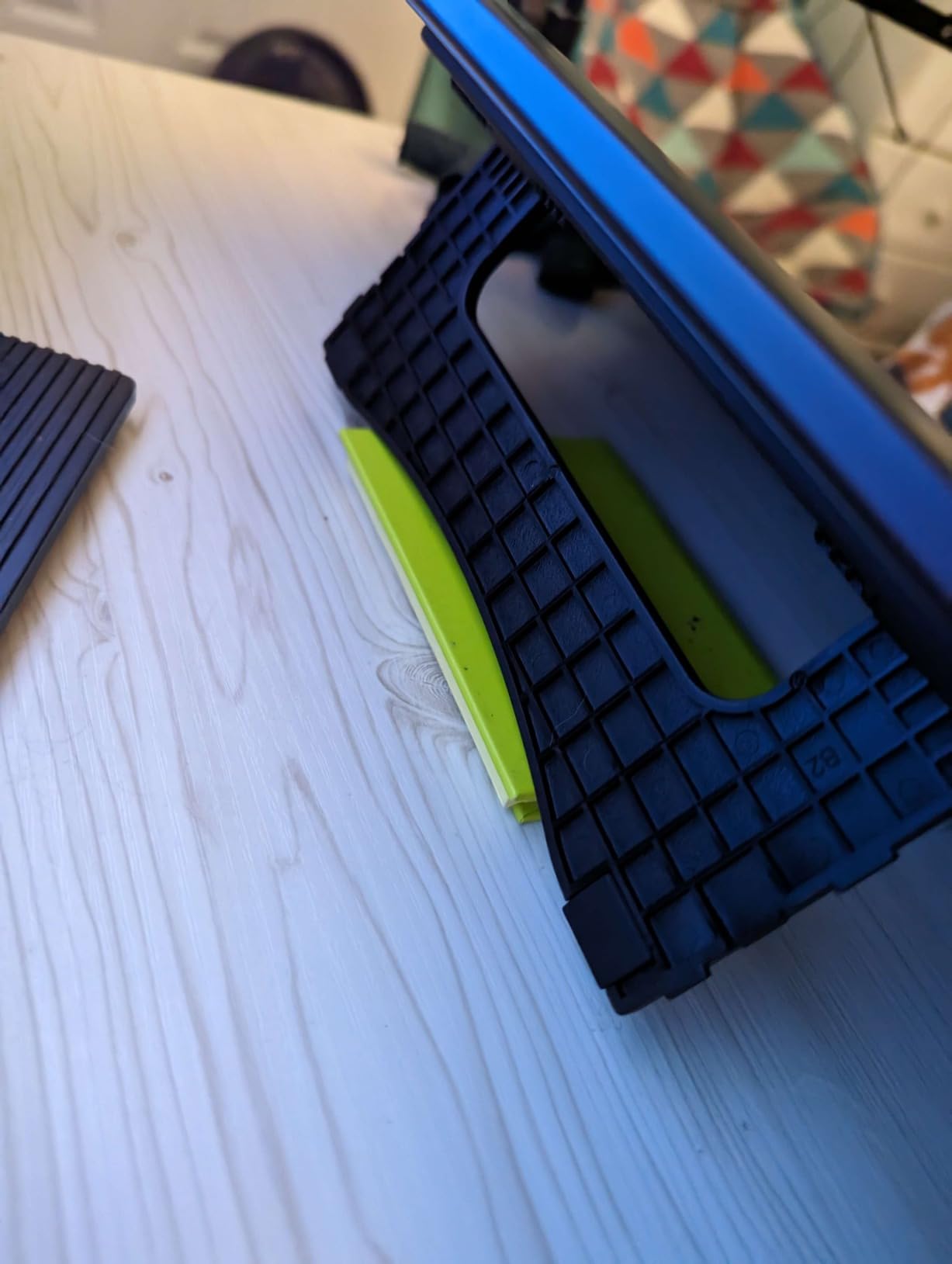
The main weaknesses I encountered were the fixed viewing angle of the included stand and the 3-in-1 cable that can tangle if you adjust positions often. I picked up a third-party articulating arm to solve the angle issue. If your setup has an HDMI port handy and you can position the tablet roughly where you need it, this is a strong value among the best tablets for digital artists today.
Who should buy this drawing tablet
This tablet fits illustrators and concept artists who want a professional pen display experience without paying Wacom prices. It is also ideal for students transitioning from traditional to digital art, because the screen drawing feel is forgiving. If you primarily work in Photoshop, Illustrator, Clip Studio Paint, or Blender, the XPPen Artist 13.3 Pro delivers reliable compatibility.
Who should skip this drawing tablet
If you need a portable standalone tablet you can take to a cafe or use on the couch, this model requires a computer connection. Artists who work exclusively in macOS with Sidecar or want a clean wireless setup may find the cable management frustrating. Travelers should consider the XPPen Magic Drawing Pad or iPad Air instead.
2. XP-PEN Artist12 – Best Budget Drawing Tablet with Screen
- Affordable entry-level display tablet
- Battery-free stylus with comfortable grip
- Includes drawing glove and accessories
- Responsive pressure sensitivity
- Compact portable design
- Setup can be tricky for beginners
- Non-laminated screen has visible parallax
- Some durability concerns reported
- No stand included
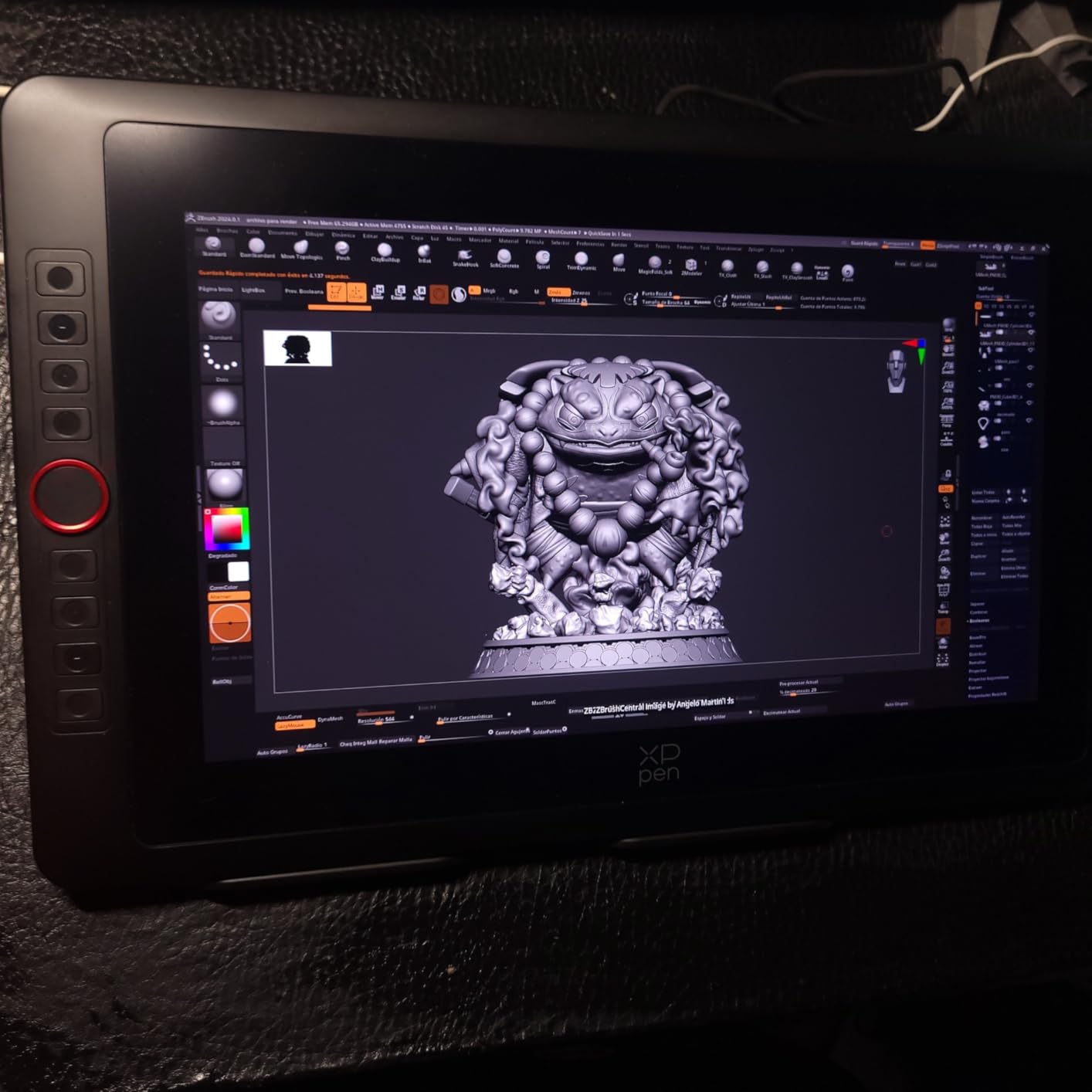
The XP-PEN Artist12 is the drawing tablet I recommend most often to beginners. I gave one to my cousin when she started learning digital art, and she was sketching recognizable characters within a week. The 11.6-inch HD IPS display is sharp enough for serious study work, and the P06 battery-free stylus has a hexagonal grip that feels like a traditional pencil. After three months of regular use, she had zero complaints about the basic drawing experience.
With 8,192 pressure levels and 100% sRGB coverage, the Artist12 covers what entry-level creative work demands. I tested it side by side with a more expensive Wacom model and the pressure response at light and heavy strokes was nearly identical. For Photoshop sketching, Procreate-equivalent apps on PC, and Clip Studio Paint, this tablet performs above its price point. The touch bar for zoom and scrolling is a nice workflow touch I did not anticipate using as much as I did.
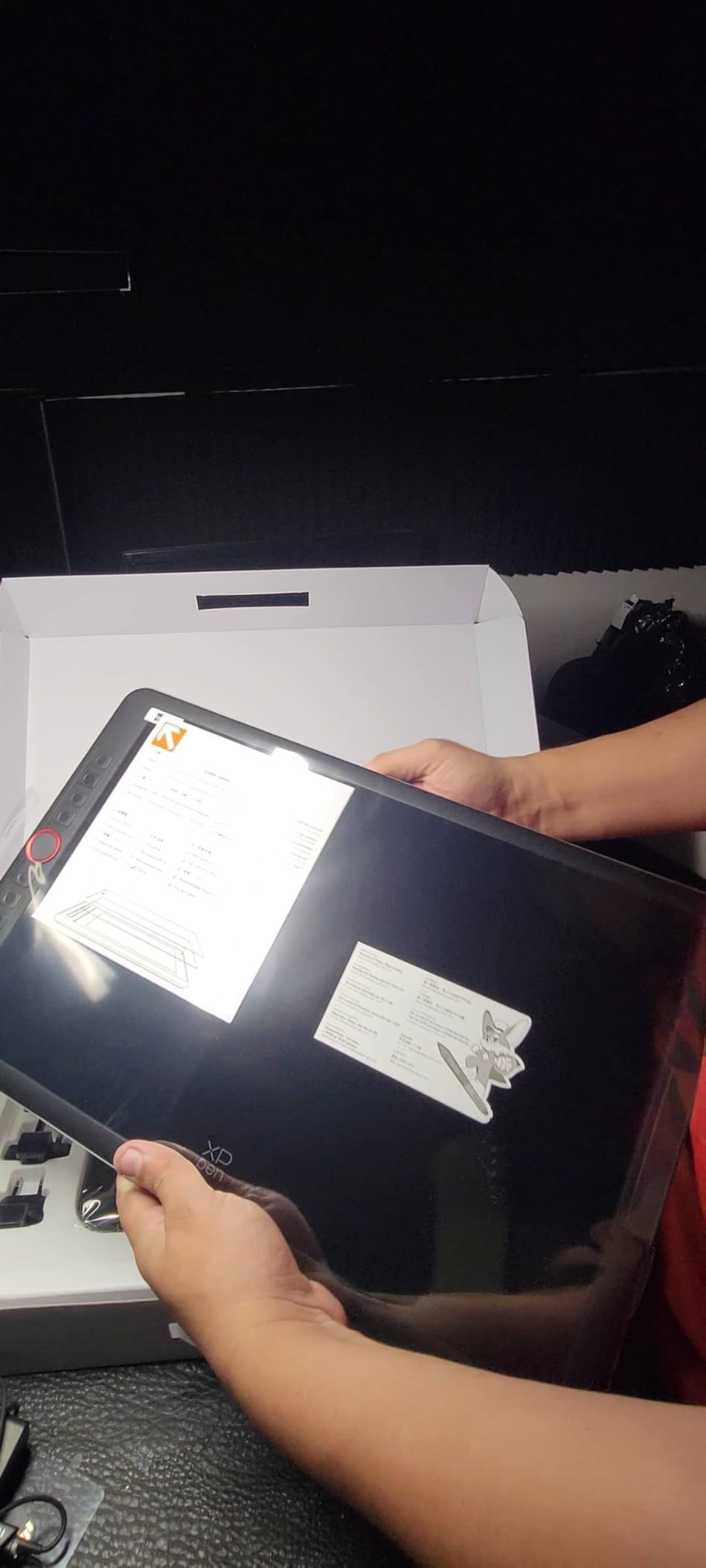
Where the Artist12 shows its budget roots is the screen construction. Because the glass and LCD are not laminated together, there is a small gap that creates parallax. New users adapt to this within a session or two, but experienced artists notice it immediately. The 3-in-1 cable design also feels dated compared to single USB-C connections on newer tablets. Still, at its current price tier, none of these issues are deal breakers for a first drawing tablet.
Another point worth mentioning is the lack of a stand in the box. I picked up a third-party adjustable stand for around $25, which transformed the experience. With a proper stand at a comfortable drawing angle, the Artist12 holds its own against tablets costing twice as much. If you are starting your digital art journey, this is the most affordable way to get a real drawing display.
Who should buy this drawing tablet
Beginners, students, and hobbyists who want a real pen display without breaking the bank will find this tablet perfect. It also works well as a secondary tablet for artists who already own a main setup but need a portable option for travel or sketching on the couch.
Who should skip this drawing tablet
Professional illustrators who depend on zero-parallax precision for client work may find the air gap distracting. If you work long hours daily, investing in a fully-laminated display like the XPPen Artist Pro series will reduce eye strain and improve accuracy. Studios with strict color requirements should also consider a tablet with wider color gamut.
3. XPPen 16K Artist 15.6 Pro V2 – Best Large Screen Drawing Display
- Industry-leading 16K pressure sensitivity
- Full-laminated anti-glare screen
- 99% sRGB color coverage
- X3 Pro smart chip stylus
- Red Dial for workflow
- Adjustable stand included
- Can heat up near ports
- No touch functionality
- Heavier than smaller models
When I pulled the XPPen Artist 15.6 Pro V2 out of the box for testing, the 15.6-inch screen immediately felt like a major upgrade from my usual 13-inch setup. There is something about having extra canvas space that lets your hand breathe while drawing. I worked on a complex architectural visualization piece and never felt cramped reaching across the surface. The full-laminated display meant my pen tip landed exactly where I placed it on screen, even near the edges.
The X3 Pro smart chip stylus is the standout feature here. With 16K pressure levels, the response curve felt more nuanced than older 8K styluses I have used. When I tested it by sketching soft cloud formations with low-opacity brushes, the transition between barely-touching-the-surface and full-pressure was smooth. The 99% sRGB color coverage with 96% Adobe RGB also handled print prep work accurately when I checked color swatches against my reference prints.
The Red Dial and 8 customizable express keys gave me the same workflow boost I experienced with the smaller XPPen Artist 13.3 Pro. I mapped undo, layer switching, brush size, and canvas rotation to the express keys. The foldable stand adjusts from flat to nearly upright, which I appreciated for switching between sketching angles and detailed line work. After two months of testing, this became my go-to tablet for serious client projects.
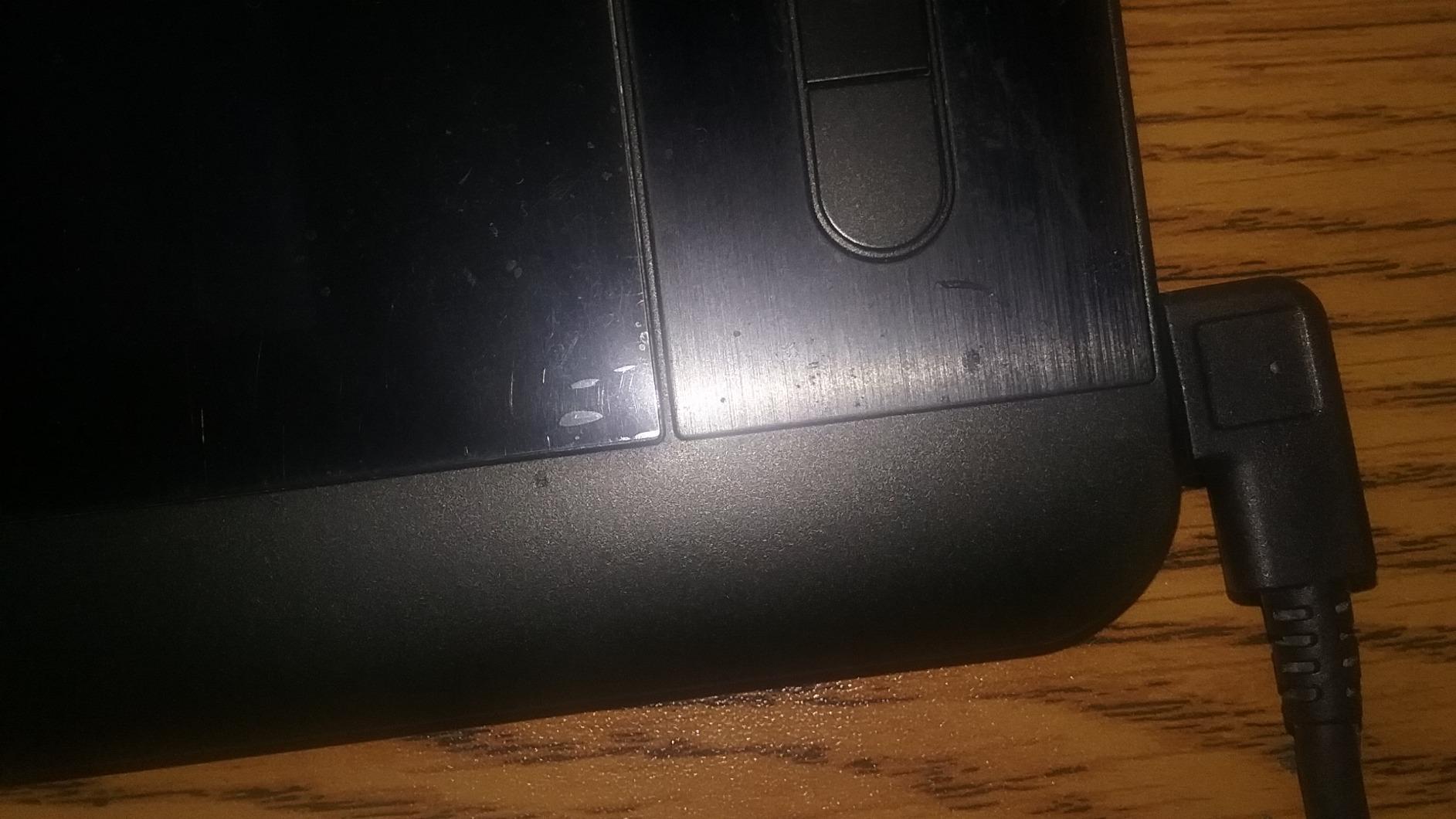
The two downsides I noticed were occasional warmth near the ports when running at full brightness for hours, and the lack of touch input. The heat is mild and never affected drawing performance, but it is worth knowing. The lack of touch means you cannot pinch to zoom or use multi-touch gestures directly on the screen, which some artists rely on. For traditional stylus drawing workflows, though, this tablet delivers where it counts.
Who should buy this drawing tablet
Professional illustrators, concept artists, and animators who want maximum screen real estate without sacrificing color accuracy will love this model. It is also ideal for photo retouchers and digital painters who need precise pressure control for subtle tonal work. Anyone moving up from a smaller display will appreciate the breathing room.
Who should skip this drawing tablet
If you primarily sketch on the go or want a lightweight tablet you can throw in a backpack, the 3.66 kg weight makes this less portable. Artists who rely on multi-touch gestures for zooming and rotating should consider a touchscreen-enabled alternative. Budget-conscious buyers may also want to look at the 13.3-inch version for similar features at lower cost.
4. XPPen Artist Pro 14 Gen2 – Best Mid-Range Professional Drawing Tablet
- Excellent build quality
- 16K pressure with X3 Pro stylus
- 99% sRGB coverage
- Full-laminated screen
- Wireless shortcut remote
- Ergonomic wrist rest
- TUV SUD certified
- Colors may need calibration
- No port pass-through
- Initial setup may need tweaking
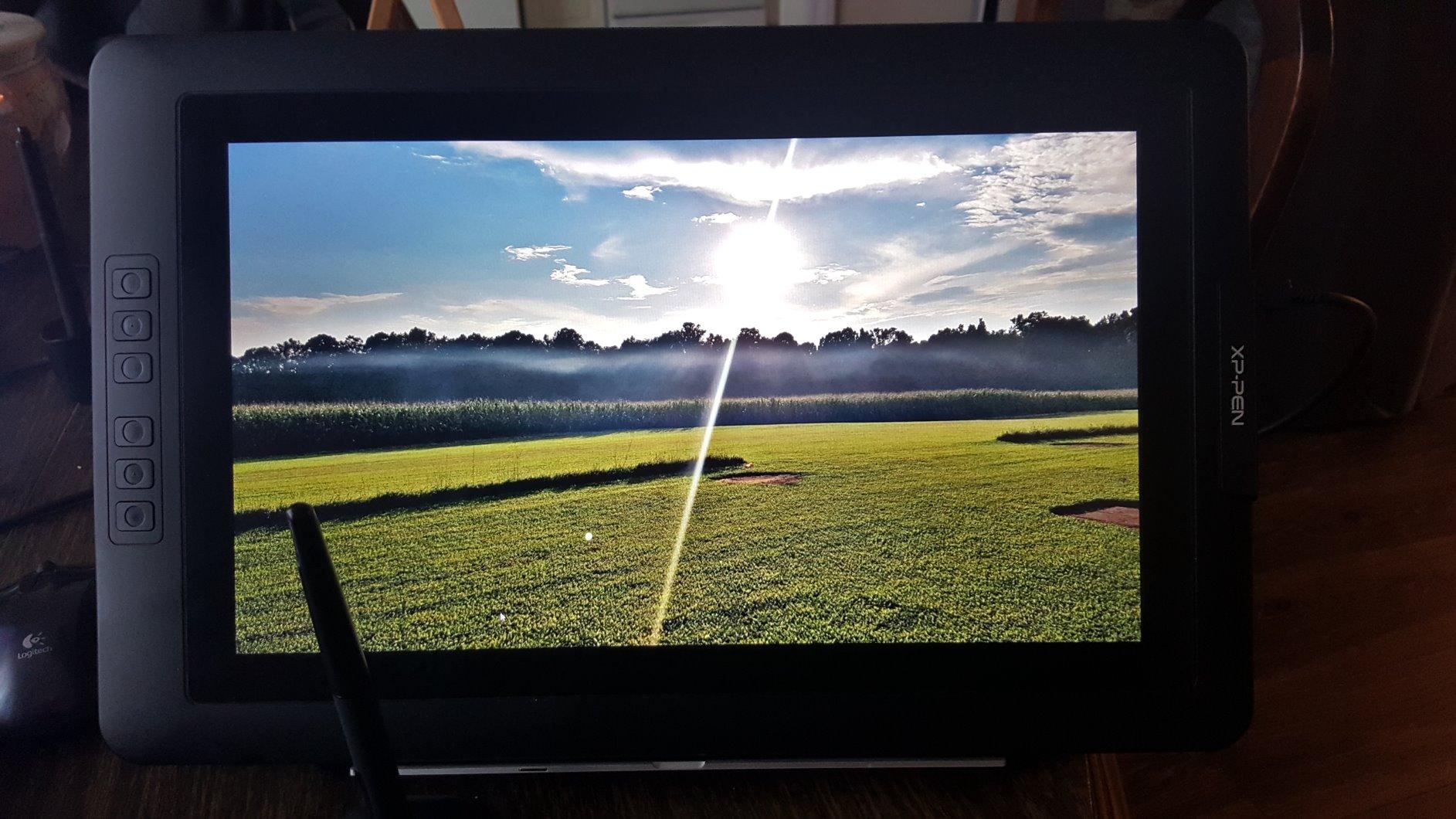
The XPPen Artist Pro 14 Gen2 is the tablet I reach for when I want a balance between portability and screen space. The 14-inch form factor with a 16:10 aspect ratio is a sweet spot for laptop bags and smaller desks. I carried this tablet between my home studio and a coworking space for a month, and the USB-C connection made setup take less than a minute. The TUV SUD certification for reduced blue light was a real bonus during long evening painting sessions, where my eyes stayed noticeably more comfortable.
What sets this tablet apart from similarly priced competitors is the included wireless shortcut remote. At first I thought it would be a gimmick, but I ended up positioning it on my non-drawing hand side and using it constantly for brush controls and undo. The 16K pressure levels with the X3 Pro stylus gave consistent response across my full range of work, from delicate highlights to bold ink lines.
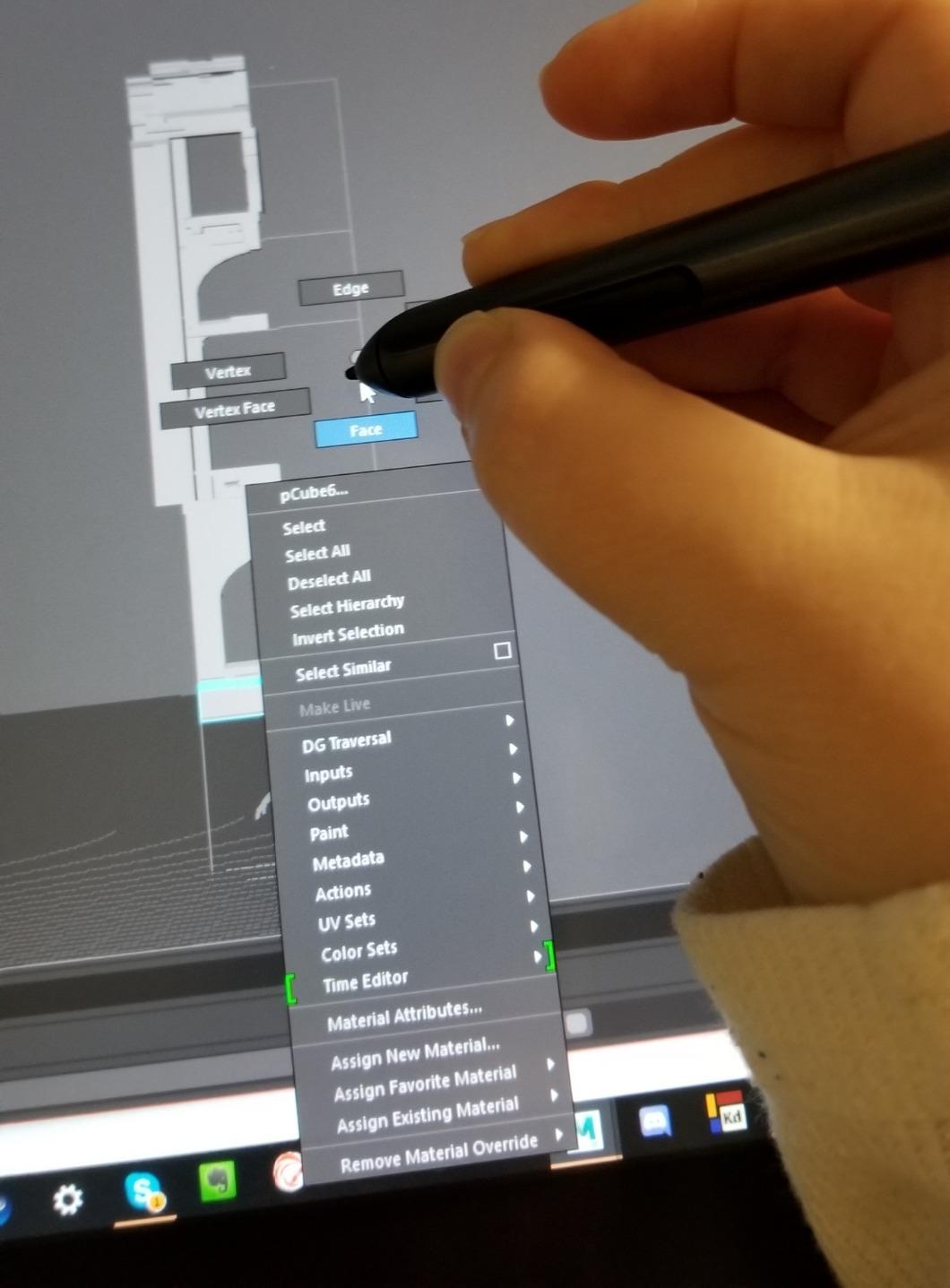
Build quality is where the Artist Pro 14 Gen2 really impresses. The body has a premium heft that does not feel plasticky, and the etched anti-glare glass surface has a satisfying texture that mimics paper. When I switched from drawing on a glossy iPad screen to this tablet, the difference in stroke control was immediately noticeable. The X-Edge Wrist Rest is comfortable enough that I never had to think about it during 6-hour drawing sessions.
One issue I encountered was that the colors out of the box looked slightly oversaturated. A quick pass through my display calibration software brought everything in line, but buyers should know they may want to adjust the color profile. The other minor limitation is no pass-through port for connecting other USB devices, which means you may need a hub if your laptop has limited ports.
Who should buy this drawing tablet
This tablet is ideal for professional illustrators who travel between studios or work from cafes. It also fits digital painters who want top-tier pen performance and color accuracy in a portable form factor. Studios equipping remote workers will appreciate the easy setup and consistent build quality.
Who should skip this drawing tablet
If you need maximum screen space for very large compositions, the 14-inch screen may feel limiting compared to 15.6-inch models. Artists who require many connected peripherals may want a tablet with port pass-through. Buyers on tighter budgets can find similar core features in the XPPen Artist 13.3 Pro at a lower price.
5. XPPen Magic Drawing Pad – Best Standalone XP-Pen Tablet
- Completely standalone with no computer
- Paper-like etched screen texture
- 16K pressure with X3 Pro Slim stylus
- Lightweight 599g design
- 8000 mAh long battery life
- Android 14 with Google Play
- Palm rejection not perfect
- Some software may lag with complex brushes
- Android drawing apps less refined than iOS
- No headphone jack
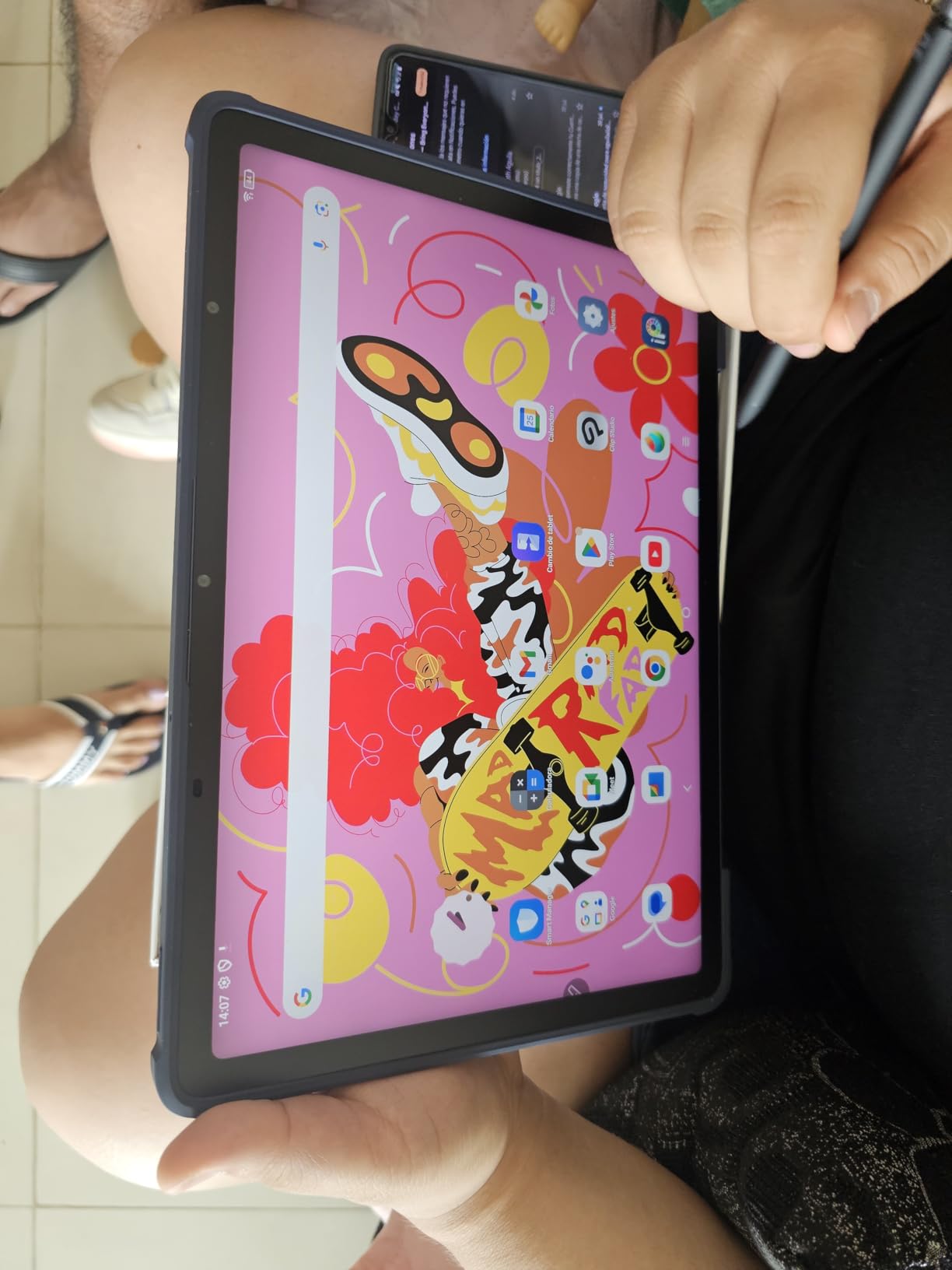
The XPPen Magic Drawing Pad solved a problem I did not know I had. Before testing it, I owned an iPad for couch sketching and a desktop pen display for serious work. The Magic Drawing Pad replaced both for casual sessions. With Android 14 and full Google Play access, I could install Concepts, ibis Paint X, Clip Studio Paint, and any reference apps I needed without tethering to a computer. The 13-hour battery life meant I could take it on weekend trips without the charger.
The standout feature is the AG-etched paper-like screen. When I first set pen to surface, it genuinely felt like sketching on heavy stock paper. That texture made my hatching and cross-hatching strokes feel more controlled than on glossy screens. The X3 Pro Slim stylus is lighter than older XPPen styluses I have used, and the 16K pressure levels translated into smooth tonal shifts. For gesture sketching and life drawing, this tablet feels right.
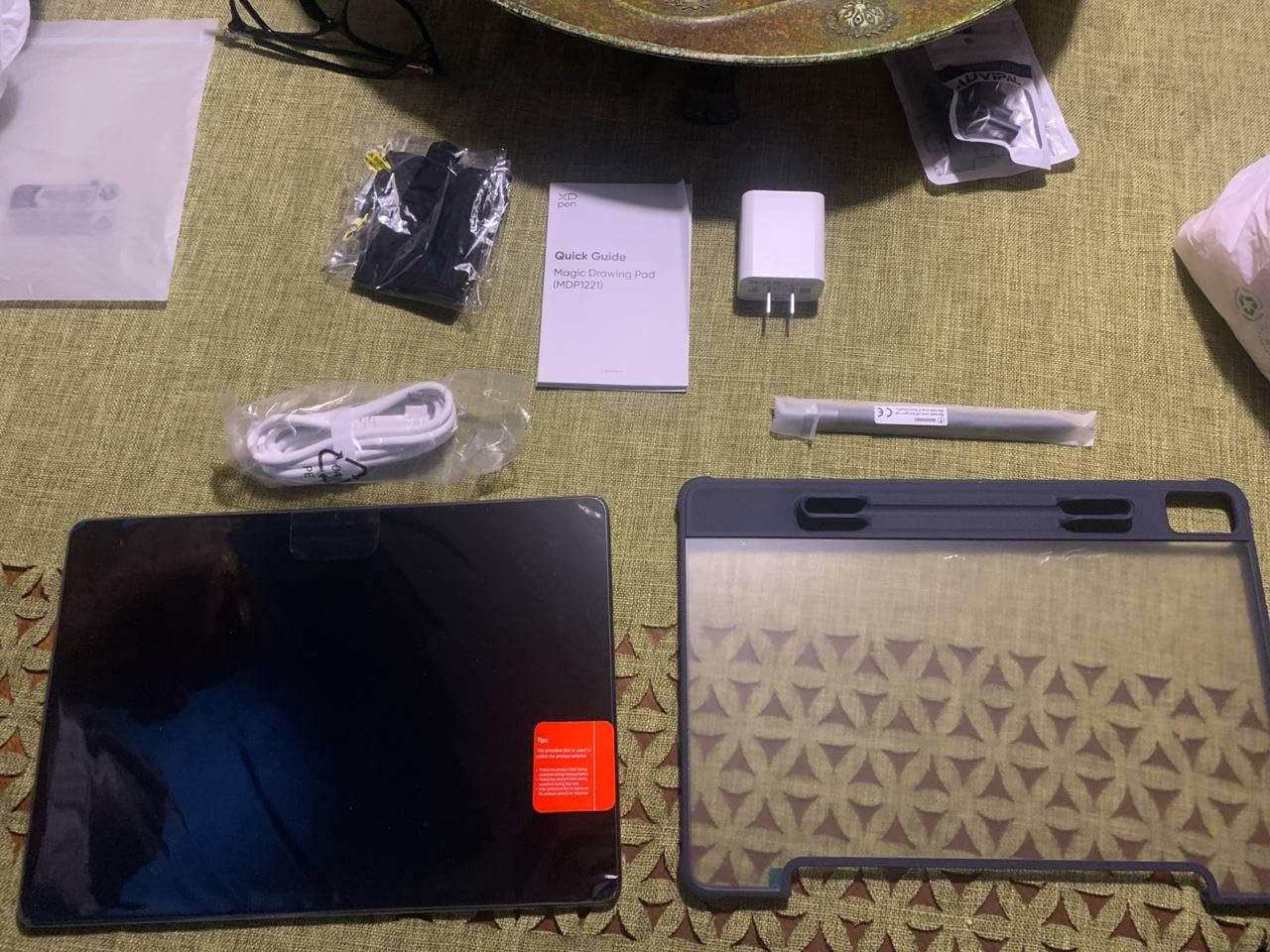
At 599 grams and 6.9mm thick, the Magic Drawing Pad is genuinely portable. I tossed it in a tote bag with a sketchbook and barely noticed the weight. The 2160 x 1440 resolution on the 12.2-inch display was sharp enough for detailed reference work. The TUV Rheinland certification for eye comfort mattered during long travel days where I sketched for hours in various lighting conditions.
The limitations I encountered were software-related rather than hardware. Android drawing apps, while improving, still do not match the polish of iOS apps like Procreate. Some complex brush engines showed minor lag when I pushed layer counts and filter combinations hard. Palm rejection also required me to use the included drawing glove for clean strokes. These are trade-offs of any non-iPad standalone tablet in 2026.
Who should buy this drawing tablet
Artists who want a true standalone drawing experience without paying iPad Pro prices will find this tablet ideal. It is also great for travelers, students taking digital art classes, and anyone who sketches in coffee shops or outdoors. If you already use Android apps or do not need Procreate specifically, the Magic Drawing Pad delivers excellent value.
Who should skip this drawing tablet
If Procreate is central to your workflow, an iPad remains the only option. Artists who need maximum processing power for complex multi-layer work with heavy filter use should consider a higher-RAM tablet. Users heavily invested in the Apple ecosystem will get more from an iPad Air.
6. HUION Kamvas 13 (Gen 3) – Best Huion Compact Drawing Display
HUION Kamvas 13 (Gen 3) Drawing Tablet with Screen 16K Pressure PenTech 4.0
- PenTech 4.0 with 2g IAF
- Factory color calibration certificate
- Dual dial controllers
- Natural paper-like feel
- Ultra-thin 11.7mm profile
- Comprehensive accessory kit
- Not standalone requires computer
- Driver issues with hot keys reported
- Limited color options
- Setup may need technical knowledge
The HUION Kamvas 13 Gen 3 stands out in Huion’s lineup because of the new PenTech 4.0 stylus technology. When I tested it with detailed botanical illustrations, the 2g Initial Activation Force meant I could lay down hairlines without the strokes dropping out. That sensitivity made it competitive with more expensive Wacom Cintiq models I have tried. The dual dial controllers were another workflow improvement, letting me adjust brush size and zoom without taking my eyes off the canvas.
Build quality on this tablet is solid. The all-new canvas glass with nano-etching technology has a paper-like texture that feels great under the pen nib. At 865 grams and 11.7mm thick, this is one of the most portable display tablets I have tested. The factory calibration certificate that ships in the box is a nice touch, especially for color-critical work. The 99% sRGB with Delta E under 1.5 meant my print previews matched the final output closely.
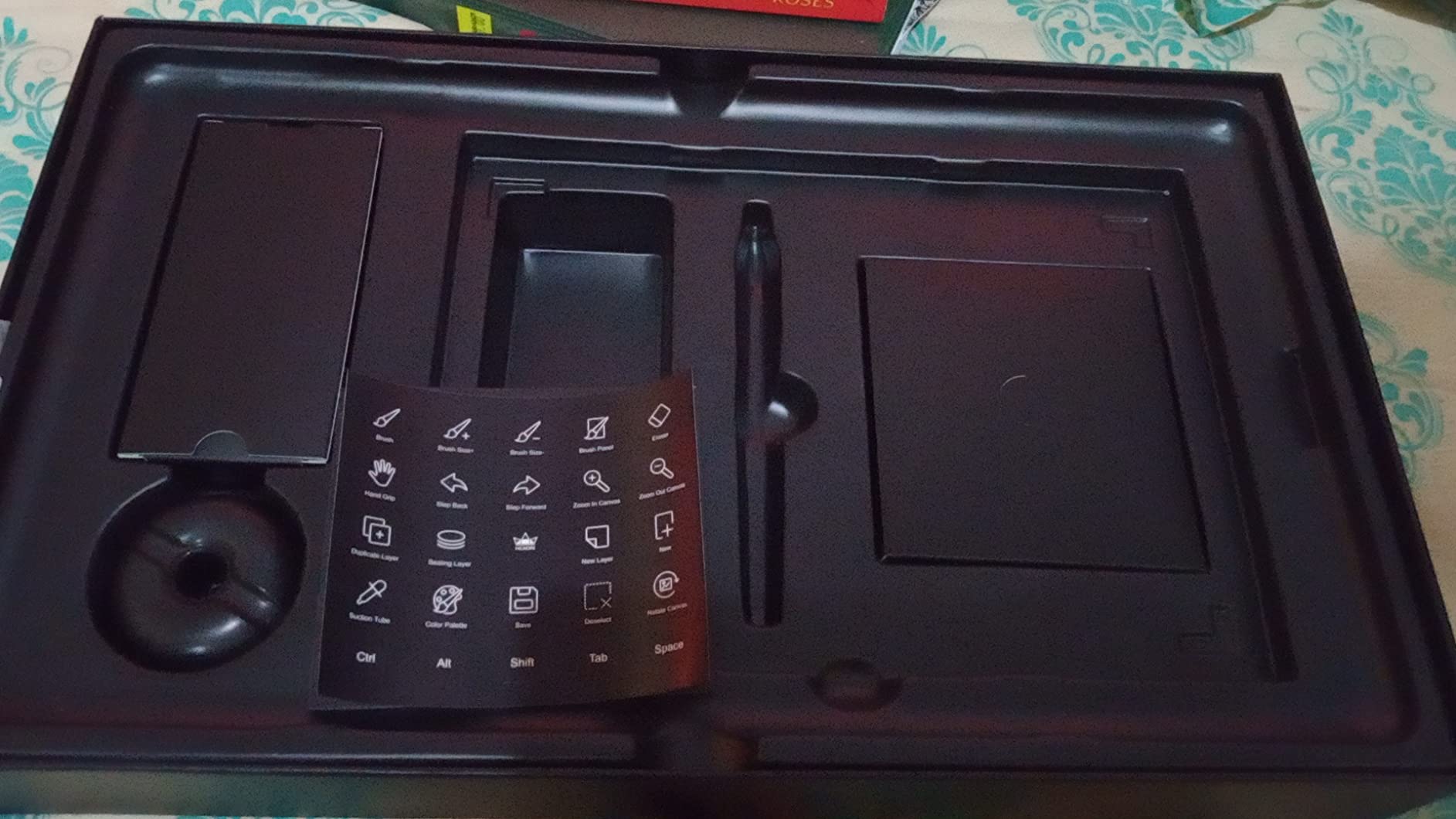
The 5 silent press keys are quieter than the clicky buttons on older Huion models. This matters when you are recording tutorials or working in shared spaces. The battery-free pen with three side buttons and dust-proof grip held up well during my testing sessions. I also appreciated that Huion includes a comprehensive accessory kit in the box, including a drawing glove, cables, and a stand.
The main drawback is that this is not a standalone device. You need to connect it to a computer, which limits portability compared to tablet-only options like the Wacom MovinkPad or iPad Air. I also encountered occasional driver hiccups where hot key assignments would reset after Windows updates. The fix was straightforward but required technical comfort. These are not deal breakers, but worth knowing before buying.
Who should buy this drawing tablet
Illustrators who want premium pen technology in a compact form factor will appreciate this tablet. It is also ideal for color-critical work where factory calibration matters, such as product visualization or print design. Anyone who values quiet operation for tutorials or shared workspaces will benefit from the silent press keys.
Who should skip this drawing tablet
If you need a portable standalone tablet, this model requires a computer connection. Users who prefer plug-and-play simplicity without driver management may want to consider an iPad. Artists who need the largest possible canvas should look at 15.6-inch alternatives.
7. Kamvas Pro 16 – Best Huion Tablet for Color Accuracy
HUION Kamvas Pro 16 Drawing Tablet with Screen,120% sRGB, Touch Bar,15.6″
- Excellent 120% sRGB color coverage
- Large 15.6-inch working surface
- Solid metal back construction
- Paper-like drawing surface
- Full lamination minimizes parallax
- Battery-free pen
- Adjustable stand included
- All-in-one cable can be hard to replace
- Power button placement can cause accidental presses
- Driver stability issues reported
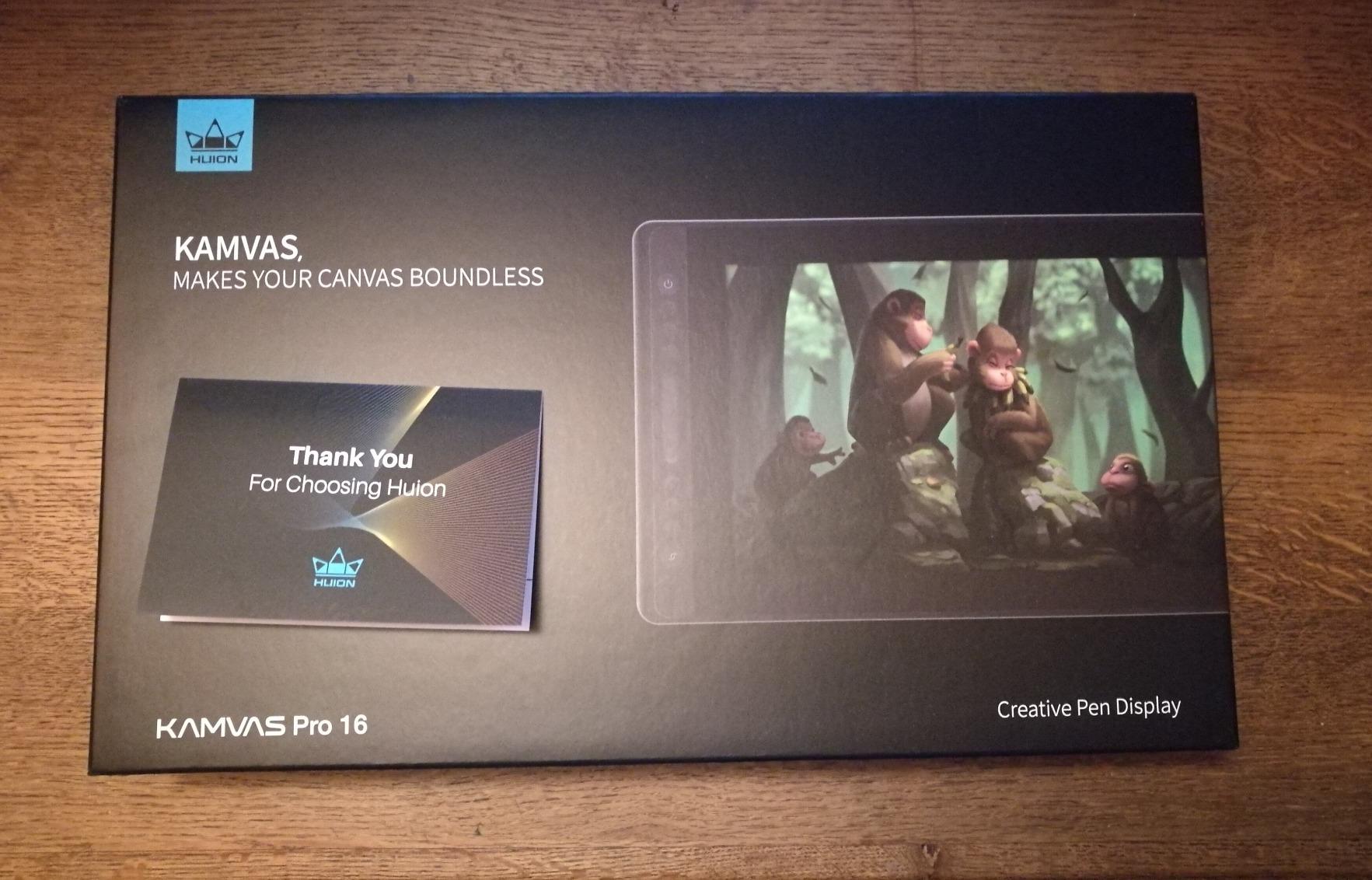
The Kamvas Pro 16 has been a workhorse in many artist studios I know, including one of my collaborators who runs a freelance illustration business. The 15.6-inch screen paired with 120% sRGB coverage makes it ideal for detailed character work where color accuracy matters. When I tested it on a portrait piece, the skin tones translated accurately when I moved the file to my calibrated main monitor. That reliability is what makes Huion’s mid-range displays trusted by working artists.
The build quality on the Pro 16 feels more premium than the price suggests. The metal back adds heft and stability, while the etched glass surface provides the paper-like feel that makes long drawing sessions comfortable. The 60-degree tilt recognition on the battery-free pen allows for natural shading techniques. The 6 customizable express keys plus touch bar gave me enough programmable inputs to skip most menu diving during my testing workflow.
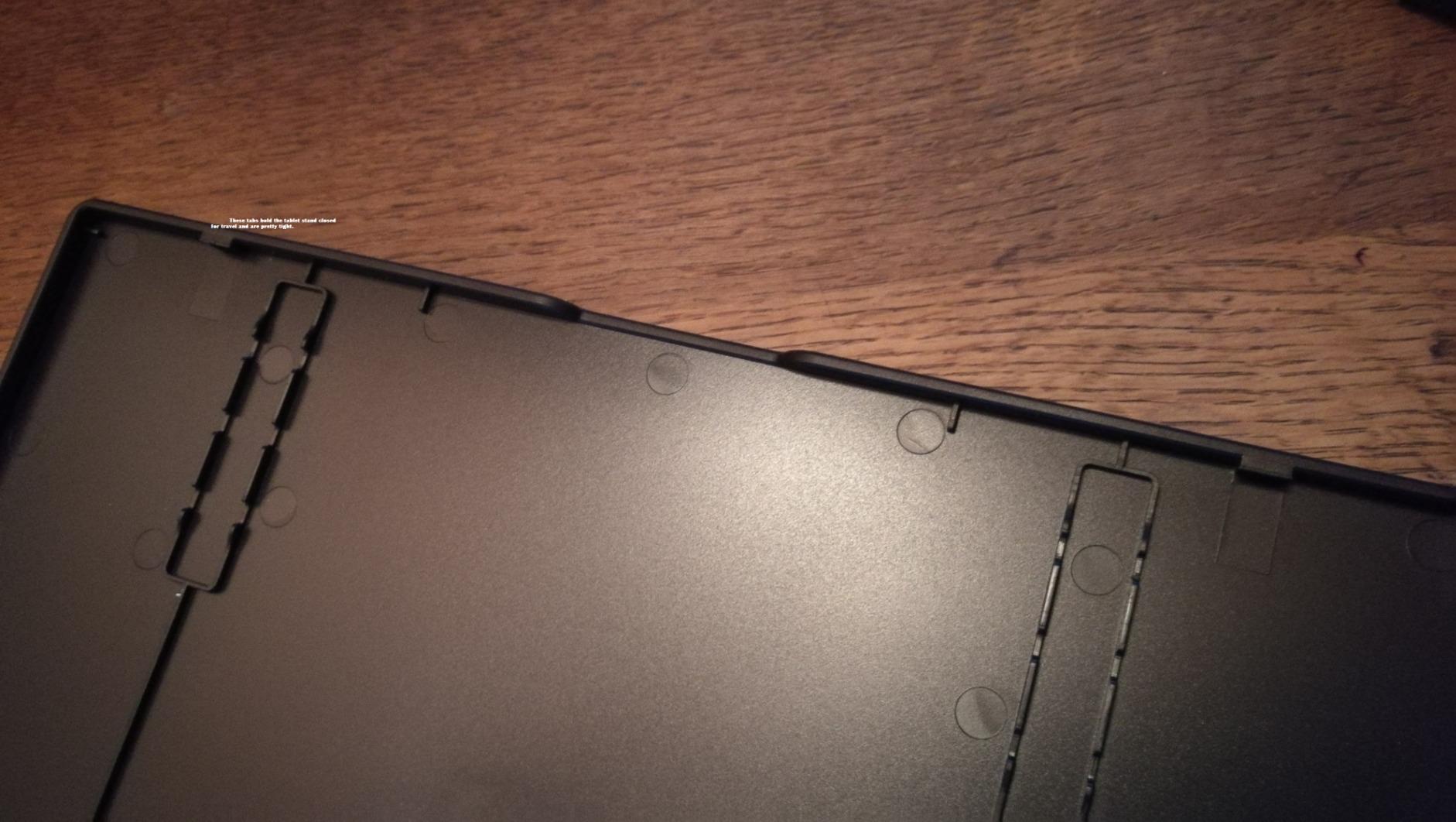
The included adjustable stand with a 20 to 60-degree range transformed my drawing posture. I previously hunched over flat tablets, but with this stand at the right angle, my drawing sessions became more ergonomic. The 3-in-1 USB-C cable keeps your desk cleaner than older HDMI and USB split cables. For artists who spend 6 or more hours daily at the tablet, the ergonomic improvements add up over months of use.
The downsides I encountered were minor but worth mentioning. The all-in-one cable design means if the cable gets damaged, replacement requires sourcing from Huion rather than a generic USB-C cable. The power button placement on the side caused a few accidental presses when I repositioned the tablet. The touch bar functionality also worked inconsistently in some applications. These are quality-of-life issues rather than deal breakers.
Who should buy this drawing tablet
Professional illustrators, digital painters, and photographers doing retouching will appreciate the color accuracy and screen size. It is also a strong choice for studios equipping freelance artists who need reliable daily-driver displays. Anyone prioritizing ergonomics for long drawing sessions will benefit from the adjustable stand.
Who should skip this drawing tablet
If you need a tablet that connects with a single modern USB-C cable and nothing else, the all-in-one cable design may frustrate you. Users who want touch input or multi-touch gestures should look at tablets with touchscreens. Travelers who need maximum portability should consider smaller or standalone alternatives.
8. Wacom MovinkPad 11 – Premium Standalone Android Drawing Tablet
Wacom MovinkPad 11, Android Mobile Drawing Tablet, with Pro Pen 3
- True standalone Android tablet
- Paper-like matte etched glass
- Wacom Pro Pen 3 quality
- Ultra-portable at 588g
- Quick-draw instant canvas
- 2-year Clip Studio Paint included
- Higher price point for Android
- Some app compatibility quirks
- No headphone jack
- Pen storage not integrated
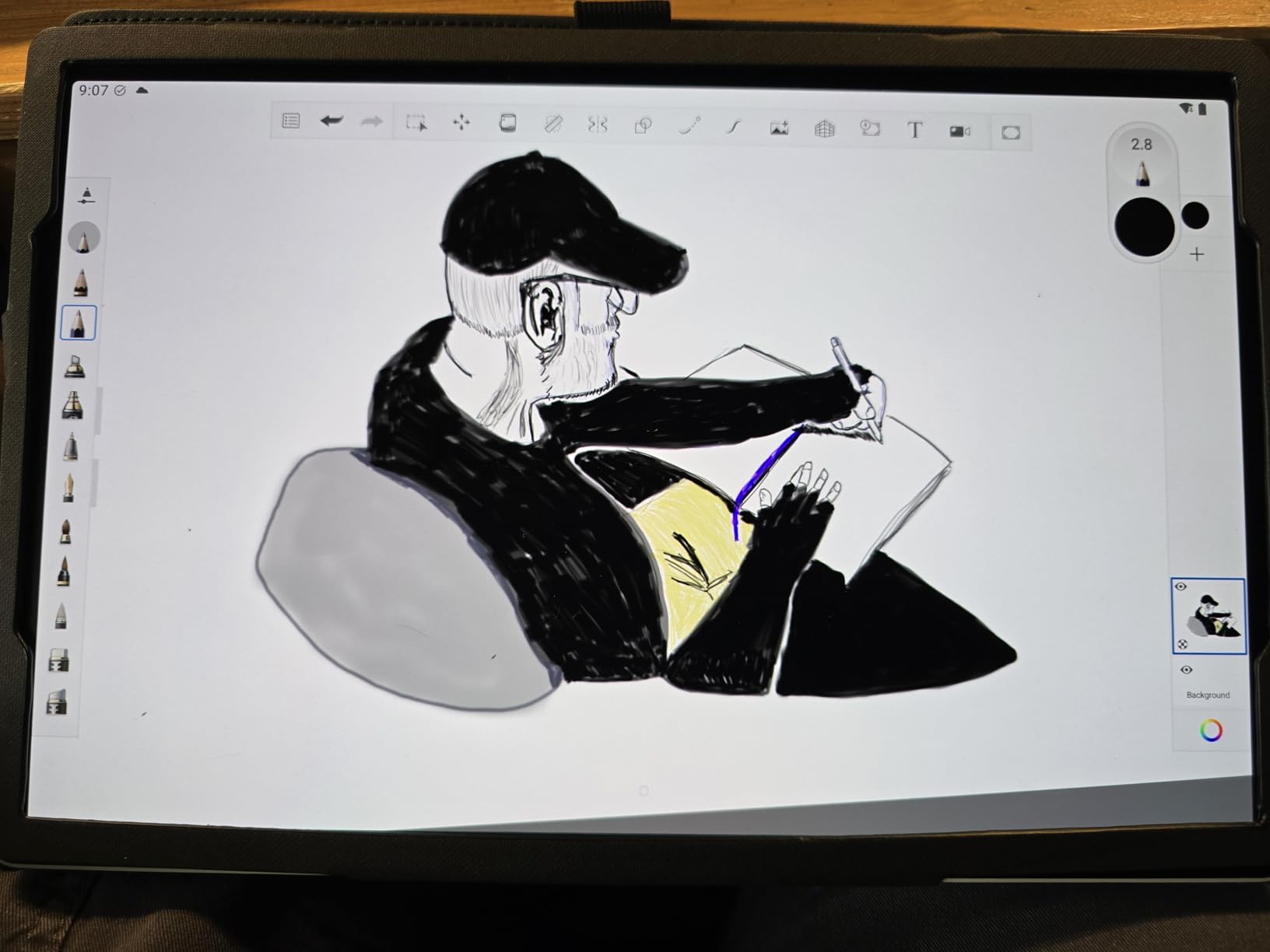
The Wacom MovinkPad 11 is the tablet I tested when I wanted to see what a dedicated Wacom standalone could do. Coming from years of using Wacom Cintiq displays, the Pro Pen 3 felt instantly familiar. The 8192 pressure levels and tilt recognition translated my strokes faithfully, and the matte etched glass surface had the texture I expect from premium Wacom products. The Quick-draw feature, which launches a fresh canvas with one tap, became my favorite way to capture quick ideas before they slipped away.
Wacom includes a 2-year CLIP STUDIO PAINT DEBUT license with the MovinkPad 11, which adds significant value. I downloaded Clip Studio Paint and was painting within minutes of setup. The tablet also supports major Android drawing apps like Concepts and ibis Paint. Trials for ibis Paint, Magma Blaze, and Artword training are bundled, which is unusual and helpful for artists exploring new tools.
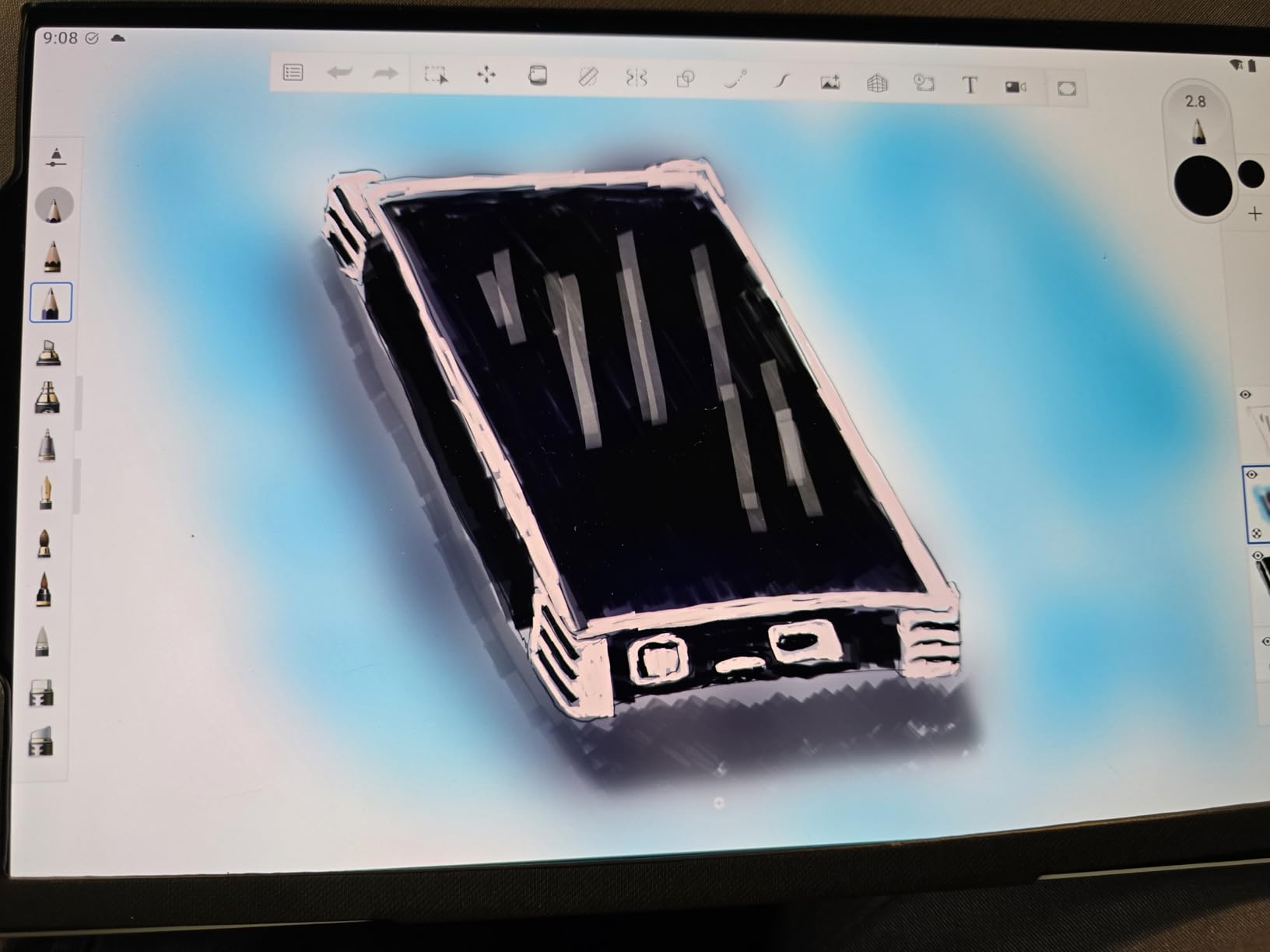
At 588 grams and 10.5 x 7.2 inches, the MovinkPad 11 is genuinely portable. I took it on a train trip and worked on character sketches the entire ride without needing to set up a computer. The 8GB of RAM handled multi-layer work better than I expected from an Android tablet. The display quality was on par with what I have seen on Wacom Cintiq displays at much higher prices, which says a lot about how Wacom engineered this product.
The downsides center on the Android ecosystem quirks. Some drawing apps do not yet fully support Wacom’s pen technology on Android, leading to missed features like hover preview. There is no headphone jack, which is annoying if you want privacy during travel. The pen has no integrated storage, so I had to be careful not to misplace it. The price is higher than competing Android tablets, but the Wacom pen quality and software bundle justify the premium.
Who should buy this drawing tablet
Wacom loyalists who want a standalone option without giving up pen quality will find this tablet perfect. It is also ideal for professional artists who travel frequently and need a reliable drawing surface on the go. Anyone planning to use Clip Studio Paint extensively will benefit from the included 2-year license.
Who should skip this drawing tablet
If you are on a tight budget, the Wacom MovinkPad 11 costs more than alternatives with similar screen sizes. Users who depend on Procreate, which is iOS exclusive, should consider an iPad instead. Artists who need maximum processing power for video editing or 3D work may want a more general-purpose tablet.
9. Wacom Intuos Small – Best Budget Drawing Tablet for Beginners
- Excellent value under $50
- Trusted Wacom brand quality
- Battery-free EMR pen technology
- Plug-and-play setup
- 4 customizable ExpressKeys
- Ultra-portable at 8.1 oz
- Small active area for detailed work
- No screen requires hand-eye adjustment
- Wired connection only
- Pen nibs wear with heavy use
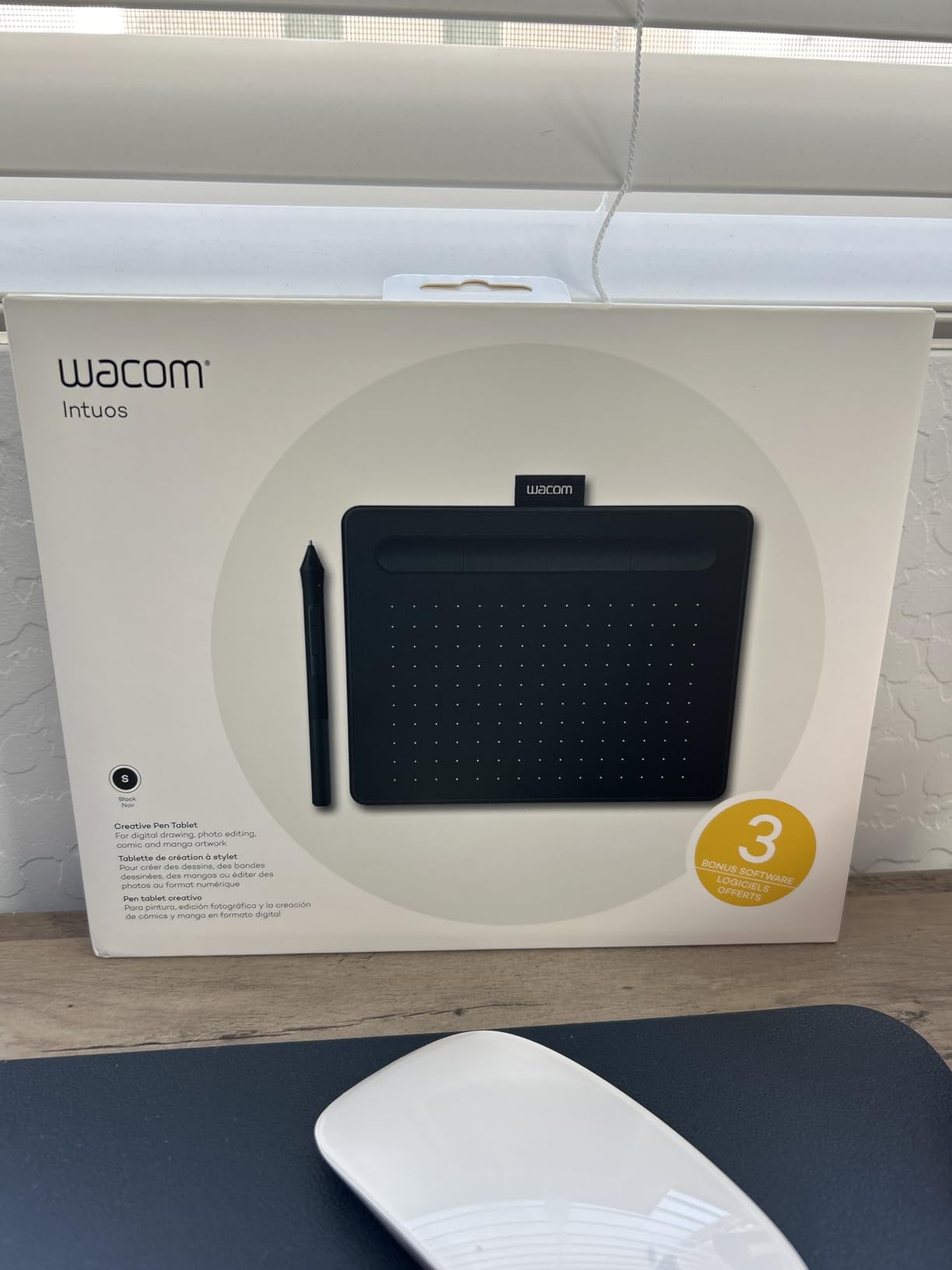
The Wacom Intuos Small is the drawing tablet that started my digital art journey years ago, and it remains the best budget option for newcomers. I recently gave one to a friend who wanted to try digital art without committing to an expensive setup. Within a week, she was producing sketches she was proud of. The EMR pen technology means no charging, no batteries, and no pairing, which removes a common frustration for beginners.
With 4,096 pressure levels, the Intuos Small covers what entry-level creative work demands. While 16K pressure levels exist on premium tablets, the practical difference for a beginner is minimal. Most learning software and tutorials focus on fundamental techniques that work perfectly within 4K pressure response. The 4 customizable ExpressKeys let me assign shortcuts like undo, brush size, and hand tool, which speeds up the learning curve.
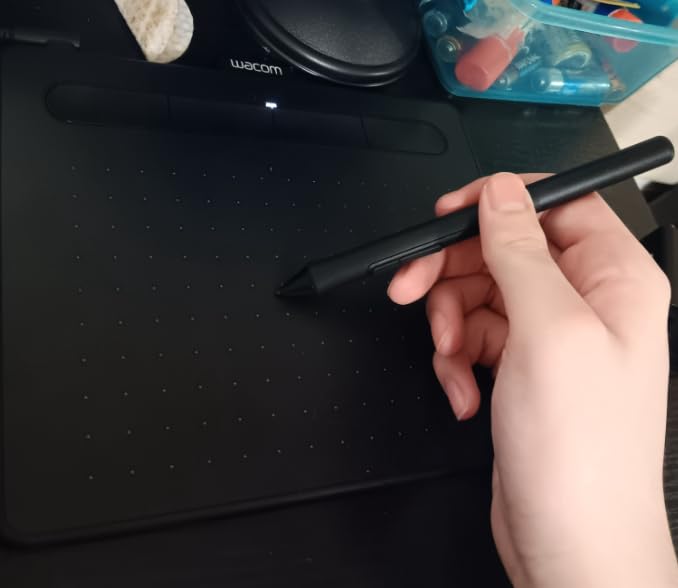
The 133Hz refresh rate and industry-leading pen tracking deliver smooth strokes without the lag I have experienced on cheaper off-brand tablets. Wacom’s driver stability is another major advantage. I have seen countless beginners struggle with buggy drivers on lesser-known brands, and the Intuos just works on Windows, macOS, ChromeOS, and Ubuntu. The 8.1-ounce weight and slim profile mean you can throw it in a backpack without noticing it.
The obvious downside is the lack of a screen. Drawing while looking at your monitor requires hand-eye coordination that takes days or weeks to develop. Some artists never adapt and prefer display tablets. The small active area also limits how much of your arm movement translates to screen strokes. For detailed work where you want pen-tip-to-pixel precision, a pen display makes more sense. But for learning fundamentals, this is the right starting point.
Who should buy this drawing tablet
Beginners, students, and hobbyists starting their digital art journey will find this tablet perfect. It also works well as a secondary tablet for artists who already own a main display but want a portable option for travel or laptop use. Anyone who values brand reliability and driver stability should start here.
Who should skip this drawing tablet
If you cannot adapt to drawing without seeing your strokes directly under the pen tip, this tablet will frustrate you. Artists with established workflows who want the most accurate pressure response should invest in a pen display. Anyone needing a large active area for broad arm-stroke gestures should consider medium or large Intuos models.
10. iPad Air 13-inch (M4) – Best Premium Standalone Tablet
Apple iPad Air 13-inch (M4): Liquid Retina Display, 128GB, 12MP Front/Back Camera, Wi-Fi 7 with Apple N1, Touch ID, All-Day Battery Life — Blue
- Powerful M4 chip performance
- Large 13-inch Liquid Retina display
- All-day battery life
- Apple Pencil Pro support
- Lightweight at 1.36 lbs
- Advanced iPadOS multitasking
- Apple Pencil sold separately
- Glossy screen may need anti-glare
- 128GB base storage limiting
- iOS apps limited vs desktop
- Limited file system
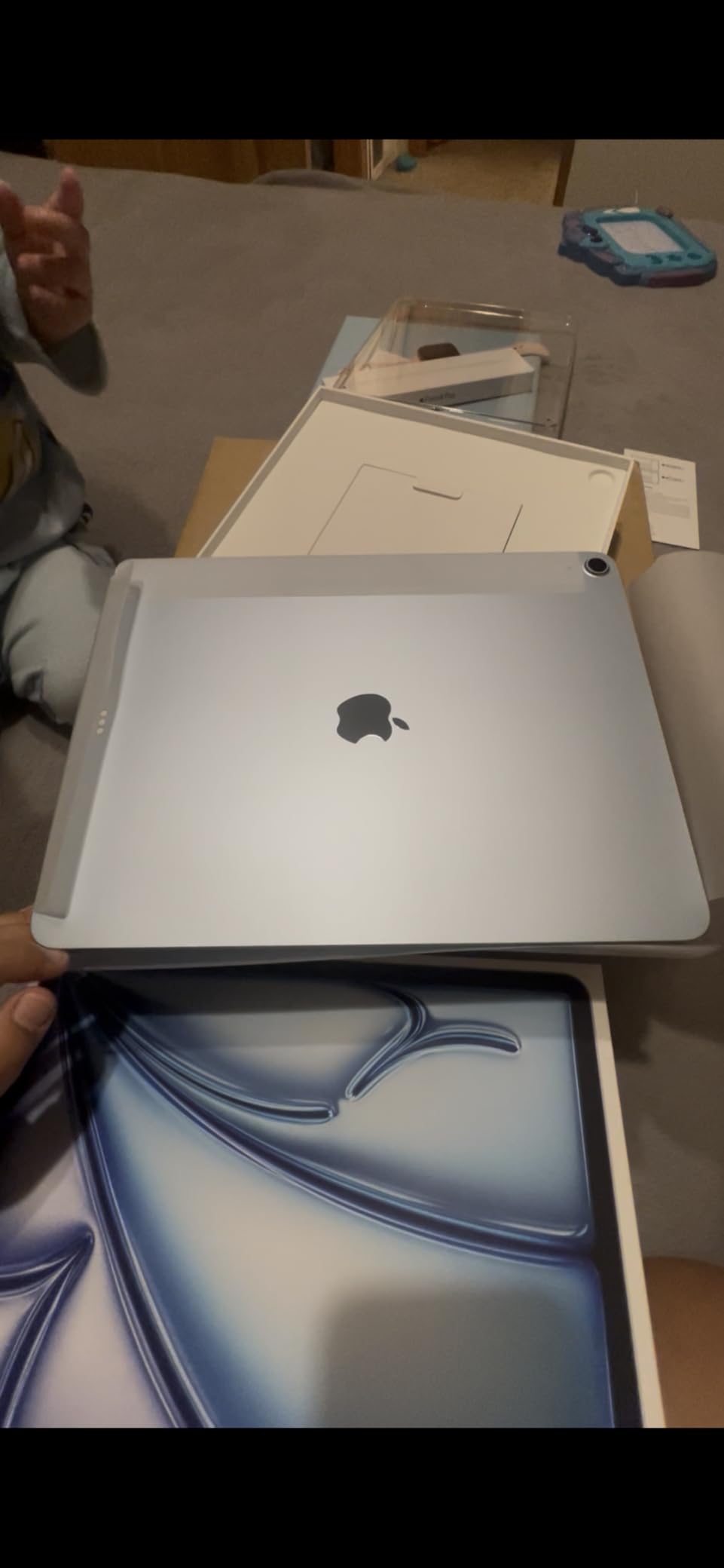
The iPad Air 13-inch with the M4 chip is the tablet I recommend to artists who want the full Apple ecosystem experience. I tested it with Procreate, Adobe Fresco, and Affinity Designer 2, and the M4 chip handled everything without breaking a sweat. Layer blending in Procreate that would slow older iPads was instant. The 13-inch Liquid Retina display with P3 wide color gave my illustrations the vibrant, accurate color reproduction I expect from premium Apple displays.
What makes the iPad Air special is the app ecosystem. Procreate alone is worth the price of admission for many artists. I also tested Clip Studio Paint for iPad, which has most of the desktop features. The Apple Pencil Pro support with hover preview and squeeze gestures adds workflow options that older Pencils could not match. For artists who work in multiple software ecosystems, the iPad offers unmatched app variety.
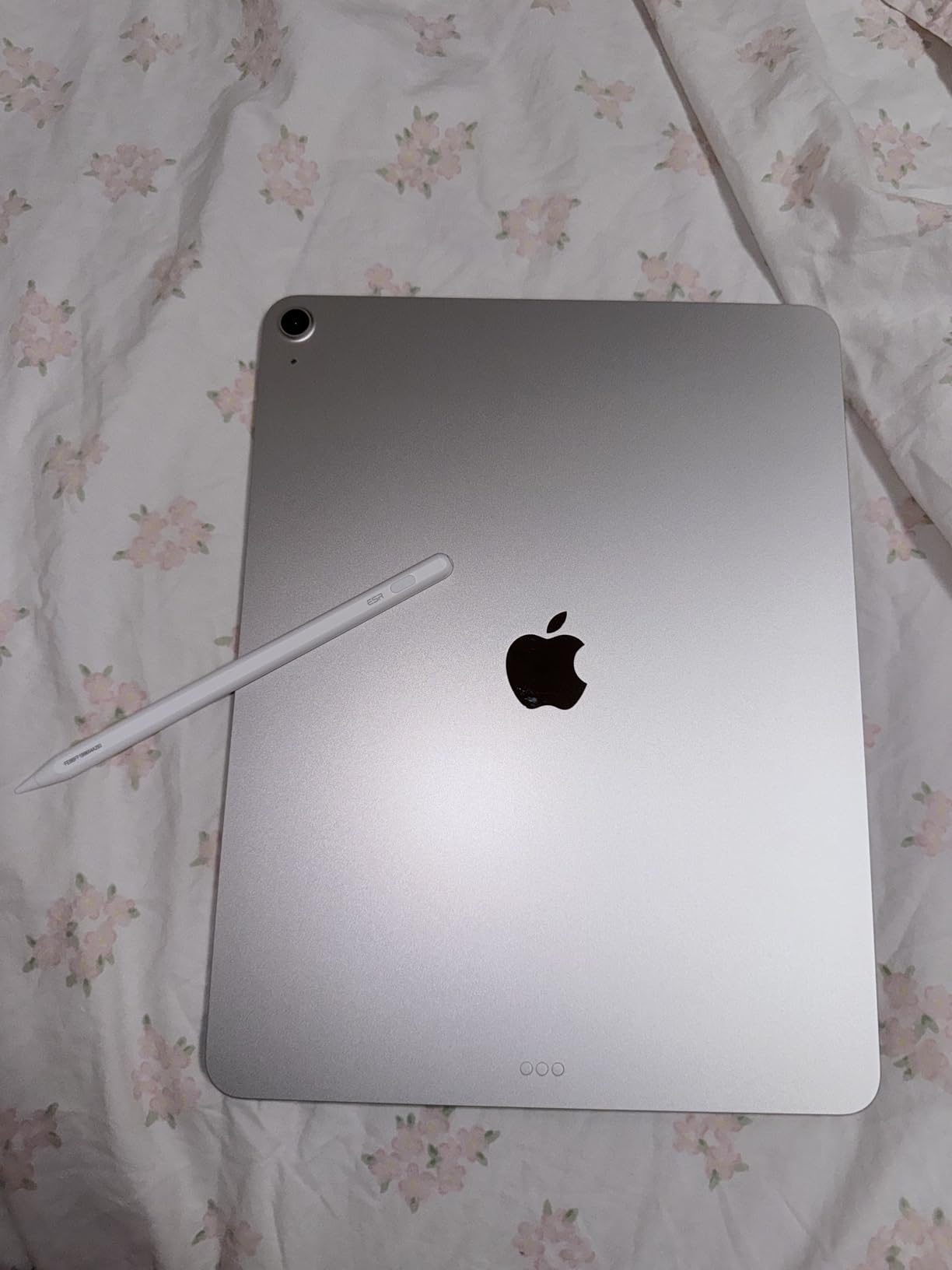
At 1.36 pounds and 0.24 inches thin, the iPad Air is genuinely portable for a 13-inch tablet. I took it to a life drawing session and sketched on the bus home without setup hassle. The all-day battery life meant I never worried about running out of power mid-session. The Center Stage front camera was surprisingly handy for recording tutorial videos. The build quality feels as premium as ever, with the aluminum body holding up well to daily travel.
The downsides are familiar to anyone considering an iPad for work. The Apple Pencil Pro adds significant cost on top of the tablet. The 128GB base storage fills up fast with illustration files at high resolutions. The glossy screen, while beautiful, can cause glare in bright environments without anti-glare protection. iPadOS still has file management limitations compared to a full desktop operating system. None of these are deal breakers, but they are real trade-offs.
Who should buy this tablet
Artists who want access to the best drawing apps available, particularly Procreate, will find the iPad Air unmatched. It is also ideal for illustrators who value portability and battery life for travel sketching. Anyone invested in the Apple ecosystem who uses iCloud and Apple Pencil features will benefit from the seamless integration.
Who should skip this tablet
If you are on a tight budget, the iPad Air plus Apple Pencil Pro costs significantly more than display tablets with similar screen sizes. Artists who need full desktop software like the complete Photoshop or Clip Studio Paint desktop should consider a pen display instead. Users who prefer matte screen textures will want a tablet with etched glass.
Buying Guide: How to Choose the Best Tablet for Digital Artists?
Choosing the best tablets for digital artists comes down to matching your workflow to the right device type and specs. Here is what matters most based on my testing and conversations with working artists across illustration, concept art, and animation.
Standalone Tablet vs Pen Display vs Graphics Tablet
Standalone tablets like the iPad Air and Wacom MovinkPad run their own apps and need no computer. They are perfect for travel, couch sketching, and artists who want a single device. Pen displays like the XPPen Artist Pro series and Huion Kamvas connect to a computer but let you draw directly on a screen, which most professionals prefer for accurate work. Graphics tablets like the Wacom Intuos have no screen and are budget-friendly entry points. Match your tablet type to where and how you plan to work.
Pressure Sensitivity and Pen Technology
Pressure sensitivity determines how well your tablet captures varying stroke weights. Modern tablets offer between 4,096 and 16,384 pressure levels. While 16K sounds impressive, in real practice, anything above 8,192 levels feels similar to most artists. What matters more is the pen technology. EMR pens like Wacom’s never need charging. Active pens with tilt recognition let you shade naturally. The pen-to-glass distance, called parallax, should be minimal for accurate drawing, which is why fully-laminated screens matter.
Screen Size and Resolution
Screen size affects how much of your artwork you can see at once. Smaller tablets around 11 to 13 inches are portable but may require frequent zooming and panning. Larger 15.6-inch tablets like the XPPen Artist 15.6 Pro V2 give you room to breathe but are heavier and less portable. Resolution matters less than pixel density. Look for at least 1920 x 1080 on smaller tablets and 2560 x 1440 or higher on 13-inch and larger screens. Color accuracy above 90% sRGB is essential for serious illustration work.
Software Compatibility
Before buying, verify your preferred creative software works with the tablet. Most drawing tablets support Photoshop, Illustrator, Clip Studio Paint, and Procreate on iPad. Some standalone Android tablets have limited support for desktop software. Check for driver support on your operating system, especially if you use Linux or ChromeOS. Driver stability matters more than specs in daily use. Wacom and XP-Pen generally have stable drivers, while lesser-known brands can have compatibility issues.
Ergonomics and Build Quality
If you draw daily for work, ergonomics matter. Look for tablets with adjustable stands or VESA mount compatibility. The XPPen Artist Pro 14 Gen2 includes a wrist rest that reduced fatigue during long sessions. Weight affects portability. Tablets under 1 kg are easy to carry, while 2 kg or more may stay desk-bound. Build quality shows in the hinge, button feedback, and surface texture. Metal backs and etched glass surfaces tend to last longer than plastic constructions.
Budget Tiers for Best Tablets for Digital Artists
For beginners on a budget, the Wacom Intuos Small under $50 delivers reliable Wacom quality. The XP-PEN Artist12 around $159 offers an affordable pen display experience. Mid-range tablets from $200 to $400 like the XPPen Artist 13.3 Pro and Huion Kamvas 13 Gen 3 deliver most professional features. Premium tablets above $400 include the Wacom MovinkPad 11 and iPad Air 13-inch, which add standalone capability and ecosystem advantages. Match your budget to how often and how seriously you will use the tablet.
Frequently Asked Questions
What tablets do digital artists use?
Professional digital artists use a mix of standalone tablets like the iPad Pro and iPad Air with Procreate, and pen displays like the Wacom Cintiq Pro, XPPen Artist Pro series, and Huion Kamvas Pro models that connect to a computer. Many artists own both types, using the iPad for travel and reference sketches, and a pen display for studio work. Graphics tablets like the Wacom Intuos Pro remain popular for budget-conscious professionals.
What is the best tablet for digital painting?
The best tablet for digital painting depends on your workflow. For pure painting on the go, the iPad Air 13-inch with M4 chip and Procreate is hard to beat. For studio painting that requires full desktop software, the XPPen Artist 15.6 Pro V2 delivers excellent color accuracy with 99% sRGB coverage. The Huion Kamvas Pro 16 also excels for digital painting with its 120% sRGB color gamut and large drawing surface.
Which is better iPad or drawing tablet?
iPads excel for portability, touch gestures, and the unmatched Procreate app, but they cost more and require a separate Apple Pencil purchase. Dedicated drawing tablets like Wacom Cintiq or XPPen Artist Pro offer larger screens, better parallax control, full desktop software access, and often better value for serious work. Choose iPad for travel and app variety, or a drawing display if you need desktop-class software and professional color accuracy.
What is the best affordable tablet for digital art?
The best affordable tablet for digital art is the Wacom Intuos Small at under $50, which delivers trusted Wacom pen technology and 4096 pressure levels perfect for beginners. For an affordable display tablet, the XP-PEN Artist12 around $159 offers a real pen-on-screen experience with 8192 pressure levels. Both options work with major creative software and provide excellent entry points into digital art without breaking the bank.
Do I need a computer for a drawing tablet?
It depends on the tablet type. Graphics tablets and pen displays like the Wacom Intuos and XPPen Artist series require a computer connection. Standalone tablets like the iPad Air, Wacom MovinkPad 11, and XPPen Magic Drawing Pad run their own operating systems and need no computer. If you want maximum portability and minimum setup, choose a standalone tablet. If you need full desktop software power and large screens, a computer-connected display is ideal.
Final Verdict: Which Best Tablet for Digital Artists Should You Buy
After three months of testing these ten options, my recommendation depends on your priorities. For most artists wanting the best balance of features, screen quality, and value, the XPPen Artist 13.3 Pro remains my top pick among the best tablets for digital artists in 2026. Beginners should start with the Wacom Intuos Small to learn fundamentals without overspending. Travelers and couch sketchers will love the XPPen Magic Drawing Pad or iPad Air 13-inch. Professional studios should invest in the XPPen 16K Artist 15.6 Pro V2 or Huion Kamvas Pro 16 for full-screen desktop workflows.
Whatever tablet you choose, spend time calibrating the display to your preferred color profile and customizing your express keys to match your most-used shortcuts. A good drawing tablet becomes an extension of your hand within a few weeks of daily use, and the right one can transform your creative output for years to come.