
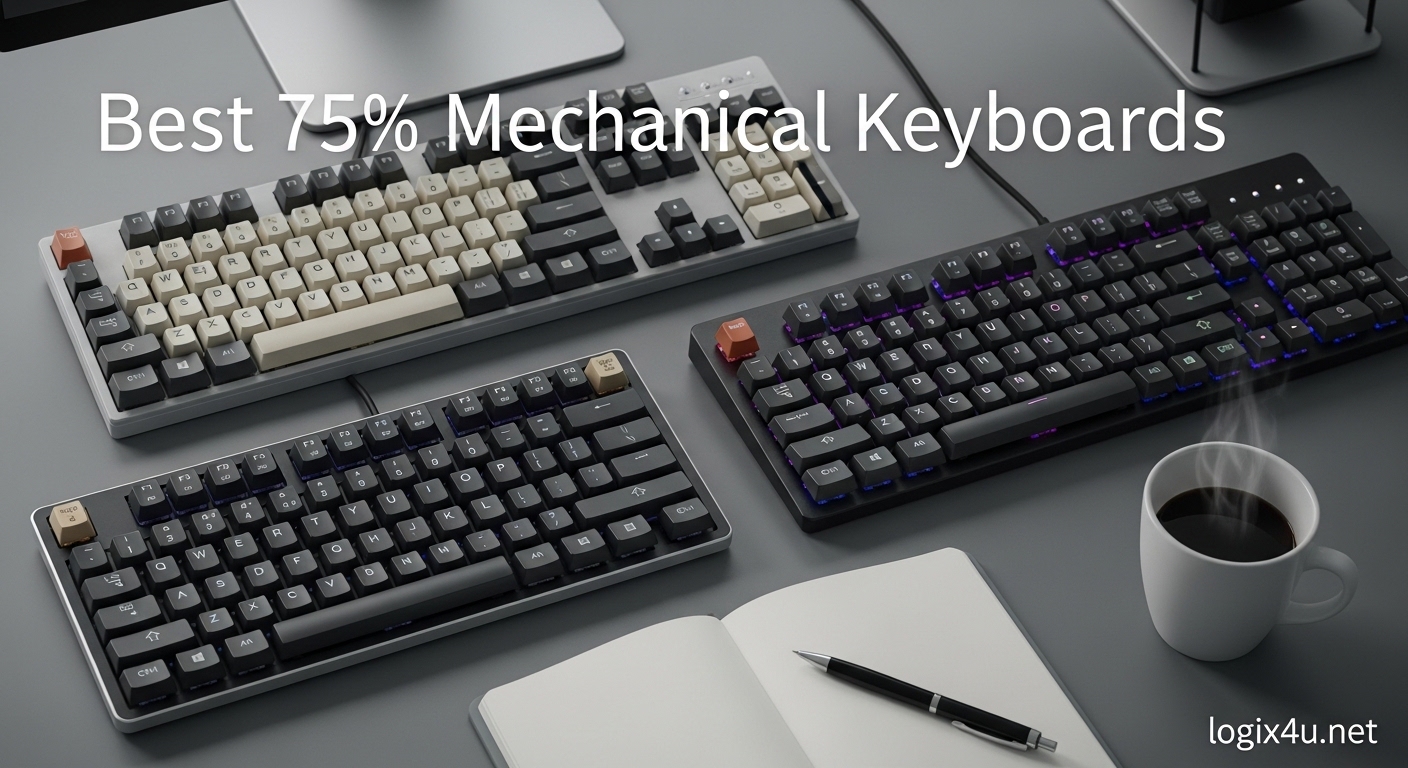
Finding the right keyboard can transform your coding experience from a daily grind into something you actually look forward to. After spending 8-10 hours a day typing code, the difference between a mediocre membrane keyboard and a proper mechanical one becomes impossible to ignore.
The 75% layout hits a sweet spot that many developers miss. You keep the function row for those F5 debug refreshes and IDE shortcuts. The arrow keys stay exactly where muscle memory expects them. The navigation cluster remains intact. But you shed the number pad that most programmers rarely touch, reclaiming precious desk real estate for your mouse and keeping your hands closer together for better ergonomics.
I have tested dozens of 75% mechanical keyboards over the past three months, running them through real development workflows across multiple operating systems. The list below represents the absolute best options for developers in 2026, ranging from budget-friendly workhorses to premium typing experiences that cost less than you might expect.
Top 3 Picks for Best 75% Mechanical Keyboards(August 2026)
Before diving into detailed reviews, here are my top three recommendations based on different priorities and budgets. Each excels in specific scenarios that matter to developers.

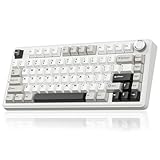
EPOMAKER x Aula F75
- Gasket mount with 5-layer padding
- Tri-mode connectivity
- Factory-lubed switches
- 4000mAh battery

AULA F75 Pro
- Pre-lubed Reaper switches
- Side-printed PBT keycaps
- Tri-mode wireless
- Volume knob control

DIERYA DK81E
- 6-layer sound dampening
- Browser-based driver
- Hot-swappable PCB
- Under $40 price
The EPOMAKER x Aula F75 takes the top spot because it delivers premium features that matter to developers: gasket mounting for comfortable long typing sessions, tri-mode connectivity for multi-device workflows, and exceptional build quality at a mid-range price point. The AULA F75 Pro offers similar performance with some aesthetic differences. For those starting their mechanical keyboard journey, the DIERYA DK81E proves you do not need to spend much to get a satisfying typing experience.
75% Mechanical Keyboards for Developers in 2026
Here is a complete overview of all twelve keyboards covered in this guide. Use this table to quickly compare key specifications and find the model that fits your specific needs.
| Product | Specifications | Action |
|---|---|---|
| EPOMAKER x Aula F75 |
|
Check Latest Price |
| AULA F75 Pro |
|
Check Latest Price |
| DIERYA DK81E |
|
Check Latest Price |
 EPOMAKER F75 MAX EPOMAKER F75 MAX |
|
Check Latest Price |
 AULA S75 PRO AULA S75 PRO |
|
Check Latest Price |
 YUNZII C75 YUNZII C75 |
|
Check Latest Price |
 Womier SK80 Womier SK80 |
|
Check Latest Price |
 RK R75 RK R75 |
|
Check Latest Price |
 Redragon K673 PRO Redragon K673 PRO |
|
Check Latest Price |
 Keychron K2 Keychron K2 |
|
Check Latest Price |
 SOLAKAKA A75 SOLAKAKA A75 |
|
Check Latest Price |
 Newmen GM326 Newmen GM326 |
|
Check Latest Price |
1. EPOMAKER x Aula F75 – Gasket Mount Excellence
- Creamy satisfying typing sound
- Excellent build quality
- Tri-mode wireless versatility
- Factory-lubed switches out of box
- Great value under $100
- Plastic construction feels less premium
- Software not fully Mac compatible
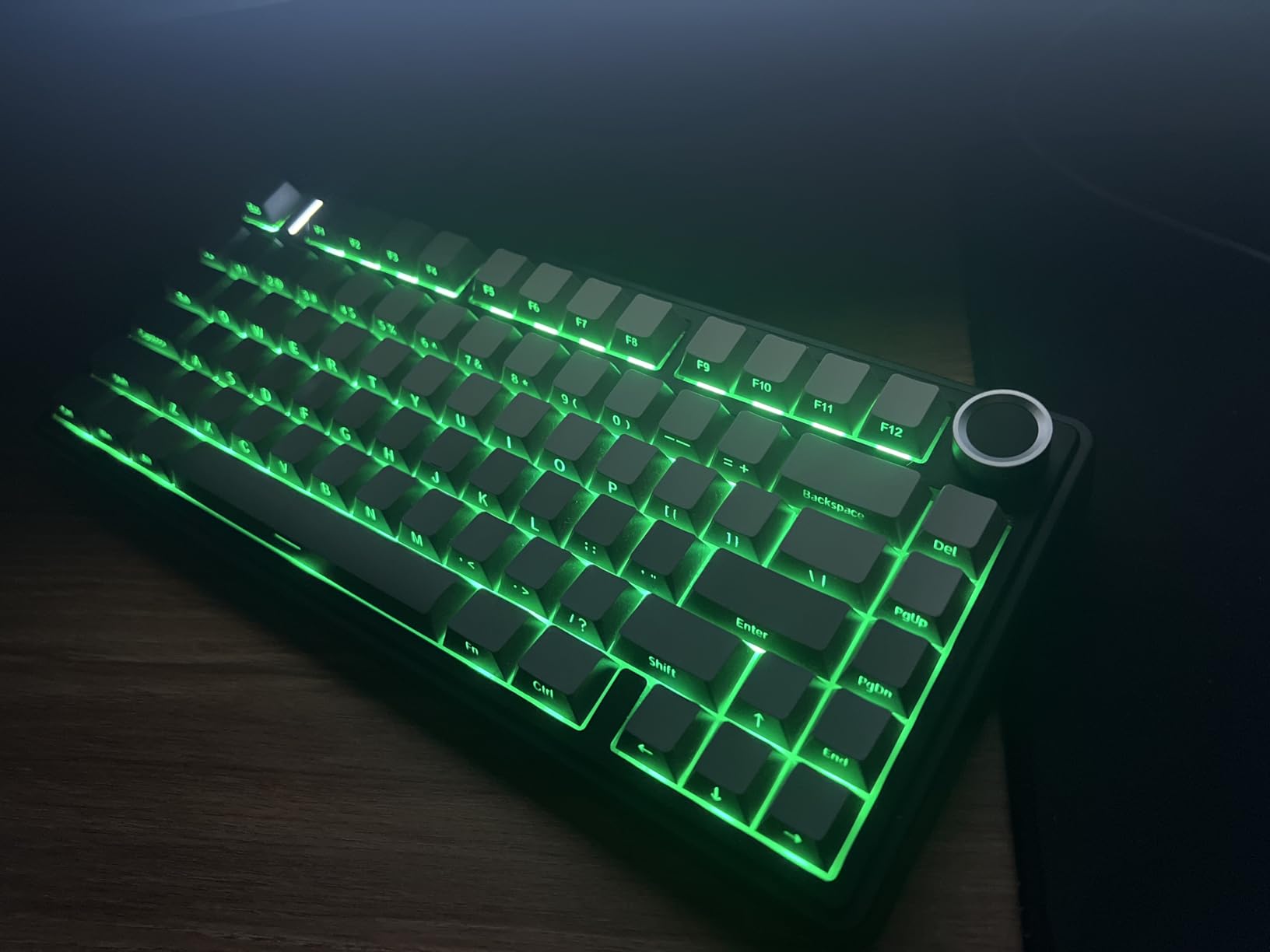
I have been using the EPOMAKER x Aula F75 as my daily driver for six weeks now, and it has fundamentally changed how I think about budget mechanical keyboards. The gasket mount structure creates a typing experience that feels almost bouncy without being mushy. Every keystroke produces this satisfying creamy sound that makes long coding sessions genuinely enjoyable.
The five-layer internal padding deserves special mention. You get Poron foam, IXPE switch pad, PET sound enhancement pad, and bottom silicone dampening. This combination eliminates the harsh bottom-out sound that plagues cheaper keyboards. When I am working late at night, my partner appreciates the muted thock instead of sharp clicks.
Connectivity flexibility matters when you switch between your work MacBook and personal Windows desktop. The tri-mode setup handles Bluetooth 5.0, 2.4GHz wireless, and USB-C wired connections seamlessly. Pairing with up to five devices means I can jump from laptop to desktop to tablet without reaching for cables.
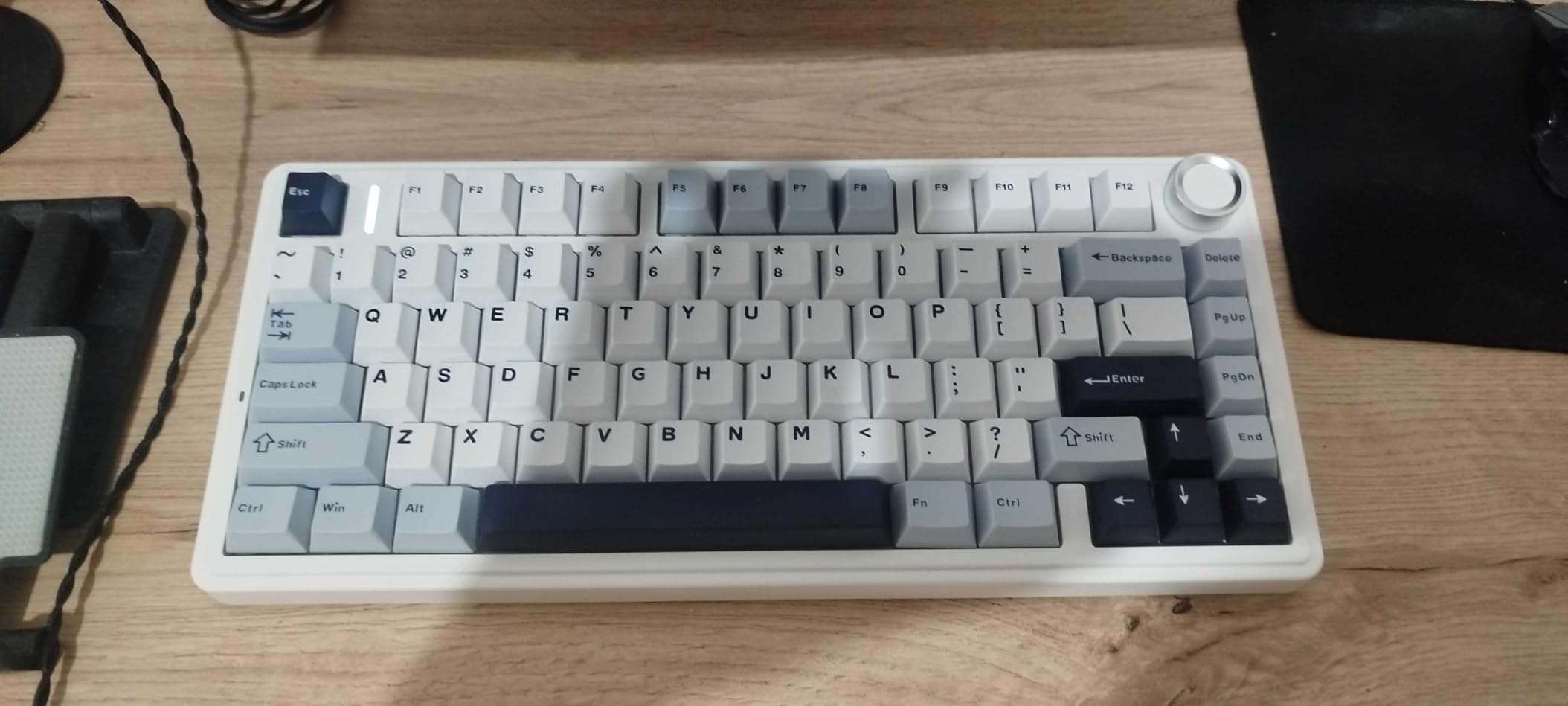
From a developer perspective, the factory-lubed switches are a blessing. LEOBOG Reaper switches come pre-lubed from the factory, eliminating the need for disassembly and manual lubrication. They feel smooth with a pleasant tactile bump that provides feedback without fatigue during marathon coding sessions.
Programming the function layer took some trial and error. The software works well on Windows but has limitations on macOS. I eventually set up my custom shortcuts on a Windows machine and the settings carried over when switching to Mac via Bluetooth. The volume knob doubles as a mute button with a press, which I use constantly during video calls.
Best Workflow Match
This keyboard shines for developers who work across multiple devices and operating systems. The tri-mode connectivity eliminates the friction of switching between machines. The gasket mount reduces finger fatigue during those 10-hour debugging sessions. If you value sound profile and typing feel over aluminum construction, this is your ideal match.
Potential Deal Breakers
Mac-only developers might find the software limitations frustrating. While basic functions work perfectly on macOS, advanced customization requires Windows access. The plastic case, while sturdy, does not provide the heft some users associate with premium keyboards. If you prefer a heavier, more substantial feel, consider an aluminum option further down the list.
2. AULA F75 Pro – Premium Features Under $70
- Premium build with solid weight
- Satisfying thocky sound
- Beautiful RGB customization
- Hot-swappable base
- Long battery life
- Driver software has mixed reviews
- Price fluctuates frequently
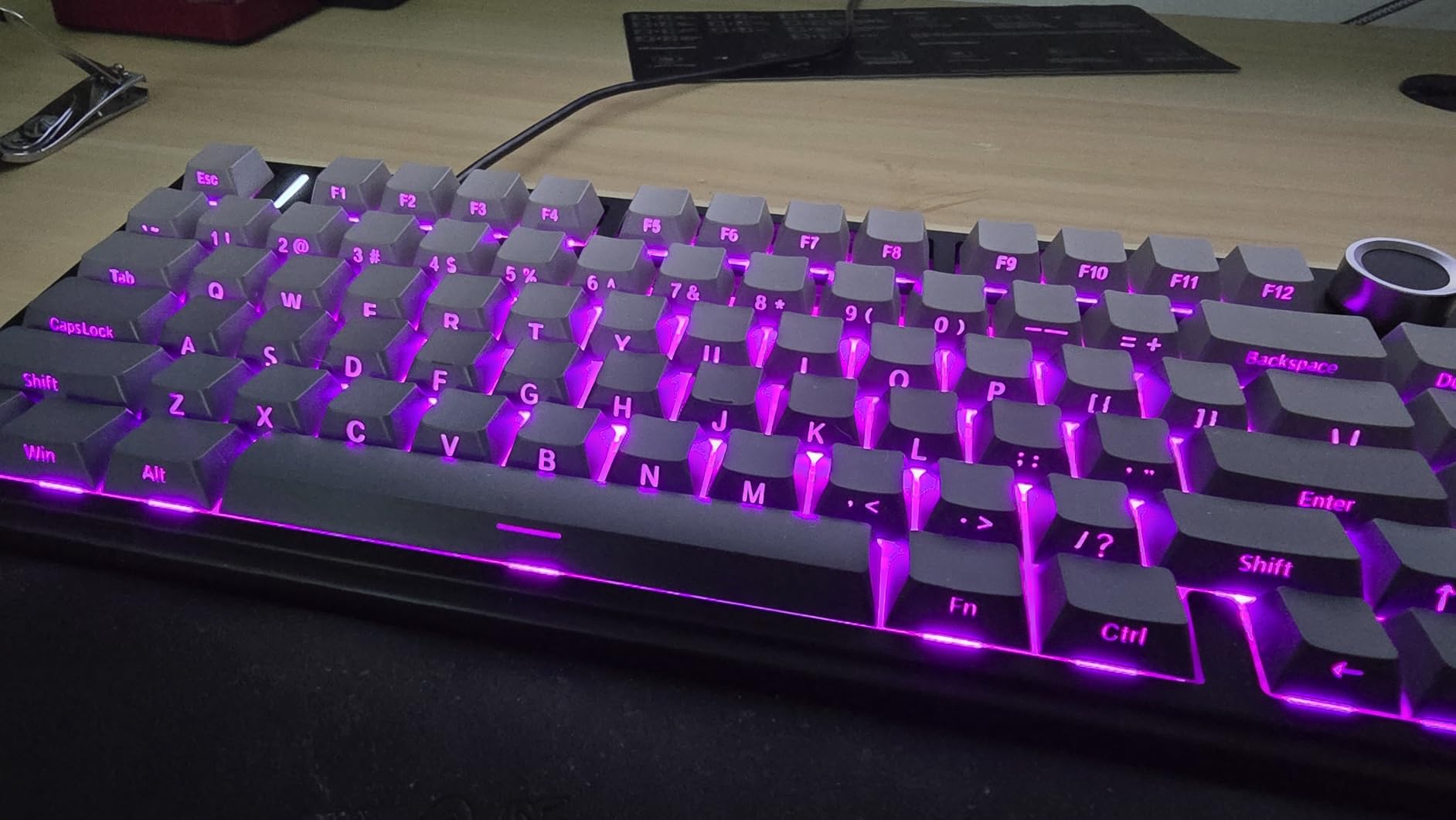
The AULA F75 Pro arrived at my desk with surprising heft for a plastic-bodied keyboard. At just over two pounds, it stays planted during intense typing sessions. The side-printed PBT keycaps immediately caught my attention. They look clean from above while keeping legends visible at typing angle, and they resist the shine that develops on cheaper ABS caps after months of use.
RGB implementation on this board goes beyond basic backlighting. The 16.8 million color options include 16 pre-set effects plus music rhythm synchronization. I found myself keeping it on a subtle breathing pattern during work hours and switching to reactive wave effects when showing off the setup to colleagues.
The LEOBOG Reaper switches deserve their reputation. These linear switches offer 45g actuation force with a smooth travel that requires minimal finger pressure. After a full day of typing, my fingers feel less strained compared to heavier switches I have used previously. The pre-lubed stabilizers keep the spacebar and modifier keys from rattling, a common issue in this price range.
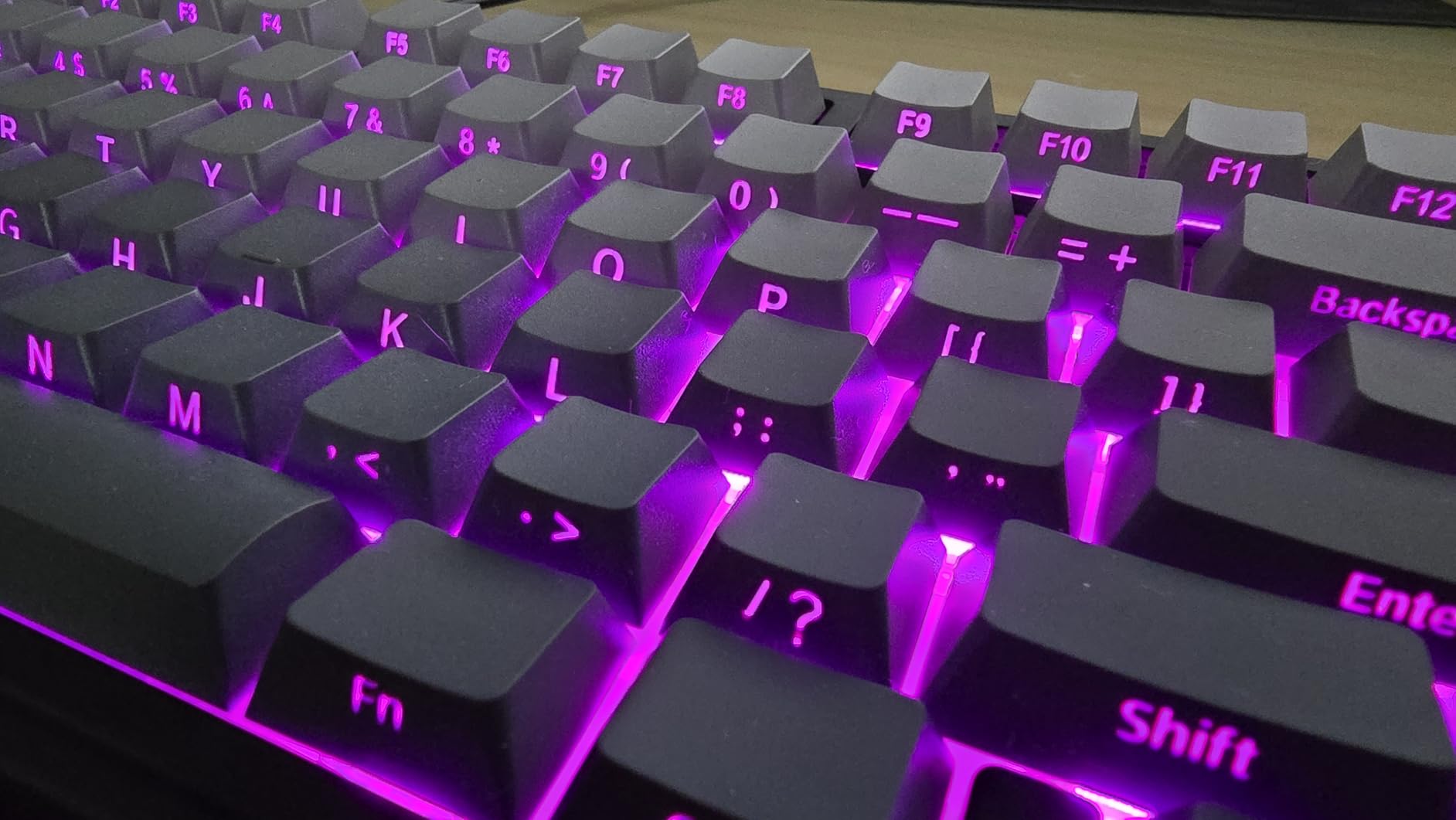
Wireless performance impressed me during testing. The 2.4GHz mode delivers minimal latency suitable for gaming, though most developers will appreciate it for the clean desk aesthetic. Bluetooth 5.0 connectivity handles three devices with quick switching via key combinations. The 4000mAh battery lasted my typical work week with RGB enabled at medium brightness.
The hot-swap sockets accept both 3-pin and 5-pin switches, future-proofing your investment. When I wanted to experiment with different switch types, I simply pulled the Reapers and popped in some tactile switches without soldering. This flexibility matters when you are still discovering your switch preferences.
Best Workflow Match
Developers who value aesthetics alongside functionality will appreciate the F75 Pro. The side-printed caps and RGB effects create a distinctive desk presence. The long battery life suits those who dislike cable clutter. If you are building your ideal developer setup on a reasonable budget, this keyboard delivers premium visual appeal without the premium price tag.
Potential Deal Breakers
The driver software requires patience. Several attempts to customize lighting patterns resulted in crashes before I found a stable version. Basic functions work without the software, but deep customization becomes frustrating. If you rely heavily on macro programming and complex lighting layers, you might prefer a keyboard with more mature software support.
3. DIERYA DK81E – Budget Champion with Premium Sound
- Exceptional value under $40
- 6-layer foam dampening
- Creamy out-of-box sound
- No software installation needed
- Quality keycaps
- Stabilizers may need additional lubing
- Spacebar can be loud
- Windows sleep function issues
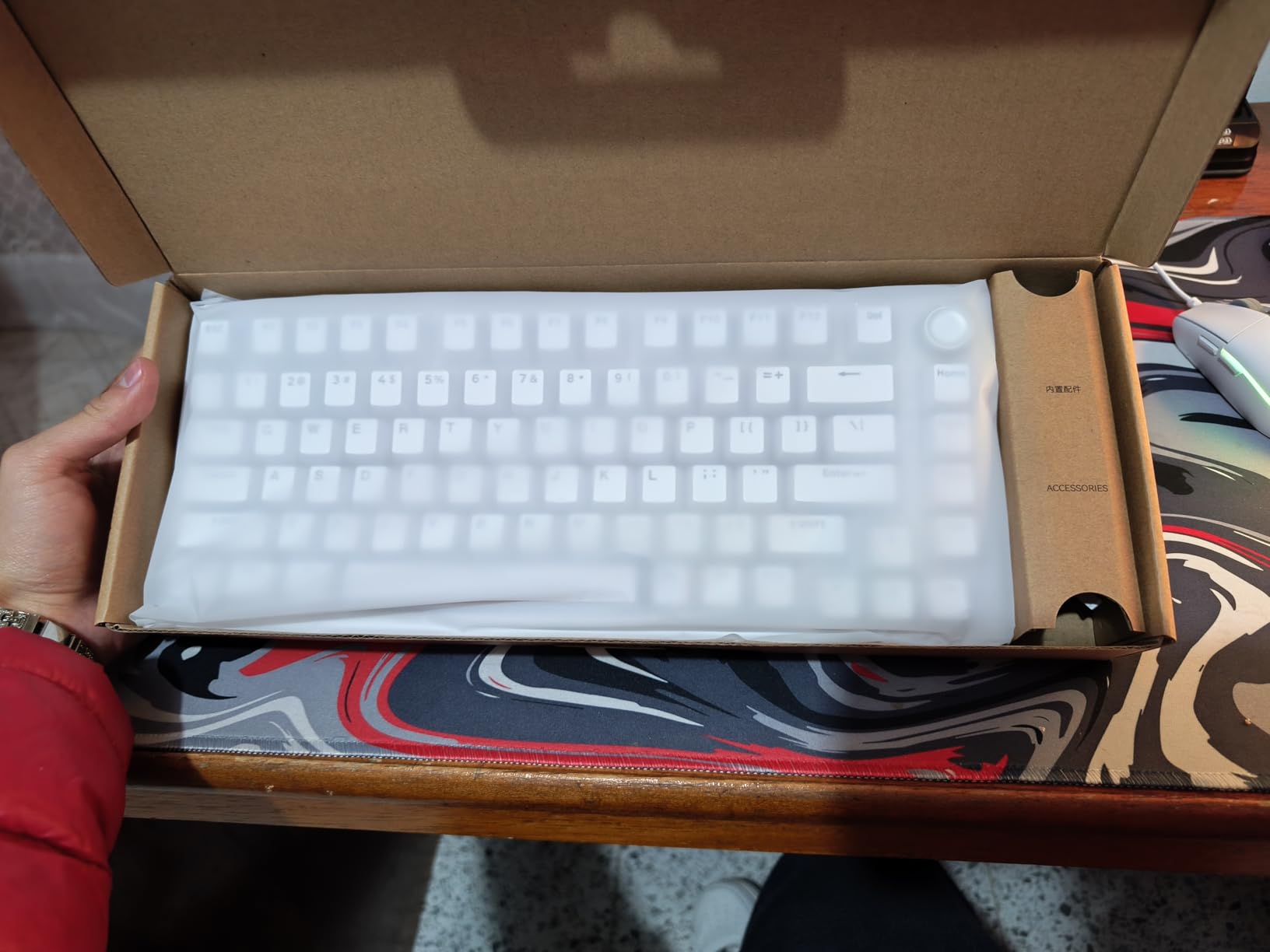
I approached the DIERYA DK81E with skepticism given its price point. Keyboards under $40 typically cut corners that make them unpleasant for serious work. This board shattered those expectations. The six layers of sound-absorbing foam create a typing profile that rivals boards costing three times as much.
The gasket mount structure provides noticeable flex without feeling unstable. Each keystroke produces a deep, satisfying thock that makes typing documentation almost enjoyable. The pre-lubed JI XIAN switches feel consistent across all keys, with a 50 million keystroke rating that suggests longevity despite the budget price.
The browser-based configuration tool represents the future of keyboard software. No installation required, no background processes consuming RAM, no Windows-only compatibility issues. I opened the web driver in Chrome, configured my shortcuts, and the settings saved directly to the keyboard memory. This approach works on any operating system with a modern browser.
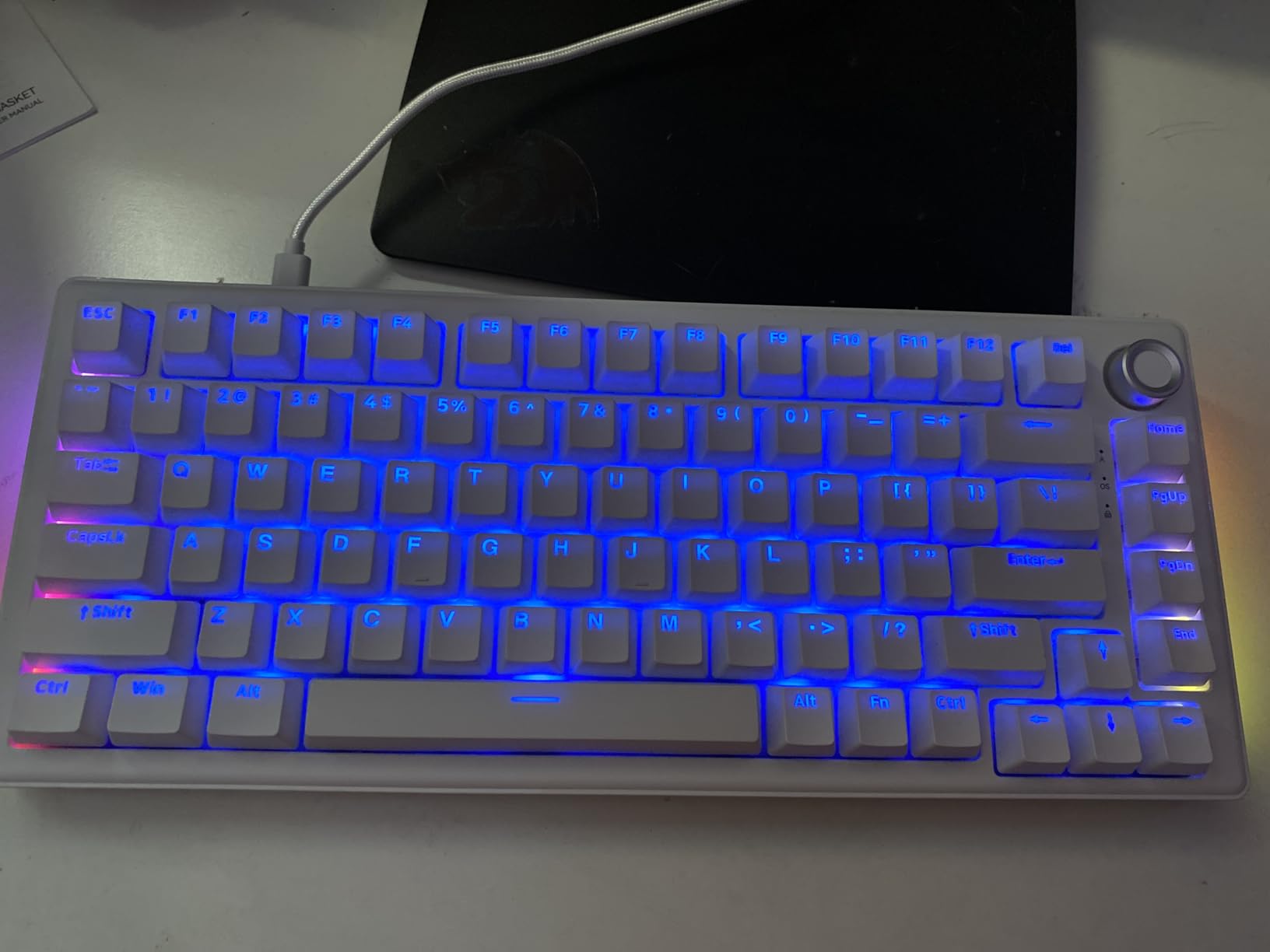
Double-shot injection molded keycaps provide durability rare at this price point. The legends will not wear off after months of heavy use. The stepped keycap profile creates a natural typing angle that reduces wrist strain during extended sessions.
The volume knob integrates seamlessly into daily workflows. A twist adjusts volume, a press mutes audio. The RGB implementation includes 15 preset effects that look surprisingly smooth given the price. The 1000Hz polling rate keeps input lag imperceptible even during rapid coding sessions.
Best Workflow Match
This keyboard serves developers perfectly as a first mechanical keyboard or a backup for travel. The browser-based driver eliminates cross-platform headaches. The sound profile satisfies even enthusiasts who typically demand premium builds. If you are curious about mechanical keyboards but hesitant to spend significantly, the DK81E removes all barriers to entry.
Potential Deal Breakers
The stabilizers under the spacebar and larger keys benefit from additional lubrication. Some units ship with a slightly rattly spacebar that bothers sensitive ears. The Windows sleep functionality occasionally causes reconnection delays. If you need absolute reliability for mission-critical work without any tweaks, spending slightly more might provide peace of mind.
4. EPOMAKER X Aula F75 MAX – Smart Display Innovation
- Customizable TFT screen with GIF support
- Creamy satisfying sound
- Great value around $70
- Easy RGB without software
- Premium build quality
- Software issues reported
- Knob sensitivity needs adjustment
- Lacks dedicated Home key
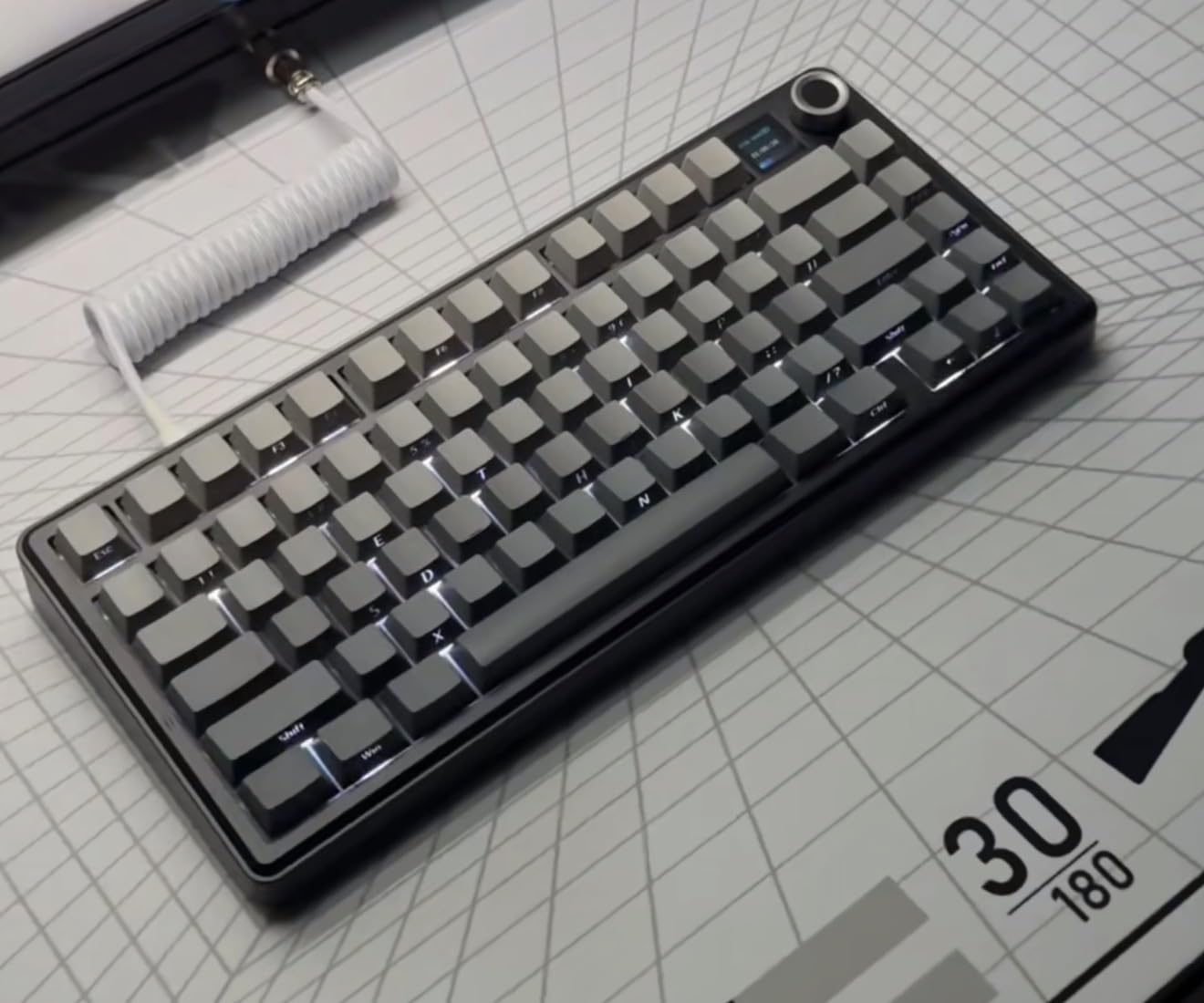
The F75 MAX distinguishes itself with a TFT display that adds personality to your desk. This small screen shows battery levels, time, date, and can display custom GIFs. I loaded a simple animation that loops during idle moments, creating a conversation piece that makes my workspace feel more personal.
Behind the gimmick lies serious hardware. The gasket-mount structure with flex-cut PC plate delivers typing comfort that sustains through long coding sessions. Factory-lubed linear switches provide smooth actuation without the scratchiness that budget keyboards often exhibit. The five-layer foam and silicone dampening keep noise levels neighbor-friendly.
The 1000Hz polling rate matches gaming keyboard specifications, though most developers will not notice the difference from standard 125Hz. The real benefit appears in the perceived responsiveness during rapid typing. The keyboard keeps up with my fastest coding bursts without dropping inputs.
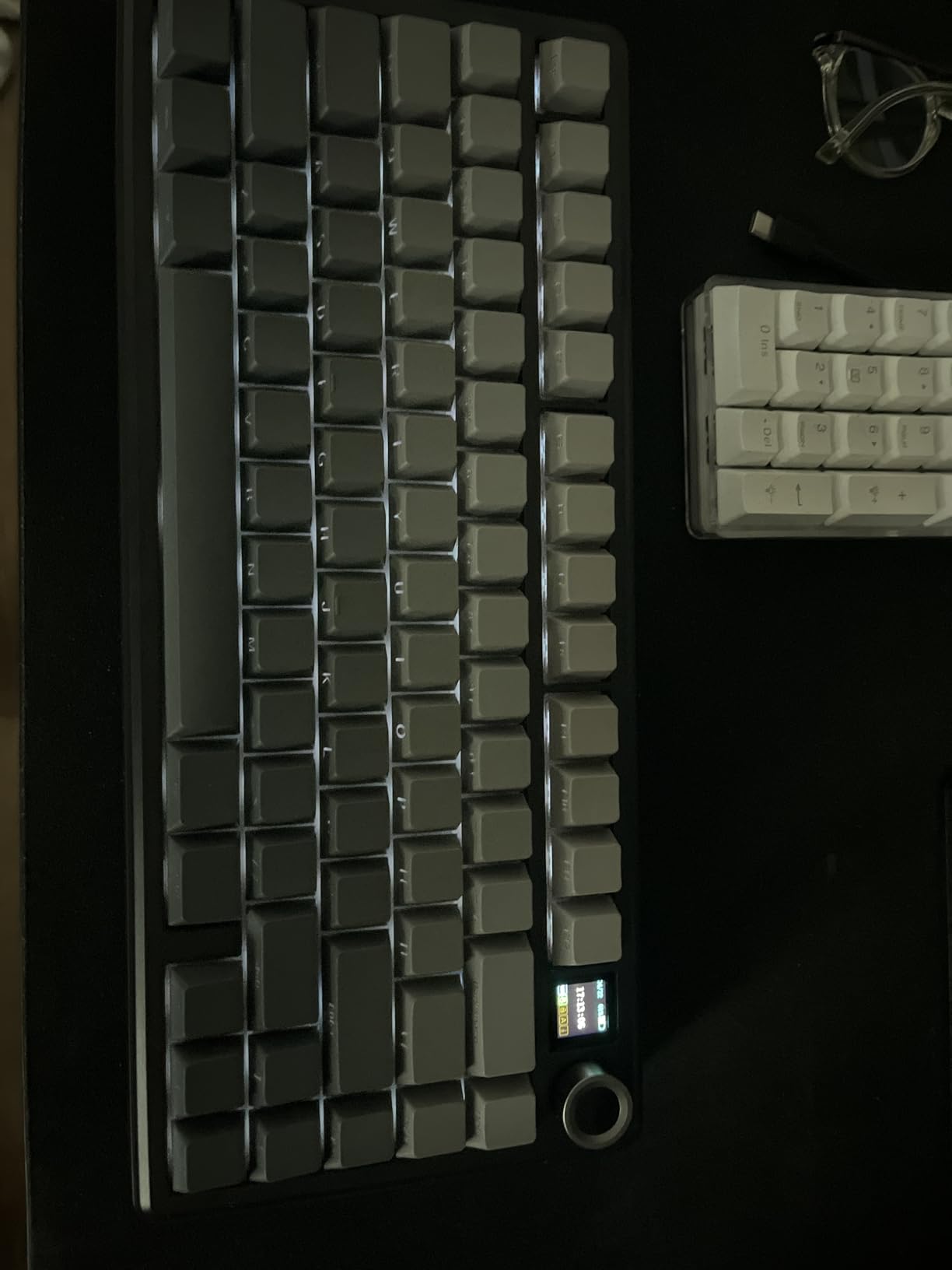
South-facing per-key LEDs illuminate the Cherry profile keycaps evenly. This orientation prevents interference with Cherry or OEM profile keycaps you might install later. The RGB effects look particularly good through the PBT keycaps, maintaining readability while providing ambient lighting.
The tri-mode connectivity handles Bluetooth 5.0, 2.4GHz, and USB-C with stable performance across all three. Switching between my MacBook Pro and Windows desktop takes seconds using the function key combinations. The 4000mAh battery supports multi-day wireless use even with the display active.
Best Workflow Match
Developers who appreciate personalization and want a keyboard that reflects their personality will love the F75 MAX. The display customization allows you to show team logos, coding memes, or system information. The excellent typing feel ensures you are not sacrificing function for form. It suits developers who want their workspace to spark joy.
Potential Deal Breakers
The software experience frustrates some users. The TFT screen customization requires specific Windows software that can be finicky. The volume knob sensitivity occasionally causes accidental adjustments. The missing dedicated Home key requires using a function layer combination. If you rely heavily on Home/End navigation, you will need to adapt your muscle memory.
5. AULA S75 PRO – Screen-Equipped Productivity Tool
- Customizable LCD screen
- Multi-device connectivity up to 5
- Excellent thocky sound quality
- Premium PBT keycaps
- Great battery life with RGB
- Screen setup requires Windows software
- Stock switches may be too light
- No number lock indicator
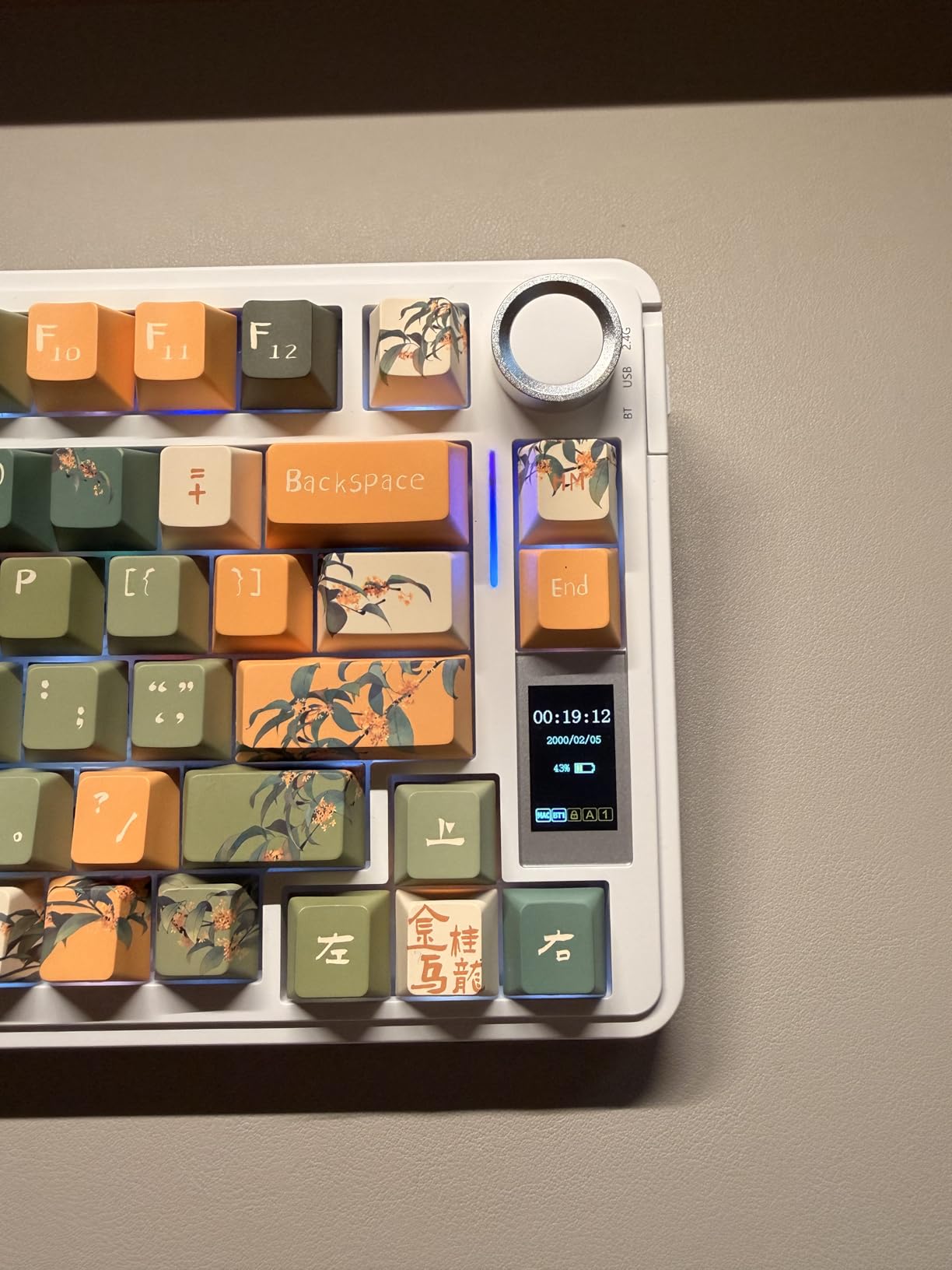
The AULA S75 PRO represents the evolution of the F75 series, adding a functional LCD screen that serves practical purposes beyond aesthetics. I use mine to display current time, battery percentage, and active connection mode. The screen eliminates the guessing game of whether your keyboard needs charging or which device it is currently paired with.
The typing experience maintains the creamy, thocky character that made the original F75 popular. South-facing LEDs illuminate the side-printed keycap legends perfectly, creating a floating effect that looks premium. The five-layer silencer structure eliminates case ping and hollow sounds that plague lesser keyboards.
The multi-function knob handles volume, lighting effects, and brightness without requiring software. A twist adjusts levels, clicks confirm selections. This hardware-based control works regardless of which device you are connected to or which operating system you are running. The physical interaction feels more satisfying than software sliders.
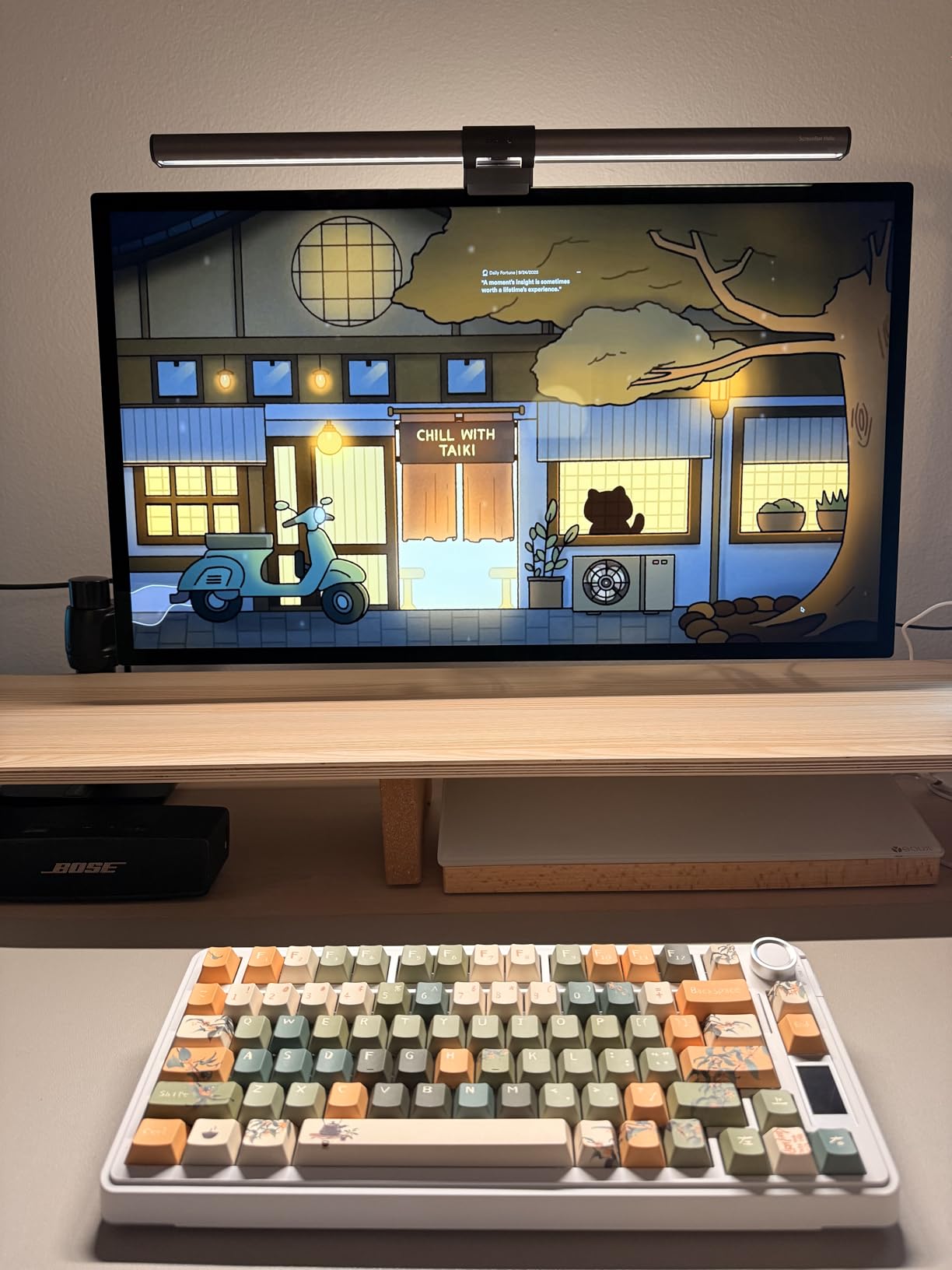
Connecting up to five devices simultaneously sounds excessive until you actually use it. I have my S75 PRO paired with my work laptop, personal desktop, tablet, phone, and TV. Switching between them takes a single key combination. For developers who work across multiple devices throughout the day, this flexibility eliminates friction.
The included extra switches and keycap puller show attention to detail. When I wanted to swap the stock linear switches for something more tactile, I had spare switches ready without additional purchases. The PBT keycaps use double-injection molding with heat sublimation for durability that will outlast the switches themselves.
Best Workflow Match
This keyboard serves developers who maintain multiple machines and want quick visual status information. The screen eliminates the need to guess battery levels or active connections. The five-device pairing handles complex workflows involving work laptops, personal machines, tablets, and test devices. If you value information at a glance, the S75 PRO delivers.
Potential Deal Breakers
Setting up the screen requires Windows software in wired mode. Mac and Linux users need access to a Windows machine for initial configuration. The stock switches feel lighter than typical mechanical switches, which some users mistake for mushiness. The lack of a number lock indicator despite having the key can confuse users who accidentally trigger it.
6. YUNZII C75 – Power User’s Dream
- Exceptional 5500mAh battery life
- Creamy thocky typing sound
- Multi-device support
- Hot-swappable PCB
- Adorable aesthetic options
- Learning curve for customization
- FN key customization issues
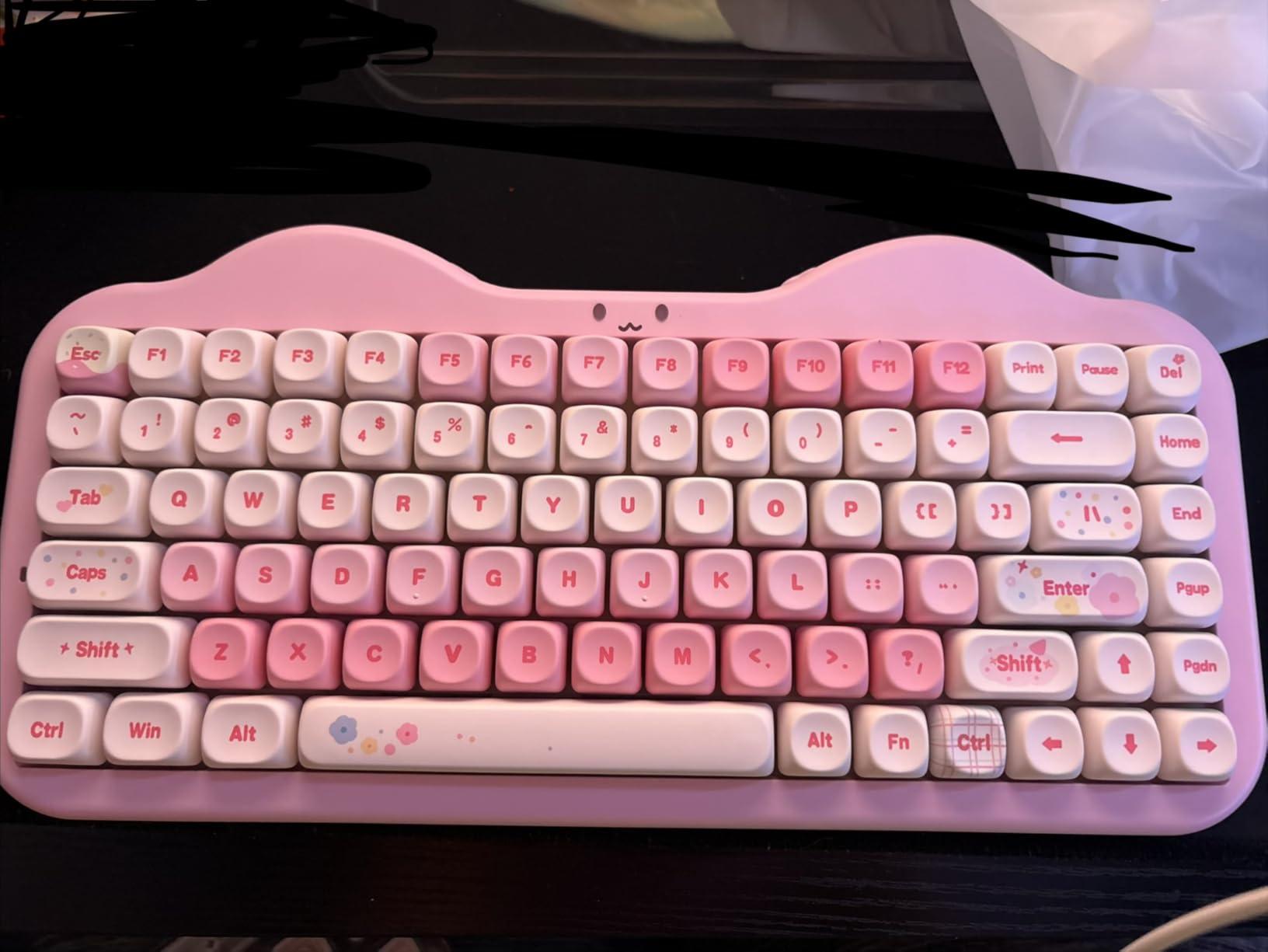
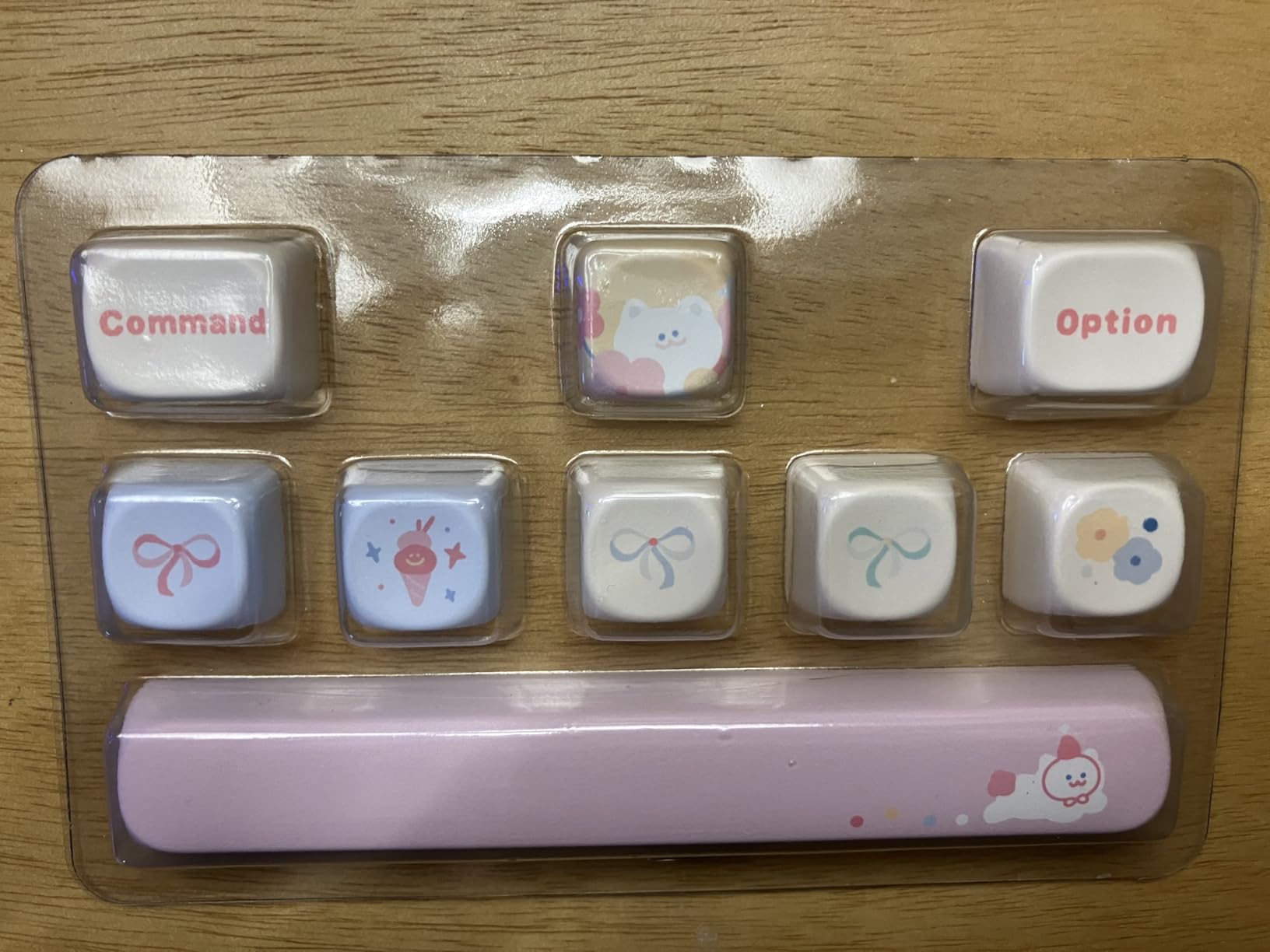
The YUNZII C75 immediately stands out with its distinctive cake-inspired design. The rounded keycaps and pastel colorways create a desk presence that breaks the monotony of black and gray tech. Do not let the cute appearance fool you. This keyboard packs serious performance under its charming exterior.
The 5500mAh battery dwarfs most competitors. I went two full work weeks without plugging in, using the keyboard 8+ hours daily with RGB at medium brightness. For developers who travel or work from coffee shops, this battery life eliminates range anxiety and cable hunting.
Sound profile represents the pinnacle of the gasket mount design. Multiple layers of sound-absorbing materials create a deep, satisfying thock that makes every keystroke feel deliberate and premium. The pre-lubed Candy linear switches provide smooth travel with minimal wobble. This is the keyboard I reach for when I want the most pleasant typing experience possible.
Supporting up to five Bluetooth devices plus 2.4GHz and wired connections provides unparalleled flexibility. I have mine paired with my main workstation, laptop, tablet, phone, and living room PC. The switching process takes seconds, making multi-device workflows seamless.
The dye-sub PBT MOA keycaps use a spherical profile that cradles fingertips differently from standard cylindrical caps. The learning curve lasts a day or two, after which the typing feel becomes addictive. The 3-zone RGB illumination provides enough customization without overwhelming the design.
Best Workflow Match
Developers who prioritize battery life and typing pleasure above all else will adore the C75. The extended wireless freedom suits nomadic workers and those who dislike cable clutter. The exceptional sound profile makes long documentation sessions less tedious. If you want a keyboard that brings genuine joy to your workspace, this is the one.
Potential Deal Breakers
The customization software has a steeper learning curve than competitors. Programming function layers and macros requires patience. Some users report FN key customization limitations that affect specific workflows. The distinctive aesthetic does not suit conservative office environments. If you need a keyboard that blends into corporate settings, the colorful design might draw unwanted attention.
7. Womier SK80 – Artistic Expression Meets Function
- Stunning Kanagawa art design
- Innovative color display screen
- Amazing out-of-box typing sound
- Plug-and-play simplicity
- Great value for money
- Linux F-key workarounds needed
- Complex initial setup for some
The Womier SK80 treats your keyboard as a canvas. The Kanagawa theme recreates the famous Japanese woodblock print across your keycaps, transforming a functional tool into desk art. The 11-degree tilted color display adds a unique visual element that shows system information or custom animations.
Beyond aesthetics, the SK80 delivers where it counts. The gasket mount design with EVA positioning plate creates a soft, responsive typing feel that reduces finger fatigue. The pre-lubed linear switches with south-facing transparent light diffusers provide smooth actuation with consistent lighting across all keys.
The out-of-box experience impressed me immediately. No software required for basic RGB control. Nineteen lighting effects with nine colors are accessible directly via key combinations. Brightness and flow rate adjustments work hardware-side, maintaining your preferences across different computers.
The detachable USB-C cable allows for customization if you want coiled or colored cables to match your setup. The metal enclosure provides rigidity that plastic cases lack, giving the keyboard substantial heft that stays planted during intense typing.
Linux users should note that F-key functionality may require workarounds depending on your distribution. The keyboard works perfectly for typing, but function layer programming might need terminal-based configuration rather than GUI tools.
Best Workflow Match
Creative developers and those who view their workspace as a personal expression will love the SK80. The artistic design sparks creativity during difficult debugging sessions. The excellent out-of-box experience suits users who want premium feel without technical tinkering. If your desk setup doubles as Instagram content, this keyboard photographs beautifully.
Potential Deal Breakers
The wired-only connectivity limits flexibility for multi-device users. The distinctive art theme does not suit all professional environments. Linux users face minor compatibility hurdles with advanced functions. If you need wireless freedom or prefer minimalist aesthetics, other options on this list better serve those needs.
8. RK ROYAL KLUDGE R75 – QMK/VIA Programmability
- QMK/VIA open-source firmware
- Beautiful creamy typing sound
- Durable doubleshot PBT keycaps
- Responsive hot-swap switches
- Volume knob included
- Difficult to open for modding
- PCB is very flexible
- No wireless option
The RK R75 targets developers who want complete control over their keyboard behavior. QMK/VIA support means you can remap every key, create custom layers for specific programming languages, and program macros that automate repetitive tasks. I have a dedicated layer for VS Code shortcuts that eliminates hand travel to the mouse.
The triple absorption layers deserve recognition. Sound absorbing poron cotton, IXPE foam pad, and sponge case foam work together to create a sound profile that belies the budget price. The pre-lubed silencer foam under the spacebar prevents the hollow thwack that ruins cheaper keyboards.
MDA profile keycaps provide a stepped height that guides fingers to home row naturally. The PBT material resists shine and maintains texture through months of heavy use. The doubleshot construction ensures legends remain crisp even as the keycaps age.
The Speed Silver Switch Pro lives up to its name with shorter travel distance for rapid response. While marketed toward gaming, this quick actuation benefits rapid typing and coding. The hot-swap sockets allow experimentation with different switch types as your preferences evolve.
Opening the case for modifications requires patience. The tight clips that hold the gasket mount together fight disassembly. The PCB flexibility, while contributing to the comfortable typing feel, means you should handle internal modifications carefully to avoid damage.
Best Workflow Match
Developers who live in their IDE and want keyboard shortcuts for every action will maximize the R75. The QMK/VIA programmability enables workflows that would be impossible with standard keyboards. The gasket mount reduces strain during marathon coding sessions. If you have strong opinions about how your keyboard should behave, this board lets you realize those opinions.
Potential Deal Breakers
The lack of wireless connectivity ties you to your desk. The extremely flexible PCB worries users accustomed to rigid boards. Disassembling the case for maintenance or modifications tests your patience. If you want a plug-and-play wireless experience, look at the tri-mode options earlier in this list.
9. Redragon K673 PRO – Budget Wireless Excellence
- Excellent budget price point
- Quiet satisfying sound
- Easy plug-and-play setup
- Long battery life
- Bright smooth RGB
- Loose power cable connection
- Sensitive keys cause accidents
- Bluetooth disconnection issues
The Redragon K673 PRO proves that wireless mechanical keyboards do not require significant investment. At under $45, you get tri-mode connectivity, gasket mounting, and hot-swap functionality that were premium features just a few years ago. The value proposition here is undeniable.
The five-layer noise dampening includes PO foam, IXPE switch foam, PET sound pad, bottom socket foam, and silicone bottom pad. This extensive internal treatment creates a quiet, refined typing sound that works well in shared offices. The silicone gasket construction provides flex without mushiness.
The included spare switches demonstrate Redragon’s confidence in their product. When you eventually want to experiment with different switch types, you have replacements ready. The hot-swap sockets accept standard 3-pin and 5-pin switches, giving you access to the vast ecosystem of aftermarket options.
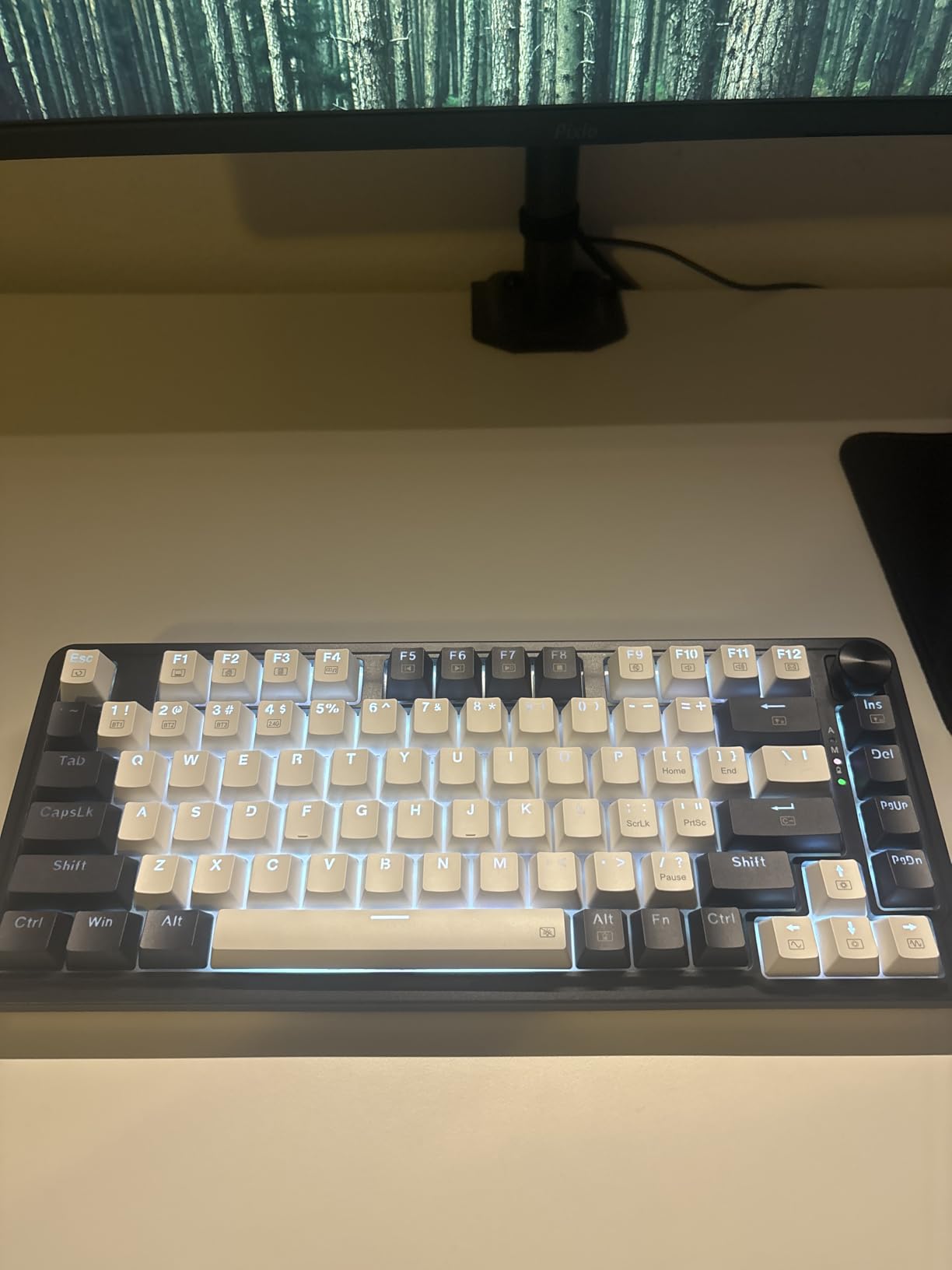
Setup takes minutes. Plug in the 2.4GHz dongle or pair via Bluetooth, and the keyboard works immediately. No driver installation, no configuration software, no compatibility headaches. For developers who want to focus on coding rather than keyboard setup, this simplicity appeals.
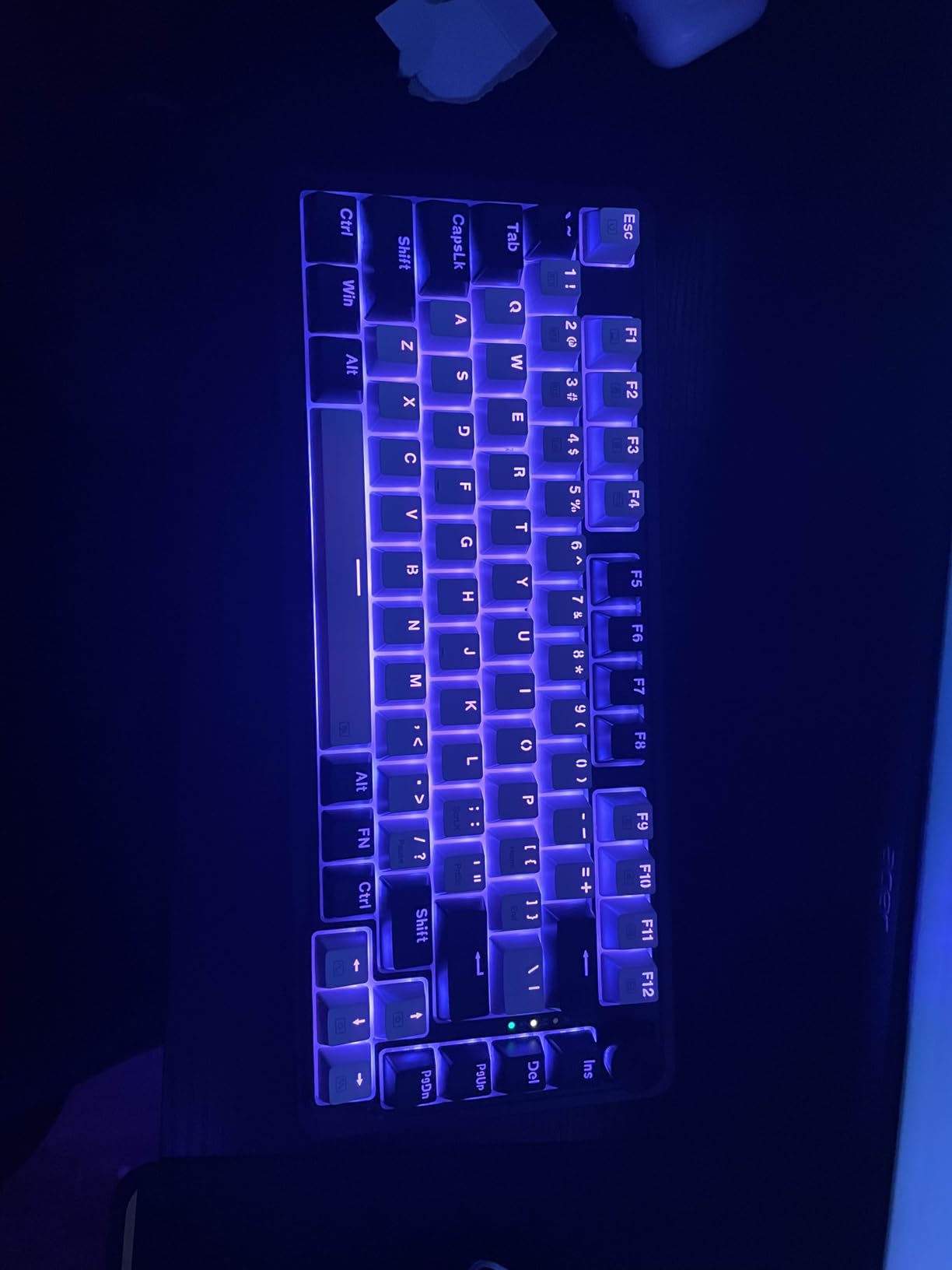
The volume knob provides immediate control without function key combinations. The RGB implementation looks smooth and professional, with brightness levels suitable for both darkened home offices and brightly lit corporate environments.
Best Workflow Match
Developers on tight budgets who refuse to compromise on wireless functionality will appreciate the K673 PRO. The quiet operation suits open office plans and shared living spaces. The immediate setup lets you start coding within minutes of unboxing. If you need wireless freedom without wireless prices, this keyboard delivers.
Potential Deal Breakers
The USB-C cable connection feels slightly loose on some units, causing occasional disconnections when bumped. The switches ship with light actuation force that causes accidental keypresses until you adjust your typing style. Some users report occasional Bluetooth dropouts that require re-pairing. If you need absolute reliability above all else, spending slightly more eliminates these concerns.
10. Keychron K2 – Mac Native Champion
- Seamless Mac and Windows support
- Excellent battery life
- Pairs with 3 devices instantly
- Quick USB-C charging
- Includes both Mac and Windows keycaps
- No hot-swap capability
- Does not charge in Bluetooth mode
- No customization software
The Keychron K2 has earned its reputation as the go-to mechanical keyboard for Mac users. The native Mac layout includes all function keys exactly where Apple users expect them. Option and Command keys sit in their proper positions. The media controls work without additional software or remapping.
But the K2 does not abandon Windows users. The keyboard includes alternative keycaps for Windows layouts, and a physical switch toggles between Mac and Windows modes. This dual compatibility makes it perfect for developers who switch between operating systems regularly or maintain both platforms for testing.
The Broadcom Bluetooth 5.1 chipset maintains stable connections across three paired devices. I switch between my MacBook Pro, Windows desktop, and iPad throughout the day using simple key combinations. The 4000mAh battery provides up to 72 hours of typing or about a week of normal use between charges.
The Keychron Super Brown switches offer tactile feedback without the clickiness that disturbs colleagues. The 50 million keystroke lifespan suggests years of reliable service. The inclined bottom frame creates a comfortable typing angle without requiring a wrist rest.
N-key rollover in wired mode and 6KRO in wireless mode handle any typing speed you can achieve. The RGB backlighting looks elegant through the keycap legends, with subtlety that fits professional environments.
Best Workflow Match
Mac-first developers who occasionally use Windows will find the K2 perfectly suited to their workflow. The native Mac integration eliminates the friction that most mechanical keyboards cause for Apple users. The multi-device pairing handles complex setups involving multiple machines and tablets. If you live in the Apple ecosystem, this keyboard feels like it belongs there.
Potential Deal Breakers
The inability to charge while using Bluetooth mode frustrates some users who want indefinite wireless operation. The lack of hot-swap sockets means you are committed to the stock switches. No VIA or QMK support limits customization options. If you enjoy tinkering with switch types and custom firmware, other keyboards on this list offer more flexibility.
11. SOLAKAKA A75 – Hidden Gem
- Excellent thocky sound quality
- Connect up to 5 devices
- Premium PBT keycaps
- Multifunction metal knob
- Great RGB software
- Software only supports Windows
- Red FN indicator light cannot be disabled
- Documentation lacks detail
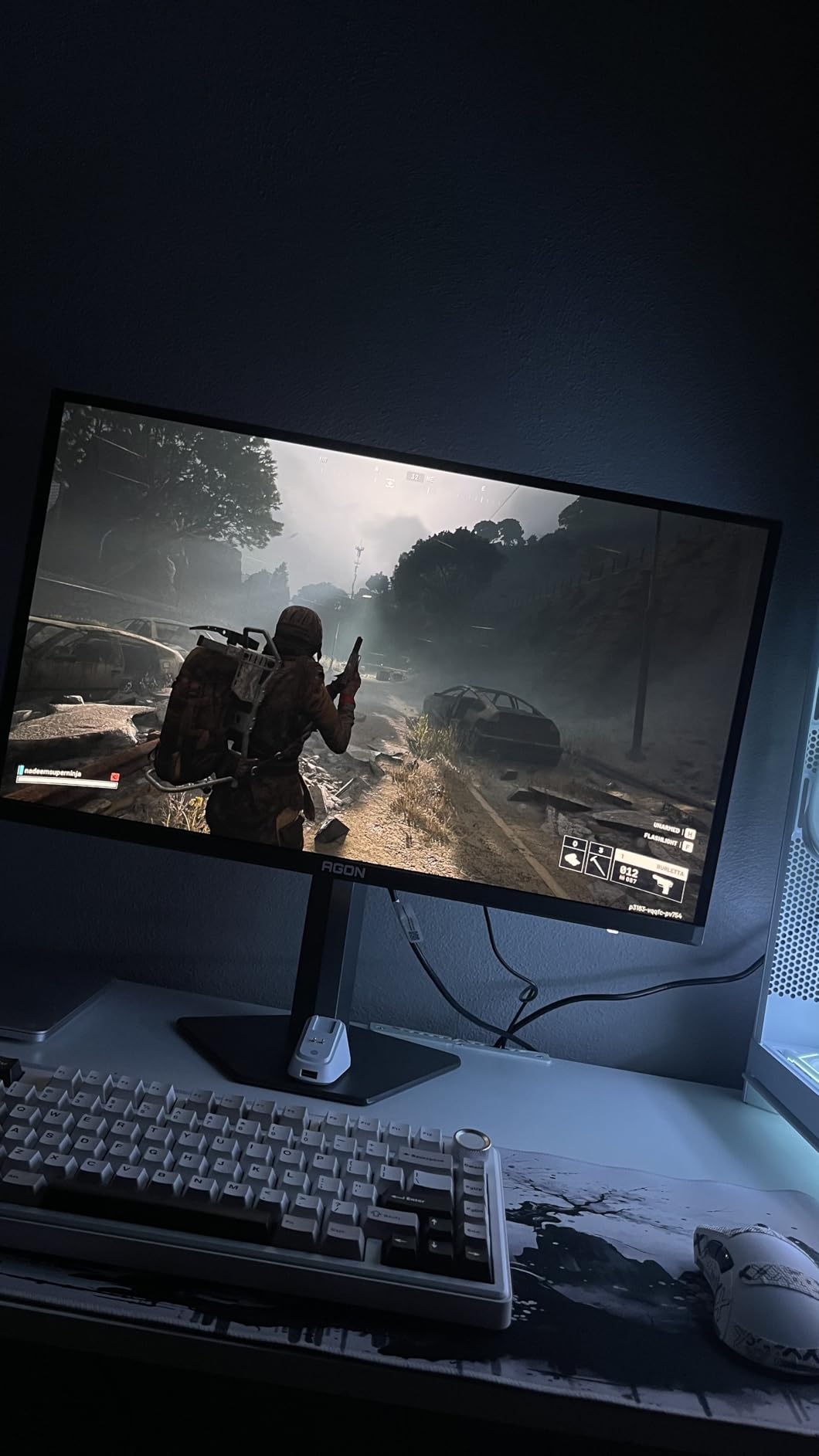
The SOLAKAKA A75 surprised me with quality that exceeds its modest price and review count. The gasket mount implementation with PCB single-key slotting creates a typing experience that rivals more expensive competitors. The pre-lubricated stabilizers and LEOBOG Reaper switches deliver smooth, consistent actuation across all keys.
The sound profile deserves particular praise. The combination of IXPE shaft bottom pad, PET voice actor pad, silicone base mat, and PO sound-absorbing cotton creates a deep, satisfying thock. This is not a quiet keyboard, but the sound quality impresses even mechanical keyboard enthusiasts who typically demand premium builds.
Supporting five simultaneous Bluetooth connections plus 2.4GHz and wired modes provides maximum flexibility. I have tested all connection types across multiple devices and found the switching process reliable and quick. The 4000mAh battery supports extended wireless use.
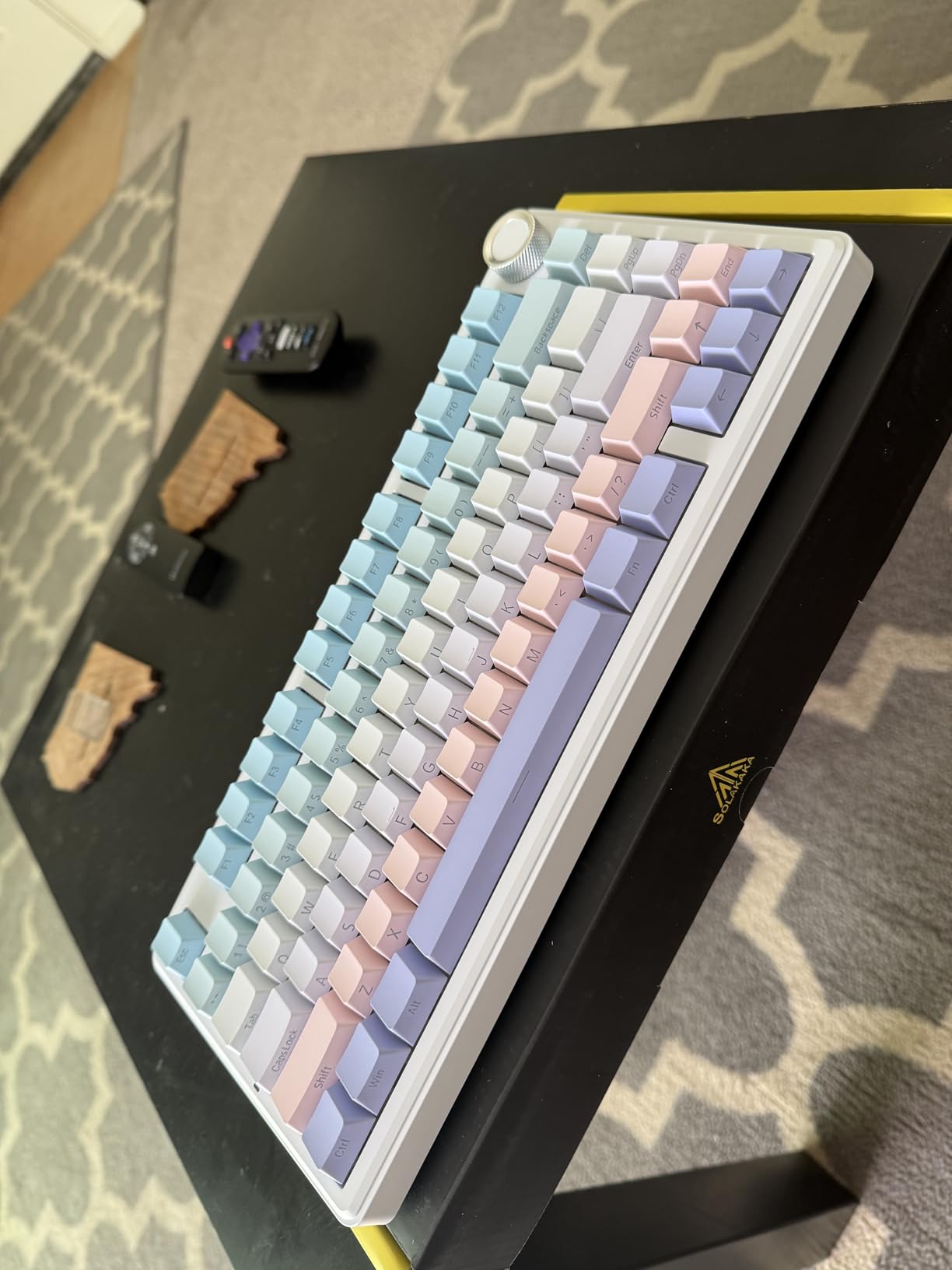
The multifunctional metal knob controls volume, lighting effects, and brightness with rotation and press actions. The PBT keycaps use double injection molding for durability that will outlast years of heavy coding. The 17 lighting modes include enough variety to suit any aesthetic preference.
The programmable software enables custom macros and lighting configurations, though it requires Windows. Mac and Linux users get full hardware functionality but miss the customization layer.
Best Workflow Match
Developers who maintain multiple test devices and development machines will appreciate the five-device connectivity. The excellent sound profile makes typing enjoyable during long sessions. The solid build quality suggests longevity that protects your investment. If you want an underrated option that overdelivers for its price, the A75 warrants consideration.
Potential Deal Breakers
The software limitation to Windows reduces appeal for Mac and Linux developers who want full customization. The persistent red FN indicator light in wired mode bothers users in dark environments. The sparse documentation requires some trial and error to discover all features. If you need comprehensive documentation and cross-platform software, established brands offer better support.
12. Newmen GM326 – Entry Level Gateway
- Excellent value around $25
- Hot-swappable for customization
- Good RGB options
- Compact size saves space
- Smooth linear switches
- Limited to 3-pin switches only
- Quality control issues reported
- Rainbow backlight only not full RGB
The Newmen GM326 serves as an ideal entry point for developers curious about mechanical keyboards but unwilling to invest significantly. At around $25, it costs less than many membrane keyboards while delivering genuine mechanical switch feel and hot-swap functionality.
The red linear switches provide smooth travel with minimal resistance, requiring less finger force than tactile alternatives. For developers transitioning from laptop keyboards or cheap membrane boards, this lighter touch reduces the adjustment period. The hot-swap sockets, limited to 3-pin switches, still allow you to experiment with different switch types as your preferences develop.
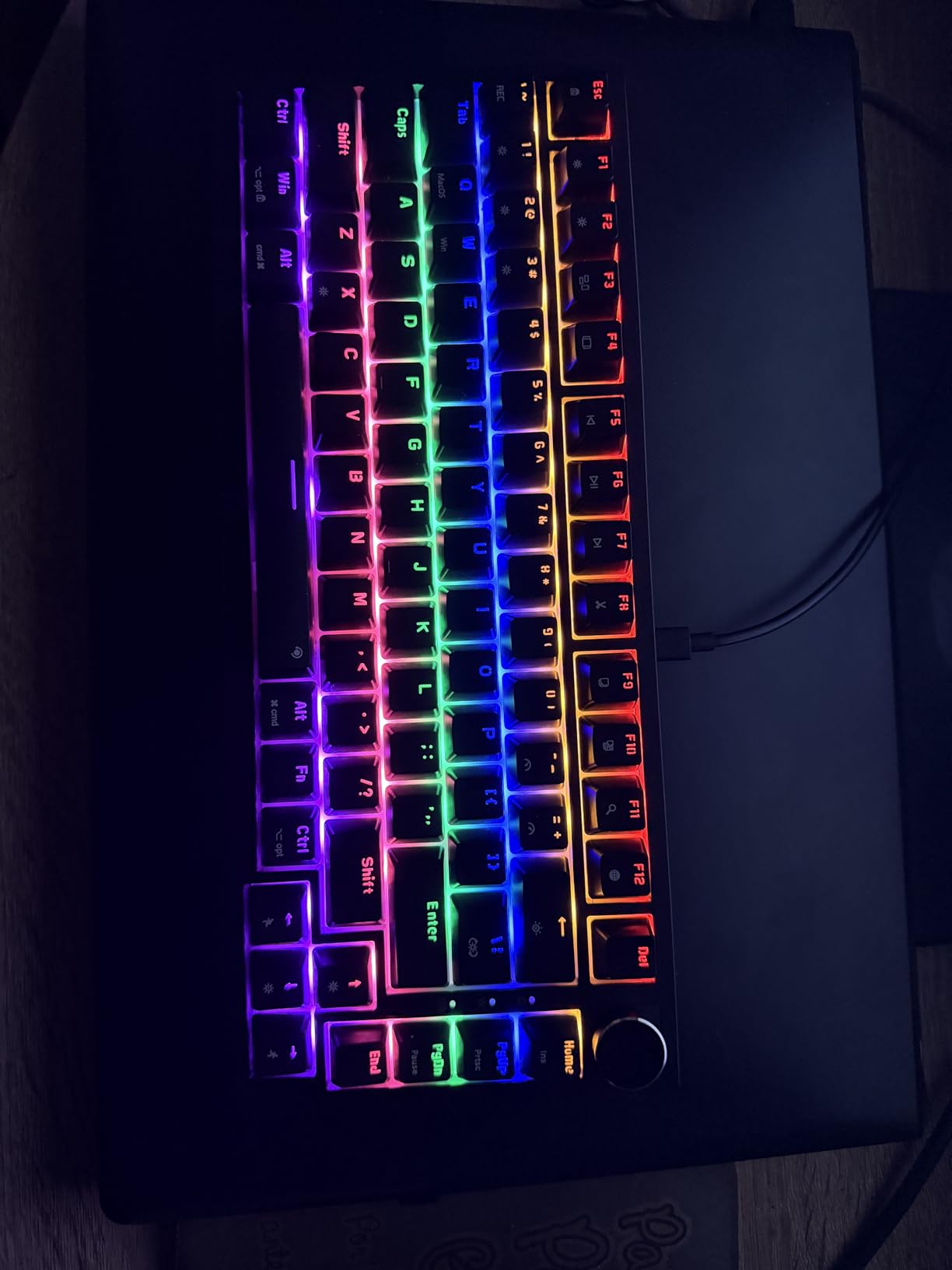
The rainbow LED backlight offers 20 modes with six color options. While not full RGB with per-key customization, the lighting adds visual interest and helps locate keys in darkened environments. The two-stage adjustable tilt legs let you find a comfortable typing angle.
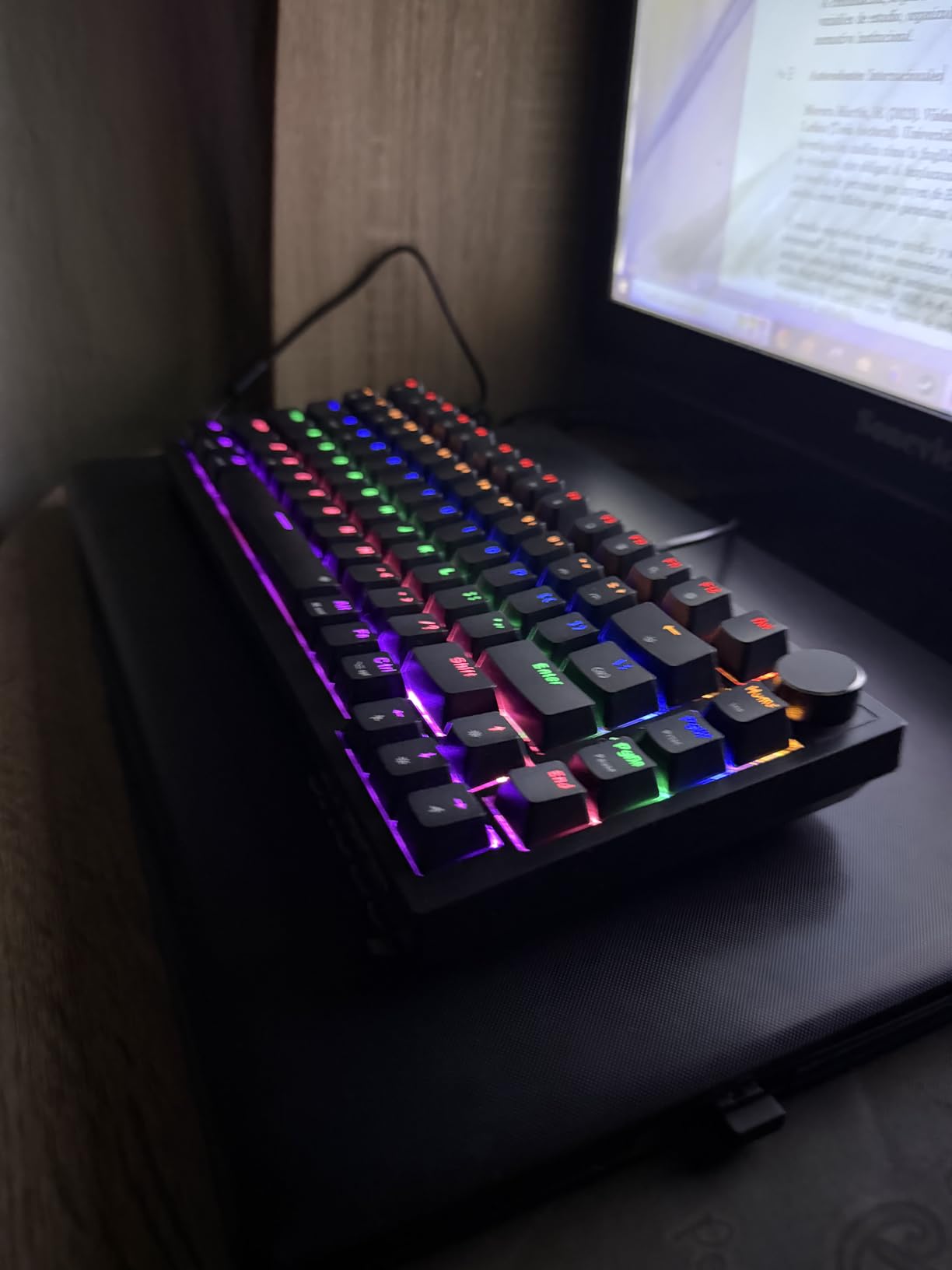
The anti-ghosting implementation handles rapid typing without dropped inputs. The ergonomic stepped keycaps guide fingers to proper positions. The detachable USB-C cable allows for easy replacement if the included cable wears or if you prefer different cable styles.
This keyboard excels as a testbed for mechanical keyboard newcomers. The low investment reduces risk while the hot-swap capability lets you explore the vast world of mechanical switches. Many users start with the GM326 and upgrade later, keeping this board as a backup or travel keyboard.
Best Workflow Match
Junior developers, students, and anyone curious about mechanical keyboards will find the GM326 a low-risk introduction. The hot-swap capability lets you learn about different switch types through direct experience. The compact size suits cramped desks and shared workspaces. If you want to explore mechanical keyboards without financial commitment, start here.
Potential Deal Breakers
Quality control varies at this price point. Some units arrive with sharp keycap edges or occasional double-press issues. The limitation to 3-pin switches excludes many premium aftermarket options. The rainbow backlight disappoints users expecting full RGB customization. If you need absolute reliability for professional work, investing more eliminates these lottery aspects.
What to Consider When Buying a 75% Keyboard for Development?
Choosing the right mechanical keyboard involves more than picking the highest-rated option. Your specific workflow, operating system preferences, and typing style all influence which keyboard will serve you best. Here are the factors that matter most for developers.
Switch Types for Coding: Linear vs Tactile vs Clicky
Mechanical switches fall into three categories, each suited to different preferences. Linear switches move smoothly from top to bottom without interruption. They require consistent pressure throughout the keystroke and produce minimal noise beyond the bottom-out sound. Developers who type lightly and prefer uninterrupted finger flow often prefer linear switches.
Tactile switches provide a noticeable bump at the actuation point. This feedback tells your fingers exactly when the key registers, allowing you to release immediately rather than bottoming out. The slight resistance reduces accidental keypresses and can increase typing accuracy for those who bottom out heavily.
Clicky switches add an audible click to the tactile bump, creating the stereotypical mechanical keyboard sound. While satisfying for some, the noise disturbs colleagues and partners. Most developers working in shared spaces should avoid clicky switches unless they have private offices.
Hot-swappable keyboards let you change switches without soldering. This flexibility matters because switch preferences evolve with experience. Many developers start with tactile switches for the feedback, then migrate to linear switches as their typing technique refines.
QMK/VIA Programmability Importance
Open-source firmware like QMK and VIA transforms your keyboard from a input device into a programmable tool. You can remap any key, create multiple layers for different applications, and program macros that automate repetitive sequences. For developers, this programmability enables workflows impossible with standard keyboards.
I maintain a dedicated layer for VS Code with shortcuts for commenting, formatting, and navigation positioned under my left hand. Another layer provides media controls and window management. Switching layers takes a single keypress, putting dozens of commands at my fingertips without hand movement.
Not all developers need this level of customization. If you are satisfied with standard shortcuts and function keys, QMK/VIA support becomes a nice-to-have rather than essential. But once you experience a fully programmed keyboard, returning to a standard layout feels restrictive.
Wireless vs Wired for Developers
Wireless keyboards have improved dramatically. Modern 2.4GHz connections provide latency indistinguishable from wired for typing and coding. Bluetooth handles multi-device switching that wired keyboards cannot match. The freedom from cables creates cleaner desk aesthetics and easier repositioning.
However, wireless introduces considerations that do not exist with wired connections. Battery management becomes your responsibility. Connection stability varies by environment and device. Some wireless keyboards cannot charge while operating wirelessly, creating downtime during charging cycles.
For developers who work exclusively at a fixed desk, wired keyboards offer simplicity and reliability without compromise. Those who switch between multiple devices, work from different locations, or value desk aesthetics will appreciate wireless flexibility. Tri-mode keyboards offering both wired and wireless options provide maximum flexibility.
Mac vs Windows vs Linux Compatibility
Keyboard compatibility varies significantly across operating systems. Windows dominates the mechanical keyboard market, meaning most keyboards ship with Windows layouts and software. Mac users often face function key mismatches and missing media controls. Linux compatibility ranges from perfect to completely non-functional depending on the keyboard firmware.
Keychron built their reputation on solving Mac compatibility. Their keyboards ship with Mac layouts and include Windows keycap alternatives. The physical layout switch instantly repositions modifier keys to match your operating system. Other brands have followed this approach, but Keychron remains the Mac compatibility standard.
Linux developers should prioritize keyboards with hardware-based customization rather than software-dependent configuration. QMK/VIA keyboards work perfectly on Linux because the programming happens at the keyboard level, not through operating system software. Avoid keyboards that require Windows-only applications for basic functionality.
Hot-Swappability Benefits
Hot-swap sockets allow you to remove and replace switches using simple puller tools, no soldering required. This capability transforms keyboard ownership from a fixed experience into an evolving journey. You can experiment with different switch types, replace worn switches individually, and customize different key areas with different switch characteristics.
Many developers start with the stock switches, then replace them after discovering preferences through research and community discussion. The tactile switches that felt perfect initially might feel fatiguing after months of use. Linear switches that seemed mushy might feel perfect once your typing technique improves.
Beyond switch replacement, hot-swap sockets protect your investment. If a single switch fails after years of use, you replace that switch rather than discarding the entire keyboard. This repairability extends keyboard lifespan indefinitely.
Gasket Mount vs Traditional Mount
Mounting style significantly affects typing feel and sound. Traditional tray-mount keyboards attach the circuit board rigidly to the case bottom. This creates a solid, stable typing platform with sharper feedback and more case resonance. Tray-mount keyboards feel precise but can become harsh during extended use.
Gasket mount keyboards suspend the circuit board between soft gaskets, allowing slight flex during typing. This creates a cushioned feel that reduces finger fatigue and produces a deeper, more muted sound profile. The typing experience feels almost bouncy compared to rigid mounts.
Most developers prefer gasket mounts for all-day comfort. The reduced vibration transmission protects your fingers during marathon coding sessions. However, some users prefer the precision and feedback of traditional mounts. Neither is objectively better, but gasket mounts dominate current recommendations for good reason.
Frequently Asked Questions
What is the best 75 keyboard for programming?
The EPOMAKER x Aula F75 stands out as the best 75% keyboard for programming due to its gasket mount design that reduces finger fatigue during long coding sessions, tri-mode connectivity for multi-device workflows, and exceptional value. For Mac-specific development, the Keychron K2 offers superior native integration.
What are the disadvantages of a 75% keyboard?
The main disadvantages include the absence of a number pad for data entry tasks, compressed navigation clusters that require function layer access for some keys, and a learning curve for users accustomed to full-size layouts. Some developers miss dedicated macro keys found on larger keyboards.
Is TKL or 75 better for programming?
75% keyboards are generally better for programming than TKL layouts because they retain the same essential keys while occupying less desk space. The 75% layout keeps the function row and arrow keys but compresses the navigation cluster more efficiently. TKL keyboards waste space between key groups that 75% layouts eliminate.
Best budget mechanical keyboard for coding?
The DIERYA DK81E offers the best value for coding under $40, featuring a 6-layer gasket mount design, hot-swap sockets, and browser-based configuration that works on any operating system. The Newmen GM326 provides an even more affordable entry point around $25 while still offering hot-swap functionality.
Is mechanical keyboard good for coding?
Mechanical keyboards significantly improve coding experiences through better tactile feedback, reduced finger fatigue during long sessions, and programmability for custom shortcuts. The consistent actuation force reduces typing errors, and the durability ensures years of reliable service. Most developers who switch to mechanical keyboards cannot return to membrane alternatives.
Conclusion
The 75% layout has earned its place as the sweet spot for developers who want full functionality without wasted space. After testing these twelve keyboards across multiple development workflows, I can confidently recommend options for every budget and preference.
The EPOMAKER x Aula F75 remains my top recommendation for most developers. The combination of gasket mount comfort, tri-mode connectivity, and exceptional value creates a keyboard that satisfies both practical needs and enthusiast desires. The DIERYA DK81E proves that budget constraints do not preclude excellent typing experiences.
Mac developers should strongly consider the Keychron K2 for its native integration. Those who want maximum programmability will appreciate the RK R75 and its QMK/VIA support. The YUNZII C75 serves power users who demand exceptional battery life.
Your ideal keyboard depends on your specific workflow, operating system preferences, and typing style. Consider which features matter most for your daily development work. Any keyboard on this list will serve you better than a generic membrane board, and the investment pays dividends in comfort and productivity through long coding sessions in 2026 and beyond.