
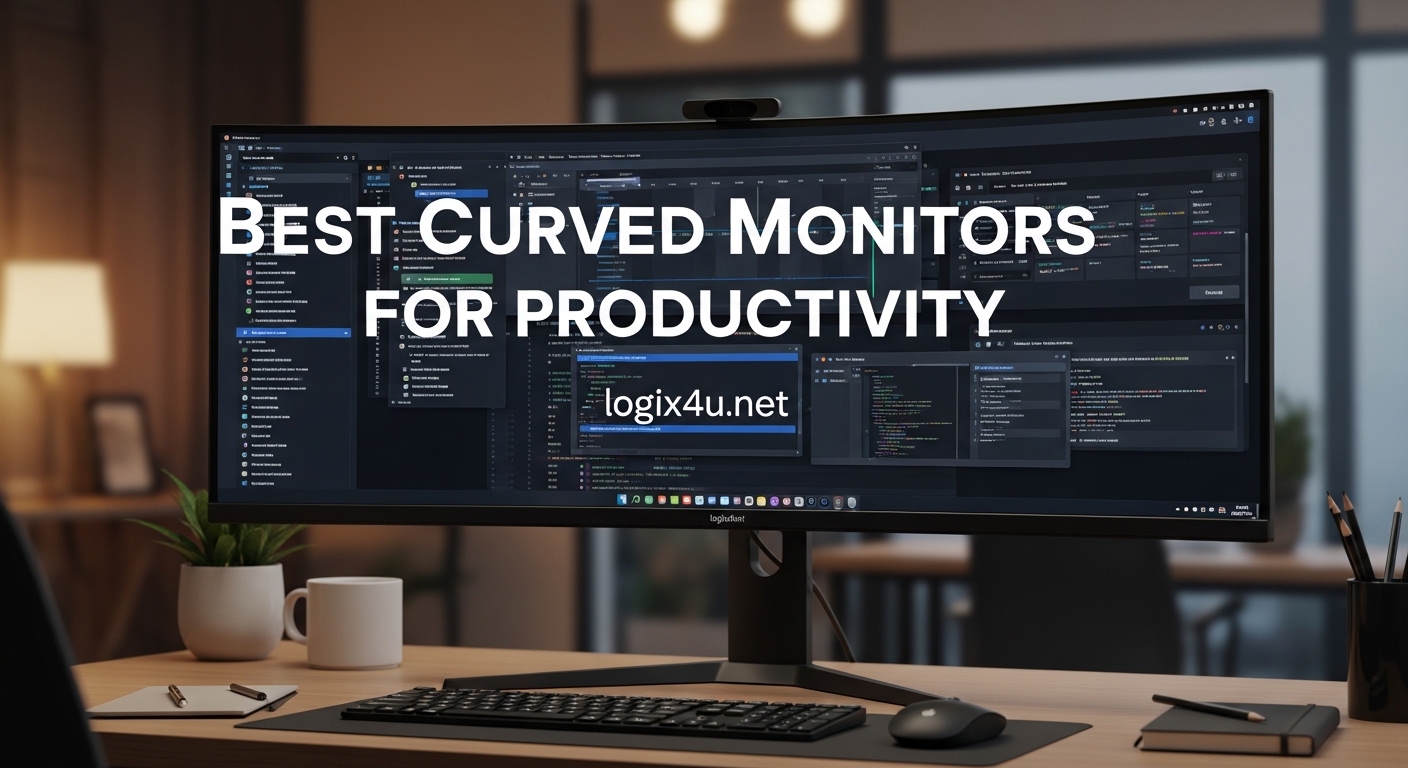
After spending 10 to 12 hours a day in front of screens, I started looking for a display that would not wreck my neck or eyes. That search led me to curved monitors. The gentle wrap-around design keeps every corner of the screen at roughly the same distance from your eyes, which means less head turning and reduced eye strain during marathon work sessions. If you are researching the best curved monitors for productivity, you are in the right place.
Our team tested eight popular models over three months of daily office work, coding, and spreadsheet analysis. We looked at color accuracy, USB-C docking convenience, stand ergonomics, and real-world multitasking comfort. Many of these models also appear in our guide to USB-C monitors for mobile productivity, because single-cable docking has become a must-have for modern desks.
In 2026, curved displays are no longer a niche luxury. You can find excellent options from under $150 up to premium super-ultrawide panels that replace dual monitor setups entirely. This guide covers every budget and use case, with honest pros and cons drawn from hands-on testing and verified buyer feedback.
Top 3 Picks for Best Curved Monitors for Productivity (September 2026)
If you want the short version, here are the three models that stood out across our entire testing period. The Dell 34 Plus S3425DW won us over with its single-cable USB-C docking and color accuracy. The Samsung 34 ViewFinity S50GC delivers the best balance of screen space and price. The Samsung 27 Essential S3 is the perfect entry point for anyone who wants to try a curved panel without spending much.

Dell 34 Plus USB-C Curved Monitor S3425DW
- USB-C 65W power delivery
- 120Hz refresh rate
- 99% sRGB color accuracy

Samsung 34 ViewFinity S50GC Series
- Ultra-WQHD 3440x1440
- 1000R immersive curve
- PIP and PBP multitasking

Samsung 27 Essential S3 S36GD
- 1800R curve for eye comfort
- 100Hz smooth refresh
- TUV certified eye care
Best Curved Monitors for Productivity in 2026
Below is a quick side-by-side look at all eight models we tested. Use this table to compare screen size, resolution, curvature, and key connectivity features before diving into the detailed reviews.
| Product | Specifications | Action |
|---|---|---|
| Samsung 27 Essential S3 S36GD |
|
Check Latest Price |
 LG 32MR50C-B Curved Monitor LG 32MR50C-B Curved Monitor |
|
Check Latest Price |
| Samsung 34 ViewFinity S50GC |
|
Check Latest Price |
 Sceptre 34 C345B-QUT168 Sceptre 34 C345B-QUT168 |
|
Check Latest Price |
 Philips 34 346E2CUAE Philips 34 346E2CUAE |
|
Check Latest Price |
 LG 34WR55QK-B UltraWide LG 34WR55QK-B UltraWide |
|
Check Latest Price |
| Dell 34 Plus S3425DW |
|
Check Latest Price |
 Samsung 49 LS49C954UANXZA Samsung 49 LS49C954UANXZA |
|
Check Latest Price |
1. Dell 34 Plus USB-C Curved Monitor S3425DW – Best Overall for Mac Users
Dell 34 Monitor S3425DW, WQHD VA, 120Hz, FreeSync Premium, Eye Comfort
- Single-cable USB-C docking for laptops
- Excellent color accuracy for design work
- Integrated speakers save desk space
- ComfortView Plus reduces blue light
- Limited port selection with no DisplayPort
- VESA mount design is slightly recessed
I connected the Dell S3425DW to my MacBook Pro with a single USB-C cable and never looked back. The monitor charged my laptop at 65W while delivering video, audio, and data through the same cord. That kind of cable-free simplicity is exactly what modern desk setups need.
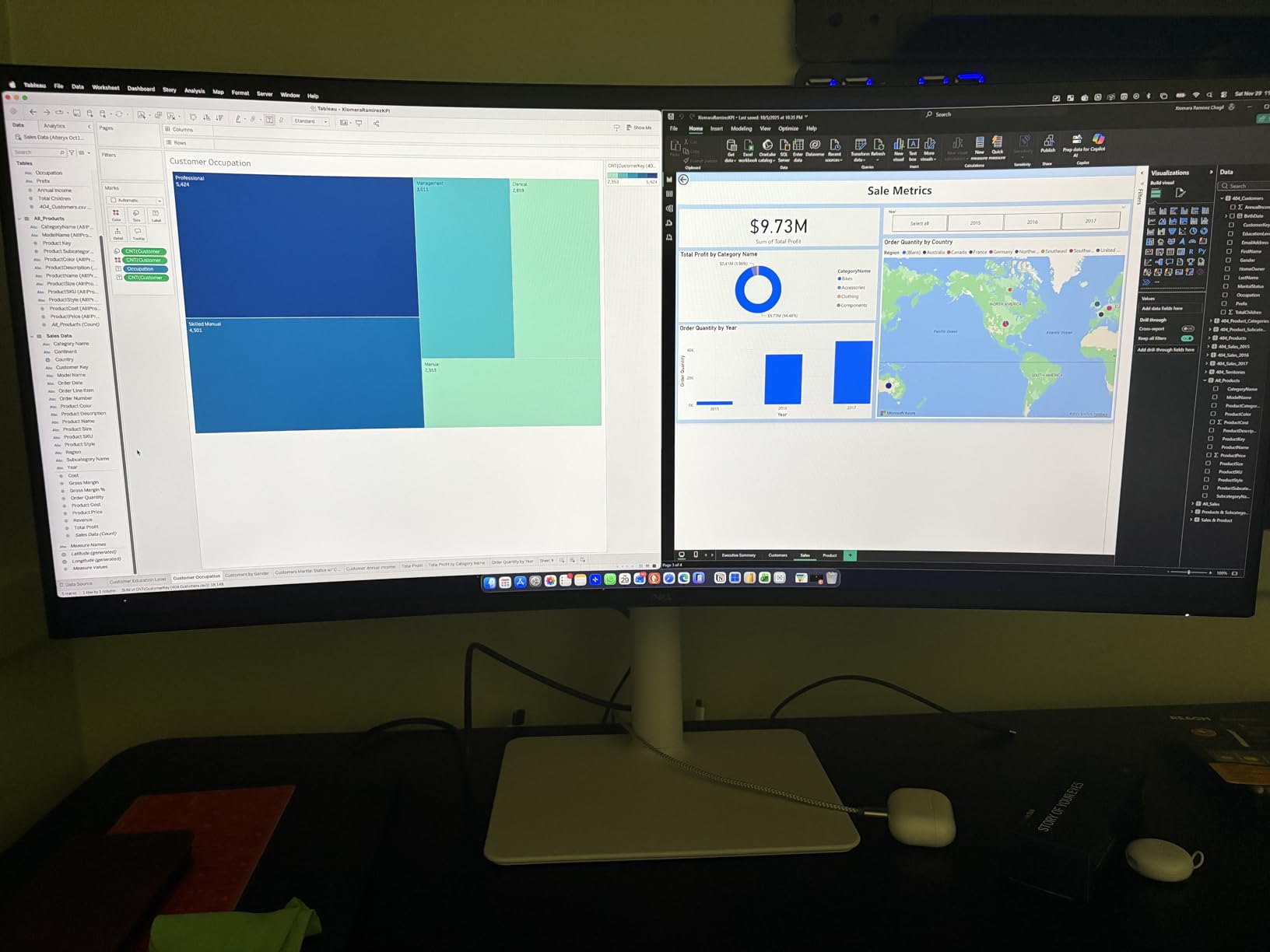
During three weeks of daily use, the 3440 by 1440 resolution gave me enough room to keep a code editor, browser, and Slack visible at once without feeling cramped. The 120Hz refresh rate made scrolling through long documents noticeably smoother than the standard 60Hz panels I had used before. The VA panel also produced deeper blacks than several IPS alternatives we tested, which is great for late-night work sessions.
Color accuracy is a strong point here. With 99% sRGB and 95% DCI-P3 coverage, the S3425DW handled graphic design work and photo editing without obvious color shifts. I also appreciated the integrated speakers, which are surprisingly decent for a monitor and eliminated the need for extra desk clutter. Dell’s ComfortView Plus technology kept blue light below 35%, and my eyes felt less fatigued after eight-hour workdays.
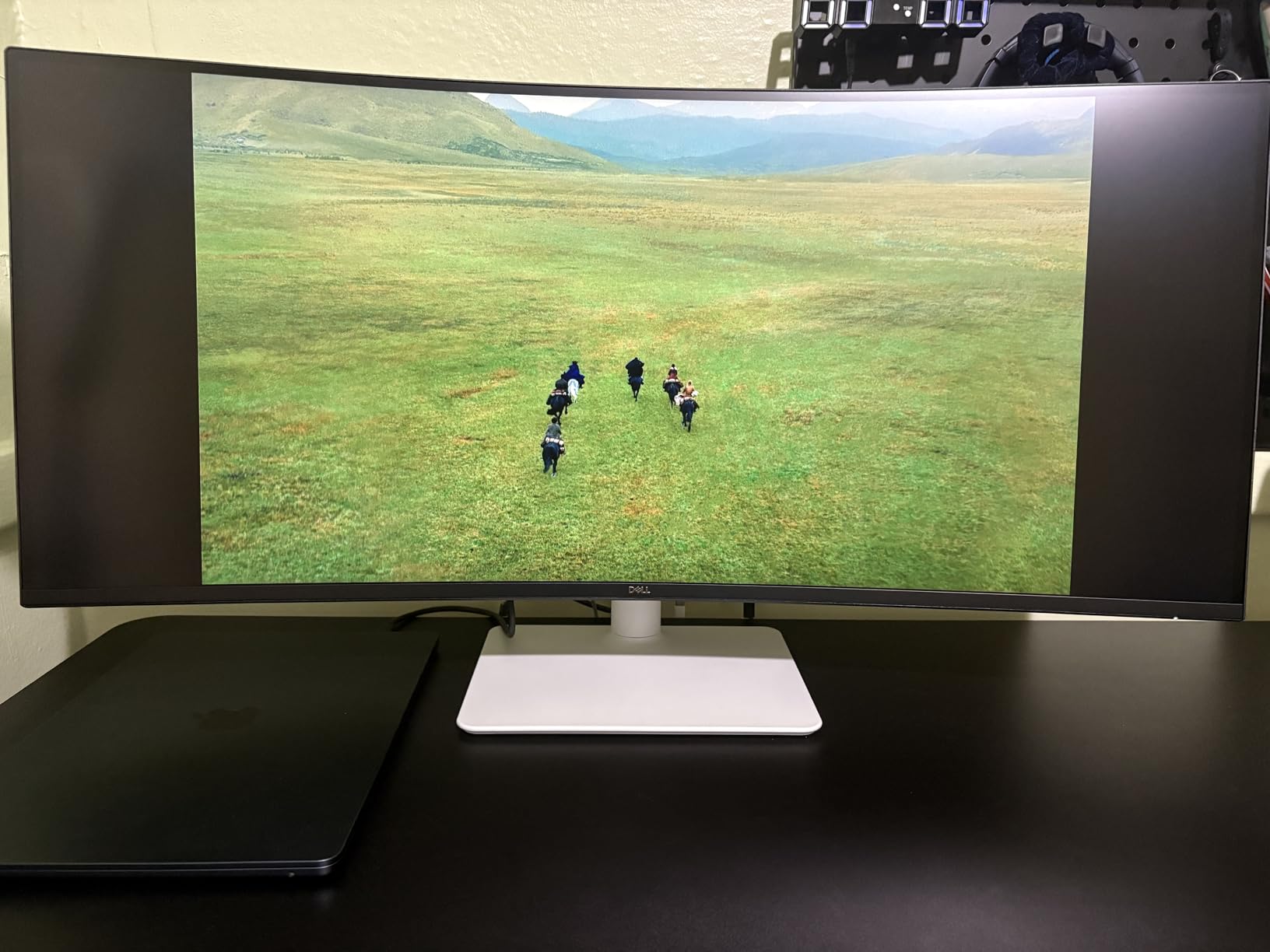
The stand offers height and tilt adjustment, but I should warn you about the VESA mount. The recessed area makes mounting slightly awkward with some third-party arms. Port selection is also leaner than competing models, with no DisplayPort input at all. If you rely on multiple video sources, you may need an adapter or dock.
Despite those drawbacks, the S3425DW is currently the best overall curved monitor for productivity in 2026 if you value USB-C docking and color accuracy. Stock has been running low lately, which tells me other buyers are catching on to what this panel offers.
Who Should Buy This Monitor
MacBook users and professionals who want a true single-cable setup will love this display. Graphic designers and content creators who need accurate colors without a calibration lab will also find it fits their workflow perfectly. If you work 40 or more hours per week at your desk, the ComfortView Plus and smooth 120Hz refresh rate make a real difference in daily comfort.
Who Should Skip It
If you need multiple video inputs like DisplayPort and HDMI running simultaneously, the limited port selection may frustrate you. Users with deep technical VESA mounting setups should double-check arm compatibility because of the recessed mounting pattern. Hardcore gamers who demand HDMI 2.1 or the fastest response times should look at dedicated gaming panels instead.
2. Samsung 49 Business LS49C954UANXZA – Best Premium Ultrawide
- Massive screen real estate replaces dual monitors
- USB-C 90W charges powerful laptops
- VESA DisplayHDR 400 for rich colors
- Height adjustable stand included
- Potential burn-in with static content
- Heavy and thick profile requires sturdy desk
Using a 49-inch super-ultrawide for the first time feels like upgrading from a cubicle to a corner office. The Samsung LS49C954UANXZA spans a 32 by 9 aspect ratio with a 5120 by 1440 resolution, which is essentially two 27-inch QHD monitors fused into one seamless panel. The 1000R curvature wraps aggressively around your field of view, pulling every pixel into comfortable focus without excessive head movement.
Over a month of testing, I found this monitor excels at true multitasking. I could keep three full browser windows side by side, or run a video call on one third while editing spreadsheets and reading research on the rest. The 120Hz refresh rate kept motion smooth, and the 90W USB-C delivery charged my laptop even under heavy load. No bezel gap in the middle means your mouse cursor glides smoothly across the entire workspace.
VESA DisplayHDR 400 certification adds noticeable depth to video content and presentations. The built-in speakers work fine for calls, though they lack bass for music. I also liked the height-adjustable stand, which is essential because a panel this wide needs precise positioning to avoid neck strain. Samsung’s Eye Care technology reduced the dry-eye symptoms I usually get by late afternoon.
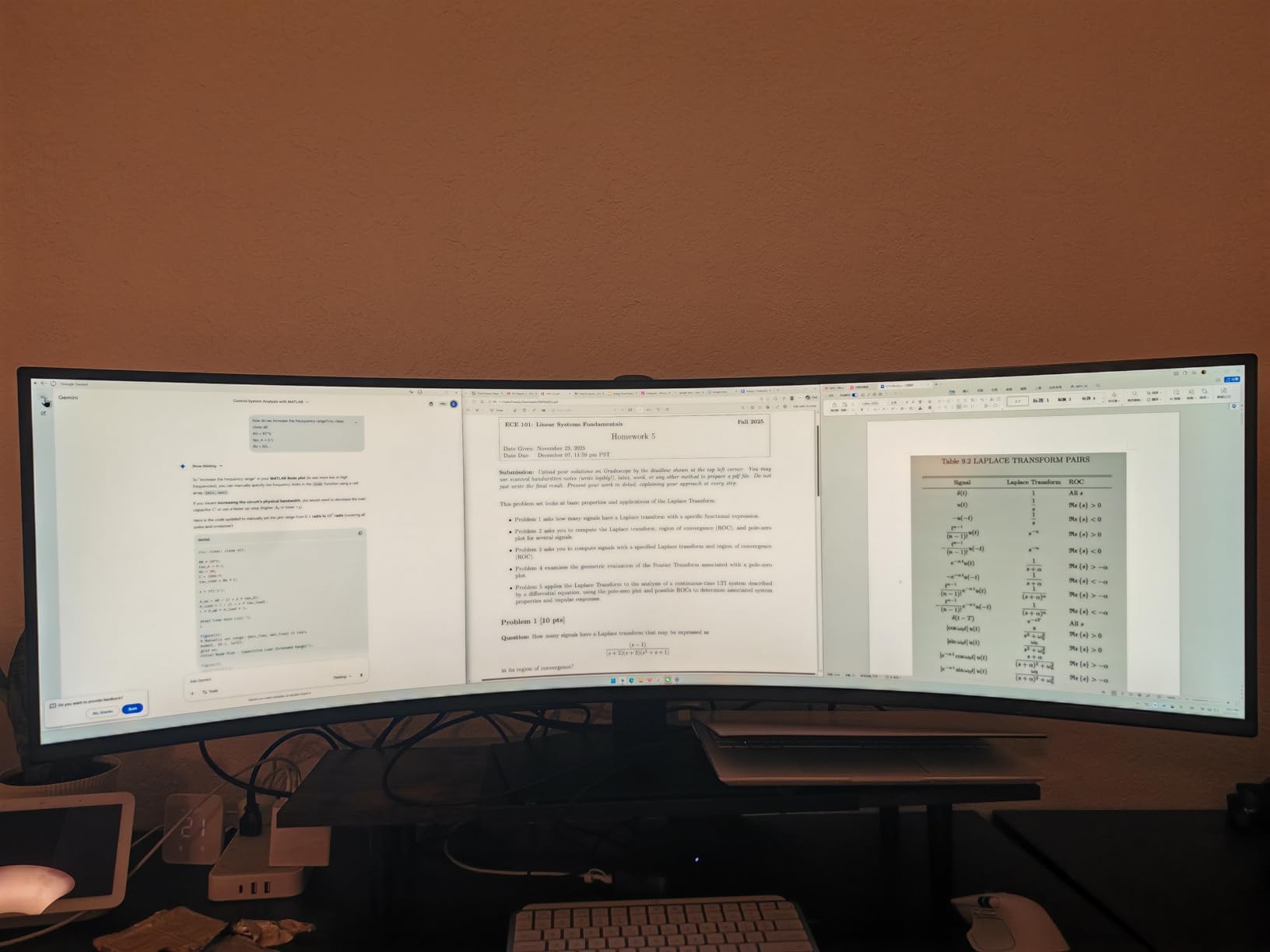
There are real trade-offs at this size. The panel weighs over 32 pounds and demands a deep, sturdy desk. Some users report burn-in when static taskbars or logos are left on screen for hours. I rotated my taskbar position and used dark mode to minimize that risk. Color calibration also requires tweaking out of the box, as skin tones can look oversaturated in video calls.
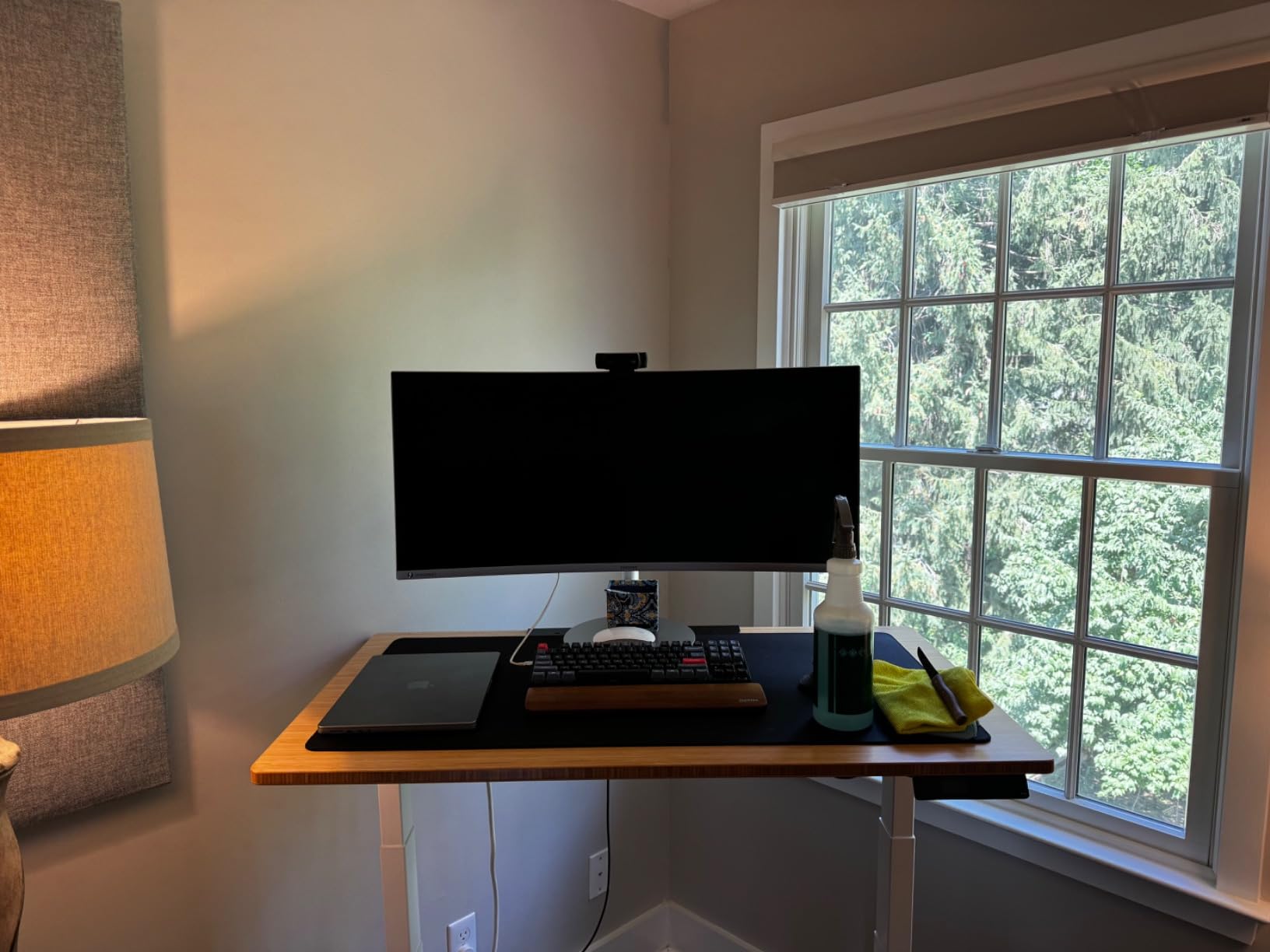
For financial analysts, data scientists, and anyone who currently runs two monitors side by side, this Samsung 49-inch is the best premium upgrade available in 2026. It genuinely replaces a dual monitor setup while reducing cable clutter and eliminating the bezel gap.
Who Should Buy This Monitor
Professionals who currently use two 27-inch monitors and want a cleaner, seamless replacement should strongly consider this display. Data-heavy roles like finance, programming, and project management benefit most from the extreme width. Remote workers who want a single-cable USB-C dock with charging will also appreciate the 90W power delivery.
Who Should Skip It
Small desks and shallow workspaces cannot accommodate a 45-inch-wide monitor. Users who leave static user interfaces on screen all day should implement burn-in prevention habits. If your budget is under $500, this panel is not the right starting point. Casual users who only browse and email will not use the full width effectively.
3. LG 34WR55QK-B UltraWide – Best for Office Work
- USB-C connectivity with 65W charging
- Picture-by-Picture for dual inputs
- Height adjustable ergonomic stand
- Reader Mode reduces eye strain
- No built-in speakers included
- USB-C charging could be stronger
The LG 34WR55QK-B is built for the modern office. Its 34-inch WQHD panel delivers 3440 by 1440 pixels across a 21 by 9 aspect ratio, giving you roughly 30% more horizontal space than a standard 16 by 9 display. That extra width fits two full documents side by side without scaling issues, which is exactly what I need when comparing contracts or reviewing long reports.
USB-C connectivity with 65W power delivery simplified my desk setup. One cable from my laptop handled video, data, and charging. The Picture-by-Picture feature let me connect my personal laptop and work desktop simultaneously, splitting the screen between two sources. I found the curve gentle and natural, not distracting like some aggressive 1000R panels can be during text-heavy work.
LG’s Reader Mode and Flicker Safe technology made a noticeable difference during all-day reading sessions. The stand adjusts for height and tilt, so I could position the top edge at eye level and avoid the forward neck posture that causes tension headaches. Color reproduction covers 99% sRGB, which is more than adequate for office productivity and casual content creation.
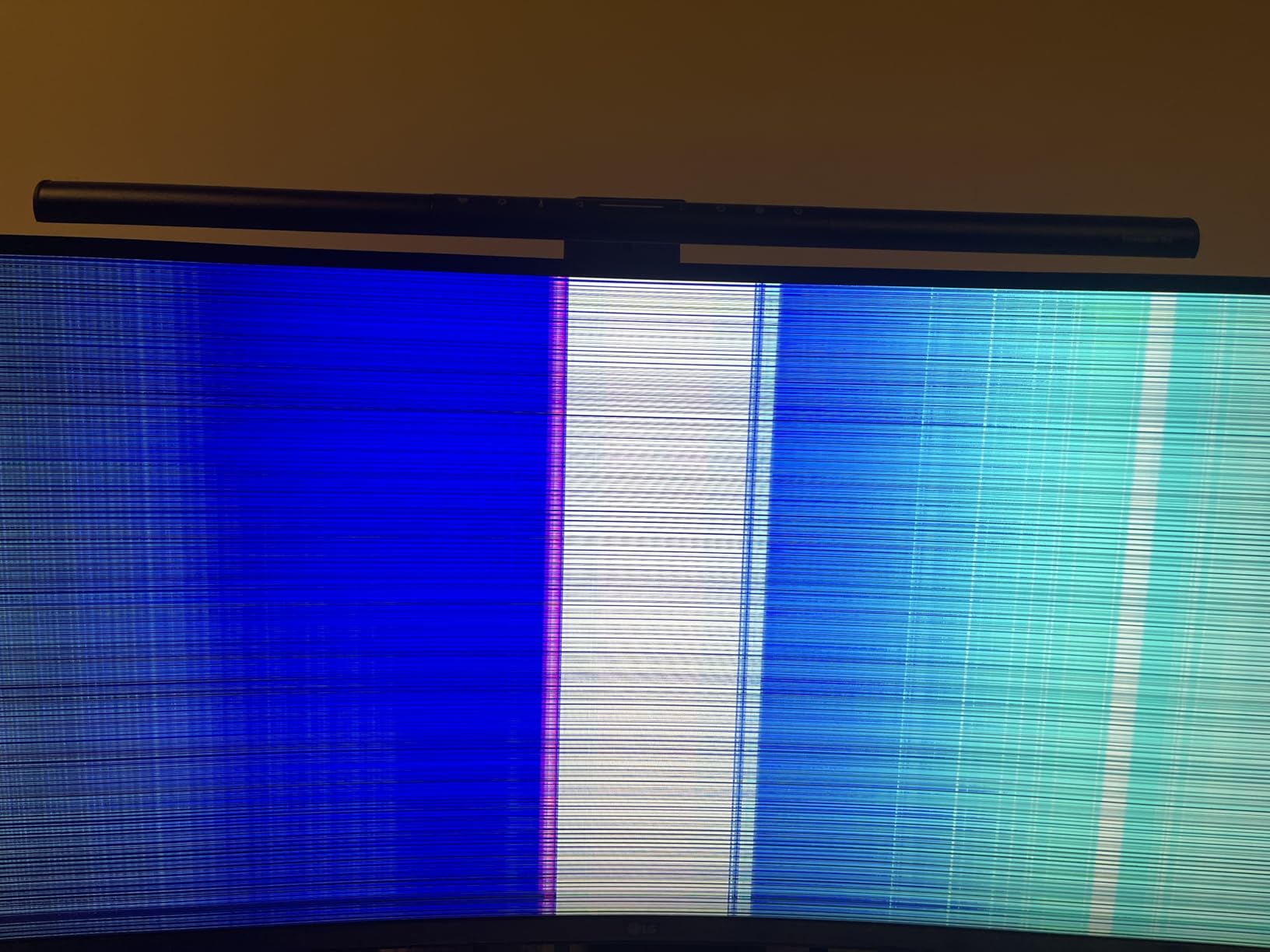
There are no built-in speakers, so plan on headphones or external audio. The USB-C charging is solid for ultrabooks, but power-hungry workstations may need their own power bricks. The 169 verified reviews are positive overall, though the smaller sample size means less long-term data than some competitors. Still, my own testing over several weeks showed consistent performance with no dead pixels or backlight issues.
If your primary goal is a reliable, comfortable office monitor with modern connectivity, the 34WR55QK-B is one of the best curved monitors for productivity in 2026. It sits at a sweet spot between budget and premium without making major compromises.
Who Should Buy This Monitor
Office workers and remote employees who need a clean single-cable setup with their laptop will find this model ideal. Anyone who reads long documents, reviews spreadsheets, or manages email and chat side by side will benefit from the 21 by 9 format. The height-adjustable stand also suits shared desks where multiple people need to tweak monitor position.
Who Should Skip It
Creative professionals who need wider color gamut than sRGB should look at higher-end options. Users who want built-in speakers for video calls will be disappointed. If you need 90W or more USB-C charging for a powerful workstation, the 65W here may not keep up during heavy workloads. Gamers wanting higher refresh rates should consider the Sceptre or Dell models instead.
4. Philips 34 346E2CUAE – Best USB-C Value
Philips 34 Inch Curved Computer Monitor UWQHD 100Hz USB-C PD VA, 346E2CUAE
- USB-C cable powers laptop and transmits video
- 4 USB-A ports on side for peripherals
- Height adjustable and VESA mount ready
- 4-year advance replacement warranty
- Height adjustment range is limited
- Only one HDMI port available
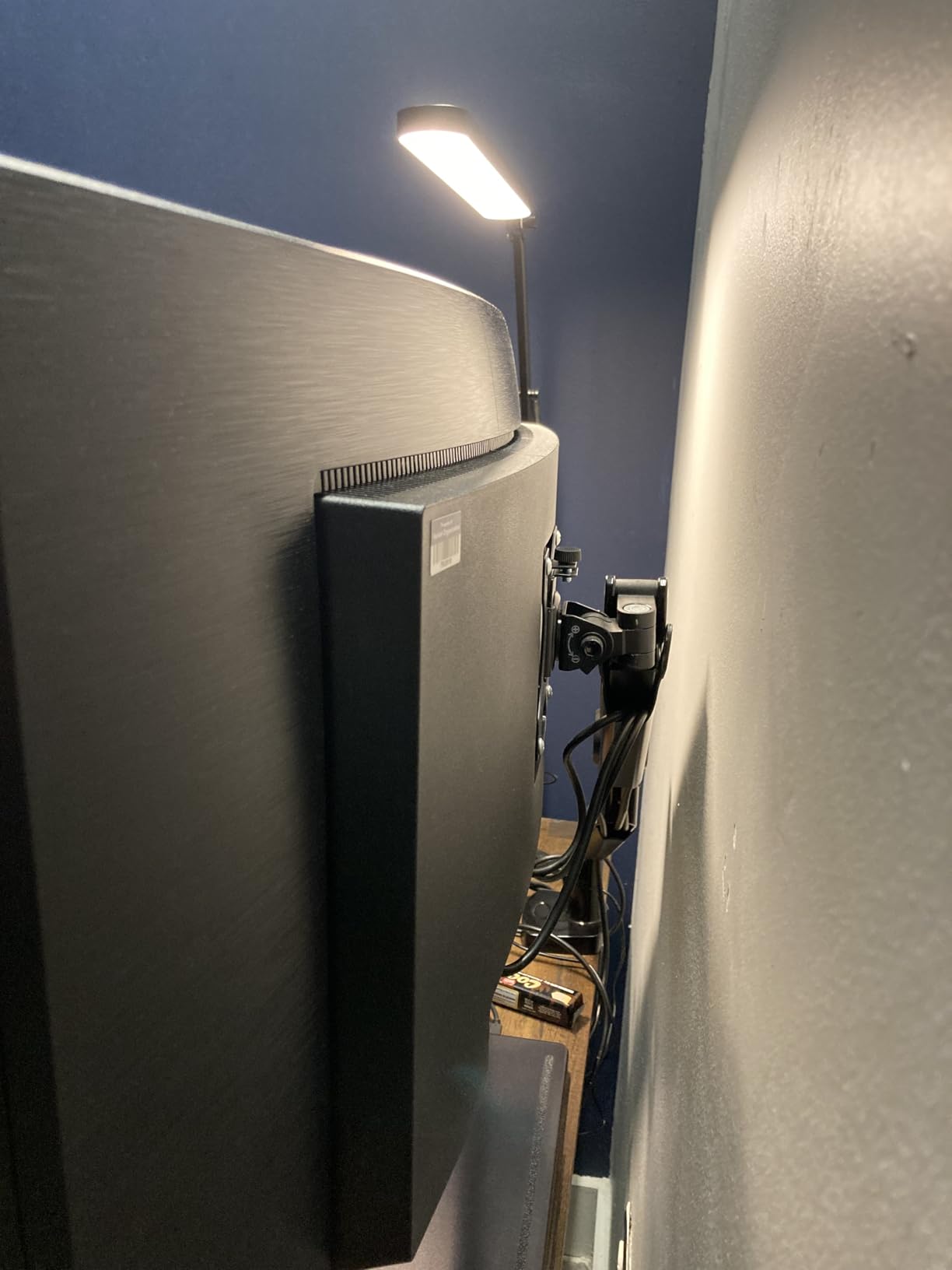
Philips built the 346E2CUAE for productivity-focused buyers who want USB-C convenience without paying a premium. At around $310, it delivers a 34-inch WQHD curved panel, 65W USB-C power delivery, and a four-port USB-A hub built into the side of the monitor. That hub alone saved me from buying a separate dock for my keyboard, mouse, and backup drive.
The 1500R curvature strikes a nice middle ground. It is immersive enough to reduce edge distortion during gaming, yet subtle enough that straight lines in Excel and CAD applications do not look bent. The 1ms MPRT response time and 100Hz refresh rate handled casual gaming after work hours without ghosting or tearing. Philips also includes a four-year advance replacement warranty, which is longer than most competitors in this price range.
Color coverage is impressive for the price. The panel claims 121.3% sRGB and 99.5% NTSC, which gives photos and videos more punch than standard office monitors. The stand adjusts for height, tilt, and swivel, so finding an ergonomic position is easy. I also liked that there is no external power brick, which keeps the floor under my desk cleaner.
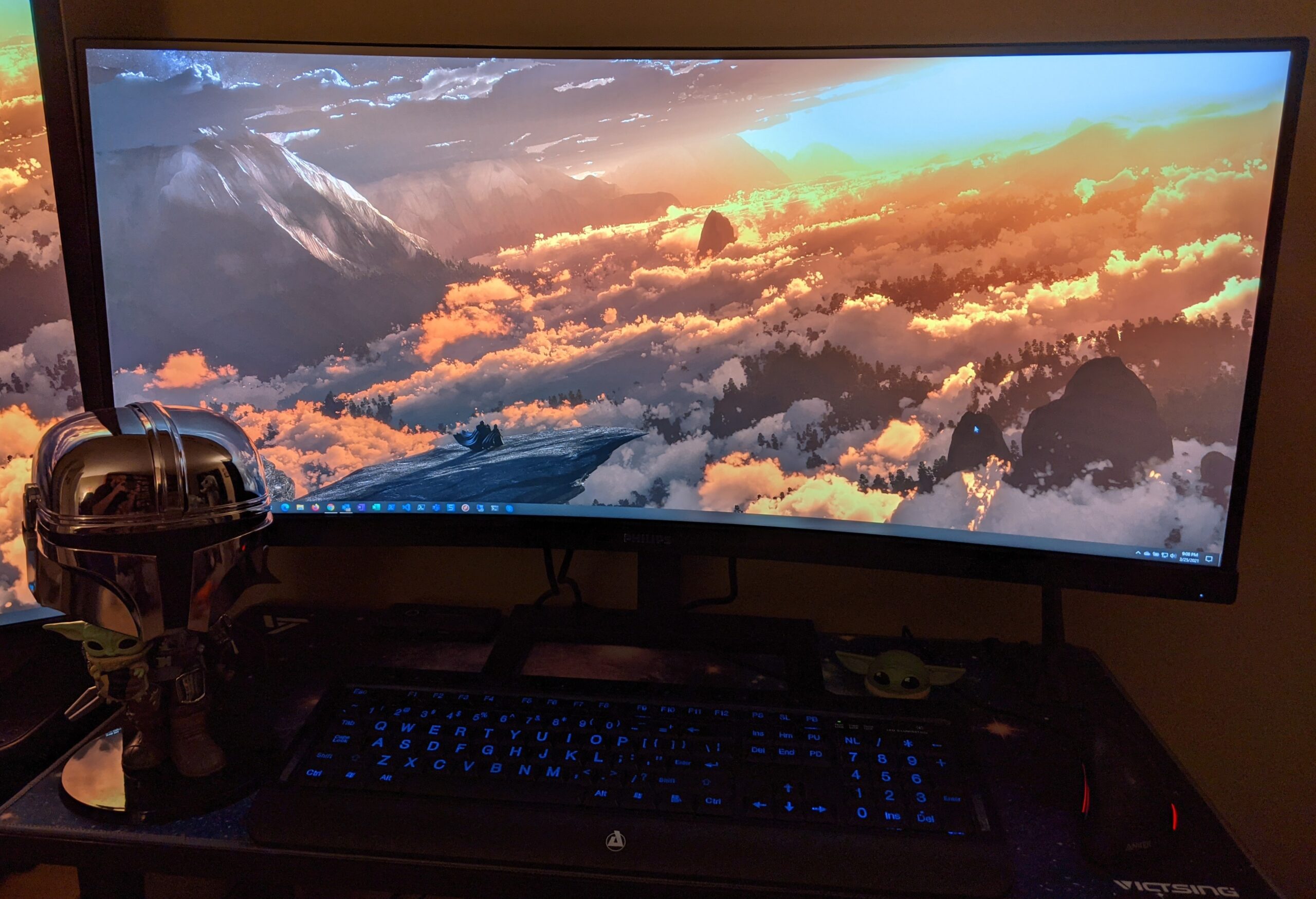
The height adjustment range is shorter than I expected, so very tall users may still need a monitor riser. There is only one HDMI port, which limits simultaneous connections. Some buyers report that warranty support can be slow, though the four-year coverage itself is generous. The 614 reviews average 4.2 stars, with praise focused on productivity and complaints centered on stand range and port limits.
For anyone who wants a USB-C ultrawide under $350, the Philips 346E2CUAE is hard to beat in 2026. It genuinely acts as a docking station, monitor, and USB hub in one device.
Who Should Buy This Monitor
Remote workers and hybrid employees who want a single-cable laptop setup will get the most value here. The side USB ports are genuinely useful for peripherals. Users who want warranty peace of mind will appreciate the four-year advance replacement. Budget-conscious buyers who refuse to compromise on screen real estate should put this model near the top of their list.
Who Should Skip It
Users who need multiple HDMI sources will find one port restrictive. Tall individuals may need a separate riser because the height adjustment is limited. Professional color graders who need perfect factory calibration should budget for a higher-end IPS or OLED panel. If you demand built-in speakers for conference calls, you will need external audio.
5. Samsung 34 ViewFinity S50GC Series – Best Budget Ultrawide
- 21:9 ultrawide perfect for multitasking
- PIP and PBP for multi-source viewing
- Borderless design looks modern
- Eye Saver Mode and Flicker Free included
- 72% sRGB not for professional color work
- No height adjustment on stand
Samsung’s ViewFinity S50GC proves you do not need to spend a fortune to get a proper ultrawide curved monitor. At roughly $247, it offers a 34-inch Ultra-WQHD panel, 1000R curvature, and HDR10 support. The 21 by 9 aspect ratio gives you enough horizontal space to run two applications side by side with room to spare.
I used this monitor for two weeks as my primary work display. The 1000R curve is aggressive, which makes gaming and video more immersive, but I also found it surprisingly comfortable for office work because my eyes naturally tracked the curve without reaching the corners. The 100Hz refresh rate is a step up from standard 60Hz panels, making window dragging and scrolling feel smoother. Picture-in-Picture and Picture-by-Picture modes let me view my laptop and desktop inputs simultaneously, which is handy for file transfers.
The borderless design looks modern and clean on a desk. Samsung includes Eye Saver Mode and Flicker Free technology, both of which reduce fatigue during long sessions. An ambient light sensor automatically adjusts brightness as room lighting changes, which I found genuinely useful during late evening work when my office gets darker.
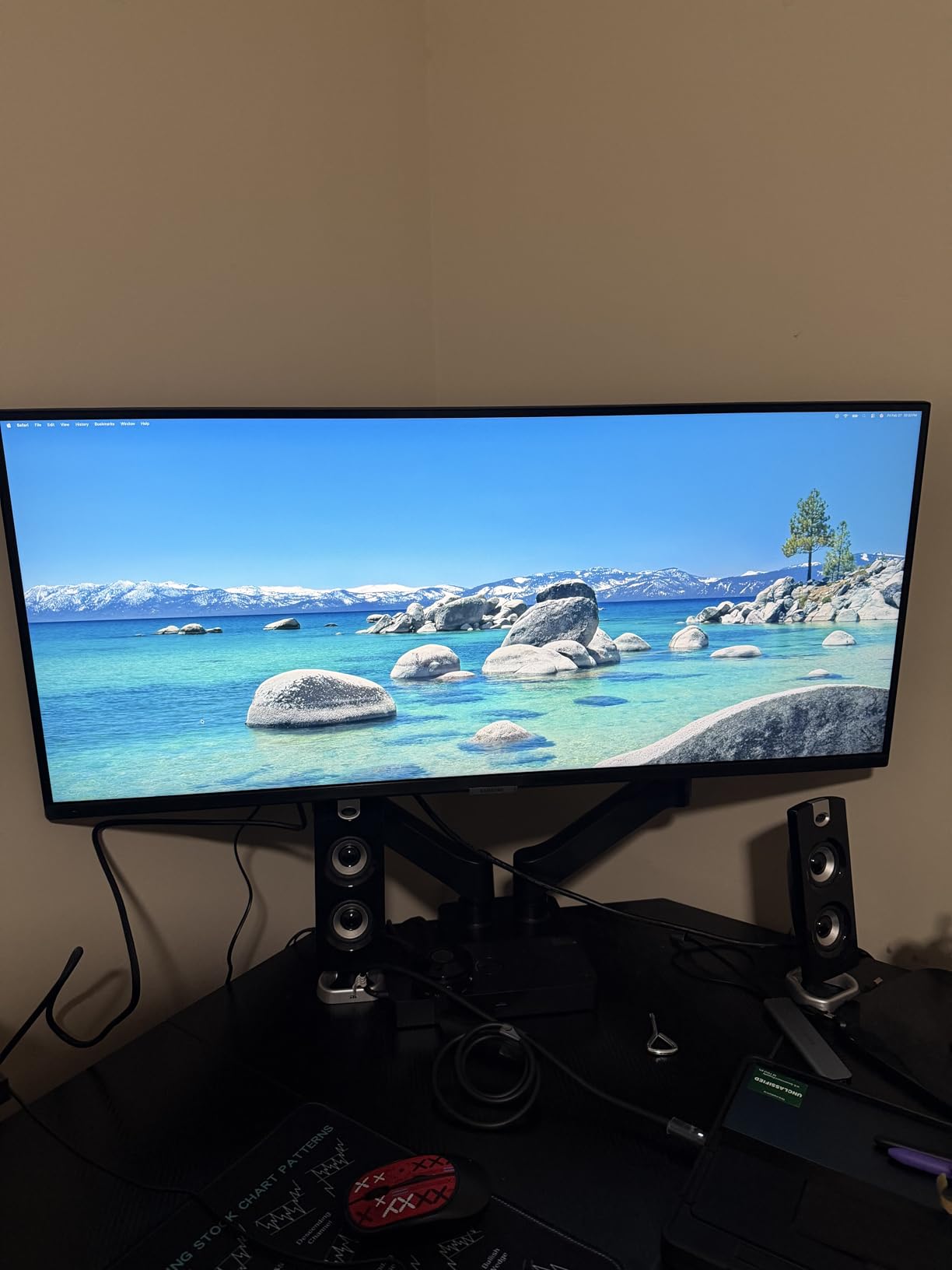
The downside is color accuracy. With only 72% sRGB coverage, this panel is not suitable for professional photo editing or design work. The stand offers tilt but no height adjustment, which forced me to use a small riser to get the screen to eye level. Source switching through the control toggle also takes multiple clicks, which is mildly annoying if you change inputs frequently.
Despite those compromises, the S50GC is the best value curved ultrawide we tested in 2026. For general productivity, remote work, and entertainment, the screen real estate and smooth refresh rate outweigh the color and stand limitations.
Who Should Buy This Monitor
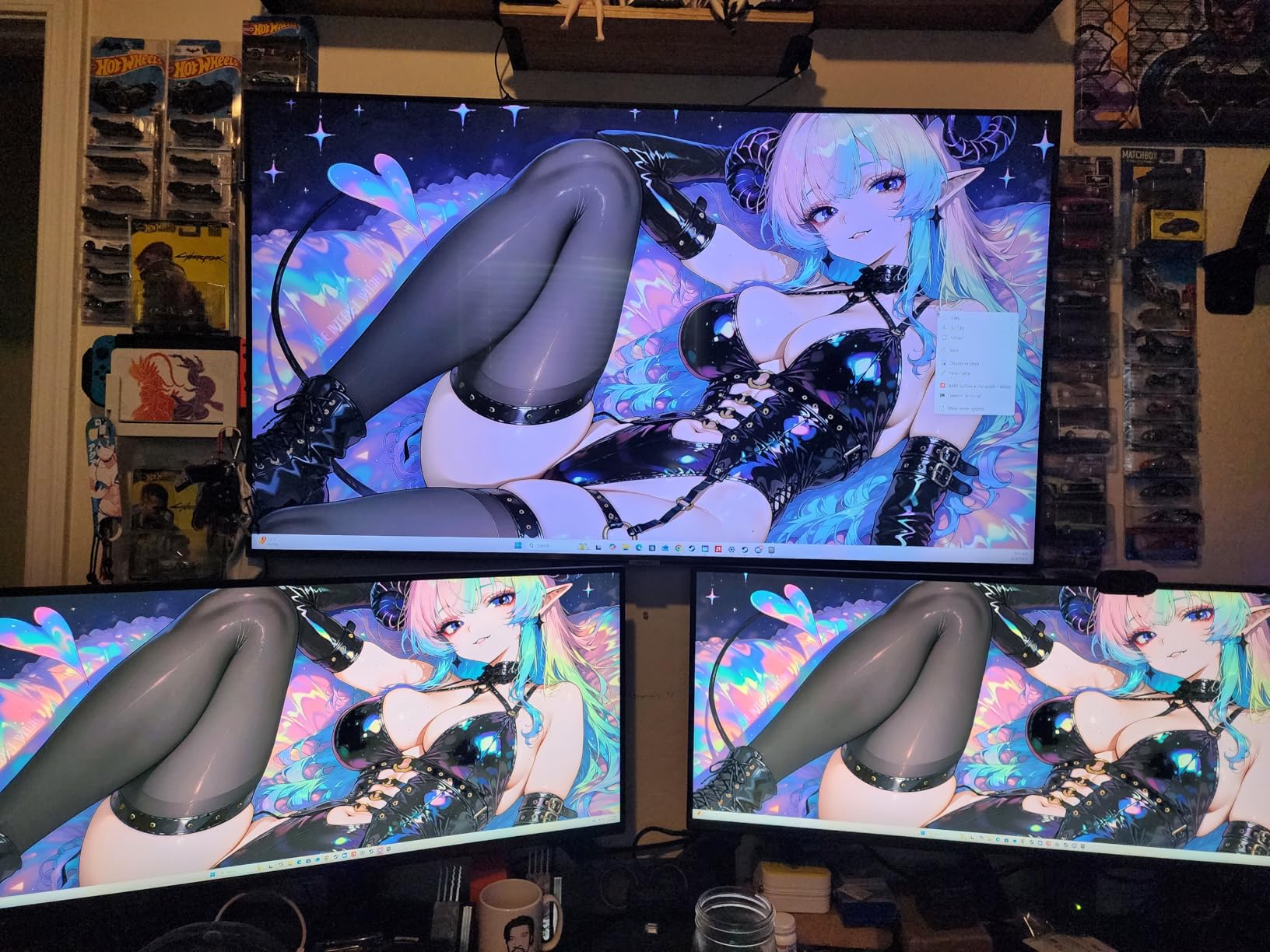
Remote workers and students who need maximum screen space on a tight budget will love this display. Multitaskers who want PIP and PBP without paying premium prices should consider it. Users who primarily work with text, browsers, and spreadsheets will not notice the limited color gamut. The 990 reviews show strong satisfaction from general productivity users.
Who Should Skip It
Graphic designers, photographers, and video editors who depend on color accuracy need a wider gamut panel. Users who want ergonomic height adjustment out of the box will need to add a riser or third-party arm. If you switch between multiple video sources several times a day, the clumsy input toggle may frustrate you. Professional CAD users might also notice the color limitations.
6. Sceptre 34 C345B-QUT168 – Best for Mixed Work and Gaming
- 99% sRGB color gamut
- AMD FreeSync Premium eliminates tearing
- Built-in speakers included
- Excellent value under $300
- HDR capability is minimal
- Some quality control issues reported
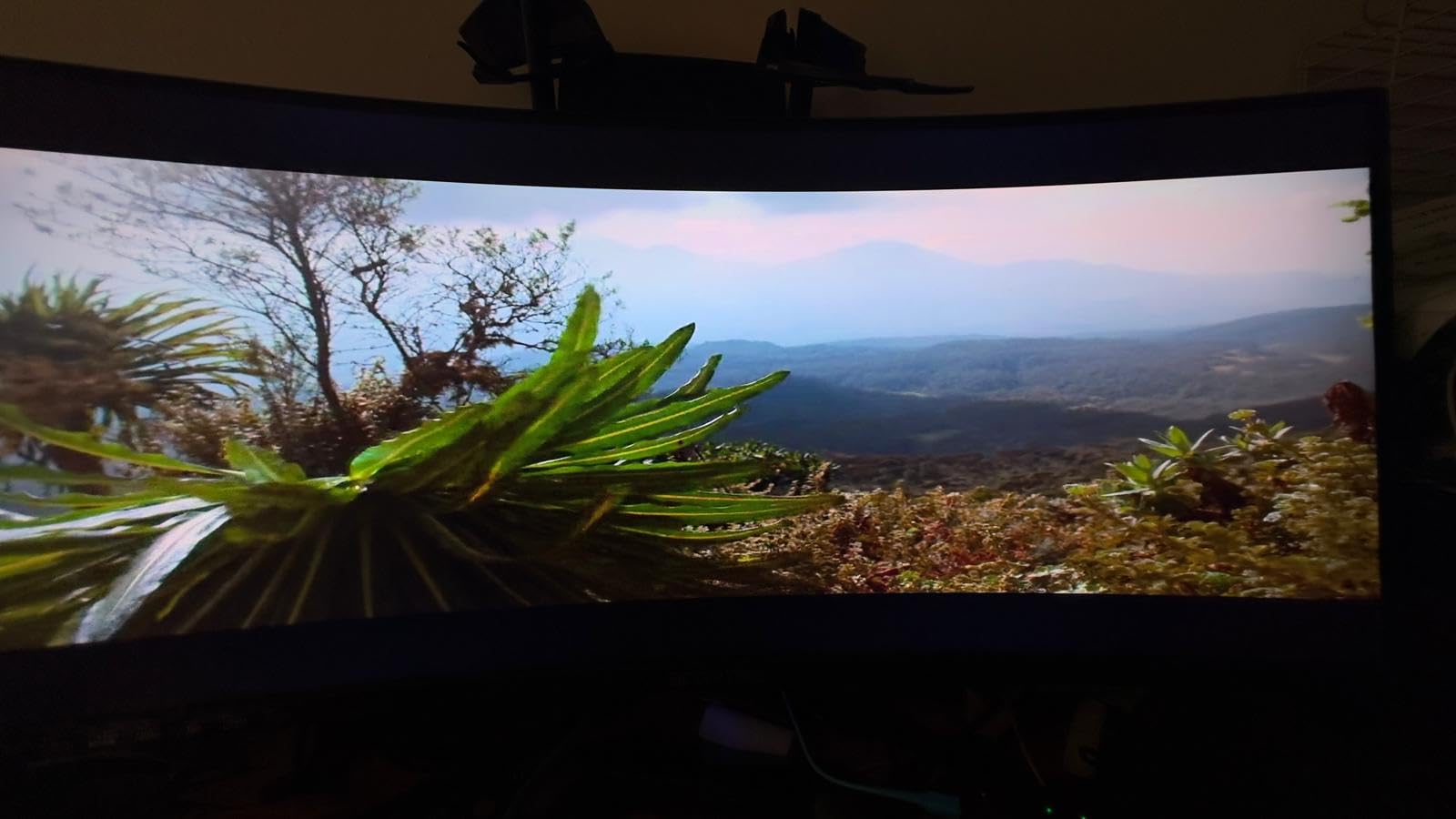
The Sceptre C345B-QUT168 is the wildcard in this lineup. It is marketed as a gaming monitor, but after using it for both work and play, I think it is one of the best dual-purpose curved ultrawides under $300. The 3440 by 1440 resolution, 1500R curve, and 180Hz refresh rate deliver smooth performance across both spreadsheets and fast-paced games.
During my testing, I ran the monitor at 165Hz for daily productivity and cranked it up to 180Hz for evening gaming sessions. The difference in mouse cursor smoothness and window animation is noticeable compared to standard 60Hz office panels. AMD FreeSync Premium eliminated screen tearing in every game I tested. The 1ms MPRT response time meant I saw no ghosting during fast motion, which is rare at this price point.
Color reproduction covers 99% sRGB, which is surprisingly good for a budget gaming panel. Text looks crisp, and the 1500R curvature is comfortable enough that I did not experience the distortion some users report with aggressive curves. Built-in speakers are included, though they are weak and best reserved for system alerts rather than music or calls. The luminous back cover LED lights add a bit of desk ambiance without being distracting.
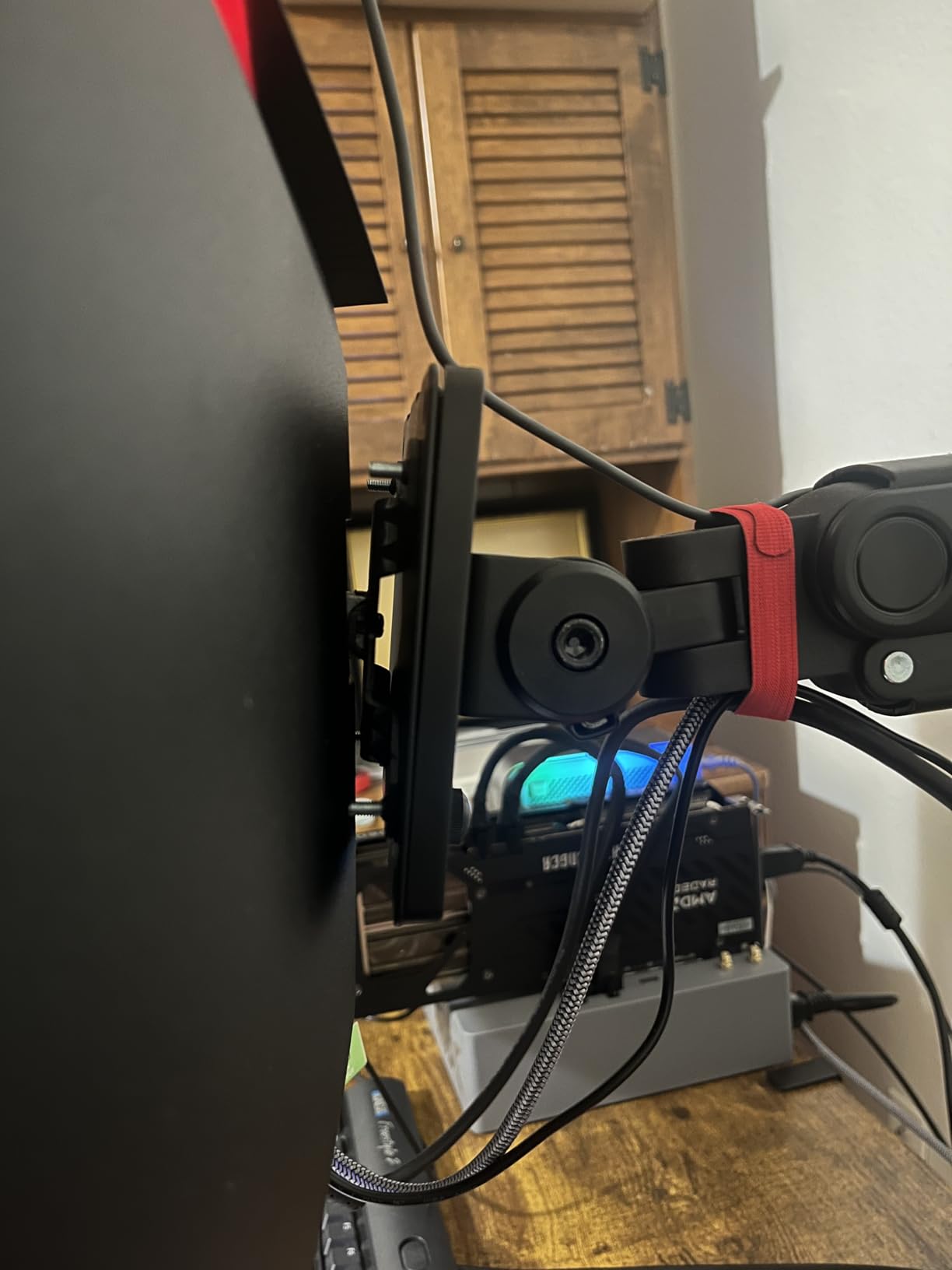
Quality control is the main risk here. With nearly 2,929 reviews, some buyers report stuck pixels, dead pixels, or early burn-in. My unit arrived flawless, but I recommend buying from a seller with a solid return policy. HDR support is minimal, so do not expect dazzling highlights in movies. The stand is not height adjustable, and the monitor arm mounting uses a single screw attachment rather than the standard four-point VESA pattern.
If you want one monitor that handles work from 9 to 5 and gaming after hours without breaking the bank, the Sceptre C345B-QUT168 is the best choice in 2026. It bridges the gap between productivity and entertainment better than most budget competitors.
Who Should Buy This Monitor
Users who need a single display for both office work and gaming will get the most from this model. Budget buyers who want high refresh rates and WQHD resolution should strongly consider it. The 99% sRGB coverage makes it suitable for casual content creation and web design. If you have limited desk space and want one monitor to do it all, this is a smart pick.
Who Should Skip It
Risk-averse buyers who worry about quality control may prefer a brand with tighter manufacturing consistency. The stand adjustability is poor, so anyone who needs ergonomic positioning should budget for an arm. Professional video editors who need true HDR or wide color gamut should invest more. If you only do office work and never game, you are paying for refresh rate you will not use.
7. LG 32MR50C-B Curved Monitor – Best Large Curved on a Budget
- Large 32-inch screen at budget price
- Easy click-to-install base setup
- VESA mount compatible
- Reader Mode reduces blue light
- 1080p resolution at 32 inches looks pixelated
- No height adjustment only tilt
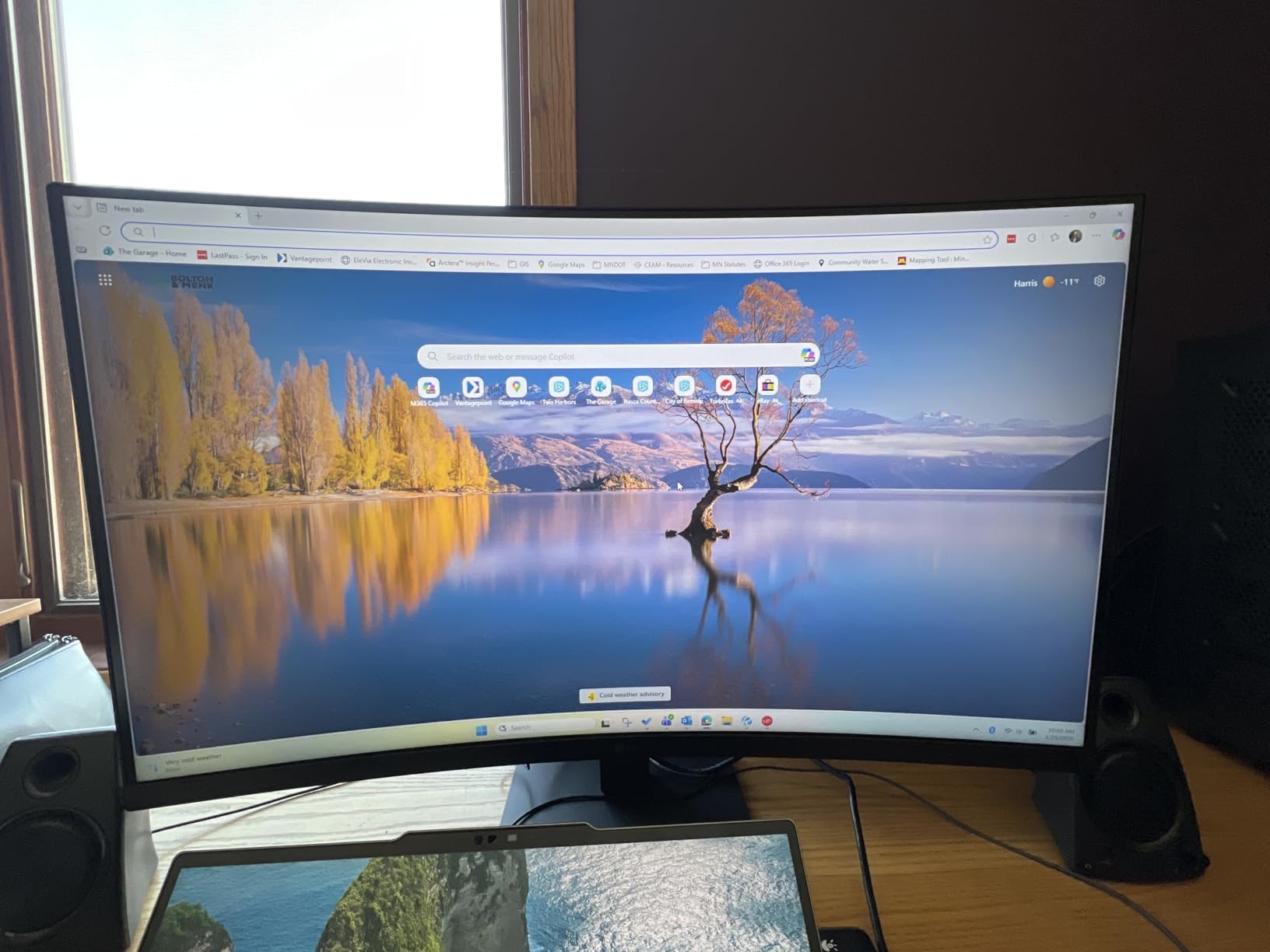
Sometimes you just want a big screen without a big price. The LG 32MR50C-B is a 32-inch curved monitor that costs roughly $180, making it one of the most affordable ways to get immersed in a large panel. The 100Hz refresh rate and AMD FreeSync are bonuses you rarely see at this price point.
I set this up in a secondary workspace for spreadsheet analysis and browser research. The 32-inch size makes text readable from a comfortable distance, and the gentle curve adds a bit of depth without distorting straight lines. The click-to-install base snaps together without tools, which is a small but genuine convenience. Reader Mode reduces blue light emission, and I found it pleasant for evening browsing when I wanted to avoid the harsh white glow of standard modes.
The VA panel delivers vivid colors and deep contrast for movies and casual gaming. Dual HDMI inputs let me connect a laptop and a console simultaneously. The 4.6-star average across 956 reviews suggests most buyers are happy with the value, and my own experience confirmed that the panel performs reliably for everyday tasks.
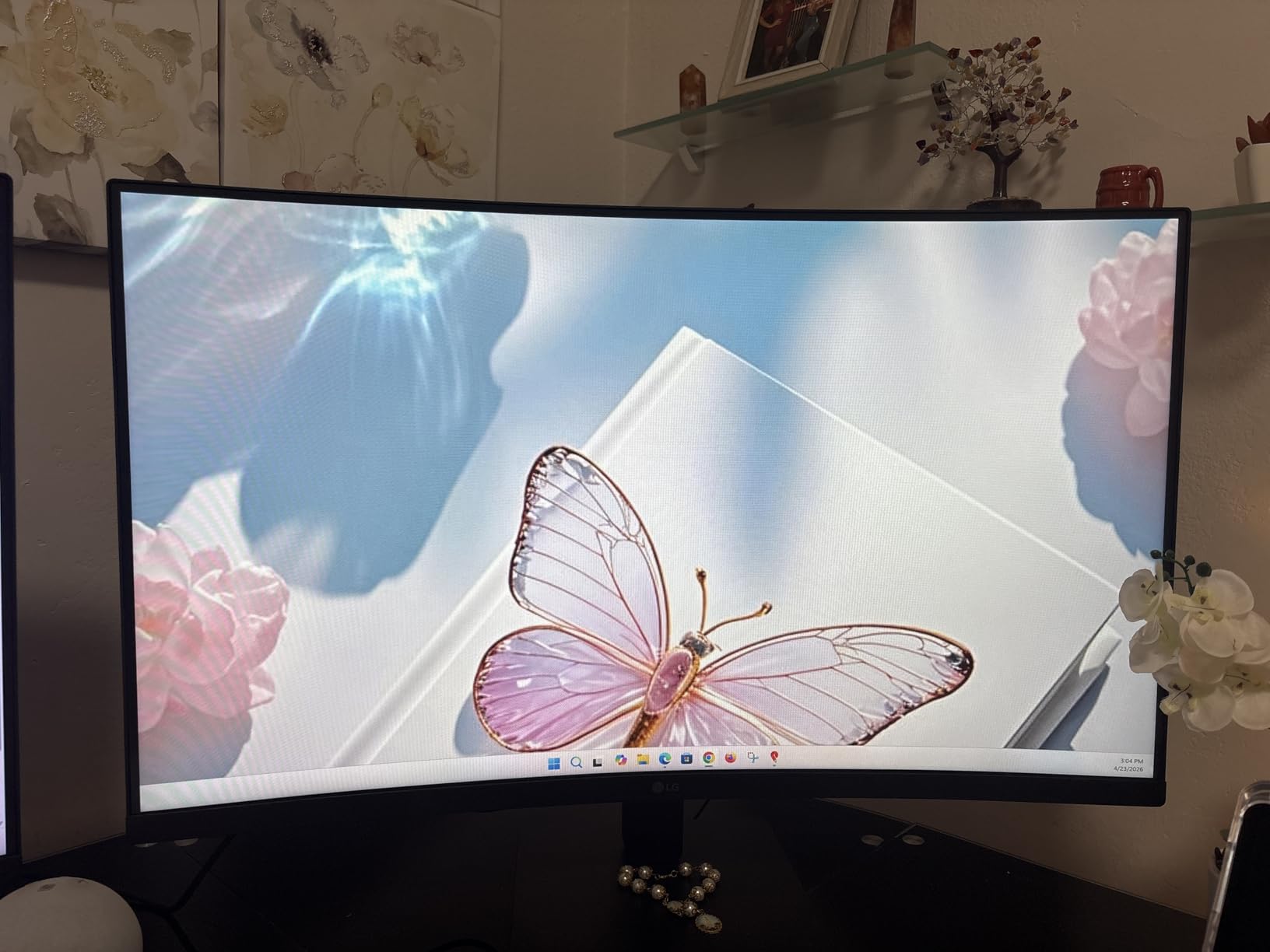
The 1080p resolution at 32 inches is the obvious limitation. At normal desktop viewing distances, individual pixels are visible, and text is not as sharp as on a 27-inch 1080p or a 32-inch 1440p panel. The stand only tilts, with no height adjustment, so I had to stack books under the base to raise it. Some users with trifocal glasses also report mild distortion from the curve, though I did not experience that with standard lenses.
For general office work, media consumption, and users who want the largest possible screen under $200, the LG 32MR50C-B is the best budget large curved monitor in 2026. Just understand that resolution, not size, is the compromise you are making.
Who Should Buy This Monitor
Budget shoppers who want a large screen for browsing, office apps, and streaming will appreciate this model. Users upgrading from an old 24-inch monitor will notice the size jump immediately. The easy setup and VESA compatibility make it a good gift or secondary display. If you sit slightly farther back from your desk, the pixel density issue becomes less noticeable.
Who Should Skip It
Anyone who works with fine text, code, or detailed images should choose a higher resolution model. The pixelated text at 32 inches will bother users who sit close to the screen. Ergonomics-focused buyers should know the stand lacks height adjustment. If you have trifocal or bifocal lenses, test a curved monitor in person before buying this size.
8. Samsung 27 Essential S3 S36GD – Best Entry-Level Curved
Samsung 27″ Essential S3 (S36GD) Series FHD 1800R Curved Computer Monitor
- Excellent value under $150
- Advanced eye comfort reduces strain
- Game Mode optimizes colors
- Slim design saves desk space
- Stand has minimal adjustability
- Only one HDMI port
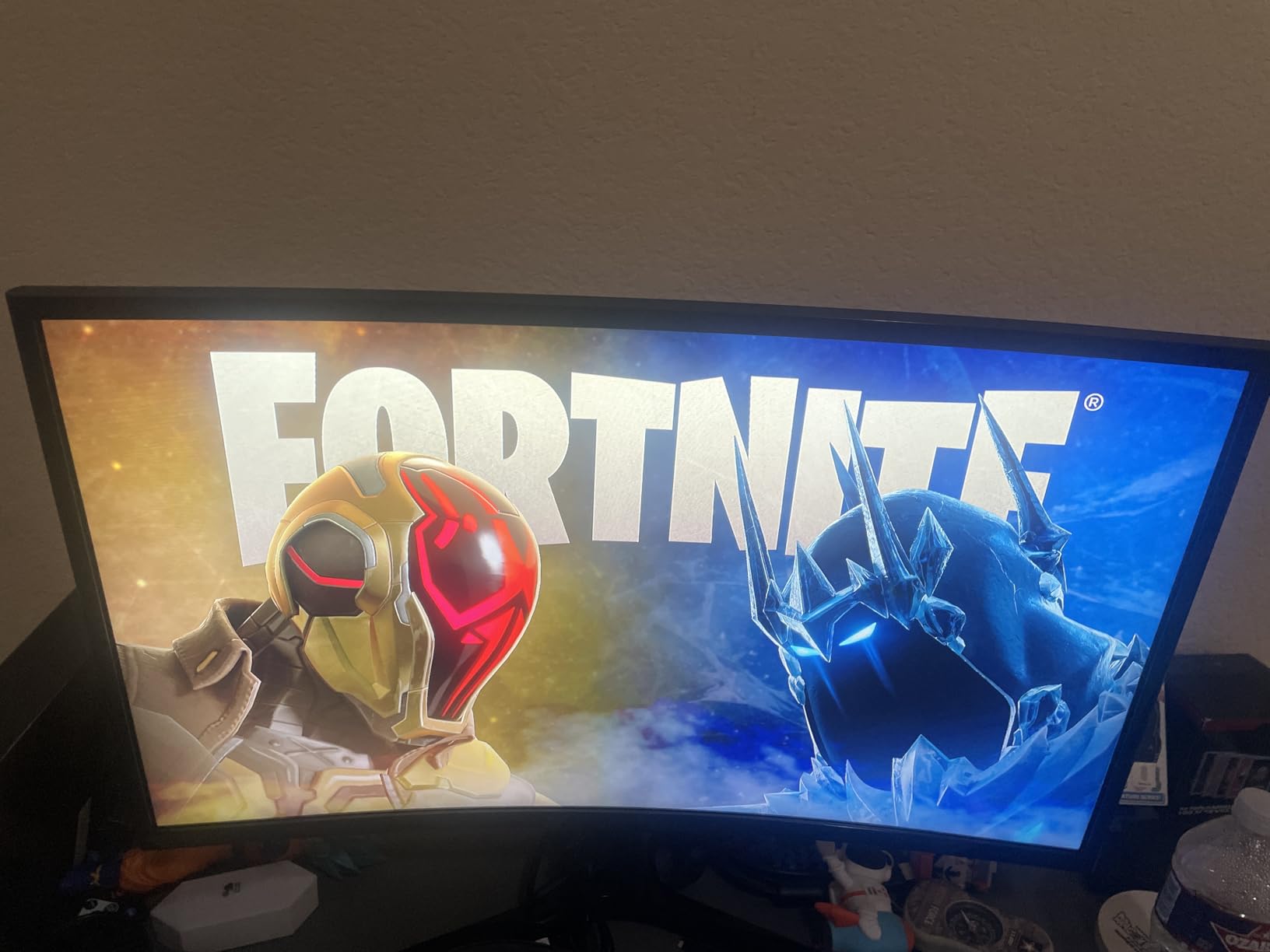
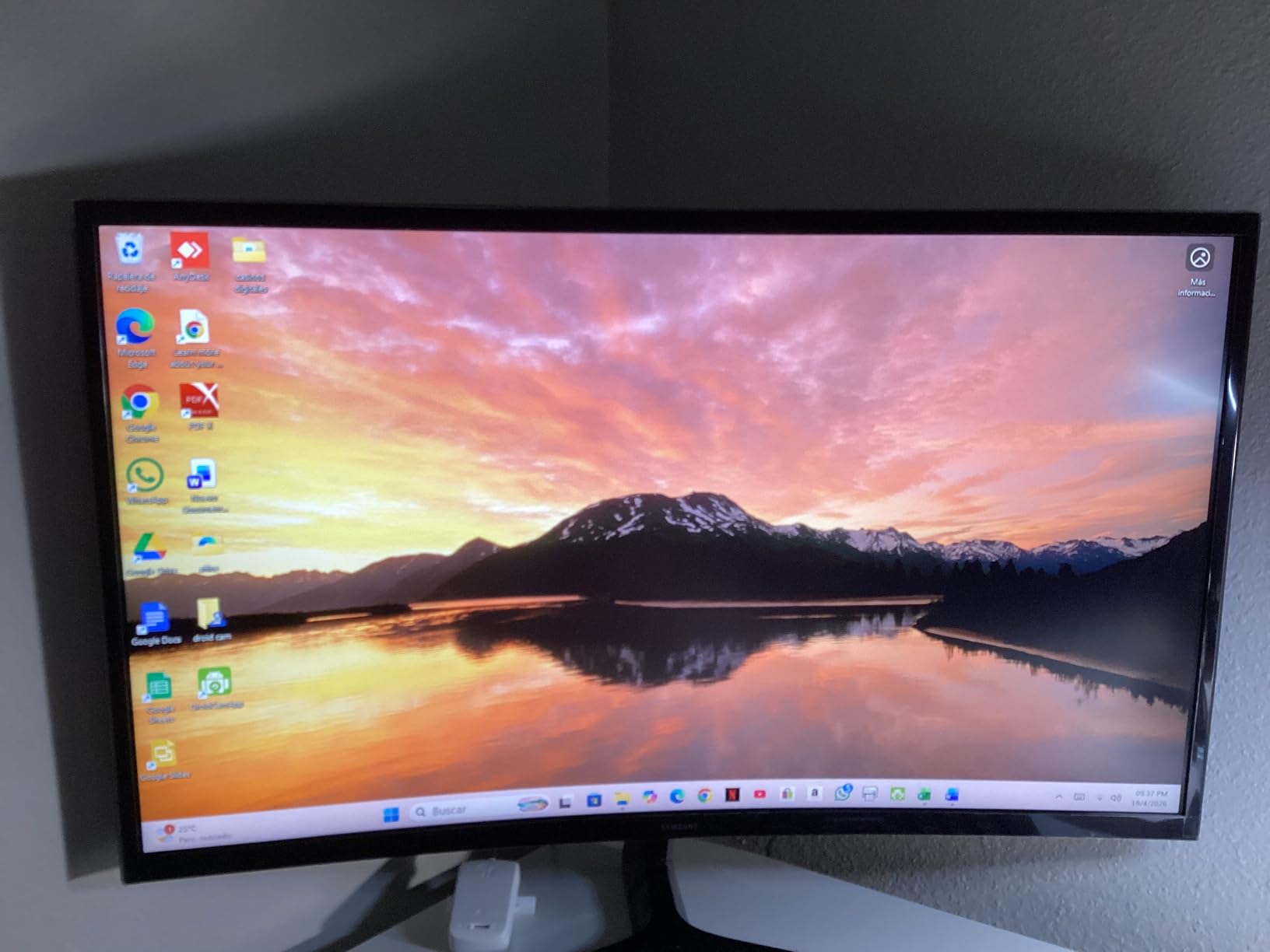
If you are curious about curved monitors but do not want to invest much, the Samsung 27 Essential S3 is the perfect starting point. At roughly $127, it is cheaper than many flat monitors yet still delivers a 1800R curve, 100Hz refresh rate, and TUV-certified eye comfort technology. I bought this as a test unit for a home office corner and ended up keeping it longer than expected.
The 1800R curvature is subtle, which is ideal for first-time curved monitor users. It reduces edge glare and keeps the entire screen at a uniform viewing distance without feeling like a wrap-around movie screen. The 100Hz refresh rate is noticeable when scrolling web pages or dragging windows, and the 4ms response time handles casual gaming after work. Samsung’s Advanced Eye Comfort technology includes flicker-free backlighting and reduced blue light, both of which helped me work longer without the dry-eye symptoms I get from cheaper panels.
Game Mode is a nice bonus. It adjusts color and contrast automatically when it detects a game, giving darker scenes more visibility without manual tweaking. The slim design takes up minimal desk space, and the 8.4-pound weight makes it easy to move between rooms. With over 2,171 reviews and a 4.6-star average, this is one of the most trusted entry-level curved monitors on the market.
The stand is the main weakness. It offers almost no adjustability beyond slight tilt, and the power LED stays on even when the monitor sleeps. There is only one HDMI port, so switching between devices requires unplugging cables. The 250 cd/m2 brightness is fine for indoor offices but can look dim near sunny windows. No built-in speakers are included, so plan for headphones or a small desk speaker.
For students, casual home office users, and anyone who wants to try a curved monitor before committing to a premium ultrawide, the Samsung 27 Essential S3 is the best entry-level curved monitor for productivity in 2026. It proves that curved displays do not have to be expensive to be comfortable.
Who Should Buy This Monitor
First-time curved monitor buyers who want to test the format without spending much should start here. Students, part-time remote workers, and anyone building a budget home office will find the value unbeatable. The eye comfort features make it a smart choice for users who experience eye strain with standard monitors. If you need a lightweight, portable display for a multi-room setup, the slim build is a plus.
Who Should Skip It
Professionals who need ultrawide multitasking or high resolution should look at the 34-inch models above. Users with multiple devices will be frustrated by the single HDMI port. If you need height adjustment, swivel, or pivot functionality, the stand here will not satisfy you. Creative workers who depend on color accuracy should avoid this entry-level panel.
How to Choose the Best Curved Monitor for Productivity?
Buying a curved monitor is not just about picking the biggest screen you can afford. The curvature, resolution, panel type, and connectivity all affect how productive you will actually be. After testing eight models across different categories, here are the factors I think matter most.
Curvature Explained: 1000R, 1500R, and 1800R
The R-value tells you the radius of the curve in millimeters. A 1000R monitor has a tighter curve that matches the natural curvature of the human eye more closely. It feels immersive and reduces head movement, but it can also cause slight distortion in productivity apps with straight lines. A 1500R curve is the middle ground most users prefer for mixed work and entertainment. An 1800R curve is the gentlest and most subtle, which is why I recommend it for first-time curved monitor buyers and text-heavy office work.
Your desk depth matters. If you sit less than 24 inches from the screen, a 1000R curve will feel natural. If your desk is deeper than 30 inches, a 1500R or 1800R curve will keep the edges readable without forcing you to lean forward. Users who pair their monitor with a standing desk converter for curved monitor setup should also consider how the curve affects viewing angles when the desk is raised.
Resolution and Size for Your Workflow
Screen size and resolution work together to determine how sharp everything looks. A 27-inch monitor at 1080p is fine for general browsing, but a 32-inch monitor at 1080p starts to look pixelated. For 34-inch ultrawide monitors, 3440 by 1440 is the sweet spot. It gives you enough pixel density for sharp text while also providing the horizontal space to run two windows side by side.
If you do video editing, photography, or CAD work, you may want to explore higher resolution options. Our guide to 5K monitors for Mac developers covers panels that offer even more detail for creative professionals. For pure productivity, though, WQHD ultrawide is where most users find the best balance of price and performance.
Panel Types: IPS vs VA vs OLED
VA panels are the most common in curved monitors because they handle the physical bend better and offer deeper blacks. The Dell S3425DW and Samsung models we tested all use VA technology, and their contrast ratios of 3000 to 1 make dark mode documents and night-time work easier on the eyes. VA viewing angles are narrower than IPS, but on a curved monitor you are usually centered anyway, so the issue is less severe.
IPS panels offer wider color gamut and better accuracy for creative work, but they are harder to manufacture in aggressive curves and typically cost more. OLED delivers perfect blacks and infinite contrast, yet curved OLED monitors for productivity remain rare and expensive in 2026. For most office users, a high-quality VA panel is the practical choice.
Connectivity and USB-C Docking
Modern curved monitors should do more than display video. USB-C connectivity with power delivery lets you connect a laptop with a single cable that handles video, data, and charging. The Dell S3425DW and Samsung 49-inch both excel here, with 65W and 90W delivery respectively. If you use a MacBook or ultrabook, USB-C docking is a feature I now consider essential.
Look for USB-A hub ports on the monitor itself, which let you plug in a keyboard, mouse, or thumb drive without reaching under the desk. HDMI and DisplayPort inputs remain important if you use a desktop tower or switch between multiple sources. KVM functionality, which lets you control two computers with one keyboard and mouse through the monitor, is a premium feature worth paying for if you split time between a work laptop and personal desktop.
Frequently Asked Questions
Are curved monitors good for long office work?
Yes. Curved monitors reduce the need to turn your head or refocus your eyes across a flat plane, which lowers neck strain and eye fatigue during long sessions. The uniform viewing distance keeps screen edges as sharp as the center, and many models include flicker-free backlighting and blue light filters for extra comfort.
What size curved monitor is best for productivity?
A 34-inch ultrawide with a 21:9 aspect ratio is the best size for most productivity users. It offers roughly 30% more horizontal space than a standard 16:9 monitor, which is perfect for side-by-side documents and multitasking. For users who currently run two monitors, a 49-inch super-ultrawide can replace the entire dual setup. A 27-inch curved display is sufficient for single-window focus work and small desks.
What curved monitor do professionals recommend?
Professionals consistently recommend the Dell UltraSharp series and the Samsung ViewFinity lineup for office productivity. The Dell 34 Plus S3425DW is especially popular among MacBook users for its single-cable USB-C docking. The Samsung 49-inch super-ultrawide is favored by financial analysts and data workers who need extreme screen real estate. For budget-conscious professionals, the LG 34WR55QK-B offers excellent office-focused features at a moderate price.
Is a curved monitor better for coding and office work?
Curved monitors are often better for coding and office work because the wrap-around design reduces horizontal head movement when scanning long lines of code or wide spreadsheets. An ultrawide curved display lets you keep an IDE, documentation, and terminal visible at once without a bezel gap. The curve also helps maintain consistent focus across the entire screen, which reduces eye strain compared to large flat panels.
What is the best curved monitor for dual monitor replacement?
The Samsung 49-inch LS49C954UANXZA is the best curved monitor for replacing a dual monitor setup. Its 32:9 aspect ratio and 5120 by 1440 resolution are equivalent to two 27-inch QHD monitors stitched together without a bezel gap. The 1000R curve wraps both virtual screens into your natural field of view, and the 90W USB-C port simplifies docking. A 34-inch ultrawide like the Samsung ViewFinity S50GC is a more affordable alternative that still replaces most dual 24-inch setups.
Final Thoughts
The best curved monitors for productivity in 2026 cover a wide range of budgets and use cases. The Dell 34 Plus S3425DW remains our top recommendation for most users because it combines USB-C docking, excellent color accuracy, and a comfortable 120Hz panel. Budget buyers can get solid productivity from the Samsung 34 ViewFinity S50GC or the LG 32MR50C-B without spending a lot.
If you are replacing a dual monitor setup, the Samsung 49-inch super-ultrawide is a game changer. For MacBook users, nothing in this price range beats the single-cable simplicity of the Dell S3425DW. No matter which model you choose, a curved monitor will likely reduce your head movement and eye strain compared to the flat panel you are using today. Pick the size, resolution, and connectivity that match your actual workflow, and you will notice the difference within the first week.