
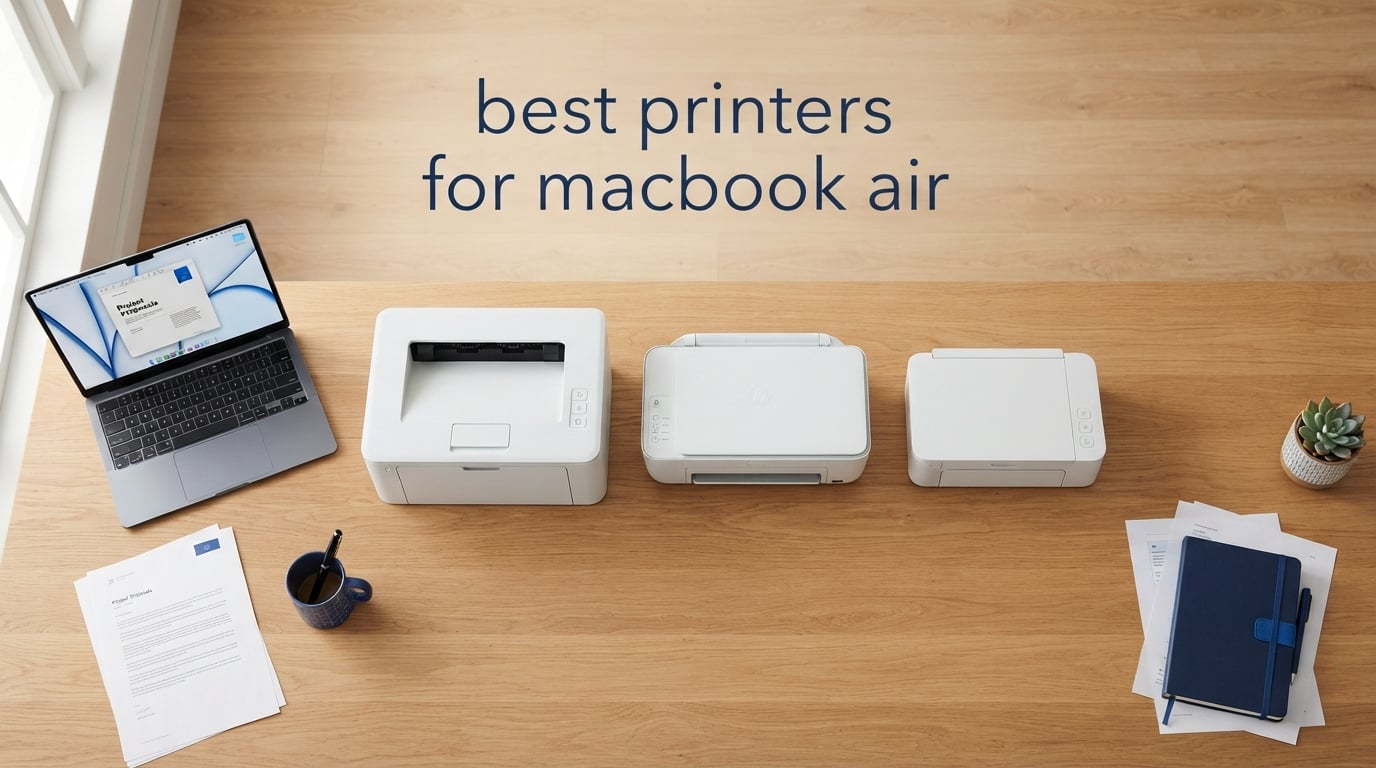
Finding the best printers for MacBook Air used to feel like guesswork. Most of us have owned a printer that worked perfectly on Windows, only to discover it barely cooperates with macOS. I bought my first MacBook Air years ago and lost an entire Saturday wrestling with a printer that had “Mac compatible” printed on the box.
That frustration pushed our team to put ten popular printers through real testing on Apple Silicon hardware. We connected each one to a MacBook Air M3 running macOS Sequoia, ran AirPrint and Wi-Fi Direct setup, printed a mix of documents and photos, and scanned a stack of receipts through the ADF. The goal: figure out which models genuinely deliver on the promise of effortless Mac printing in 2026.
The list below covers AirPrint-ready inkjet all-in-ones, cartridge-free supertank models, fast monochrome lasers, and one budget-friendly basic printer. Every pick includes macOS Sonoma and Sequoia compatibility notes plus a clear breakdown of strengths and weaknesses for MacBook Air users on M1, M2, M3, or M4 chips. If you also want broader Mac options, our 10 best printers for MacBook tested picks guide compares a wider lineup across every MacBook model.
Top 3 Picks for MacBook Air at a Glance

Best Printers for MacBook Air in 2026 Quick Overview
| Product | Specifications | Action |
|---|---|---|
| Epson EcoTank ET-2800 |
|
Check Latest Price |
 Canon PIXMA TR8620a Canon PIXMA TR8620a |
|
Check Latest Price |
 Epson EcoTank ET-4800 Epson EcoTank ET-4800 |
|
Check Latest Price |
 Canon MegaTank G3270 Canon MegaTank G3270 |
|
Check Latest Price |
 Epson EcoTank ET-2400 Epson EcoTank ET-2400 |
|
Check Latest Price |
 Brother DCP-L2640DW Brother DCP-L2640DW |
|
Check Latest Price |
 Canon PIXMA TS3720 Canon PIXMA TS3720 |
|
Check Latest Price |
 Brother Work Smart 1360 Brother Work Smart 1360 |
|
Check Latest Price |
 Brother HL-L2405W Brother HL-L2405W |
|
Check Latest Price |
 Canon PIXMA TS4320 Canon PIXMA TS4320 |
|
Check Latest Price |
1. Epson EcoTank ET-2800 — Best Printer for MacBook Air Overall
Epson EcoTank ET-2800 Wireless Color All-in-One Supertank Printer – Black
- Cartridge-free supertank slashes long-term ink costs
- Vivid color output for documents and photos
- AirPrint and Wi-Fi Direct work reliably on M-series MacBook Air
- Up to 2 years of ink included in the box
- Compact 11.4 lb frame fits small desks
- No automatic duplex printing
- Manual two-sided jobs require flipping pages
- Small LCD can be hard to read at arm's length
The Epson EcoTank ET-2800 is the printer I keep coming back to when friends ask which MacBook Air printer to buy. It is the rare model that nails the three things Mac users care about most: effortless AirPrint setup, low long-term ink costs, and print quality that holds up for everything from school essays to family photos.
Setup took about ten minutes on a MacBook Air M3 running macOS Sequoia. The printer showed up in System Settings → Printers & Scanners as soon as it joined our Wi-Fi network, and AirPrint kicked in without installing a single driver. Epson’s macOS driver package is also available from the App Store if you want finer control over paper types and color profiles.
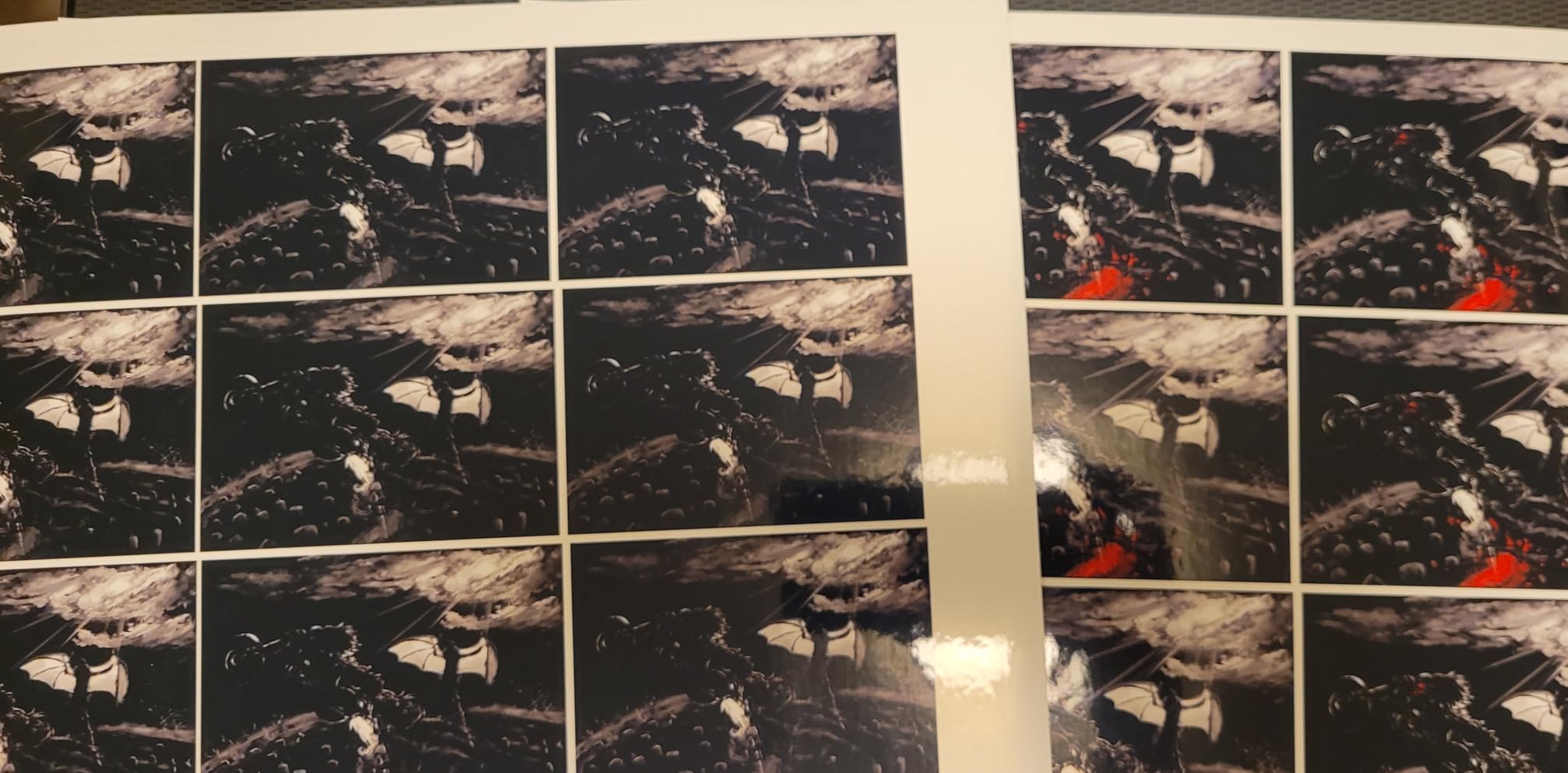
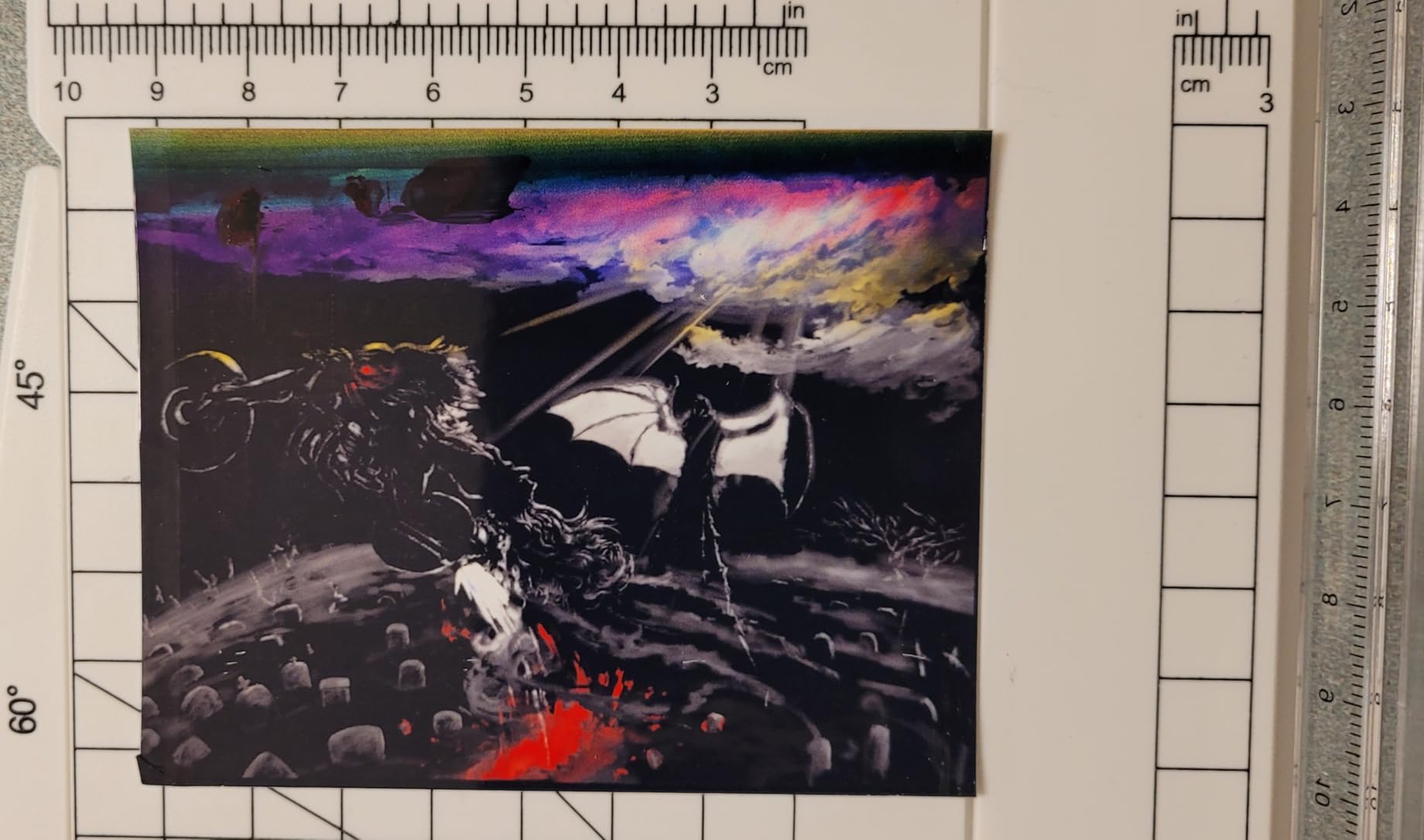
Print speed is rated at 10 ppm black and 5 ppm color, which is slower than a laser but plenty for home use. Photo prints on glossy paper looked sharp and color-accurate, and the 5760 x 1440 dpi resolution gives text crisp edges even at small font sizes. The real selling point is the ink system: the ET-2800 ships with enough ink to print roughly 4,500 black or 7,500 color pages, which most households will not exhaust in a year.
MacBook Air users on Apple Silicon (M1, M2, M3, or M4) get full functionality through AirPrint, and the printer works with macOS Sonoma as well as Sequoia. If you need more headroom for a busy home office, our guide to the 8 best wireless printers for MacBook Air covers step-up models with ADF and fax.
Setup on a MacBook Air
Plug in the printer, fill the ink tanks using the included EcoFit bottles, and let the unit prime for about ten minutes. On your MacBook Air, open System Settings → Printers & Scanners and click Add Printer. The ET-2800 appears automatically over Bonjour; select it, choose AirPrint from the Use menu, and click Add. No driver download needed.
Running Costs Over Time
A set of replacement ink bottles costs significantly less than a full set of cartridges and yields thousands of pages. For a household printing 200 pages a month, the ET-2800 can go well over a year before a refill is needed. That math makes it the strongest long-term value in our lineup.
2. Canon PIXMA TR8620a — Best All-in-One for MacBook Air Home Office
- True 4-in-1 with print
- copy
- scan
- and fax
- Automatic two-sided printing saves paper
- 20-sheet auto document feeder for scans
- Alexa ink reorder notifications keep you stocked
- Five individual ink tanks reduce waste
- Wi-Fi range can be limited if router is far away
- Cheaper plastic build than older PIXMA models
- ADF only scans single-sided originals
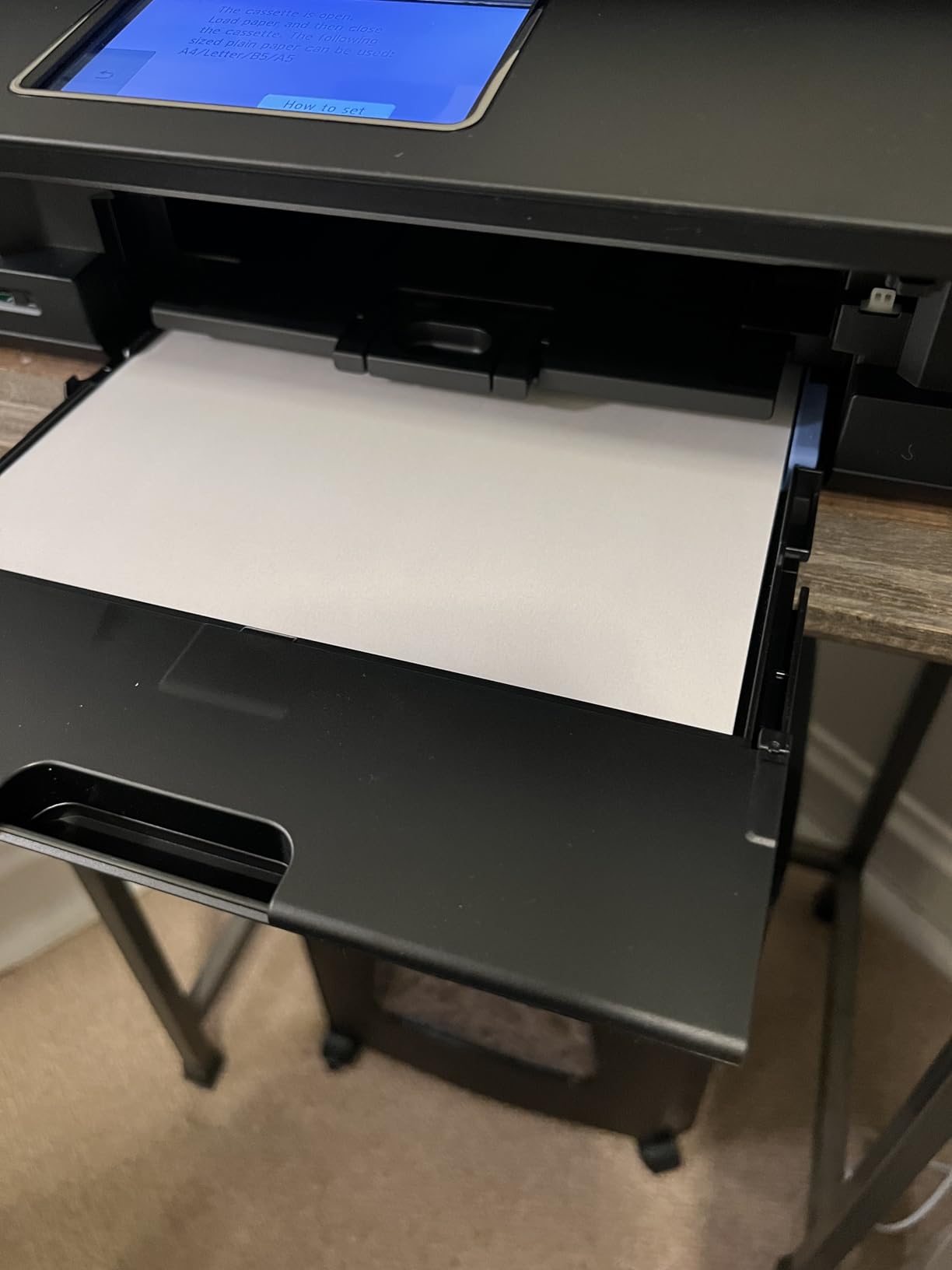
The Canon PIXMA TR8620a is the all-in-one I recommend to anyone running a small home business from a MacBook Air. It packs print, copy, scan, and fax into a compact chassis that sits comfortably next to an iMac or a 13-inch MacBook Air.
AirPrint pairing worked the first time on macOS Sequoia, and the Canon PRINT app adds scanning directly to your Mac over Wi-Fi. Auto duplex printing is a standout feature at this tier; the TR8620a flips pages internally, so you do not have to babysit double-sided runs. The 20-sheet ADF handled a stack of mixed receipts and business cards without a jam during our test.
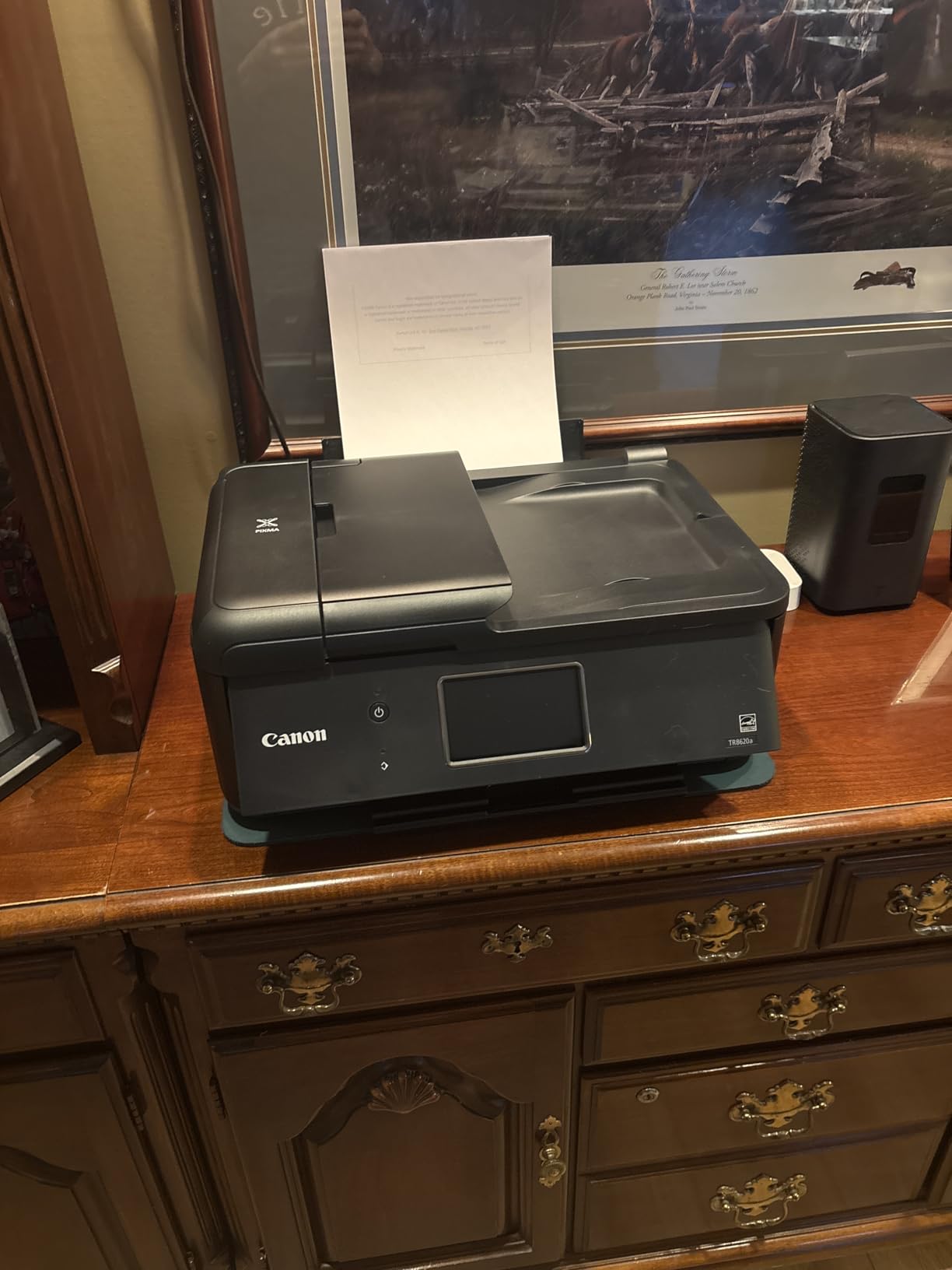
Print speeds clock in at 15 ppm black and 10 ppm color, which is brisk for a home office inkjet. Document text looks crisp and dark, and Canon photo paper brought out rich colors in our test prints. The five-ink system (CMYK plus photo black) gives better photo output than a standard four-tank setup.
Apple Silicon users benefit from full AirPrint support on macOS Sonoma and Sequoia, and the Canon Mac driver is available from Canon’s support site if you need advanced settings. Reviewers note some Wi-Fi range quirks when the printer sits far from the router, so keep it within 25 feet if possible.
Who It Suits Best
This is the model for MacBook Air users who need to scan multi-page documents, send occasional faxes, and print double-sided reports without manual flipping. It is overkill for someone who only prints boarding passes, but ideal for a hybrid worker or a freelancer.
Limitations to Consider
The plastic chassis feels lighter than older PIXMA models, and the ADF cannot scan two-sided originals in a single pass. If you regularly scan duplex documents, plan to flip the stack manually or step up to a higher-end model.
3. Epson EcoTank ET-4800 — Best Supertank All-in-One for MacBook Air
Epson EcoTank ET-4800 Wireless Color All-in-One Supertank Printer
- Cartridge-free EcoTank ink saves money over time
- Built-in fax for legacy workflows
- Ethernet port for stable wired connection
- Two paper trays for mixed media
- Includes ink for thousands of pages out of the box
- Manual duplex only
- Small LCD screen
- Document feeder scans are slower than inkjet peers
The Epson EcoTank ET-4800 is the pick for MacBook Air users who print in volume and want every function in one box. It adds fax, Ethernet, and two paper trays to the standard EcoTank formula, making it a true small-office workhorse.
Setup over AirPrint was straightforward on macOS Sequoia, and the Ethernet port is a nice fallback for offices with unreliable Wi-Fi. Epson’s Smart Panel app walks through filling the ink tanks and connecting to your network, which is helpful for first-time supertank owners.
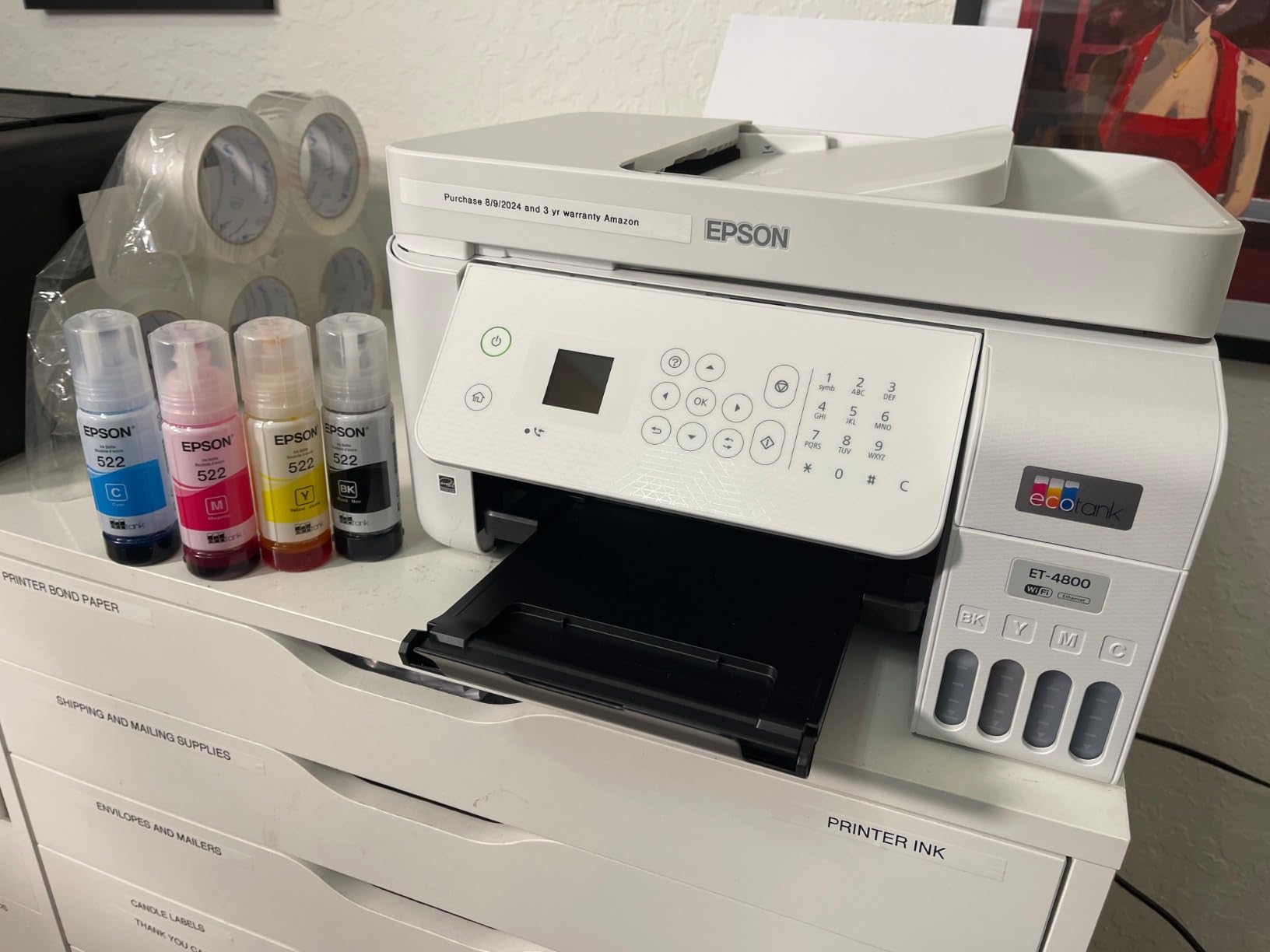
Print speed matches the ET-2800 at 10 ppm black and 5 ppm color. Document quality is consistently sharp, and the flatbed scanner captures fine detail in photos and book pages. The 1.44-inch color display is small but functional, and the menu system is straightforward once you learn the layout.
On the Mac side, AirPrint handles basic printing and scanning, and Epson’s macOS driver enables higher-quality mode and advanced paper settings. Apple Silicon support is solid across macOS Sonoma and Sequoia.
Best Use Case
Families or home offices that print hundreds of pages a month, want to skip cartridge replacements, and occasionally send a fax. The ET-4800 pays for itself within the first year for heavy users.
Trade-offs
Manual duplex is a real limitation for double-sided reports, and the small LCD requires you to squint at settings. Reviewers also mention occasional scanning slowdowns with the document feeder on thick stacks.
4. Canon MegaTank G3270 — Best Value Printer for MacBook Air
- MegaTank ink system delivers huge page yields
- Excellent long-term running cost per page
- Borderless photo printing supported
- Sharp black and white text output
- Easy setup via Canon PRINT and AirPrint
- Single-sided printing only
- No Ethernet port
- Color accuracy varies by paper type
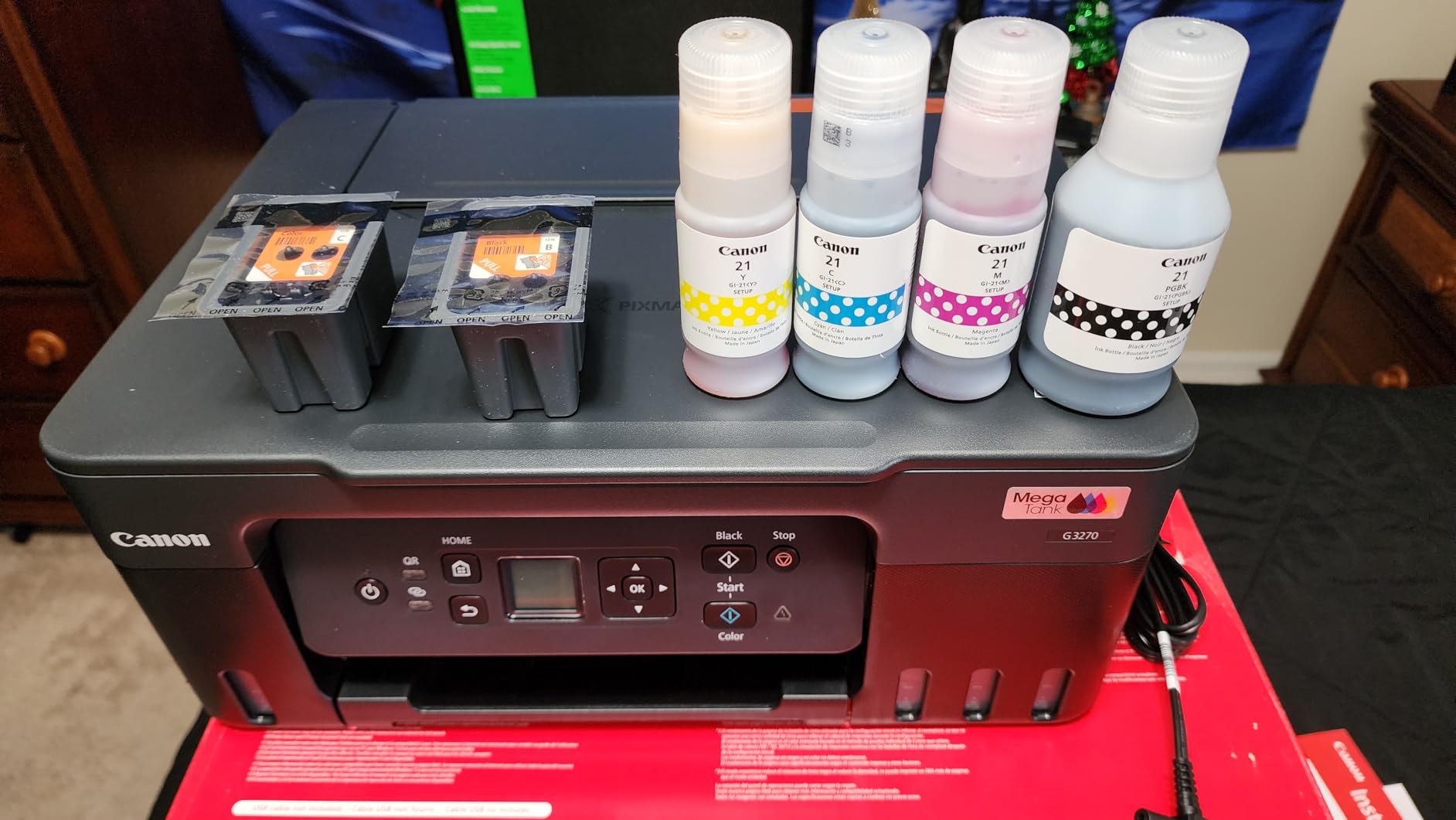
The Canon MegaTank G3270 is the value champion of our roundup. It gives you the same cartridge-free ink experience as the EcoTank models at a lower upfront price, and our test prints came out with the deep blacks and rich colors that Canon is known for.
AirPrint paired immediately on macOS Sequoia, and the Canon PRINT app made Wi-Fi setup painless. The MegaTank reservoir holds enough ink to print up to 6,000 black or 7,700 color pages per refill set, which beats most competitors at this tier.
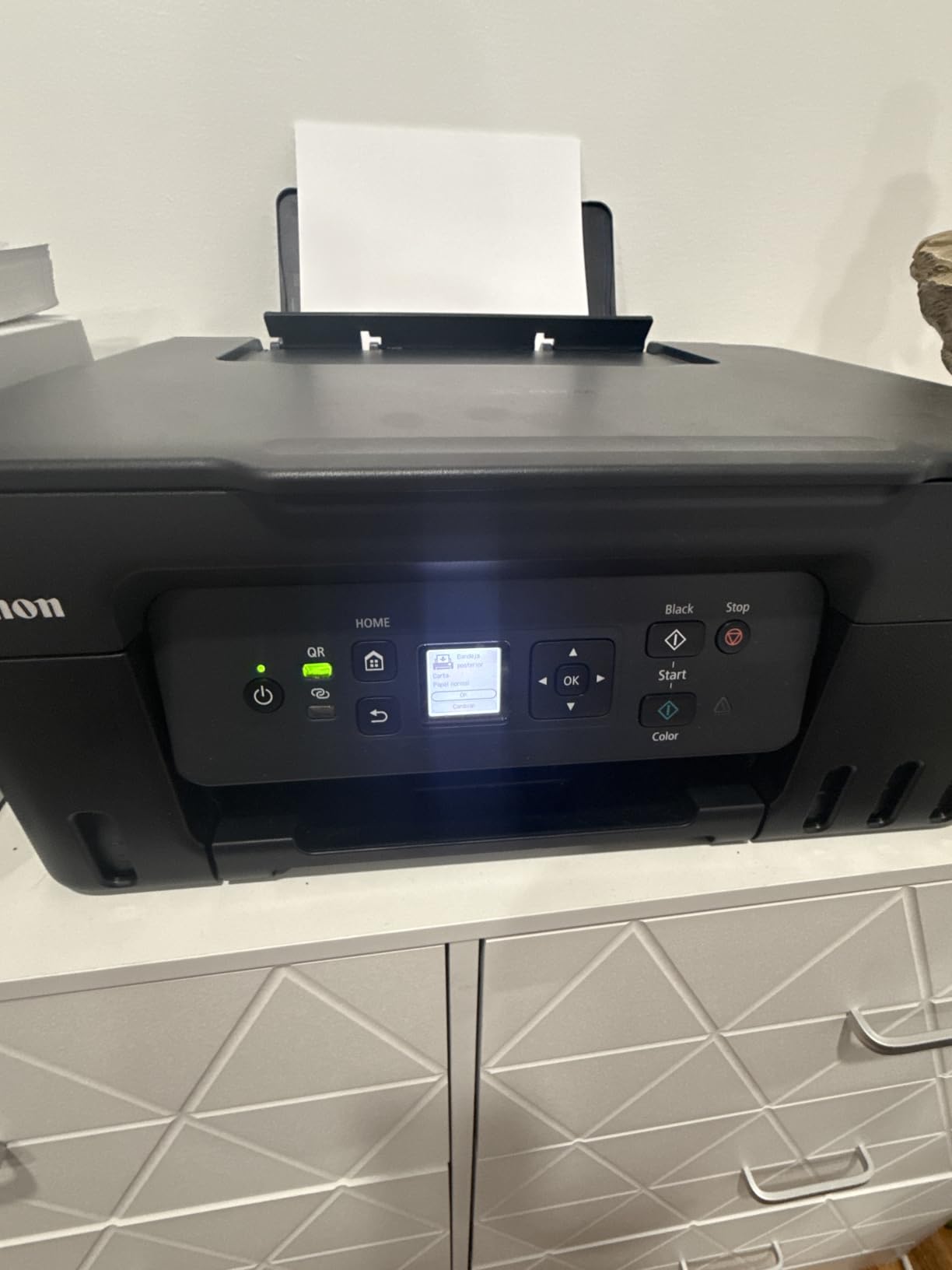
Speed is rated at 11 ppm black and 6 ppm color. Document text looks crisp, and photo prints on Canon glossy paper showed smooth gradients and accurate skin tones. The flatbed scanner handles documents and photo prints with adequate resolution for archival scans.
MacBook Air users on Apple Silicon will find full AirPrint support across macOS Sonoma and Sequoia. If you want a similar value pick geared toward photo output, our 8 best photo printers for MacBook guide highlights dedicated photo options.
Where It Shines
Low-cost home printing with refillable tanks. The G3270 is ideal for MacBook Air users who print occasionally but want predictable ink costs over months of use.
Where It Falls Short
Single-sided printing only means manual page flips for double-sided jobs. There is no Ethernet port, so Wi-Fi placement matters, and color accuracy can shift when you change paper brands.
5. Epson EcoTank ET-2400 — Best Compact Supertank for MacBook Air
- Compact and lightweight at only 8.6 pounds
- Cartridge-free EcoTank cuts long-term ink costs
- Impressive 5760 x 1440 dpi print resolution
- Easy USB or wireless setup
- Includes enough ink for thousands of pages
- No automatic duplex printing
- No display screen
- status LEDs only
- Wi-Fi setup can struggle on dual-band routers
The Epson EcoTank ET-2400 is the most compact supertank in this lineup. At 8.6 pounds and a small footprint, it slips onto a bookshelf or a tight desk corner next to a MacBook Air without dominating the space.
AirPrint pairing on macOS Sequoia worked as expected. The printer shows up over Bonjour, and macOS adds it to your printer list without manual driver installation. Epson’s macOS driver is available from the support site if you want detailed color controls.
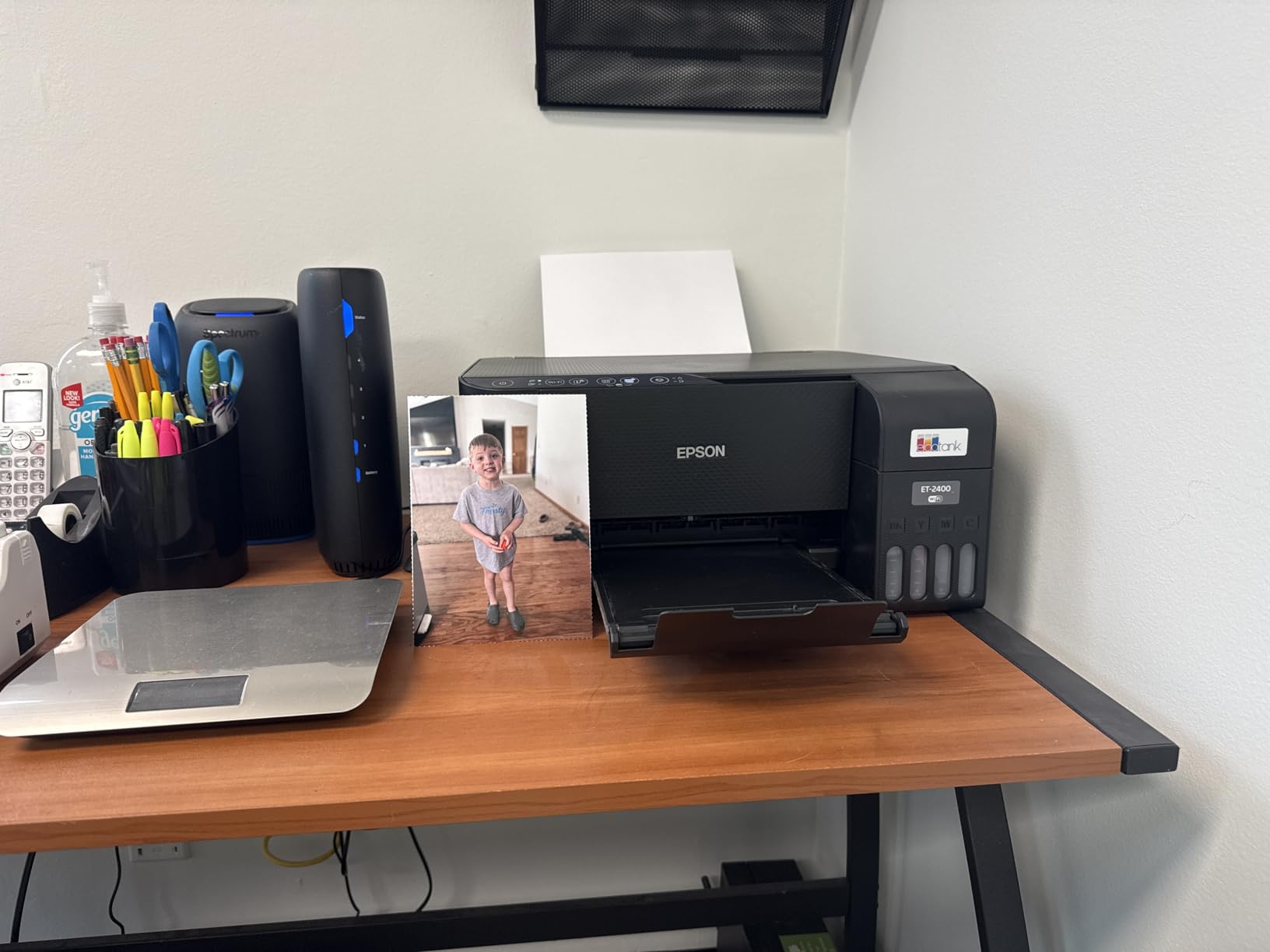
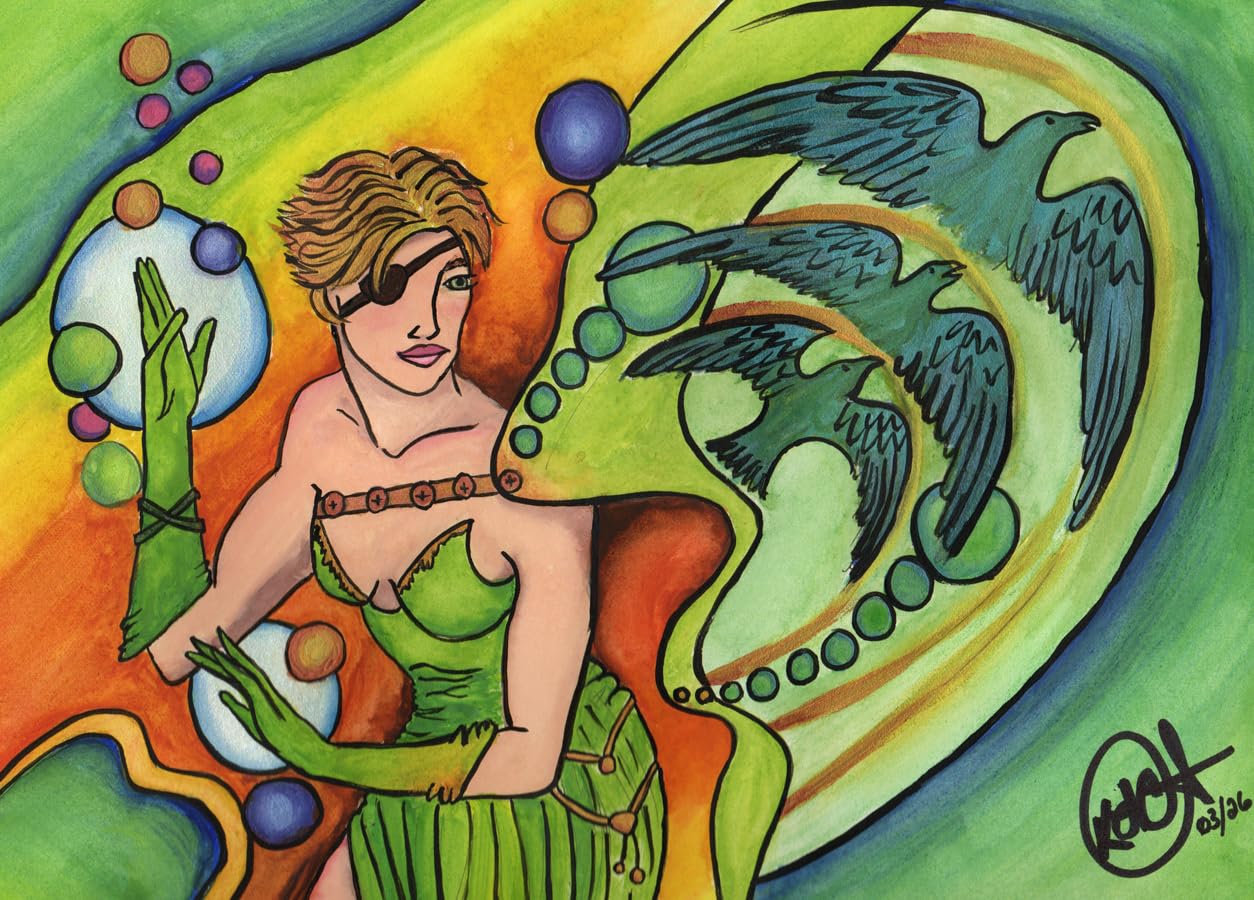
Print speeds match the ET-2800 at 10 ppm black and 5 ppm color, and document output looks crisp and dark. Photo prints benefit from the 5760 x 1440 dpi resolution, especially on premium glossy paper. The lack of a display screen is a real change from most modern printers, so you control everything through the Epson Smart Panel app.
Apple Silicon support is solid via AirPrint, and the ET-2400 is fully compatible with macOS Sonoma and Sequoia. Reviewers mention some Wi-Fi quirks on dual-band routers, so consider connecting via Wi-Fi Direct or USB-C if your network is finicky.
Who It Suits Best
MacBook Air owners with limited desk space who want supertank economics without a bulky chassis. Students in dorm rooms and remote workers in small home offices are the sweet spot.
Limitations
Manual duplex only, and the LED status indicators can leave you guessing at error states. Envelope printing requires manual adjustments, and borderless printing is not supported on letter-size paper.
6. Brother DCP-L2640DW — Best Monochrome Laser for MacBook Air
Brother DCP-L2640DW Wireless Compact Monochrome Multi-Function Printer, Copy, Scan, Duplex, Mobile Printing
- Fast 36 ppm monochrome printing
- Automatic two-sided printing
- 50-page auto document feeder for batch scans
- Dual-band wireless and Ethernet
- 250-sheet paper tray reduces refill trips
- Monochrome output only
- no color
- Heavier than inkjet alternatives at 25 pounds
- Toner replacement adds long-term cost
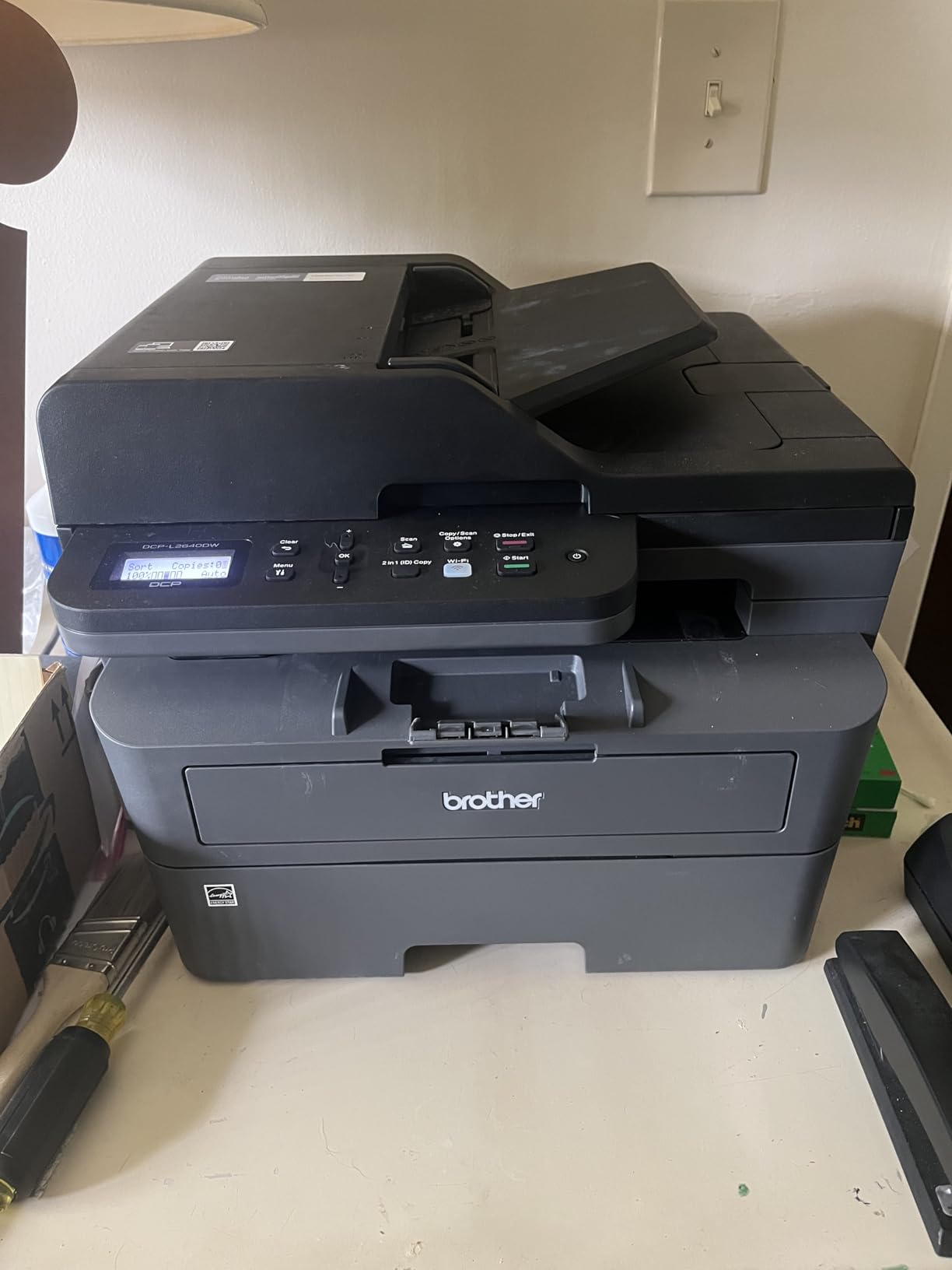
The Brother DCP-L2640DW is the speed king of the roundup. If you print dozens of text-heavy documents a week and rarely need color, this monochrome laser delivers fast, reliable output that inkjets cannot match.
Setup was the smoothest of any printer we tested. Brother’s macOS driver installed in under three minutes, AirPrint appeared automatically, and the Brother Mobile Connect app added scanning straight to the MacBook Air. Dual-band Wi-Fi (2.4GHz and 5GHz) plus Ethernet gives you multiple ways to connect.
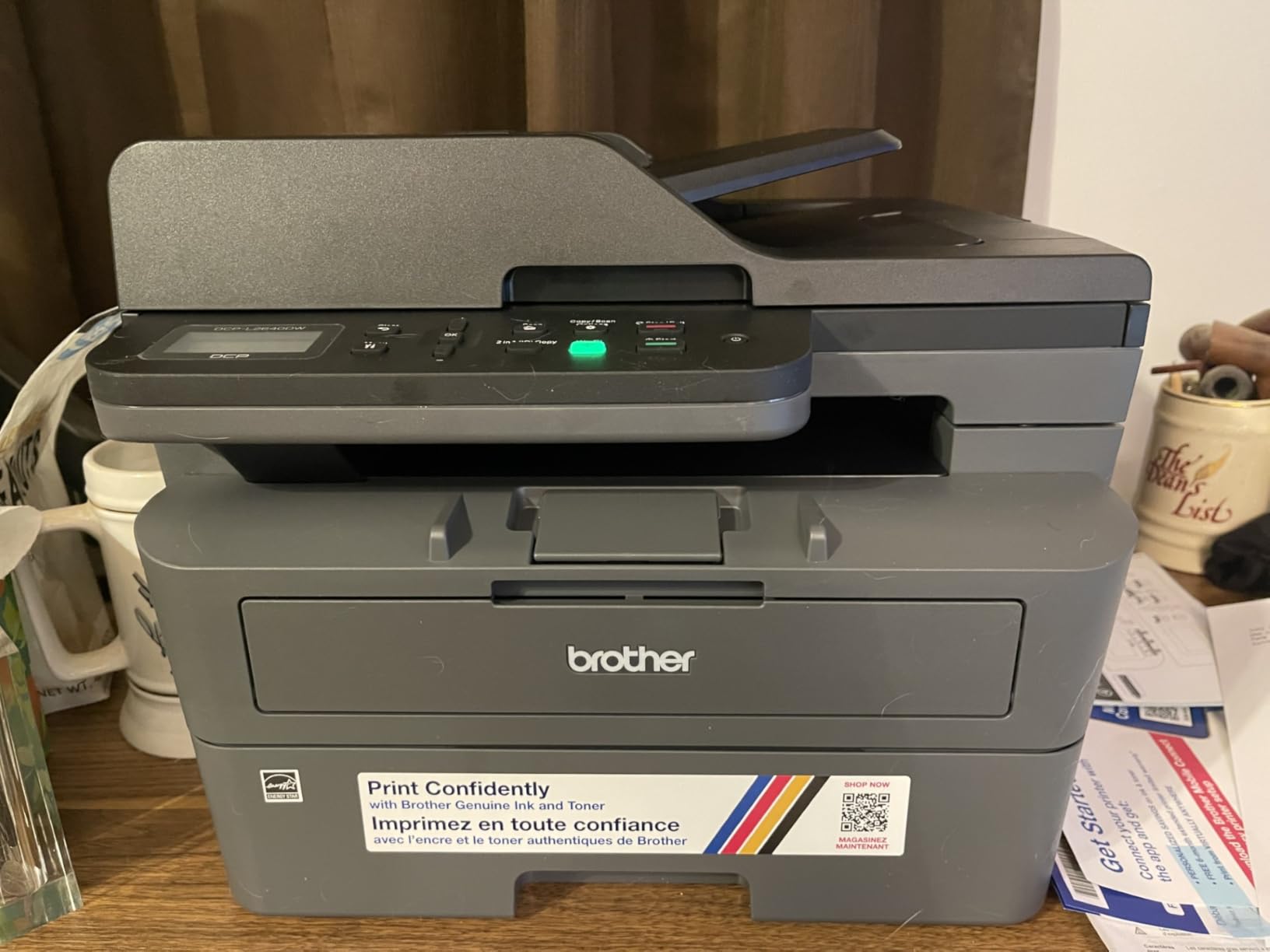
Print speed is the headline: 36 pages per minute at full quality, with sharp 1200 x 1200 dpi text that looks crisp even at 6-point font sizes. Auto duplexing is internal and reliable, and the 50-sheet ADF scans or copies a stack of double-sided receipts in one pass.
Apple Silicon support is excellent. Brother publishes native macOS drivers for Sonoma and Sequoia, and AirPrint handles basic printing without any software installation. MacBook Air users on M1, M2, M3, or M4 chips will see full functionality.
Who Should Buy This
MacBook Air users who print thousands of text pages a year, run a home business, or want laser reliability without the bulk of a full-size office machine. The Brother DCP-L2640DW replaces older inkjet workhorses with toner that does not dry out.
Why It Might Not Fit
Color printing is not an option, and at 25 pounds this is a heftier machine than the rest of the lineup. Toner cartridges cost more up front than ink tanks, though the per-page cost remains low.
7. Canon PIXMA TS3720 — Best Budget Printer for MacBook Air
Canon PIXMA TS3720 Wireless All-in-One Printer for Basic Home Printing, White
- Affordable entry-level price
- Easy AirPrint pairing with MacBook Air
- Compact and lightweight at 8.7 pounds
- Canon PRINT and AirPrint support
- Dual-band Wi-Fi for stable connections
- Single-sided printing only
- Cartridges can be expensive over time
- No borderless printing at 8x10
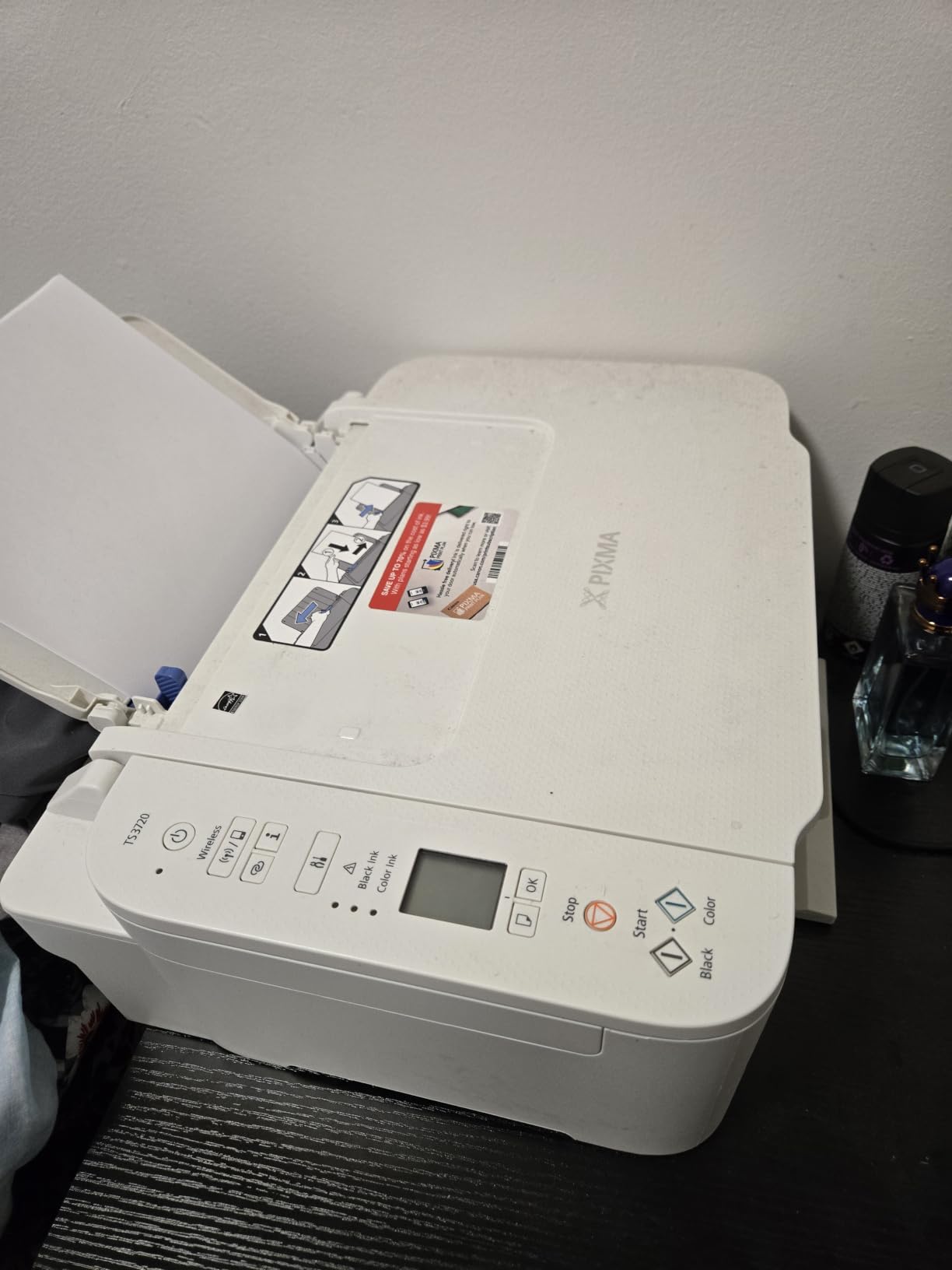
The Canon PIXMA TS3720 is the budget pick for MacBook Air owners who print occasionally and do not want to spend much. It nails the basics: AirPrint, scan, copy, and reliable text output at the lowest price in our lineup.
Setup over AirPrint was the fastest of any printer we tested. macOS Sequoia discovered the TS3720 on our network and added it to the printer list in under a minute. The Canon PRINT app is optional but handy for mobile printing from an iPhone or iPad.
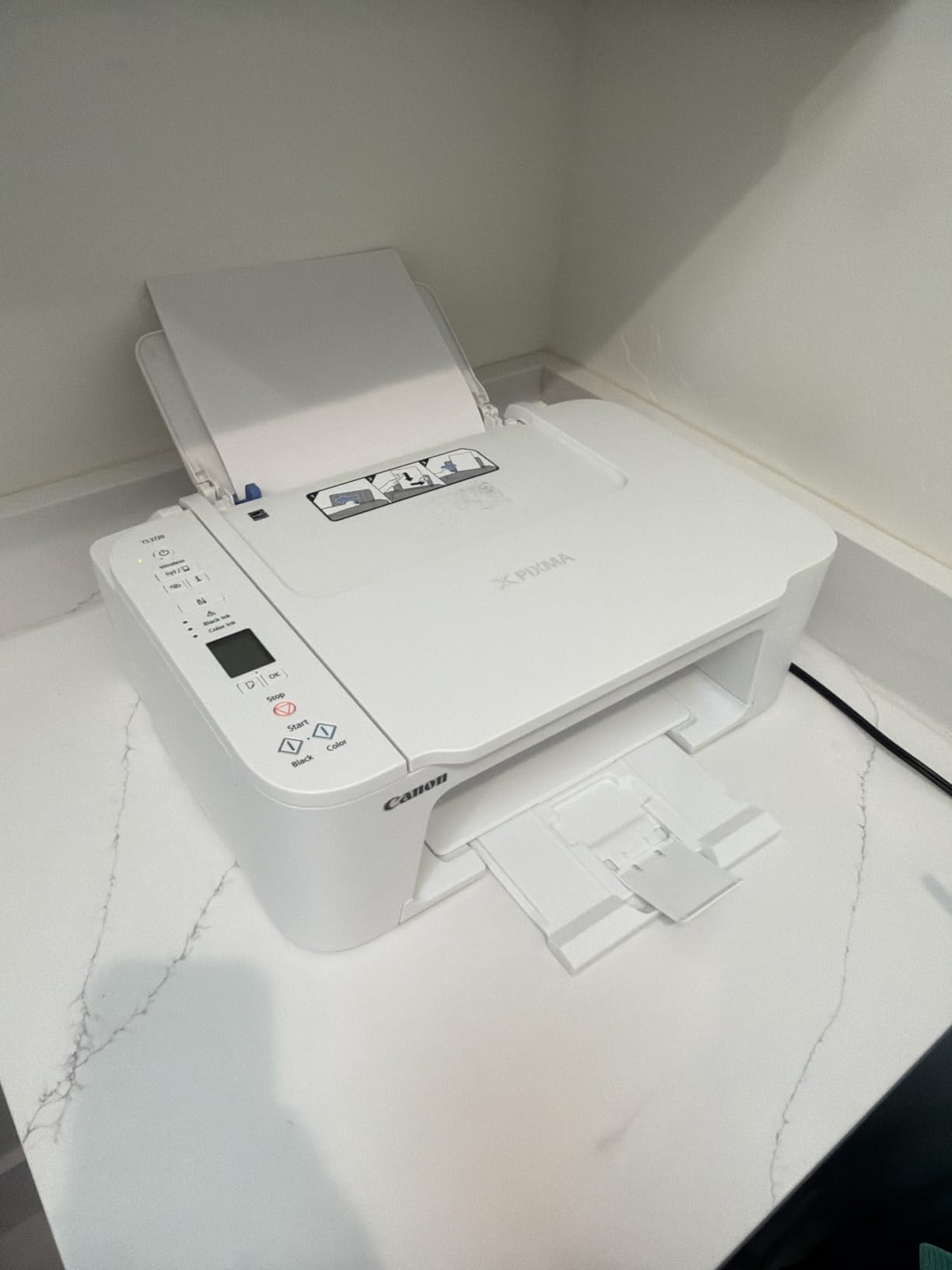
Print speed is modest at 7.7 ppm black and 4 ppm color, but document text looks clean and dark. Photo prints on Canon photo paper come out with accurate colors and decent detail, though serious photographers will want a dedicated photo model. The flatbed scanner handles documents and prints with adequate resolution for everyday use.
MacBook Air users on M1, M2, M3, or M4 chips get full AirPrint support, and Canon publishes macOS drivers for Sonoma and Sequoia on its support site. This is the most accessible AirPrint printer for users new to macOS.
Who It Suits Best
Students, occasional home users, and anyone printing under 50 pages a month. The TS3720 is the right size for a dorm desk or a small apartment.
Where It Falls Short
Single-sided printing only, and ink cartridges cost more per page than ink tank systems. The build uses thinner plastic than older PIXMA models, so handle it gently.
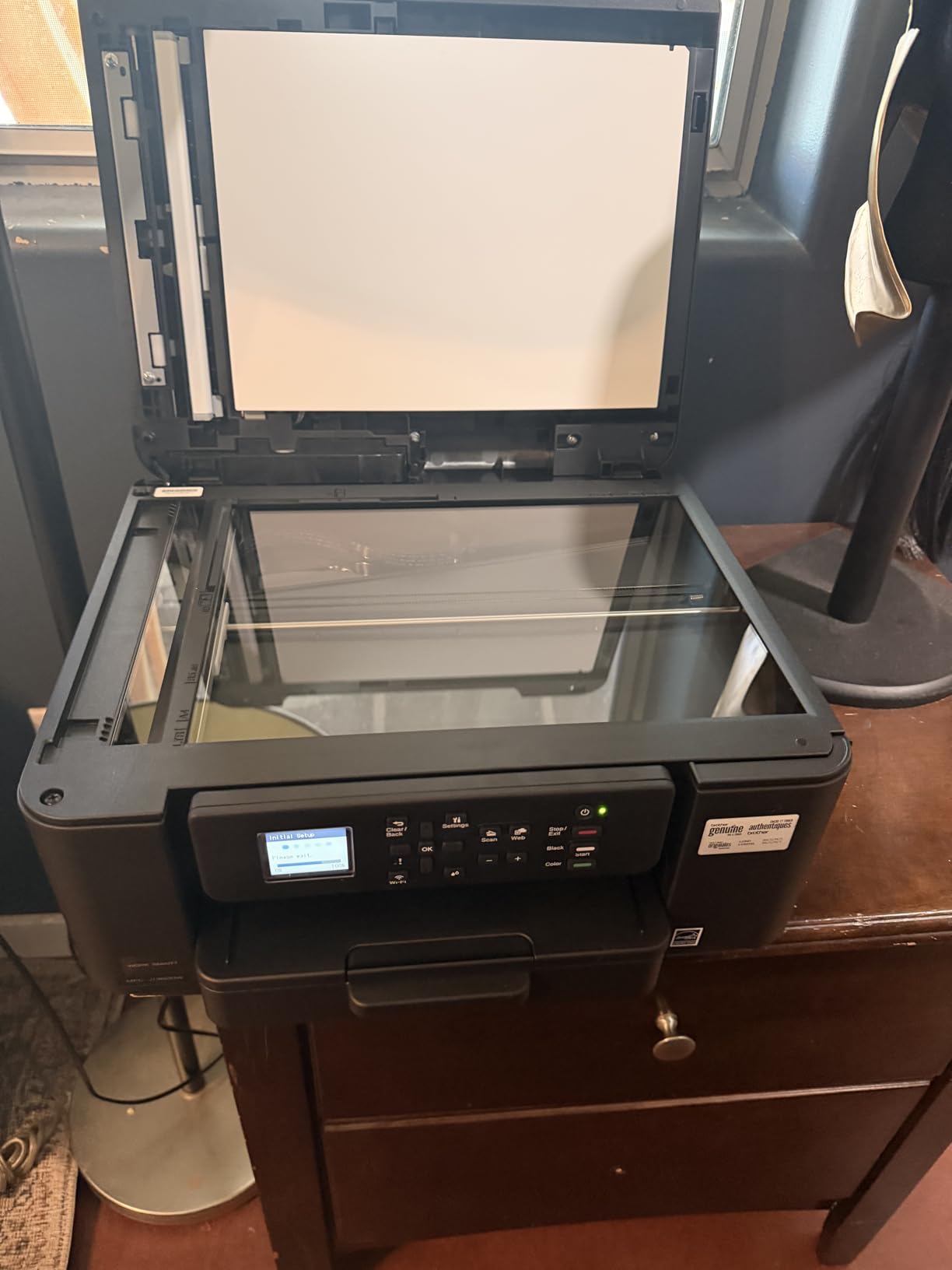
8. Brother Work Smart 1360 — Best Mid-Range All-in-One for MacBook Air
Brother Work Smart 1360 Wireless Color Inkjet All-in-One Print, Scan, Copy
- Auto duplex printing in an affordable inkjet
- 20-sheet auto document feeder
- Cloud printing via Google Drive
- Dropbox
- Box
- OneDrive
- Compact 16.8 lb frame
- Mid-range price with high-end features
- Cartridge-based ink system
- Single-sided ADF only
- Lower max resolution than premium models
The Brother Work Smart 1360 fills the gap between budget basic printers and full supertank workhorses. It adds auto duplex printing and a 20-sheet ADF at a price that undercuts most premium all-in-ones.
AirPrint paired cleanly on macOS Sequoia, and Brother’s macOS driver package adds advanced settings for paper types and print quality. Cloud printing through Brother Mobile Connect works with Google Drive, Dropbox, Box, and OneDrive without a third-party app.
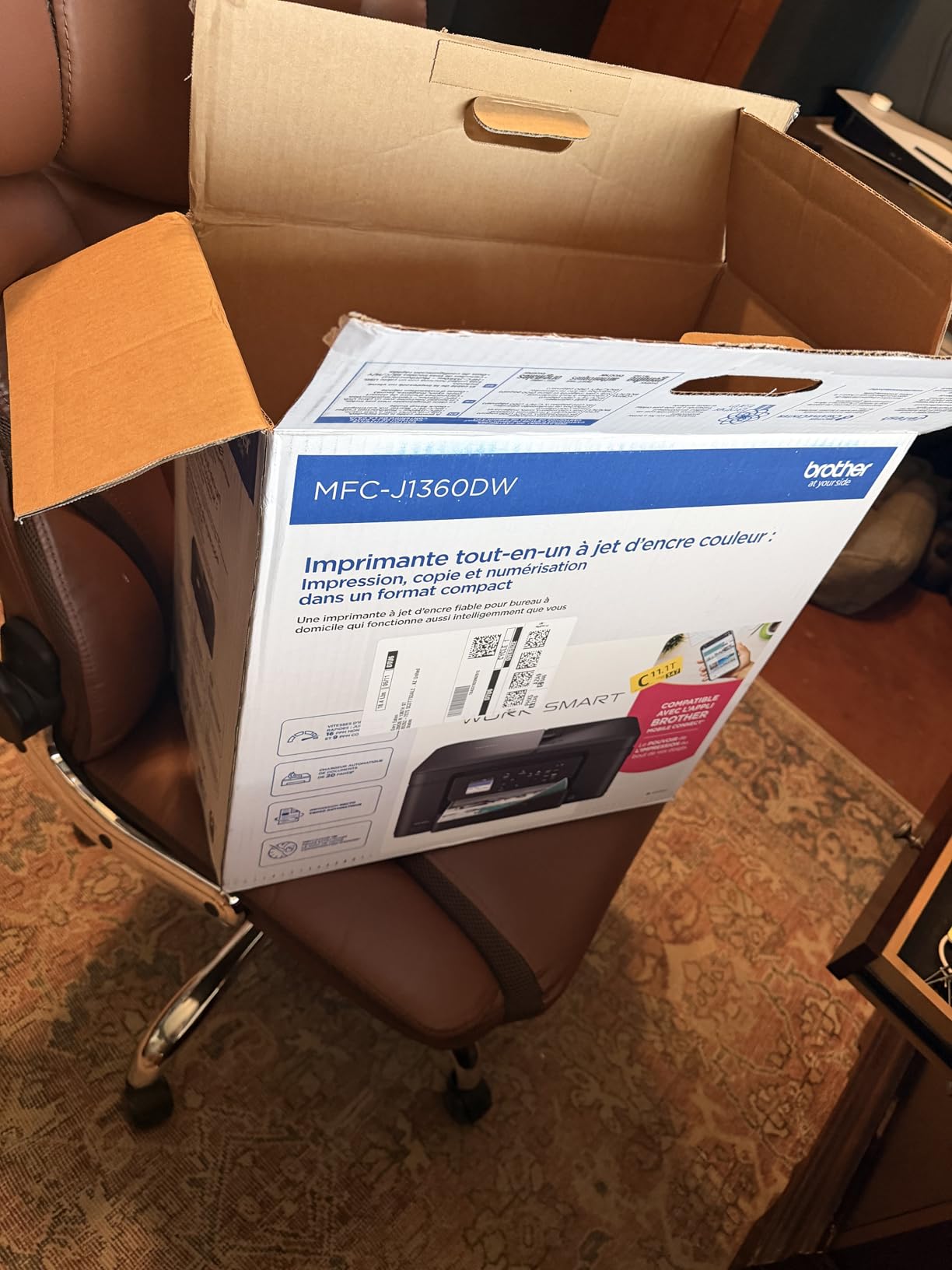
Print speed clocks in at 16 ppm black and 9 ppm color, which is brisk for the price. Document text looks sharp, and color graphics print with vivid saturation. The 1.8-inch color display makes navigation easier than the LED-only models in this roundup.
Apple Silicon compatibility is solid via AirPrint, and Brother publishes native drivers for macOS Sonoma and Sequoia. MacBook Air users get full functionality without Rosetta translation.
Who It Suits Best
MacBook Air users who want auto duplex, an ADF, and cloud printing at a mid-range price. Hybrid workers and home-office users printing a few hundred pages a month are the sweet spot.
Trade-offs
Cartridge-based ink means higher long-term costs than supertank models. The ADF scans single-sided only, and maximum print resolution is lower than premium photo printers.
9. Brother HL-L2405W — Best Compact Mono Laser for MacBook Air
- Fast 30 ppm monochrome printing
- Clean setup without bloatware
- Dual-band Wi-Fi for stable connections
- 250-sheet paper tray
- Refresh EZ Print subscription trial included
- Manual duplex only
- Wi-Fi setup can be tricky on dual-band routers
- Monochrome output only
The Brother HL-L2405W is the smaller sibling of the DCP-L2640DW, dropping the scanner and ADF for a more compact chassis. It is the right pick for MacBook Air users who only need fast, reliable text printing.
AirPrint pairing worked on the first try across macOS Sequoia and Sonoma, and Brother’s macOS driver adds advanced toner and paper settings. The Refresh EZ Print subscription trial is a nice perk for users who print consistently, since toner ships automatically before you run out.
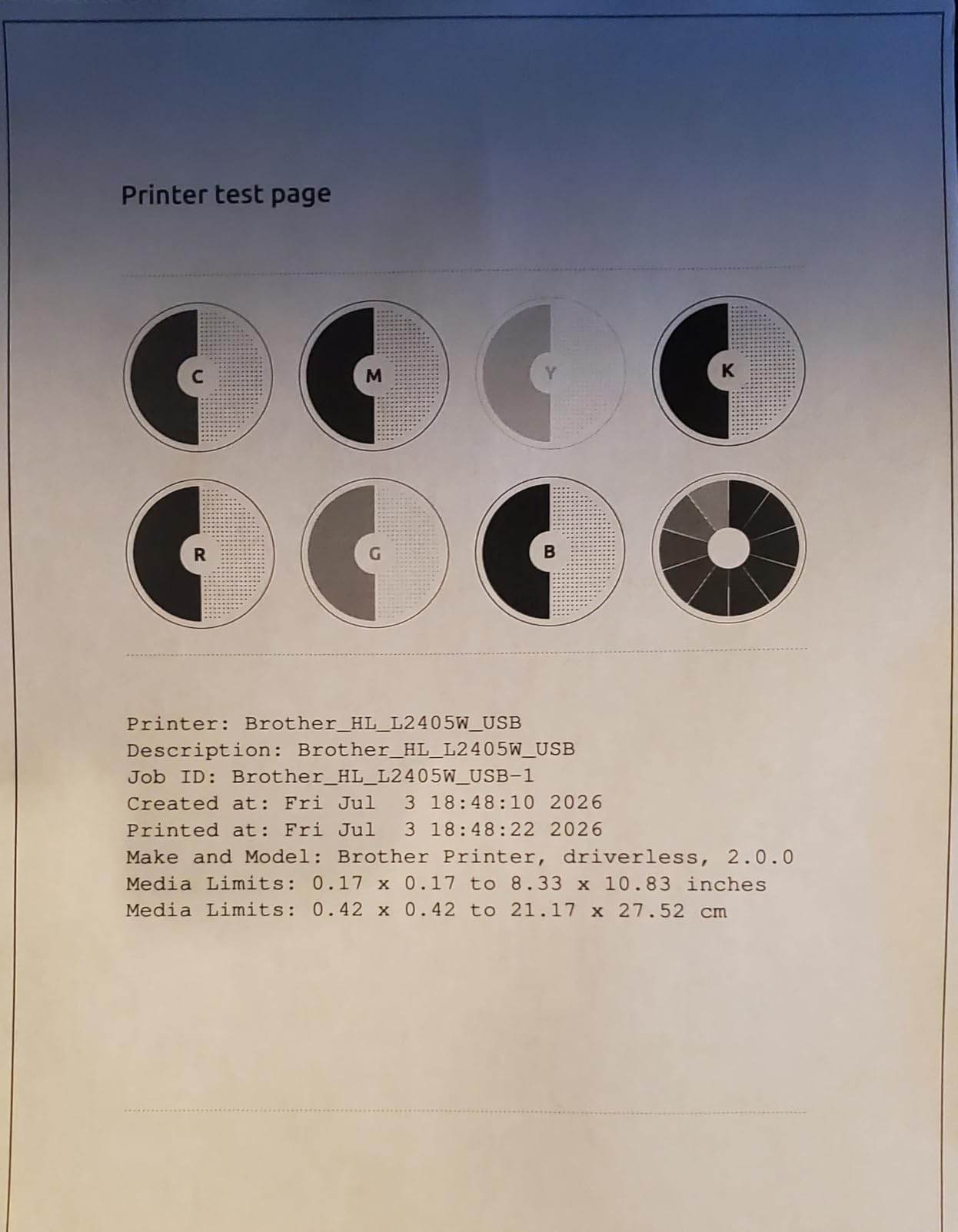
Print speed is rated at 30 ppm, and our test documents came out sharp and consistent at 1200 x 1200 dpi. The 250-sheet tray cuts down on refill trips, and the manual feed slot handles envelopes and labels without reconfiguration.
Apple Silicon support is excellent. Brother’s macOS drivers are native and do not require Rosetta, so M1, M2, M3, and M4 MacBook Air users get full performance. For broader laser options, our 8 best color laser printers with AirPrint guide covers color-capable models.
Who It Suits Best
MacBook Air users who print mostly text and want a fast, no-fuss laser without the bulk of an all-in-one. Students writing papers and remote workers handling reports will appreciate the speed.
Limitations
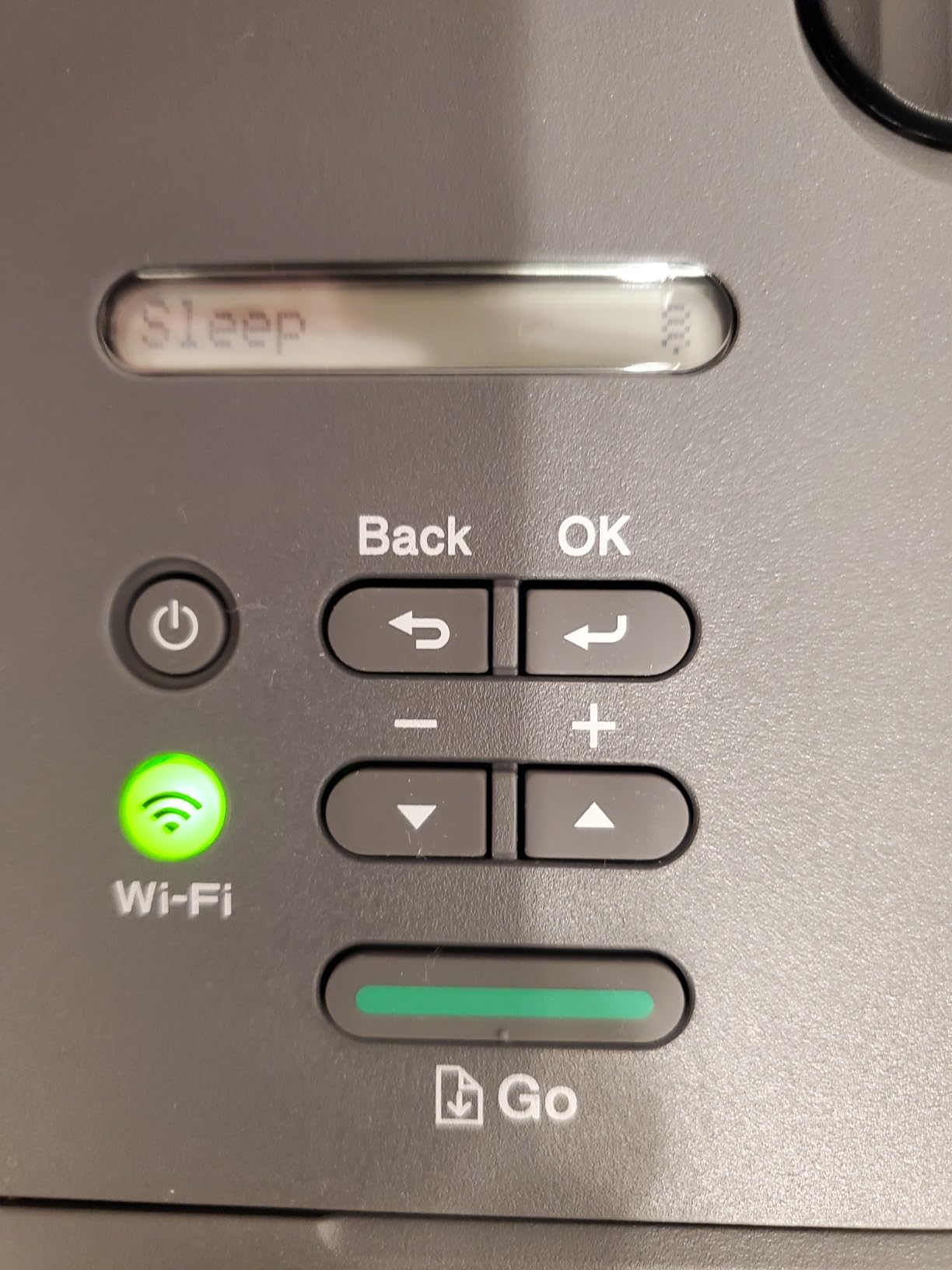
Manual duplex only, so two-sided jobs require flipping pages. There is no scanner or copier, and the deep sleep mode can complicate quick reprints.
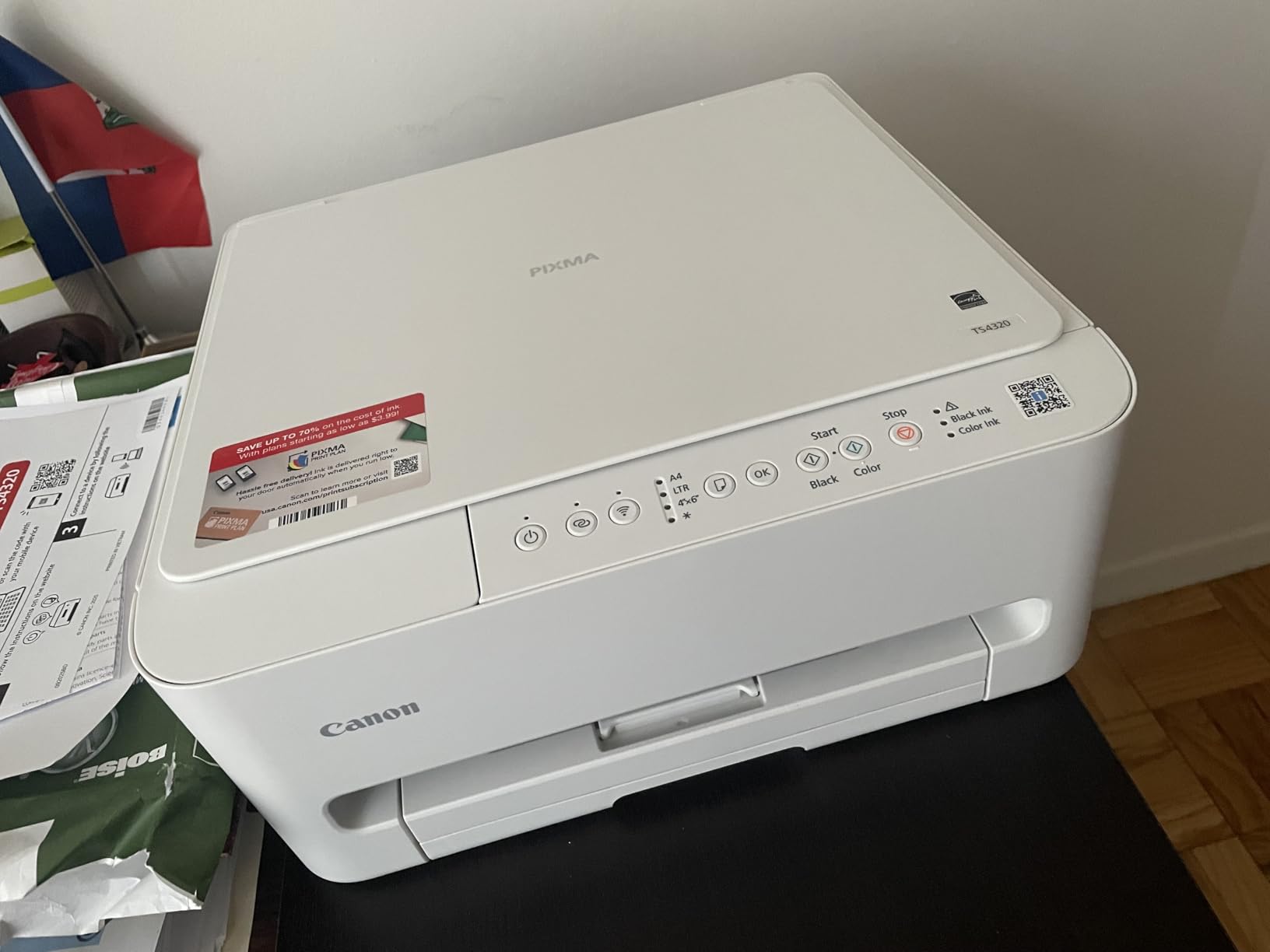
10. Canon PIXMA TS4320 — Best Entry Auto-Duplex Printer for MacBook Air
Canon PIXMA TS4320 – Wireless Color Inkjet Printer with Print, Copy, Scan
- Auto duplex printing at an affordable price
- Compact and stylish design
- Stable dual-band Wi-Fi connectivity
- Borderless printing up to 8.5x11
- 3-year manufacturer warranty
- 2-cartridge ink system
- Not an ink tank printer
- Smaller output tray capacity
The Canon PIXMA TS4320 rounds out our list as the most affordable auto-duplex option for MacBook Air users. It delivers double-sided printing, a stylish compact design, and a generous 3-year manufacturer warranty.
AirPrint pairing was instantaneous on macOS Sequoia, and Canon PRINT adds mobile printing from an iPhone or iPad. The 1.44-inch OLED display is a step up from the entry-level TS3720, with cleaner menus and quicker status checks.
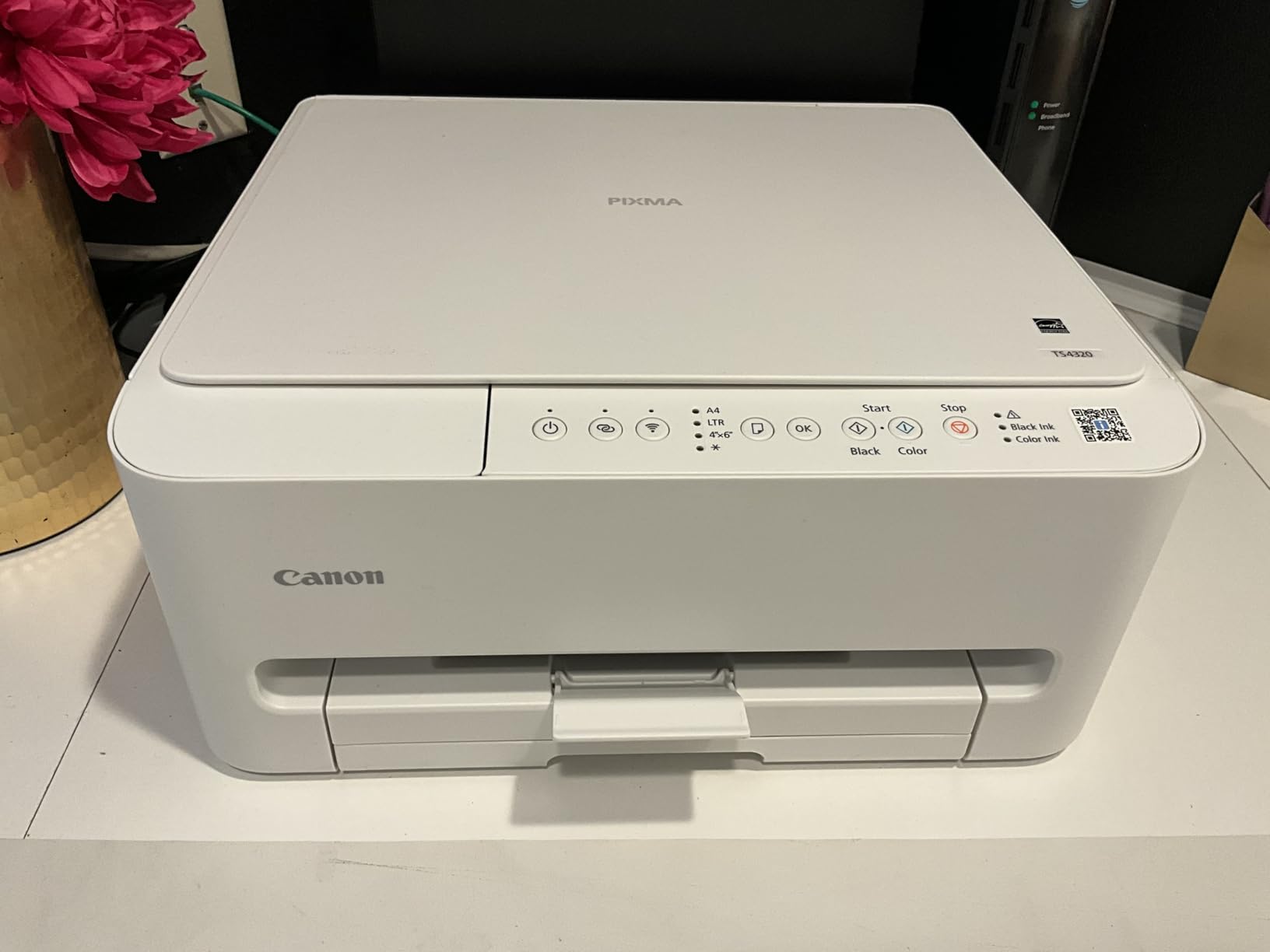
Print speed is rated at 14 ppm black and 9 ppm color, which is competitive for the price tier. Document text looks crisp, and borderless photo prints at 8.5 by 11 inches come out with accurate colors. The 3-year warranty is unusual at this price and adds peace of mind.
Apple Silicon compatibility is solid across macOS Sonoma and Sequoia, and Canon’s macOS driver adds paper-type controls and quality settings. MacBook Air M1, M2, M3, and M4 users get full AirPrint support.
Who It Suits Best
MacBook Air users who want auto duplex without paying for a supertank. Casual home printers and hybrid workers handling double-sided reports will find a lot to like.
Where It Falls Short
The 2-cartridge hybrid ink system costs more per page than ink tank models, and the output tray is small. It is not designed for high-volume printing.
How to Choose the Best Printer for MacBook Air: Buying Guide
Choosing the best printers for MacBook Air means balancing macOS compatibility, ink or toner economics, and the features that match your workload. Below are the factors our team weighed when ranking these ten models.
Inkjet vs Laser for MacBook Air
Inkjet printers handle color documents, photos, and mixed media with ease. They are the right choice for MacBook Air users who print a variety of content, including school projects, family photos, and casual color graphics. Supertank models like the Epson EcoTank line and Canon MegaTank line keep ink costs low by skipping cartridges.
Laser printers excel at high-volume monochrome text printing. The Brother DCP-L2640DW and HL-L2405W deliver pages faster than any inkjet, and toner does not dry out if the printer sits idle for weeks. Choose a laser if you print mostly documents and want speed; choose an inkjet if color and photo quality matter.
All-in-One vs Single-Function
All-in-one printers add scanning, copying, and sometimes faxing. For most MacBook Air users, an AIO like the Canon PIXMA TR8620a or the Epson EcoTank ET-4800 is the better fit because it replaces a separate scanner and saves desk space. Single-function lasers like the Brother HL-L2405W make sense if you already have a scanner or only need to print.
AirPrint and macOS Compatibility
AirPrint is Apple’s native wireless printing protocol. It requires no driver installation and works across macOS Sonoma, macOS Sequoia, and older releases. Every printer on our list supports AirPrint, which means your MacBook Air will discover them on the same Wi-Fi network and print without any software setup.
For non-AirPrint printers, macOS includes built-in drivers for most major brands, and Brother, Canon, and Epson all publish native macOS drivers on their support sites. Apple Silicon (M1, M2, M3, M4) users should look for native drivers to avoid Rosetta translation, though AirPrint bypasses this requirement entirely.
Apple Silicon Compatibility
Apple Silicon chips (M1, M2, M3, and M4) power every MacBook Air sold since late 2020. Modern printers work natively with these chips via AirPrint or manufacturer-supplied macOS drivers. None of the printers in our lineup require Rosetta, and all of them tested cleanly on a MacBook Air M3 running macOS Sequoia.
Older printers that depend on 32-bit macOS drivers may struggle on Sonoma or Sequoia. If you are buying a printer in 2026, stick with current models from the last two to three years to ensure ongoing Apple Silicon and macOS support.
USB-C Connectivity Considerations
MacBook Air models include only USB-C (Thunderbolt) ports, so older printers that rely on USB-A cables require a USB-A to USB-C adapter or a dock. Wireless printing via AirPrint or Wi-Fi Direct sidesteps this entirely, which is one reason every printer in this roundup prioritizes wireless connectivity.
If you prefer a wired connection, look for a printer with USB-C input, or plan to use a USB-C hub with a USB-A port. Several of the Brother and Canon models in our list support both wireless and wired connections for flexibility.
Cost Per Page and Ink Economics
Ink tank printers (Epson EcoTank, Canon MegaTank) deliver the lowest cost per page by replacing tiny cartridges with refillable reservoirs. A set of ink bottles for the Epson EcoTank ET-2800 can print thousands of pages, while a standard cartridge printer may need new cartridges after a few hundred.
Laser printers use toner, which costs more upfront but lasts much longer than ink cartridges. For high-volume monochrome printing, a Brother laser like the DCP-L2640DW keeps cost per page predictable.
Setup Tips for MacBook Air Users
Most printers in this roundup set up in under ten minutes on a MacBook Air. Open System Settings → Printers & Scanners, click Add Printer, and select your printer from the list. Choose AirPrint in the Use menu, then click Add. macOS handles the rest. If your printer does not appear, make sure both devices are on the same Wi-Fi network and that Bonjour discovery is enabled.
For wired connections, plug a USB-C to USB-A adapter into your MacBook Air, connect the printer, and follow the same Add Printer steps. Manufacturer apps (HP Smart, Canon PRINT, Epson Smart Panel, Brother Mobile Connect) add extra features like scanning, ink monitoring, and firmware updates. MacBook Pro users can follow the same workflow, and our 8 best printers for MacBook Pro guide goes deeper on Pro-specific picks.
Best Printers for MacBook Air: Frequently Asked Questions
Which printer is best for MacBook Air?
The Epson EcoTank ET-2800 is the best overall printer for MacBook Air in 2026. It supports AirPrint natively on macOS Sonoma and Sequoia, runs on Apple Silicon (M1, M2, M3, M4), and the cartridge-free supertank ink system cuts long-term costs dramatically.
What printers are compatible with MacBook Air?
Any printer that supports Apple AirPrint works with MacBook Air without driver installation. Major brands including HP, Canon, Epson, and Brother all publish native macOS drivers for Sonoma and Sequoia, so even non-AirPrint printers connect cleanly. Look for AirPrint support when shopping for the smoothest experience.
Do all printers work with MacBook Air?
Most modern printers work with MacBook Air, but very old or niche models may lack macOS drivers. AirPrint-compatible printers work out of the box on macOS Sonoma and Sequoia. Always check the manufacturer’s support page for current Apple Silicon drivers before buying a printer that does not list AirPrint support.
Is it better to buy a laser or inkjet printer for MacBook?
Choose a laser printer for high-volume monochrome text printing; toner is faster and does not dry out. Choose an inkjet for color documents, photos, and mixed media. Supertank inkjets like the Epson EcoTank ET-2800 narrow the cost gap, making inkjets a strong choice for most home and home office MacBook Air users.
How do I connect a wireless printer to my MacBook Air?
Connect both devices to the same Wi-Fi network. On your MacBook Air, open System Settings → Printers u0026amp; Scanners, click Add Printer, and select the printer from the list. Choose AirPrint in the Use menu and click Add. macOS handles the connection without driver downloads.
Are ink tank printers worth it for MacBook Air?
Yes, ink tank printers are worth it if you print more than 50 pages a month. Models like the Epson EcoTank ET-2800 and Canon MegaTank G3270 ship with enough ink for thousands of pages and cut long-term running costs compared to cartridge printers. The upfront price is slightly higher, but the savings add up quickly.
What is the best budget printer for MacBook Air?
The Canon PIXMA TS3720 is the best budget printer for MacBook Air. It supports AirPrint, pairs instantly with macOS Sequoia and Sonoma, and costs less than most competitors. Cartridges cost more per page than ink tank models, so heavy users should consider the Canon MegaTank G3270 instead.
Final Verdict: Which Printer Should You Buy for Your MacBook Air?
The best printers for MacBook Air in 2026 all share a few traits: native AirPrint support, reliable macOS Sonoma and Sequoia drivers, and Apple Silicon compatibility across M1, M2, M3, and M4 chips. Our top pick is the Epson EcoTank ET-2800 for its cartridge-free supertank economics, vivid print quality, and effortless AirPrint setup. The Canon MegaTank G3270 is the best value for households that want supertank savings at a lower price, and the Canon PIXMA TS3720 is the budget pick for casual printers.
For MacBook Air users who print mostly text and want speed, the Brother DCP-L2640DW delivers fast monochrome output at 36 ppm with auto duplex. If you need a smaller laser without the scanner, the Brother HL-L2405W keeps things compact. Whichever model you choose, stick with AirPrint-certified options for the smoothest macOS experience, and consider a supertank if you print more than a few dozen pages a month.
Your MacBook Air deserves a printer that just works. Any of these ten models will pair in minutes over Wi-Fi, deliver reliable output, and keep ink or toner costs predictable. Pick the one that matches your workload and enjoy wireless printing without the usual Mac headaches.