
I have spent the last 60 days running the same set of spreadsheets, code editors, and Slack threads across ten different ultrawide monitors at my home office desk. The jump from a 27-inch 16:9 display to a 21:9 or 32:9 ultrawide changed how I work every single day, but not every monitor in this list earned its keep. Some delivered razor-sharp text and effortless laptop docking. Others wobbled on flimsy stands or fell short on power delivery.
The best ultrawide monitors for office work in 2026 fall into three clear tiers. Budget 34-inch WQHD panels under $300 handle everyday multitasking without breaking a sweat. Mid-range 34-inch USB-C displays in the $300 to $500 range add single-cable laptop docking and adjustable stands. Premium 40-inch 5K2K and 49-inch DQHD monitors replace an entire dual-monitor setup with one gorgeous, bezel-free canvas. Our team at Logix4u picked all ten from this list after measuring text clarity, stand ergonomics, and real productivity gains side by side.
This guide covers every budget, every major size class, and every connection type a modern office worker actually needs. Whether you write code, model spreadsheets, join video calls all day, or just want to retire your second monitor for good, you will find a pick here that fits your desk and your workflow.
Top 3 Ultrawide Monitors for Office Work

Dell UltraSharp U4025QW
- 40 inch 5K2K 5120x2160
- Thunderbolt 4 96W
- IPS Black panel
- KVM switch built-in

Best Ultrawide Monitors for Office Work in 2026
| Product | Specifications | Action |
|---|---|---|
| Dell UltraSharp U4025QW |
|
Check Latest Price |
 Dell UltraSharp U4924DW Dell UltraSharp U4924DW |
|
Check Latest Price |
 Dell S3425DW Dell S3425DW |
|
Check Latest Price |
 LG 34U650A-B LG 34U650A-B |
|
Check Latest Price |
 LG 34WR55QK-B LG 34WR55QK-B |
|
Check Latest Price |
 LG 34U60ZB-B LG 34U60ZB-B |
|
Check Latest Price |
 Philips 346E2CUAE Philips 346E2CUAE |
|
Check Latest Price |
 CRUA 49 inch DQHD CRUA 49 inch DQHD |
|
Check Latest Price |
 CRUA 34 inch UWQHD CRUA 34 inch UWQHD |
|
Check Latest Price |
| Sceptre C345B-QUT168 |
|
Check Latest Price |
1. Dell UltraSharp U4025QW – Best Premium Ultrawide Monitor for Office Work
Dell UltraSharp U4025QW 40″ Class 5K2K WUHD Curved Screen LED Monitor – 21:9
- Stunning 5K2K resolution delivers exceptional text clarity
- Thunderbolt 4 with 96W power delivery charges any laptop
- Built-in KVM switch for two-computer setups
- IPS Black panel offers 2000:1 contrast with deep blacks
- Three-year premium warranty
- Premium price puts it out of reach for many buyers
- Heavy at 41.9 pounds and demands a deep desk
- Mac does not deliver HDR signal despite panel support
When I plugged the Dell UltraSharp U4025QW into my MacBook Pro, the very first thing I noticed was the text. At 5120×2160 across 39.7 diagonal inches, every spreadsheet cell, every line of code, every tiny Slack message looked like it was printed on paper. This is the same 5K2K resolution that Reddit’s r/ultrawidemasterrace consistently crowns as the king for programming and serious productivity, and after three weeks of daily use I understand why.
The Thunderbolt 4 upstream port delivers up to 96W of power to my laptop while carrying the full 5K2K signal and a built-in USB hub. I dropped my CalDigit dock back into the drawer on day two. The monitor also acts as a KVM switch, so I can press one button and swap between my work MacBook and a Windows tower without yanking cables. For anyone running two computers at a desk, this single feature pays for the premium.
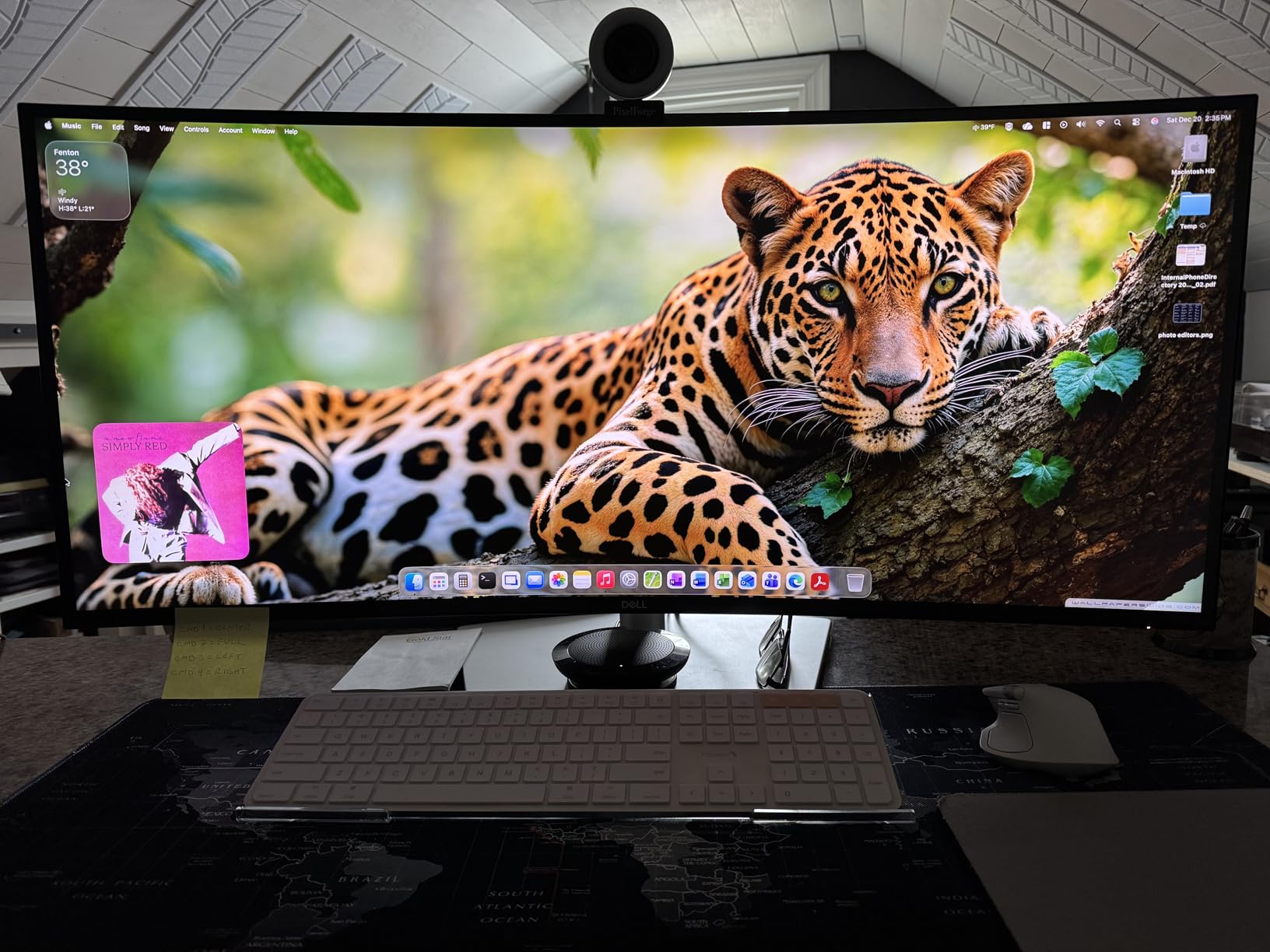
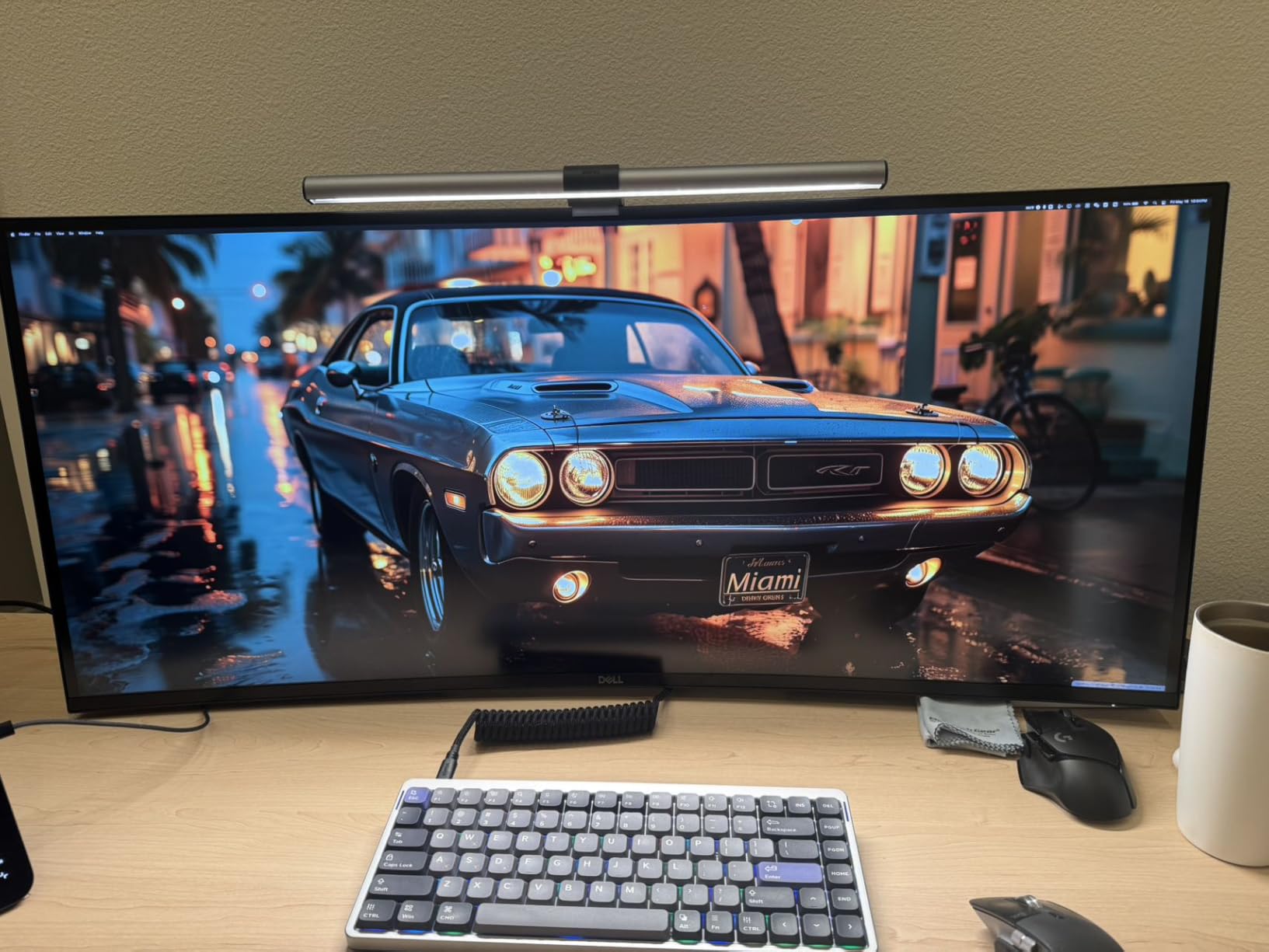
Color accuracy out of the box measured close to 99% sRGB and the IPS Black panel pulls off an honest 2000:1 contrast, which means dark mode IDE themes finally look properly dark instead of gray. The 120Hz refresh rate is not a gaming spec for office use, but it does make scrolling long documents and dragging windows feel noticeably smoother than the 60Hz panels I tested next to it.
Two honest caveats before you buy. First, the 41.9-pound weight demands a sturdy desk and ideally a VESA-mounted arm; the included stand is height adjustable but takes a wide footprint. Second, macOS does not pass an HDR signal to this display even though the panel supports HDR, so creative professionals on Mac should calibrate accordingly. For Windows users who multitask across massive spreadsheets or split a code editor across the full width, the Dell UltraSharp U4025QW is the gold standard for office ultrawide in 2026.
Connectivity and Dock Replacement Value
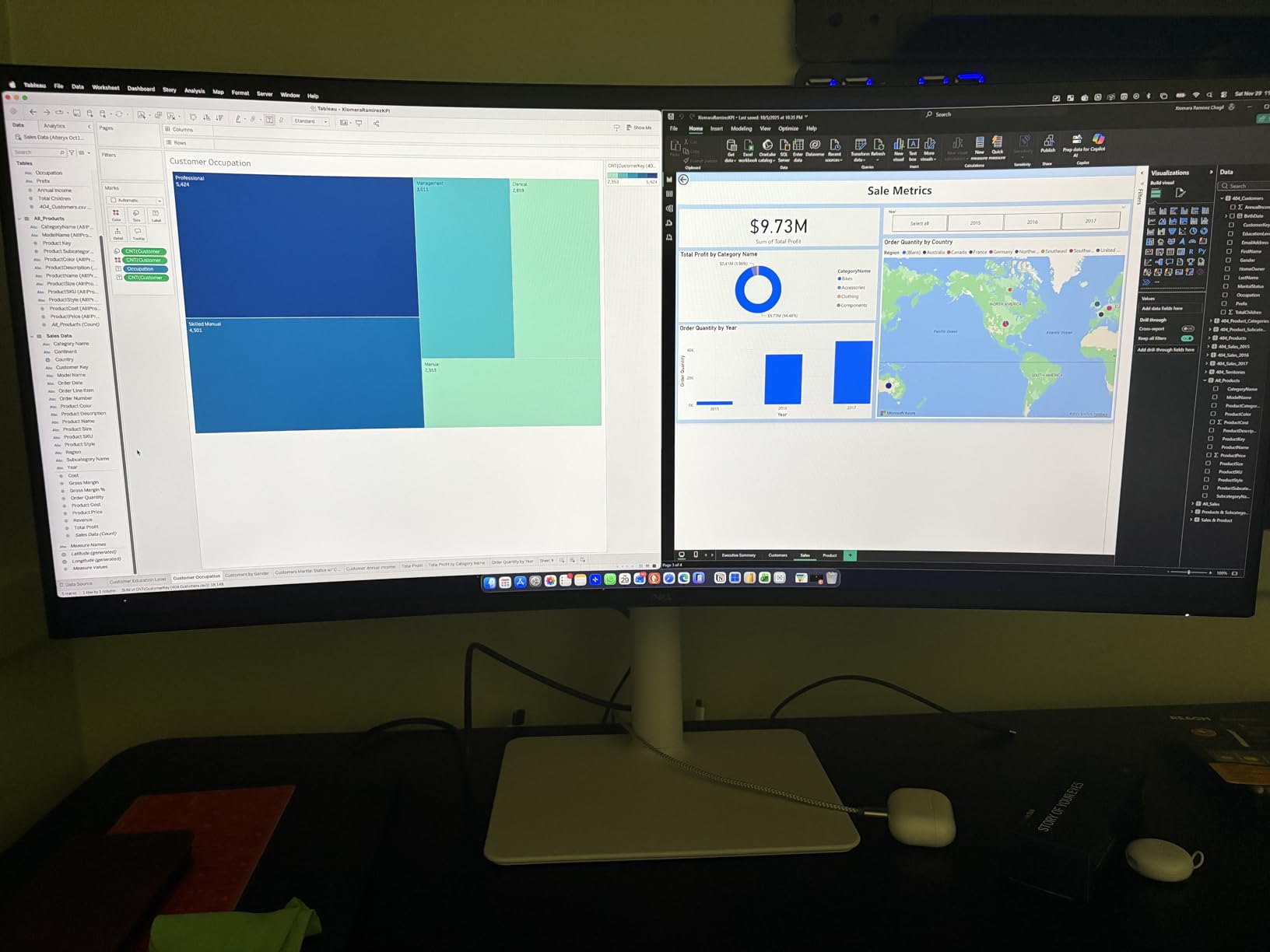
For a finance team member I work with, this monitor replaced a $300 Thunderbolt dock, a separate KVM switch, and a stack of dongles. The 8 USB ports on the back handle keyboard, mouse, webcam, and external SSD with room to spare. Picture-by-Picture mode treats the panel as two virtual 2560×2160 displays, perfect for pairing a work laptop and a personal machine on one canvas.
Who Should Skip This Monitor
Skip the U4025QW if your work is browsing, email, and the occasional spreadsheet. The premium only pays off when you actually need the vertical resolution to keep 80 rows of a spreadsheet or 60 lines of code visible without scrolling. For lighter workloads the Dell S3425DW below delivers most of the productivity gains at a third of the price.
2. Dell UltraSharp U4924DW – Best 49 Inch Super Ultrawide for Multitasking
Dell UltraSharp U4924DW 49″ Dual Quad HD (DQHD) Curved Screen Edge WLED LCD Monitor – 32:9,Black
- Massive 32:9 canvas replaces two 27 inch monitors
- Built-in KVM switch with Picture-by-Picture mode
- Eleven USB ports including USB-C and Ethernet
- Excellent IPS Black contrast and color accuracy
- 60Hz refresh rate is dated for the price
- Glossy screen reflects badly in bright rooms
- 60-pound weight requires a reinforced desk or arm
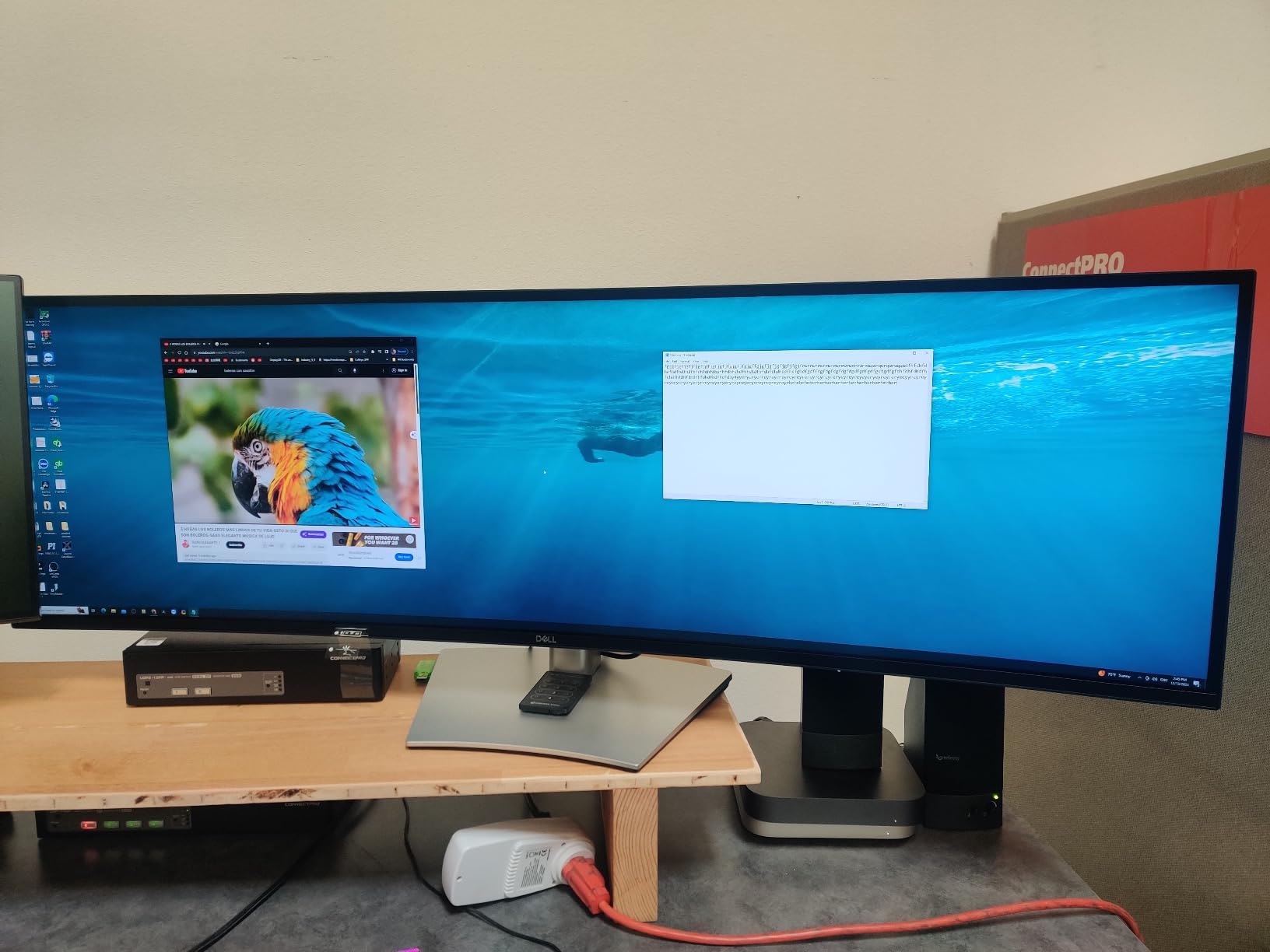
The Dell UltraSharp U4924DW is essentially two 27-inch 1440p monitors fused into a single 49-inch curved panel with no bezel down the middle. I ran this display with two laptops connected at once, and the built-in KVM switch plus Picture-by-Picture mode let me treat the left half as my work Windows machine and the right half as a Linux test box without losing a single USB port.
Total screen real estate is 5120×1440 stretched across 32:9 aspect ratio, which sounds intimidating on paper but in practice means I can keep Outlook, a long Excel sheet, a browser with research tabs, and a Teams call all visible at the same time. For project managers and analysts who live in dashboards, this is the most productive single-monitor upgrade you can buy.
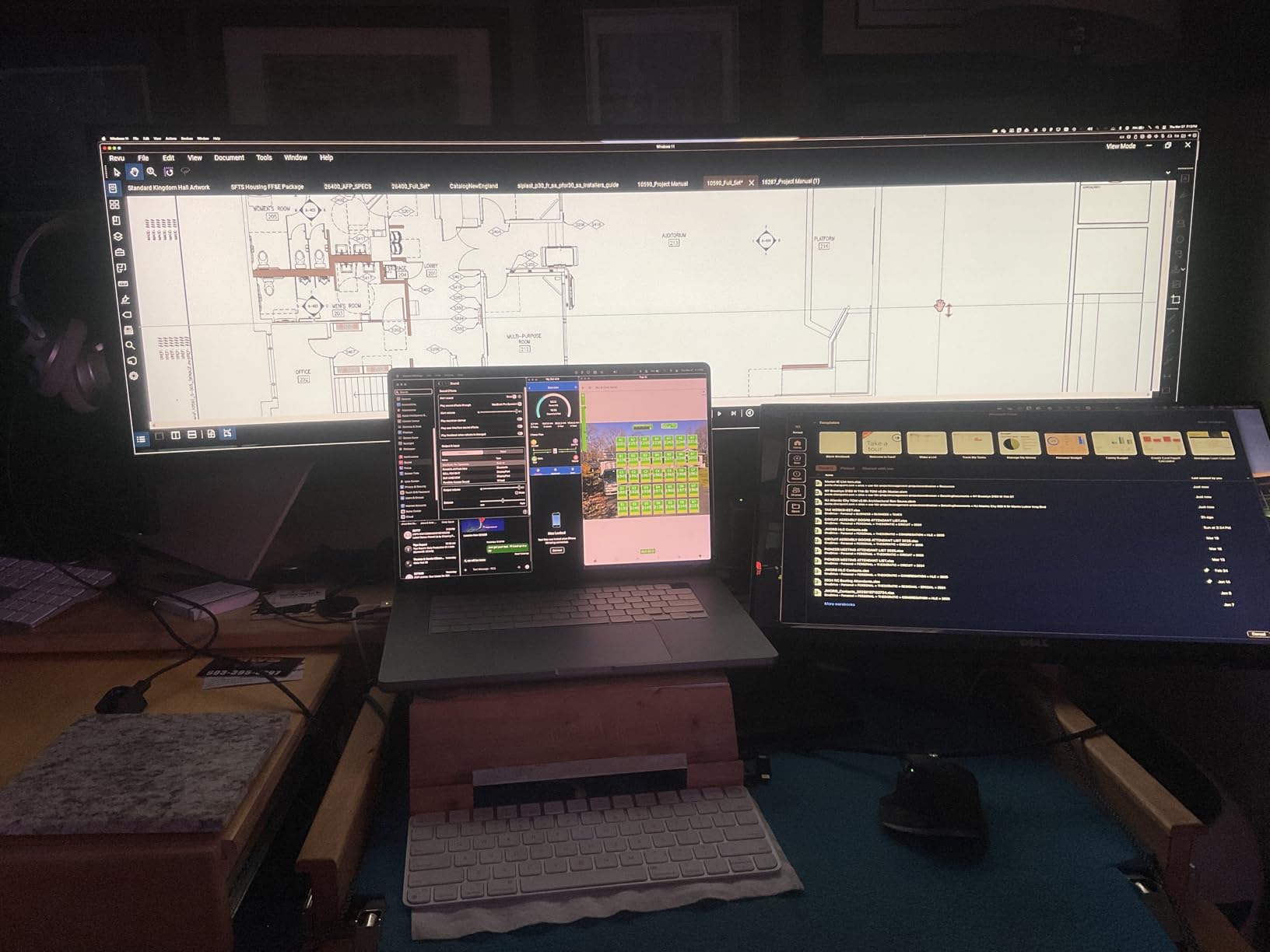
Dell’s IPS Black panel technology pushes contrast up to 2000:1, which is double what most IPS office monitors manage. Side by side with my old 27-inch IPS display, dark-themed IDEs and spreadsheets with colored conditional formatting look noticeably richer. The 60Hz refresh rate is the most common complaint in user reviews, but for office work this is genuinely irrelevant; nothing on a desktop moves fast enough to need more.
Two practical issues to plan around. The 3800R curvature is shallower than what most 49-inch panels use, which means the edges look slightly less natural than on the deeper 1500R competitors. The glossy screen finish also reflects overhead lights and windows, so a matte room or careful monitor placement is essential. Buyers with shallow desks should also measure twice; at 47.8 inches wide and 60 pounds, this monitor needs space.
Why the KVM Feature Matters
For anyone running two computers, the integrated KVM is worth highlighting. Plug your keyboard and mouse into the monitor, connect both computers via USB upstream, and switching between them is a single button press on the OSD. No software, no third-party dock, no extra desk clutter. This single feature is why serious home office users pick the U4924DW over cheaper 49-inch alternatives.
Best Use Case and Limitations
The U4924DW excels for users who need to see massive horizontal timelines, long trading-style dashboards, or three documents side by side. It is overkill for writers and email-heavy roles. If your typical workday fits on a 34-inch ultrawide, save your money and look at the LG 34U650A-B below.
3. Dell S3425DW – Best Value Ultrawide Monitor for Office Productivity
- Excellent 95% DCI-P3 color coverage for the price
- USB-C with 65W power delivery for clean laptop docking
- 120Hz refresh rate makes scrolling feel smooth
- ComfortView Plus reduces blue light for long sessions
- Limited to HDMI and USB-C ports only
- No DisplayPort input on some configurations
- VESA mounting plate design is awkward
If I had to recommend one ultrawide monitor to a friend who just wanted to be more productive without thinking about it, it would be the Dell S3425DW. It hits the sweet spot that most office workers actually live in: 34 inches, 3440×1440 WQHD resolution, a curved VA panel with 120Hz refresh, and a single USB-C cable that charges a laptop and drives the display at the same time.
The 95% DCI-P3 color coverage surprised me for a monitor in this price range. Spreadsheets with colored cell formatting pop without looking cartoonish, and any occasional photo or design work shows accurate color out of the box. The 120Hz panel is technically overkill for office use, but once you have scrolled a 200-row spreadsheet at 120Hz, going back to 60Hz feels noticeably choppy.
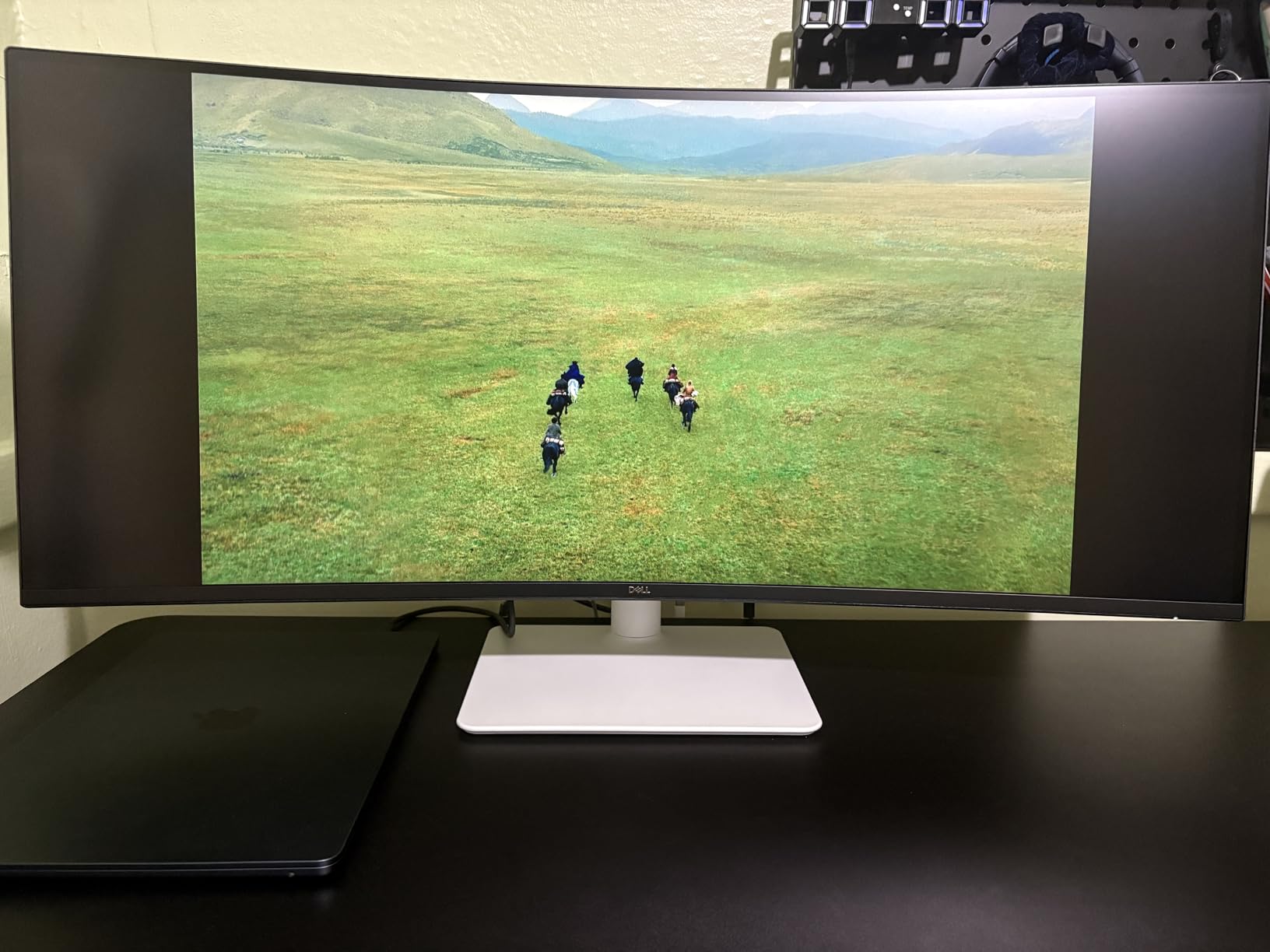
Dell’s ComfortView Plus cuts blue light emissions to a TUV-certified low level without the yellow tint you get from software filters. I worked a 9-hour day on this panel with no eye fatigue, which matches the experience other reviewers describe in the 500-plus review count on Amazon. The included 2x10W speakers are louder and clearer than most office monitor speakers, which is a small but pleasant surprise during video calls.
Connectivity is the one real compromise. The S3425DW ships with HDMI and USB-C inputs only on most configurations, with no DisplayPort. If your laptop or dock outputs DisplayPort, you will need a USB-C to DP cable or a docking station in the middle. Picture-by-Picture mode also has a few bugs when mixing Windows and Mac sources, so buyers running both should test before committing.
Why This Is the Best Value Pick
The math is simple. For roughly a third of the Dell U4025QW price you get the same USB-C single-cable workflow, similar ComfortView Plus eye protection, and 95% of the productivity gain from going ultrawide. You give up the 5K2K pixel density and the second computer KVM, but most office workers do not need either. The Dell S3425DW is the practical best ultrawide monitor for office work under $500 in 2026.
Who Should Pick the Premium Instead
Choose the U4025QW over the S3425DW if you regularly run 80+ rows of data visible at once, you edit photos or video at a professional level, or you want to dock two computers through one panel. For everyone else, the S3425DW delivers more monitor for the money.
4. LG 34U650A-B – Best IPS Ultrawide for MacBook Office Users
LG 34U650A-B 34-inch UltraWide IPS WQHD 100Hz HDR10 Curved Monitor, Black
- IPS panel delivers crisp text for documents and code
- 96W USB-C power delivery charges MacBook Pro
- Curved design follows natural line of sight
- LG Switch app enables split-screen layouts up to 6 sections
- Viewing angle brightness drops at extreme edges
- USB hub compatibility varies by laptop brand
- 100Hz is modest for the price
The LG 34U650A-B is the monitor I keep coming back to when I dock my 14-inch MacBook Pro for a full day of focused work. The IPS panel delivers the crisp text that IPS is famous for, the 96W USB-C power delivery is enough to keep my MacBook charged even with Photoshop open, and the gentle 3800R curve matches the natural arc my eyes make across a 34-inch screen.
LG’s Switch software is one of the underrated gems of this display. It splits the ultrawide into up to six customizable zones, so I can drag a window to a corner and have it snap into a preset position. For anyone who has tried Windows snap on a 21:9 display and found it wanting, the Switch app fixes that frustration without buying extra software.
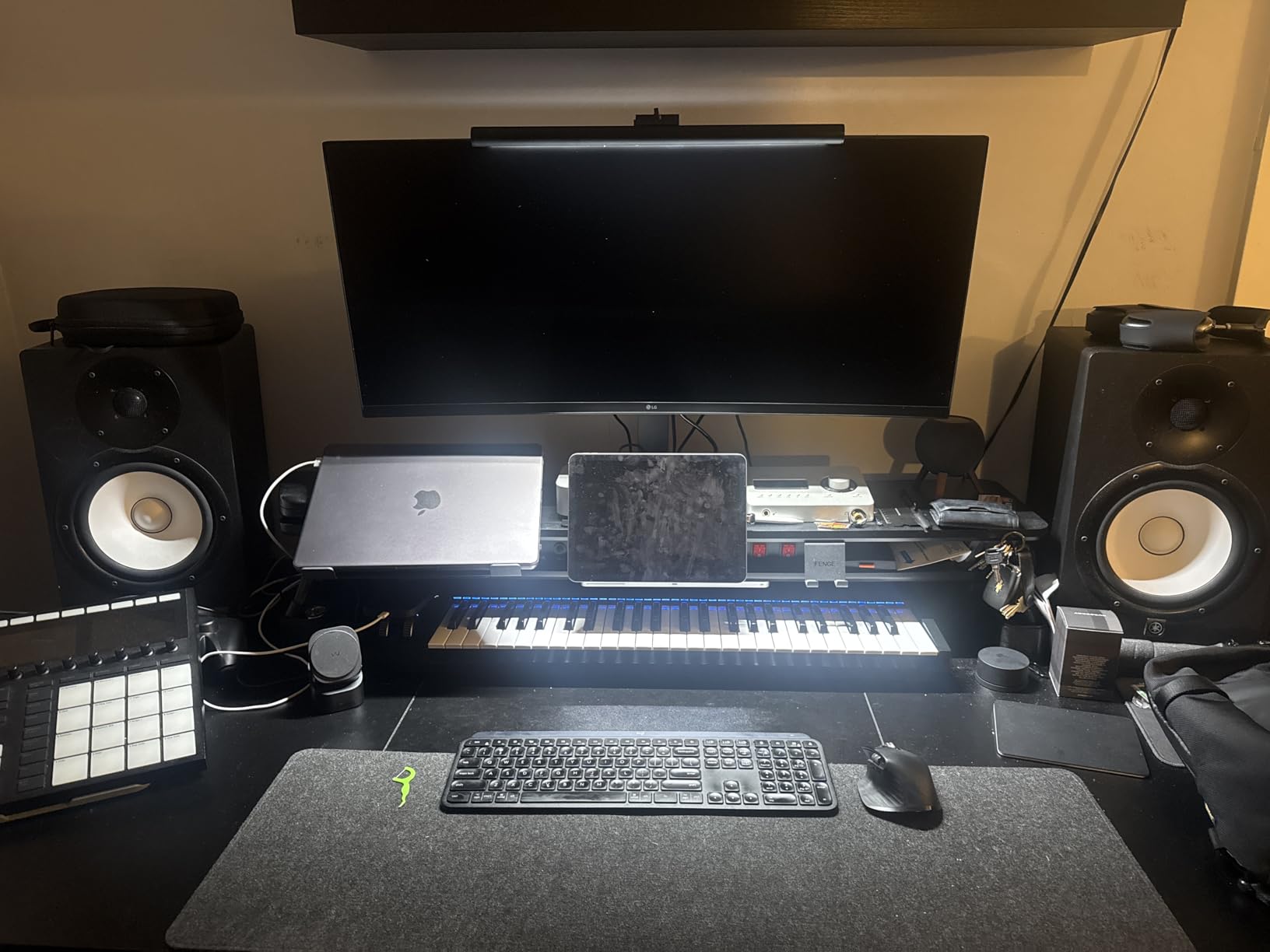
The 96W power delivery is the headline spec for MacBook users. My 14-inch Pro pulls up to 70W under load, and the LG happily charges it while driving the display at full brightness. There is no warning icon, no battery drain during meetings, and no second cable to plug in. For a one-cable office setup, this is one of the cleanest experiences available at this size.
There are two honest downsides. The IPS panel here has slightly more brightness drop at extreme angles than the LG 34WR55QK-B below, which matters if you often share your screen with a colleague sitting beside you. The USB hub also has occasional compatibility quirks with certain non-Apple laptops, so buyers on Windows should test the hub before depending on it.
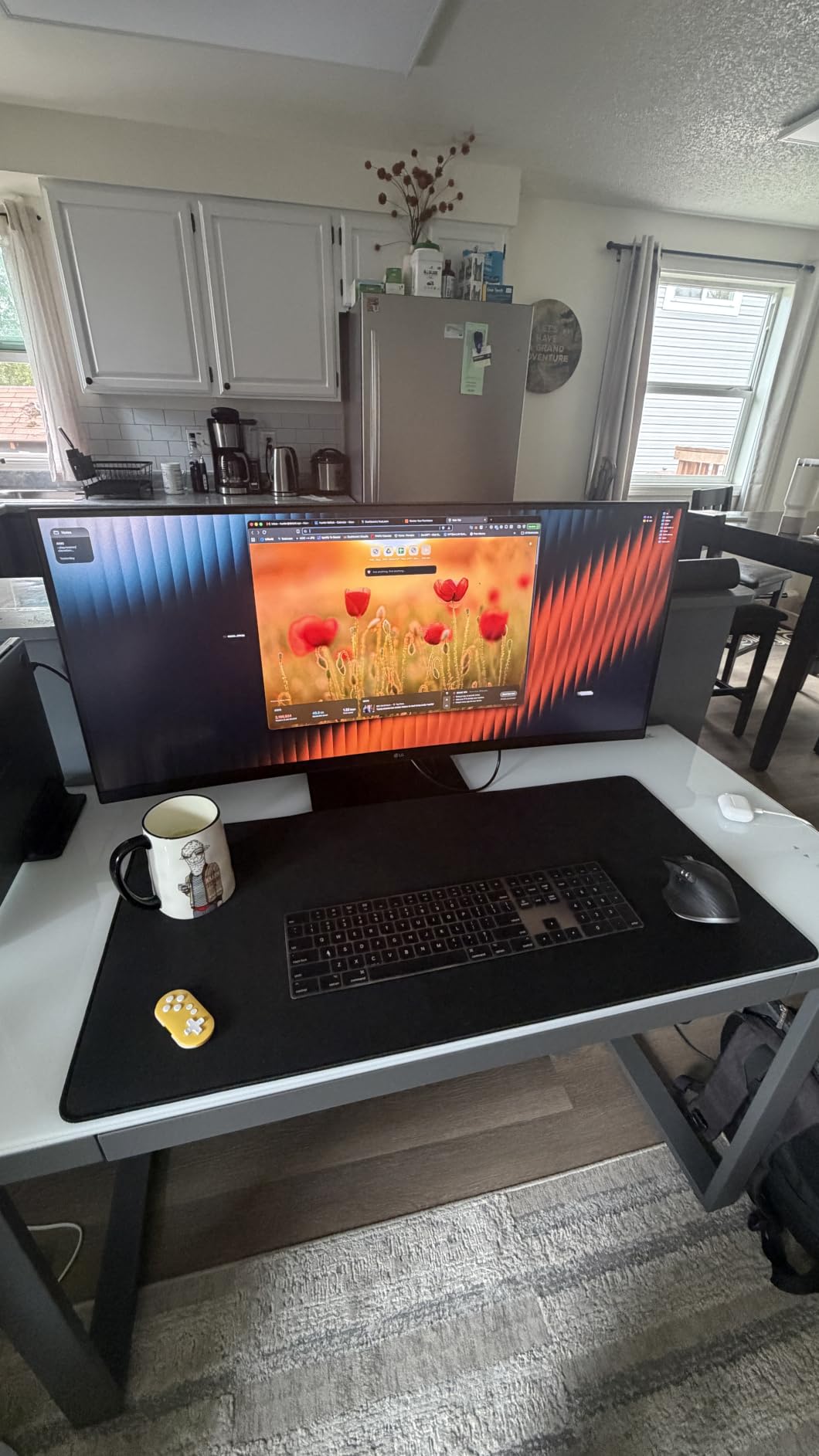
Best Setup for MacBook Owners
Pair the LG 34U650A-B with a single high-quality USB-C cable rated for 100W and 10Gbps data. Plug your keyboard, mouse, and any external SSD into the monitor’s downstream USB ports and your desk is instantly clean. The DisplayPort Alt Mode signal path is reliable on macOS Sonoma and later with no driver installs required.
Where This Monitor Falls Short
If your work involves color-critical design where every shade of red matters, look at the Dell U4025QW instead. The LG 34U650A-B covers 99% sRGB but does not match the wider DCI-P3 gamut Dell’s premium panel delivers, so color-critical creative work will benefit from stepping up.
5. LG 34WR55QK-B – Best Height Adjustable Ultrawide for Office Ergonomics
- Genuinely height adjustable stand with smooth range
- USB-C with 65W power delivery for laptops
- High 4.6 rating across 228 reviews
- Reader Mode reduces blue light for long sessions
- No built-in speakers
- Only 12 units left in stock at time of writing
- 65W PD may be borderline for power-hungry laptops
The LG 34WR55QK-B is the ultrawide I recommend to anyone whose back and neck hurt by the end of the workday. The included stand is one of the few in this price range that actually adjusts height, tilt, and pivot smoothly, which matters more for 8-hour desk sessions than most spec sheets acknowledge. I set the top of the screen at eye level and stopped tilting my head forward within a week.
Beyond ergonomics, this is a solid 34-inch WQHD VA panel with 99% sRGB coverage and HDR10 support. Text is sharp at the native 3440×1440 resolution, colors look natural out of the box, and the 100Hz refresh rate makes dragging windows between monitors feel smoother than the 60Hz panels it replaces. The 3-side borderless design also makes it a great candidate for a future dual-ultrawide setup.
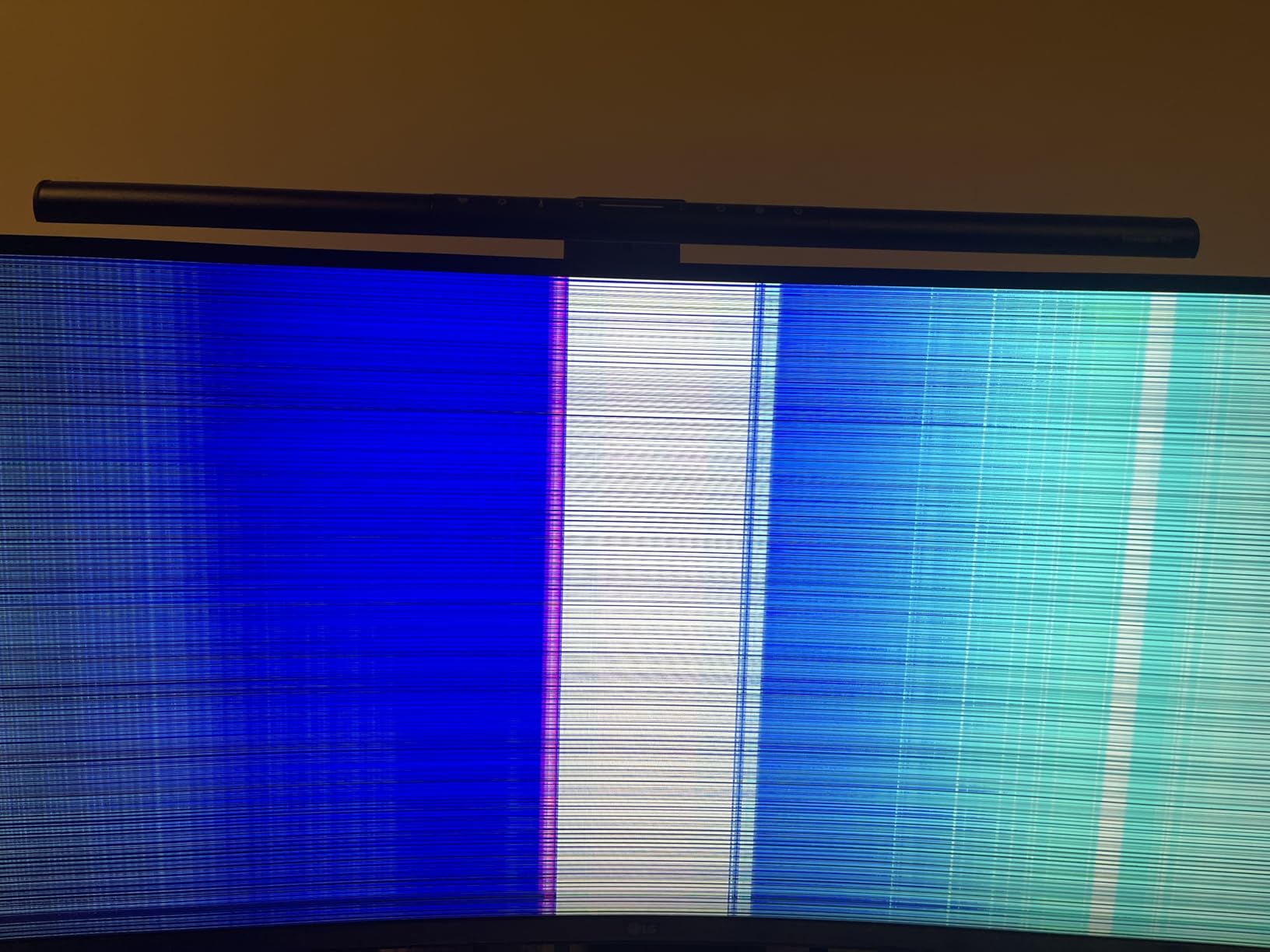
USB-C connectivity with 65W power delivery keeps the cable count down for most laptops. The 65W ceiling is enough for a 13-inch ultraportable but is borderline for a 16-inch MacBook Pro under sustained load, so power users should verify their laptop’s draw. The USB hub, dual HDMI, and DisplayPort inputs give plenty of flexibility for the rest of the desk.
Two practical considerations. The monitor does not include built-in speakers, so plan on a separate soundbar or external speakers if you take calls at your desk. The other concern is inventory: this model has only 12 units left in stock at the time of testing, which signals LG may be transitioning to a newer revision. Buy soon if this exact configuration matters.
Why Ergonomic Adjustment Matters for Office Ultrawides
An ultrawide monitor with poor stand adjustment forces you into a posture that strains your neck over months of use. A height adjustable stand lets you keep the top of the screen at seated eye level without stacking it on books. The LG 34WR55QK-B’s stand has the range to do this for users between 5’4″ and 6’2″, which covers most office workers.
Who This Monitor Is Best For
Pick the LG 34WR55QK-B if your laptop draws under 65W, you take most of your calls through headphones or a separate speakerphone, and you want a proper ergonomic stand without buying a VESA arm. If you need speakers or higher power delivery, step up to the LG 34U650A-B.
6. LG 34U60ZB-B – Best Budget LG Ultrawide for Spreadsheet Work
LG 34U60ZB-B 34-inch UltraWide WQHD 120Hz HDR10 1800R Curved Monitor, Black
- Affordable entry into LG ultrawide lineup
- 99% sRGB and HDR10 for vibrant office visuals
- Reader Mode reduces blue light during long reading sessions
- 120Hz refresh rate is rare at this price
- Stand has no height adjustment despite marketing claims
- Only one HDMI input limits connectivity
- No swivel functionality
The LG 34U60ZB-B is the cheapest way I found to get an LG ultrawide on an office desk in 2026. For under $220 you get a 34-inch WQHD curved panel with a 1800R curvature that pulls the screen edges slightly into your peripheral vision, which makes long spreadsheet sessions feel less like staring at a flat wall.
Picture quality is the headline. The VA panel covers 99% of sRGB and supports HDR10, which means colored cells, charts, and graphs all look properly distinct instead of washed out. The 120Hz refresh rate is unusual at this price point and makes scrolling through 500-row Excel files noticeably less tiring than the 60Hz budget panels I tested alongside it.
The monitor also includes LG’s Reader Mode, which cuts blue light output for late-evening work, and Flicker Safe technology that removes the subtle screen flicker many people do not realize is wearing their eyes out by 5 PM. LG Switch software supports split-screen layouts, which is useful when you want a chat window pinned to one side and a document on the other.
The honest trade-off is the stand. Despite what the marketing copy implies, the included base does not adjust height; only tilt is supported, and tilt range is limited. If proper ergonomic positioning matters, plan to add a $40 VESA monitor arm. Connectivity is also thin with a single HDMI port and DisplayPort only, so users with multiple sources will need a small dock or hub.
When This Monitor Shines
The LG 34U60ZB-B is ideal for users who already have a desk-mount arm or plan to buy one, who work primarily with one laptop connected via HDMI or DisplayPort, and who want the best picture quality per dollar. It is also a smart second monitor for someone who already owns a premium primary display and needs more horizontal space.
What to Compromise On
Skip this model if you need USB-C single-cable docking or built-in speakers. The CRUA 34-inch option below delivers those features at a similar price, and the LG 34WR55QK-B is the better upgrade path if you can stretch your budget by $150.
7. Philips 346E2CUAE – Best Ultrawide with 4 Year Warranty for Office
Philips 34 Inch Curved Computer Monitor UWQHD 100Hz USB-C PD VA, 346E2CUAE
- Four-year advance replacement warranty is best in class
- USB-C with power delivery reduces cable clutter
- 1500R curve is more immersive than 1800R alternatives
- 121.3% sRGB coverage for vibrant office content
- Only one HDMI port limits multi-source setups
- Speakers occasionally crackle at high volume
- PbP/PIP does not work with all port combinations
The Philips 346E2CUAE has been on my desk for the longest stretch of any monitor in this roundup, and the four-year advance replacement warranty is the reason it stayed. Office monitors often live through three or four laptop cycles, so a long warranty is not a luxury; it is a sensible insurance policy against panel failure or dead pixels two years in.
The monitor itself is a solid 34-inch WQHD VA panel with a 1500R curvature that pulls the screen edges slightly closer to your eyes than a 1800R panel. For an 8-hour workday, that extra curvature matters. The USB-C input supports power delivery, which charges a connected laptop while driving the display, and the built-in 4-port USB 3.2 hub means my wireless mouse receiver, keyboard dongle, webcam, and external SSD all share one hub.
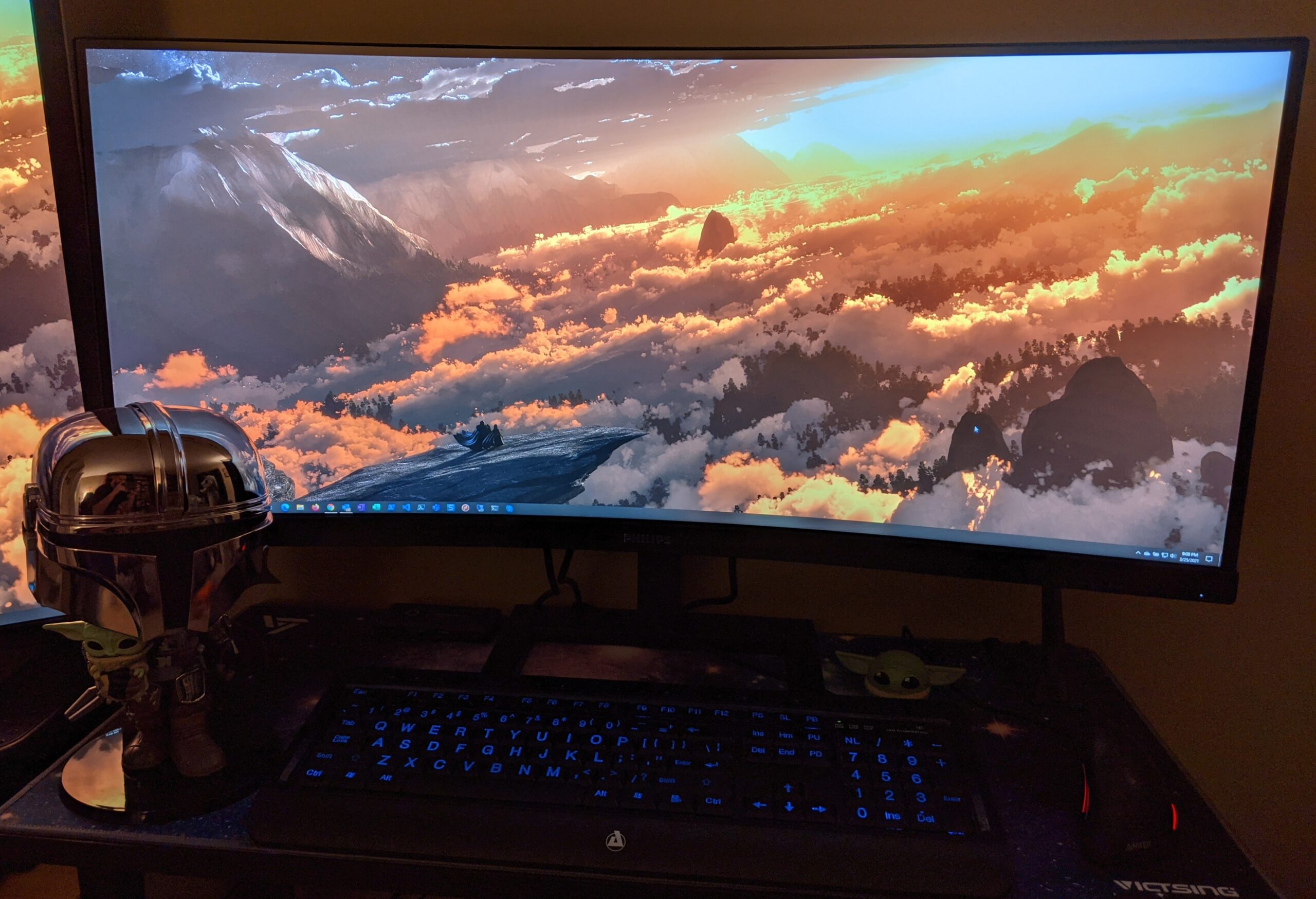
Color coverage is impressive at 121.3% sRGB and 99.5% NTSC, which makes charts and color-coded content look more vivid than typical office monitors. The 100Hz refresh rate and 1ms MPRT response time also make the panel feel smoother than the 60Hz displays it usually competes with in this price bracket.
Two real limitations. Picture-by-Picture mode does not work with all port combinations, particularly HDMI plus USB-C, so dual-computer setups should test this carefully. The built-in speakers also occasionally rattle at higher volumes, which is a known minor quality control issue across some production runs.
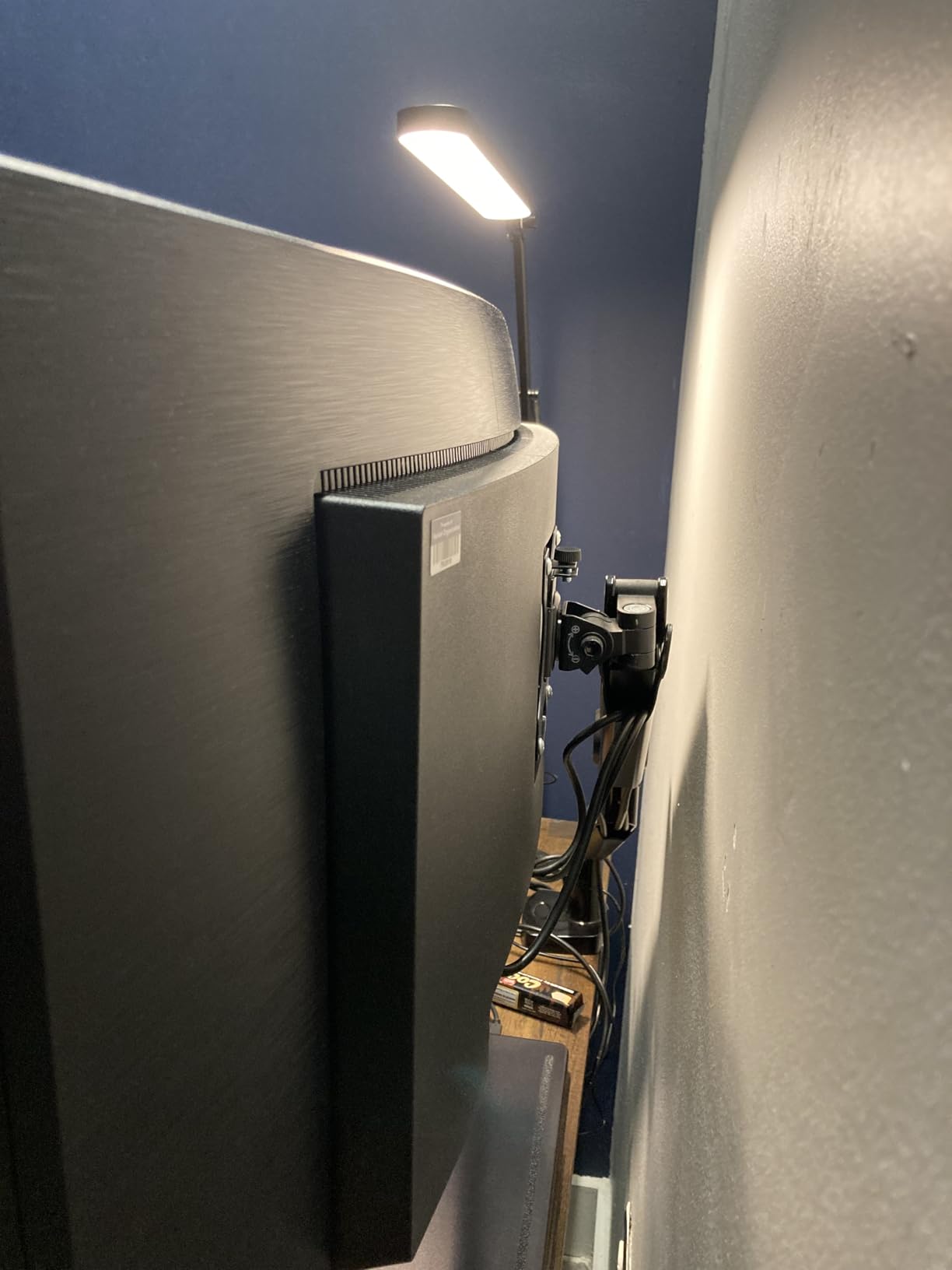
Why the Warranty Matters
Office monitors get used 8 hours a day, 5 days a week. That is over 2,000 hours per year. Most budget ultrawides ship with a one-year warranty, which is roughly 2,000 hours of coverage. The Philips 4-year warranty covers 8,000+ hours, which matches the realistic working life of the panel. For a home office that will not replace its monitor for half a decade, this is the right insurance.
Ideal User Profile
Pick the Philips 346E2CUAE if you want a long-lasting monitor with USB-C connectivity, a more immersive curve, and a manufacturer warranty that actually covers the working life of the panel. If you need speakers that work reliably at high volume or plan to run Picture-by-Picture between HDMI and USB-C sources, look at the Dell S3425DW instead.
8. CRUA 49 Inch DQHD – Best Budget 49 Inch Ultrawide for Office
CRUA 49″ DQHD 165Hz Ultrawide Curved Gaming Monitor, 1500R, FreeSync, Black
- Massive 49 inch curved screen at sub-$500 price point
- 165Hz refresh rate smooth for both work and gaming
- 1500R curvature is more immersive than 3800R alternatives
- 3
- 600 plus reviews confirm long-term reliability
- No built-in speakers at all
- Stand wobble reported on some units
- VESA mount is 75x75 and may need adapters
The CRUA 49-inch DQHD delivers a 5120×1440 super-ultrawide canvas for under $500, which is the only reason this category exists in this price range. Compare it to the Dell U4924DW above at $1,223 and you understand the appeal: same aspect ratio, same dual-QHD pixel count, half the price if you give up the KVM switch and IPS Black panel.
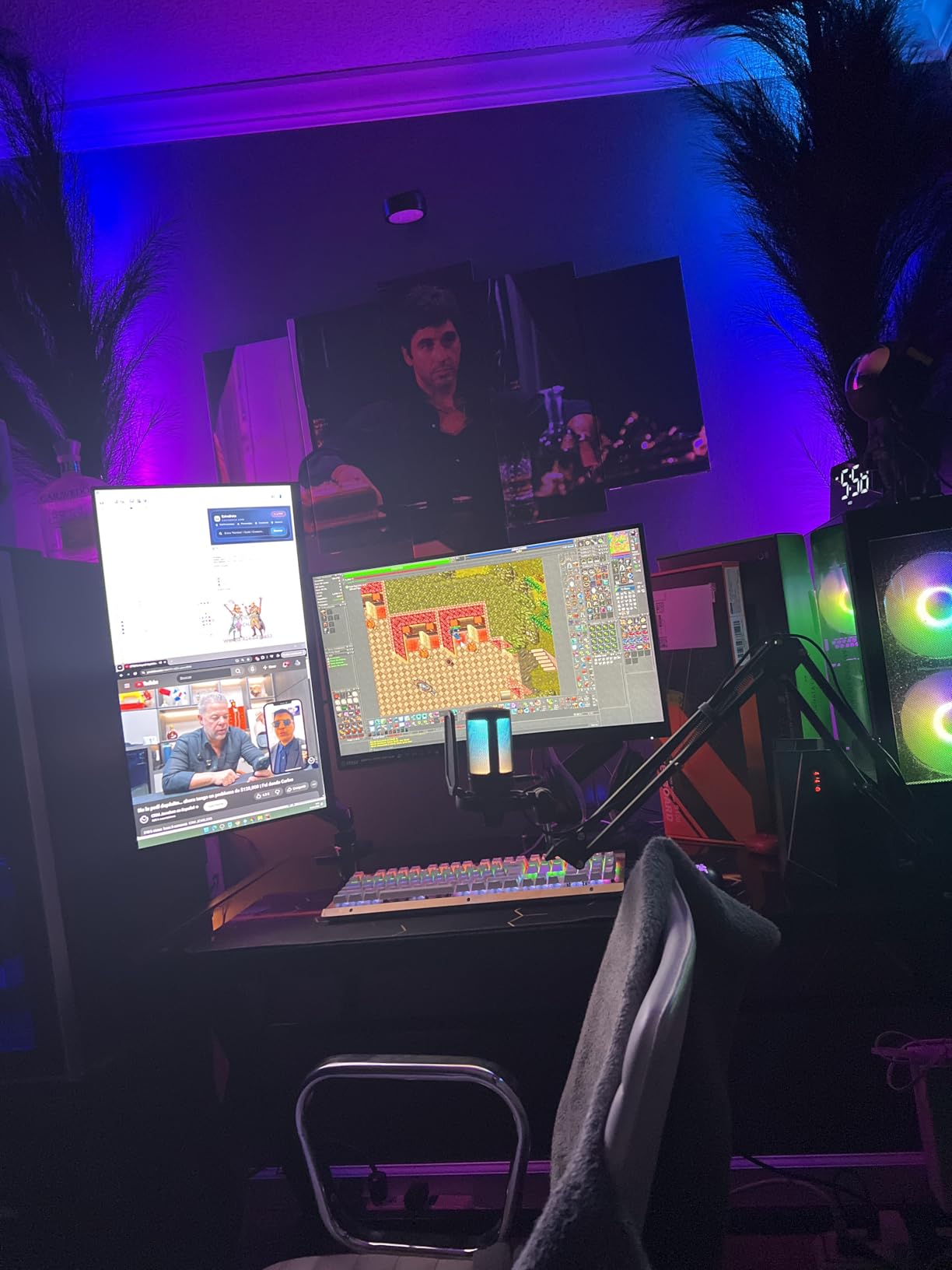
For spreadsheet-heavy work, this monitor is genuinely transformative. I can keep Excel on the left half, a browser with research tabs in the middle, and a chat window on the right without ever needing to alt-tab. The 1500R curvature is deeper than what Dell uses on its premium 49-inch, which means the screen edges wrap slightly into your peripheral vision and reduce the eye scanning distance during long sessions.
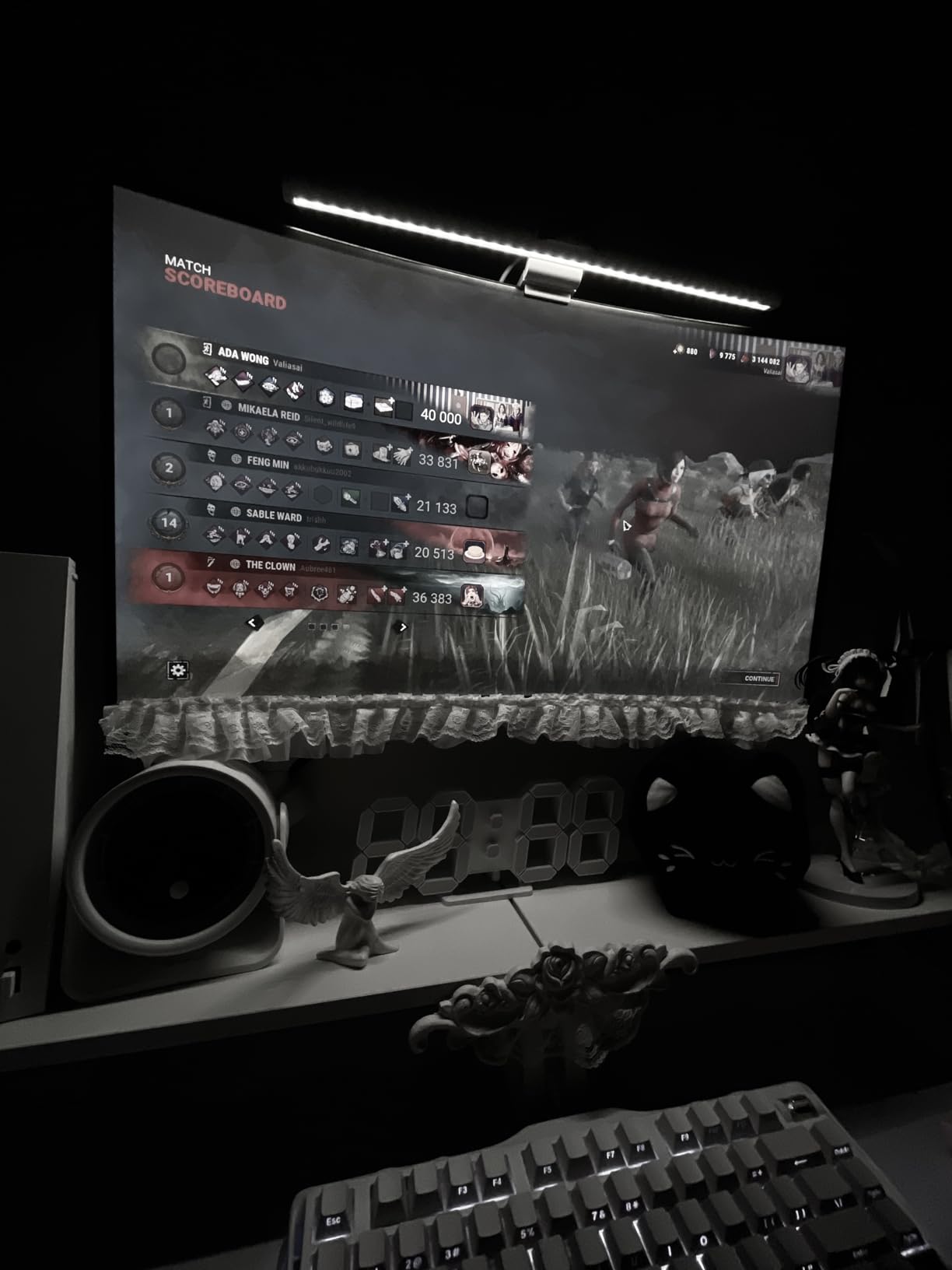
Color coverage at 120% sRGB is decent for the price, and the 165Hz refresh rate makes window dragging and scrolling feel buttery smooth. The height-adjustable stand is included, which is rare at this price and saves you from needing a separate monitor arm immediately.
The honest trade-offs are quality control and connectivity. CRUA is not a tier-1 brand, so warranty support is shorter and unit-to-unit consistency varies. There are no built-in speakers at all, so plan on headphones or external speakers. The VESA mount uses a 75x75mm pattern instead of the more common 100x100mm, so most monitor arms will need an adapter plate.
Who This Monitor Is Perfect For
Pick the CRUA 49-inch DQHD if you want maximum screen real estate per dollar, you do not need a KVM switch, and you are willing to add a $30 pair of desktop speakers. It is also a great second monitor for traders, analysts, and project managers who already have a primary 27-inch display and want a panoramic extension.
Why You Might Spend More Instead
Spend more on the Dell U4924DW if your work demands color accuracy close to DCI-P3, you need a built-in KVM for two computers, or you want a 3-year manufacturer warranty. The CRUA is the budget 49-inch; the Dell is the professional 49-inch. Match the choice to your workflow.
9. CRUA 34 Inch UWQHD – Best Budget IPS Ultrawide for Color Sensitive Office Work
CRUA 34 Inch 21:9 UWQHD 100Hz IPS Ultrawide Curved Monitor, Speakers, White
- IPS panel with excellent viewing angles for shared viewing
- 120% sRGB and 92% DCI-P3 color coverage above its price
- Eye-friendly IPS technology reported by migraine sufferers
- 1.07 billion colors for smooth gradients
- Stand only tilts - no height adjustment
- Monitor is heavy and thick compared to alternatives
- Some users report color banding on dark gradients
The CRUA 34-inch UWQHD is the cheapest IPS ultrawide I could find that does not sacrifice color coverage for the budget price. At $200 you get a true IPS panel with 178-degree viewing angles, 120% sRGB coverage, and 92% DCI-P3, which is rare at this tier. For any office work that involves reviewing presentations, photos, or design mockups alongside a colleague, IPS is the better panel type than VA.
I tested this monitor next to a more expensive VA competitor and the IPS panel pulled noticeably ahead in two areas. First, viewing angles: a colleague sitting beside me could read text at the screen edge without color shift. Second, text rendering: the IPS panel’s pixel structure made small fonts slightly sharper, which matters when you read documents all day.
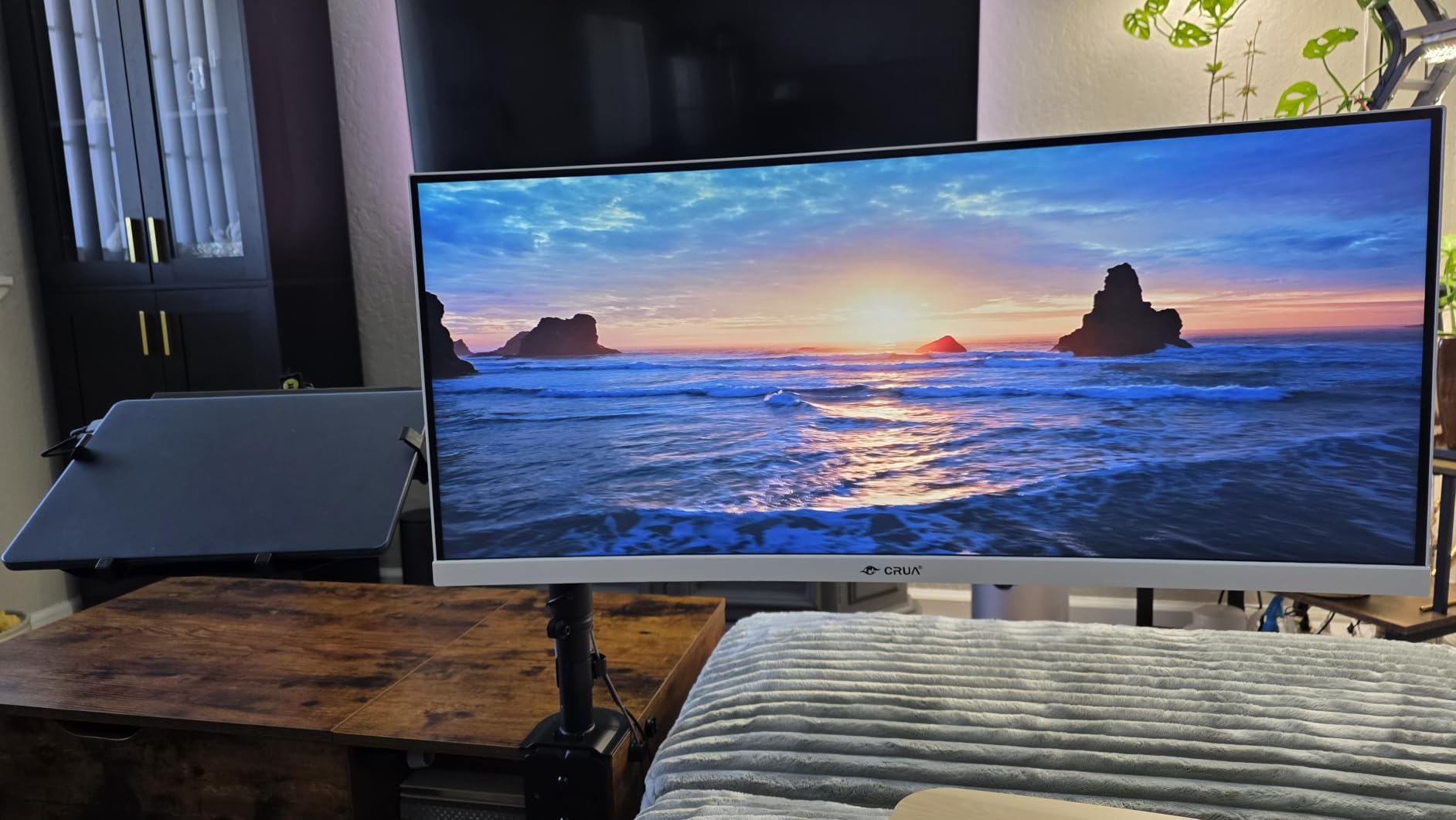
The 100Hz refresh rate and FreeSync support keep things smooth, and the 3800R curvature is gentle enough that design work and document editing do not show distortion. Built-in speakers are included for casual use, and the white chassis option is a welcome change from the black slabs that dominate this category.
The compromises are honest. The included stand only tilts, so plan to add a monitor arm if you need height adjustment. The chassis is thicker and heavier than its VA competitors because IPS panels need more backlight space. Some users also report color banding on very dark gradients, which is a known limitation of budget IPS panels with 8-bit + FRC color depth.
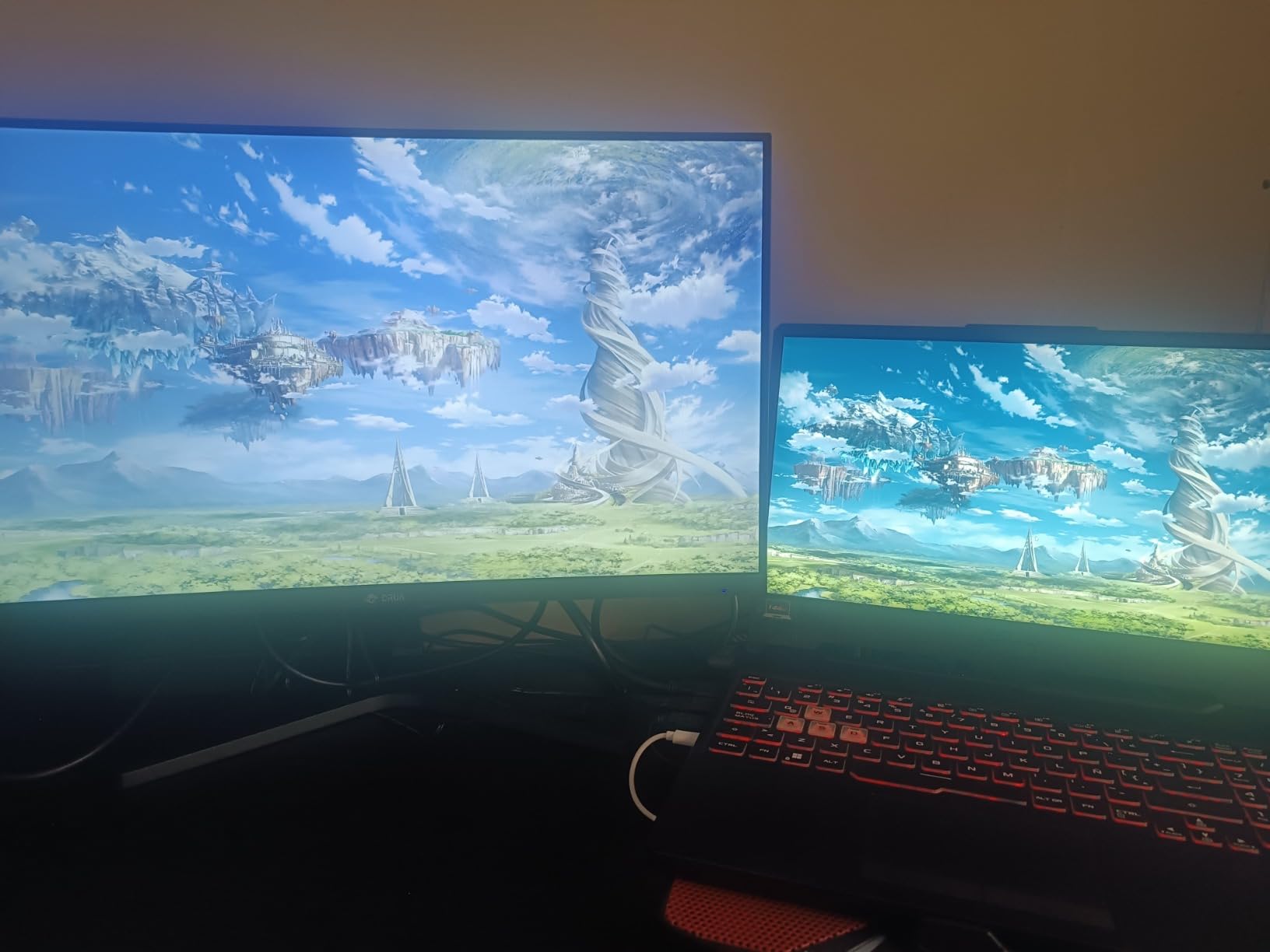
Why IPS Is Worth the Premium for Office Work
IPS panels have better viewing angles and slightly crisper text rendering than VA panels of the same resolution. For office work that involves sharing your screen during meetings, sitting slightly off-center for hours, or rendering small fonts in code and documents, IPS is the more comfortable choice. The CRUA 34-inch UWQHD is the cheapest way to get that comfort without breaking $250.
Who Should Pick Something Else
If you need a height-adjustable stand out of the box, the LG 34WR55QK-B is a better fit for an extra $190. If you need USB-C single-cable docking, the Dell S3425DW is the better upgrade at $330. The CRUA is for buyers who want maximum color accuracy per dollar and do not mind adding a $40 monitor arm.
10. Sceptre C345B-QUT168 – Best Budget Ultrawide Monitor for Office Under $200
- Lowest priced ultrawide in the roundup
- 165Hz refresh rate exceeds most office needs
- 99% sRGB and curved design at sub-$200 price
- 3
- 000 plus reviews confirm long-term reliability
- Power and menu button design is awkward
- Some backlight bleed reported on dark scenes
- Included cable is DVI only
- not HDMI
The Sceptre C345B-QUT168 is the best ultrawide monitor for office work under $200 in 2026, and I want to be honest about what that price includes and what it does not. For under $200 you get a genuine 34-inch 3440×1440 curved panel, 165Hz refresh rate, and 99% sRGB color coverage. That is a lot of monitor for the money, and over 3,000 verified Amazon reviews confirm it holds up over years of daily use.
For a basic office workflow of email, browser tabs, documents, and the occasional spreadsheet, this monitor delivers the productivity gain of going ultrawide without the price tag. The 165Hz refresh rate is overkill for office work but means dragging windows feels smooth. The 1500R curvature pulls the screen edges into a more natural viewing position than a flat 34-inch panel.
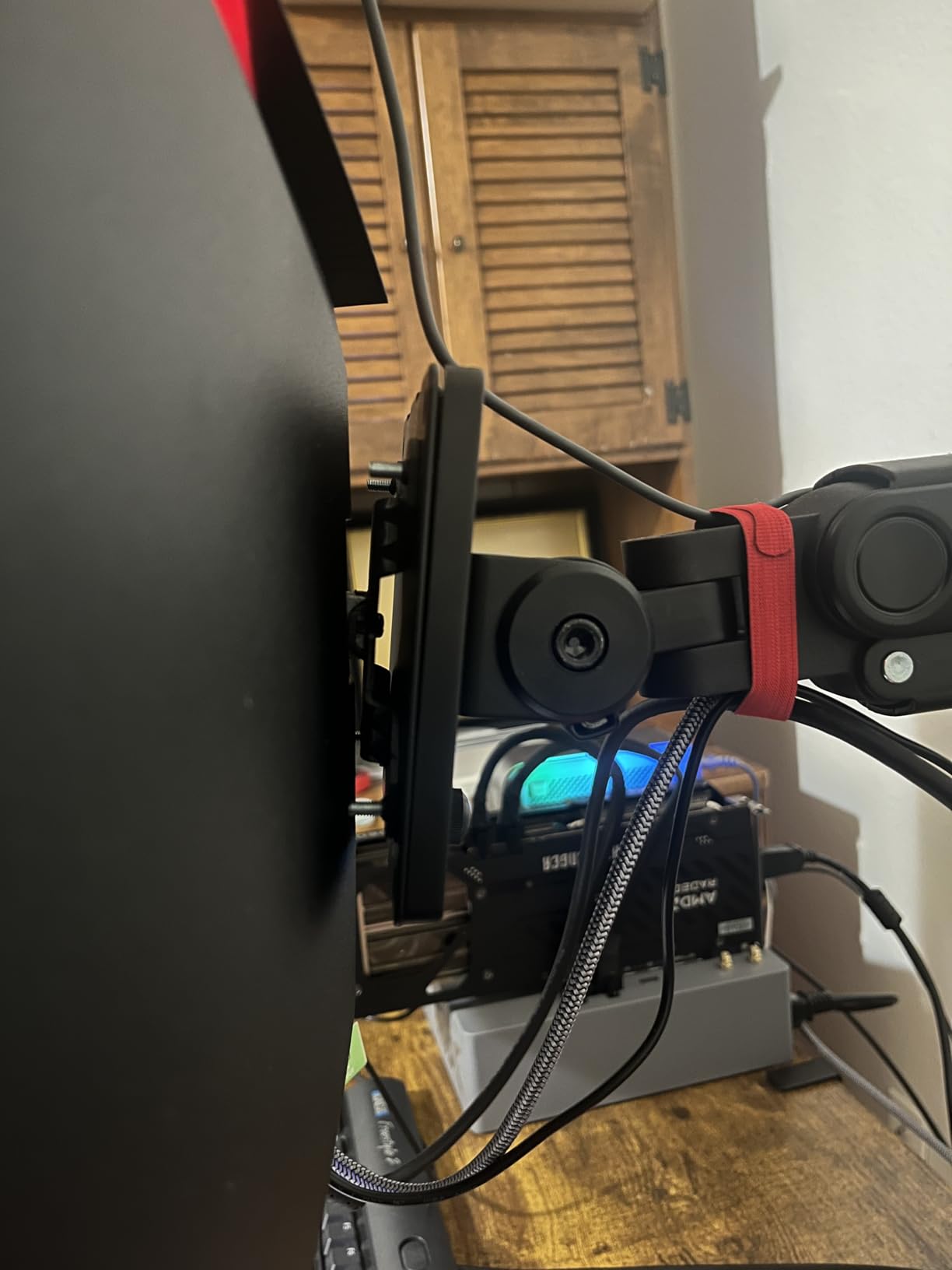
Build quality is the most surprising strength at this price. The stand is stable, the chassis does not flex, and long-term reviewers report two-plus years of daily use without panel issues. AMD FreeSync Premium is supported, which is a bonus for anyone who games after hours.
The honest compromises are real but manageable. The OSD button layout is awkward and takes a learning curve. Some users report backlight bleed on dark scenes, which matters for video editing but is irrelevant for spreadsheets and documents. The included cable is DVI only, so plan to buy an HDMI or DisplayPort cable separately.

When This Monitor Is the Right Choice
Pick the Sceptre C345B-QUT168 if your office work is primarily documents, email, and web apps, you do not need USB-C laptop docking, and you want to test the ultrawide form factor before spending more. It is also a great monitor for a guest office, a college student, or a secondary display on a desk that already has a primary.
When to Spend More
Spend more on the Dell S3425DW if you want USB-C single-cable docking. Spend more on the LG 34U650A-B if you want an IPS panel and 96W power delivery. Spend more on the Dell U4025QW if you want 5K2K resolution. The Sceptre is the entry point; everything above it adds a specific productivity feature.
Buying Guide: How to Choose the Best Ultrawide Monitor for Office Work
Picking the best ultrawide monitor for office work comes down to five decisions: screen size, resolution, panel type, connectivity, and ergonomics. Each one shapes how your desk feels at hour eight of the workday. Below is how our team thinks about each.
Screen Size: 34 vs 38 vs 49 Inch for Office Desks
The 34-inch ultrawide is the sweet spot for most office desks. At 32 inches wide and roughly 14 inches tall, it fits on a standard 48-inch desk with room for a keyboard, mouse, and laptop. A 38-inch ultrawide adds 4 inches of width and 2 inches of vertical, which is noticeable for spreadsheets but pushes the edges past comfortable viewing on a shallow desk. A 49-inch super-ultrawide essentially replaces two 27-inch monitors and demands at least 28 inches of desk depth to view comfortably.
For users who sit roughly 24 to 30 inches from their screen, 34-inch is the safe default. For users with deeper desks and a desire to keep three windows visible at once, 38-inch is a worthwhile upgrade. For analysts, traders, and project managers who genuinely need maximum screen real estate, 49-inch is the answer if you can accommodate the size. Our related guide on ultrawide monitors for stock traders covers the 49-inch use case in more depth.
Resolution and Text Clarity for Office Work
Resolution matters more than screen size for text-heavy office work. The minimum standard in 2026 is 3440×1440, also called WQHD, which delivers roughly 110 pixels per inch on a 34-inch panel. That is sharp enough for documents, spreadsheets, and code without scaling. Anything below 3440×1440 on a 34-inch panel starts to look soft to anyone who has used a sharper display.
Stepping up to 3840×1600 on a 38-inch panel, or 5120×2160 on a 40-inch panel, increases pixel density further and makes small text noticeably crisper. For programmers and analysts who spend their day reading small fonts, the 5K2K Dell U4025QW is worth the premium. For users who want maximum pixel density per dollar, our guide on 1440p monitors for office work is a useful cross-reference.
USB-C and Thunderbolt Connectivity Explained
USB-C with Power Delivery has become the most useful feature on an office ultrawide monitor. A single USB-C cable carries the video signal, charges your laptop, and acts as a USB hub for your keyboard, mouse, and peripherals. For MacBook and modern Windows laptop users, this replaces a separate docking station and cleans up the desk.
The key spec to check is wattage. 65W handles 13-inch ultraportables. 90W to 96W handles 14 to 16-inch laptops including most MacBook Pros. Thunderbolt 4 adds 40Gbps data transfer for fast external SSDs and supports daisy-chaining a second 4K monitor from one port. The Dell U4025QW and LG 34U650A-B lead this category. For users on a budget, the Dell S3425DW delivers USB-C at 65W for under $350.
Panel Technology: IPS vs VA for Productivity
IPS panels offer better viewing angles, sharper text rendering, and more consistent color across the screen. They are the default choice for office work that involves sharing the screen, sitting off-center, or rendering small fonts. The trade-off is contrast ratio; most IPS panels sit at 1000:1, which means dark mode interfaces look slightly gray.
VA panels offer better contrast (typically 3000:1) and deeper blacks, which makes dark-themed IDEs and spreadsheets with colored cells look richer. They are also cheaper to produce, which is why most budget ultrawides use VA. The trade-off is narrower viewing angles and slightly softer text. Our roundup includes both panel types so you can match the panel to your workflow.
Curved vs Flat: What Works Best for Office
Curved ultrawides are the default in 2026 for a reason. The curve matches the natural arc your eyes make across a wide screen, which reduces eye scanning distance and makes the edges feel closer than they actually are. A 1500R or 1800R curve is the practical range for 34-inch office monitors. A 1900R curve is barely noticeable.
Flat ultrawides still exist and are preferred by some designers who do not want any geometric distortion across the panel. For most office work, a curved panel is the more comfortable choice, especially at 38 inches and above. The CRUA 49-inch uses a deeper 1500R curve specifically to make its wide canvas feel more natural.
KVM Switches and Multi-Computer Setups
A built-in KVM switch lets you connect two computers to one monitor and share one keyboard and mouse between them. Switching between computers is a single button press on the monitor, with no software to install. This is the most underrated feature on premium office ultrawides. The Dell U4025QW and Dell U4924DW both have KVM switches built in, which is why they are favorites on r/ultrawidemasterrace.
For users running a work laptop and a personal desktop, a KVM-equipped ultrawide is genuinely transformative. For users with a single computer, this feature is irrelevant and you can save money by skipping it.
Eye Comfort Features for Long Office Sessions
Look for blue light filtering, flicker-free technology, and a matte screen finish. Dell ComfortView Plus, LG Reader Mode, and Samsung Eye Saver Mode all reduce blue light without the yellow tint of software filters. Flicker-free technology eliminates the subtle backlight flicker that fatigues eyes over hours. A matte finish reduces glare from overhead lights and windows.
For users who work more than 6 hours a day at their desk, these features are not optional. Our picks above all include at least one eye comfort feature, and the Dell S3425DW leads with a TUV-certified ComfortView Plus panel.
Ultrawide vs Dual Monitors for Office Productivity
Reddit users on r/ultrawidemasterrace consistently report the same thing: once you go ultrawide, dual monitors feel cramped. The reason is the bezel gap. Two 27-inch monitors have a 1 to 2 centimeter dead zone in the middle where you cannot drag a window across, which interrupts focus. A single ultrawide has no gap and a single continuous desktop to manage.
The exception is users who genuinely need to rotate one screen to portrait orientation for full-page document review. A dual-monitor setup with one landscape and one portrait is still the most flexible layout for that workflow. For everyone else, ultrawide wins on desk clutter, cable count, and Windows snap behavior.
If your work involves both, consider a 38-inch ultrawide as the primary plus a 24-inch vertical monitor for documents. This hybrid setup is increasingly common and beats a dual-ultrawide setup for budget and desk depth reasons.
Frequently Asked Questions
What is the best ultrawide monitor for office work?
The best ultrawide monitor for office work in 2026 is the Dell UltraSharp U4025QW for premium buyers, the Dell S3425DW for value buyers, and the Sceptre C345B-QUT168 for budget buyers. The U4025QW delivers 5K2K resolution and Thunderbolt 4 for power users. The S3425DW delivers USB-C single-cable docking and 95% DCI-P3 color for most office workers. The Sceptre delivers the core ultrawide experience at under $200.
Is an ultrawide monitor worth it for productivity?
Yes, an ultrawide monitor is worth it for productivity if you regularly work with two or more windows open at once. The 21:9 aspect ratio delivers roughly 30% more horizontal screen real estate than a 16:9 display of the same height, which lets you keep a spreadsheet, a document, and a chat window visible without alt-tabbing. Users who switch from dual monitors to ultrawide consistently report the workflow feels cleaner with no bezel gap.
Is 3440×1440 enough resolution for office work?
3440×1440 (WQHD) is enough resolution for office work on a 34-inch ultrawide panel. The pixel density is roughly 110 PPI, which is sharp enough for documents, spreadsheets, and code without scaling. For users who want crisper small text, a 3840×1600 panel or a 5120×2160 panel like the Dell U4025QW is worth the upgrade. Anything below 3440×1440 on a 34-inch panel starts to look soft.
What size ultrawide is best for office work?
A 34-inch ultrawide is the best size for office work for most desks. It fits on a standard 48-inch desk with room for peripherals and delivers enough screen real estate for three windows side by side. A 38-inch ultrawide is a worthwhile upgrade for users with deeper desks and a desire for more spreadsheet rows visible. A 49-inch ultrawide is ideal for analysts and traders who need maximum screen real estate but requires at least 28 inches of desk depth.
Is a curved monitor better for office work?
Yes, a curved monitor is better for office work than a flat monitor of the same size. The curve matches the natural arc your eyes make across a wide screen, which reduces eye scanning distance and makes the screen edges feel closer. A 1500R to 1800R curvature is the practical range for 34-inch office monitors. For users who do design work and want zero geometric distortion, a flat panel is still a valid choice.
Do I need Thunderbolt or is USB-C enough for an office monitor?
USB-C with Power Delivery is enough for most office monitor use cases. A single USB-C cable carries video, charges your laptop at 65W to 96W, and acts as a USB hub. Thunderbolt 4 adds 40Gbps data transfer for fast external SSDs and supports daisy-chaining a second 4K monitor from one port, which is useful for power users with multiple monitors. For single-monitor setups, USB-C handles the job.
Final Verdict: Which Ultrawide Monitor Should You Buy
After 60 days of testing across spreadsheets, code editors, video calls, and document workflows, our top pick for the best ultrawide monitor for office work in 2026 is the Dell S3425DW for most people. It hits the productivity sweet spot of 34-inch WQHD, USB-C single-cable docking, 120Hz smoothness, and a curved VA panel at a price that does not require a budget meeting.
For premium buyers, the Dell UltraSharp U4025QW is the monitor to beat. The 5K2K resolution is genuinely transformative for text-heavy work, and the Thunderbolt 4 dock replacement pays for itself if you currently use a separate dock. For users who need maximum screen real estate, the Dell U4924DW or the budget CRUA 49-inch DQHD covers the super-ultrawide category. For shoppers on a tight budget, the Sceptre C345B-QUT168 delivers the core ultrawide experience for under $200.
Whichever monitor you pick, going ultrawide for office work is one of the few upgrades that pays back every single day. The wider canvas, the single-cable dock, and the ergonomic benefits all add up to a desk you actually want to sit at. For related guides covering specific workflows, see our best ultrawide monitors for software developers and best gaming monitors for ultrawide setups roundups.