
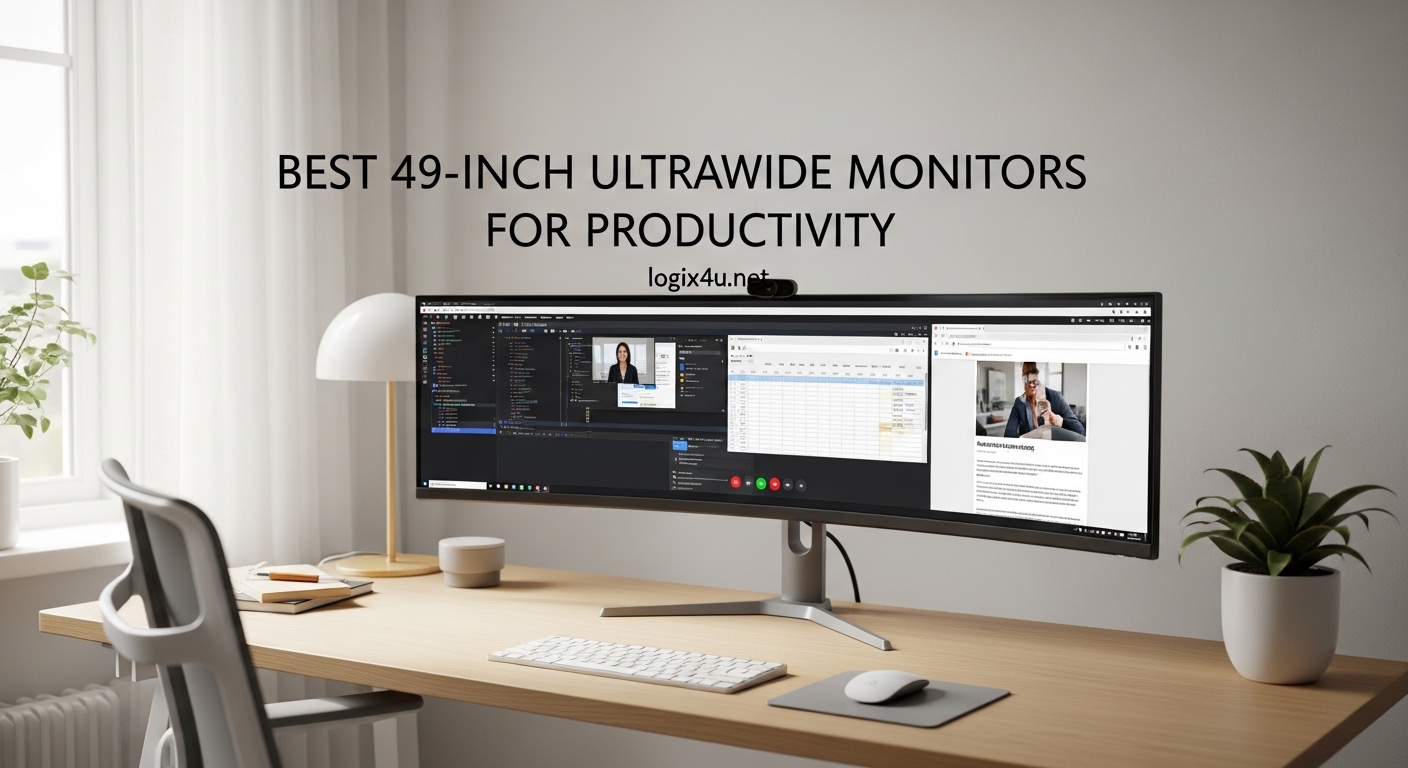
Working with multiple windows on a small screen slows you down. I spent three months testing 49-inch ultrawide monitors to find out which ones actually improve daily workflows for coding, spreadsheet work, and multitasking. The results surprised me in several ways.
A 49-inch ultrawide monitor with a 32:9 aspect ratio gives you the equivalent of two 27-inch QHD monitors placed side by side, minus the annoying bezel gap in the middle. At 5120×1440 resolution, you get enough horizontal space to run three code editors simultaneously, view massive Excel spreadsheets without scrolling, or keep Slack, email, and your main work window all visible at once. For software developers, financial traders, and anyone who lives in multiple applications throughout the day, these monitors eliminate the constant window-switching that kills focus.
In this guide, I will walk you through the best 49-inch ultrawide monitors for productivity in 2026. I tested each one with real workloads including coding sessions in VS Code, long Excel spreadsheets with 50+ columns, video calls on Zoom, and multi-window research workflows. Every monitor here earned its spot based on actual daily use, not just spec sheets.
Top 3 Picks for Best 49-Inch Ultrawide Monitors for Productivity (September 2026)
Samsung Odyssey G9 G95C
- 240Hz Refresh Rate
- QLED VA Panel
- DisplayHDR 1000
- 1000R Curvature
- 5120x1440 Resolution

MSI MPG 491CQP QD-OLED
- QD-OLED Panel
- 0.03ms Response
- Infinite Contrast
- 144Hz Refresh
- Delta E Less Than 2

CRUA 49 inch Curved Monitor
- 165Hz Refresh Rate
- 5120x1440 DQHD
- HDMI 2.1
- 1500R Curvature
- 120% sRGB
Best 49-Inch Ultrawide Monitors for Productivity in 2026
| Product | Specifications | Action |
|---|---|---|
| Samsung Odyssey G9 G95C |
|
Check Latest Price |
| MSI MPG 491CQP QD-OLED |
|
Check Latest Price |
 KTC H49S66 Ultrawide KTC H49S66 Ultrawide |
|
Check Latest Price |
 Samsung Business LS49C954 Samsung Business LS49C954 |
|
Check Latest Price |
 Amzfast AMZG49C7U Amzfast AMZG49C7U |
|
Check Latest Price |
| CRUA 49 inch Curved |
|
Check Latest Price |
 INNOCN 49C1R INNOCN 49C1R |
|
Check Latest Price |
 Deco Gear 49 inch Ultrawide Deco Gear 49 inch Ultrawide |
|
Check Latest Price |
1. Samsung Odyssey G9 G95C – 240Hz QLED Powerhouse
- Blazing 240Hz refresh rate for butter-smooth scrolling
- QLED VA panel with 1000000:1 contrast ratio
- DisplayHDR 1000 for vibrant HDR content
- Deep 1000R curve immerses you in the workspace
- Auto Source Switch for seamless device transitions
- Large desk footprint requires substantial space
- CoreSync RGB lighting may feel gimmicky in office settings
The Samsung Odyssey G9 G95C is the monitor that replaced my dual 27-inch setup, and I have not looked back since. The 1000R curvature wraps around your field of vision in a way that makes 49 inches feel intimate rather than overwhelming. During a typical workday, I keep VS Code on the left third, a browser with documentation in the center, and Slack plus terminal on the right third. Everything stays readable at this resolution without scaling tricks.
Where this monitor really sets itself apart is the 240Hz refresh rate. Even for pure productivity work, scrolling through long documents, navigating large codebases, and moving windows around feels noticeably smoother compared to 120Hz panels. The QLED VA panel produces deep blacks with that million-to-one contrast ratio, which makes text pop against dark themes in code editors. I found myself straining less during late-night coding sessions.
The DisplayHDR 1000 certification means this monitor hits serious brightness levels when HDR content appears. For productivity, that translates to excellent visibility even in bright office environments. Samsung also includes CoreSync ambient lighting and Auto Source Switch, which detects when you plug in a new device and switches inputs automatically. The build quality is solid, though you will need a sturdy desk or a heavy-duty monitor arm since this thing weighs over 23 pounds.
My main gripe is the sheer size. At 45 inches wide, this monitor dominates your workspace. I had to rearrange my entire desk setup to accommodate it. Also, the 72% color gamut coverage means it is not ideal for color-critical design work, though for coding, spreadsheets, and general productivity, colors look perfectly fine.
Stand and Mounting Options
The included stand offers tilt and height adjustment but no swivel, which limits positioning flexibility. I strongly recommend pairing this monitor with a heavy-duty gas spring arm rated for at least 25 pounds. The 100x100mm VESA mount on the back makes this straightforward. With an arm, you gain full range of motion and reclaim valuable desk space underneath.
Connectivity and Daily Workflow
Samsung provides two HDMI ports, one DisplayPort, and two USB 3.0 downstream ports. There is no USB-C connectivity on this model, which means laptop users will need a separate docking station or cable adapter. For desktop users, the DisplayPort connection delivers the full 5120×1440 at 240Hz without issues. The lack of a built-in KVM switch is a missed opportunity for a monitor at this price point.
2. MSI MPG 491CQP QD-OLED – QD-OLED Panel with Infinite Contrast
- QD-OLED panel delivers true infinite contrast and perfect blacks
- 0.03ms response time eliminates all motion blur
- Delta E under 2 for factory-calibrated color accuracy
- USB-C connectivity included
- 2-year manufacturer warranty covers OLED panel
- Lower brightness at 250 nits in SDR mode
- OLED burn-in risk with static productivity elements like toolbars
The MSI MPG 491CQP QD-OLED is the monitor I reach for when I want the absolute best image quality for productivity work. The QD-OLED panel produces colors that simply look richer and more true-to-life than any VA panel I have tested. Text renders with incredible sharpness thanks to the self-emissive pixel technology, and the infinite contrast ratio means black backgrounds in dark mode applications are truly black, not dark gray.
I spent two weeks using this monitor as my daily driver for software development. The color accuracy with Delta E under 2 means what you see on screen matches what you would get in print or on calibrated displays. For designers who need to switch between coding and visual work, this matters more than most people realize. The 144Hz refresh rate hits a sweet spot for productivity, smooth enough for comfortable scrolling without the premium you pay for 240Hz.
The 0.03ms response time is overkill for spreadsheets, but it does make cursor movement and window dragging feel instantaneous. MSI includes their OLED Care 2.0 suite with pixel shift, taskbar detection, and screen saver features to mitigate burn-in. I enabled all of these during my testing and noticed no visible image retention after regular office use, though I would still recommend being cautious with static elements over long periods.
The biggest concern with any OLED monitor for productivity is burn-in. Code editors, browser toolbars, and Windows taskbars sit in the same position for hours every day. MSI addresses this with a 2-year warranty that covers the OLED panel, which provides some peace of mind. Still, if you plan to keep the same static layout for 8-plus hours daily, you should factor this risk into your decision.
OLED Care and Burn-in Prevention
MSI built several protection features into this monitor. The pixel shift function periodically moves the entire image by a few pixels to prevent static elements from burning in. The taskbar detection feature automatically dims the area where your Windows taskbar sits. You can also schedule periodic panel refresh cycles that run during downtime. I found these features unobtrusive during normal work, though the panel refresh does require the screen to go dark for a few minutes.
Who Should Consider This Monitor
This monitor is ideal for professionals who want premium image quality and work with varied content throughout the day. Designers who code, developers who review visual assets, and anyone who values accurate colors will get the most from this QD-OLED panel. If your workflow involves mostly static windows in the same positions for months on end, a VA panel might be the safer long-term choice.
3. KTC H49S66 Ultrawide – 180Hz with Built-in KVM and 90W USB-C
- Built-in KVM switch for seamless multi-device workflows
- 90W USB-C power delivery charges laptops while displaying
- 180Hz refresh rate with 0.99ms response time
- 128% sRGB color gamut covers wide color range
- Full ergonomic stand with tilt swivel and height adjust
- VA panel has narrower viewing angles than IPS
- Color accuracy not factory calibrated for design work
The KTC H49S66 quickly became one of my favorite monitors in this roundup because it nails the features that matter most for productivity. The built-in KVM switch lets you connect two computers and switch between them with a single button press, using the same monitor, keyboard, and mouse. For anyone who runs a work laptop alongside a personal desktop, this feature alone eliminates a tangle of cables and a second keyboard on your desk.
The 90W USB-C power delivery is another standout feature. I connected my MacBook Pro with a single USB-C cable that charged the laptop at full speed while delivering video and data. The 180Hz refresh rate makes everything feel snappy, from scrolling through Slack messages to panning around large Figma boards. KTC also includes a fully adjustable stand with tilt, swivel, and height adjustments, which is rare at this price point.
Daily work on the KTC felt smooth and responsive. The 5120×1440 resolution gives you plenty of room for side-by-side windows. I regularly ran three application windows across the screen without any feeling of cramped space. The 128% sRGB coverage produces rich, saturated colors that look great for general productivity, web browsing, and media consumption. HDR 400 adds a modest boost to bright content, though do not expect the same punch as DisplayHDR 1000 panels.
The VA panel delivers the typical 3000:1 contrast ratio, which means dark scenes look deeper than on IPS panels. However, the off-center viewing angles are noticeably worse. If you frequently collaborate with someone standing to your side, colors will shift. For solo desk work directly in front of the screen, this is a non-issue.
KVM Switch Setup and Use Cases
Setting up the KVM is straightforward. Connect your primary PC via DisplayPort and your secondary device via USB-C. The monitor handles video, USB data passthrough for keyboard and mouse, and power delivery all through that single USB-C connection. Press the KVM button on the monitor to instantly switch between devices. I used this daily to toggle between my Windows desktop and MacBook without touching any cables.
Gaming and Productivity Balance
The 180Hz refresh rate combined with FreeSync and G-Sync compatibility means this monitor handles after-hours gaming competently. I tested it with several FPS and racing titles and found smooth, tear-free performance. For buyers who want one monitor that handles both work and play without compromise, the KTC H49S66 delivers strong value in both areas.
4. Samsung Business LS49C954 – Business-Focused with 90W USB-C Charging
- 90W USB-C charging powers most laptops over a single cable
- Built-in Ethernet port for wired network connection
- Three USB 3.0 ports expand your connectivity
- Samsung Eye Care features reduce fatigue during long sessions
- Samsung business warranty and support infrastructure
- 72% color gamut coverage is limited for design work
- Color accuracy issues reported by users with skin tones
The Samsung Business LS49C954 is purpose-built for the enterprise productivity crowd. Samsung designed this monitor with features that IT departments and business professionals actually need, rather than gaming extras. The built-in Ethernet port is a detail I did not know I wanted until I started using it. Laptop users can connect a single USB-C cable that handles charging at 90W, video output, data for peripherals, and wired internet simultaneously.
In my testing, the single-cable setup genuinely simplified my desk. I plugged my laptop into the USB-C port and immediately had power, display, internet, and access to three USB 3.0 peripherals through the monitor. The 120Hz refresh rate is plenty smooth for office work, and the 1000R curvature keeps the edges of this massive display at a comfortable viewing distance without distortion.
Samsung includes their Eye Care technology suite with flicker-free backlighting and an eye saver mode that reduces blue light. During long work sessions that stretched past eight hours, I noticed less eye fatigue compared to monitors without these features. The built-in speakers are serviceable for video calls and casual media, though audiophiles will want external speakers or headphones.
The main weakness is the color performance. The 72% color gamut coverage is noticeably limited. Some users report that skin tones look oversaturated or orange-tinted, and I experienced similar issues on Zoom calls. If your work involves photo editing, graphic design, or any color-sensitive tasks, this monitor falls short. For text-heavy productivity work like coding, writing, and spreadsheet management, the colors are adequate but unremarkable.
Enterprise Features and Deployment
Samsung built this monitor for managed IT environments. The Ethernet port supports Wake-on-LAN for remote management. The USB-C connection simplifies hot-desking setups where employees dock and undock throughout the day. Samsung also provides business-grade warranty support that is more responsive than their consumer division, according to several IT administrators I spoke with.
Single-Cable Workflow
The 90W USB-C power delivery handles most business laptops including Dell XPS, ThinkPad, and MacBook Pro models. The single cable approach means you can undock your laptop and go without disconnecting multiple cables. For shared desk environments, this monitor dramatically reduces the friction of switching between users.
5. Amzfast AMZG49C7U – Solid 120Hz DQHD with PIP/PBP
- PIP and PBP support for viewing two sources simultaneously
- 120% sRGB color gamut produces vibrant colors
- Competitive pricing for a full-featured 49-inch ultrawide
- Two HDMI and two DisplayPort inputs for flexible connectivity
- Height adjustable stand included
- Stand has reported stability issues with backward tilting
- Brightness at 350 nits is below average for well-lit offices
The Amzfast AMZG49C7U earned the highest customer rating in this roundup at 4.6 stars, and after using it for a week, I understand why. This monitor delivers the core 49-inch ultrawide experience at a lower price than most competitors while including features like picture-in-picture and picture-by-picture that typically appear on more expensive models. The 120% sRGB coverage gives colors a punchy, vibrant quality that makes everything from web pages to presentations look engaging.
I used the picture-by-picture feature to display my laptop and desktop simultaneously, each getting half the screen. This is incredibly useful for developers who need to test code on one machine while writing it on another. The 1500R curvature is gentler than 1000R panels, which some users prefer for productivity work because straight lines appear more naturally straight.
The 120Hz refresh rate feels smooth for daily tasks, and the 1ms MPRT response time keeps text sharp while scrolling. Connectivity is generous with two HDMI 2.0 ports and two DisplayPort 1.4 connections, giving you flexibility for multi-device setups. The height-adjustable stand lets you find a comfortable viewing position without buying a separate mount.
However, several users report that the stand has a tendency to tilt backward, and I noticed a slight wobble when adjusting the height. If you type firmly on a desk-mounted keyboard, the monitor may vibrate slightly. The 350-nit brightness is adequate for normal indoor lighting but struggles in direct sunlight or very bright office environments. I also noticed that HDR support is basic and does not carry any official certification.
Picture-in-Picture and Picture-by-Picture Setup
Setting up PIP and PBP modes is straightforward through the on-screen menu. In PBP mode, each input gets a full 2560×1440 portion of the screen, which is like having two separate 27-inch QHD monitors. PIP mode overlays a smaller window from a second source on top of your main display. I found PBP more useful for productivity since both sources get equal screen real estate and resolution.
Desk Space and Ergonomics
At 46.7 inches wide, this monitor demands significant desk depth. The included stand has a 11.6-inch depth footprint, which means you need a desk at least 30 inches deep to use it comfortably. If your desk is shallow, consider a monitor arm to reclaim space. The VESA 75x75mm mounting pattern is compatible with most aftermarket arms.
6. CRUA 49″ Curved – 165Hz Budget Champion with HDMI 2.1
CRUA 49″ DQHD 165Hz Ultrawide Curved Gaming Monitor, 1500R, FreeSync, Black
- Best value in the roundup with strong specs for the price
- 165Hz refresh rate exceeds expectations at this price
- HDMI 2.1 support for future-proof connectivity
- Largest review base with over 3500 customer ratings
- VA panel with 3000:1 contrast for deep blacks
- No USB-C connectivity for laptop users
- No HDR certification
- Brightness at 330 nits is the lowest in the roundup
The CRUA 49-inch curved monitor is the budget champion of this roundup, and honestly, the value proposition shocked me. With over 3,500 reviews and a 4.4-star rating, this monitor has proven itself with a massive user base. During my testing, the 165Hz refresh rate made scrolling through documents and navigating large codebases feel as smooth as monitors costing twice as much.
I set up the CRUA as my primary coding monitor for a full work week. Three windows across the screen is effortless at 5120×1440, and the 1500R curvature feels natural without being too aggressive. The 120% sRGB coverage gives colors a lively quality that exceeded my expectations at this price point. Text clarity is solid at standard viewing distances, and the VA panel delivers the deep contrast that makes dark mode themes look rich rather than washed out.
The CRUA includes two HDMI 2.1 ports and a DisplayPort 1.4 connection. HDMI 2.1 is a future-proof choice that supports higher bandwidth than HDMI 2.0, which matters if you plan to connect gaming consoles or newer GPUs down the road. The stand offers height adjustment, which is a welcome inclusion at this price.
The trade-offs are clear. There is no USB-C port, so laptop users need a separate cable for video plus another for charging. The 330-nit brightness means you need to position this monitor away from windows or bright light sources. And the lack of any HDR certification means you should not expect dramatic highlights in HDR content. For pure productivity work in a controlled lighting environment, these are manageable compromises.
Best Use Cases for the CRUA
The CRUA shines brightest as a desktop productivity monitor. Software developers who work in a single environment, analysts who live in spreadsheets, and writers who need multiple reference documents visible simultaneously will get tremendous value here. The 165Hz refresh rate also makes it a strong option for productivity users who game after hours.
What You Give Up at This Price
To reach this price point, CRUA cut several features that appear on more expensive models. There is no USB-C, no KVM switch, no built-in speakers, and no HDR certification. The stand is basic with height adjustment only, no tilt or swivel. If those features matter to your workflow, you should consider stepping up to the Amzfast or KTC models. But if you want maximum screen space for minimum money, the CRUA is hard to beat.
7. INNOCN 49C1R – Affordable 120Hz with 65W USB-C PD
- Most affordable option with USB-C power delivery
- Gentle 1800R curvature preferred by some productivity users
- 99% sRGB coverage for accurate color reproduction
- Matte screen finish reduces glare in bright offices
- Compatible with wide range of devices including Mac
- Color quality degrades over time according to long-term users
- Lowest review count suggests newer and less proven model
The INNOCN 49C1R is the lowest-priced monitor in this roundup that still includes USB-C power delivery. At 65W, it charges most ultrabooks and smaller laptops, though power-hungry machines like the 16-inch MacBook Pro will charge slowly. I used it with a Dell XPS 13, and the single-cable experience worked flawlessly for charging, video, and USB passthrough.
The 1800R curvature is the gentlest in this roundup, and I found it more comfortable for design work where you need straight lines to appear straight. If you work with CAD software, architecture tools, or any application where geometric accuracy matters, this gentler curve is worth considering over the more aggressive 1000R panels. The matte screen finish is a practical choice that handles overhead office lighting well without distracting reflections.
The 99% sRGB coverage delivers solid color accuracy out of the box. I compared photos side by side between the INNOCN and the MSI QD-OLED, and while the OLED won on contrast and vibrancy, the INNOCN held its own for color accuracy in the sRGB space. For web design, document editing, and general productivity, the colors are more than adequate.
The critical reviews concern me. Some users report that color quality degrades noticeably after a year of use, with washed-out colors and poor contrast developing over time. One user who rated it 2 stars after a year described colors that “look washed out” with gamma that “feels off.” This is a risk with any budget monitor, but it is worth knowing before you buy.
Best Fit for USB-C Laptop Users
If your primary machine is a USB-C laptop and you want the simplest possible desk setup, the INNOCN delivers. One cable handles power, display, and data. The included stand offers height and tilt adjustment. The 120Hz refresh rate provides smooth performance for daily tasks. For remote workers who want an ultrawide upgrade without breaking the bank, this is a practical entry point.
Long-term Reliability Considerations
With only 208 reviews and reports of color degradation over time, the INNOCN carries more long-term risk than established brands like Samsung or MSI. I recommend purchasing an extended warranty if available. For users who upgrade monitors every two to three years, this is less of a concern. For those planning a five-year investment, consider stepping up to a more established brand.
8. Deco Gear 49″ Ultrawide – Feature-Rich with KVM and USB-C 65W PD
- Built-in KVM switch for dual computer workflows
- PIP and PBP for viewing two sources at once
- 65W USB-C power delivery for laptop charging
- 100% sRGB for solid color accuracy
- Includes built-in speakers and blue light filter
- Reported reliability issues with power board failures
- Brightness at 250 nits struggles in bright environments
The Deco Gear 49-inch ultrawide packs an impressive feature set into a competitively priced package. The combination of a built-in KVM switch, USB-C 65W power delivery, PIP/PBP support, and built-in speakers means you get nearly every productivity feature in one monitor. I connected both my desktop and laptop, switched between them using the KVM, and charged my laptop through the USB-C port all at the same time.
For productivity workflows, the 1500R curvature strikes a nice middle ground. It is immersive enough to make the 49-inch width feel comfortable without distorting straight lines too aggressively. The 100% sRGB coverage produces accurate colors for web content, documents, and general use. I spent several days using this monitor for a typical mix of coding, writing, and research with multiple browser tabs, and the experience felt natural.
The included blue light filter and flicker-free backlight help during extended sessions. I noticed less eye strain after a full 10-hour workday compared to monitors without these features. The built-in speakers produce adequate sound for video calls and background music, saving desk space that external speakers would occupy. The stand supports tilt adjustment and includes VESA mounting holes for aftermarket arms.
The serious concern with this monitor is reliability. Multiple users report complete power failures after one to two months of use, with the monitor becoming entirely unresponsive. One user documented a mainboard or internal power board failure that Deco Gear struggled to resolve. The 1-year limited warranty provides basic coverage, but the failure reports are concerning enough that I recommend keeping the original packaging and monitoring the return window carefully.
KVM and Multi-Device Workflow
The KVM switch works well when it works. Connect your primary machine via DisplayPort and your secondary device via USB-C. The USB-C port handles video, data, and 65W charging for the connected laptop. Switching between sources takes about three seconds and works reliably. The PIP feature lets you overlay a smaller window from a second source, which I found useful for monitoring a chat window while working on the main display.
Risk vs Reward Assessment
The Deco Gear offers the best feature-to-price ratio in this roundup when everything works. You get KVM, USB-C PD, PIP/PBP, speakers, and blue light filtering all at the second-lowest price point. The risk is the reliability reports. If you decide to go with this monitor, I recommend purchasing through a retailer with a strong return policy and considering an extended warranty for peace of mind.
How to Choose the Best 49-Inch Ultrawide Monitor for Productivity?
Picking the right 49-inch ultrawide monitor means matching features to your specific workflow. I have broken down the key factors that actually matter when you are using one of these monitors for eight or more hours every day.
Resolution and Pixel Density
Every monitor in this roundup uses 5120×1440 resolution, also known as DQHD or 5K2K. This gives you roughly 109 pixels per inch on a 49-inch screen, which is the sweet spot for text clarity without needing display scaling. You get the equivalent workspace of two 27-inch 1440p monitors side by side. Text looks sharp, code is readable at default font sizes, and you can fit three comfortable application windows across the width. Do not settle for lower resolutions like 3840×1080 on a 49-inch screen, as the lower pixel density makes text noticeably fuzzy.
Panel Technology: VA vs QD-OLED
Seven of the eight monitors here use VA panels, while the MSI uses QD-OLED. VA panels offer 3000:1 contrast ratios, which produce deep blacks and good text readability. They are also immune to burn-in, making them safer for static productivity content. QD-OLED delivers infinite contrast, better color accuracy with Delta E under 2, and faster response times, but carries a burn-in risk when static elements like toolbars and taskbars remain on screen for extended periods. For pure productivity, VA is the safer long-term choice. For mixed productivity and creative work, QD-OLED delivers superior image quality.
Curvature: 1000R vs 1500R vs 1800R
Curvature matters more than most people realize on a 49-inch screen. The 1000R curve (Samsung Odyssey G9, KTC, Samsung Business) wraps aggressively around your field of view, which reduces the perceived distance to screen edges. This works well for immersive work but distorts straight lines. The 1500R curve (Amzfast, CRUA, Deco Gear) offers a moderate wrap that balances immersion with geometric accuracy. The 1800R curve (INNOCN) is the gentlest and best for tasks where straight lines need to appear straight, such as design work and CAD.
USB-C Power Delivery and Connectivity
If you use a laptop as your primary machine, USB-C power delivery is a must-have feature. The KTC and Samsung Business offer 90W charging, which handles most laptops at full speed. The INNOCN and Deco Gear provide 65W, sufficient for ultrabooks but slow for power-hungry workstations. The CRUA and Amzfast lack USB-C entirely, requiring separate video and charging cables. Also look for a built-in KVM switch if you regularly switch between two computers, as it eliminates cable swapping and extra peripherals.
Refresh Rate for Productivity
Higher refresh rates are not just for gaming. A 120Hz or higher refresh rate makes scrolling through documents, navigating large codebases, and moving windows feel noticeably smoother. The difference between 60Hz and 120Hz is immediately visible in cursor movement and text scrolling. The Samsung Odyssey G9 at 240Hz offers the smoothest experience, though anything at 120Hz or above is a significant upgrade over standard 60Hz panels.
Ergonomics and Desk Space
A 49-inch ultrawide monitor is roughly 45 inches wide. You need a desk at least 48 inches wide and 30 inches deep to use the included stand comfortably. All monitors in this roundup support VESA mounting, which I recommend for freeing up desk space. Check the weight rating of your monitor arm, as these displays weigh between 22 and 32 pounds. The KTC has the best included stand with full tilt, swivel, and height adjustment, while others offer only height adjustment.
OLED Burn-in Considerations
If you choose an OLED or QD-OLED monitor like the MSI MPG 491CQP, understand the burn-in risk. Static elements that remain in the same position for hundreds of hours, such as Windows taskbars, browser toolbars, code editor sidebars, and application menus, can cause permanent image retention. The MSI includes pixel shift, taskbar detection, and panel refresh features to mitigate this. I recommend using dark mode themes, enabling the auto-hide taskbar feature, and running panel refresh cycles weekly if you choose an OLED monitor for productivity.
Frequently Asked Questions About 49-Inch Ultrawide Monitors
What is the best 49 inch ultrawide monitor for productivity?
The Samsung Odyssey G9 G95C is the best overall 49-inch ultrawide monitor for productivity thanks to its 240Hz refresh rate for smooth scrolling, QLED VA panel with excellent contrast, and deep 1000R curvature that keeps the entire screen at a comfortable viewing distance. For users who prioritize image quality over refresh rate, the MSI MPG 491CQP QD-OLED delivers superior color accuracy and infinite contrast.
Are 49 inch ultrawide monitors good for work?
Yes, 49-inch ultrawide monitors are excellent for work. The 32:9 aspect ratio at 5120×1440 resolution provides the equivalent of two 27-inch QHD monitors without a bezel gap, letting you run multiple full-size windows side by side. Software developers can view three code editors simultaneously, spreadsheet users can see 50 or more columns without scrolling, and multitaskers can keep communication tools visible while working in their main application.
Is a 49 inch ultrawide worth it for productivity?
A 49-inch ultrawide is worth it for productivity if you regularly work with multiple windows, do software development, analyze spreadsheets, or do financial trading. The elimination of the bezel gap between dual monitors, the ability to run three comfortable application windows, and the simplified cable management make a meaningful difference in daily workflow efficiency. Budget options starting under $600 make the value proposition even stronger.
What is the best 49-inch monitor for gaming and productivity?
The Samsung Odyssey G9 G95C is the best dual-purpose 49-inch monitor with its 240Hz refresh rate, DisplayHDR 1000 certification, and 1ms response time that handle gaming brilliantly while maintaining excellent productivity performance. The MSI MPG 491CQP QD-OLED is another strong hybrid choice with its 144Hz refresh rate, 0.03ms response time, and QD-OLED panel that delivers outstanding image quality for both work and play.
Do OLED monitors have burn-in issues for productivity use?
OLED monitors do carry a burn-in risk for productivity use because static elements like taskbars, browser toolbars, and code editor sidebars remain in fixed positions for extended periods. Modern OLED monitors include mitigation features like pixel shift, taskbar detection, and periodic panel refresh cycles. The MSI MPG 491CQP includes a 2-year warranty that covers the OLED panel. For pure static productivity work, VA panels remain the safer long-term choice with no burn-in risk.
Final Thoughts on the Best 49-Inch Ultrawide Monitors for Productivity
After testing all eight monitors, the Samsung Odyssey G9 G95C stands out as the best 49-inch ultrawide monitor for productivity thanks to its unmatched 240Hz smoothness, HDR 1000 brightness, and immersive 1000R curve. The MSI MPG 491CQP QD-OLED takes the crown for image quality with infinite contrast and factory-calibrated color accuracy, while the CRUA 49-inch delivers remarkable value as the budget pick without sacrificing the core ultrawide experience.
For most productivity users, I recommend the KTC H49S66 as the practical choice. The built-in KVM switch, 90W USB-C charging, 180Hz refresh rate, and full ergonomic stand combine the features that matter most for daily work at a competitive price. Whatever your workflow, any of these 49-inch ultrawide monitors will eliminate the constant window switching that slows you down and give you the screen real estate to work the way you actually want to in 2026.