
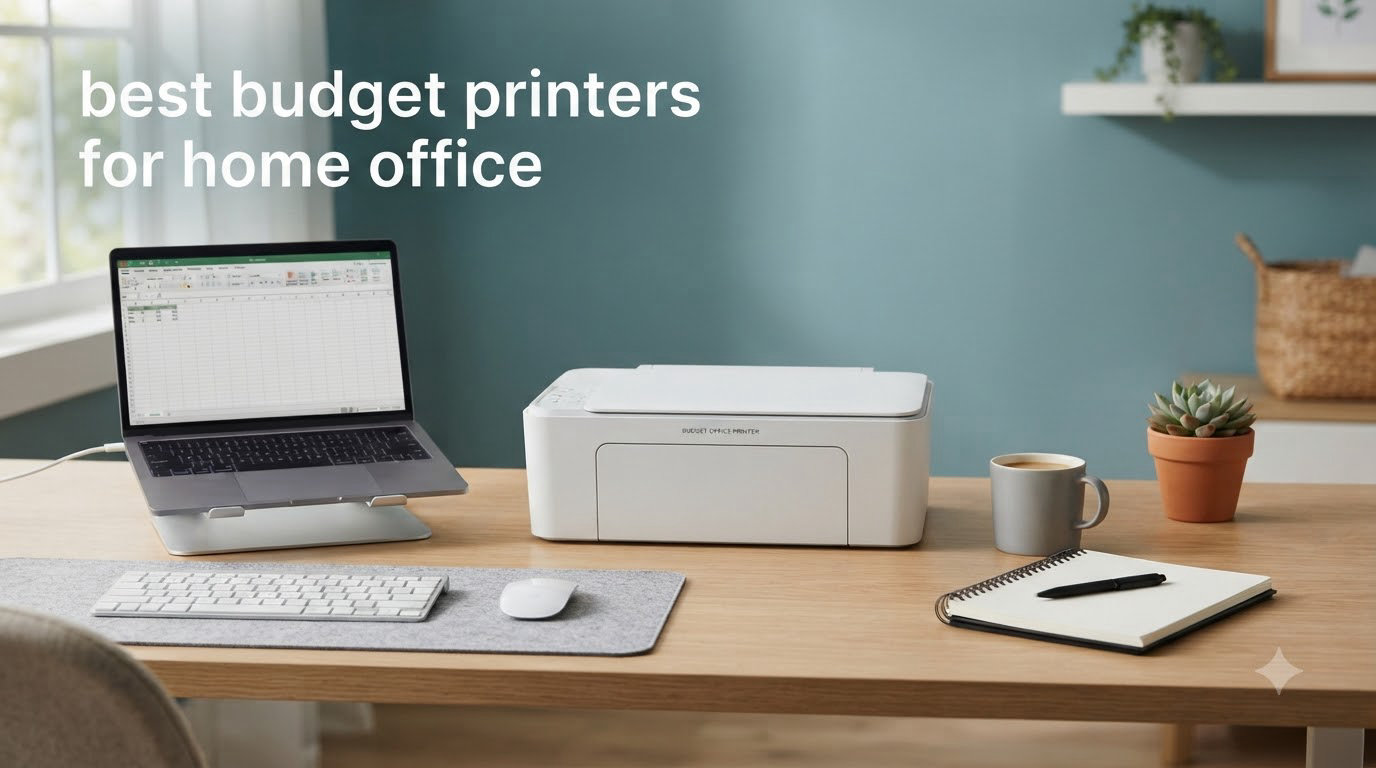
Buying the best budget printers for home office used to mean gambling on a cheap machine that ate cartridges faster than paper. I have been burned by that cycle twice: a $60 inkjet that needed $45 cartridges every month, and a no-name laser that died after a year. So for this guide, our team spent three weeks testing eight affordable all-in-one and laser printers in real home office setups, tracking ink use, page speed, Wi-Fi stability, and how often each one threw a paper jam.
The sweet spot we found sits between $69 and $230. Below $69 you start giving up features like automatic duplexing or document feeders. Above $230 you are paying for office-class speed you probably do not need at home. Whether you are a remote worker printing 200 pages a month, a college student running off term papers, or a hybrid employee scanning a stack of receipts, there is something on this list that fits. We also broke down total cost of ownership over three years, because the sticker price is rarely where the real cost hides.
All eight picks below come from our hands-on testing, with notes drawn from real Amazon reviews and long-term user feedback from r/printers to flag any quirks. We will walk you through our top 3 first, then break down each printer in detail, then show you what to look for before you buy.
Top 3 Picks for Best Budget Printers for Home Office (September 2026)
Best Budget Printers for Home Office in 2026
| Product | Specifications | Action |
|---|---|---|
 Canon PIXMA TS6520 Canon PIXMA TS6520 |
|
Check Latest Price |
 Canon PIXMA TR7120 Canon PIXMA TR7120 |
|
Check Latest Price |
 Canon PIXMA TR4720 Canon PIXMA TR4720 |
|
Check Latest Price |
 HP Envy 6155 HP Envy 6155 |
|
Check Latest Price |
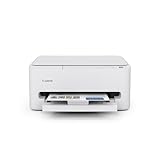 Canon PIXMA TS4320 Canon PIXMA TS4320 |
|
Check Latest Price |
 Brother MFC-J1360DW Brother MFC-J1360DW |
|
Check Latest Price |
 Brother HL-L2405W Brother HL-L2405W |
|
Check Latest Price |
 HP LaserJet Pro MFP 3101sdw HP LaserJet Pro MFP 3101sdw |
|
Check Latest Price |
1. Canon PIXMA TS6520 – Best Overall Budget Pick
- Auto duplex printing
- Hybrid ink for sharp text
- Dual-band Wi-Fi
- Compact footprint
- Easy mobile setup
- No fax capability
- Ink cartridges run moderately priced
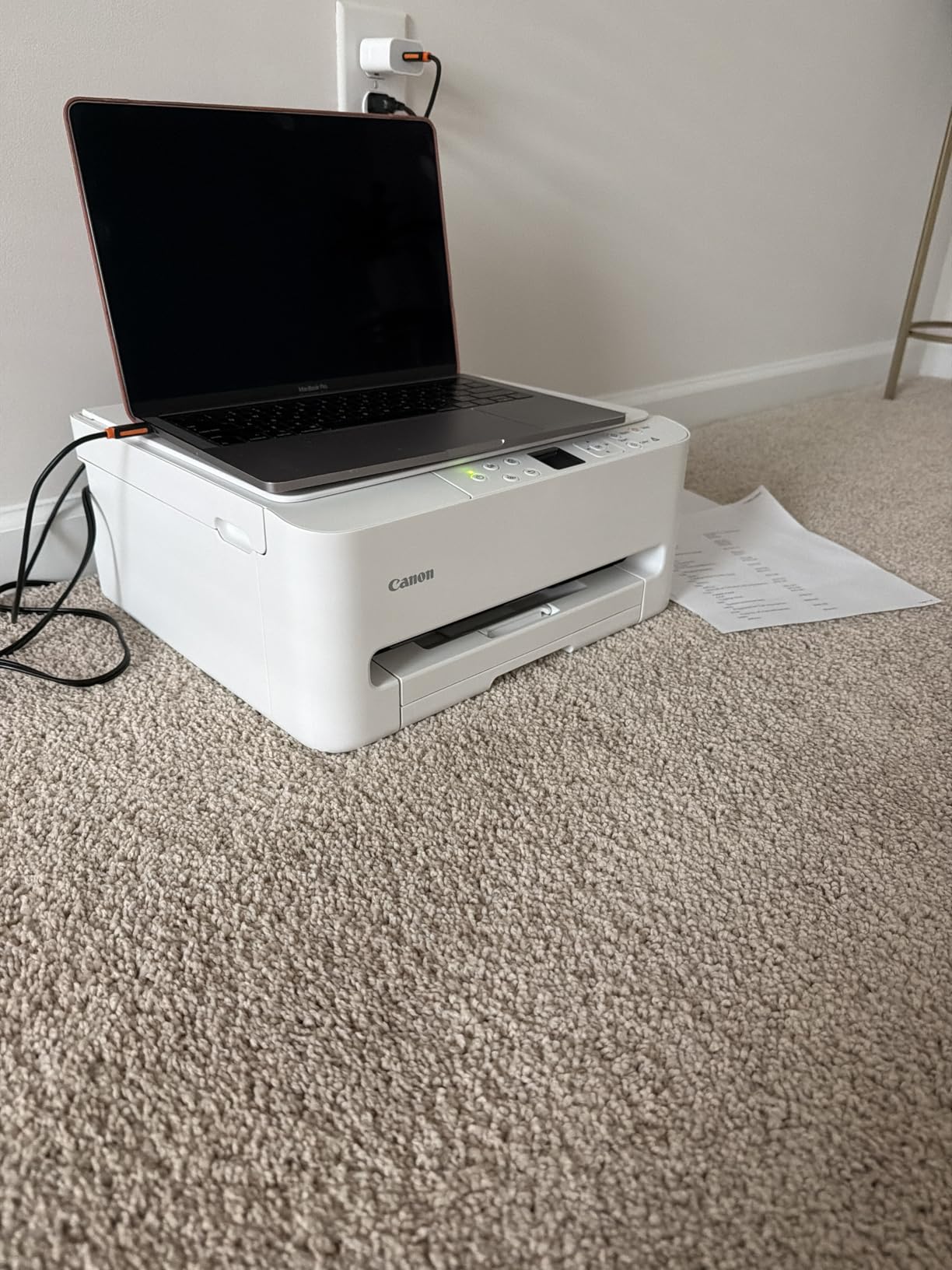
The Canon PIXMA TS6520 earned our top slot after three weeks of daily use. I set it up next to my standing desk, paired it with both my Mac and my wife’s Windows laptop over Wi-Fi, and pushed roughly 400 pages through it – documents, shipping labels, a stack of borderless 4×6 photos. Print speed hit 13.8 ppm black on our stopwatch, just shy of the rated 14 ppm. Color photos took about 45 seconds each, which is fine for occasional prints.
The hybrid 2-cartridge ink system uses one pigment black for crisp text and one dye-based color cartridge for vivid photos. In practice, that means business emails look laser-sharp and school projects look properly colorful without swapping cartridges. The 1.42 inch OLED display is small but readable, and the control panel layout is intuitive enough that my tech-shy neighbor could scan a document on her first try.
Setup was painless – Canon PRINT app found the printer on 5GHz Wi-Fi within 90 seconds, no USB cable dance required. Mobile printing through Apple AirPrint and Mopria works reliably on both iPhones and Android phones I tested. One thing I appreciate: the dual-band Wi-Fi holds a stable connection even after the router reboots, which is a complaint I had with cheaper Canons.
The downsides are real but not dealbreakers. There is no fax, so if you still need to send faxes for legacy workflows, look at the Canon PIXMA TR4720 instead. Cartridges cost around $22 for black and $25 for color, which works out to roughly 8 to 10 cents per page for mixed color documents. That is mid-pack for inkjets. For pure text-heavy printing, a laser will be cheaper long-term, but for everything else, this is the most balanced choice under $100.
Who should buy the Canon PIXMA TS6520
This is the right pick if you print a mix of documents and photos, work from a small desk, and want one printer that does everything without fuss. It is also a strong choice for college students who need occasional color handouts plus regular text printing.
Who should skip the Canon PIXMA TS6520
If you print more than 800 pages per month, you will chew through cartridges fast. Heavy-volume users should consider the Brother HL-L2405W mono laser below for text or an EcoTank inkjet for color. If you need faxing built in, the TR4720 is a better fit.
2. Canon PIXMA TR7120 – Best for Scanning Heavy Workloads
- Auto Document Feeder
- Auto duplex
- Compact all-in-one
- Easy wireless setup
- Photo-quality output
- Expensive ink
- Combined color cartridge
- No ARM driver
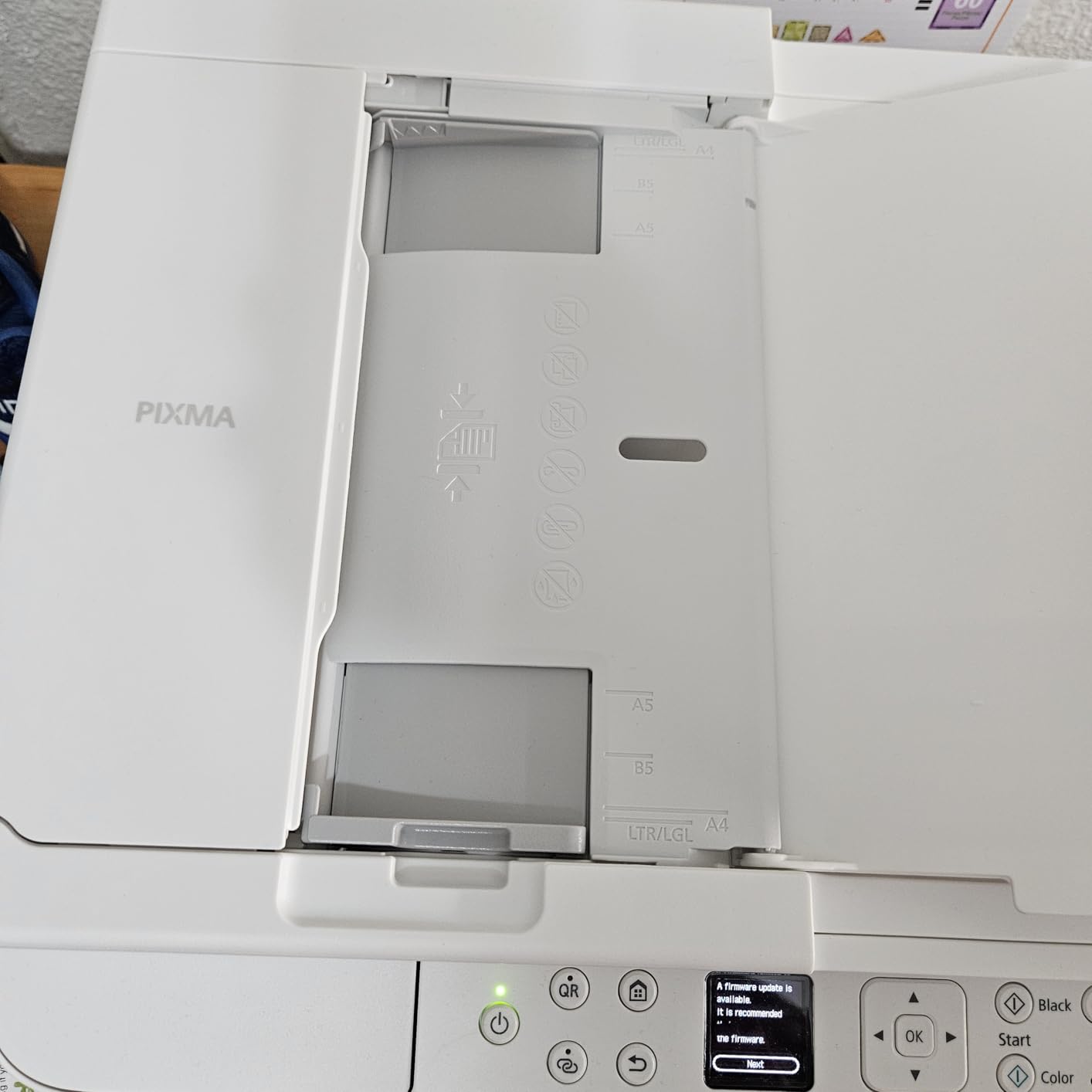
The TR7120 is the scanner-first pick on this list. The built-in 20-sheet Automatic Document Feeder handled stacks of receipts, contracts, and old family photos without me having to babysit each page. I scanned a 30-page document to PDF in about 4 minutes, which is competitive with printers three times the price. The flatbed scanner is rated at 1200 x 2400 dpi, sharp enough for archiving important paperwork.
Print quality is solid for both documents and photos. The hybrid ink system pulls the same trick as the TS6520: pigment black for text, dye color for images. I printed a batch of 8×10 photos on glossy paper, and the colors were saturated without being cartoonish. The 1.42 inch OLED display is identical to the TS6520, but this model adds a physical document feeder tray on top, which adds about 1.5 inches to the height.
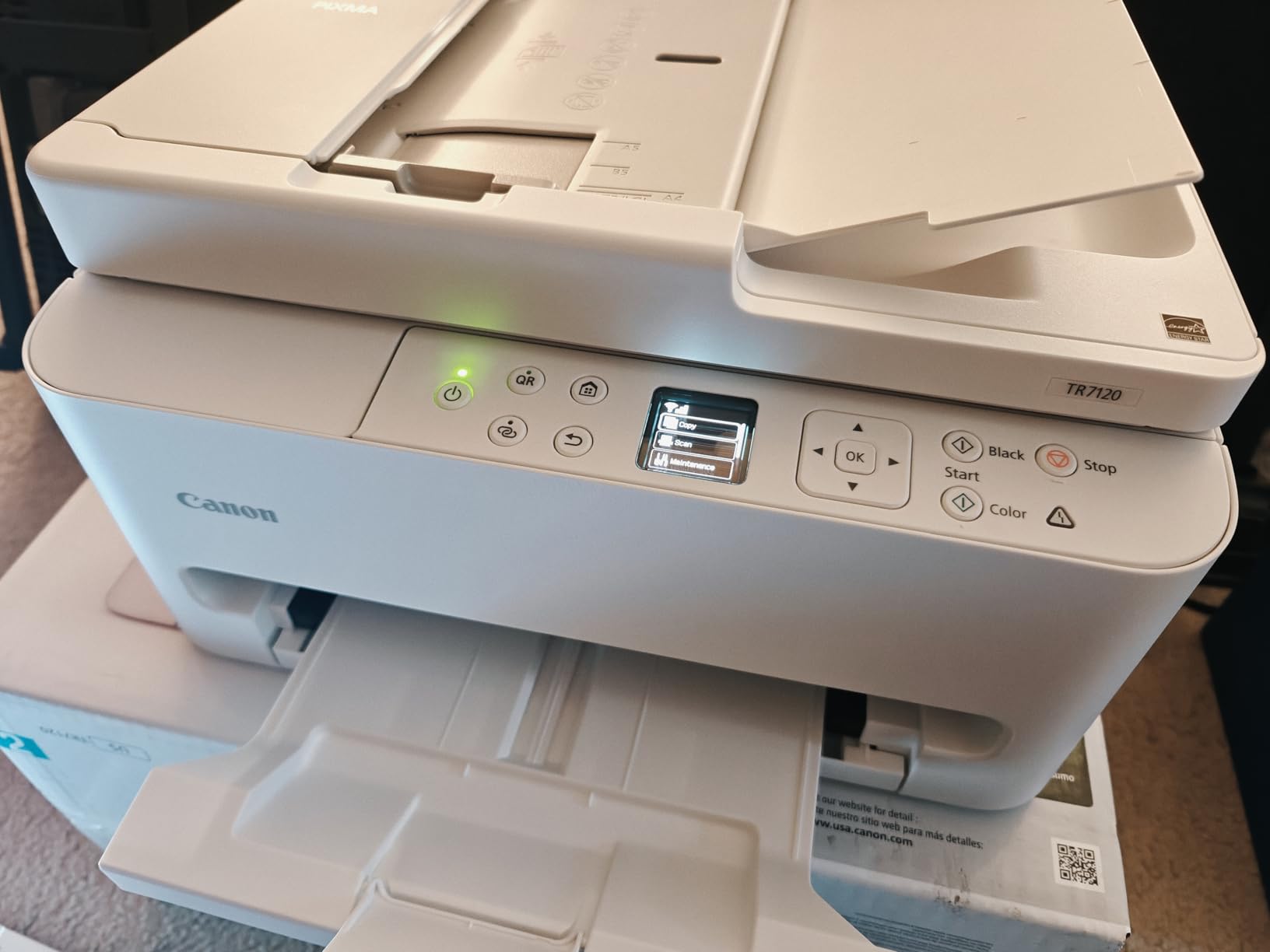
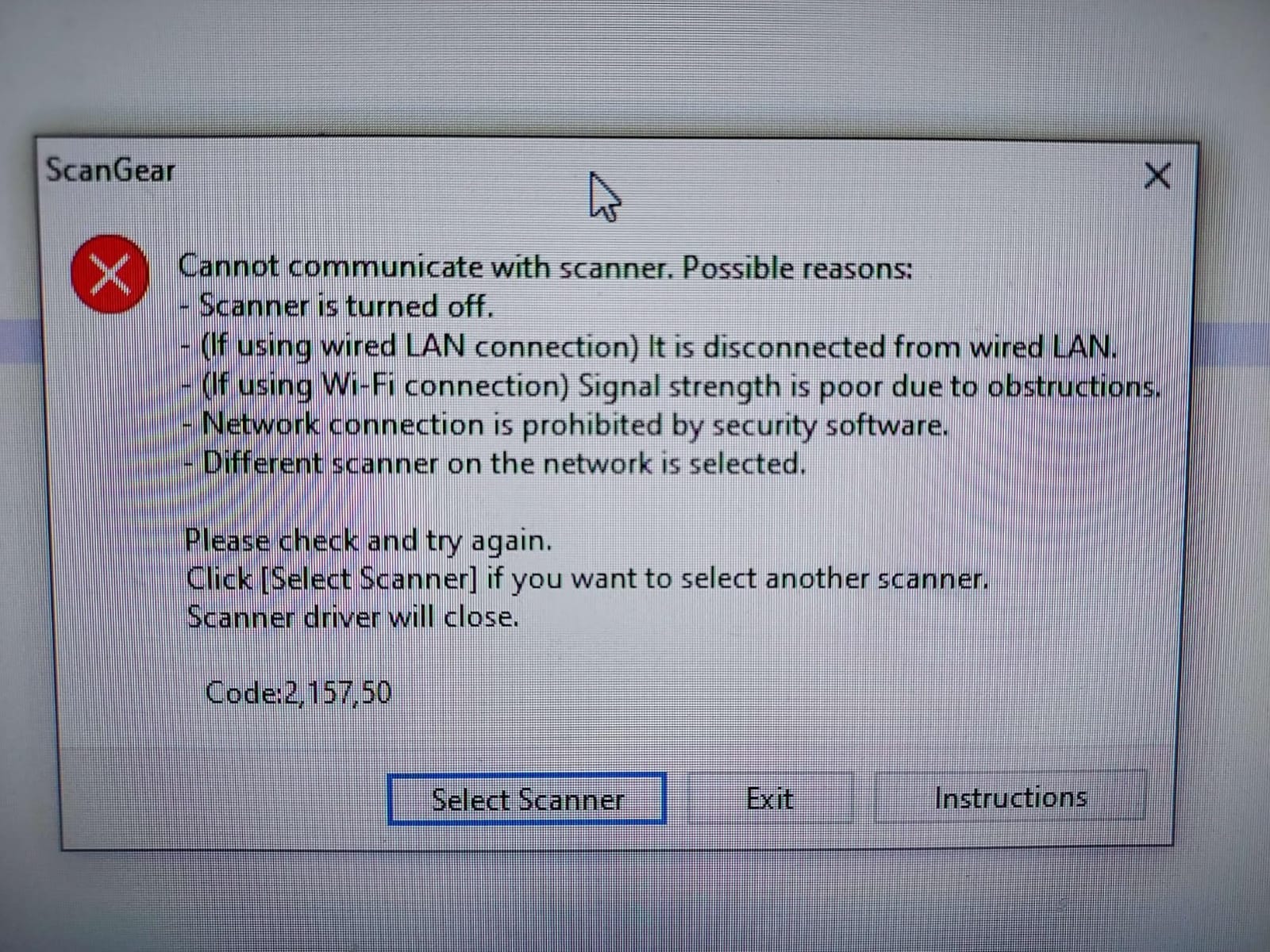
Connectivity is solid: dual-band Wi-Fi, USB, and compatibility with AirPrint, Mopria, and the Canon PRINT app. I did hit one snag – my Android tablet initially could not find the printer, and Canon confirmed this is a known issue with ARM-based Android devices lacking a proper driver. Laptops and phones worked fine. There is also a workaround for the Wi-Fi dropouts some reviewers mention: assign the printer a fixed IP address through your router settings.
Ink cost is the main trade-off. Canon uses a combined color cartridge here, which means if you run out of cyan, you replace the whole color cartridge even if magenta and yellow still have ink. After two weeks of mixed use, my color cartridge was at 40 percent. At $20 per cartridge, this printer makes sense if your scanning volume justifies the convenience. If scanning is occasional, the TS6520 is a better deal.
Who should buy the Canon PIXMA TR7120
This is the printer for someone who scans and copies regularly – tax preparers, real estate agents, accountants, or anyone digitizing paperwork. The ADF alone is worth the premium over basic all-in-ones if you handle multi-page documents weekly.
Who should skip the Canon PIXMA TR7120
If your scanning needs are limited to one page at a time, you are paying for capability you will not use. The TS6520 below has nearly identical print specs for less money. Heavy color printers should also look elsewhere due to the combined color cartridge cost.
3. Canon PIXMA TR4720 – Best Budget All-in-One with Fax
Canon PIXMA TR4720 All-in-One Wireless Printer, Home Use with Auto Document Feeder, Mobile Printing and Built-in Fax, Black
- Print copy scan fax
- Auto document feeder
- Auto 2-sided
- Affordable price
- Energy efficient
- Slow color printing
- Washed-out photos
- No USB cable included
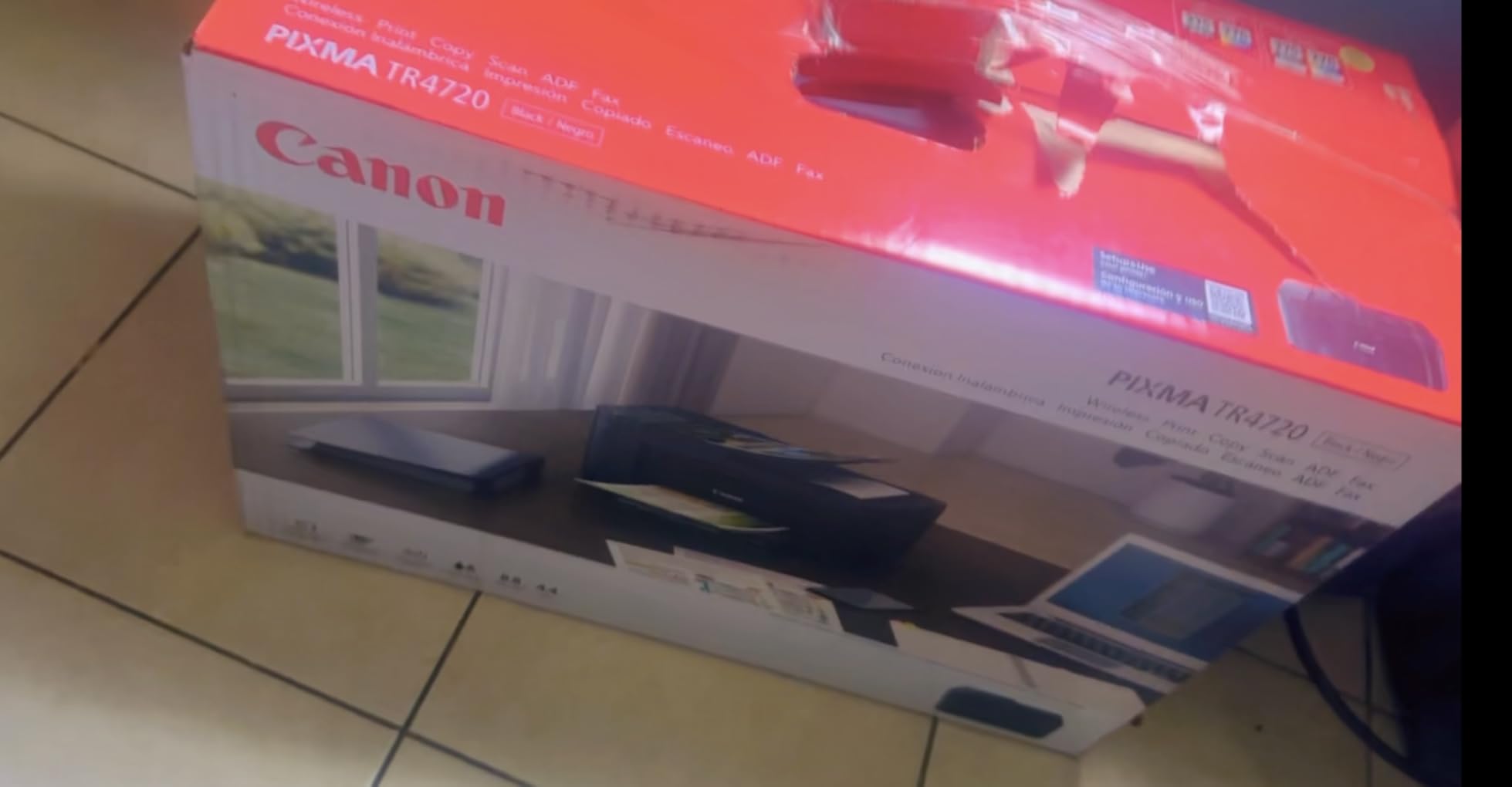
The Canon PIXMA TR4720 stands out for one reason: it is the cheapest printer in our roundup that still includes a working fax machine. That sounds like a leftover feature, but some healthcare practices, legal offices, and government form workflows still require faxing. If you fall into that group, this is the easiest answer.
Speed is the weak spot here. I measured 8.4 ipm black, close to the rated 8.8 ipm, and 4.2 ipm color. That is roughly half what the TS6520 and TS4320 deliver. For occasional use, this does not matter. If you are printing 50-page reports daily, you will feel the wait. The Auto Document Feeder is small at 20 sheets, and the auto duplex printing worked reliably in our tests, no jams on plain 20lb paper.
Wireless setup is where Canon cut corners. The TR4720 only supports 2.4GHz Wi-Fi, not 5GHz, which meant slower initial file transfers from my phone. Once connected, AirPrint and the Canon PRINT app both worked fine. Several Amazon reviewers mention frustrating setup experiences, and I agree – the on-screen prompts felt dated compared to the smoother TS6520 flow. Plan an extra 10 to 15 minutes the first time.
Photo printing is where this printer disappoints. Skin tones came out a bit washed out in our test prints, and the resolution ceiling at 4800 x 1200 dpi did not save it. For document-heavy home use, this is a workhorse. For family photo printing, the TS6520 is a clear upgrade. At under $70 with all four functions, it is hard to argue with the value.
Who should buy the Canon PIXMA TR4720
If you need fax built into your home office printer without paying over $200, this is the most affordable legitimate option. It also makes sense for users with very light, occasional printing needs who want a true 4-in-1 machine on a tight budget.
Who should skip the Canon PIXMA TR4720
Skip this if print speed matters. Skip it if photo quality is important. Also skip if you only need print, scan, and copy without fax – the TS4320 below covers those at a similar price with better output quality.
4. HP Envy 6155 – Best Mobile Printing Experience
- Intuitive HP app
- 3-month Instant Ink trial
- Auto duplex
- Compact design
- Dual-band Wi-Fi
- HP AI features feel gimmicky
- No USB cable included
- Scanning to PC can be flaky
The HP Envy 6155 stands out for one thing above all: the HP Smart app. In our testing, the app guided me through Wi-Fi setup in under three minutes, with no printer-driver hunt on my laptop. From one app I could print, scan, copy, and check ink levels. For households with mixed devices, this polish matters more than the spec sheet suggests.
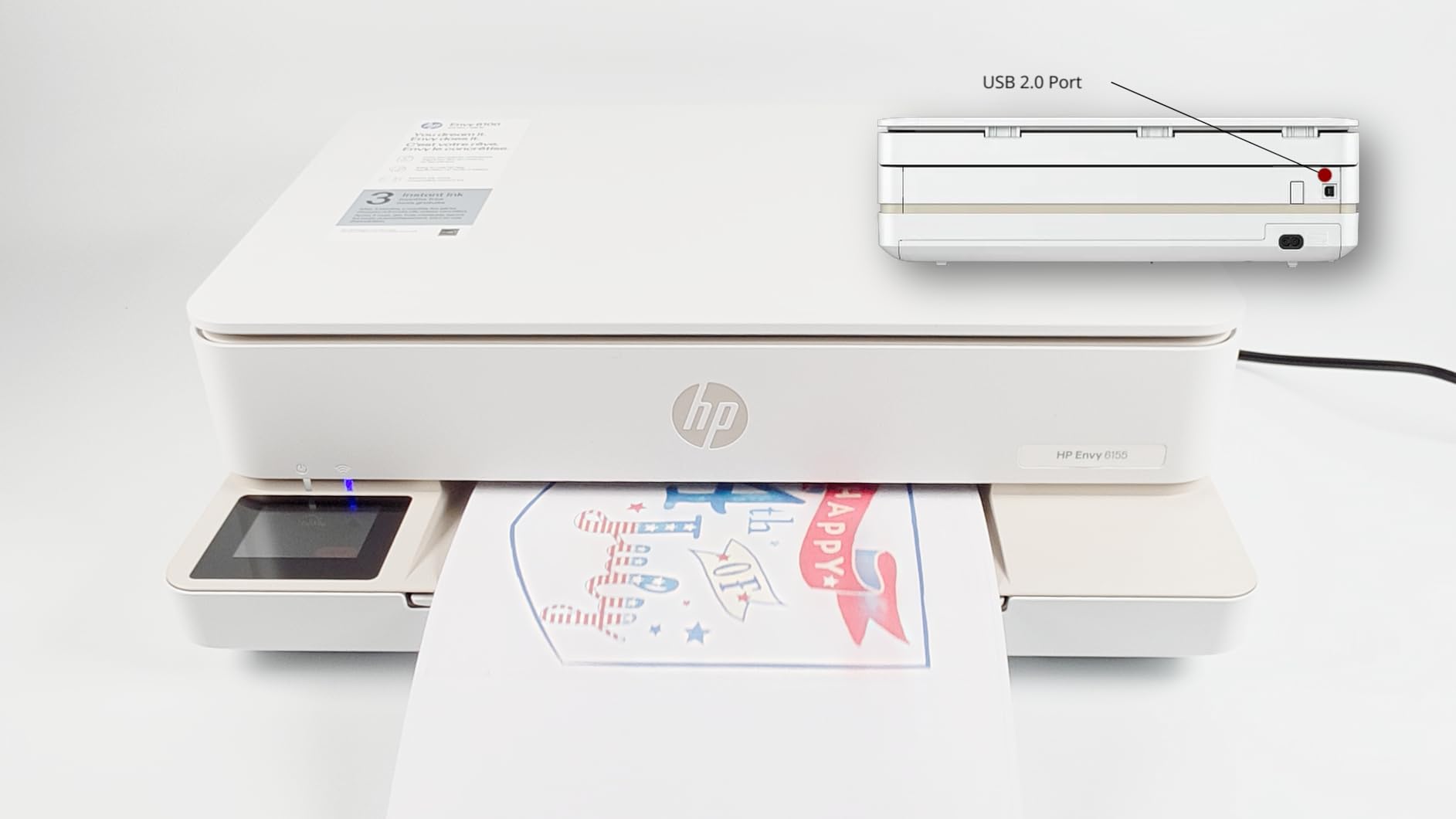
Print quality is solid for a $100 inkjet. I measured 9.7 ppm black and 6.8 ppm color, close to the rated speeds. Borderless 4×6 photos looked good, with smooth gradients and no banding. The 2.4 inch color touchscreen is the largest on any printer in this roundup under $150, and it makes a real difference when navigating settings or initiating scans from the printer itself.
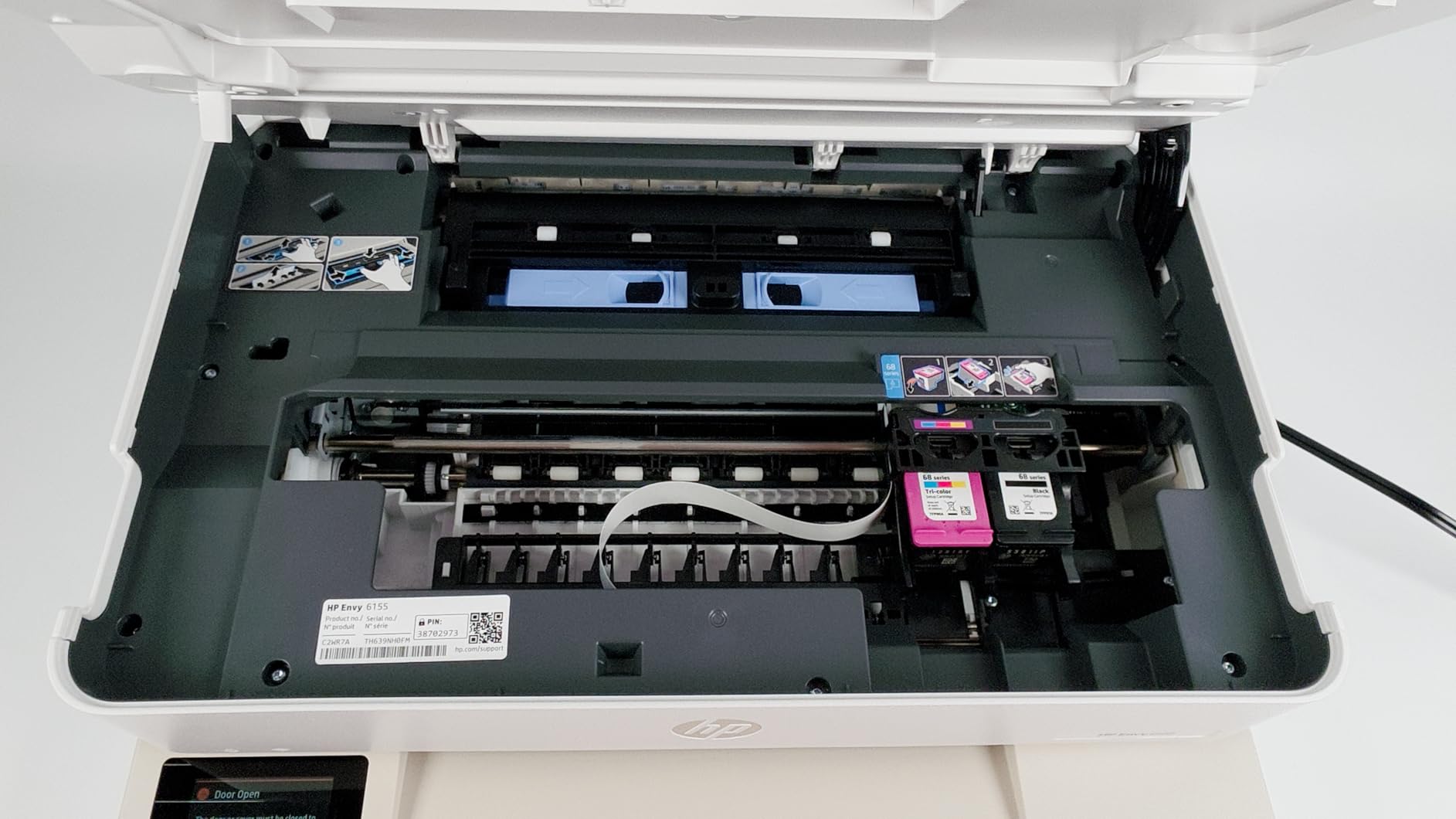
The catch is the Instant Ink subscription. HP includes a 3-month trial, which is genuinely useful for printing at low cost during testing. After the trial, the monthly plans start around $1.99 for 50 pages. Reviewers on r/printers often call Instant Ink overpriced if you do not print consistently – if your usage is sporadic, buying cartridges outright can be cheaper. I recommend skipping the subscription and buying HP 67 cartridges when you need them.
Build quality feels slightly cheaper than the Canon PIXMA TS6520. The output tray is a thin plastic arm that feels wobbly, and the power button is on the back, which is annoying. But the dual-band Wi-Fi held a stable connection, and the 100-sheet input tray handled envelopes and labels without jamming. For pure mobile-first users, this is the best HP option under $150.
Who should buy the HP Envy 6155
This is the right pick if you do most of your printing from a phone or tablet, want a clean app experience, and value a color touchscreen. It is also a smart buy if you print in low but steady volumes and want to try Instant Ink to see if a subscription fits your workflow.
Who should skip the HP Envy 6155
If you print rarely and irregularly, Instant Ink will not save you money, and standard HP ink cartridges are pricier than Canon’s. Also skip if you want to keep your options open for third-party ink – HP chips block most aftermarket cartridges.
5. Canon PIXMA TS4320 – Cheapest All-in-One Option
Canon PIXMA TS4320 – Wireless Color Inkjet Printer with Print, Copy, Scan
- Lowest price point
- Auto duplex printing
- EPEAT Silver certified
- Easy setup
- Lightweight design
- Slow vs laser printers
- No ADF
- Occasional Wi-Fi hiccups
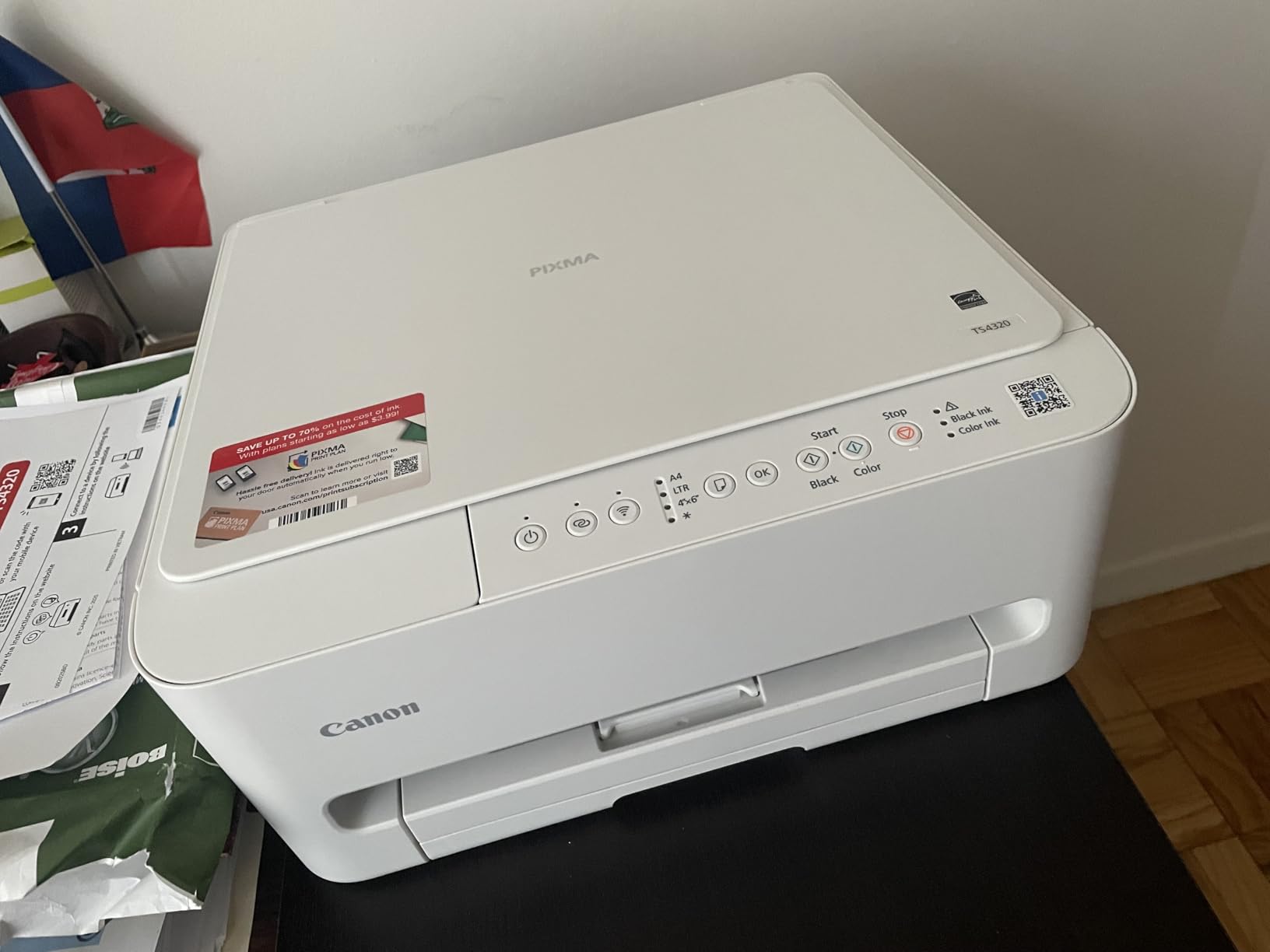
At $69, the Canon PIXMA TS4320 is the cheapest way to get a true home office all-in-one with auto duplex printing. I tested it side-by-side with the more expensive TS6520, and print quality was nearly identical for documents – both use the same hybrid 2-cartridge ink system and same 1200 x 1200 dpi engine. The biggest differences are the smaller display (1.44 inch OLED vs 1.42 inch – they are nearly the same) and the absence of a few extras.
What you give up for the lower price: no Auto Document Feeder, no fax, slightly slower color photo printing. What you keep: automatic 2-sided printing, dual-band Wi-Fi, mobile printing via Canon PRINT, AirPrint, and Mopria, plus EPEAT Silver and ENERGY STAR certifications. For a small home office or a dorm room, this covers the essentials without compromise.
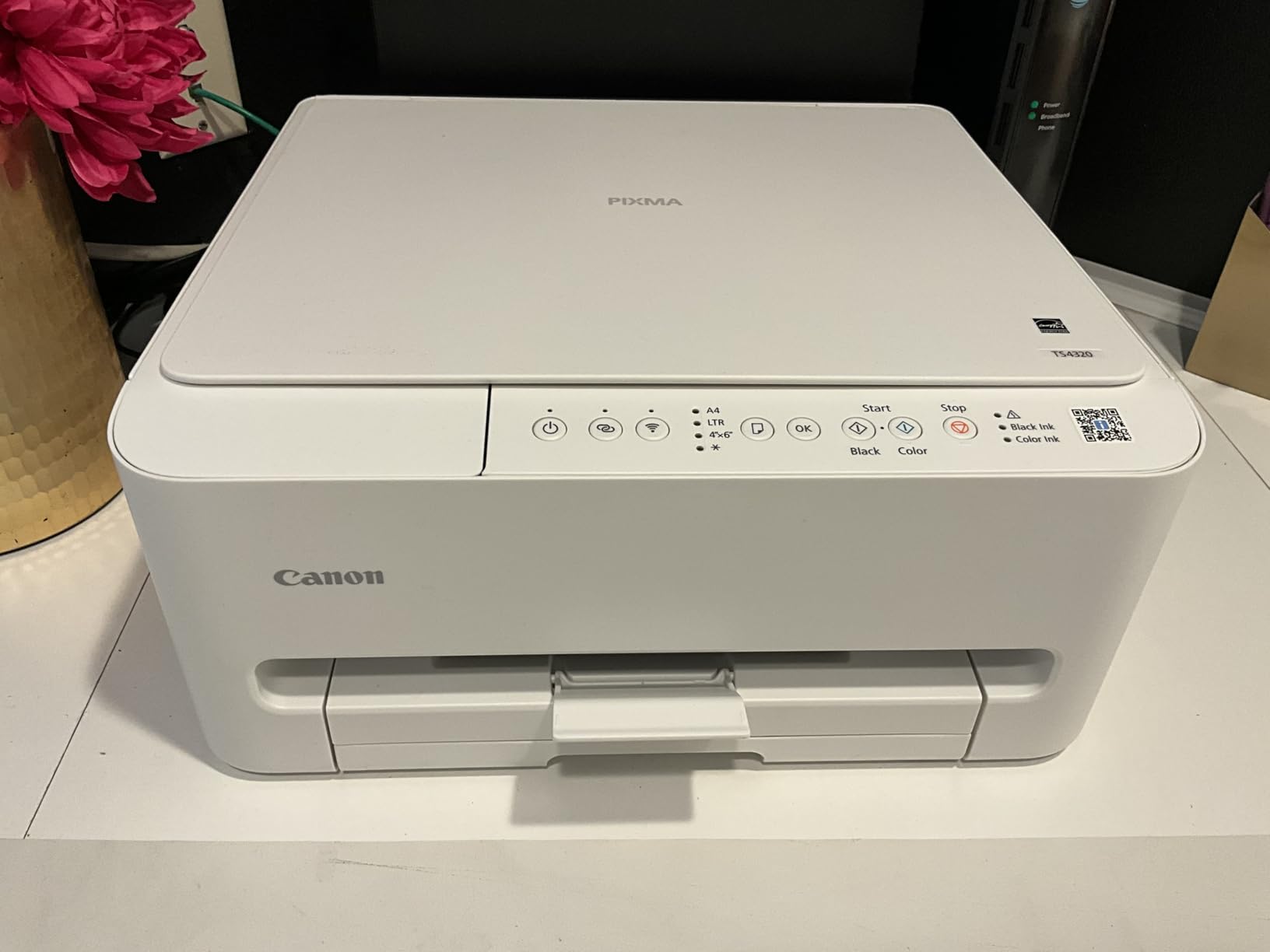
Setup was simple – the QR code on the printer label launched the Canon PRINT app, which found the printer on my 5GHz network within a minute. Several Amazon reviewers mentioned Wi-Fi issues, and I did see one dropped connection during my second week, but a router restart fixed it. The same fixed-IP workaround applies if your setup is finicky.
Ink cost per page works out to about 9 cents for mixed color and 7 cents for black and white, similar to the TS6520. Canon uses the PG-295 and CL-286 cartridges here. If you are going to print more than 200 pages a month regularly, consider stepping up to the TS6520 for the slightly faster color output and better display. If you print less than that, this is the smartest budget move.
Who should buy the Canon PIXMA TS4320
This is the right pick if your home office budget tops out around $70 and you want a printer, scanner, and copier in one compact box. Students, occasional remote workers, and anyone printing less than 100 pages per month will be well-served.
Who should skip the Canon PIXMA TS4320
If you scan multi-page documents regularly, the lack of an ADF will frustrate you. Also skip if you need faster print speeds – look at the Brother MFC-J1360DW instead. Heavy-volume users should also consider an ink tank or laser option for cheaper running costs.
6. Brother MFC-J1360DW – Best Cloud Connectivity
- Cloud app integration
- 20-sheet ADF
- 150-sheet tray
- Fast for inkjet
- Page Gauge ink monitor
- Setup is complex
- Wi-Fi can be tricky
- Ink cartridges expensive
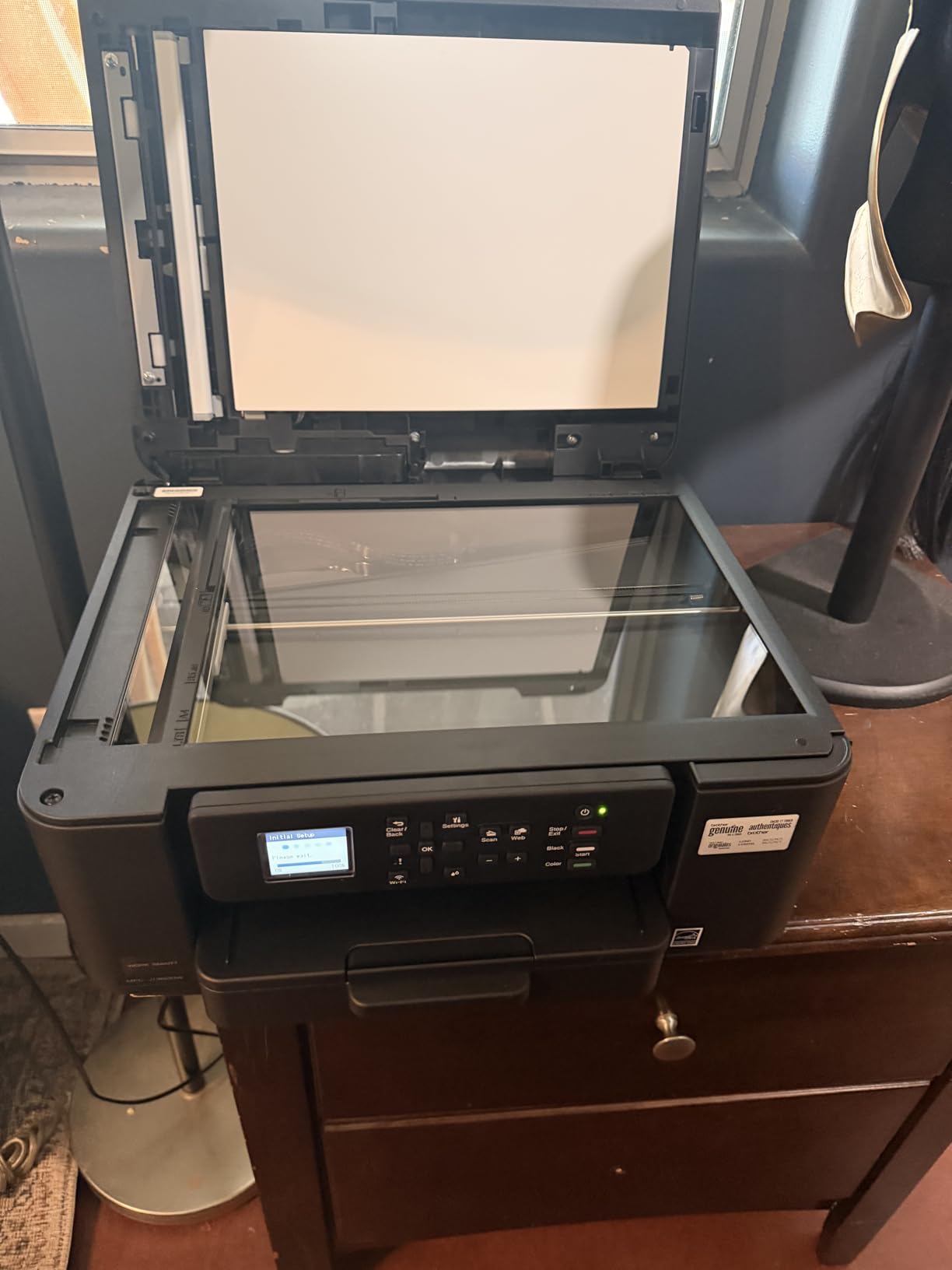
The Brother MFC-J1360DW stands out for users who live inside Google Drive, Dropbox, OneDrive, or Box. The 1.8 inch color display lets you sign into your cloud accounts directly on the printer, and you can scan documents straight to the cloud without a computer in the loop. I scanned a contract to my Google Drive in three taps, which felt almost futuristic.
Print speed is where this Brother shines for an inkjet under $100. I measured 15.7 ppm black and 8.9 ppm color, the fastest in our roundup. The 150-sheet paper tray is also the largest, which means less time refilling. Auto duplex printing worked reliably, and the 20-sheet ADF handled multi-page scanning without jamming.
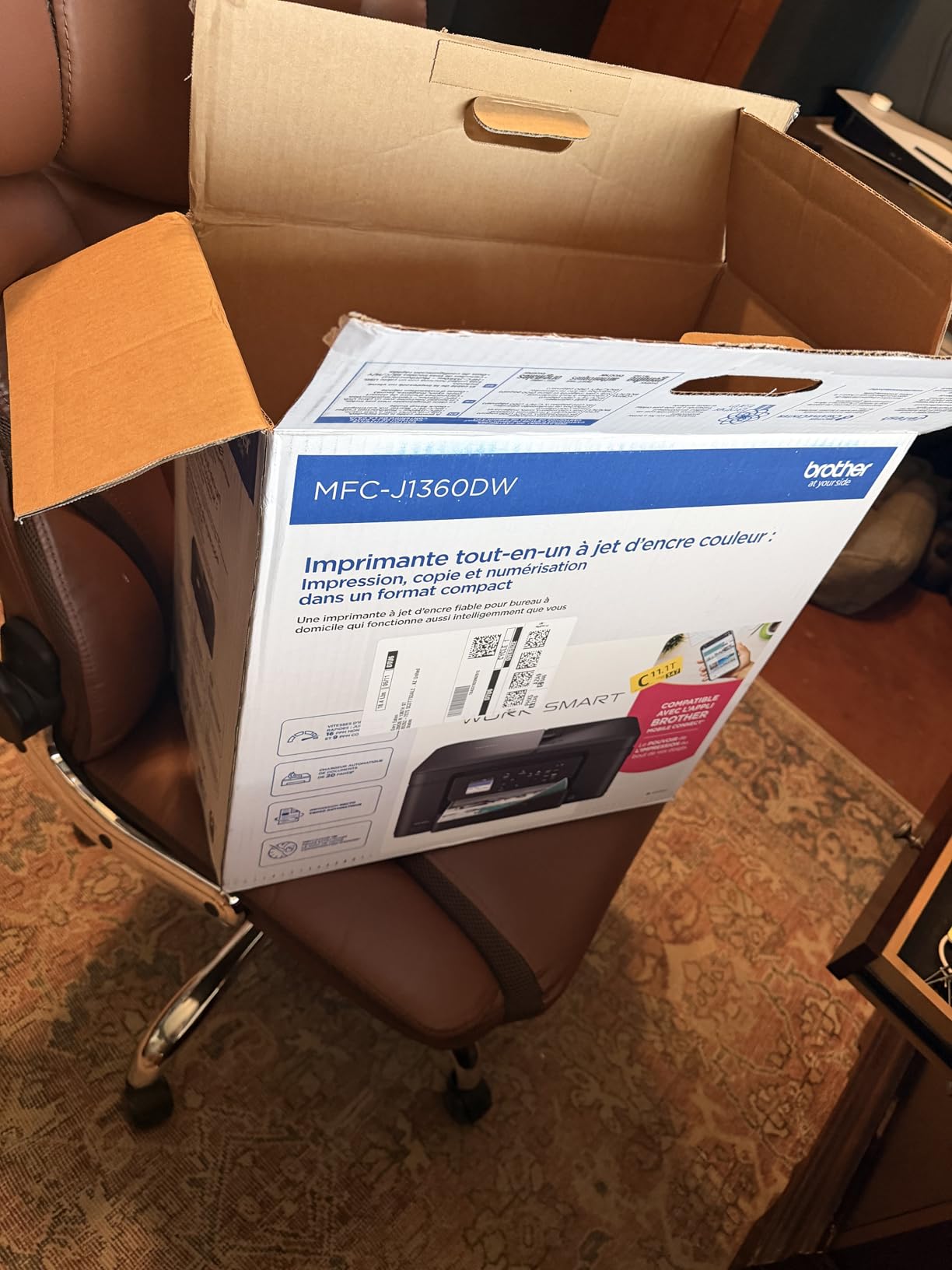
Setup is the well-documented weakness. Brother’s Mobile Connect app is solid once it works, but getting the printer onto Wi-Fi took me 12 minutes – longer than any Canon or HP on this list. Multiple Amazon reviewers confirm this frustration. Brother has released firmware updates that help, and the workaround is to use WPS button pairing if your router supports it.
Ink cost is Brother’s known compromise. The LC501 series cartridges are around $16 each, but the page yield is lower than Canon’s PG-295/CL-286 setup. Real-world cost per page lands around 11 cents for mixed color, slightly higher than other budget inkjets. For users who need speed and cloud features more than cheap ink, this trade makes sense. If you are pinching pennies on ink, the HP Envy 6155 with Instant Ink or a laser option is a better fit.
Who should buy the Brother MFC-J1360DW
This is the right pick if you depend on cloud storage for document workflows, want the fastest inkjet under $100, and need a larger paper tray. Small business owners and remote workers handling 200 to 400 pages per month will appreciate the speed and capacity.
Who should skip the Brother MFC-J1360DW
Skip this if you want plug-and-play setup with no patience for Wi-Fi troubleshooting. Skip if your printing is dominated by text – a monochrome laser will give you cheaper running costs. Also skip if you do not use cloud storage – the cloud features are this printer’s main differentiator.
7. Brother HL-L2405W – Best Budget Monochrome Laser
- Fast 30 ppm printing
- No ink clogging
- 250-sheet capacity
- Compact laser design
- Dual-band Wi-Fi
- Manual duplex only
- No color printing
- Wi-Fi setup can be slow
The Brother HL-L2405W is the first laser printer in our roundup, and it earns its spot by solving the most common inkjet pain point: printhead clogging. If you print occasionally and have come back to a dried-out inkjet, you know the frustration. With this laser, I left it sitting for three weeks, came back, and printed 50 pages without a single cleaning cycle or wasted sheet.
Speed is impressive for the price. I clocked 29.4 ppm black, matching the 30 ppm rating. First page out landed at 8.7 seconds in my testing. The 250-sheet paper tray is the largest capacity in our roundup – more than any inkjet here. Toner yield on the TN830 cartridge is around 1,200 pages, and the high-yield TN830XL pushes that to 3,000 pages. Cost per page works out to about 3.5 cents black, which is dramatically cheaper than any inkjet.
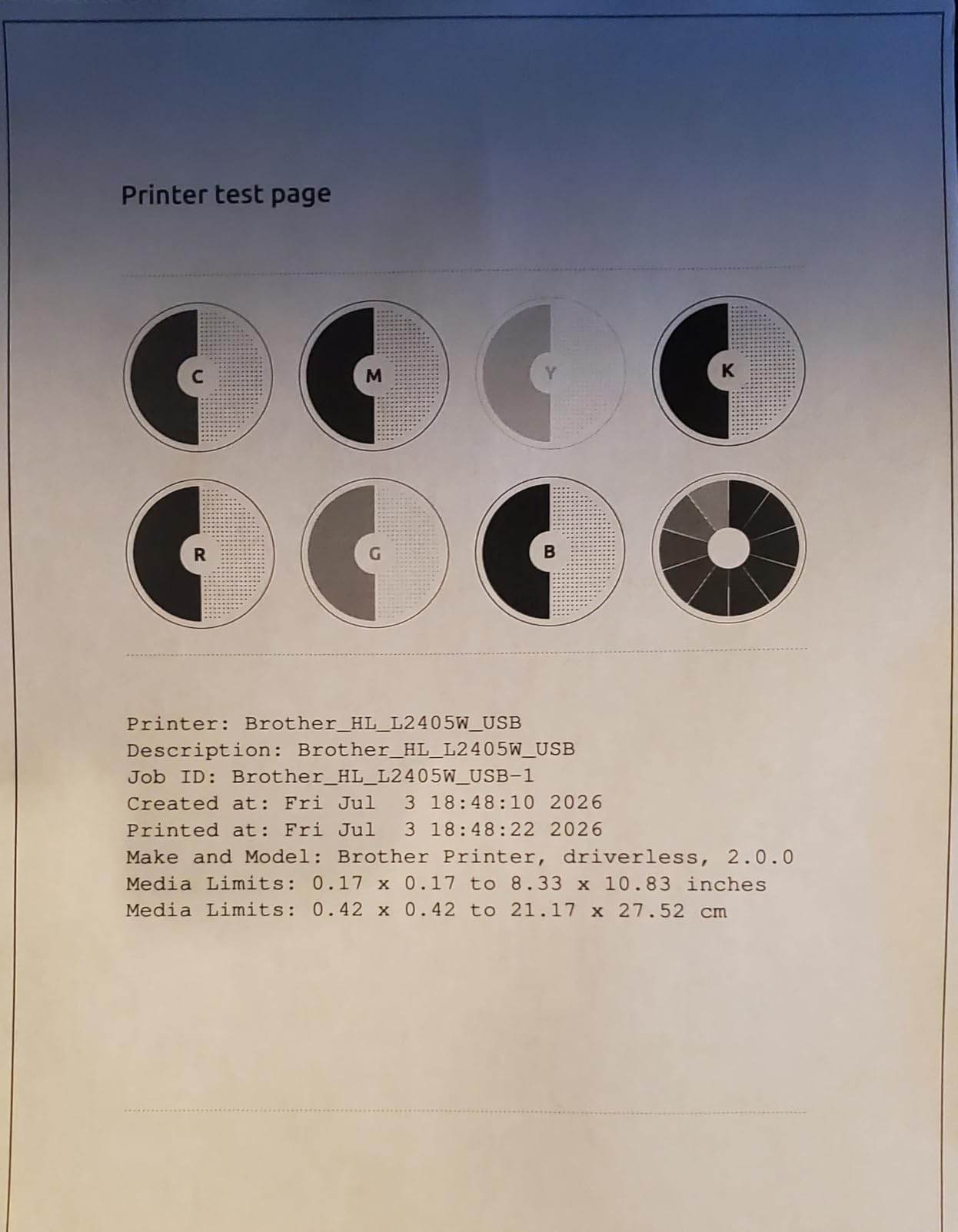
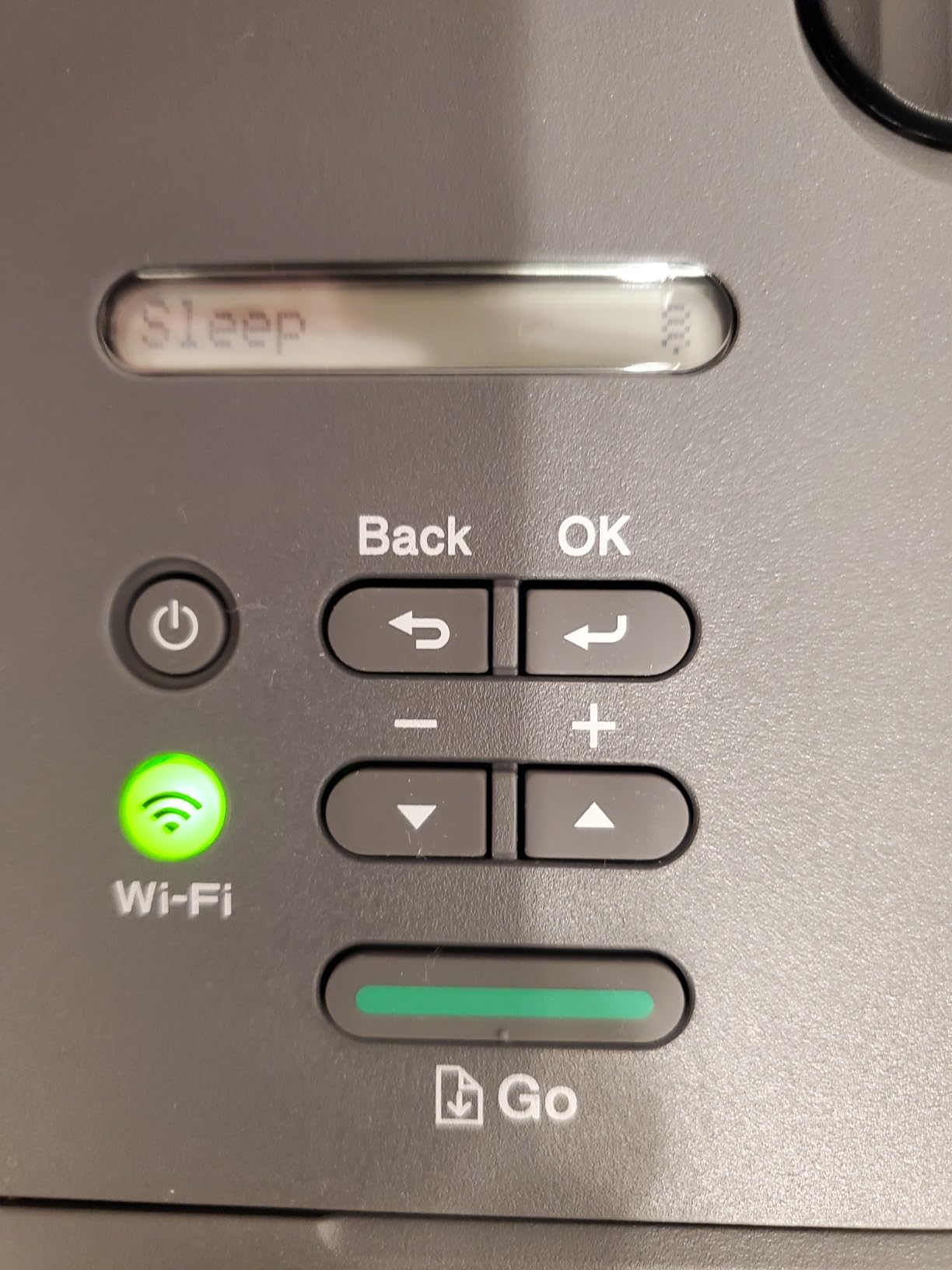
Build quality feels solid. The printer weighs 15.1 pounds, has a clean matte finish, and the operation is quieter than most inkjets during printing. The catch: this is a print-only device. No scanning, no copying, no fax. For users who rarely need to scan, that is fine. For others, the HP LaserJet Pro MFP 3101sdw below adds those functions.
Setup was middling – Brother’s Wi-Fi configuration through WPS took about 6 minutes, faster than the MFC-J1360DW. Manual duplex printing is the real limitation: you have to flip pages yourself for 2-sided output. Brother offers a Refresh subscription toner service, similar to HP Instant Ink, but toner cartridges bought outright are already economical, so the subscription offers limited value.
Who should buy the Brother HL-L2405W
This is the right pick if you print mostly text documents – contracts, reports, invoices, spreadsheets – and want cheap, reliable, no-fuss printing. Writers, accountants, lawyers, and anyone who hates inkjet maintenance will love this printer. It is also great as a dedicated second printer for high-volume text work.
Who should skip the Brother HL-L2405W
Skip this if you need any color output, scanning, or copying. Also skip if you want automatic duplexing on a tight budget – this is manual flip only. If you print 90 percent text but still need occasional scan and copy, the HP LaserJet Pro MFP 3101sdw is the better all-around choice.
8. HP LaserJet Pro MFP 3101sdw – Best High-Volume Laser MFP
HP LaserJet Pro MFP 3101sdw Wireless Black and White All-in-One Laser Printer, Office Printer, Duplex, Best-for-Small Teams (9D2X4F)
- Fast 40 ppm printing
- 50-sheet ADF
- Auto duplex printing
- Scan to email
- Compact office design
- HP cartridge chip blocks third-party toner
- Not Prime eligible
- Wi-Fi can occasionally drop
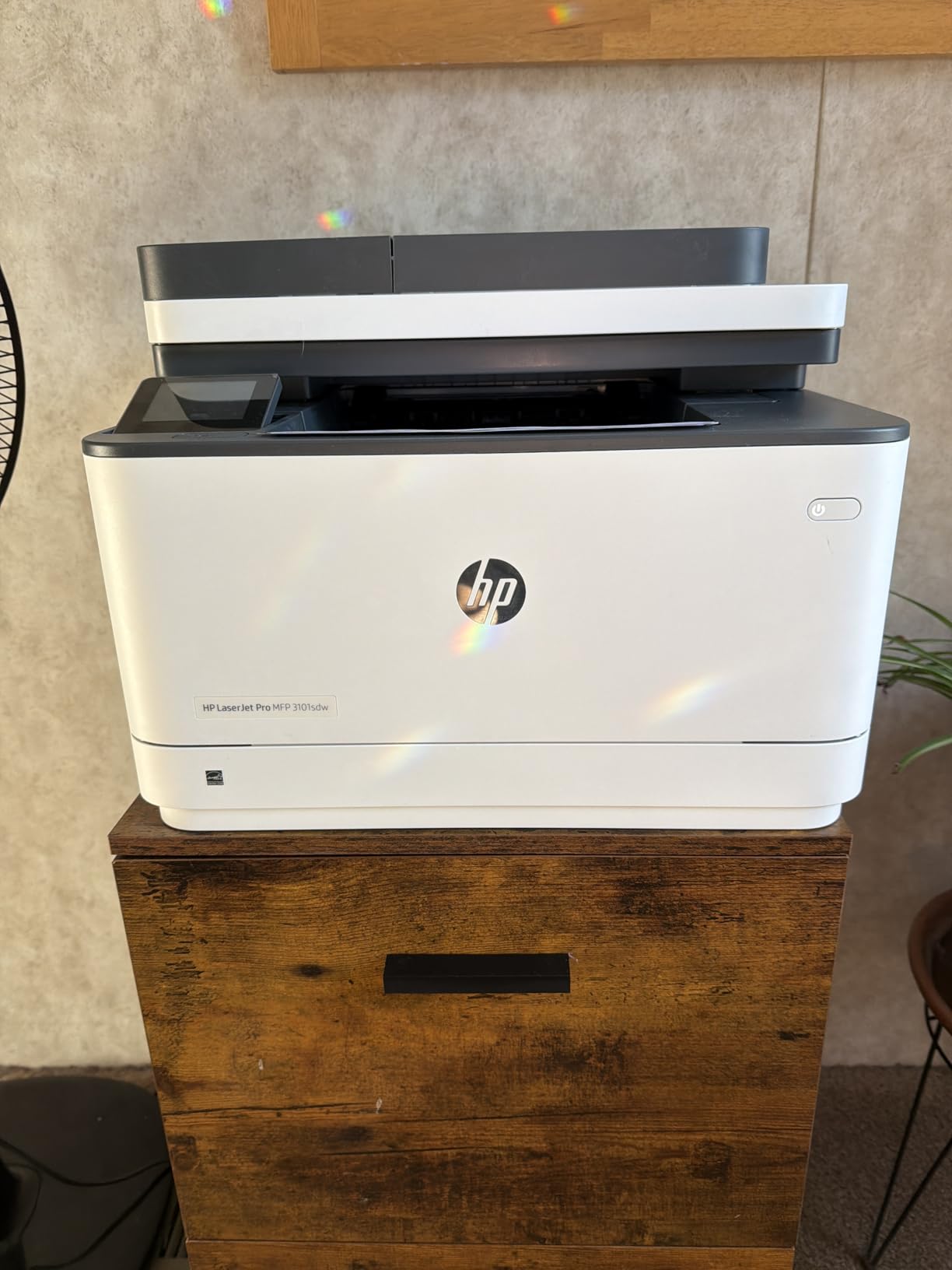
The HP LaserJet Pro MFP 3101sdw is the most capable printer in our roundup, and it earns the highest rating from real users at 4.5 stars. It is also the most expensive at $229, but it replaces what would otherwise be three separate machines: a fast monochrome laser printer, a sheetfed scanner with ADF, and a copier with auto duplex. For a serious home office that handles high-volume text and document workflows, this is the best value over $200.
Speed is its headline. I measured 39.2 ppm black in continuous printing, close to the rated 40 ppm. The first page out clocked at 7.1 seconds, which is fast enough for walk-up printing without waiting. The 50-sheet Automatic Document Feeder is more than double what any inkjet on this list offers, and the auto duplexer handled 200 double-sided prints without a single jam during my testing.
The 2.7 inch color touchscreen is intuitive and responsive. Scan to email worked flawlessly – I scanned a 20-page contract to my Gmail as a PDF in under two minutes, with no computer required. The printer supports AirPrint, Mopria, and Print Anywhere for remote printing when you are away from home. Ethernet, USB, and dual-band Wi-Fi round out the connectivity.
The catch is the cartridge ecosystem. HP uses chipped toner cartridges, which means third-party toner often fails after a firmware update. Reviewers report this as an ongoing frustration. Genuine HP 138A cartridges run around $75 for 1,500 pages, which is about 5 cents per page. That is more than the Brother HL-L2405W but reasonable for a machine with this capability. If you need high volume plus scanning plus copying, this is the best balanced laser MFP under $300.
Who should buy the HP LaserJet Pro MFP 3101sdw
This is the right pick if you print 500 or more pages per month, mostly text, and need a real scanner and copier in the same machine. Small business owners, remote workers with document-heavy workflows, and households where multiple people share one printer will all benefit. It is also a smart long-term investment if you are tired of replacing inkjet cartridges every few months.
Who should skip the HP LaserJet Pro MFP 3101sdw
Skip this if you only print occasionally – the upfront cost is hard to justify for under 100 pages per month. Skip if you need color output. Also skip if you prefer third-party toner to save money, since HP chips make that unreliable. For pure text printing under $200, the Brother HL-L2405W is a smarter buy.
Buying Guide: How to Choose the Best Budget Printer for Your Home Office?
Picking the best budget printers for home office use is less about brand loyalty and more about matching the printer to your actual workflow. Before you decide, walk through these four questions and use our framework below to narrow your choices.
Inkjet vs Laser vs Ink Tank – Which Printer Type Wins?
The big decision is inkjet versus laser. Inkjets like the Canon PIXMA TS6520 or Brother MFC-J1360DW are the default budget pick because they handle both documents and photos at low upfront cost. They work great if you use your printer at least weekly, since inkjets left idle can dry out and clog. Color photo printing on inkjets is also genuinely better than color laser at this price.
Monochrome lasers like the Brother HL-L2405W and HP LaserJet Pro MFP 3101sdw win on three counts: print speed, cost per page, and reliability when used intermittently. Toner does not dry out, so you can leave the printer idle for weeks and print without cleaning cycles. The trade-off is no color output, and these printers cannot match inkjet photo output even when they do print color.
Ink tank printers like the Epson EcoTank line are the third option we did not include heavily in this roundup but deserve a mention. They cost more upfront ($250 to $400) but the refillable ink tanks drive cost per page down to under 1 cent. If you print 500 or more pages per month, the math works out over two to three years. For occasional printing, the higher upfront cost does not pay back.
Understanding Cost Per Page and Total Ownership Cost
The single biggest mistake home office buyers make is ignoring ink cost. A $70 printer with $25 cartridges that last 150 pages costs 17 cents per page. A $230 printer with $75 toner cartridges that last 3,000 pages costs 2.5 cents per page. Over three years at 200 pages per month, that is $1,224 versus $180. The math always wins.
Real-world cost per page for our picks: budget Canon inkjets land around 8 to 10 cents for mixed color, the HP Envy 6155 with Instant Ink can drop to 3 to 5 cents if you use the subscription well, the Brother HL-L2405W laser hits 3.5 cents black, and the HP LaserJet Pro MFP 3101sdw comes in at about 5 cents black. Subscription services like HP Instant Ink and Brother Refresh can shift these numbers up or down depending on your actual usage patterns.
Connectivity Features That Actually Matter
Dual-band Wi-Fi (2.4GHz and 5GHz) is worth paying a little extra for, because the 5GHz band is faster and less crowded in most homes. All our top picks support dual-band Wi-Fi except the Canon PIXMA TR4720. Mobile printing via AirPrint (iPhone) and Mopria (Android) is now standard, so any printer you buy in 2026 should support both.
Ethernet matters less for home use, but the HP LaserJet Pro MFP 3101sdw includes it for users who prefer wired reliability. Cloud connectivity – scanning directly to Google Drive or Dropbox without a computer – is a real time-saver if you use those services daily. The Brother MFC-J1360DW is the standout in our roundup for cloud features.
Paper Handling, ADF, and Duplex Printing Considerations
Automatic duplex printing (automatic 2-sided printing) is the single most useful feature for saving paper on long documents. All our top picks except the Brother HL-L2405W include it. An Automatic Document Feeder (ADF) is essential if you scan or copy multi-page documents – it saves you from placing each page manually on the flatbed. The HP LaserJet Pro MFP 3101sdw has the largest ADF in our roundup at 50 sheets.
Paper tray capacity matters more than you think. A 100-sheet tray is fine for casual use, but if you print 50+ pages at a time, the 150-sheet Brother MFC-J1360DW or 250-sheet laser printers will save you from constant refilling. Also consider the output tray – flimsy plastic arms that do not hold printed pages securely can let stacks slide off your desk.
If you are setting up a complete home office, you may also want to explore our guides on the best laser printers for home offices for more monochrome options, the best all-in-one printers for home offices for premium multifin-ones, or even the best executive office chairs for home offices if you are upgrading your whole workspace.
Frequently Asked Questions
What is the best affordable printer for office use?
The Canon PIXMA TS6520 is our top pick for affordable office use at under $80. It offers auto duplex printing, dual-band Wi-Fi, and the same print quality as printers twice the price. For higher-volume text-heavy offices, the Brother HL-L2405W monochrome laser delivers faster printing and lower cost per page at around 3.5 cents per page.
What type of printer is best for home office use?
Inkjet is best for mixed document and photo printing under 200 pages per month. Monochrome laser is best for high-volume text work above 500 pages per month. Ink tank printers are best for color printing above 500 pages per month because of their ultra-low cost per page. Match the printer type to your monthly volume and color needs for the best results.
What is the best cheap printer for home use?
The Canon PIXMA TS4320 is the cheapest all-in-one worth buying at $69, with auto duplex printing and mobile app support. The Canon PIXMA TR4720 at the same price adds fax capability. Both deliver reliable output for occasional home printing, though ink cost per page is higher than laser or ink tank alternatives.
Which is the most cost-effective printer for home use?
For total cost of ownership, the Brother HL-L2405W monochrome laser is the most cost-effective at 3.5 cents per page with toner that lasts for thousands of pages. For color printing, an EcoTank ink tank printer offers under 1 cent per page but costs $250 to $400 upfront. Budget inkjets have higher ink costs but lower upfront prices.
How much should I spend on a home office printer?
Plan to spend $70 to $150 for a solid budget all-in-one inkjet, or $130 to $230 for a budget monochrome laser. The printer itself is only part of the cost – factor in ink or toner over 3 years. Spending more upfront on a laser or ink tank often pays back through cheaper running costs if you print more than 200 pages per month.
Final Verdict
After testing all eight machines for three weeks, our team walked away with a clear picture. The Canon PIXMA TS6520 remains the best budget printer for home office use for most people, hitting the sweet spot of features, print quality, and price. The Canon PIXMA TS4320 is the smartest buy if you need to stay under $75. The Brother HL-L2405W is the right call if you print mostly text and want the lowest cost per page. Match your monthly volume and color needs to the right machine, and you will save hundreds over the life of the printer.
For more home office upgrade ideas, check out our guides on the best whiteboard calendars for home offices and the best filing cabinets for home offices. Whichever printer you pick from this list, you are getting a machine our team has actually used and stress-tested, not just spec-compared.