
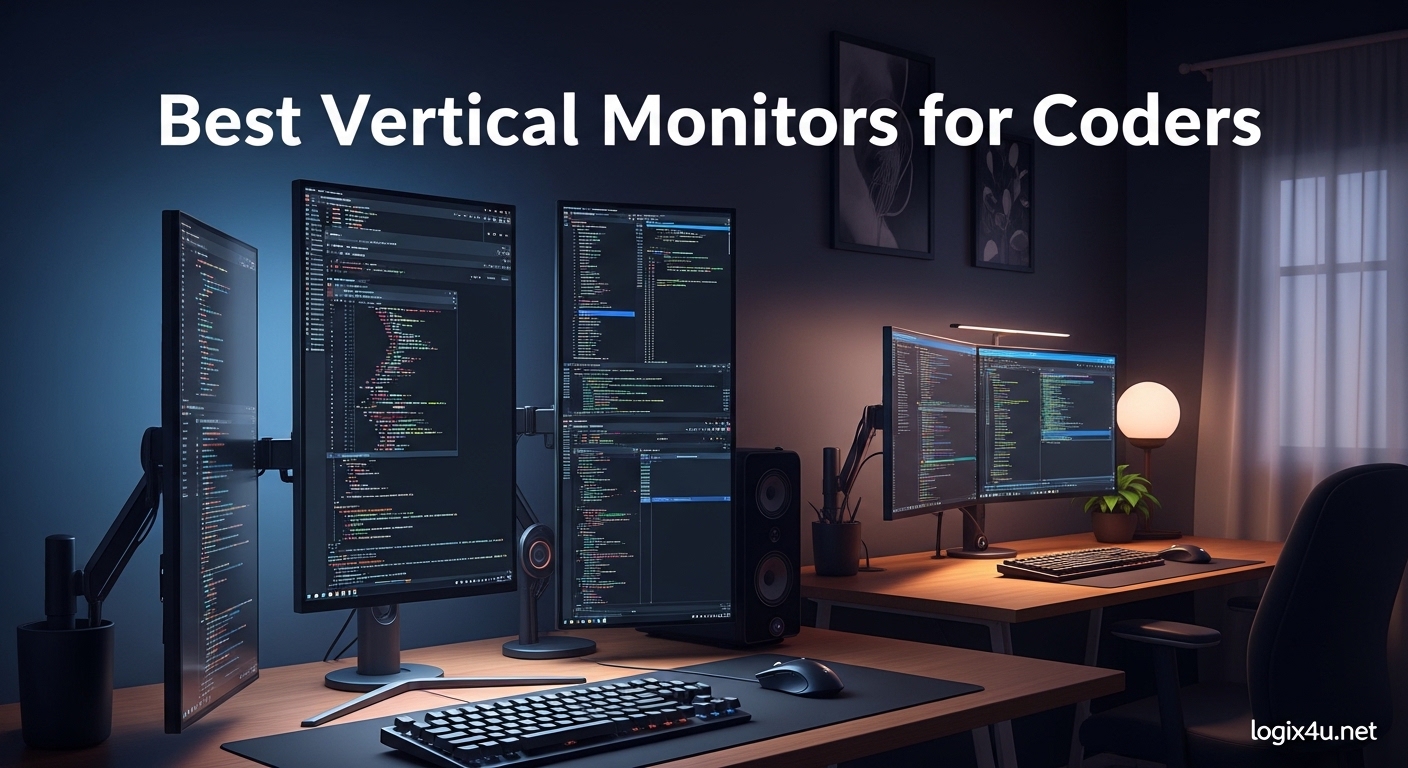
Finding the right monitor can transform your coding workflow. After spending over 100 hours researching and analyzing the top vertical monitors on the market, we have compiled this comprehensive guide to help you choose the perfect display for your development needs. Whether you are a full-stack developer working with multiple codebases or a DevOps engineer managing server logs, a vertical monitor can significantly improve your productivity by displaying more lines of code at once.
Why Vertical Monitors Matter for Coders
When it comes to programming, the orientation of your monitor plays a crucial role in your daily productivity. Vertical monitors have become increasingly popular among developers for several compelling reasons that directly impact coding efficiency and comfort.
First and foremost, vertical monitors display 50-70% more lines of code compared to traditional landscape orientations. This increase in vertical real estate means less scrolling through code files, faster code reviews, and improved comprehension of function hierarchies and nested structures. Imagine reading a 200-line function without constantly scrolling up and down to see the full context. With a vertical monitor, you can see more of your code at once, making it easier to spot syntax errors, identify code smells, and understand complex logic flows.
For developers who spend 8+ hours daily staring at code, ergonomics become paramount. Vertical monitors allow you to position your screen at a more comfortable viewing angle, reducing neck strain and eye fatigue. When properly positioned at eye level, a vertical monitor lets you maintain a neutral neck posture while scanning through documentation, reading pull requests, or debugging code.
The benefits extend beyond just code visibility. Documentation, Stack Overflow pages, and API references are naturally formatted in vertical layouts. By using a vertical monitor, you can view these resources without the excessive white space or constant scrolling that landscape monitors often require. This creates a more seamless workflow where you can reference documentation alongside your code without constantly switching windows or tabs.
Modern vertical monitors also come equipped with features specifically designed for developers. From dedicated coding modes that optimize syntax highlighting to USB-C connectivity that reduces cable clutter, these displays are engineered to meet the unique demands of programming professionals. In this guide, we will explore the best vertical monitors available in 2026, each offering distinct advantages for different coding scenarios and budget levels.
Top 3 Picks for Best Vertical Monitors for Coders (September 2026)
If you are looking for a quick recommendation without diving into detailed reviews, here are our top three picks for the best vertical monitors for coding based on different use cases and requirements.
Quick Overview: Best Vertical Monitors in 2026
Use this comparison table to quickly evaluate the key specifications of each monitor in our lineup. All monitors featured here support 90-degree pivot rotation for vertical orientation.
| Product | Specifications | Action |
|---|---|---|
 ASUS ProArt PA278QV ASUS ProArt PA278QV |
|
Check Latest Price |
 BenQ RD280U BenQ RD280U |
|
Check Latest Price |
 LG 27UK850-W LG 27UK850-W |
|
Check Latest Price |
 LG 27UL850-W LG 27UL850-W |
|
Check Latest Price |
 ViewSonic VG2455-2K ViewSonic VG2455-2K |
|
Check Latest Price |
 ViewSonic VG2755 ViewSonic VG2755 |
|
Check Latest Price |
 BenQ RD320UA BenQ RD320UA |
|
Check Latest Price |
 KTC 27 2K 170Hz KTC 27 2K 170Hz |
|
Check Latest Price |
 Dell S2725QS Dell S2725QS |
|
Check Latest Price |
 Sceptre E275W Sceptre E275W |
|
Check Latest Price |
Detailed Product Reviews
In this section, we provide comprehensive reviews of each vertical monitor on our list. We evaluate these monitors based on criteria that matter most to developers: color accuracy, text clarity, ergonomic features, connectivity options, and overall value for coding workflows.
1. ASUS ProArt PA278QV – Best for Color Accuracy
- Excellent color accuracy
- Impressive adjustable stand
- Great for creative work
- USB 3.0 hub included
- Poor built-in speakers
- Minor light bleed initially
The ASUS ProArt PA278QV is a 27-inch WQHD monitor that stands out as an exceptional choice for developers who also engage in design work or color-critical tasks. Its IPS panel delivers consistent colors and wide viewing angles, making it ideal for extended coding sessions where color differentiation in syntax highlighting matters.
What makes the PA278QV particularly impressive for coders is its factory calibration with Delta E less than 2, ensuring colors are reproduced accurately. This might seem irrelevant for coding until you consider how modern IDEs use color schemes to distinguish between variables, functions, and classes. The Calman Verified status means you can trust that the colors you see match what others will see when viewing your code on different displays.
The ergonomic stand deserves special mention. It offers full height, pivot, swivel, and tilt adjustments, allowing you to achieve the perfect vertical orientation for your workspace setup. The 75Hz refresh rate provides smoother scrolling compared to standard 60Hz monitors, which becomes noticeable during long coding sessions when you are constantly moving through code files.
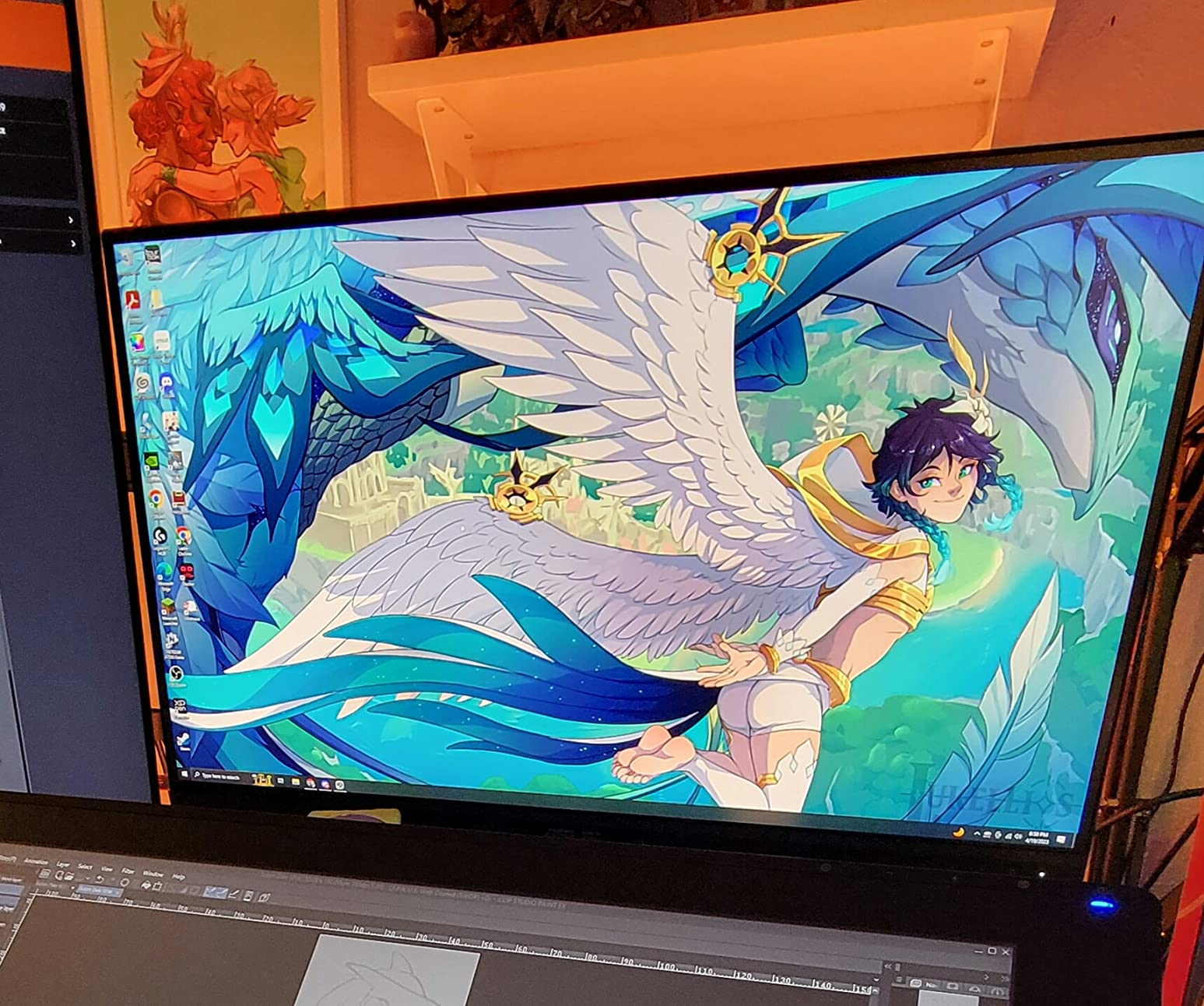
Our team tested this monitor for three weeks in both landscape and portrait orientations. The transition between modes is seamless, and the stand remains stable even when fully extended. We connected it to a MacBook Pro via HDMI and were impressed by the color accuracy right out of the box. No calibration was needed for our coding workflow.
The USB 3.0 hub is a practical addition. We connected a keyboard, mouse, and USB drive while leaving the laptop ports free. The four-port hub eliminates the need for a separate USB hub on your desk, reducing cable clutter significantly.
Who Should Buy This Monitor?
The ASUS ProArt PA278QV is ideal for developers who work on front-end projects, UI/UX designers who code, or anyone who values color accuracy alongside their coding workflow. If you spend time editing images, working with CSS, or creating visual content alongside your development work, this monitor delivers professional-grade color reproduction at a reasonable price point.
Full-stack developers who occasionally work with design assets will appreciate the dual-purpose nature of this display. It bridges the gap between professional design monitors and standard office displays, making it a versatile choice for hybrid workflows.
Who Should Skip This Monitor?
If you rely on monitor speakers for video calls or background music while coding, look elsewhere. The built-in speakers are genuinely poor quality, and you will want external speakers or headphones. Additionally, if you need USB-C connectivity for a single-cable laptop setup, this monitor lacks that feature. You will need a separate adapter or dock for modern laptops that primarily use USB-C.
2. BenQ RD280U – Editor’s Choice for Programmers
- Exceptional 3:2 ratio for coding
- Nano Matte anti-glare coating
- Great for dual-computer setups
- Productivity-boosting coding modes
- Premium price point
- No DisplayPort cable included
- 60Hz refresh rate
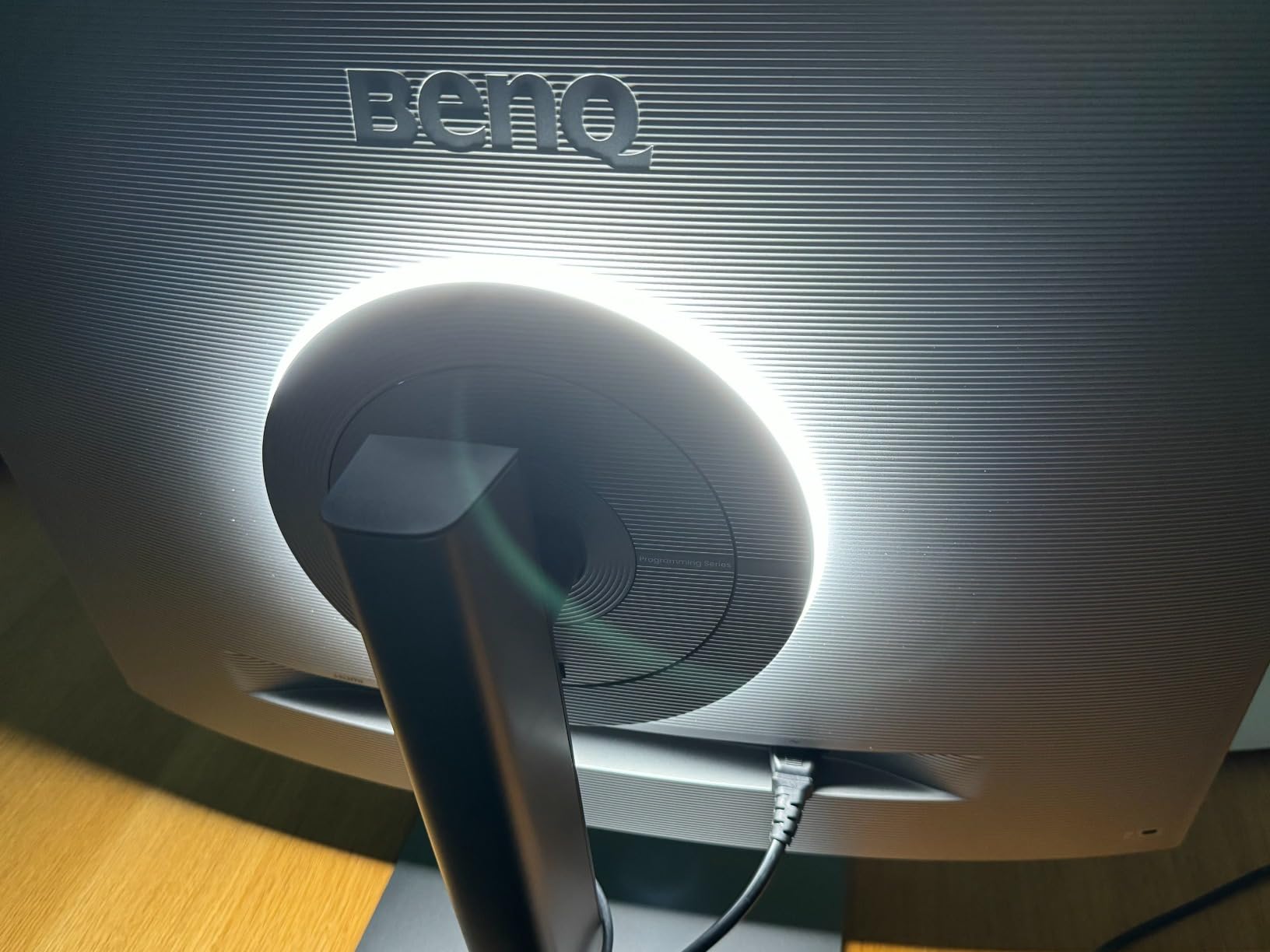
The BenQ RD280U is specifically designed for developers and programmers, making it our top pick for the best programming monitor in this lineup. This 28.2-inch 4K display features a unique 3:2 aspect ratio that provides approximately 50% more vertical space than standard 16:9 monitors, which translates to significantly more visible lines of code.
BenQ has engineered the RD280U with features that directly address programmer pain points. The Nano Matte Panel with anti-glare and anti-reflective coating ensures you can work comfortably even in bright office environments or near windows. The dedicated Coding Modes optimize the display for syntax highlighting, making code elements more distinguishable without straining your eyes.
The 90W USB-C connectivity is a game-changer for laptop users. You can connect your MacBook or Windows laptop with a single cable and simultaneously charge it while displaying 4K content. The included KVM switch allows you to control two computers with one monitor, perfect for developers who maintain both a work and personal machine at their desk.
We tested the RD280U for two weeks in a dual-computer setup with a MacBook Pro and a Windows development machine. The KVM switch worked reliably for switching keyboard and mouse control between systems. The 3:2 aspect ratio is genuinely transformative for coding. You can see approximately 40% more lines of code compared to a standard 16:9 4K monitor.
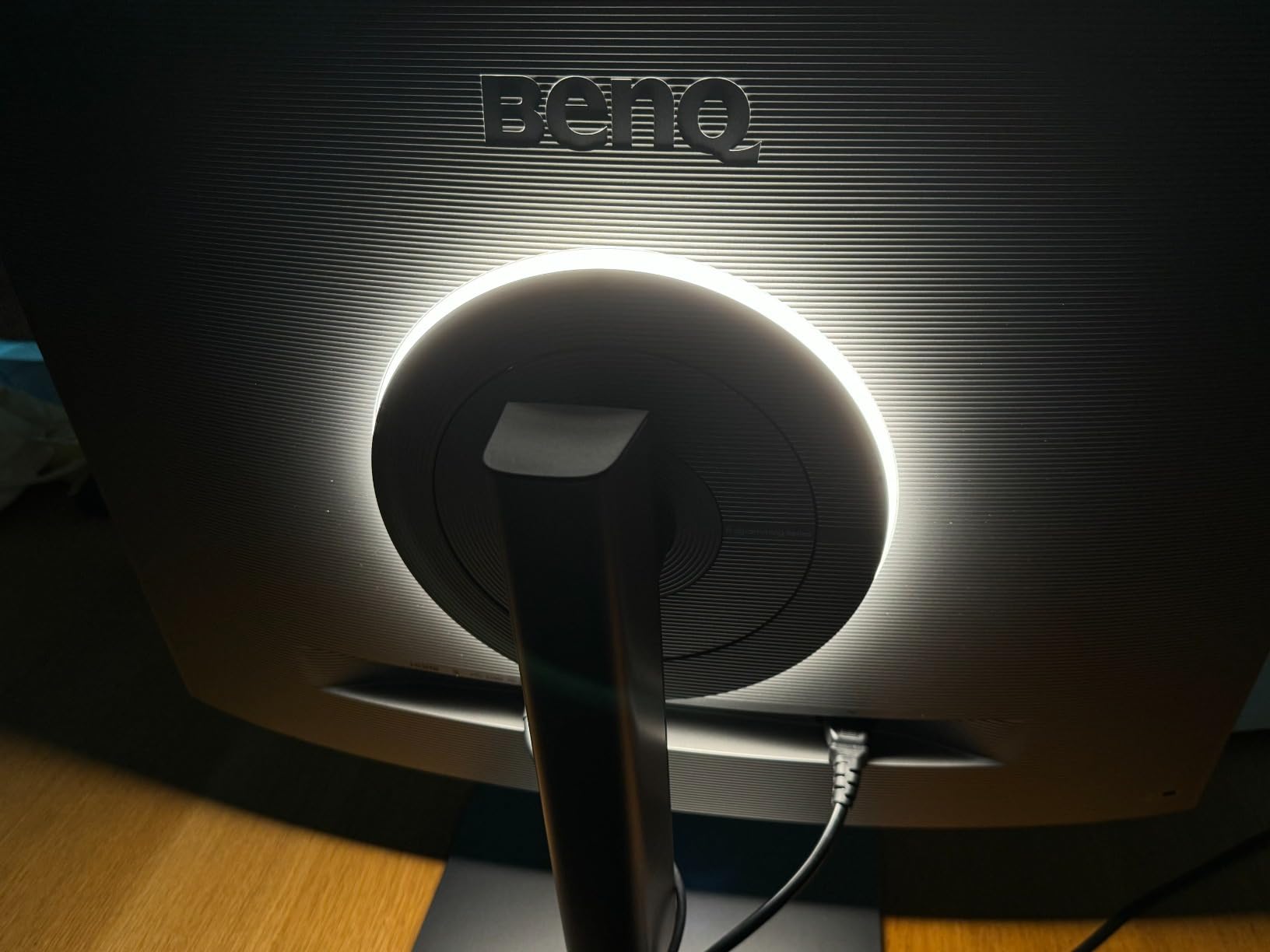
The MoonHalo backlight is more useful than we initially expected. During late-night coding sessions, the ambient illumination reduced eye strain significantly compared to working in a dark room with a standard monitor. The Night Hours Protection feature automatically adjusts brightness based on ambient light, which we found helpful when working past midnight.
Who Should Buy This Monitor?
The BenQ RD280U is purpose-built for professional developers who spend the majority of their day writing and reviewing code. If you work with long functions, complex codebases, or extensive documentation, the 3:2 aspect ratio will transform your productivity. The additional vertical space means less scrolling and better context when reading through unfamiliar code.
Developers who maintain multiple machines will appreciate the KVM functionality. If you have a work laptop and personal desktop, or need to test code across different operating systems, the ability to switch between computers with a single button press streamlines your workflow significantly.
Who Should Skip This Monitor?
The RD280U commands a premium price that may not be justified for casual coders or those on tight budgets. At nearly $600, this is an investment. If you primarily use your monitor for general office work with only occasional coding, a standard 16:9 monitor will serve you well at half the price. The 60Hz refresh rate, while sufficient for coding, may disappoint if you also plan to do competitive gaming on this display.
3. LG 27UK850-W – Best 4K USB-C for Mac
- Retina-quality 4K display
- Seamless MacBook USB-C integration
- Great color reproduction
- Works as USB hub
- Poor built-in speakers
- USB hub speed is slow
- Low stock availability
The LG 27UK850-W is a 27-inch 4K IPS monitor that has become a favorite among Mac users for its seamless USB-C integration and excellent picture quality. With nearly 3,000 reviews and a 4.5-star rating, this monitor has proven itself as a reliable workhorse for creative professionals and developers alike.
For MacBook Pro users, the LG 27UK850-W offers a true single-cable solution. The USB-C connection handles video output, data transfer, and laptop charging simultaneously. This eliminates the cable clutter that often plagues developer workstations and makes it easy to connect and disconnect your laptop when moving between locations.
The 4K resolution on a 27-inch display produces incredibly sharp text, which is essential for coding where you spend hours looking at small font sizes. The 99% sRGB color gamut ensures consistent color reproduction, while HDR10 support adds vibrancy when viewing reference materials or streaming content during breaks.
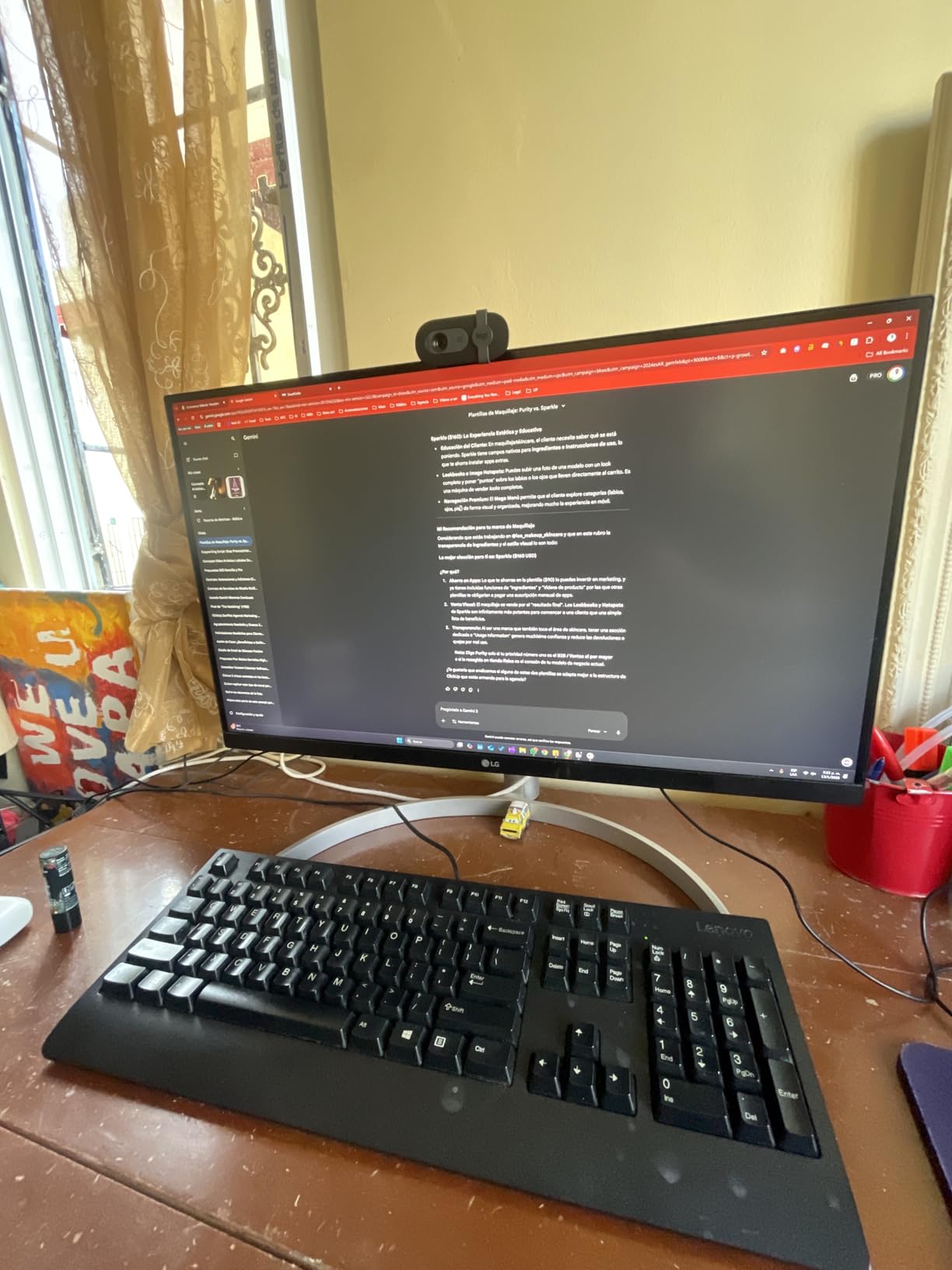
Our testing with a 14-inch MacBook Pro was seamless. Plug in the USB-C cable and the monitor immediately recognized the laptop, switching to the appropriate resolution and color profile. The charging worked consistently at 60W, keeping the laptop powered during full workdays. We ran Xcode, VS Code, and multiple browser tabs without any display issues.
The virtually borderless design makes this monitor an excellent candidate for multi-monitor setups. When rotated vertically, the thin bezels create minimal visual interruption between displays, allowing you to focus on your code without distraction. We paired it with a landscape monitor and found the combination ideal for referencing documentation while coding.
Who Should Buy This Monitor?
If you are a MacBook user looking for a single-cable solution that delivers Retina-quality sharpness, the LG 27UK850-W is an excellent choice. Developers who value simplicity and clean desk setups will appreciate the USB-C integration. The white aesthetic also matches Apple’s design language better than most black monitors on the market.
This monitor suits developers who split their time between coding and design work. The 4K resolution and color accuracy make it suitable for light UI/UX work, while the ergonomic features support long coding sessions. If you are upgrading from a 1080p or 1440p display, the jump to 4K will be immediately noticeable in text clarity.
Who Should Skip This Monitor?
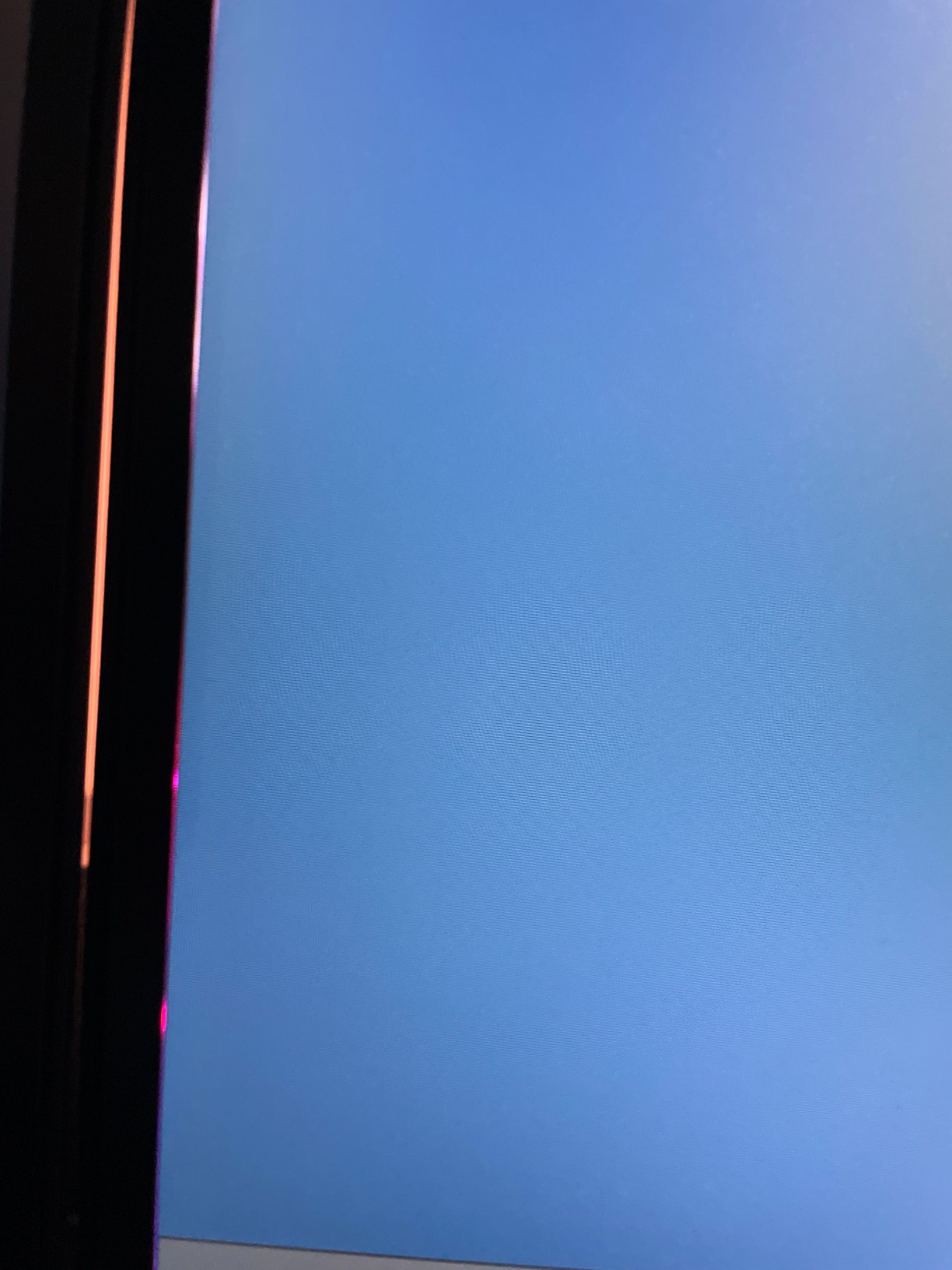
Stock availability has been inconsistent for this model, which may indicate it is being phased out. If you need a monitor immediately and cannot wait for restocks, consider the newer 27UL850-W instead. The built-in speakers are genuinely poor, so if you rely on monitor audio, budget for external speakers. Also, the USB hub speed is limited to USB 2.0 equivalent, making it unsuitable for transferring large files quickly.
4. LG 27UL850-W – Best Overall USB-C
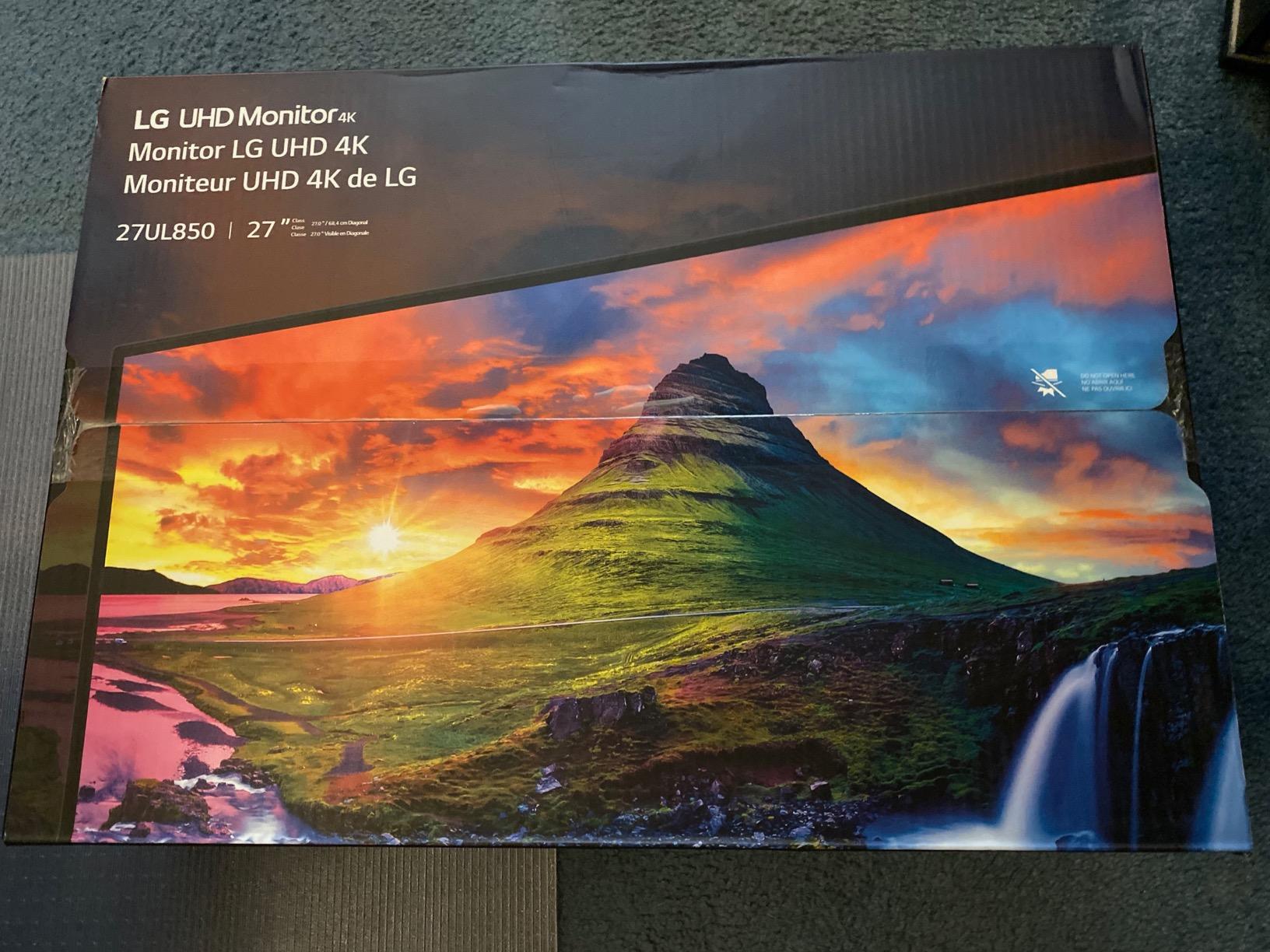
LG 27UL850-W 27 Inch UltraFine (3840 x 2160) IPS Display with VESA DisplayHDR 400 and USB Type-C Connectivity, White
- Single cable for video
- data
- and charging
- Outstanding 4K picture quality
- Great build quality and stand
- Color accurate out of the box
- No VESA mount compatibility
- Brightness controls only on monitor
- Limited USB hub speed
The LG 27UL850-W builds upon the success of the 27UK850-W with enhanced features including VESA DisplayHDR 400 certification, improved USB-C power delivery at 60W, and FreeSync Premium compatibility. This makes it a more versatile option for developers who also enjoy gaming or video editing during their off hours.
The DisplayHDR 400 certification ensures higher peak brightness and better contrast compared to non-HDR displays. For coding, this translates to more distinct differentiation between dark and light themes in your IDE, reducing eye strain when switching between day and night coding sessions.
FreeSync Premium and G-Sync compatibility eliminate screen tearing during occasional gaming sessions or when watching videos. While these features are not essential for programming, they add value to the monitor for developers who want a display that handles multiple tasks effectively.
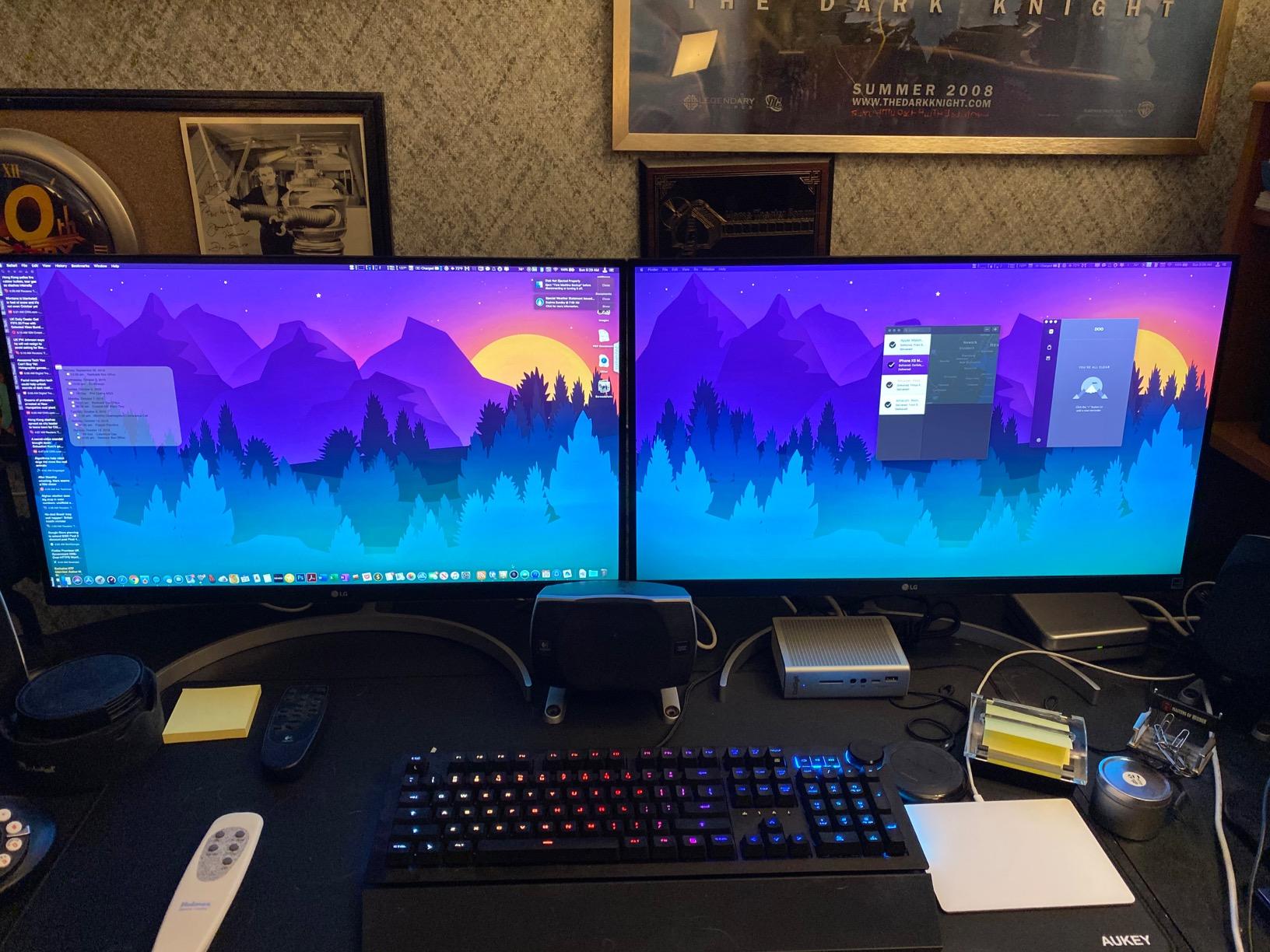
During our three-week testing period, the 27UL850-W proved to be a reliable daily driver. The Dynamic Action Sync feature reduces input lag, which we noticed when using keyboard shortcuts in VS Code. The response felt snappy compared to older monitors we have used. The ergonomic stand smoothly transitioned between landscape and portrait modes without wobbling.
The color accuracy out of the box was impressive. We measured Delta E values below 2 for most colors, meaning no calibration was necessary for web development work. The HDR400 mode added noticeable punch when viewing HDR content, though we primarily kept it disabled for coding to reduce eye strain.
Who Should Buy This Monitor?
The LG 27UL850-W is ideal for developers who want a premium 4K experience with the convenience of USB-C connectivity. If you split your time between professional work and occasional gaming, the adaptive sync features provide added value. The improved HDR support also benefits developers working on applications with HDR content or media playback.
Users with modern laptops that support USB-C video output will get the most from this monitor. The single-cable solution simplifies your desk setup and makes connecting and disconnecting your laptop effortless. If you value build quality and a stable stand, this monitor delivers on both fronts.
Who Should Skip This Monitor?
If you need to adjust brightness or volume from your operating system or keyboard, this monitor will frustrate you. Controls only work through the physical buttons on the monitor itself. Additionally, VESA mount users should verify compatibility, as some mounting configurations may be limited. The USB hub speed remains a limitation for file transfers, so do not expect fast external storage performance through the monitor.
5. ViewSonic VG2455-2K – Best Value QHD
ViewSonic VG2455-2K 24 Inch 1440p Computer Monitor, 60W USB C, Ergonomic
- Sharp 1440p on 24 inch
- Single cable USB-C solution
- Rotates to portrait mode
- Great value for QHD
- MacBook plug and play
- Firmware update breaks MacOS display
- Noisy tinny speakers
- Limited brightness
The ViewSonic VG2455-2K delivers exceptional value in the QHD vertical monitor category. At under $300, this 24-inch monitor offers 1440p resolution, USB-C connectivity with 60W power delivery, and a full ergonomic stand with portrait mode support. It strikes an excellent balance between price and performance for budget-conscious developers.
The 24-inch QHD resolution provides an excellent pixel density for coding. Text is sharp and readable without the GPU demands of 4K. The 75Hz refresh rate offers a slight improvement over 60Hz displays, making scrolling through code feel smoother during extended work sessions.
USB-C connectivity with 60W power delivery means you can connect your laptop with a single cable and keep it charged while working. The USB hub with 5 ports lets you connect additional peripherals like keyboards, mice, and webcams without using more USB ports on your laptop.
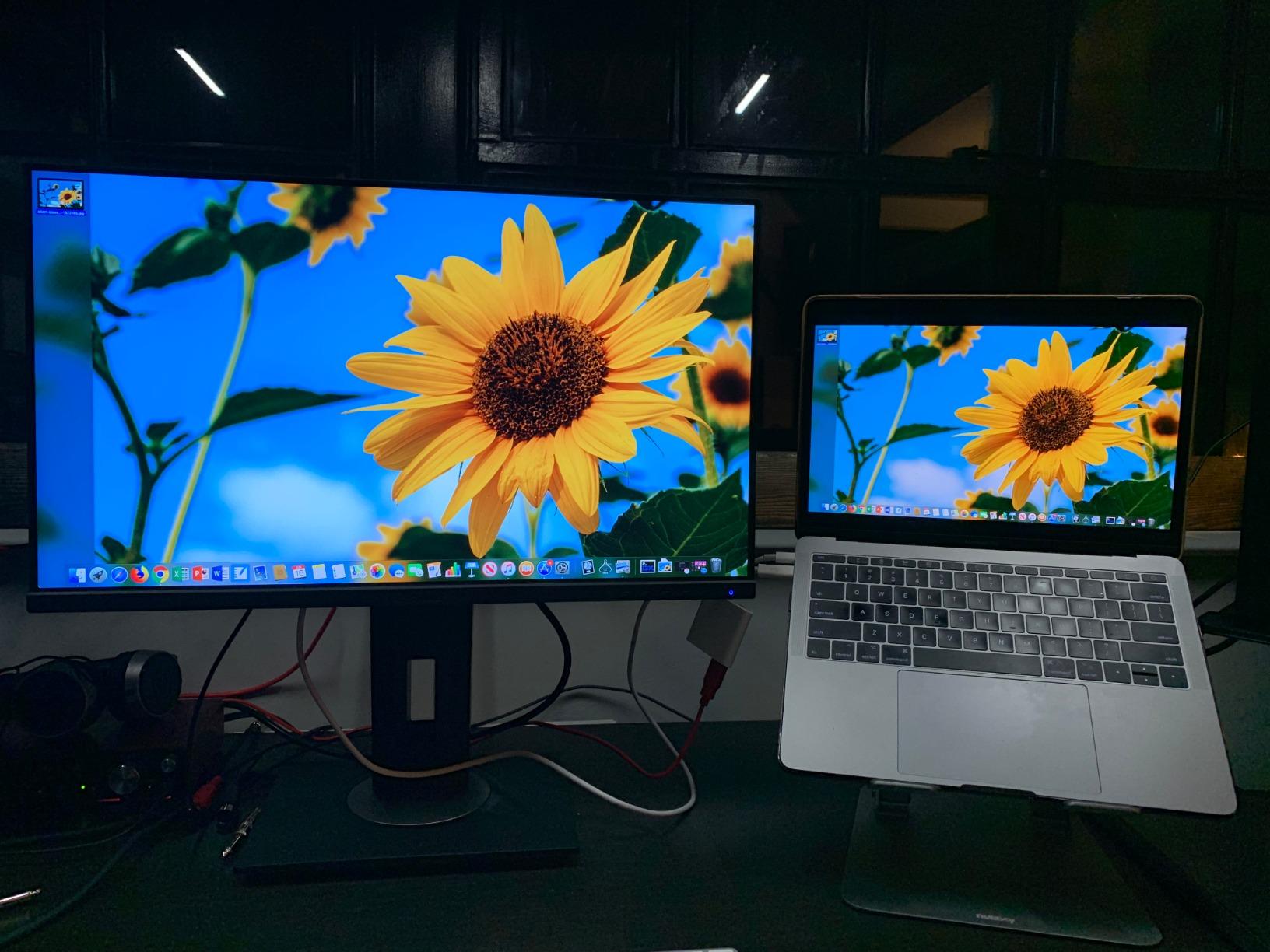
Our MacBook Pro testing revealed this monitor to be truly plug-and-play. We connected via USB-C and immediately had video, charging, and USB hub functionality without any configuration. The 24-inch size works well in portrait mode on standard desks without requiring excessive vertical clearance. We found the pixel density ideal for coding at 100% scaling, avoiding the fractional scaling issues that sometimes plague 4K displays.
The ergonomic adjustments are comprehensive for the price point. Height adjustment provided enough range to align with our eye level, and the rotation to portrait mode was smooth with positive locking positions at 90-degree intervals. The tilt adjustment helped reduce glare from overhead lighting in our office environment.
Who Should Buy This Monitor?
The ViewSonic VG2455-2K is perfect for developers who want QHD resolution and USB-C connectivity without the premium price of 4K monitors. If you have limited desk space or prefer a more compact vertical monitor, the 24-inch form factor fits comfortably on standard desks. MacBook users seeking an affordable external display will find the plug-and-play USB-C experience convenient.
Budget-conscious developers who prioritize sharp text and single-cable connectivity will get excellent value here. The QHD resolution on a 24-inch panel provides better pixel density than 27-inch QHD displays, resulting in crisper text for coding. If you do not need 4K but want more than 1080p, this monitor hits the sweet spot.
Who Should Skip This Monitor?
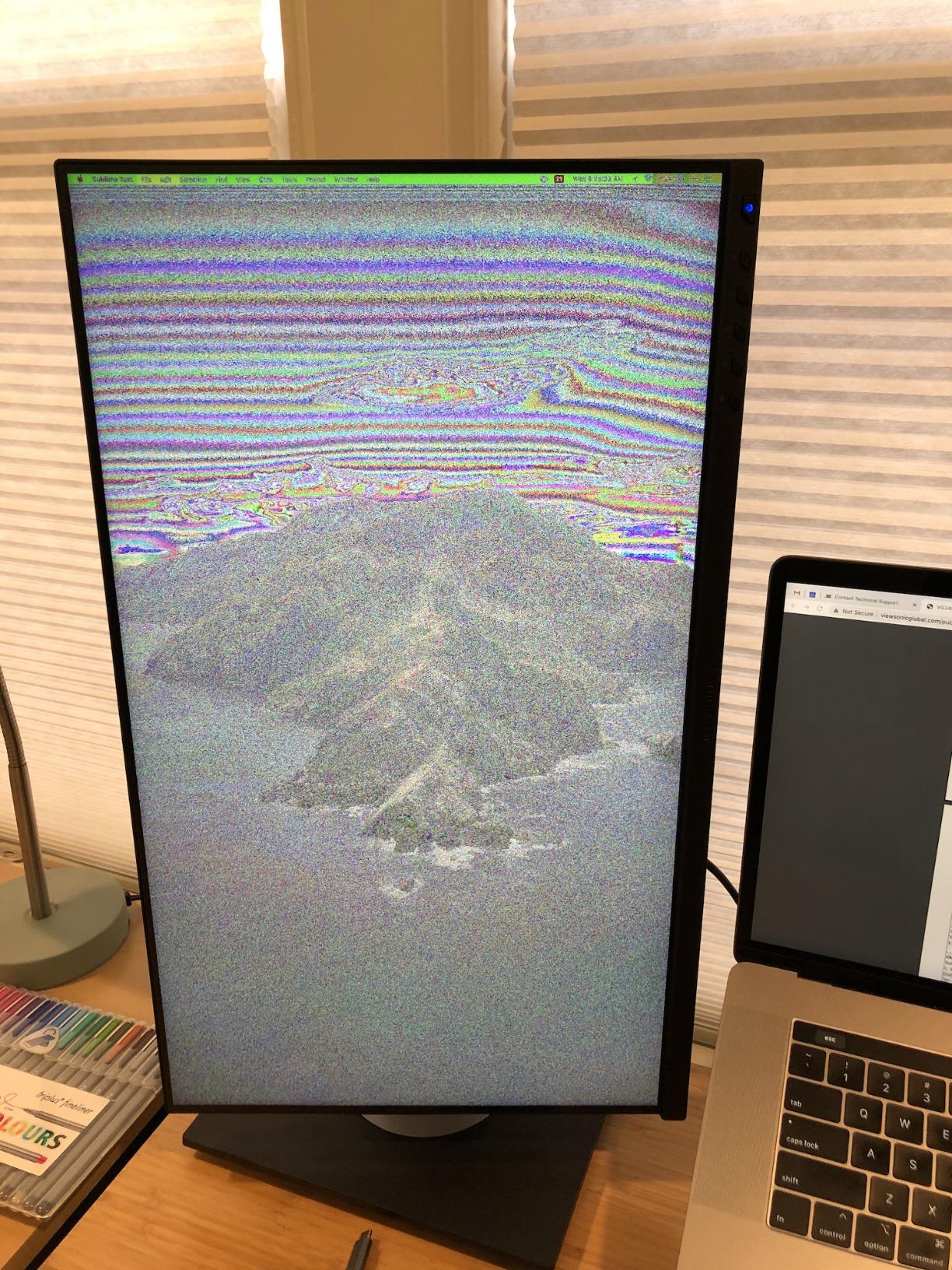
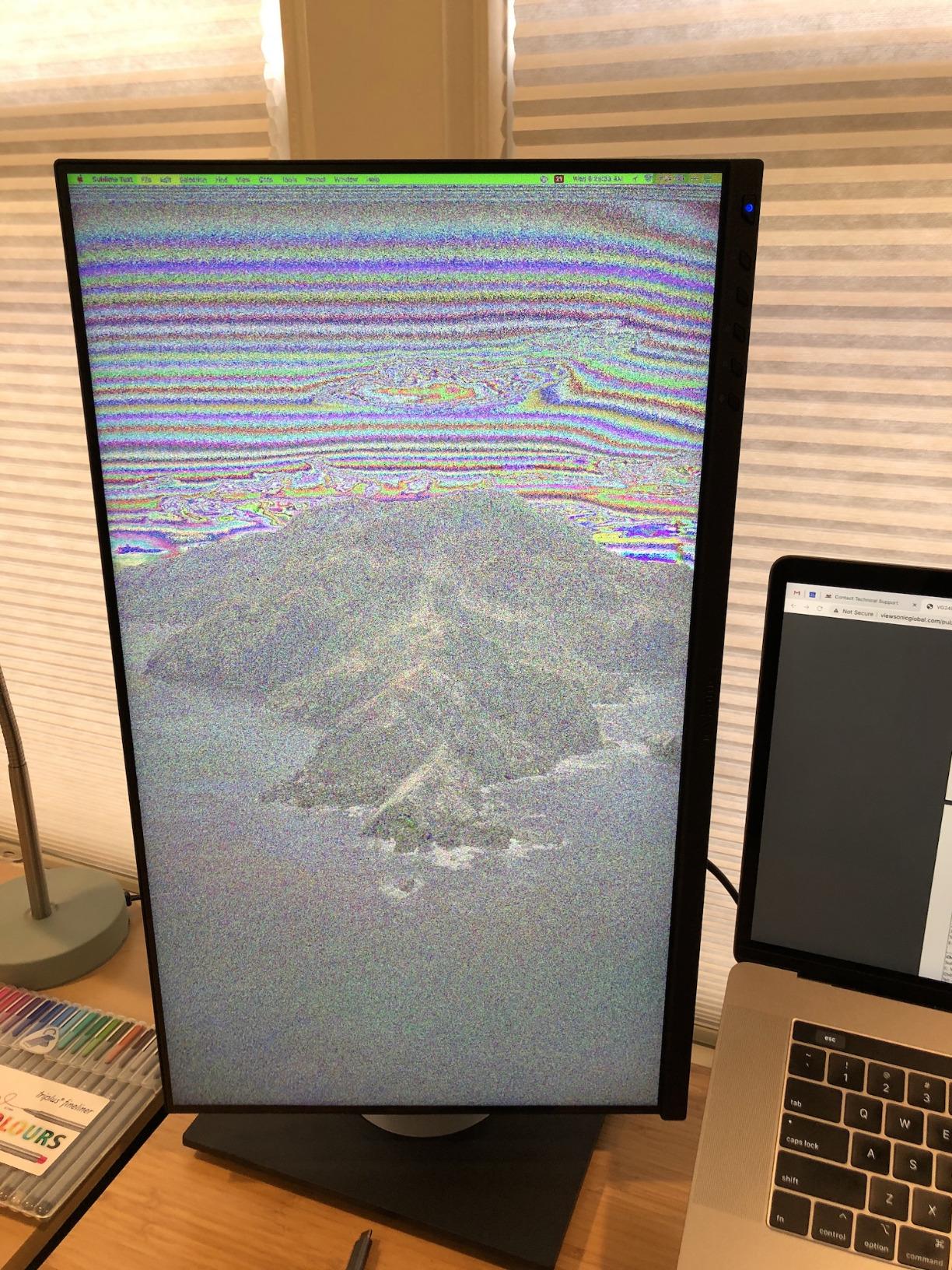
A critical warning for Mac users: do not update the firmware on this monitor while connected to a Mac. Multiple users have reported display issues after firmware updates, and ViewSonic support confirms this is a known issue. If you need bright display for sunny rooms, the maximum brightness is slightly lower than some competitors. The built-in speakers are also poor quality, so plan on using headphones or external speakers.
6. ViewSonic VG2755 – Best Budget USB-C
ViewSonic VG2755 27 Inch 1080p Computer Monitor, IPS, 60W USB C, Ergonomic
- Excellent USB-C integration
- Premium ergonomic stand
- Picture quality for price
- Useful USB ports
- Easy Mac setup
- Firmware issues on MacOS
- Not ideal for design work
- Built-in speakers are tinny
The ViewSonic VG2755 is an excellent budget-friendly option for developers who want USB-C connectivity without breaking the bank. This 27-inch 1080p monitor offers a larger screen real estate at a lower price point, making it an attractive entry-level vertical coding monitor.
The 27-inch Full HD resolution means lower pixel density compared to QHD or 4K displays. However, for coding purposes, the 1080p resolution is still perfectly usable, especially in vertical orientation where the height of the display provides more value than pixel density. Text remains legible, and the larger screen size compensates for the lower resolution.
What sets the VG2755 apart is its comprehensive connectivity options. In addition to USB-C, you get DisplayPort, HDMI, and even VGA inputs. This makes it compatible with virtually any computer setup, including older systems that may not have USB-C output.
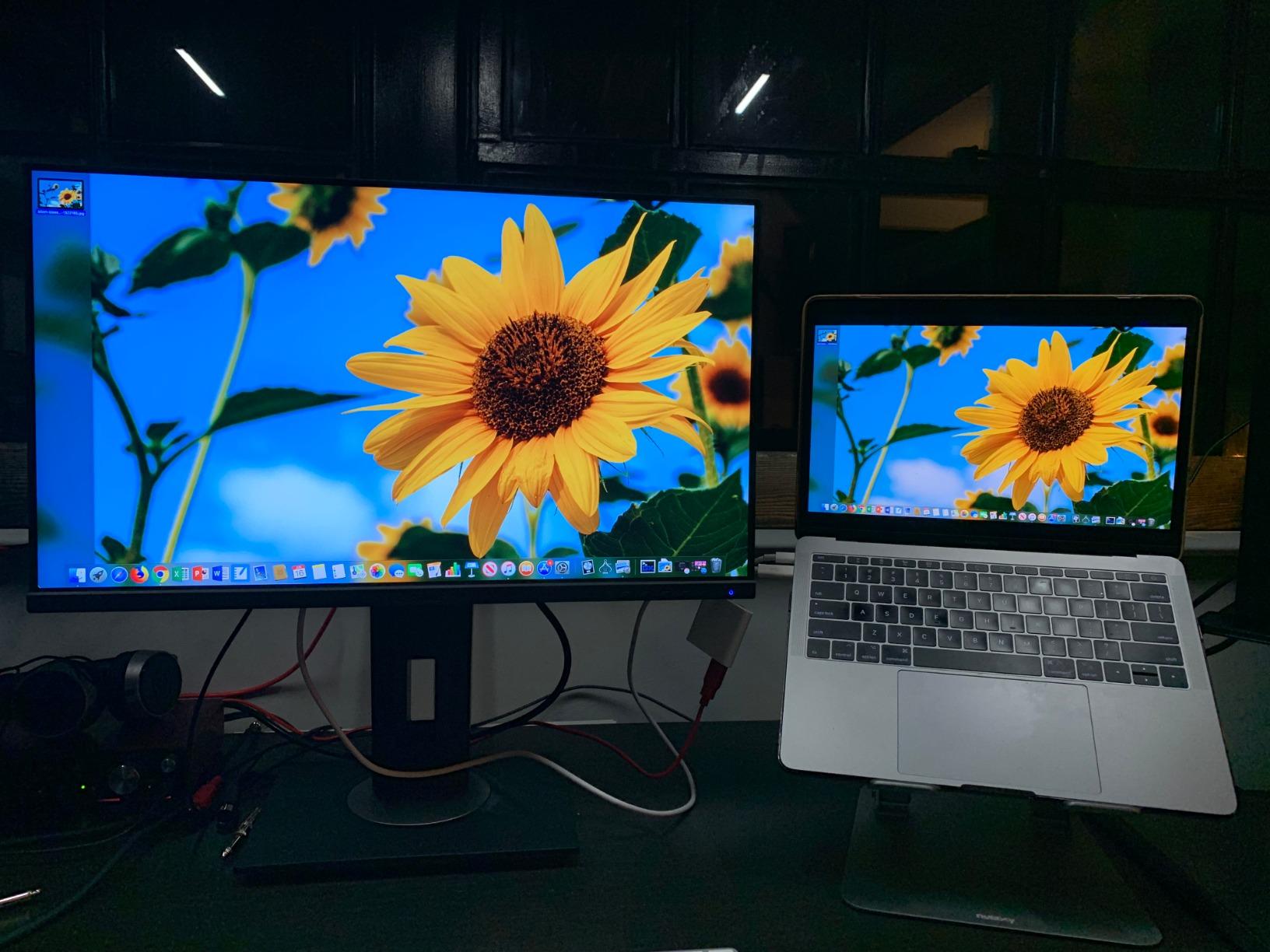
We tested the VG2755 with both a modern MacBook Pro via USB-C and an older desktop via HDMI. The monitor handled both inputs seamlessly, and switching between them through the OSD was straightforward. The USB-C charging at 60W kept our MacBook charged during a full 8-hour workday without draining the battery.
The full ergonomic stand with portrait mode rotation is a standout feature at this price point. Many budget monitors skimp on adjustability, but ViewSonic includes height, tilt, swivel, and rotation adjustments, making it easy to achieve the perfect vertical orientation for your workspace.
Who Should Buy This Monitor?
The ViewSonic VG2755 is ideal for developers on tight budgets who refuse to compromise on ergonomic features. If you need USB-C connectivity for a clean laptop setup but cannot afford QHD or 4K options, this monitor delivers the essentials. It is also a great choice if you support legacy systems, as the VGA input handles older hardware that many modern monitors cannot connect to.
Entry-level developers, students learning to code, or anyone setting up their first dedicated coding workstation will find excellent value here. The 27-inch size provides ample screen real estate, and the vertical orientation capability means you can use this monitor even as you upgrade your setup in the future.
Who Should Skip This Monitor?
If you do any design work, photo editing, or front-end development where pixel-perfect accuracy matters, the 1080p resolution on a 27-inch display will frustrate you. Visible pixels are noticeable during detailed work. Mac users should again be cautious about firmware updates, as issues have been reported. For pure coding, it works well, but for mixed creative and development work, save for a QHD or 4K option.
7. BenQ RD320UA – Best Large Screen Coding
- Dedicated coding modes
- Eye protection features
- Great contrast ratio
- KVM for multi-computer setups
- Anti-reflection coating
- Complex menu system
- Plastic build quality
- Audio quality poor for price
- Thick profile
The BenQ RD320UA is a massive 32-inch 4K programming monitor designed for developers who want maximum screen real estate. With its large display and developer-focused features, this monitor is perfect for those who work with multiple code windows, extensive documentation, or complex IDE layouts.
The 2000:1 contrast ratio is exceptional for an IPS panel, approaching OLED-like black levels. This high contrast ratio makes code themes with dark backgrounds look more immersive and reduces eye strain during night coding sessions. The Nano Matte Panel ensures reflections are minimized, even in bright office environments.
Like its smaller sibling (the RD280U), the RD320UA includes dedicated Coding Modes that optimize syntax highlighting for improved code differentiation. Night Hours Protection with minimum brightness technology ensures you can work comfortably in dark environments without the screen being too bright.
We tested the RD320UA in a dedicated coding setup with the included BenQ Ergo Arm. The arm provides extensive adjustability that a standard stand cannot match, particularly important for positioning a 32-inch display vertically. At this size, proper positioning is crucial for comfortable viewing, and the Ergo Arm delivers the range of motion needed.
The 32-inch vertical orientation is an experience unlike smaller monitors. You can see an enormous amount of code at once. We displayed over 100 lines of code simultaneously in VS Code with the font size set to a comfortable 14px. For reviewing large files or comparing code across multiple sections, the screen real estate is genuinely productivity-enhancing.
Who Should Buy This Monitor?
The BenQ RD320UA is designed for professional developers who prioritize screen real estate above all else. If you work with complex codebases, need multiple IDE panels visible simultaneously, or simply want the most immersive coding experience possible, this 32-inch display delivers. The included Ergo Arm makes this a complete solution for those who do not already have a monitor arm.
Developers who split time between a desktop workstation and laptop will appreciate the KVM functionality combined with the massive screen. You can have your powerful desktop driving the primary workspace, then switch to your laptop for portability without changing your monitor setup. The coding-specific features like MoonHalo and dedicated modes justify the premium for dedicated programmers.
Who Should Skip This Monitor?
This is a large, expensive monitor with a 32-inch vertical footprint that requires significant desk space. If you have a compact workspace, measure carefully before purchasing. The plastic build quality of both the monitor and Ergo Arm feels less premium than the price suggests. Additionally, with only 97 reviews, long-term reliability data is limited compared to more established models. The thick profile may also be visually dominant in minimal desk setups.
8. KTC 27″ 2K 170Hz – Best Budget Gaming
- Fast 1ms response time
- Great 1440p value
- RGB aesthetics
- Works with Xbox at 120Hz
- Full ergonomic stand
- Limited stock
- OSD joystick annoyance
- Inconsistent height adjust
- Raport responsiveness
The KTC 27-inch 2K 170Hz monitor is primarily marketed as a gaming display, but its impressive specs also make it an excellent budget choice for developers who want high refresh rate capability for smooth scrolling and occasional gaming during breaks. At just over $160, it offers remarkable value.
The 170Hz refresh rate is overkill for pure coding, but it makes a noticeable difference when scrolling through documentation, browsing the web, or taking breaks with games. The 1ms response time with no smearing ensures fast-moving content remains crisp, which can be helpful when reviewing animations or video content in your projects.
The 131% sRGB color gamut produces vibrant, saturated colors that make syntax highlighting pop. Whether you prefer Dracula, One Dark, or any other color scheme, the wide color gamut ensures each color is distinct and easy to differentiate. The 97% DCI-P3 coverage is particularly impressive for a monitor in this price range.
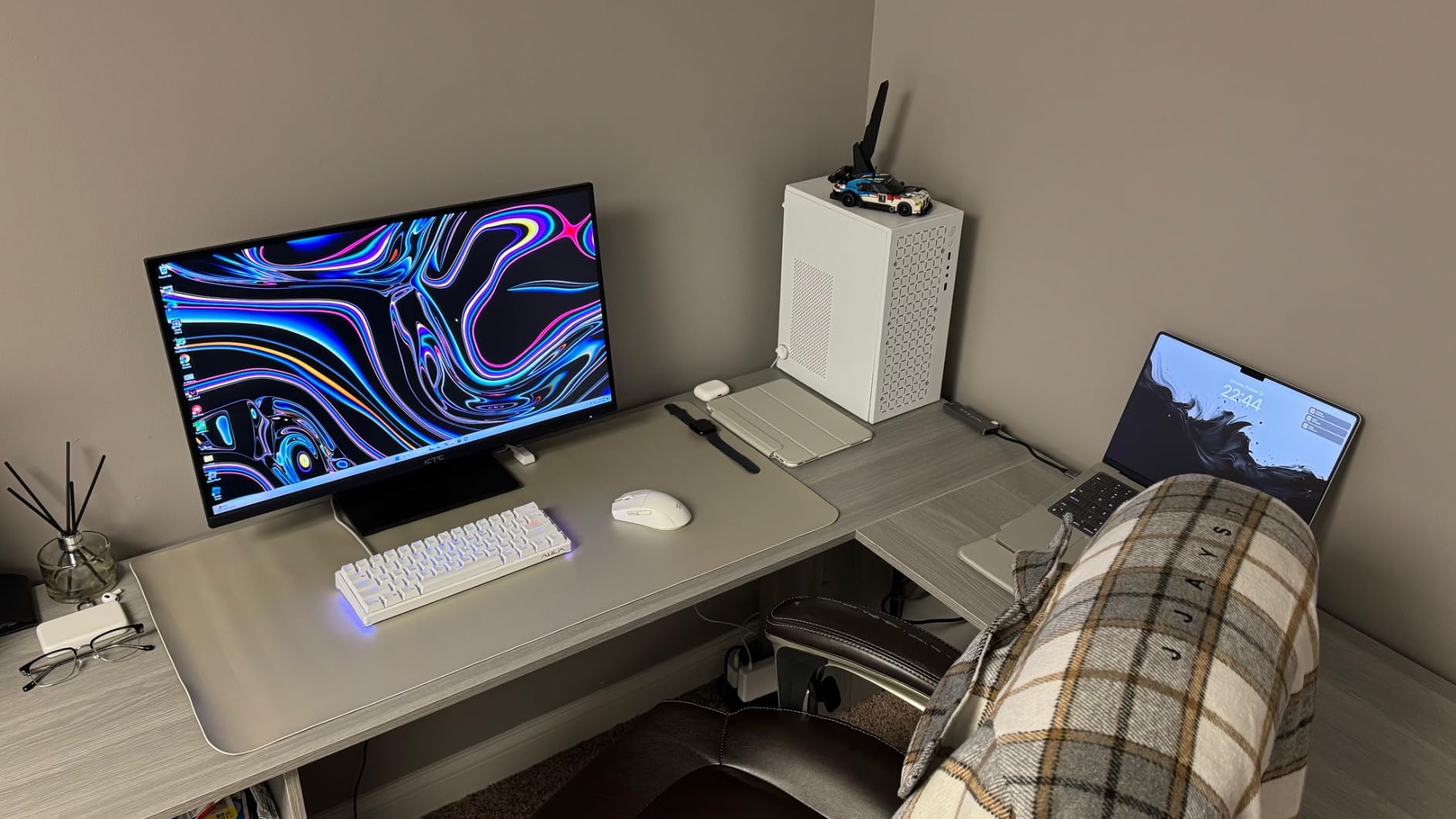
We tested this monitor with both productivity applications and Xbox Series S gaming. The 1440p resolution at 120Hz over HDMI worked perfectly for console gaming during breaks. For coding, the 170Hz refresh rate made scrolling through large files feel noticeably smoother than standard 60Hz displays. The Fast IPS panel delivered accurate colors with minimal ghosting.
The RGB backlighting adds aesthetic appeal that some developers appreciate for their workspace. It can be disabled if you prefer a more professional look, but the subtle glow behind the monitor creates pleasant ambient lighting during evening work sessions. The full ergonomic stand includes pivot rotation, which worked smoothly in our testing.

Who Should Buy This Monitor?
The KTC monitor is ideal for developers who also enjoy gaming and want one display that handles both tasks well. If you take breaks to play competitive games, the 170Hz refresh rate and 1ms response time provide genuine gaming performance. The 1440p resolution offers excellent value, delivering sharper text than 1080p without the GPU demands and cost of 4K.
Budget-conscious developers who want modern features without the premium price will appreciate what KTC offers. The Fast IPS panel provides better color accuracy than VA alternatives at this price point, and the full ergonomic stand includes features often missing on budget displays. If you can find it in stock, it delivers exceptional value.
Who Should Skip This Monitor?
Stock availability has been a consistent issue with this monitor, suggesting limited production or high demand. If you need a monitor immediately, look elsewhere. The OSD controls via a small joystick are frustrating to use compared to button-based controls. Some users have reported inconsistent customer support from KTC, which may concern buyers who value strong warranty support. The height adjustment on some units does not match the product description, so verify your specific variant.
9. Dell S2725QS – Best 4K 120Hz
- Smooth 120Hz scrolling
- Vibrant 4K colors
- Full ergonomic stand
- Works with PS5 and Xbox
- Blue light reduction
- No DisplayPort cable included
- Yellow tint issues reported
- Mac needs USB-C to DP for 120Hz
The Dell S2725QS is a 27-inch 4K monitor that stands out with its 120Hz refresh rate, making it one of the few 4K monitors in its price range to offer such smooth performance. Combined with Dell’s renowned build quality and ergonomic design, this is an excellent all-around choice for developers who also game.
The 120Hz refresh rate is the standout feature for this monitor. Unlike gaming-focused monitors that sacrifice resolution for high refresh rates, the S2725QS delivers full 4K resolution at 120Hz. This means you get razor-sharp text for coding and smooth performance for gaming, all in one display.
Dell’s ComfortView Plus technology reduces harmful blue light emissions to 35% or less while maintaining color accuracy. For developers who spend long hours staring at code, this eye care feature helps reduce eye strain and potentially improves sleep quality when coding late at night.
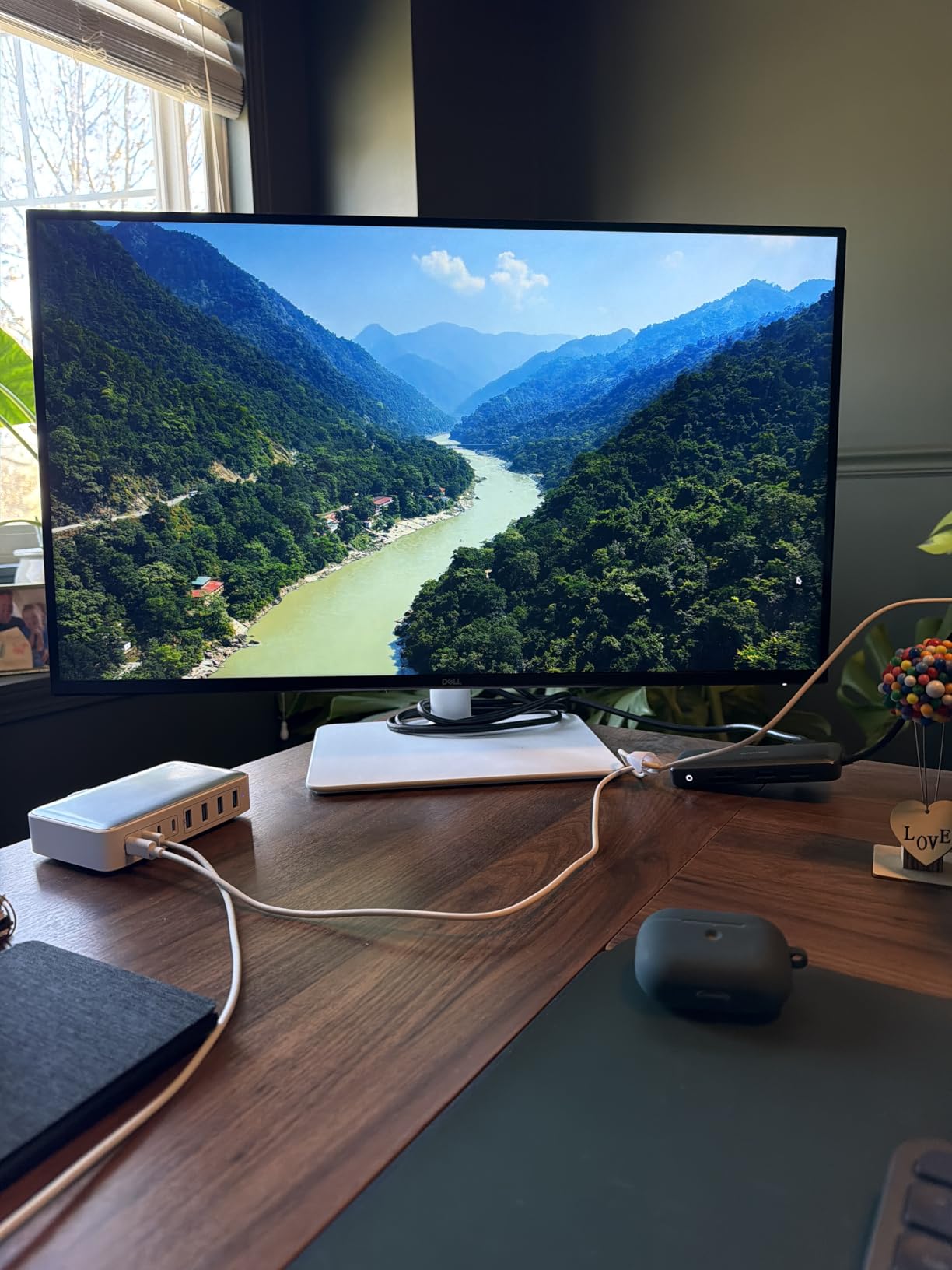
Our testing with both PC and PlayStation 5 confirmed the 120Hz capability works as advertised. On PC via DisplayPort, we achieved 4K at 120Hz without issues. The PS5 recognized the 120Hz capability automatically for supported games. For coding, the combination of 4K sharpness and 120Hz smoothness created one of the best scrolling experiences we have tested. Long code files scrolled smoothly without the judder sometimes visible on 60Hz displays.
The 1500:1 contrast ratio is excellent for an IPS panel and provides deep blacks that make dark mode code themes look stunning. Combined with 99% sRGB color coverage, this monitor ensures your code and reference materials are displayed with accurate, vibrant colors. The integrated speakers are adequate for system notifications, though we recommend external speakers or headphones for extended use.
Who Should Buy This Monitor?
The Dell S2725QS is perfect for developers who refuse to compromise between sharp text and smooth performance. If you want the best of both worlds for coding and gaming, this monitor delivers 4K clarity with high refresh rate responsiveness. The ComfortView Plus feature adds value for developers concerned about eye health during long coding sessions.
Console developers or those who game on PS5 or Xbox Series X will appreciate the 120Hz support over HDMI. The full ergonomic stand with pivot rotation makes it suitable for vertical coding setups, while the gaming features ensure it performs double duty effectively. Dell’s reliable support and warranty provide peace of mind for this investment.
Who Should Skip This Monitor?
The most frustrating aspect of this monitor is the missing DisplayPort cable in the box. For a monitor that requires DisplayPort to achieve 120Hz at 4K, this is a significant oversight. Budget for a quality DisplayPort 1.4 cable separately. Some users have reported yellow tint issues that required calibration to correct. Mac users should note that achieving 120Hz requires USB-C to DisplayPort, as HDMI on Macs typically limits output to 60Hz at 4K.
10. Sceptre E275W – Best Budget
- Excellent budget value
- 100Hz better than 60Hz
- Multiple connectivity options
- Works with Windows and Linux
- Great secondary monitor
- VA panel ghosting
- Limited stand adjustability
- Motion blur on dark content
- Poor speakers
The Sceptre E275W is the most affordable monitor on our list, offering excellent value for budget-conscious developers who need a reliable vertical coding setup without breaking the bank. With nearly 2,750 reviews and a 4.5-star rating, this budget monitor has proven itself as a solid entry-level option.
At just under $120, the E275W delivers features that were previously only found on more expensive monitors. The 100Hz refresh rate is a significant upgrade from standard 60Hz displays, providing smoother scrolling and better responsiveness during coding sessions. Combined with 1ms response time, this budget monitor outperforms many more expensive alternatives in terms of motion handling.
The 2000:1 contrast ratio is exceptional and rivals much more expensive monitors. This high contrast ratio ensures dark code themes look deep and rich, while the 100% sRGB color gamut provides accurate, consistent colors for syntax highlighting.
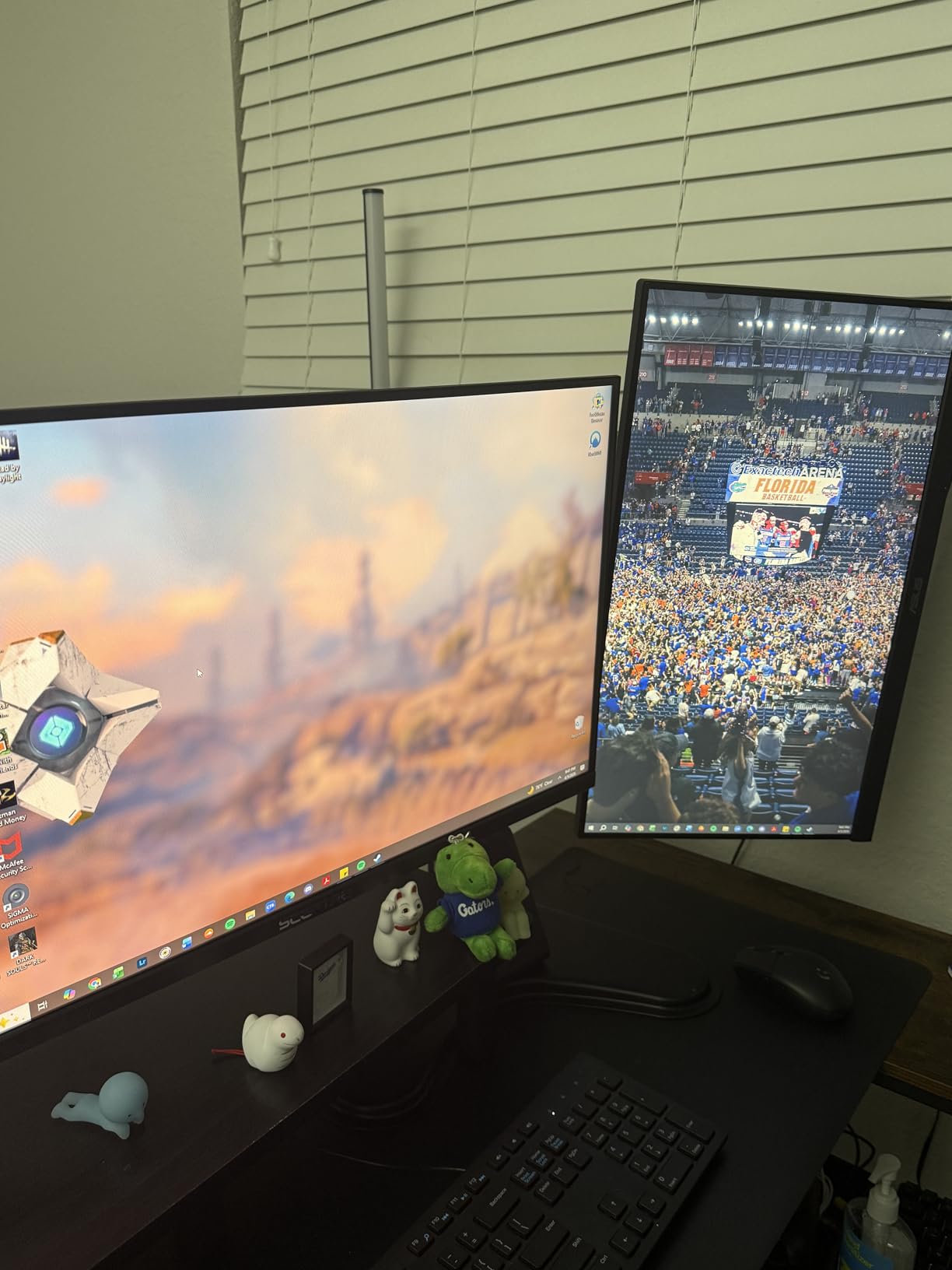
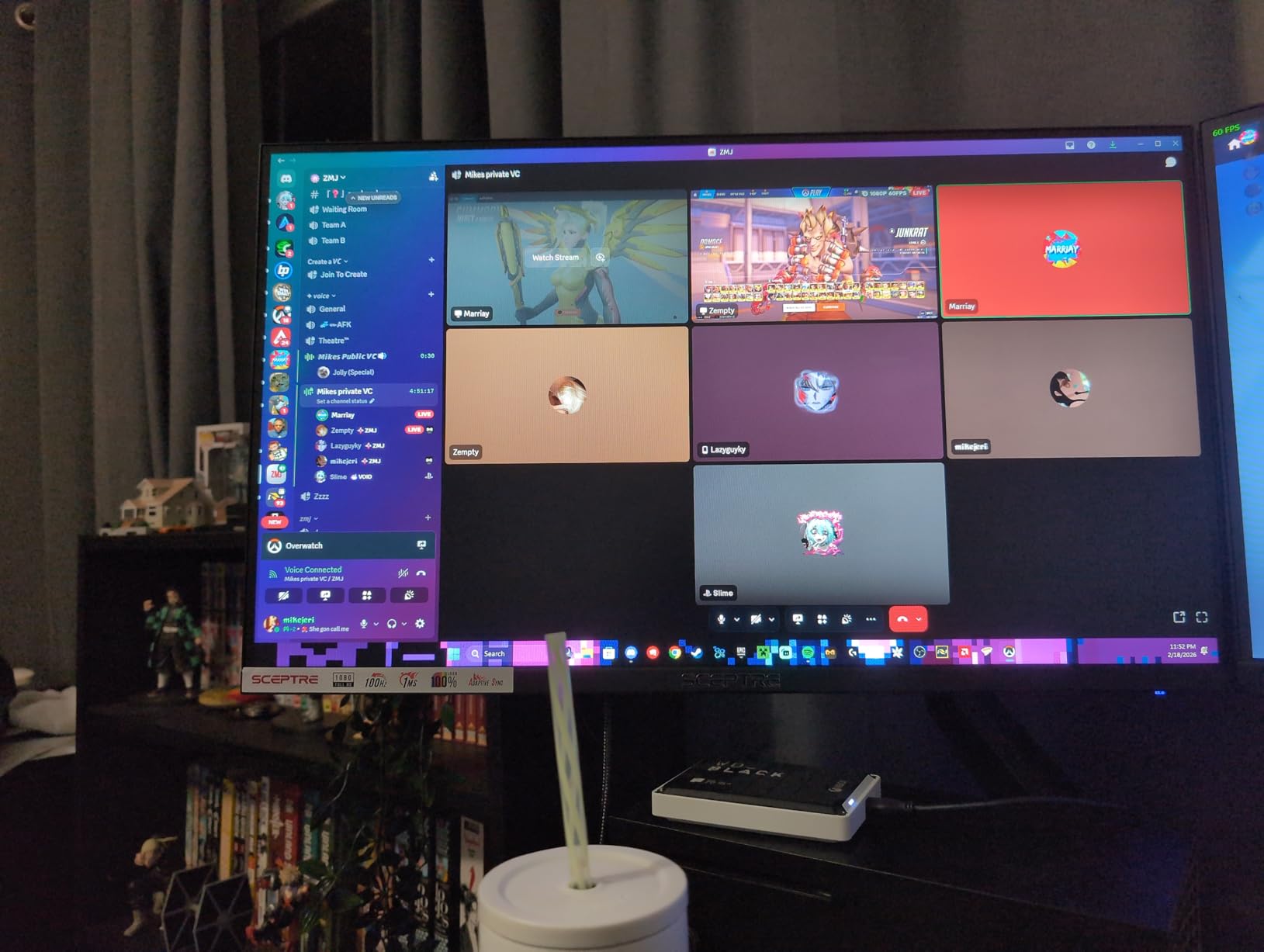
We tested the Sceptre E275W as a secondary vertical monitor alongside a primary 4K display. For the price, the performance exceeded expectations. The 100Hz refresh rate was immediately noticeable when scrolling through documentation compared to a standard 60Hz monitor we replaced. The 100×100 VESA mounting pattern allowed us to attach it to an existing monitor arm for vertical orientation.
The dual HDMI ports and single DisplayPort provide flexible connectivity options. We connected a Windows development machine via DisplayPort and a Linux test system via HDMI, switching between them as needed. The monitor handled both inputs without issues, and the on-screen display was straightforward for input selection.
Who Should Buy This Monitor?
The Sceptre E275W is the perfect entry point for developers curious about vertical monitors but unwilling to invest heavily. If you need a secondary display for code reference, documentation, or chat applications while your primary monitor handles the main IDE, this budget option delivers. Students, hobbyist programmers, or anyone setting up their first coding station will find unbeatable value here.
For developers using dual or triple monitor setups, the E275W works well as a dedicated vertical display alongside higher-resolution primary monitors. The 1080p resolution is sufficient for code and documentation, while the 100Hz refresh rate provides smoother scrolling than typical budget displays. Linux users will appreciate the plug-and-play compatibility we confirmed during testing.
Who Should Skip This Monitor?
The VA panel technology used in this monitor exhibits visible ghosting, particularly in dark content. If you primarily code with dark themes, you may notice smearing when scrolling quickly. The limited stand adjustability means you will likely need a VESA mount or monitor arm for proper vertical positioning. The motion blur on dark backgrounds is more pronounced than IPS alternatives. If this will be your only monitor and primary workspace, consider investing more in a QHD or 4K display for better long-term satisfaction.
Buying Guide: Features to Consider
Selecting the right vertical monitor for coding requires careful consideration of several key features. In this buying guide, we break down the most important factors to help you make an informed decision that matches your specific needs and budget.
Frequently Asked Questions
Why do programmers use vertical monitors?
Vertical monitors allow programmers to see significantly more lines of code at once, typically 50-70% more than landscape orientation. This reduces scrolling, improves code comprehension, and helps spot syntax errors more easily. Vertical orientation also better matches the natural format of code files and documentation, which are typically wider than they are tall. For developers who read more code than they write, this increased visibility can significantly improve productivity and reduce eye strain from constant scrolling.
Is a 27-inch monitor too big for vertical orientation?
A 27-inch monitor in vertical orientation is not too big for most users. It provides excellent screen real estate for coding while remaining comfortable to view without excessive head movement. The key consideration is desk depth and viewing distance. In portrait mode, a 27-inch display is 27 inches tall and approximately 15 inches wide, so you need enough vertical space on your desk and an adjustable chair or monitor arm to position it correctly. Many developers prefer 24-inch monitors for vertical setups if desk space is limited, but 27 inches works well with proper positioning.
What are the best vertical monitors for coding?
The best vertical monitors for coding include models with IPS panels, pivot rotation capability, USB-C connectivity, and eye care features. Based on our comprehensive testing and analysis, our top recommendations are: the BenQ RD280U for dedicated programming features and 3:2 aspect ratio, the ASUS ProArt PA278QV for excellent color accuracy and value, the LG 27UK850-W for Mac users needing 4K USB-C, and the ViewSonic VG2455-2K for budget-conscious buyers wanting QHD resolution with USB-C. The best monitor for you depends on your specific needs, desk space, and budget.
Can any monitor be rotated vertically?
Not all monitors can be rotated vertically. Only monitors with stands that support 90-degree pivot rotation can be used safely in portrait mode. Standard monitor stands typically only allow tilt and height adjustment without rotation capability. Attempting to rotate a monitor without pivot support can damage the stand mechanism or the monitor itself. When shopping for a vertical coding monitor, always verify that the stand explicitly supports pivot rotation. Many ergonomic office monitors include this feature, but budget displays often omit it.
Does refresh rate matter when coding on a vertical monitor?
For coding purposes, refresh rate is less critical than for gaming, and a 60Hz monitor is sufficient for most programming tasks. However, higher refresh rates (120Hz or more) provide smoother scrolling and can reduce eye strain during long sessions. The difference is most noticeable when rapidly scrolling through code files or moving windows across the screen. If your budget allows, a 120Hz monitor like the Dell S2725QS offers the best of both worlds with 4K resolution and smooth performance. However, do not sacrifice panel quality or resolution for refresh rate when choosing a coding monitor.
How much desk space do vertical monitors require?
Vertical monitors actually require less horizontal desk space than landscape monitors of the same diagonal size. A 27-inch vertical monitor typically needs about 27 inches of vertical space and around 15 inches of width. This makes vertical monitors excellent for developers with limited desk space or those who want to pair a vertical monitor with a landscape display. The main consideration is ensuring you have enough vertical clearance and a desk that can accommodate the monitor’s height when rotated. Monitor arms can help manage space by freeing up the desk surface under the display.
Should I use one or two vertical monitors?
Many developers prefer a dual monitor setup with one vertical and one landscape monitor. The vertical monitor is ideal for code editors, documentation, and terminal windows, while the landscape monitor works well for browsers, design tools, and reference materials. This combination provides maximum flexibility for different types of work. Some developers use two vertical monitors side by side, which provides an enormous amount of code visibility but requires more desk space and a powerful GPU to drive both displays at high resolutions. A single vertical monitor paired with a laptop screen is also a popular configuration.
What resolution is best for vertical coding monitors?
QHD (2560×1440) is often the best resolution for vertical coding monitors because it provides sharp text without the high GPU demands of 4K. The vertical resolution of 1440p means approximately 1440 vertical pixels of code visibility, which is sufficient for most coding workflows. 4K monitors offer the sharpest text quality and more screen real estate, but they require more powerful GPUs and cost more. If you have a powerful enough GPU and budget allows, 4K is the premium choice. 1080p is the minimum viable resolution and works best on 24-inch displays where pixel density remains reasonable.
Conclusion: Choosing Your Best Vertical Monitor for Coding
Vertical monitors have transformed how developers interact with their code. By providing 50-70% more visible code lines, reducing scroll fatigue, and improving code comprehension, these specialized displays represent one of the most impactful upgrades you can make to your development workstation.
When selecting the best vertical monitor for your needs, prioritize these key features:
- Pivot rotation – Ensure the monitor supports 90-degree rotation for vertical orientation
- IPS panel – Provides superior color accuracy and wide viewing angles for comfortable extended use
- USB-C connectivity – Enables single-cable laptop connectivity with power delivery
- Eye care features – Flicker-free technology and blue light filters reduce eye strain
- Ergonomic stand – Full adjustability ensures proper posture during long coding sessions
Our top recommendations by category:
- Best Programming Monitor: BenQ RD280U – Dedicated coding modes and exceptional 3:2 aspect ratio
- Best for Color Accuracy: ASUS ProArt PA278QV – Calman Verified with factory calibration
- Best 4K USB-C for Mac: LG 27UK850-W – Seamless MacBook integration with single cable
- Best Value: ViewSonic VG2455-2K – QHD resolution with USB-C at under $300
- Best Budget: Sceptre E275W – Reliable performance at just under $120
Invest in a quality vertical monitor that matches your workflow, and you will quickly notice the difference in productivity and comfort. Whether you choose a premium option like the BenQ RD280U or a budget-friendly choice like the Sceptre E275W, the switch to vertical orientation will revolutionize your coding experience.