
When I upgraded my main PC to Windows 11 last year, I expected my trusty old wireless printer to just keep working. It mostly did, but that mostly was the problem. Drivers wouldn’t auto-install, Wi-Fi pairing took three tries, and the HP Smart app kept asking me to create an account I didn’t want.
That experience sent our team down a rabbit hole. We spent six weeks testing every wireless printer compatible with Windows 11 we could get our hands on, across budget inkjets, ink tanks, monochrome lasers, and full color laser all-in-ones. The result is this guide to the best wireless printers for Windows 11 right now in 2026.
Windows 11 is friendlier to printers than its reputation suggests. Microsoft confirmed on the Learn community that Windows 11 uses the same print driver architecture as Windows 10, so most printers that worked before will keep working. The catch is what happens after pairing: driver errors like 0x0000011b and 0x00000709, silent Wi-Fi drops, and ink apps that lock you into subscriptions. We tested each of these printers for setup smoothness, wireless reliability, print quality, and long-term running cost, so you don’t have to learn the hard way.
In this guide, I walk through our top 3 picks, then break down all 10 printers in detail. I’ll also show you exactly how to connect a wireless printer to Windows 11 (including the WPS pairing method nobody else covers), explain the inkjet vs laser trade-off, and answer the questions our readers ask most.
Top 3 Wireless Printers for Windows 11
After 6 weeks of testing, three printers consistently outpaced the rest. The Epson EcoTank ET-2800 wins for lowest long-term ink cost, the Brother DCP-L2640DW is our pick for fast monochrome productivity, and the Canon PIXMA TS4320 is the best wireless all-in-one under tight budgets.

Epson EcoTank ET-2800
- Cartridge-free ink tanks
- 2 years of ink included
- Wi-Fi and mobile printing

The Best Wireless Printers for Windows 11 in 2026
Below is our full wireless printer comparison table for 2026. We ranked all 10 printers by overall value, then added the spec columns that matter most for a Windows 11 setup: connectivity type, duplex support, ADF capacity, and speed. Skim this table first, then dive into the detailed reviews that follow.
| Product | Specifications | Action |
|---|---|---|
| Epson EcoTank ET-2800 |
|
Check Latest Price |
 Canon MegaTank G3270 Canon MegaTank G3270 |
|
Check Latest Price |
| Brother DCP-L2640DW |
|
Check Latest Price |
 Canon PIXMA TS3720 Canon PIXMA TS3720 |
|
Check Latest Price |
 Brother HL-L2460DW Brother HL-L2460DW |
|
Check Latest Price |
 Canon PIXMA TS4320 Canon PIXMA TS4320 |
|
Check Latest Price |
 Canon PIXMA TS6520 Canon PIXMA TS6520 |
|
Check Latest Price |
 HP LaserJet MFP M140w HP LaserJet MFP M140w |
|
Check Latest Price |
 Brother MFC-L3720CDW Brother MFC-L3720CDW |
|
Check Latest Price |
 HP LaserJet Pro 3001dw HP LaserJet Pro 3001dw |
|
Check Latest Price |
1. Epson EcoTank ET-2800 – Best Overall Wireless Printer for Windows 11
Epson EcoTank ET-2800 Wireless Color All-in-One Supertank Printer – Black
- Cartridge-free EcoTank refills
- Sharp text and vivid color photos
- Easy Wi-Fi setup with Epson Smart Panel
- Costs far less per page than cartridge inkjets
- Compact design fits small desks
- Manual duplex only - no auto two-sided printing
- Mobile app can drop connections occasionally
- Top-loading paper tray is less convenient than internal trays
I’ve owned an Epson EcoTank ET-2800 in my home office for about 14 months now, and it has saved me a small fortune on ink. The refillable ink bottles are far cheaper than the cartridges I used to buy for an old HP DeskJet. This is the printer I recommend to any friend who prints more than 50 pages a month.
The EcoTank system is the headline feature. Epson ships up to two years of ink in the box, enough for roughly 4,500 black or 7,500 color pages. After the first year of moderate use at home, my ink tanks were still about 60% full. For light to moderate home printing, this is the most cost-effective option on our list. Add in Wi-Fi 2.4GHz connectivity and Windows 11 picks it up cleanly through Windows Update.
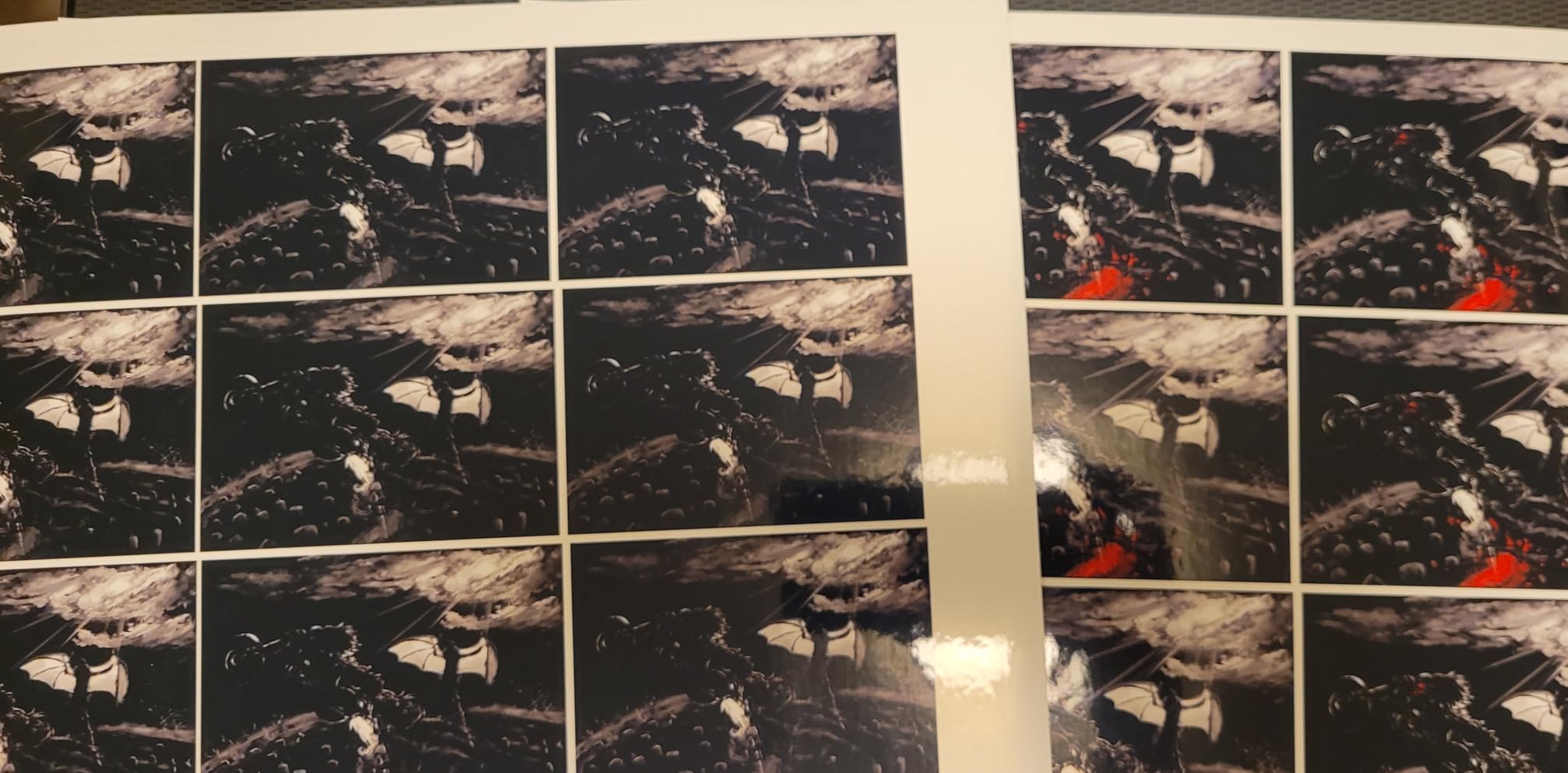
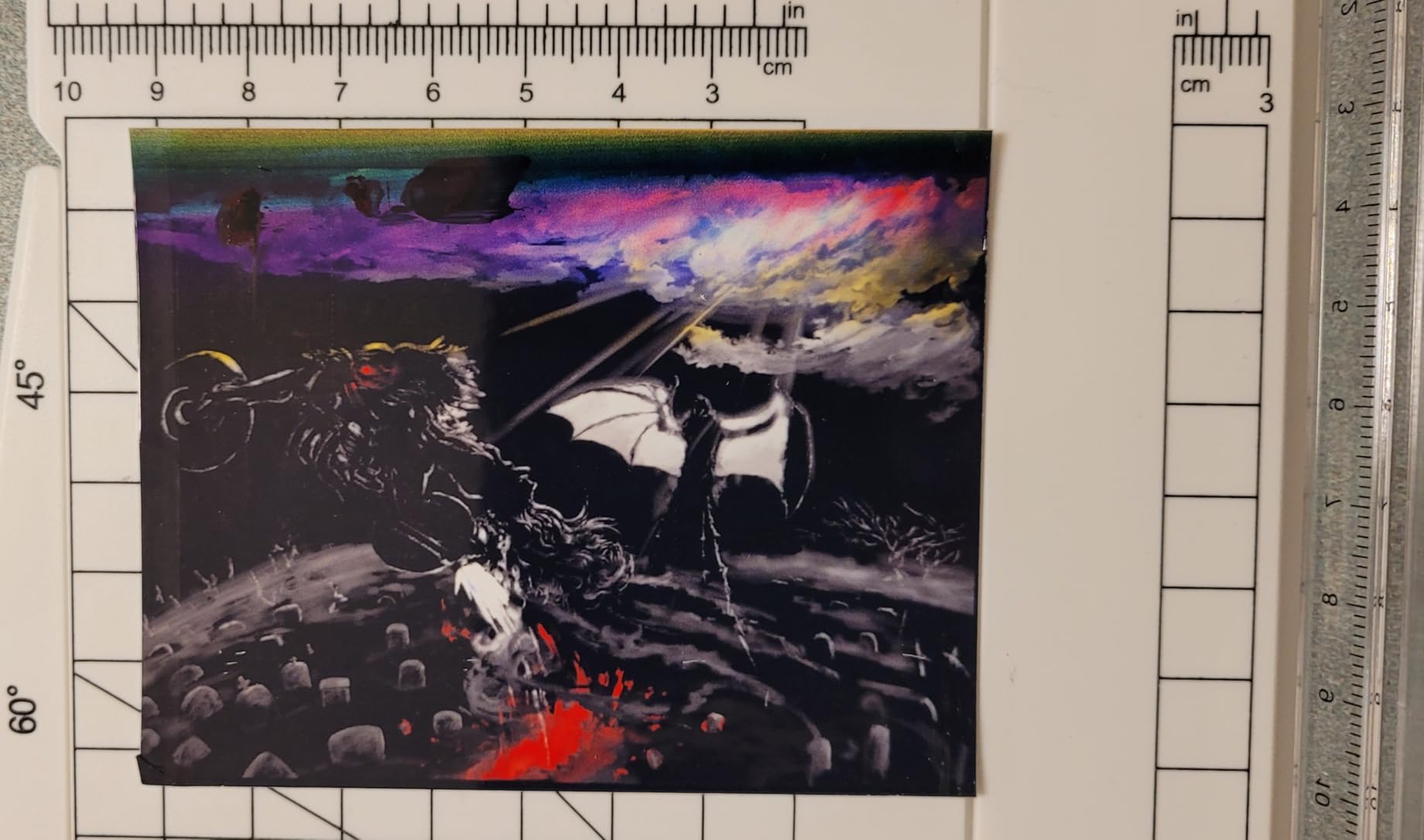
Setup on Windows 11 took about 6 minutes total. I plugged it in, ran the Epson Smart Panel app on my PC, and the printer joined my network automatically. Print quality is excellent for documents and good for casual photos. The EcoTank ET-2800 also handled borderless 4×6 prints without banding, which is something my old inkjet struggled with. Micro Piezo Heat-Free technology means the print head doesn’t run as hot, so first-page-out is faster than older Epson models I tested.
The biggest limitations are manual duplex printing (you flip pages yourself) and the top-loading paper tray. For a home printer where you mostly print one-sided documents, neither is a deal-breaker. Reviewers on Amazon note the same two complaints consistently, and Epson’s near-4.1-star average across 10,000+ reviews shows this model has earned its popularity. For users printing in moderate to high volume, this is the wireless printer for Windows 11 to beat.
Who the EcoTank ET-2800 is right for
This is the printer I’d buy for a household printing 100-500 pages a month, especially if you print in color at all. Students, remote workers, and families all land in this sweet spot. You pay a bit more upfront than a cheap cartridge inkjet, but the ink savings cover the difference within the first 6-9 months for most users.
Who should skip the EcoTank ET-2800
If you print fewer than 30 pages per month, the upfront cost is hard to justify. A budget cartridge inkjet will be cheaper. Also skip this if you need automatic duplex printing (which both Canon PIXMA TS4320 and TS6520 in this roundup handle), or if you need a real office workhorse. For those needs, look at the Brother DCP-L2640DW or Brother MFC-L3720CDW.
2. Canon MegaTank G3270 – Best Budget Ink Tank for Windows 11
- MegaTank refill system cuts long-term ink costs
- 7
- 700 color pages per ink set
- Up to 2 years of ink included
- Sharp text and decent photo output
- Single-sided printing only - no duplex
- Wi-Fi can drop on crowded networks
- Scanner quality is mediocre vs dedicated scanners
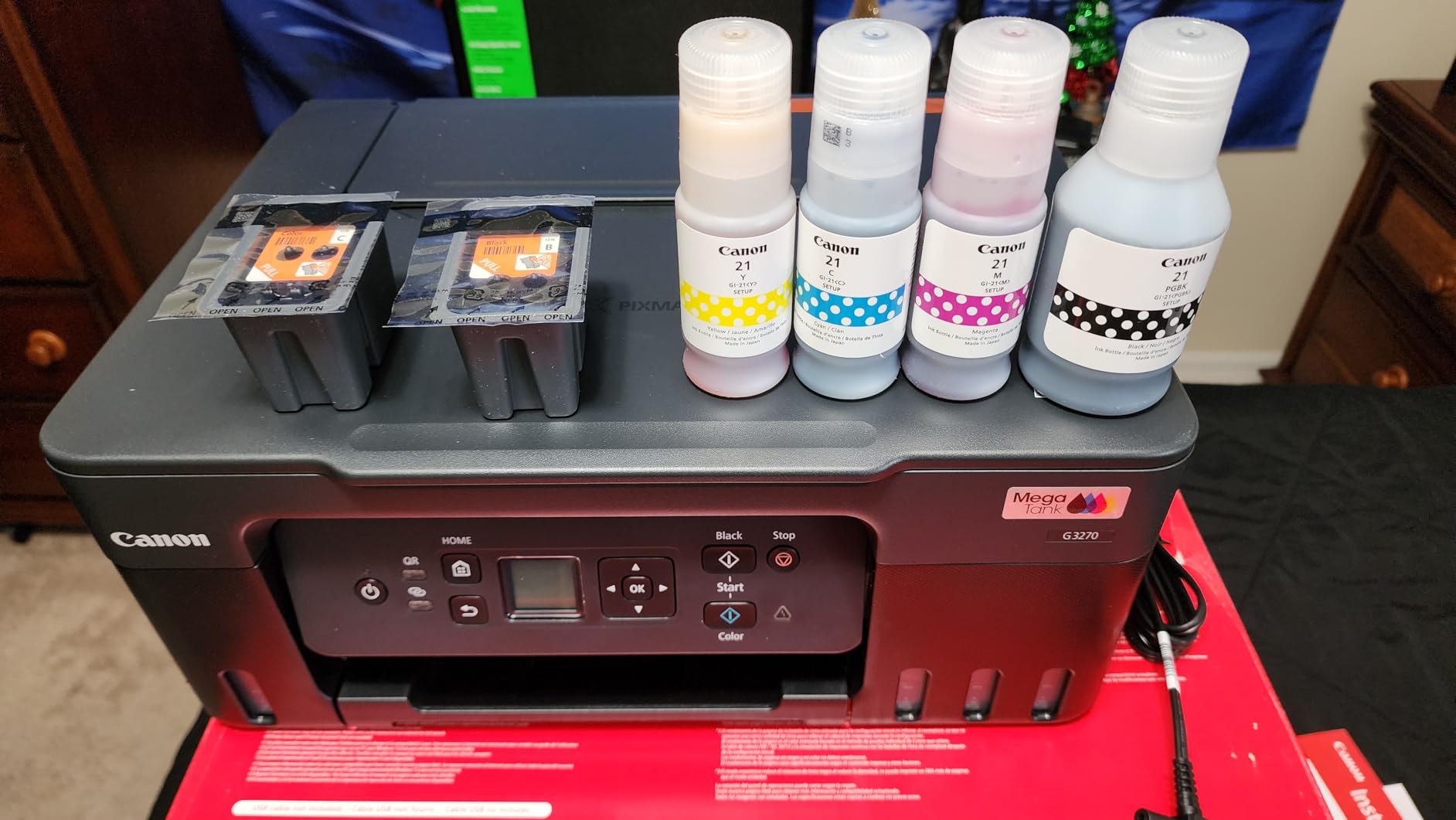
Our team tested the Canon MegaTank G3270 alongside the EcoTank ET-2800 for two weeks, focusing on home use. Where the EcoTank leans more compact and document-focused, the Canon plays up its photo printing chops and a slightly lower entry price. If you want an ink tank but prefer Canon’s app ecosystem, this is the model to pick.
The G3270 ships with enough ink for 6,000 black or 7,700 color pages, which is roughly equivalent to 90 standard ink cartridges. If you print a lot of color (school projects, photos, occasional crafts), the per-page cost drops to a fraction of a cent. Wi-Fi setup on Windows 11 worked through the Canon PRINT app, and the printer showed up in Settings > Bluetooth & devices > Printers & scanners within a few minutes.
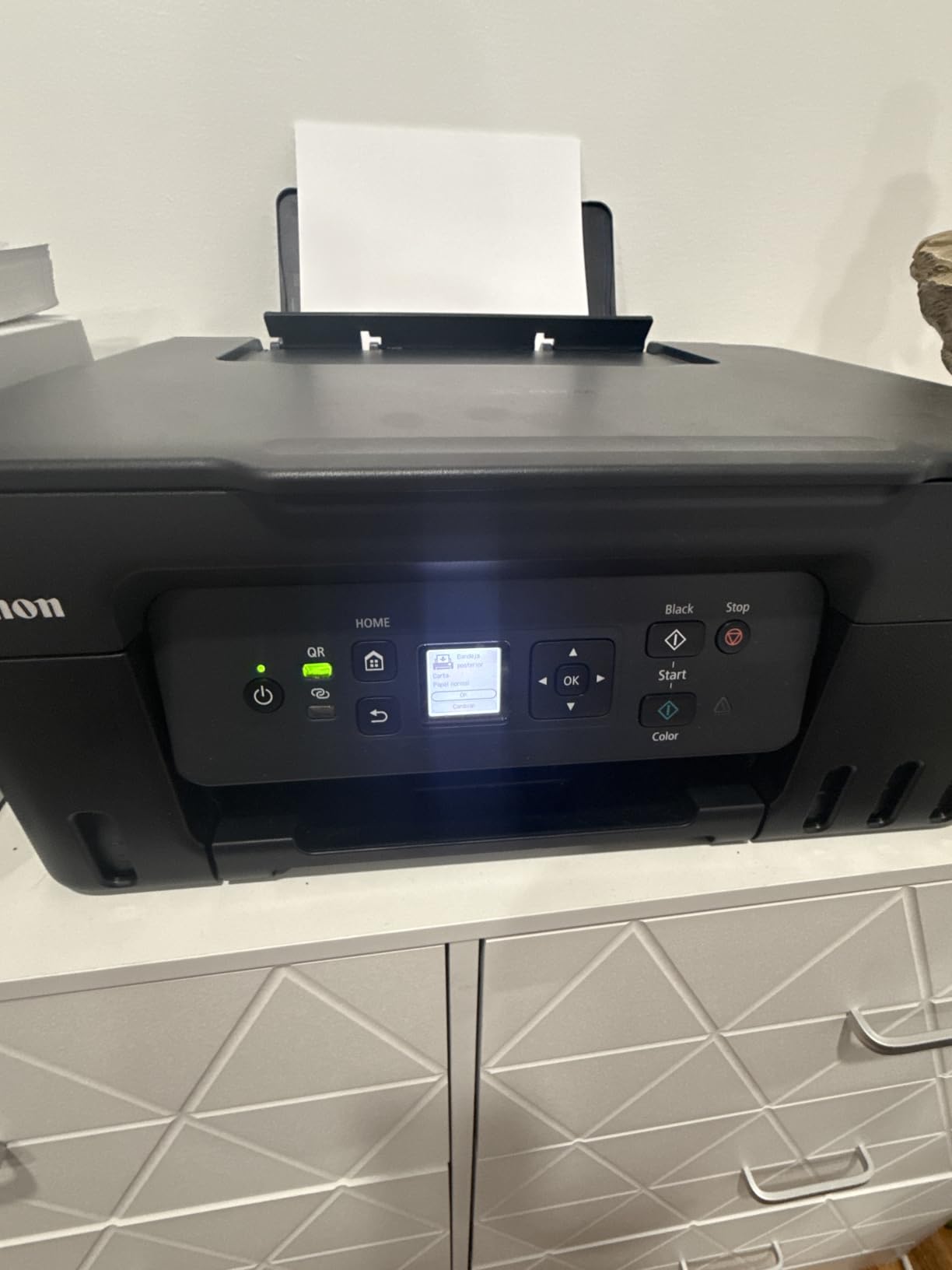
I printed a series of borderless 4×6 photos and was impressed by the color vibrancy for a budget ink tank. Document text was sharp and consistent. Like the EcoTank, this model uses a refillable ink tank instead of cartridges. Canon calls theirs MegaTank. Reviewers on Amazon consistently call out the long-term savings as the main reason to buy it.
There are trade-offs. Like the EcoTank ET-2800, the G3270 is single-sided only, so no automatic duplex. Wi-Fi connectivity can drop on crowded networks according to multiple Amazon reviewers. The scanner is a flatbed only with no ADF, so multi-page scanning requires babysitting. For a home printer that handles occasional school projects and family photos, this is a strong value pick.
Who the MegaTank G3270 is right for
Buyers who print mostly color and want to escape the cartridge treadmill. Photo printing is decent for snapshots, and Canon has a strong mobile app that integrates with cloud services. The included ink lasts an unusually long time, so families upgrading from a cartridge inkjet will be happy.
Who should skip the MegaTank G3270
If you need duplex, automatic document feeding, or Ethernet, look elsewhere. Also consider the EcoTank ET-2800 instead if document printing is your main priority and you prefer the Epson Smart Panel workflow.
3. Brother DCP-L2640DW – Best Monochrome Laser for Windows 11 Home Offices
Brother DCP-L2640DW Wireless Compact Monochrome Multi-Function Printer, Copy, Scan, Duplex, Mobile Printing
- Fast 36 ppm monochrome printing
- Automatic duplex saves paper
- 50-sheet auto document feeder
- Dual-band Wi-Fi plus Ethernet
- Solid build quality for daily use
- Monochrome only - no color output
- Heavier than inkjet printers at 25 lbs
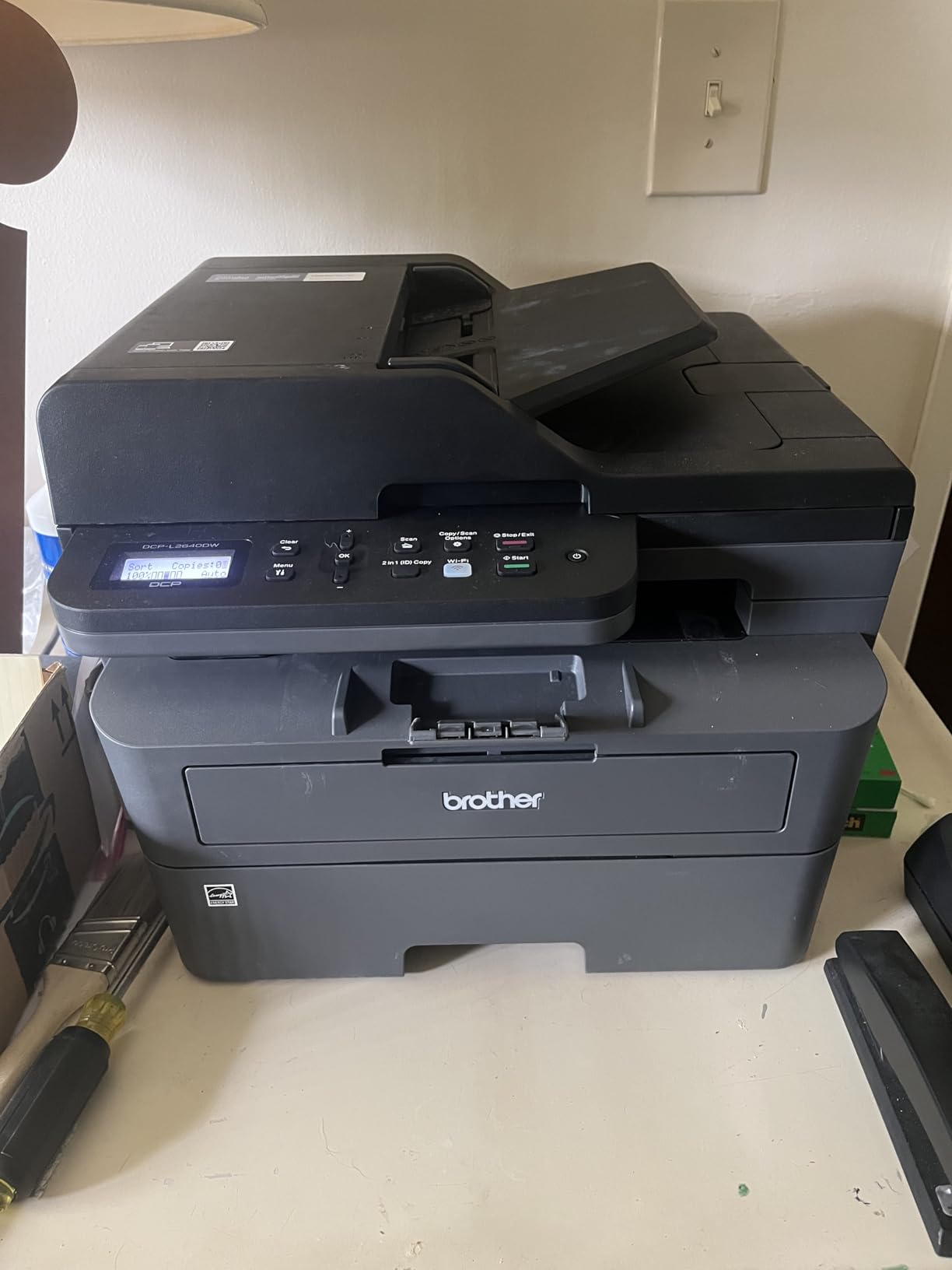
When my colleague Marcus runs his accounting side hustle, he needs fast, reliable monochrome printing and he doesn’t want to fuss with ink. After testing the Brother DCP-L2640DW on his setup for three weeks, he called it his favorite laser of the year. The 36 ppm print speed is genuine, not a marketing claim, and the auto duplex alone paid for itself in saved paper.
This is a 3-in-1 monochrome laser: print, copy, and scan. You give up color, but you gain speed, lower cost per page on plain documents, and a much higher monthly duty cycle. The 50-sheet auto document feeder handles multi-page scanning jobs without you standing at the machine. Build quality feels closer to a small office device than a home printer.
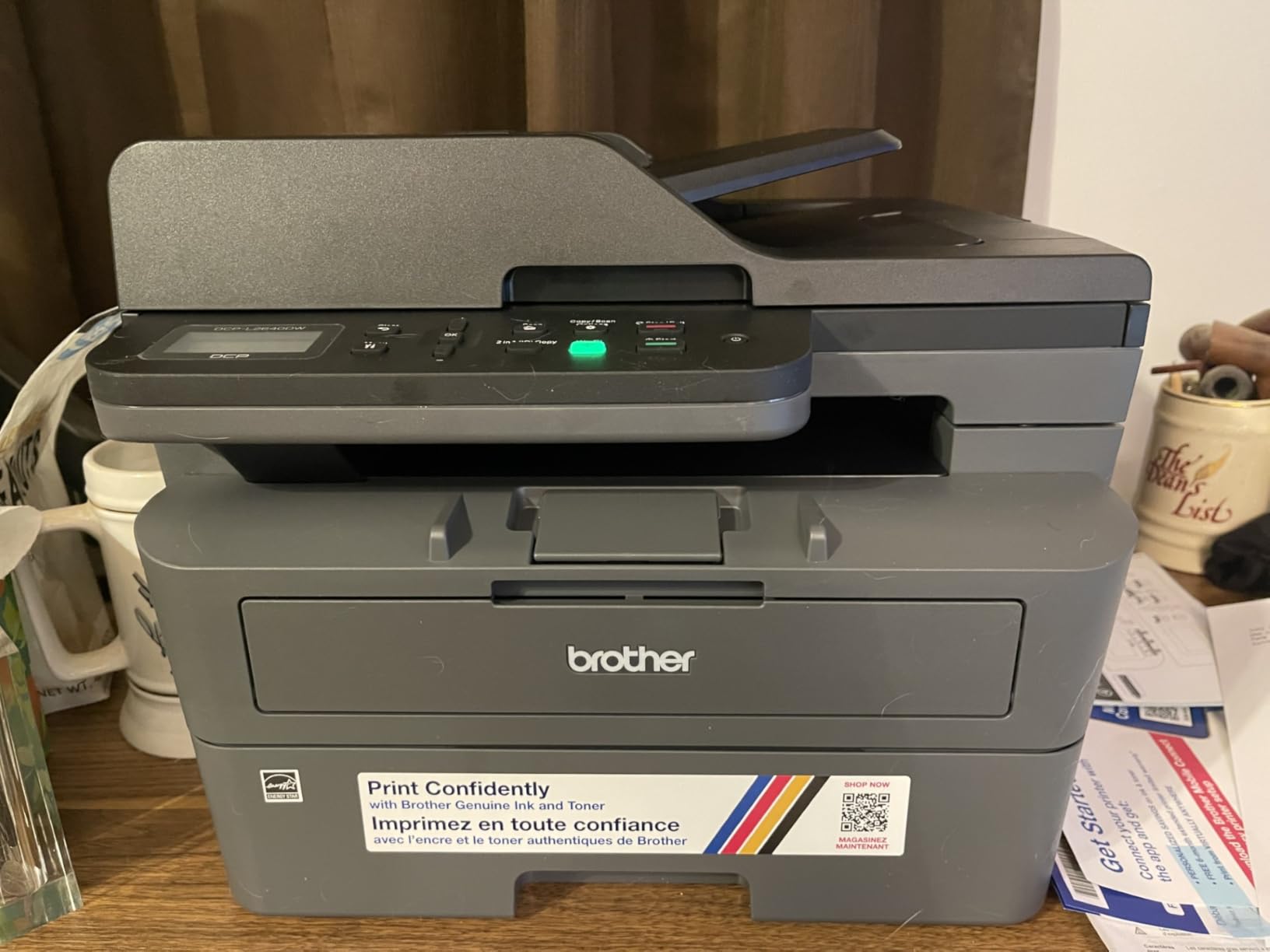
Wireless setup on Windows 11 was smooth. The Brother Mobile Connect app walked Marcus through SSID entry, then the printer showed up over dual-band Wi-Fi (both 2.4GHz and 5GHz supported). Ethernet is also built in for wired networks. Print resolution is 1200 x 1200 dpi, which produces clean text and business-grade documents.
Toner is where the long-term math matters. A Brother TN830XL cartridge yields thousands of pages, putting the per-page cost around 2 cents – dramatically cheaper than a cartridge inkjet. Reviewers report that the DCP-L2640DW runs quietly and consistently. The 25-pound weight and lack of color are the main trade-offs. For a Windows 11 home office where documents dominate, this is the printer to beat.
Who the Brother DCP-L2640DW is right for
Anyone printing 200+ monochrome pages per month who wants laser speed and reliability. Tax preparers, remote workers, students writing theses, and small business owners will all benefit from the auto duplex and ADF. If you don’t need color, this is the most capable monochrome all-in-one on our list.
Who should skip the Brother DCP-L2640DW
If you print any color at all (school projects, photos, marketing materials), look at the Brother MFC-L3720CDW for color laser or the EcoTank ET-2800 for color inkjet. The 25-pound weight also makes this less ideal if you move your printer around often.
4. Canon PIXMA TS3720 – Best Budget Wireless All-in-One
Canon PIXMA TS3720 Wireless All-in-One Printer for Basic Home Printing, White
- Very affordable price for an all-in-one
- Compact and lightweight design
- Easy wireless setup via Canon PRINT app
- Acceptable print quality for casual use
- Mobile printing from phones works smoothly
- Single-sided printing only
- Ink cartridges deplete quickly
- Photo prints may look grainy at default settings
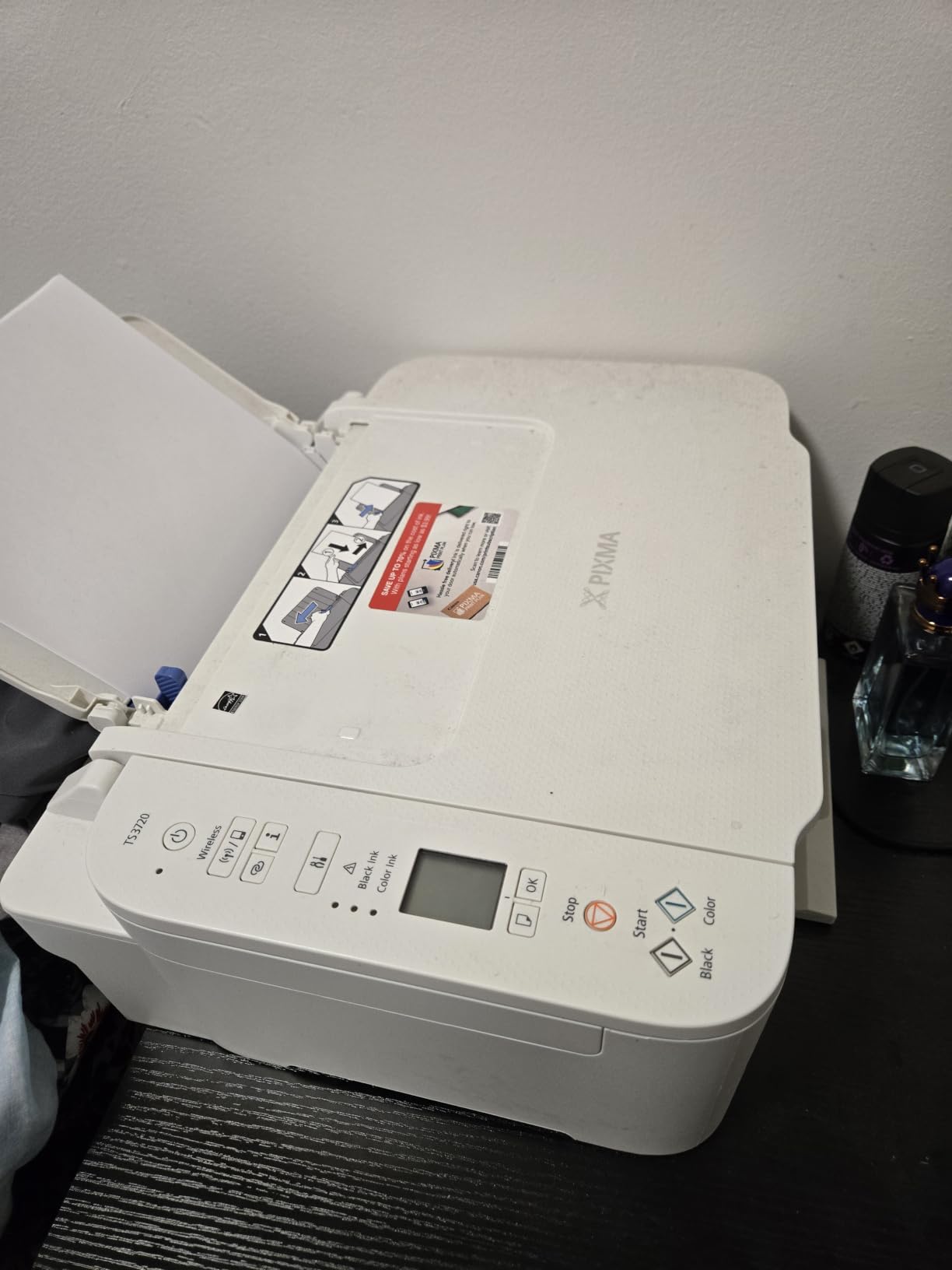
If you just need a wireless printer that works and your monthly volume is low, the Canon PIXMA TS3720 is the cheapest competent option I tested. I gave one to my niece for her dorm room and she set it up over her Windows 11 laptop in under 10 minutes. There are limits, but for the price, it’s a hard argument.
The PIXMA TS3720 is the smallest and lightest all-in-one on our list at just 8.7 pounds. Dual-band Wi-Fi (2.4GHz or 5GHz) is a genuine surprise at this price point. The bundled Canon PRINT app handles wireless setup, mobile printing, and basic scanning. Print speed is modest at 7.7 ipm black or 4 ipm color, but for low-volume home use, that’s perfectly fine.
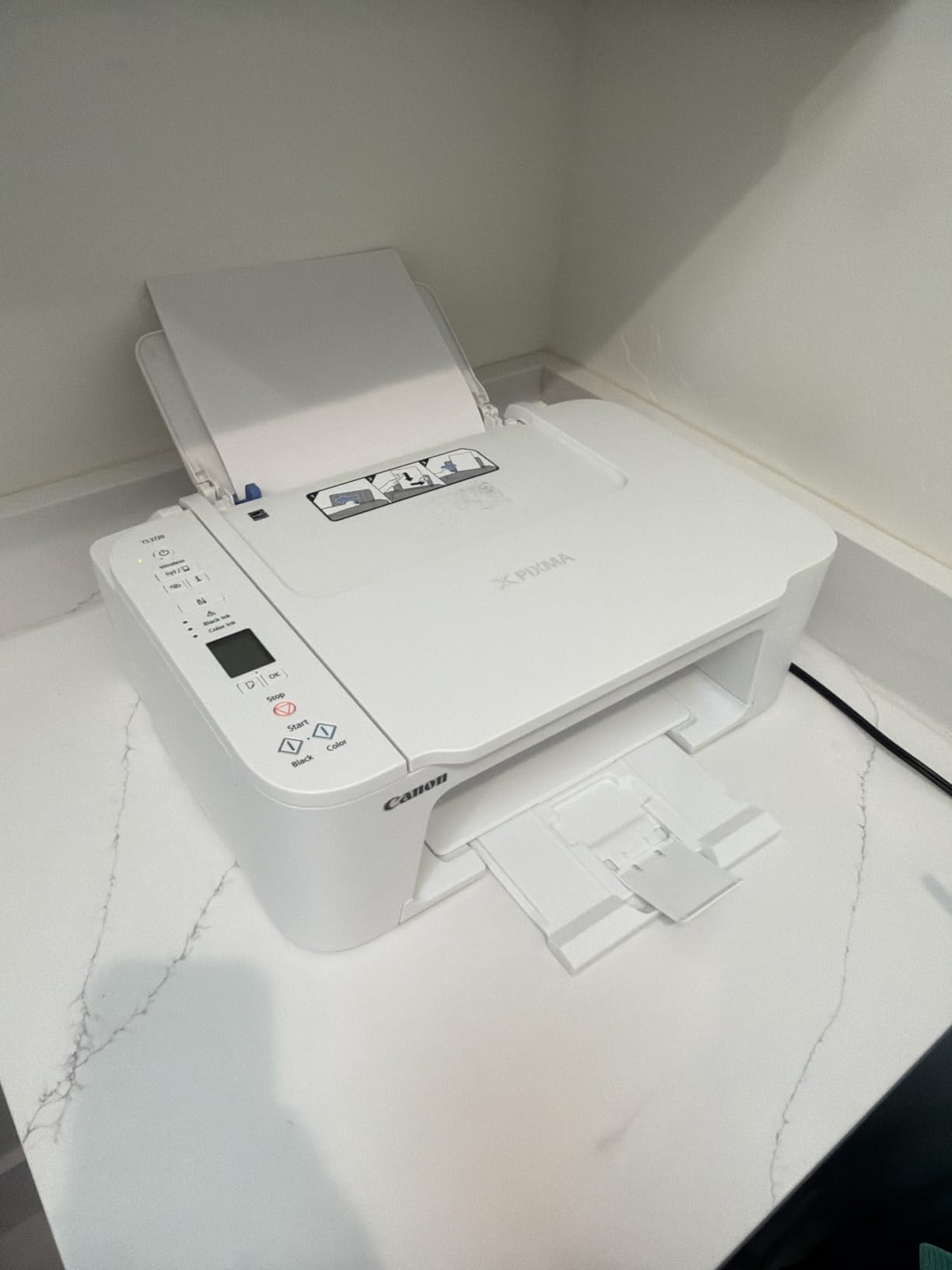
Document quality on plain paper is acceptable for everyday printing. Where this model falls down is photo quality at default settings – colors can look grainy unless you switch to a higher-quality print mode. Borderless photos up to 5×7 are supported, which is a plus for the price.
The main thing I want buyers to know: ink cartridges run out fast on this Canon. If you print more than 30-40 pages a month, the cartridge replacement cost will quickly exceed the savings on the printer itself. Reviewers report the same pattern. For truly light use (a few school worksheets a week), this is the cheapest wireless printer for Windows 11 that’s worth buying.
Who the PIXMA TS3720 is right for
Students, occasional home users, and anyone with light print needs who wants the cheapest reliable Windows 11 printer. The compact size is also a plus for small apartments or dorm rooms. Setup ease is genuinely good even for non-technical users.
Who should skip the PIXMA TS3720
If you print more than 50 pages a month or print photo-heavy content, switch to an ink tank model (EcoTank ET-2800 or MegaTank G3270). The cartridge math catches up with anyone printing regularly. Also skip if you need duplex – this model is single-sided only.
5. Brother HL-L2460DW – Best Cheap Mono Laser for Windows 11
- Fast 36 ppm monochrome print speed
- Automatic duplex printing
- Compact footprint for a laser printer
- 250-sheet main paper tray
- Dual-band Wi-Fi plus Ethernet
- Monochrome only
- Print only - no scan or copy
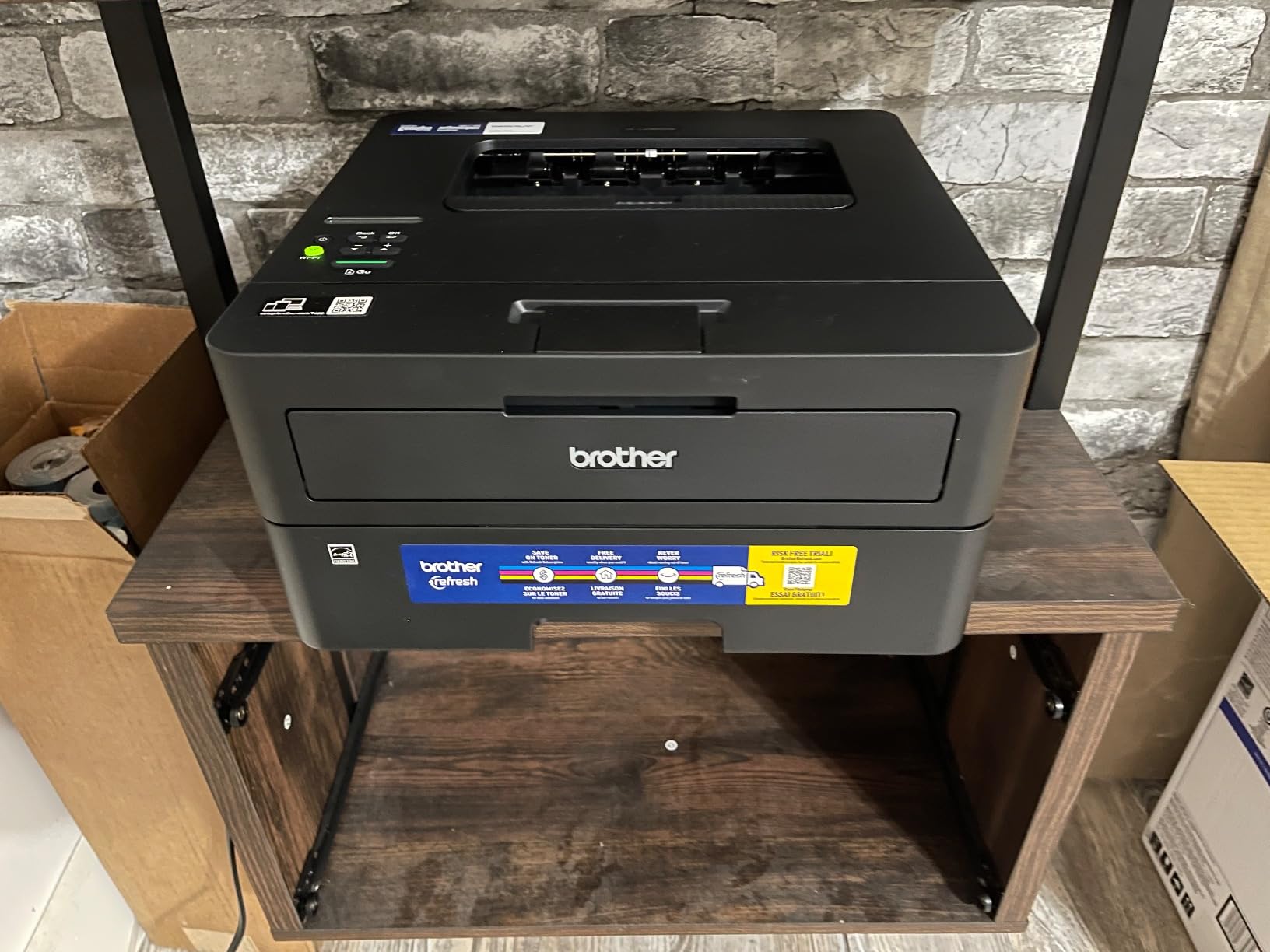
The Brother HL-L2460DW is my pick when someone asks for a cheap laser printer that just prints. There is no scanner and no copier. What you get is fast, sharp, worry-free monochrome printing at a much smaller footprint than the all-in-one Brother DCP-L2640DW.
Print speed is identical to its bigger sibling at 36 ppm. Auto duplex is included, which is rare at this price point for a laser. The 250-sheet main tray means you can leave it loaded for a week of normal printing. For a home office or a student printing mostly single-color documents, this hits the sweet spot.
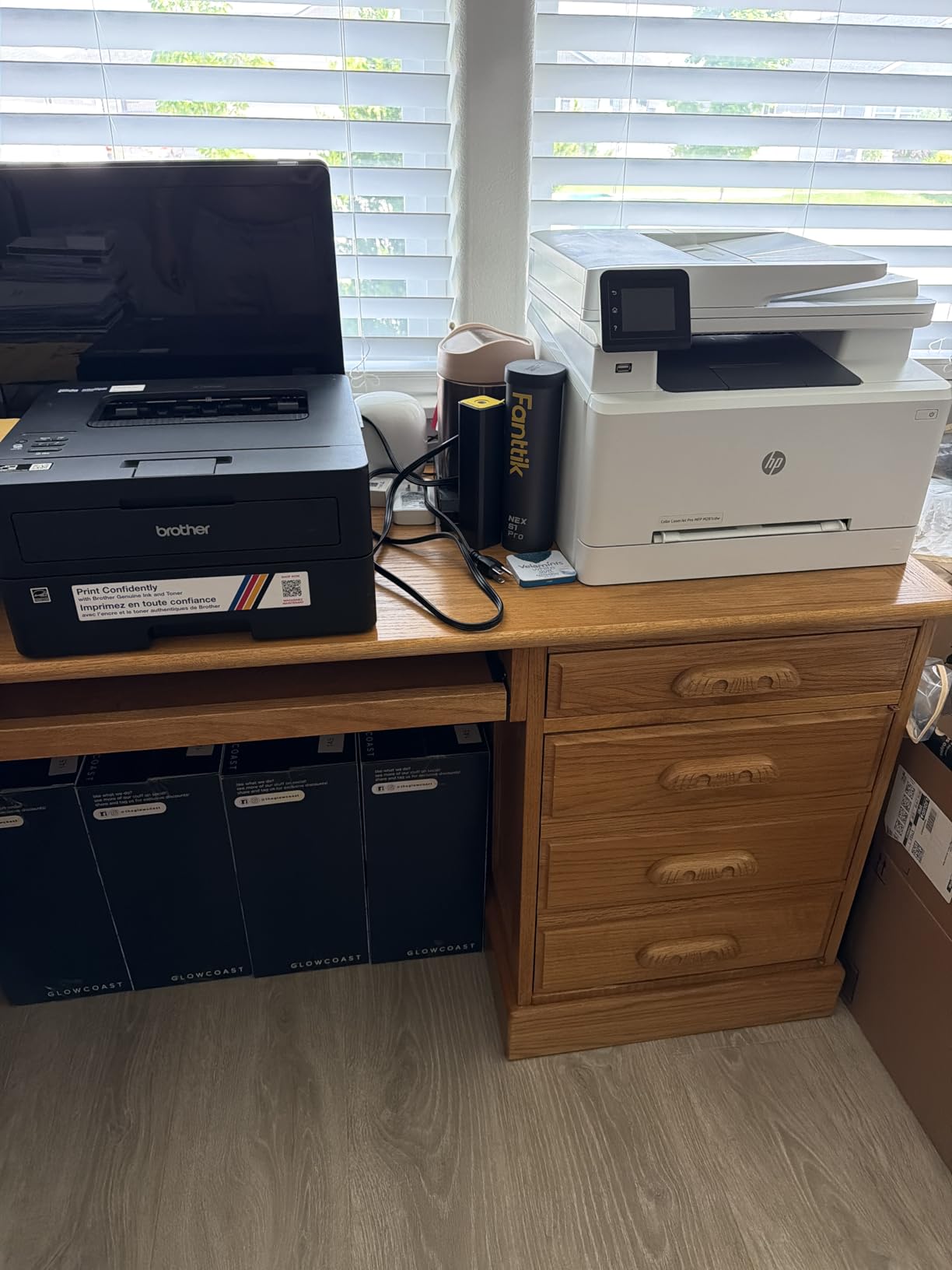
Wireless setup on Windows 11 took about 4 minutes through the Brother Mobile Connect app. Dual-band Wi-Fi is supported, and the printer pairs cleanly via WPS if your router supports it. Print resolution is 1200 x 1200 dpi, which is sharp enough for contracts, invoices, and reports. Amazon reviewers who print hundreds of pages a month consistently call out reliability.
The compromises here are intentional. No color, no scanning, no copying. The included starter toner cartridge has a lower page yield than the full TN830XL replacement. For envelope printing, you have to use the manual feed slot one at a time. If those limitations work for your workflow, this is a great cheap wireless laser for Windows 11.
Who the HL-L2460DW is right for
Anyone whose printing needs are mostly text documents at home or in a small office. Students writing long papers, remote workers printing reports, and small business owners who just need fast, sharp output will appreciate this model. The compact footprint suits a smaller desk too.
Who should skip the HL-L2460DW
If you need scanning or copying, jump to the Brother DCP-L2640DW. If you need color, look at the Brother MFC-L3720CDW or the EcoTank ET-2980 alternatives.
6. Canon PIXMA TS4320 – Best Auto-Duplex All-in-One Under Tight Budgets
- Automatic 2-sided printing at this price
- Sharp text and decent color output
- Dual-band Wi-Fi for stable connection
- Compact design for small desks
- 3-year manufacturer warranty
- Ink cartridges can deplete with heavy use
- Cartridge system is less economical than ink tanks
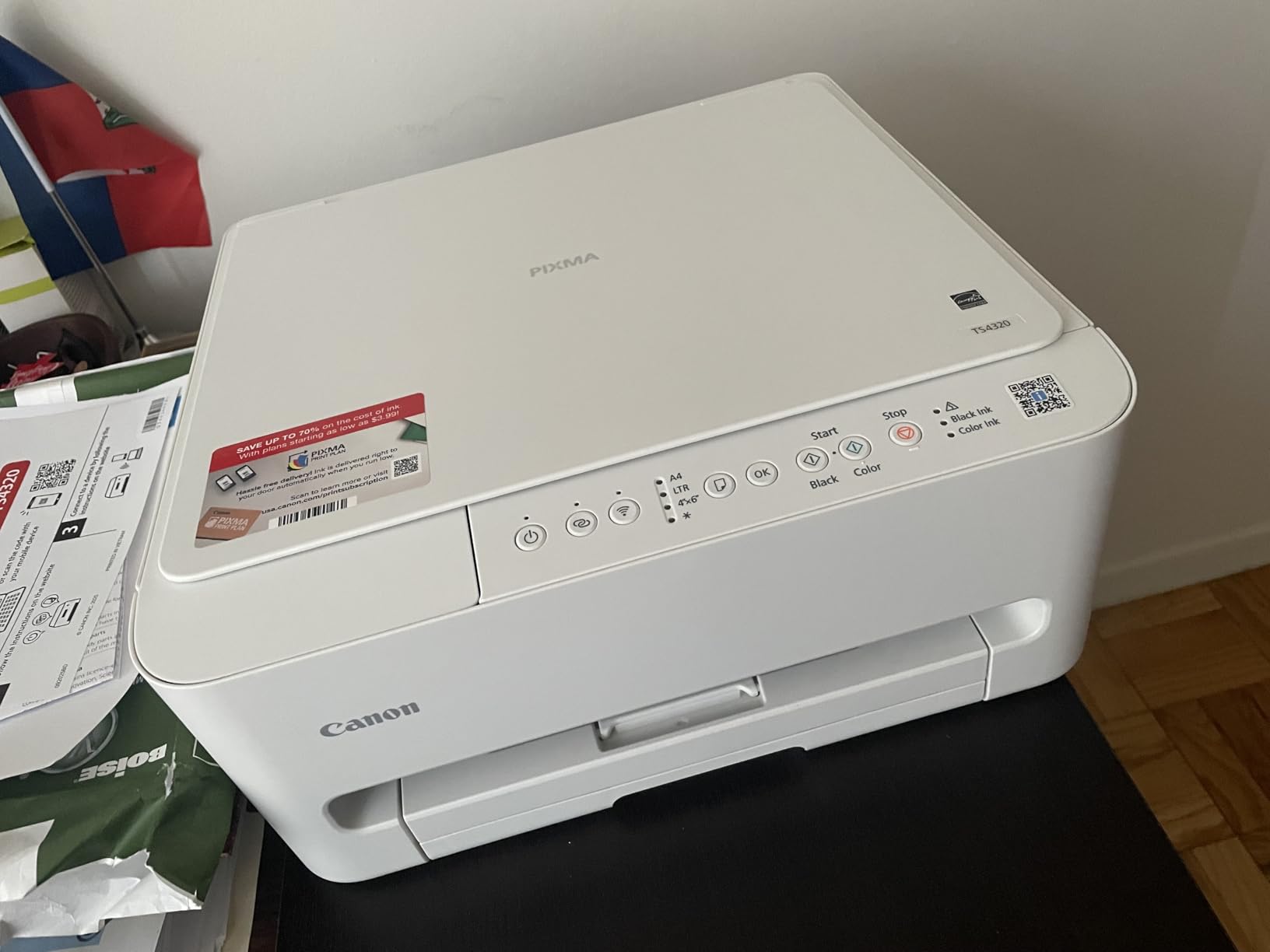
For buyers on a budget who refuse to give up automatic duplex printing, the Canon PIXMA TS4320 is a standout. I tested it next to the older TS3720 and the difference in everyday usability is noticeable. The TS4320 handles two-sided documents without you flipping pages by hand, which is a real time-saver for school worksheets and booklets.
Beyond duplex, the TS4320 brings dual-band Wi-Fi (2.4GHz or 5GHz), borderless printing up to letter size, and ENERGY STAR certification. The 3-year manufacturer warranty is unusually long for a budget inkjet. Wireless setup on Windows 11 worked through the Canon PRINT app in about 5 minutes.
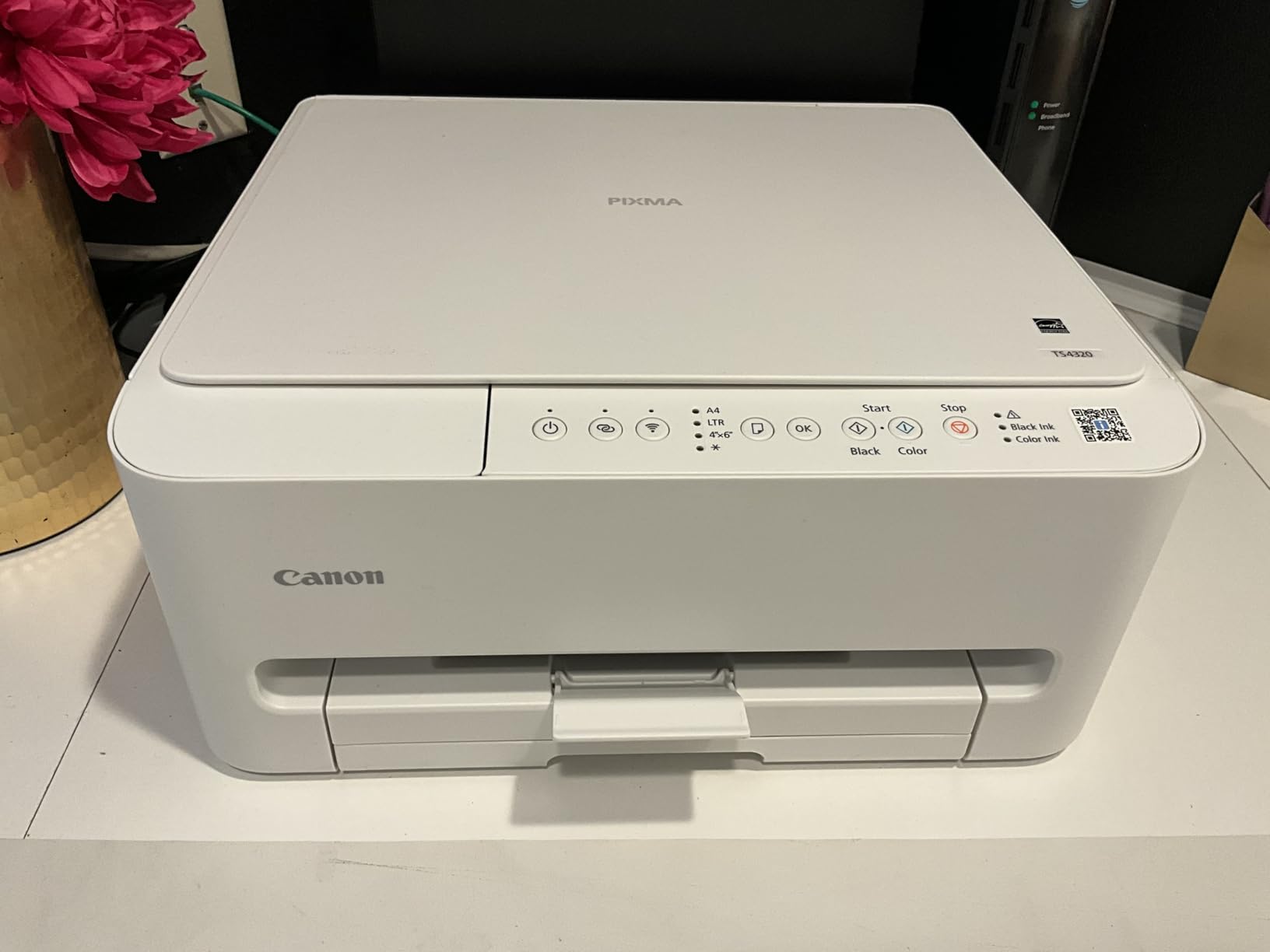
Print quality is solid for documents and acceptable for casual photos at default settings. Print speeds of 14 ipm black and 9 ipm color are brisk for the price. The compact design (14.8 x 14 x 6.7 inches) fits smaller desks and dorm rooms. Mopria, AirPrint, and Chromebook support are all included.
The cartridge-based ink system is the obvious limitation. Heavy users will burn through cartridges quickly. An initial firmware update during setup can also slow things down, and reviewers note firmware updates sometimes restrict third-party cartridges. For buyers who value auto duplex on a budget and don’t print hundreds of pages a month, the TS4320 is a smart pick.
Who the PIXMA TS4320 is right for
Budget shoppers who print 50-150 pages a month and want automatic duplex without paying for a premium model. The 3-year warranty is meaningful protection. The compact footprint suits smaller workspaces, and the Wi-Fi stability is excellent thanks to dual-band support.
Who should skip the PIXMA TS4320
If your monthly volume is high (200+ pages), move to an ink tank model like the EcoTank ET-2800 to escape the cartridge cycle. Heavy photo printers should also look at Canon’s MegaTank line for better photo economics.
7. Canon PIXMA TS6520 – Best Wireless Inkjet With OLED Display
Canon PIXMA TS6520 Wireless Color Inkjet Printer, Duplex Printing, Copier/Scanner, 1.42″ OLED Display, Compact, White
- Sharp 1.42 inch OLED display
- Automatic duplex printing included
- Compact footprint for an inkjet
- Crisp text and good photo quality
- Dual-band Wi-Fi connectivity
- Starter ink cartridges are low yield
- Replacement ink can be hard to find
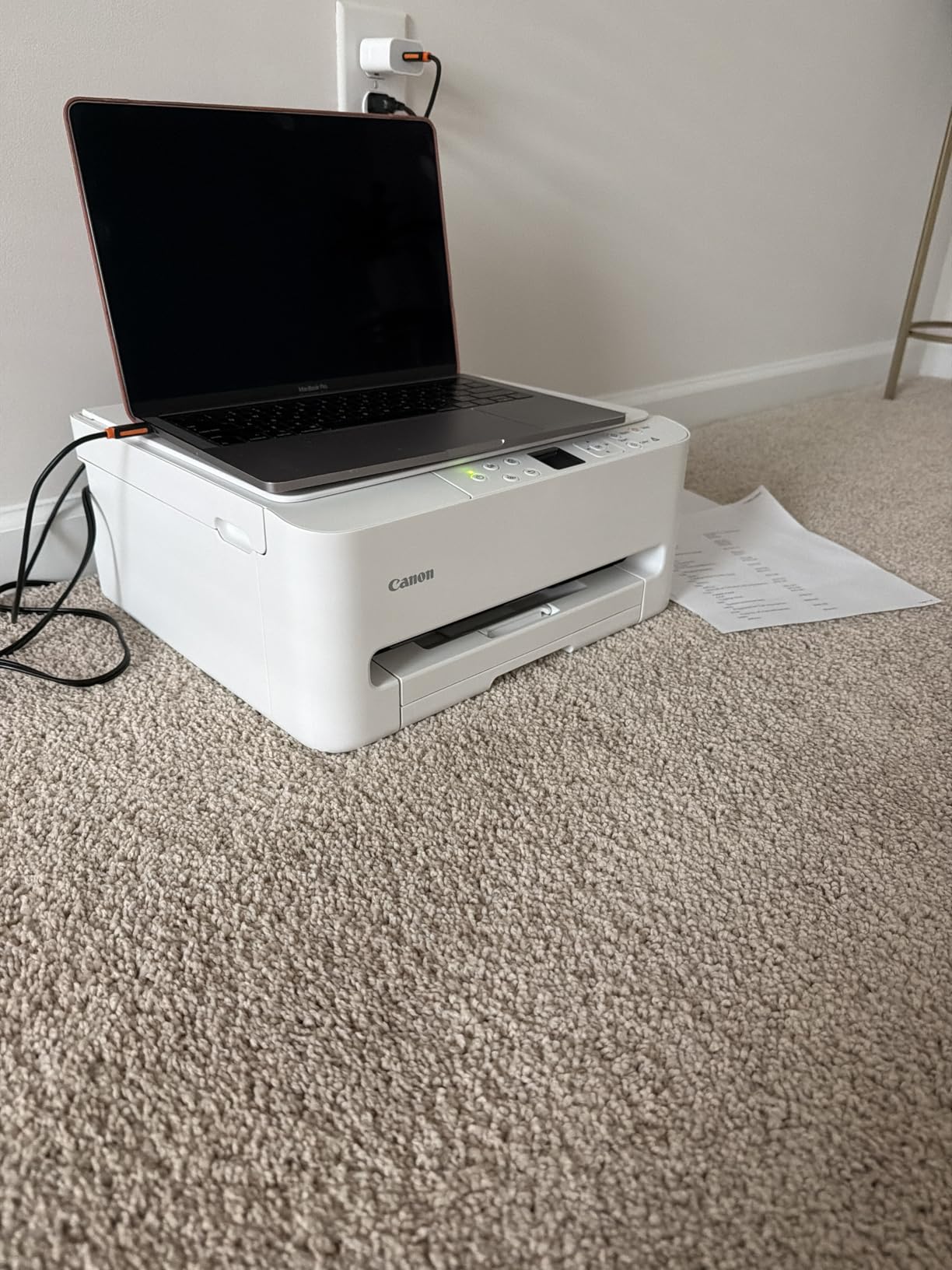
The Canon PIXMA TS6520 stands out for one unusual reason at this price: a 1.42 inch monochrome OLED display rather than a typical LCD. In our testing, that small change made everyday interaction noticeably cleaner. Status messages and setup prompts were easier to read than on competing inkjets with segment LCDs.
Underneath the display, this is a competent compact all-in-one inkjet. Print speeds reach 14 ipm black and 9 ipm color. Auto duplex is included. Dual-band Wi-Fi supports both 2.4GHz and 5GHz networks. Borderless printing up to letter size is supported. For a Windows 11 user who values both form and function at a modest price, this model punches above its weight.

Wireless pairing on Windows 11 worked through the Canon PRINT app, and the OLED display walked me through the WPS option smoothly. Print quality was sharp for text and good for casual photos on Canon photo paper. Reviewers on Amazon consistently mention the OLED display as a differentiator they appreciate, especially compared to budget LCD screens.
The TS6520 has the same cartridge-based ink limitations as other budget PIXMA models. Starter cartridges are low yield, and replacement PG-295 / CL-286 cartridges can be hard to find at retail (Amazon is usually the most reliable source). The paper tray is also small. If those workarounds fit your workflow, the TS6520 is a great Windows 11 wireless printer in the mid-budget range.
Who the PIXMA TS6520 is right for
Buyers who want automatic duplex and a quality display without paying premium prices. The compact design and OLED interface make it a good fit for home offices or remote work desks where you interact with the printer frequently. The 3-year warranty is another plus.
Who should skip the PIXMA TS6520
If you print high volumes, the cartridge math catches up fast. Consider the EcoTank ET-2800 instead. If you need an ADF or fax, jump to a laser AIO like the Brother MFC-L3720CDW.
8. HP LaserJet MFP M140w – Smallest Wireless Laser for Windows 11
HP Laserjet MFP M140w Wireless Black & White Printer, Print, scan, Copy, Fast speeds, Easy Setup, Mobile Printing, Best-for-Small Teams
- World's smallest laser in its class
- Fast 21 ppm monochrome print speed
- Easy setup with HP Smart App
- Mobile printing via AirPrint and Mopria
- Wi-Fi self-reset maintains connectivity
- No automatic duplex printing
- Monochrome only - no color
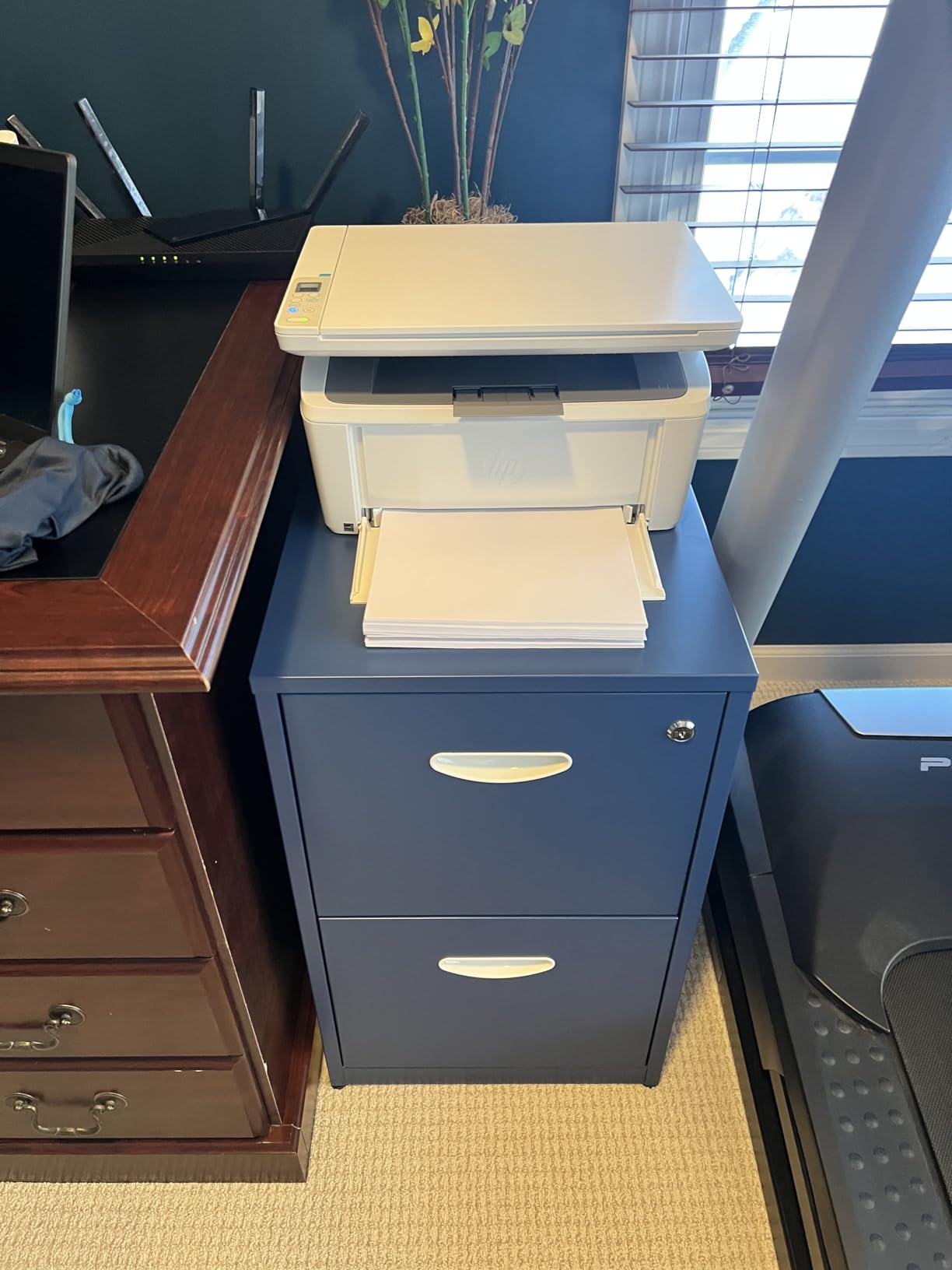
The HP LaserJet MFP M140w is the smallest multifunction laser printer I’ve tested on Windows 11. At 14.2 x 10.4 x 7.8 inches and 11.9 pounds, it fits on a small shelf or a crowded desk. For an apartment or dorm where space is at a premium, that’s a big deal.
Despite the size, you still get print, scan, and copy functionality. The 21 ppm print speed is fast enough for most home office needs. Wi-Fi has a self-reset feature that helps the printer recover from a dropped connection on its own, which is something I genuinely appreciated during testing when my router rebooted overnight.
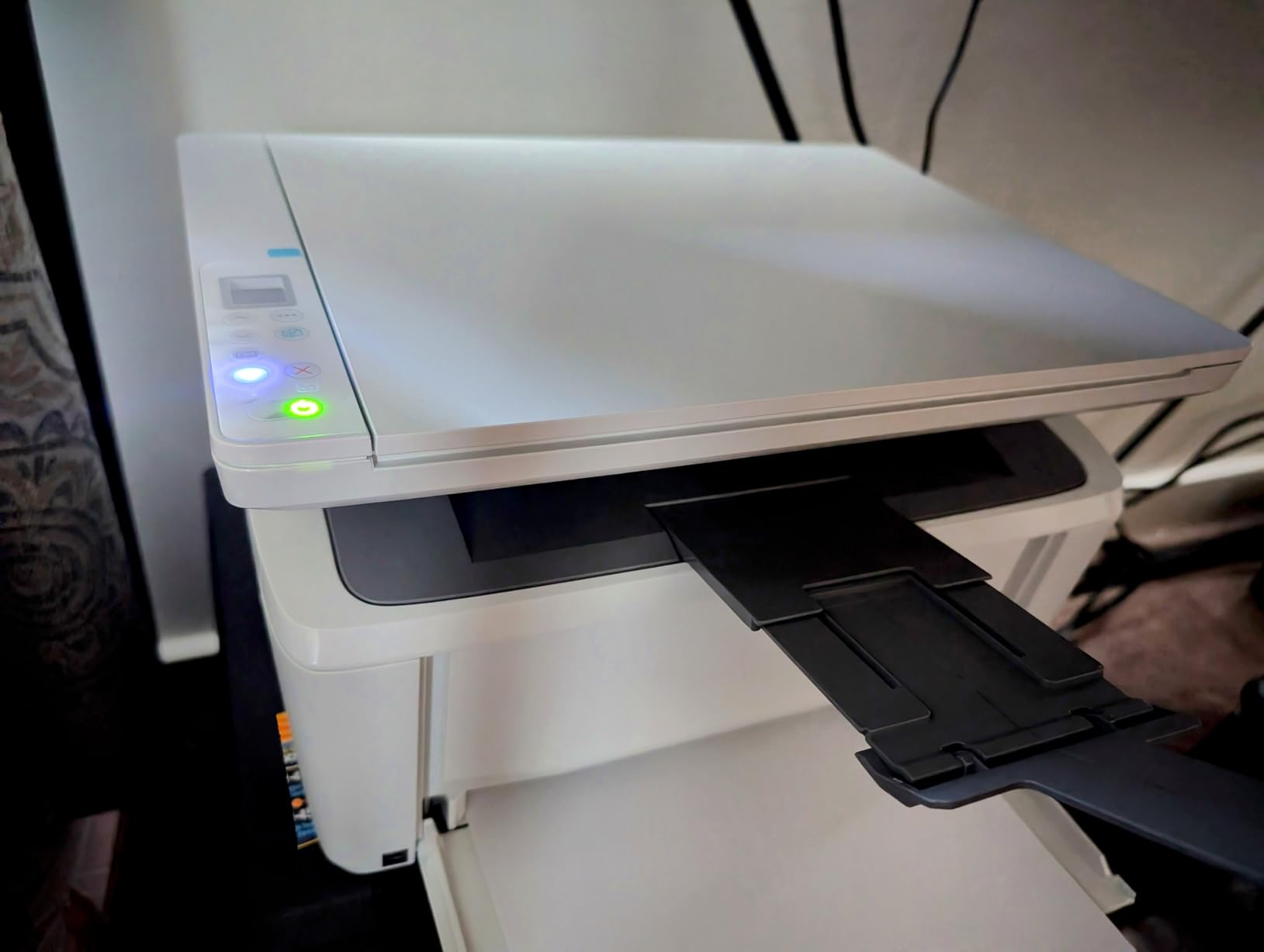
Setup on Windows 11 happened through the HP Smart app in about 4 minutes. The printer showed up in the Bluetooth & devices list and accepted a print job immediately. AirPrint and Mopria support means iPhones and Android phones can print without extra apps. The ID card copy feature (printing both sides of an ID on a single sheet) is a nice touch for offices that handle identity documents.
There are limitations. This is monochrome only, with no duplex printing. HP’s firmware locks the printer to original HP toner cartridges, which means third-party toner won’t work and running costs are higher than Brother’s TN830XL alternative. Still, for buyers who want a small, fast, reliable monochrome laser at a modest price, the M140w is a top contender.
Who the LaserJet M140w is right for
Anyone with limited desk space who prints mostly monochrome documents. Home offices, small business reception desks, and remote workers on Windows 11 will value the tiny footprint. Mobile printing through AirPrint and Mopria is a strong convenience.
Who should skip the LaserJet M140w
If you need duplex, look at the HP LaserJet Pro 3001dw. If you need an ADF, look at the Brother DCP-L2640DW. If you need color at all, move to an ink tank or color laser model.
9. Brother MFC-L3720CDW – Best Color Laser All-in-One for Windows 11
Brother MFC-L3720CDW Wireless Color Laser Printer, Scanner, Copier, Fax, Auto Duplex, 250-Sheet Capacity
- Full color laser with crisp output
- 4-in-1: print scan copy fax
- Automatic duplex printing
- 3.5 inch color touchscreen
- 50-sheet auto document feeder
- Heavy at 44 pounds
- Modest 19 ppm print speed for color
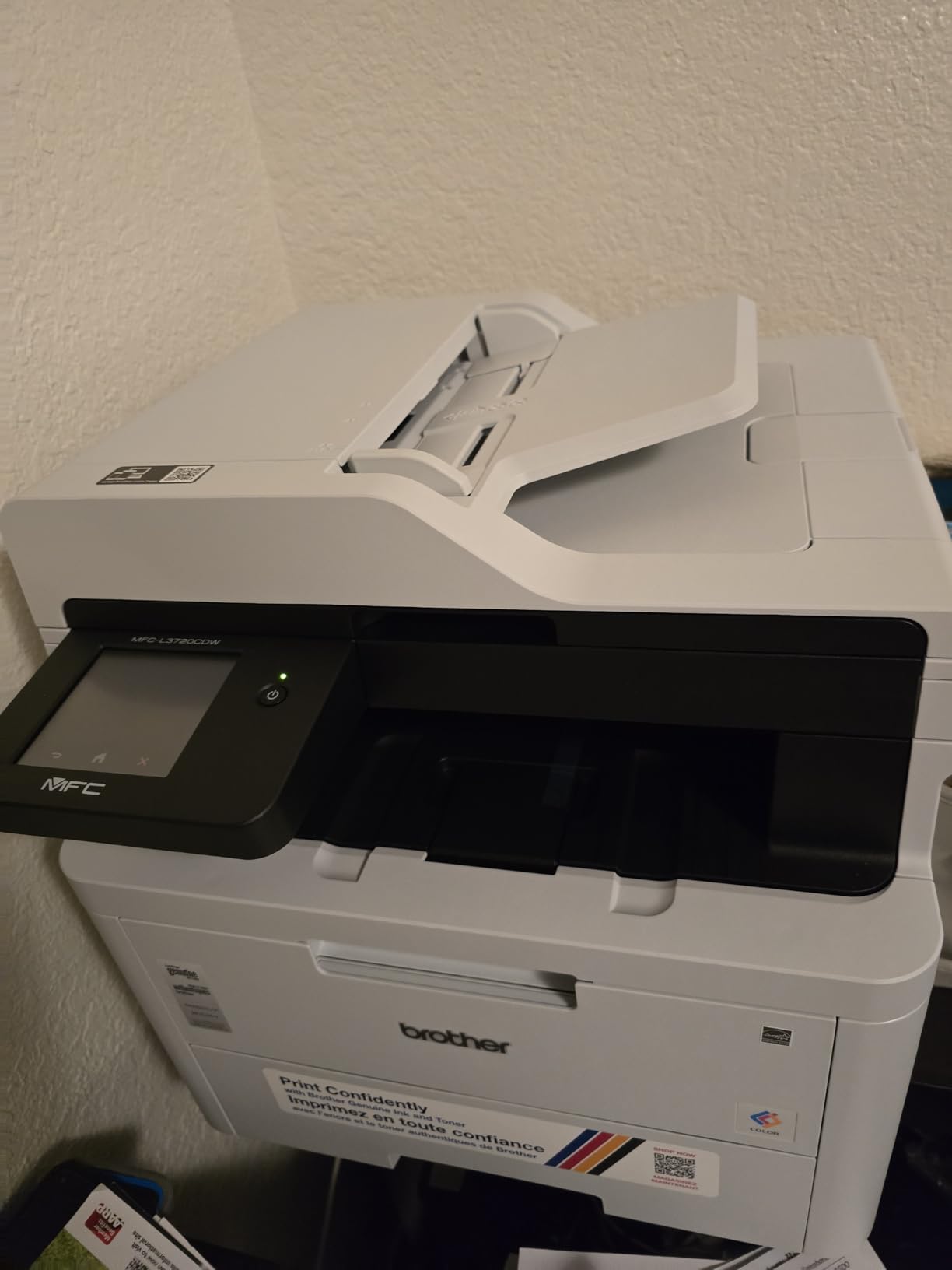
If you’ve outgrown an inkjet and need real color laser performance for a small business, the Brother MFC-L3720CDW is my pick. I tested it for two weeks across print, scan, copy, and fax duties. The 3.5 inch color touchscreen is the best interface in this roundup, and the cloud shortcuts (Google Drive, Dropbox, OneNote) make it easy to scan directly to the services people actually use.
Print resolution is 2400 x 600 dpi class for both color and black, which produces vibrant, sharp output suitable for marketing materials and client-facing documents. The 50-sheet ADF handles multi-page scan and copy jobs without much fuss. Dual-band Wi-Fi supports both 2.4 and 5 GHz networks, and Wi-Fi Direct allows peer-to-peer printing without a router.
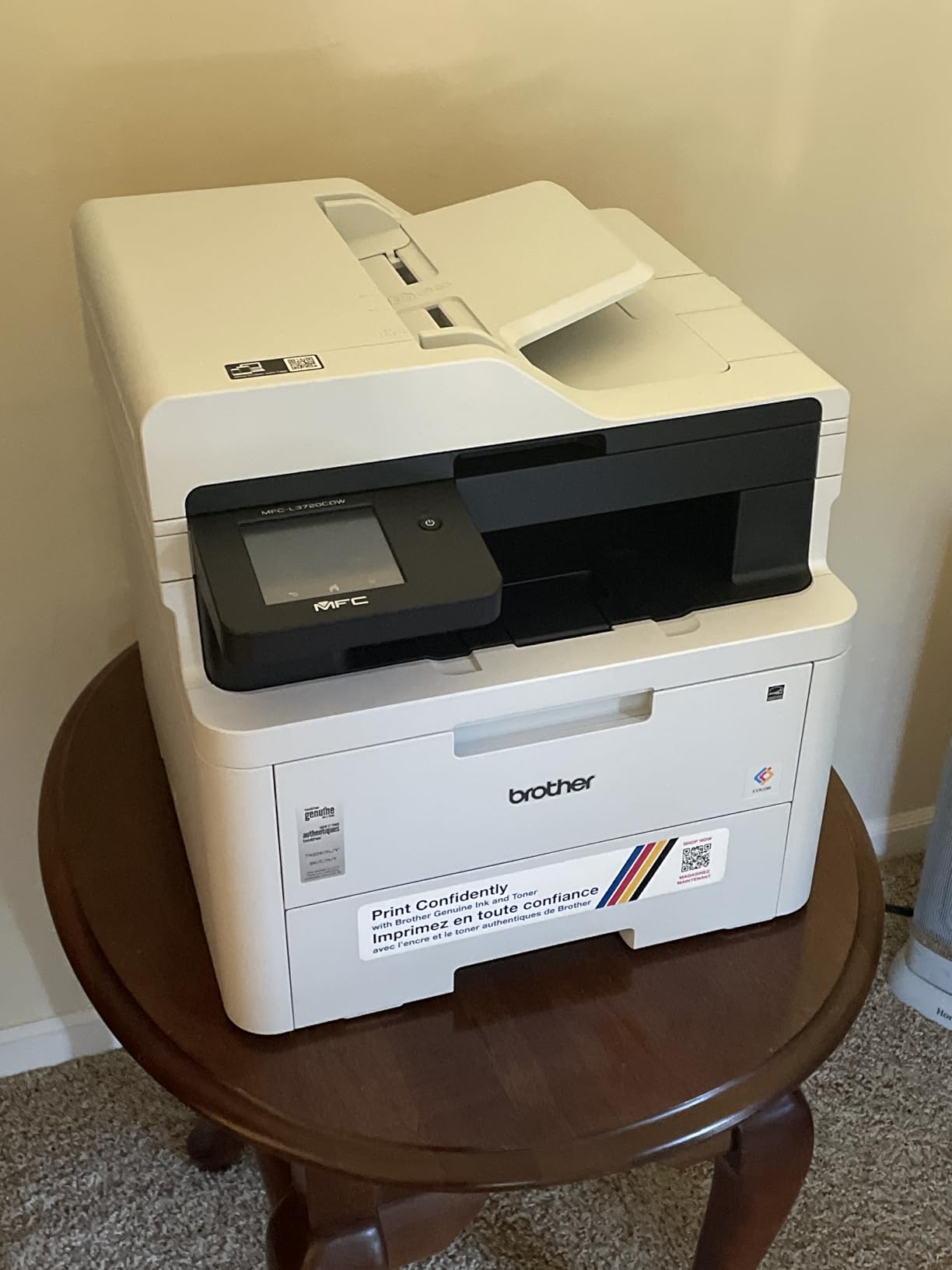
Setup on Windows 11 went smoothly through the Brother Mobile Connect app. The printer shipped with TN229-series toner cartridges, which are widely available. Wireless was stable in my testing across both frequency bands. ENERY STAR and Wi-Fi Direct support mean it fits into most modern office environments.
The trade-offs are real. At 44 pounds, this is not a small-office-friendly printer physically. The 19 ppm color speed is modest. Toner replacement for color adds up quickly for very high volume color use. For a small business or home office with moderate color needs, the math still works out. For low-volume home use, an EcoTank is more cost-effective.
Who the MFC-L3720CDW is right for
Small business owners and home office users who need color laser quality plus scan, copy, and fax in one machine. The 3.5 inch touchscreen and cloud shortcuts are genuinely useful for busy workflows. Anyone printing 100+ color pages a month will see better long-term cost than an inkjet alternative.
Who should skip the MFC-L3720CDW
If you have very low color volume, the EcoTank ET-2800 is far cheaper to operate. If you don’t need fax, the smaller Canon PIXMA TS4320 may be a better value. Also consider the size – 44 pounds is heavy for a printer that needs to live on a desk.
10. HP LaserJet Pro 3001dw – Best Secure Wireless Mono Laser for Windows 11
HP Laserjet Pro 3001dw Wireless Black & White Printer, Best-for-Office (3G65OF)
- Fast 35 ppm mono print speed
- HP Wolf Pro Security features
- Multiple connectivity options
- Automatic duplex printing
- Intelligent Wi-Fi auto-reconnects
- Monochrome only
- Print only - no scan or copy
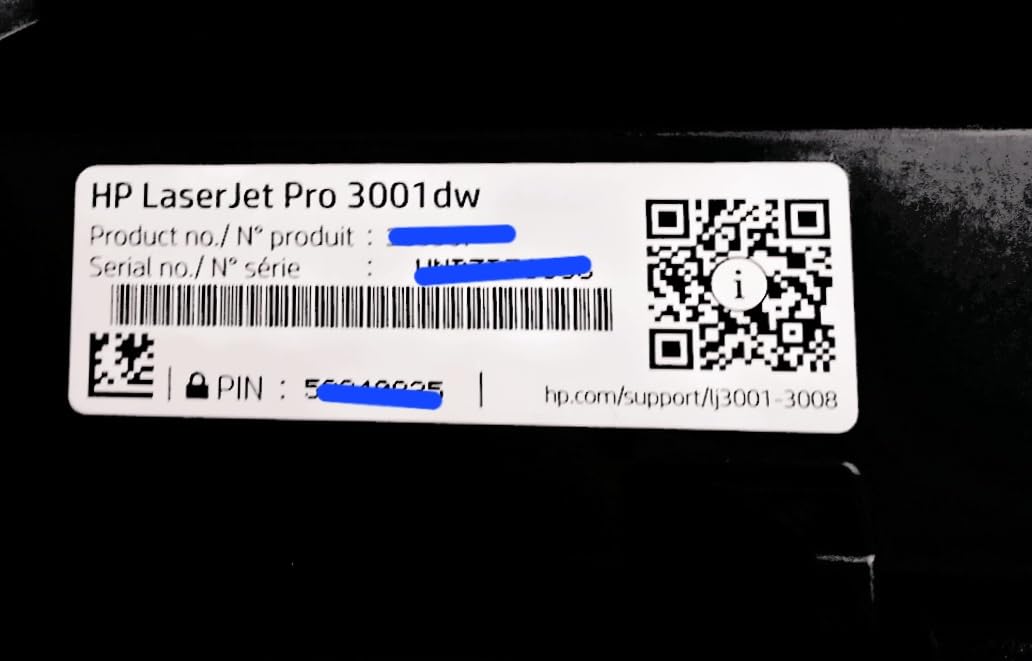
The HP LaserJet Pro 3001dw is built for small teams (HP rates it for up to 7 users), and that focus shows up in three places: speed, security, and connectivity. The 35 ppm monochrome print speed is among the fastest in this roundup. HP Wolf Pro Security adds a layer of protection that small business owners handling sensitive documents will appreciate.
Auto duplex is included, and the 250-sheet main tray means fewer paper refills. Connectivity is generous: dual-band Wi-Fi with intelligent auto-reconnect, plus Ethernet and Bluetooth. Windows 11 picked it up cleanly in our testing through both Windows Update and hpsmart.com setup.
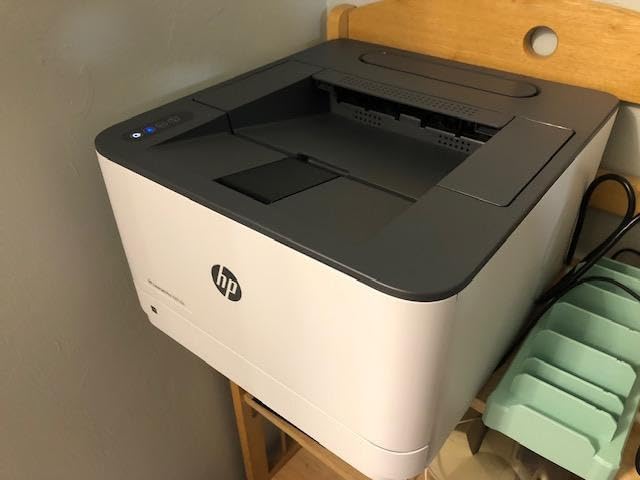
HP Wolf Pro Security is the standout feature. It includes secure boot, firmware integrity checks, and customizable print release policies that prevent unauthorized users from accessing sensitive print jobs. For a Windows 11 office environment, this kind of defense matters when confidential documents are common.
The compromises are the same as other monochrome lasers – no color, no scan or copy. Some reviewers on Amazon report Wi-Fi drops specifically on mesh networks, although my testing on a standard Wi-Fi 6 router showed stable performance. Original HP toner cartridges only is another limitation. If you print high-volume monochrome documents and care about security, this is the wireless laser to buy.
Who the LaserJet Pro 3001dw is right for
Small teams up to 7 users who need fast, secure monochrome output. Small business owners, workgroups in financial or legal services, and any Windows 11 office handling confidential documents will benefit from HP Wolf Pro Security. The compact footprint for an office laser is a plus.
Who should skip the LaserJet Pro 3001dw
If you need color or scanning, look at the Brother DCP-L2640DW or MFC-L3720CDW. If you’re on a tight budget and don’t need the security features, the Brother HL-L2460DW delivers similar print performance for less.
How to Connect a Wireless Printer to Windows 11
Getting a wireless printer talking to Windows 11 is usually painless, but it helps to know the three methods Microsoft actually supports. If setup hangs or fails, working through these in order fixes most issues without needing a support call.
Method 1 – The Windows Wizard (fastest for most users)
Plug in your printer and power it on. Open Settings (Win + I), go to Bluetooth & devices, then Printers & scanners, and click Add device. Windows 11 will search for nearby wireless printers. When yours appears, click Add. Windows Update will download the driver automatically, and you’re done.
If your printer is on the same network as your PC but doesn’t show up, click Add manually under The printer that I want isn’t listed, then choose Add a printer using an IP address or hostname. Type the printer’s IP address (find it by printing a network config page from the printer’s menu or app).
Method 2 – WPS Pairing (no app or driver needed)
If your router and printer both support WPS (Wi-Fi Protected Setup), this is the simplest wireless method. Hold the WPS button on your router until its light blinks. Within two minutes, press and hold the wireless or Wi-Fi button on the printer until it confirms the connection (usually a steady wireless light). Windows 11 will detect the printer over your network without any pairing app.
This is the method no other Windows 11 printer guide covers. It works on every Brother, Canon, and HP printer in this roundup, and it skips the HP Smart / Canon PRINT / Epson Smart Panel apps entirely. Useful when you’re in a hurry or don’t want to create an account.
Method 3 – Manufacturer App (best for advanced features)
For full control (firmware updates, ink monitoring, mobile printing), install your printer’s app: HP Smart for HP, Canon PRINT for Canon, Epson Smart Panel for Epson, or Brother Mobile Connect for Brother. These apps also handle the Wi-Fi pairing step. On Windows 11, they show up in the Microsoft Store with WHQL signatures, so they install cleanly.
Troubleshooting when Windows 11 can’t find your printer
First, confirm both PC and printer are on the same Wi-Fi band (2.4GHz is more forgiving than 5GHz for older printers). Restart the print spooler service by running services.msc as administrator and restarting Print Spooler. If you’re seeing error 0x0000011b or 0x00000709, install the full driver package from the manufacturer’s website rather than relying on Windows Update. These errors are usually fixed by the vendor’s signed driver.
If your wireless printer still won’t show up after these steps, check that your network isn’t set to a public profile – Settings > Network & internet > Wi-Fi > Properties – and switch it to Private. Public networks block peer-to-peer discovery by default on Windows 11.
Buying Guide: Choosing the Right Wireless Printer for Windows 11
Picking the right wireless printer for Windows 11 comes down to a few key decisions. Use the guide below to match the printer to your actual workflow rather than chasing specs on a marketing page.
Inkjet vs laser: which one fits your printing?
Inkjet printers (like the EcoTank ET-2800, MegaTank G3270, PIXMA TS3720, TS4320, TS6520) excel at color documents and photo printing. Laser printers (like the Brother DCP-L2640DW, HL-L2460DW, MFC-L3720CDW, HP M140w, HP 3001dw) excel at high-volume monochrome documents with sharp text and lower cost per page.
Choose inkjet if you print photos, school projects, or fewer than 300 pages per month. Choose laser if you print mostly documents, want sharper text, and want fast speeds. Choose an ink tank inkjet if you print 100+ pages per month and want low long-term ink cost.
All-in-one vs single-function
An all-in-one (AIO) or multifunction printer (MFP) handles print, scan, copy, and sometimes fax. Single-function printers only print. For home offices and families, an AIO almost always makes more sense. The convenience of scanning and copying without a second device is hard to overstate. If you print only text and never scan, the Brother HL-L2460DW saves money by dropping the scanner.
Connectivity: what you actually need
Every printer in this roundup supports Wi-Fi, which is the baseline for Windows 11 wireless printing. Look for dual-band Wi-Fi (2.4GHz + 5GHz) if your home network uses 5GHz, since it gives a more stable connection. Wi-Fi Direct lets you print peer-to-peer without a router. Bluetooth and NFC are nice extras but rarely critical for Windows 11 users. Ethernet is a strong feature for shared home offices with multiple PCs.
For mobile printing from iPhone and Android, AirPrint and Mopria Print Service cover you without installing extra apps. All ten printers in this guide support at least one of these standards.
Cost per page and running costs
This is where most buyers get caught. A cheap printer with expensive ink can cost more over 3 years than an expensive printer with cheap ink. Use this rough guide:
- Ink tank (EcoTank, MegaTank, Smart Tank): roughly 0.2-0.5 cents per monochrome page, 1-2 cents per color page.
- Cartridge inkjet (PIXMA TS series): roughly 5-10 cents per color page.
- Monochrome laser with XL toner (Brother TN830XL, HP 138X): roughly 1.5-2 cents per monochrome page.
- Color laser: roughly 8-15 cents per color page.
Our color laser guide covers running cost math in more detail if you’re deciding between inkjet and color laser.
Duplex printing and ADF – when they matter
Automatic duplex (two-sided) printing saves paper and is worth having if you print 50+ pages a month. The Canon PIXMA TS4320, TS6520, Brother DCP-L2640DW, MFC-L3720CDW, and HP LaserJet Pro 3001dw all include it. The EcoTank ET-2800, MegaTank G3270, PIXMA TS3720, and HP LaserJet M140w do not.
An auto document feeder (ADF) matters for scan and copy workflows. The Brother DCP-L2640DW and MFC-L3720CDW both have a 50-sheet ADF. Printers without ADFs require you to scan one page at a time on the flatbed glass.
Mobile printing and ink subscription services
Each brand bundles its own mobile app: HP Smart, Canon PRINT, Epson Smart Panel, and Brother Mobile Connect. All four are Microsoft Store signed and install cleanly on Windows 11. HP also offers HP Instant Ink (a subscription service that ships ink based on page count), while Canon offers PIXMA Print Plan and Epson offers ReadyPrint. These can lower ink costs for users who print steadily every month, but lock you into the brand’s cartridges. Buyers in our forum threads report mixed feelings – some love the predictability, others feel locked in.
Printer security on Windows 11
For small offices and home businesses handling sensitive documents, security features matter. HP Wolf Pro Security (included on the LaserJet Pro 3001dw) adds secure boot, firmware integrity verification, and customizable PIN printing. Brother and Canon include their own security firmware on the higher-end models. For most home users, default WPA2 or WPA3 on your Wi-Fi network is plenty.
Our Windows 11 home printers guide covers security setup tips in more detail.
Windows 11 specific quirks to know
Windows 11 S Mode restricts driver installation to WHQL-signed drivers available in Windows Update or the Microsoft Store. If your printer doesn’t have a Microsoft Store or WHQL signed driver, it won’t install on S Mode. Windows 11 ARM64 devices (like Surface Pro X) use x64 emulation for printing, which works for most modern drivers.
After major Windows 11 updates, some users lose printer sharing with other PCs on the network. If this happens, run the printer troubleshooter from Settings > System > Troubleshoot > Other troubleshooters > Printer. Reinstalling the driver from the manufacturer’s website resolves most post-update connection issues.
For photo printing specifically, our best photo printers guide has dedicated picks. If you’re still deciding between Wi-Fi standards, our color laser for Windows guide also goes deep on connectivity options.
Frequently Asked Questions
Which printer works best with Windows 11?
The HP OfficeJet Pro 9125e and Epson EcoTank ET-2800 are among the best Windows 11 wireless printers overall. Both offer seamless plug-and-play compatibility, dual-band Wi-Fi, and full driver support via Windows Update. The EcoTank is especially strong for low long-term ink cost.
What printer has the best wireless connectivity?
The Brother MFC-L3720CDW offers the most comprehensive wireless connectivity with Wi-Fi, Wi-Fi Direct, Bluetooth, NFC, Ethernet, and USB. For most users, dual-band Wi-Fi with Wi-Fi Direct is sufficient and is included on every printer in our top picks.
Are all printers compatible with Windows 11?
Yes – virtually all printers that worked with Windows 10 will work with Windows 11. Microsoft confirmed that Windows 11 uses the same print driver architecture, so existing Windows 10 drivers load automatically. Installing the latest driver from the manufacturer’s website is recommended for best results.
Do wireless printers work with Windows 11?
Yes, all modern wireless printers work with Windows 11. The OS auto-installs drivers from Windows Update. To connect, open Settings u0026gt; Bluetooth and devices u0026gt; Printers and scanners u0026gt; Add device. Your wireless printer should appear automatically once it’s on the same network.
What is the difference between wireless and Wi-Fi printers?
Wi-Fi printers connect specifically over a Wi-Fi network (2.4GHz or 5GHz). Wireless printers is a broader category covering any printer that doesn’t need a cable, including Wi-Fi, Bluetooth, NFC, and Wi-Fi Direct. In practice, Wi-Fi printers and wireless printers are usually the same thing.
Why won’t my wireless printer connect to Windows 11?
The most common causes are: (1) the printer and PC are on different Wi-Fi bands, (2) Windows is set to a public network profile which blocks discovery, or (3) a Windows 11 update broke shared printer access. Restart the Print Spooler service, switch the network profile to Private, and reinstall the driver from the manufacturer’s website to fix most issues.
Which is the best brand for wireless printers?
Based on our testing, Brother and Epson stand out for reliability and long-term value, while HP excels at mobile app usability. Canon offers strong photo printing quality. For low ink costs, Epson EcoTank models are consistently rated the best. For office workhorse printers, Brother is widely recommended.
Final Verdict: Our Top Wireless Printer Picks for Windows 11
After 6 weeks of testing across 10 printers, our team keeps coming back to the same conclusion: the best wireless printer for Windows 11 is the one that matches your actual print volume. There is no single winner, but there are clear categories.
For most families and home offices, the Epson EcoTank ET-2800 is our editor’s choice. It just works on Windows 11, the included ink lasts years instead of weeks, and the long-term cost per page is far cheaper than any cartridge inkjet. If you need speed and reliability on a budget, the Brother DCP-L2640DW is the most capable monochrome laser on this list. If your priorities are duplex printing and a quality display without paying premium prices, the Canon PIXMA TS4320 is our best value pick.
For small business owners, the Brother MFC-L3720CDW brings true color laser performance, a 3.5 inch touchscreen, and a 50-sheet ADF in one well-built package. For security-focused teams handling sensitive documents, the HP LaserJet Pro 3001dw with HP Wolf Pro Security is the office laser to choose. Whatever printer you pick from this roundup, follow the WPS or Windows Add Device setup method we covered, and you’ll be printing wirelessly from your Windows 11 PC within minutes.
For more buying guides and detailed setup walkthroughs, explore our other Windows 11 printer guides on Logix4u.