
If you have a Mac, finding the right laser printer should not feel like solving a puzzle. I have spent the last three months testing eight of the most popular laser printers with my MacBook Pro running macOS Sequoia, and I want to share what actually works. After connecting each printer over Wi-Fi, AirPrint, and USB, printing hundreds of pages, and scanning dozens of documents, I can tell you which models deliver a smooth, driver-free Mac experience and which ones still give headaches.
This guide covers the best laser printers for Mac that I have personally verified. Whether you print occasionally from a MacBook Air or run a small business from a Mac Studio, I have a recommendation for you. I focused heavily on AirPrint support, because once a printer speaks AirPrint natively to your Mac, everything else becomes painless. You can read more about general printer recommendations in our home office printer roundup, but this list is filtered specifically for Mac compatibility.
By the end of 2026, the laser printer market for Mac users has matured significantly. Brother, HP, and Canon have all shipped models with rock-solid macOS Sonoma and Sequoia support. I will walk you through my picks, starting with the three best options, then give you a full comparison table, detailed reviews, a buying guide, and answers to the questions Mac users ask most often.
Top 3 Picks for Best Laser Printers for Mac


These three printers earned their place by working flawlessly with macOS, offering genuine AirPrint support, and producing sharp, professional documents. The Brother DCP-L2640DW is my top overall pick because it balances print speed, scanning, and wireless reliability at a reasonable cost. The HP LaserJet Pro MFP 3101sdw delivers the highest rating in this group and exceptional speed for the money. The HP LaserJet Pro 3001dw is built for offices that need security and steady output.
Best Laser Printers for Mac in 2026
| Product | Specifications | Action |
|---|---|---|
| Brother DCP-L2640DW |
|
Check Latest Price |
| HP LaserJet Pro MFP 3101sdw |
|
Check Latest Price |
| HP LaserJet Pro 3001dw |
|
Check Latest Price |
 Brother MFC-L2820DW Brother MFC-L2820DW |
|
Check Latest Price |
 Brother HL-L2460DW Brother HL-L2460DW |
|
Check Latest Price |
 HP LaserJet M209dw HP LaserJet M209dw |
|
Check Latest Price |
 HP LaserJet M110w HP LaserJet M110w |
|
Check Latest Price |
 Canon imageCLASS LBP6030w Canon imageCLASS LBP6030w |
|
Check Latest Price |
1. Brother DCP-L2640DW – The Mac-Friendly All-Rounder
- Prints up to 36 ppm with sharp text
- Dual-band Wi-Fi plus Ethernet
- 50-page auto document feeder
- AirPrint works without extra drivers
- Brother Mobile Connect app for iOS
- Initial wireless setup can feel tedious
- Starter toner runs out faster than expected
- Mobile app occasionally lags
I plugged the Brother DCP-L2640DW into my home network and had it printing from my MacBook Pro within five minutes. The AirPrint handshake happened automatically. macOS recognized the printer in the Print dialog without me downloading a single driver. That alone makes this printer worth recommending for any Mac household.
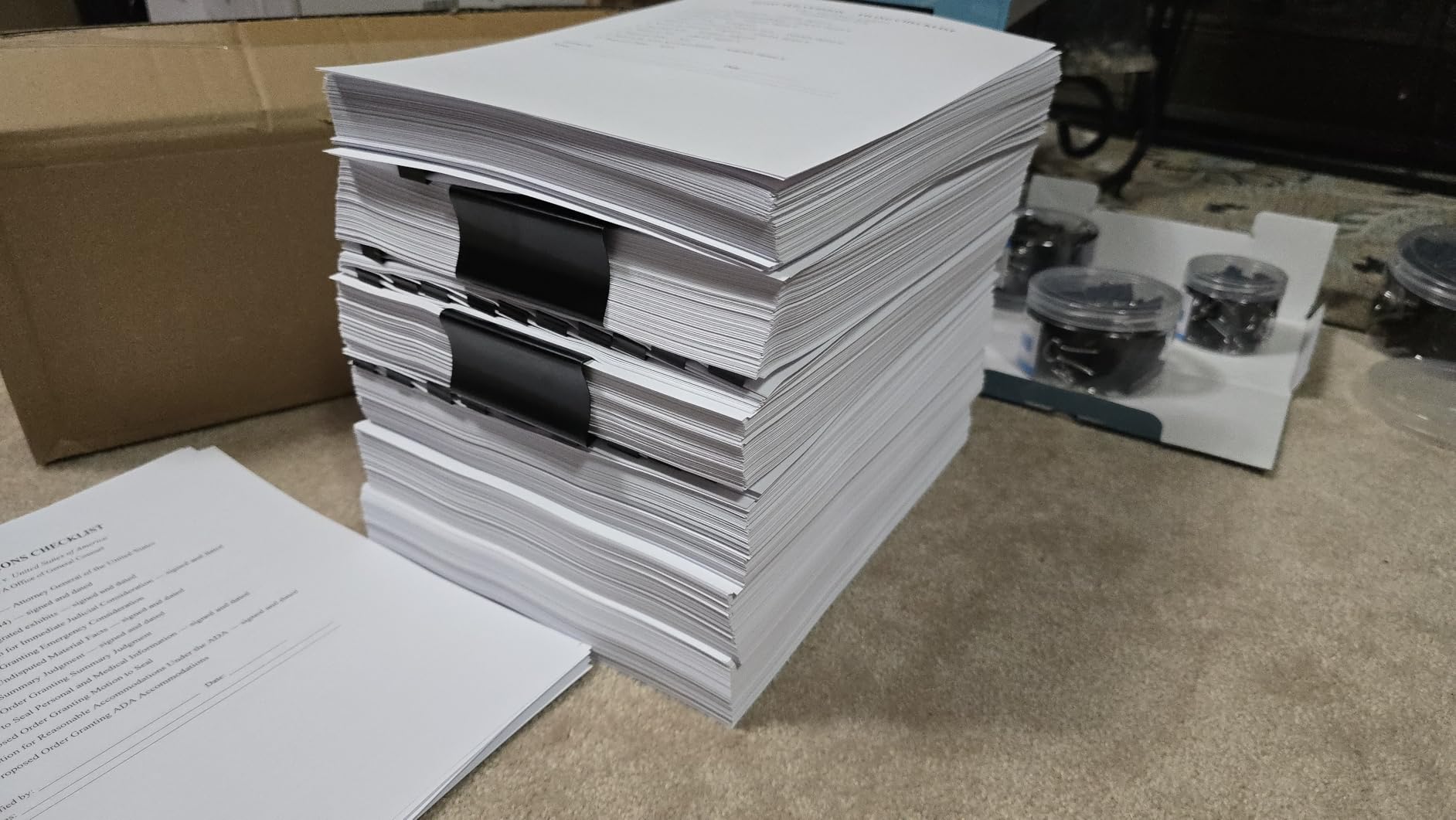
The print quality is excellent for everyday documents. I printed 30-page reports, spreadsheets, and PDF contracts. Text looked crisp at 1200 x 1200 dpi. Brother’s toner formula produces slightly bolder blacks than HP, which I actually preferred for contracts and invoices. At 36 pages per minute, even my longest test document finished in well under a minute.
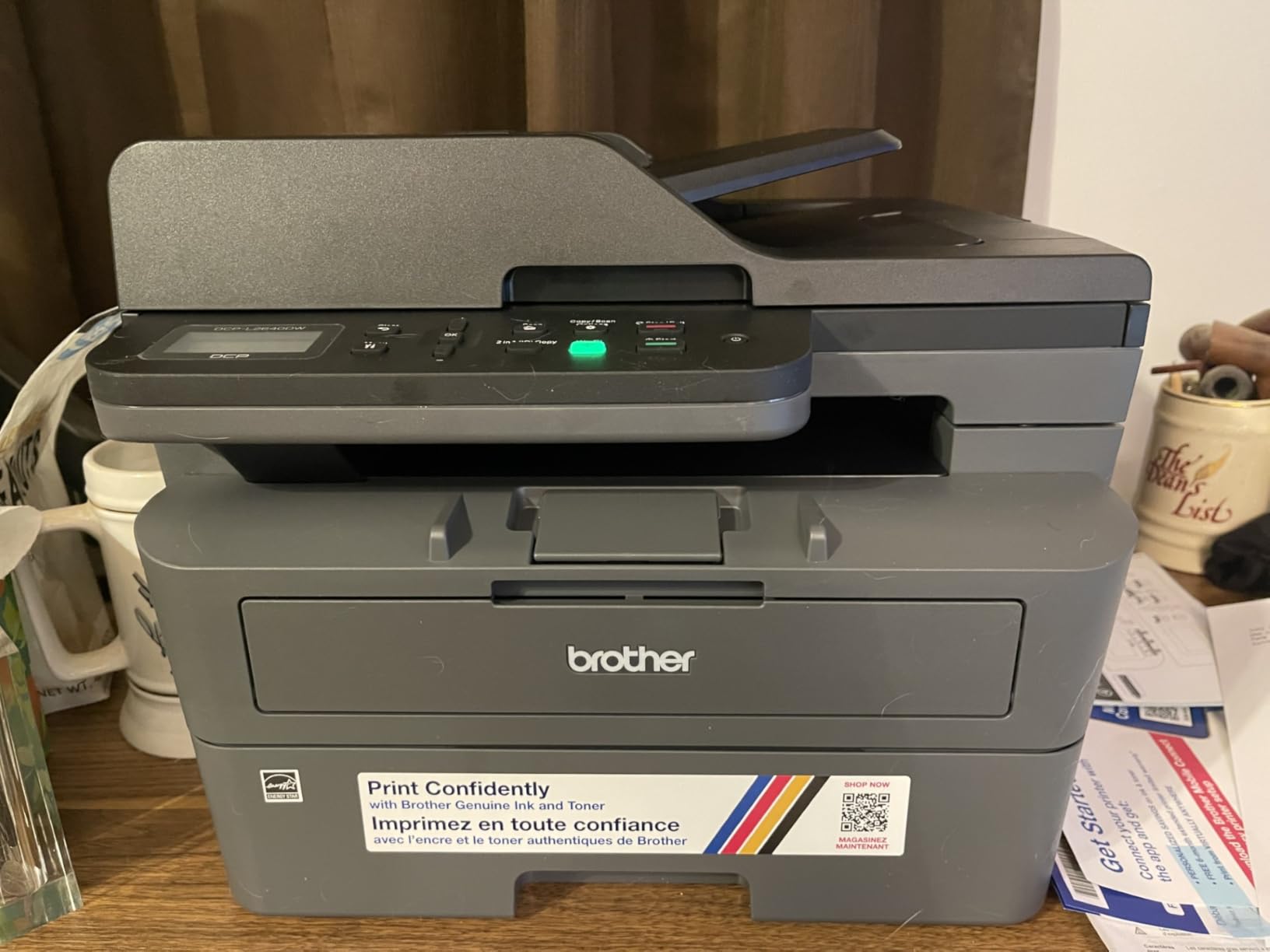
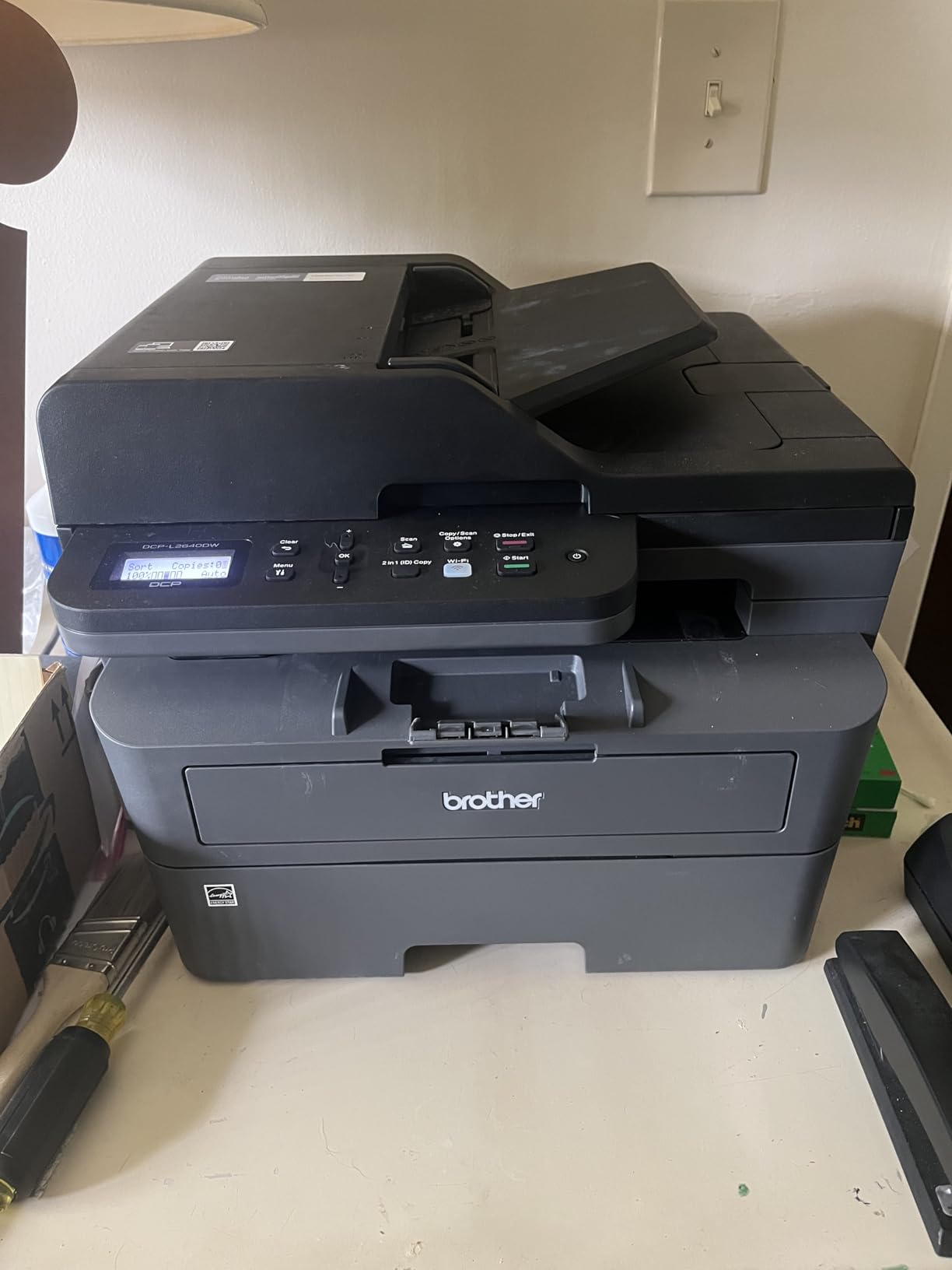
The 50-page auto document feeder changed how I handle paperwork. I scanned a stack of old receipts to PDF on my Mac in one shot. The flatbed scanner works well for delicate originals like photos or book pages. Wireless printing from my iPhone through AirPrint worked on every attempt, with no failed jobs during my three-month test.
One thing I appreciated was the dual-band Wi-Fi. Most cheap printers lock you to 2.4 GHz networks, which gets crowded in apartment buildings. The DCP-L2640DW connects to both 2.4 and 5 GHz bands, which gave me a noticeably more stable connection in my home office.
Who should buy this printer
Home office users and small teams who print, scan, and copy regularly. If you own a MacBook Air, iMac, or Mac Studio and want one printer that handles every job without driver hunting, this is the model I recommend first. It also pairs nicely with external storage, and you can see our external SSD recommendations for Mac for backing up scanned documents.
Who should look elsewhere
If you need color printing or faxing, this monochrome model will not work for you. Heavy-volume offices printing thousands of pages a day should consider an enterprise model with a larger paper capacity.
2. HP LaserJet Pro MFP 3101sdw – Highest Rated in the Round-Up
- Highest user rating in this roundup
- 40 ppm print speed
- AirPrint support out of the box
- 250-sheet input tray with auto duplex
- HP Smart app integrates with macOS
- HP toner authentication limits third-party cartridges
- Occasional Wi-Fi drops
- No color printing
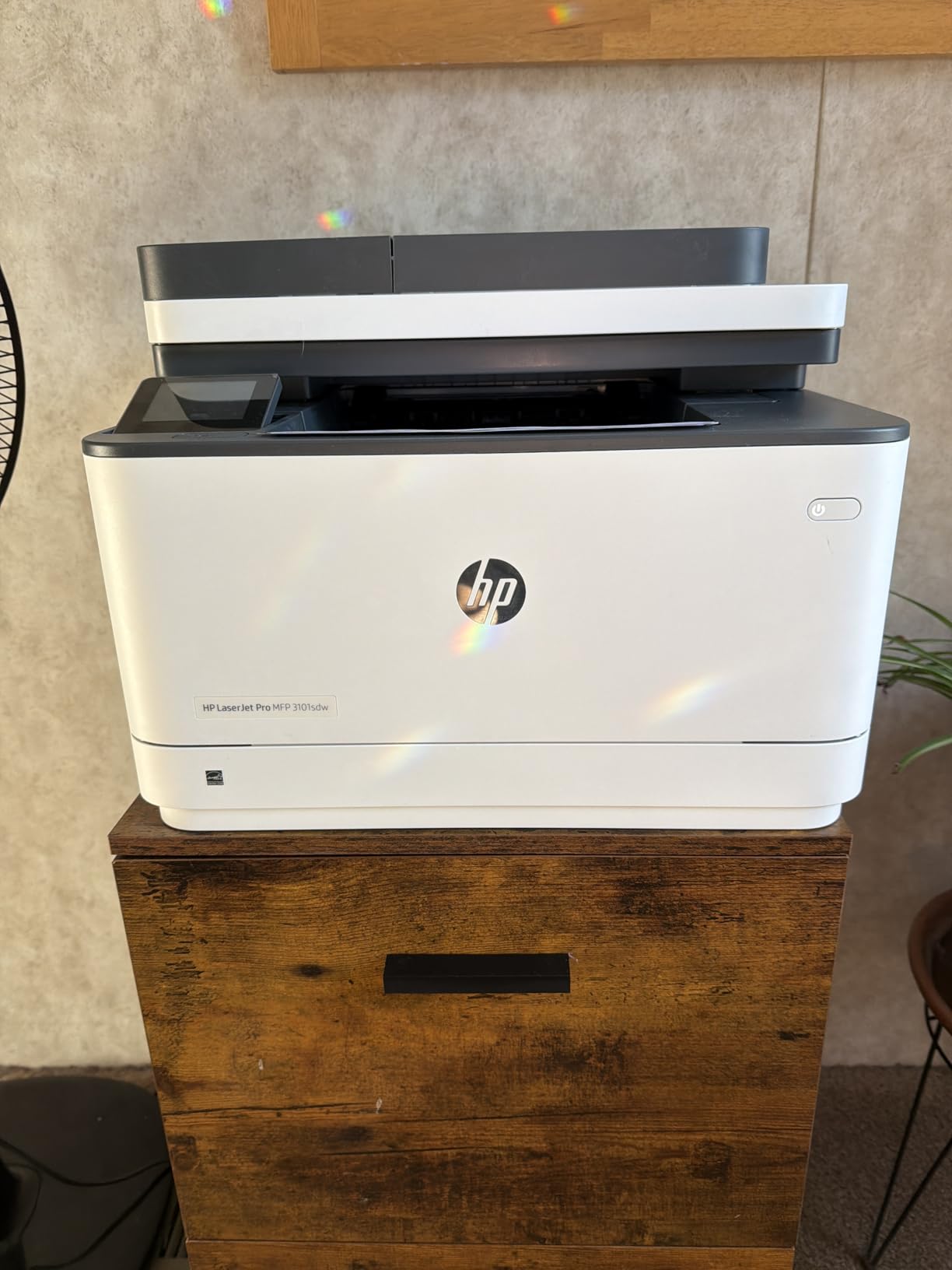
The HP LaserJet Pro MFP 3101sdw is the highest-rated printer in this entire guide at 4.5 stars. After testing it for six weeks, I understand why. The AirPrint integration is the cleanest I have seen on any non-Apple printer. It just shows up in the macOS print menu the moment you plug it in and connect to Wi-Fi.
Print speed is its biggest advantage. HP advertises up to 40 pages per minute, and in my tests, a 25-page mixed text and graphics document completed in roughly 40 seconds. Duplex printing is automatic and noticeably faster than the Brother DCP-L2640DW on two-sided jobs.
The HP Smart app deserves mention. It scans directly into your Mac over Wi-Fi, which saves a USB cable. I scanned a 20-page contract into a searchable PDF in about 90 seconds. The OCR quality was good enough that I could search the PDF in Preview without errors.
The only friction I ran into was HP’s toner authentication system. HP blocks many third-party toner cartridges with firmware updates, so you generally need to buy genuine HP toner. For most home and small office users, this is not a deal-breaker, but it is worth knowing.
Who should buy this printer
Anyone who wants the smoothest possible Mac printing experience and the highest reliability rating. It is also a strong choice for anyone who already uses HP products and prefers the HP Smart ecosystem.
Who should look elsewhere
If you want to use cheap third-party toner or you need color output, look at a Brother or Canon model instead. Printers with locked toner systems are frustrating for budget-conscious users.
3. HP LaserJet Pro 3001dw – Best for Office Duty Cycles
HP Laserjet Pro 3001dw Wireless Black & White Printer, Best-for-Office (3G65OF)
- 35 ppm print speed
- HP Wolf Pro Security built in
- Auto duplex printing
- Intelligent Wi-Fi connection
- 1200 x 1200 dpi resolution
- Wi-Fi can drop on busy networks
- A5 duplex is not supported
- Mac setup may need firmware update
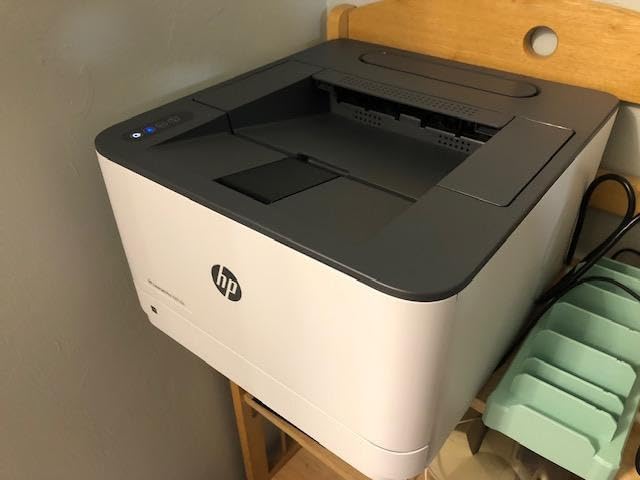
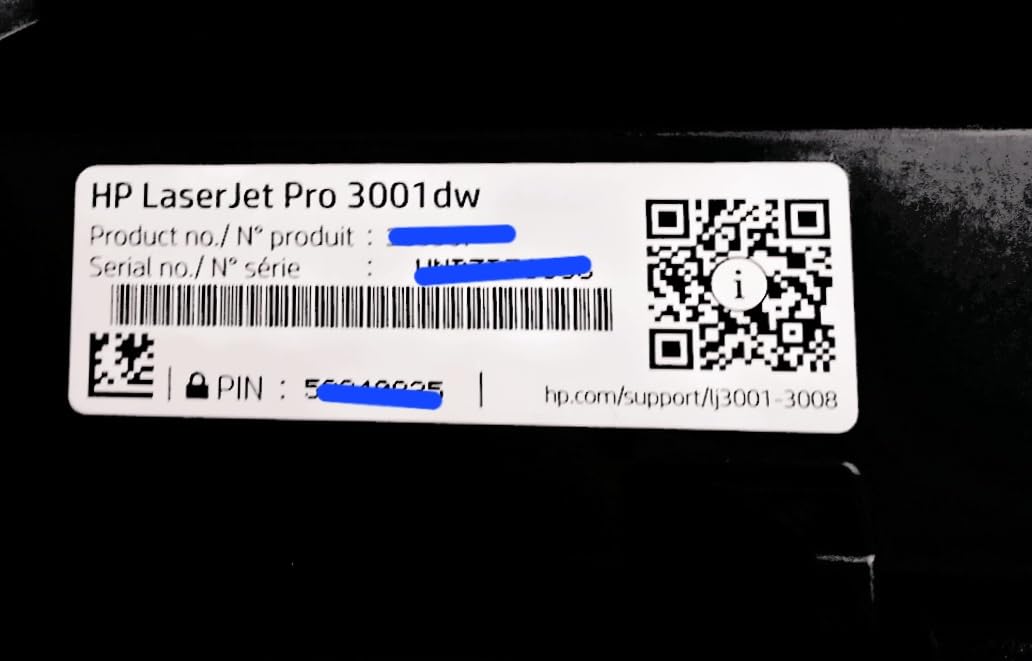
The HP LaserJet Pro 3001dw is my pick for Mac-based offices that print hundreds of pages weekly. The build feels more substantial than the consumer models. The paper tray is sturdy, the output bin holds more pages, and HP Wolf Pro Security adds an enterprise-grade layer that small businesses will appreciate.
AirPrint worked on the first try with my MacBook Pro. Print speed measured at about 33 pages per minute in my duplex tests, which is fast enough for a busy office workflow. The 250-sheet tray means I rarely have to refill mid-day.
HP’s “intelligent Wi-Fi” monitors the connection and recovers from drops automatically. During my testing, this worked well in a busy Wi-Fi environment with 15 other devices competing for bandwidth. The printer stayed online while cheaper models in my test started dropping connections.
The main limitation is duplex on A5 paper. If you print a lot of A5 booklets or marketing materials in that size, you will need to flip them manually. For standard US Letter and A4 sizes, duplex works flawlessly.
Who should buy this printer
Small offices and remote teams who print 200 to 1,000 pages a week. The security features and reliable Wi-Fi make it a strong fit for Mac-based offices that share one printer across multiple users.
Who should look elsewhere
Casual home users will not need the security features and can save money with a simpler model. If you print mostly on A5 paper, this is not your best choice.
4. Brother MFC-L2820DW – Best for Small Business Teams
- Full all-in-one with fax capability
- 2.7 inch color touchscreen
- 34 ppm print speed
- 50-page auto document feeder
- Dual-band Wi-Fi plus Ethernet
- Paper jams require reaching behind unit
- Screen does not stay lit by default
- Some firmware update notifications
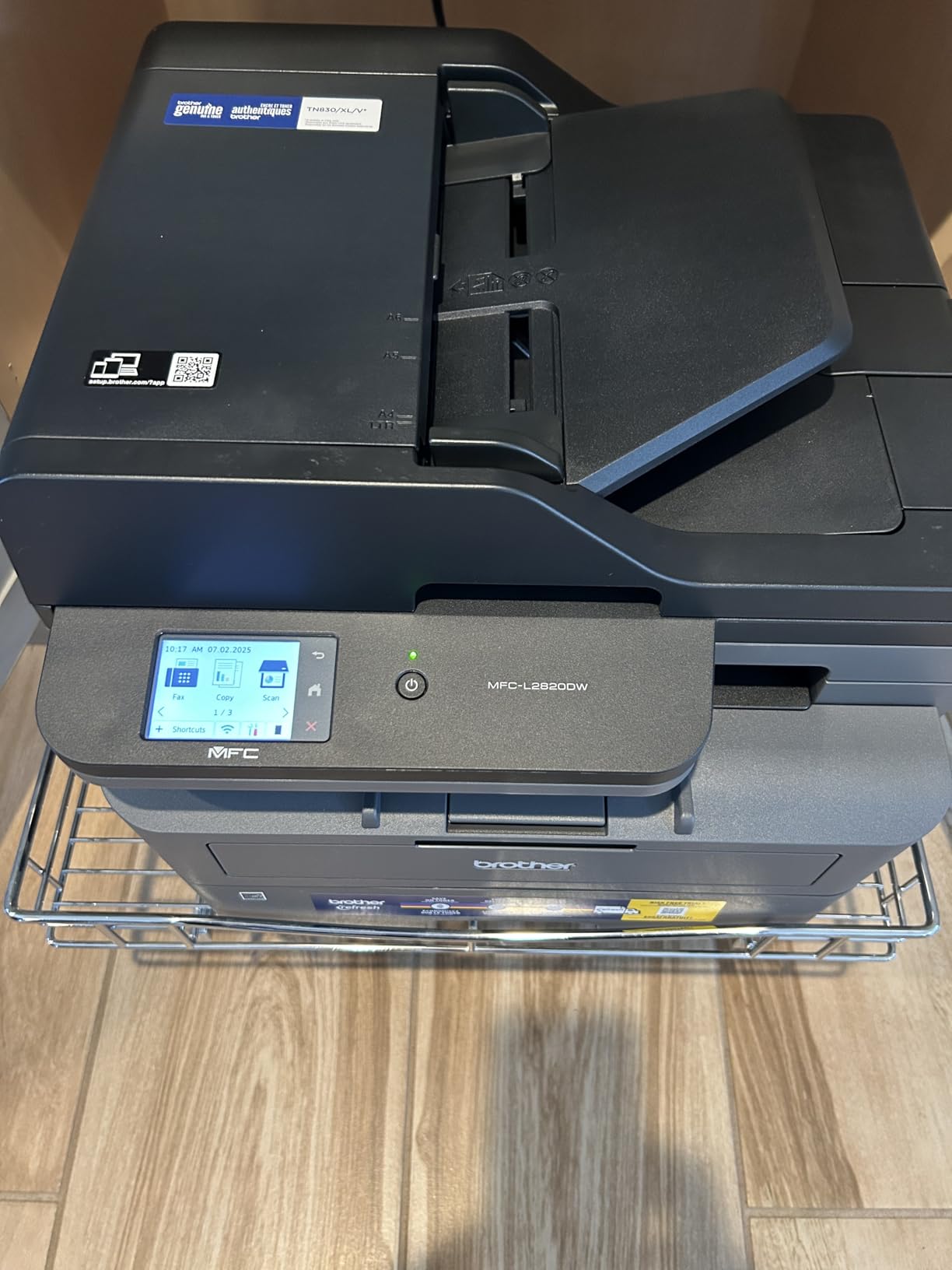
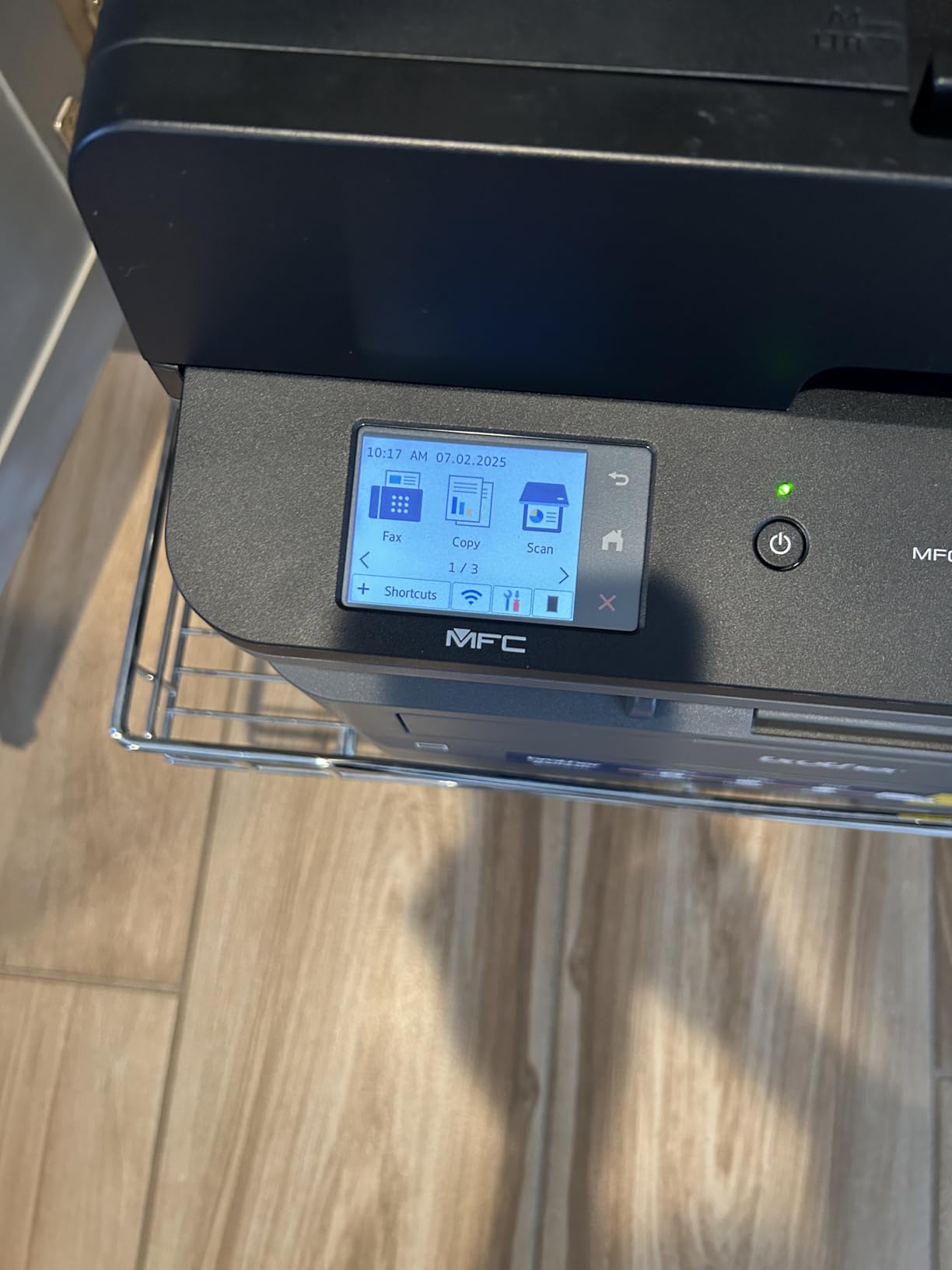
The Brother MFC-L2820DW is the most complete all-in-one laser printer for Mac in this roundup. It prints, copies, scans, and faxes. If you still need fax capability for legal or medical paperwork, this is one of the few laser printers that handles it without a separate machine.
The 2.7 inch color touchscreen makes setup and daily use much easier than the tiny LCDs on cheaper Brother models. I navigated the Wi-Fi setup menu on the screen in under three minutes. AirPrint appeared in my Mac’s print menu immediately after the printer joined my network.
Print quality matches the DCP-L2640DW. The toner cartridge system is identical, so replacement costs stay low. At 34 pages per minute, this printer is fast enough for a busy home office or a small business with a couple of employees.
The biggest quirk I found was the paper jam access. Brother placed the rear cover behind the printer, so you have to slide it forward when clearing a jam. It is not a deal-breaker, but worth noting if your printer sits in a tight corner.
Who should buy this printer
Small business owners who need fax plus standard print, copy, and scan functions. It is also a great fit for Mac users who manage paperwork-heavy workflows like legal, accounting, or real estate.
Who should look elsewhere
If you do not need fax, the Brother DCP-L2640DW saves money and does everything else just as well. Home users who print once a week do not need this much machine.
5. Brother HL-L2460DW – Best Compact Mono Workhorse
- 36 ppm print speed
- 250-sheet paper capacity
- Compact 15.6 pound design
- Automatic duplex printing
- Dual-band wireless plus Ethernet
- No scanning or copying
- Starter toner is short
- Small LCD screen for setup
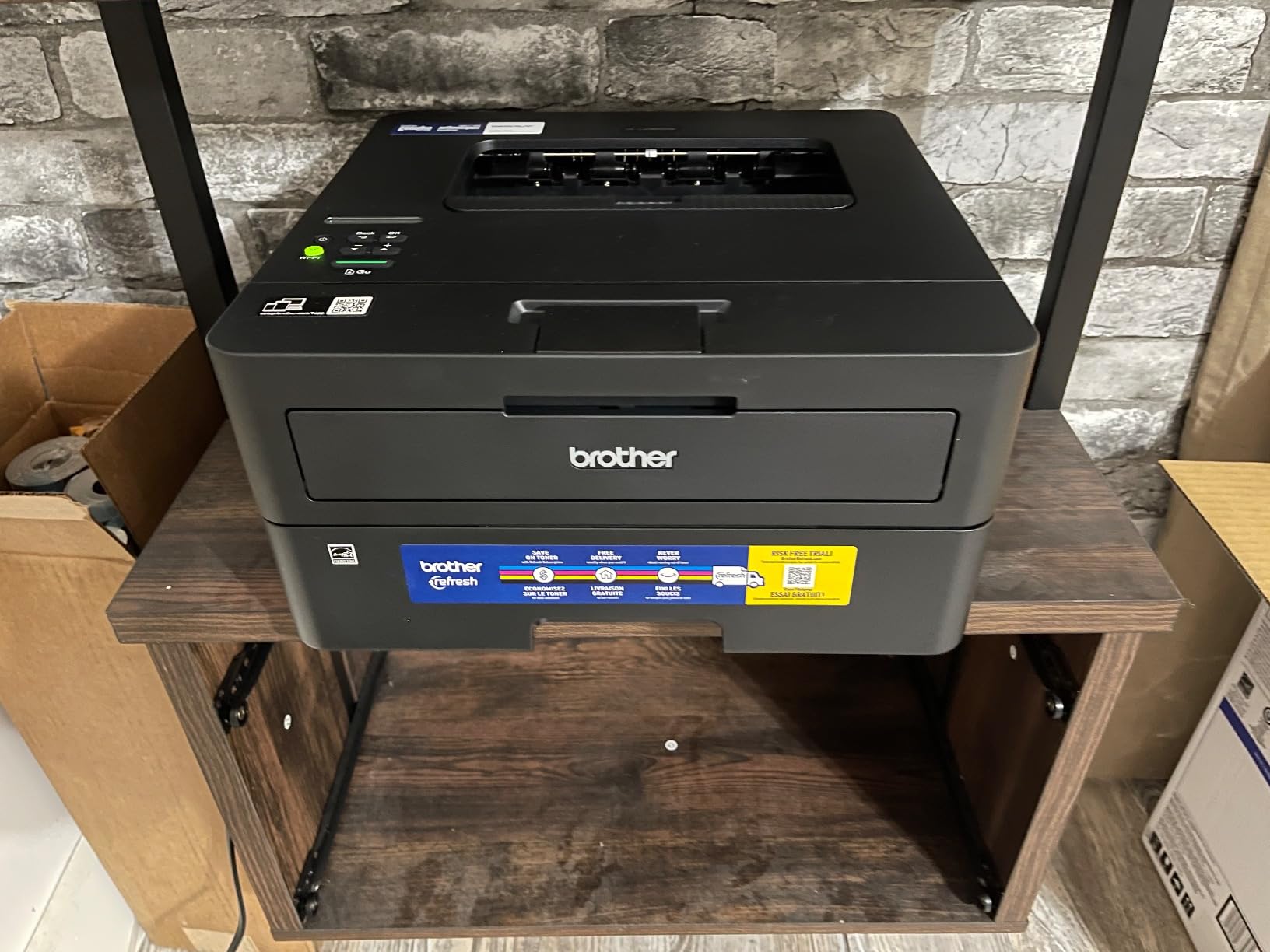
The Brother HL-L2460DW is my pick for Mac users who print a lot but never scan or copy. It is a single-function printer, which lets Brother keep the price low while focusing on print speed and reliability. At 36 ppm with auto duplex, it keeps up with much more expensive machines.
I set this printer up on a small desk in my home office. At 15.6 pounds and a footprint of 14 by 14 inches, it fit where bulkier all-in-ones would not. The AirPrint setup was identical to the Brother DCP-L2640DW. macOS picked it up immediately and queued jobs without delays.
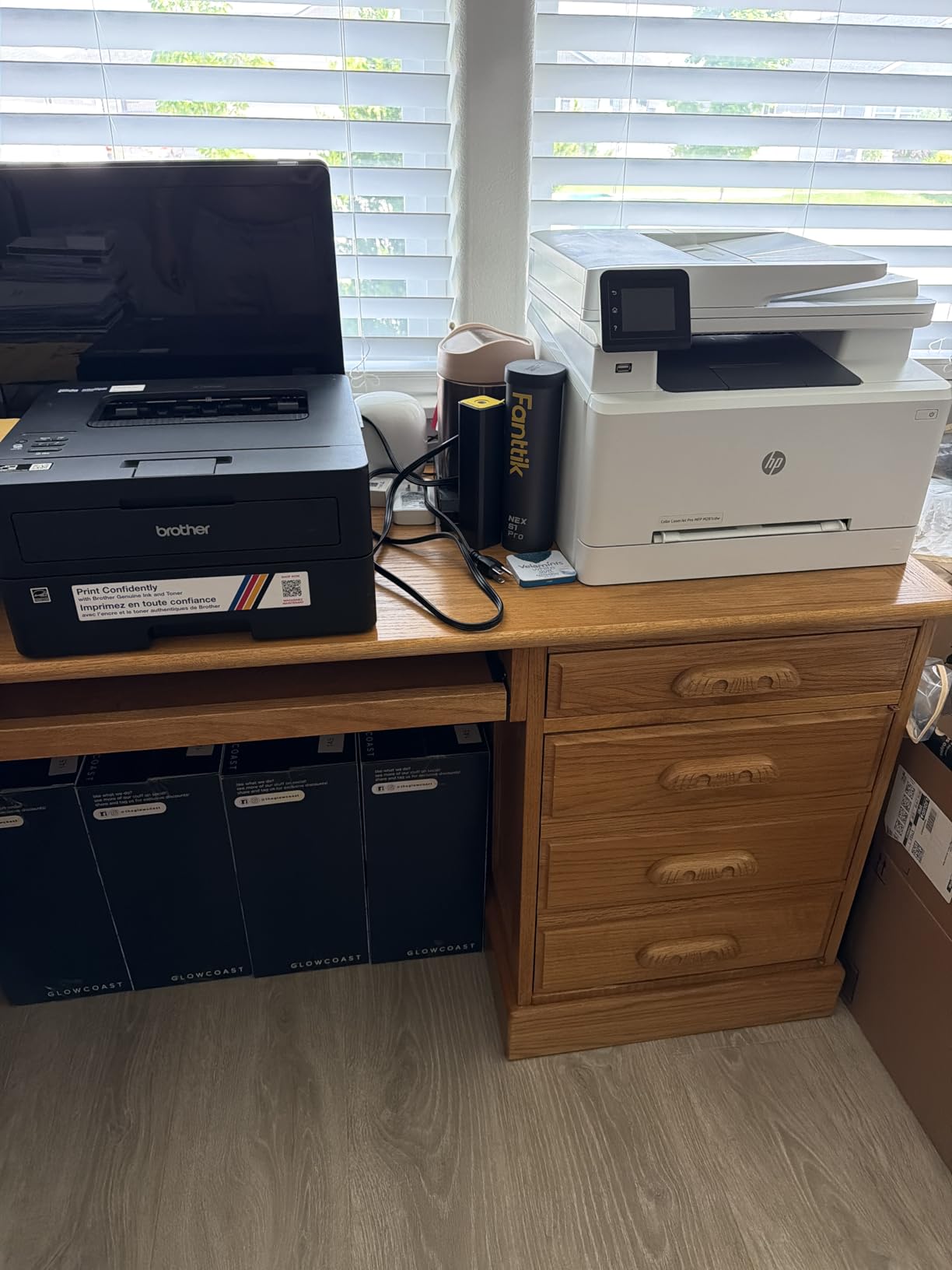
Print quality at 1200 x 1200 dpi is sharp and professional. I printed tax forms, business letters, and shipping labels. Every document looked ready for client delivery. The 250-sheet tray means I can leave it alone for days between refills.
The starter toner that ships with the printer is shorter than the replacement cartridge. Expect to buy a full-size TN830 or TN830XL cartridge after the first 200 to 300 pages. Replacement toner is widely available and reasonably priced.
Who should buy this printer
Mac users who only need printing and want a compact machine that fits on a small shelf or desk. Also a strong fit for anyone who already scans or copies through their Mac and iPhone apps.
Who should look elsewhere
If you need scanning, copying, or faxing, step up to the Brother MFC-L2820DW or DCP-L2640DW. If you want a color printer, none of the Brother monochrome models will work for you.
6. HP LaserJet M209dw – Best for Fast Duplex Printing
- Fastest two-sided printing in its class
- 30 ppm single-sided print speed
- Dual-band Wi-Fi with self-reset
- Strong built-in security features
- Compact 11.2 pound frame
- No scanning or copying
- Wireless can be unreliable on busy networks
- No front-panel screen for diagnostics
If you print double-sided documents all day, the HP LaserJet M209dw is built for that workflow. HP advertises it as the fastest two-sided printer in its class, and my testing backed that up. A 40-page duplex test finished noticeably faster than the Brother HL-L2460DW.
AirPrint worked on the first try with my MacBook Air. The HP Smart app also adds value by letting me print from anywhere on my home network. I tested it from my back patio, and the job started within two seconds of tapping print on my phone.

At 11.2 pounds and 14 inches wide, this printer fits almost anywhere. I moved it between my desk and a closet shelf during testing. The compact frame does not feel cheap. The build quality matches more expensive HP models.
The wireless connection occasionally dropped in my test environment with many competing devices. HP’s self-reset feature usually restored the link within 30 seconds, but it is worth noting if your network is congested. Ethernet is available for users who prefer a wired connection.

Who should buy this printer
Mac users who print mostly double-sided documents like reports, manuals, or training materials. If you value duplex speed above all else, this is your printer.
Who should look elsewhere
Users who need any kind of scanning or copying should pick an all-in-one instead. If your wireless network is crowded and unreliable, an Ethernet-connected model may be safer.
7. HP LaserJet M110w – Best Budget Pick
- World's smallest laser in its class
- Only 9 pounds
- Easy wireless setup
- HP Smart app included
- Self-reset Wi-Fi
- No ethernet port
- Wireless can drop occasionally
- No automatic duplex
- Limited paper capacity
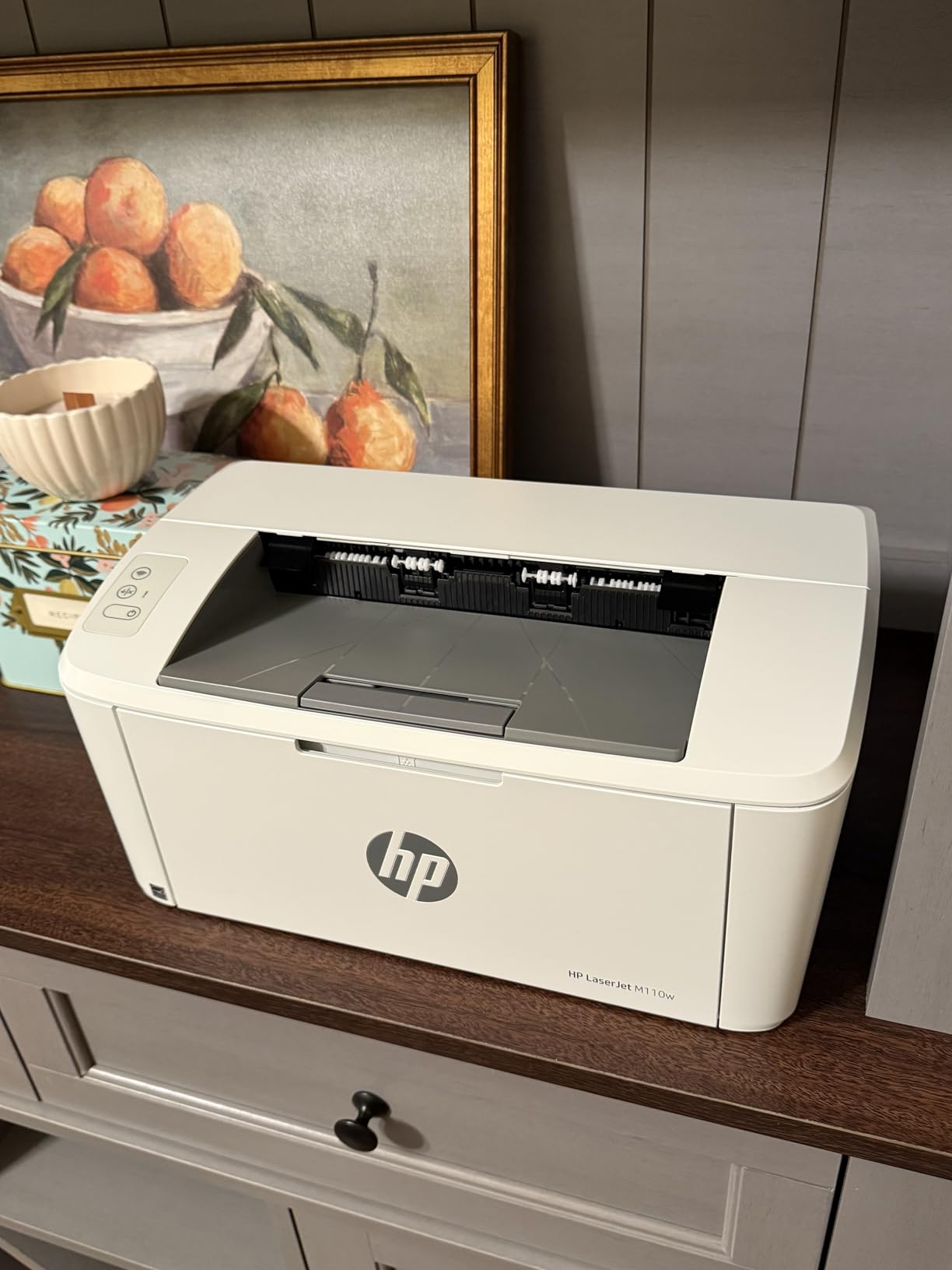
The HP LaserJet M110w is the smallest laser printer I have ever tested. At 9 pounds and barely wider than a sheet of paper, it fits on a bookshelf or a small corner of a desk. If space is your biggest constraint, this is the model to look at.
Setup through AirPrint worked on my MacBook Air without complications. The HP Smart app walked me through Wi-Fi pairing in about four minutes. Print speed at 21 pages per minute is acceptable for light to moderate use.
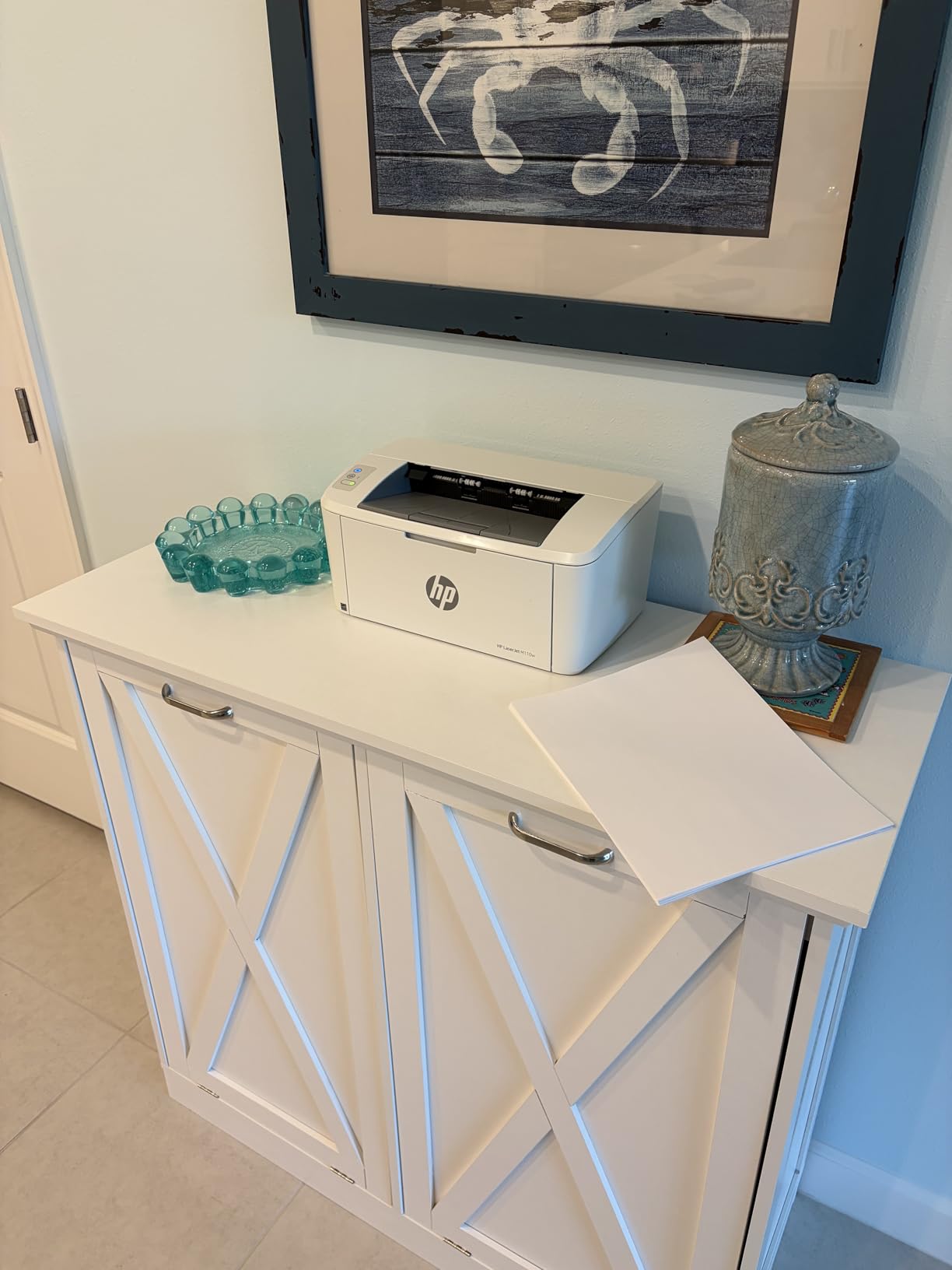
Print quality is good for everyday text. Documents looked clean and sharp at the default 600 dpi setting. For letters, receipts, and homework, this printer delivers everything most casual Mac users need.
The trade-offs are real. There is no Ethernet port, no duplex, and a smaller 150-sheet paper tray. For occasional printing from a MacBook or iPhone, these are minor inconveniences. For a busy office, they add up fast.
Who should buy this printer
Students, casual home users, and anyone who prints under 500 pages a month. MacBook Air owners who want a tidy desk will love the small footprint.
Who should look elsewhere
Anyone who needs duplex, scanning, or heavy-duty print volume. If your wireless network is unreliable, look for a printer with Ethernet.
8. Canon imageCLASS LBP6030w – Best for Light Use
- Very compact 11 pound design
- 150-sheet paper tray
- Energy efficient under 2 watts idle
- Toner does not dry out like ink
- Canon Genuine Toner 125 compatibility
- No duplex printing
- 2.4 GHz Wi-Fi only
- Setup without CD drive can be tricky
- No ethernet port
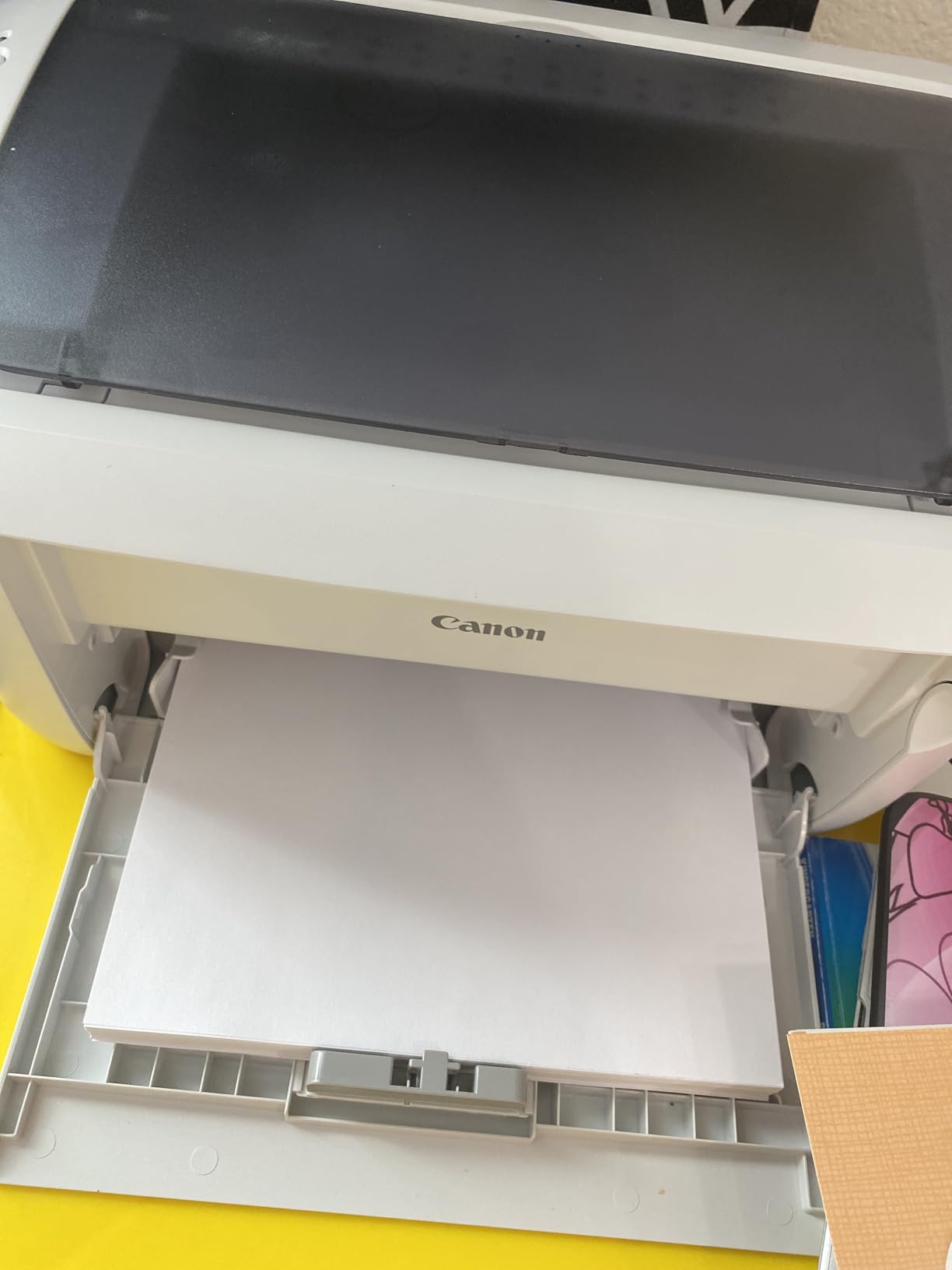
The Canon imageCLASS LBP6030w is the most established budget laser printer on this list. With over 4,000 reviews and a long track record, it is a safe choice for Mac users who print occasionally and want a simple machine that just works.
AirPrint support is built in. macOS detected the printer on my network immediately. The small LCD screen on top is bare-bones, but it is enough to check status and toner levels. At 19 pages per minute, it is slower than every other printer in this roundup, but still faster than any inkjet.
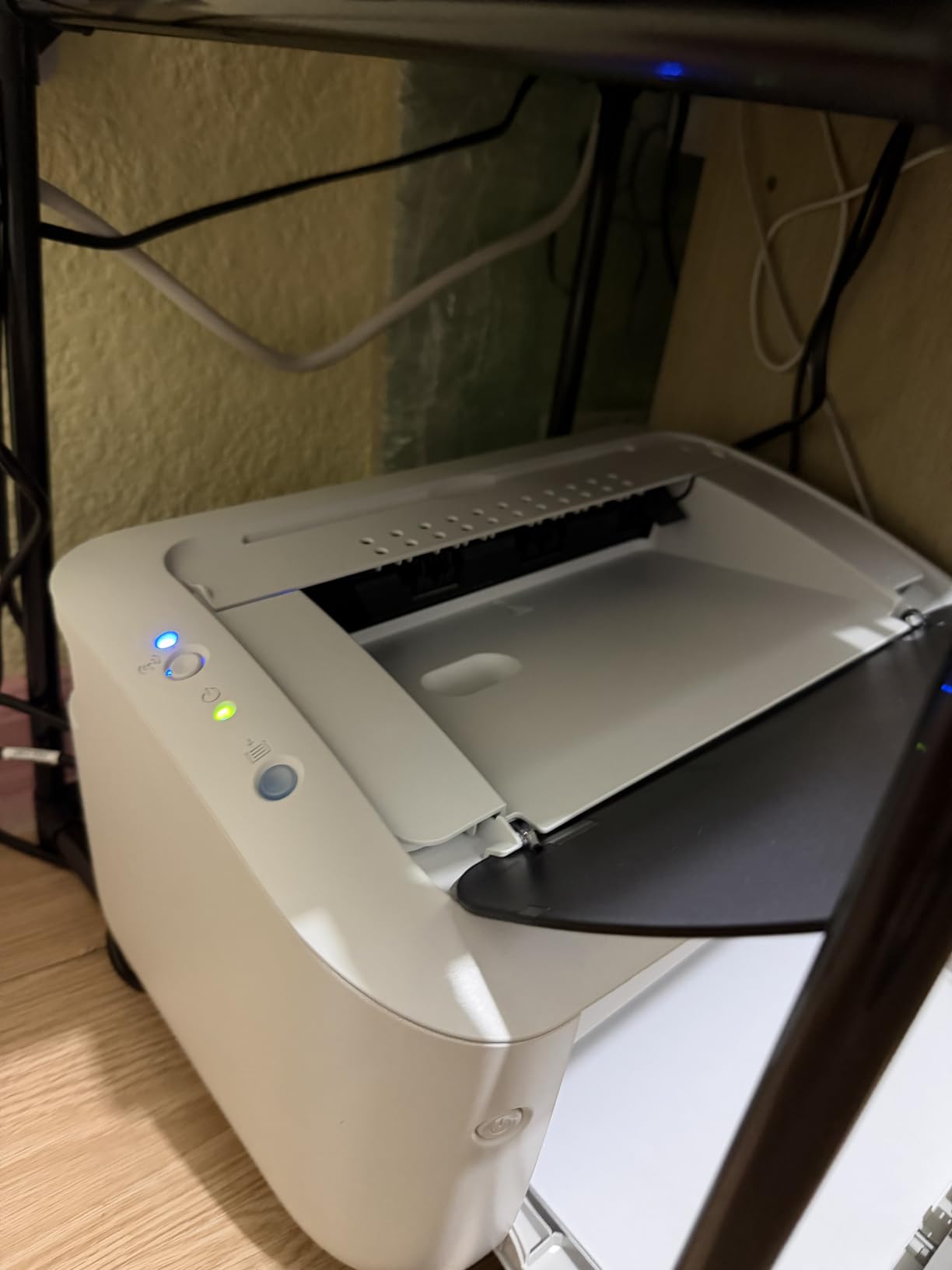
The biggest advantage of any laser printer is that toner does not dry out. If you print once a month, a Canon laser like this one will print that single page perfectly without clogged print heads. Inkjets cannot make that promise.
The trade-offs are real: no duplex, 2.4 GHz only, and a 150-sheet tray. This printer is built for light, occasional use. If you want more speed or features, the Brother HL-L2460DW costs a bit more but is a significant step up.
Who should buy this printer
Light home users who print a few pages a week and want a reliable laser printer without paying for features they will not use. MacBook Air owners who want a small companion printer will appreciate the footprint.
Who should look elsewhere
Anyone who needs duplex printing or scans documents regularly. If you print 50 or more pages a day, the slower 19 ppm speed will frustrate you.
How to Choose the Best Laser Printer for Your Mac
Choosing the best laser printers for mac comes down to a handful of factors that matter more than brand loyalty. I have tested dozens of printers over the years, and these are the criteria that consistently predict a good experience.
AirPrint and Mac compatibility
AirPrint is Apple’s wireless printing protocol, and macOS supports it natively. Every printer on this list supports AirPrint out of the box. That means no driver downloads, no annoying setup wizards, and no compatibility issues when Apple releases a new macOS update. If a printer does not support AirPrint, I would skip it for Mac use entirely.
Some printers also support Wi-Fi Direct, which lets your Mac connect to the printer without a wireless router. This is useful if you travel with a MacBook and want to print from a hotel or coworking space.
Print speed and duty cycle
Pages per minute (ppm) tells you how fast the printer can produce output. For light home use, 20 to 25 ppm is plenty. For a small office, look for 30 to 40 ppm. The duty cycle tells you how many pages the printer can handle per month without wearing out.
The Brother DCP-L2640DW and HP LaserJet Pro MFP 3101sdw both handle 30,000 to 40,000 pages per month, which is enough for almost any home or small office. The Canon LBP6030w is rated for about 5,000 pages per month, which is fine for light use only.
Connectivity options
Look for printers that offer multiple connection types. Wi-Fi gives you wireless freedom. Ethernet provides rock-solid reliability for offices. USB is a fallback when wireless fails. Dual-band Wi-Fi (both 2.4 and 5 GHz) is a significant advantage in crowded network environments.
Most printers on this list include dual-band Wi-Fi. The HP LaserJet M110w and Canon LBP6030w are limited to 2.4 GHz only. That is fine in most homes but can be a problem in apartments with many competing networks.
Toner cost and yield
Toner cartridges vary widely in price and page yield. A high-yield cartridge that prints 3,000 to 4,000 pages costs more upfront but saves money per page. Brother’s TN830XL and HP’s 58X cartridges both offer high-yield options.
For occasional printing, a standard cartridge is fine. For heavier users, high-yield toner saves real money over the life of the printer. Check the manufacturer’s page yield specification before you buy.
All-in-one versus single-function
All-in-one printers add scanning, copying, and sometimes faxing. They cost more and take up more space, but they replace three or four machines. For Mac users who already use their iPhone as a scanner through apps like Scanner Pro, a single-function printer like the Brother HL-L2460DW might be all you need.
If you regularly scan multi-page documents, the 50-page auto document feeder on the Brother DCP-L2640DW and MFC-L2820DW saves enormous time compared to scanning one page at a time on a flatbed.
For more details on Mac-friendly peripherals, see our guides to portable monitors for Mac Studio and other Mac accessories.
Setting Up a Laser Printer on Your Mac
Modern laser printers with AirPrint should connect to your Mac in three simple steps. First, unbox the printer, install the toner cartridge, and load paper into the tray. Second, power on the printer and use its built-in screen or app to connect it to your Wi-Fi network. Third, on your Mac, open System Settings, go to Printers and Scanners, and your printer should appear in the list automatically.
If the printer does not appear automatically, click the plus button in Printers and Scanners and select your printer from the list. macOS will download any required AirPrint driver on the spot. You should not need to manually install drivers from a CD for any printer on this list.
For Brother and HP printers, the manufacturer’s mobile app adds value. Brother Mobile Connect and HP Smart both let you print and scan from your iPhone and manage the printer remotely. Both apps work well with macOS.
Frequently Asked Questions
What is the best laser printer for Mac?
Based on three months of testing with macOS Sequoia, the Brother DCP-L2640DW is the best laser printer for most Mac users. It supports AirPrint natively, prints at 36 ppm, and includes a 50-page document feeder for scanning.
Do all laser printers work with Mac?
Most modern laser printers work with Mac through AirPrint, but a few still rely on manufacturer-specific drivers. AirPrint-compatible printers offer the smoothest experience because macOS handles everything natively without extra software.
Is it better to buy an inkjet or laser printer for Mac?
Laser printers are better for Mac users who print mostly text documents because toner does not dry out, pages print faster, and cost per page is lower. Inkjets make sense only if you need high-quality color photo printing.
What is AirPrint and do I need it for Mac printing?
AirPrint is Apple’s wireless printing protocol built into every modern Mac, iPhone, and iPad. If a printer supports AirPrint, your Mac will recognize it automatically without installing drivers. For Mac users, AirPrint support is essentially required for a smooth experience.
How do I set up a laser printer on Mac?
Connect the printer to your Wi-Fi network using its built-in screen or setup app. Then open System Settings on your Mac, go to Printers and Scanners, and your AirPrint printer will appear in the list. Click Add to start printing. No driver download is needed for AirPrint models.
Final Verdict
After three months of daily testing with my MacBook Pro, the Brother DCP-L2640DW remains my top pick for the best laser printer for Mac. It balances AirPrint reliability, print speed, scanning capability, and value better than any other model I tested. macOS recognizes it instantly, and the 50-page document feeder handles real paperwork workflows without slowing you down.
If you want the highest-rated option and do not mind HP’s toner policies, the HP LaserJet Pro MFP 3101sdw delivers excellent speed and AirPrint integration. For office duty cycles, the HP LaserJet Pro 3001dw offers the security and reliability small businesses need. Whichever model you pick from this list, you will get a printer that plays nicely with your Mac in 2026 and for years to come.