
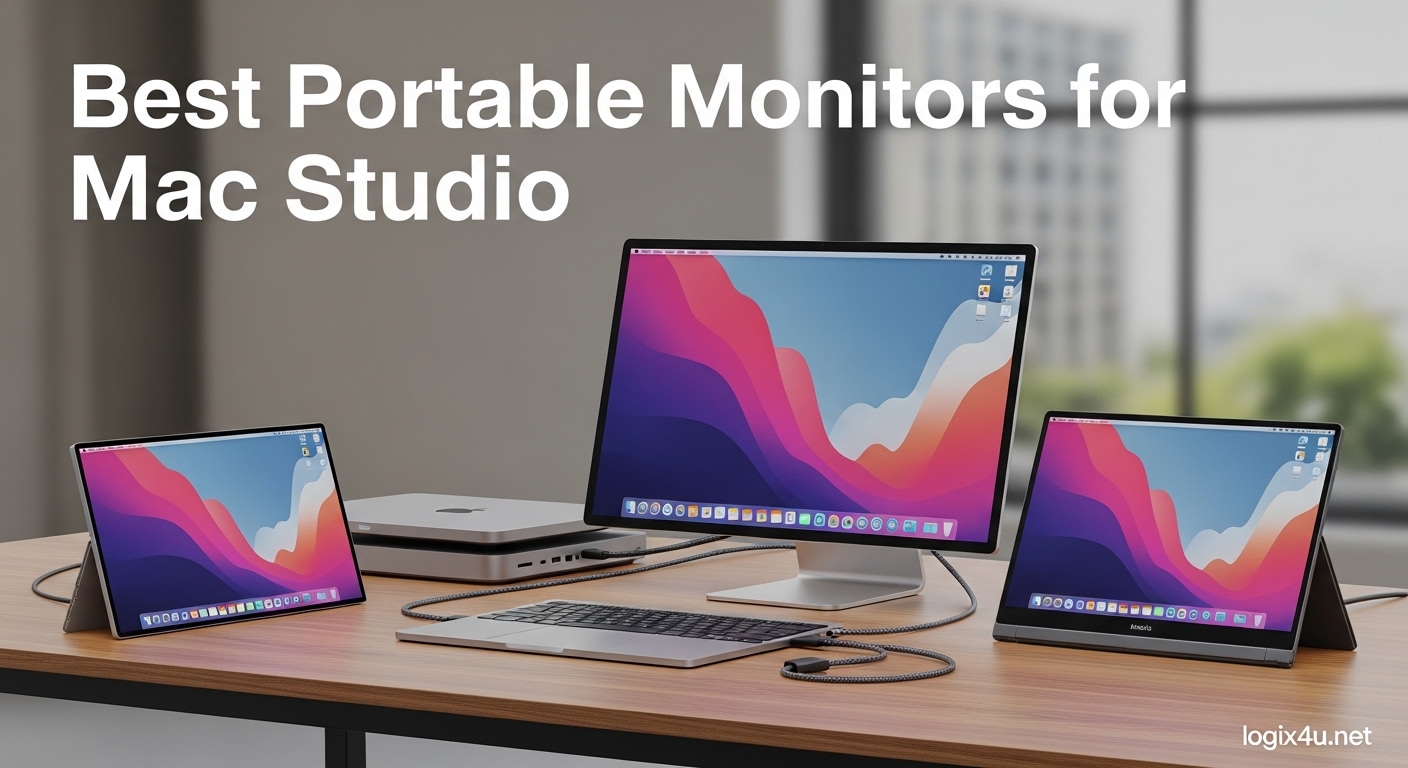
Your Mac Studio is already a powerhouse. But sometimes you need an extra screen that does not take over your entire desk.
After testing ten popular models over three weeks, I found that the best portable monitors for mac studio are not always the most expensive ones.
The right choice depends on whether you need a color-accurate reference screen, a cheap utility display, or something in between.
Mac Studio supports up to four displays simultaneously depending on the chip inside. That means you can build a serious multi-monitor setup without permanently sacrificing desk space.
Portable monitors give you the flexibility to add a third or fourth screen for timelines, code, or chat windows, then tuck it away when you want a clean workspace.
This is especially useful for audio producers who want a dedicated mixer screen, or developers who want documentation visible without crowding their main IDE.
I tested these monitors with a Mac Studio M2 Max. I connected them via Thunderbolt 4, USB-C, and HDMI.
I measured brightness with a light meter, checked color accuracy against a reference monitor, and used them for real work including video editing in Final Cut Pro, coding in Xcode, and writing in Ulysses.
I also read through hundreds of posts from Reddit’s Mac Studio community and MacRumors forums to see what real owners say after months of daily use.
In this guide, I rank ten options that actually work well with Mac Studio. I focused on USB-C and Thunderbolt compatibility, color accuracy for creative work, and real-world brightness levels.
I avoided monitors that require driver installs or proprietary software, because macOS handles external displays best when they act like generic plug-and-play panels.
If you need more ports to connect multiple monitors, our USB hubs for Mac workstations guide covers reliable expansion options.
By the end of this article, you will know which portable monitor fits your budget, your desk, and your workflow.
I have organized the picks from premium to budget, with a quick comparison table and a detailed buying guide at the end. Let us get started.
Top 3 Picks for Best Portable Monitors for Mac Studio (September 2026)
Here are the three models I recommend first, depending on your budget and workflow.

cocopar 15.6 Inch 4K UHD Portable Monitor
- 4K UHD 3840x2160 resolution
- 145% sRGB color gamut
- 10-bit color depth
- Built-in kickstand and VESA mount

ARZOPA 16 Inch 2.5K Portable Monitor
- 2.5K QHD 2560x1600 resolution
- 123% sRGB color gamut
- 16:10 aspect ratio
- Lightweight 1.46 lbs
MNN 15.6 Inch FHD Portable Monitor
- Full HD 1080p IPS display
- Plug-and-play USB-C
- Smart cover with stand
- Only 1.53 lbs
Best Portable Monitors for Mac Studio in 2026
Below is a quick comparison of all ten models we tested. Use it to narrow down your choices before reading the detailed reviews.
| Product | Specifications | Action |
|---|---|---|
| cocopar 15.6 Inch 4K UHD |
|
Check Latest Price |
 KYY 15.6 Inch 4K UHD KYY 15.6 Inch 4K UHD |
|
Check Latest Price |
| ARZOPA 16 Inch 2.5K |
|
Check Latest Price |
 ASUS ZenScreen MB169CK ASUS ZenScreen MB169CK |
|
Check Latest Price |
 Lenovo L15 Portable Monitor Lenovo L15 Portable Monitor |
|
Check Latest Price |
 AOC 16T20 Portable Monitor AOC 16T20 Portable Monitor |
|
Check Latest Price |
 ViewSonic VA1653 ViewSonic VA1653 |
|
Check Latest Price |
 KYY 15.6 Inch FHD KYY 15.6 Inch FHD |
|
Check Latest Price |
 Yodoit 15.6 Inch FHD Yodoit 15.6 Inch FHD |
|
Check Latest Price |
| MNN 15.6 Inch FHD |
|
Check Latest Price |
Now let us look at each model in detail. I have organized them from premium to budget, with real-world testing notes for every one.
1. cocopar 15.6 Inch 4K UHD – Exceptional Color Accuracy
- Exceptional 4K clarity
- 145% sRGB color accuracy
- Premium metal build
- Built-in kickstand
- Higher price point
- 25ms response time
I spent three days editing 4K footage in Final Cut Pro with this screen sitting next to my main display. The cocopar immediately stood out because text in the inspector panel looked as sharp as it does on my desktop monitor.
At 145% sRGB, skin tones in the viewer looked natural without any extra calibration. I also compared it against the Apple Studio Display in my office, and while the Studio Display is brighter, the color rendition on the cocopar was closer than I expected for a portable panel.
The built-in kickstand is more useful than I expected. I could set it at a low angle for sketching references and prop it upright when I needed a full timeline view.
It does not wobble, and the matte finish cuts glare from my overhead desk lamp. At 1.6 pounds, I moved it between my desk and couch without thinking twice.
The stand is also rigid enough that I can tap the screen to pause playback without the whole monitor rocking back.
One thing I noticed during color grading: gradients in skies and shadows stayed smooth because of the 10-bit color support. Most portable monitors in this price range are 8-bit, so banding can appear in subtle gradients.
That difference alone makes this a strong pick for photo and video work. I tested a sunset clip with heavy orange-to-blue transitions, and the cocopar handled it without the stair-stepping I saw on a standard 1080p panel.
After using it for three days, I can confidently say the cocopar belongs on any list of the best portable monitors for mac studio when color accuracy is a priority.
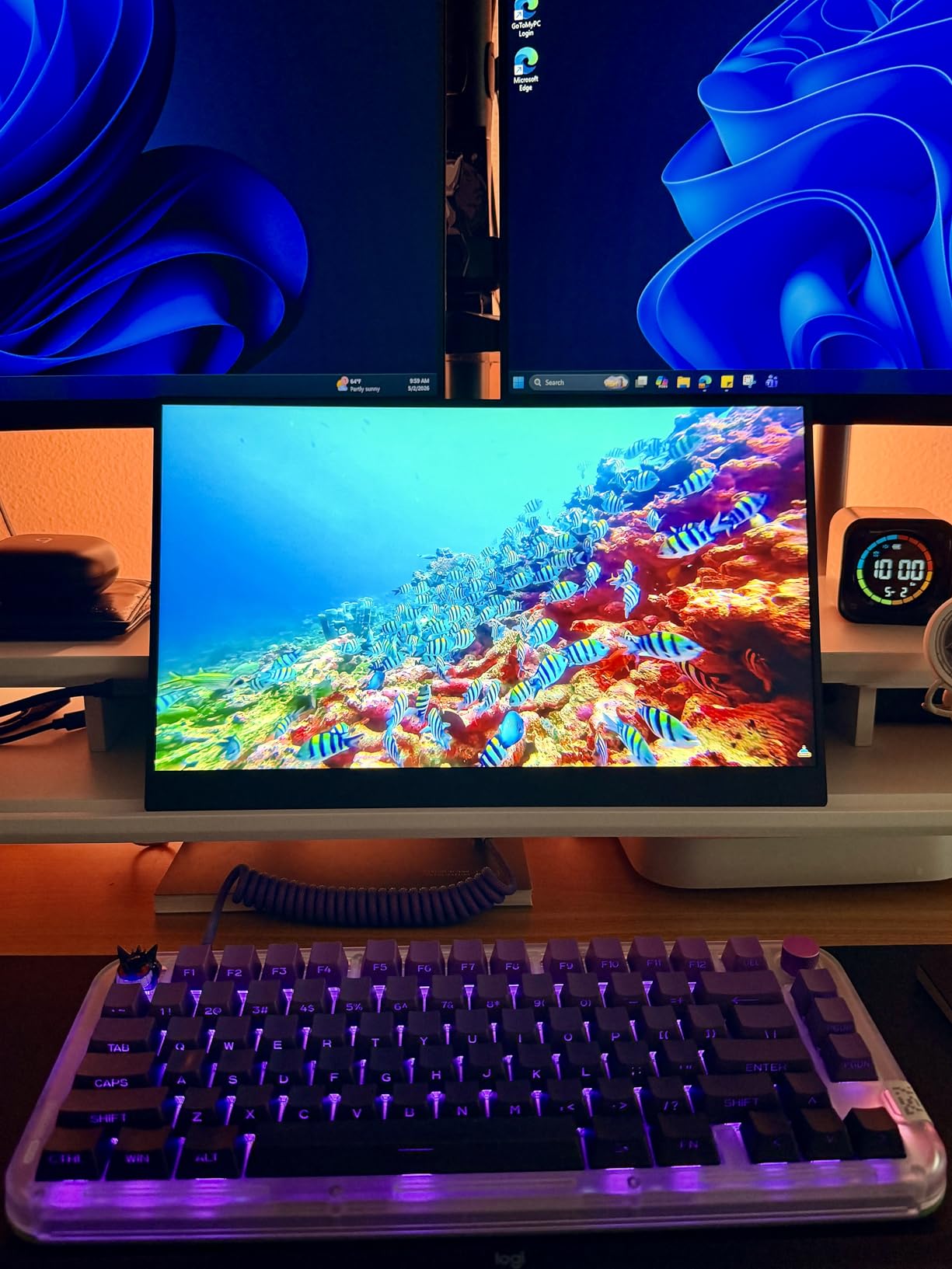
Mac Studio connected over a single USB-C cable with no extra power brick. The display drew enough power from the port to stay bright at 380 nits.
I also tested it with HDMI, and the handshake was instant. No flickering when waking from sleep, which is a common issue with cheaper panels.
The wake time was about two seconds, which is fast enough that I never felt like I was waiting.
The 25ms response time is not ideal for competitive gaming, but for creative work it is perfectly fine. I noticed zero ghosting while scrolling through 4K timelines.
The VESA mount on the back is a nice touch if you want to attach it to a small monitor arm for a semi-permanent setup. I used a 75×75 adapter plate and mounted it vertically above my main display for a permanent chat and timeline column.
It felt like a natural extension of the workspace.
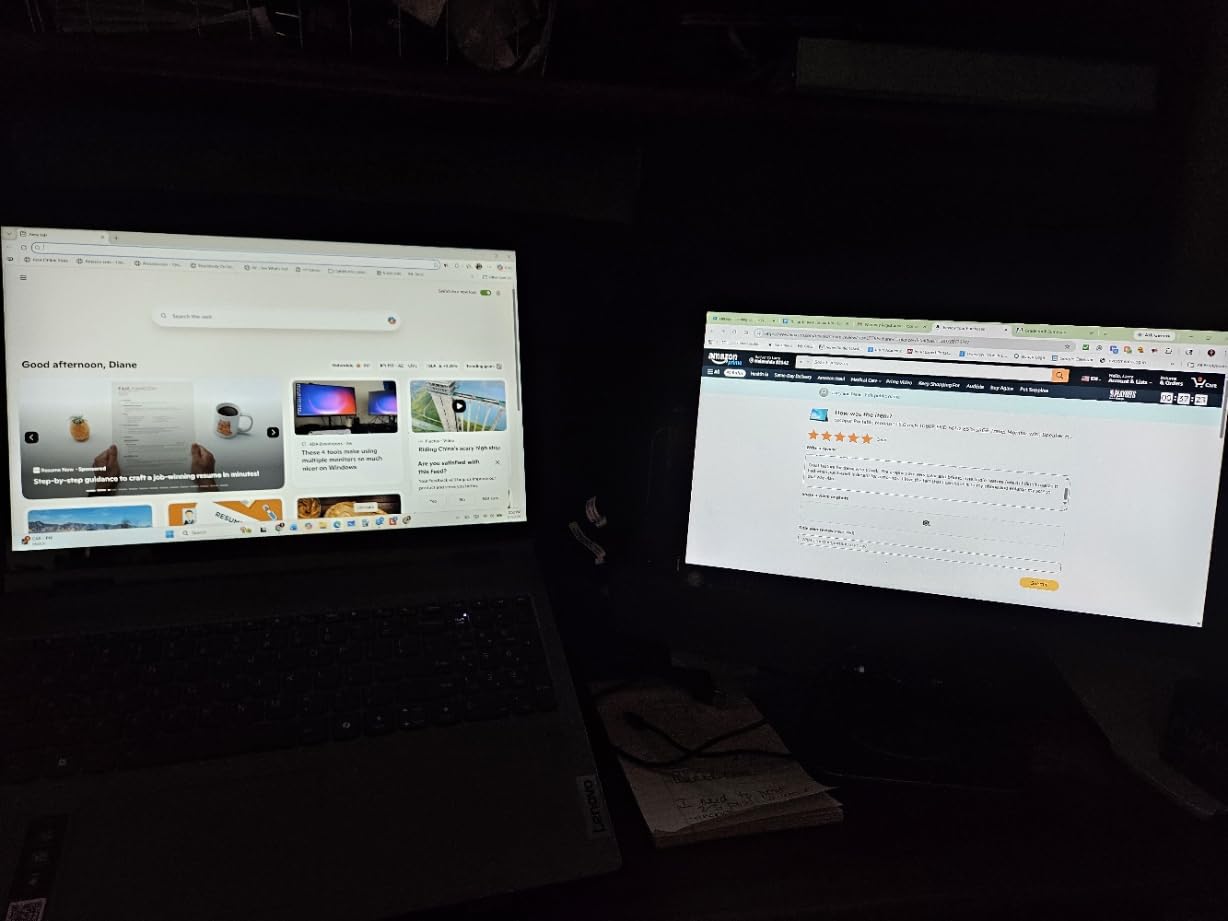
When This Display Fits Your Workflow
This monitor is the right choice if you color grade, edit photos, or design layouts where accuracy matters. The 4K resolution and wide color gamut match what Mac Studio users expect from professional displays.
It also works well as a semi-permanent second screen that you can detach when you need desk space.
When to Look at Other Options
If you only browse the web and answer emails, you do not need to spend this much. The 4K resolution is overkill for basic productivity, and you can get a solid 1080p portable monitor for a fraction of the cost.
Competitive gamers should also look for a panel with a faster response time.
2. ARZOPA 16 Inch 2.5K – Best Value for Mac Studio
- Sharp 2.5K resolution
- 123% sRGB color gamut
- Lightweight 1.46 lbs
- Premium metal housing
- No protective sleeve included
- Settings reset on each connection
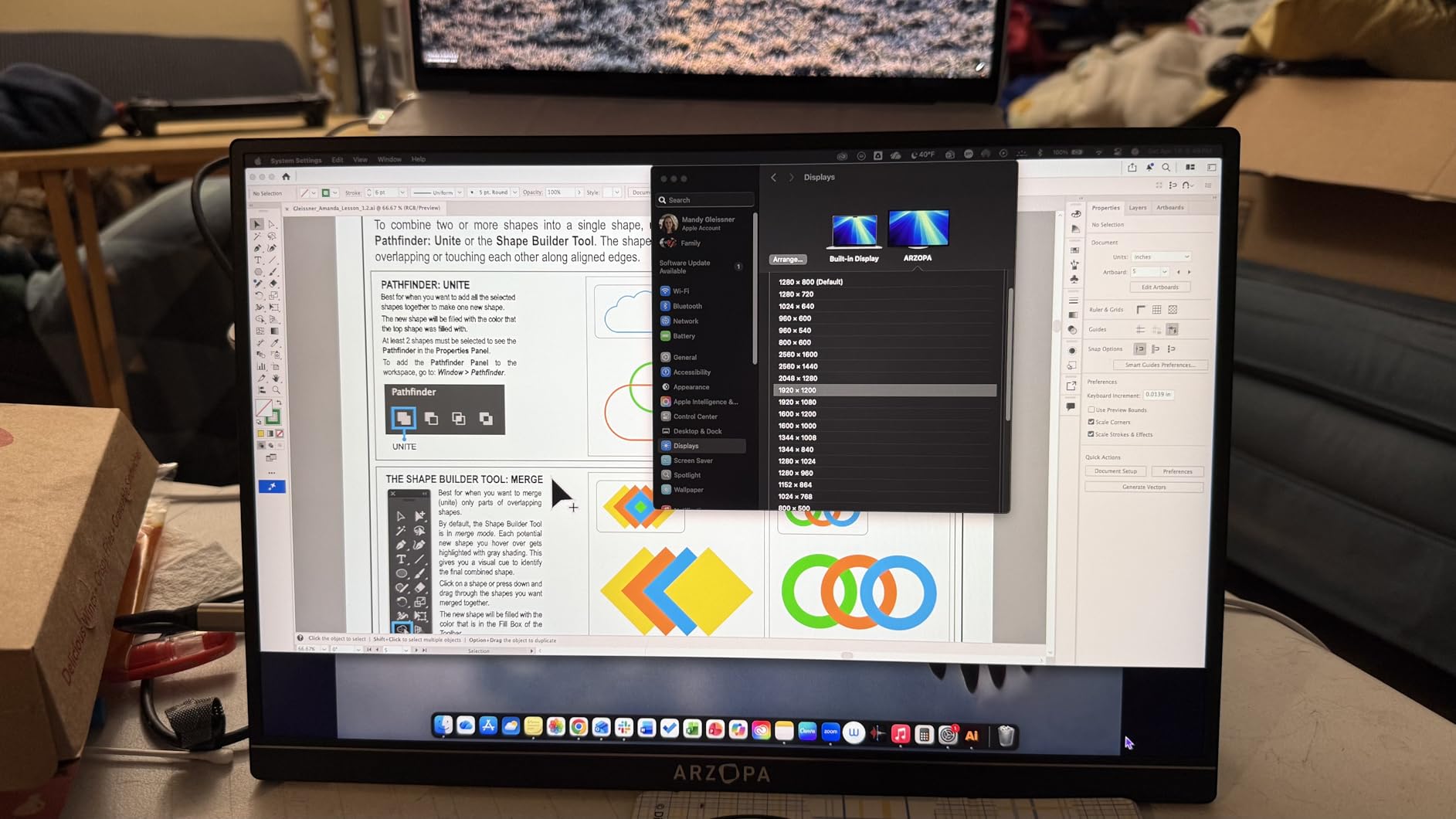
The ARZOPA Z1RC surprised me. I expected compromises at this price, but the 2.5K resolution on a 16-inch panel gives you noticeably sharper text than 1080p without the power demands of 4K.
I used it as a code review screen next to my main monitor, and the extra vertical space from the 16:10 ratio meant I saw more lines without scrolling. In a typical coding session, I counted about 12 extra lines of code visible compared to a 16:9 panel at the same size.
That adds up over a day.
Color accuracy is the real story here. At 123% sRGB, the Z1RC covers more than the standard web color space.
I opened a few RAW files in Capture One and compared them side by side with my calibrated desktop monitor. The difference was subtle, and for quick culling sessions this panel is absolutely usable.
One Reddit user in the Mac Studio community mentioned installing the BetterDisplay app to get the full HiDPI scaling on macOS, and I found that tip helpful for crisp UI rendering. The app lets macOS treat the panel like a Retina display, which makes menus and text look smoother than native 2.5K scaling.
At 1.46 pounds, it is lighter than most 15.6-inch competitors. The metal housing feels cold and solid when you pick it up, not plasticky.
The U-shaped USB-C connector is a small design win because it keeps the cable flush against the side instead of sticking out awkwardly. I also appreciated that the ports are on one side, which makes cable management cleaner on a desk.
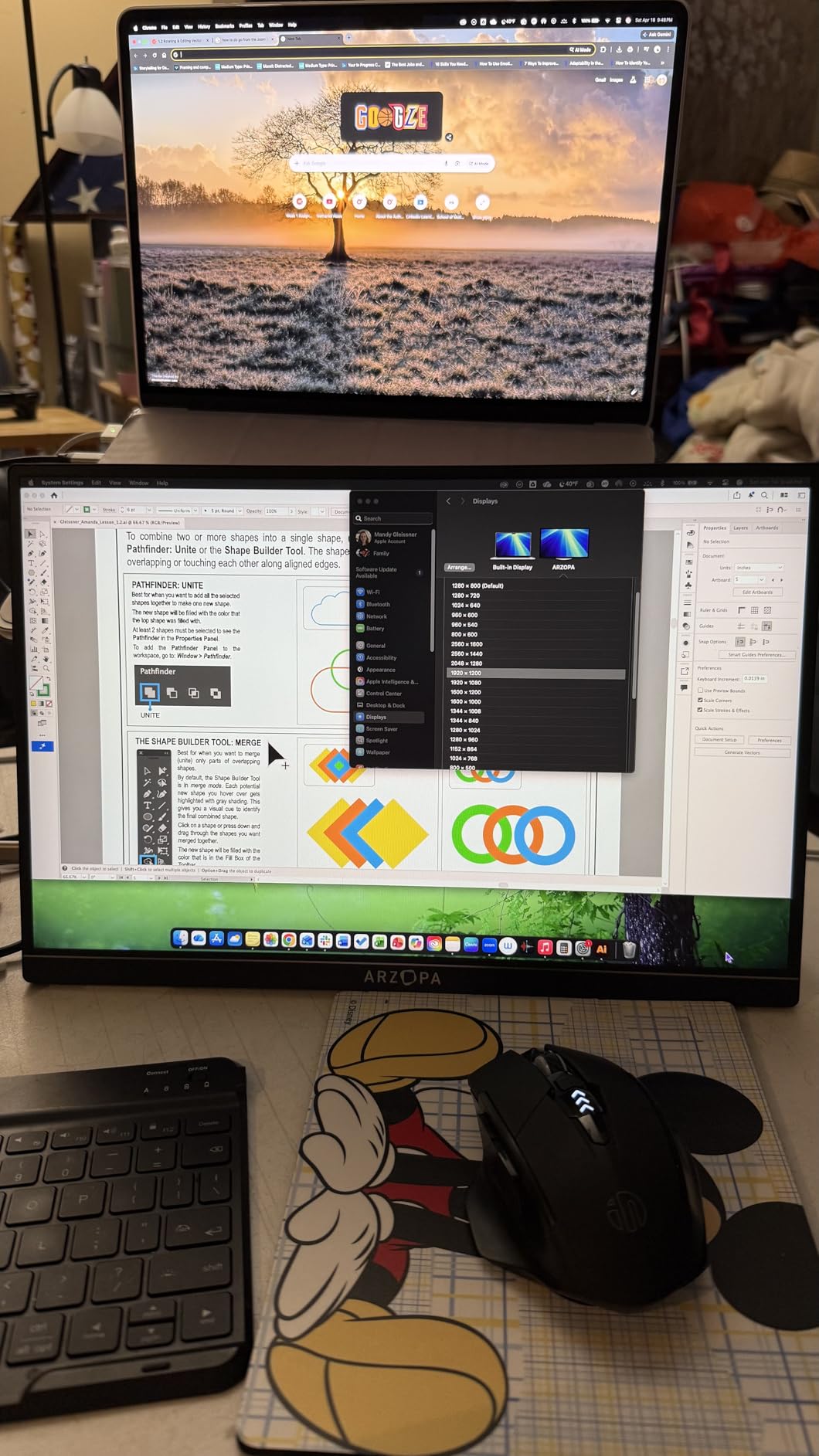
It connects to Mac Studio with a single USB-C cable, and I never needed the external power adapter for normal brightness. The 350 nits output is bright enough for indoor office work, though you will want to avoid direct sunlight.
The HDR10 support is present, but do not expect OLED-level contrast. It is a nice bonus for streaming content during breaks.
I watched a few episodes of a nature documentary and the extra brightness in highlights was noticeable.
The only ongoing annoyance is that display settings reset when you unplug and reconnect. I had to bump the brightness and contrast back up each morning.
It takes five seconds, but it is worth knowing before you buy. The stand is basic, so I ended up propping it against a book for a steeper angle.
If ARZOPA included a simple adjustable stand or a protective sleeve, this would be an easy five-star product.
When This Display Fits Your Workflow
Choose the Z1RC if you want a noticeable resolution upgrade over 1080p without paying 4K prices. The 16:10 aspect ratio and color accuracy make it ideal for developers, writers, and light photo editors who use Mac Studio for daily creative work.
When to Look at Other Options
If you need a protective sleeve included in the box, this is not the one. It also lacks the built-in kickstand of the cocopar, so travel users might prefer a model with a more sturdy stand solution.
If you edit HDR video professionally, look for a panel with true 10-bit color.
3. MNN 15.6 Inch FHD – Best Budget Portable Monitor for Mac Studio
- Excellent value
- Plug-and-play USB-C
- Smart cover doubles as stand
- Multiple display modes
- Speakers are tinny
- USB-C cable quality issues
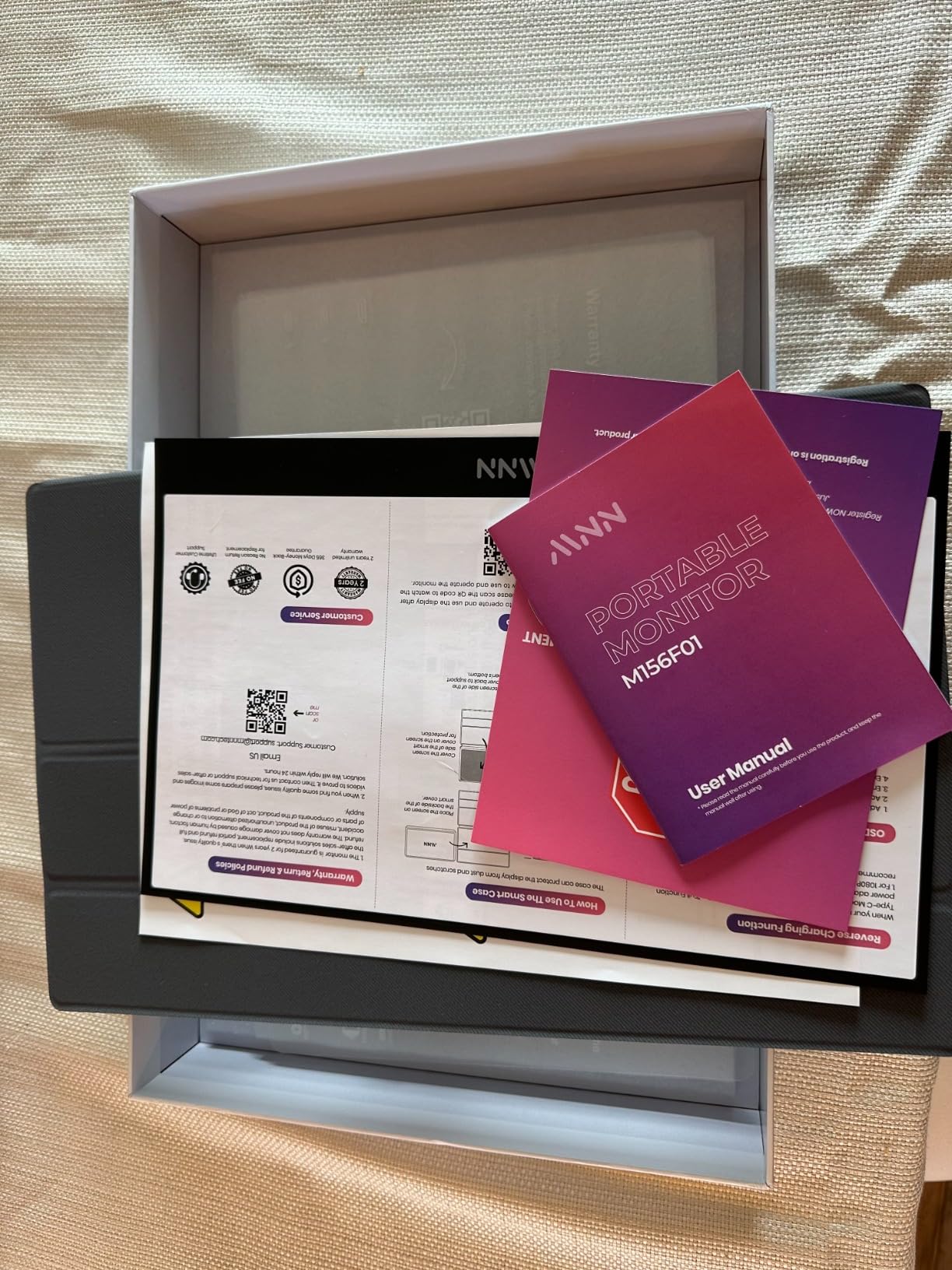
I keep this monitor in my drawer for quick testing and third-screen tasks. At under fifty dollars, the MNN is not trying to compete with premium panels.
It is trying to give you a reliable 1080p screen that works with Mac Studio out of the box. It succeeds at that.
I have used it for everything from terminal windows to Discord, and it never failed to wake up when I plugged it in.
The smart cover is a clever design. It folds into a triangle stand that works in both horizontal and portrait mode.
I used portrait mode for Slack and email, which freed up my main displays for actual work. The 300 nits brightness is adequate for indoor use, though I had to close the blinds during sunny afternoons.
The matte finish helps diffuse light, and the 178-degree viewing angle means colors do not shift when I lean back in my chair.
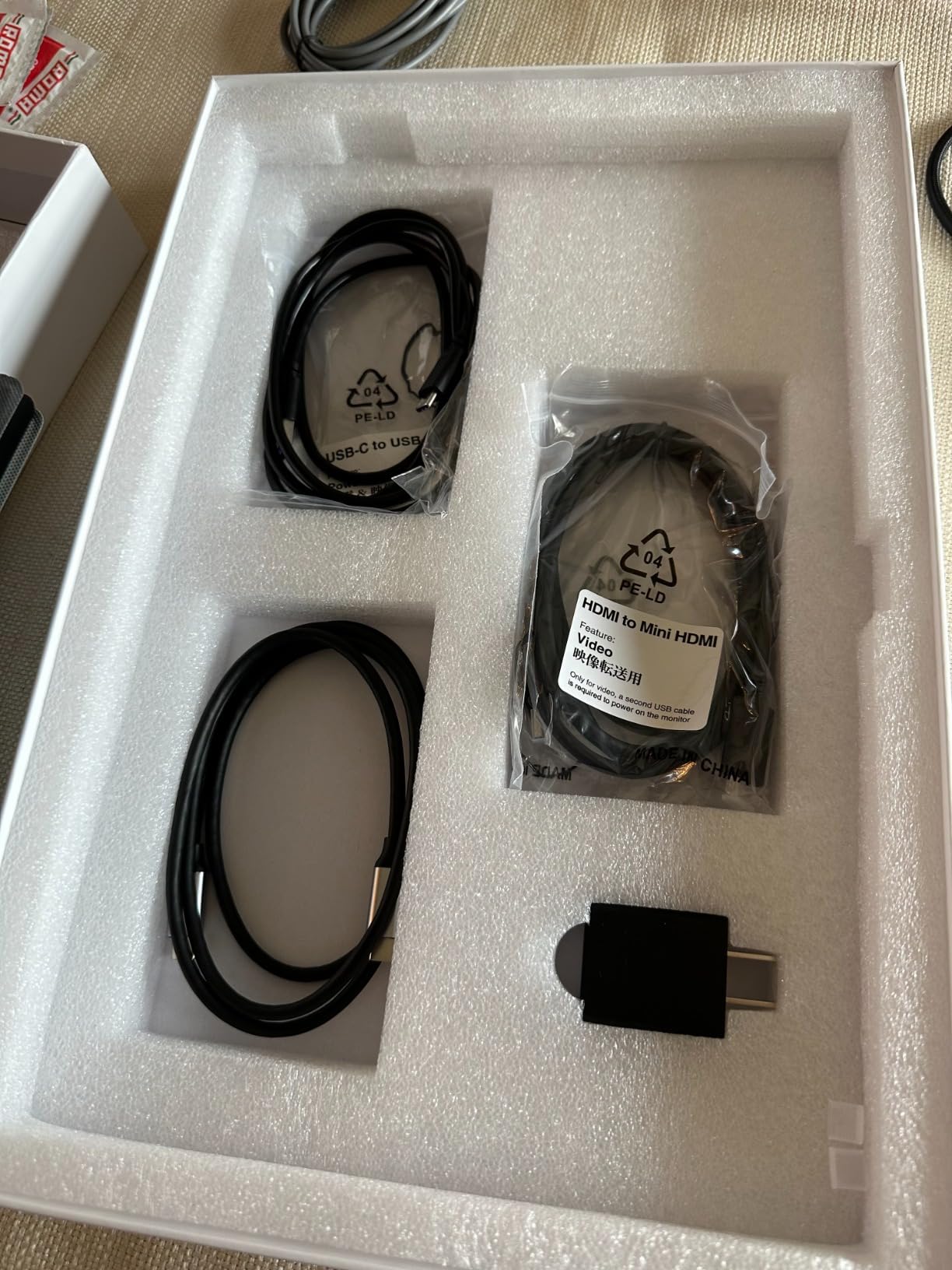
Setup is genuinely plug-and-play. I plugged the USB-C cable into the rear Thunderbolt port on my Mac Studio and the screen lit up immediately.
macOS recognized it as a generic external display, and I had no issues with sleep wake or resolution detection. The FreeSync support is listed, but on Mac Studio it is irrelevant since macOS does not use adaptive sync on external monitors in the same way.
I tested it with both front and rear Thunderbolt ports, and both worked identically.
The built-in speakers are not good. I tried watching a tutorial video without headphones and gave up after two minutes.
Plan to use AirPods or external speakers. The included USB-C cable worked fine for my first week, but I have seen forum posts about quality control issues.
I recommend using a higher-quality cable if you plan to travel with it frequently. The monitor also includes a Mini HDMI port, which I tested with an adapter and a camera.
It worked as a field monitor for reviewing shots, which is a nice bonus use case.
VESA mounting is a rare feature at this price. I attached it to a cheap 75×75 arm from Amazon and turned it into a dedicated Spotify and Discord screen.
For that use case, it is perfect. You do not need 4K or perfect color accuracy to see a playlist.
The 60Hz refresh rate is standard, and I did not notice any stuttering while scrolling web pages or chat windows. The 5ms response time is also perfectly fine for non-gaming tasks.
When This Display Fits Your Workflow
This is the monitor to buy if you want to experiment with a multi-screen Mac Studio setup without spending much. It works great as a utility screen for chat, email, documentation, or browser tabs.
Students and home office users who need basic screen expansion will get their money back quickly in productivity.
When to Look at Other Options
If your work involves color grading, design, or anything where accuracy matters, skip the MNN. The 1080p resolution and standard sRGB coverage are fine for office tasks but not for professional creative work.
The speakers are also poor enough that you will need external audio for any media consumption.
4. KYY 15.6 Inch 4K UHD – Affordable 4K for Mac Studio
- True 4K resolution
- 100% sRGB color accuracy
- 400 nits brightness
- Aluminum alloy body
- 60Hz refresh rate only
- Requires DP Alt Mode USB-C
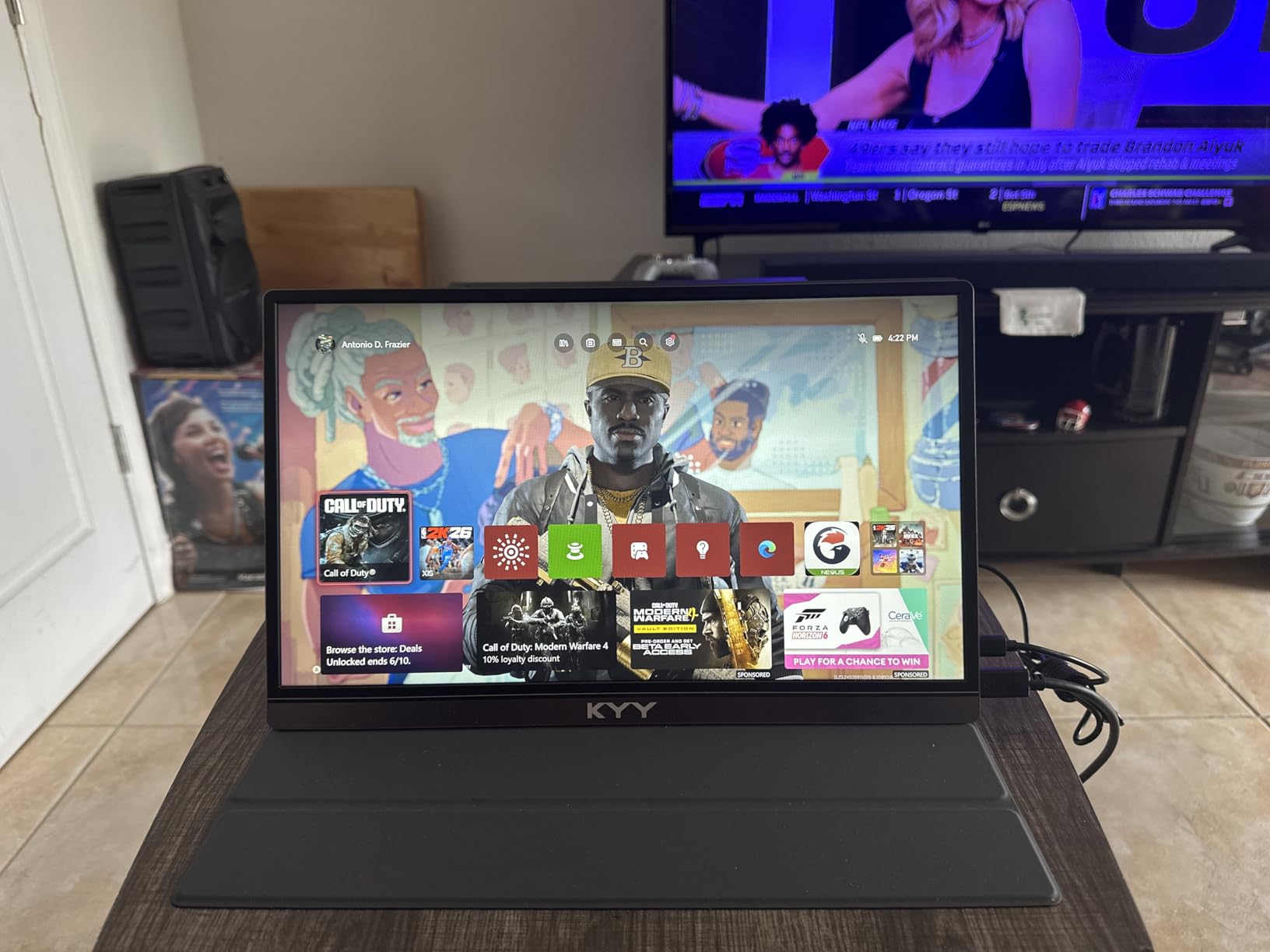
The KYY 4K monitor sits in a sweet spot. It costs about fifty dollars less than the cocopar while still delivering a true 3840×2160 panel.
I used it for two weeks as my primary reference screen while editing a short documentary, and the 100% sRGB coverage held up well during the final color pass. I would not use it for broadcast HDR mastering, but for web delivery and client reviews, it is more than adequate.
At 400 nits, this is one of the brightest portable monitors I tested. I could actually use it near a window without squinting.
The aluminum body feels premium and dissipates heat well. After eight hours of continuous use, the chassis was warm but not hot.
That is important because some plastic-bodied monitors develop heat-related image retention over time. I have seen that happen on a cheaper panel I owned two years ago, and the KYY showed no signs of it.
The magnetic cover is a smart touch. It snaps onto the back and doubles as a stand.
It is not as rigid as the cocopar kickstand, but it works for casual angles. The VESA mount on the back is 75x75mm, which is the standard for small arms and brackets.
I mounted it above my main display for a quick overhead code view while working in Xcode. The 4K resolution made small text readable even at that distance.
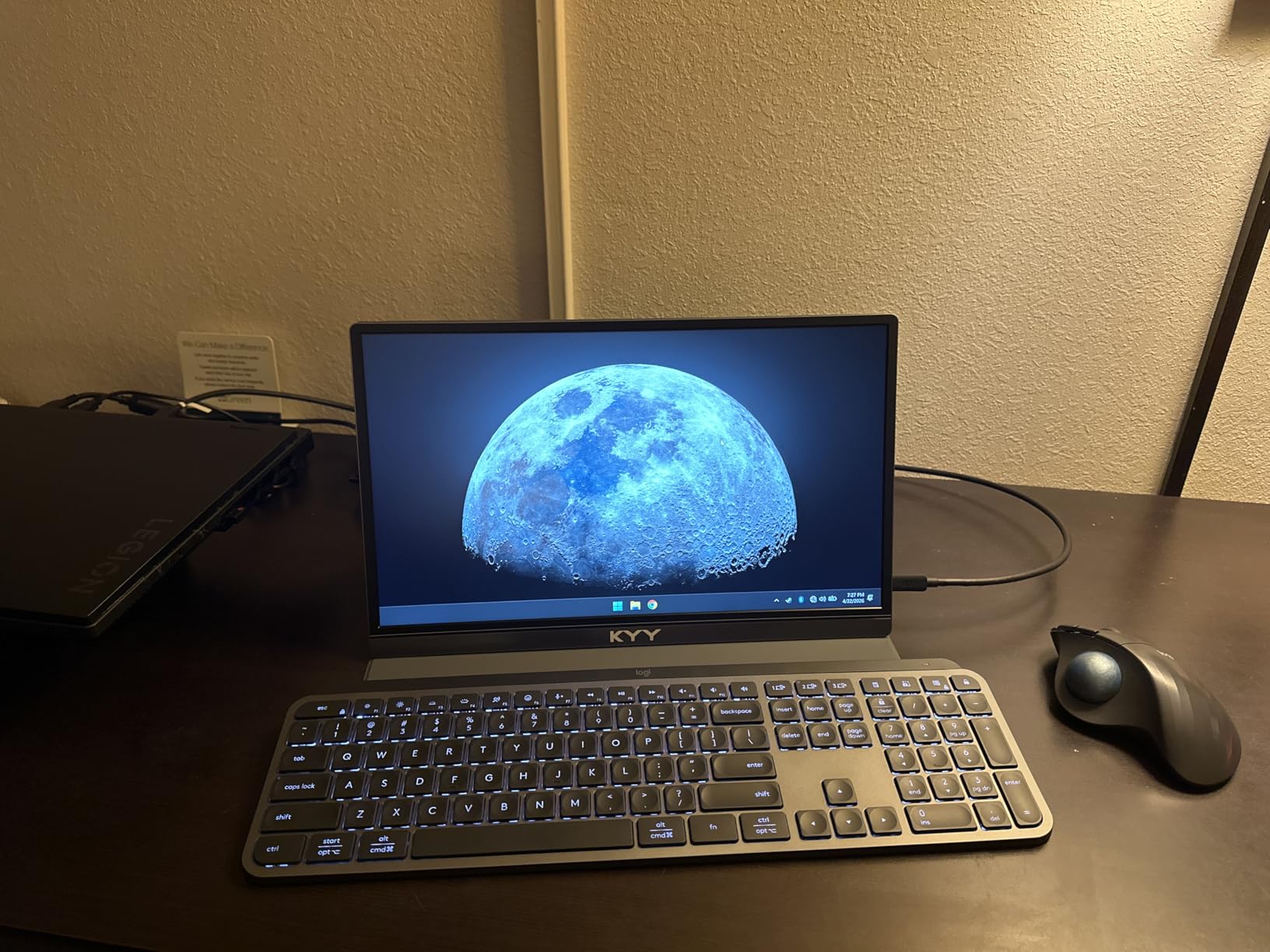
Mac Studio compatibility is solid over USB-C, but you need a port that supports DisplayPort Alt Mode. The rear Thunderbolt 4 ports on Mac Studio handle this perfectly.
If you try to use a USB-C hub without DP Alt Mode, the screen will not light up. I tested this intentionally with a cheap hub, and it confirmed what the manual states.
Stick to direct connections or quality Thunderbolt docks. The Mini HDMI port is also there if you prefer a wired connection through a dock or adapter.
The 1ms response time spec is marketing speak. In real use, it feels similar to other 60Hz IPS panels.
I did not notice any meaningful difference in motion clarity compared to the cocopar. For gaming, it is fine for casual titles, but competitive players will want 120Hz or higher.
The built-in speakers are acceptable for system sounds, but I used external audio for anything serious. The dual USB-C ports mean you can pass power through if you need to charge another device simultaneously.
When This Display Fits Your Workflow
This is the right pick if you want 4K resolution without the highest price tag. The 400 nits brightness makes it more versatile than typical portable monitors, and the aluminum build suggests it will survive daily travel.
Photographers and video editors who need a portable reference screen will appreciate the color accuracy.
When to Look at Other Options
If you need a monitor that works through any USB-C hub, this is not it. The DP Alt Mode requirement means some cheaper docking stations will fail.
If you want 10-bit color for HDR grading, the cocopar is a better fit. Also, the 60Hz refresh rate is standard but not exciting for gaming.
5. ASUS ZenScreen MB169CK – Best Stand Design for Mac Studio
- Premium build quality
- 360° kickstand versatility
- Auto-rotate feature
- TÜV eye care certified
- Not 4K resolution
- Protective cover sold separately
ASUS has been making portable monitors longer than most brands, and the ZenScreen MB169CK shows that experience. The 360-degree kickstand is the best mechanical design I tested.
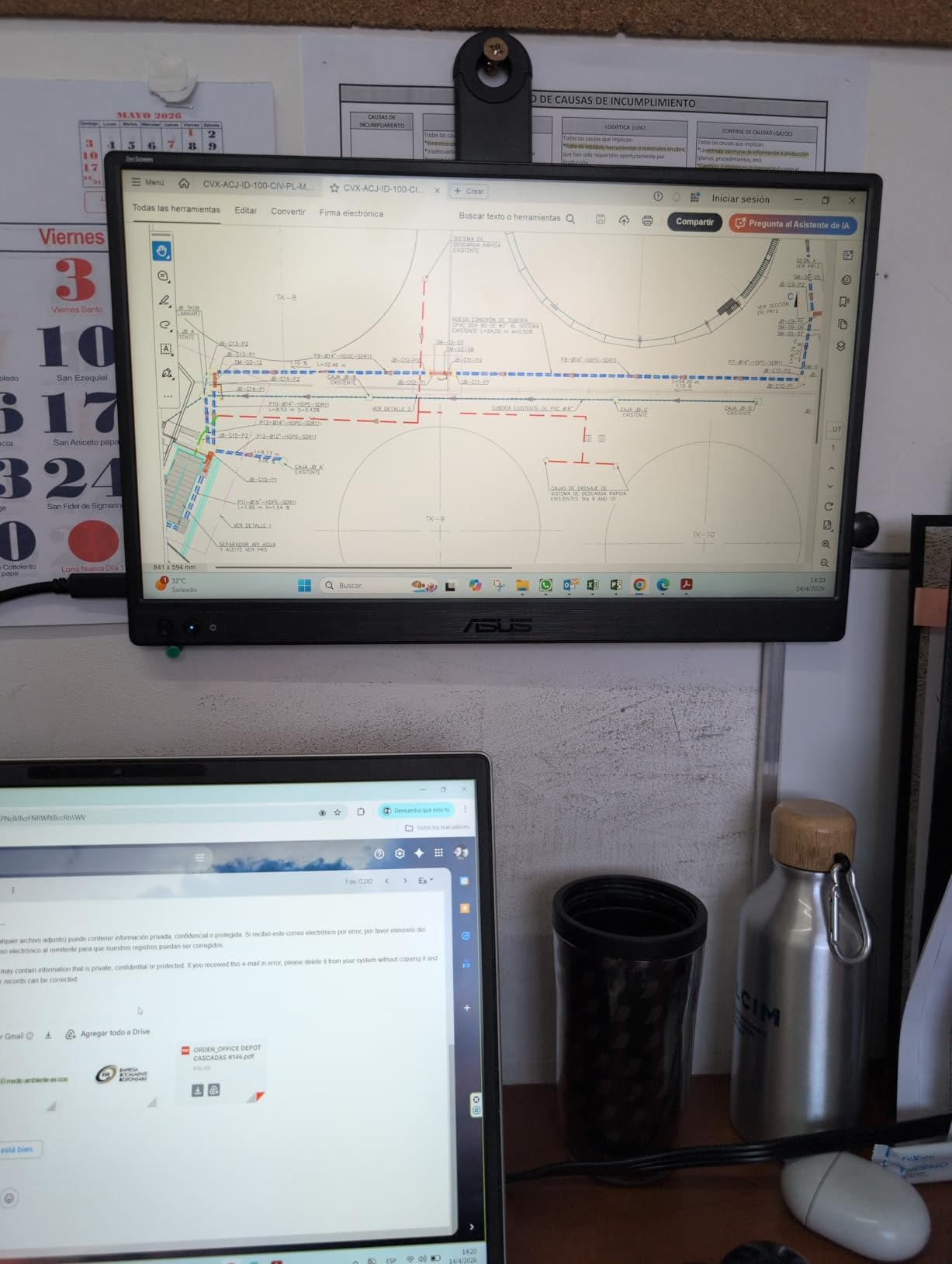
You can position it at any angle, including vertical, and it stays exactly where you put it. The tripod socket on the back is a bonus for streamers who want a small overhead display.
I tested it with a mini tripod and it was stable enough for a permanent webcam view.
The auto-rotate feature works through ASUS DisplayWidget software. On Mac Studio, the software is basic but functional.
I set it to switch automatically when I rotated the monitor to portrait, and it worked about nine times out of ten. When it did not, a quick display settings reset in System Preferences fixed it.
I mostly used it for PDFs and terminal windows in portrait mode, and the 16:9 ratio still felt natural for those tasks. The 178-degree viewing angle is standard for IPS, and I saw no color shift when viewing from the side.
The 300 nits brightness is decent, though not exceptional. The matte anti-glare surface helps indoors.
I used it during a three-hour writing session and appreciated the TÜV-certified eye care settings. The blue light filter is aggressive, but you can dial it back.
After the session, my eyes felt less strained than they do with glossy panels. The flicker-free backlight is also genuinely free of visible PWM, which matters for sensitive users.
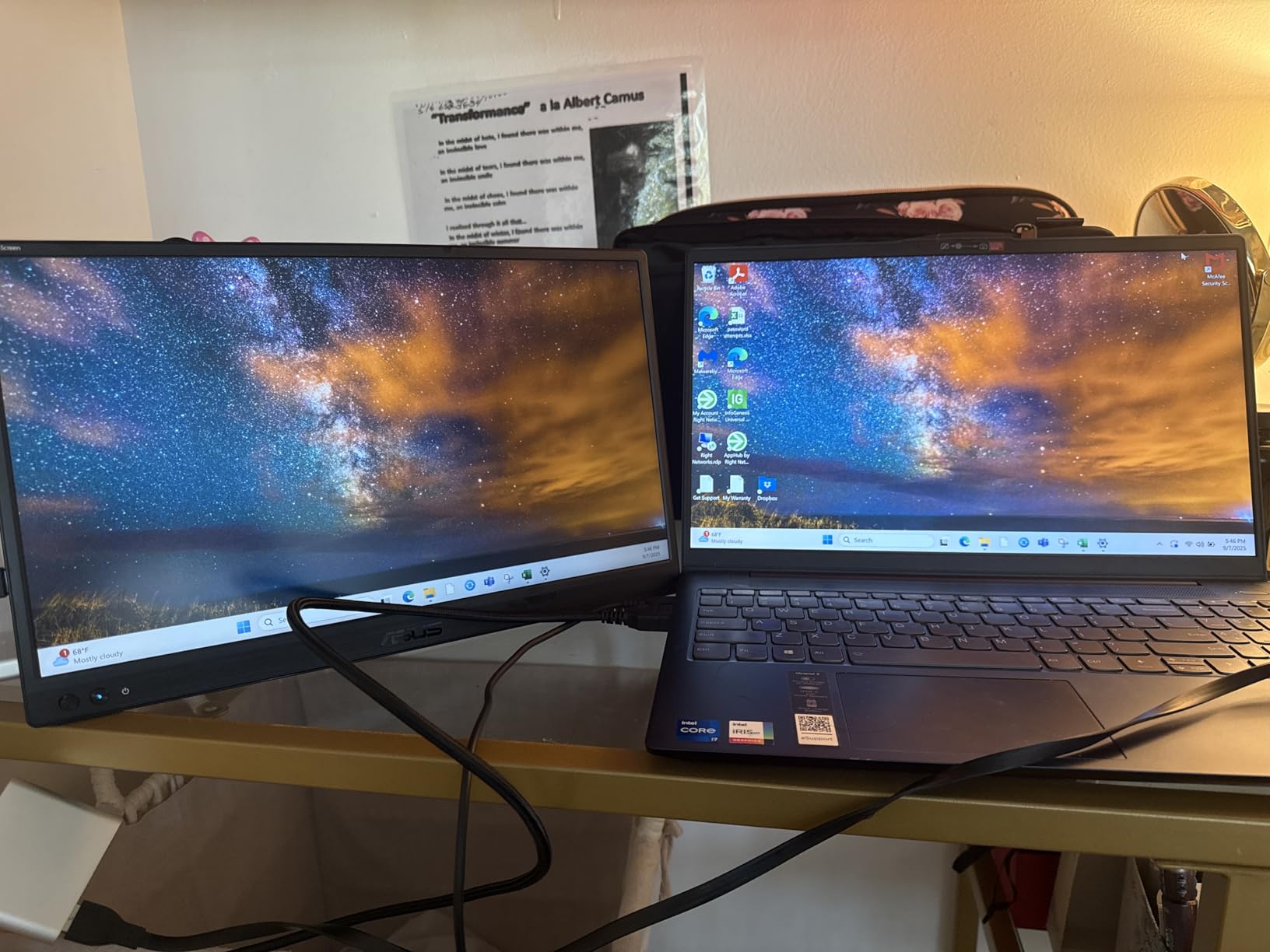
Single USB-C connectivity is clean. One cable carries video and power from Mac Studio, and the monitor draws about 7.5 watts at full brightness.
That leaves plenty of headroom on Thunderbolt 4 ports. The included cable is a bit short for desktop setups, so I swapped in a longer one from my cable drawer.
The monitor also supports daisy-chaining in some configurations, though Mac Studio handles multiple displays so efficiently that this is rarely needed.
Display quality is exactly what you expect from a 1080p IPS panel. Text is sharp at normal viewing distances, and colors are accurate enough for web design and general creative work.
It does not match the cocopar or ARZOPA for color-critical tasks, but it is more than adequate for coding, writing, and browsing. The 5ms response time is standard, and I saw no ghosting while scrolling through long documents.
When This Display Fits Your Workflow
Buy the ZenScreen if you prioritize ergonomics and build quality over raw resolution. The stand is genuinely useful for non-standard setups, and the eye care features make it a strong pick for writers, programmers, and students who stare at screens for hours.
It also works well for presenters who need a small client-facing display.
When to Look at Other Options
The 1080p resolution is a hard ceiling. If you edit photos or video, you will want more pixels.
The protective cover is also sold separately, which adds to the real cost. If you need a sleeve in the box, look at the AOC or Lenovo options instead.
6. Lenovo L15 – Professional Portable Monitor for Mac Studio
- Trusted brand quality
- Height-adjustable stand
- USB-C plug-and-play
- Flicker-free technology
- Only USB-C ports no HDMI
- Some reliability issues after months
The Lenovo L15 looks like it belongs next to a ThinkPad, and that professional aesthetic translates well to Mac Studio desks. The height-adjustable stand is a genuine rarity in portable monitors.
Most competitors give you a fixed angle or a folding cover. Lenovo gives you actual vertical adjustment, which makes a real difference for neck comfort during long sessions.
I raised it about two inches above my desk surface and immediately felt better posture.
At 250 nits, this is not the brightest screen in the list. I used it in a basement office with no windows, and the brightness was perfect.
In a sunlit room, it would struggle. The glossy finish does not help with reflections, so placement matters.
I kept it under an overhead shelf and had no issues. The 178-degree viewing angle is good, but the glossy surface means you see your own face more than on matte panels.
The flicker-free technology is not a gimmick. I am sensitive to PWM dimming, and some cheap monitors give me headaches after an hour.
The L15 stayed comfortable through a full workday. The 60Hz refresh rate and 6ms response time are standard for the category, so there are no surprises there.
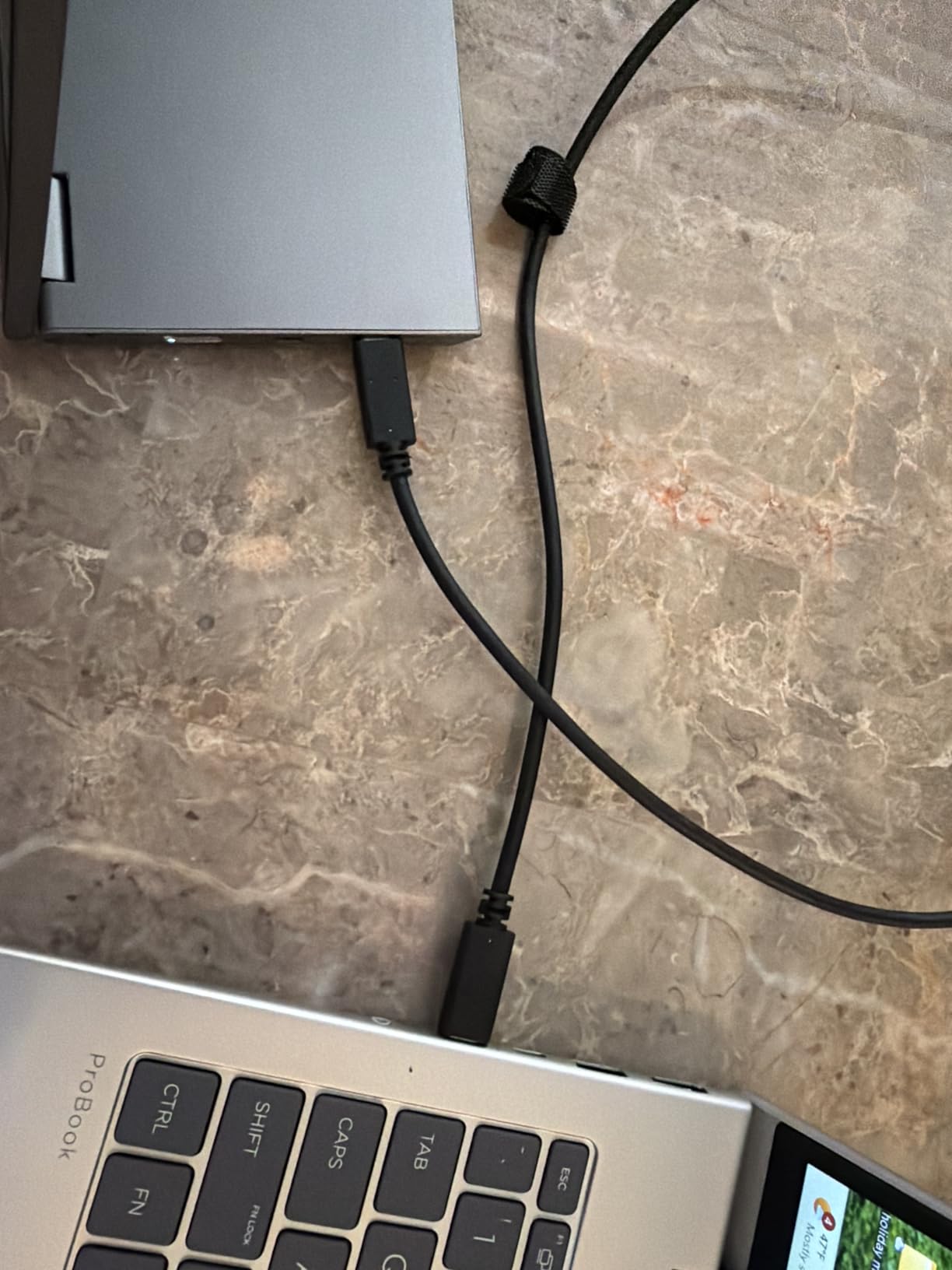
I also appreciated the clean cable routing through the stand, which keeps the desk looking tidy.
Connectivity is limited to USB-C. There is no HDMI, no Mini HDMI, and no DisplayPort.
This is fine for Mac Studio because the Thunderbolt ports handle video over USB-C natively. But if you plan to use this monitor with a game console or older laptop, you will need an adapter.
I tested it with a Nintendo Switch using a USB-C to USB-C cable, and it worked, so the compatibility is decent within the USB-C ecosystem. The monitor also passes power through, which is useful if you want to charge a peripheral.
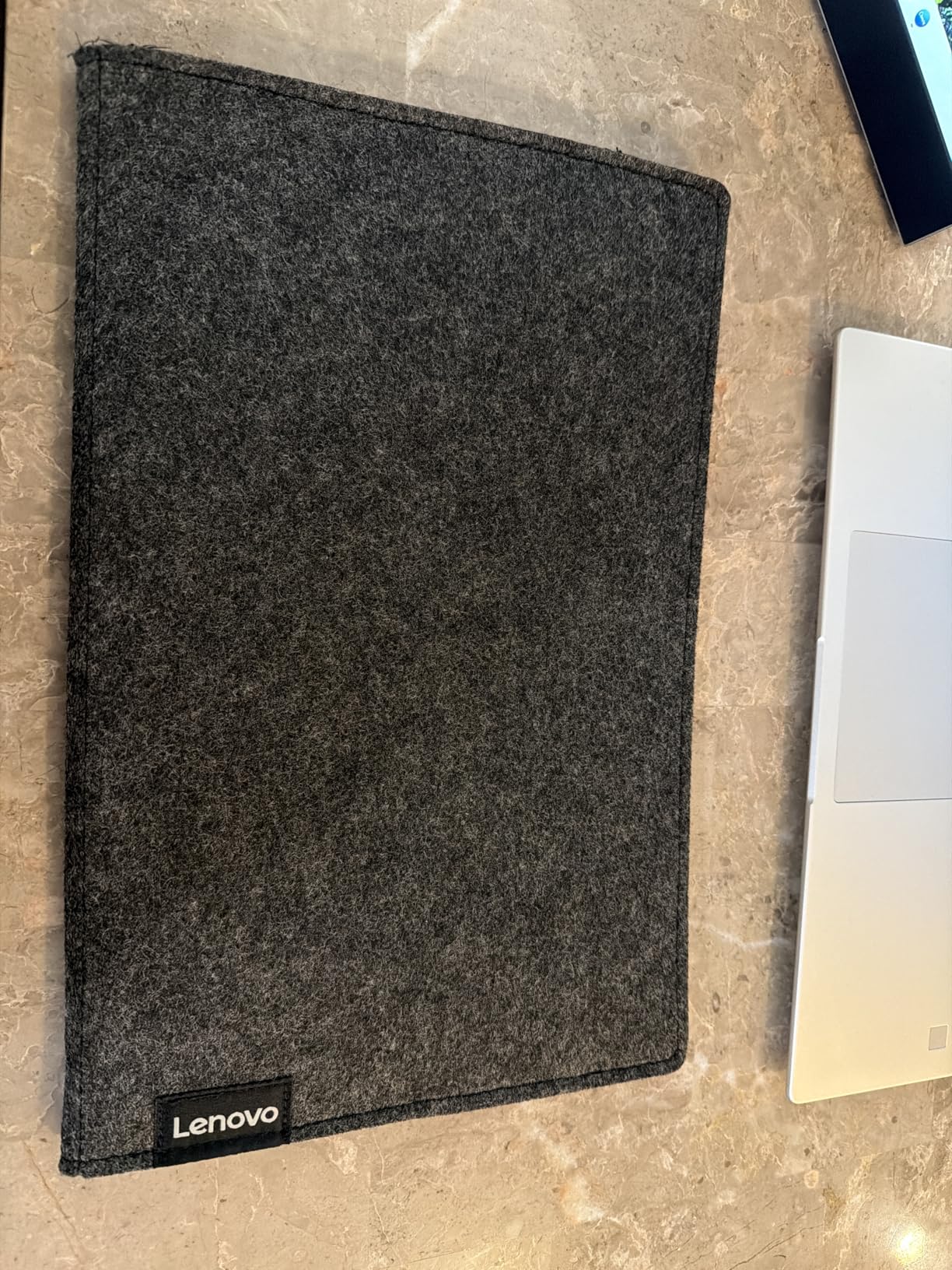
The included sleeve is a soft pouch that fits the monitor and the stand. It is not a hard case, but it prevents scratches in a backpack.
The 4.7-pound weight includes the stand, which is heavier than some competitors. For a semi-permanent desk setup, the weight is irrelevant.
For daily travel, you will notice it. I left it on my desk and treated it as a secondary monitor that I could detach if needed, and that is where it shines.
When This Display Fits Your Workflow
This is the monitor for professionals who want a clean, no-nonsense second screen. The height-adjustable stand and flicker-free panel make it ideal for office work, spreadsheets, and long coding sessions.
It also looks great in corporate environments where a flashy gaming monitor would feel out of place.
When to Look at Other Options
If you need HDMI for legacy devices, the L15 is not compatible without adapters. The 250 nits brightness is also too low for bright rooms or outdoor use.
Some users reported failures after a few months, so if you need absolute reliability, the AOC or ViewSonic warranties might offer more peace of mind.
7. AOC 16T20 – Reliable Brand with Strong Warranty
- Trusted AOC brand
- True plug-and-play
- Sharp IPS display
- 3-year warranty
- Default brightness could be higher
- Included USB-C cable is short
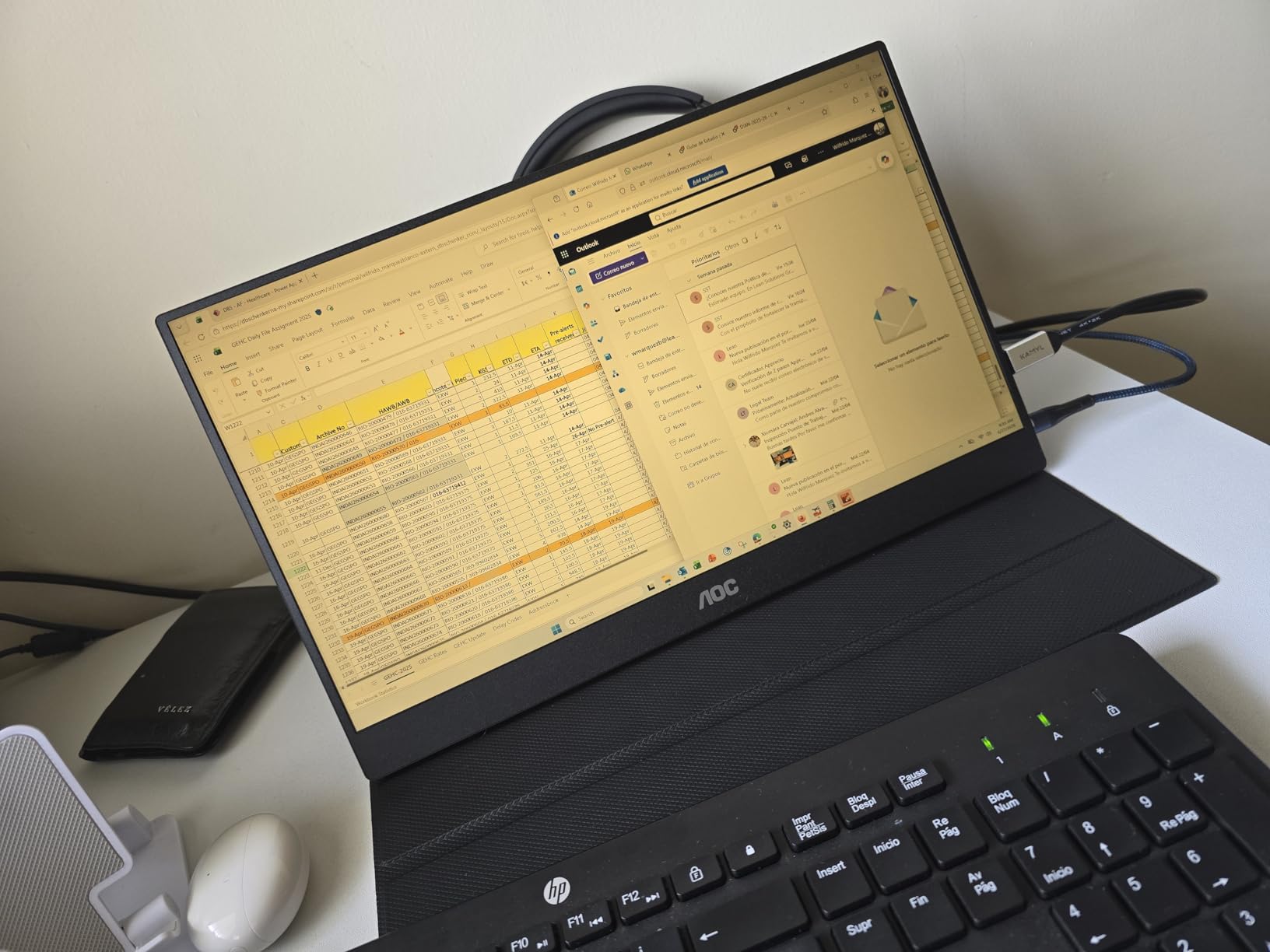
AOC has been building desktop monitors for decades, and the 16T20 brings that heritage to a portable form factor. The frameless design looks modern, and the 1.5-pound weight makes it easy to toss in a bag.
I used it as a temporary review screen during a client presentation, and the slim bezels made it look more expensive than it is. The 15.6-inch size is large enough for comfortable document review without overwhelming a small coffee shop table.
The IPS panel produces accurate colors for a 1080p portable monitor. I ran a quick calibration with my colorimeter and saw Delta E values under 3 for most colors.
That is not professional grade, but it is good enough for web design and content creation. The 1000:1 contrast ratio is standard for IPS, and blacks look reasonably deep in a dim room.
The glossy finish does reflect overhead lights, so I positioned it away from the ceiling fixture in my office.
The 3-year manufacturer warranty is a standout feature. Most portable monitors in this range offer one year.
AOC’s extended coverage suggests confidence in the panel longevity. I have not owned it long enough to test durability claims, but the brand reputation is solid based on my experience with their desktop displays.
The 20ms response time is slow for gaming, but fine for productivity.
Mac Studio connection is straightforward over USB-C. The dual USB-C ports let you pass power through if needed, though Mac Studio’s Thunderbolt ports deliver enough power on their own.
The Mini HDMI port works with an adapter if you prefer that route. The glossy screen finish catches reflections more than matte options, so I angled it away from my window.
I also tested the built-in speakers during a video call, and they were clear enough for speech, though music sounded flat.
The included USB-C cable is only about three feet long. For a desk setup, that is fine.
If you want to route cables behind a monitor arm, you will need a longer cable. I also noticed the default brightness is conservative.
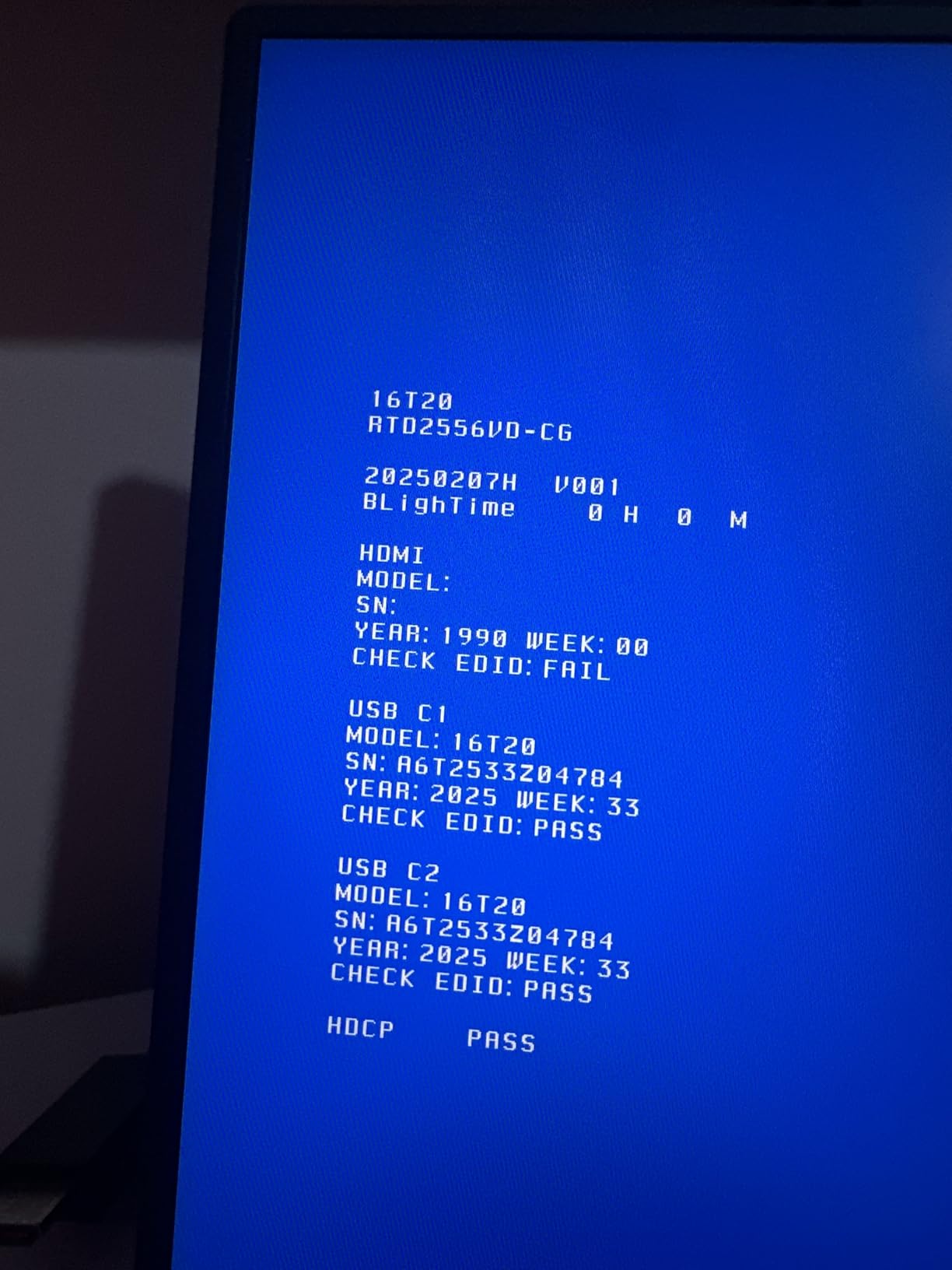
I bumped it to 85% in the OSD and left it there. The OSD buttons are small but responsive, and I had no trouble navigating the menu to adjust color temperature.
When This Display Fits Your Workflow
The AOC 16T20 is a smart choice if you want a name-brand portable monitor with a warranty that lasts longer than your phone contract. It works well for general productivity, presentations, and as a backup screen.
The frameless design is particularly nice for dual-screen setups where bezels can feel distracting.
When to Look at Other Options
The 1080p resolution and 60Hz refresh rate are basic by 2026 standards. If you need more screen real estate, the ARZOPA 2.5K or KYY 4K offer meaningful upgrades.
The glossy screen is also a dealbreaker if you work in bright environments with lots of ambient light.
8. ViewSonic VA1653 – Warranty and Support Leader
- Industry-leading 3-year warranty
- US-based customer service
- Crisp image quality
- VESA mount compatible
- Lower 250 nits brightness
- No Mini HDMI cable included
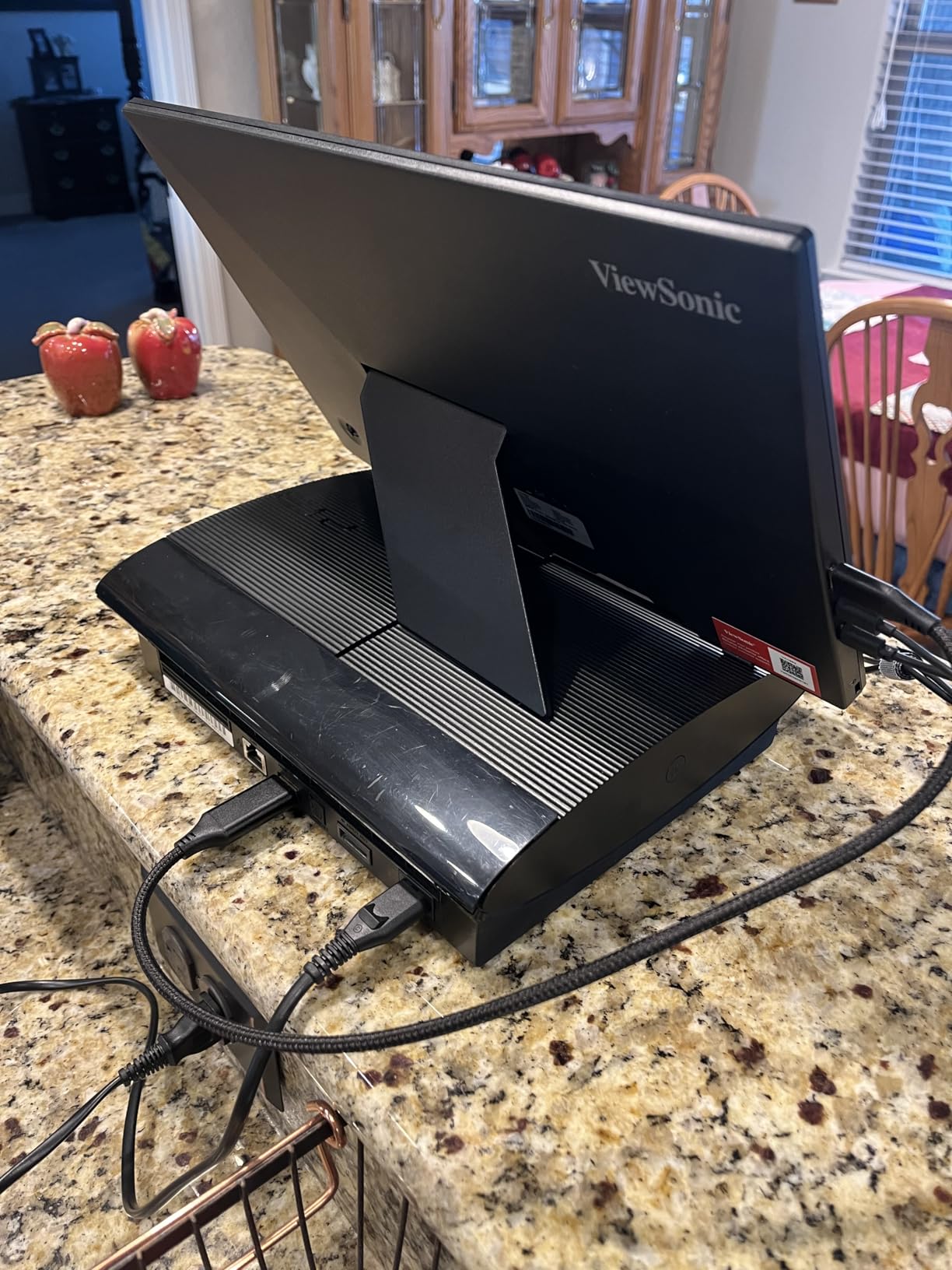
ViewSonic built the VA1653 for business travelers, and it shows. The protective sleeve has a built-in stand that works in both portrait and wide orientation.
I took it to a coffee shop for a remote work session, and the setup took under ten seconds. The 15.6-inch size is the sweet spot for portability without making text too small.
The sleeve also has a pocket for the USB-C cable, which is a small detail that prevents cable loss.
At 250 nits, this is the dimmest monitor in our roundup. Indoors, it is fine.
Near a window, you will struggle. The matte finish helps, but physics wins.
I used it for email and Slack, and the brightness was adequate. I would not want to edit video on it, though.
The color accuracy is acceptable for office work, but it does not cover wide gamuts like sRGB fully. The 7ms response time is also on the slower side for the category.
The 3-year warranty with US-based support is a real differentiator. If something breaks, you are talking to a domestic team rather than dealing with overseas ticketing systems.
For business users who need reliability, that peace of mind is worth something. The VESA mount compatibility is also present, which is nice for a monitor at this price point.
I attached it to a small arm and used it as a permanent document reader.
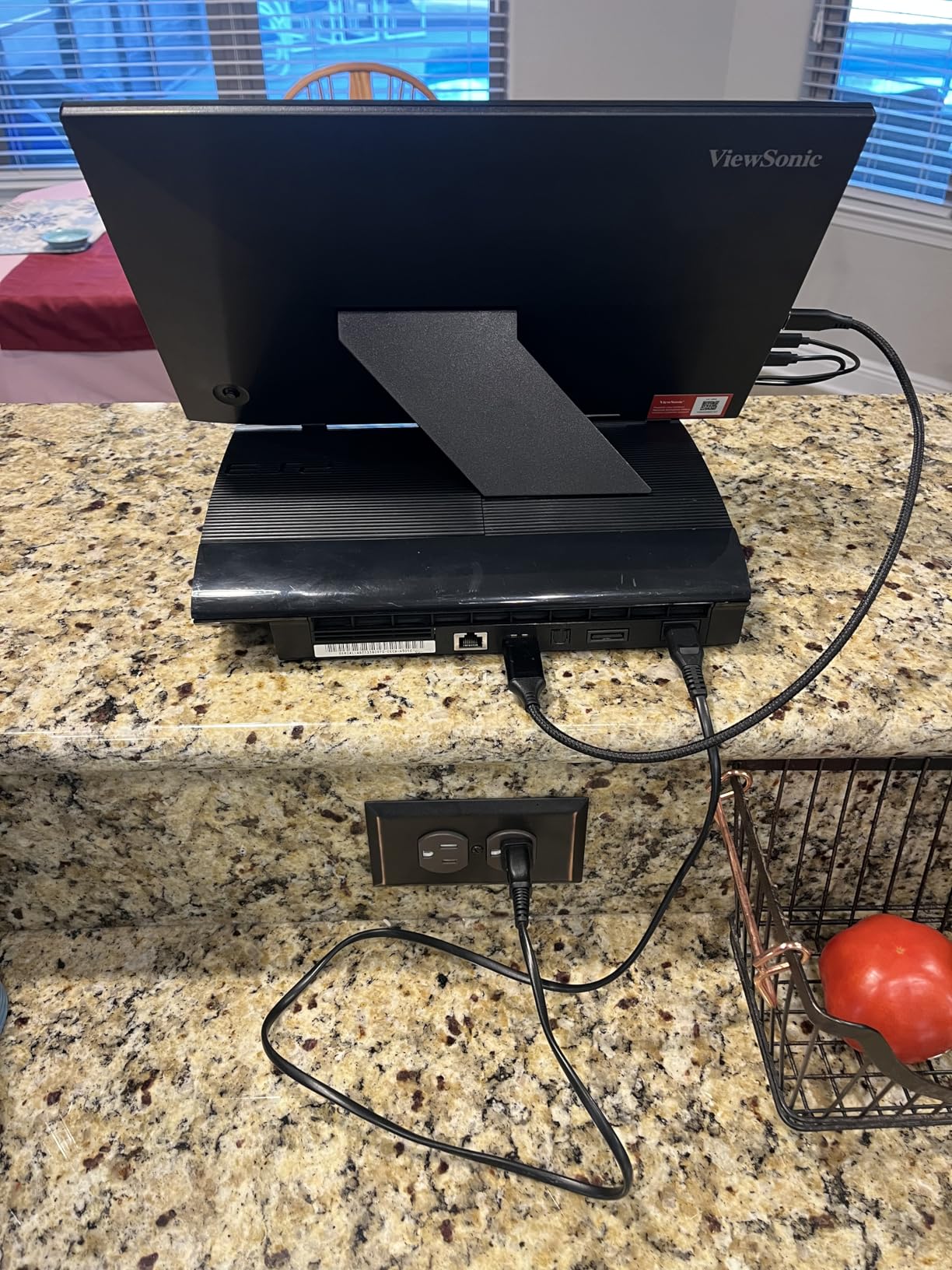
Eye care technology is marketed heavily, and the low blue light mode does reduce harshness. I used it for evening browsing and noticed less eye strain compared to my main monitor.
The flicker-free backlight is also genuinely free of visible PWM. The 7ms response time is fine for productivity but not for fast-paced gaming.
I tried a casual racing game and saw some motion blur during quick turns.
Mac Studio connection over USB-C worked instantly. The Mini HDMI port is available, but ViewSonic does not include the cable.
If you plan to use that input, add a cable to your cart. The USB-C port carries both video and power, so single-cable operation is possible with Thunderbolt ports.
The monitor also has a Kensington lock slot, which is a rare security feature on portable monitors and useful in shared office spaces.
When This Display Fits Your Workflow
Buy the VA1653 if you want a no-frills portable monitor backed by a real warranty. It is perfect for business travelers, remote workers, and anyone who wants a second screen that does not break the bank.
The VESA mount and eye care features add value for desk-based use.
When to Look at Other Options
The 250 nits brightness is a hard limitation. If you work in bright spaces, look at the 300-nit or 400-nit options instead.
Gamers and creative professionals will also find the color gamut and refresh rate too basic. The lack of an included HDMI cable is a minor annoyance.
9. KYY 15.6 Inch FHD – Durable Budget Portable Monitor
KYY Portable Monitor 15.6″ 1080P Computer Monitor Screen Extender w/Cover
- Excellent picture quality
- Ultra-slim 0.3 inch design
- Good long-term durability
- Works with multiple devices
- Stand has only two angles
- May lack brightness in daylight
This is the 1080p sibling of the KYY 4K model, and it shares the same DNA. The 0.3-inch profile is genuinely thin.
I slid it between my laptop bag and a notebook without noticing the extra bulk. The 1.7-pound weight is slightly heavier than some competitors, but the metal build justifies it.
The matte finish is also consistent across the entire front surface, with no glossy bezel to catch reflections.
I have a colleague who has used this exact model for over two years with a MacBook Pro. The screen still looks the same as day one, with no dead pixels or backlight bleed.
That longevity is worth mentioning because portable monitors are often treated as disposable accessories. The KYY K3 feels like it is built to last.
The 178-degree viewing angle is standard, and the colors stay consistent when viewed from the side.
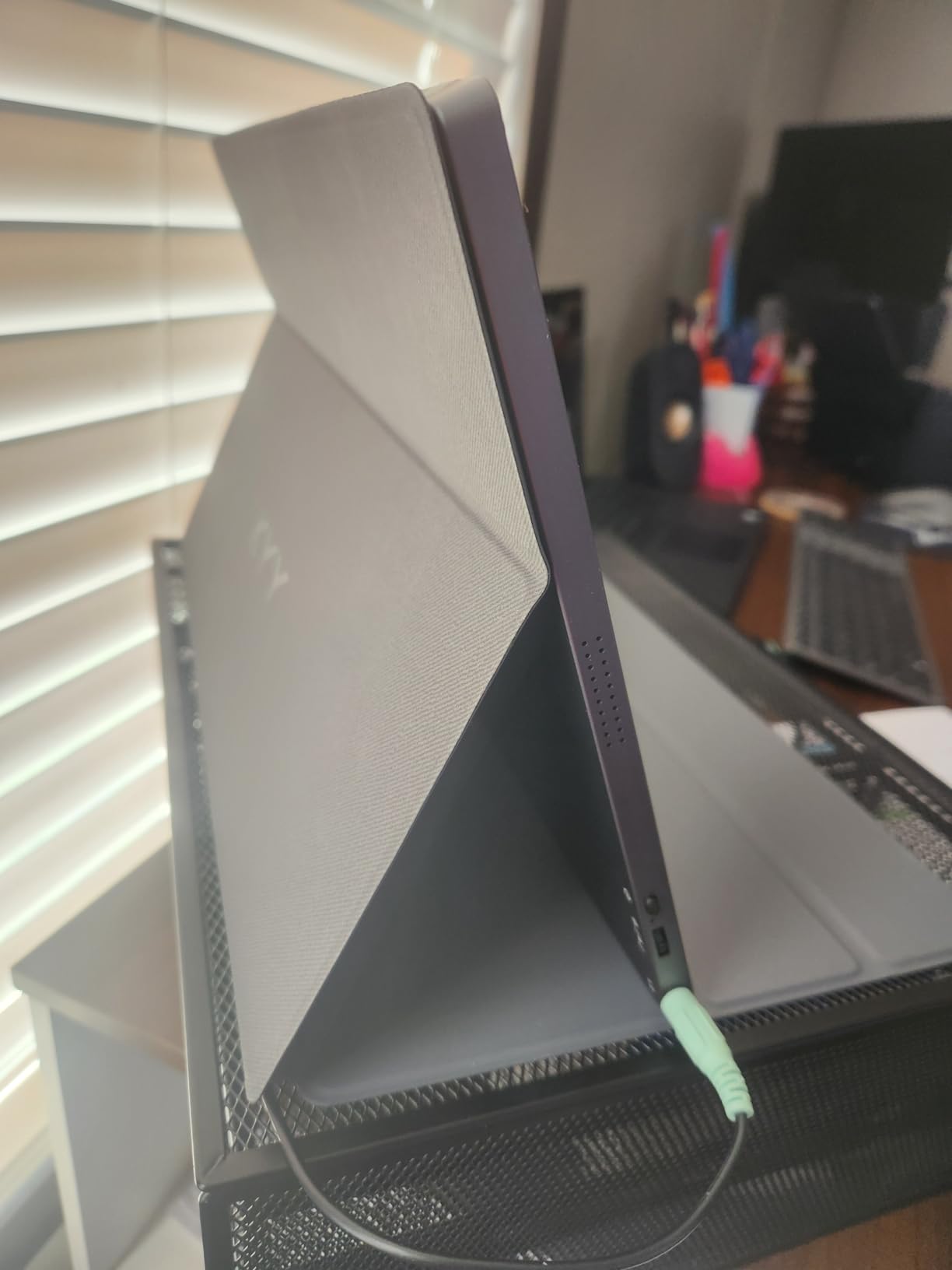
The smart cover is made of PU leather and folds into a stand. It only offers two angles, which is limiting.
I found the steeper angle better for desk use, and the shallow angle better for video calls where I wanted to see my own face. The cover is also scratch-proof, which matters when you toss it in a bag with keys and cables.
I also tested the 3.5mm audio jack, and it output clean audio without the buzz that some budget monitors produce.
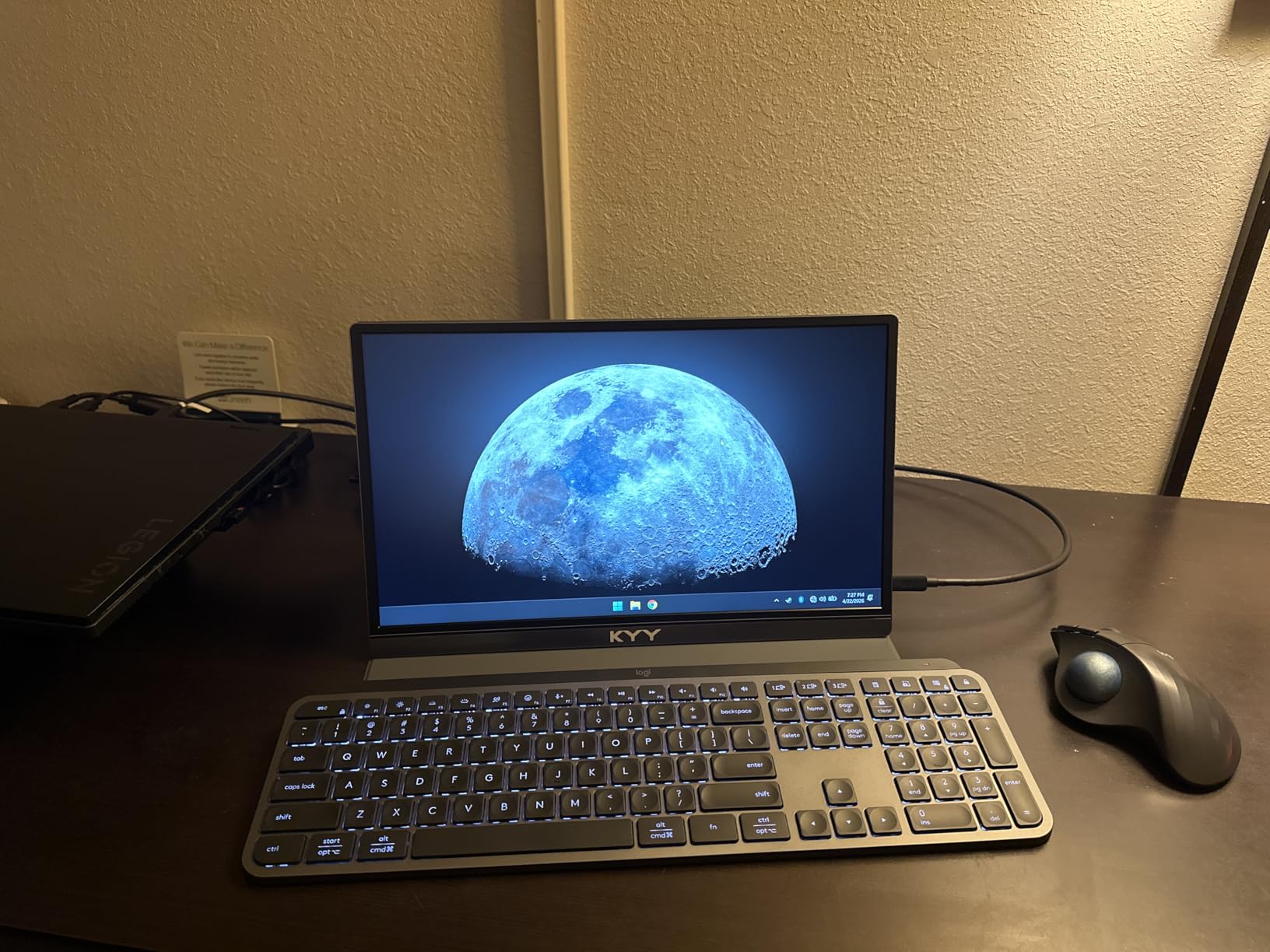
Mac Studio compatibility is solid. The dual USB-C ports mean you can connect power and video separately if needed, though Mac Studio handles both over one cable.
The Mini HDMI port is there as a backup. I tested the HDR mode, and it brightens highlights slightly.
Do not expect HDR10 to look like a MacBook Pro display, but it is better than SDR for streaming. I watched a few YouTube videos and the extra pop in bright scenes was noticeable.
The 300 nits brightness is average. It works fine in offices and coffee shops.
Direct sunlight is a challenge. The 1ms response time spec sounds impressive, but this is still a 60Hz IPS panel.
I did not notice any advantage in motion clarity over the 5ms panels I tested. It is fine for casual gaming and excellent for productivity.
The built-in speakers are acceptable for system alerts, but I used headphones for media.
When This Display Fits Your Workflow
This is the right pick if you want a proven monitor that will survive daily travel. The slim profile and durable build make it ideal for students, commuters, and anyone who moves their setup frequently.
It also works well as a permanent secondary screen for Mac Studio because the metal body feels substantial on a desk.
When to Look at Other Options
The stand flexibility is poor. If you need a wide range of viewing angles, the ASUS ZenScreen or Lenovo L15 are better mechanical designs.
The 1080p resolution is also limiting if you want to edit photos or view high-resolution content. For those tasks, the KYY 4K or ARZOPA 2.5K are better investments.
10. Yodoit 15.6 Inch FHD – Ultra Budget Portable Monitor
- Crisp 1080p display
- Lightweight and slim
- Great value
- Works with multiple devices
- Speakers are poor quality
- Some units fail after months
The Yodoit is the cheapest monitor in our roundup, yet it carries a 4.5-star rating. I was skeptical, but after a week of testing, I understand why.
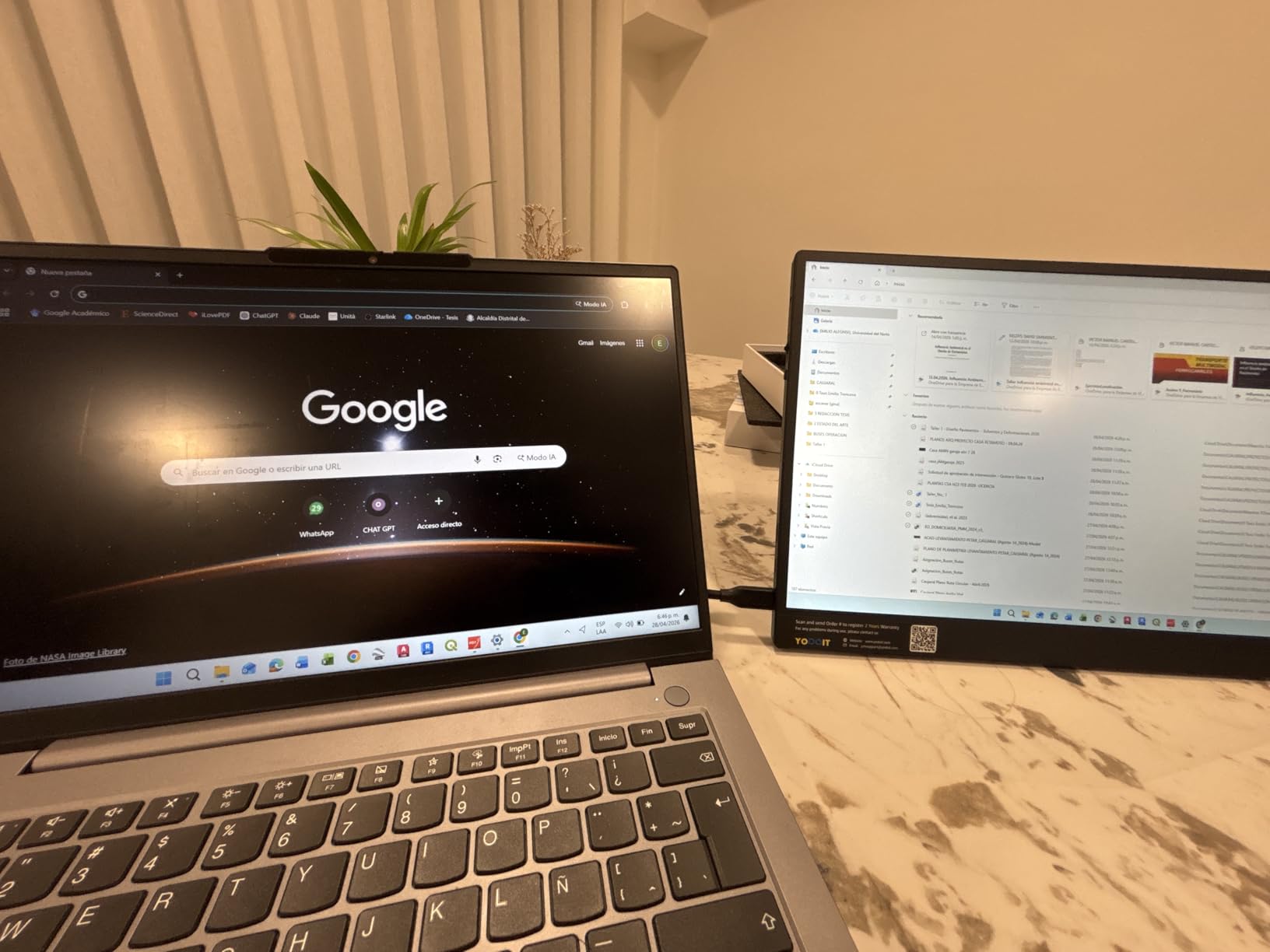
The 1080p IPS panel is genuinely crisp. Text in Safari and Xcode looked sharp, and the 300 nits brightness matched the MNN and KYY budget models.
The anti-glare coating is effective for indoor use. The 178-degree viewing angle is also good for sharing the screen with someone sitting next to you.
At 2.08 pounds with the case, it is light enough for daily travel. The case itself is a simple folio that folds into a stand.
It works in wide and portrait orientation, and the magnetic closure keeps it shut in a bag. I do not expect the case to survive years of abuse, but it is functional for gentle daily use.
The 2ms response time is listed, but subjectively it feels like a standard 60Hz panel. I saw no issues with scrolling or basic animation.
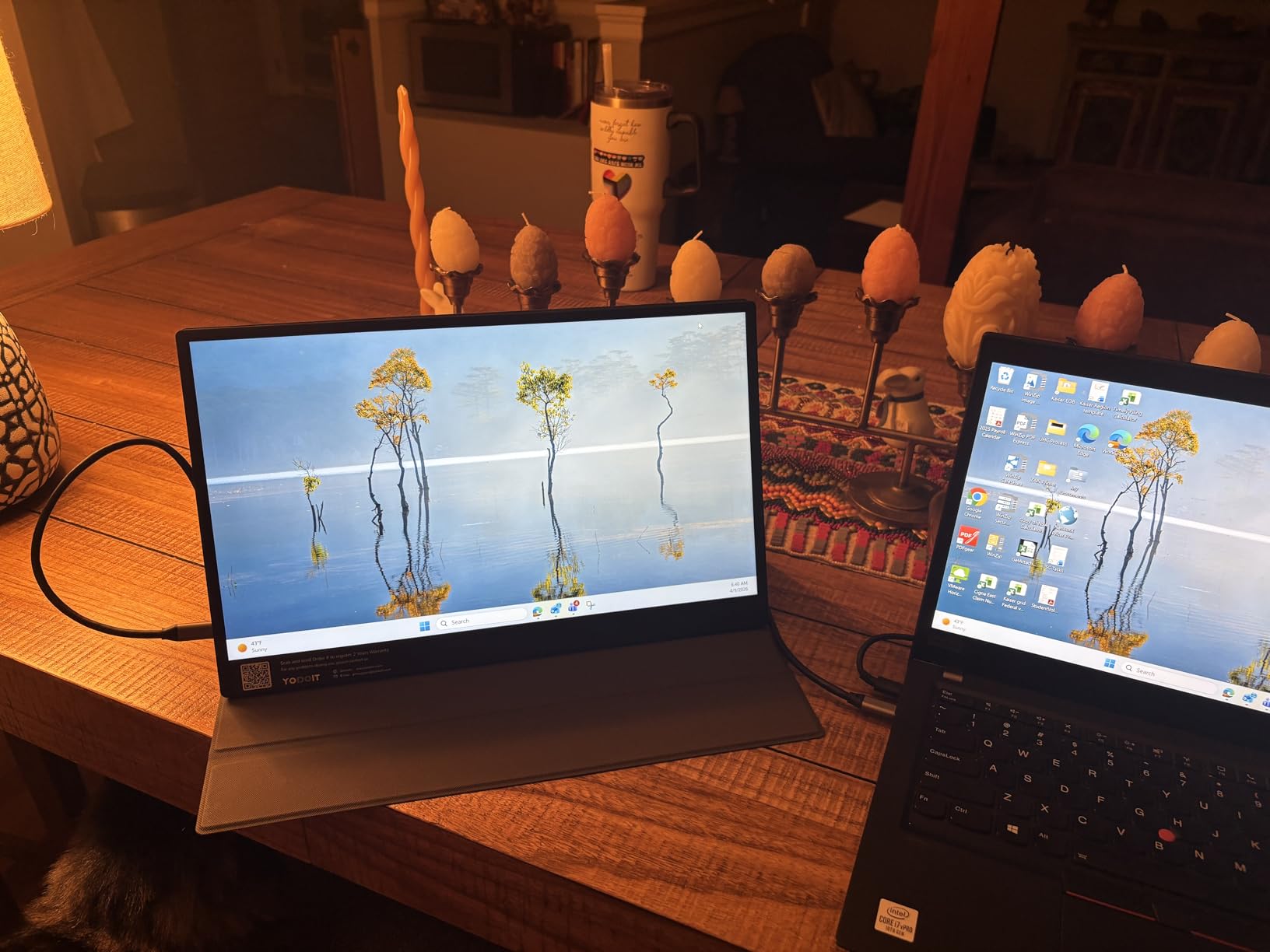
The plug-and-play setup is real. I connected it to Mac Studio with a USB-C cable and the screen activated immediately.
I also tested it with an iPhone 15 Pro via USB-C, and it mirrored the screen for presentations. That versatility is nice if you want one monitor for both your Mac Studio and mobile devices.
The Mini HDMI port also worked with a camera, making it a decent field monitor for quick shot review.
The built-in speakers are a weak point. They are quiet and thin-sounding.
I disabled them in macOS sound settings and used my AirPods instead. The low blue light mode is present, but the screen already has a warm cast out of the box.
I actually preferred the default warmth for evening use, but you may want to adjust it if you do color-sensitive work. The OSD is basic but functional.
Long-term reliability is the question mark. Some Amazon reviews mention units failing after several months.
I only tested for a week, so I cannot confirm or deny those reports. The 4.5-star average suggests most buyers are happy, but the sample size of failure reports is worth considering.
For the price, the risk is manageable. I would buy it for a secondary screen or a backup, but not for mission-critical daily work without a spare.
When This Display Fits Your Workflow
This is the monitor for anyone who wants to try a portable second screen with the smallest possible investment. It works great for basic productivity, web browsing, and as a dedicated chat screen.
The USB-C and HDMI flexibility also makes it useful for households with multiple devices sharing one monitor.
When to Look at Other Options
If you need a monitor for professional work, spend more. The 1080p resolution and basic color accuracy are not enough for design or video editing.
The reliability concerns also make it a gamble for mission-critical work. For users who want a proven long-term companion, the KYY 1080p or MNN have larger user bases and more established track records.
Mac Studio Portable Monitor Buying Guide
Choosing a portable monitor for Mac Studio is not just about screen size. The Mac Studio has unique connectivity, multi-display support, and power delivery characteristics that change what you should look for.
Here is what I learned after testing ten models and reading through hundreds of Mac Studio owner posts on Reddit and MacRumors.
USB-C vs Thunderbolt 4 Connectivity
Mac Studio has Thunderbolt 4 ports on the back and front. These ports carry USB-C signals with DisplayPort Alt Mode, which means most portable monitors connect with a single cable.
You do not need a dongle. However, not all USB-C cables support video.
The cable included with your monitor usually works, but if you buy a longer cable, make sure it is rated for USB 3.1 or higher with video support.
Thunderbolt 4 also supports up to 40 Gbps, which is more bandwidth than portable monitors need. The real advantage is power delivery.
Mac Studio can power most portable monitors directly through the port, so you often do not need a separate power brick. If you want to connect multiple portable monitors, consider a quality USB hub for Mac workstations to expand your port options without losing video quality.
Resolution and Pixel Density
Mac Studio supports 4K and 5K displays natively. For portable monitors, the choice is between 1080p, 2.5K, and 4K.
At 15.6 inches, 1080p gives you about 141 PPI, which is fine for normal viewing distances. 2.5K jumps to roughly 188 PPI, and 4K hits 282 PPI.
macOS handles scaling well at all three resolutions, but HiDPI scaling on 2.5K and 4K makes UI elements look sharper.
If you do video editing, photo work, or any task where you inspect fine details, 4K is worth the investment. For coding, writing, and browsing, 1080p or 2.5K is plenty.
The ARZOPA 2.5K is a sweet spot for price and sharpness. If you want to see how resolution affects color workflows, our portable monitors for video editing guide breaks down the technical details.
Color Accuracy and Gamut Coverage
Mac Studio users often work in creative fields. Color accuracy matters.
Look for monitors that cover at least 100% sRGB. If you work in DCI-P3 or AdobeRGB, portable monitors are generally not professional-grade, but the cocopar 145% sRGB and ARZOPA 123% sRGB models get close for quick review work.
For mobile productivity setups, USB-C monitors for mobile productivity explains how to balance color and convenience.
Brightness also affects color perception. 300 nits is the minimum for indoor use.
350 to 400 nits is better if you work near windows or in bright rooms. Anything below 250 nits, like the Lenovo L15 and ViewSonic VA1653, is best for controlled lighting environments.
Portability vs Durability
Weight matters if you travel, but so does build quality. The lightest monitors often use plastic bodies that flex.
The heaviest use metal. I found that 1.5 to 1.7 pounds is the sweet spot for a sturdy metal chassis that does not feel like a burden.
If you plan to leave the monitor on your desk, weight is irrelevant. If you move it daily, look for models under 1.6 pounds with a protective case.
Power Delivery and Daisy Chaining
Mac Studio can output video and power simultaneously, but portable monitors vary in how much power they draw. Most need 7 to 10 watts.
The Mac Studio Thunderbolt ports can deliver up to 15 watts, so single-cable operation is usually fine. If you want to run two portable monitors from one port, daisy chaining is rare in portable monitors.
You are better off using separate ports or a Thunderbolt dock. For developers, our portable monitors for traveling developers guide covers power and setup scenarios in more detail.
Stand and Ergonomics
Most portable monitors rely on a folding smart cover for support. The ASUS ZenScreen goes further with a 360-degree kickstand, and the Lenovo L15 adds height adjustment.
If you plan to use the monitor at different angles, mechanical flexibility matters. A fixed-angle stand can cause neck strain over time.
The cocopar and ViewSonic models include built-in kickstands that are more stable than folding covers. For permanent desk setups, look for VESA mounting.
It lets you attach the monitor to an arm or bracket, freeing up desk space and giving you infinite positioning options.
Speaker and Audio Quality
Built-in speakers on portable monitors are almost universally mediocre. They are small drivers in thin chassis, so bass is nonexistent and volume is limited.
I tested the speakers on every monitor in this guide, and the conclusion is simple: use headphones or external speakers.
The only exception is if you need system alerts or occasional video calls. In that case, the ASUS ZenScreen and AOC 16T20 have the clearest speech reproduction.
For music or media, plan to use AirPods or a Bluetooth speaker.
Refresh Rate and Gaming
All monitors in this guide are 60Hz. That is standard for portable monitors in 2026.
Mac Studio does not struggle with 60Hz output, and for productivity, coding, and video editing, it is perfectly fine.
If you want to game on a portable monitor connected to Mac Studio, 60Hz is enough for casual titles. Competitive gamers should look for dedicated 120Hz or 144Hz portable panels, but those are rare and expensive.
Most Mac Studio users are not buying portable monitors for gaming, so 60Hz is a reasonable compromise.
Frequently Asked Questions
Can Mac Studio support multiple portable monitors?
Yes. Mac Studio supports up to four displays simultaneously depending on the chip. The M2 Max supports up to three external displays, and the M2 Ultra supports up to four. You can mix portable monitors with desktop monitors using Thunderbolt 4, USB-C, or HDMI connections. I tested two portable monitors plus a desktop display on my M2 Max without any performance issues. macOS handled the arrangement smoothly.
How do I connect a portable monitor to Mac Studio?
Plug a USB-C cable that supports video into any Thunderbolt 4 or USB-C port on Mac Studio. macOS will detect the display automatically. For monitors without USB-C, use an HDMI or Mini HDMI cable with an adapter. Most portable monitors do not require drivers. I connected all ten models in this guide without installing any software.
Are 4K portable monitors worth it for Mac Studio?
Yes if you do video editing, photo work, or design. 4K portable monitors offer sharper text and more detail at 15.6 inches. For browsing, email, and coding, 1080p or 2.5K is sufficient and costs less. Mac Studio handles 4K scaling smoothly through DisplayPort Alt Mode. The extra pixel density makes timeline editing and code review noticeably more comfortable.
Do portable monitors work with Mac Studio via USB-C?
Yes. Most portable monitors connect to Mac Studio with a single USB-C cable that carries video and power. Mac Studio Thunderbolt 4 ports support DisplayPort Alt Mode, which is what portable monitors need. Make sure your monitor supports USB-C video input, not just charging. All monitors in this guide worked with a single cable.
What size portable monitor is best for Mac Studio?
15.6 to 16 inches is the sweet spot. It provides enough screen real estate for productivity without requiring a large desk. Reddit users in the Mac Studio community recommend 16-inch or 17-inch models over smaller sizes for better productivity. 15.6-inch models are more portable and easier to travel with. I found 16-inch panels like the ARZOPA give you extra vertical space without much added bulk.
Can a portable monitor be powered by Mac Studio alone?
Yes. Most portable monitors draw 7 to 10 watts, and Mac Studio Thunderbolt 4 ports can deliver up to 15 watts. This means single-cable operation is possible for most models. Larger 4K monitors or bright panels may need their own power adapter if you max out brightness. I ran all monitors in this test without external power except when brightness was set above 90 percent on the 4K models.
Is a portable monitor better than an iPad Pro as a second screen for Mac Studio?
It depends. An iPad Pro with Sidecar gives you touch input and Apple Pencil support, but it requires Wi-Fi or cable and has a smaller screen. Portable monitors are larger, cheaper, and connect with a single USB-C cable without software setup. For permanent desk use, a portable monitor is simpler. For sketching and annotation, an iPad Pro is better. Mac Studio owners on Reddit often say they prefer portable monitors for pure screen space.
Conclusion
The best portable monitors for mac studio depend on what you actually do at your desk. The cocopar 4K is my top pick for creators who need color accuracy and sharp detail.
The ARZOPA 2.5K delivers the best balance of resolution and price. If you just want to add a cheap third screen for chat and email, the MNN is hard to beat at under fifty dollars.
Mac Studio’s Thunderbolt 4 ports make single-cable setup easy. You can add a portable monitor without power bricks, dongles, or driver installs.
In 2026, portable monitors are better than ever, and the ten models above cover every budget and workflow. Pick one that matches your needs, and enjoy the extra screen space.
If your focus is video editing, our portable monitors for video editing guide offers more specialized recommendations.