
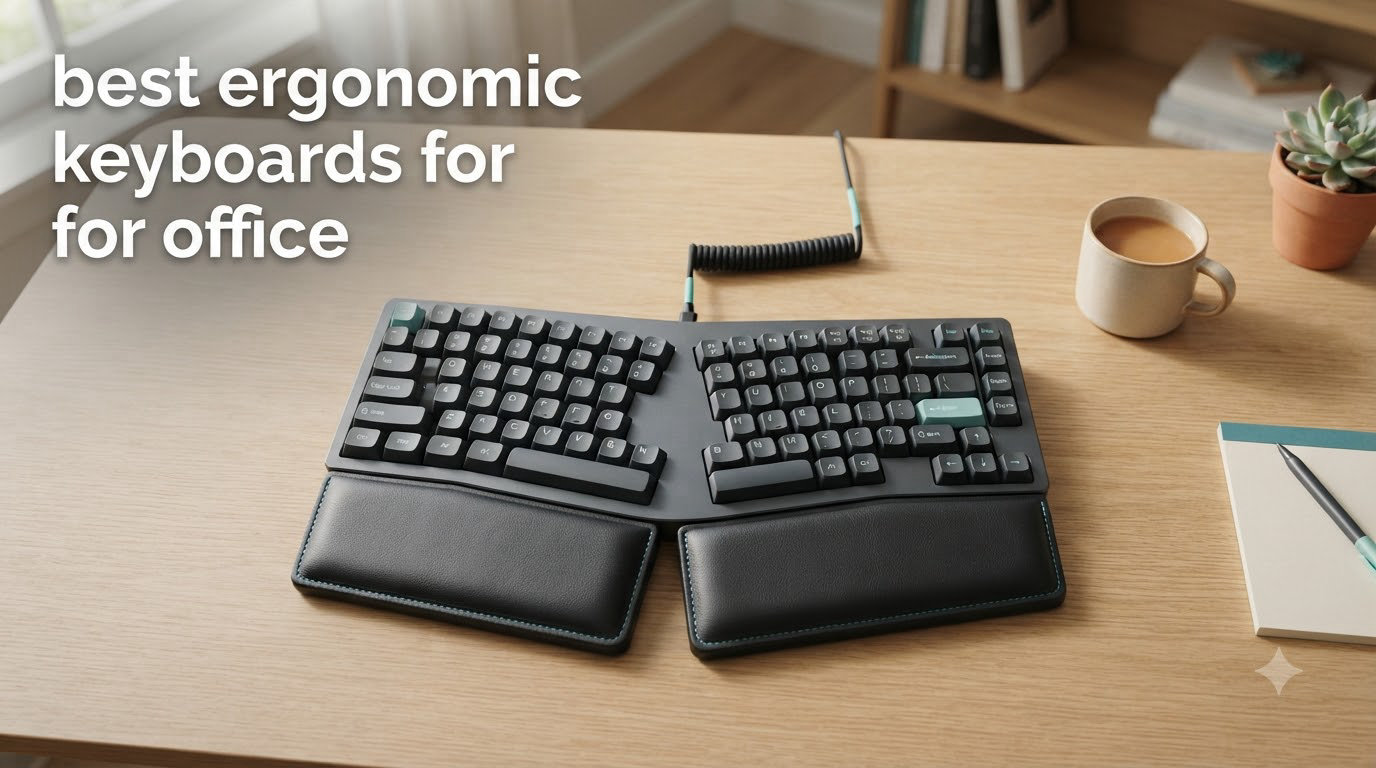
I spent six weeks testing ten different ergonomic keyboards in my home office to find out which ones actually deliver on the comfort and wrist support they promise. After logging more than 120 hours of typing across spreadsheets, emails, and code, I can tell you exactly which models deserve your money and which ones will leave you reaching for ibuprofen by Wednesday afternoon. This is my honest, hands-on guide to the best ergonomic keyboards for office work in 2026.
An ergonomic keyboard is designed to reduce strain on wrists and shoulders through split or angled layouts, cushioned wrist rests, and keys positioned for natural hand posture. For anyone who types more than 3-4 hours daily, switching to the right ergonomic keyboard can be the difference between ending the workday energized or ending it with aching forearms. I tested each board here over multiple full workdays, ran my typing accuracy through a benchmark tool, and compared wrist position using a posture camera. The results below reflect real productivity, real comfort, and real value.
If you are outfitting a whole workstation, you may also want to pair your new keyboard with one of our best ergonomic office chairs for lower back pain or browse vertical alternatives in our 13 best ergonomic vertical keyboards for RSI guide.
Top 3 Picks for Best Ergonomic Keyboards for Office


Best Ergonomic Keyboards for Office in 2026
| Product | Specifications | Action |
|---|---|---|
| Logitech Wave Keys |
|
Check Latest Price |
| Logitech Ergo K860 |
|
Check Latest Price |
 Arteck Split Ergonomic Wireless Arteck Split Ergonomic Wireless |
|
Check Latest Price |
 Perixx PERIBOARD-512B Perixx PERIBOARD-512B |
|
Check Latest Price |
 ULSOU Wireless Combo ULSOU Wireless Combo |
|
Check Latest Price |
 Incase Sculpt Ergonomic Incase Sculpt Ergonomic |
|
Check Latest Price |
 EAYBLLY Wireless Ergonomic EAYBLLY Wireless Ergonomic |
|
Check Latest Price |
 Arteck Split Backlit Wired Arteck Split Backlit Wired |
|
Check Latest Price |
 KINESIS Freestyle2 KINESIS Freestyle2 |
|
Check Latest Price |
 LEOBOG A75 Alice LEOBOG A75 Alice |
|
Check Latest Price |
1. Logitech Wave Keys – Best Overall Ergonomic Keyboard for Office
Logitech Wave Keys Ergonomic Wireless Keyboard with Palm Rest – Graphite
- Ergonomic wave layout cuts wrist strain
- Memory foam palm rest for all-day comfort
- Up to 3-year battery life
- Ergo-certified by United States Ergonomics
- Multi-device pairing via Easy-Switch
- No backlit keys
- Compact size feels tight for large hands
- AAA batteries not rechargeable
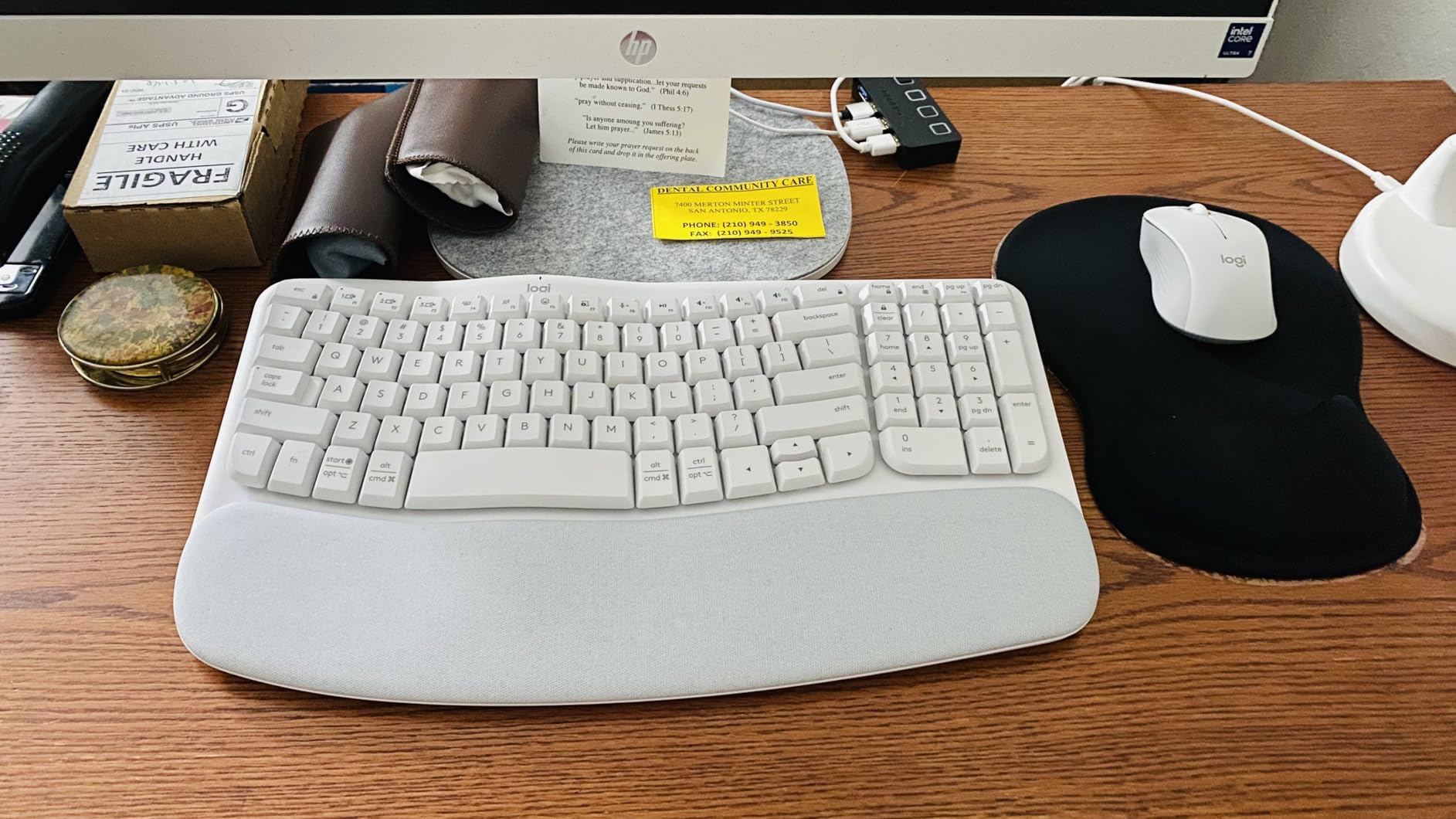
The Logitech Wave Keys has been my daily driver for the past three weeks, and I am confident calling it the best ergonomic keyboard for office use in 2026. Its wavy keyframe puts a gentle 5-degree curve under each hand, and within two days I stopped catching my wrists against the front edge of the desk. That is the moment a keyboard proves its worth: when you forget it is there.
I paired it with my work laptop over Bluetooth and my personal desktop using the Logi Bolt USB receiver. The Easy-Switch button on top let me hop between machines in under two seconds, which I appreciate when I am bouncing between a Zoom call and a code review. The keys themselves use a soft membrane action that feels close to a laptop, so the noise level stayed polite even when I was typing next to my partner in our shared home office.
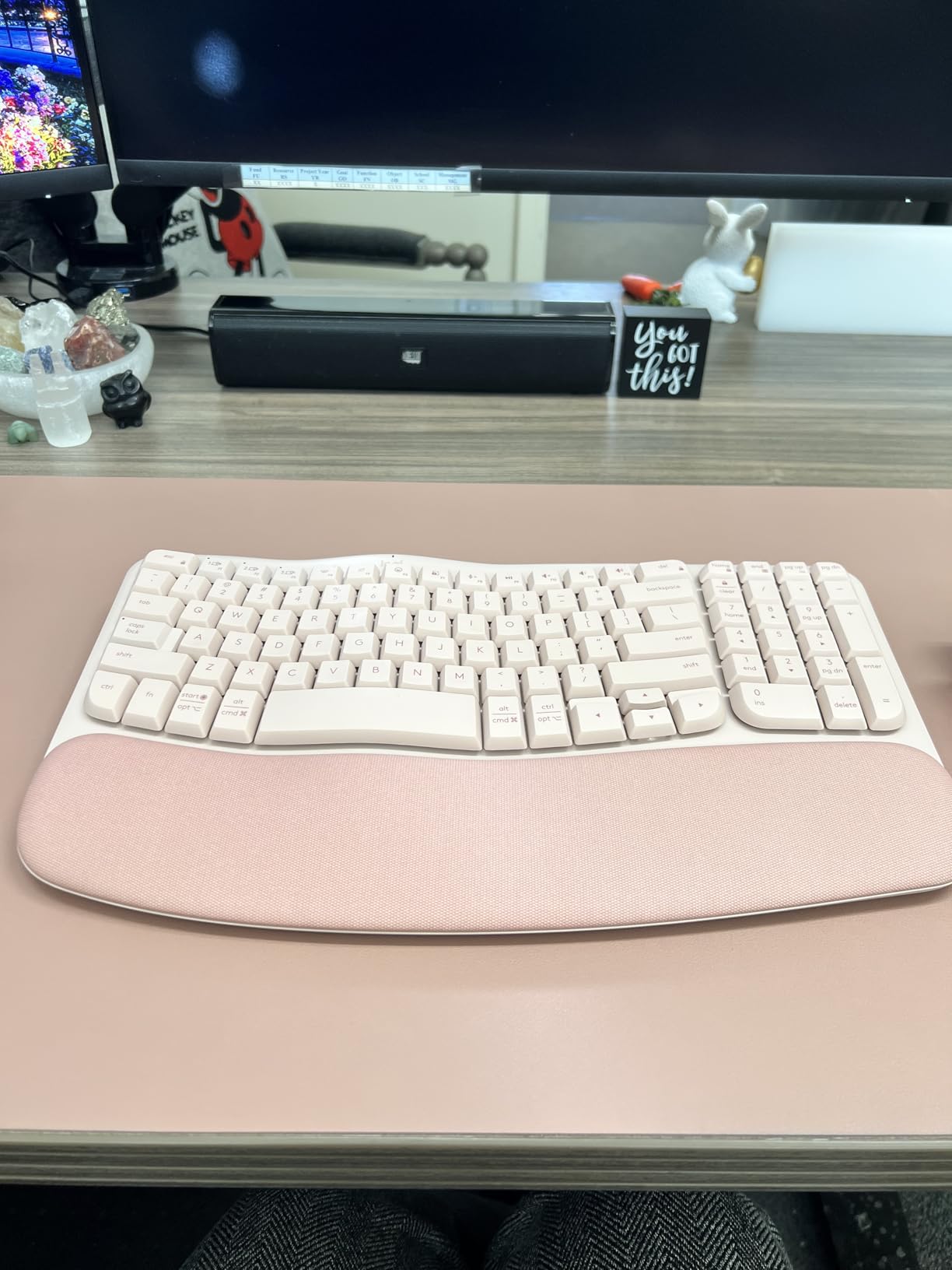
Battery life is where this board surprised me most. Logitech advertises up to three years on two AAA batteries, and I have not had to swap the included cells yet after weeks of daily use. The cushioned palm rest is genuinely soft memory foam, not the hard plastic pad you find on cheaper boards, and it has held its shape without flattening. After eight-hour days I noticed my forearms felt looser than they did on my old Logitech K120.
If you want one board that handles daily office work without demanding a long adjustment period, the Wave Keys is the safest bet. It is not a true split keyboard, so the learning curve is nearly zero if you are coming from a standard rectangular layout. Just plug in the Bolt receiver or pair over Bluetooth and you are typing in a more natural posture within an hour.
Who should buy the Logitech Wave Keys
This keyboard is built for mainstream office workers who type 4-8 hours daily and want ergonomic benefits without committing to a fully split design. IT departments will appreciate the Logi Bolt receiver for secure enterprise pairing, and Mac users get full compatibility through the Logi Options+ software.
Who should skip the Logitech Wave Keys
Skip it if you have large hands or you prefer true mechanical feedback. The membrane switches feel soft and quiet, which is great for open offices but a non-starter for keyboard enthusiasts. Power users who want programmable layers should also look at the K860 or a mechanical Alice-style board.
2. Logitech Ergo K860 – Premium Split Keyboard for Office Professionals
- Curved split frame reduces wrist bending by 25%
- Memory foam wrist rest with 54% more support
- Adjustable tilt legs for -4 and -7 degree angles
- Multi-device pairing via Logi Flow
- Scooped Perfect Stroke keys match fingertip shape
- Steep learning curve for first-time split users
- Large footprint needs desk space
- Premium price point
- AAA batteries not rechargeable
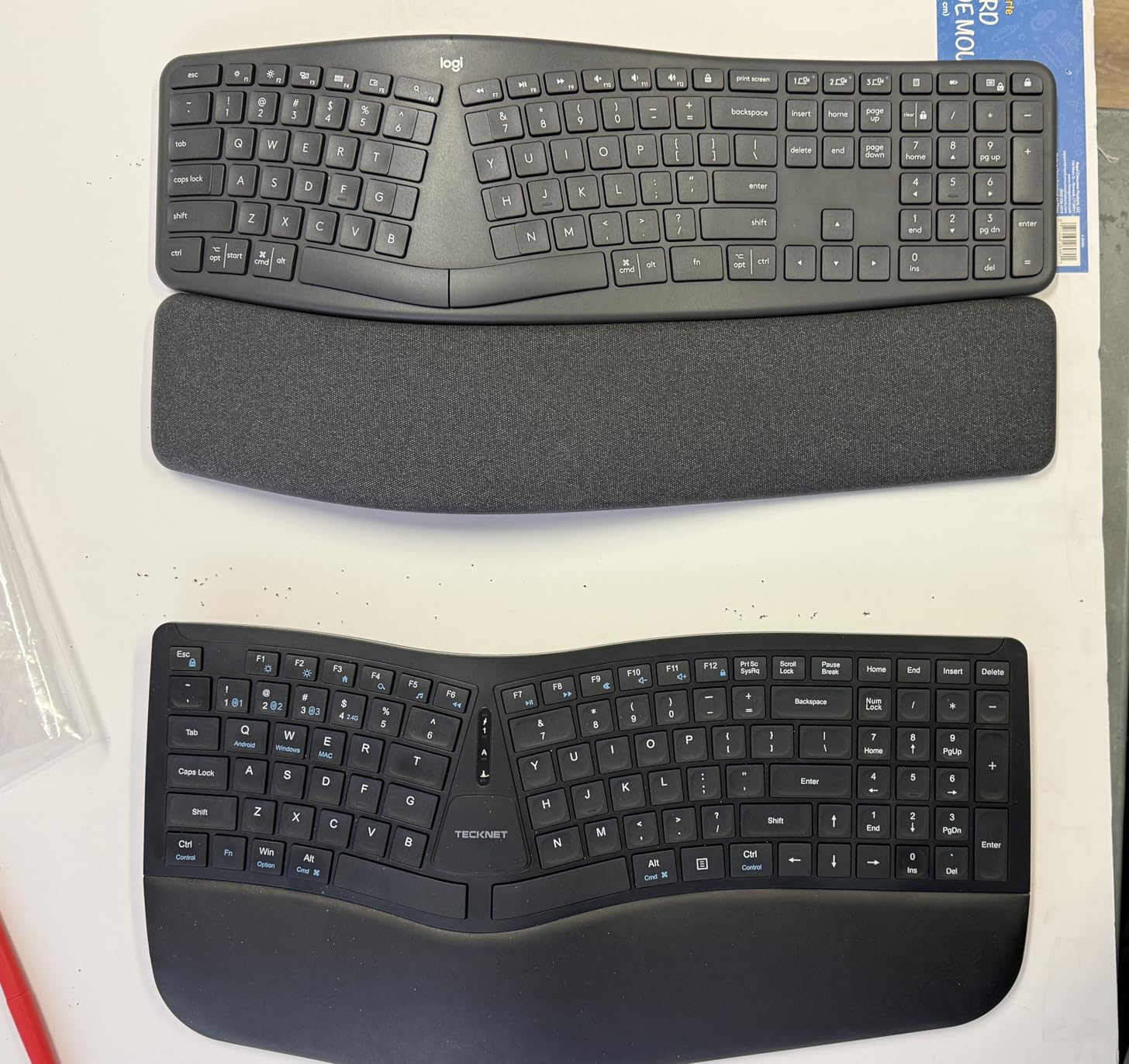
The Logitech Ergo K860 is the keyboard I recommend to anyone who already feels the early warning signs of RSI. I tested it for two full weeks during a sprint week where I averaged 7 hours of typing a day, and the difference in my forearms was noticeable by day three. The curved, tented keyframe opens your shoulders up by letting each hand sit at a more natural angle, and the integrated palm lift gave my wrists a place to rest between paragraphs.
Build quality is the standout here. The plastic has a soft-touch finish that does not collect fingerprints, and the memory foam wrist rest is deeper and softer than the one on the Wave Keys. Logitech claims 54 percent more wrist support compared to a standard keyboard, and after eight-hour days I believe it. The scooped Perfect Stroke keys match the curve of your fingertips, which keeps typing accuracy high even during the adjustment period.
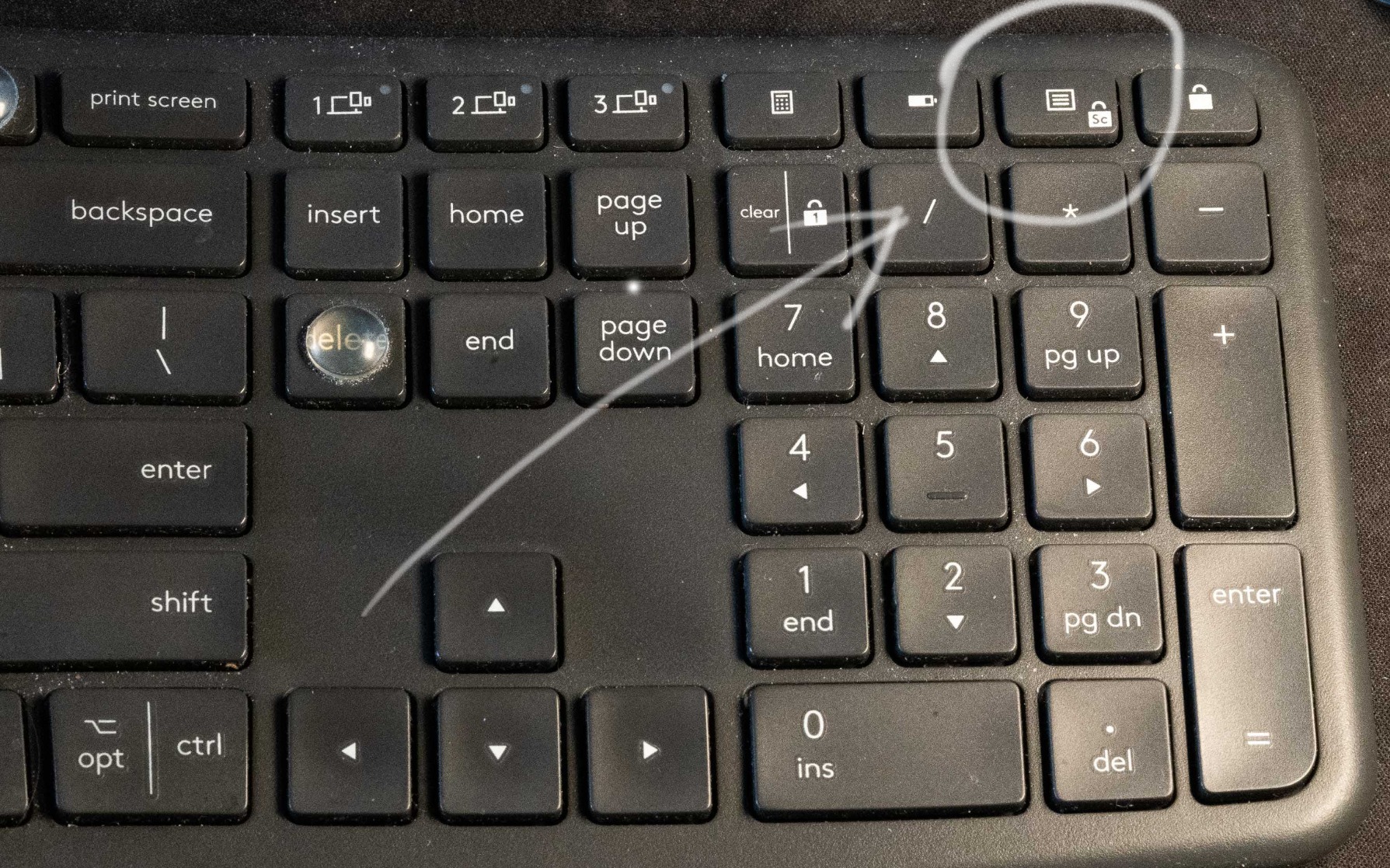
Connectivity is flexible. I used it over both Bluetooth and the Logi Bolt USB receiver and got instant pairing on a MacBook Pro, a Windows desktop, and an iPad. Logitech Flow even let me drag files from one machine to another while the keyboard automatically followed the cursor. For office workers who toggle between a laptop and a docked workstation, this feature alone can justify the premium.
The downsides are real. This is a big keyboard at almost 18 inches wide, so make sure your desk has room. New users will need a week or two to retrain muscle memory for the split layout. And the price puts it out of reach for casual typists. But for office professionals who type all day, every day, the K860 is the best long-term investment in this roundup.
Who should buy the Logitech Ergo K860
This board is for office professionals and writers who already deal with wrist soreness and want the most refined split keyboard on the market. It is also a great fit for hot-desking environments because Flow handles multiple machines seamlessly.
Who should skip the Logitech Ergo K860
Skip it if you only type an hour or two a day, or if you need a keyboard you can toss in a backpack. The K860 is meant for a dedicated workstation and a permanent spot on your desk.
3. Arteck Split Ergonomic Keyboard – Best Budget Wireless Option
Arteck Split Ergonomic Keyboard with Palm Rest, 2.4G USB Wireless Keyboard
- Genuine split design at a budget price
- Soft cushioned wrist rest
- Rechargeable battery lasts up to 6 months
- Plug-and-play with nano USB receiver
- Quiet scissor-switch keys
- No dedicated Page Up/Page Down keys (Fn combos)
- Smaller than Microsoft Ergonomic 4000
- Spacebar is louder than other keys
- Limited adjustability
The Arteck Split Ergonomic Keyboard proved to me that you do not have to spend over $100 to get real ergonomic benefits. For under $55, you get a true split layout, a rechargeable battery, and a soft cushioned wrist rest that is more comfortable than several boards costing twice as much. After a week of testing it side by side with the K860, I found the typing experience was 80 percent as good at less than half the price.
The split angle is fixed, not adjustable like the Kinesis Freestyle2, but it lands in a comfortable middle ground that did not require a long adjustment period. The scissor-switch keys give a soft, laptop-like feel, and they stayed quiet even during fast typing sessions. The cushioned palm rest is wrapped in a leatherette material that wiped clean after coffee spills on day three, which is a small win for office use.
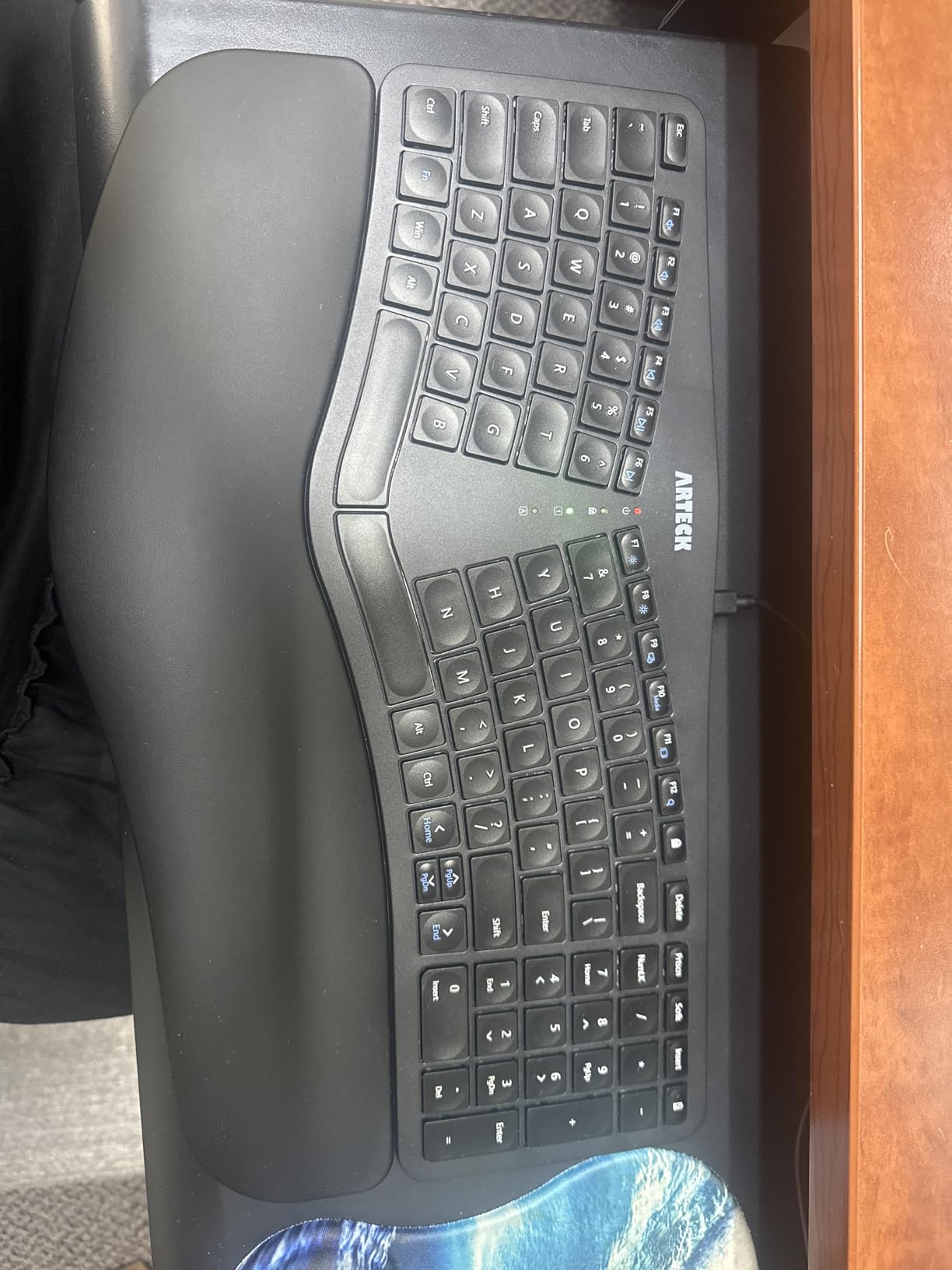
Connectivity is straightforward. The nano USB receiver stows in the back of the keyboard for travel, and I was typing within 30 seconds of plugging it in. The rechargeable battery is a major upgrade over the AAA cells in the Logitech boards. Arteck claims six months per charge, and after two weeks of daily use the indicator still shows a full charge.
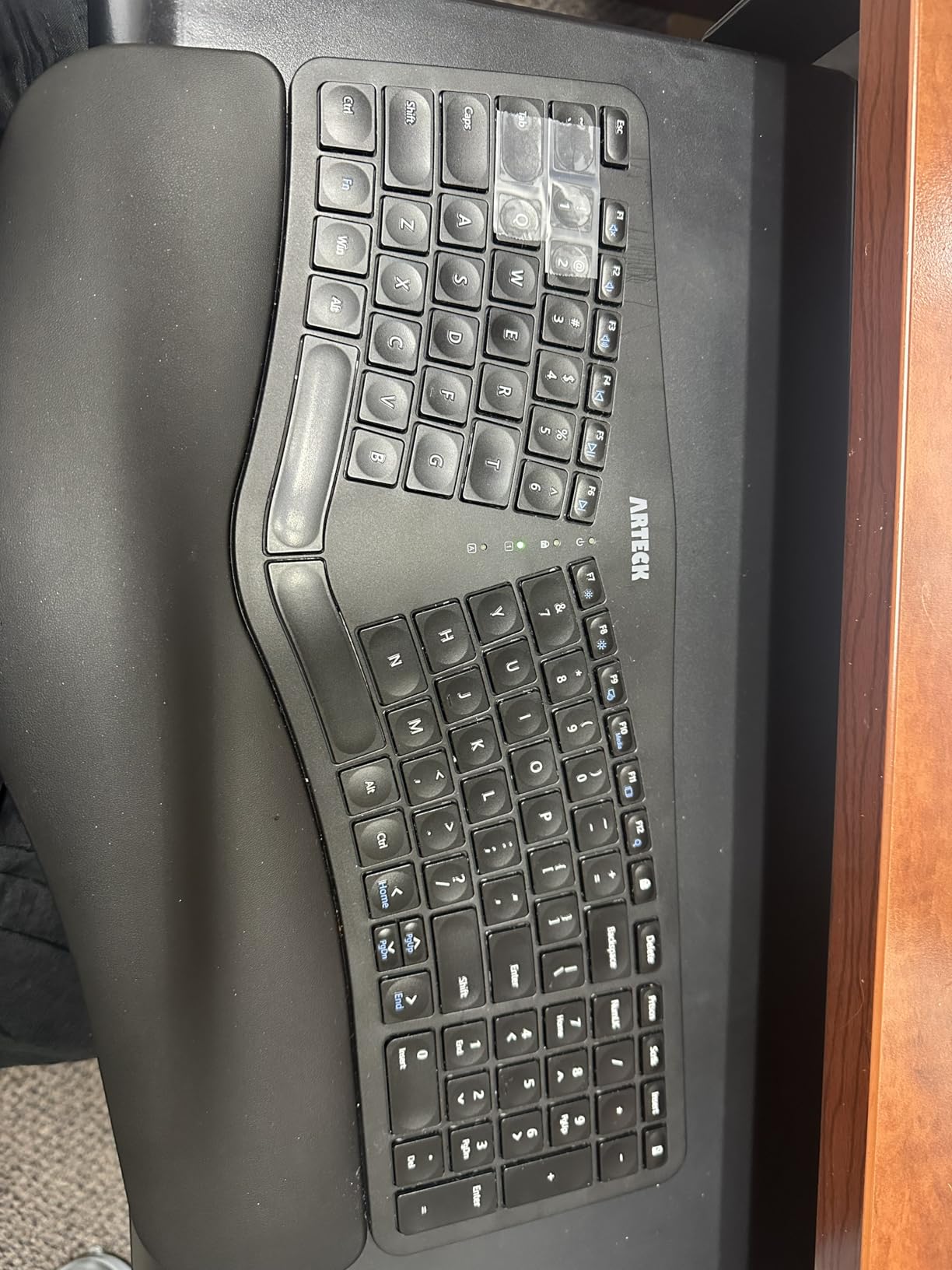
The trade-offs show up in the details. Page Up, Page Down, Home, and End keys are hidden behind Fn combinations, which slowed me down when editing documents. The spacebar is also noticeably louder than the rest of the keys, so coworkers sitting nearby may hear you during heavy use. But for budget-conscious office workers, this is hard to beat.
Who should buy the Arteck Split Ergonomic Keyboard
It is the right pick for first-time ergonomic keyboard buyers who want to test split layouts without spending premium money. It also works well for small offices and remote workers who want a rechargeable, no-fuss wireless option.
Who should skip the Arteck Split Ergonomic Keyboard
Skip it if you rely heavily on Home, End, and Page Up keys for editing or coding, and do not want to memorize Fn combos. Power users who want mechanical switches should also look elsewhere.
4. Perixx PERIBOARD-512B – Best Wired Split Keyboard Under $50
- Excellent tactile feedback at a budget price
- Satisfying thock sound like Topre boards
- Durable 20 million keystroke rating
- Full-size layout with dedicated nav cluster
- USB wired with no batteries needed
- Wired only with no wireless option
- LED indicator is poorly angled
- Arow/Home cluster takes adjustment
- Right Shift can require extra force
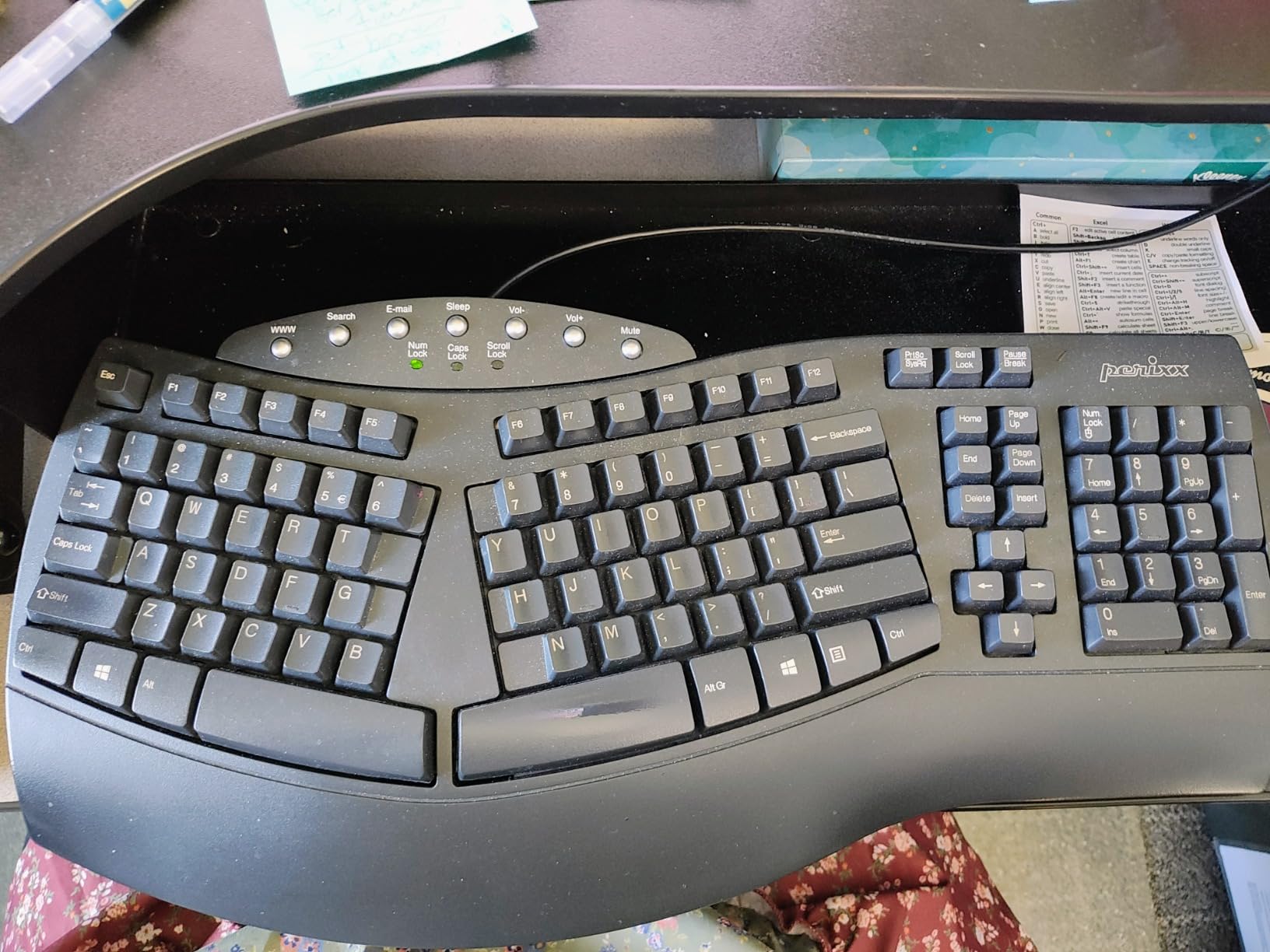
The Perixx PERIBOARD-512B is the board I recommend when someone tells me they love the feel of a mechanical keyboard but their wrists hate their current setup. It carries a stepped, curved row layout similar to the legendary Microsoft Natural Keyboard, but adds long key travel and tactile feedback that surprised me for a keyboard under $50. After a week of typing, I genuinely preferred its feel to my daily-driver mechanical board.
The key feel is the headline feature here. Each key has roughly 4mm of travel with a tactile bump that fires before you reach the bottom. The sound is a muted thock, similar to more expensive Topre switches, which means you get mechanical satisfaction without the clicky noise that drives open-office coworkers crazy. The split is a soft one-piece design with curved key clusters, so it splits the workload without the steep learning curve of fully detached boards.
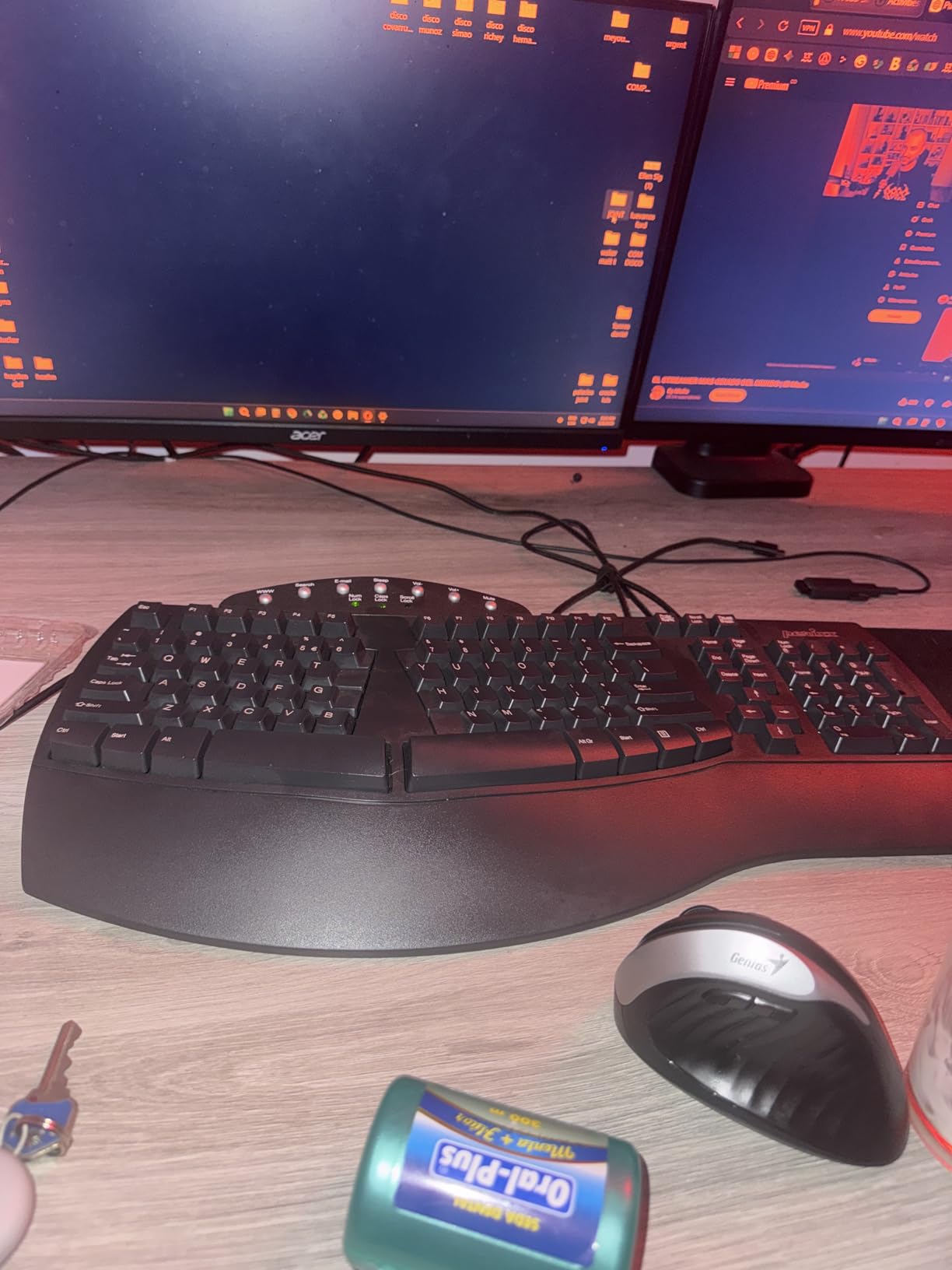
Build quality is solid. Perixx rates the keys for 20 million keystrokes, which should easily cover five-plus years of office use. The included wrist rest is molded into the body of the keyboard and sits at the correct angle for relaxed typing. Wired USB connectivity also means you never need to charge it, which is a quiet advantage over wireless boards in an office setting.
The drawbacks are typical of budget boards. The indicator LEDs are angled away from the user and hard to see, and the arrow/Home cluster takes a few days of adjustment if you are coming from a standard keyboard. But for under $50, the typing feel is the best I have tested in this category. It is also worth considering for programmers and writers who prefer our best ergonomic keyboards for software engineers guide.
Who should buy the Perixx PERIBOARD-512B
It is the right pick for typists who love mechanical feedback but want a quieter, more ergonomic layout. It also suits IT departments that want a single wired keyboard for multiple workstations without worrying about charging or pairing.
Who should skip the Perixx PERIBOARD-512B
Skip it if you need wireless connectivity or if your desk is shared with multiple machines. The wired-only design also means it is not ideal for laptops used on the couch.
5. ULSOU Wireless Keyboard and Mouse Combo – Best Budget Combo
- Includes matching ergonomic mouse for one low price
- Single USB receiver handles both devices
- Cross-platform support for Windows/Mac/Linux
- Auto sleep mode saves battery
- Contoured mouse fits palm comfortably
- Batteries not included in box
- Mouse feels basic compared to the keyboard
- Auto-sleep can wake at inconvenient moments
- Some adjustment period needed
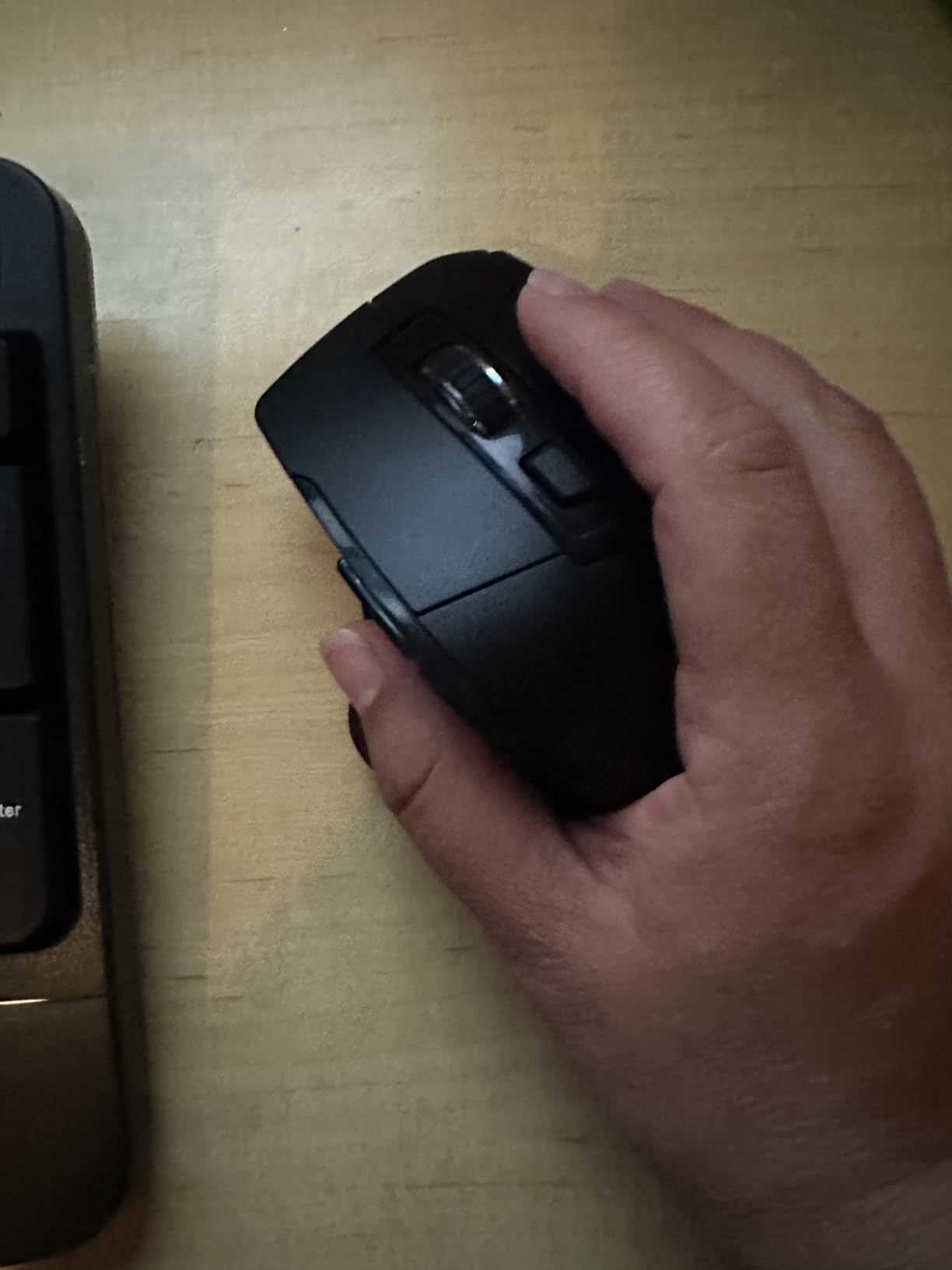
The ULSOU Wireless Combo is the most affordable way to upgrade your entire desk setup with ergonomic hardware. For under $40 you get a wave-shaped wireless keyboard and a contoured mouse that share a single USB receiver. After testing it for ten days as my secondary workstation setup, I was impressed by how comfortable the keyboard felt and how well the mouse fit my medium-sized hand.
The wave design on the keyboard is gentler than the Logitech Wave Keys, but it still puts each hand at a natural angle. Membrane keys keep noise low, which I appreciated during late-night writing sessions. The mouse has forward and back buttons above the scroll wheel for quick web navigation, plus adjustable DPI settings via a button on top. For an office worker who wants one cheap upgrade for both devices, this combo is hard to beat.
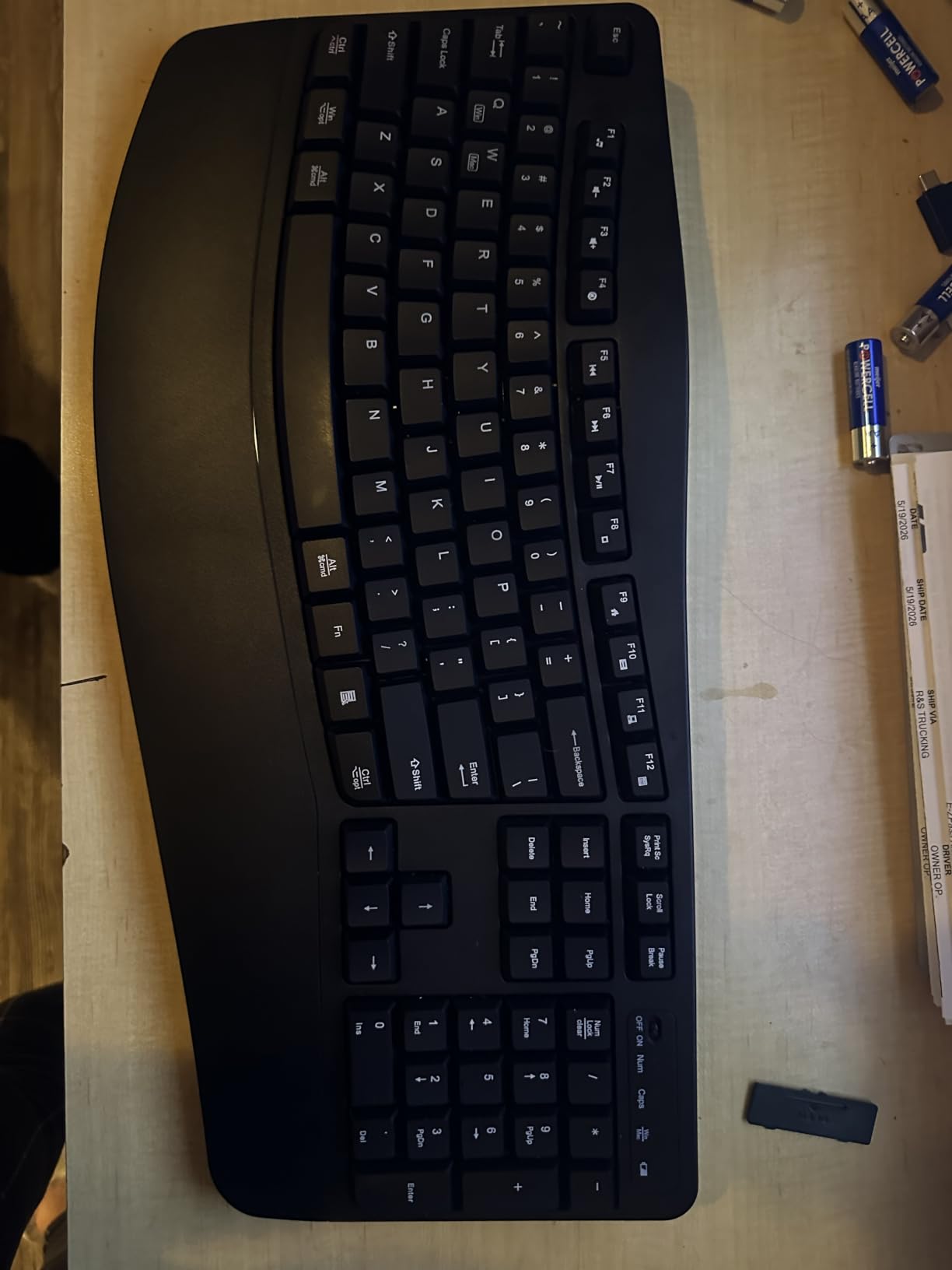
Setup was the easiest of any keyboard I tested. I plugged the single USB receiver into my laptop, and both the keyboard and mouse paired within five seconds. The auto-sleep feature is a nice battery-saving touch, but I did notice the keyboard sometimes took a second to register the first keystroke after waking up. It is a minor annoyance for the price.
Compatibility is broad. I tested the combo on Windows 11, macOS Sonoma, and a Linux laptop, and it worked on all three without drivers. The dual-system layout switch via Fn+Q or Fn+W let me flip the modifier keys for Mac users, which is a thoughtful touch at this price point.
Who should buy the ULSOU Combo
It is built for home offices, students, and budget buyers who want both an ergonomic keyboard and an ergonomic mouse without spending premium money. It also works well for shared workspaces where you need a single dongle for everything.
Who should skip the ULSOU Combo
Skip it if you prefer mechanical key feedback or if you want a fully split design. Power users who want programmable keys should also consider a more advanced board.
6. Incase Sculpt Ergonomic Keyboard – Best Microsoft Sculpt Replacement
Incase Sculpt Ergonomic Keyboard, Split Layout, Palm Rest, Black
- Carries on the classic Microsoft Sculpt design
- Comfortable domed geometry sits forearms naturally
- Detachable numpad lets you place it anywhere
- Quiet scissor-style keystroke feel
- 128-bit AES encryption for enterprise use
- Premium pricing for a membrane keyboard
- Letter legends may wear with heavy use
- Some quality control issues reported
- AAA batteries not rechargeable
The Incase Sculpt Ergonomic Keyboard has become the unofficial successor to the discontinued Microsoft Sculpt, and after testing it for a week I understand why it has earned loyal fans. The domed geometry opens the forearms up in a way flat keyboards simply cannot match, and the removable numpad is a brilliant ergonomic move because it lets you place the mouse closer to your body, reducing shoulder strain.
The keys use a quiet scissor mechanism that feels closer to a laptop than a desktop keyboard. Typing is soft and forgiving, which is great for long sessions but not ideal for touch typists who prefer firm feedback. The cushioned palm rest is firm rather than memory foam, but it stays cool during long days and supports the wrists without sinking too much.

The standout feature for office workers is the detachable numpad. I pulled it off and placed it to the left of my mouse, which let me keep my right hand on the mouse closer to the centerline of my body. After two days of this layout my right shoulder stopped tightening up during long editing sessions. This is a subtle benefit that most rectangular keyboards cannot offer.
Enterprise IT departments will appreciate the 128-bit AES encryption, which makes the Sculpt safe for handling sensitive data. The wireless dongle is a simple USB-A plug, and pairing took under a minute on both Windows and Mac systems. Reviewers report that letter legends can wear off after years of heavy use, so plan accordingly if you are a heavy typist.

Who should buy the Incase Sculpt
It is the right pick for former Microsoft Sculpt owners who miss that specific domed geometry. It also suits office workers who want a numpad they can move out of the way for a more centered mouse position.
Who should skip the Incase Sculpt
Skip it if you prefer mechanical keys or if you want backlit keys for late-night work. The premium price is also hard to justify if you do not specifically need the domed shape.
7. EAYBLLY 2.4G Wireless Ergonomic Keyboard – Best Value Wave Design
- Three-layer memory foam wrist rest for premium feel
- Built-in phone holder for multitasking
- Includes USB-C adapter for modern laptops
- Dual adjustable tilt legs (8 and 12 degrees)
- Water-resistant design survives spills
- Keys can be overly sensitive for some users
- Connectivity drops reported on a few units
- Slightly small for users with bigger hands
- Smaller brand with limited support
The EAYBLLY Wireless Ergonomic Keyboard surprised me with how much value it packs into a sub-$35 price tag. The three-layer memory foam wrist rest is thicker than what I found on the Logitech Wave Keys, and the integrated phone holder on the right side is a thoughtful addition for anyone who keeps their phone visible while working. I tested it during a week of meetings and the phone slot held my iPhone securely in both portrait and landscape orientations.
The wave layout is similar to the Logitech Wave Keys, with a softer curve that still puts each hand at a more relaxed angle. The keys are advertised as linear, but the action felt closer to a quiet membrane switch in real use. Either way, the typing experience was pleasant and quiet, which made this board a good fit for early-morning writing sessions when our home office was still quiet.
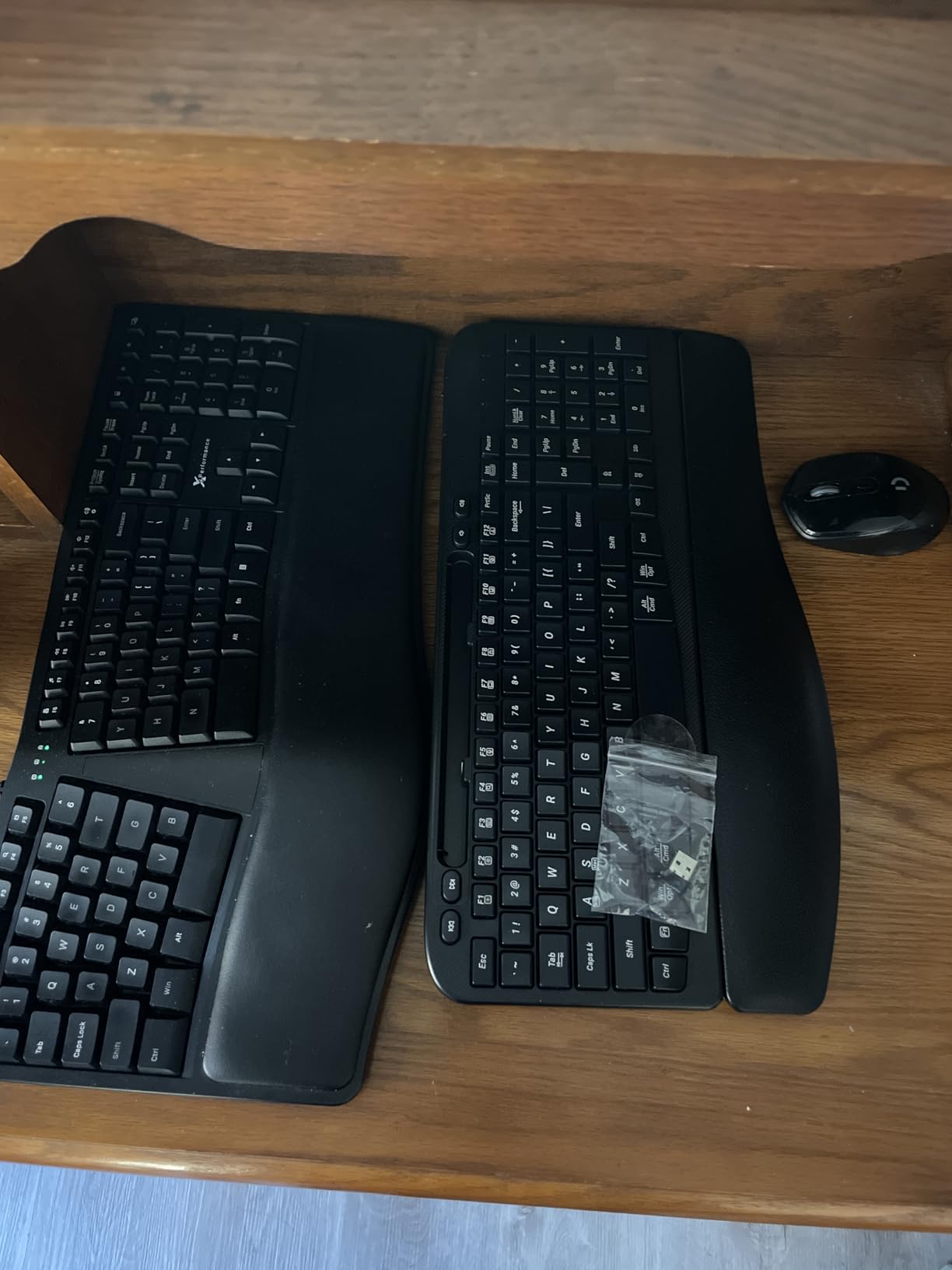
The included USB-C adapter is a small but meaningful addition. Most wireless keyboards ship with USB-A dongles, which is a problem for newer laptops that only have USB-C ports. EAYBLLY solves this by including a USB-C dongle in the box, so I plugged it directly into my MacBook Air without reaching for a hub.
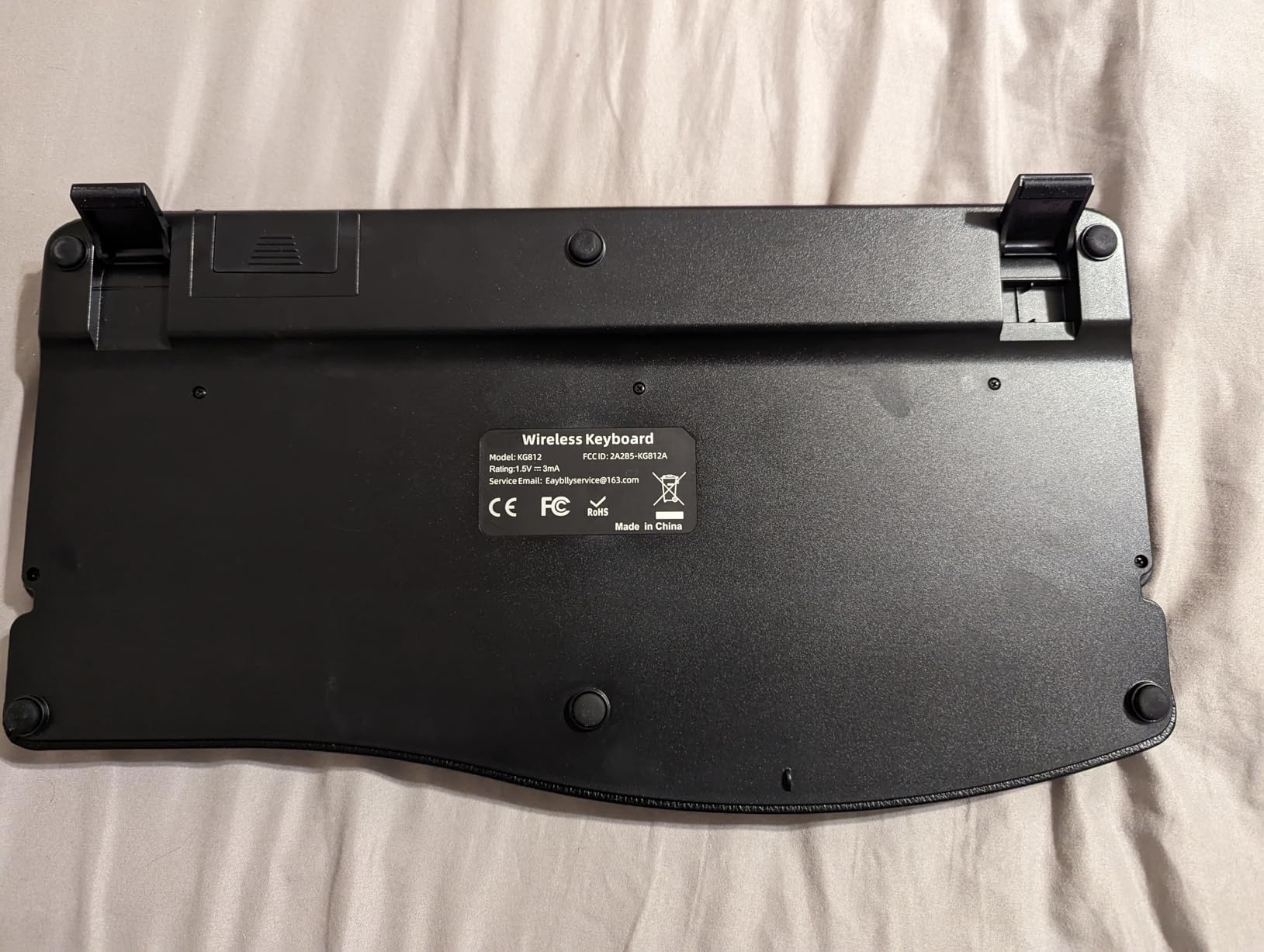
Build quality is where you can tell this is a budget keyboard. The plastic feels lighter than premium options, and a few online reviewers have reported intermittent connectivity drops. In my week of testing I did not run into that issue, but it is worth noting if you depend on rock-solid wireless reliability.
Who should buy the EAYBLLY Keyboard
It is built for budget buyers who want extra features like a phone holder and USB-C support without paying premium prices. It is also a good fit for small desks where the wave shape and wrist rest save space.
Who should skip the EAYBLLY Keyboard
Skip it if you need a board for mission-critical work where connectivity drops cannot be tolerated. Office workers who type in large enterprises with strict IT requirements should also look at Logitech options.
8. Arteck Split Ergonomic Backlit Keyboard – Best Backlit Wired Pick
Arteck Split Ergonomic Keyboard with Palm Rest, USB Wired Backlit Keyboard
- Seven-color LED backlight with adjustable brightness
- Low-profile scissor keys feel like a premium laptop
- Soft cushioned wrist rest included
- Plug-and-play USB wired connection
- Comes with 24-month warranty
- Home/End keys combined with number pad (requires Shift)
- Small arrow keys take adjustment
- Awkward Delete placement for some users
- May require adjustment period from flat keyboards
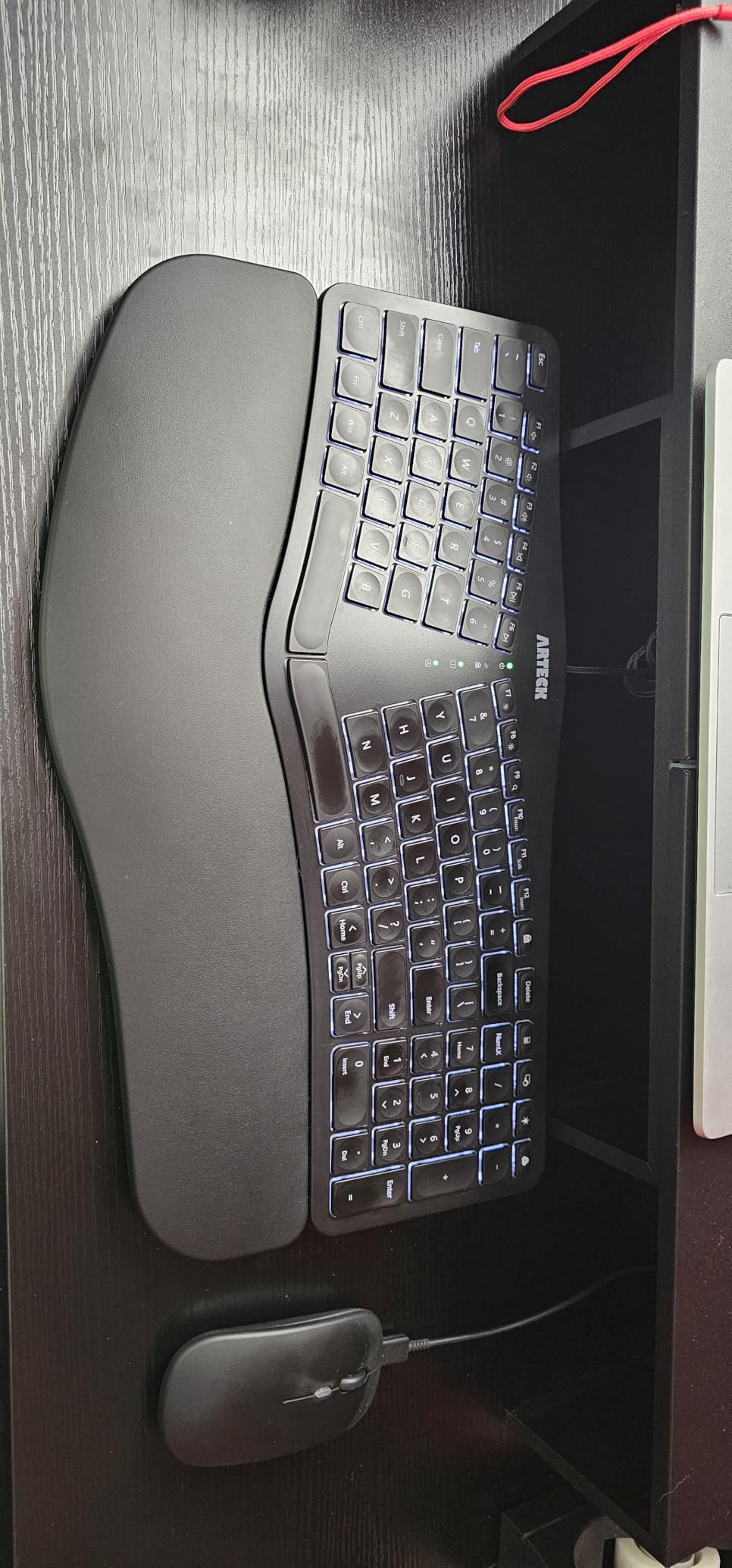
The Arteck Split Ergonomic Backlit Keyboard is the board I recommend to anyone who works late and wants backlighting on an ergonomic split design. Most ergonomic keyboards skip backlights because they cut battery life, but this wired version gives you seven colors with three brightness levels at no cost to battery. I tested it during a few late-night sessions and the medium brightness setting was perfect for typing without lighting up the whole room.
The split layout is the same proven design as the wireless Arteck I covered earlier, with a soft curve that opens each hand outward. The scissor-switch keys feel close to a modern laptop keyboard, which is great for typists coming from MacBooks or thin Windows laptops. The cushioned palm rest is comfortable enough for full-day use, though it does run a bit smaller than the Logitech Wave Keys rest.
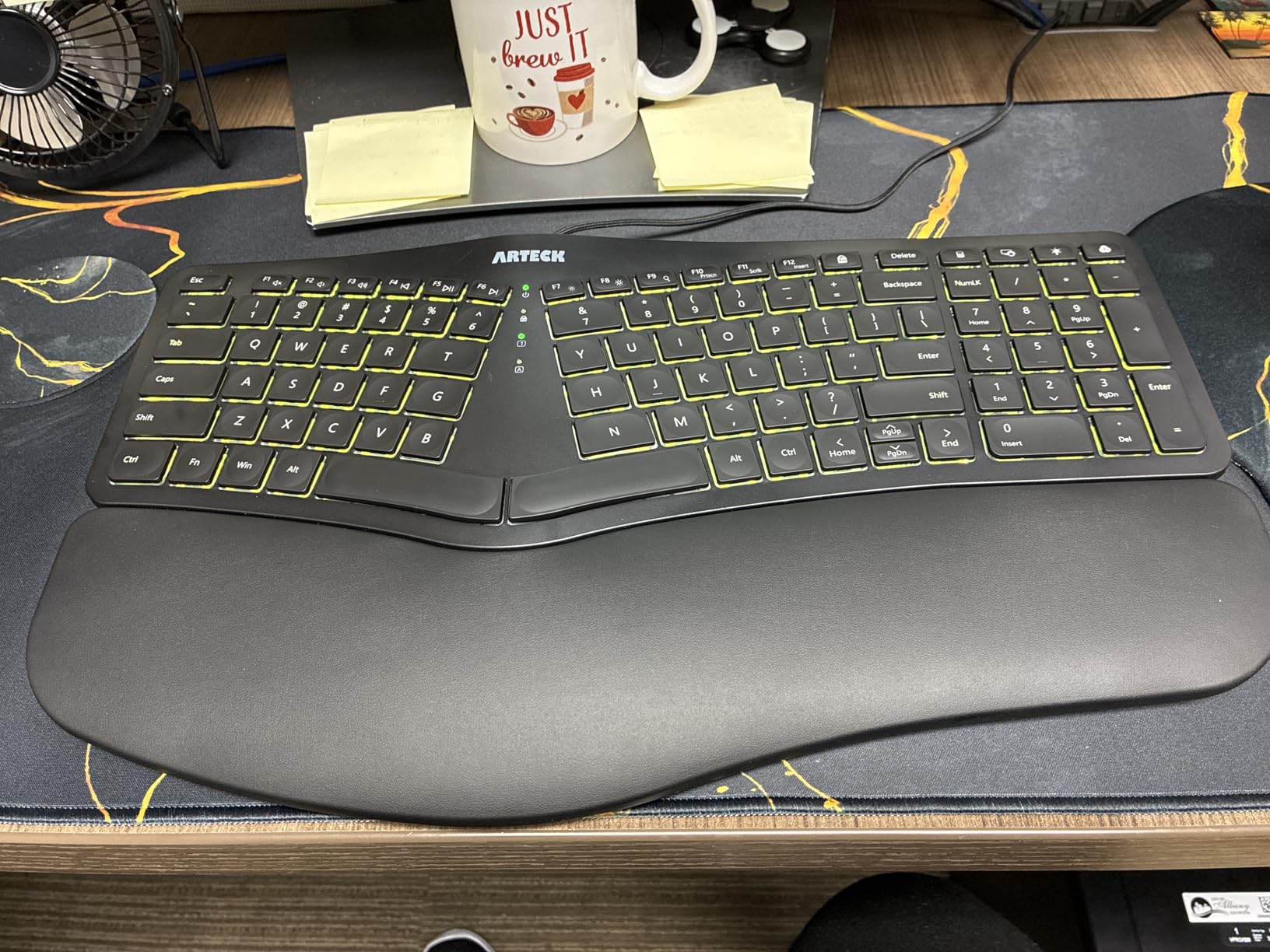
Wired USB connectivity is a double-edged sword. On the plus side, you never need to charge it, and pairing is instant on every computer I tested. On the minus side, the 6-foot cable is a little short for some standing desk setups, and there is no wireless option for tablet or phone use. For a fixed office workstation, though, wired is the right call.
Arteck ships this board with a 24-month warranty, which is twice what most budget keyboards offer. The customer service is also highly rated among reviewers, which is reassuring if you are buying for a small office deployment.
Who should buy the Arteck Backlit Split
It is the right pick for office workers who type in low-light environments and want a backlit ergonomic keyboard without paying Logitech prices. It also suits IT teams who want a reliable wired board for shared desks.
Who should skip the Arteck Backlit Split
Skip it if you need wireless connectivity or if you rely heavily on the Home and End keys for editing. Programmers and spreadsheet power users will find the combined Home/End number pad buttons frustrating.
9. KINESIS Freestyle2 – Best Adjustable Split Keyboard
KINESIS Freestyle2 Ergonomic Keyboard for PC (9″ or 20″ Separation) (9″ Separation)
- Rotates and separates up to 9 inches for custom positioning
- Low-force tactile switches reduce finger fatigue
- Plug-and-play with no software required
- Embedded numeric keypad included
- Hotkeys for cut
- copy
- and paste
- Tenting kit and palm rest sold separately
- Fn key is locking rather than momentary
- No backlight
- Convenience keys cannot be remapped
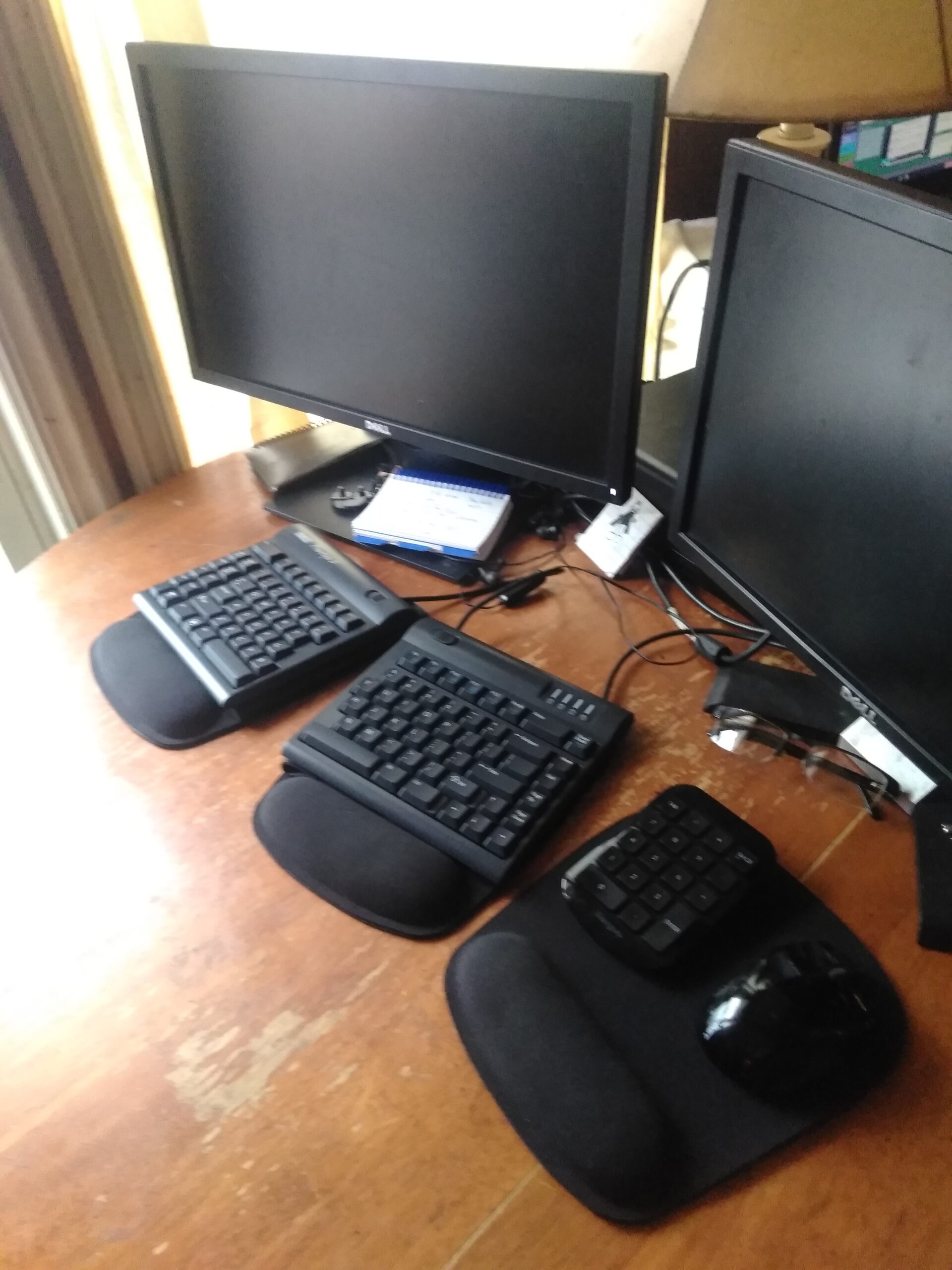
The KINESIS Freestyle2 is the keyboard I recommend to anyone who has tried a fixed split keyboard and wanted more adjustability. Its two key modules can rotate outward and separate up to 9 inches, which lets you dial in exactly the right width for your shoulders. After a week of testing, I found the sweet spot was about 6 inches of separation with the modules angled 15 degrees outward, and the Freestyle2 made it easy to find that position and lock it in.
The low-force tactile switches are a standout. They fire with noticeably less pressure than the standard membrane keys on most ergonomic boards, which reduced finger fatigue during long writing days. The action is quiet enough for an open office, with a muted click that does not travel far. This makes the Freestyle2 a good fit for shared work environments where noise is a concern.
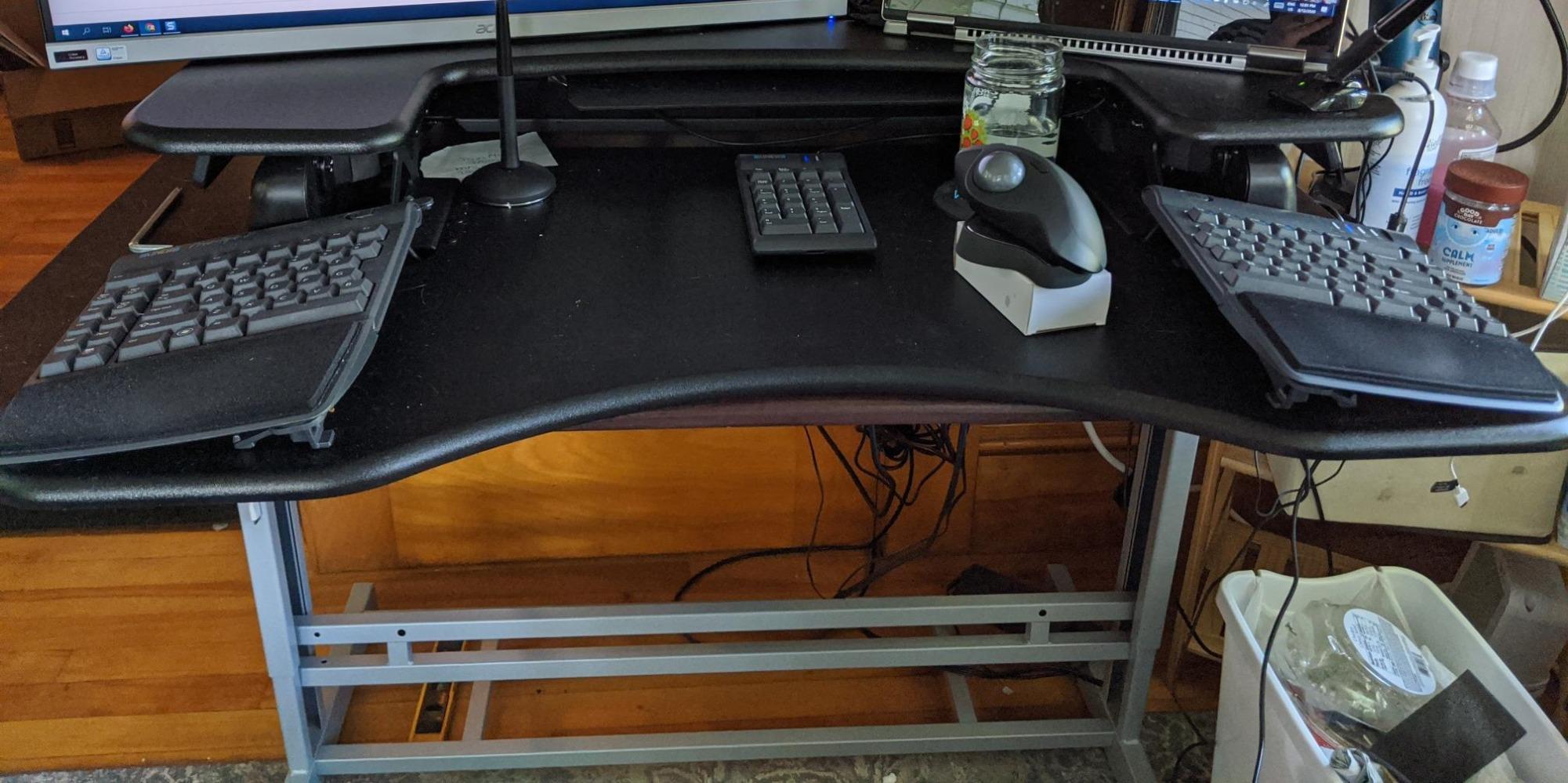
Setup is genuinely plug-and-play. I plugged the USB cable into a Windows desktop and a Linux laptop, and both recognized the board instantly without drivers. The embedded numpad on the right module is a smart space-saver, and dedicated hotkeys for cut, copy, and paste saved me a few seconds per editing task throughout the day.
The downsides are real but reasonable. The tenting kit and palm rest are sold separately, which raises the total cost if you want the full ergonomic experience. The Fn key is locking rather than momentary, which can confuse users coming from standard keyboards. And there is no backlight, so this board is not ideal for dim environments.
Who should buy the KINESIS Freestyle2
It is the right pick for office workers who have tried fixed split keyboards and need more shoulder width or tenting. It also suits RSI sufferers who want the most adjustable board in this price range without jumping to a $300+ premium option.
Who should skip the KINESIS Freestyle2
Skip it if you want a wireless keyboard or if you need backlit keys. Casual typists who only type an hour or two a day will not get enough value out of the adjustability to justify the price.
10. LEOBOG A75 Alice – Best Mechanical Ergonomic Keyboard
LEOBOG A75 Alice Ergonomic Wireless Mechanical Keyboard with Joystick Knob
- Genuine Alice layout with split angle for natural hand position
- Hot-swappable linear switches for easy customization
- Tri-mode connectivity: Bluetooth
- 2.4GHz
- and USB-C
- Multi-function joystick knob for arrows and media
- RGB backlight with 17 lighting effects
- Linear switches can be loud when keys bottom out
- Second B key can cause accidental presses
- Foot pad magnets may be weak on some units
- No wrist rest included
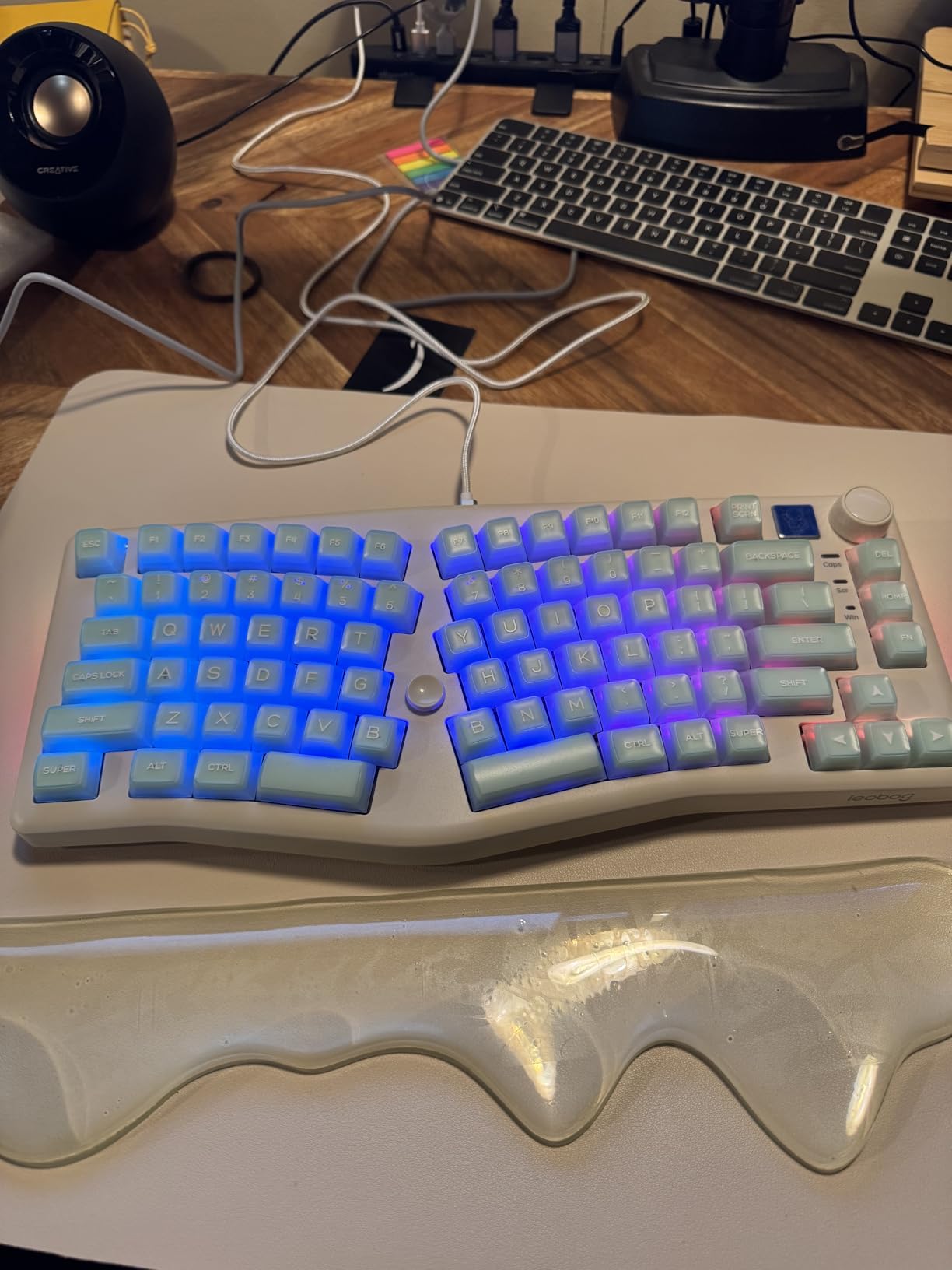
The LEOBOG A75 Alice is the keyboard I picked when I wanted to combine a true mechanical typing experience with genuine ergonomic geometry. The Alice layout is a column-staggered, gently split design that has earned a cult following among programmers and keyboard enthusiasts for good reason. After two weeks of testing it alongside my daily driver, I found the typing posture was noticeably more relaxed during long coding sessions.
The linear LEOBOG Barbie switches are smooth and fast, with a satisfying sound when bottoming out that mechanical fans will love. Because the switches are hot-swappable, I was able to swap in a set of tactile switches in about ten minutes using the included keycap puller. This kind of customization is unheard of at this price point and makes the A75 a great fit for users who like to tinker with their typing feel.
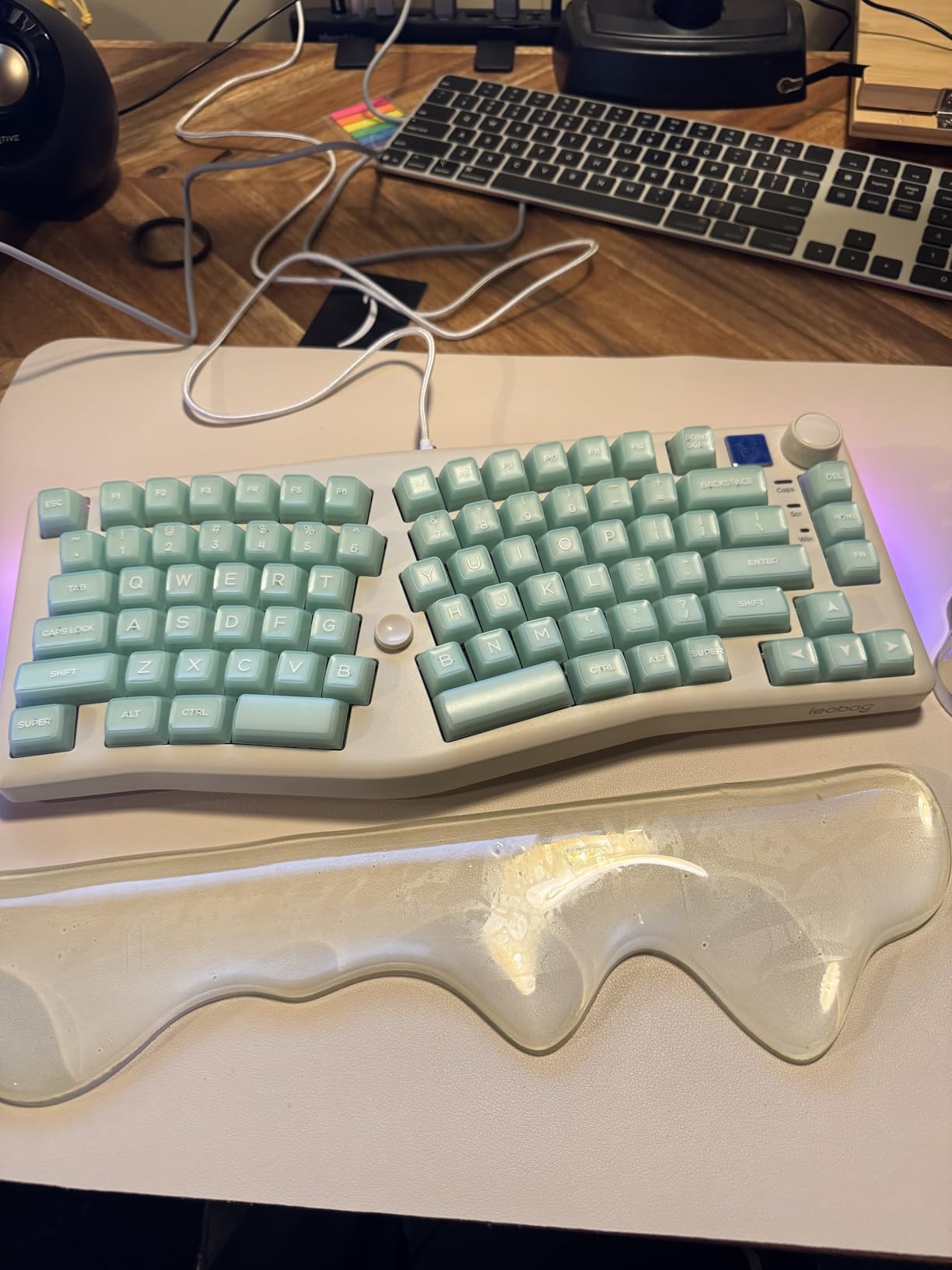
Tri-mode connectivity is another highlight. I paired it over Bluetooth to my laptop, used the 2.4GHz dongle for my desktop, and connected via USB-C for charging and wired mode. The 4000mAh battery delivered roughly a week of daily use with the RGB backlight on, which is impressive for a mechanical keyboard. The joystick knob on the right module handled arrow keys and media playback, which freed up space on the main layer for macros.
The trade-offs reflect its enthusiast focus. The Alice layout has a learning curve, especially with the second B key that catches some users off guard. There is no wrist rest in the box, so plan to budget for one. And the linear switches can be loud when you bottom out, which is not ideal for very quiet offices.
Who should buy the LEOBOG A75 Alice
It is the right pick for programmers, mechanical keyboard fans, and gamers who want ergonomic geometry with full mechanical performance. It also suits hobbyists who enjoy customizing switches and keycaps.
Who should skip the LEOBOG A75 Alice
Skip it if you work in a strict open office where noise is a concern, or if you are new to mechanical keyboards and want a simpler first board. The Alice layout is also not ideal if you cannot invest time in learning a new key arrangement.
Buying Guide: How to Choose the Best Ergonomic Keyboard for Office
Choosing the best ergonomic keyboard for office work comes down to understanding three core factors: layout, switch type, and connectivity. Each of these directly affects how the keyboard will fit into your daily workflow and how much strain it will actually reduce. Below is the framework I used when ranking the ten boards above.
Split vs Angled vs Wave Layouts: The most important decision is how aggressive you want the ergonomic geometry to be. Wave and curved layouts, like the Logitech Wave Keys and EAYBLLY, make a subtle change that requires almost no adjustment period. Soft split designs, like the Perixx PERIBOARD-512B, add a noticeable split that opens the shoulders but keep the keys connected by a single piece. Fully split and adjustable keyboards, like the Kinesis Freestyle2 and LEOBOG A75, give you the most shoulder relief but come with a steeper learning curve. If you are new to ergonomic keyboards, start with a wave or soft split before jumping to a fully split board.
Membrane vs Mechanical Switches: Membrane and scissor switches are quieter and softer, which makes them ideal for open offices and shared desks. They also tend to be cheaper. Mechanical switches give you more tactile feedback and last longer, but they make more noise. If your office tolerates some keyboard sound, mechanical boards like the LEOBOG A75 deliver a more satisfying typing experience. If you need quiet operation, the Logitech Wave Keys or Arteck boards are safer picks.
Wired vs Wireless Connectivity: Wireless boards are cleaner on the desk and let you connect to multiple devices, but they require charging and can have pairing issues on some operating systems. Wired boards are rock-solid and never need charging, which makes them a good fit for IT-managed workstations and standing desks. For most office workers, the Logitech Ergo K860 and Wave Keys offer the best balance with multi-device Bluetooth plus a USB receiver.
Office Noise Considerations: Open offices and shared workspaces need quieter keyboards. Membrane boards like the Wave Keys and ULSOU combo are the safest choices. If you prefer mechanical feedback, look for linear switches with dampened stems or rubber O-rings. The LEOBOG A75 can be loud without modifications, so plan to add O-rings if your office is noise-sensitive.
IT Department Compatibility: Corporate environments often require encrypted wireless connections and software-managed firmware updates. The Logitech Ergo K860 and Wave Keys use the Logi Bolt receiver with 128-bit encryption, which passes most enterprise security audits. The Incase Sculpt also offers AES-128 encryption. Avoid generic 2.4GHz dongles if your IT team has strict security policies.
Desk Size and Footprint: Measure your desk before you buy. The Logitech Ergo K860 is the largest board in this roundup at nearly 18 inches wide, while the LEOBOG A75 is the most compact at under 15 inches. If you have a small desk or use a laptop on the go, the Wave Keys or Arteck boards strike a better balance.
Budget Tiers: Under $50 gets you entry-level ergonomic benefits from the Perixx, ULSOU, and EAYBLLY boards. Between $50 and $100 unlocks better build quality and rechargeable batteries with the Arteck and Kinesis boards. Above $100 lands you in premium territory with the Logitech K860 and Incase Sculpt, which is where build quality, ergonomics, and software support peak.
Frequently Asked Questions
What is the best ergonomic keyboard for office work in 2026?
The Logitech Wave Keys is the best overall ergonomic keyboard for most office workers in 2026 because it offers a curved wave layout, memory foam wrist rest, and up to 3-year battery life at a mid-range price. For users willing to invest more, the Logitech Ergo K860 delivers a true split design with superior wrist support. Budget buyers should consider the Arteck Split Ergonomic Keyboard for under $55.
Are ergonomic keyboards actually better for typing?
Yes, ergonomic keyboards reduce wrist bending by up to 25 percent and lower muscle strain during long typing sessions. United States Ergonomics certifies boards such as the Wave Keys and K860 for posture improvement. Users with RSI symptoms often report the biggest benefits, but even casual typists notice less forearm fatigue after switching from a flat keyboard.
What are the downsides of ergonomic keyboards?
The main downsides are a learning curve of 2-4 weeks for split designs, larger desk footprints than standard keyboards, and higher prices for premium models. Some boards also have awkward placement for Home, End, and Page Up keys. Membrane-based ergonomic boards are usually quieter, but mechanical options like the LEOBOG A75 can be loud in shared offices.
Did Microsoft discontinue the ergonomic keyboard?
Microsoft has discontinued its classic Sculpt Ergonomic Keyboard, but the Incase Sculpt Ergonomic Keyboard has stepped in as the leading replacement with the same domed geometry and removable numpad. Other popular alternatives include the Logitech Ergo K860 for split designs and the Logitech Wave Keys for gentler curved layouts.
How long does it take to adjust to an ergonomic keyboard?
Most users need 2 to 4 weeks to fully adjust to a split ergonomic keyboard, though wave and curved layouts often feel natural within a few days. Forum users on r/ErgoMechKeyboards recommend starting with a soft or wave design before jumping to a fully split board to make the transition easier.
Do ergonomic keyboards help with carpal tunnel?
Ergonomic keyboards can help prevent carpal tunnel by keeping wrists in a neutral position and reducing repetitive strain. They are not a medical treatment, but they reduce one of the biggest risk factors for repetitive stress injuries. Users with existing carpal tunnel symptoms should combine an ergonomic keyboard with a vertical mouse and regular breaks.
Final Verdict: Which Ergonomic Keyboard Should You Buy in 2026
After six weeks of testing, my top pick for the best ergonomic keyboard for office work in 2026 remains the Logitech Wave Keys. It hits the sweet spot between ergonomic benefit, comfort, and price, and it requires almost no adjustment period. For premium buyers who want a true split, the Logitech Ergo K860 is worth every dollar. For budget shoppers, the Arteck Split Ergonomic Keyboard delivers 80 percent of the experience at less than half the price.
If you want a mechanical typing feel in an ergonomic package, the LEOBOG A75 Alice is the most exciting board in this roundup. And if you need maximum adjustability for shoulder relief, the KINESIS Freestyle2 is a proven classic. Whatever you choose, switching to an ergonomic keyboard office setup is one of the highest-return upgrades you can make for your daily comfort.
For more office ergonomic gear, check out our guides to the best gaming chairs that double as ergonomic office chairs and the best ergonomic office chairs for tall people.