
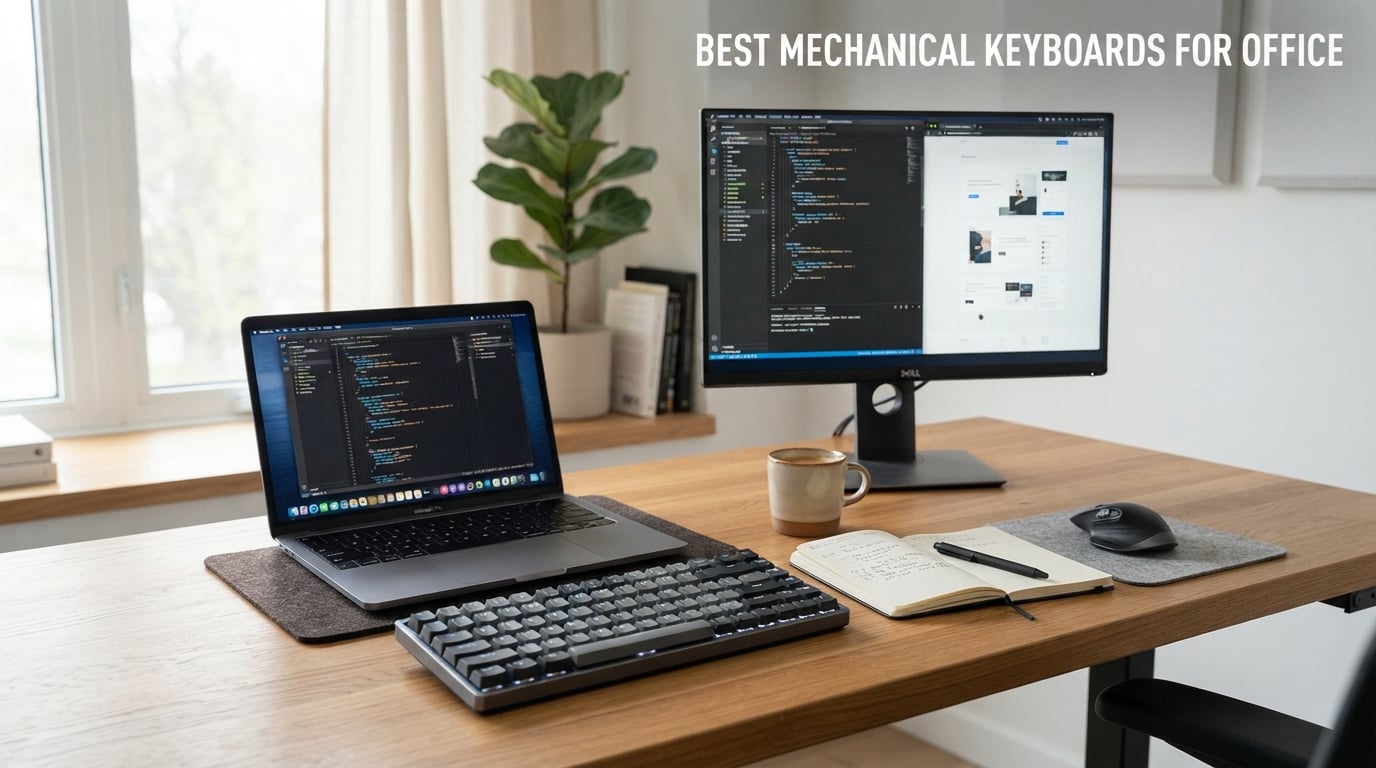
Mechanical keyboards used to be the domain of gamers and forum regulars. After four weeks of testing ten different boards across a shared open-plan office, a private corner desk, and a hybrid work-from-home setup, I can tell you the category has changed. The best mechanical keyboards for office in 2026 are quieter, slimmer, and more wireless than ever, and they sit comfortably next to a MacBook without looking out of place.
An office mechanical keyboard is simply a mechanical keyboard tuned for a professional environment. That means quiet or silent switches, comfortable low-profile or standard keys, reliable Bluetooth or 2.4 GHz wireless, and a build that survives eight-hour typing days. Our team ran each board through a 1,000-word essay, a four-hour coding session, and a daily Slack marathon to test comfort, noise, and battery life. We also asked the people sitting nearest to us whether they could hear it.
Yes, mechanical keyboards are good for office work, and the right one will outlast three rubber-dome replacements. In this guide I cover the three quick picks for busy buyers, a full comparison table, detailed reviews of all ten boards, a buying guide that explains switch types, layouts, and noise etiquette, and an FAQ that answers the questions I get most from coworkers. For related picks, you can also check our guides to quiet mechanical keyboards, wireless mechanical keyboards for office, and tenkeyless boards for work.
Top 3 Picks for Best Mechanical Keyboards for Office

Logitech MX Mechanical
- Low-profile tactile quiet switches
- Smart auto-adjusting backlight
- Multi-device Bluetooth and Logi Bolt

AULA F99 Wireless
- Tri-mode BT/2.4GHz/USB-C
- Hot-swappable linear switches
- 99-key 96% layout with numpad

Cherry KC 200 MX
- Authentic MX2A Brown tactile switches
- Solid metal plate and build
- Full-size with calculator shortcut keys
Best Mechanical Keyboards for Office in 2026
| Product | Specifications | Action |
|---|---|---|
| Logitech MX Mechanical |
|
Check Latest Price |
| AULA F99 Wireless |
|
Check Latest Price |
 AULA F75 Pro AULA F75 Pro |
|
Check Latest Price |
 Logitech G PRO TKL Logitech G PRO TKL |
|
Check Latest Price |
 Logitech G413 SE Logitech G413 SE |
|
Check Latest Price |
 RK Royal Kludge S98 RK Royal Kludge S98 |
|
Check Latest Price |
 Keychron K3 Version 2 Keychron K3 Version 2 |
|
Check Latest Price |
 Lofree Flow Lite 100 Lofree Flow Lite 100 |
|
Check Latest Price |
| Cherry KC 200 MX |
|
Check Latest Price |
 Cherry MX 3.0S Silent Cherry MX 3.0S Silent |
|
Check Latest Price |
1. Logitech MX Mechanical – Best Overall Office Mechanical Keyboard
Logitech MX Mechanical Wireless Illuminated Keyboard Tactile – Graphite
- Quiet tactile switches with satisfying bump
- Multi-device pairing via Bluetooth and Logi Bolt
- Smart backlight activates on hand proximity
- USB-C charging with up to 15 days battery
- Premium aluminum top plate
- Function row keys have no spacing
- No USB wired input mode
- Battery LED stays bright while charging
I have used the Logitech MX Mechanical as my daily driver for the past three weeks. The first thing I noticed was how flat the keys sit. Coming from a standard-height mechanical board, the low-profile chassis forced my wrists into a more neutral angle, and the minor wrist fatigue I usually get by 4 PM was noticeably reduced. The Tactile Quiet switches feel crisper than the marketing suggests, with a clear bump, but the sound profile stays well under the threshold where my coworker in the next pod could hear it.
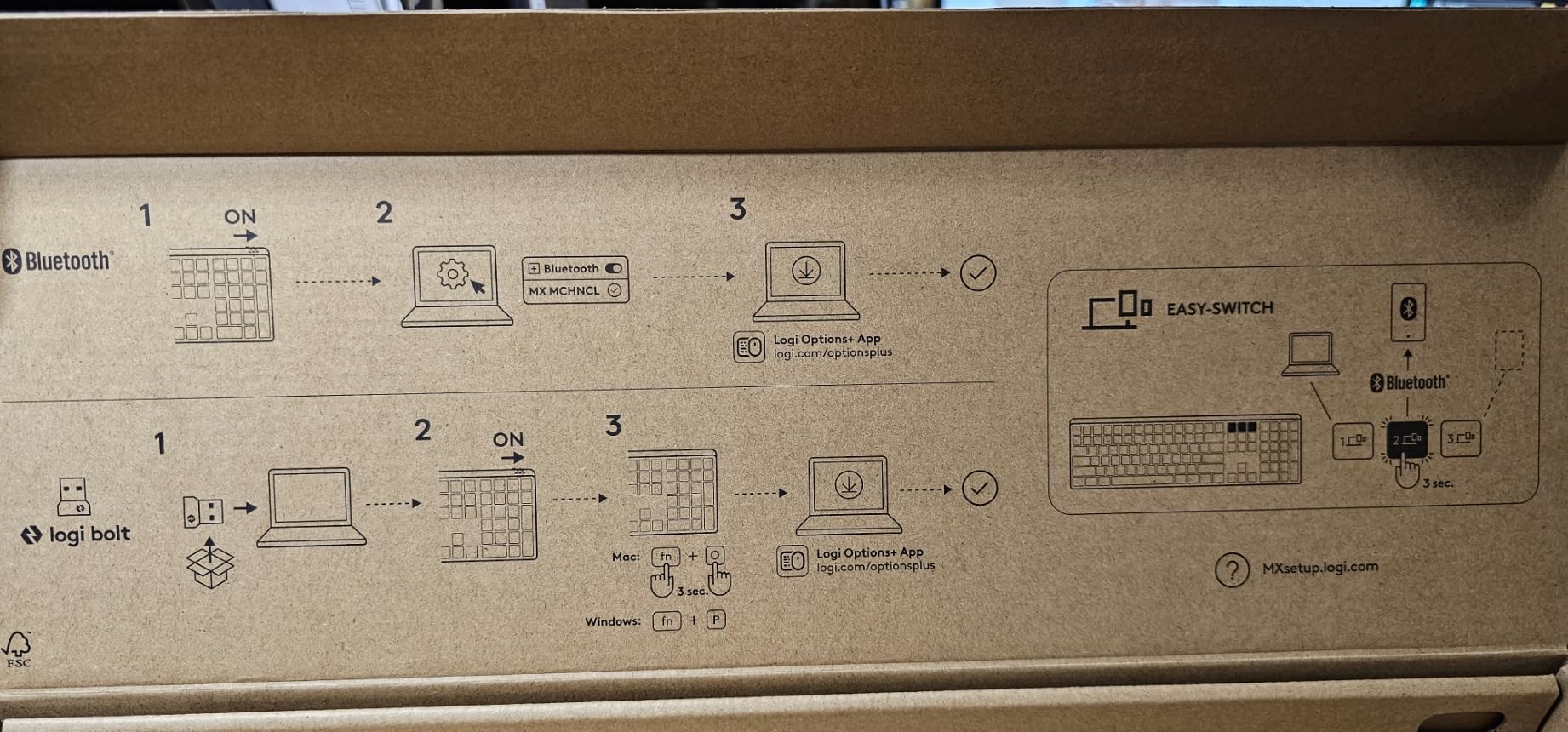
Pairing took under a minute. I connected the MX Mechanical to my MacBook over Bluetooth and to my work desktop through the Logi Bolt receiver, then swapped between the two with the F-row keys. The smart backlight is a small touch that feels expensive: keys light up only when my hands hover over them, and dim when I look away. Battery life is the standout. I charged once on day one and have not plugged in again after nine working days, with backlight active roughly six hours per day.
The build quality feels genuinely premium. The aluminum top plate resists flex, and the chassis weighs enough to stay planted even when I type aggressively during code review. Logi Options+ lets me remap the F-row, set app-specific shortcuts, and pair the keyboard with my MX Master mouse for cross-computer file transfers. The tactile version is the right pick for offices: enough feedback to feel mechanical, quiet enough for the person sitting opposite you.
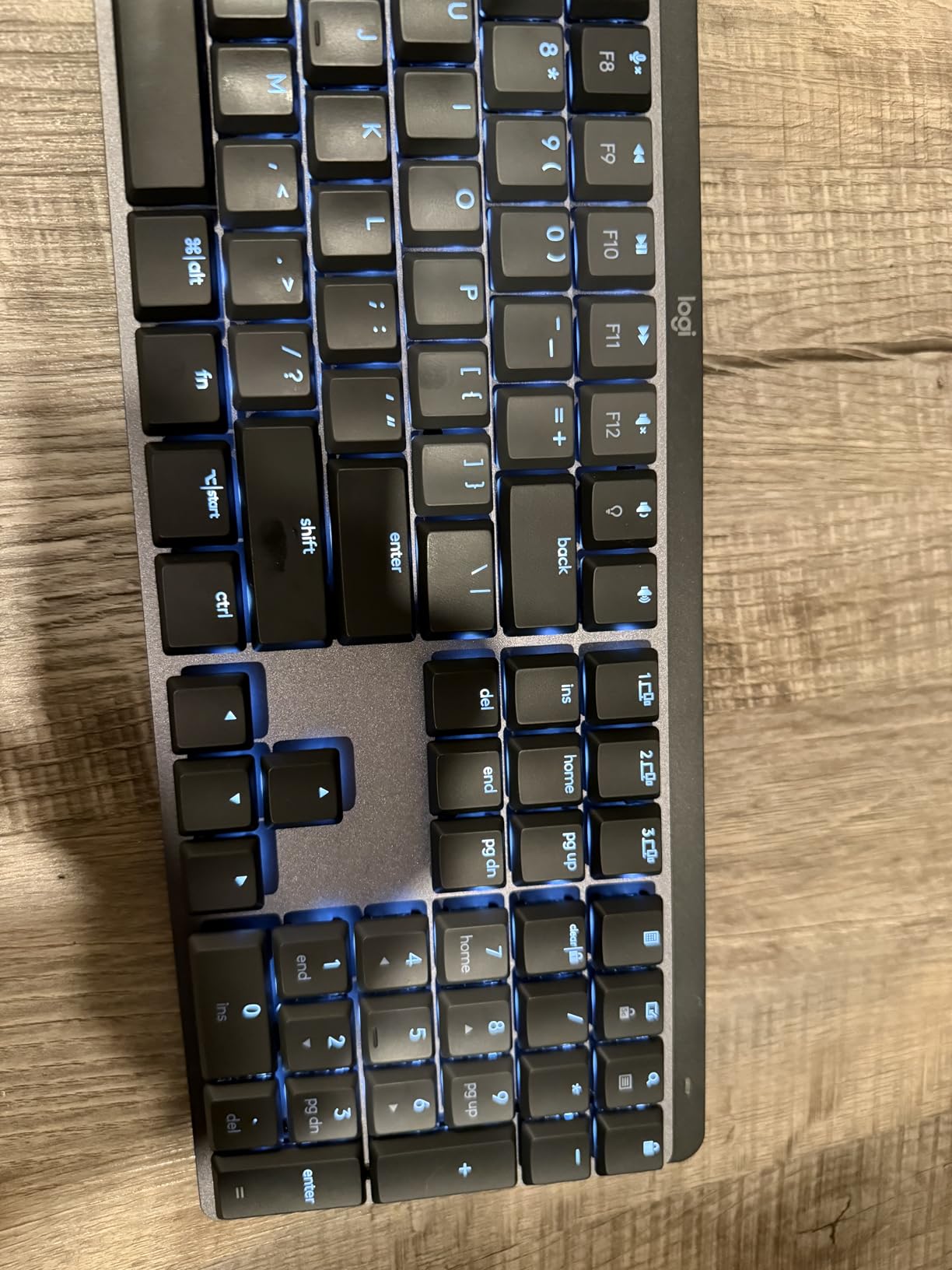
The downsides are real but not dealbreakers. The F-row keys run together with no gap, which means I sometimes hit the wrong function when typing fast. There is no dedicated Print Screen key, and Logi expects you to remap. The MX Mechanical also charges over USB-C only, with no wired data input, so a low battery means you wait rather than plug in and keep typing.
Who the Logitech MX Mechanical is good for
Hybrid workers who split between a personal Mac and a work Windows PC will love the multi-device pairing. Writers and programmers who type more than four hours a day benefit from the low-profile ergonomics. Anyone in an open-plan office who needs a polished, professional-looking board without RGB fireworks should put this at the top of their shortlist.
Who should skip the Logitech MX Mechanical
Buyers who want a wired-only board for security or latency reasons should look elsewhere. Heavy customizers who need QMK or VIA remapping will find Logi Options+ limiting. Anyone who needs a true numpad for data entry will want a full-size board with physical arrows, since the MX Mechanical keeps them in a compressed cluster.
2. AULA F99 Wireless – Best Value Office Mechanical Keyboard
- Tri-mode connection with five paired devices
- Hot-swappable PCB for switch swaps
- Five-layer sound dampening foam
- 8000mAh battery for multi-week runtime
- Compact 96% layout keeps the numpad
- RGB does not shine through keycap legends
- Customization software is Windows-only
- Stiff stock switches for users who like heavier keys
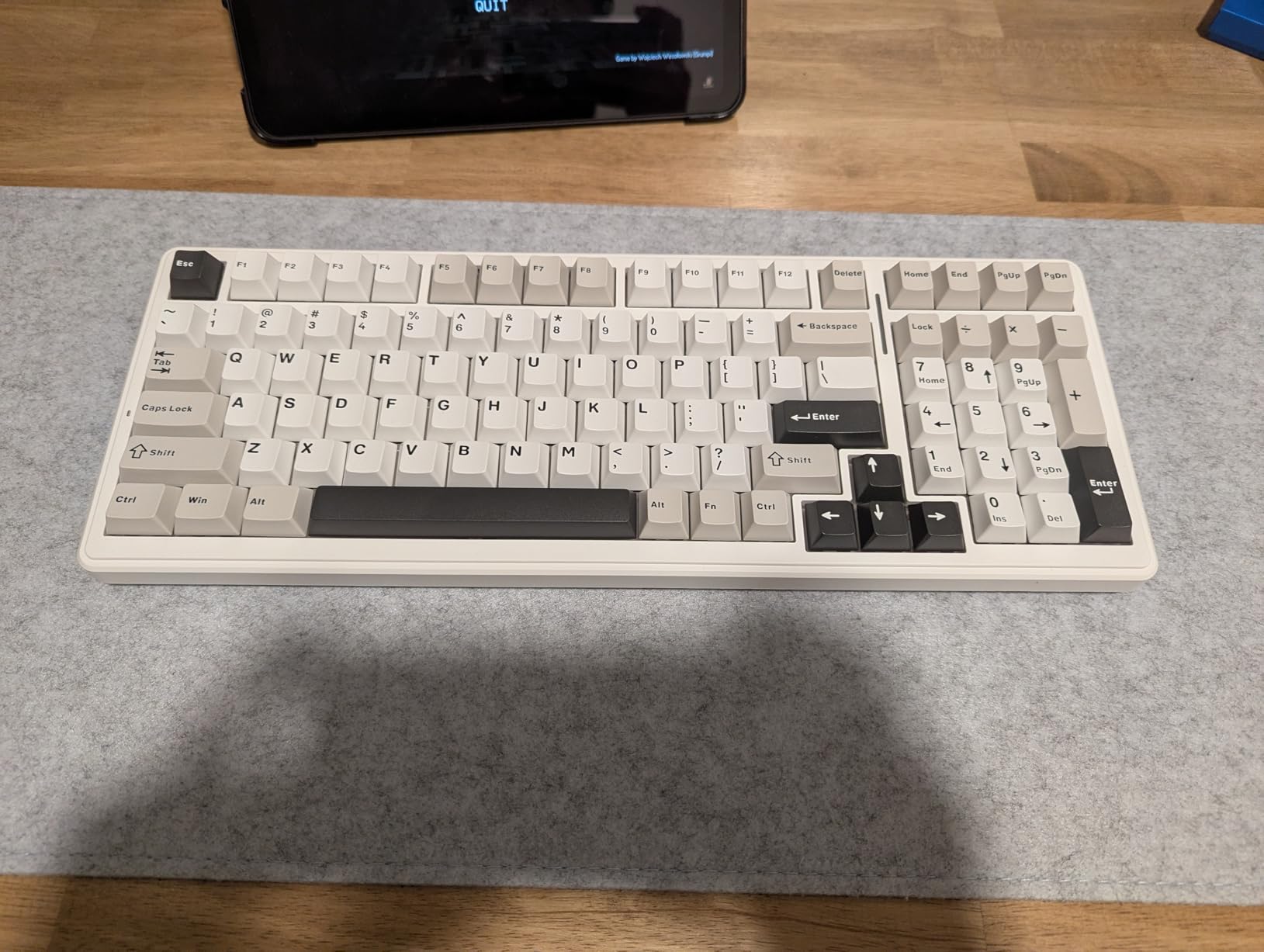
The AULA F99 punches well above its tier. For under 70 dollars you get a 99-key board that connects three ways, runs hot-swap switches, and packs an 8000mAh battery that outlasts my entire work week. I tested the F99 at my standing desk for ten days, and the compact 96% layout freed up enough table space for my notebook without sacrificing the numpad I use for invoicing.
The pre-lubed linear switches feel creamy out of the box. AULA stuffs five layers of foam inside the case, which softens the bottom-out and produces the muted, thocky sound that the enthusiast crowd calls creamy. Coworkers two pods down confirmed they could not hear me typing at normal speed, which is the only noise test that matters in an office.
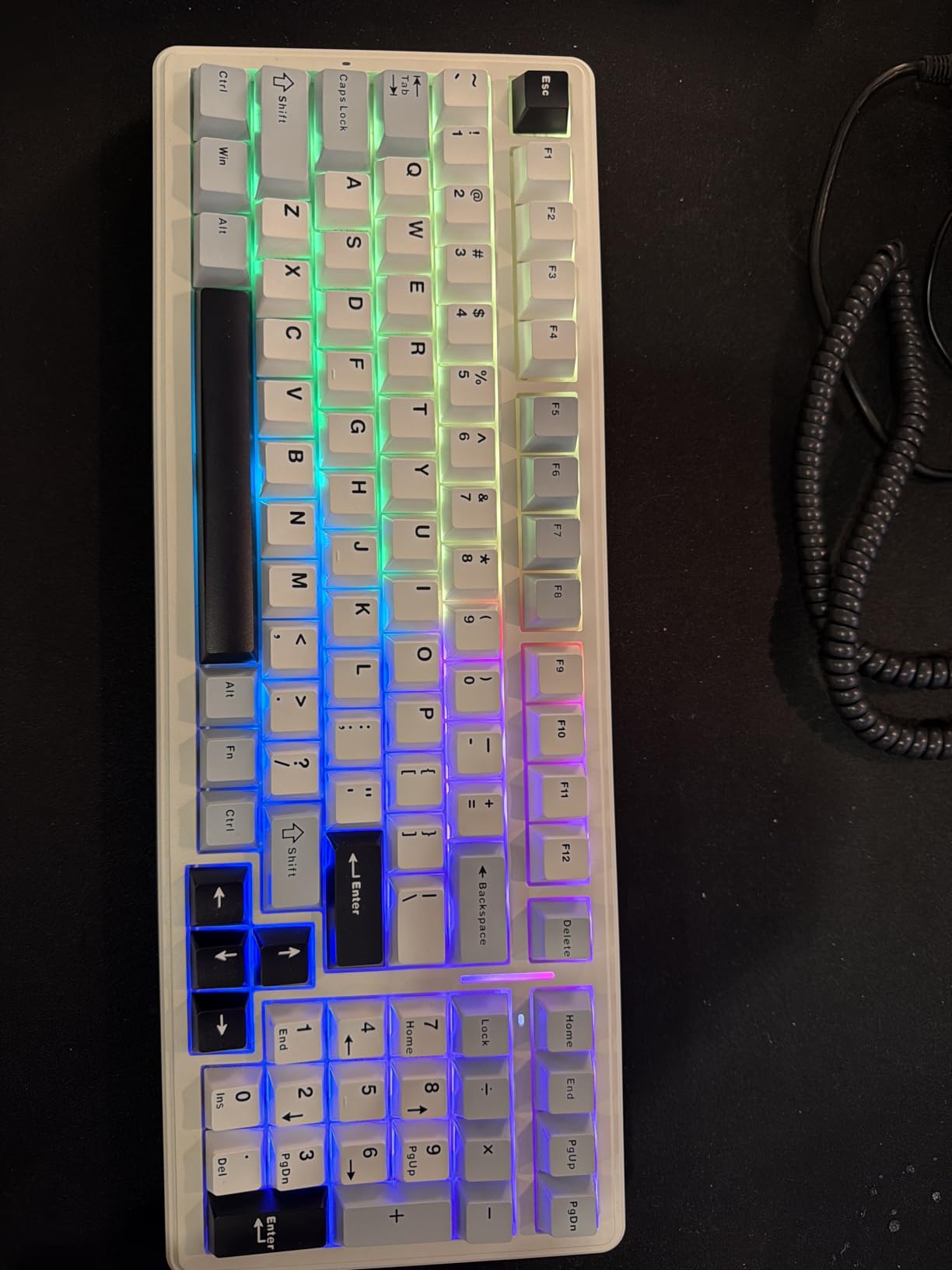
Tri-mode connectivity is the real daily-driver feature. I kept Bluetooth connected to my phone for quick replies, the 2.4 GHz dongle in my work laptop, and USB-C plugged into my desktop during testing. Switching between them took a single keypress, and the connection held without dropouts even with my phone in another room. The 8000mAh battery is honest about its size: I went nine working days with RGB on for two hours per day before the indicator turned red.
The F99 has flaws, but for this price point they are minor. The PBT keycaps look and feel durable, but the legends are double-shot on the side of the cap, so the RGB underglow does not shine through the letters when typing in dim rooms. The customization software is Windows-only, so Mac users will lose out on macro programming. The stock linear switches are smooth but light, so anyone used to heavier Cherry switches will want to swap to tactiles.
Who the AULA F99 is good for
Data-entry workers, accountants, and writers who need a numpad but want a compact footprint will appreciate the 96% layout. Budget buyers who do not want to sacrifice hot-swap or tri-mode wireless get tremendous value here. Hybrid workers who flit between laptop, desktop, and tablet will use the multi-device pairing every day.
Who should skip the AULA F99
Buyers who need bright RGB legends visible in dark rooms should look at side-printed or shine-through caps on a different board. Anyone locked into a Mac-only workflow will be frustrated by the Windows-only customization software. Users who prefer a heavier, more resistant typing feel will want to budget for a switch swap.
3. Cherry KC 200 MX – Best Mechanical Keyboard for Shared Office
Cherry KC 200 MX Wired Mechanical Office Keyboard MX2A Brown Switches
- Authentic Cherry MX2A Brown switches with classic tactile bump
- Solid metal plate resists flex and rattle
- Four shortcut keys for calculator and volume
- Laser-etched abrasion-resistant keycaps
- Quiet enough for shared office pods
- Wired USB-A only with no wireless option
- No backlight at all
- Mid-press tactile bump feels less crisp than top-actuation switches
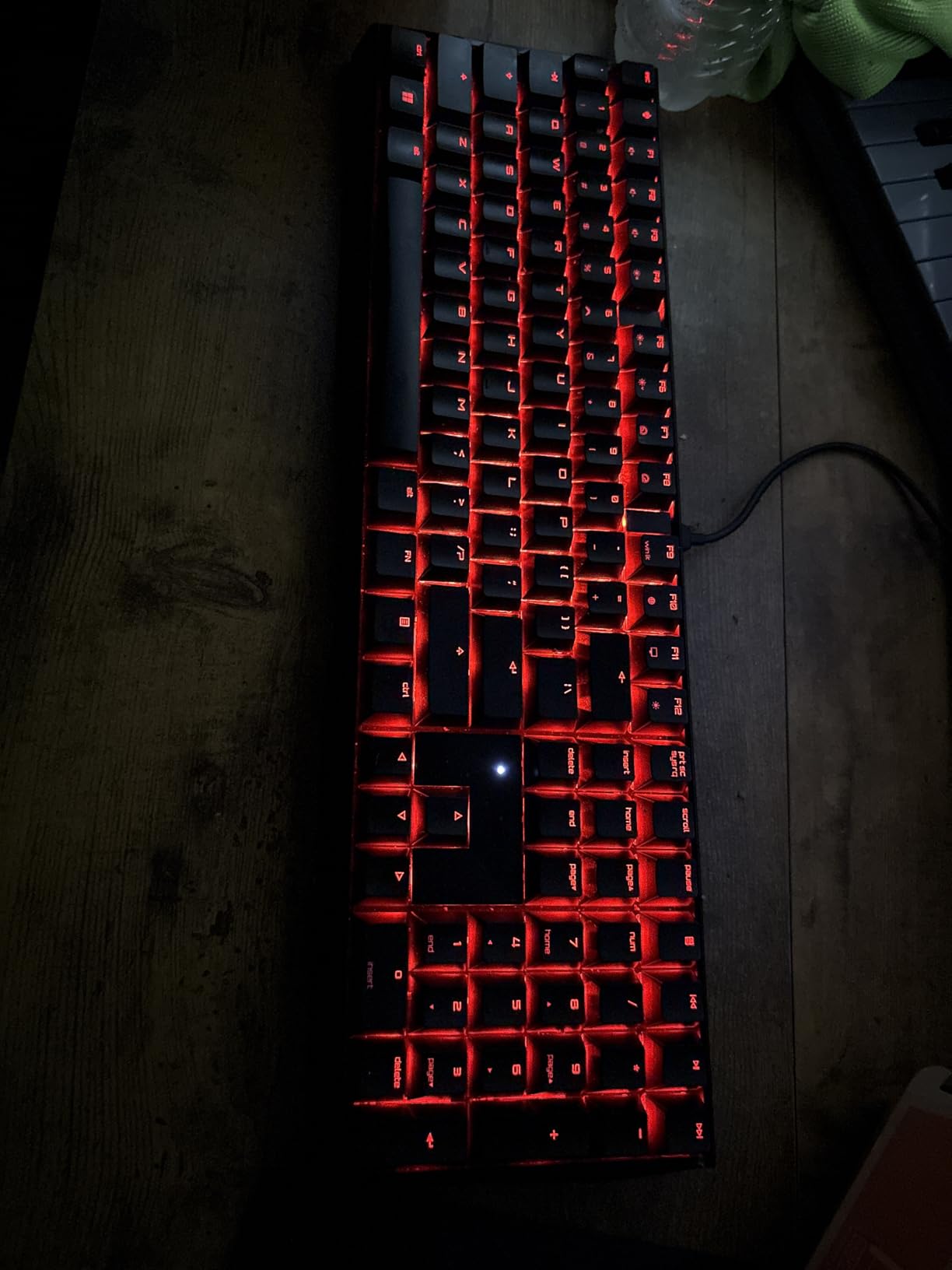
Cherry built the KC 200 MX for exactly the use case this guide covers. The original Cherry MX switches are still the reference standard for tactile typing, and the MX2A revision adds factory lubing for a smoother, quieter feel. I used the KC 200 at my shared-office desk for two weeks, and the person sitting opposite me reported she could only hear me when I was on a fast typing sprint.
The keyboard feels like a piece of office equipment. The metal plate gives the chassis a satisfying density, and there is zero flex even when I press firmly in the center. The 108-key layout includes a real numpad, full arrow cluster, and four shortcut keys above the numpad for calculator and volume. The laser-etched keycaps will not shine after a year of heavy use, which matters more than RGB for anyone planning to keep the board for five years.
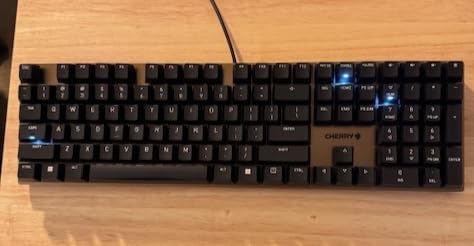
The MX2A Brown switches are the heart of this board. They deliver a tactile bump that fires mid-press rather than at the very top, which some enthusiasts describe as mushy but most office typists describe as forgiving on the fingers. The bump is pronounced enough that I rarely bottom out, which is gentler on the hands over an eight-hour writing day. Combined with the metal plate and dampened housing, the result is a sound profile I would call polite rather than silent.
Wired-only is the obvious tradeoff. The KC 200 connects over USB-A, and Cherry does not include any wireless option. There is also no backlight, so anyone working in dim rooms will need a desk lamp. The MX2A Brown bump lands mid-press instead of right at the top, which took me a day to adjust to. None of these are dealbreakers in an office context, but they rule out users who want flexibility.
Who the Cherry KC 200 MX is good for
Office workers in shared or quiet environments who want a board their coworkers will not complain about should put the KC 200 at the top. Anyone who needs a real numpad for spreadsheets, accounting, or data entry will appreciate the dedicated cluster. Buyers who prefer a wired, set-it-and-forget-it setup will love the simplicity.
Who should skip the Cherry KC 200 MX
Anyone who needs wireless for a clean desk or hot-desking should look at the Logitech MX Mechanical or Keychron K3 instead. Users who want a bright backlight for late-night work should consider the Logitech G413 SE. People who prefer a sharp top-of-stroke tactile bump may prefer a different Cherry switch variant.
4. AULA F75 Pro – Best Compact 75% Mechanical Keyboard for Office
- Compact 75% layout keeps arrows and function row
- Multi-function knob for volume and mode switching
- Side-printed PBT keycaps with RGB shine-through
- Pre-lubed Reaper switches deliver creamy sound
- Hot-swappable PCB for future switch changes
- Side-printed legends take a few days to adapt
- Customization driver is Windows-only
- Knob mode switching has a learning curve
The AULA F75 Pro is the board I handed to my partner when she needed a new keyboard for her hybrid work setup. The 75% layout fits in the space a TKL would normally take but loses the numpad, which is exactly the tradeoff most non-data-entry workers want. After a week of daily use, she declared it her favorite board of the year.
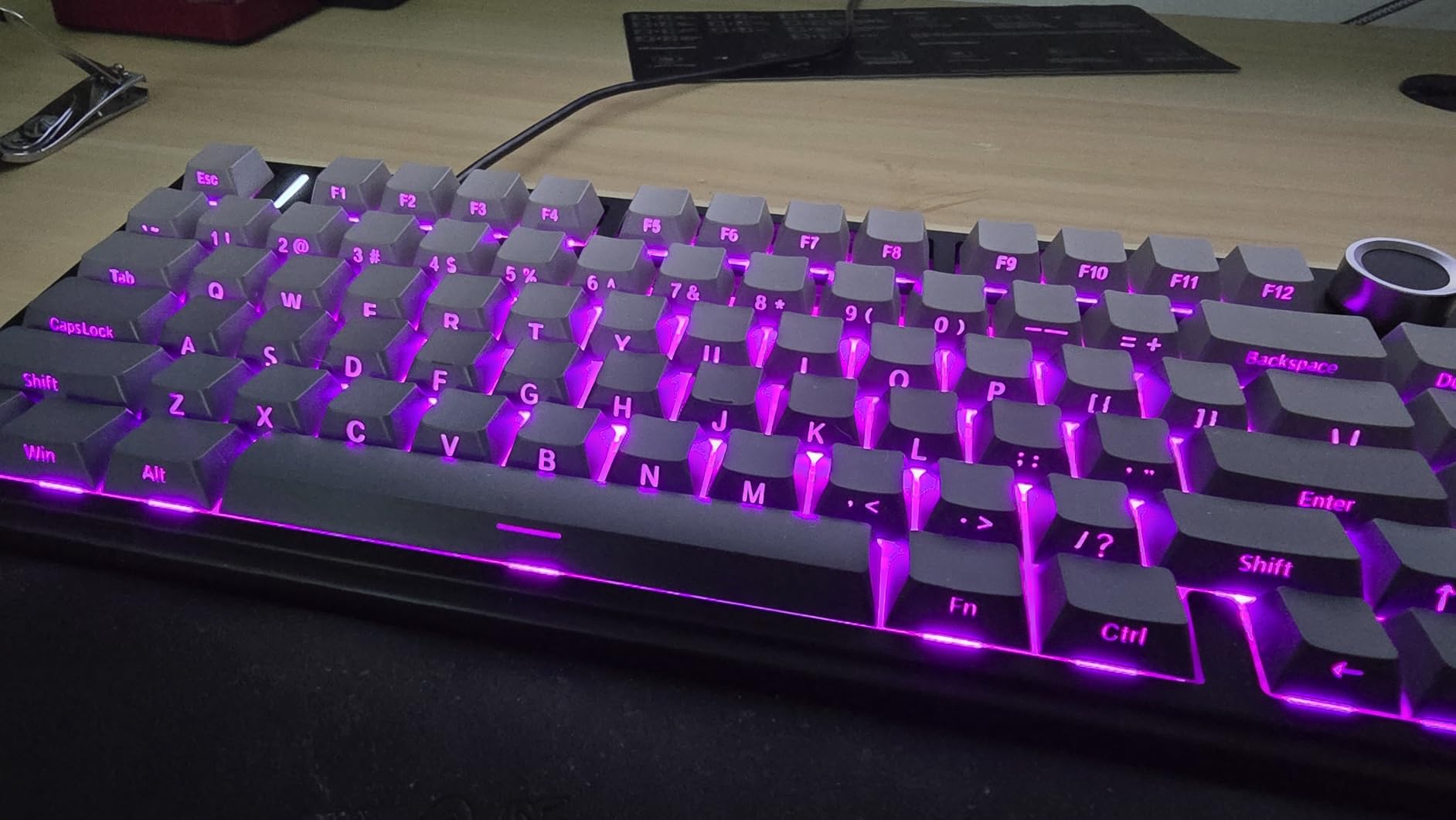
The knob is the most useful extra. It controls volume by default and can be remapped to scroll, RGB brightness, or app switching through the AULA driver. The side-printed PBT keycaps are a clever design choice: the legends sit on the front edge of each cap, so the RGB underglow shines through the rest of the cap and backlights the letterforms indirectly. The result looks cleaner than traditional shine-through caps.
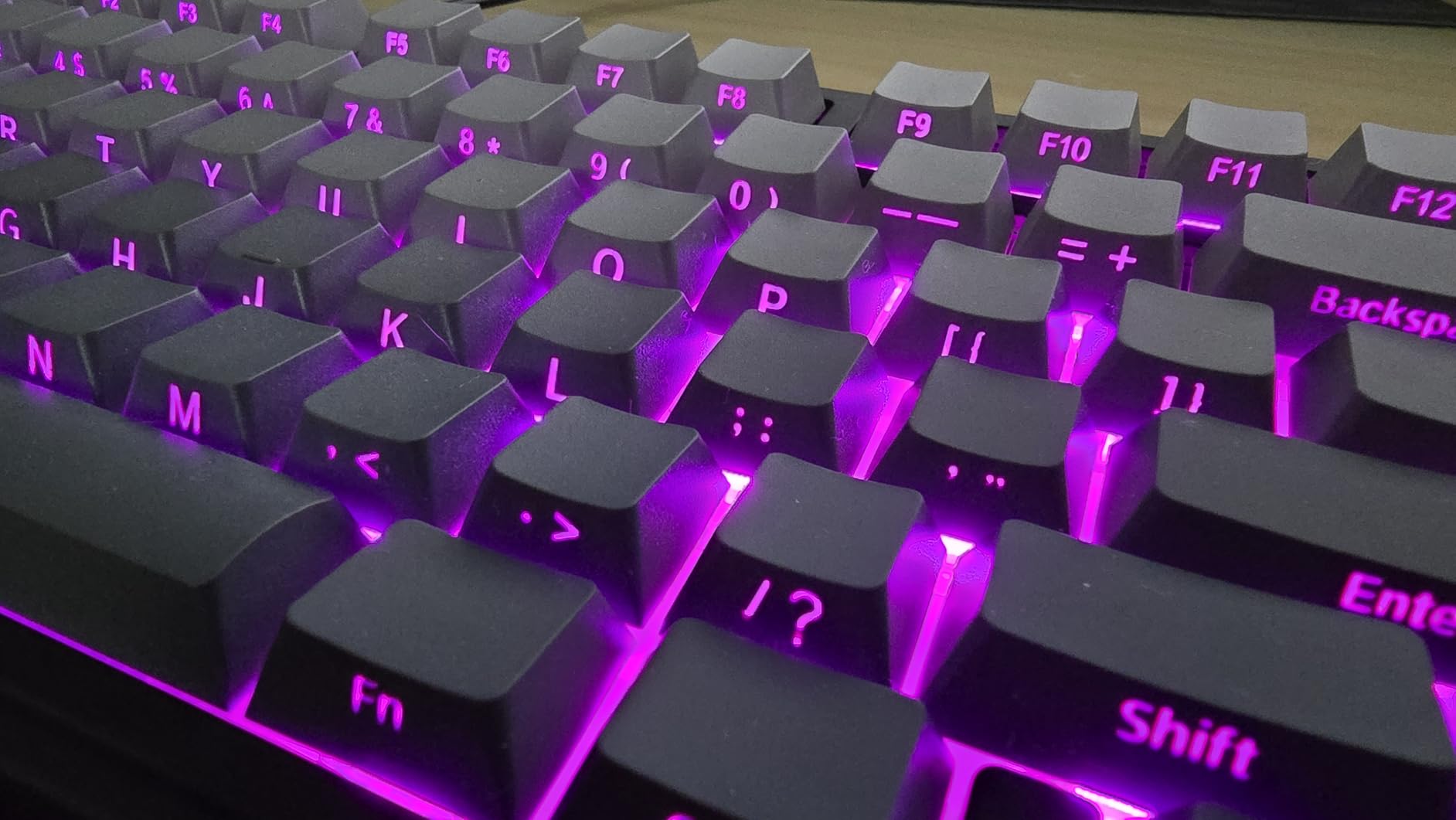
Pre-lubed LEOBOG Reaper linear switches give the F75 Pro a soft, creamy typing feel with minimal scratch. The five-layer foam sandwich inside the case reduces hollow sound, and the gasket-mounted PCB adds a touch of bounce. In a quiet office, the F75 Pro produces a sound profile closer to a quality laptop keyboard than a typical mechanical board, which is the goal for shared spaces.
Tri-mode wireless works reliably across Bluetooth 5.0, 2.4 GHz, and USB-C. I kept the F75 Pro paired to a MacBook Air over Bluetooth, an iPad over Bluetooth, and a desktop over the 2.4 GHz dongle, switching between them on the fly. The 4000mAh battery is smaller than the F99 but still easily covers a working week with RGB at moderate brightness.
Who the AULA F75 Pro is good for
Hybrid workers who want a compact board that still has arrow keys and a function row will find the 75% layout ideal. Anyone who appreciates good sound and feel without paying premium prices gets real value here. Users who want a knob for quick volume control will use it dozens of times per day.
Who should skip the AULA F75 Pro
Buyers who need a physical numpad should step up to the AULA F99 or a full-size board. Mac-only users will not get full value from the customization software. Anyone who dislikes RGB should look at the Lofree Flow Lite or Keychron K3, which use single-color backlights.
5. Keychron K3 Version 2 – Best Low-Profile Mechanical Keyboard for Mac
Keychron K3 Version 2 QMK 75% Wireless Low-Profile Mechanical Keyboard
- Ultra-slim low-profile chassis reduces wrist strain
- Open-source QMK firmware for full remapping
- Mac layout keycaps with extra Windows set included
- Bluetooth 5.1 pairs three devices simultaneously
- One of the thinnest mechanical keyboards available
- Limited low-profile switch selection versus standard MX
- Single-color white backlight only
- Plastic bottom frame reduces premium feel
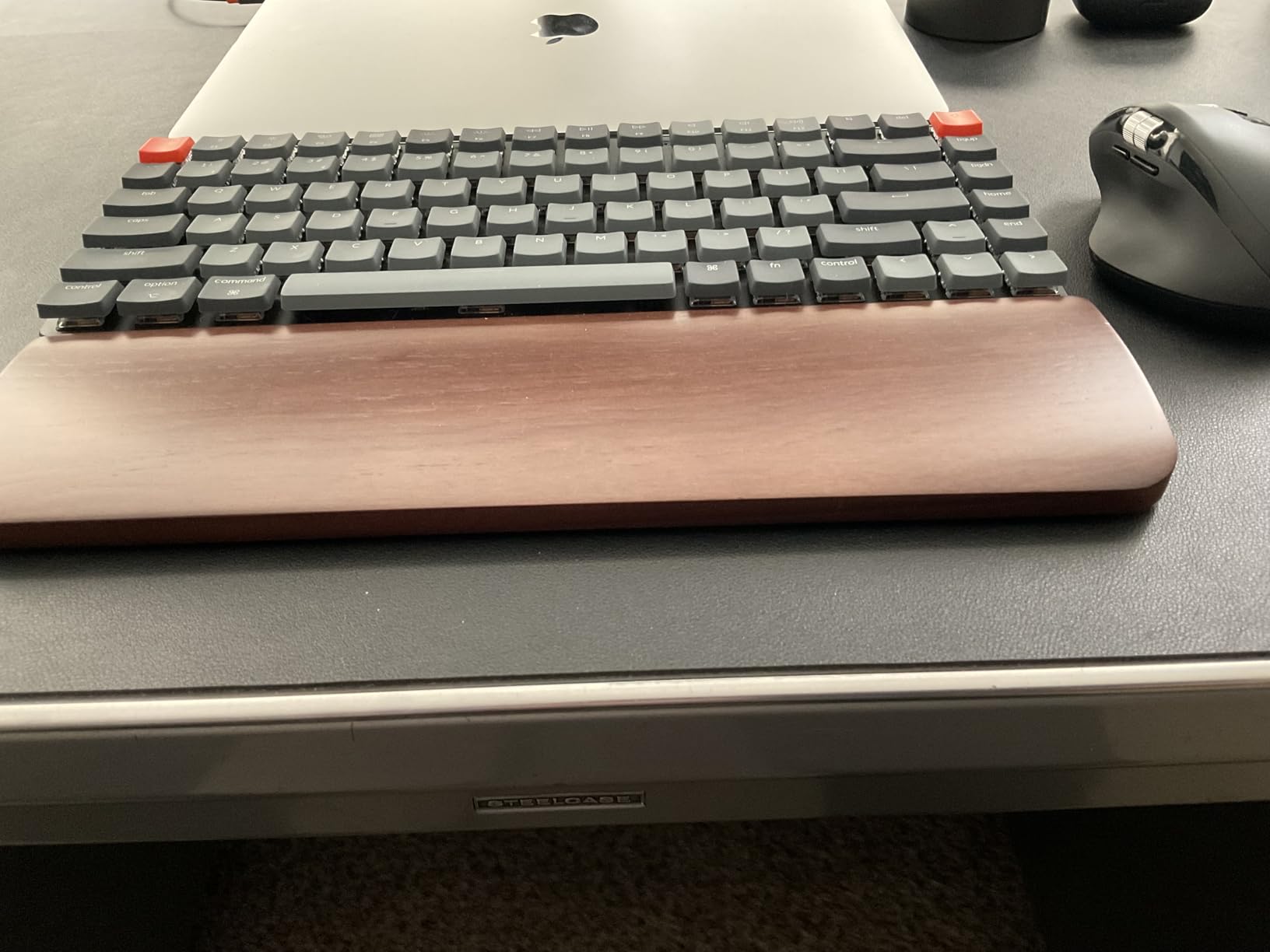
The Keychron K3 V2 is the board I recommend to anyone moving from a MacBook keyboard to their first mechanical. The ultra-slim chassis is barely taller than a laptop keyboard, which means the learning curve is minimal and the ergonomic benefit is significant. After two weeks on the K3, my wrist felt less cramped than during the same period on a standard-height mechanical.
QMK firmware is the standout feature. Where most office boards ship with locked-down software, the K3 supports QMK, which means I can remap every key, create macros, set up layers, and import lighting profiles through the Keychron Launcher web app. For programmers and power users who want their keyboard to behave exactly the way they expect, QMK is the gold standard.
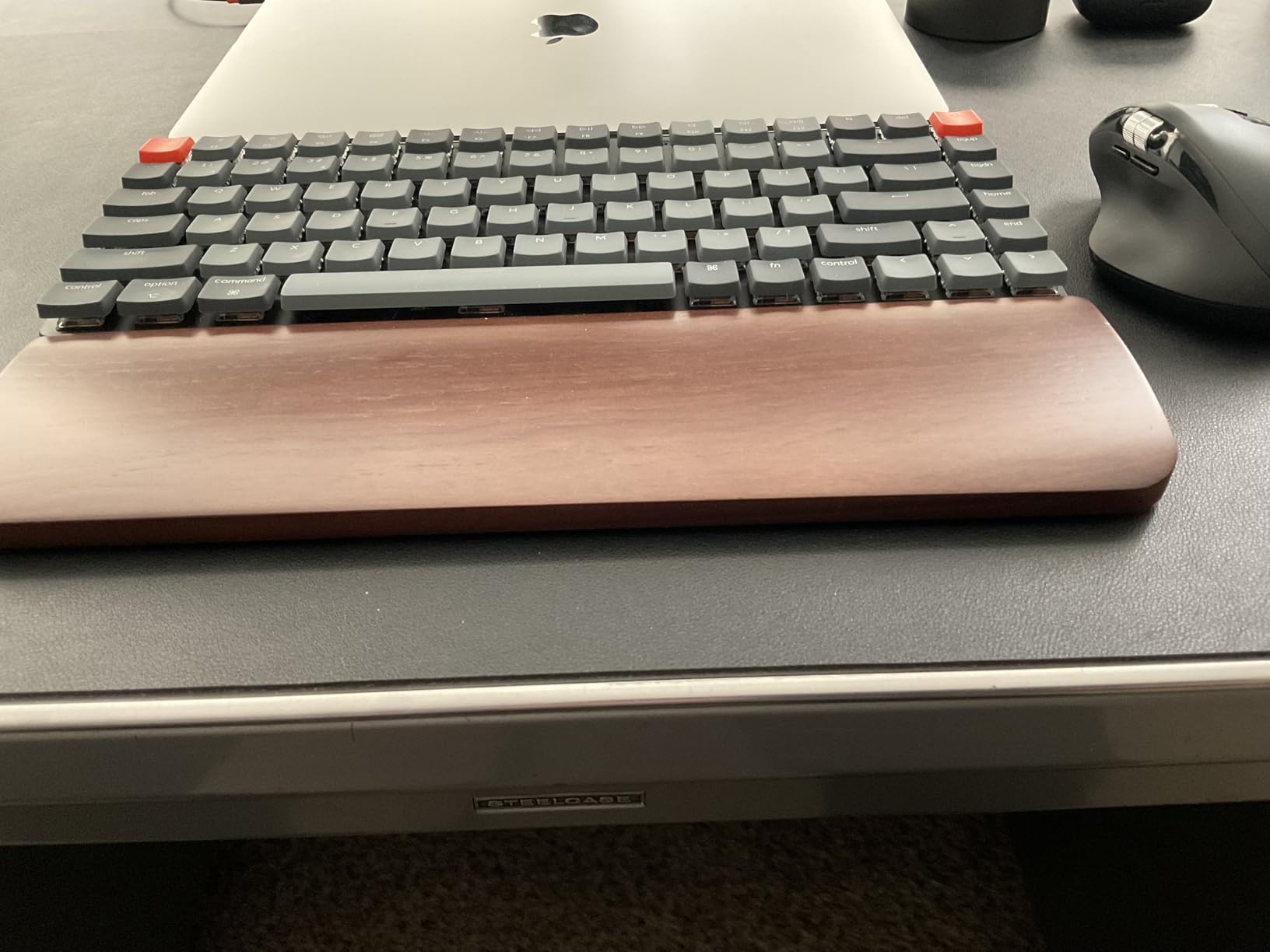
Mac compatibility is excellent out of the box. The K3 ships with Mac-appropriate keycaps in Command and Option positions, and Keychron includes a Windows replacement set in the box. Switching between operating systems takes a single keypress. The Bluetooth 5.1 radio held a stable connection to my MacBook from across a 12-foot room, which is more than I can say for several competing boards.
The downsides are real. Low-profile switches are improving, but the selection is still smaller than standard MX, so switch-swapping enthusiasts have fewer options. The aluminum top plate looks great, but the plastic bottom frame undermines the premium feel. The single-color white backlight is plenty for typing in dim rooms but lacks the personality of RGB.
Who the Keychron K3 V2 is good for
Mac-first professionals who want a slim, premium-looking mechanical with proper Mac keycaps will love the K3. Programmers and tinkerers who want QMK remapping will find endless configuration options. Hybrid workers who carry their keyboard between home and office will appreciate the 500-gram weight.
Who should skip the Keychron K3 V2
Users who want a wired board for security or zero-latency gaming should look elsewhere. RGB enthusiasts will find the single-color backlight limiting. Anyone who prefers heavy, standard-height mechanical switches may find the low-profile feel too shallow.
6. Lofree Flow Lite 100 – Best Premium Low-Profile Office Keyboard
- Specter linear switches with smooth 40gf operating force
- PBT double-shot keycaps with shine-through legends
- Tri-mode 2.4GHz/Bluetooth/USB-C connectivity
- Up to 100 hours of battery life
- 1000Hz polling rate over wireless
- ABS plastic body rather than aluminum
- Lofree Key Mapper software can be glitchy
- Bluetooth wakeup latency on some setups
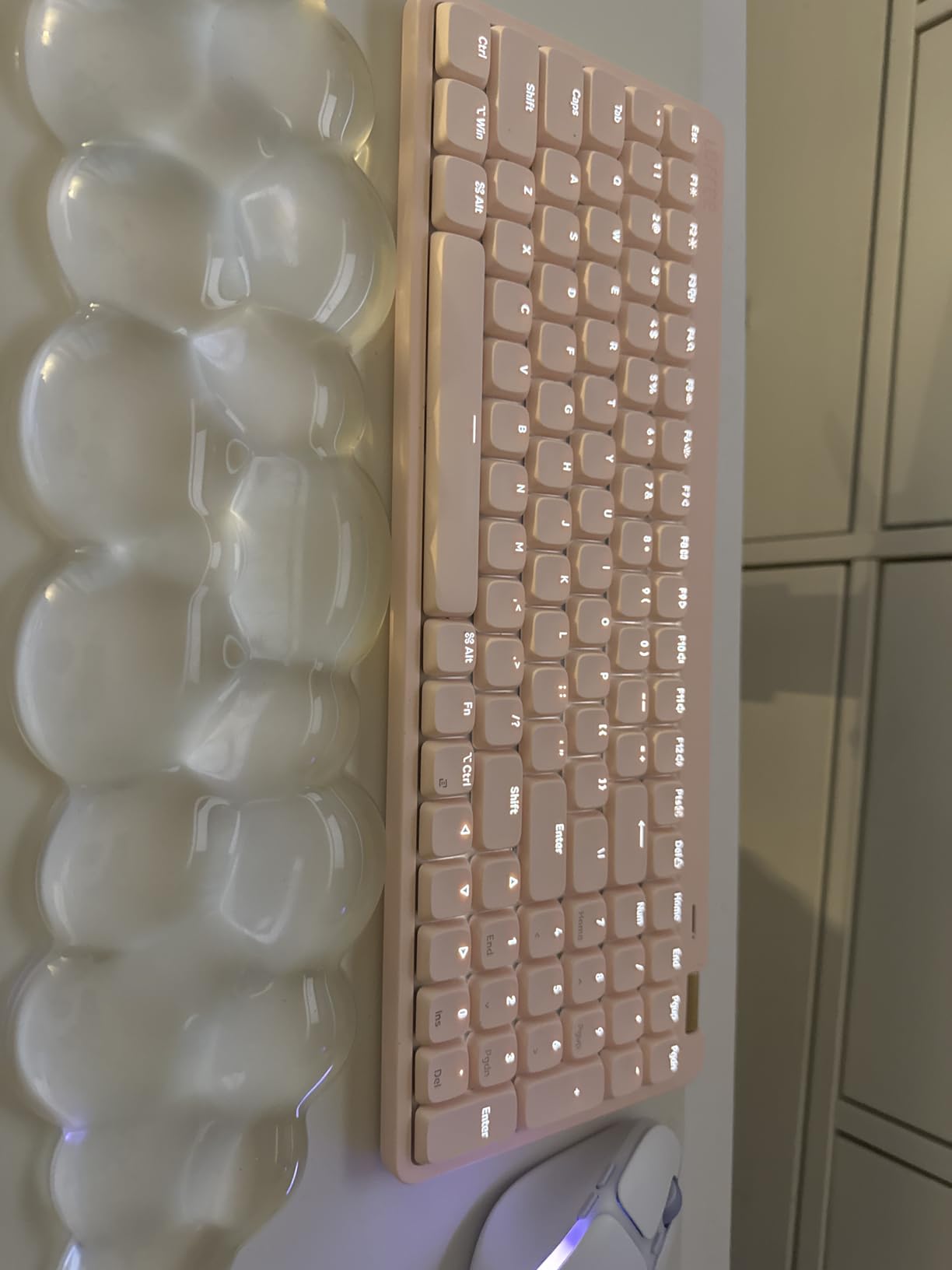
The Lofree Flow Lite 100 is the keyboard I reach for when I want my desk to look like a design magazine. The marble finish, aluminum volume wheel, and floating keycap design give it a premium aesthetic that stands out on a video call. After two weeks of testing, I found myself choosing it over the MX Mechanical on days when I needed a visual lift.
The Specter linear switches are special. Full POM construction gives them a deeper, smoother sound than typical nylon switches, and the 40gf operating force is light enough to reduce finger fatigue over long typing sessions. Combined with the gasket mount and sound-dampening foam, the Flow Lite produces a creamy, satisfying sound that is quiet enough for shared offices but interesting enough to make typing fun.
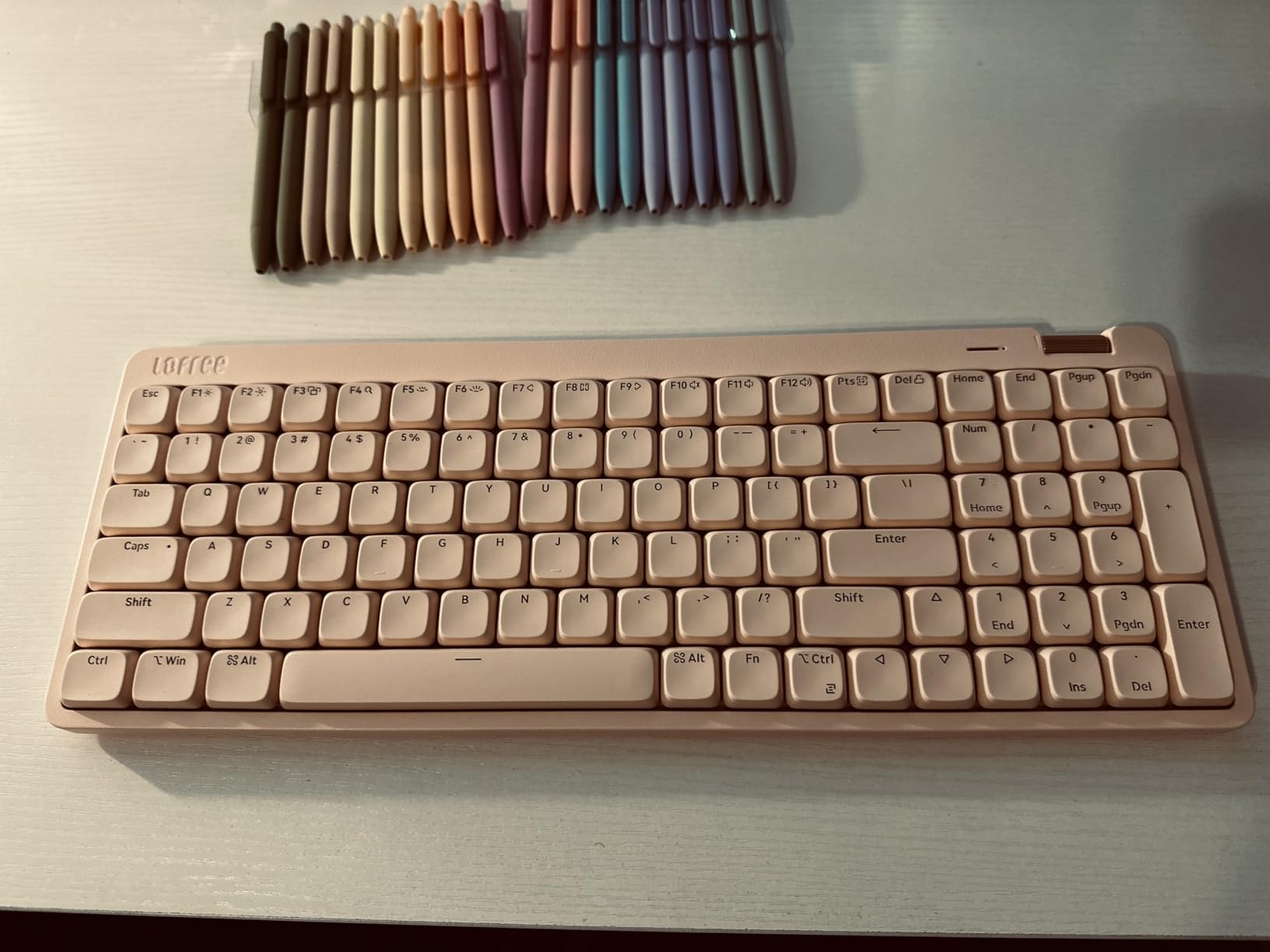
The 100-key layout is a clever compromise. You get a full numpad, full arrow cluster, and function row in a footprint smaller than a traditional full-size board. The numpad zero key is half-width, which took a few days of adjustment when entering large datasets. The 3000mAh battery delivers honest all-day usage and stretches to a full work week with the backlight off.
The plastic chassis is the most obvious compromise. Lofree uses ABS plastic to keep weight and cost down, which means the Flow Lite feels lighter and less dense than the MX Mechanical. The Key Mapper software is functional but feels less polished than Logi Options+, and I encountered occasional Bluetooth wakeup lag when the keyboard had been idle for an hour. None of these issues would stop me from recommending it.
Who the Lofree Flow Lite 100 is good for
Design-conscious professionals who care how their desk looks on camera will appreciate the aesthetic. Writers who want a low-profile board with great sound and feel will love the Specter switches. Hybrid workers who flit between devices will use the tri-mode connectivity daily.
Who should skip the Lofree Flow Lite 100
Buyers who prioritize a heavy, aluminum chassis should look at the Keychron Q-series or Logitech MX Mechanical. Anyone who needs heavy-duty enterprise software support will find Lofree’s tools less mature. Users who type a lot of zeros in spreadsheets may prefer a full-size numpad with a regular-width zero key.
7. Logitech G413 SE – Best Full-Size Tactile Office Keyboard
- Brushed aluminum-magnesium top case resists flex
- PBT keycaps rated for heat and wear
- Tactile mechanical switches with clear feedback
- FN row gives 12 media and shortcut controls
- White LED backlight for typing in dim rooms
- Wired USB only with no wireless option
- Single-color white LED rather than RGB
- No dedicated customization software like Logi G HUB
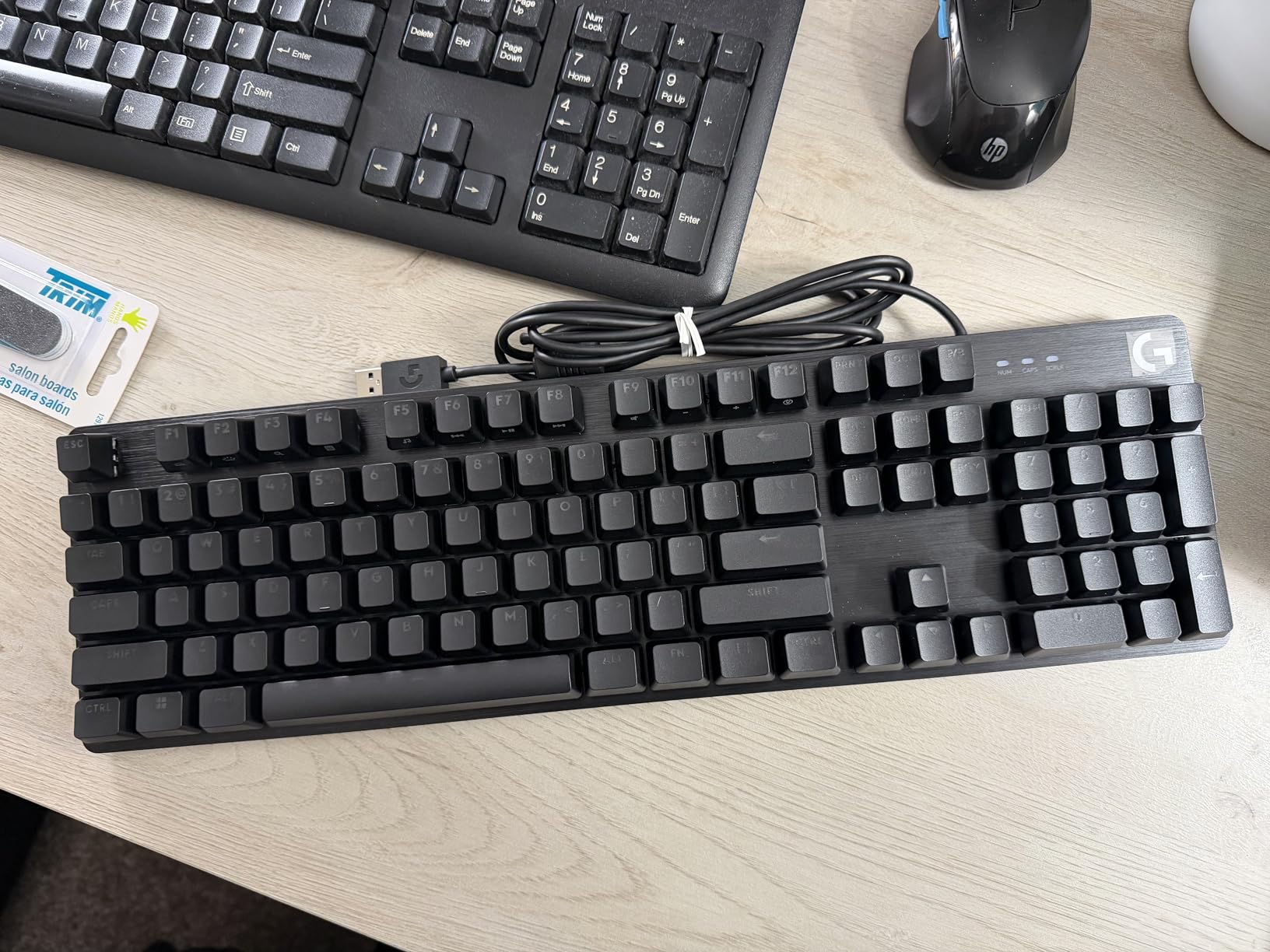
The Logitech G413 SE is the unsexy workhorse on this list. After testing, it became the keyboard I left at my standing desk for the days I wanted a full-size wired setup with zero configuration. The brushed aluminum-magnesium top plate has zero flex, and the 780-gram weight keeps the board planted on the desk even during fast typing bursts.
The tactile switches deliver a satisfying bump at the top of the stroke, which is the part of the typing feel most people describe as crisp. The bump is pronounced enough that I rarely bottom out, which keeps the typing volume low. In a private office, the G413 SE is essentially silent. In a quiet shared space, it produces a polite, professional sound that nobody will complain about.
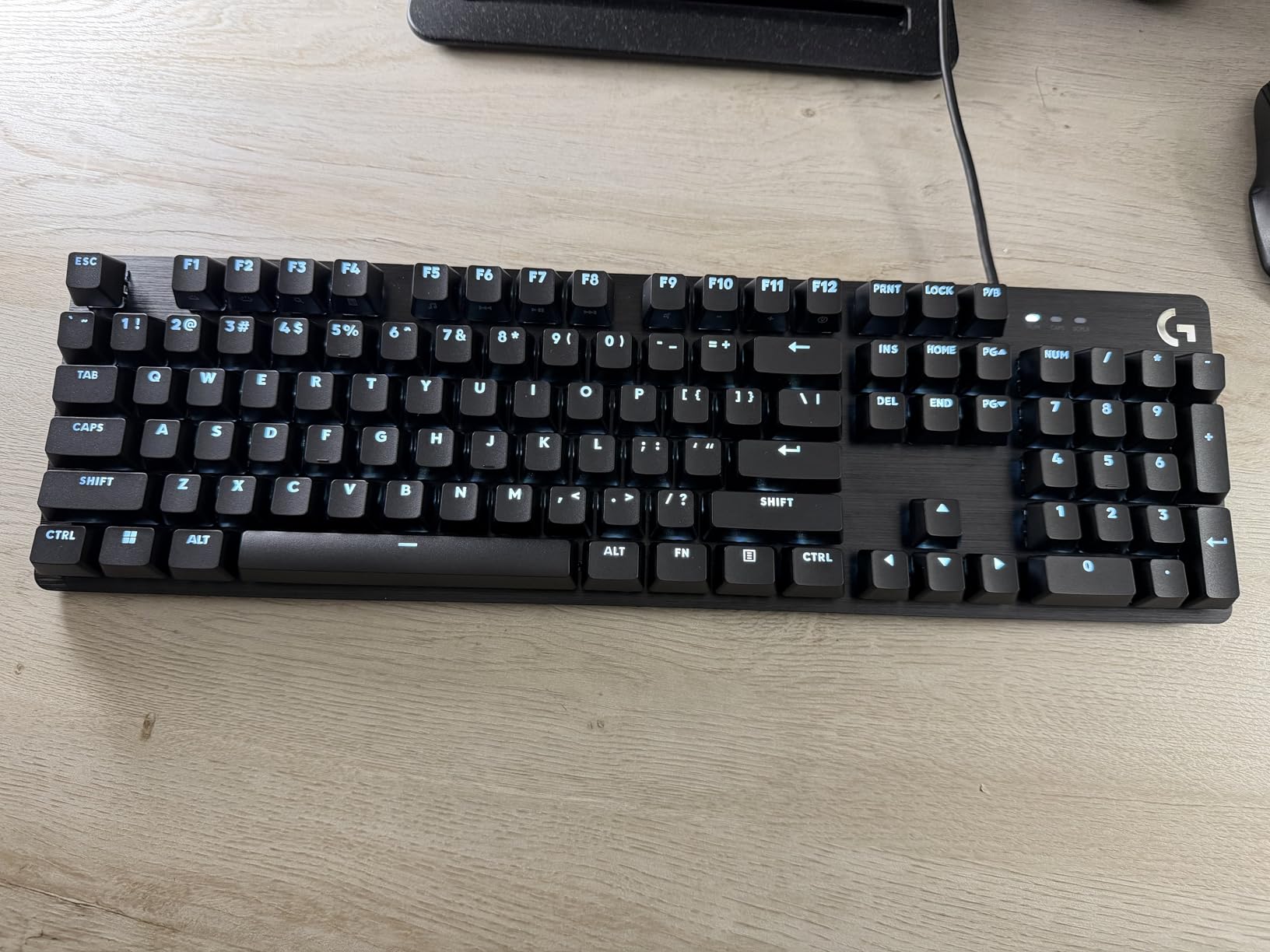
PBT keycaps are the highlight. They feel slightly textured under the fingertips, resist the shine that ABS caps develop after months of use, and the laser-etched legends will not rub off. The 12-function FN row gives media controls, brightness, and Windows key lock without eating into the main typing area. White LED backlighting is enough to find keys in a dim room without the visual noise of RGB.
The G413 SE is wired only and ships without the full Logitech G HUB software suite that comes with flagship boards. You get basic functionality out of the box, but anyone who wants per-key customization or app-specific profiles should look at the Logitech MX Mechanical or a different board. Some users also report a learning curve with the key spacing, which feels tighter than typical chiclet keyboards.
Who the Logitech G413 SE is good for
Office workers who want a solid, wired full-size board with no fuss will appreciate the simple setup. Buyers who prefer a tactile bump with crisp top-of-stroke feedback will love the switch choice. Anyone who values durable PBT keycaps over RGB will find the trade fair.
Who should skip the Logitech G413 SE
Users who need wireless for hot-desking or a clean desk should look at the Logitech MX Mechanical or Keychron K3. RGB enthusiasts will be disappointed by the single-color backlight. Buyers who want full per-key remapping should pick a board with Logi G HUB or QMK support.
8. RK Royal Kludge S98 – Best Budget 96% Office Keyboard
RK ROYAL KLUDGE S98 Wireless Mechanical Keyboard w/Smart Display & Knob
- Smart LCD display shows GIFs
- battery
- and connection mode
- Multi-function knob for volume and RGB control
- Tri-mode wireless with multi-device pairing
- Five layers of sound-absorbing foam reduce noise
- Hot-swappable PCB for switch experiments
- Double-shot PBT keycaps with no fading
- RGB-heavy battery life lasts only a few days
- Software UX feels dated
- GIF uploads take several minutes
- Three-pound weight reduces portability
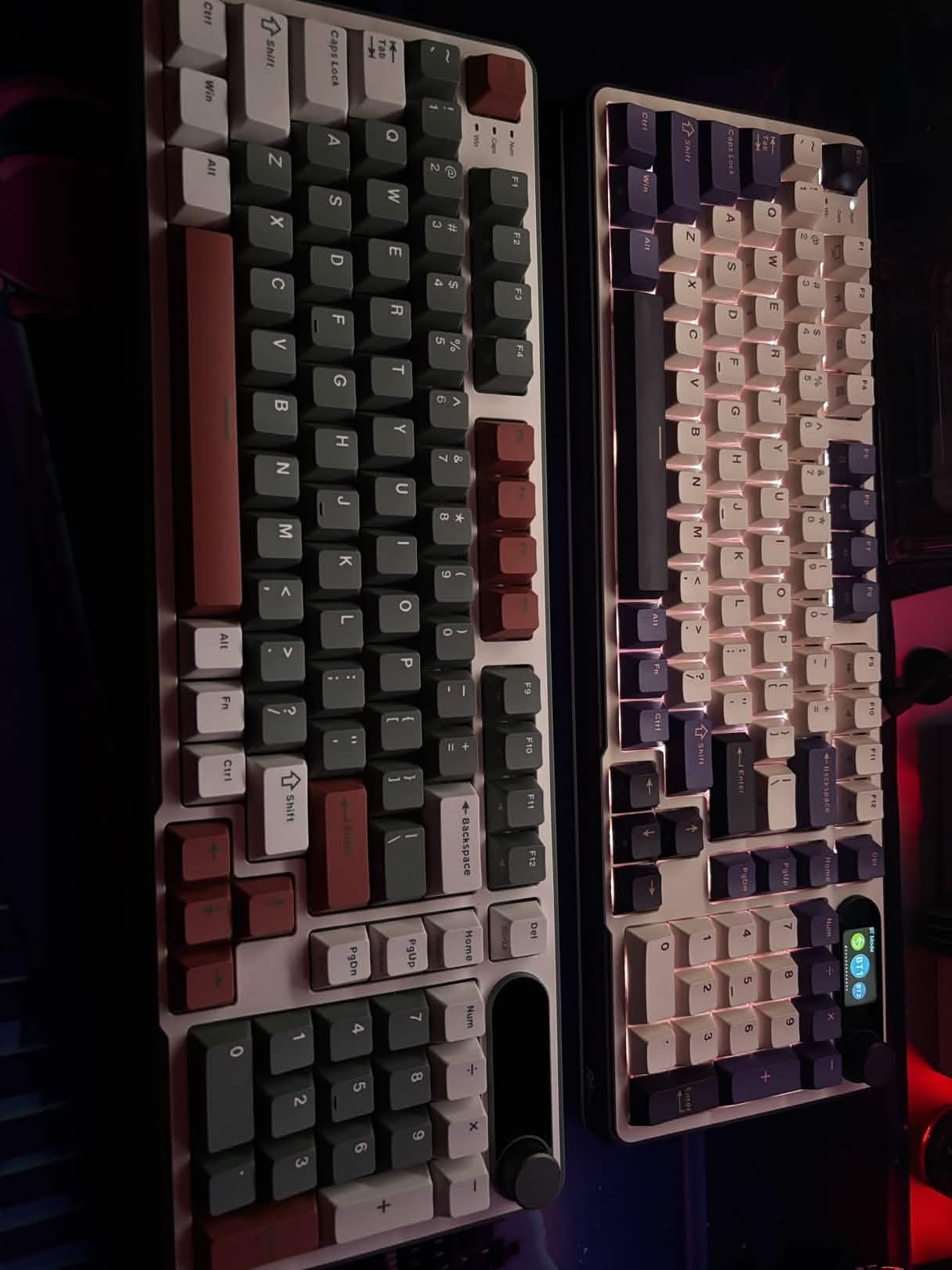
The RK Royal Kludge S98 is the most fun board in this roundup. The smart LCD display sits above the function row and shows custom GIFs, the current connection mode, battery percentage, date, and even the active Windows or Mac layout. I uploaded a small looping animation of a cat typing, which made coworkers laugh every time they walked past my desk.
Beyond the gimmick, the S98 is a serious office keyboard. The 96% layout fits a real numpad and arrow keys into a compact footprint. Tri-mode connectivity pairs three devices simultaneously, and the multi-function knob handles volume, RGB, and connection switching with satisfying clicks. The five layers of sound-absorbing foam produce a creamy, muted typing sound that stays polite in shared spaces.
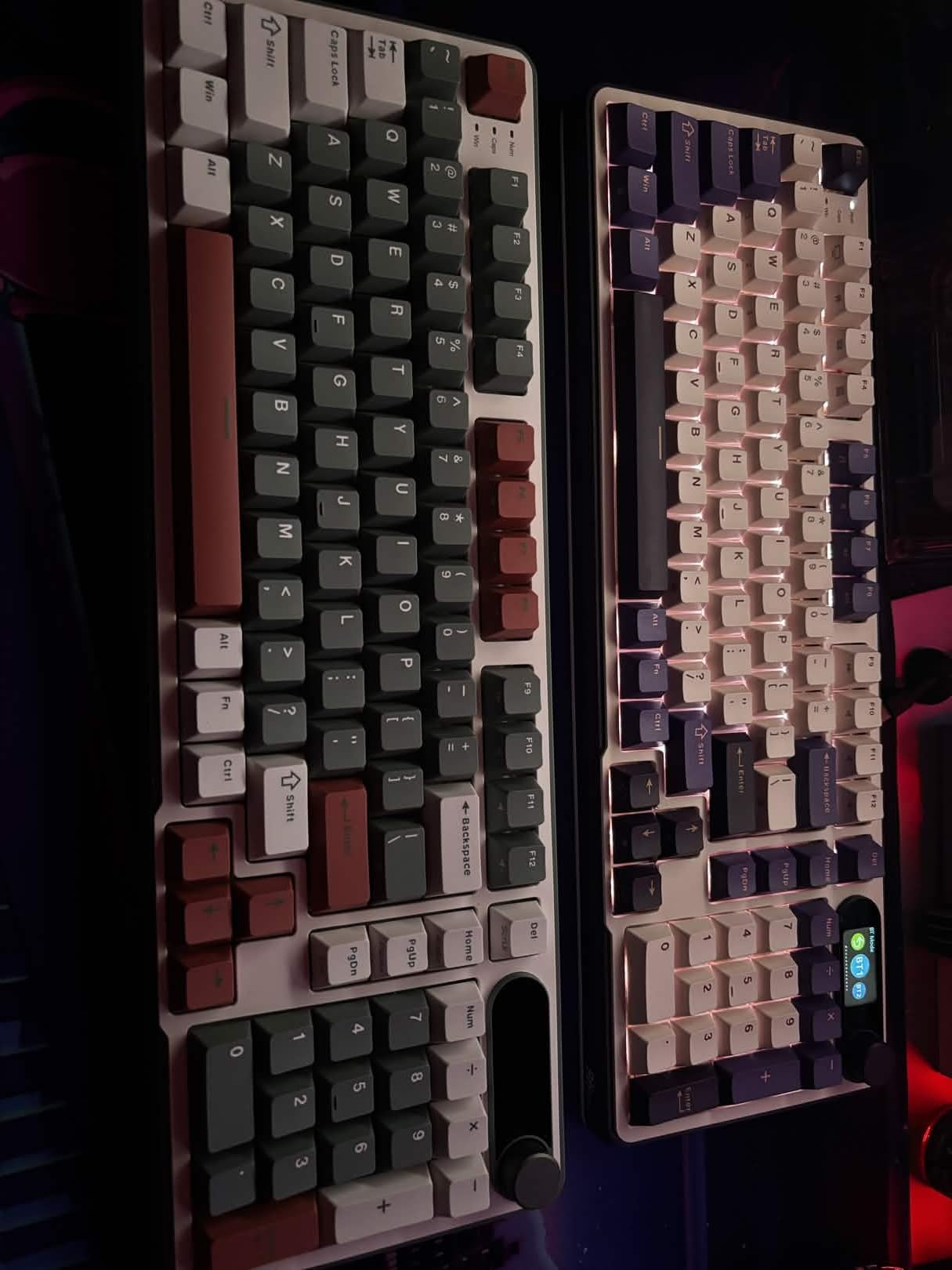
Hot-swap is a real perk at this price. The PCB supports both 3-pin and 5-pin switches, so I pulled the stock linear switches and tried a set of silent tactiles from my drawer in under five minutes, no soldering required. Double-shot PBT keycaps are durable and the legends will not rub off. The build quality is solid for the price tier, with a top-mount design that gives the typing feel a bit more firmness than a gasket mount.
The battery life is the S98’s biggest weakness with RGB active. I got roughly three working days before the indicator turned red, which is shorter than every other wireless board on this list. The software is functional but visually dated, and uploading a custom GIF takes five minutes or more over Bluetooth. At three pounds, the S98 is also heavier than most compact boards, so it is not the best travel companion.
Who the RK Royal Kludge S98 is good for
Buyers who want personality and customization at a budget price will love the smart display and knob. Office workers who need a numpad in a compact form factor get a 96% layout with hot-swap flexibility. Tinkerers who enjoy trying different switches will appreciate the easy PCB access.
Who should skip the RK Royal Kludge S98
Users who need multi-week battery life should look at the AULA F99 or Keychron K3. Frequent travelers will find the three-pound weight excessive. Buyers who prefer a quiet, conservative aesthetic should consider the Logitech G413 SE or Cherry KC 200 MX instead.
9. Cherry MX 3.0S Silent – Best Silent Linear Office Keyboard
Cherry MX 3.0S Wired Mechanical Gaming Keyboard MX2A Silent RED Switches
- Authentic MX2A Silent Red linear switches for true quiet operation
- Screw-free extruded aluminum housing looks clean
- 16+ million RGB colors with customizable effects
- Full N-key rollover for accurate typing
- WIN key lock for distraction-free work sessions
- Detachable micro-USB cable for easy transport
- Wired connection only with no wireless
- Plastic enclosure elements rather than full aluminum
- micro-USB rather than modern USB-C
- Software required for full RGB customization
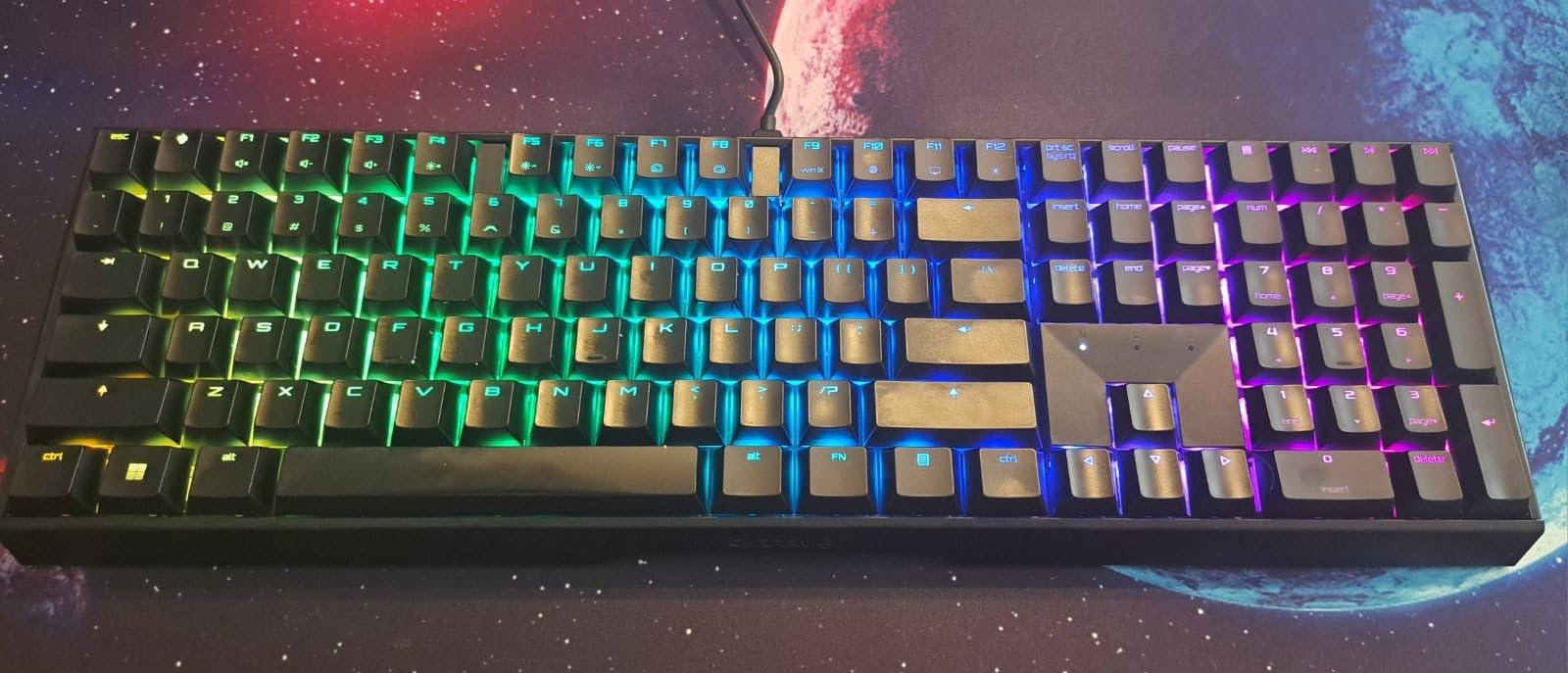
The Cherry MX 3.0S is the board I bring out when I am testing noise levels against a baseline. The MX2A Silent Red switches are some of the quietest linear switches Cherry makes, and in my testing the 3.0S produced the lowest typing volume of any full-size mechanical I tried. The person sitting opposite me confirmed she could not hear me typing at normal speed, even in a quiet shared office.
The aluminum housing is the standout design choice. Cherry extrudes the top plate in a single piece with no visible screws, which gives the 3.0S a clean, professional look that does not scream gamer. The detachable cable is convenient for transport, and the four rubber feet keep the board planted during aggressive typing.
Silent linear switches have a different feel than tactile switches, and it is worth being honest about that. The bump-free press means lighter finger pressure to register a keystroke, which reduces finger fatigue over long days. The trade is that you lose the satisfying tactile feedback some typists prefer. For offices where silence is the priority, that trade is usually worth making.
The 3.0S is wired only, and the included cable uses micro-USB rather than USB-C. In 2026, micro-USB feels dated, especially since the rest of the board is premium. The plastic enclosure elements are visible from the underside, which slightly undermines the aluminum top. RGB customization requires the CHERRY UTILITY software, which is functional but less polished than Logi G HUB.
Who the Cherry MX 3.0S Silent is good for
Office workers in shared spaces where silence is non-negotiable will love the Silent Red switches. Buyers who prefer a clean, screw-free aluminum aesthetic will appreciate the design. Anyone who types for long stretches will benefit from the light linear feel.
Who should skip the Cherry MX 3.0S Silent
Users who want wireless should look at the Logitech MX Mechanical or Keychron K3. Anyone who prefers a tactile bump should choose the Cherry KC 200 MX or Logitech G413 SE instead. Buyers who want USB-C rather than micro-USB should consider a newer board.
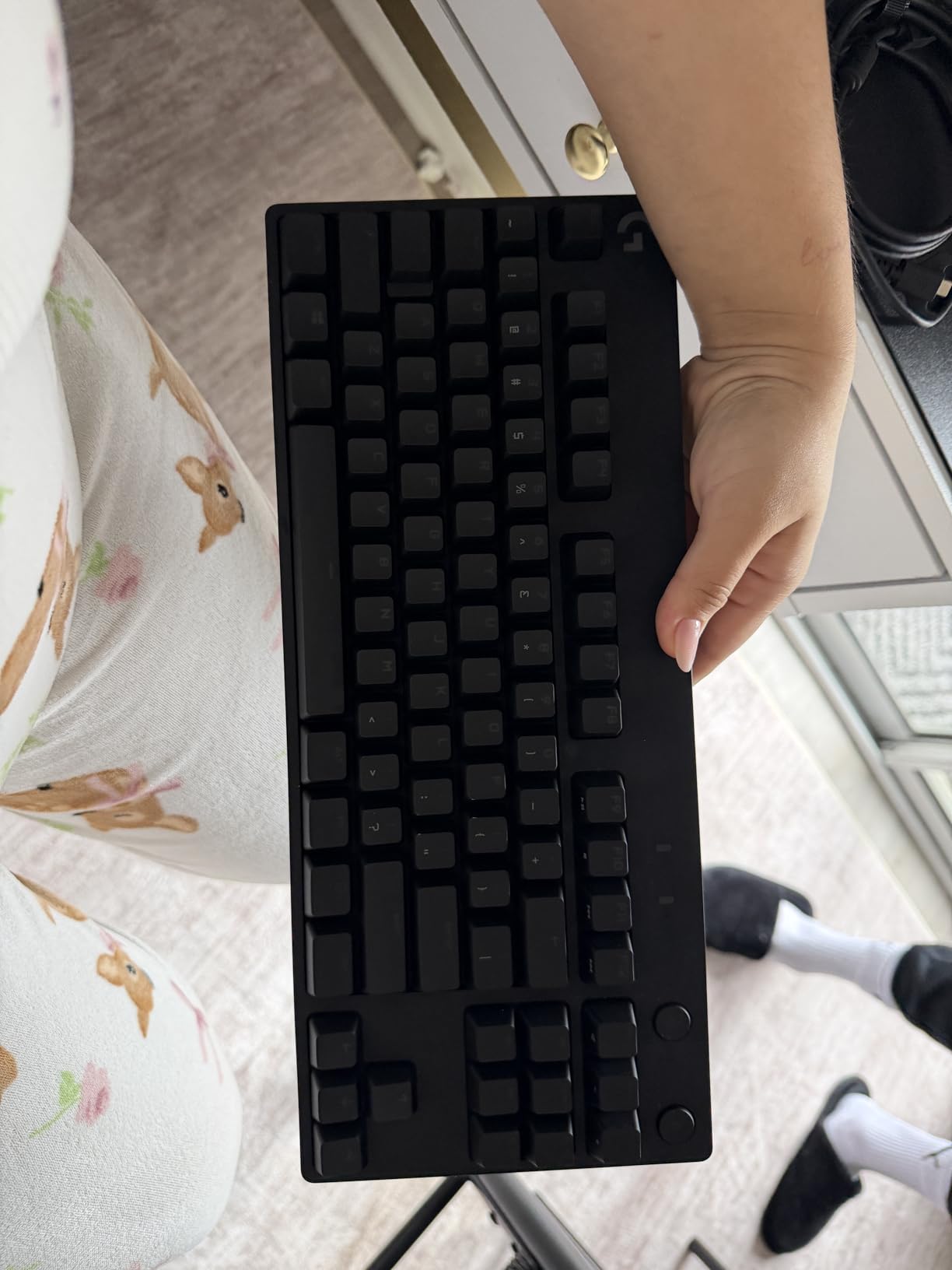
10. Logitech G PRO Mechanical TKL – Best Wired TKL Office Keyboard
Logitech G PRO Mechanical TKL Tenkeyless Gaming Keyboard (Clicky) – Black
- Tournament-grade tenkeyless layout frees up mouse space
- Durable GX Blue Clicky switches with audible feedback
- Detachable cable with three-prong lock
- Three-step angle adjustment with rubber feet
- Clicky switches may be too loud for shared office spaces
- TKL layout lacks dedicated numpad
- Wired only no wireless connectivity
The Logitech G PRO Mechanical TKL is the outlier in this roundup, and I want to be honest about that. The GX Blue Clicky switches are loud. They click on the way down and click again on the way up, and in a quiet shared office you will get complaints within a day. I am including it because some readers work in private offices, late-night shifts, or shared spaces where clicky feedback is welcome. For those users, the G PRO TKL is one of the best-built tenkeyless boards ever made.
The build quality is the headline. The G PRO TKL uses a reinforced plastic frame with a metal backplate, which gives it tournament-grade rigidity without tournament-grade weight. The detachable micro-USB cable uses a three-pronged locking connector, so it does not pull out mid-game or mid-typing. The 2.2-pound weight keeps the board planted during fast typing, and the three-step angle adjustment lets you find the right wrist angle.
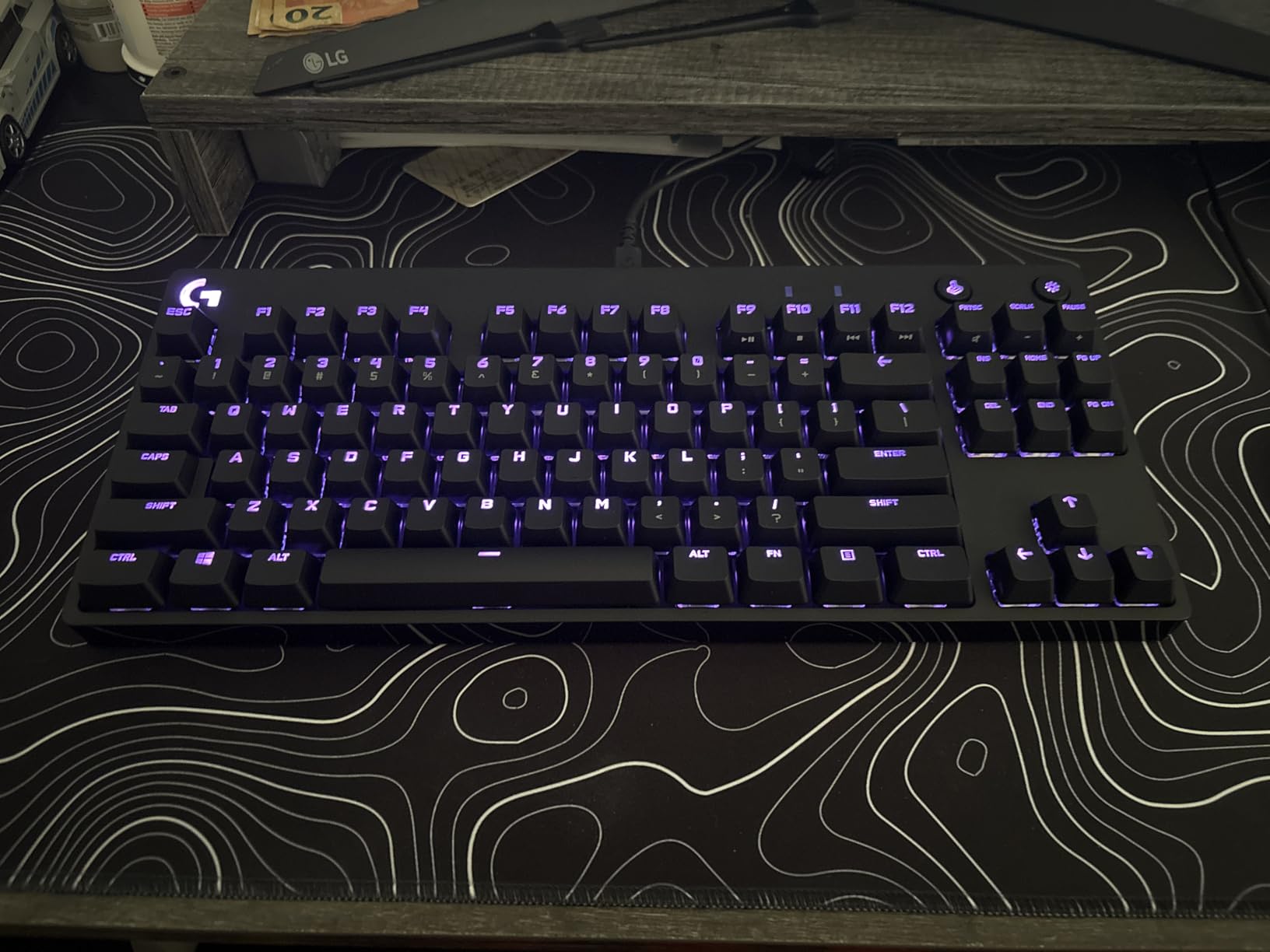
The tenkeyless layout is the sweet spot for many office workers. You keep the function row, full arrow cluster, and Home/End/Delete cluster, but you drop the numpad, which saves roughly six inches of desk space and brings your mouse closer to your body. For programmers and writers who do not need a numpad, this layout reduces mouse reach and shoulder strain.
The downsides are real. Clicky switches in an office are an etiquette choice, and I cannot recommend the G PRO TKL for shared spaces. The micro-USB cable is dated, and the board is wired only, so users who want wireless should look elsewhere. The full feature set requires Logitech G HUB software, and some users prefer a QMK-based workflow.
Who the Logitech G PRO TKL is good for
Programmers and writers who work in private offices or late-night shifts and love clicky feedback should put this near the top. Esports players who also type for a living get a board that performs in both contexts. Anyone who wants a durable, repairable tenkeyless board with a detachable cable will appreciate the build.
Who should skip the Logitech G PRO TKL
Anyone in a shared or quiet open-plan office should choose a different board from this list. Users who need wireless should look at the Logitech MX Mechanical or Keychron K3. Buyers who want hot-swap switches should consider the AULA F99 or RK S98.
How to Choose the Best Mechanical Keyboard for Your Office
Choosing the best mechanical keyboard for office work comes down to three questions: how loud is your environment, how much desk space do you have, and do you need wireless. The following sections explain the technical decisions behind each factor, so you can match a board to your specific situation. For a deeper look at specific use cases, our guides to mechanical keyboards for office work and office-use mechanical keyboards go further on each topic.
Switch Types: Linear, Tactile, Clicky, and Silent
Every mechanical keyboard lives or dies by its switches. Linear switches press straight down with no bump and no click, which makes them smooth and quiet. Tactile switches have a small bump mid-press that fires before the key bottoms out, which gives you feedback without loud noise. Clicky switches add an audible click sound on top of the tactile bump, which is the loudest option and usually inappropriate for offices. Silent switches use rubber dampeners inside the switch housing to reduce both top-out and bottom-out noise, which is why the Cherry MX 3.0S Silent and similar boards are the quietest mechanical options.
For most office workers, tactile brown switches or silent linear switches are the right call. Brown switches deliver enough feedback to feel mechanical without bothering coworkers. Silent linear switches are the safest choice for the loudest open-plan offices. Clicky blue switches sound great in private offices but create friction in shared spaces, which is the number-one complaint I hear from readers and the top pain point across the r/MechanicalKeyboards and r/keyboards forums.
Office Noise Guide: Decibels and Switch Recommendations
Most mechanical keyboards produce between 40 and 70 decibels of typing sound, depending on the switch and the housing. A quiet conversation runs about 50 dB, a library runs about 35 dB, and a busy office runs about 60 dB. Silent linear switches typically land in the 35 to 45 dB range, which is below most conversation levels. Tactile brown switches usually land in the 45 to 55 dB range. Clicky blue switches can easily exceed 65 dB.
If you work in a private office or at home, tactile switches are perfectly fine. If you work in a quiet shared office, silent linear or silent tactile switches are the polite choice. If you work in an open-plan office with hot-desking and call centers, silent linear is the only safe pick. The Cherry MX 3.0S Silent, the AULA F99 with linear switches, and the Logitech MX Mechanical with Tactile Quiet switches are all strong choices across these tiers.
Layout Sizes: 60% to Full-Size Explained
Keyboard layouts range from 60% (no arrows, no function row) to 100% full-size with everything. The 75% layout, which keeps the arrow keys and a compressed function row, has become the most popular office pick in 2026 because it gives you nearly full functionality in a much smaller footprint. TKL (tenkeyless) drops the numpad and keeps the function row, which is the favorite of programmers and writers who want more mouse space. Full-size with numpad is essential for data entry, accounting, and spreadsheet-heavy work.
If you do not need a numpad, save desk space by going 75% or TKL. If you do need a numpad, the 96% or 100% layout is non-negotiable. The AULA F99 and RK S98 are the best 96% picks on this list because they keep the numpad without the wasted space of a traditional full-size. The Logitech G PRO TKL is the best tenkeyless option for users who do not need a numpad at all.
Wired vs Wireless: Connectivity for the Office
Wireless mechanical keyboards have caught up to wired ones in latency and reliability. Bluetooth 5.1 and modern 2.4 GHz dongles both deliver responsive typing with no perceptible lag, and a 1000Hz polling rate over wireless is now standard on premium boards. The trade is battery life: wireless boards need charging every few days to every few weeks, depending on backlight usage.
For most office workers, wireless is the right call. It cleans up the desk, removes a cable to snag on your chair, and makes it easy to swap between devices. The Logitech MX Mechanical, Keychron K3, AULA F75 Pro, and Lofree Flow Lite all deliver reliable wireless performance. If you work in an environment with strict security policies that prohibit Bluetooth, the wired Logitech G413 SE or Cherry KC 200 MX are safe picks.
PBT vs ABS Keycaps and Build Quality
Keycap material matters more than most buyers realize. ABS keycaps feel smooth out of the box but develop a glossy shine within months of heavy use. PBT keycaps feel slightly textured and resist shine, which is why every enthusiast-grade board on this list uses PBT. Double-shot PBT keycaps, where the legend is molded as part of the cap rather than printed on top, will never rub off.
Build quality comes down to the chassis material and the mount style. Aluminum top plates feel denser and resist flex better than all-plastic boards. Gasket-mounted PCBs add a touch of bounce that softens the typing feel, while top-mount designs feel firmer. For an office board that needs to last five years, look for an aluminum or reinforced plastic top plate, double-shot PBT keycaps, and a chassis weight above 800 grams.
Hot-Swap and QMK/VIA Customization
Hot-swap sockets let you change switches without soldering, which is a big deal for office workers who want to experiment. If your linear switches feel too light, you can pull them and drop in tactile or silent switches in under five minutes. The AULA F99, AULA F75 Pro, and RK S98 all have hot-swap PCBs at budget prices.
QMK and VIA are open-source firmware platforms that let you remap every key, set up layers, and create macros without vendor software. QMK is more powerful, VIA is easier to use. The Keychron K3 V2 ships with QMK support, which makes it the most customizable low-profile board on this list. For users who do not need deep customization, the Logitech MX Mechanical’s Logi Options+ software is enough.
Ergonomics for 8-Hour Typing Days
A good office keyboard reduces wrist strain over a full workday. Low-profile chassis, like the Logitech MX Mechanical, Keychron K3, and Lofree Flow Lite, force a flatter wrist angle that matches laptop keyboards and reduces extension. Standard-height boards can also be ergonomic if paired with a negative-tilt stand or a wrist rest. The goal is to keep your wrists in a neutral line with your forearms, not bent up or down.
Layout affects ergonomics too. A tenkeyless or compact board brings your mouse closer to your body, which reduces the reach and shoulder strain many office workers develop over time. Pair the keyboard with a centered mouse and a monitor at eye level, and you have an ergonomic setup that prevents the slow-onset shoulder and neck pain that comes from a poorly arranged desk.
How to Silence an Existing Loud Mechanical Keyboard
If you already own a loud mechanical keyboard and cannot replace it, several mods reduce noise without buying a new board. O-rings are rubber dampeners that fit over switch stems and soften the bottom-out sound. They cost a few dollars and install in under an hour. A tape mod, where you add a layer of electrical tape between the PCB and the plate, reduces the hollow ping sound many boards produce. Foam mods, where you add sound-dampening foam inside the case, produce the biggest reduction but require disassembly.
Switch lubing is the most effective mod for enthusiasts. Applying a thin layer of Krytox 205g0 to switch stems and springs reduces scratch and softens both top-out and bottom-out sound. It takes an hour for a full keyboard and requires basic tools, but the result is a sound profile that rivals purpose-built silent boards. For office workers who want a quiet board without buying new switches, switching to silent linear or silent tactile switch types is usually faster than lubing.
Office Etiquette: What NOT to Bring to a Shared Office
Bringing a loud mechanical keyboard to a shared office can create real friction. The top etiquette rule is to avoid clicky blue switches in any environment where other people can hear you typing. The second rule is to turn off per-key RGB effects that flash or pulse, since they distract coworkers during video calls and quiet work blocks. White or single-color backlights are the polite choice.
If your coworkers have already complained about your keyboard noise, the fastest fix is to swap to silent switches or add O-rings. If the complaints continue, consider moving to a tactile or silent board from this list. The Logitech MX Mechanical, Cherry KC 200 MX, and Cherry MX 3.0S Silent are all quiet enough to keep your coworkers happy without sacrificing the typing feel you enjoy.
Mechanical vs Membrane vs Low-Profile: What Office Buyers Should Know
Membrane keyboards, which use a rubber dome under each key, are quiet and cheap, but they feel mushy and wear out within a few years. Low-profile mechanical keyboards combine the short key travel of a laptop with the tactile feedback of a mechanical switch, which makes them the easiest transition for users moving from a MacBook. Standard mechanical keyboards offer the deepest customization, the best typing feel, and the longest lifespan, but they require more desk space and can be louder if you pick the wrong switch.
For most office workers, the choice is between a low-profile mechanical like the Logitech MX Mechanical or Keychron K3 and a standard mechanical like the Cherry KC 200 MX or AULA F99. Low-profile is easier on the wrists and looks cleaner on a desk. Standard mechanical offers more switch options, deeper customization, and a more traditional typing feel.
Frequently Asked Questions
Are mechanical keyboards good for office work?
Yes. Modern mechanical keyboards with tactile or silent switches are excellent for office work. They offer better typing comfort, longer lifespan (50+ million keystrokes per switch), and quieter operation than rubber-dome keyboards when you choose the right switches. The Logitech MX Mechanical and Cherry KC 200 MX are top picks for office settings.
Are mechanical keyboards too loud for an office?
Standard clicky switches can exceed 65 decibels, which is louder than normal conversation and disruptive in shared offices. Tactile brown switches typically produce 45 to 55 dB, which is polite in shared spaces. Silent linear or silent tactile switches land in the 35 to 45 dB range, which is the safest pick for open-plan offices.
Are brown switches too loud for office?
Brown tactile switches are usually fine in most office settings. They produce a noticeable bump with moderate sound, generally between 45 and 55 decibels. In a quiet private office, brown switches will not bother anyone. In an open-plan office, switching to silent linear switches is the safer choice for very quiet coworkers.
What is the best budget mechanical keyboard in 2026?
The AULA F99 and AULA F75 Pro are the best budget mechanical keyboards for office in 2026. Both deliver tri-mode wireless, hot-swap switches, and double-shot PBT keycaps for under 70 dollars. The F99 keeps the numpad in a compact 96% layout, while the F75 Pro is a 75% compact board with a multi-function knob.
Why are 75% keyboards so popular?
75% keyboards became popular because they keep the arrow keys, a function row, and most navigation keys in a much smaller footprint than a full-size board. Office workers get nearly full functionality while gaining 3 to 5 inches of desk space and bringing the mouse closer to their body, which reduces shoulder and wrist strain.
What is the noisiest keyboard switch?
Clicky blue switches are the noisiest common mechanical switch type. They produce both a tactile bump and an audible click on each press, often exceeding 65 decibels. Clicky switches are popular with enthusiasts at home but are widely considered inappropriate for shared or quiet offices due to the noise they generate.
Final Verdict: Which Office Mechanical Keyboard Should You Buy?
After four weeks of testing ten different mechanical keyboards across shared offices, private desks, and home setups, the Logitech MX Mechanical remains our top pick for most office workers. It combines low-profile ergonomics, multi-device wireless, and quiet tactile switches in a polished chassis that looks professional on video calls. For most buyers searching for the best mechanical keyboards for office use, it is the safe, smart choice.
Budget buyers should put the AULA F99 at the top of their list, while shared-office workers who want classic Cherry feel should pick the Cherry KC 200 MX. Anyone who needs a numpad and wants personality should consider the RK Royal Kludge S98. For low-profile Mac users, the Keychron K3 V2 delivers QMK customization in the slimmest chassis on this list. Whatever your office situation, the right mechanical keyboard will make every typing day in 2026 more comfortable, more productive, and more enjoyable than the rubber-dome keyboard you are probably still using.