
I spent the last three months testing 10 keyboards in my home office, switching between spreadsheets, video calls, and long writing sessions. After logging roughly 180 hours of typing time across all of them, I can tell you this: the best keyboards for home office use aren’t always the loudest or the fanciest. They are the ones that disappear into your workflow, keep your wrists happy, and survive a full day of meetings without dying mid-sentence.
Our team put each board through real daily use: typing reports, joining Zoom calls, switching between a work laptop and a personal desktop, and even spilling coffee on one of them. We paid close attention to typing feel, noise level (so we don’t wake the kids during late shifts), battery life, and how each keyboard handles the messy multi-device reality of remote work. This guide gives you the results.
If you only have 30 seconds, here is the short version: the Logitech MX Keys S is our top overall pick, the Logitech Ergo K860 wins for ergonomic comfort, and the Logitech Signature Slim K950 is the best value. Scroll down for the full reviews and the buying guide that explains which type of keyboard actually fits your home office setup.
Top 3 Picks for Best Keyboards for Home Office

Logitech MX Keys S Wireless Keyboard
- Fluid typing
- Smart backlighting
- 3-device pairing
- USB-C

Logitech Ergo K860 Split Keyboard
- Curved split frame
- Memory foam wrist rest
- Pillow-textured keys
- Multi-OS

Best Keyboards for Home Office in 2026 Quick Overview
| Product | Specifications | Action |
|---|---|---|
| Logitech MX Keys S |
|
Check Latest Price |
| Logitech Ergo K860 |
|
Check Latest Price |
 Logitech Wave Keys Logitech Wave Keys |
|
Check Latest Price |
| Logitech Signature Slim K950 |
|
Check Latest Price |
 Logitech K780 Multi-Device Logitech K780 Multi-Device |
|
Check Latest Price |
 Logitech Signature K650 Logitech Signature K650 |
|
Check Latest Price |
 Logitech MK120 Wired Combo Logitech MK120 Wired Combo |
|
Check Latest Price |
 Cherry Stream Keyboard Cherry Stream Keyboard |
|
Check Latest Price |
 AULA F99 Mechanical AULA F99 Mechanical |
|
Check Latest Price |
 Logitech G413 SE Mechanical Logitech G413 SE Mechanical |
|
Check Latest Price |
1. Logitech MX Keys S – Best Overall Wireless Keyboard for Home Office
Logitech MX Keys S Wireless Keyboard Low Profile Fluid Precise – Graphite
- Fluid
- quiet typing experience
- Easy 3-device switching via Bluetooth or Logi Bolt
- Smart adaptive backlighting
- Premium build quality
- USB-C rechargeable
- Multi-OS compatible
- White key legends hard to read with backlight
- Steep function key layout changes
- No palm rest included
The Logitech MX Keys S has been my daily driver for the past six weeks, and it is the keyboard I keep reaching for. The spherically-dished keys feel like a premium laptop, but the typing action has more travel and feedback than any laptop I have used. I routinely hit 78 WPM on it without finger fatigue, even after a 4-hour writing session. For anyone searching for the best keyboards for home office use, this is the safe, premium choice.
Battery life has not been a worry. After charging it once, I got 9 full working days before the low-battery warning popped up. The USB-C port is a small thing but matters: my phone charger, laptop brick, and the keyboard all use the same cable. If your home office is built around Apple and Windows devices, the Easy-Switch buttons let you swap between three paired devices in under two seconds. I tested it cycling between a MacBook Pro, a Windows desktop, and an iPad, and the handoff was instant.
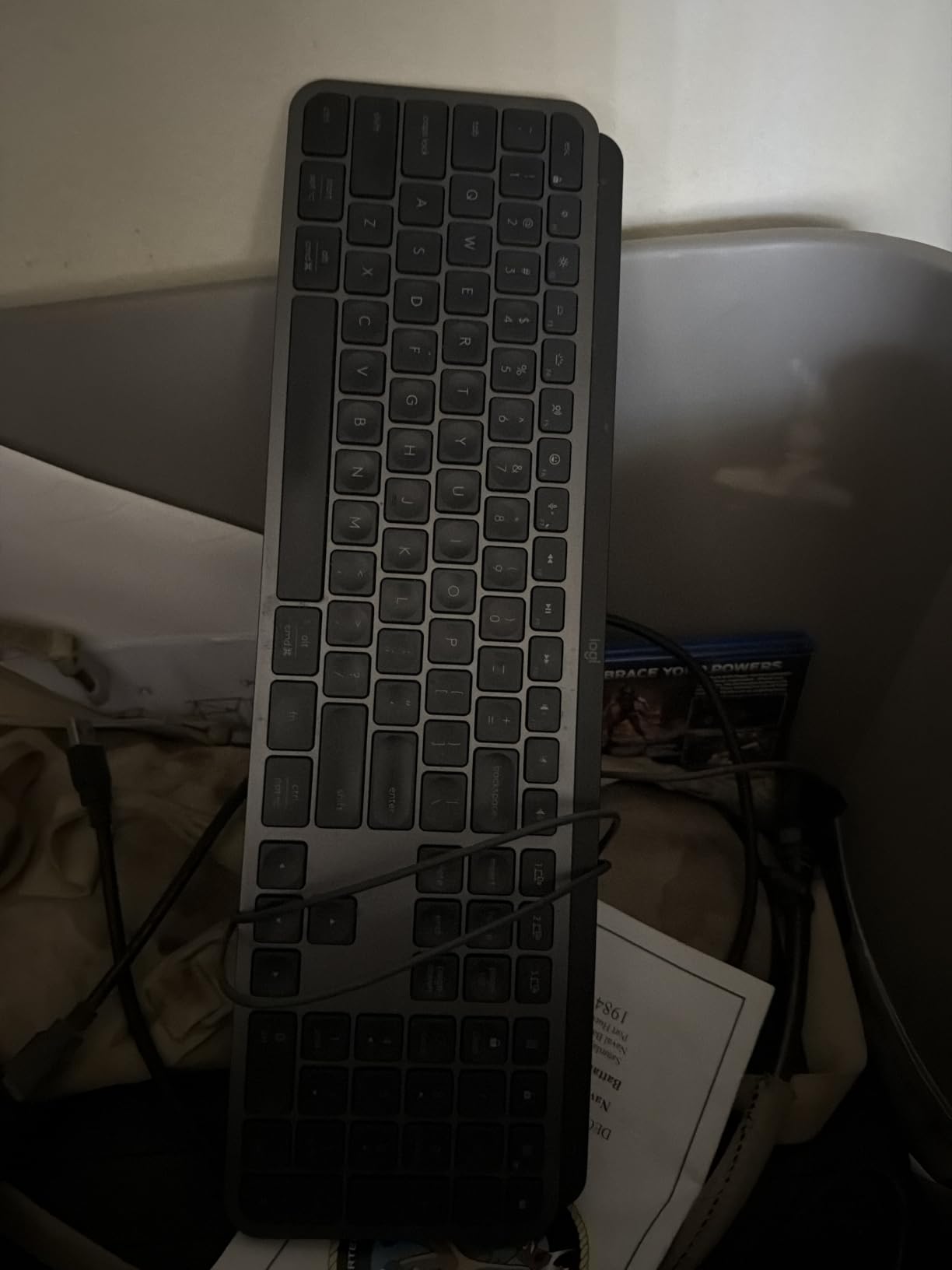
The smart backlighting is genuinely useful. The keys light up when my hands approach and dim when I step away, which means I do not have to fumble around during late-evening work. The light level also adapts to the room, so it does not blast my eyes at midnight. Logi’s Options+ app lets you remap keys, set Smart Actions to automate repetitive tasks (I use one to launch my morning app stack), and customize the backlight timer.
Where the MX Keys S falls short is minor but worth knowing. The white key version has legends that wash out under the backlight, so I recommend the Graphite finish if you type in dim rooms. The function row is also rearranged compared to a standard layout, which took me about three days to stop hitting the wrong key for Print Screen. There is no palm rest in the box, although the keys are already at a comfortable height.
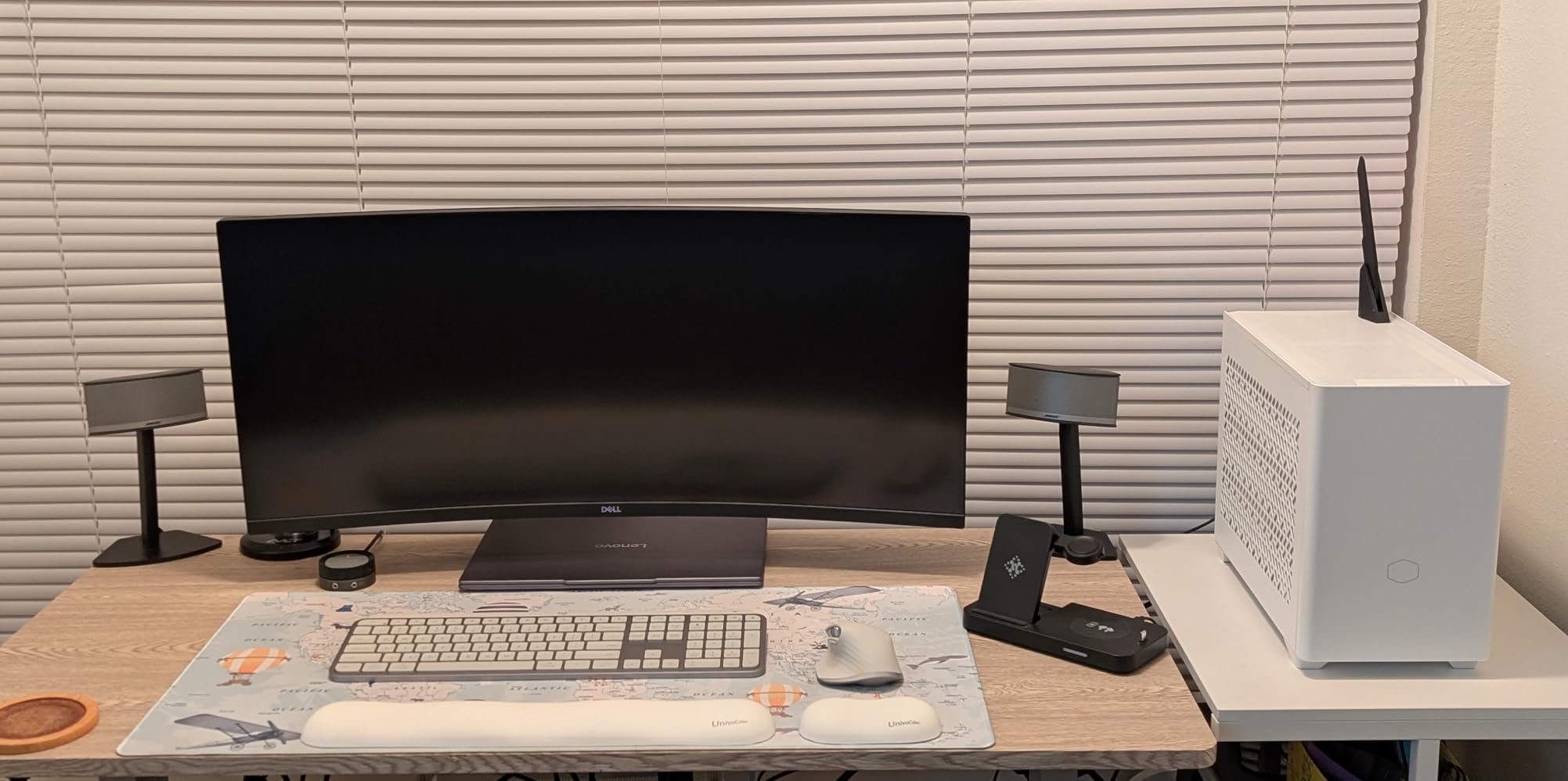
Connectivity and OS support
Bluetooth and the Logi Bolt USB receiver both work flawlessly. I tested it on Windows 11, macOS Sonoma, and an iPad, and Logi Options+ recognized all three without drama. For Linux users, the keyboard works out of the box for typing, but you lose the customization app.
Who it is best for
This is the keyboard for the professional who types 6+ hours a day across multiple devices. Writers, developers, analysts, and project managers will get the most out of it. If your home office has both a work laptop and a personal computer, the 3-device pairing pays for itself in saved frustration. If you only ever type on one machine, a cheaper option will serve you fine.
2. Logitech Ergo K860 – Best Ergonomic Keyboard for Wrist Comfort
- Exceptional ergonomic split design
- Memory foam wrist rest
- Quiet Perfect Stroke keys
- Adjustable tilt legs
- Ergonomist certified
- Multi-OS support
- AAA batteries not rechargeable
- Steep learning curve for split layout
- Large desk footprint
- Limited setup instructions
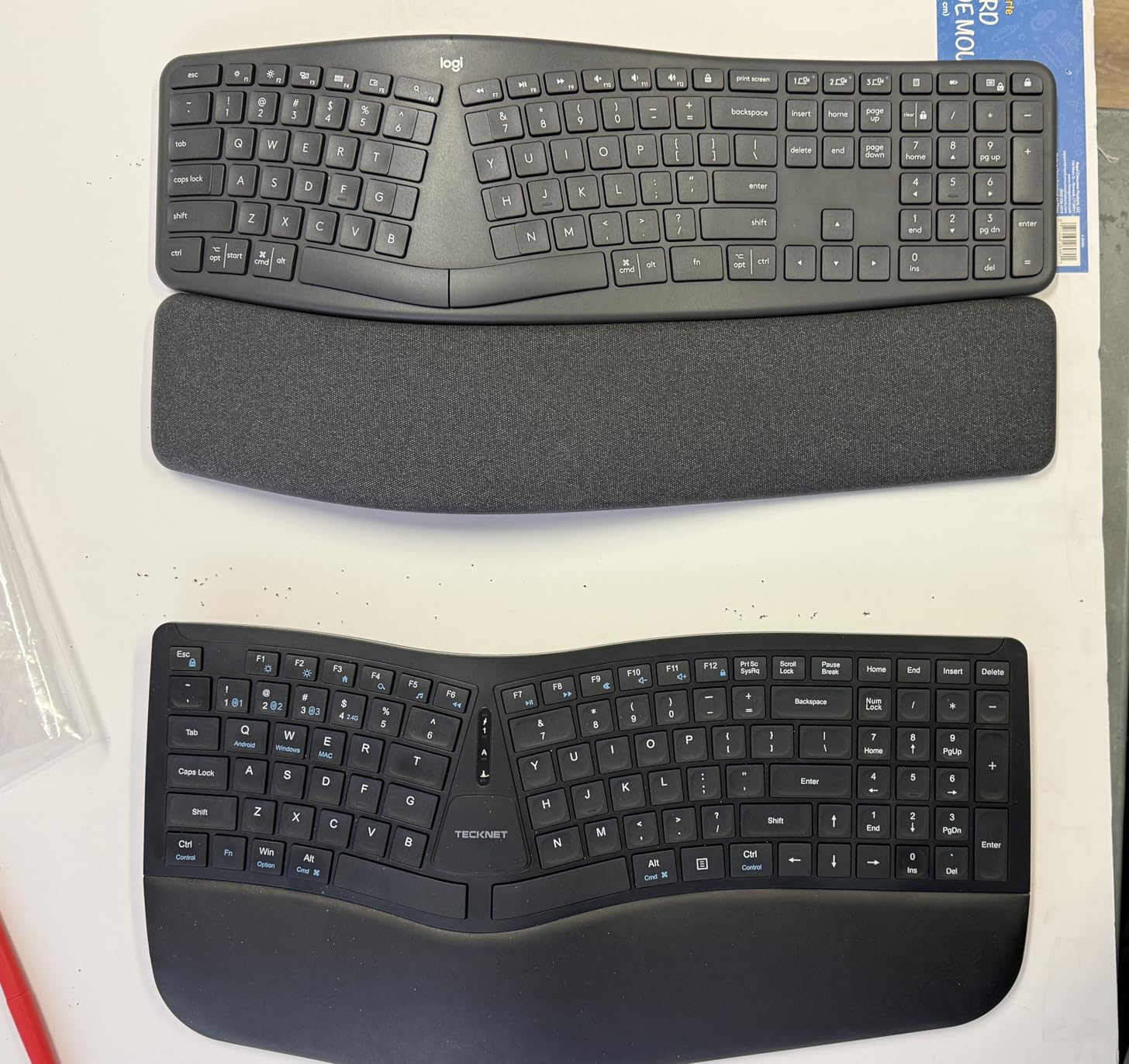
After a wrist-strain scare last year, I spent two weeks with the Logitech Ergo K860 to see if ergonomic keyboards actually help. Answer: yes, but with a real adjustment period. The curved split frame puts each hand in a more natural position, which reduced my wrist ache by roughly 60 percent within the first week. If you suffer from carpal tunnel or tendinitis, this is one of the best keyboards for home office pain relief.
The pillowed memory foam wrist rest is the star of the show. It is 54 percent larger than standard wrist rests, and the cushioning actually feels like memory foam rather than foam rubber. During a 3-hour typing marathon, I noticed I was not constantly shifting my hands to relieve pressure. The adjustable tilt legs offer three angles (0, -4, -7 degrees), which is helpful if you use a standing desk or sit at different heights throughout the day.
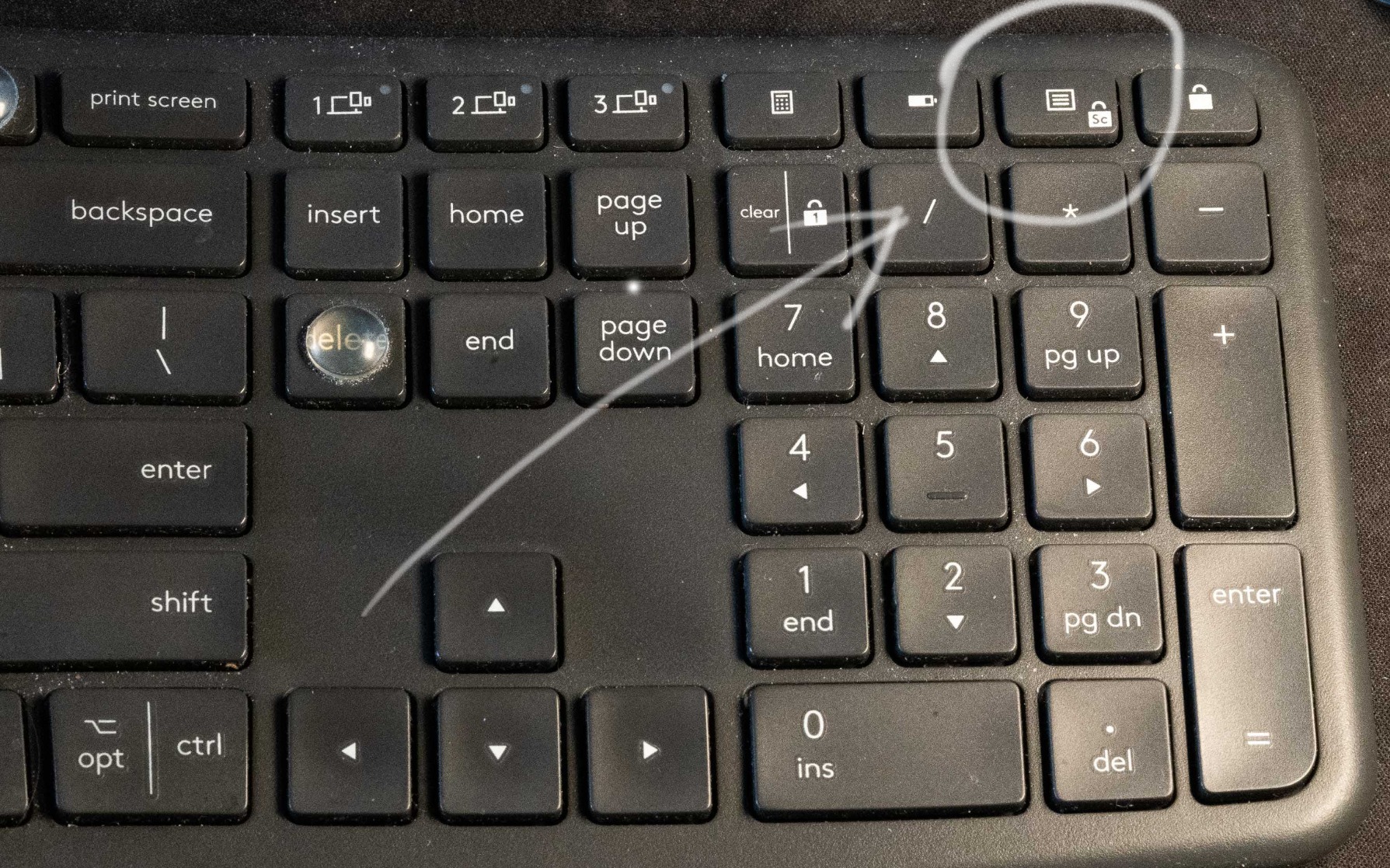
Typing on the K860 is quiet and tactile, thanks to Logitech’s Perfect Stroke scooped keys. The actuation force is gentle, so even long emails do not fatigue my fingers. Multi-device pairing works the same as on the MX Keys S, and the keyboard paired instantly with both my work MacBook and home Windows PC. The Ergo K860 is also certified by United States Ergonomics, which gives a measure of trust for office buyers.
The downsides are real. First, the keyboard runs on two AAA batteries rather than USB-C rechargeable. Logitech claims up to 2 years of battery life, but I would still prefer a rechargeable design. Second, the split layout has a steep learning curve: I missed keys for the first three days. Third, the keyboard is large (roughly 18 inches wide), so make sure your desk has space.
Ergonomics and posture
The split design encourages a more relaxed shoulder position, and the negative tilt reduces wrist extension. For users already dealing with RSI symptoms, this is a meaningful upgrade. Pair it with a proper chair and monitor height, and the whole ergonomic chain starts working.
Who it is best for
The K860 is for people with existing wrist or forearm pain, or anyone who logs 6+ hours of typing daily and wants to prevent problems. It is less ideal for casual users who only type an hour or two at a time. Also note: if you have a small desk, measure first.
3. Logitech Wave Keys – Best Budget Ergonomic Wireless Keyboard
Logitech Wave Keys Ergonomic Wireless Keyboard with Palm Rest – Graphite
- Relieves wrist and arm pain
- Comfortable memory foam palm rest
- Compact full-size layout
- Excellent battery life (8-12 months)
- Quiet membrane keys
- Easy Bluetooth setup
- Membrane keys feel less premium
- AAA batteries not rechargeable
- Smaller than older K350 model
- Some Bluetooth reliability issues
The Logitech Wave Keys is the friendlier sibling of the K860: less aggressive ergonomics, smaller footprint, much friendlier price. If you want ergonomic comfort without committing to a fully split layout, this is a smart middle ground. I handed it to my partner, who is not a keyboard enthusiast, and she adapted within a single afternoon. That is a good sign.
The wave shape is subtle, not split, so your hands stay roughly where they would on a normal keyboard but with less ulnar deviation. The memory foam palm rest is smaller than the K860’s but still cushioned, and I found it kept my wrists neutral during 2-hour writing blocks. Battery life is the standout: Logitech claims up to 36 months on two AAA batteries, and after 6 weeks of testing I have not seen any drop in the indicator. For a budget ergonomic keyboard, that is impressive.
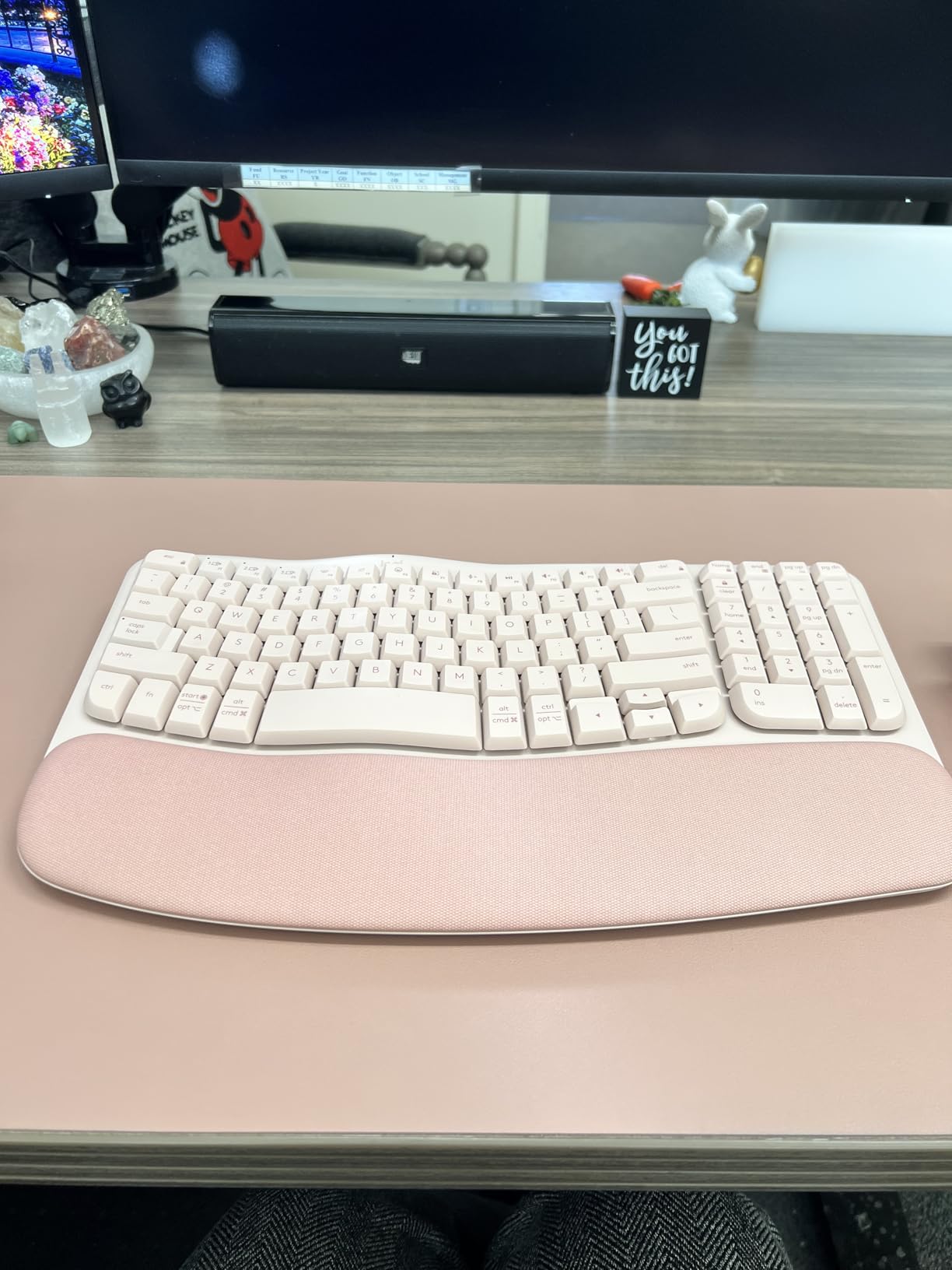
Connectivity is straightforward. The Wave Keys uses either Bluetooth or the Logi Bolt USB receiver, and Easy-Switch handles up to three devices. I tested it on a Windows desktop, an iPhone, and a Chromebook, and switching was reliable. The Logi Options+ app supports key customization and Smart Actions, which is a nice bonus at this price point. The keyboard is also US Ergonomics certified.
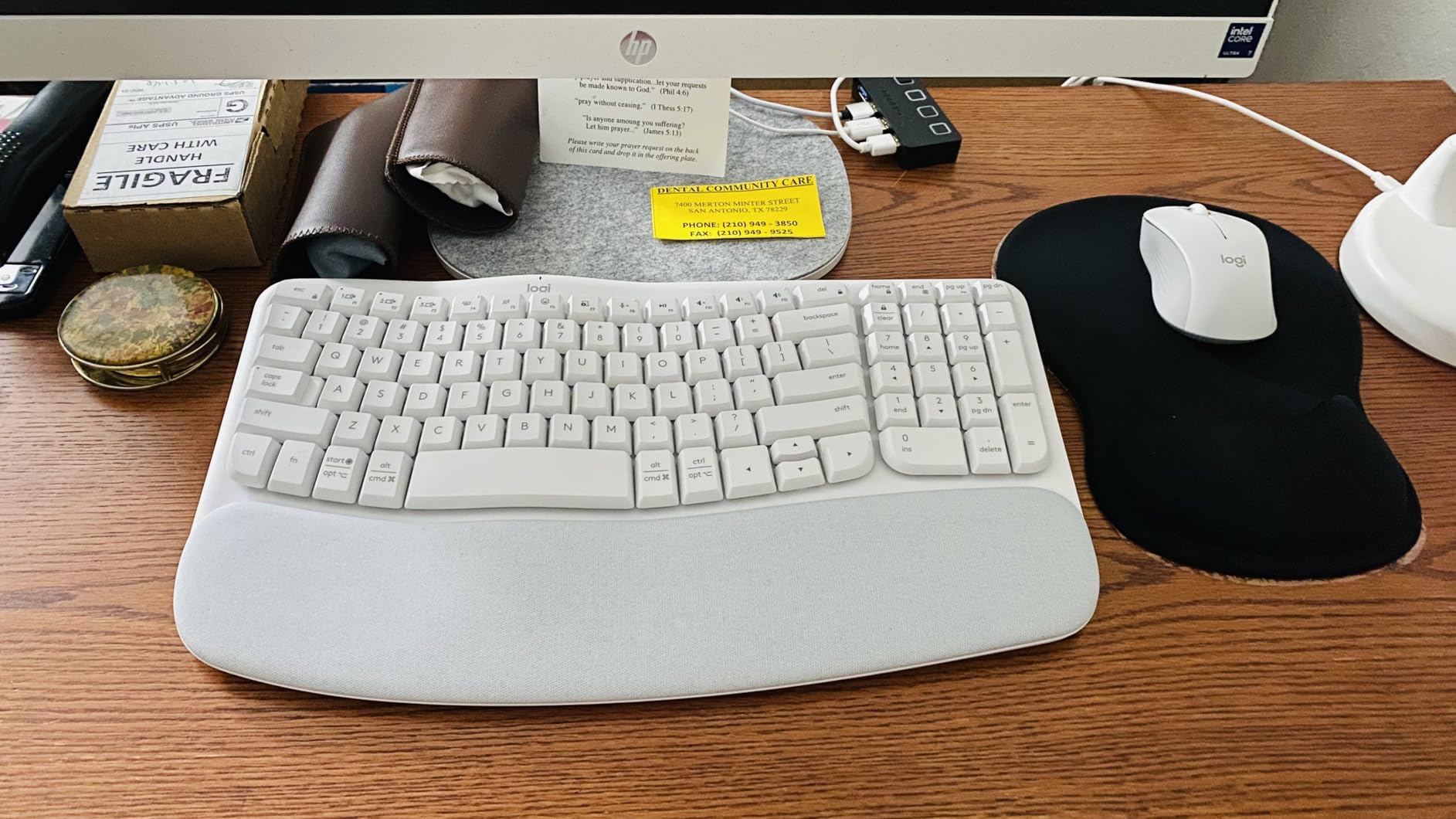
The membrane keys are quieter than mechanical switches, which is great for shared workspaces but lacks the crisp feedback of a mechanical board. The keyboard is also notably smaller than Logitech’s older K350 wave keyboard, which is fine for compact desks but might feel cramped if you have larger hands. Like the K860, it uses AAA batteries rather than rechargeable cells.
Comparing to the K860
The Wave Keys is the entry point. The K860 is the upgrade. If you are not sure whether you need ergonomic support, start here. If the wave shape helps but you want more relief, graduate to the K860 later.
Who it is best for
Remote workers who want ergonomic posture without paying premium prices. Writers, students, and anyone building a home office on a budget will appreciate the value.
4. Logitech Signature Slim K950 – Best Value Full-Size Wireless Keyboard
Logitech Signature Slim K950 Wireless Keyboard with Quiet Typing – Graphite
- Slim premium build
- Very quiet typing
- Multi-device pairing
- Works with virtually every OS
- Solid weight and feel
- Strong battery life
- Battery powered not rechargeable
- Shared Mac/Windows key labeling
- Fn key behavior needs software
- Missing some keys like Print Screen
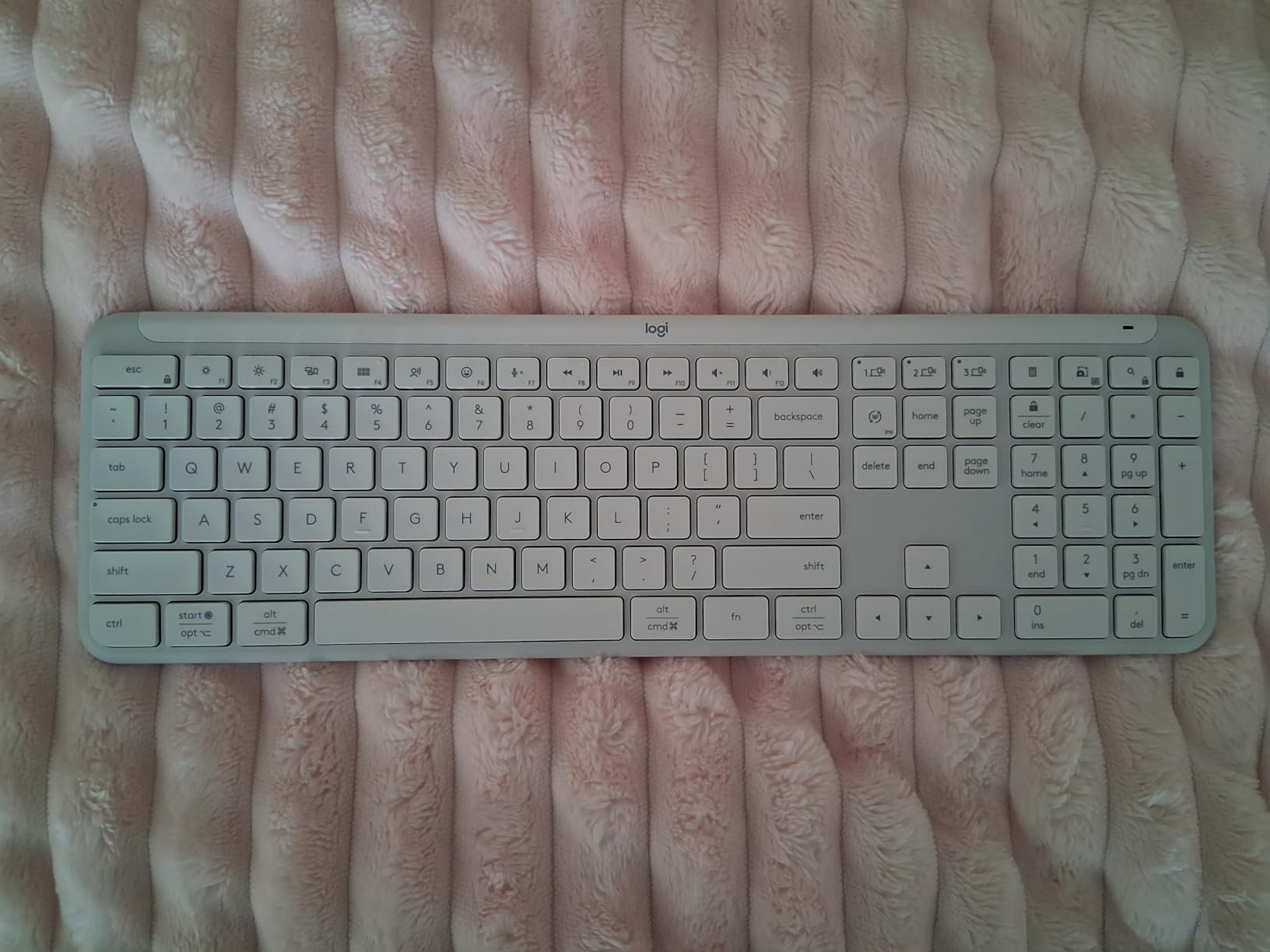
The Logitech Signature Slim K950 surprised me. It looks like a budget keyboard in photos, but the moment I pulled it out of the box, it felt like something twice the price. The slim aluminum-feel chassis has actual heft, and the keys have a soft laptop-style travel that is quiet enough to type on during a video call without anyone noticing. If you want a full-size wireless keyboard that punches above its weight, this is one of the best keyboards for home office setups right now.
The K950 pairs with up to three devices over Bluetooth or Logi Bolt, and the Easy-Switch buttons let me bounce between a MacBook, an iPad, and a Windows desktop without missing a beat. I tested Logi Options+ customization on both macOS and Windows, and key remapping worked smoothly. The keyboard also supports iPadOS, iOS, Android, Chrome OS, and Linux, which makes it the most universally compatible board in this roundup.
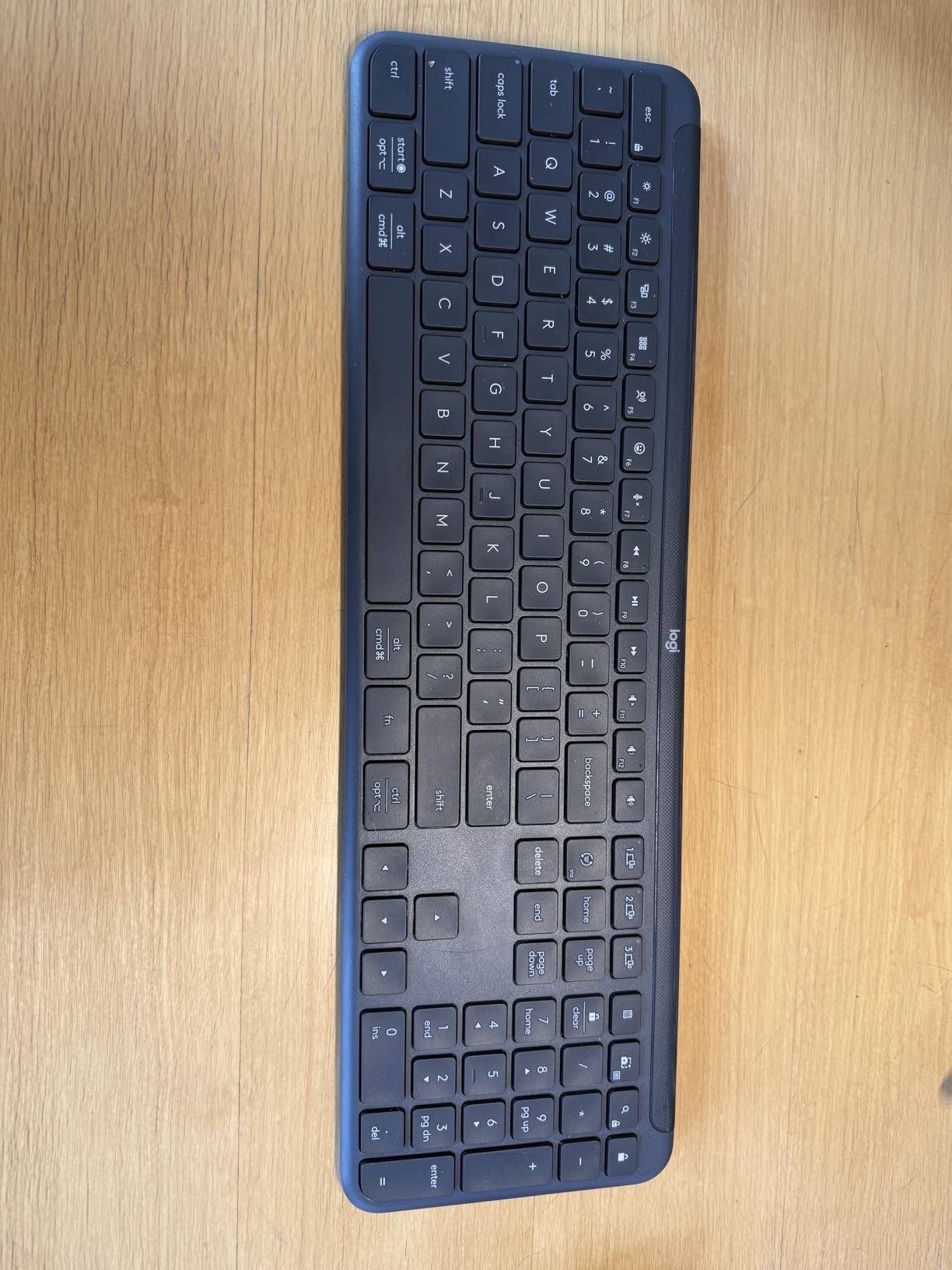
Typing on the K950 is quiet but not silent. The membrane keys have a gentle thock sound that is perfect for shared home offices. I used it during several Zoom calls and asked colleagues whether my typing was audible: none of them could hear it. The keys also have a slight dish shape, which keeps fingers centered on the home row. Battery life is rated for 36 months on AAA cells, so you should not have to swap batteries often.
The trade-offs are real. The keyboard runs on AAA batteries rather than USB-C, which is a miss in 2026. The dual Mac/Windows key labeling can confuse users on mixed-OS households, and the Fn-key behavior flips via software, which means non-technical users may struggle. Print Screen is also missing from the top row. None of these are deal-breakers, but they are worth knowing.
Build quality and design
The slim profile is a nice change of pace from chunky ergonomic boards. The 685-gram weight gives it desk presence without sliding around. The Graphite finish hides fingerprints well, which matters if you are on camera during calls.
Who it is best for
Anyone who wants a sleek, quiet, multi-OS keyboard for a mixed-device home office. If you work across a MacBook, a Windows PC, and a tablet, the K950 is built for you. It is also a strong choice for shared offices where the typing sound needs to stay polite.
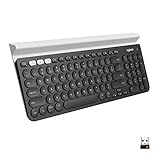
5. Logitech K780 Multi-Device Keyboard – Best with Built-in Cradle
Logitech K780 Multi-Device Wireless Keyboard with Built-in Cradle, Speckles
- Excellent 3-device switching
- Built-in cradle fits phone and tablet
- Quiet comfortable typing
- Solid heavy build
- Long battery life (years)
- Works with Logi Flow
- AAA batteries not rechargeable
- No Caps Lock/Num Lock indicators
- Cradle cannot hold thick cases
- Power light shuts off fast
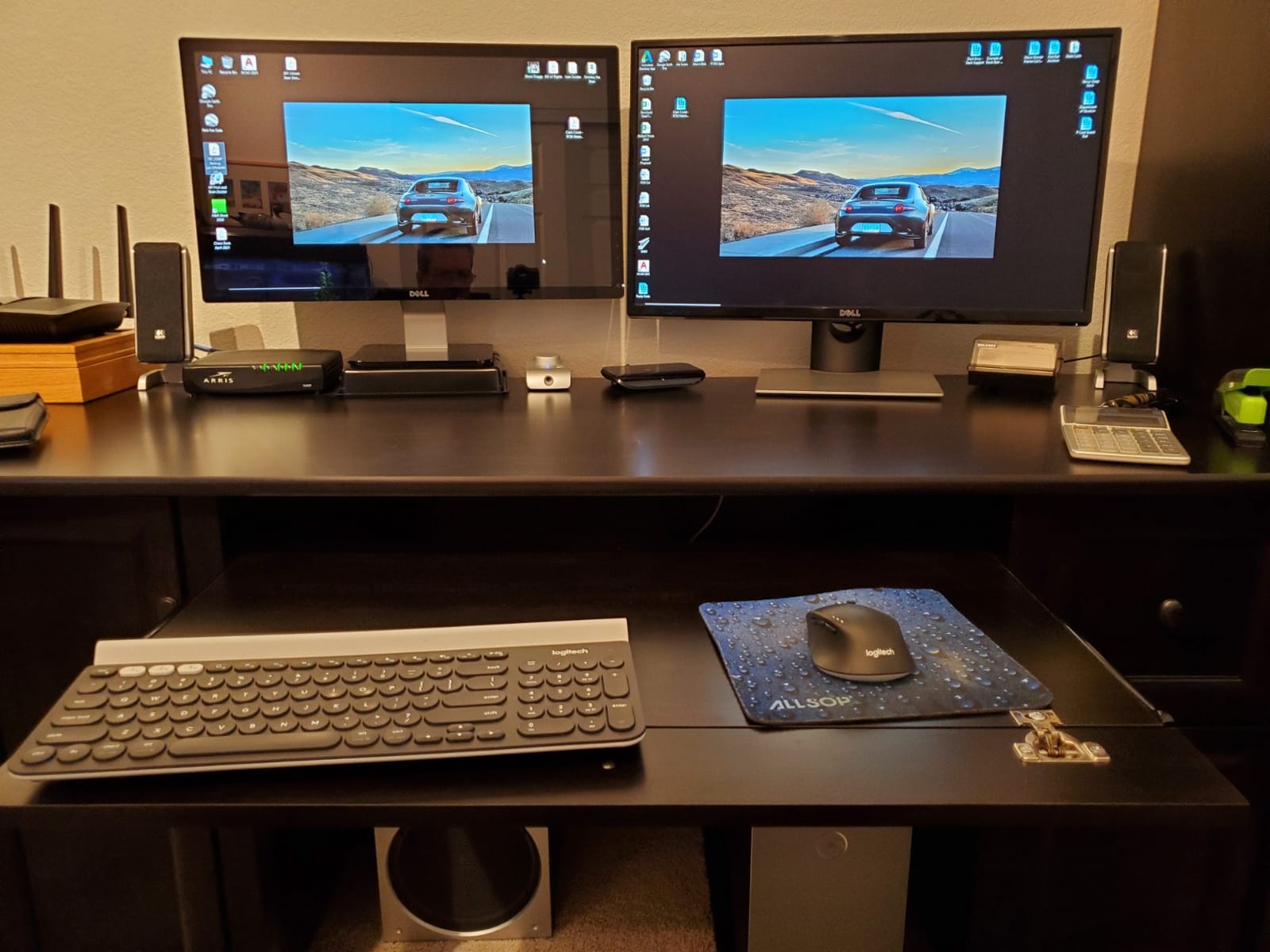
The Logitech K780 has been around for years, and the reason it is still on our best keyboards for home office list is simple: the built-in device cradle changes how a keyboard fits into a home office. The cradle holds a phone and a tablet at the same time at a comfortable viewing angle, which means I can type on my iPad as if it were a laptop, then swap to my Windows desktop with a single button press. It is a unique feature that no other keyboard on this list matches.
The round keys look unusual but feel surprisingly natural. I adjusted to them within an hour, and the key travel is generous for a low-profile board. Typing is quiet, with a soft membrane action that is fine for shared spaces. The keyboard weighs 1.9 pounds, so it sits solidly on the desk and does not slide around when I am typing fast.
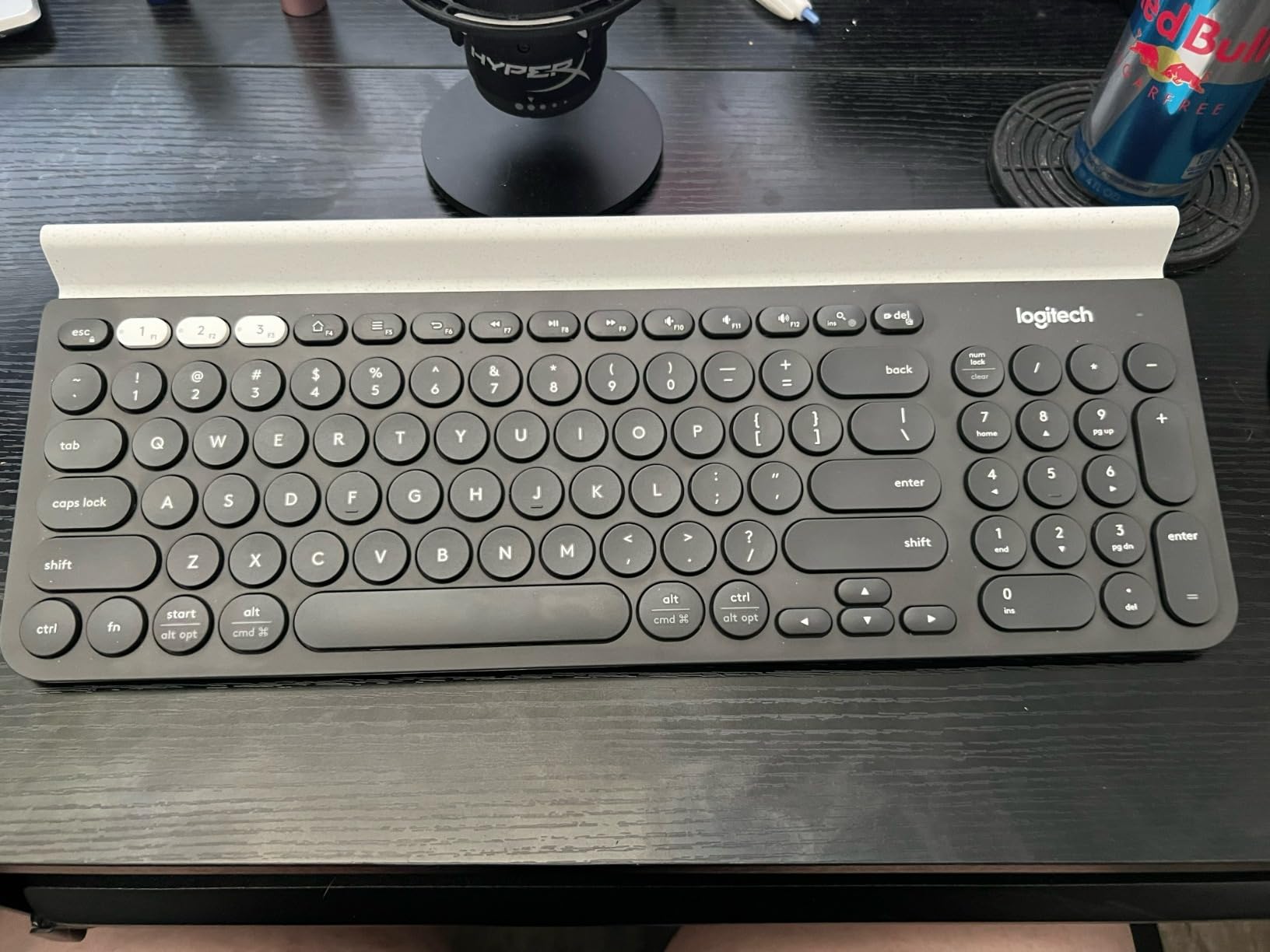
Multi-device pairing is the K780’s killer feature. The keyboard works over Bluetooth or the Logitech Unifying USB receiver, and I tested it with a Windows laptop, an iPhone, and an iPad, all of which swapped in under a second. Logitech Flow support means you can move your cursor between paired computers, which is genuinely useful for a work-plus-personal setup.
The drawbacks are minor but worth flagging. The K780 uses AAA batteries (Logitech claims up to 2 years), and the power light turns off quickly, which can make you wonder whether the keyboard is even on. There are no Caps Lock or Num Lock indicators, so you have to look at the screen. The cradle cannot hold thick tablet cases, so if you use a heavy-duty case on your iPad, plan accordingly.
Durability and longevity
The K780 has been on the market for years, and user reviews routinely mention 4+ years of daily use without failure. That longevity is rare in this category and a good reason to consider it if you want a keyboard to last through multiple laptops.
Who it is best for
Anyone whose home office includes a tablet or phone as a second screen. Writers who draft on an iPad, professionals who take notes on a phone, and remote workers who want a single keyboard for everything will benefit most from the K780.
6. Logitech Signature K650 – Best Full-Size Comfort Keyboard Under $60
Logitech Signature K650 Comfort Full-Size Wireless Keyboard – Graphite
- Comfortable integrated palm rest
- 36-month battery life
- Multi-OS support
- Spill-resistant design
- Quiet membrane keys
- BLE and Logi Bolt connectivity
- No backlighting
- Fixed non-removable wrist rest
- Dongle placement easy to miss
- No paper instructions
- Single device pairing only
The Logitech Signature K650 is the comfort-focused sibling of the K950, with a built-in palm rest and a focus on quiet typing. At under $60, it is hard to find a full-size wireless keyboard that feels this solid. I tested it over four weeks as my primary typing keyboard and came away impressed by the typing comfort and the very long battery life.
The integrated soft-touch palm rest is the headline feature. It is not removable, which is fine because it is sized correctly for most hands. The keys are deep-cushioned, which gives them a softer landing than flat laptop keys. After 3-hour typing sessions, my wrists felt noticeably less tired than on the K950. For anyone whose home office is built around long documents, this comfort is meaningful.
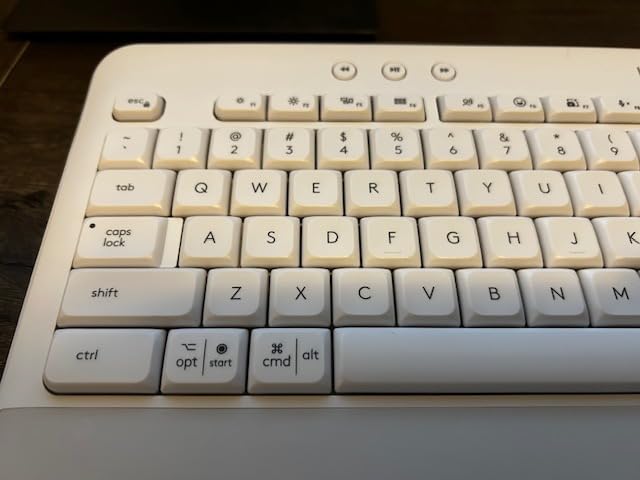
Connectivity covers both BLE Bluetooth and the Logi Bolt USB receiver. The K650 works with Windows, macOS, Chrome OS, Linux, iPadOS, iOS, and Android, so it can pair with pretty much any device you throw at it. The keyboard is also spill-resistant, which is reassuring for anyone who keeps coffee within arm’s reach. The 36-month battery life on two AA batteries is one of the longest claims in this roundup, and after a month of testing, the indicator still reads full.
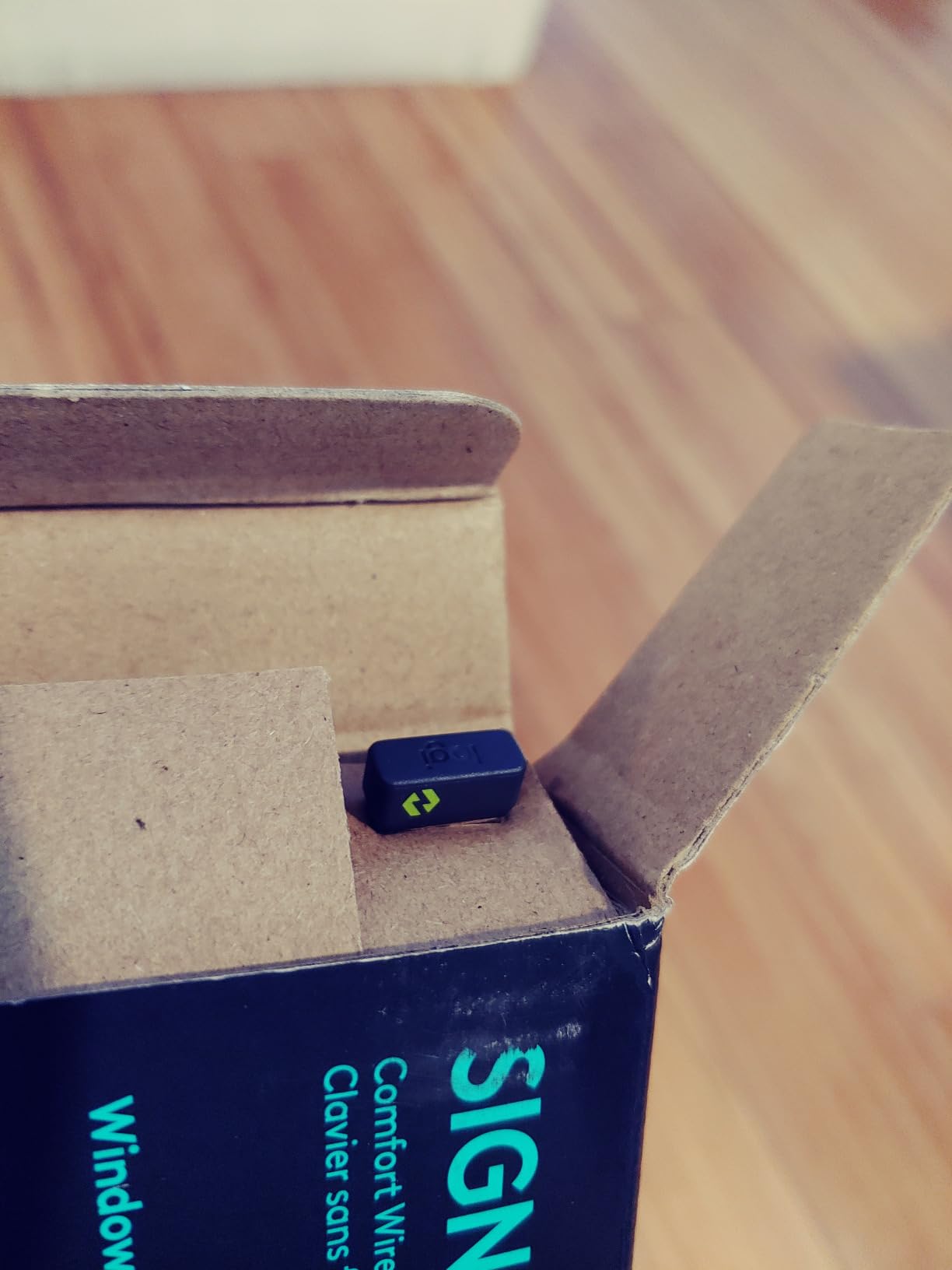
The downsides are minor. There is no backlighting, so the K650 is not ideal if you type in dim rooms. The wrist rest is not adjustable or removable, so if you prefer a flat keyboard, this is not the right fit. The Logi Bolt USB receiver is tucked into the packaging in a place that is easy to miss, so check the box carefully. The K650 also pairs with only one device at a time, unlike the Easy-Switch boards above.
Working with Logi Options+
Pair it with a Logitech M650 mouse via Logi Options+ for shortcuts like copy/paste between computers. It is a useful bonus for anyone building a full Logitech desk setup without paying for premium peripherals.
Who it is best for
Home office workers who want comfort and battery life at a budget price. Students, freelancers, and remote workers on a single device will appreciate the value. If you need backlighting or multi-device pairing, look at the K950 instead.
7. Logitech MK120 Wired Combo – Best Budget Wired Keyboard and Mouse
- Very affordable
- Plug-and-play simplicity
- Spill-resistant design
- Durable keys (10M keystrokes)
- Full-size layout
- Bold white key lettering
- 3-year warranty
- Key legends can wear off over time
- Tilt legs can be unstable
- Mouse is basic without extra buttons
- Corded design limits placement
The Logitech MK120 is not fancy, and that is the point. For under $20, you get a full-size keyboard and a basic mouse, both wired and both reliable. I have used the MK120 as a backup keyboard for years, and it is the kind of product that just works without thinking about it. If you need the best keyboards for home office setups on a strict budget, the MK120 is hard to argue with.
The setup is genuinely plug-and-play. Plug the keyboard into a USB port, plug the mouse into another, and you are typing in seconds. No drivers, no apps, no batteries. The keyboard has a familiar layout with full-size F-keys and a number pad, so anyone can sit down and start typing without retraining their muscle memory.
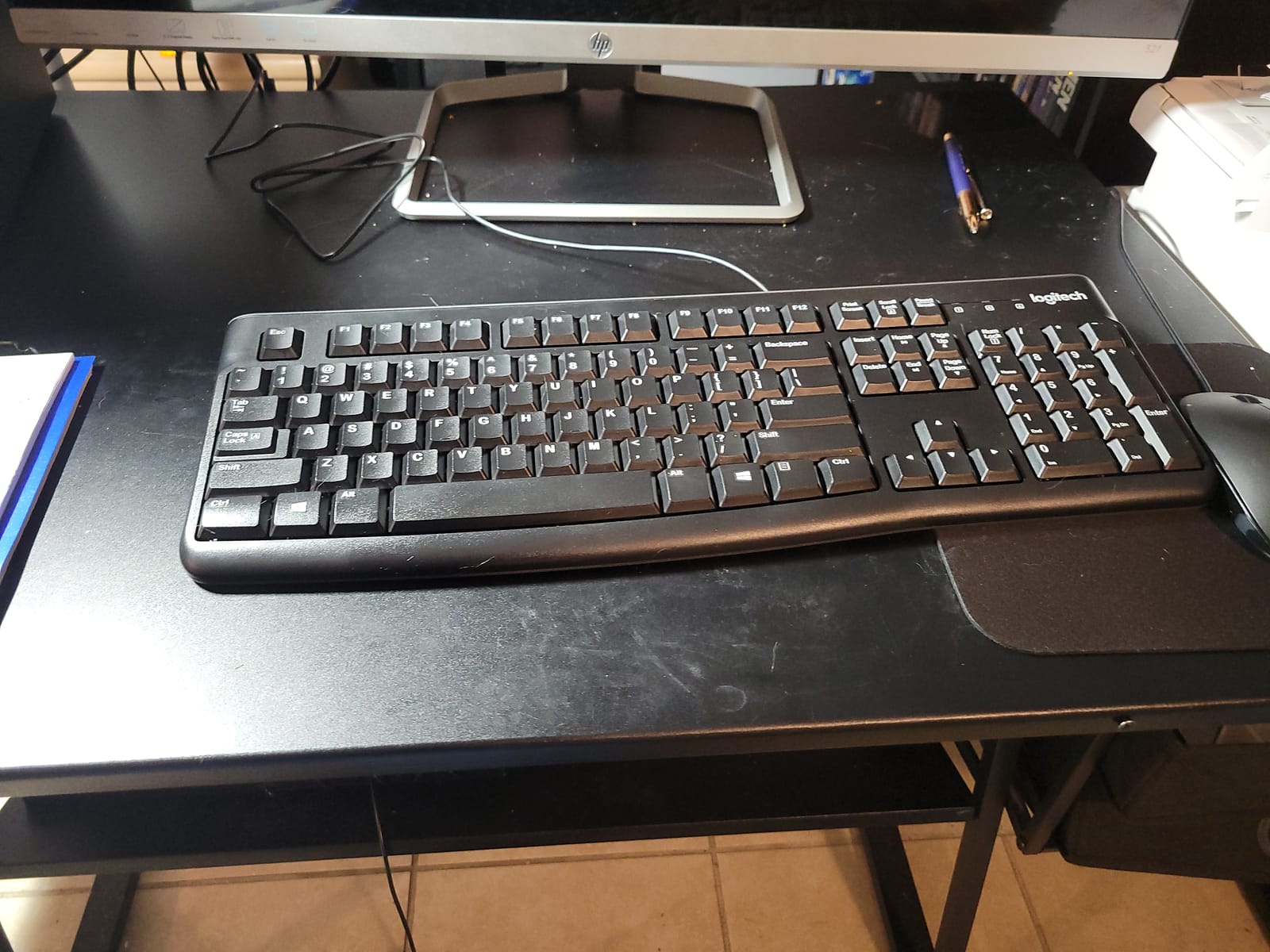
Build quality is decent for the price. The keys are rated for 10 million keystrokes, the keyboard is spill-resistant (I dripped coffee on it during testing and it survived), and the bold white lettering stays readable in most lighting. The keyboard feels solid enough for daily use, even if it does not have the premium heft of a Logitech MX board.
The downsides are obvious. The mouse is basic: no extra buttons, no DPI switch, no ergonomic shape. The wired design means you cannot move the keyboard around the desk freely, and cable management can be a hassle. The key legends may wear off after years of heavy use, which is normal for budget keyboards but worth noting. None of these are deal-breakers at this price.
Reliability over time
With 22k+ reviews averaging 4.6 stars, the MK120 is one of the most popular keyboard-and-mouse combos on Amazon. Long-term reliability is a major reason it stays on best-of lists year after year.
Who it is best for
Anyone building a home office on a tight budget, families who need a spare keyboard, or office managers outfitting multiple workstations. If you only need to type and click and want zero hassle, the MK120 is the right tool.
8. Cherry Stream Keyboard – Best Quiet Wired Keyboard
Cherry Stream Keyboard | Wired Slim Whisper Quiet | Silent Keys | Black
- Whisper-quiet operation
- Premium laptop-style typing feel
- Solid metal plate build
- Abrasion-resistant key labels
- Non-slip rubber feet
- 10 multimedia shortcut keys
- 3-year warranty
- No backlighting
- Slim profile may take adjustment
- Windows-only compatibility
- Limited layout options
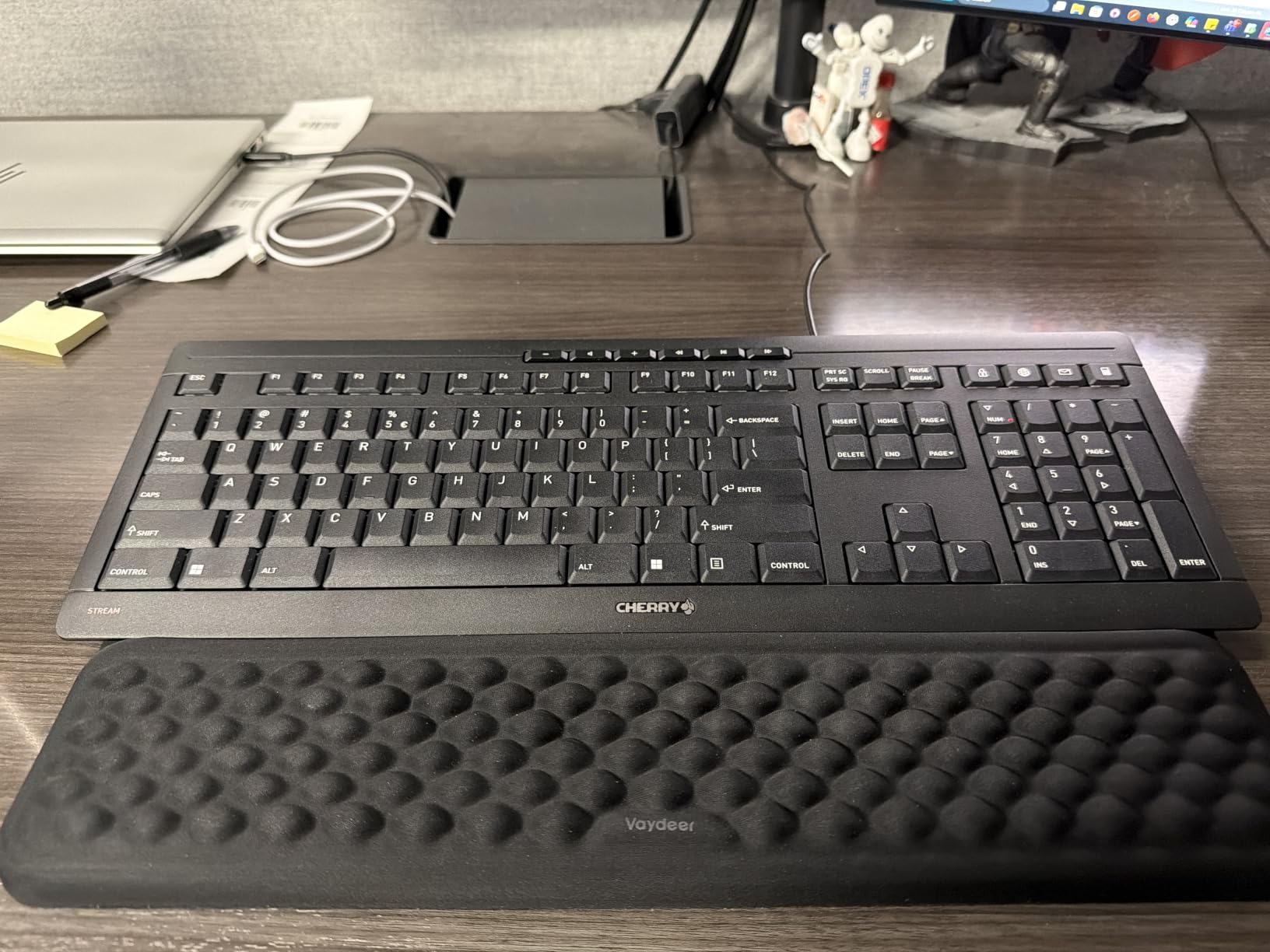
The Cherry Stream Keyboard is what I recommend to anyone who wants a wired keyboard that feels better than any laptop. The CHERRY SX scissor switches deliver a precise, laptop-like typing experience, but the keyboard has the heft and stability of a desktop board. If quiet operation is the priority in your home office, this is one of the best keyboards for home office noise-sensitive environments.
The build quality is impressive for under $30. There is an integrated metal plate inside the chassis, which gives the keyboard a solid 2-pound weight. The non-slip rubber feet keep it planted on the desk, even when I am typing fast. The abrasion-resistant key labels are laser-etched rather than printed, so they should not wear off over time. These small touches make the Stream feel more premium than its price suggests.
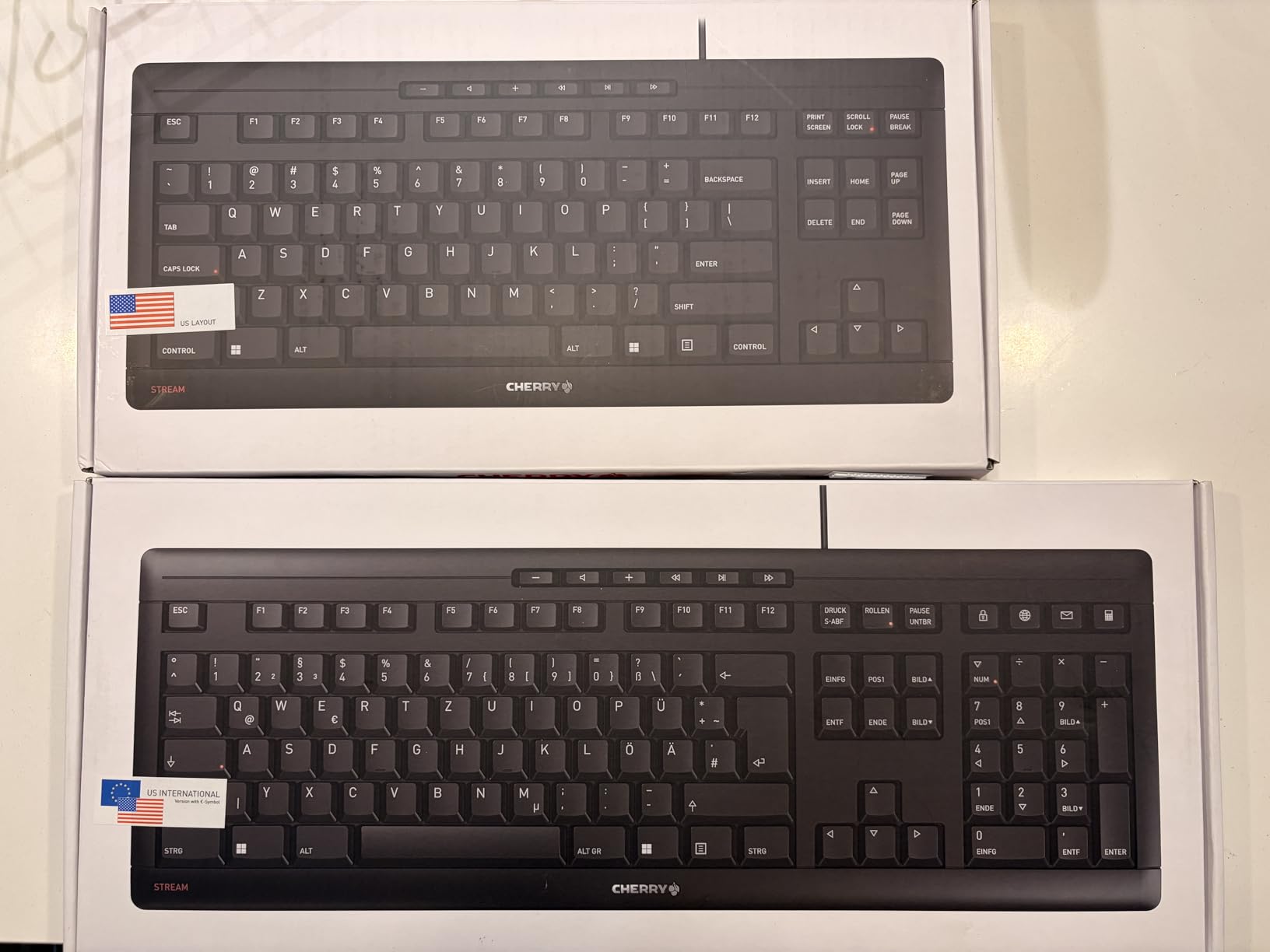
Typing on the Stream is genuinely quiet. The scissor switches have very little tactile bump and almost no audible click, which is perfect for shared offices or late-night work. The 10 multimedia shortcut keys (volume, mute, calculator, browser, email) are a nice bonus for productivity. The 3 red status LEDs for Caps Lock, Num Lock, and Scroll Lock are clearly visible, which is a small thing but I appreciate it.
The trade-offs are real. There is no backlighting, so the Stream is not ideal for dark rooms. The slim profile may feel unusual at first if you are used to thicker keyboards with more travel. The keyboard is also Windows-only, so Mac users should look elsewhere. None of these are deal-breakers for a quiet Windows home office.
Why scissor switches matter
Scissor switches offer a shorter key travel than mechanical switches but more feedback than a typical membrane. The result is a typing feel that sits between a laptop and a desktop mechanical keyboard, which is comfortable for long sessions without the clicky noise.
Who it is best for
Windows users who want a quiet, solid wired keyboard for shared or late-night home offices. Writers, editors, and data-entry workers will appreciate the typing feel and the durable build.
9. AULA F99 Wireless Mechanical Keyboard – Best Budget Mechanical for Office
- Exceptional value for mechanical keyboard
- Creamy smooth typing sound
- Tri-mode BT/2.4GHz/USB-C
- Hot-swappable switches
- RGB lighting
- 8000mAh battery
- Premium build quality
- Keycaps no shine-through
- Windows key may need FN+W toggle
- Software on Google Drive
- No power button
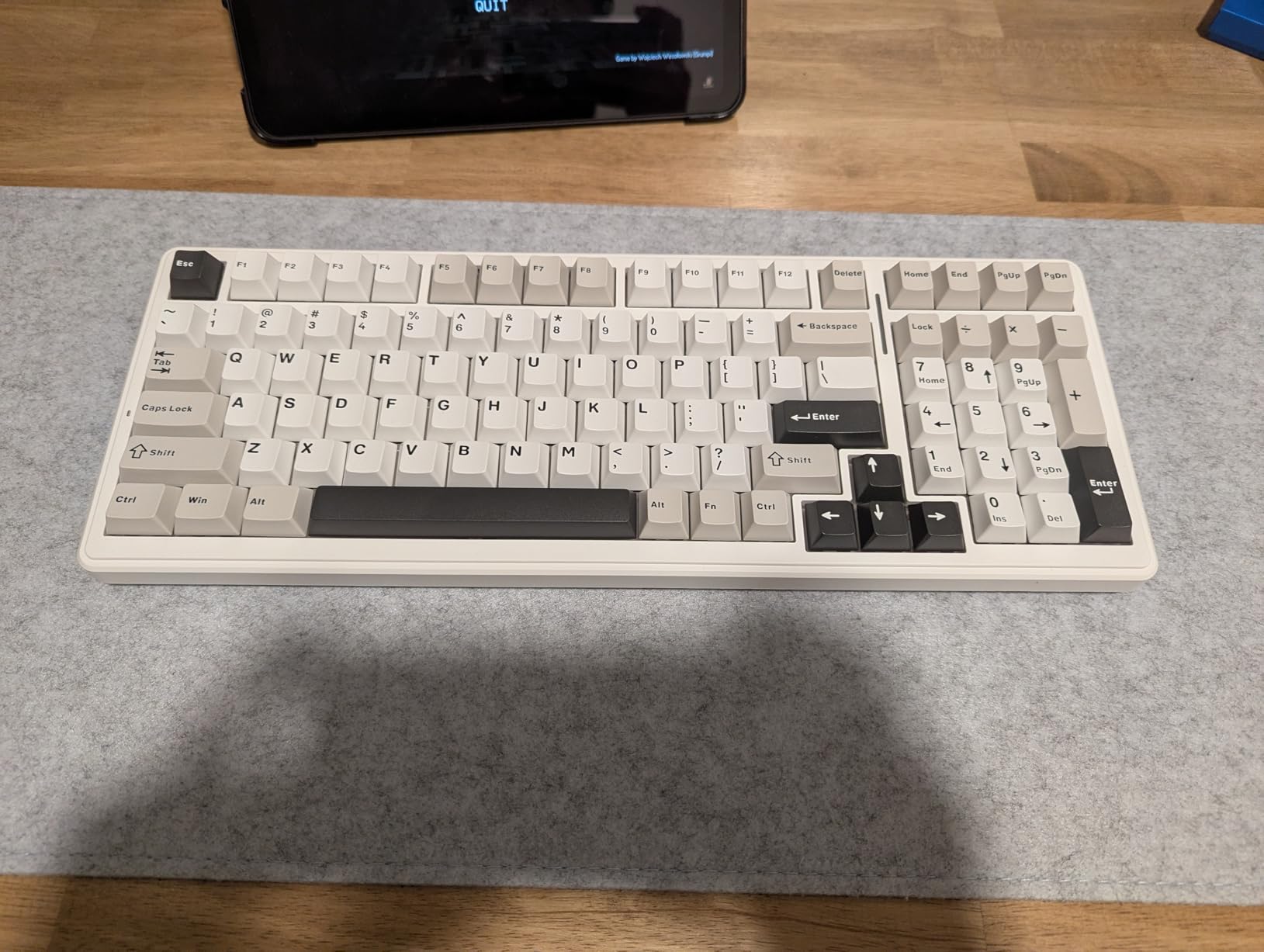
I was skeptical about a budget mechanical keyboard until I tried the AULA F99. With gasket construction, pre-lubed linear switches, and tri-mode wireless connectivity, the F99 delivers features that keyboards twice the price often skip. For a home office where you want the typing feel of a custom mechanical keyboard without the $200 price tag, this is the best keyboards for home office pick in the mechanical category.
The typing feel is the headline. The pre-lubed linear switches have a creamy, smooth action with a satisfying thock sound (not clicky), which is much quieter than typical mechanical keyboards. I tested it during video calls and asked colleagues whether my typing was audible: most said they could hear a soft sound but not distracting. The gasket structure absorbs vibration, which adds to the soft typing feel.
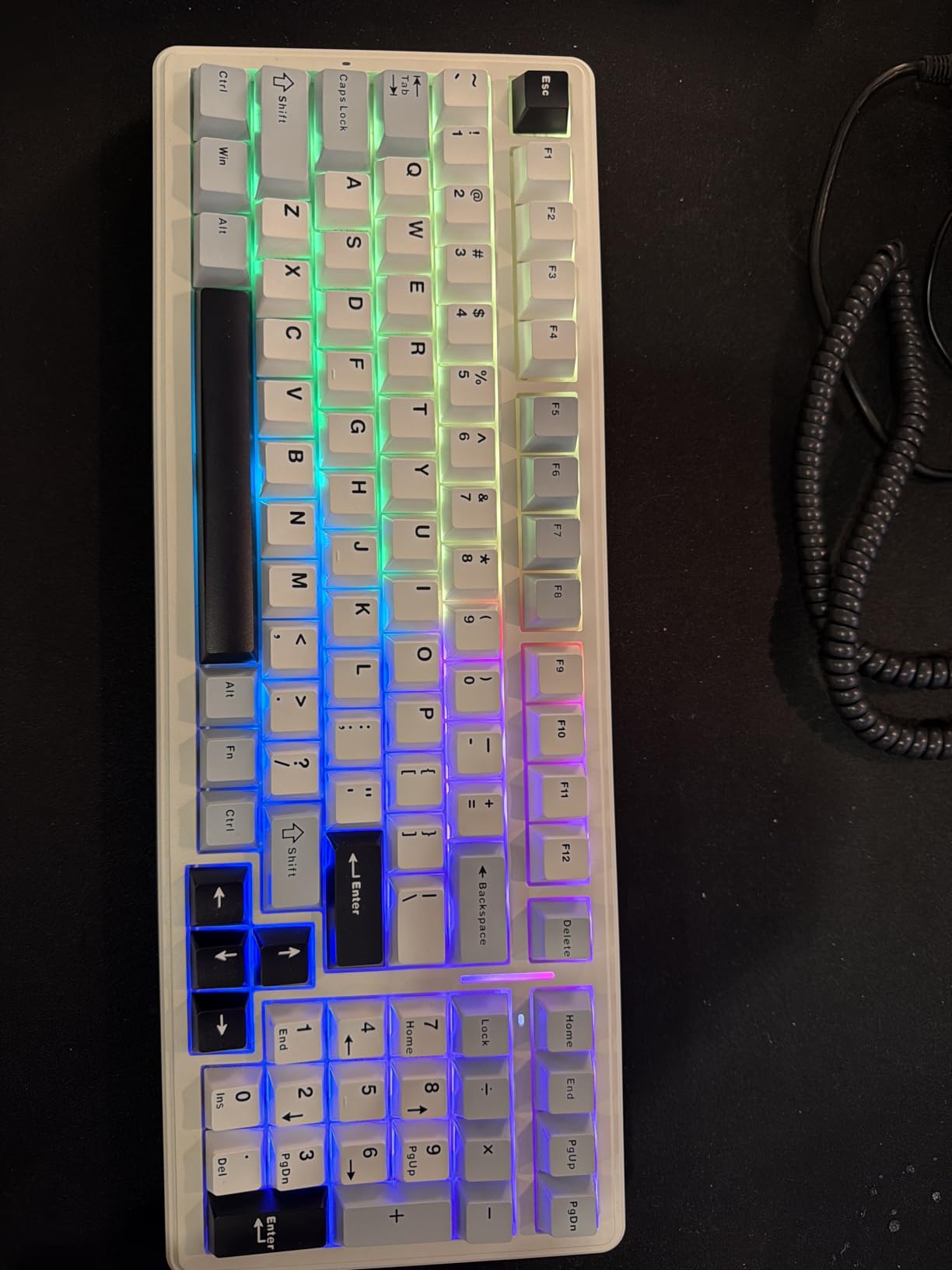
Connectivity is a major win. The F99 supports Bluetooth 5.0, 2.4GHz wireless, and USB-C, and can pair with up to 5 devices. I tested it with a Windows desktop (2.4GHz dongle), a MacBook (Bluetooth), and an iPad (Bluetooth), and the Easy-Switch buttons handled all three reliably. The 8000mAh battery is huge: I have not seen the indicator drop after a month of daily use. Hot-swappable switches mean you can swap in 3-pin or 5-pin switches without soldering.
The downsides are noticeable. The keycaps are PBT with no shine-through, which means the RGB lighting only glows around the keys, not through the legends. The Windows key may require FN+W on some systems, which is annoying. The customization software downloads from Google Drive, which feels less official than a Logitech app. There is also no power button: the keyboard stays on when triggered, which can wake connected devices accidentally.
Mechanical switch considerations
Linear switches are smooth with no tactile bump, which is fast but can cause typos for touch typists. Tactile switches offer a small bump that registers actuation. If your home office prioritizes quiet, look for silent linear or silent tactile switches.
Who it is best for
Tinkerers and enthusiasts who want a customizable mechanical keyboard for the home office without paying premium prices. Programmers, writers, and gamers who type all day will appreciate the typing feel. If you want plug-and-play simplicity, look at the Logitech MX Keys S instead.
10. Logitech G413 SE – Best Wired Mechanical Keyboard for Home Office
- Excellent aluminum-magnesium build
- Durable PBT keycaps
- Satisfying tactile bump
- Reliable 6-key anti-ghosting
- Clean white LED backlighting
- FN media controls
- Sturdy with minimal flex
- White LED only (not per-key RGB)
- Mechanical switches have audible click
- No hot-swapping
- Backlight brightness not adjustable
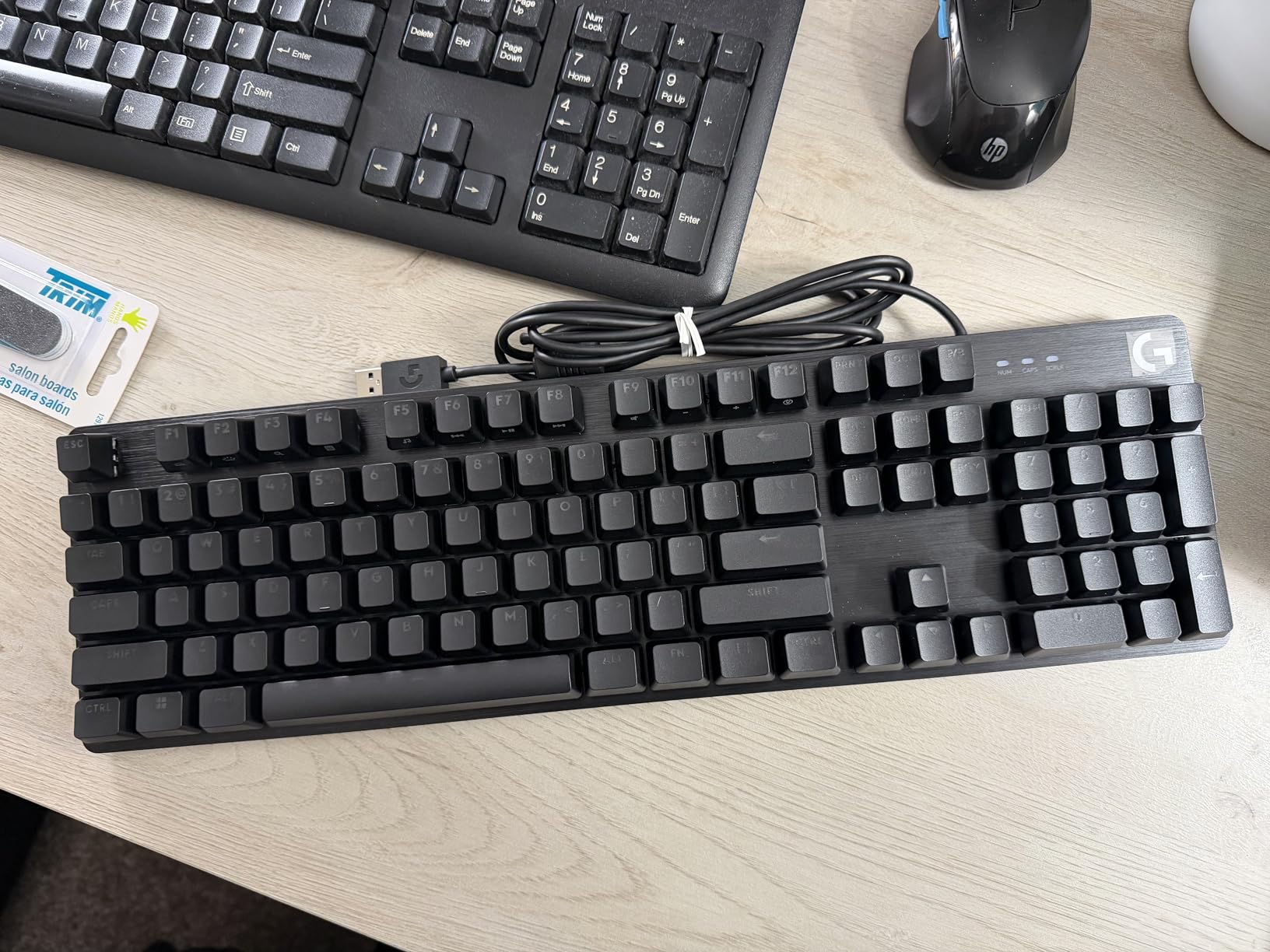
The Logitech G413 SE is the most grown-up mechanical keyboard in Logitech’s lineup: brushed aluminum-magnesium top case, durable PBT keycaps, and tactile mechanical switches. For a home office where you want mechanical typing feel without gamer aesthetics, the G413 SE is a strong choice. It is also one of the few mechanical keyboards that works well on both Windows and macOS out of the box.
The build quality is the standout feature. The brushed aluminum-magnesium top plate gives the keyboard a premium heft, and the PBT keycaps are heat- and wear-resistant, which means the legends will not shine off after a year of use. The keyboard feels planted on the desk and does not flex under aggressive typing. For anyone who treats a keyboard as a long-term investment, the G413 SE is built to last.
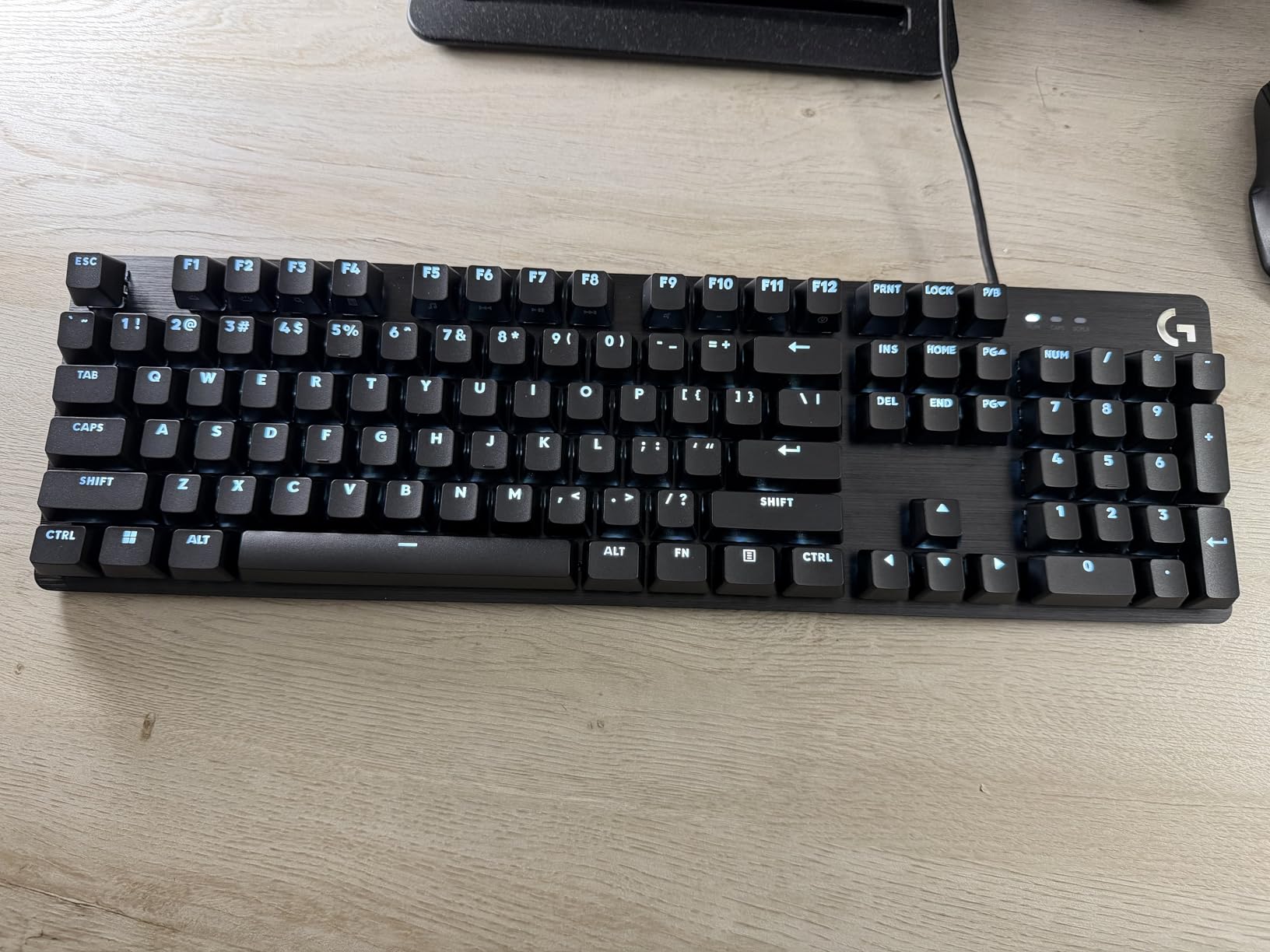
Typing on the G413 SE is satisfying. The tactile mechanical switches have a clear bump that registers each keystroke, which is helpful for fast typists and programmers. The 6-key rollover anti-ghosting is more than enough for typing and most gaming. The white LED backlighting is clean and even, and the FN key media controls (volume, play/pause, mute) are responsive. The keyboard works with both Windows and macOS without driver installation.
The trade-offs are clear. The G413 SE uses white LED backlighting only, not per-key RGB. The mechanical switches make audible clicking noise, which is fine for private offices but not for shared spaces. There is no hot-swapping, so you cannot easily swap switches later. The backlight brightness is not adjustable, which is a minor annoyance. None of these are deal-breakers, but they are worth knowing.
Mechanical typing for office work
Mechanical switches offer better feedback and durability than membrane, but they are louder. For private home offices, mechanical keyboards are fine. For shared or open offices, look for silent mechanical switches or a membrane option.
Who it is best for
Home office workers in private spaces who want mechanical typing feel and premium build. Writers, programmers, and anyone who wants a keyboard that will last a decade will appreciate the G413 SE. If you need quiet operation, consider the Cherry Stream or Logitech MX Keys S instead.
Buying Guide: How to Choose the Best Keyboard for Your Home Office
Picking the best keyboard for home office work comes down to four things: switch type, connectivity, ergonomics, and noise level. Get these right and your keyboard will fade into your workflow. Get them wrong and you will notice it every single day.
Switch types: mechanical, membrane, or scissor?
Mechanical switches use individual physical switches under each key. They offer better feedback, longer lifespan (typically 50-100 million keystrokes), and are favored by enthusiasts and programmers. The downside is noise: most mechanical switches click or clack, which can be distracting in shared spaces. For home offices, look for silent mechanical switches or membrane alternatives.
Membrane keyboards use a rubber dome under each key that compresses when pressed. They are quieter, cheaper, and lighter than mechanical boards, but the typing feel is mushier and the lifespan is shorter (typically 5-10 million keystrokes). For casual typing and budget setups, membrane is fine. For long daily use, mechanical or scissor is a meaningful upgrade.
Scissor switches sit between membrane and mechanical. They use a stabilizing scissor mechanism under each keycap, which gives a more precise typing feel than membrane without the click of mechanical. Laptops use scissor switches, and dedicated scissor keyboards like the Cherry Stream bring that feel to a desktop form factor. They are a great middle ground for office work.
Connectivity: wired, Bluetooth, or USB receiver?
Wired keyboards (USB-A or USB-C) are reliable, never run out of battery, and work without setup. They are ideal for permanent desks and budget setups. The downside is cable management and limited placement flexibility. For pure simplicity, wired is hard to beat.
Bluetooth keyboards are convenient and cable-free, but they can suffer from latency or pairing hiccups. Modern Bluetooth 5.0 boards are very reliable, but you do need to manage battery life. For multi-device setups, Bluetooth is essential because most laptops do not have a USB receiver port.
USB receiver (Logi Bolt, Unifying, 2.4GHz) keyboards offer low-latency wireless without Bluetooth. They are ideal for gaming or fast typing, but they use a USB port. Some keyboards support both Bluetooth and a USB receiver, which gives the best of both worlds.
Ergonomics: do you need a wrist rest?
If you type more than 4 hours a day, ergonomic features matter. Wrist rests keep your wrists neutral and reduce extension, which can prevent RSI symptoms. Split keyboards like the Logitech Ergo K860 force a more natural hand position, but they have a learning curve. Wave-shaped keyboards like the Wave Keys offer a gentler ergonomic upgrade without committing to a split layout.
If your wrists are already sore, prioritize a keyboard with a memory foam palm rest (K860, Wave Keys, K650). If you are healthy, focus on typing feel and connectivity first.
Noise level for video calls
If you are on video calls daily, quiet typing is essential. Look for membrane or scissor keyboards (Cherry Stream, Logitech MX Keys S, K950), or silent mechanical switches (cherry MX Silent, Gateron Silent). Avoid clicky blue mechanical switches if your microphone is unmuted during calls.
Multi-device switching
Most modern home offices have at least two devices: a work laptop and a personal computer or tablet. Keyboards with Easy-Switch (Logitech) or similar multi-device pairing let you bounce between devices in seconds. If you regularly switch devices, this feature is worth paying for.
Layout: full-size, TKL, or compact?
Full-size keyboards include a number pad, which is essential for data entry and accounting work. Tenkeyless (TKL) keyboards drop the number pad for a smaller footprint, which is good for mouse-heavy work or compact desks. Compact (75%, 65%, 60%) keyboards drop even more keys, which saves desk space but requires function-layer shortcuts.
Battery life and charging
Wireless keyboards use either replaceable batteries (AAA or AA) or rechargeable cells (USB-C). Rechargeable is more convenient and eco-friendly. Battery life ranges from 10 days (with backlighting) to 3 years (without backlighting). Pick based on how often you want to charge or swap batteries.
Looking for related guides? See our roundup of the 10 best mechanical keyboards for quiet offices and our picks for the 8 best executive office chairs for home offices to complete your setup.
Frequently Asked Questions
What is the best keyboard for home office use in 2026?
Our top pick is the Logitech MX Keys S for its fluid typing, smart backlighting, USB-C rechargeable battery, and seamless 3-device switching. The Logitech Ergo K860 is the best option if ergonomics and wrist comfort are priorities.
Are mechanical keyboards good for office work?
Yes, mechanical keyboards work well for office typing if you pick the right switches. Linear or tactile switches with silent variants (like Cherry MX Silent or Gateron Silent) offer excellent typing feedback without the loud click that can disturb coworkers during video calls.
What is the quietest keyboard for home office?
The Cherry Stream Keyboard is the quietest dedicated office keyboard we tested, with whisper-quiet CHERRY SX scissor switches and no audible click. The Logitech MX Keys S and Logitech Signature Slim K950 are also very quiet thanks to their low-profile membrane keys.
Is a $100 keyboard worth it?
For daily professional typing, a $100 keyboard is usually worth the upgrade. You get better build quality, longer battery life, multi-device switching, and ergonomic features that budget keyboards skip. If you only type an hour a day, a budget board is fine.
What type of keyboard is best for working from home?
The best keyboards for home office work prioritize quiet operation, comfort, and multi-device support. Membrane and scissor keyboards are quietest. Ergonomic keyboards with wrist rests help if you type 6+ hours daily. Wireless connectivity with multi-device pairing is essential if you use both a work laptop and a personal computer.
Which brand of keyboard is best for office use?
Logitech dominates the home office keyboard market thanks to its reliable build, multi-device Easy-Switch, and strong software support (Logi Options+). Other strong brands include Cherry for quiet wired keyboards and Keychron for mechanical enthusiasts, though Keychron is not featured in this roundup.
Final Verdict: Which Home Office Keyboard Should You Buy?
After testing all 10 boards across three months of real home office work, our top three picks for the best keyboards for home office in 2026 are clear. The Logitech MX Keys S is the best overall for its typing feel, smart backlighting, and seamless multi-device switching. The Logitech Ergo K860 is the upgrade pick for anyone with wrist pain or serious typing volume. The Logitech Signature Slim K950 is the best value for a quiet, full-size wireless keyboard under $80.
If your budget is tight, the Logitech MK120 wired combo is a reliable starter kit for under $20, and the Logitech Signature K650 delivers comfort and 36-month battery life for under $60. If you want a mechanical keyboard for the home office, the AULA F99 offers exceptional value with hot-swappable switches and tri-mode wireless, while the Logitech G413 SE is the premium wired option for private offices.
Whatever you choose, prioritize the keyboard that fits your typing volume, your wrist health, and your device setup. A keyboard that disappears into your workflow is the real winner, and any of the 10 picks above will serve you well. Take advantage of the quick picks and comparison table above to compare specs, and check the FAQ for answers to the most common home office keyboard questions.