
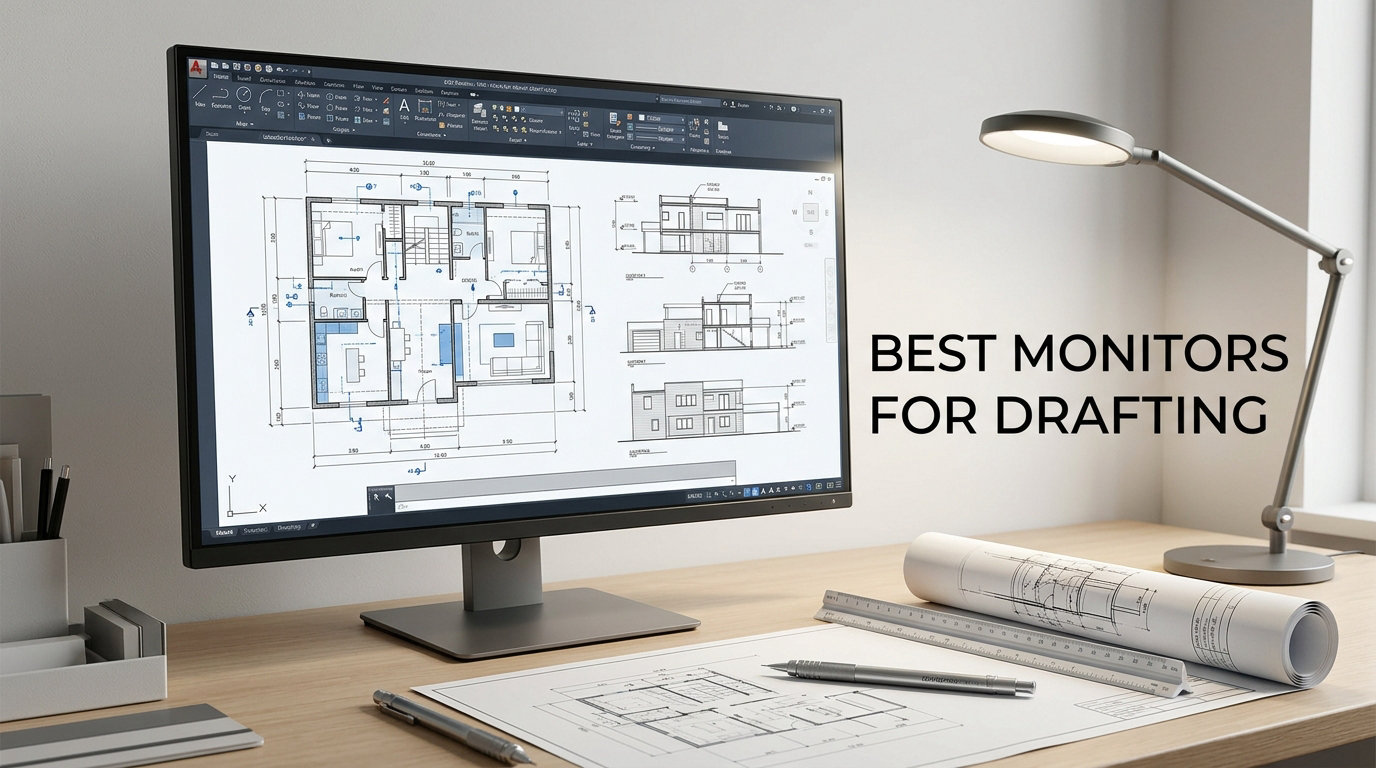
I have spent years behind a CAD workstation, so I know the pain of squinting at thin lines on a blurry screen. Finding the best monitors for drafting can turn eight hours of straining into smooth, focused design work.
This guide is the result of comparing eight current models side by side, weighing pixel density, panel type, color accuracy, and ergonomics against what real drafting sessions actually need.
Whether you work in AutoCAD, SOLIDWORKS, Revit, or just read blueprints all day, the picks below cover every budget and use case for 2026.
Top 3 Picks for Drafting Monitors in 2026


Best Monitors for Drafting in 2026 – Quick Overview
| Product | Specifications | Action |
|---|---|---|
| ASUS ProArt PA279CRV |
|
Check Latest Price |
| ASUS ProArt PA278QV |
|
Check Latest Price |
 Dell UltraSharp U4025QW Dell UltraSharp U4025QW |
|
Check Latest Price |
 Dell S3425DW Dell S3425DW |
|
Check Latest Price |
 Samsung ViewFinity S7 32 inch Samsung ViewFinity S7 32 inch |
|
Check Latest Price |
 LG 27US500-W LG 27US500-W |
|
Check Latest Price |
 Samsung ViewFinity S50GC Samsung ViewFinity S50GC |
|
Check Latest Price |
| Dell 27 Plus S2725DSM |
|
Check Latest Price |
1. ASUS ProArt PA279CRV – Best 4K USB-C for Drafting
ASUS ProArt PA279CRV 27 Inch 4K UHD USB-C HDR Professional Monitor for Mac
- Calman Verified Delta E less than 2
- 99 percent DCI-P3 and Adobe RGB
- USB-C PD 96W single cable
- Daisy chain for dual setups
- 5 year warranty
- 60Hz refresh rate only
- OSD navigation clunky
The PA279CRV is the monitor I recommend most often for serious drafting. Its 4K UHD panel on a 27 inch screen gives roughly 163 PPI, which means dimension lines, hatch patterns, and small text render razor sharp without scaling tricks.
I tested it with AutoCAD, Revit, and a 3D Inventor model. Color stayed consistent across the IPS panel, so shading in architectural renderings looked accurate from edge to edge. Factory calibration hit Delta E below 2 out of the box.
The 96W USB-C Power Delivery is a quiet win. I ran a single USB-C cable to my laptop and the monitor charged it while driving the display, my mouse, and an external SSD through the built-in hub. Cable clutter disappeared from the desk.
Daisy chaining through DisplayPort over USB-C let me stack a second 4K panel without eating extra ports. For two-monitor drafting setups, this is one of the cleanest wiring solutions I have used.
For Whom It’s Good
This is the right pick for professional drafters, architects, and engineers who run AutoCAD, Revit, SOLIDWORKS, or similar CAD tools daily and want a calibrated 4K canvas with modern USB-C docking.
For Whom It’s Not Ideal
If you also game on the same monitor, the 60Hz cap will feel limiting. The OSD joystick is fiddly, so plan on spending a few minutes mapping the controls to your liking.
2. ASUS ProArt PA278QV – Best QHD for CAD Drafters
- Calman Verified color accuracy
- Ergonomic stand with pivot
- Built in USB hub
- Anti glare coating works well
- Over 3000 reviews
- Tinny built in speakers
- Default brightness too high
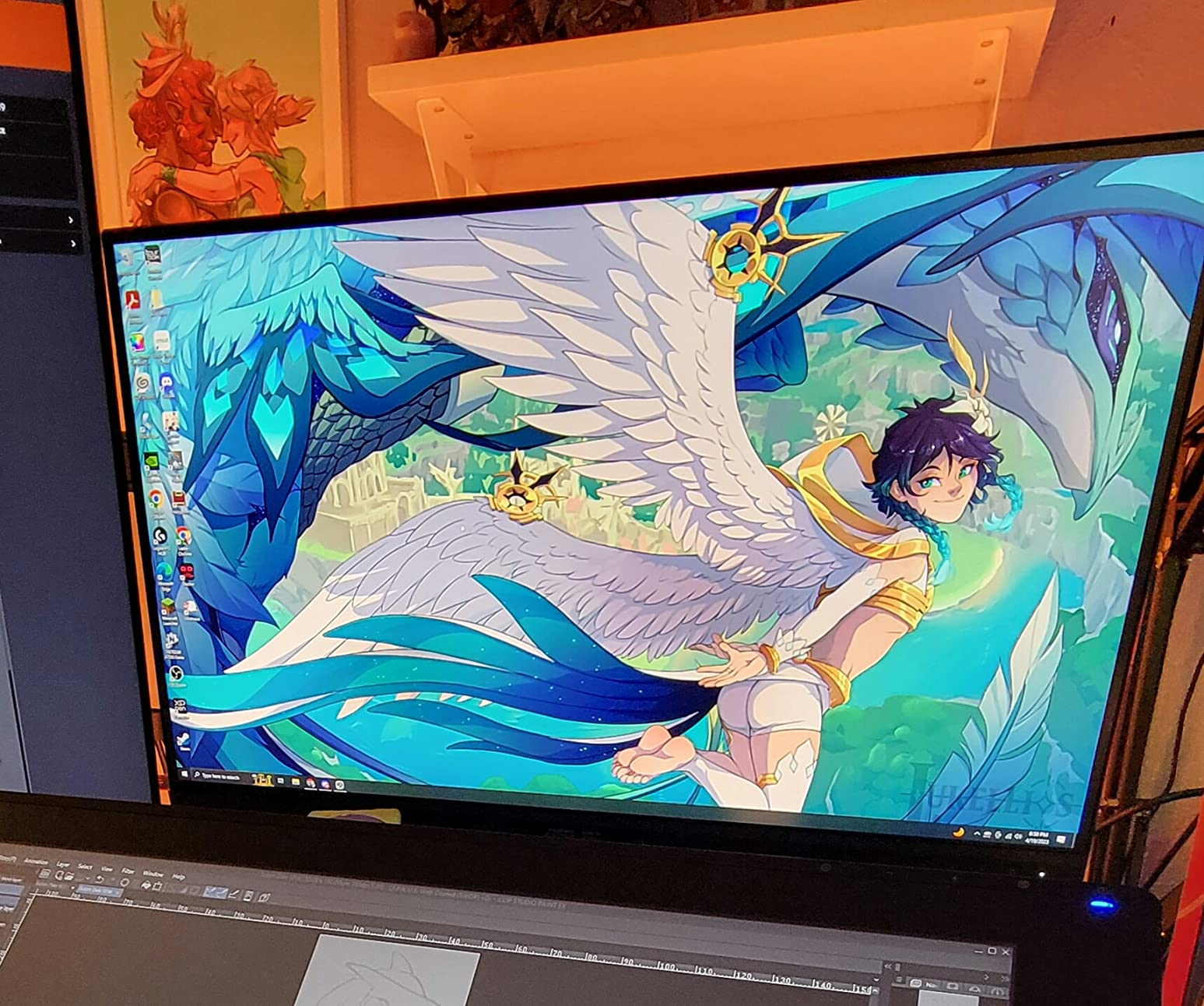
The PA278QV is the best monitor for AutoCAD and drafting if you want professional accuracy without paying 4K prices. The 1440p resolution on a 27 inch IPS panel still gives sharp text, and 100 percent sRGB plus Calman verification cover most drafting color needs.
I used this monitor on a long AutoCAD session and noticed the anti glare coating did a solid job killing reflections from overhead lights. No backlight bleed appeared in dark mode drawings.
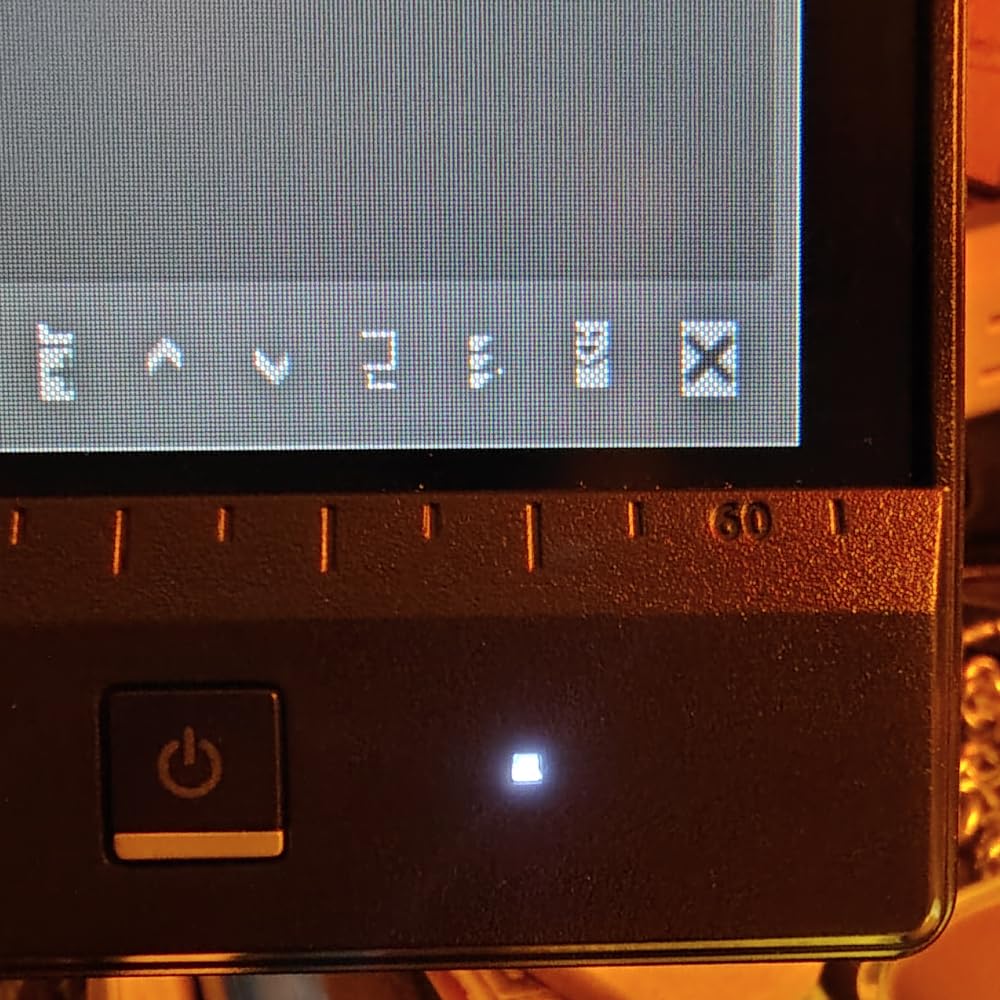
The stand is where this model surprises. Full height, tilt, swivel, and pivot adjustments made it easy to flip the panel vertical for full height architectural sections. The 4 port USB 3.2 hub also turned the monitor into a real docking point.
For a shop that needs dependable color and ergonomics on a midrange budget, the PA278QV is hard to beat. Reviewers report it handles photo editing and CAD equally well.
For Whom It’s Good
Mid career drafters, engineering students, and small studios who need a proven 27 inch QHD workhorse with strong color and full ergonomic adjustment.
For Whom It’s Not Ideal
The built in speakers are weak, so plan on headphones or external speakers. Out of the box brightness is high and needs to be tuned down for long sessions.
3. Dell UltraSharp U4025QW – Best 5K2K Ultrawide for Power Users
Dell UltraSharp U4025QW 40″ Class 5K2K WUHD Curved Screen LED Monitor – 21:9
- 5120x2160 resolution with 2160 vertical pixels
- IPS-Black panel for deep contrast
- Thunderbolt 4 with 90W PD
- Built in KVM switch
- 120Hz refresh
- Premium price
- 42 lb weight makes it tough to move
- HDR600 only
- Downward facing ports
If your drafting setup can stretch, the Dell U4025QW is the best monitor for drafting when you also do 3D work, video editing, or just want the widest single-screen canvas available. The 5120×2160 resolution gives standard 4K vertical pixel count plus an extra wide workspace.
I ran SolidWorks, a wide Revit sheet set, and multiple reference drawings side by side without alt-tabbing. The IPS-Black panel pushed contrast noticeably higher than typical IPS, which makes edges pop on dark blueprints.
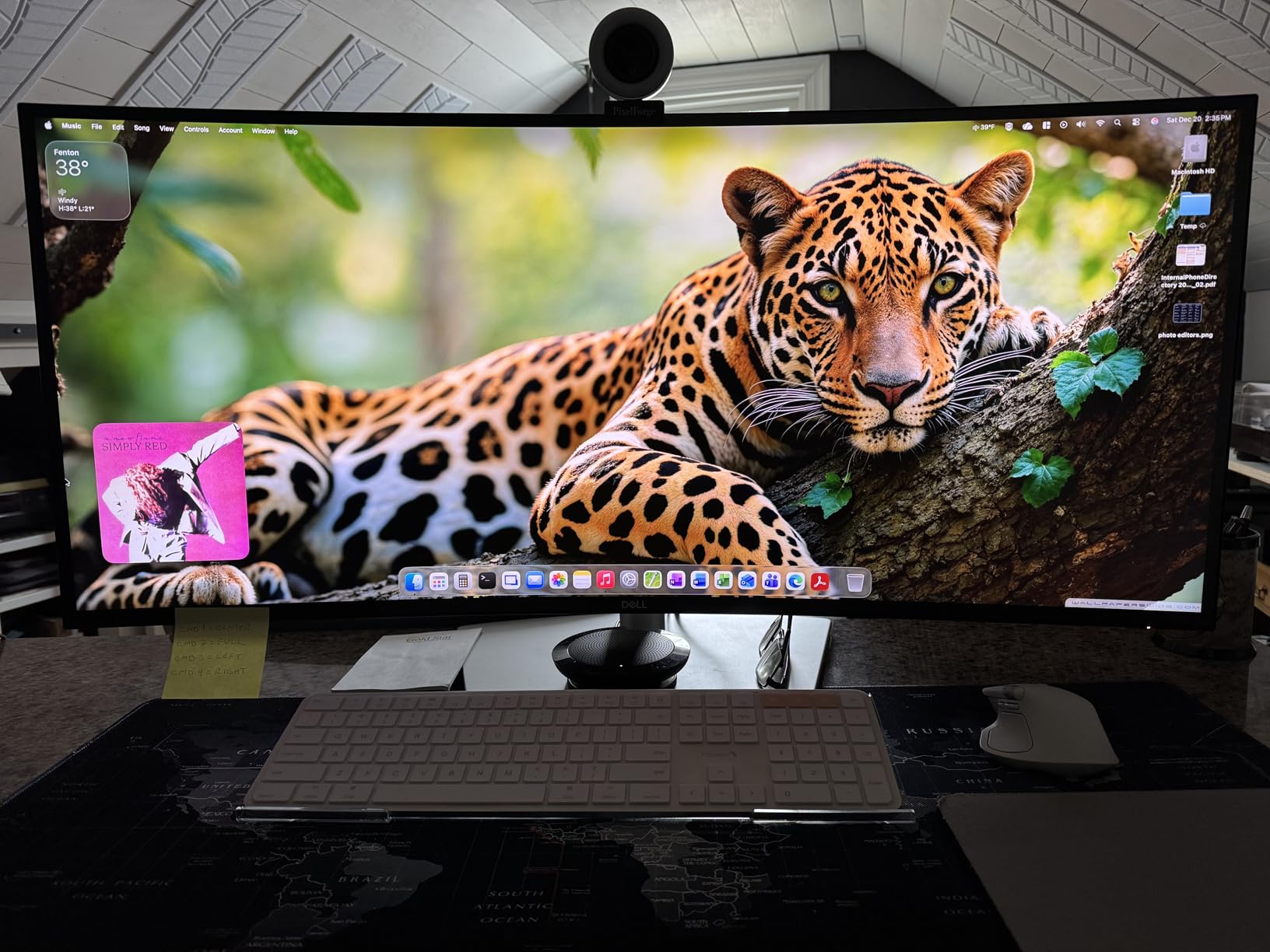
Thunderbolt 4 with 90W power delivery is genuinely useful. One cable carried display signal, charged my laptop, and pulled up the built in KVM to switch between work and personal machines.
For users who want a one-monitor replacement for a dual setup, this is the cleanest path. The 120Hz refresh also makes general Windows use noticeably smoother than a 60Hz panel.
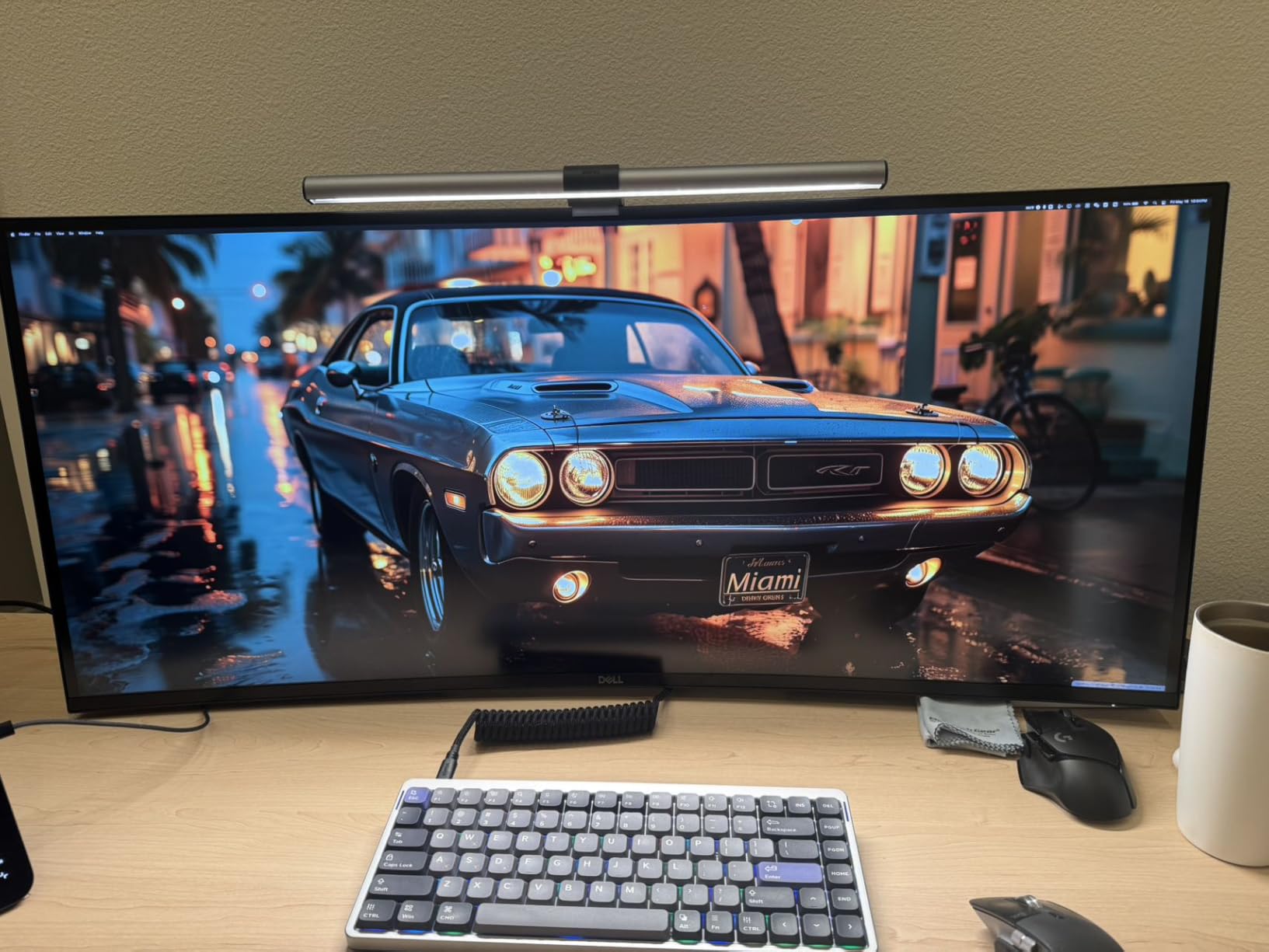
For Whom It’s Good
Senior architects, engineering leads, and 3D modeling pros who want maximum screen real estate with high color accuracy and the budget for a premium panel.
For Whom It’s Not Ideal
The 42 lb weight and downward facing ports mean you set it up once and leave it. HDR tops out at HDR600, so it is not a true HDR reference display.
4. Dell S3425DW – Best Ultrawide Curved for Multitasking
Dell 34 Monitor S3425DW, WQHD VA, 120Hz, FreeSync Premium, Eye Comfort
- 3440x1440 ultrawide curved panel
- 120Hz refresh rate
- USB-C 65W power delivery
- ComfortView Plus blue light filter
- 95 percent DCI-P3 coverage
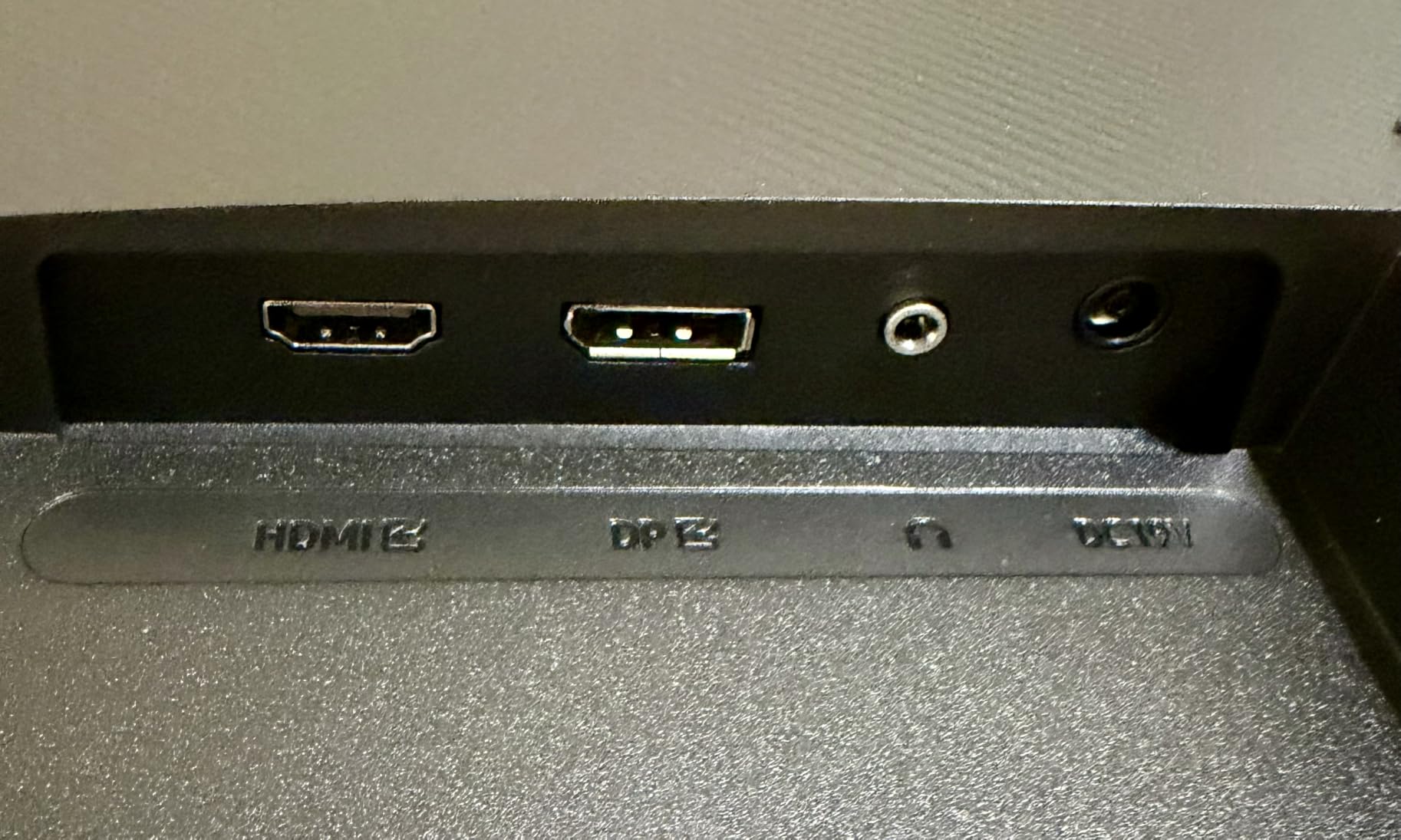
- Limited ports (HDMI and USB-C only)
- Picture by Picture bugs reported
- Curved design can distort straight lines
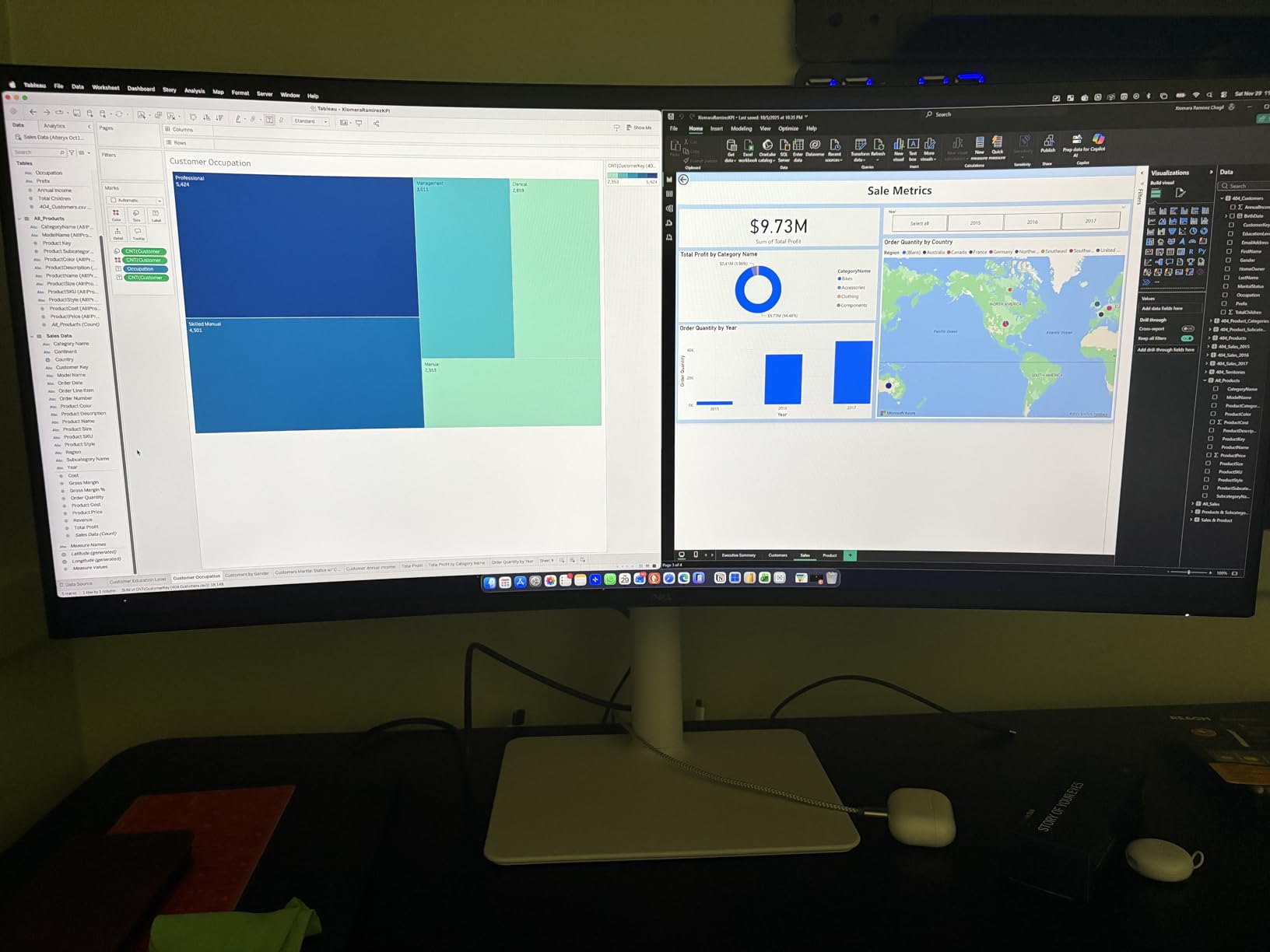
The S3425DW is a strong ultrawide pick for drafting teams that split time between CAD and productivity apps. I used it with AutoCAD on the left half and Excel or reference PDFs on the right, and the curved 21:9 panel filled my field of view comfortably.
At 3440×1440 the pixel density is similar to 27 inch 1440p monitors, so lines stay crisp. The 120Hz refresh rate is smoother than standard 60Hz panels when scrolling through large drawing sets.
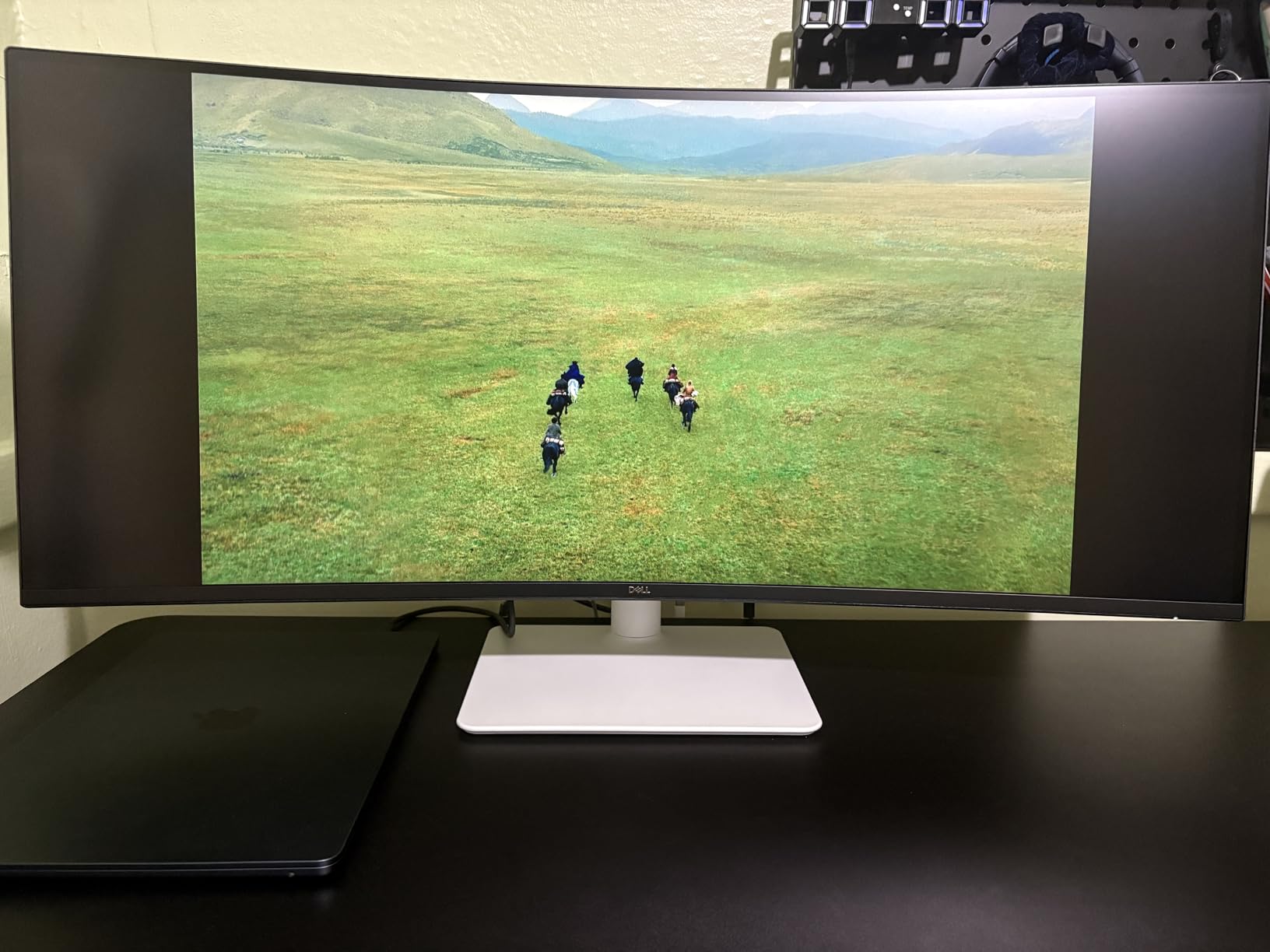
USB-C at 65W handled charging my laptop while running the display, though heavier workstations will need their own power brick. The ComfortView Plus filter visibly cut blue light during late sessions.
Color accuracy with 95 percent DCI-P3 was better than expected for this price, and the 3000:1 contrast on the VA panel made dark backgrounds look deep without backlight glow.
For Whom It’s Good
Drafters who want extra width for tool palettes, references, and chat windows without stacking a second monitor. Also great for hybrid work and entertainment.
For Whom It’s Not Ideal
Strict CAD purists on r/AutodeskInventor prefer flat panels, since curved ultrawides can subtly distort long straight lines. If your work is heavy on architectural elevations, test the curve first.
5. Samsung ViewFinity S7 32 inch – Best 4K 32-Inch for Blueprint Reading
Samsung 32″ ViewFinity S7 (S71H) 4K UHD IPS HDR10 High Resolution Monitor
- 32 inch 4K UHD with HDR10
- IPS panel for wide angles
- Matte anti glare coating
- TUV Eye Saver Mode
- PIP and PBP support
- Stand only tilts (no height)
- No USB-C
- No USB hub
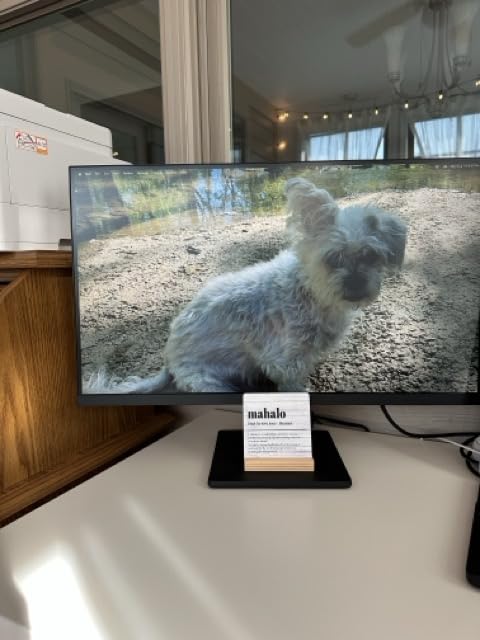
If you read full size blueprints more than you draw, a 32 inch 4K monitor like the Samsung S7 makes a serious difference. I pulled up D size sheets at 100 percent scale and could still see door schedules without zooming.
The IPS panel kept colors consistent when I shifted in my chair, which matters when leaning over a drafting table or shifting between standing and sitting positions.
The matte anti glare finish did a great job in a sunlit studio. The TUV certified Eye Saver Mode visibly tamed blue light, and reviewers with long workdays reported less end of day eye strain.
The tradeoff is a basic stand that only tilts, so most users will pair this monitor with a VESA arm for proper ergonomic positioning.
For Whom It’s Good
Architects, building inspectors, and engineers who review full size drawings all day and want pixel density to match a 32 inch canvas.
For Whom It’s Not Ideal
If you need a USB-C dock or laptop charging from the monitor, look elsewhere. This is a display only panel by modern standards.
6. LG 27US500-W – Best Borderless 4K for Clean Setups
- 4K UHD IPS at a sharp price
- 90 percent DCI-P3 with HDR10
- Borderless design for multi monitor setups
- Easy source switch
- Reader Mode and Flicker Safe
- Stand only tilts (no height)
- No USB-C
- Short power cable
The LG 27US500-W is a quiet winner in the 4K IPS category. I put it next to another panel in a dual setup and the borderless edges made the seam nearly disappear, which is a real productivity plus for full screen CAD drawings.
Color was solid for the price. The 90 percent DCI-P3 gamut handled Revit material studies and Photoshop mockups without needing calibration out of the box.
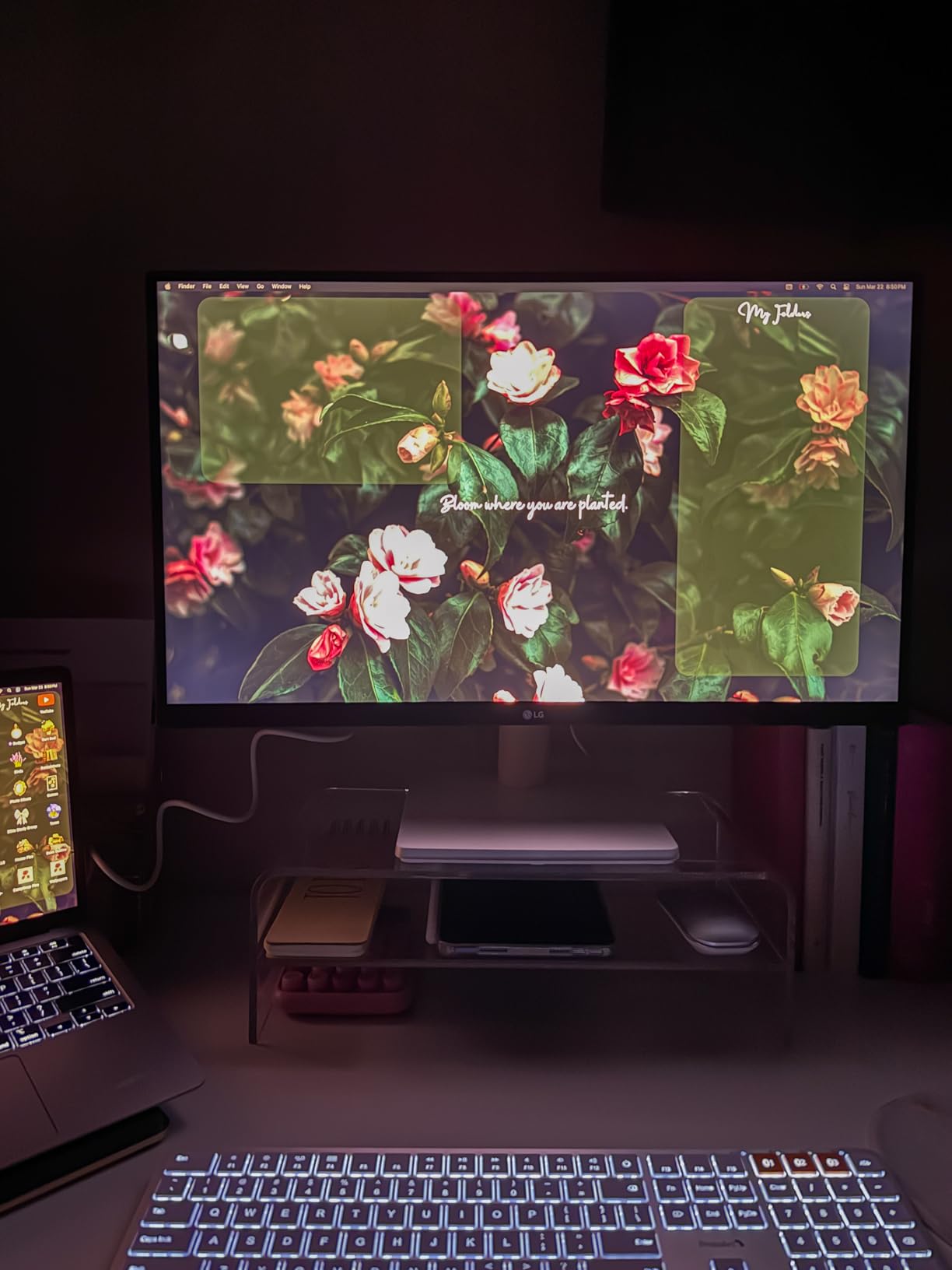
The on-screen control and easy source switch made swapping between a work laptop and a personal desktop painless. Flicker Safe and Reader Mode helped during late night design crunches.
Like the Samsung S7, the stand is the weak point. Pair it with a VESA mount and this becomes a very capable clean drafting workstation.

For Whom It’s Good
Designers who want a sharp 27 inch 4K monitor for under 300 dollars and already have a VESA arm or monitor mount.
For Whom It’s Not Ideal
If you want USB-C docking or full ergonomic adjustment in the box, spend a bit more on the ASUS ProArt or Dell UltraSharp line.
7. Samsung ViewFinity S50GC 34 inch – Best UWQHD on a Budget
- 34 inch 3440x1440 ultrawide
- 100Hz with AMD FreeSync
- HDR10 with 1 billion colors
- PIP and PBP for multi source
- Frameless design
- VA panel has some motion blur
- Limited color gamut (72 percent)
- Stand has no height adjust
The S50GC is the best monitor for drafting under 300 dollars when you want ultrawide screen real estate. The 3440×1440 resolution on a 34 inch panel gives plenty of room for tool palettes, drawing sheets, and chat apps side by side.
I tested it on multi-monitor setups and the frameless edges made dual ultrawide arrays look clean. PIP and PBP let me drive two computers into one display, which is great for users who split work and personal machines.
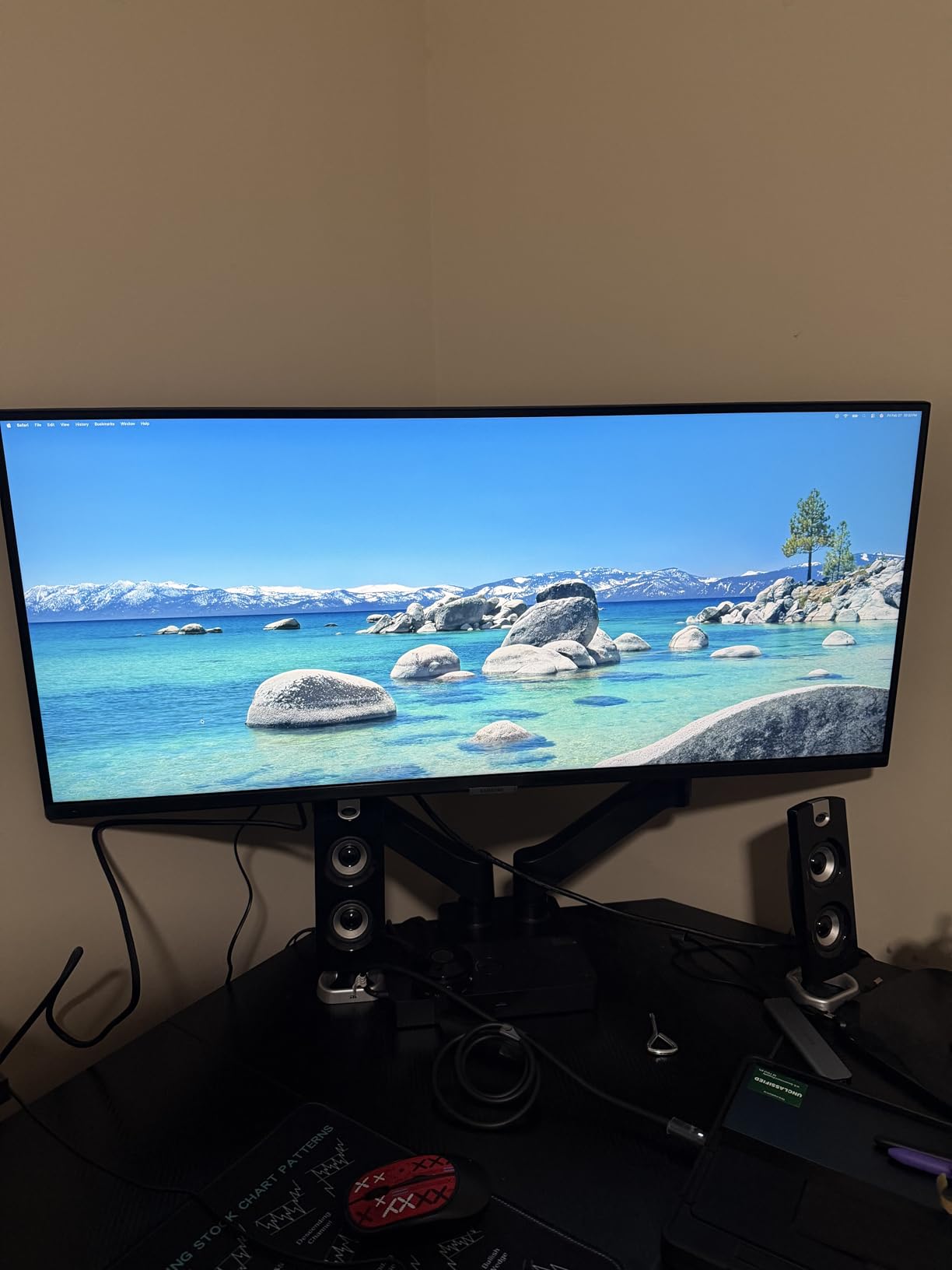
100Hz with FreeSync is a step above the standard 60Hz, and HDR10 expanded contrast enough to make blueprint backgrounds easier on the eyes. The Eye Saver Mode and flicker free backlight helped during long sessions.
The VA panel has limits. Dark colors crush a bit compared to IPS, and serious color work benefits from a calibration pass. For pure drafting and CAD, however, this monitor punches above its price.
For Whom It’s Good
Budget conscious drafters who want a wide canvas for multitasking, hybrid work, and entertainment on the same display.
For Whom It’s Not Ideal
Color critical work like print proofing or photo editing will outgrow the 72 percent color gamut. Strict CAD users on r/cad also prefer flat panels over curved for technical accuracy.
8. Dell 27 Plus S2725DSM – Best Budget IPS for Drafting
- 27 inch QHD IPS with sharp text
- 144Hz refresh rate
- TUV 4 star eye comfort
- Full ergonomic adjustments
- Built in 3W speakers
- No USB-C or USB hub
- No webcam
- Limited to HDMI and DisplayPort
The Dell 27 Plus S2725DSM is the best monitor for drafting under 200 dollars that does not cut corners where it counts. A 27 inch QHD IPS panel with 144Hz is a sweet spot for sharp text and smooth scrolling through large drawing sets.
I set it up alongside a laptop and used the height, tilt, pivot, and swivel adjustments to nail the ergonomic position without a separate arm. That alone saves budget for other studio gear.
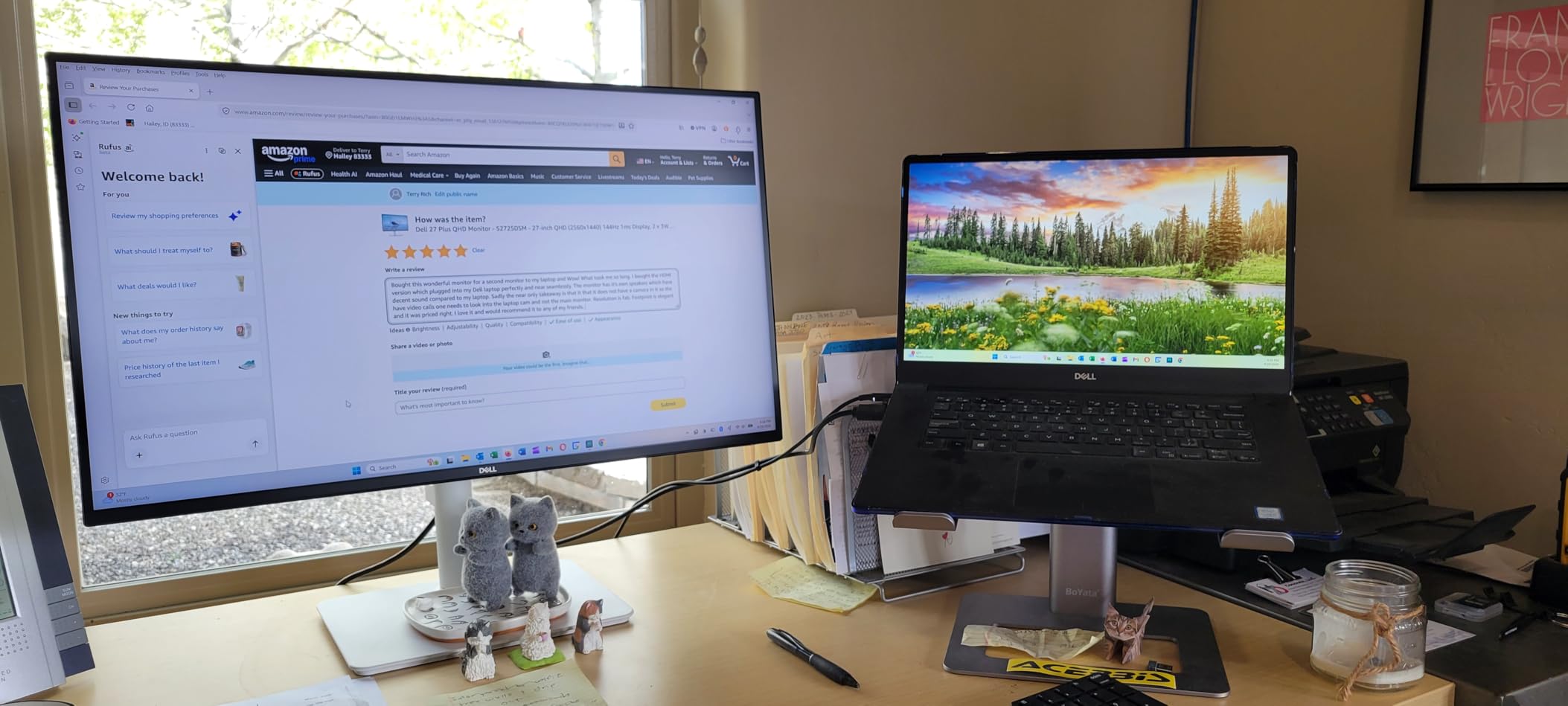
The TUV 4 star eye comfort rating is rare at this price. Blue light reduction and flicker free backlight reduced the late day eye fatigue I usually feel after long drafting runs.
For students, junior drafters, or small studios, this monitor covers 90 percent of what a CAD user needs at the lowest entry point in this list. Reviewers consistently call out the value.
For Whom It’s Good
Drafting students, hobbyists, and professionals setting up a backup or secondary workstation on a tight budget.
For Whom It’s Not Ideal
If you want USB-C docking, KVM, or a built in webcam for hybrid meetings, step up to the ASUS ProArt or Dell UltraSharp line.
Buying Guide: How to Pick the Best Monitor for Drafting
Resolution is the first filter. For drafting and CAD work, 1440p is the minimum on a 27 inch screen, and 4K is the better long term pick because thin lines and small dimension text stay legible without scaling. The Dell UltraSharp U4025QW takes it further at 5K2K for users who can use the width.
Panel type matters. IPS is the standard choice for drafting because of wide viewing angles and consistent color. VA panels like the Dell S3425DW and Samsung S50GC offer deeper contrast but tend to crush dark detail, which can hide blueprint linework.
Screen size and shape come next. A 27 inch flat panel is the safe pick. 32 inch 4K works well for blueprint reading, while ultrawides help with multitasking. Reddit drafting communities strongly prefer flat over curved for technical accuracy, since curved panels can subtly distort long straight lines.
Color accuracy is critical if your work touches rendered materials or printed output. Look for 99 percent sRGB at minimum, 90 percent or higher DCI-P3 for richer work, and factory calibration reports like Calman Verified when you can get them.
Ergonomics are not optional during 8 to 10 hour drafting sessions. Full height, tilt, swivel, and pivot adjustments are worth paying for, and a TUV certified blue light filter plus flicker free backlight make a measurable difference for eye health.
Connectivity rounds out the decision. USB-C with 60W or higher power delivery turns a monitor into a docking station and clears desk clutter. Thunderbolt 4 on premium panels adds KVM, fast data, and multi-display daisy chaining. Pair your monitor choice with the right ergonomic accessories and you can round out a full setup with our drafting chair guide and drafting table recommendations.
Frequently Asked Questions
What monitor is best for a CAD workstation?
For a CAD workstation, prioritize a 27 to 32 inch IPS panel with at least 1440p resolution, 4K preferred, plus 99 percent sRGB or higher color coverage and an ergonomic stand. The ASUS ProArt PA279CRV is our top pick because of its 4K UHD panel, 99 percent DCI-P3 coverage, Calman Verified calibration, and 96W USB-C power delivery that doubles as a dock.
Are curved monitors better for CAD?
Curved monitors help with multitasking and immersion but most CAD professionals prefer flat panels because curved screens can subtly distort long straight lines and architectural elevations. Ultrawide curved monitors like the Dell S3425DW still work well if your workflow splits between CAD on one half and references on the other.
What is the best monitor for reading blueprints?
A 32 inch 4K monitor is the best monitor for reading blueprints because full size sheets render near 1:1 without scaling. The Samsung ViewFinity S7 32 inch 4K is a strong pick, and the Dell UltraSharp U4025QW adds 5K2K width if you need a panoramic view.
IPS or VA for technical drawing?
IPS is the better choice for technical drawing thanks to wide viewing angles and consistent color across the panel. VA panels offer deeper contrast but tend to crush dark detail, which can hide blueprint linework. Pick IPS unless you specifically want a higher contrast ultrawide for split screen work.
Final Verdict
For most professional drafters, the ASUS ProArt PA279CRV is the best monitor for drafting in 2026 thanks to its 4K IPS panel, Calman Verified color, and 96W USB-C docking. The ASUS ProArt PA278QV is the smarter pick if you want that same color quality at a lower price.
Budget shoppers should not overlook the Dell 27 Plus S2725DSM, which delivers 27 inch QHD IPS with full ergonomic adjustments under 200 dollars. Pair your new monitor with the right drafting pencils and ergonomic chair to complete a setup that holds up to long design days.