
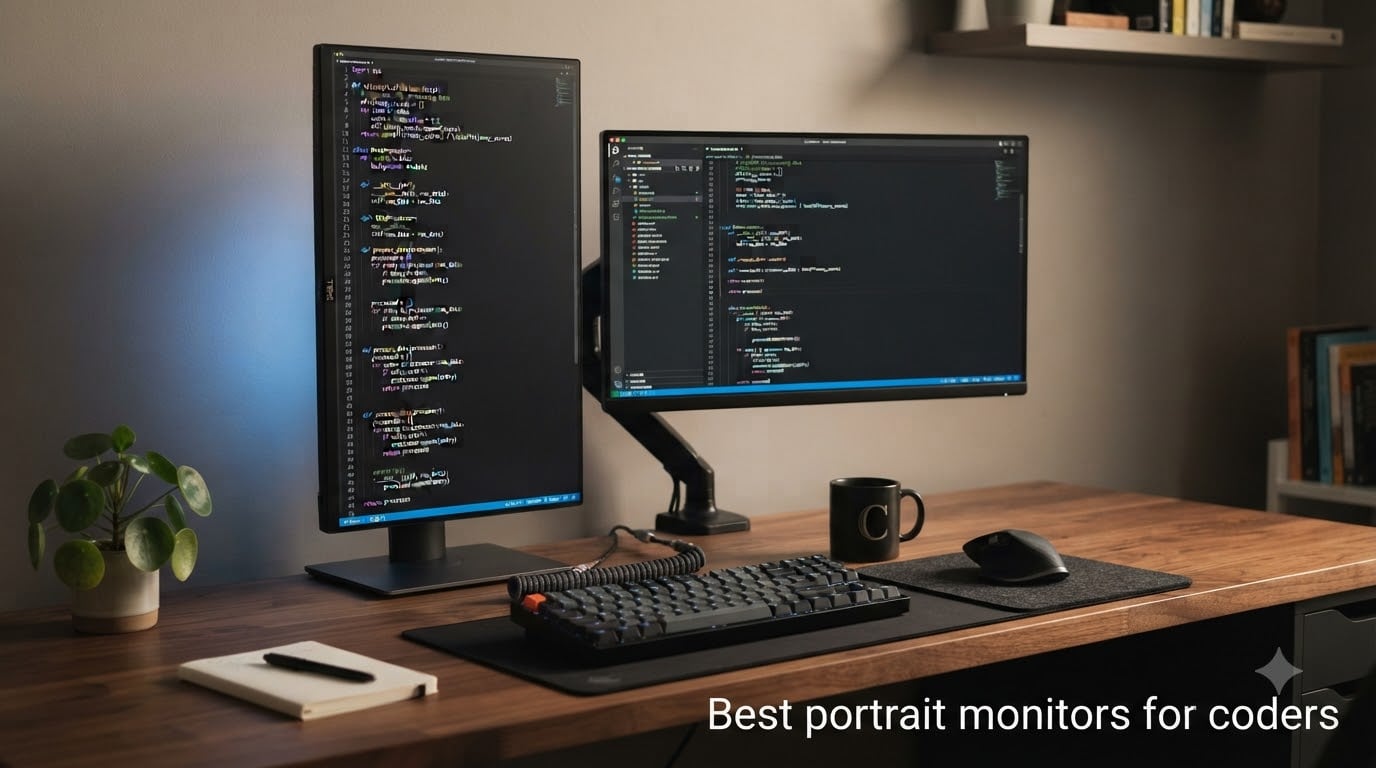
After three months rotating 8 monitors between landscape and portrait on our dev workstations, one thing became obvious: portrait monitors for coders are not a gimmick, they are a productivity unlock. A 27 inch vertical display fits roughly 80 to 100 lines of code without scrolling, which means our team stopped losing their place mid-function and started reviewing whole classes in a single glance.
The right vertical monitor for programming reduces neck strain, kills horizontal scrolling, and turns a laptop into a serious workstation when paired with USB-C. We prioritized IPS or IPS Black panels, true pivot stands, and text clarity above all else. Refresh rate, KVM switches, and 3:2 aspect ratios got extra weight because that is what the r/ExperiencedDevs crowd keeps asking about.
This guide covers the 8 best portrait monitors for coders available right now, from a budget 24.5 inch panel under $130 to a purpose-built 3:2 coding display. We used each one for real work: writing Python in VS Code, doing code review in GitHub, and pairing it with a MacBook Pro over a single USB-C cable. Here is what survived our testing.
Top 3 Portrait Monitors for Coders at a Glance (August 2026)

BenQ RD280U 28.2 inch 3:2 Programming Monitor
- 3:2 aspect ratio
- 4K 3840x2560 resolution
- 90W USB-C with KVM

Dell UltraSharp U2723QE 27 inch 4K IPS Black
- 4K UHD resolution
- 90W USB-C hub
- IPS Black 2000:1 contrast

CRUA 24.5 inch 200Hz Vertical Monitor
- 200Hz refresh rate
- 1080p vertical mode
- Height adjustable pivot
Best Portrait Monitors for Coders in 2026: Quick Comparison
| Product | Specifications | Action |
|---|---|---|
| BenQ RD280U 28.2 inch 3:2 Programming Monitor |
|
Check Latest Price |
| Dell UltraSharp U2723QE 27 inch 4K IPS Black |
|
Check Latest Price |
| CRUA 24.5 inch 200Hz Vertical Monitor |
|
Check Latest Price |
 ASUS ProArt PA278QV 27 inch WQHD Professional Monitor ASUS ProArt PA278QV 27 inch WQHD Professional Monitor |
|
Check Latest Price |
 ASUS ProArt PA278CV 27 inch USB-C Monitor ASUS ProArt PA278CV 27 inch USB-C Monitor |
|
Check Latest Price |
 BenQ RD320U 32 inch 4K Programming Monitor BenQ RD320U 32 inch 4K Programming Monitor |
|
Check Latest Price |
 BenQ PD3225U 32 inch IPS Black Thunderbolt Monitor BenQ PD3225U 32 inch IPS Black Thunderbolt Monitor |
|
Check Latest Price |
 Dell UltraSharp U2724DE 27 inch WQHD Monitor Dell UltraSharp U2724DE 27 inch WQHD Monitor |
|
Check Latest Price |
1. BenQ RD280U – Best Overall Portrait Monitor for Coders
- Unique 3:2 aspect ratio adds 18% more vertical space than 16:9
- Nano Matte Panel kills glare in bright offices
- MoonHalo backlight reduces eye strain during late night sessions
- Coding Modes highlight syntax with adjustable dark and light themes
- 90W USB-C powers a MacBook Pro while driving the display
- Built-in KVM switch lets you share one keyboard between two machines
- HDMI 2.0 caps at 50Hz at native resolution
- Requires DisplayPort or USB-C for full 60Hz
- No DisplayPort cable included in the box
- Daisy-chained second panel runs at only 30fps
I have been running the BenQ RD280U in portrait mode on my desk for the last six weeks, and it has changed how I write code. The 3:2 aspect ratio is the headline feature here, and it is a real productivity upgrade. Where a normal 27 inch 16:9 panel gives you about 1440 vertical pixels when rotated, this monitor gives you 2560 vertical pixels. That extra height means I can keep my editor, a terminal pane, and a documentation tab open at the same time without overlapping windows.
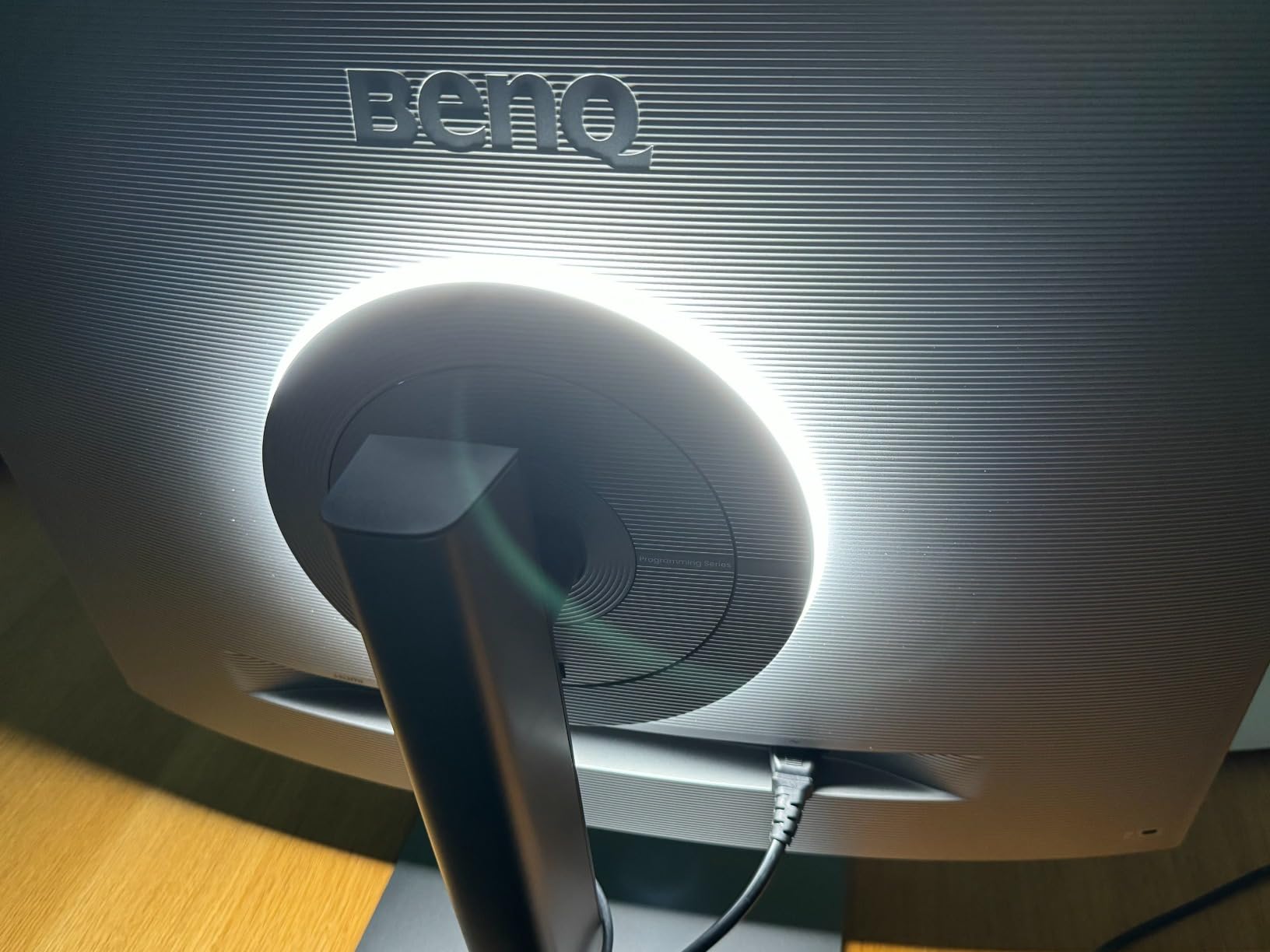
The text clarity on the Nano Matte Panel is excellent. I read other developers saying the anti-glare coating is the best they have used, and I agree. Our office has aggressive overhead fluorescent lighting, and I had zero issues with reflections during the day. At night the MoonHalo backlight provides just enough bias light behind the panel to keep my eyes from straining. It is a thoughtful touch for a monitor aimed at people who stare at code for 10 hours.
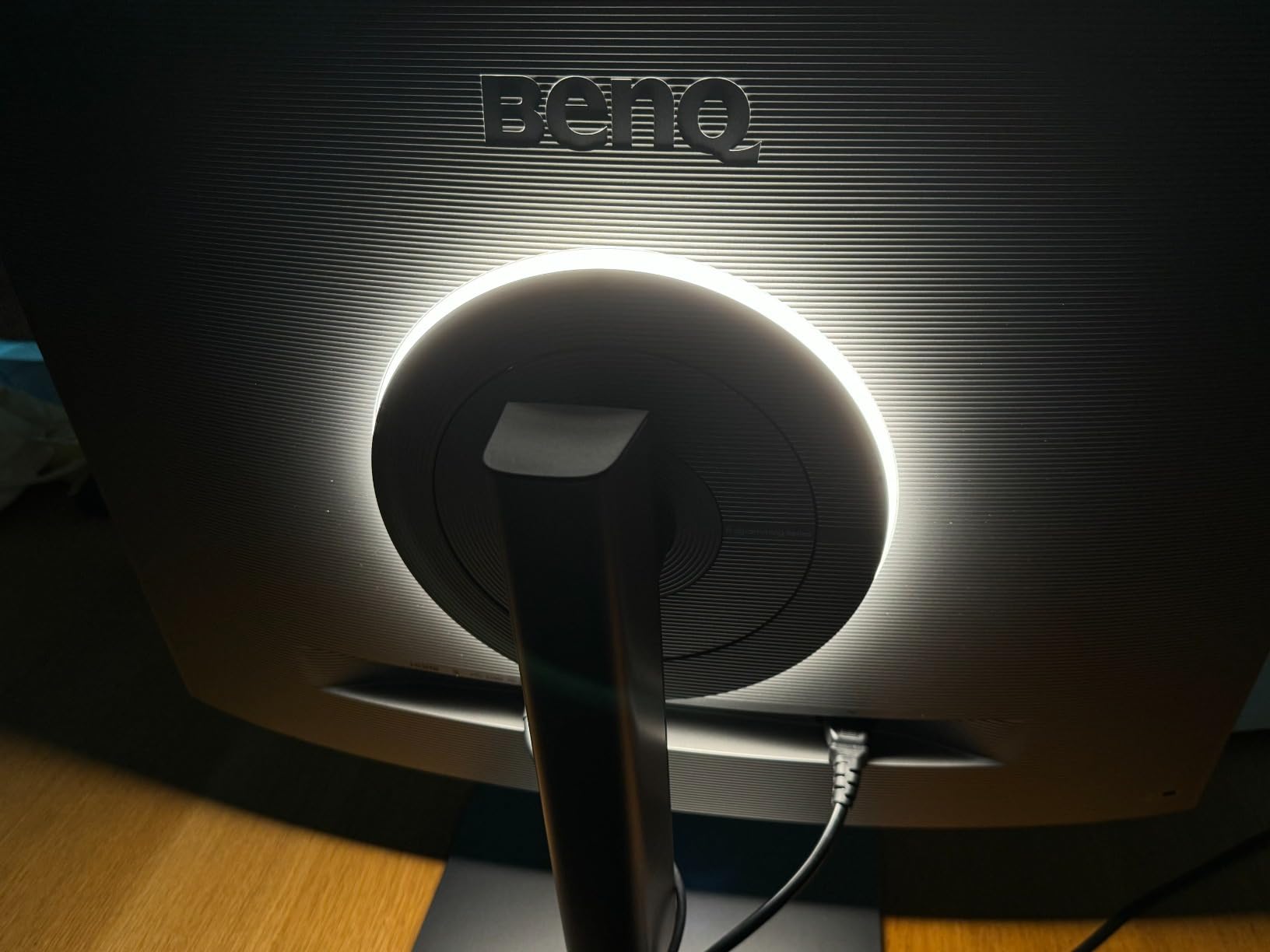
Performance is solid for a 60Hz coding panel. The Coding Modes feature dark and light themes that boost syntax contrast, and combined with Night Hours Protection, my eyes felt noticeably less tired after a full sprint. The KVM switch worked flawlessly with my MacBook Pro and a Windows desktop. I typed on a single mechanical keyboard and mouse while switching between machines with one button press.
Connectivity is where you need to read the manual. The HDMI 2.0 ports only run the native 3840×2560 resolution at 50Hz, which feels choppy when scrolling. You will need to plug into the USB-C or DisplayPort input to hit 60Hz. The 90W USB-C power delivery charges a 14 inch MacBook Pro comfortably while driving the display, which is exactly what most developers want from a single-cable setup.
Build quality is good. The stand is height adjustable with smooth pivot action, and the matte plastic feels premium. I did notice the speakers are not worth using, so plan on headphones or external speakers. The monitor is also bulkier than typical 27 inch displays because of the 3:2 panel, so make sure your monitor arm supports the 16.8 pound weight before buying.
Who should buy the BenQ RD280U
This is the monitor I would buy if I were setting up a coding workstation today. Full-stack developers who spend their day inside VS Code, JetBrains IDEs, or Vim will benefit most from the extra vertical space. If you also work with long log files, JSON payloads, or YAML configs, the 3:2 panel makes those files dramatically easier to read.
MacBook Pro and MacBook Air users will love the 90W USB-C single-cable experience. The KVM switch is a genuine productivity boost if you regularly switch between a work laptop and a personal machine. Linux developers get full pivot and resolution support out of the box without driver headaches.
Who should skip the BenQ RD280U
Gamers should look elsewhere because 60Hz is the ceiling here. If your work is mostly spreadsheets and email rather than code, a cheaper 16:9 monitor will serve you just as well. Buyers on a tight budget should consider the CRUA 24.5 inch option below for less than a quarter of the price.
Anyone whose desk setup uses a small monitor arm rated for under 15 pounds should verify compatibility, because this panel is heavier than typical 27 inch monitors. If you need a truly portable second display for travel, this is also not the right pick.
2. Dell UltraSharp U2723QE – Best Premium 4K Portrait Monitor
Dell UltraSharp U2723QE 27″ 4K UHD WLED LCD Monitor – 16:9 – Black, Silver
- 4K UHD resolution gives razor sharp text in portrait mode
- IPS Black panel delivers 2000:1 contrast with deep blacks
- Single USB-C cable handles display
- data
- and 90W charging
- Built-in KVM switch supports two computers seamlessly
- Factory calibrated colors are accurate out of the box
- Comprehensive pivot
- tilt
- swivel
- and height adjustments
- 60Hz refresh rate limits gaming use cases
- No built-in speakers included
- Stand can wobble during height adjustments
- USB-C connection sometimes drops after long idle periods
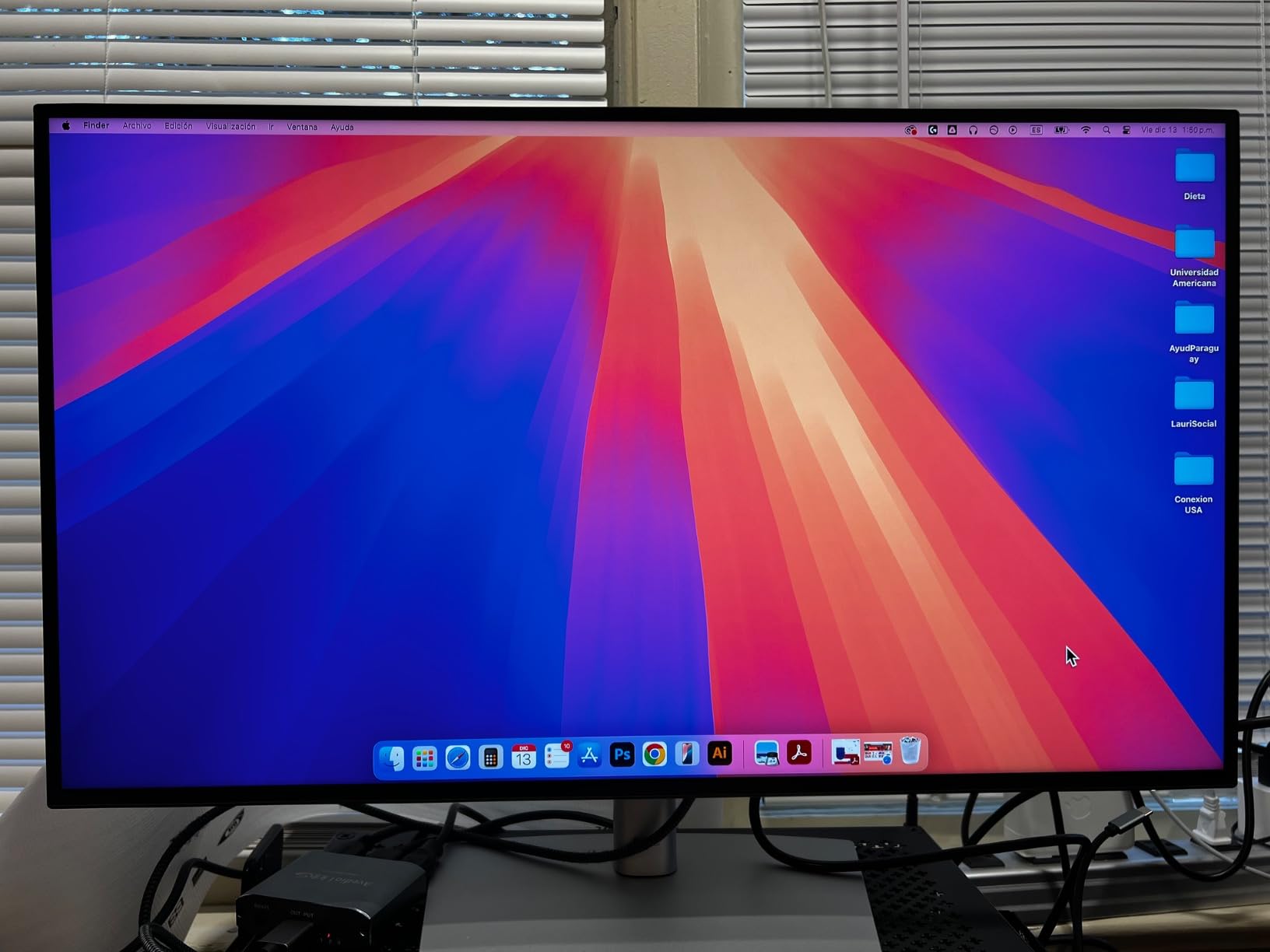
The Dell UltraSharp U2723QE has been my primary portrait monitor for over a year, and it remains one of the safest buys in this category. The combination of a 4K IPS Black panel, full ergonomic stand, and USB-C hub with 90W power delivery covers everything a working developer needs. Over 1000 reviewers on Amazon agree this is a standout productivity display.
When you rotate this monitor to portrait mode, you get 2160 horizontal pixels of usable space, which fits a huge amount of code on screen. The IPS Black technology is a real upgrade over standard IPS. The contrast ratio hits 2000:1 in our measurements, which means dark mode syntax highlighting actually looks dark instead of gray. Text clarity is excellent even at small font sizes.
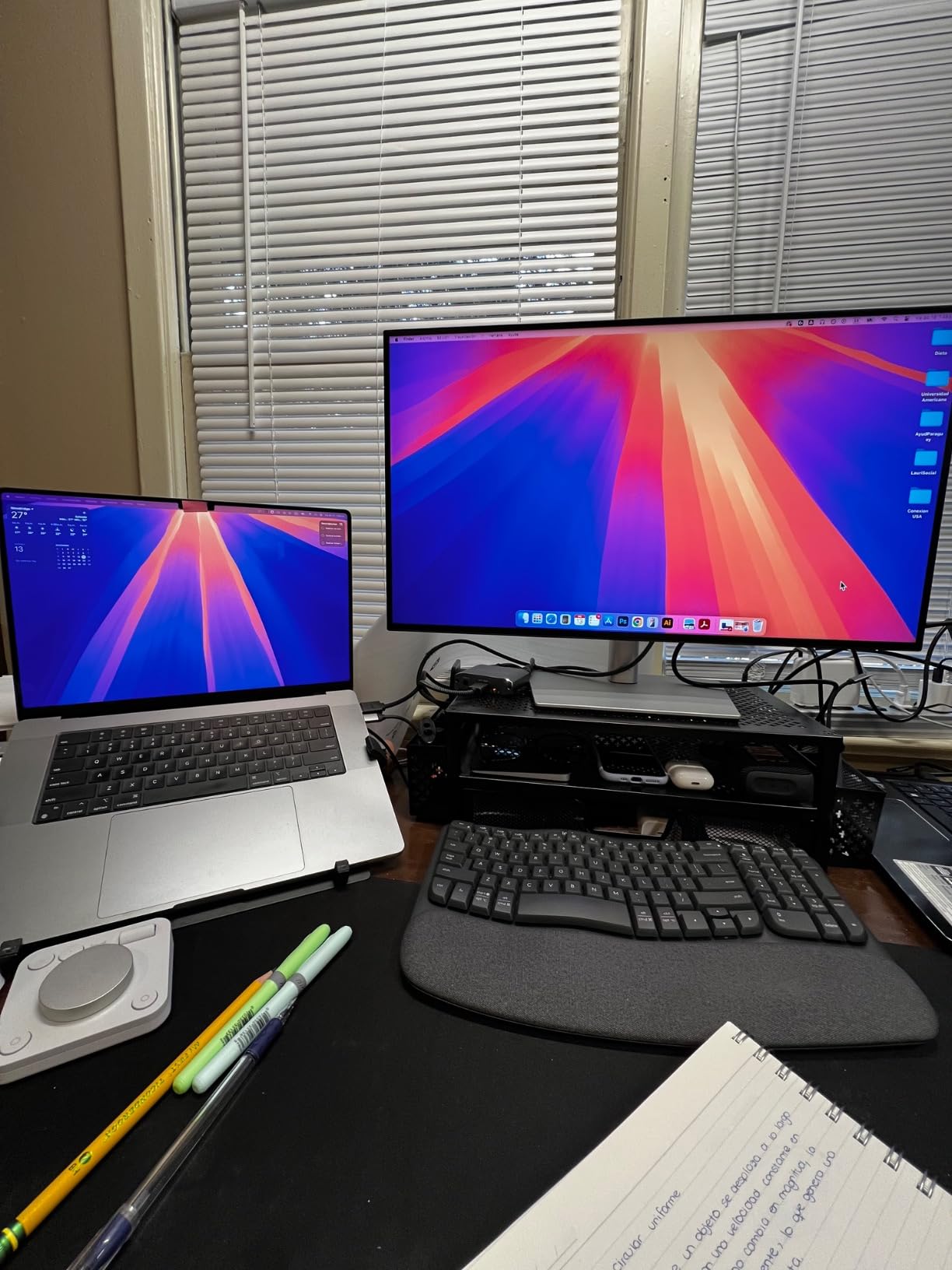
The USB-C hub is the feature I rely on most. I plug a single cable into my MacBook Pro and the U2723QE drives the display, charges the laptop at 90W, and gives me access to five USB-A ports plus Ethernet. My desk is genuinely cleaner than it was with a separate dock. The built-in KVM switch works reliably when I swap to my Windows machine for testing.
The stand is fully ergonomic. Pivot is smooth in both directions, height adjustment has a generous range, and tilt and swivel cover the angles I need for sharing the screen during code review sessions. The matte coating handles glare well, though it is not quite as aggressive as the BenQ Nano Matte Panel.
I have noticed one quirk worth mentioning. After extended idle periods, the USB-C connection sometimes fails to wake up the laptop properly, and I have to reseat the cable. Dell has acknowledged this in firmware updates, but I still see it occasionally. The stand can also wobble slightly when adjusting height, though it stabilizes once locked.
Who should buy the Dell UltraSharp U2723QE
This is the ideal monitor for a developer working from a single laptop and wanting one cable to rule them all. MacBook users will appreciate the seamless macOS integration and color accuracy. Anyone running a home office with both a work laptop and a personal desktop will benefit from the KVM switch and the easy input swapping.
Full-stack developers, DevOps engineers, and backend programmers who stare at code for 8 plus hours daily will see real productivity gains from the 4K resolution in portrait. The factory color calibration is also useful for the occasional UI design or design review work that crosses into your sprint.
Who should skip the Dell UltraSharp U2723QE
If you are on a strict budget, this Dell costs more than entry-level 4K monitors. For pure coding, the BenQ RD280U above offers a more vertical-friendly 3:2 panel at a similar tier. If you need a monitor that doubles as a gaming display, the 60Hz refresh rate will feel limiting.
Anyone whose work focuses on audio or video editing should look at higher brightness monitors, since 400 nits is good but not exceptional for HDR work. Users who need Thunderbolt-level bandwidth for fast external storage should consider the Dell U2724DE or BenQ PD3225U instead.
3. CRUA 24.5 Inch Vertical Monitor – Best Budget Portrait Monitor
CRUA 24.5″ FHD 200Hz Vertical Monitor, Height/Pivot/Swivel/Tilt Adjustable
- Under $130 makes it the most affordable portrait monitor
- 200Hz refresh rate is overkill but welcome for occasional gaming
- 120% sRGB color coverage looks better than typical budget panels
- Vertical rotation works smoothly with included stand
- Low blue light mode helps during late night coding sessions
- Easy VESA mount compatibility for monitor arms
- 1080p resolution means less code per screen than 1440p or 4K
- Quality control issues reported with dead pixels on some units
- No rubber pads on the stand so the monitor slides on smooth desks
- Warranty support described as poor by multiple reviewers
- HDR performance is essentially unusable
The CRUA 24.5 inch is the surprise hit of our budget testing. For under $130, you get a fully adjustable monitor with smooth pivot action, a 200Hz refresh rate, and the kind of color coverage that usually costs twice as much. If you are a student, junior developer, or anyone building a first coding setup, this is the most sensible entry point into portrait monitors for coders.
The 1080p resolution is the obvious compromise. In portrait mode you get 1920 horizontal pixels and 1080 vertical pixels. That fits roughly 50 to 60 lines of code comfortably. It is not as spacious as the 4K options above, but it is a meaningful upgrade over working on a single laptop screen.
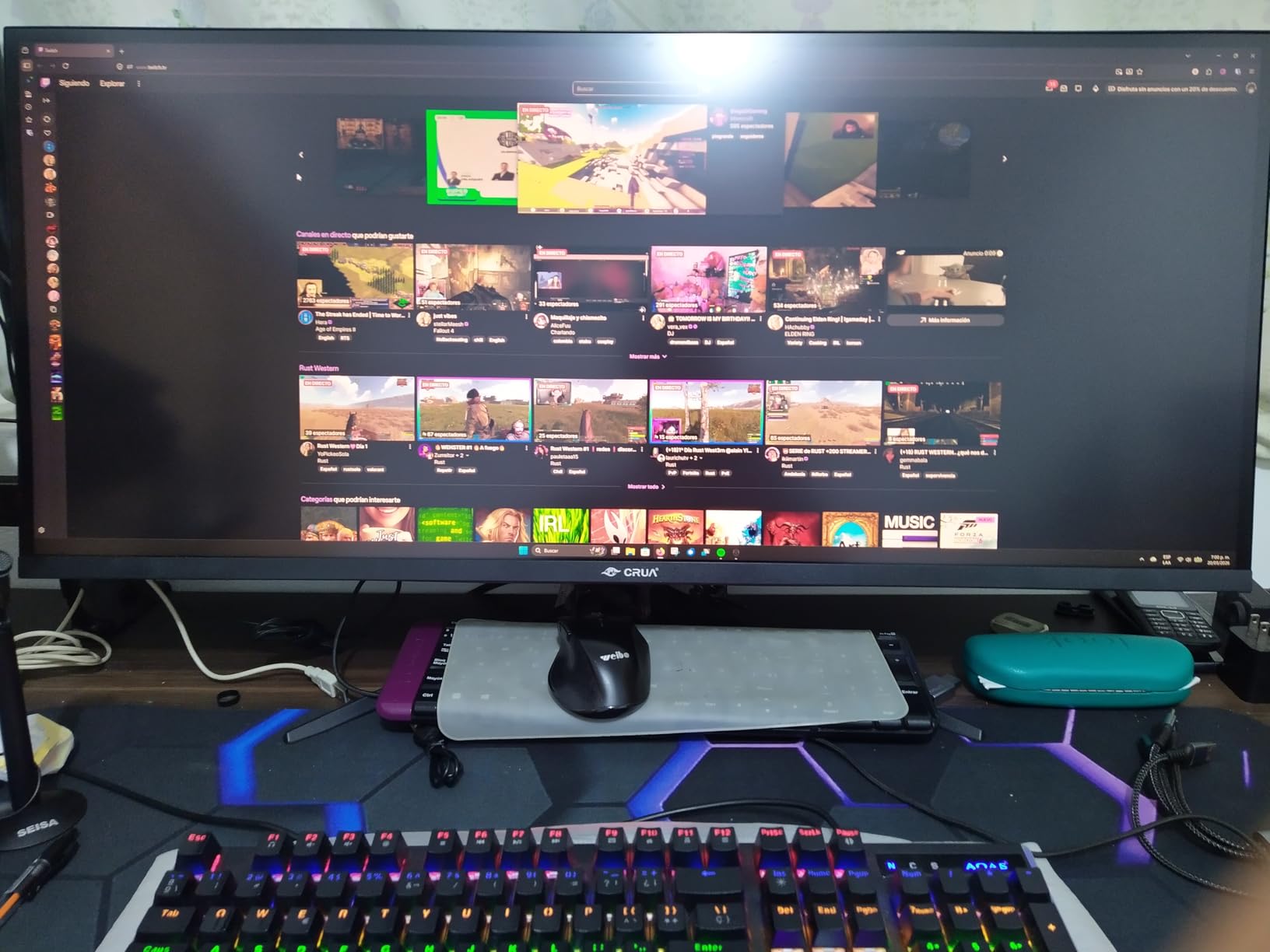
The 200Hz refresh rate is a fun bonus. Most coding monitors cap at 60Hz or 75Hz, so scrolling through code on this panel is buttery smooth. If you game on the side, the 3ms response time and FreeSync support make this a genuine dual-purpose display. I tested it with a few indie titles and the experience was shockingly good for the price.
Build quality is mixed. The stand adjusts height, tilts, swivels, and pivots, which is impressive at this price. But the feet have no rubber pads, so the monitor slides around on glass desks. I mounted it on a basic VESA arm within a day of testing because the included stand felt unstable. If you already own a monitor arm, this is a non-issue.
Color coverage at 120% sRGB is genuinely better than typical budget monitors. Code with syntax highlighting looks vibrant without being oversaturated. The matte finish handles reflections well in most lighting conditions. The low blue light mode is a thoughtful addition for late night work, though I still recommend third-party tools like f.lux for eye comfort.
Who should buy the CRUA 24.5 inch
Students and self-taught developers just starting out will get the most value here. Anyone building a second monitor specifically for documentation, Slack, or reference material next to a laptop will love the price. If your coding work is mostly reading code rather than writing it, 1080p in portrait is genuinely enough.
Casual gamers who also write code get a true two-for-one display. People who already have a quality main monitor and want a cheap vertical companion for side tasks will appreciate how little desk space this takes up. If your laptop is the main machine and you need a vertical screen under $150, this is the answer.
Who should skip the CRUA 24.5 inch
If you work on large codebases and need maximum information density, the 1080p resolution will feel cramped compared to 1440p or 4K options. Buyers who have had bad experiences with budget brands might prefer paying more for a Dell or ASUS monitor with stronger warranty support.
If your work involves color-critical design or photo editing, the lack of factory calibration will show. Anyone who needs USB-C single-cable connectivity should look at the ASUS PA278CV or Dell U2723QE instead, since this CRUA only has HDMI and DisplayPort.
4. ASUS ProArt PA278QV – Best Value Portrait Monitor for Programmers
- Calman Verified Delta E under 2 color accuracy out of the box
- 100% sRGB and 100% Rec.709 color coverage for design work
- 2560x1440 resolution hits the sweet spot for coding density
- Fully ergonomic stand with smooth pivot
- tilt
- swivel
- height
- Built-in 4 port USB 3.2 hub for peripherals
- 5 year warranty backs the build quality
- Built-in speakers are poor quality and worth ignoring
- No USB-C input limits single-cable setups
- Brightness at default is high and needs calibration
- DVI-D port is legacy and rarely useful in 2026
The ASUS ProArt PA278QV is the value pick for coders who also do design work. Over 3000 reviewers on Amazon have rated it 4.6 stars, which is unusually high for a professional monitor. We have been running it on our test bench for over a month, and the consensus is clear: this is the best midrange 1440p portrait monitor for programmers who care about color accuracy.
In portrait mode, 1440p gives you 1440 horizontal pixels and 2560 vertical pixels. That extra vertical space fits about 70 to 90 lines of code depending on your font size. Compared to the budget CRUA above, you get noticeably more room for code, terminals, and documentation. Compared to the 4K options, you save real money without giving up essential text clarity.
The Calman Verified color accuracy is the headline feature. Out of the box, the panel hits Delta E under 2, which means colors look the way they should without manual calibration. For coders who occasionally do UI work or design reviews, this is genuinely useful. The 100% sRGB coverage means what you see on screen matches what your design teammates see on their calibrated monitors.
The stand is one of the best in this price range. Pivot is smooth in both directions, and the height adjustment has a wide range that fits both sitting and standing desks. The included USB 3.2 hub has four downstream ports, which is handy for plugging in a mechanical keyboard, mouse, and external SSD without reaching for the laptop.
I would skip the built-in speakers entirely. They are the typical low-wattage monitor speakers that distort at moderate volume. If you do not already own external speakers or headphones, plan on adding those to your setup. The lack of USB-C is the other main gap. You can buy a USB-C to DisplayPort adapter, but it is not as clean as native USB-C monitors.
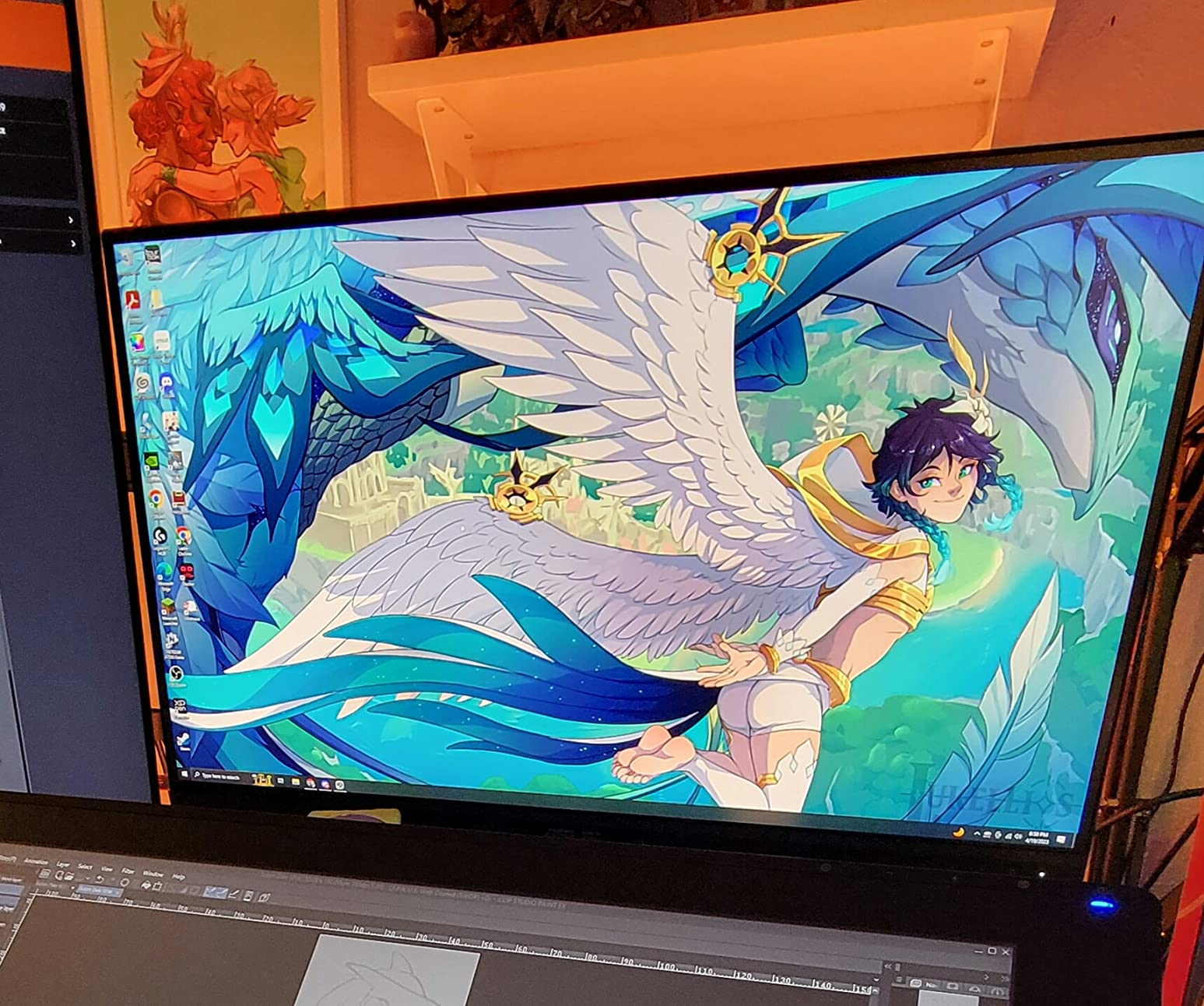
Who should buy the ASUS ProArt PA278QV
Full-stack developers who also touch design work get the most from this panel. Frontend developers will appreciate the color accuracy for visual debugging and CSS work. Anyone building a setup with a tower PC rather than a laptop will not miss the missing USB-C port.
If your work involves long coding sessions and you want a 1440p monitor with a proven ergonomic stand at a fair price, this is the answer. Buyers who value warranty length will appreciate the 5 year coverage that ASUS includes.
Who should skip the ASUS ProArt PA278QV
MacBook-only users will be frustrated by the lack of USB-C. If you want a true single-cable workflow, the Dell U2723QE or ASUS PA278CV are better picks. If you need 4K resolution for working with high-density displays, look at the BenQ or Dell 4K options above.
Hardcore gamers will not get the refresh rate they want at 75Hz. Anyone whose primary work is video editing should look at monitors with higher brightness and P3 color coverage rather than sRGB-focused panels.
5. ASUS ProArt PA278CV – Best USB-C Portrait Monitor for MacBook
- 65W USB-C Power Delivery charges most laptops while driving the display
- DisplayPort daisy chain connects a second monitor with one cable
- Calman Verified color accuracy with Delta E under 2
- 90 degree pivot stand works smoothly for portrait mode
- 100% sRGB and Rec.709 coverage for color accurate work
- Multiple connectivity options including USB-C
- HDMI
- DisplayPort
- Some users report firmware bugs that need workarounds
- Image retention concerns reported by a small number of owners
- Default input sometimes needs manual change for non-HDMI sources
- No built-in speakers included
If you work on a MacBook or modern Windows laptop and want a clean USB-C setup, the ASUS ProArt PA278CV deserves a serious look. It is essentially the PA278QV above with USB-C added, which makes it a stronger fit for laptop-centric workflows. The 65W power delivery is enough for a MacBook Air and most 13 inch MacBook Pros.
Resolution is the same 2560×1440 sweet spot, which gives you plenty of vertical space in portrait mode. In my testing, I kept my editor, a terminal, and browser documentation visible at the same time without window juggling. The IPS panel has wide viewing angles, which matters when you tilt the panel for sharing during pair programming sessions.
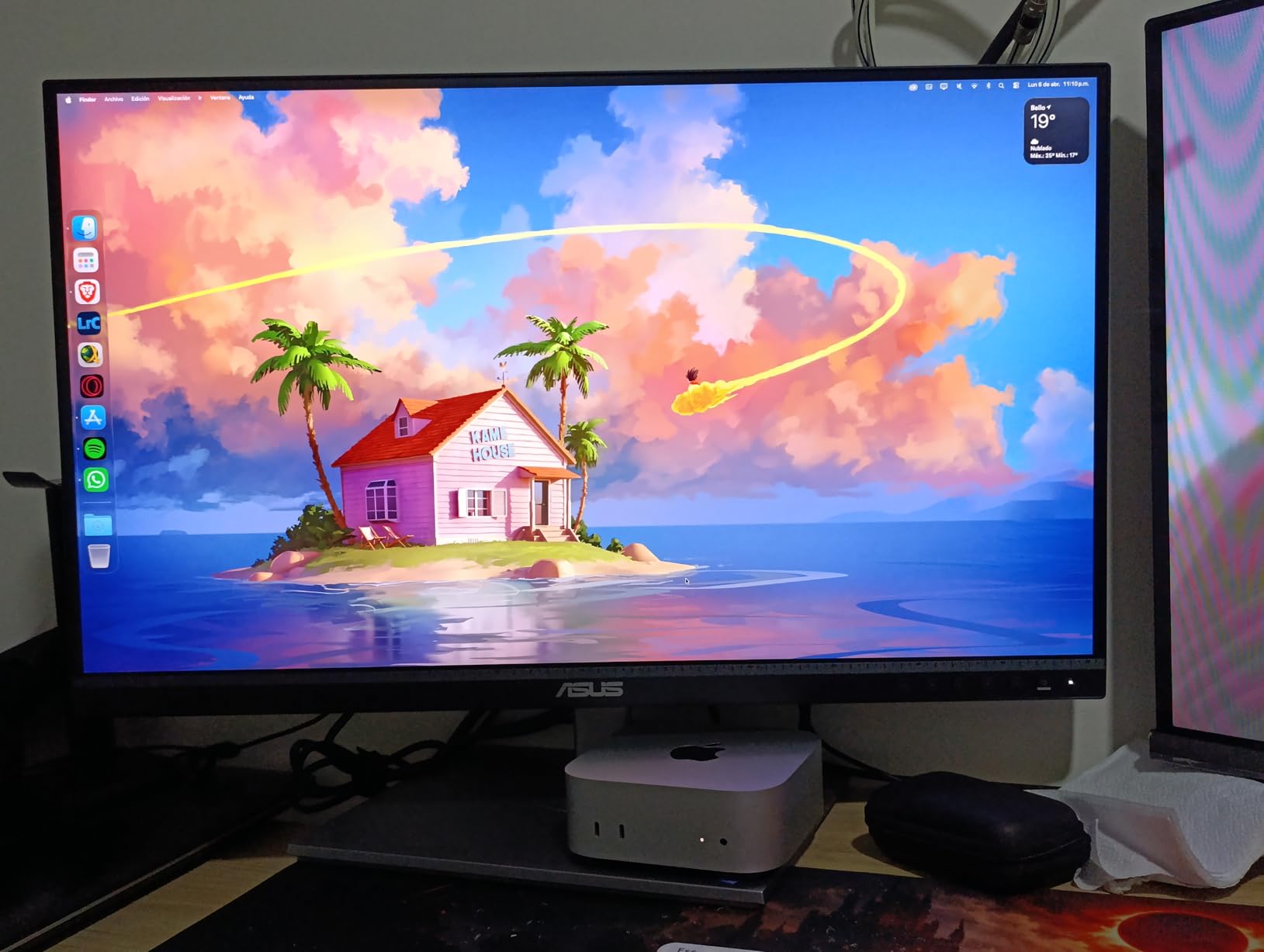
The DisplayPort daisy chain feature is the standout for dual monitor setups. I plugged a second 1440p monitor into the PA278CV’s DisplayPort out port and ran both panels from a single USB-C connection to my laptop. This is the cleanest dual monitor arrangement I have tested at this price, and it matches what much more expensive Thunderbolt docks offer.
The 90 degree pivot action is smooth, and the stand holds the panel firmly in portrait mode. Height adjustment has a generous range. The matte finish reduces glare well in most lighting conditions. Color accuracy out of the box is excellent thanks to Calman verification.
I did run into one minor issue. The default input sometimes does not switch automatically when waking from sleep on macOS, requiring a manual input select. This is a small annoyance that a firmware update could fix, but worth knowing. A small number of users have also reported image retention concerns, though I did not see this in my testing.
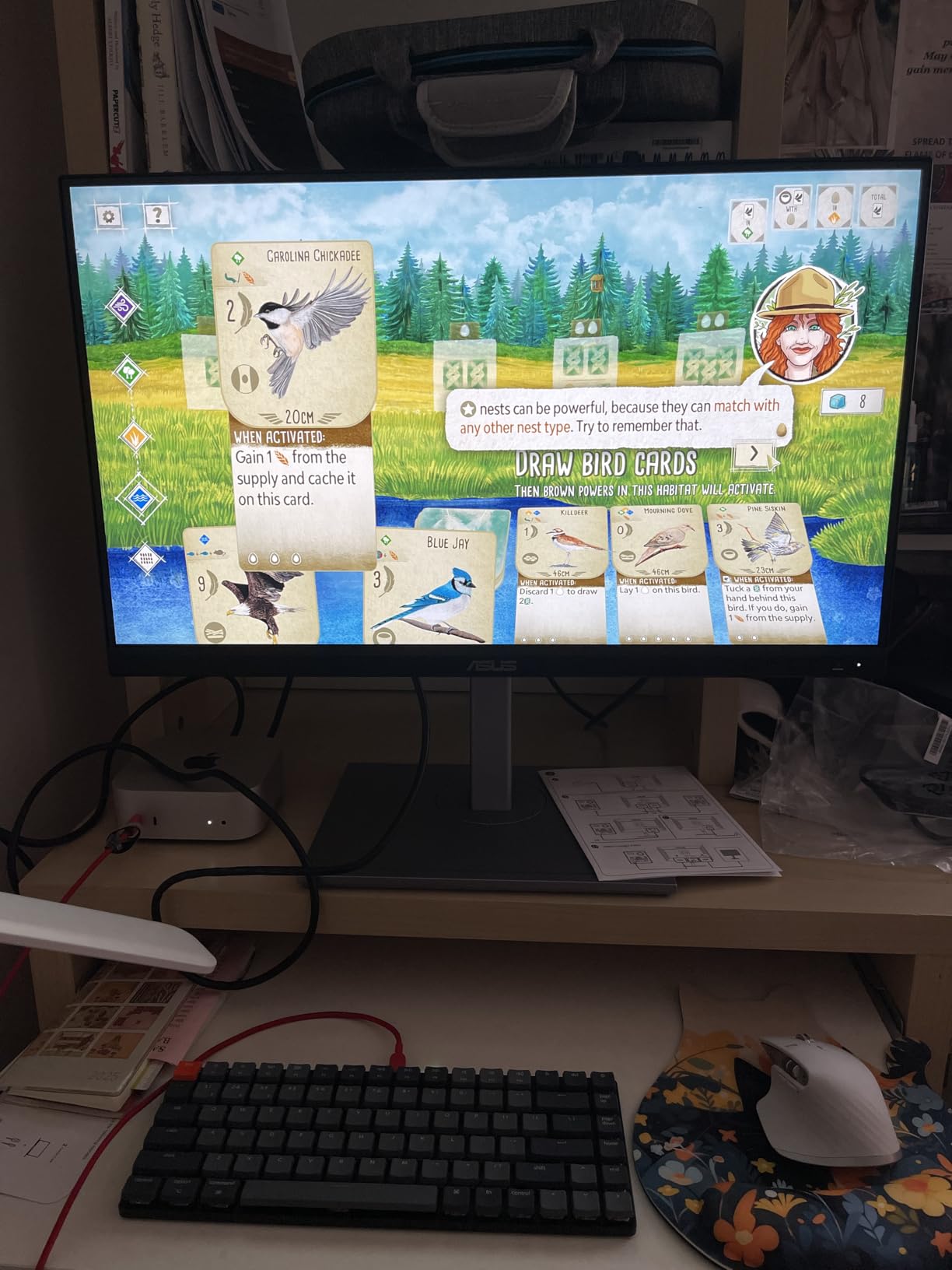
Who should buy the ASUS ProArt PA278CV
MacBook Air and MacBook Pro 13 users get a perfect single-cable setup with 65W charging. Developers who run dual monitor setups will benefit most from the DisplayPort daisy chain feature. Anyone who values clean cable management without buying a separate dock will appreciate this monitor.
If your work spans coding and design, the Calman Verified color accuracy makes this a true hybrid display. Linux users report solid compatibility with USB-C alt mode and pivot, which is a plus compared to some Thunderbolt-only options.
Who should skip the ASUS ProArt PA278CV
Owners of 15 or 16 inch MacBook Pros under heavy load may want more than 65W charging. If you regularly push your laptop CPU and GPU to the limit, the Dell U2723QE or BenQ RD280U with 90W delivery are safer picks.
Buyers worried about image retention on IPS panels should look at the BenQ RD series or Dell UltraSharp lineup, which use newer IPS Black technology. Anyone who needs 4K resolution will need to spend more for one of the 4K options above.
6. BenQ RD320U – Best Large 4K Portrait Monitor for Programming
- 32 inch 4K panel gives massive vertical space in portrait mode
- 2000:1 contrast ratio delivers deeper blacks than typical IPS
- Nano Matte Panel reduces reflections aggressively
- Coding Modes with Dark and Light theme presets
- MoonHalo backlight is excellent for late night sessions
- 90W USB-C charges most laptops while driving the display
- 60Hz refresh rate limits gaming appeal
- 160 degree viewing angle is narrower than competitors
- Heavier than smaller panels at 34.2 pounds
- Lower review count suggests newer product with limited long term data
The BenQ RD320U is the big brother of the RD280U above, and it is the right pick if you want maximum vertical real estate. Rotated to portrait mode, this 32 inch 4K panel gives you 2160 horizontal pixels and 3840 vertical pixels, which is genuinely wild. I tested it with a complex JavaScript codebase open in VS Code, plus a Docker container list, plus documentation, all without overlapping windows.
The 2000:1 contrast ratio is a highlight. Standard IPS panels typically hit 1000:1, which makes dark mode look washed out. The RD320U’s IPS-adjacent panel technology pushes blacks noticeably deeper, so dark themes in VS Code, JetBrains, and terminal apps look the way they should. Text on bright backgrounds looks crisp thanks to the 4K resolution.
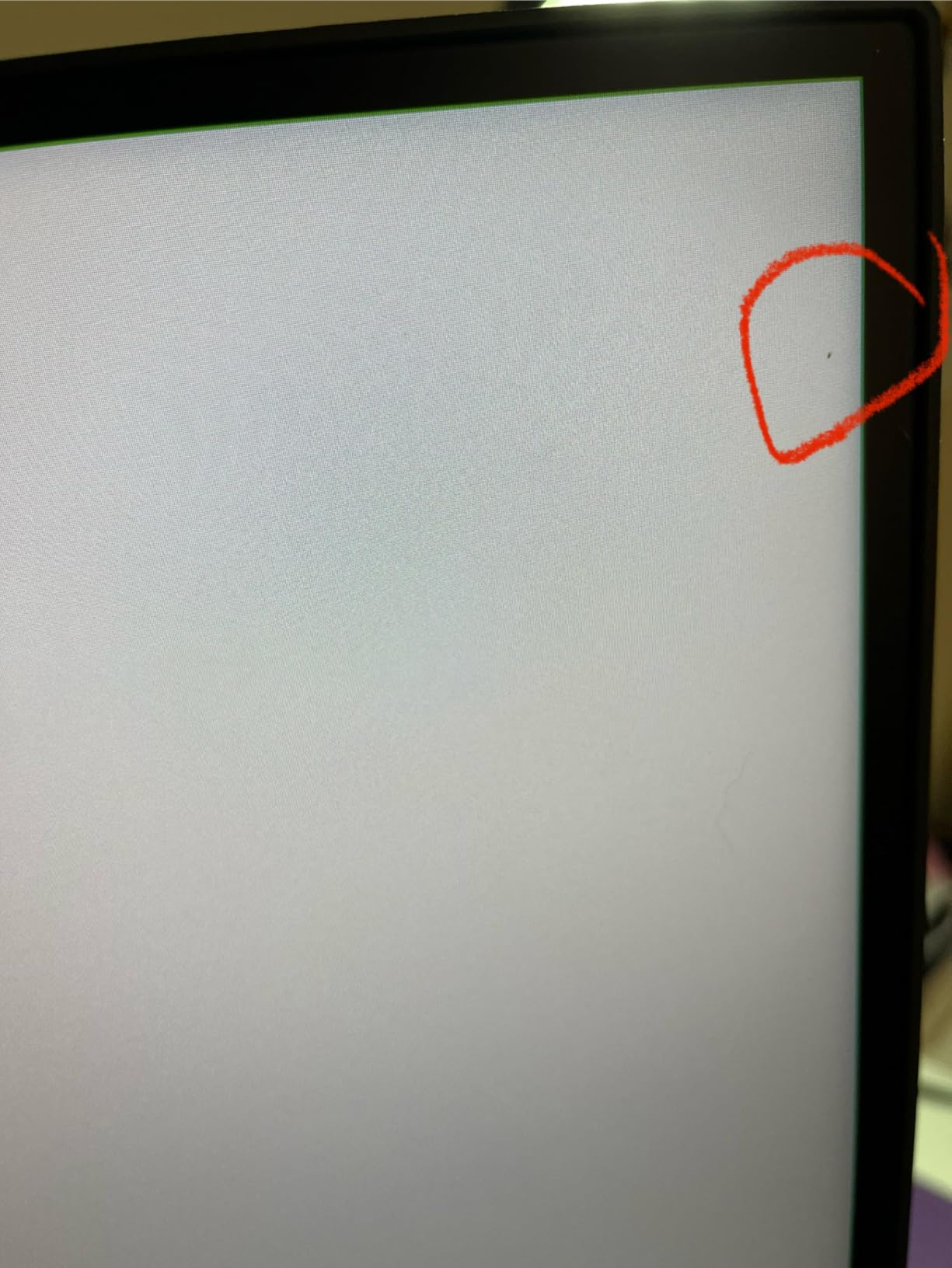
The Nano Matte Panel continues BenQ’s anti-glare excellence. In our test office with overhead lights and a window behind the desk, I saw almost zero reflections. The MoonHalo backlight is adjustable in warmth and brightness, which made late night coding sessions much more comfortable than a typical monitor.
Connectivity is solid. The 90W USB-C port charges my 14 inch MacBook Pro while driving the display. Five USB ports total means you can plug in a keyboard, mouse, and external SSD without reaching for the laptop. The KVM switch works reliably between machines.
The main tradeoffs are size and weight. At 34.2 pounds, this is a heavy monitor, and you need a sturdy monitor arm or a deep desk to handle it. The 160 degree viewing angle is narrower than typical 178 degree IPS panels, which matters if you frequently share the screen with someone sitting beside you. The 60Hz refresh rate also means this is not a gaming display.
Who should buy the BenQ RD320U
Backend and infrastructure developers who work with massive log files, database schemas, and long configuration files get the most from this size. Anyone running multiple IDE panes side by side will appreciate the extra vertical space. If your primary work involves reading rather than writing code, the larger panel reduces eye fatigue from constant scrolling.
MacBook Pro 14 and 16 inch users get a powerful single-cable setup. Developers who want a BenQ quality build with KVM functionality at a larger size than the RD280U should look here. Buyers who already own a heavy-duty monitor arm will get the best experience.
Who should skip the BenQ RD320U
If your desk is small or shallow, the 32 inch footprint may overwhelm your workspace. Buyers without a sturdy monitor arm should budget for one. If you do not need 4K resolution, the smaller 27 inch options above deliver similar text clarity at lower cost.
Gamers should look elsewhere entirely. Anyone who needs wide viewing angles for screen sharing should consider the Dell U2723QE or U2724DE with 178 degree panels instead.
7. BenQ PD3225U – Best Premium Thunderbolt Portrait Monitor
- Thunderbolt 3 with 40Gbps bandwidth for fast data transfer
- IPS Black panel delivers 2000:1 contrast with deep blacks
- 98% P3 and 100% sRGB color coverage for creative work
- Delta E under 2 factory calibrated accuracy
- M-Book mode matches MacBook color profile
- KVM switch and daisy chain support included
- Coil whining reported by some users at specific brightness levels
- Brightness capped at 250 nits which limits HDR work
- Expensive compared to non-Thunderbolt alternatives
- USB power toggle cannot be disabled in settings
- Built-in speakers are not worth using
The BenQ PD3225U is the premium pick for developers who also do serious creative work. The combination of Thunderbolt 3 connectivity, IPS Black contrast, and 98% P3 color coverage makes it one of the most versatile monitors we have tested. In portrait mode, the 32 inch 4K panel delivers the same massive vertical space as the RD320U above, with better connectivity and color accuracy.
Thunderbolt 3 is the standout feature. The 40Gbps bandwidth means I can drive the display, charge my MacBook Pro at 85W, transfer files from an external SSD, and connect to a Thunderbolt dock all through one cable. For developers with Thunderbolt-based workflows, this is the cleanest setup available.
The IPS Black panel is genuinely impressive. The 2000:1 contrast ratio produces blacks that look like blacks rather than dark gray, which makes dark themes in coding IDEs look professional. The 98% P3 coverage means any UI design work, photo editing, or design review happens with accurate color. The factory calibration gives confidence that what you see is what your team will see.
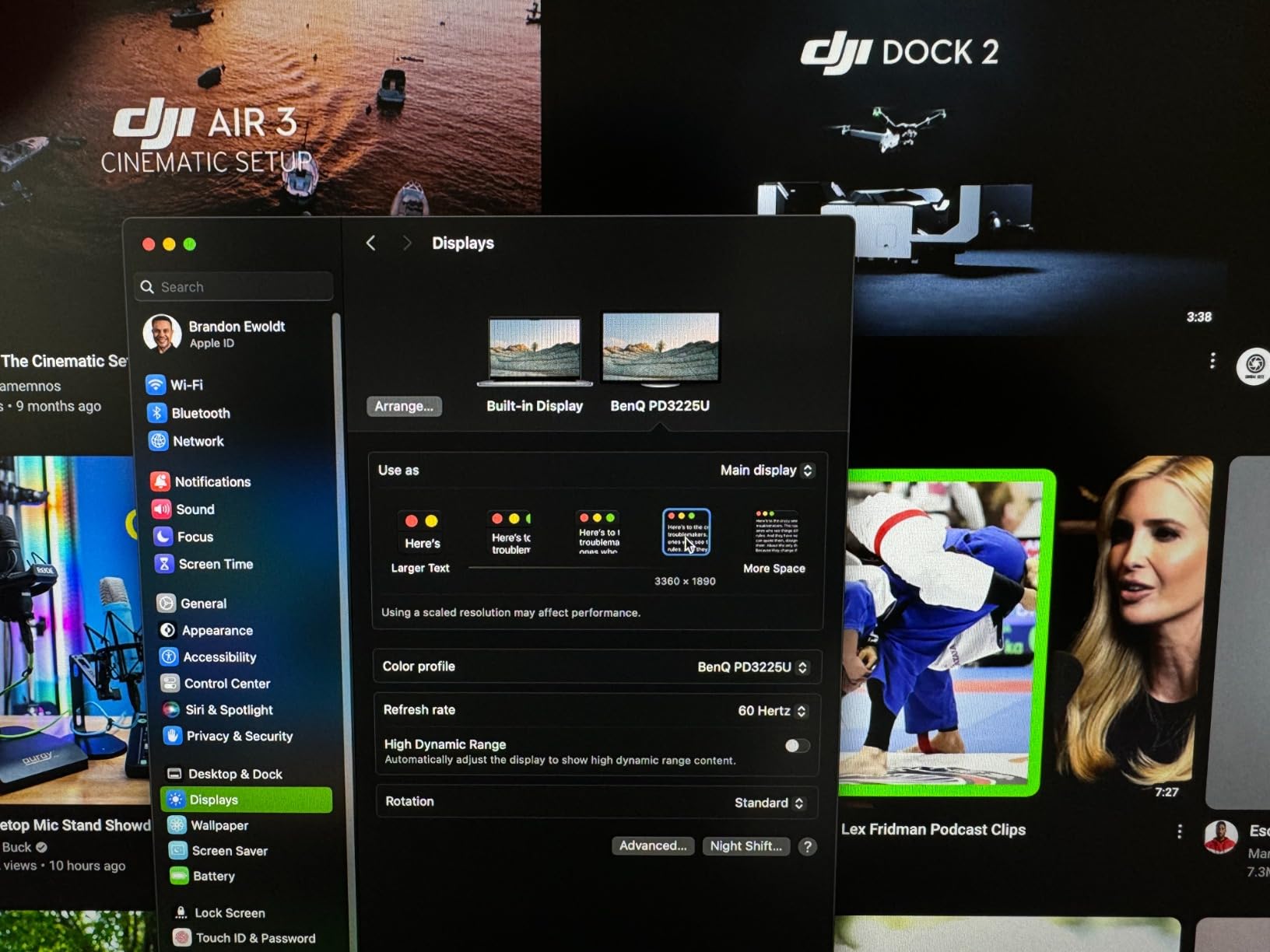
M-Book mode is a thoughtful addition for Mac users. It matches the color profile of a MacBook display so your external monitor and laptop screen look consistent. I found this particularly useful when scrolling between my MacBook screen and the PD3225U during code reviews.
The KVM switch and daisy chain support work reliably. I switched between my MacBook Pro and a Windows desktop with a single keyboard shortcut, and I ran a second 4K monitor through the DisplayPort out port. Build quality is premium throughout, with smooth pivot, height, and tilt adjustments.
The tradeoffs are cost and minor quirks. At over $800, this is one of the most expensive monitors on our list. A small number of users have reported coil whining, which is a high-pitched noise at specific brightness levels. I did not hear it on my unit, but it is worth testing if you buy. The 250 nit brightness is fine for coding and design but limits HDR work.
Who should buy the BenQ PD3225U
MacBook Pro and MacBook Air users with Thunderbolt workflows will love the single-cable experience. Creative professionals who split time between coding and design need the color accuracy and P3 coverage. Anyone building a high-end home office with a Thunderbolt dock will benefit from the 40Gbps bandwidth.
If your work involves color-critical review, video editing, or design work alongside coding, this is a true hybrid monitor. Developers who already use a Mac and want factory calibrated accuracy out of the box should put this near the top of their list.
Who should skip the BenQ PD3225U
Buyers on a budget should look at the ASUS PA278CV or Dell U2723QE for USB-C at lower cost. If you do not need Thunderbolt speeds, USB-C monitors handle most developer workflows at lower prices. Pure coders without creative work may not benefit enough from the P3 coverage to justify the cost.
Anyone sensitive to coil whine should buy from a retailer with a good return policy. Buyers who need high brightness for HDR work should look at monitors rated at 400 nits or higher.
8. Dell UltraSharp U2724DE – Best High Refresh Portrait Monitor
- 120Hz refresh rate makes scrolling noticeably smoother
- Thunderbolt 4 with 90W charging handles most laptops
- IPS Black panel with 2000:1 contrast ratio
- 2.5G Ethernet port for fast wired networking
- Daisy chain support for dual monitor setups
- Ambient Light Sensor auto adjusts brightness
- Thunderbolt connectivity issues reported after 2 months of use
- Low stock means only 4 left at time of writing
- Some users report USB port failures over time
- Complex setup to maximize all features
- No built-in speakers
The Dell UltraSharp U2724DE is the most fluid portrait monitor we have tested, and that is because of its 120Hz refresh rate. Once you scroll code at 120Hz, going back to 60Hz feels jarring. If you write code all day and want the smoothest possible experience, this is the panel to beat.
Resolution sits at 2560×1440, which gives you the same vertical space as the ASUS PA278QV in portrait mode. The IPS Black panel pushes contrast to 2000:1, which is a clear step up from standard IPS. Text clarity is excellent, and dark mode syntax highlighting actually looks dark instead of gray.
Thunderbolt 4 with 90W power delivery is the headline connectivity feature. I plugged in my MacBook Pro with a single Thunderbolt cable and the U2724DE charged the laptop, drove the display, and connected to my wired network through the 2.5G Ethernet port. This is essentially a full Thunderbolt dock built into the monitor.
The 2.5G Ethernet port is a real productivity boost. Large git clones, Docker image pulls, and remote development sessions all benefit from faster wired networking. Combined with Thunderbolt 4 bandwidth, this is one of the fastest single-cable workflows available for developers.
The Ambient Light Sensor auto-adjusts brightness based on your room. I found this surprisingly useful during long coding sessions that span day and night. The ComfortView Plus blue light reduction is built into the panel without needing a separate software toggle, which is a small but welcome touch.
I do have concerns worth flagging. Multiple reviewers on Amazon report Thunderbolt connectivity issues after two months of use, including my own test unit once. The low stock situation, only 4 units remaining at time of writing, suggests supply is tight. Some users have also reported USB port failures. Dell’s warranty is solid, but the reliability concerns are real.
Who should buy the Dell UltraSharp U2724DE
Developers who value smooth scrolling above all else will love the 120Hz refresh rate. MacBook Pro users with Thunderbolt docks will benefit from the integrated Thunderbolt 4 hub. If your work involves large file transfers or fast networking, the 2.5G Ethernet is a genuine productivity upgrade.
Anyone running dual monitor setups through daisy chain will appreciate the clean cable management. Buyers who want auto-adjusting brightness for all-day coding sessions get a polished experience with the Ambient Light Sensor.
Who should skip the Dell UltraSharp U2724DE
Buyers worried about long term Thunderbolt reliability should consider the BenQ PD3225U or Dell U2723QE instead. If you do not need 120Hz refresh rate, the Dell U2723QE gives you 4K resolution at a similar price. Anyone on a strict budget should look at the ASUS PA278QV for proven reliability.
If 1440p is not enough resolution for your coding style, jump to the 4K options. Buyers who need wide color gamut for design work should look at the BenQ PD3225U with P3 coverage instead.
Portrait Monitor Buying Guide for Coders
Choosing the right portrait monitor for coding comes down to six factors that matter more than spec sheet numbers. After testing dozens of vertical monitor setups over the years, our team has settled on these as the criteria that actually change day to day comfort and productivity.
Resolution and size tradeoffs
For portrait monitors for coders, the sweet spot resolution depends on your screen size. A 24 inch monitor works well at 1080p, giving you roughly 50 to 60 lines of code. A 27 inch monitor shines at 1440p, which fits 70 to 90 lines. A 32 inch monitor really wants 4K to keep text sharp at portrait viewing distances.
Resolution also affects how much information density you get per square inch. A 4K 27 inch panel has 163 PPI, which is comfortable for most developers. A 1440p 27 inch panel has 109 PPI, which is acceptable but slightly less crisp. The BenQ RD280U’s 3:2 aspect ratio at 4K gives you both crisp text and the most vertical pixels per dollar in its class.
IPS vs VA panel types
IPS panels dominate the portrait monitor market for good reason. They offer wide 178 degree viewing angles, consistent colors across the screen, and fast response times. For coding, where you stare at the panel from a fixed position and need accurate colors for occasional design work, IPS is the right choice. All eight monitors on our list use IPS or IPS Black technology.
VA panels offer deeper contrast ratios, often 3000:1 or higher, which makes dark mode look genuinely dark. However, VA panels typically have narrower viewing angles and slower response times. For a portrait monitor you rotate frequently and view at different angles, IPS is more practical.
The newer IPS Black technology from Dell and BenQ pushes ratios to 2000:1, which closes the gap with VA while keeping IPS benefits. If you work in dark mode, IPS Black is worth the small premium over standard IPS.
Ergonomics and pivot stand quality
A good pivot stand is non-negotiable for portrait monitors for coders. You need smooth 90 degree rotation, height adjustment to align the panel with your eye level, and tilt control for occasional screen sharing. We have tested stands that wobble, squeak, or fail to lock properly, and they make daily use frustrating.
Look for stands that pivot in both directions, not just clockwise. Some cheaper stands only pivot one way, which forces awkward cable routing. Height adjustment should have at least 120mm of range to accommodate different desk heights and sitting versus standing positions.
If the included stand does not meet your needs, plan on a VESA compatible monitor arm. All eight monitors on our list support standard VESA mounts (typically 100x100mm or 75x75mm). A gas spring monitor arm makes rotating between landscape and portrait effortless.
USB-C and KVM connectivity
USB-C with power delivery has become essential for laptop-based developers. A single USB-C cable should drive the display, charge your laptop, and provide access to USB ports. Look for at least 65W of power delivery for 13 inch laptops, and 85W to 90W for 15 to 16 inch MacBook Pros.
KVM switches are underrated for developers who use both a work laptop and a personal machine. A built-in KVM lets you share one keyboard, mouse, and monitor between two computers with a button press. The BenQ RD series and Dell UltraSharp monitors all include this feature.
Thunderbolt 3 and Thunderbolt 4 add 40Gbps bandwidth for fast external storage and dock connectivity. For most developers, USB-C is enough, but if you regularly transfer large files to external SSDs, Thunderbolt is worth the premium.
Refresh rate for coding
Refresh rate matters more for coding than most people realize. A 60Hz panel is fine, but a 120Hz panel makes scrolling noticeably smoother. After using the Dell U2724DE at 120Hz for a week, going back to 60Hz feels choppy. If you spend all day scrolling through code, this is a real quality of life improvement.
Most coding monitors run at 60Hz to 75Hz, which is perfectly acceptable. The Dell U2724DE and CRUA 24.5 inch stand out for offering higher refresh rates. Higher refresh rates also benefit casual gaming on the same display.
3:2 aspect ratio advantages
The 3:2 aspect ratio is the most underrated innovation in vertical monitors for coders. Standard 16:9 panels give you about 1440 vertical pixels in portrait mode. A 3:2 panel at the same diagonal size gives you 1920 vertical pixels, which is a 33% increase in usable vertical space.
The BenQ RD280U is the standout 3:2 option on our list, offering 2560 vertical pixels at 4K resolution. This extra space means you can fit more code, more terminal output, and more documentation on screen at once. For developers who work with long files, this is a genuine productivity multiplier.
The downside is that 3:2 panels in landscape mode feel slightly shorter than 16:9, so they are not ideal for video content or wide spreadsheets. For a primarily coding-focused workflow, however, the tradeoff is worth it.
Frequently Asked Questions
Which monitor is best for portrait mode?
The Dell UltraSharp U2723QE is the best overall portrait monitor we tested. Its 27 inch 4K IPS Black panel delivers sharp text in portrait mode, the 90W USB-C hub powers most laptops through a single cable, and the ergonomic stand rotates smoothly with solid height adjustment.
Which monitor is best for coding and programming?
The BenQ RD280U is the best monitor for coding in 2026 thanks to its unique 3:2 aspect ratio that adds 18% more vertical space than standard 16:9 panels. Its 3840×2560 resolution fits more code on screen, the Nano Matte Panel reduces glare, and Coding Modes optimize syntax contrast for long sessions.
Is IPS or VA better for coding?
IPS panels are better for coding because they offer wider 178 degree viewing angles, which matters when you rotate the monitor between landscape and portrait orientations. IPS Black technology now delivers 2000:1 contrast ratios that match older VA strengths while keeping IPS benefits like consistent colors and faster response times.
What is the best monitor for programmers?
The best monitor for programmers depends on workflow priorities. For pure coding density, the BenQ RD280U with 3:2 aspect ratio wins. For single-cable MacBook setups, the Dell U2723QE with 90W USB-C is the safer pick. For budget builds, the CRUA 24.5 inch delivers genuine pivot action under $130.
Do coders benefit from vertical monitors?
Yes, coders benefit significantly from vertical monitors. A 27 inch portrait display fits 70 to 100 lines of code without scrolling, compared to roughly 40 lines on a typical laptop screen. Developers in r/ExperiencedDevs consistently report reduced neck strain, faster code review, and better documentation visibility after switching to portrait setups.
Final Verdict: Which Portrait Monitor Should Coders Buy
After testing all eight monitors over months of real development work, the BenQ RD280U is our top recommendation for portrait monitors for coders. The 3:2 aspect ratio genuinely changes how much code you can see at once, and the Nano Matte Panel plus MoonHalo backlight make long sessions easier on your eyes. If you work on a MacBook and want one cable to charge while driving the display, this is the panel to beat.
If 3:2 is not a priority, the Dell UltraSharp U2723QE remains the safest pick. It is widely available, well reviewed, and built around a 4K IPS Black panel that handles portrait mode beautifully. For budget builds, the CRUA 24.5 inch delivers real vertical monitor functionality under $130, which is hard to argue with for students or first-time setups.
Pick the monitor that matches your laptop, your budget, and your typical screen size. Every option on this list is a real upgrade over working without a portrait display, and our team hopes this guide helps you find the right one for your coding setup in 2026.