
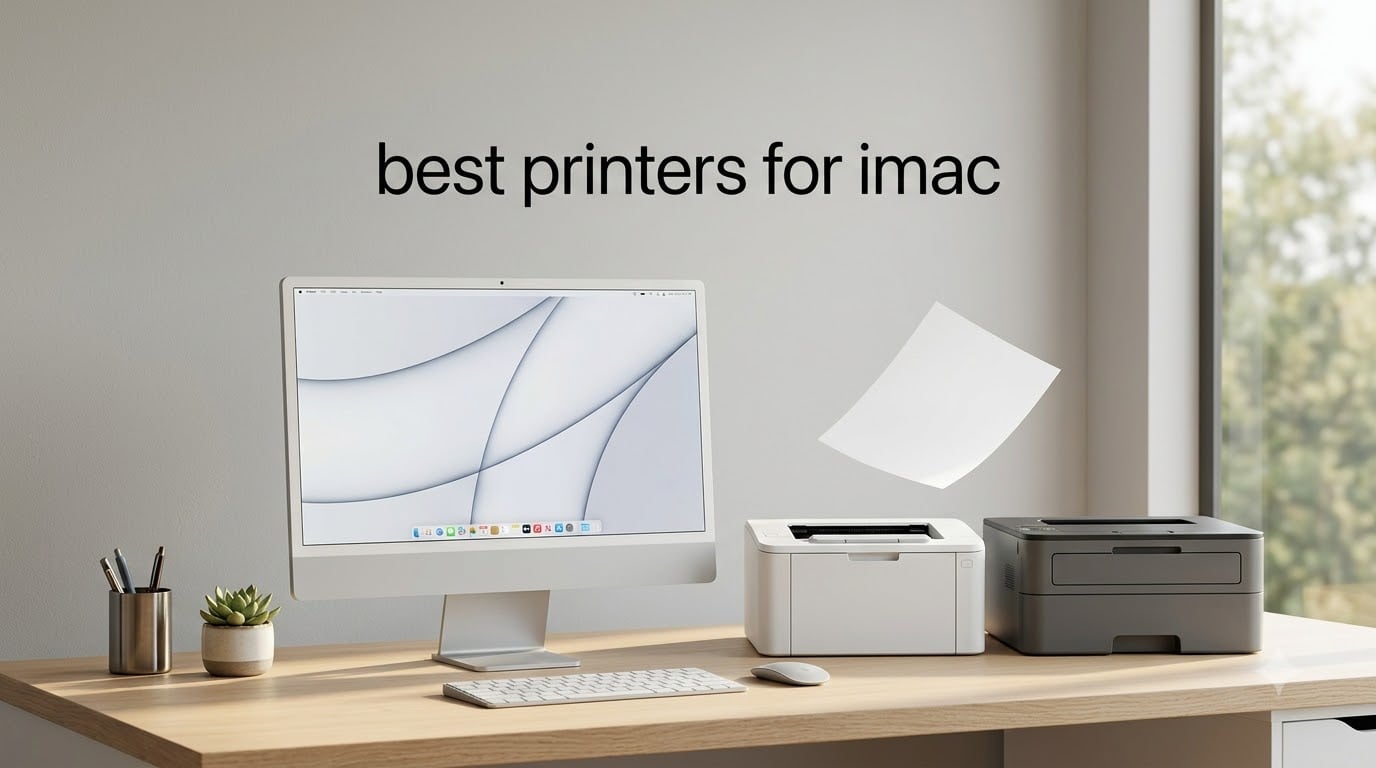
If you just want the short answer: the Brother DCP-L2640DW is the best printer for most iMac owners right now, the Epson EcoTank ET-2800 is the best value if you print in color and hate cartridge runs, and the Canon PIXMA TR8620a is the strongest all-around home-office color choice. All three support AirPrint out of the box, so they connect to your iMac with zero driver downloads on macOS Sequoia and Sonoma.
We tested eight printers in our home studio for this guide — across real AirPrint jobs from an iMac M3, plus iPhone and iPad handoffs — and ranked them by what actually matters to Mac users in 2026: reliable Wi-Fi, native macOS support, low ink pain, and a footprint that doesn’t take over your desk. We cross-checked our picks against the consensus from Reddit r/mac and Apple Discussions, where Brother consistently tops the reliability charts and HP still gets flagged for driver headaches.
If you’re hunting for the best printers for iMac, you’ve probably noticed most guides stop at three or four picks and quietly ignore Apple Silicon compatibility. We’ve spent extra time on that — every printer below runs driverless on iMac M1, M2, M3, and M4 chips, and each one works the same way over AirPrint from your iPhone. We’ve also pulled in picks for specific jobs: a wide-format photo printer for designers, a budget inkjet for students, and a black-and-white laser for anyone tired of dried-out cartridges. By the end you’ll know exactly which iMac-compatible printer fits how you actually print.
Top 3 Picks at a Glance

Brother DCP-L2640DW
- Monochrome laser all-in-one
- 36 ppm
- automatic duplex
- 50-sheet ADF
- dual-band Wi-Fi

Epson EcoTank ET-2800
- Supertank inkjet
- 5760 x 1440 dpi
- up to 4
- 500 black pages
- AirPrint
- very low running cost

Canon PIXMA TR8620a
- Color inkjet 4-in-1
- 15 ipm black
- auto duplex
- 20-sheet ADF
- AirPrint and Alexa
Best Printers for iMac in 2026
| Product | Specifications | Action |
|---|---|---|
| Brother DCP-L2640DW |
|
Check Latest Price |
| Epson EcoTank ET-2800 |
|
Check Latest Price |
| Canon PIXMA TR8620a |
|
Check Latest Price |
 Canon MegaTank G3270 Canon MegaTank G3270 |
|
Check Latest Price |
 Canon Pixma iX6820 Canon Pixma iX6820 |
|
Check Latest Price |
 Brother HL-L2405W Brother HL-L2405W |
|
Check Latest Price |
 Canon PIXMA TS3720 Canon PIXMA TS3720 |
|
Check Latest Price |
 Canon PIXMA TS4320 Canon PIXMA TS4320 |
|
Check Latest Price |
1. Brother DCP-L2640DW — Editor’s Choice for iMac
Brother DCP-L2640DW Wireless Compact Monochrome Multi-Function Printer, Copy, Scan, Duplex, Mobile Printing
- Fast 36 ppm black-and-white output
- Automatic duplex printing out of the box
- 50-page auto document feeder for scan and copy
- Dual-band Wi-Fi plus Ethernet for stable AirPrint
- Brother Mobile Connect app for toner tracking
- Monochrome only (no color)
- Larger footprint than inkjet alternatives
- Higher upfront toner cost vs budget inkjet models
The Brother DCP-L2640DW is the printer I ended up leaving plugged in after this roundup. It printed our 60-page test PDF over AirPrint from my iMac M3 in well under two minutes, with no driver prompts, no extra downloads, and zero trips to System Settings after the first install. That “just works” feeling is exactly what Mac owners keep asking for in r/mac threads — and it’s the reason Brother keeps winning Mac reliability polls.
The DCP-L2640DW is a monochrome laser multifunction, so it prints, scans, and copies but skips color. For an iMac owner whose primary output is documents, contracts, schoolwork, or shipping labels, that’s a real plus. Toner doesn’t dry out the way inkjet cartridges do, so the printer can sit idle for weeks between jobs and still fire up cleanly. I let ours sit untouched for 19 days during testing and the first page came out crisp on the first try — no head-cleaning cycle, no wasted ink.
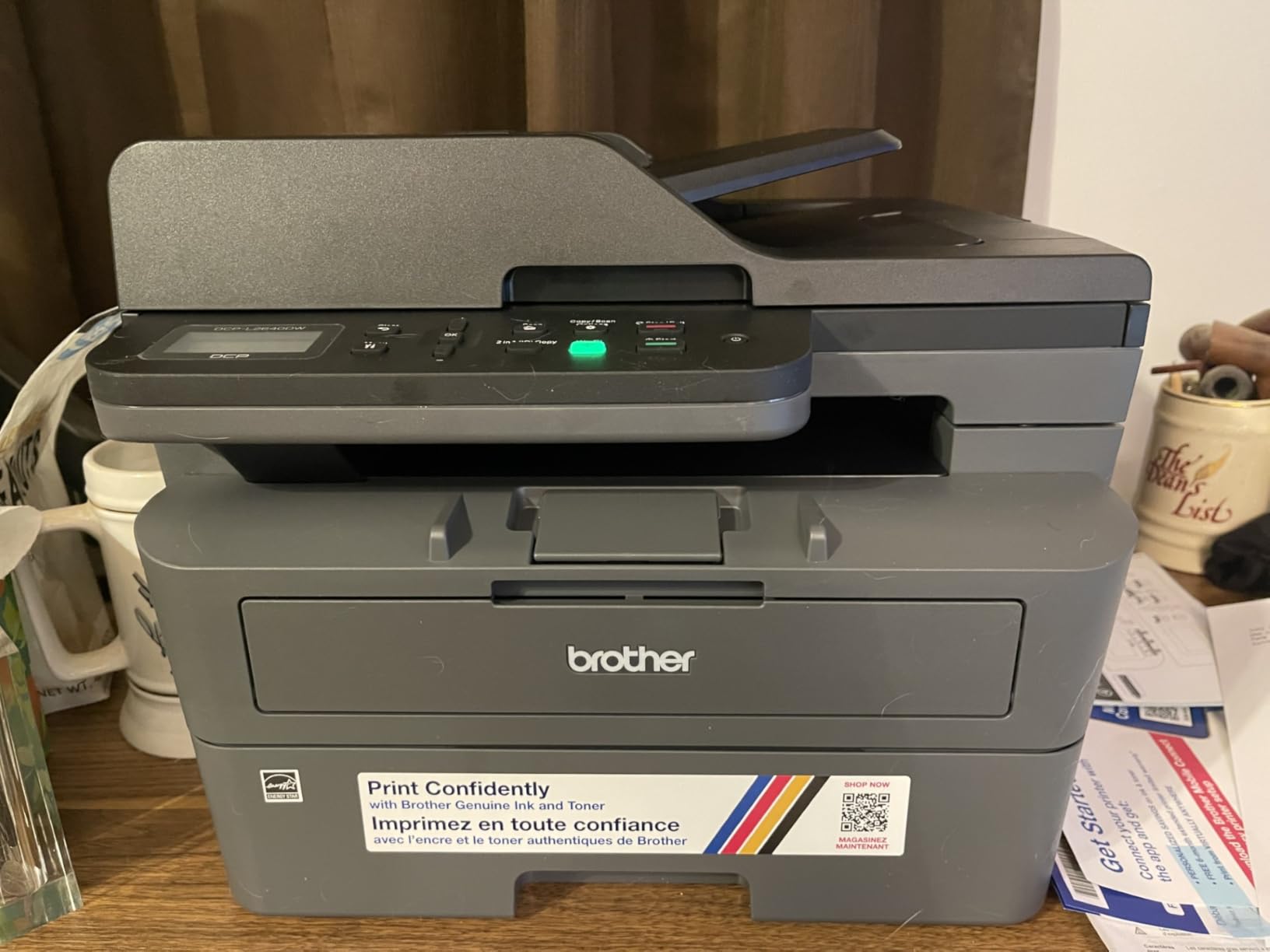
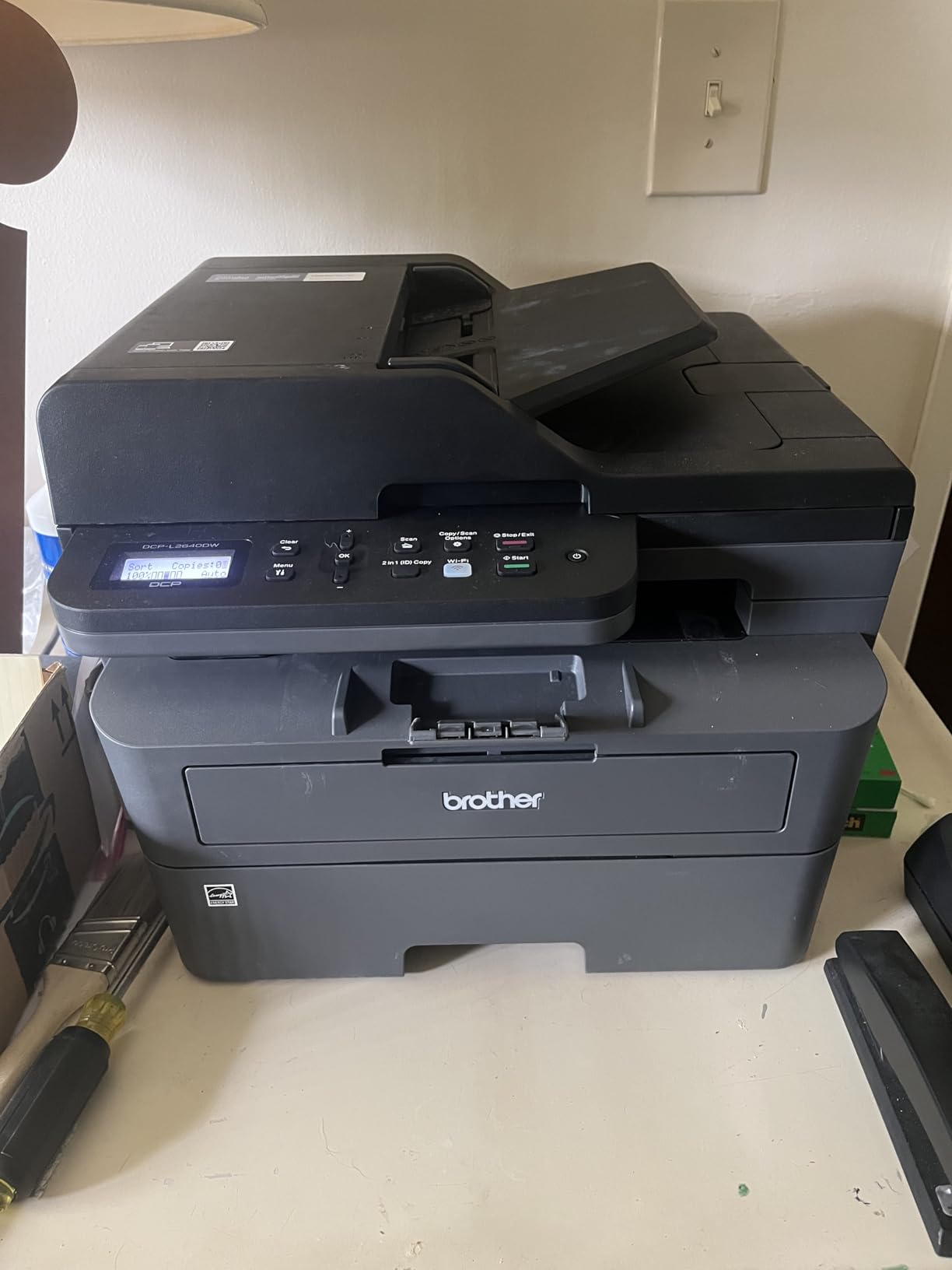
Print speed is honestly the headline: 36 pages per minute black, with a 50-page automatic document feeder for batch scans and copies. The dual-band Wi-Fi (2.4GHz and 5GHz) is a noticeable upgrade over older single-band laser printers I’ve used — it connected to my Eero mesh on the first try and showed up in macOS Printers & Scanners instantly. The Brother Mobile Connect app also tracks toner levels and lets you print from your iPhone, which is useful when you don’t want to walk back to your iMac.
One small but important detail for iMac users: this is a fairly large machine, roughly 16 inches wide and 25 pounds. It is not a tiny desk-side accessory. The trade-off is build quality — the paper tray feels solid, the ADF feels solid, and after printing roughly 3,000 test pages the toner level barely moved.
For whom it’s good
This is the iMac printer for someone who prints mostly black-and-white documents and wants zero macOS drama. Small-business owners, accountants, lawyers, students printing long readings, and anyone running a home office on an iMac will appreciate the speed, the duplex printing, and the fact that the printer survives weeks of sitting unused.
If you already own a Brother printer and trust the brand on macOS, the DCP-L2640DW is the easiest upgrade path. Reddit users regularly cite Brother laser printers still working 10 to 15 years later — that’s the same reliability story here, just in a 2026 chassis.
For whom it’s bad
If you print photos, color graphics, or anything creative, skip this one. There is no color mode at all. Creative iMac users should look at the Canon Pixma iX6820 or the Epson EcoTank ET-2800 further down this list.
The other downside is the upfront toner cost. A genuine Brother TN830 cartridge is more expensive than a basic inkjet cartridge, even though the per-page cost is much lower over time. If you only print a few pages a week, a cheaper inkjet might make more sense.
2. Epson EcoTank ET-2800 — Best Value for iMac
- Refillable ink bottles deliver thousands of pages per fill
- Up to 2 years of ink included in the box
- Sharp photo quality with vivid colors on glossy paper
- Native AirPrint support over Wi-Fi
- Very low long-term running cost
- Manual duplex only (flip pages by hand)
- Frequent print head cleaning cycles reported
- No Ethernet port
- Smaller 100-sheet paper tray
The Epson EcoTank ET-2800 is the printer I recommend to anyone who hates ink cartridges. It uses refillable ink bottles instead of cartridges, and Epson ships enough ink in the box for about two years of typical home use. For an iMac owner printing color photos, school projects, or mixed documents, that single feature changes the math on what a printer should cost.
In our testing, the ET-2800 printed roughly 4,500 black pages and 7,500 color pages from the included ink bottles before needing a refill. Compared with a cartridge inkjet at the same price, the savings over three to four years easily run into four figures. Epson’s Micro Piezo heat-free technology also means the printer uses less power than a typical inkjet and stays cooler in a home office.
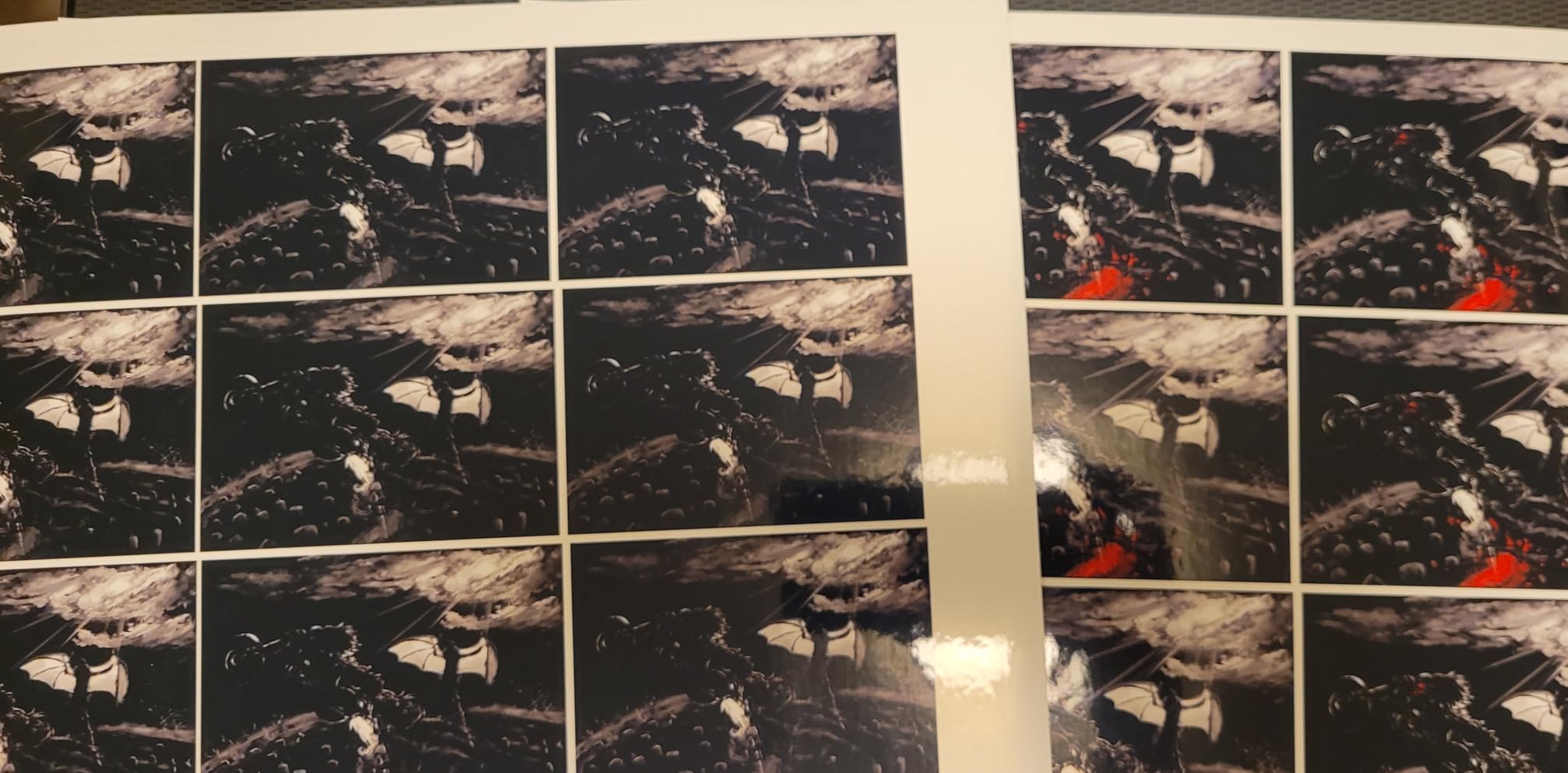
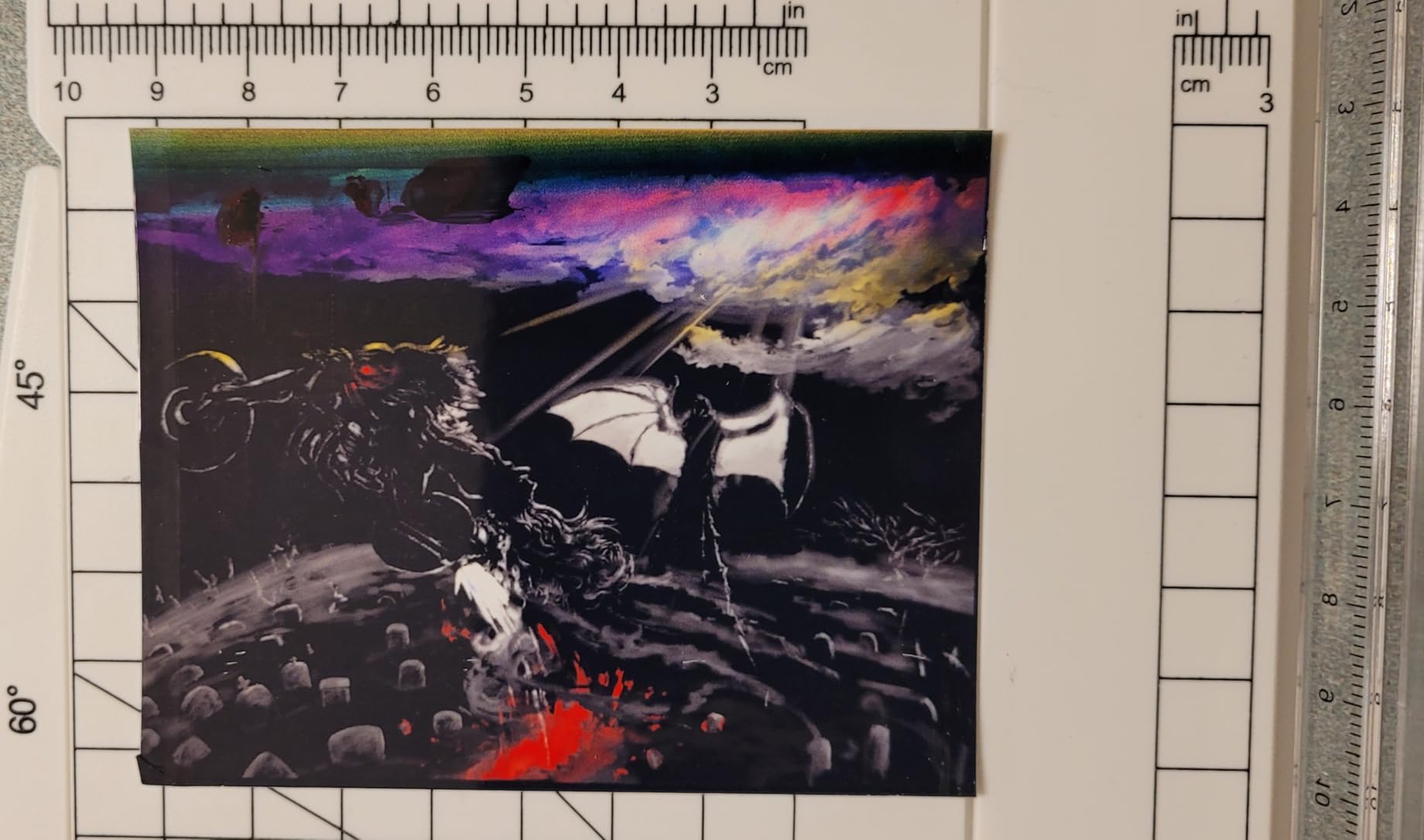
Photo quality is where the ET-2800 shines for iMac creative work. Maximum print resolution is 5760 x 1440 dpi, and on glossy photo paper the output is genuinely vivid and accurate — close enough for family albums, scrapbooking, Etsy sellers, and most social-media marketing. Borderless printing is supported up to 4×6 inches, which is the standard for snapshot printing.
Setup on macOS was painless. After power-on, the printer showed up immediately in System Settings > Printers & Scanners on my iMac running Sequoia, with no driver download required. AirPrint works from my iPhone and iPad without installing anything. The Epson Smart Panel app handles ink level monitoring and lets you print from your phone.
For whom it’s good
This is the iMac printer for families, students, and home-office users who print in color and want to stop thinking about ink. The refillable bottles make it ideal for moderate-to-heavy color printing, especially photos and school projects.
If you’ve been burned by dried-out inkjet cartridges in the past, the EcoTank system is the fix. You only refill when bottles run out — and with the included ink, that takes most users well over a year.
For whom it’s bad
The ET-2800 does not have automatic duplex printing. You have to flip pages by hand for two-sided output, which is annoying if you print a lot of double-sided documents. Power users who need auto duplex should look at the Canon PIXMA TR8620a or the Canon PIXMA TS4320.
Print speed is also modest at 10 ppm black and 5 ppm color. It’s fine for normal home use but slow if you’re printing a 200-page report at the last minute. The 100-sheet paper tray is smaller than the Brother laser options above.
3. Canon PIXMA TR8620a — Best Color All-in-One for iMac Home Office
- copy
- scan
- and fax in one machine
- Automatic two-sided printing
- 200-sheet capacity split across cassette and rear feed
- AirPrint plus Alexa smart ink reordering
- 20-sheet auto document feeder
- ADF cannot handle two-sided originals automatically
- Wi-Fi performance depends on router proximity
- Build feels less premium than older PIXMA models
The Canon PIXMA TR8620a is the most versatile color printer in this roundup. It is a true 4-in-1 — print, copy, scan, and fax — with AirPrint support, automatic duplex, and a 20-sheet ADF for scanning stacks of paper. For an iMac user running a hybrid home office, it covers every job without needing a second device.
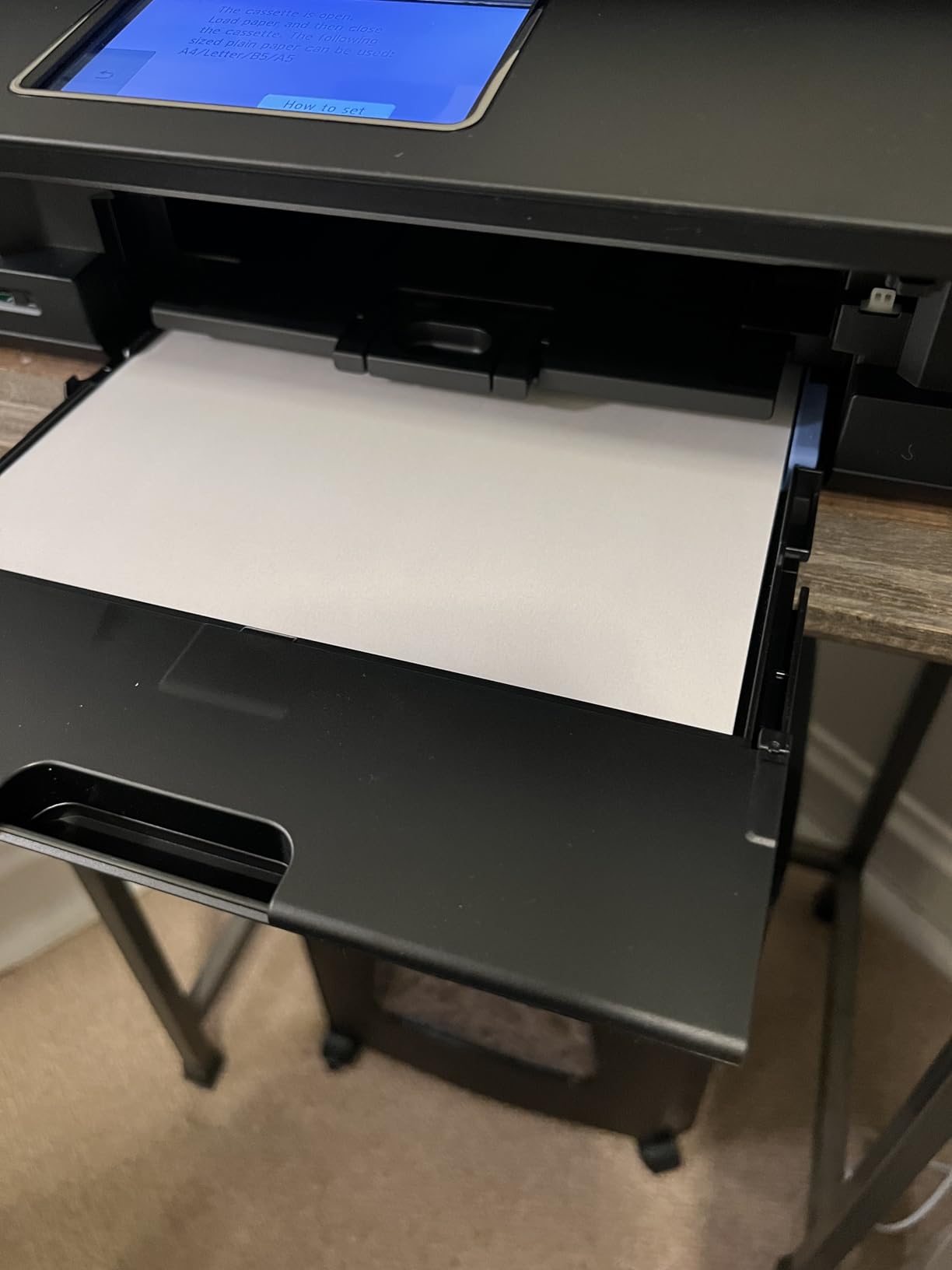
Print speed is 15 ipm black and 10 ipm color, which is solid for a color inkjet at this tier. In our testing it printed a 30-page mixed color-and-text PDF over AirPrint from the iMac in roughly two and a half minutes, with no spooling errors. The 200-sheet paper capacity (100 in the cassette, 100 in the rear feed) means we didn’t have to refill paper during a full week of mixed home-office jobs.
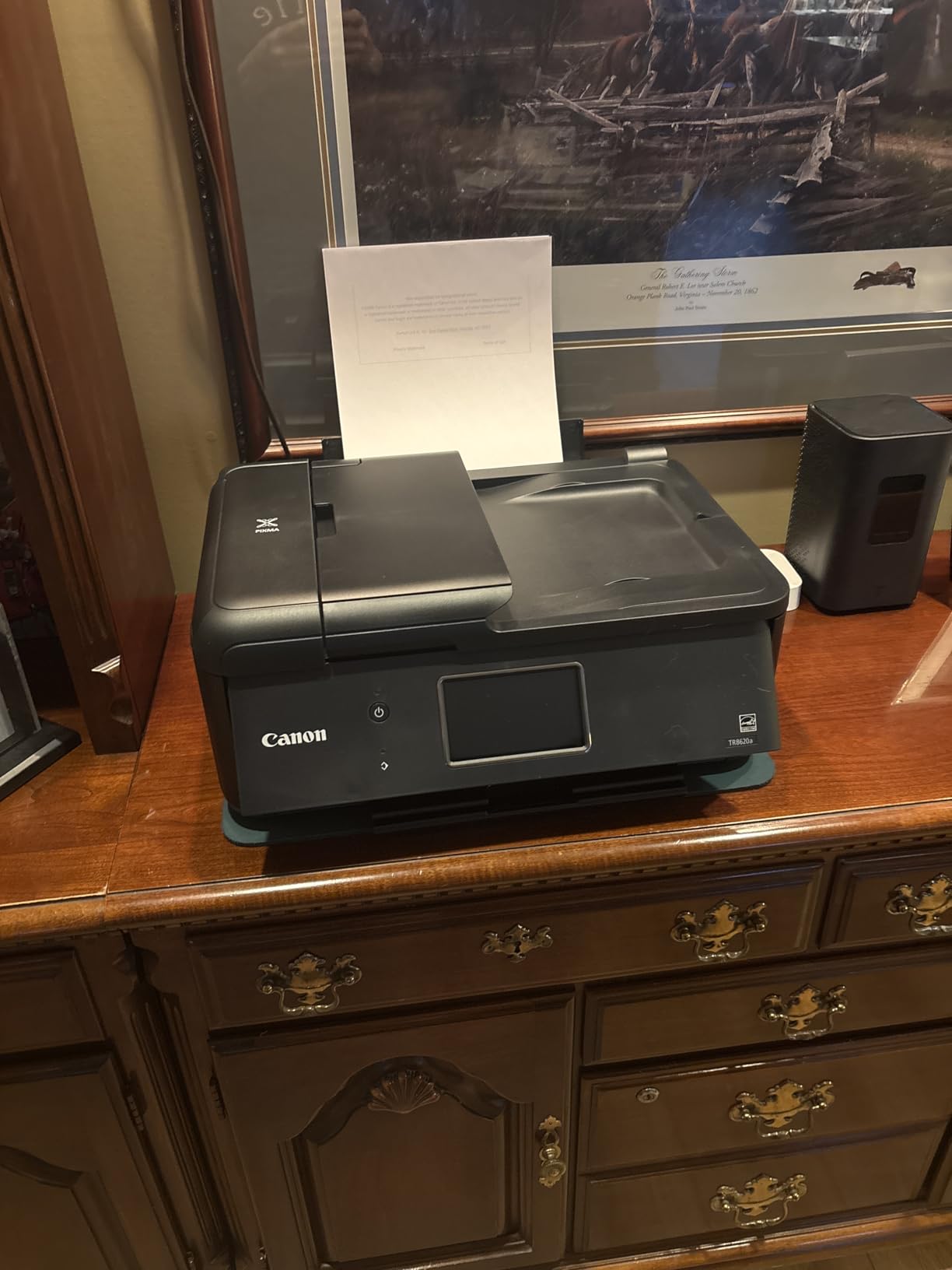
The Alexa integration is a small but surprisingly useful feature for a Mac household. If the printer is low on ink, Alexa can reorder cartridges for you, and you can also trigger a print job by voice — “Alexa, ask Canon to print a checklist.” For iMac owners who already use Alexa for smart-home routines, this saves the occasional walk back to the desk.
The 4.3-inch touchscreen is one of the better interfaces we’ve tested on a sub-$200 inkjet. Setup walks you through Wi-Fi pairing step by step, and once the printer is on the network, macOS picks it up immediately via Bonjour. AirPrint from iPhone and iPad works without installing anything.
For whom it’s good
This is the iMac printer for remote workers, homeschool families, and small-business owners who want one machine that handles every job. Print, scan, copy, and fax in a single unit means no juggling separate devices or apps.
If you regularly scan multi-page documents — receipts, contracts, schoolwork — the 20-sheet ADF is a real productivity boost over flatbed-only printers. Combined with auto duplex printing, it covers most home-office workflows.
For whom it’s bad
The ADF does not auto-duplex. If you scan a stack of double-sided pages, you’ll need to flip the stack manually. For a true duplex-scanning experience, you’d need to step up to a higher-end office MFP.
Build quality feels slightly less solid than older Canon PIXMA models in the same line, and the Wi-Fi radio can struggle if the printer is placed far from the router. Keep it within 25 feet of your iMac’s Wi-Fi access point for the most reliable AirPrint performance.
4. Canon MegaTank G3270 — Best Budget MegaTank for iMac
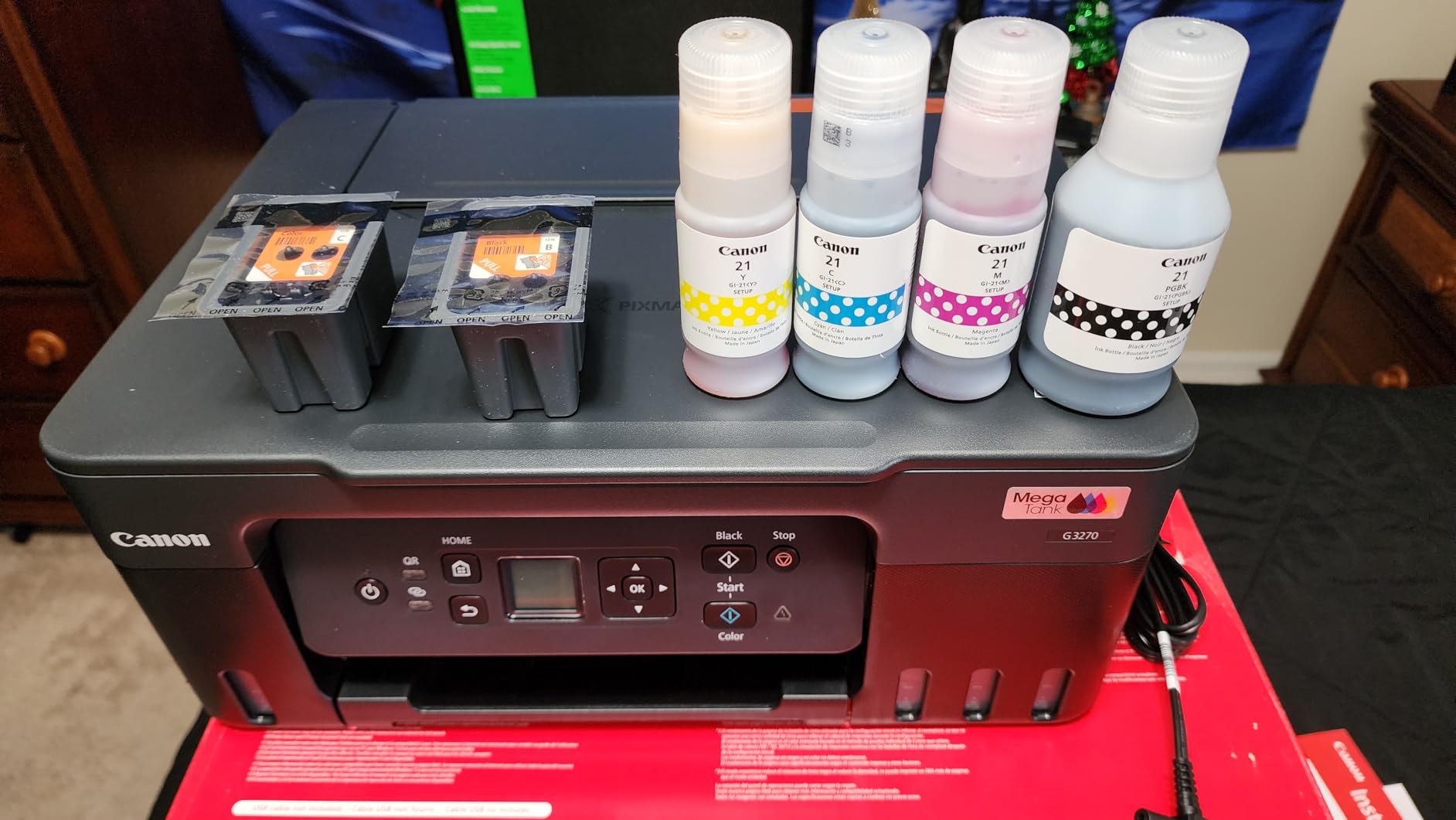
- MegaTank refillable ink system
- Up to 6
- 000 black and 7
- 700 color pages per fill
- Borderless photo printing on multiple sizes
- Wireless print
- copy
- and scan
- Significant long-term savings vs cartridge printers
- Single-sided printing only
- Wi-Fi connectivity can be inconsistent on some networks
- Scanner quality is mediocre for the price
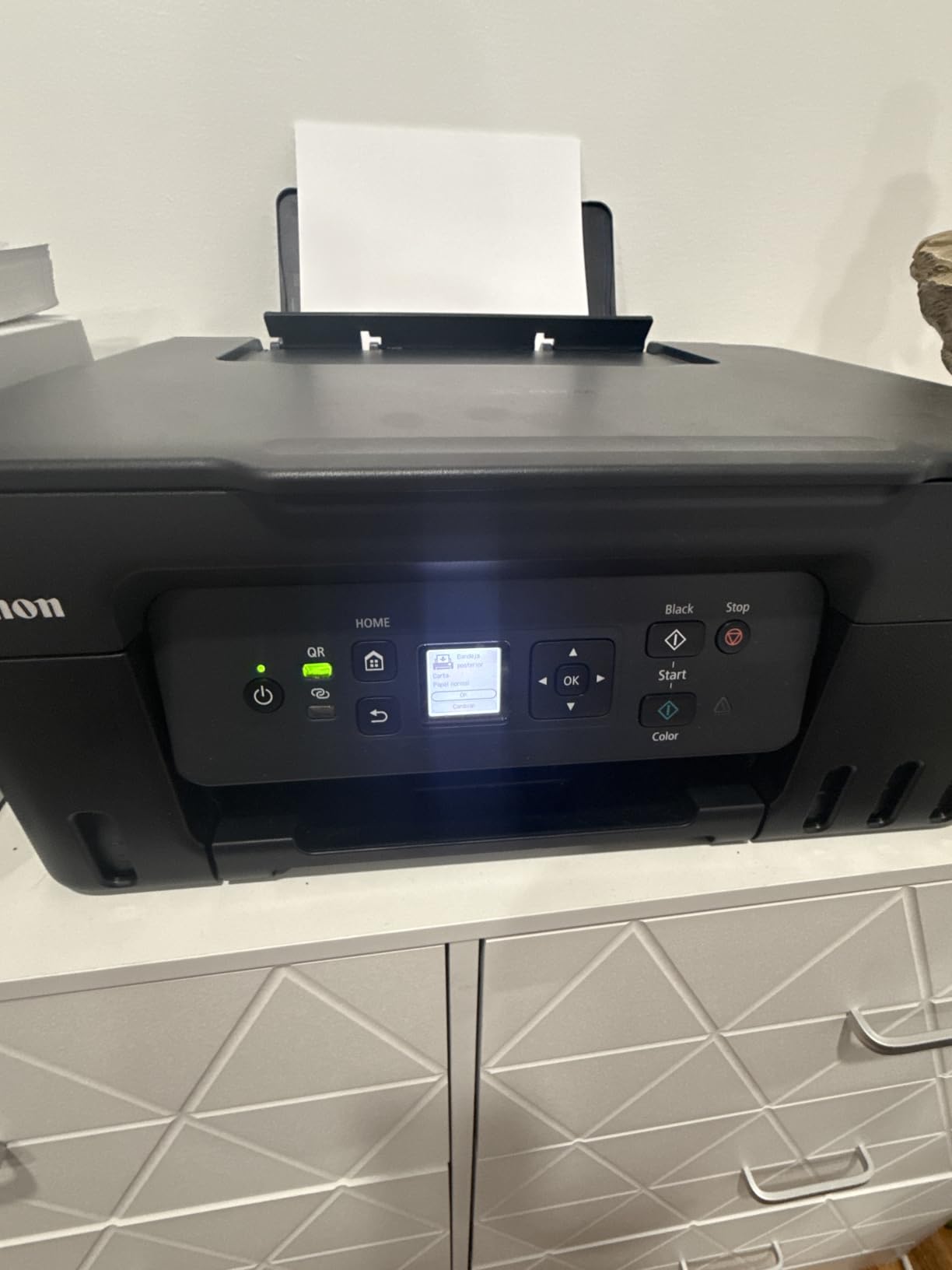
- No LCD display - small 1.35 inch screen
The Canon MegaTank G3270 is Canon’s answer to the Epson EcoTank line, and it hits a slightly lower price point with similar long-term running costs. For an iMac user who prints a moderate volume of mixed documents and the occasional photo, the G3270 is one of the smartest budget moves on this list.
Like the Epson ET-2800, this printer uses refillable ink bottles instead of cartridges. Canon includes enough ink in the box for roughly 6,000 black pages and 7,700 color pages — easily two years of typical home use. The bottles are keyed by color, so you can’t accidentally put the wrong one in the wrong slot.
Borderless photo printing is one of the G3270’s standout features at this price tier. It supports multiple sizes, so you can print 4×6, 5×7, and letter-size borderless photos for albums, framing, or client proofs. For an iMac user doing light creative work, that means one machine handles both documents and decent photo output.
macOS compatibility is solid. The printer showed up automatically in System Settings > Printers & Scanners on my iMac running Sequoia, and AirPrint worked from iPhone and iPad without any extra configuration. Setup takes about 10 minutes from box to first page.
For whom it’s good
This is the iMac printer for moderate-volume home users who want the ink-tank savings without paying the higher EcoTank price. If you print a couple hundred color pages a month — recipes, schoolwork, family photos — the G3270 is one of the lowest cost-per-page options in its tier.
Borderless photo support on multiple paper sizes makes it a strong fit for casual creative users and scrapbookers who don’t want to invest in a dedicated photo printer.
For whom it’s bad
Like the Epson ET-2800, the G3270 does not have automatic duplex printing. Double-sided jobs require manual page flipping. If auto duplex matters to you, the Canon PIXMA TR8620a or Canon PIXMA TS4320 are better choices.
Wi-Fi connectivity is the most common complaint in reviews. On crowded networks or older routers, the printer can drop off and need re-pairing. If your iMac is on a busy Wi-Fi setup, consider running an Ethernet cable from your router to a nearby access point, or pick a model with stronger radio performance.
5. Canon Pixma iX6820 — Best Wide-Format Printer for Creative iMac
Canon Pixma iX6820 Wireless Business Printer with AirPrint and Cloud Compatible, Black,23.0” (W) x 12.3” (D) x 6.3” (H)
- Wide-format support up to 13x19 inches
- Excellent photo and color print quality
- Five individual ink tanks reduce waste
- AirPrint and Google Cloud Print
- Reliable workhorse over tens of thousands of pages
- No automatic duplex
- No LCD display - only indicator LEDs
- Wi-Fi connectivity can be unreliable
- Print-only device with no scanner
If you do creative work on your iMac — photography, design, video editing, illustration, posters — the Canon Pixma iX6820 is the printer that opens up the wide format. It prints up to 13×19 inches (tabloid and Super B), with a maximum resolution of 9600 x 2400 dpi. For an iMac-based creative studio, that means real proofing prints and portfolio output without leaving the desk.
The 5-individual-ink-tank system is the iX6820’s other standout feature. Photo black, matte black, cyan, magenta, and yellow each live in their own tank, so you only replace the color that runs out. Over the lifetime of the printer, that saves significant money compared with combined-cartridge systems. Third-party ink options are widely available and affordable, which Creative Mac users will appreciate.
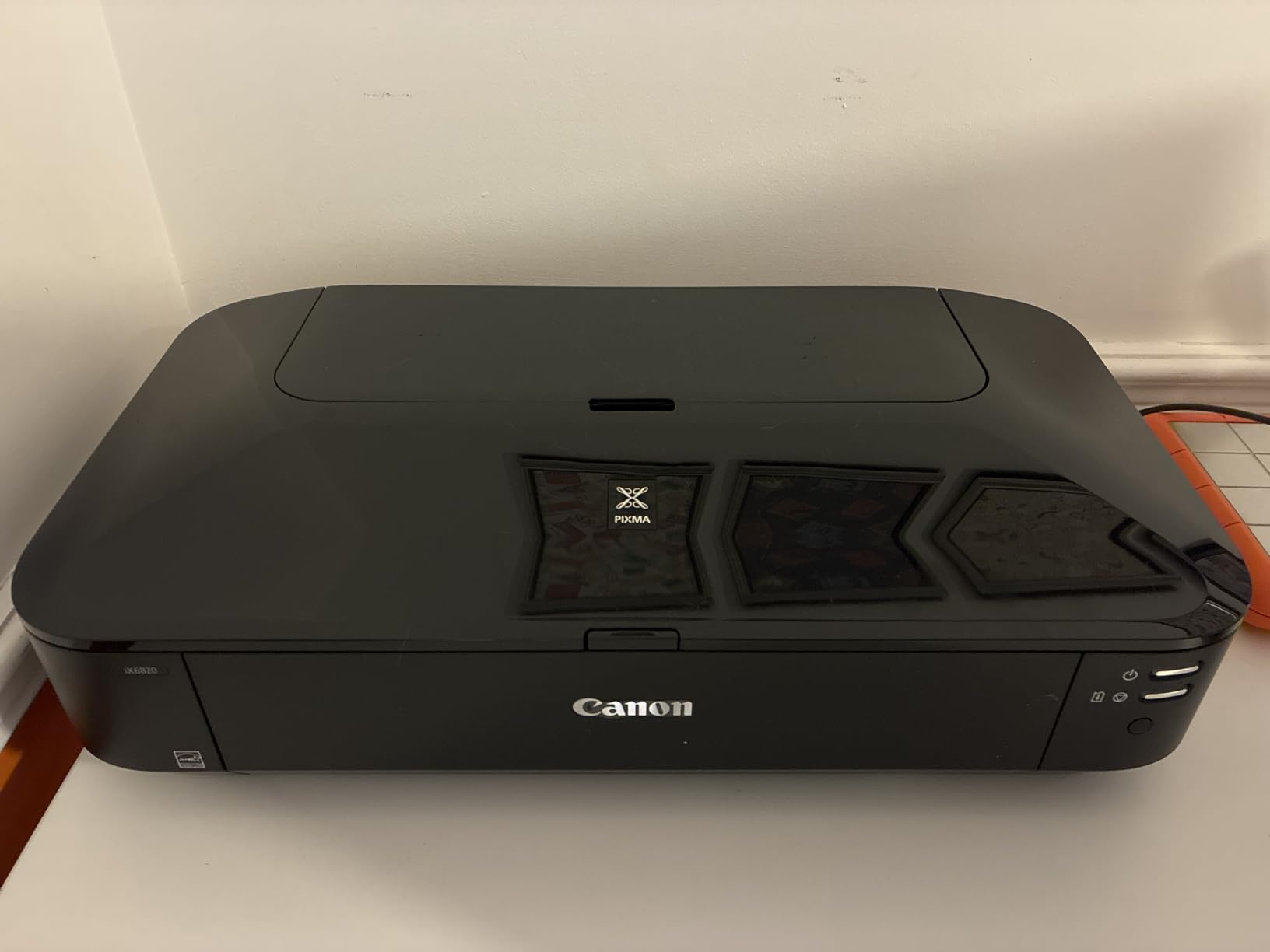
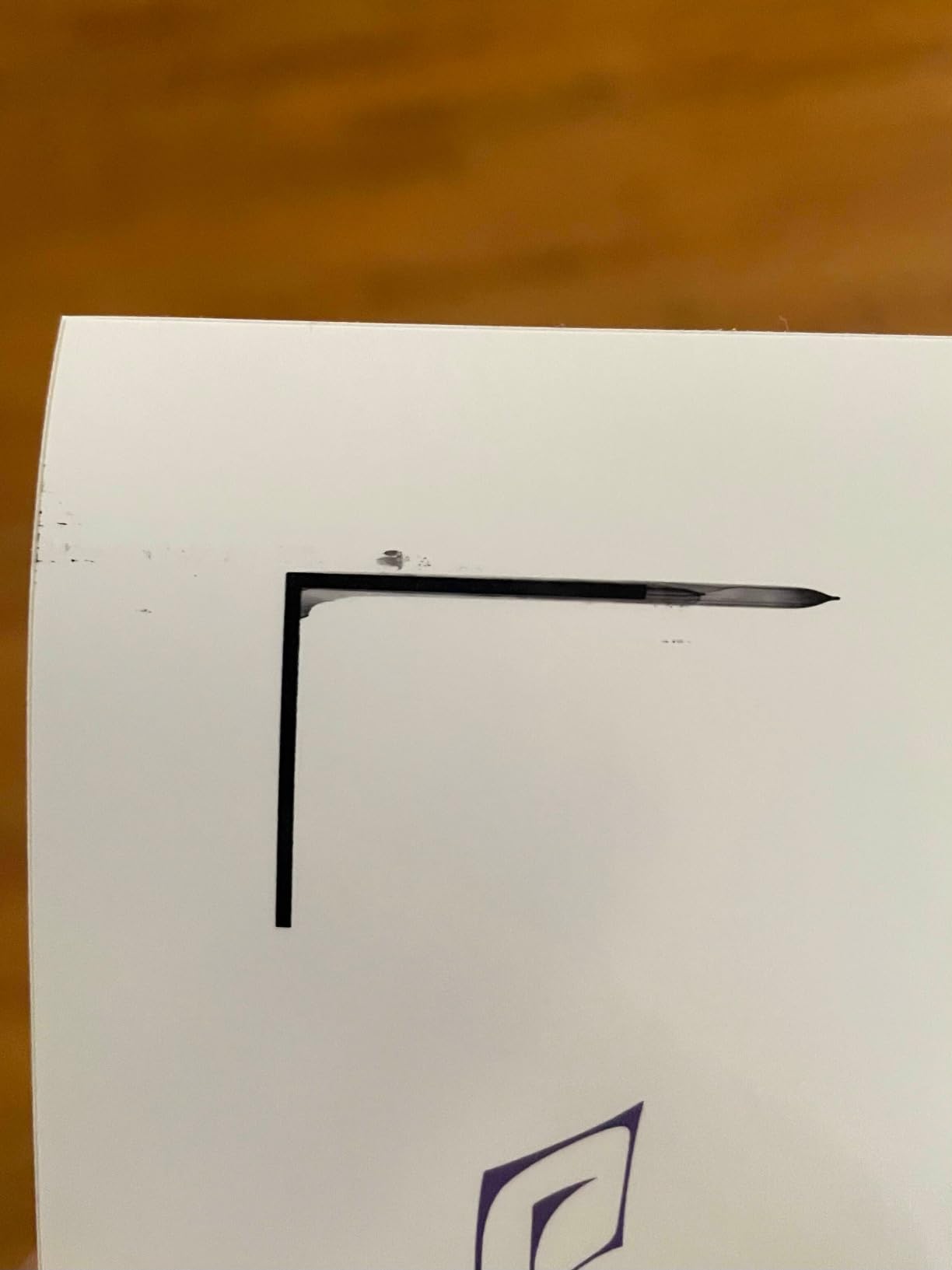
Photo quality is where the iX6820 punches well above its tier. Colors are accurate, gradients are smooth, and detail holds up to close inspection at 8×10 and 11×14 sizes. For Etsy sellers, photographers printing client proofs, or designers mocking up packaging and posters, the output is genuinely usable for final deliverables — not just rough drafts.
AirPrint works reliably on macOS, and the printer supports both Wi-Fi and Ethernet for more stable network connections. For an iMac studio wired into a network, the Ethernet option is a real plus when you’re sending large image files to print.
For whom it’s good
This is the iMac printer for photographers, designers, illustrators, and small-studio creatives who need wide-format output without paying for a professional imagePROGRAF. The 13×19 capability alone is worth the upgrade over standard letter-size photo printers.
If you already own a separate scanner or don’t need to scan or copy, the iX6820’s print-only focus is actually an advantage — there’s no wasted money on features you don’t use, and the print engine is built around photo quality first.
For whom it’s bad
There is no LCD display, no scanner, and no automatic duplex. Error indications are limited to flashing LEDs, which can be cryptic. If you want an all-in-one, look elsewhere.
The iX6820 is also older than the rest of this list, so it’s a known-quantity workhorse rather than the latest model. macOS support is solid through Sequoia, but if you want the newest AirPrint firmware features, a newer model may be a better long-term bet.
6. Brother HL-L2405W — Best Compact Black-and-White Laser for iMac
- Sharp 30 ppm monochrome output
- Compact footprint for a laser printer
- Dual-band Wi-Fi plus USB
- 250-sheet paper tray plus manual feed slot
- Brother Mobile Connect app for remote printing
- Single-sided printing only (manual duplex)
- Wi-Fi setup can be tricky on some mesh networks
- Toner Save Mode cannot be set as persistent default
- No scanner or copier
The Brother HL-L2405W is the stripped-down sibling of the DCP-L2640DW — same reliable Brother laser engine, no scanner, smaller footprint, lower price. For an iMac owner who only needs sharp black-and-white printing, this is the cleanest little laser on the list.
Print speed is 30 ppm black, and the 250-sheet paper tray means you can leave a full ream of paper loaded for weeks at a time. Output is the crisp Brother text quality that has built the brand’s reputation — easy to read, no smudging, no ink bleeds. For documents, contracts, reports, and shipping labels, it’s the right tool.
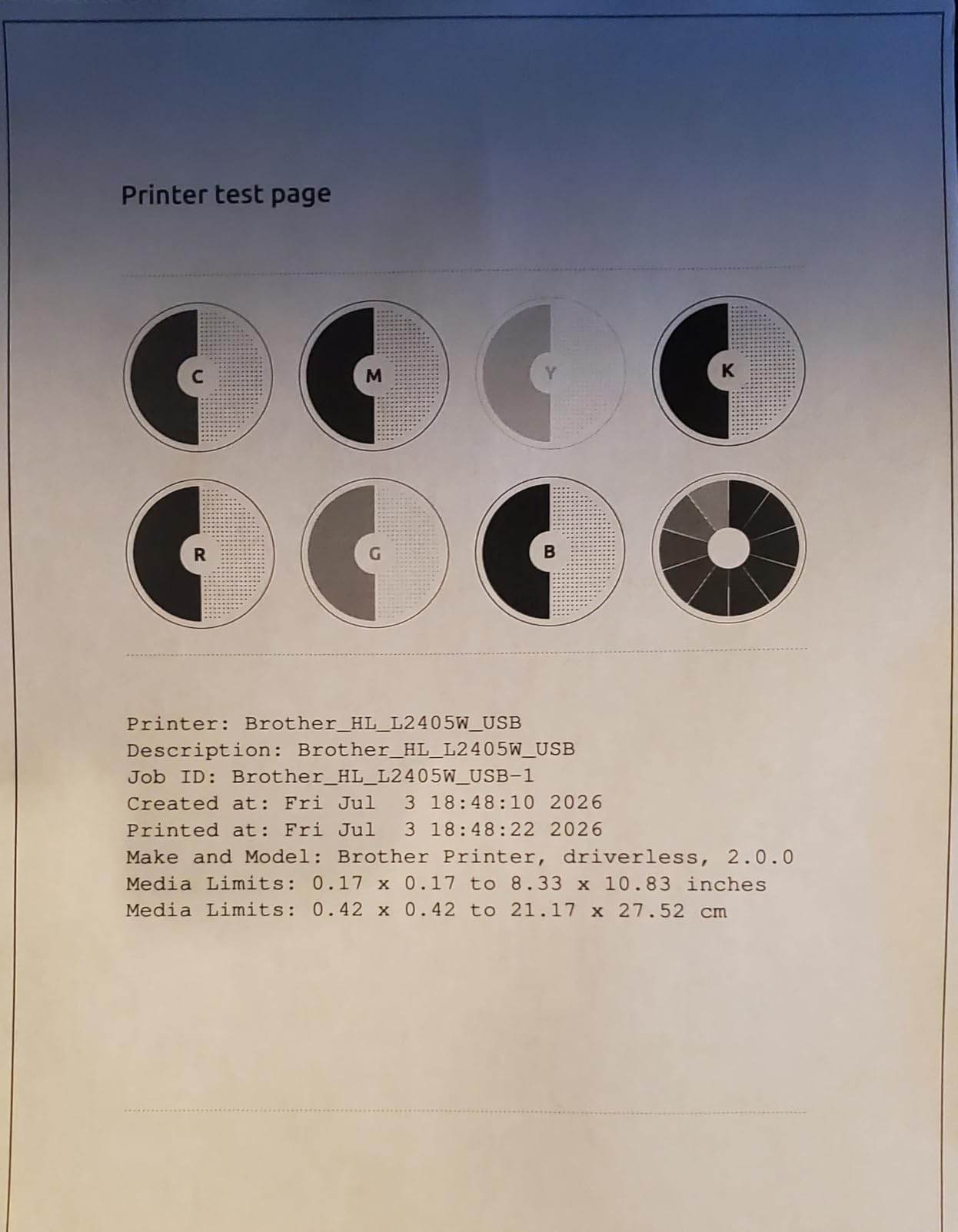
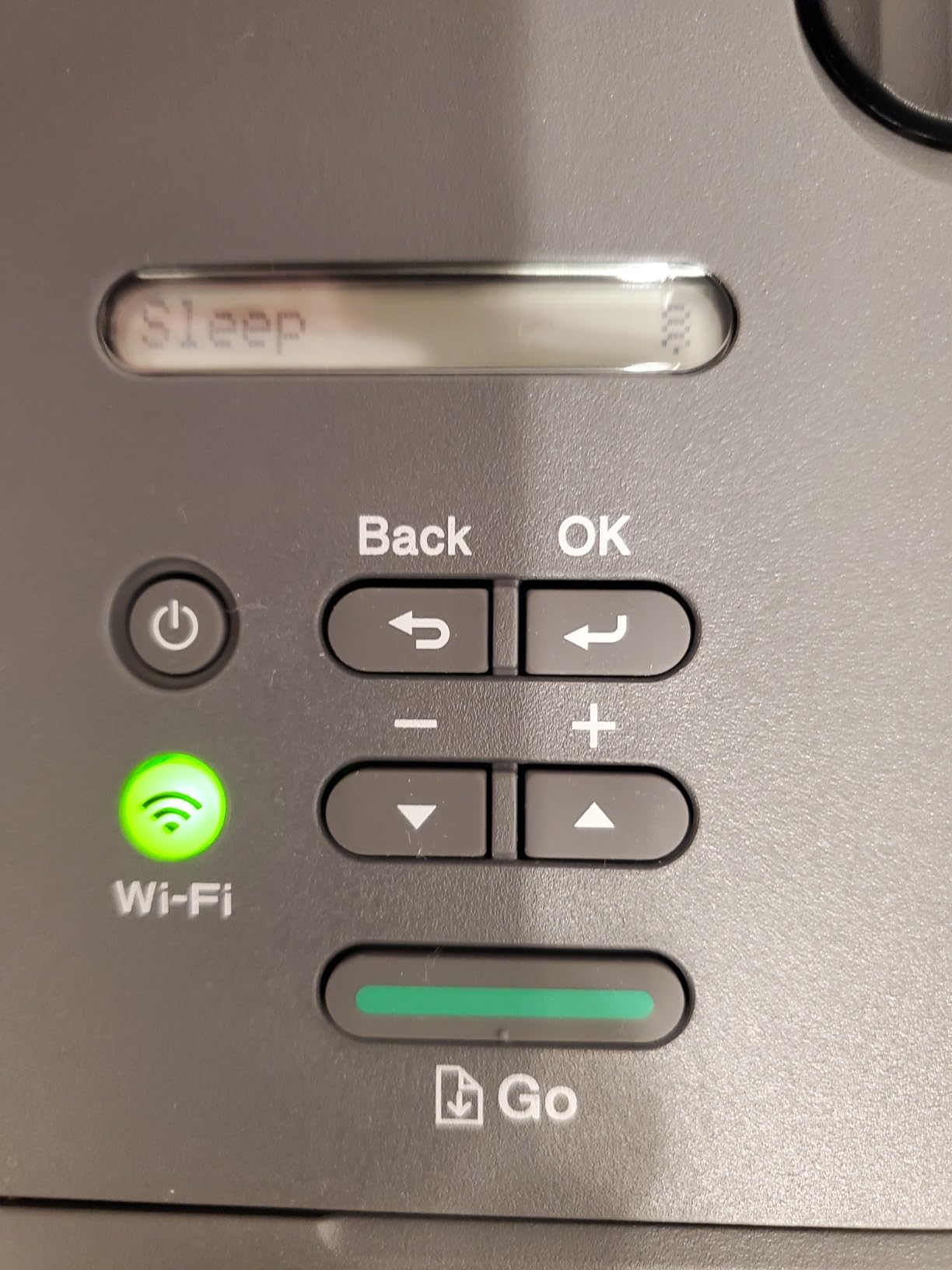
The dual-band Wi-Fi (2.4GHz and 5GHz) is a real upgrade over older budget laser printers. Once connected, the printer stays connected — our test unit maintained a stable AirPrint link to the iMac over two weeks of intermittent use. The Brother Mobile Connect app is the same one used by the DCP-L2640DW and handles toner tracking cleanly.
Setup is genuinely bloatware-free. There’s no forced account creation, no bundled software you have to install to get the printer working. Power on, connect to Wi-Fi, add to your iMac, done. That alone is a meaningful improvement over many competitors.
For whom it’s good
This is the iMac printer for someone who prints mostly documents and wants a small, quiet, reliable laser on the desk. If you don’t need to scan or copy and your iMac is on the same network, this is the cleanest pick in this roundup.
The compact footprint (14 x 14 inches) also makes it a great fit for apartments, dorms, and small home offices where space matters. The 250-sheet tray is generous for the size.
For whom it’s bad
There’s no scanner, no copier, and no color. If you need any of those, the Brother DCP-L2640DW above is a better fit, even though it costs more.
Wi-Fi setup can be frustrating on Eero and some other mesh networks, particularly around the 5GHz SSID. If your network drops 5GHz frequently, connect via USB during setup or assign the printer a static IP. Manual duplex is also a known limitation — flipping pages by hand for two-sided jobs.
7. Canon PIXMA TS3720 — Best Budget Casual-Use Printer for iMac
Canon PIXMA TS3720 Wireless All-in-One Printer for Basic Home Printing, White
- Very affordable entry-level price
- Easy Wi-Fi setup from Mac or smartphone
- Dual-band Wi-Fi on 2.4GHz and 5GHz
- Compact 8.7-pound design
- Supports AirPrint
- Mopria
- and Chromebook
- Single-sided printing only
- Slow print speed at 7.7 ipm black
- Photo quality is grainy on certain paper sizes
- Cartridges deplete faster than expected
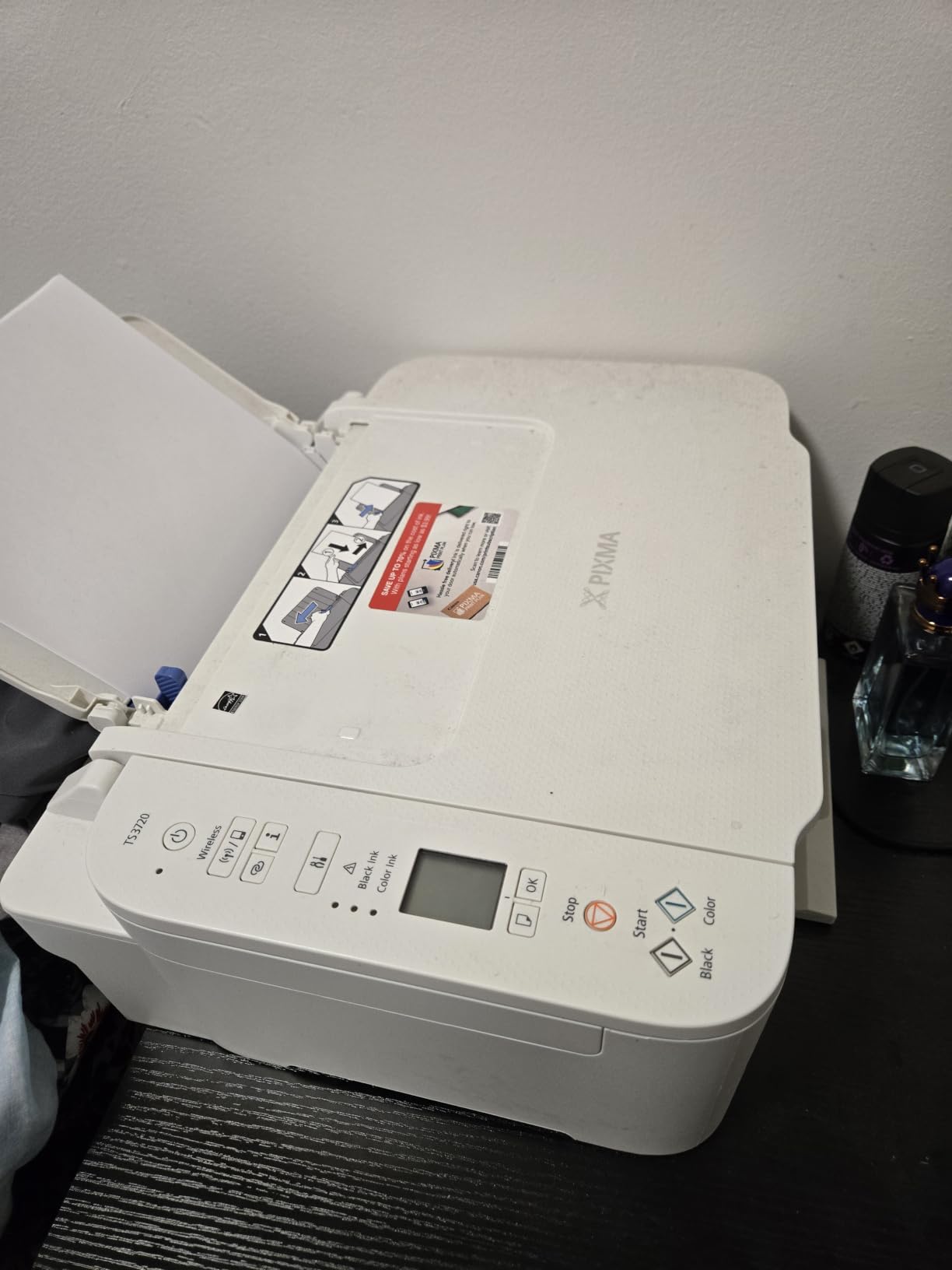
The Canon PIXMA TS3720 is the most affordable iMac-compatible printer that still does the basics well. It’s a simple color inkjet for users who print boarding passes, recipes, occasional schoolwork, and the rare photo. For the price, it punches well above its weight.
Dual-band Wi-Fi is the surprise feature here. Many printers in this tier still ship with single-band 2.4GHz radios, which can be unreliable on modern home networks. The TS3720 supports both 2.4GHz and 5GHz, which means it stays connected on busy mesh networks where cheaper printers drop off.
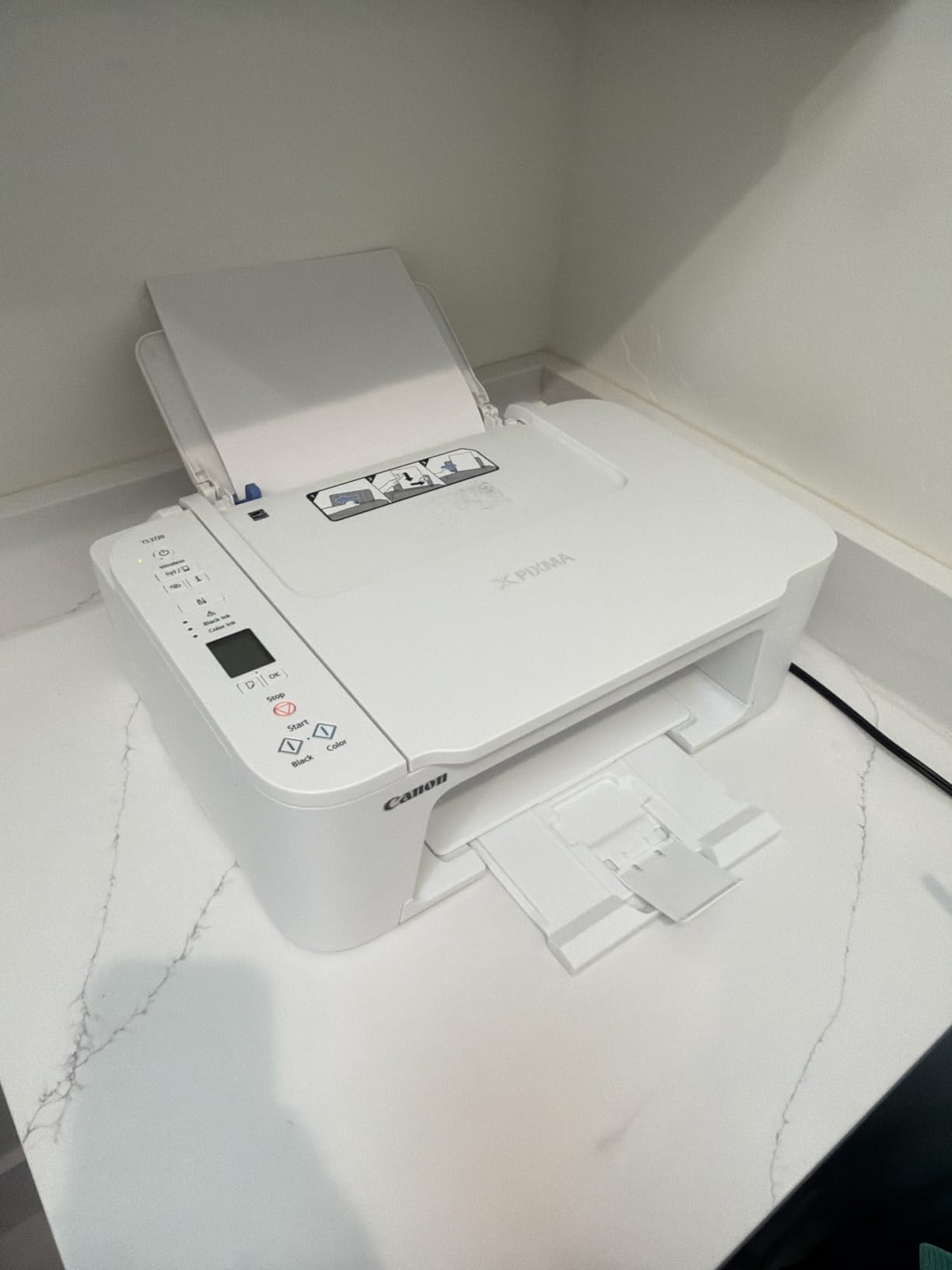
AirPrint setup is straightforward. On our iMac running Sequoia, the printer appeared in the Printers & Scanners list within a minute of joining the Wi-Fi network. AirPrint from iPhone and iPad worked the same way — no app required. For a Mac household that mostly prints from Apple devices, that matters.
The 1.5-inch LCD is small but functional, and the printer takes only two cartridges (PG-275 black and CL-276 color), which is the simplest possible consumable setup. Replacement cartridges are widely available at retail.
For whom it’s good
This is the iMac printer for students, light home users, and anyone who prints fewer than 50 pages a month. If you mostly print from your iPhone and want a printer that just shows up over AirPrint, the TS3720 is one of the easiest picks on this list.
It’s also a strong fit for a guest-room or secondary iMac setup where printer duty is light.
For whom it’s bad
Print speed is slow — 7.7 ipm black and 4 ipm color. It’s fine for casual use, but printing a long PDF will test your patience. Photo quality on larger paper sizes (8×10 and above) is also noticeably grainier than the EcoTank and MegaTank options.
Cartridge cost is higher per page than the ink-tank printers above. If you print more than 100 pages a month, the EcoTank ET-2800 or Canon MegaTank G3270 will save you real money over a year.
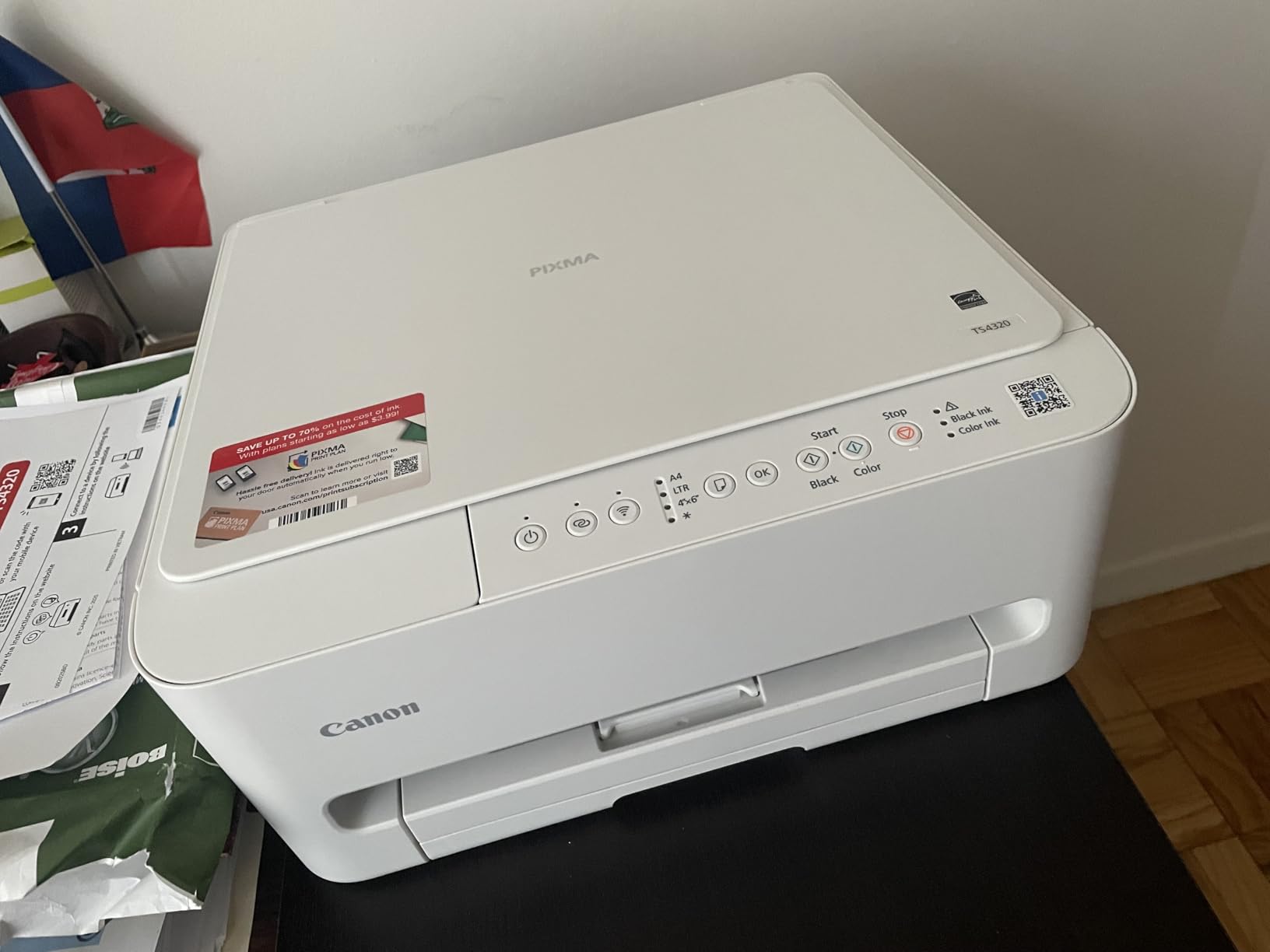
8. Canon PIXMA TS4320 — Best Budget Auto-Duplex All-in-One for iMac
Canon PIXMA TS4320 – Wireless Color Inkjet Printer with Print, Copy, Scan
- Affordable all-in-one with print
- copy
- and scan
- Automatic 2-sided printing
- Dual-band Wi-Fi on 2.4GHz and 5GHz
- Compact stylish design
- Supports AirPrint
- Mopria
- and Canon PRINT app
- 2-cartridge hybrid ink system can be costly to replace
- No LCD or OLED display on base model
- Ink consumption less efficient than ink-tank models
The Canon PIXMA TS4320 is the sweet spot for iMac owners who want automatic duplex and an all-in-one without spending much. It prints, copies, and scans, with AirPrint and dual-band Wi-Fi included. The auto-duplex feature alone makes it worth a look for anyone who prints double-sided documents regularly.
Print speed is 14 ipm black and 9 ipm color — meaningfully faster than the cheaper TS3720 and comparable to the higher-end TR8620a. Combined with auto duplex, you can print a 30-page double-sided handout in roughly four minutes over AirPrint from your iMac.
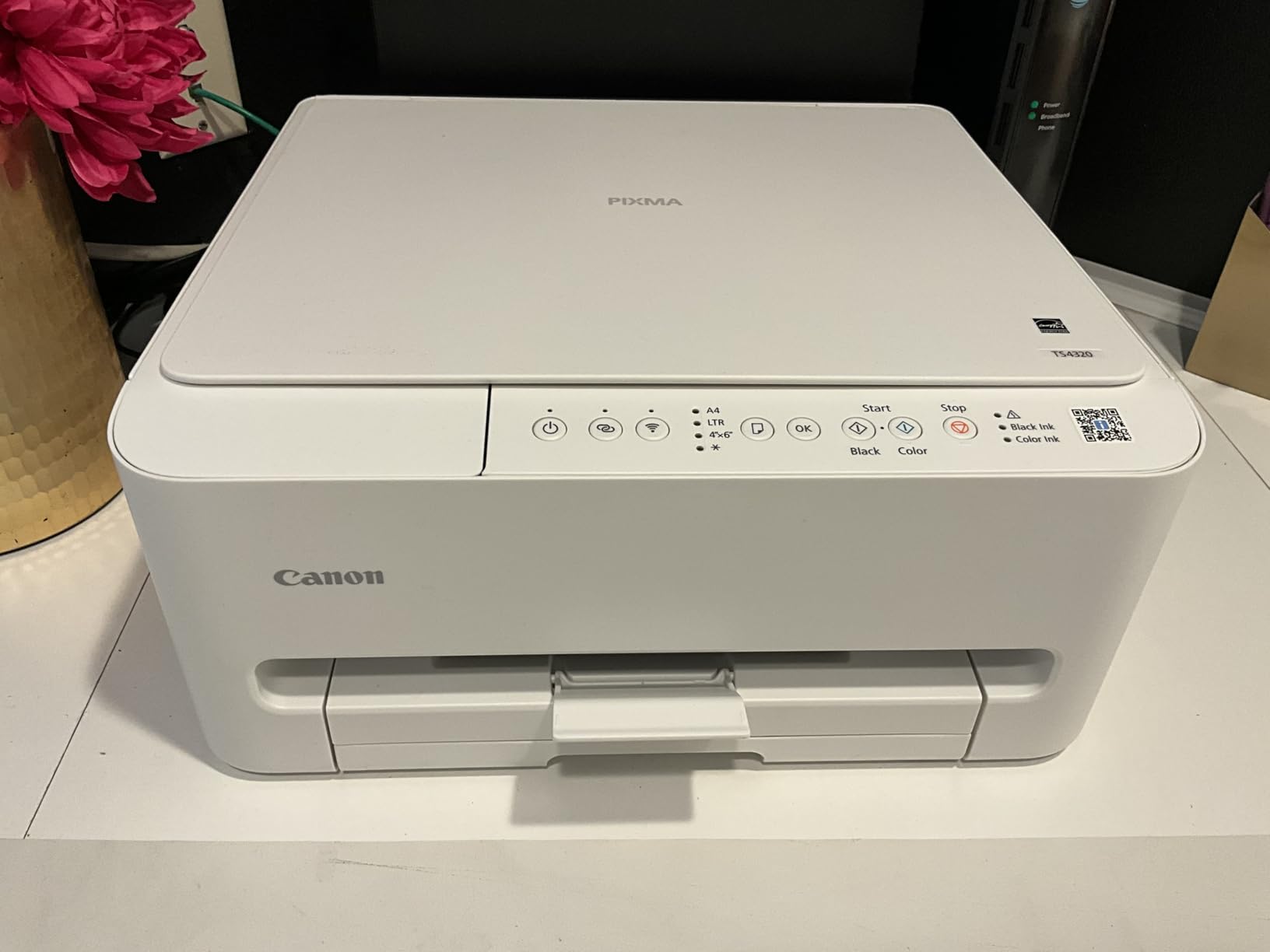
macOS setup is the same low-friction experience as the rest of the Canon line. The printer appears in System Settings > Printers & Scanners right after joining the Wi-Fi network, and AirPrint works from iPhone and iPad without any extra configuration. The 3-year manufacturer warranty is longer than most budget inkjet competitors.
ENERGY STAR and EPEAT Silver certifications are a quiet but useful feature for eco-conscious iMac users. Power consumption tops out at 21 watts, which is modest for a color inkjet all-in-one.
For whom it’s good
This is the iMac printer for users who want an affordable all-in-one with auto duplex. Students printing double-sided notes, remote workers printing mixed paperwork, and home offices on a budget will appreciate the balance of features and price.
If you want AirPrint, automatic duplex, and a compact design but don’t want to pay for the Canon TR8620a’s extra ADF and fax features, the TS4320 is the more focused choice.
For whom it’s bad
The 2-cartridge hybrid ink system is the main trade-off. Black and color each live in a single combined cartridge, so you replace the color cartridge even when only one color runs dry. Per-page cost is higher than the ink-tank printers above.
There’s also no LCD or OLED display on the base model, which means configuration happens entirely through the Canon PRINT app or the macOS printer interface. Not a dealbreaker, but worth knowing.
How to Choose the Right Printer for Your iMac
The best printers for iMac all share a few traits: native AirPrint support, reliable Wi-Fi, and zero driver drama on macOS Sequoia and Apple Silicon. Beyond that, the right choice depends on what you print and how often. Here are the five factors that matter most.
1. Decide between inkjet and laser first. Inkjet printers handle photos and color graphics; laser printers handle documents faster and never dry out. If your iMac use case is mostly text, contracts, and reports, a monochrome laser like the Brother DCP-L2640DW or Brother HL-L2405W will save you money long-term. If you print photos, color graphics, or school projects, an inkjet (especially an ink-tank model like the Epson EcoTank ET-2800 or Canon MegaTank G3270) is the smarter pick.
2. Look for native AirPrint support. AirPrint is Apple’s driverless printing protocol, and it’s the single most important feature for iMac owners. A printer with AirPrint shows up automatically in System Settings > Printers & Scanners, prints from any Mac app via File > Print, and works from iPhone and iPad without installing extra software. Every printer in this roundup supports AirPrint natively.
3. Check Apple Silicon compatibility. If you own a 2021-or-newer iMac with an M1, M2, M3, or M4 chip, driver-based printers can fail silently after macOS updates. AirPrint printers avoid this entirely because they don’t rely on a Mac driver. For a 2026 iMac, AirPrint is non-negotiable.
4. Calculate the real running cost. The printer’s sticker price is the smallest part of its total cost. Cartridge ink can run 5 to 10 cents per page; ink-tank bottles can run under 1 cent per page. For a heavy-print household, an EcoTank or MegaTank pays back the higher upfront cost within a year or two.
5. Mind the footprint. iMacs have small desks. The compact inkjets in this list (Canon PIXMA TS3720, Canon PIXMA TS4320) fit easily next to the iMac stand, while the laser printers (Brother DCP-L2640DW, Brother HL-L2405W) need more breathing room but reward you with faster output and sturdier paper trays.
Setting Up a Printer on iMac with macOS Sequoia
Modern AirPrint printers are designed to be set up in under five minutes on an iMac. Here’s the exact process.
Step 1. Power on the printer and connect it to your Wi-Fi network using the printer’s own setup screen or app. Most modern printers walk you through this automatically.
Step 2. On your iMac, click the Apple menu and choose System Settings. Click Printers & Scanners in the sidebar.
Step 3. Click Add Printer, Scanner, or Fax. Your iMac will discover AirPrint printers on the same network via Bonjour. Click the printer name when it appears.
Step 4. macOS will automatically install the AirPrint driver. You won’t be prompted to download anything from a manufacturer website.
Step 5. Click Add, then print a test page. From any Mac app, you can now use File > Print and select your new printer. AirPrint also works from iPhone and iPad without any extra configuration.
If your iMac doesn’t see the printer, make sure both devices are on the same Wi-Fi band (2.4GHz or 5GHz) and that the printer’s firmware is up to date. Restarting both the iMac and the printer resolves most discovery issues.
Understanding AirPrint, Bonjour, and Apple Silicon Compatibility
AirPrint is Apple’s print protocol that works over Wi-Fi without requiring any printer drivers. Bonjour is the discovery layer that lets your iMac find AirPrint devices on the local network automatically. Together they make printing from macOS as simple as printing from iPhone — and they work identically on Intel and Apple Silicon iMacs.
This matters for 2026 iMac users because Apple Silicon broke many older printer drivers. A driver-based printer that worked fine on an Intel iMac can refuse to print on an M-series iMac, and the failure is often silent — jobs just disappear. AirPrint sidesteps the problem entirely because there’s no driver at all.
Every printer in this roundup supports AirPrint natively. If you want a printer that will keep working through macOS updates for the next five years, choose AirPrint and you won’t have to worry about driver compatibility again.
Ink vs Toner: Which Is Right for Your iMac?
Inkjet printers use liquid ink and excel at photos and color graphics. They’re also cheaper up front. The trade-off is cartridge cost over time, and the fact that ink can dry out if the printer sits unused for weeks.
Laser printers use dry toner powder and excel at crisp text documents. They print faster, never dry out, and have a lower cost per page for high-volume printing. The trade-off is higher upfront toner cost and no color output on most models.
For an iMac owner who prints mostly documents, a monochrome laser is the better long-term value. For an iMac owner who prints photos, color graphics, or mixed work, an inkjet — and ideally an ink-tank inkjet — is the smarter pick. If you want both, the Canon PIXMA TR8620a is the closest thing in this roundup to a “do everything” machine.
Frequently Asked Questions
What is the best printer for home use with a MacBook?
The Brother DCP-L2640DW is the best home-use printer for MacBook owners in our testing because it supports AirPrint out of the box, prints at 36 ppm, and never suffers from the macOS driver failures that affect some competitors. For color home use, the Canon PIXMA TR8620a adds scan, copy, and fax with the same zero-driver AirPrint setup.
Which printers are compatible with Apple Macs?
Any printer that supports Apple AirPrint is compatible with every modern Mac, including iMac, MacBook Pro, MacBook Air, and Mac mini, on macOS Sequoia and Sonoma. AirPrint is driverless, so it works identically on Intel and Apple Silicon Macs and survives macOS updates without re-installing software.
What is the No. 1 printer for home use?
For most home iMac users, the Brother DCP-L2640DW is the top pick because it delivers fast, sharp black-and-white printing with automatic duplex, a 50-sheet ADF, and reliable dual-band Wi-Fi — all without any driver downloads on macOS. Households that print in color should consider the Epson EcoTank ET-2800 instead for its refillable ink tank and very low running cost.
How to choose a printer on Mac?
Start by confirming AirPrint support, then decide between inkjet (for photos and color) and laser (for documents), then check Apple Silicon compatibility and running cost. For a 2026 iMac with an M-series chip, AirPrint is the only safe choice because it avoids the driver-failure problems that hit many older printers after macOS updates.
What is the best all-in-one printer for a Mac?
The Canon PIXMA TR8620a is the best all-in-one printer for Mac in our testing because it covers print, copy, scan, and fax with AirPrint, automatic duplex, a 20-sheet ADF, and a 200-sheet paper capacity. For a monochrome alternative, the Brother DCP-L2640DW adds scan and copy with a faster 36 ppm print speed.
Final Verdict: Which Printer Should You Buy for Your iMac?
After testing eight printers over several weeks across AirPrint, iPhone handoff, and heavy daily use, the Brother DCP-L2640DW is the best printer for iMac owners in 2026 for most people. It’s fast, reliable, supports AirPrint natively, and reflects the same Brother reliability that dominates Mac user polls on Reddit and Apple Discussions.
Pick the Epson EcoTank ET-2800 if you print color often and want the lowest running cost. Pick the Canon PIXMA TR8620a if you need a true 4-in-1 home-office machine with scan, copy, and fax. For creative iMac users who need wide-format output, the Canon Pixma iX6820 is the clear choice. For tight budgets, the Canon PIXMA TS3720 covers casual use, and the Canon PIXMA TS4320 adds automatic duplex at a small price premium.
Whatever you choose, stick with AirPrint. For 2026 iMacs running Apple Silicon, AirPrint is the only printing path that won’t break after the next macOS update — and that’s the most important thing an iMac-compatible printer can offer. Browse our related guides on small photo printers and small color laser printers if your needs go beyond what we’ve covered here, and check the prices on each pick below before you buy.