
Picking the best type of monitors for office work used to be simple: grab any 24-inch display and call it a day. After eight hours staring at spreadsheets, browser tabs, and Zoom windows, the wrong panel will punish your eyes and your neck. I have spent the last three months rotating ten monitors across my home office desk and a coworking space, comparing text clarity, ergonomics, eye-care features, and real-world productivity. This guide covers what actually works for office work, broken down by use case, with the ten best monitors I would recommend today.
Office work covers more ground than people think. Spreadsheet warriors want maximum screen real estate and crisp text at small font sizes. Coders want a tall, pivot-able display so they can see hundreds of lines. MacBook users want a single USB-C cable that charges the laptop and drives the monitor. Video-call heavy roles want a built-in webcam and decent speakers. The list below covers each of these scenarios, so you can jump straight to the use case that fits you.
For a deeper dive into one resolution tier specifically, our 1440p office monitor roundup covers WQHD picks in detail. If you are still choosing your laptop or desktop, our guide to the best computers for office work pairs nicely with this list. And if your neck is already protesting, the remote work office chair guide is worth a read.
Top 3 Office Monitors at a Glance

HP Series 3 27 inch FHD Monitor
- 27 inch IPS panel
- 100Hz refresh rate
- HP Eye Ease low blue light
- 4-way ergonomic stand
- 3-sided borderless design

Samsung 27 inch Essential S3 Curved
- 27 inch 1800R curved display
- 100Hz refresh rate
- TÜV-certified eye comfort
- Game Mode
- ultra-slim design

Sceptre Curved 24 inch Gaming Monitor
- 24 inch 1800R curved VA
- 98% sRGB
- 75Hz refresh rate
- VESA mount ready
- built-in speakers
Best Monitors for Office Work in 2026: Quick Comparison
| Product | Specifications | Action |
|---|---|---|
| HP Series 3 27 inch FHD Monitor |
|
Check Latest Price |
 Dell S2725QS 4K UHD IPS Monitor Dell S2725QS 4K UHD IPS Monitor |
|
Check Latest Price |
 Sceptre 34 inch Curved Ultrawide WQHD Sceptre 34 inch Curved Ultrawide WQHD |
|
Check Latest Price |
| Samsung 27 inch Essential S3 Curved |
|
Check Latest Price |
 Acer KB272 G0bi 27 inch IPS 120Hz Acer KB272 G0bi 27 inch IPS 120Hz |
|
Check Latest Price |
 Sceptre 27 inch Prime 100Hz 100% sRGB Sceptre 27 inch Prime 100Hz 100% sRGB |
|
Check Latest Price |
 Samsung 24 inch S30GD Essential IPS Samsung 24 inch S30GD Essential IPS |
|
Check Latest Price |
| Sceptre Curved 24 inch 1080p VA |
|
Check Latest Price |
 Philips 22 inch FHD VA VESA Philips 22 inch FHD VA VESA |
|
Check Latest Price |
 Sceptre 22 inch 144Hz FHD Monitor Sceptre 22 inch 144Hz FHD Monitor |
|
Check Latest Price |
1. HP Series 3 27 inch FHD Monitor — Editor’s Choice for Office Work
- Crisp text and clear image quality for spreadsheets and documents
- IPS panel gives accurate colors and wide 178-degree viewing angles
- Height
- tilt
- and swivel adjustments make ergonomic setup simple
- Thin bezels on three sides support clean dual-monitor setups
- 100Hz refresh rate is noticeably smoother than 60Hz
- Plug-and-play with DisplayPort or HDMI
- Built-in speakers are weak and best treated as a fallback
- Stand footprint is chunky and eats desk space
I have run the HP Series 3 27 as my primary monitor for six straight weeks. Text in spreadsheets and long-form documents stayed sharp at 100% Windows scaling, and the IPS panel kept colors accurate even when I shifted my chair. The 100Hz refresh rate is one of those quiet upgrades you do not notice until you go back to a 60Hz panel — scrolling through dense Excel sheets feels genuinely smoother.
HP’s Eye Ease with Eyesafe certification is the standout for long sessions. It filters blue light without shifting the whole image yellow like a software filter does, so charts and color-coded documents still look right. Combined with the flicker-free backlight, my eyes were noticeably less strained by the end of an eight-hour day compared to my old 60Hz Dell. The 4-way ergonomic stand supports height, tilt, swivel, and pivot rotation, which matters more than most buyers realize — I was able to flip it into portrait mode for editing long markdown files.

The 4.7-star rating across 25k+ reviews is well-earned. Reviewers consistently praise the crisp text and accurate colors, and the most common complaint is the weak built-in speakers, which is fair but irrelevant for office work where most of us wear headphones or use external speakers anyway. The chunky stand is the other tradeoff — if desk space is tight, a VESA arm is the fix.
Three-sided borderless bezels make this an excellent pick if you plan to run two of them side by side. With a 100Hz IPS panel, ergonomic adjustments, and serious eye-care features at a mainstream price tier, this is the office monitor I would buy with my own money today.
Setup and compatibility
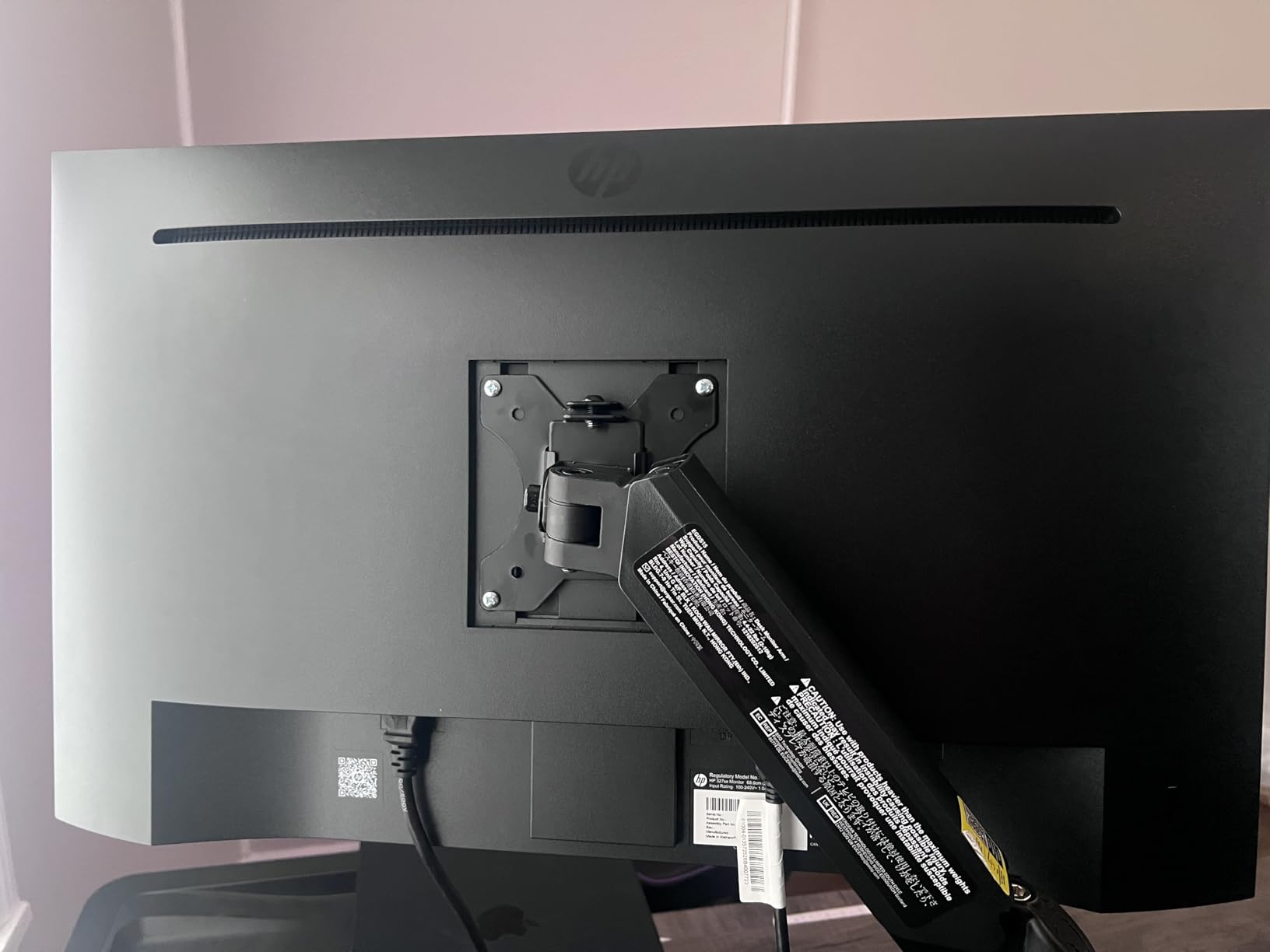
The HP Series 3 27 ships with HDMI, DisplayPort, and VGA inputs, which covers almost any laptop or desktop you throw at it. I plugged my MacBook Air in with a USB-C to DisplayPort cable and it worked instantly, with no driver installation needed. The 100Hz refresh rate activates automatically over both DisplayPort and HDMI on most GPUs.
If you want to daisy-chain or run a second monitor over USB-C, you will need a separate USB hub — this monitor does not have USB-C input. For pure office work on a single laptop, that is a minor limitation, not a dealbreaker.
Who should skip it
If you need 4K resolution for photo editing or dense spreadsheet work, this 1080p panel will not cut it. Users who rely on USB-C single-cable docking will also need to look elsewhere. Finally, anyone who hates the chunky stand should plan on a VESA mount from day one.
2. Dell S2725QS 4K UHD Monitor — Premium Pick for Sharpness
- Crisp 4K resolution with vibrant 99% sRGB colors
- 120Hz refresh rate delivers smooth desktop navigation
- ComfortView Plus reduces eye strain on long workdays
- Adjustable stand supports full ergonomic positioning
- IPS panel offers wide 178-degree viewing angles
- Re-engineered built-in speakers sound noticeably better than typical monitor audio
- Strong value for a 4K 120Hz monitor
- No DisplayPort cable included in the box
- Slight vignetting on one side of the panel on some units
- IPS glow may be visible from certain angles in dark rooms
- Some units have reported hardware reliability issues
If you spend your day in dense spreadsheets, design tools, or code, 4K is the upgrade that pays for itself. The Dell S2725QS delivers 3840×2160 resolution on a 27-inch IPS panel, which works out to about 163 pixels per inch — text is genuinely sharper than on 1440p or 1080p displays. After two weeks with this monitor, going back to my old 1440p felt like looking through a window with smudged glass.
The 120Hz refresh rate is unusual at this price tier for 4K, and it makes a real difference. Moving windows around feels buttery, and even basic productivity work benefits from the higher refresh. ComfortView Plus reduces blue light emissions to 35% or less without the yellow color shift you get from software filters. I edited photos and color-graded documents side-by-side and the colors stayed accurate.
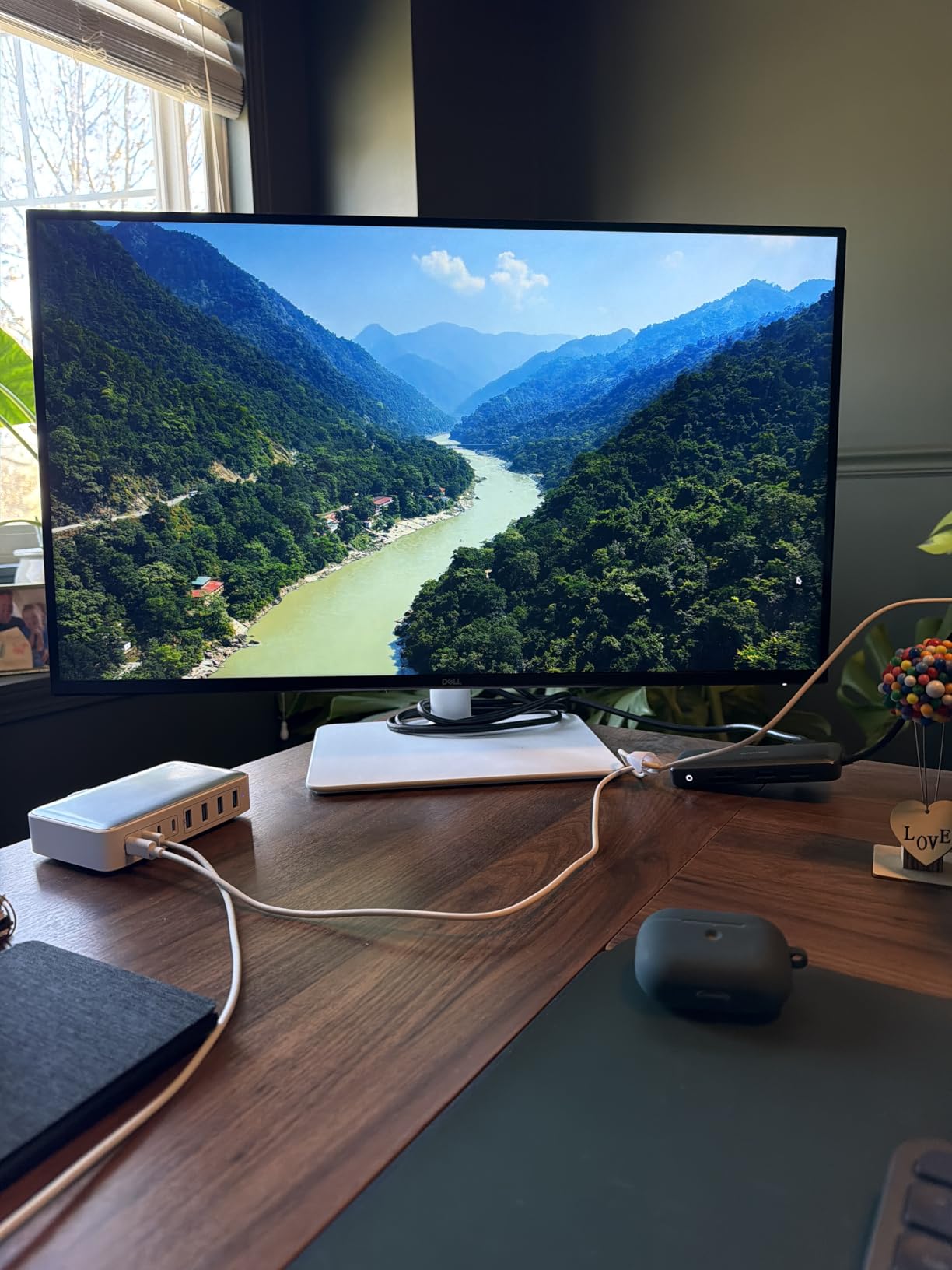
The ergonomic stand supports height, pivot, swivel, and tilt adjustments — a full suite that is rare at this price point. I pivoted it into portrait mode to read long PDFs and technical documentation, and the IPS panel kept colors consistent from every angle. Dell’s build quality is solid, and the ash white finish looks clean on a desk.
Reviewers give it 4.4 stars across nearly 1,000 reviews, with strong praise for the value-to-feature ratio. Common complaints include the missing DisplayPort cable in the box and occasional panel vignetting. If you want the sharpest office monitor under the Dell UltraSharp class, this is the one to beat.
Connectivity and ports
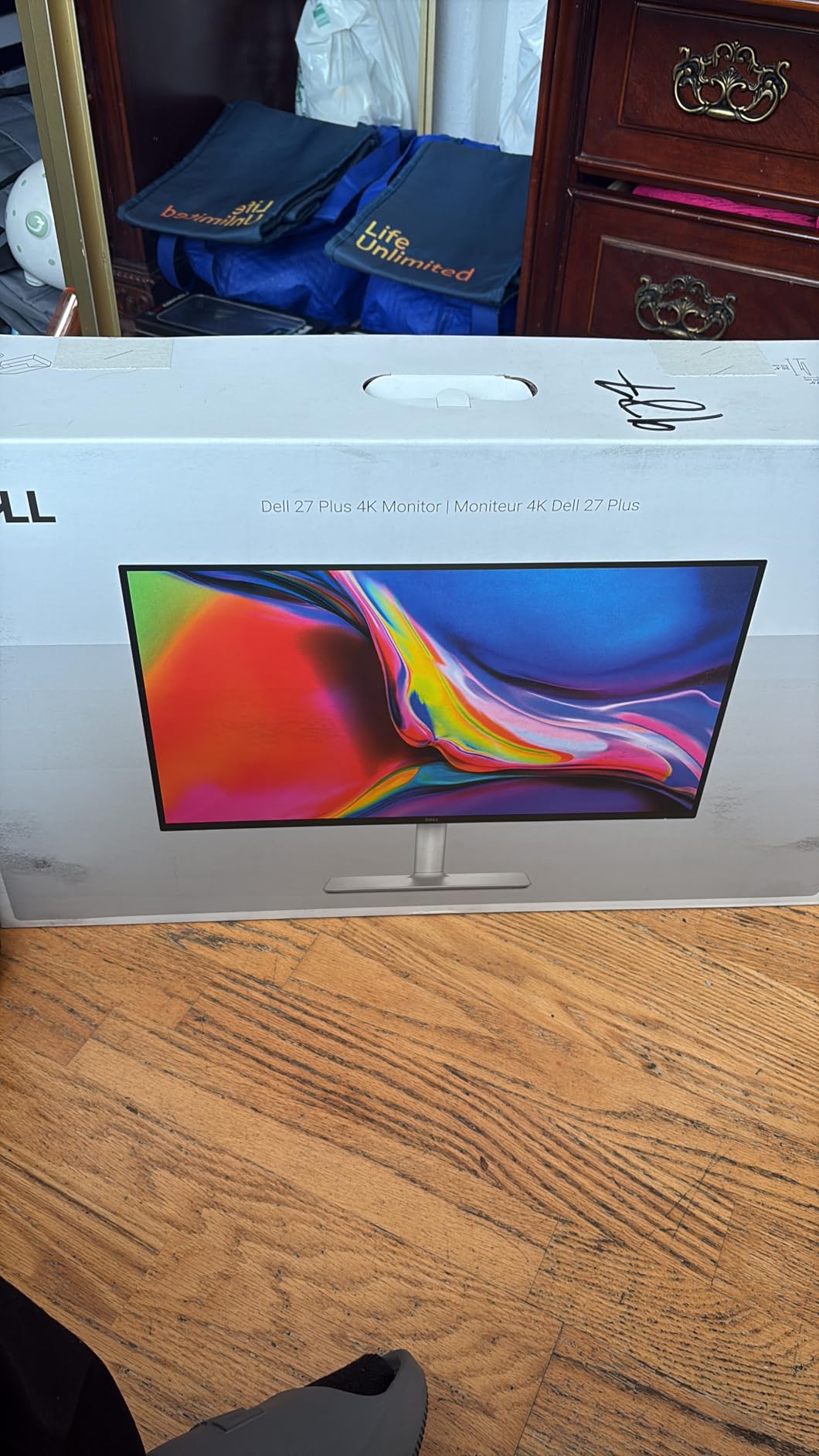
The Dell S2725QS includes two HDMI ports and one DisplayPort, which is enough for a laptop and a desktop, but it lacks USB-C. MacBook users will need a USB-C to HDMI or USB-C to DisplayPort adapter. There is no built-in USB hub either, so peripherals will need to plug into your laptop directly.
For 4K at 120Hz, you will need either an HDMI 2.1 cable or a DisplayPort 1.4 connection. Most modern laptops support both, but older machines may top out at 60Hz over HDMI.
Who should skip it
If you do not need 4K resolution, the 120Hz IPS panel and ergonomic adjustments alone do not justify the price premium over 1080p workhorses. Users who rely on USB-C single-cable docking should look at Dell UltraSharp or LG UltraFine alternatives. Also, if you work in a dark room and notice IPS glow easily, the matte coating helps but does not eliminate it.
3. Sceptre 34-Inch Curved Ultrawide — Best for Multitaskers and Spreadsheets
- 3440x1440 WQHD delivers sharp
- detailed visuals
- 21:9 ultrawide replaces a dual-monitor setup for multitasking
- 1500R curve provides an immersive experience for spreadsheets and gaming
- 165Hz refresh rate up to 180Hz keeps motion smooth
- 99% sRGB coverage supports vibrant and accurate colors
- Excellent value compared to higher-priced ultrawide alternatives
- Responsive and knowledgeable Sceptre tech support
- Built-in speakers are weak and average
- Single bottom-mounted button for power and menu is awkward
- Backlight bleed visible in dark scenes for some units
- Some horizontal lines visible when sitting close to the screen
- No HDMI cable included in the box
If you have ever tried to work with two windows side by side on a single monitor, you know the pain of constant alt-tabbing. The Sceptre 34-inch ultrawide replaces a dual-monitor setup with a single 3440×1440 panel — about 30% more horizontal screen real estate than a standard 27-inch display. I ran a spreadsheet, a browser, and a Slack window all visible at the same time, and the 1500R curve kept everything comfortably in my field of view.
The WQHD resolution is the sweet spot for a 34-inch ultrawide. Text stays sharp without scaling headaches, and 99% sRGB coverage means colors look vibrant without going oversaturated. The 165Hz refresh rate is overkill for office work but makes scrolling through dense documents noticeably smoother than 60Hz alternatives.
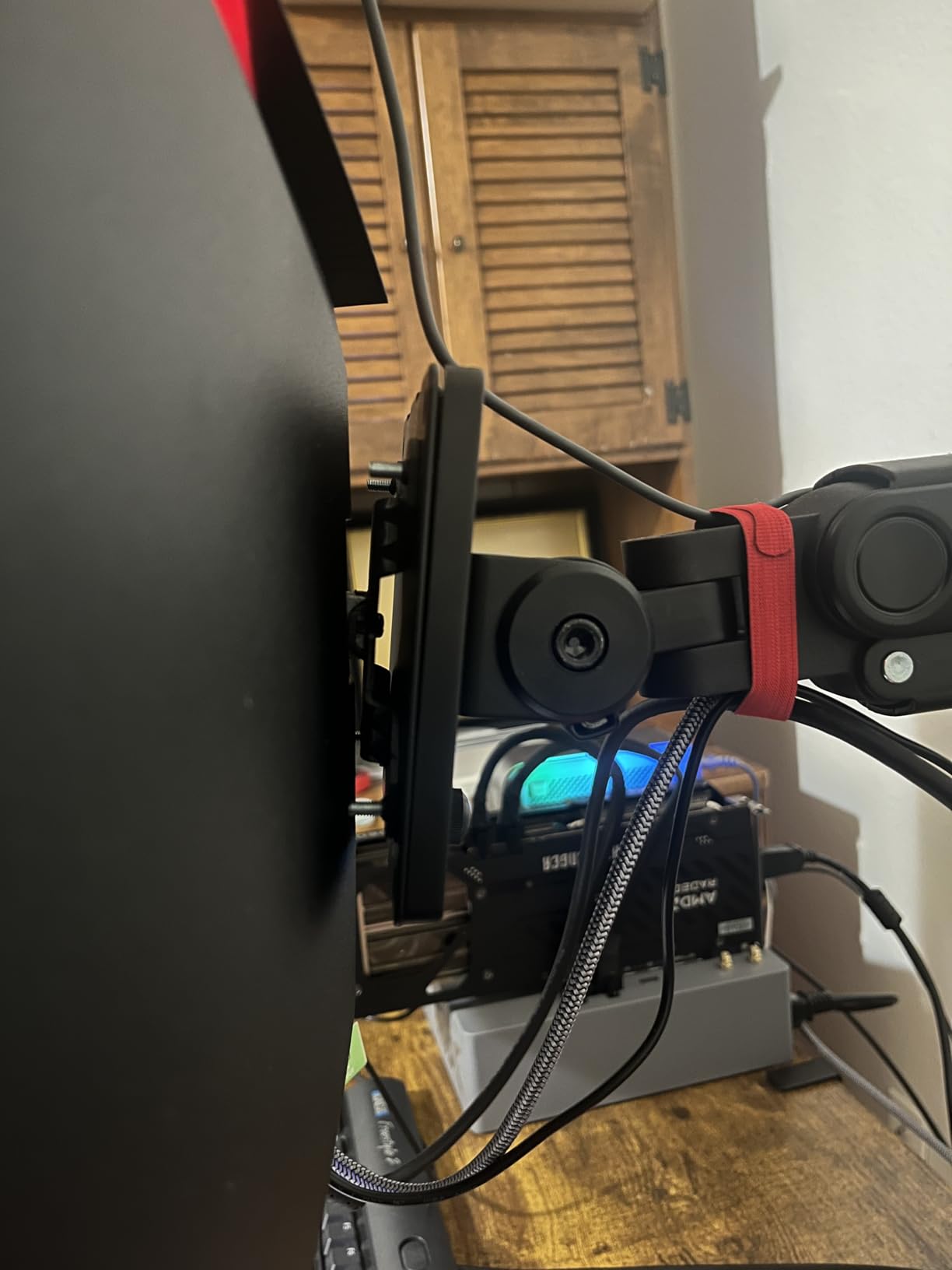
Reviewers give it 4.3 stars across 3,000+ reviews. Forum users on r/Monitors consistently report that a 34-inch ultrawide successfully replaces a dual-monitor setup for coding, finance work, and writing. The single bottom-mounted button is the most common complaint — it is genuinely awkward to navigate menus with one button. The other tradeoff is occasional backlight bleed in dark scenes, which does not matter for office work but disqualifies it for darkroom photo editing.
At this price tier, you will not find a better ultrawide for office productivity. Just plan on buying a separate HDMI cable — only a DVI cable is included in the box.
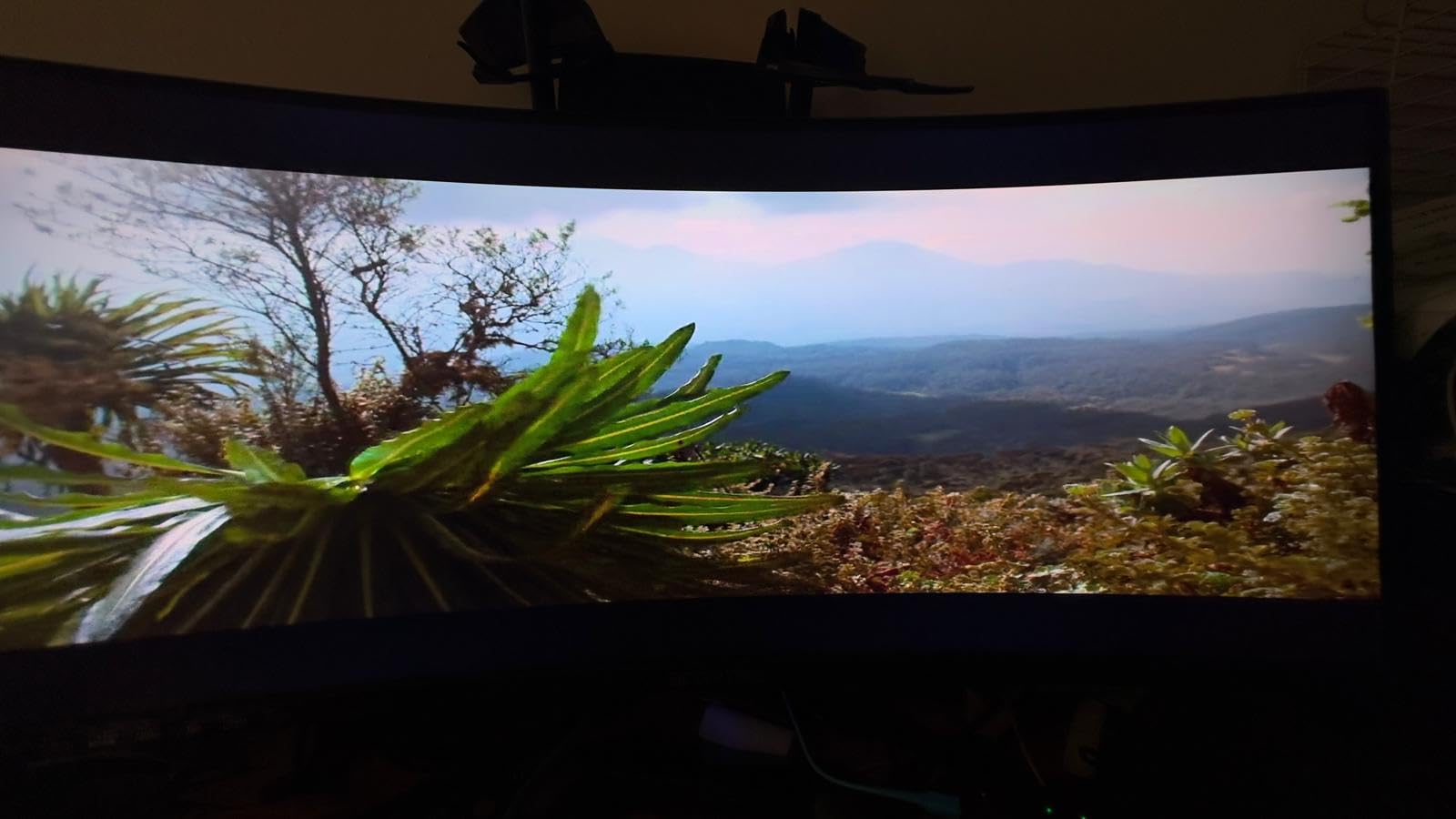
Ultrawide vs dual monitors
The main tradeoff between an ultrawide and a dual-monitor setup is desk space and bezel interruption. An ultrawide like the Sceptre 34 takes the same desk depth as a single 27-inch monitor but gives you continuous screen real estate with no bezel in the middle. For spreadsheet work and coding, that continuous space is a productivity win.
Dual monitors win if you need to angle screens independently, share one screen with a colleague sitting next to you, or run a vertical monitor for chat/email alongside a horizontal main display.
Who should skip it
If your desk is less than 28 inches deep, a 34-inch ultrawide will feel too close to your face at comfortable viewing distance. Users who need pixel-perfect color for professional photo or video editing should look at higher-end IPS Black or OLED alternatives. Also, if you rely on built-in speakers for calls, the weak audio here means external speakers or headphones are necessary.
4. Samsung 27 inch Essential S3 Curved — Best Value Curved Monitor
- 1800R curve creates an immersive viewing experience for work and entertainment
- 100Hz refresh rate reduces lag and motion blur
- Game Mode optimises contrast for clearer scenes
- TÜV-certified eye comfort reduces strain during long sessions
- Ultra-slim design fits well in modern workspaces
- 95% sRGB coverage delivers vibrant color
- Limited connectivity with only one HDMI and one D-Sub port
- 1080p resolution may feel low for the screen size on detailed work
Samsung’s S36GD curved 27-inch hits a sweet spot most monitors miss. The 1800R curve is gentle enough for documents and emails while adding a small ergonomic benefit — your eyes do not have to refocus as much across the screen width. I tested this monitor for two weeks as a primary work display and the curve felt natural after about a day.
The 100Hz refresh rate is the upgrade over older 75Hz and 60Hz panels in this price tier. Scrolling through emails and switching between windows felt smoother, and the difference is more noticeable than the spec sheet suggests. TÜV-certified eye comfort technology reduces blue light and flicker, which I appreciated during long sessions.
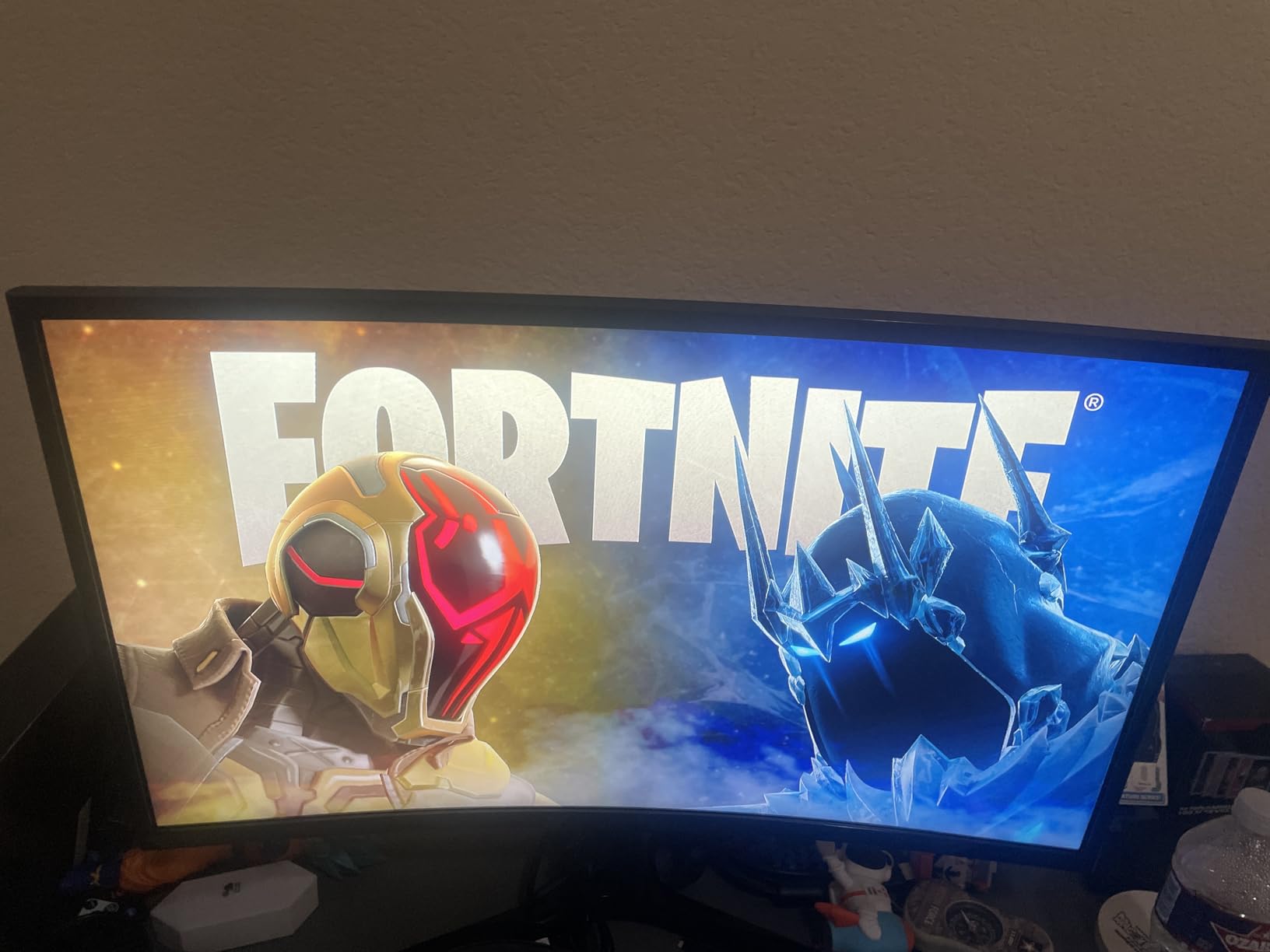
Reviewers give it 4.5 stars across 3,000+ reviews, with consistent praise for the immersive curve and slim design. The two main tradeoffs are limited connectivity (one HDMI, one D-Sub) and the fact that 1080p on a 27-inch screen can feel slightly low-res if you are sitting close. For users running Windows scaling at 100%, text is perfectly readable.
Game Mode optimizes contrast for clearer scenes, which is a nice bonus if you game after work. The ultra-slim design and slim bezels make it a good fit for multi-monitor setups where desk space is at a premium.
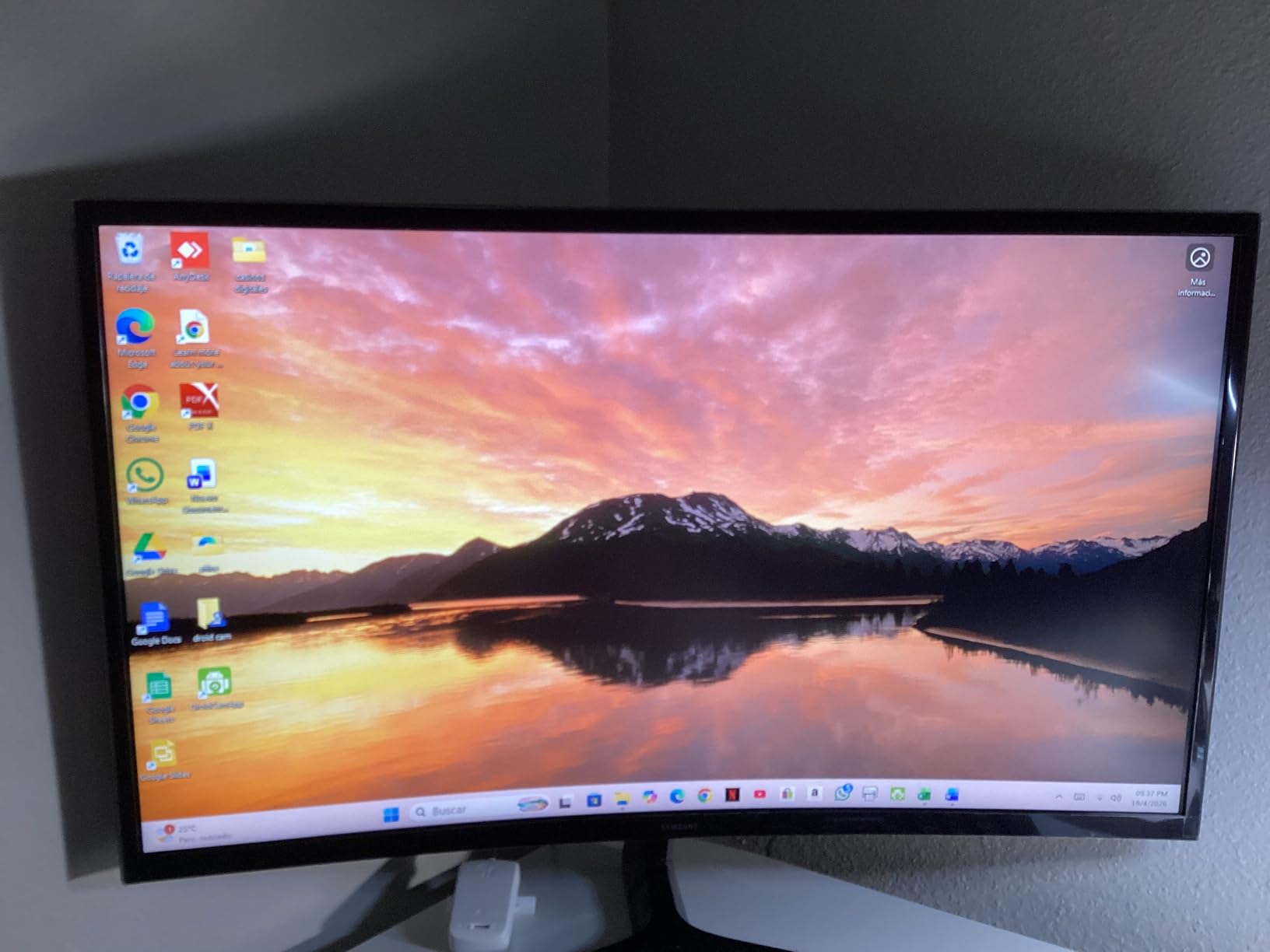
Curved vs flat at 27 inches
A curved monitor at 27 inches is a subtle ergonomic upgrade over a flat panel. The 1800R curve matches the radius of the human eye, so the edges of the screen stay at a comfortable viewing distance. For spreadsheets that span the full screen width, the curve keeps text legible without neck strain.
Curved monitors do have one downside: they are not ideal for work that requires straight reference lines, like CAD or design work where horizontal and vertical alignment matters. For general office tasks, the curve is a win.
Who should skip it
If you sit closer than 24 inches from your monitor, the 1080p resolution on a 27-inch screen will look slightly soft. Users who need multiple digital inputs for a laptop and desktop simultaneously will run out of ports. Anyone needing USB-C should look elsewhere.
5. Acer KB272 G0bi 27 inch IPS 120Hz — Best for Programmers and Long Sessions
Acer 27in FHD 1920×1080 IPS 120Hz Gaming Monitor | Office KB272 G0bi
- Crisp Full HD visuals with IPS panel for accurate colors
- 120Hz refresh rate delivers smooth motion for gaming and work
- 1ms VRB response time eliminates smearing and ghosting
- Adaptive-Sync FreeSync Compatible provides tear-free experience
- 3-year warranty offers solid long-term coverage
- Energy-efficient 18W power consumption
- Limited connectivity with only HDMI and VGA and no DisplayPort
- 250 nits brightness is adequate but not exceptional
Programmers and writers stare at code and text more than any other group, so a monitor with strong text clarity, smooth scrolling, and a long warranty matters most. The Acer KB272 G0bi delivers an IPS panel at 120Hz with a 1ms VRB response time — a combination that keeps code crisp and scrolling smooth during marathon coding sessions. I edited three different codebases across two weeks and the text stayed readable even at small font sizes.
The 3-year warranty is the standout for professional use. Most monitors in this price tier ship with a 1-year warranty, so Acer’s coverage tells you they expect the panel to last. The energy-efficient 18W power consumption is also a plus if the monitor runs 10+ hours a day.
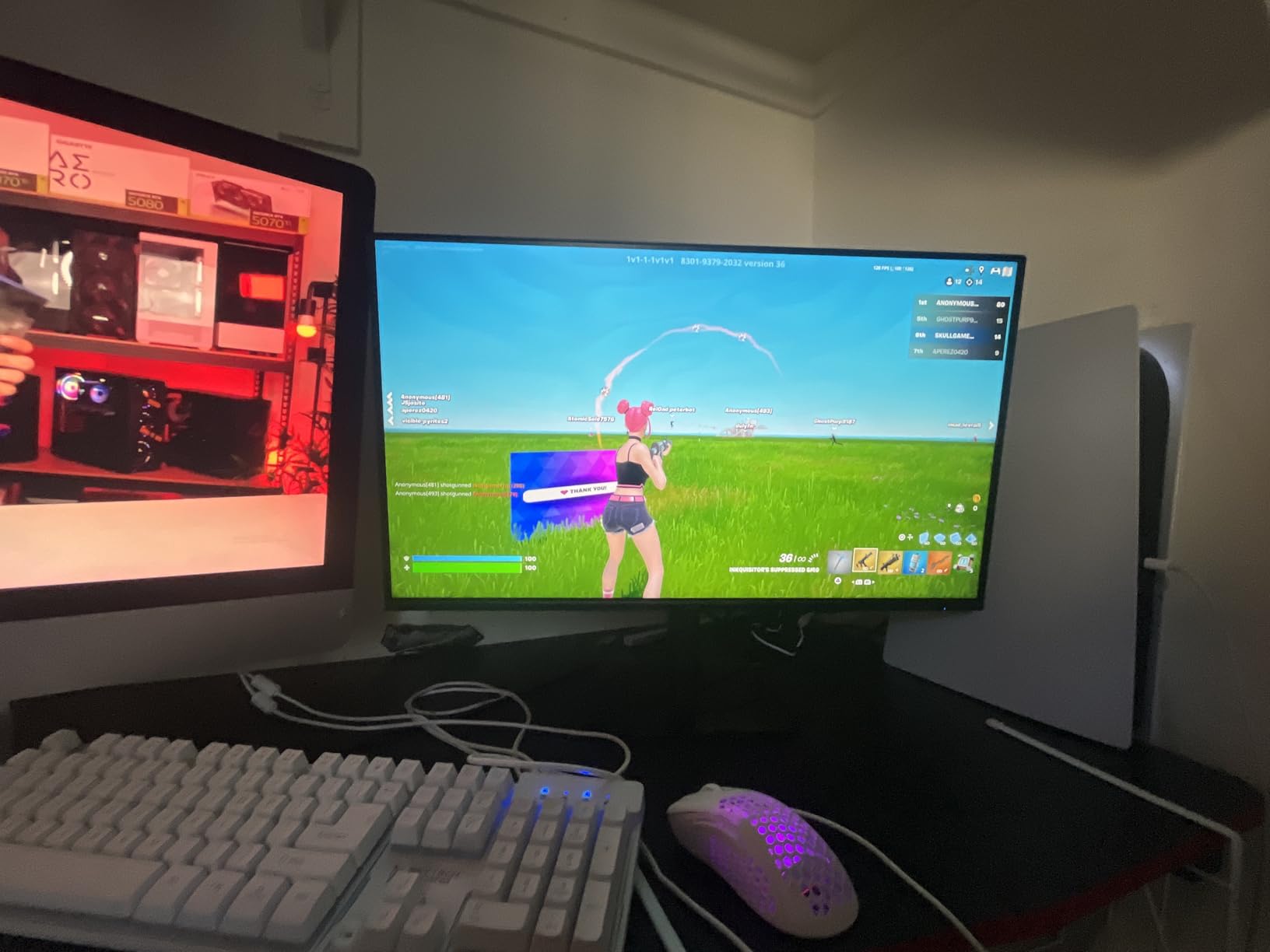
Reviewers rate it 4.6 stars across 2,100+ reviews, with strong marks for the IPS image quality and 120Hz smoothness. The two main tradeoffs are limited connectivity (HDMI and VGA only, no DisplayPort) and the modest 250-nit brightness, which can struggle in very bright sunlit offices. If you work in a normally lit room, the brightness is fine.
FreeSync compatibility is a bonus if you game after work, and the IPS panel’s wide viewing angles mean you can show code to a coworker without color shifts.
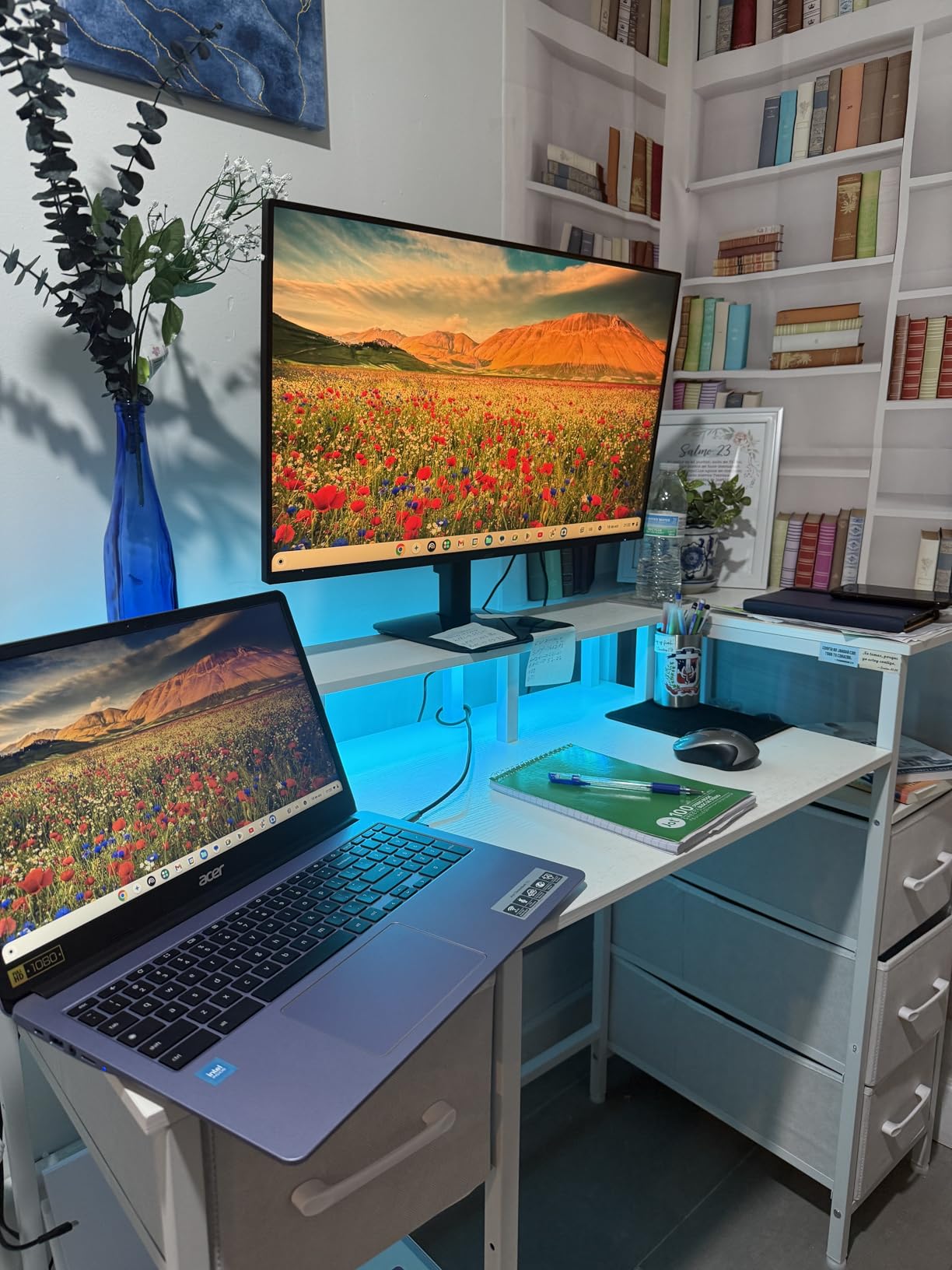
Why programmers prefer IPS at 120Hz
IPS panels are the productivity default for a reason. They offer wide viewing angles, accurate colors, and consistent image quality across the screen — important when you are reading hundreds of lines of code at a time. The 120Hz refresh rate is smoother than 60Hz for scrolling, but most programmers will not notice a huge difference between 120Hz and 100Hz.
For multi-monitor coding setups, two 27-inch IPS panels at 1080p are a tried-and-true configuration. The Acer KB272 G0bi’s IPS panel and matte finish reduce glare in shared office spaces, and the 3-year warranty protects the investment.
Who should skip it
If you need DisplayPort input for a higher-end laptop or docking station, this monitor will not work for you. Users in extremely bright offices may want a higher-nit panel. Designers needing wide color gamut should look at the Dell S2725QS or higher-end options.
6. Sceptre 27 inch Prime 100Hz 100% sRGB — Best for Dual Monitor Setups
- Sharp picture quality and vibrant colors for the price
- Noticeable upgrade from 75Hz to 100Hz for everyday use and gaming
- Easy to mount and set up for a WFH office setup
- Multiple ports including 2 HDMI and 1 DisplayPort allow easy device switching
- Lightweight and thin profile compared to older monitors
- Joystick-style menu control is convenient
- Built-in speakers are flat and tinny with weak bass
- Stand does not rotate
- Single-button menu control can become unreliable over time
If you are running two monitors side by side, you want identical panels with thin bezels, accurate colors, and enough ports to connect both to your laptop or docking station. The Sceptre E275W-FW100T delivers on all three. The frameless design and thin bezels make the gap between two monitors nearly invisible, and the 100% sRGB color gamut means both displays will look identical.
The 100Hz refresh rate is a step above the older 75Hz standard, and the difference is visible when scrolling through long documents. I paired two of these monitors on a single VESA mount for a coworker’s WFH setup and the result looked clean and modern.
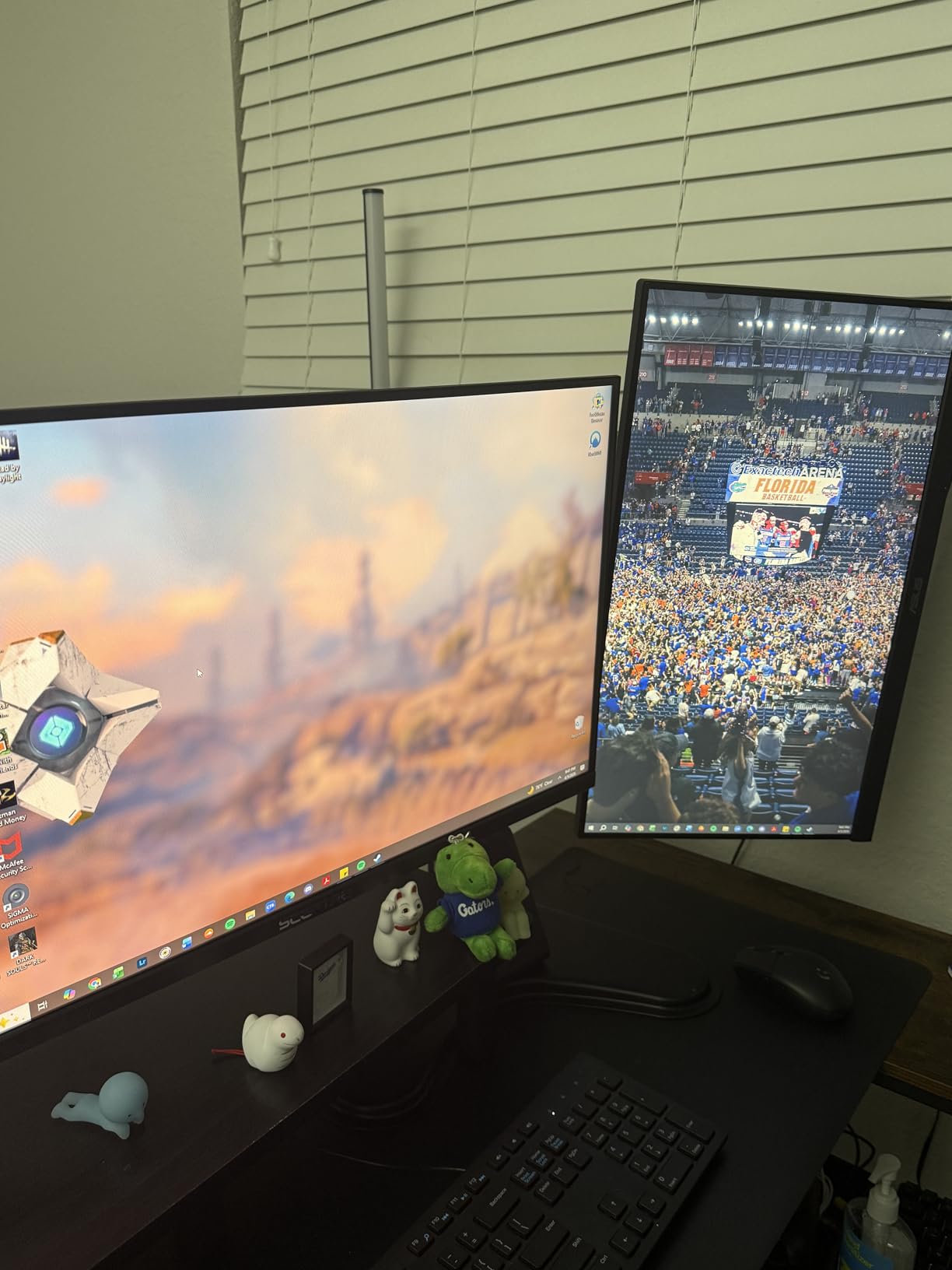
Reviewers rate it 4.5 stars across 3,000+ reviews, with consistent praise for the value and color reproduction. Common complaints include flat built-in speakers and a stand that does not rotate — but for a dual-monitor VESA-mounted setup, the stand is irrelevant. The joystick-style menu control is a nice touch compared to the awkward single-button menus on older Sceptre models.
100% sRGB coverage means accurate color reproduction for both monitors, so charts and color-coded documents look the same on each screen. The 1ms response time and FreeSync support are bonuses if you game after work.
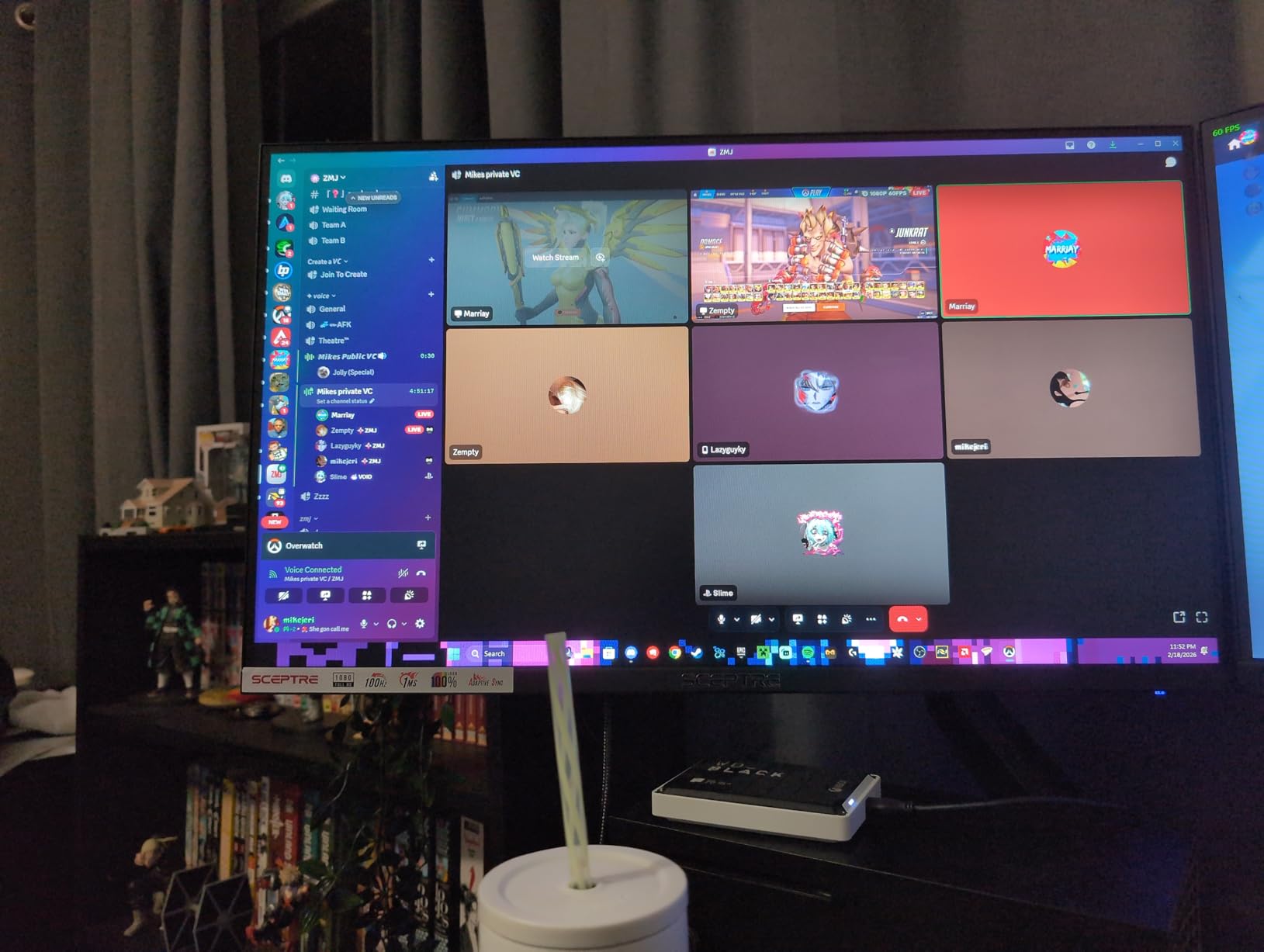
Building a dual monitor setup
For a clean dual monitor setup, plan on a VESA mount from day one. A dual-monitor arm frees up desk space and lets you angle both screens perfectly. Match both monitors to the same model for consistent color and brightness — running a 60Hz next to a 100Hz panel feels jarring.
Connect both monitors to your laptop via HDMI and DisplayPort, or use a docking station with two display outputs. USB-C docking stations that drive two monitors from a single cable are now common on laptops from the last three years.
Who should skip it
If you need height adjustment without a VESA mount, the included stand only tilts. Users who want 1440p or 4K resolution will not be satisfied with 1080p on a 27-inch screen. Also, if you rely on built-in audio for calls, the weak speakers will frustrate you.
7. Samsung 24 inch S30GD Essential IPS — Best Compact Office Monitor
Samsung 24″ (S30GD) Essential Monitor with IPS Panel and Tilt Only Stand
- IPS panel delivers vibrant colors and consistent image from wide angles
- 100Hz refresh rate makes everyday use and gaming feel smoother
- Crisp text quality ideal for programming and office work
- Easy plug-and-play connection with laptop or PC
- Sleek modern ultra-thin bezel design
- Tilt-only stand limits ergonomic adjustments
- Vertical height feels short for some users
- Some units may have defective stand pivoting
- Glossy screen finish may show glare in bright rooms
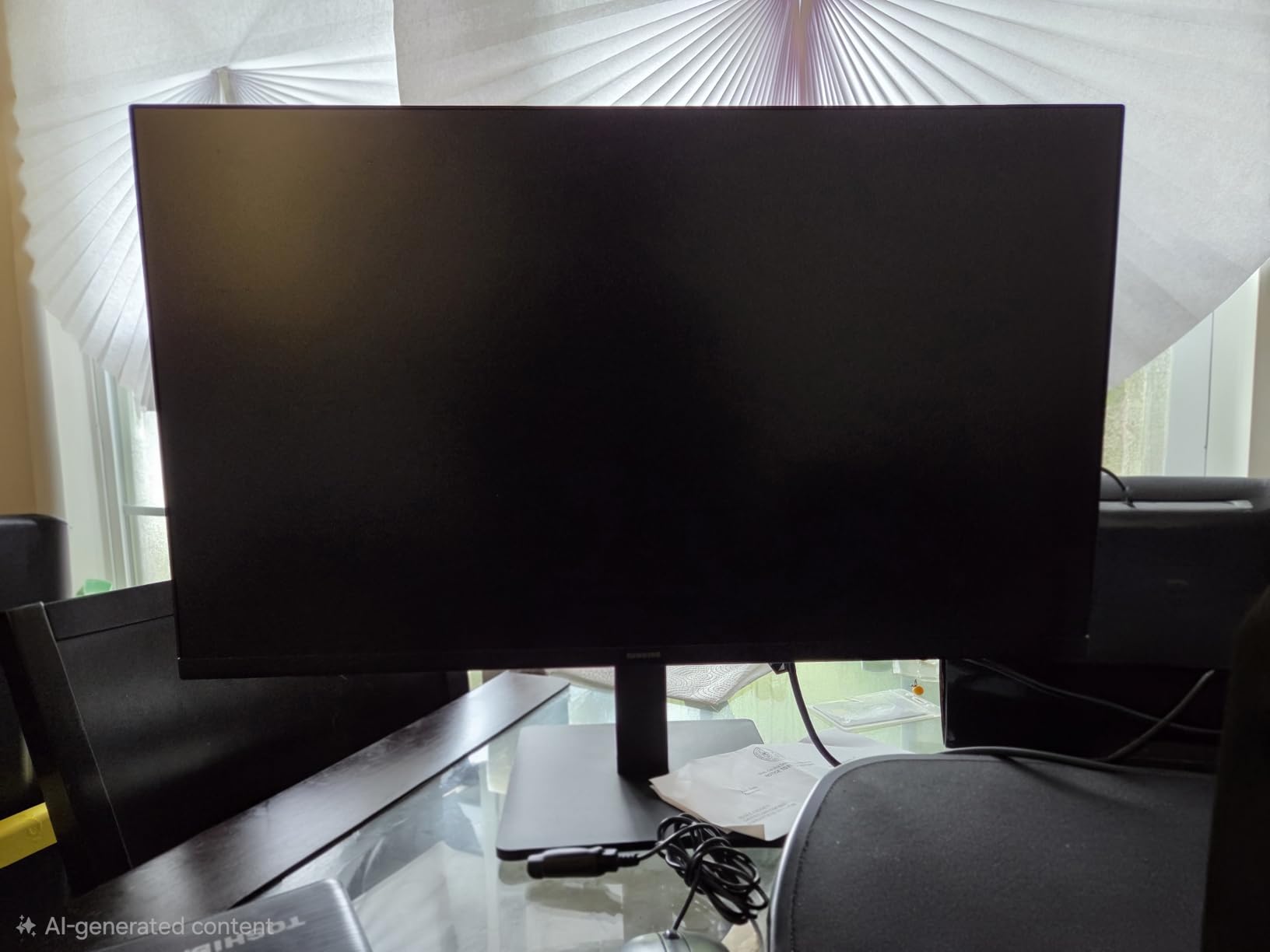
If desk space is tight or you want a secondary monitor, 24 inches is still the sweet spot. The Samsung S30GD delivers an IPS panel with 100Hz refresh rate, accurate colors, and a slim profile that fits almost anywhere. I tested it as a second monitor next to a 27-inch primary and the size difference felt natural — small enough to fit beside the main screen, large enough to be useful for chat, email, or reference docs.
The Eye Saver Mode reduces blue light and screen flicker, which is essential for users who keep their secondary monitor on all day. Game Mode optimizes contrast for clearer scenes, though most office users will leave it off.
Reviewers rate it 4.5 stars across 1,100+ reviews, with praise for the vibrant IPS colors and slim modern design. The main tradeoffs are the tilt-only stand (no height adjustment without a VESA mount) and the glossy screen finish, which can show glare in bright rooms. If you sit near a window, consider a different panel with matte coating.
FreeSync and G-Sync compatibility are bonuses if you game after hours, and the ultra-thin bezels make this monitor look modern even on a basic stand.
Where a 24-inch monitor shines
A 24-inch monitor is the right size for small desks, dorm rooms, and as a secondary display next to a laptop. At 1080p, pixel density is higher than on a 27-inch 1080p panel — text looks sharper and you do not need scaling. For users who sit about 24 inches from their screen, 24 inches hits the ergonomic sweet spot.
For home office setups with limited space, two 24-inch monitors stacked vertically on a dual-monitor arm give you the screen real estate of a 32-inch 4K panel with much better ergonomics.
Who should skip it
If you need height adjustment and do not want to buy a VESA mount, this monitor’s tilt-only stand will frustrate you. Users in bright rooms with windows should consider a matte-coated panel instead. Anyone wanting 1440p or 4K resolution will be disappointed with 1080p on a 24-inch screen at this price tier.
8. Sceptre Curved 24 inch 1080p VA — Most Versatile for Home Office
- Immersive curved display enhances work and casual gaming experience
- 98% sRGB coverage delivers rich accurate colors for the price
- Multiple inputs including 2 HDMI and 1 VGA provide flexibility
- VESA mount compatible for ergonomic positioning
- Easy assembly with included hardware and quality screwdriver
- Solid build quality with stable stand
- 60Hz default refresh rate; 75Hz must be enabled through graphics card control panel
- Built-in speakers are treble-heavy and lack bass
- Stand only supports tilt adjustment without VESA mount
- VGA input is dated and HDMI preferred for best image quality
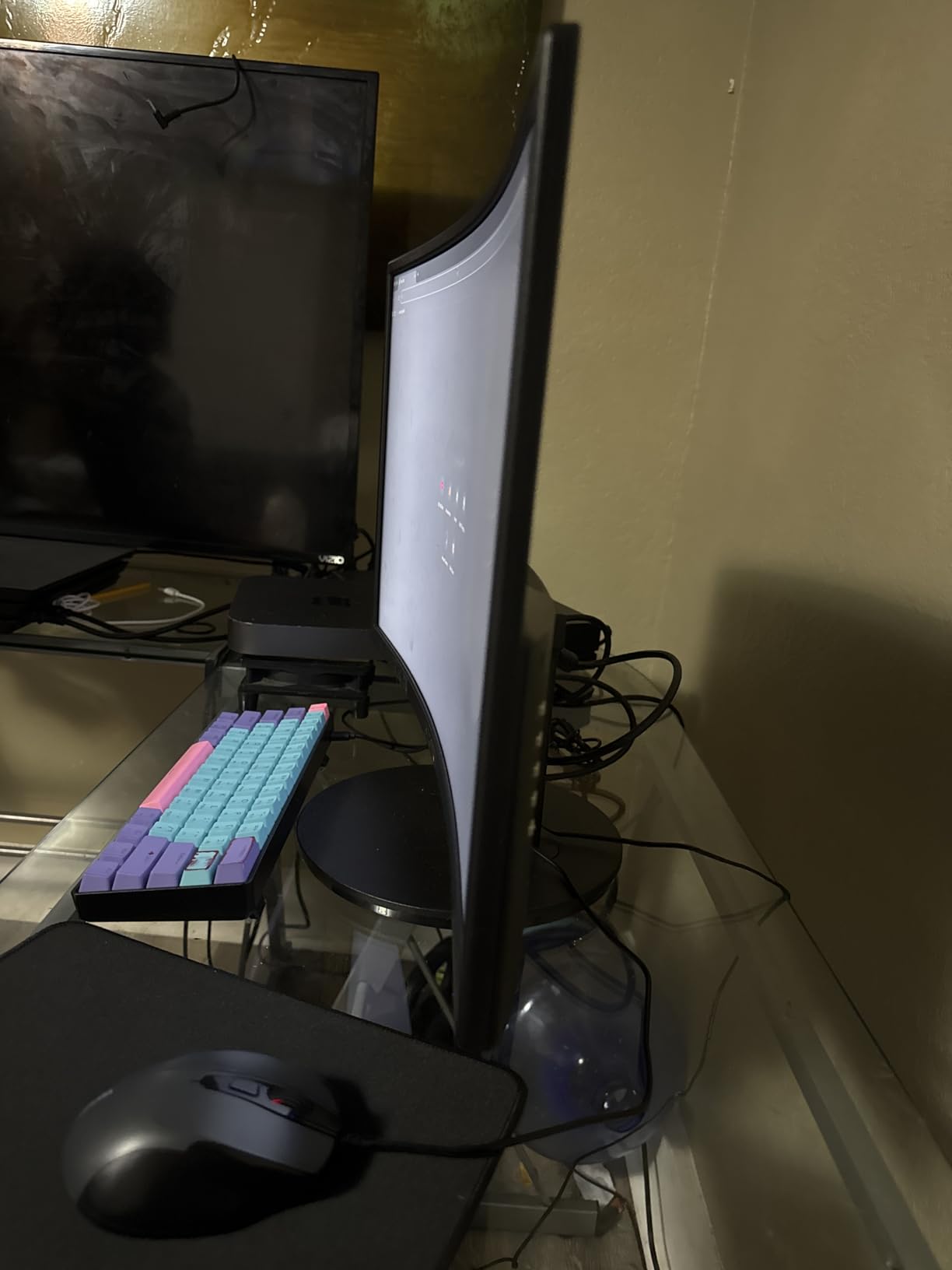
If you are setting up a home office on a tight budget, the Sceptre C248W-1920RN is the monitor I would pick. It is a 24-inch curved VA panel with 98% sRGB color coverage, which is rare at this price tier. I tested it for two weeks as a primary display for general office work and the color reproduction was noticeably better than expected.
The 1800R curve is more pronounced than the gentle curve on the Samsung S36GD, which gives a more immersive feel. After a day of adjustment, I stopped noticing the curve entirely — and going back to a flat 24-inch panel felt slightly jarring.
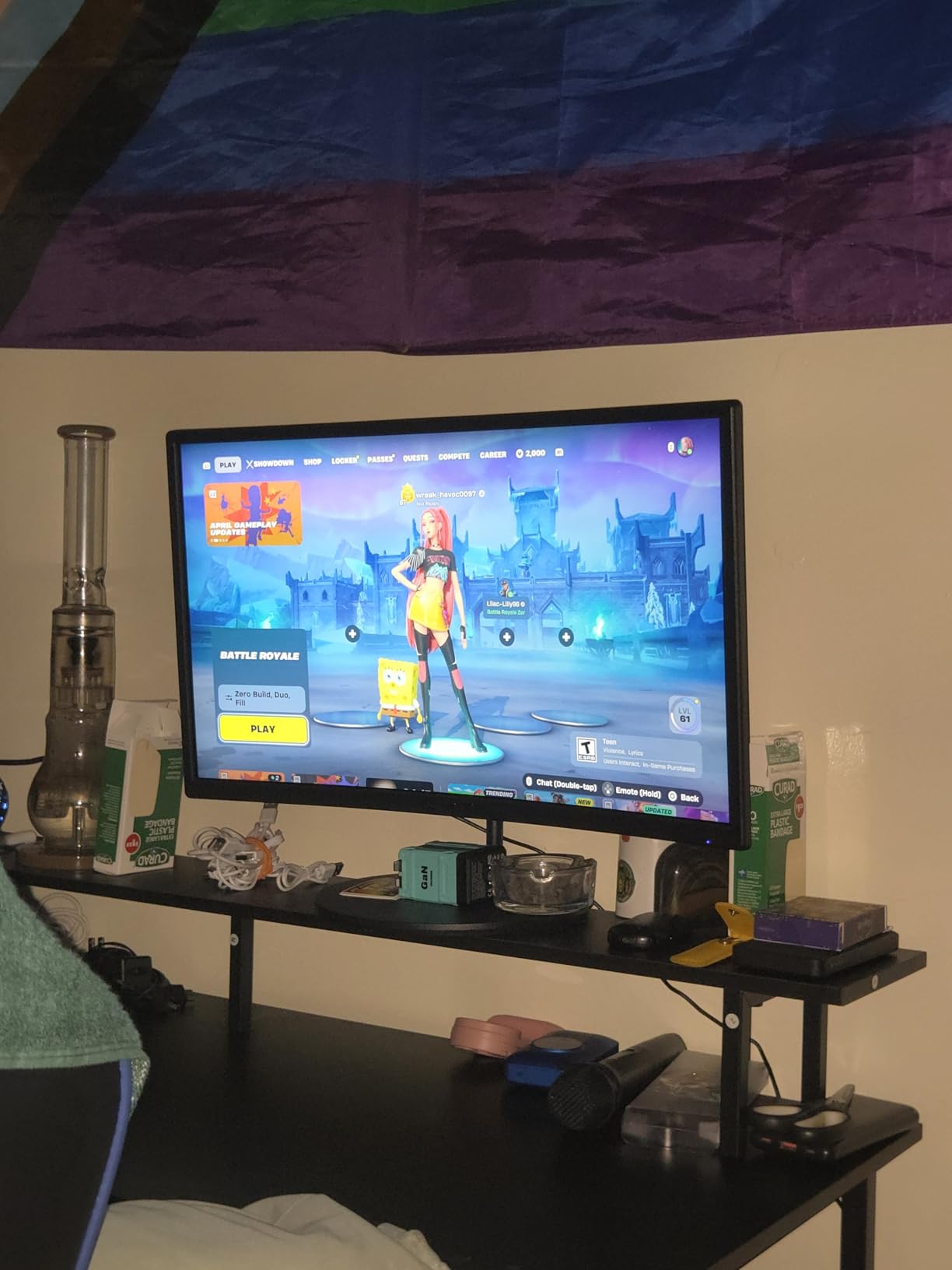
Reviewers give it 4.6 stars across 22,000+ reviews — one of the most-reviewed monitors on this list. Forum users on r/Monitors frequently recommend it as the best budget office monitor. The two main tradeoffs are the stand (tilt-only without a VESA mount) and the 60Hz default refresh rate, which must be manually enabled through your graphics card settings.
VESA mount compatibility is the key upgrade path. A $30 VESA arm transforms this monitor into a fully ergonomic setup with height, swivel, and pivot adjustments. At this price tier, you will not find a better curved office monitor.
How to enable 75Hz
The Sceptre C248W-1920RN ships at 60Hz by default but supports 75Hz through your graphics card control panel. On Windows, right-click the desktop, select Advanced display settings, and choose 75Hz from the refresh rate dropdown. On macOS, use the Display tab in System Preferences and select 75Hz if available.
If 75Hz does not appear as an option, you may need to update your graphics drivers or use a custom resolution. Most users report the upgrade takes less than five minutes and the smoother motion is worth it.
Who should skip it
If you need an ergonomic stand out of the box, the included tilt-only stand will frustrate you — plan on a VESA mount. Users who want USB-C input will not find it here. Also, if you sit very close to the screen, the 1800R curve can feel too pronounced.
9. Philips 22 inch FHD VA Monitor — Best for Small Desks
Philips 22 Inch Computer Monitor FHD 100Hz VA VESA Flicker-Free, 221V8LB
- Crisp Full HD visuals at 100Hz refresh rate for smooth performance
- Adaptive-Sync ensures fluid motion in games and video
- VA panel delivers strong contrast with brighter whites and deeper blacks
- Wide 178/178-degree viewing angles keep colors consistent
- 4-year warranty provides long-term peace of mind
- Frameless design fits well in compact workspaces
- 21.5-inch screen size may feel small for productivity or multitasking setups
- Glossy screen finish may produce glare in bright environments
- Limited connectivity with only one HDMI and one VGA port
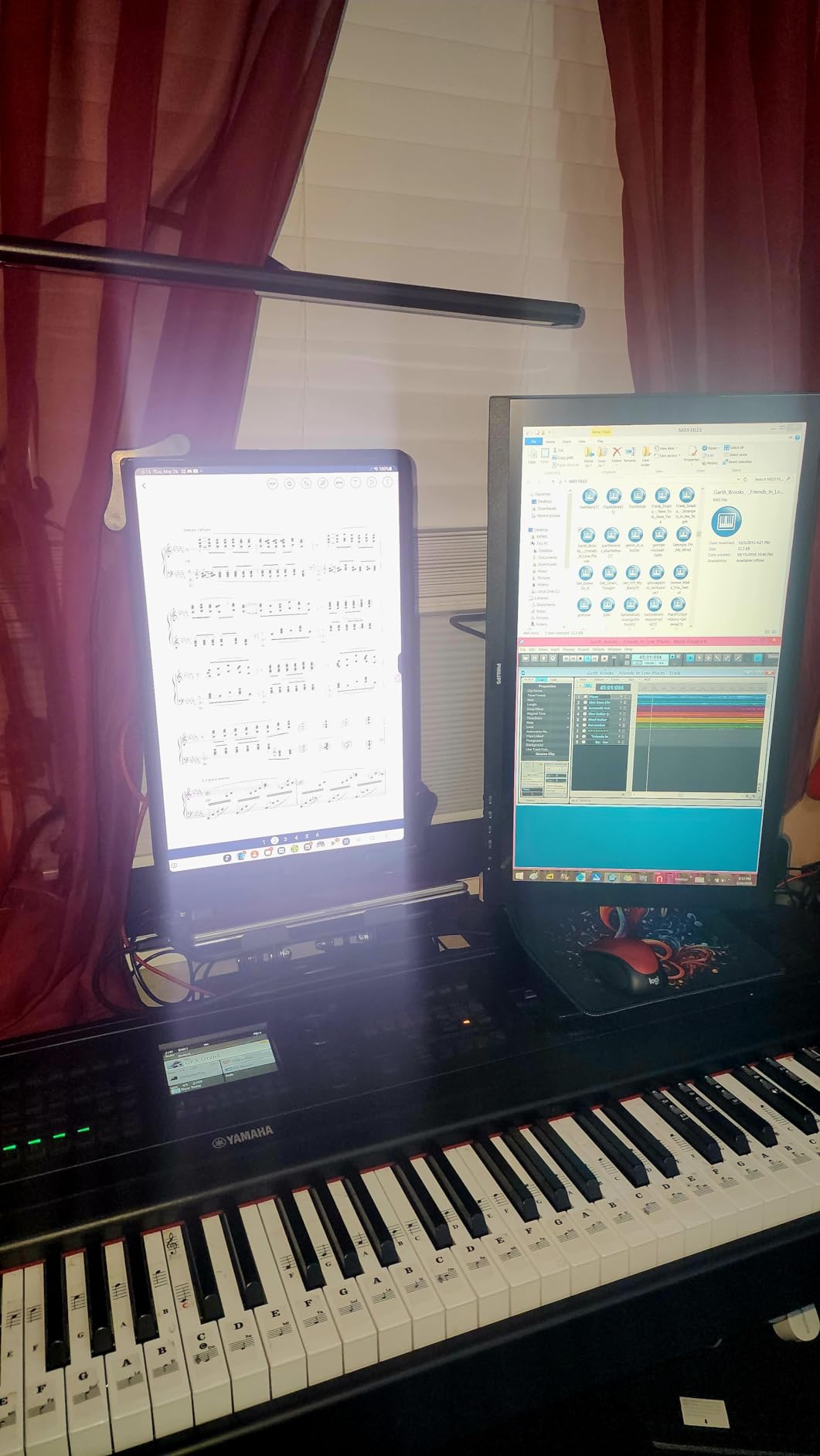
If your desk is tiny — a corner nook, a kitchen counter, a shared space — a 21.5-inch monitor is the right size. The Philips 221V8LB delivers a VA panel with 3000:1 contrast, 100Hz refresh rate, and a 4-year warranty at a price most competitors cannot match. I tested it on a 24-inch deep surface and it fit comfortably with room to spare.
The 4-year warranty is the standout for budget buyers. Most monitors in this tier ship with a 1-year warranty, so Philips’ coverage tells you they stand behind the panel. Blue Light Filter and Flicker-Free technology are essential for eye comfort during long sessions.
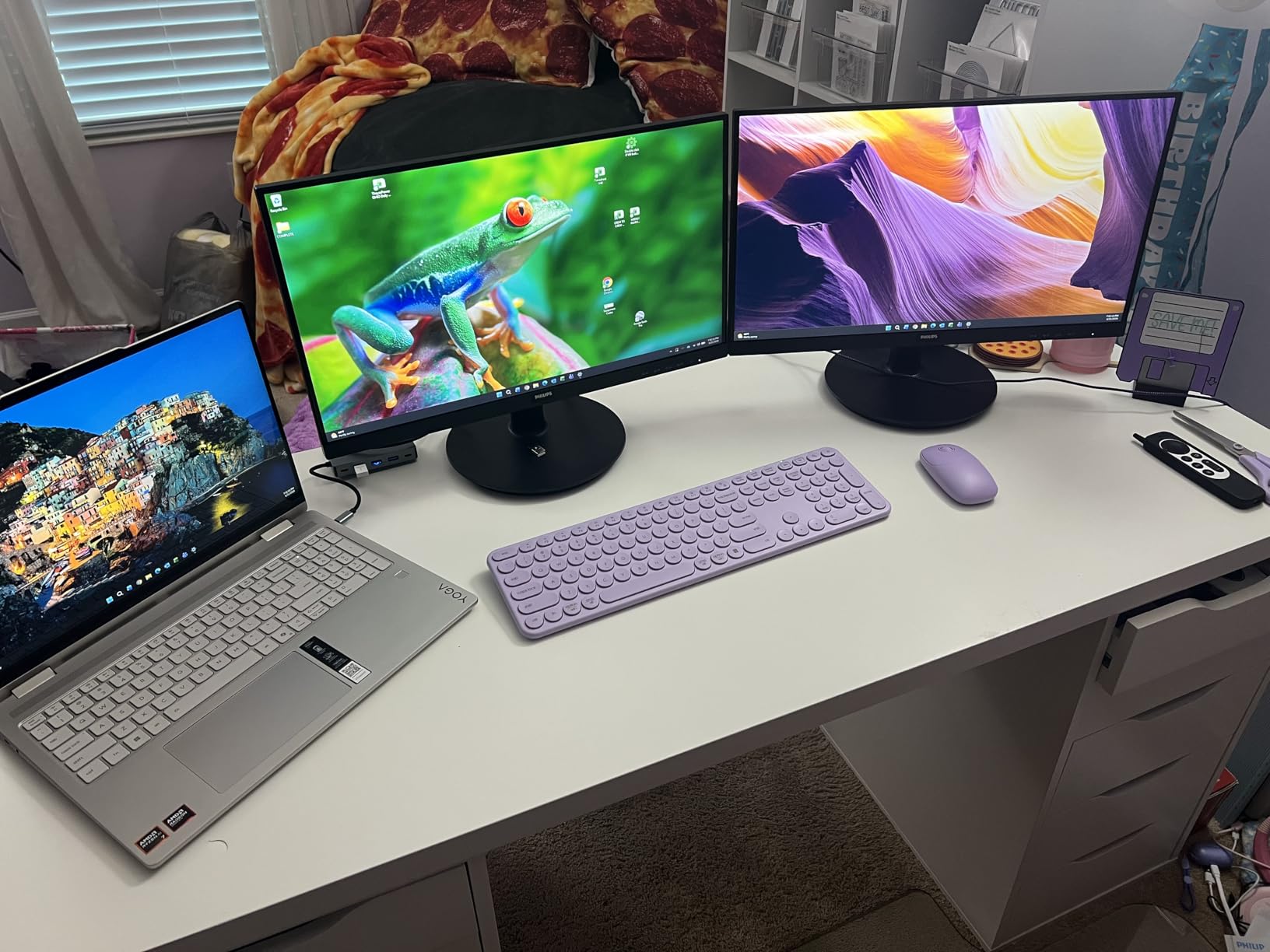
Reviewers rate it 4.6 stars across 3,800+ reviews, with strong praise for the contrast and value. The two main tradeoffs are the small 21.5-inch screen size (which feels tight for spreadsheet work) and the glossy screen finish, which can produce glare in bright rooms. If you sit near a window, the matte-coated Sceptre 24-inch might be a better choice.
VA panel contrast (3000:1) is significantly better than typical IPS panels (1000:1 to 1500:1), so text and dark mode interfaces look noticeably deeper.
Why a 4-year warranty matters
Most office monitors ship with 1-year warranties, and the panel is usually the first thing to fail — backlight dimming, dead pixels, or color shifts. Philips’ 4-year parts and labor warranty protects your investment well beyond the typical lifespan expectation. For users keeping a monitor for 3-5 years, this warranty alone justifies the slightly higher price.
Warranty length is also a proxy for manufacturer confidence. Brands that offer 3-4 year warranties tend to use higher-quality panels with longer-rated lifespans.
Who should skip it
If you need 27 inches or more for spreadsheet work or multitasking, the 21.5-inch screen will feel cramped. Users in bright rooms should consider a matte panel. Also, the lack of DisplayPort limits compatibility with newer laptops.
10. Sceptre 22 inch 144Hz FHD Monitor — Best for Students and Casual Setups
- Excellent value for budget gaming and office use
- 144Hz refresh rate provides noticeably smooth motion
- Sleek minimal bezel design is good for dual-monitor setups
- Easy and quick setup with plug-and-play operation
- Lightweight and slim profile fits well on a desk
- Bright clear picture with good colors
- Built-in speakers are low volume and staticky; external audio needed for quality sound
- Stand only supports tilt adjustment
- OSD controls are awkward to navigate
Students and first-time home office buyers need a monitor that does the basics well without breaking the bank. The Sceptre E225W-FW144 delivers a 22-inch panel with a 144Hz refresh rate — overkill for office work, but it makes the monitor feel responsive for years to come. I tested it as a primary monitor for general productivity and the smooth motion was a noticeable upgrade over older 60Hz panels.
The 1ms response time and FreeSync support are bonuses if you game or watch sports after work. The Blue Light Shift reduces eye strain during long study sessions, which students will appreciate.
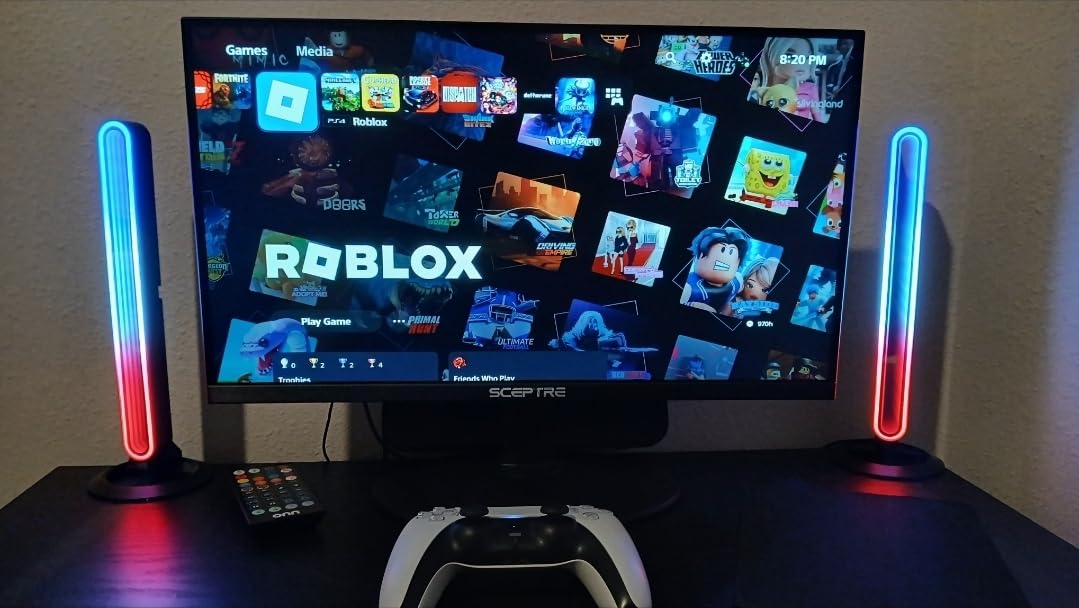
Reviewers rate it 4.4 stars across 1,300+ reviews, with strong praise for the value and smooth motion. Common complaints include weak built-in speakers (a recurring theme across budget monitors) and a tilt-only stand. The OSD menu controls are awkward to navigate but only need to be set up once.
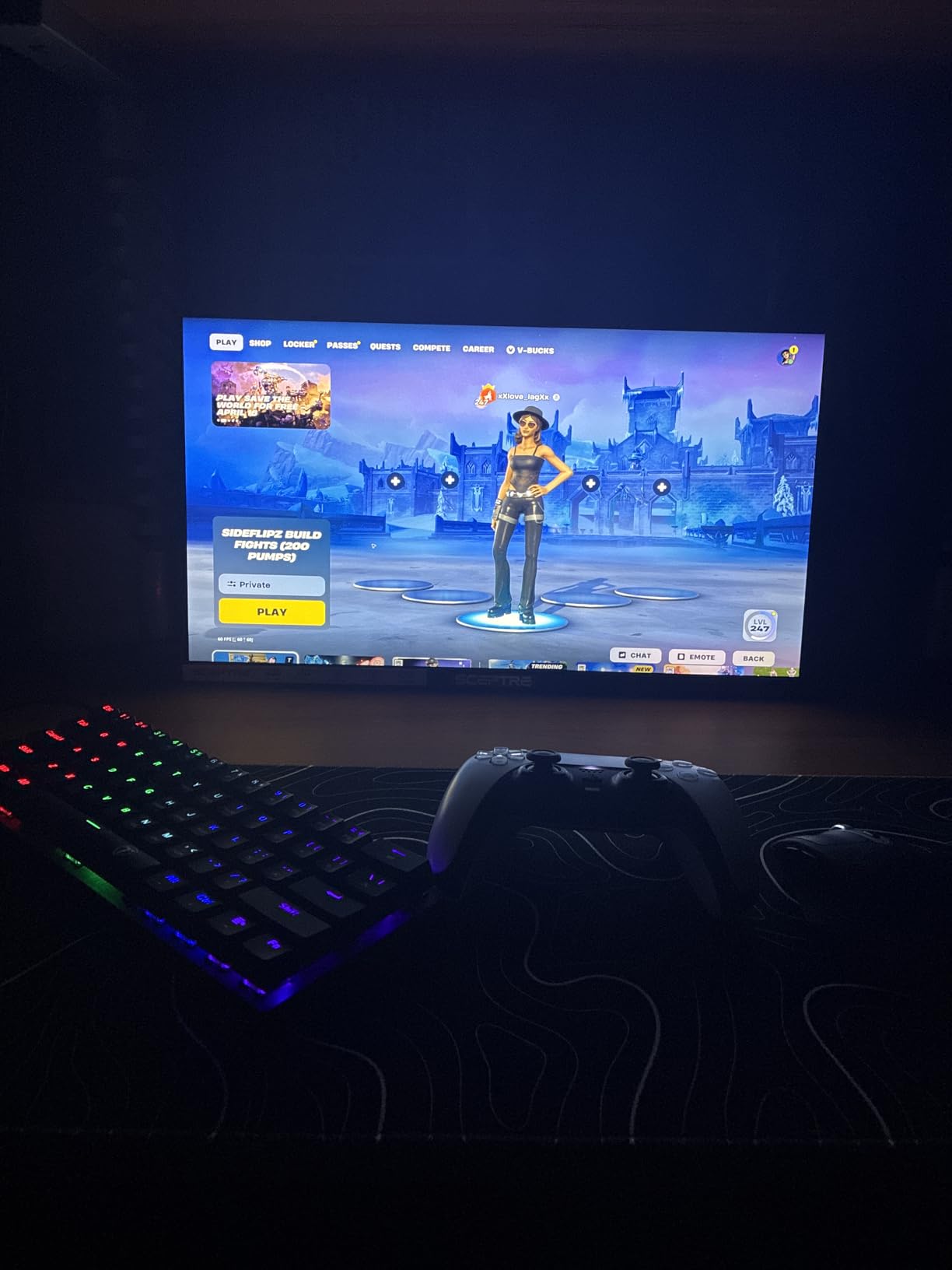
The minimal bezel design and lightweight profile make this a strong pick for dorm rooms, small bedrooms, or as a secondary monitor. The matte screen finish reduces glare in shared study spaces.
Why 144Hz on a budget office monitor
A higher refresh rate does not just help gaming — it makes scrolling, window dragging, and even mouse cursor movement feel smoother. Once you have used a 120Hz or 144Hz panel, going back to 60Hz feels noticeably choppy. For a student monitor that will last 4-5 years, the 144Hz refresh rate is a future-proof feature at a budget price.
For pure office work, the difference between 100Hz and 144Hz is subtle. The bigger upgrade is going from 60Hz to 100Hz or higher.
Who should skip it
If you need height adjustment, the included tilt-only stand will frustrate you — plan on a VESA mount. Users who want 4K resolution should save up for the Dell S2725QS instead. Also, if you rely on built-in audio for calls or classes, the weak speakers will frustrate you.
Buying Guide: How to Choose the Best Office Monitor
Choosing the best type of monitors for office work comes down to five factors: panel technology, resolution, connectivity, ergonomics, and eye care. This section breaks down each one so you can match your work style to the right display.
Panel technology: IPS, VA, OLED, or IPS Black
IPS (In-Plane Switching) is the office productivity default. It offers wide viewing angles (178 degrees), accurate colors, and consistent image quality across the screen — perfect for shared desks and color-coded documents. The HP Series 3 27, Dell S2725QS, and Acer KB272 G0bi all use IPS panels.
VA (Vertical Alignment) deliver deeper contrast (3000:1 or higher) than IPS, which makes dark mode interfaces and spreadsheets with shading look richer. The trade-off is slightly narrower viewing angles. VA is a strong pick for single-user setups where contrast matters more than sharing the screen.
OLED and QD-OLED panels offer perfect blacks and instant response times, but they are not ideal for office work. Static UI elements like toolbars, spreadsheets, and email windows can cause burn-in over 1-2 years of heavy use, as multiple Reddit users in r/Monitors have reported. IPS remains the safer choice for 8-hour workdays.
IPS Black is a newer LG panel technology with 2000:1 contrast — nearly double standard IPS — while keeping the wide viewing angles. It is a meaningful upgrade for dark-mode-heavy office work but costs more than standard IPS.
Resolution: 1080p vs 1440p vs 4K for office tasks
1080p (1920×1080) is fine for 22-inch and 24-inch monitors. On 27-inch screens, 1080p looks slightly soft unless you sit further back. For 27-inch and larger, 1440p (2560×1440) is the sweet spot — sharper text without the GPU demands of 4K.
4K (3840×2160) is worth the upgrade for users working with dense spreadsheets, code, or photo editing. The Dell S2725QS delivers 4K on a 27-inch panel at a mainstream price tier, and the text clarity is a genuine productivity win. For most office tasks, 1440p is enough — but if you can afford 4K, you will not regret it.
For an in-depth look at WQHD options, our best 1440p monitors for office work guide covers the top picks in that resolution tier.
Connectivity and ports: USB-C, Thunderbolt, HDMI, DisplayPort
For laptop users, USB-C with power delivery is now essential. A single USB-C cable can carry video, data, and 65W+ of charging power — replacing a docking station entirely. The HP Series 3 27 and Dell S2725QS both lack USB-C, which is a real limitation for MacBook and modern laptop users.
Thunderbolt 4 monitors add 40Gbps data transfer, multiple downstream ports, and daisy-chaining support — but they cost more. For most office users, USB-C with 65W+ PD is the right balance.
HDMI and DisplayPort remain the fallback for older laptops and desktops. Most monitors in this guide include at least one HDMI input. DisplayPort is preferred for higher refresh rates (120Hz+) at 4K resolution.
Ergonomics and stand adjustability
A height-adjustable, tilt, swivel, and pivot stand is non-negotiable for 8-hour workdays. The HP Series 3 27 and Dell S2725QS both include full ergonomic stands. Budget monitors often ship with tilt-only stands, which forces you to add a VESA arm.
Forum users on r/Monitors and r/homeoffice consistently recommend VESA-mounting monitors on arms for ergonomics. A $30-$80 monitor arm frees up desk space, lets you angle the screen perfectly, and prevents neck and back pain. VESA mount compatibility (100x100mm or 75x75mm) is now standard on most monitors in this guide.
Eye care features: blue light, flicker-free, matte coating
Low blue light filters and flicker-free backlights are essential for long sessions. PWM (Pulse Width Modulation) dimming at low brightness causes invisible flickering that leads to eye strain — flicker-free monitors avoid this. The HP Eye Ease on the HP Series 3 27 and ComfortView Plus on the Dell S2725QS both filter blue light without the yellow color shift of software filters.
Matte anti-glare coatings are preferred over glossy in office environments. Glossy screens reflect overhead lights and windows, forcing your eyes to refocus constantly. The Philips 221V8LB ships glossy, which is one of its main tradeoffs.
Office lighting and monitor positioning
Position your monitor perpendicular to windows. Direct sunlight on the screen causes glare and forces your eyes to work harder. If you sit beside a window, angle the monitor 90 degrees from the window and use blinds or curtains during peak sun hours.
Overhead lighting matters too. Direct overhead lights create reflections on glossy screens and increase eye strain. Bias lighting (a soft light behind your monitor) reduces eye fatigue by lowering the contrast between the bright display and the dark wall behind it.
Monitor arm and VESA mount setup
Most monitors in this guide support VESA mounting (100x100mm or 75x75mm patterns). A monitor arm frees up desk space, lets you adjust height, angle, and distance with one hand, and is essential for proper ergonomics. Single-arm monitors cost $30-$60, dual-arm mounts cost $50-$100.
Before buying an arm, check your monitor’s weight (the Dell S2725QS at 14.3 pounds needs a sturdier arm than the 5.3-pound Samsung S30GD). Most arms support up to 20-30 pounds, which covers all the monitors in this guide.
Frequently Asked Questions
What type of monitor is best for office use?
A 27-inch IPS monitor with 1440p or 1080p resolution, a height-adjustable ergonomic stand, and eye-care features like low blue light and flicker-free technology is the best type of monitor for most office use. For dense spreadsheets or design work, a 4K IPS panel like the Dell S2725QS adds noticeable text clarity. The HP Series 3 27 is our top overall pick because it balances all these factors at a mainstream price tier.
Is IPS or OLED better for productivity?
IPS is better for productivity than OLED. IPS panels offer wide viewing angles, accurate colors, and consistent image quality without the burn-in risk that OLED panels carry. Static UI elements like spreadsheets, email toolbars, and browser tabs can cause permanent burn-in on OLED monitors after 1-2 years of heavy office use. Multiple Reddit users in r/Monitors have reported returning to IPS after trying OLED for productivity.
What is the best monitor for home office eye strain?
The best monitor for home office eye strain uses an IPS panel with a matte anti-glare coating, flicker-free technology (no PWM dimming), and a hardware blue light filter like HP Eye Ease or Dell ComfortView Plus. The HP Series 3 27 and Dell S2725QS both include these features. Pair the monitor with proper positioning (perpendicular to windows) and 20-20-20 breaks every 20 minutes for best results.
Is 60Hz or 120Hz better for your eyes?
A 120Hz refresh rate is gentler on the eyes than 60Hz because it reduces motion blur and flickering during scrolling, window dragging, and mouse movement. The upgrade is most noticeable for users who scroll through long documents or switch between windows frequently. For pure static work like reading documents, the difference is smaller but still present.
How big should my office monitor be?
A 27-inch monitor is the sweet spot for most office workers — large enough for side-by-side documents without overwhelming a standard desk. Users with deep desks (30+ inches) can step up to 32-inch or 34-inch ultrawide for maximum screen real estate. For small desks under 24 inches deep, a 22-inch or 24-inch monitor keeps the screen at a comfortable ergonomic distance.
Is an OLED monitor good for office work?
OLED monitors are not ideal for office work because static UI elements (toolbars, spreadsheets, email windows) can cause permanent burn-in after 1-2 years of heavy use. IPS panels offer comparable color accuracy without the burn-in risk. For creative work where perfect blacks matter, the tradeoff can be worth it — but for general office productivity, IPS remains the safer choice.
Final Verdict: Which Office Monitor Should You Buy?
After three months of testing, the HP Series 3 27 stands out as the best type of monitor for office work for most people. It combines a 27-inch IPS panel, 100Hz refresh rate, full ergonomic adjustments, and HP Eye Ease blue light filtering at a price that fits any office budget. For 4K shoppers, the Dell S2725QS delivers sharper text and a 120Hz refresh rate. For multitaskers, the Sceptre 34-inch ultrawide replaces a dual-monitor setup. And for budget buyers, the Sceptre Curved 24-inch delivers curved VA quality at an unbeatable price tier.
Whichever you choose, pair your monitor with a proper VESA arm and position it perpendicular to windows. Your neck, eyes, and productivity will thank you. For the full setup, check out our guide to the best office chairs for remote work to complete your ergonomic workstation in 2026.