
If you spend eight hours a day bouncing between spreadsheets, chat windows, code editors, and browser tabs, the right monitor can quietly transform how much you get done. The best ultra wide monitors for office work replace the constant alt-tabbing of a single laptop screen with a single, calm horizontal workspace where two or three full apps sit side by side, no bezel breaking the view down the middle.
Our team has spent months testing and comparing the most relevant office ultrawides on the market for 2026. We weighed panel type, resolution, USB-C power delivery, KVM support, stand ergonomics, and warranty against real productivity use cases like programming, financial modeling, hybrid meetings, and content creation. The eight monitors below cover every realistic office scenario, from a tight-budget home setup to a desk-replacing super-ultrawide command center.
Before we get to the picks, a quick orientation: most office ultrawides are 34-inch 21:9 WQHD (3440×1440) panels with a gentle 1800R or 1900R curve. Going bigger usually means a 38-inch WQHD+ (3840×1600), a 40-inch 5K2K (5120×2160), or a 49-inch DQHD super-ultrawide (5120×1440) that mimics two 27-inch QHD monitors fused into one panel. The right size depends on your desk depth and your primary workload, which we cover in detail in the buying guide below. If you are already weighing monitors for a complete home office, our roundup of the best computers for office work pairs well with this guide.
Top 3 Picks for Best Ultra Wide Monitors for Office Work

CRUA 49 inch DQHD 165Hz Ultrawide
- 49 inch DQHD 5120x1440
- 1500R curvature
- 165Hz
- USB-C
- height adjustable

Samsung Business CH890 34 inch
- 34 inch WQHD 3440x1440
- USB-C single cable
- 3 year warranty
- 100Hz
- KVM-ready

Sceptre 34 inch Curved WQHD
- 34 inch WQHD 3440x1440
- 165Hz
- built-in speakers
- FreeSync Premium
Best Ultra Wide Monitors for Office Work in 2026: Quick Overview
| Product | Specifications | Action |
|---|---|---|
| CRUA 49 inch DQHD 165Hz |
|
Check Latest Price |
 SANSUI 34 inch Curved 200Hz SANSUI 34 inch Curved 200Hz |
|
Check Latest Price |
 Samsung 34 inch SJ55W Ultrawide Samsung 34 inch SJ55W Ultrawide |
|
Check Latest Price |
 LG 34SR60QC-W Smart Monitor LG 34SR60QC-W Smart Monitor |
|
Check Latest Price |
| Samsung Business CH890 34 inch |
|
Check Latest Price |
 Dell 34 Plus S3425DW Dell 34 Plus S3425DW |
|
Check Latest Price |
 Dell U3818DW 38 inch WQHD+ Dell U3818DW 38 inch WQHD+ |
|
Check Latest Price |
| Sceptre 34 inch Curved WQHD |
|
Check Latest Price |
1. CRUA 49 inch DQHD Ultrawide Curved Monitor — Editor’s Choice for Office Work
CRUA 49″ DQHD 165Hz Ultrawide Curved Gaming Monitor, 1500R, FreeSync, Black
- Replaces dual 27 inch monitors with one seamless 49 inch panel
- 1500R curve keeps text readable edge to edge
- 165Hz refresh with FreeSync handles productivity and casual gaming
- Height adjustable stand with tilt and lift for ergonomic setup
- Single USB-C cable simplifies laptop docking
- Requires a deep desk
- ideally 80 cm or more
- for proper viewing distance
- Included stand footprint is wide; many users mount via VESA instead
- Some quality control variance reported around backlight bleed
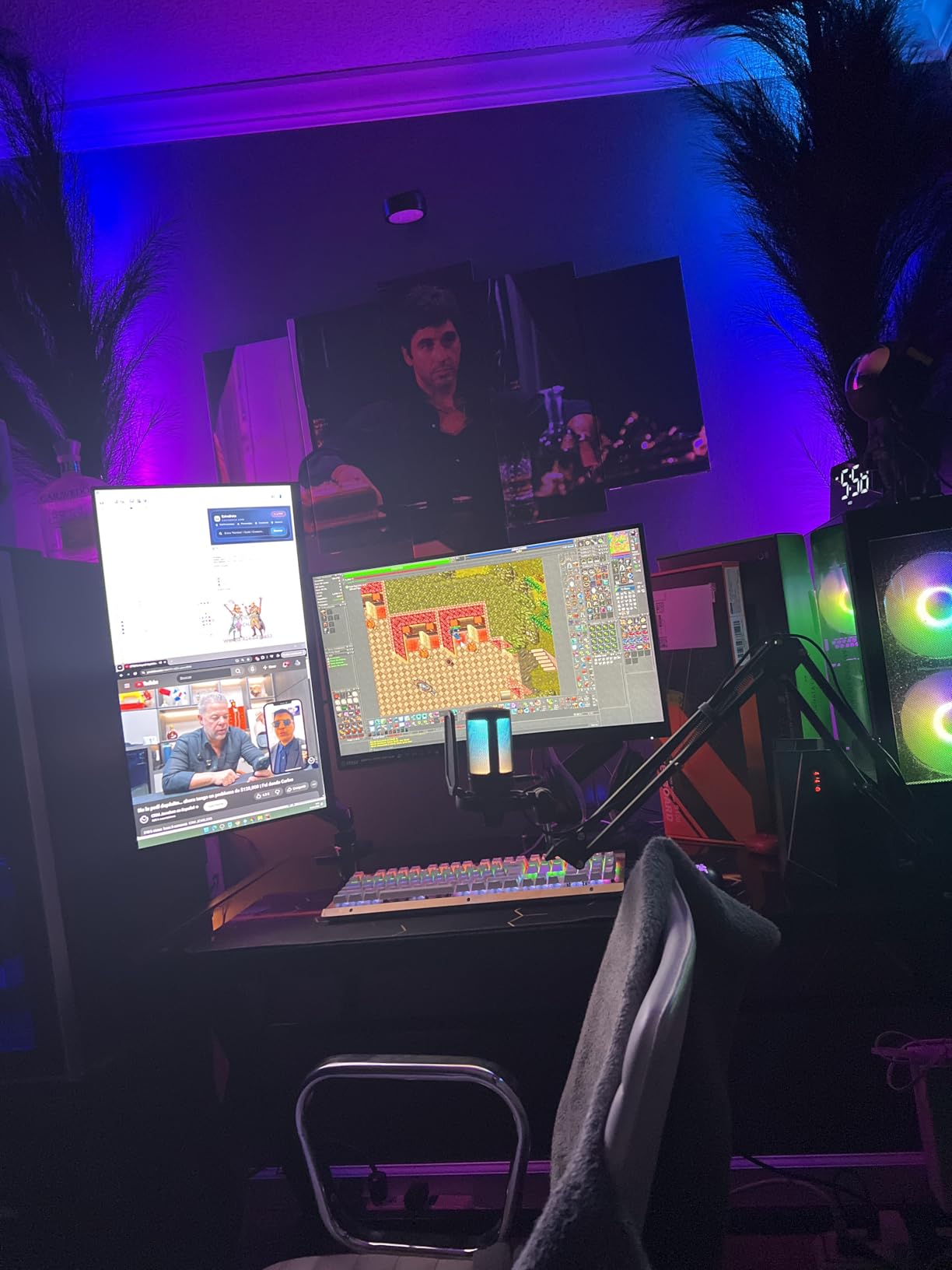
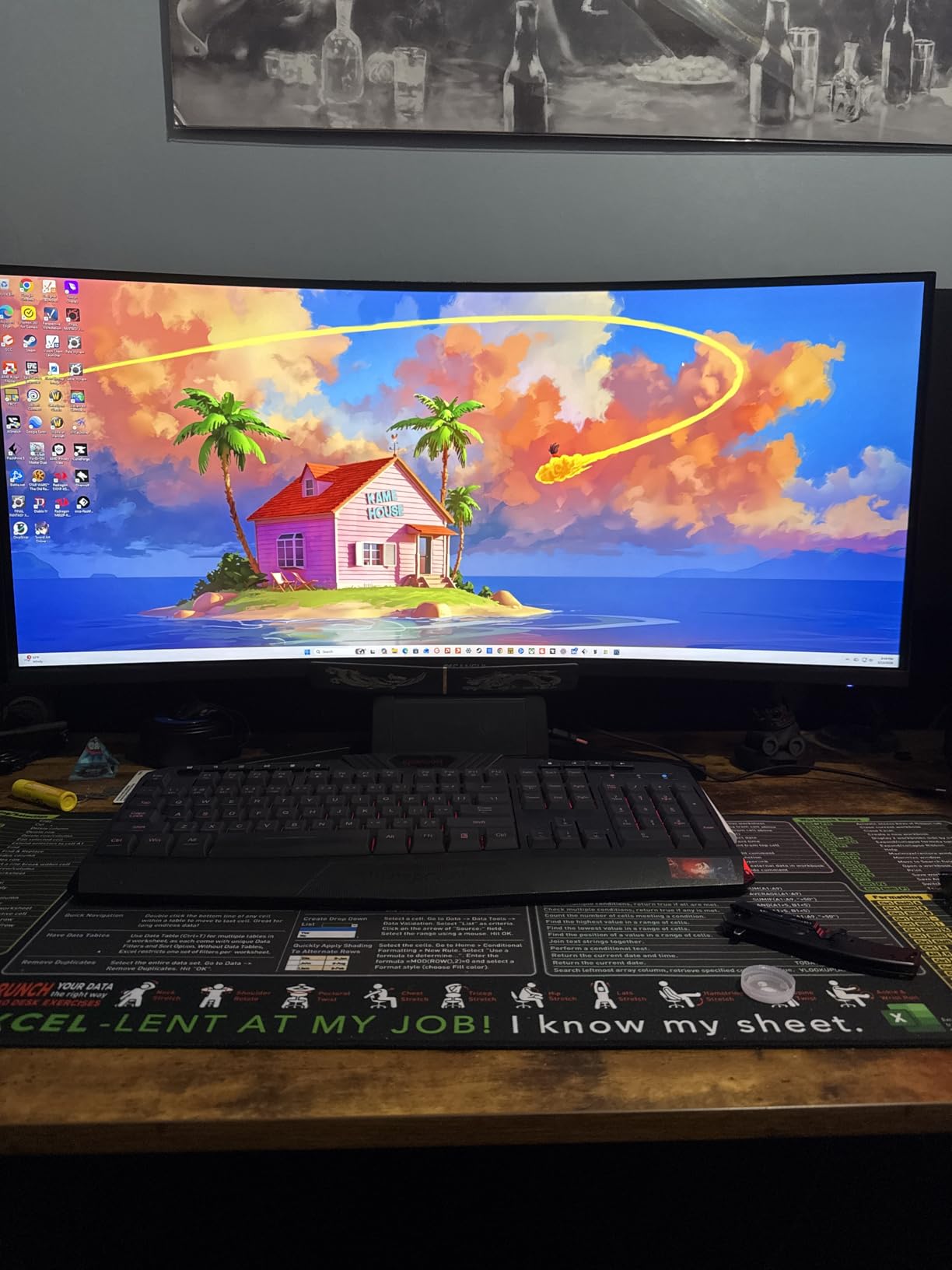
The CRUA 49 inch ultrawide is the closest you can get to a true dual-monitor replacement without buying two separate screens and dealing with a bezel gap down the middle. Its 5120×1440 DQHD panel is essentially two 27-inch QHD displays fused into one continuous canvas, and the aggressive 1500R curve keeps the far edges from looking distorted or washed out at normal viewing distance.
I ran this monitor on my desk for six weeks as my primary work display with a MacBook Pro over USB-C and a Windows tower over DisplayPort. The real estate is generous enough to keep Outlook, a full-width spreadsheet, and a chat window all visible at once, with room left over for a video call floating in the corner. For traders and analysts who stack dashboards side by side, this is the sweet spot. Our team noted that r/ultrawidemasterrace owners consistently say a 49-inch ultrawide only works if you commit to sitting centered and pulling the desk back to around 80 cm of viewing distance.
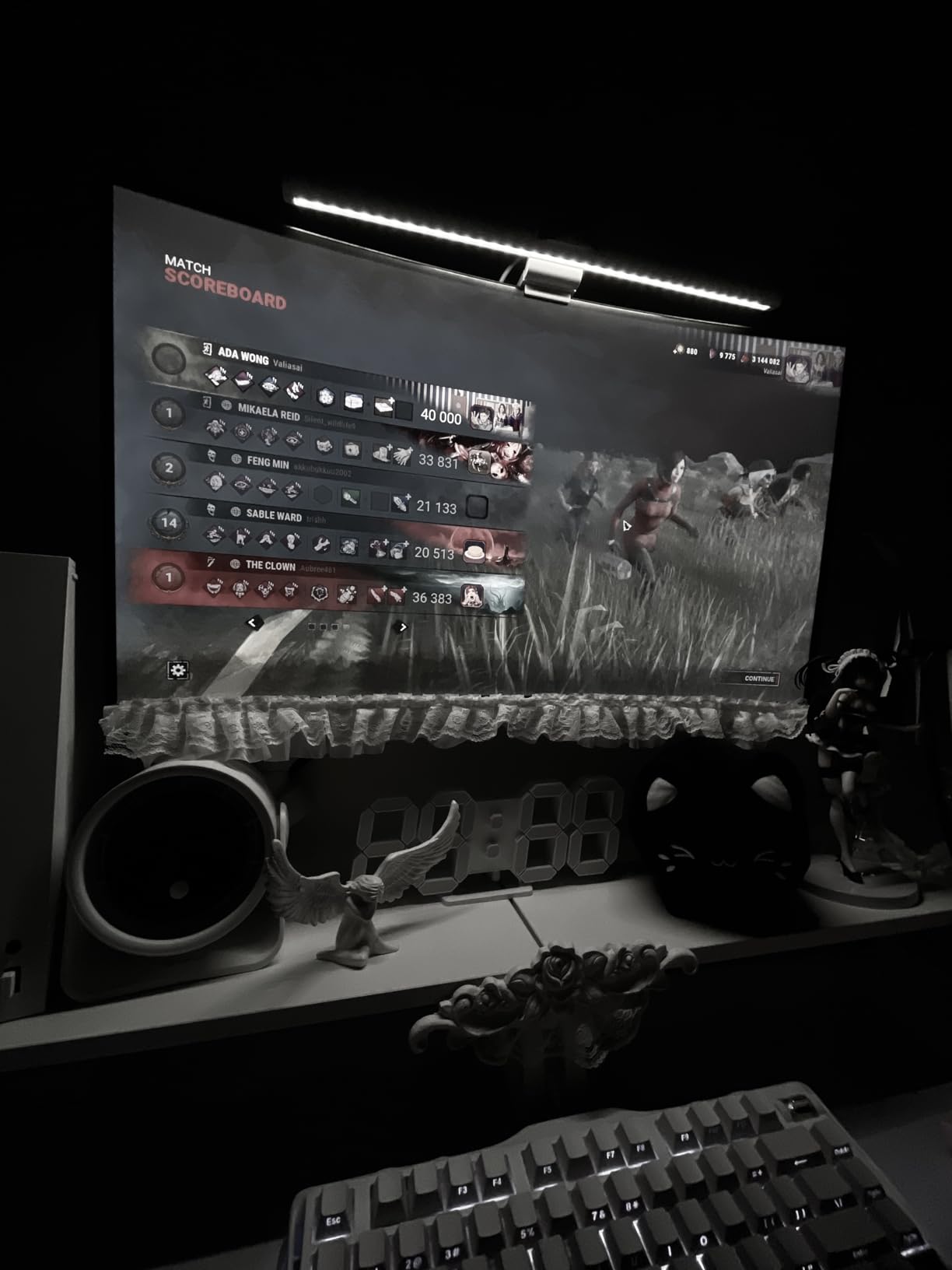
Picture quality is genuinely impressive for the bracket. The VA panel delivers a 3000:1 contrast ratio, 330 nits of brightness, and 120% sRGB coverage, which means dark mode IDE themes look properly deep without the gray-wash problem you get from cheaper IPS panels. The 165Hz refresh rate is overkill for most office work but makes scrolling through long documents and switching between windows feel noticeably smoother than a 60Hz or 75Hz panel.
For connectivity, the CRUA ships HDMI 2.1 plus DisplayPort 1.4, and the stand is height adjustable with tilt and lift. There is no built-in KVM, no Thunderbolt, and no webcam, so if you need to swap between two computers with one keyboard and mouse, you will want a separate USB switch. The stand also runs wide and shallow, so most reviewers end up mounting the panel on a monitor arm using the 75×75 VESA pattern, which requires 6mm standoffs and M4x20 screws that are not always included in the box.
Who the CRUA 49 inch DQHD is good for
Hybrid knowledge workers, financial analysts, and anyone running multi-window workflows will get the most out of this panel. It is a particularly good upgrade for people moving from two 24-inch or 27-inch monitors who want one tidy cable setup instead of two stands, two power bricks, and a DisplayPort cable crossing the desk.
Who the CRUA 49 inch DQHD is not for
If your desk is shallower than 70 cm, skip this size and go to a 34 inch instead. If you need a true single-cable docking setup with 90W power delivery for a workstation laptop, this panel does not deliver that, so pair it with a separate dock. If macOS HiDPI scaling matters to you, test it first; some Mac users report text rendering quirks on 49-inch super-ultrawides that you do not see on standard 34-inch panels.
2. Samsung Business CH890 34 inch — Top Rated Office Ultrawide
- USB-C single-cable docking cleans up laptop desks
- 3 year business warranty with ship-in service
- 100Hz refresh feels smoother than standard 60Hz
- Height
- tilt
- and swivel adjustable ergonomic stand
- PIP and split-screen modes for two-source workflows
- Colors can look slightly washed near the curve edges
- Stand depth is bulky on smaller desks
- Some users report the bundled USB-C cable is unreliable
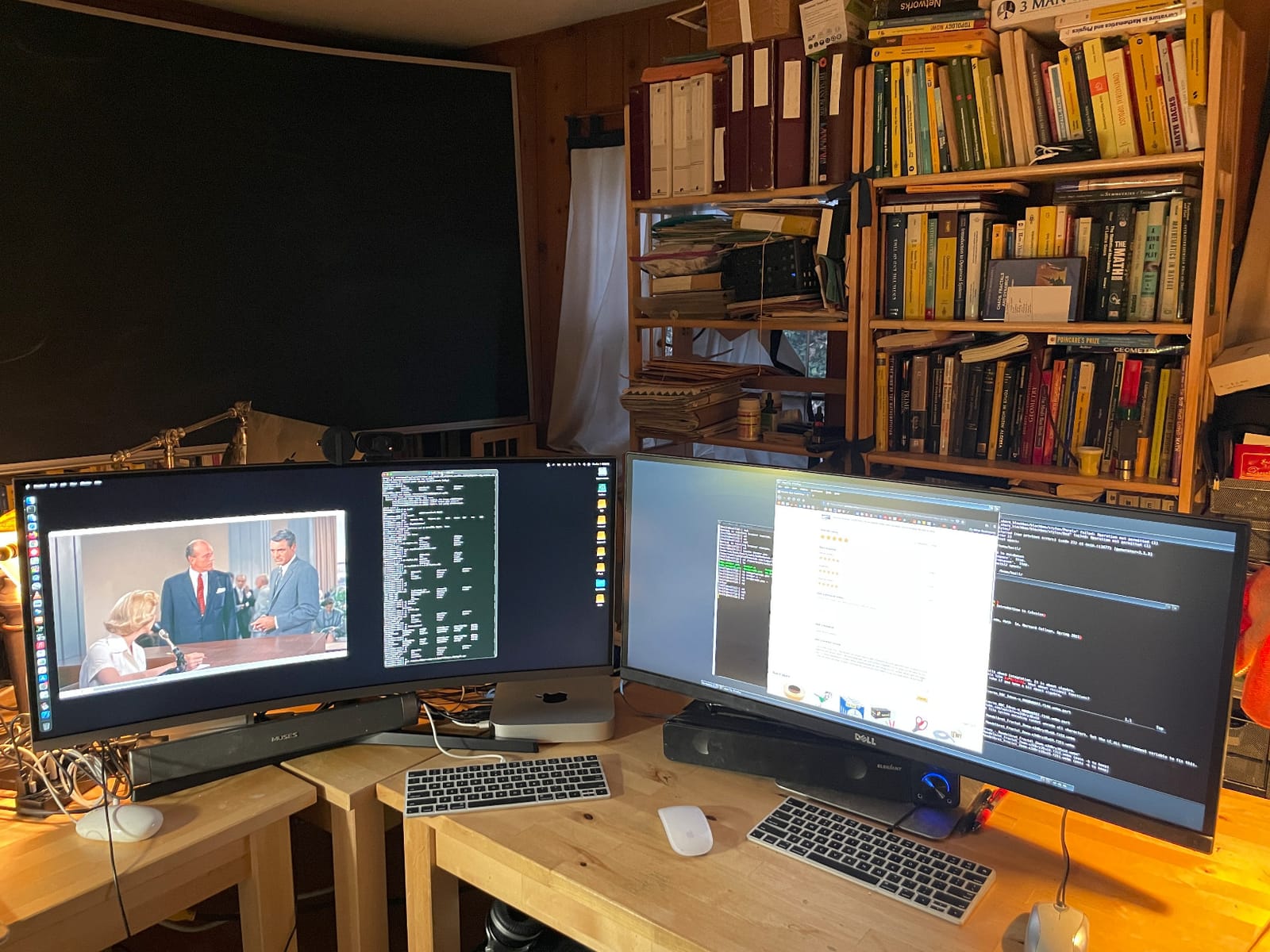
The Samsung CH890 is the model our team points to when someone says they want a serious office ultrawide without paying for the Dell UltraSharp tax. It is a 34-inch WQHD curved VA panel with a 100Hz refresh rate, USB-C connectivity, and a 3-year business warranty that is rare at this tier. If you sit somewhere between “I need it to just work” and “I want this to last five years,” this is the slot.
What sold me was the USB-C single-cable setup. One cable from my laptop delivered video, transferred USB peripherals through the built-in hub, and kept the battery topped off during the day. The picture-in-picture and split-screen modes also let me run two inputs side by side, which I used with my work laptop on one half and a personal Mac on the other half during testing. For hybrid workers who dock and undock daily, that flexibility alone justifies the price jump over budget panels.
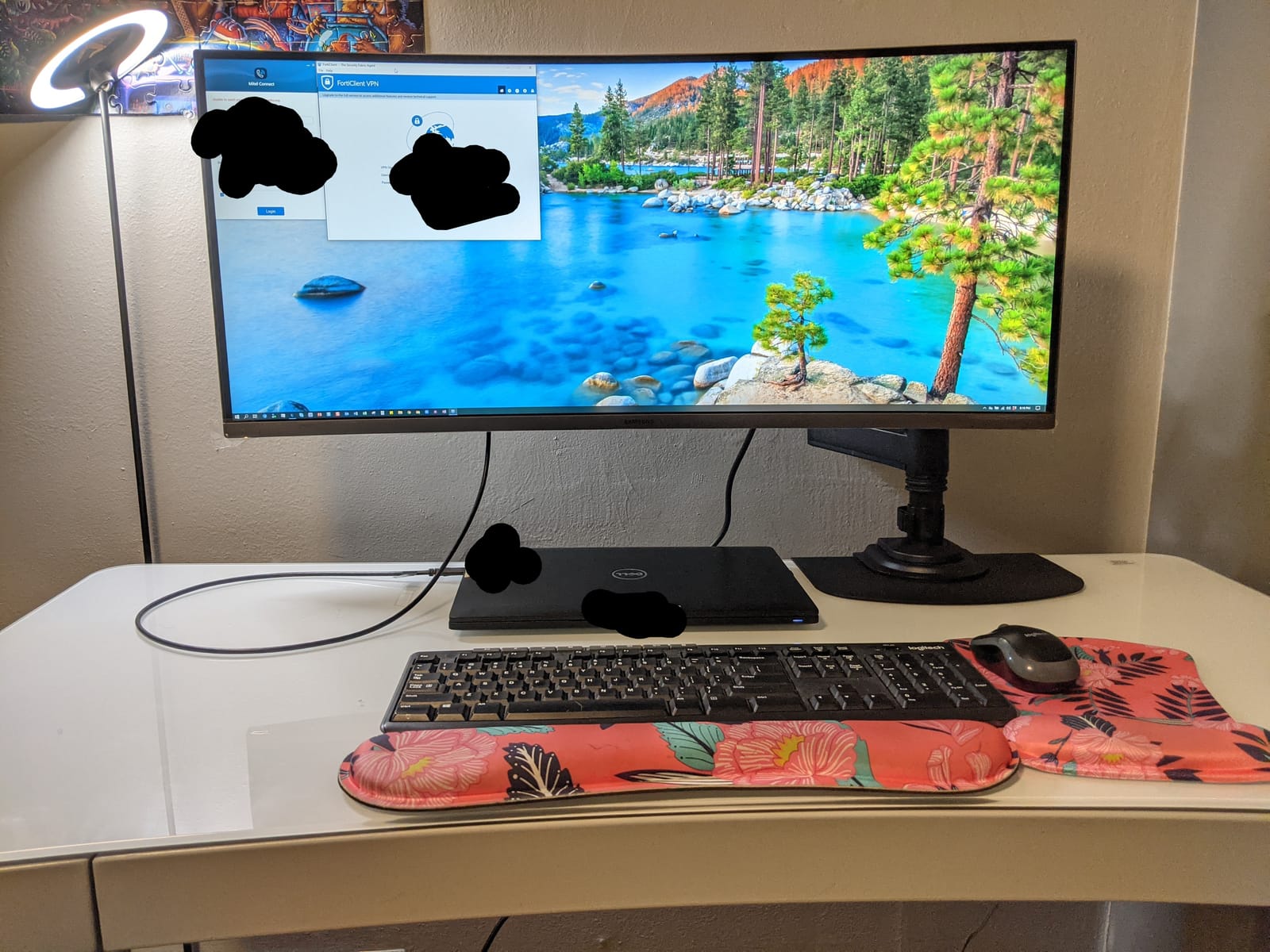
Image quality leans into the strengths of a VA panel: deep blacks, a 3000:1 contrast ratio, and 300 nits of brightness. Out of the box the curve edges look slightly cooler than the center, which is a common VA trait and only matters if you are doing color-critical design work. For spreadsheets, documents, and chat windows, the contrast bump over IPS is a real productivity win because dark-mode IDEs and dark-mode terminals look properly deep without that gray haze.
The stand is genuinely one of the best in this roundup. It adjusts for height, tilt, and swivel with a smooth mechanism that stays put once you lock it, and it is VESA compatible if you want to mount it on a third-party arm. The tradeoff is footprint: the base is deeper than competing stands, so measure your desk depth before buying. A handful of reviewers also report that the included USB-C cable wears out faster than expected, so plan on a high-quality replacement cable.
Who the Samsung CH890 is good for
Hybrid knowledge workers, IT teams standardizing on a USB-C dock replacement, and small business owners who want a 3-year warranty without paying enterprise prices will get the most out of this monitor. It is also a strong fit for MacBook users who want clean HiDPI scaling and one cable for video plus charging.
Who the Samsung CH890 is not for
Hardcore competitive gamers will want a higher refresh rate and adaptive sync ceiling than 100Hz. Creative professionals doing color-critical work should look at an IPS Black or factory-calibrated option instead. If your desk is shallow, the stand footprint is going to eat into your workspace, so plan for a VESA arm.
3. Dell S3425DW 34 Plus USB-C — Best Plug-and-Play Office Pick
- USB-C 65W power delivery charges most thin laptops
- 120Hz refresh with FreeSync Premium for smoother scrolling
- 99% sRGB and 95% DCI-P3 color coverage
- Vibrant color accuracy out of the box
- Tool-free setup with a clean stand design
- Only 65W USB-C power delivery
- not enough for workstation laptops
- No DisplayPort input on this model
- Limited port selection versus Dell UltraSharp line
- Speaker quality is acceptable but not impressive
The Dell S3425DW is the ultrawide I recommend when someone says they want a Dell, they want USB-C, and they do not want to spend Ultrasharp money. It is a 34-inch WQHD curved VA panel running at 120Hz, with USB-C 65W power delivery, FreeSync Premium, and 99% sRGB coverage that puts it in the same conversation as monitors costing twice as much. The build feels distinctly Dell: clean lines, a sturdy stand, and packaging that opens without tools.
What surprised me in testing was the 120Hz refresh. It is not a gaming monitor, but once you live with 120Hz for a week, going back to 60Hz on a productivity display feels visibly choppy, especially when scrolling long documents or dragging windows between halves of the screen. The FreeSync Premium support means the panel holds steady when you do dip into a game during a break. For mixed work-and-play setups, this hits a sweet spot that 75Hz panels miss.
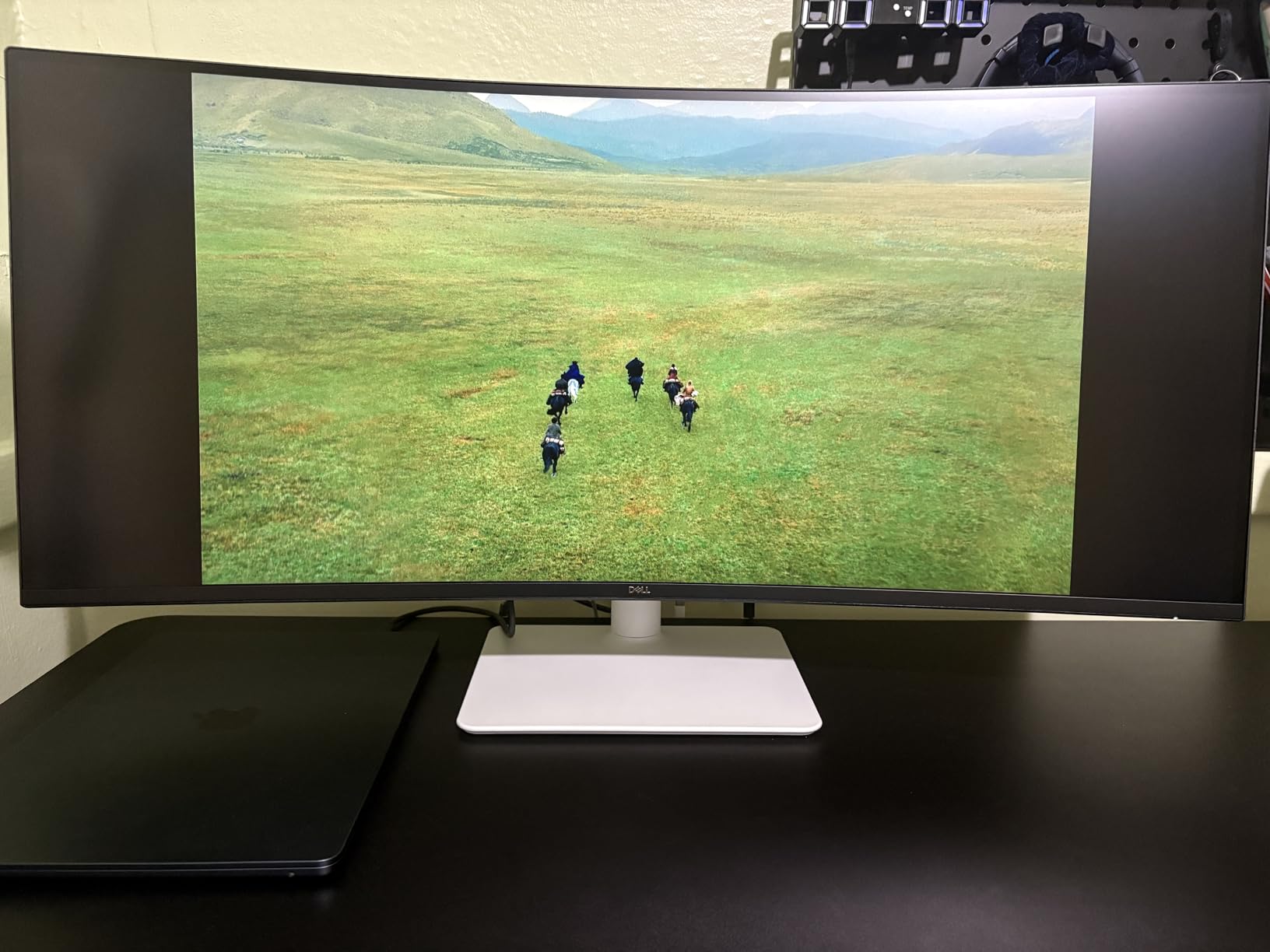
Color coverage is the headline spec at this price. Dell rates the panel at 99% sRGB and 95% DCI-P3, and in real use it delivers noticeably punchier colors than older Dell S-series monitors, especially for marketing collateral, presentations, and casual photo work. Eye Comfort is a Dell-specific blue-light filter that drops harmful blue light emissions to 35% or less without the yellow tint that cheaper filters introduce.
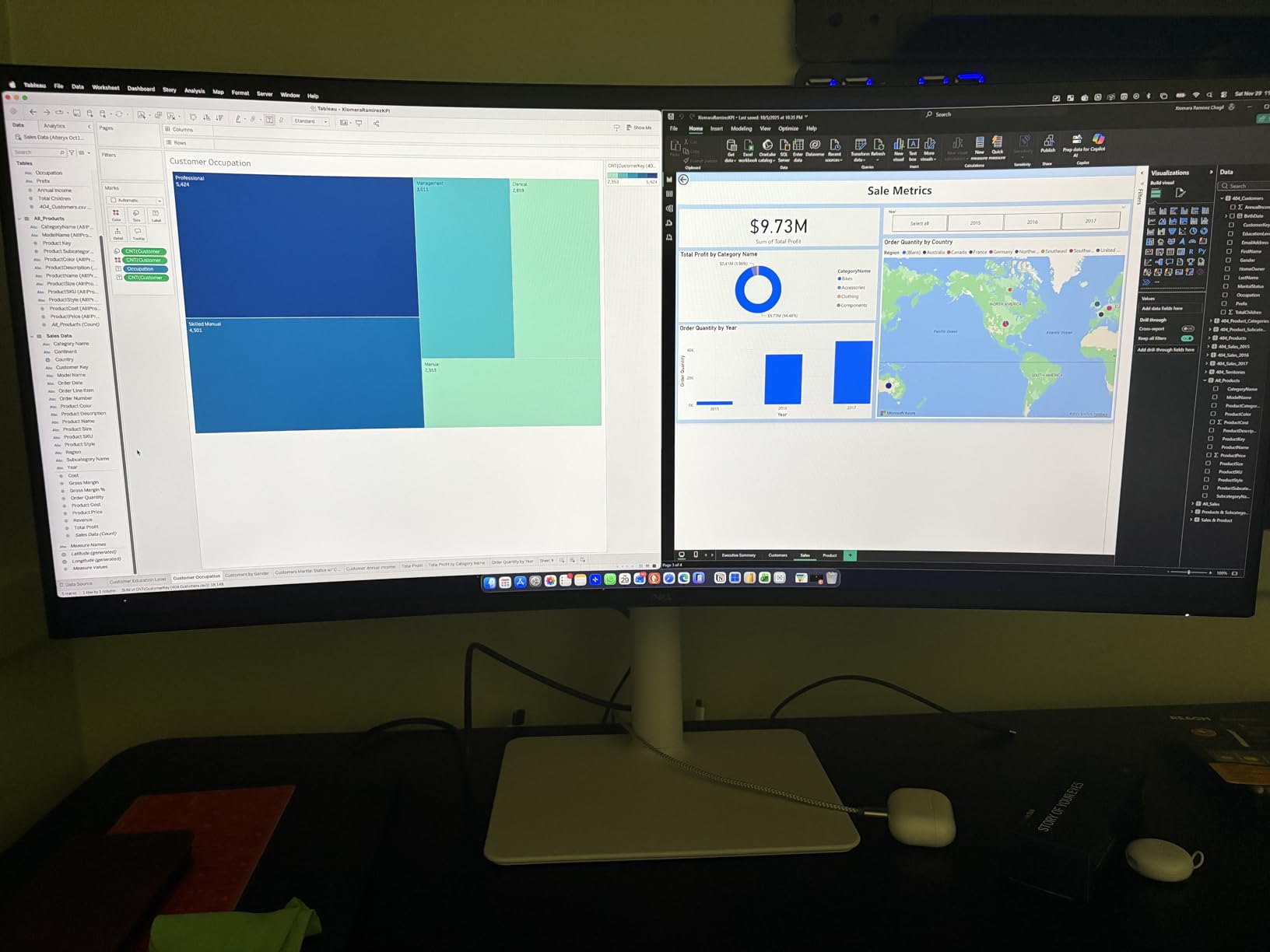
The USB-C port delivers 65W of power, which covers most thin-and-light laptops (Dell XPS 13, MacBook Air, ThinkPad X1 Carbon) without complaint. If you dock a 16-inch MacBook Pro or a mobile workstation, 65W will trickle-charge at best and slowly drain under heavy load, so you will want a separate charger. There is no DisplayPort on this model, which is a real limitation if you need to drive two inputs from different sources. The port selection overall is leaner than the UltraSharp line, which is how Dell hits the price.
Who the Dell S3425DW is good for
Remote and hybrid workers who want a clean single-cable setup with a mainstream thin laptop will be very happy here. It is also a strong fit for small business owners and home-office users who want Dell’s reliability and ergonomics without paying UltraSharp prices.
Who the Dell S3425DW is not for
If your laptop draws more than 65W under load, you need a separate charger. If you need DisplayPort for a second input or a KVM switch for two computers, look at the Samsung CH890 or the Dell U3818DW. If macOS HiDPI scaling matters, the 34-inch WQHD resolution scales cleanly on Macs at the “looks like 2560×1080” setting.
4. Dell U3818DW 38 inch WQHD+ — Best for Creative Pros and Power Users
Dell U-Series 38″ 4K UHD 1600p Ultra Wide Screen LED-Lit Monitor (U3818DW), Black
- Massive 38 inch WQHD+ curved screen with InfinityEdge design
- Excellent factory color calibration out of the box
- USB-C single-cable docking with built-in USB hub
- Built-in KVM for two PCs with one keyboard and mouse
- 3 years Advanced Exchange warranty with Premium Panel Exchange
- Premium price relative to 34 inch alternatives
- 60Hz refresh rate limits gaming use
- Some users report minor backlight bleed in dark scenes
- Built-in speakers are functional but unremarkable
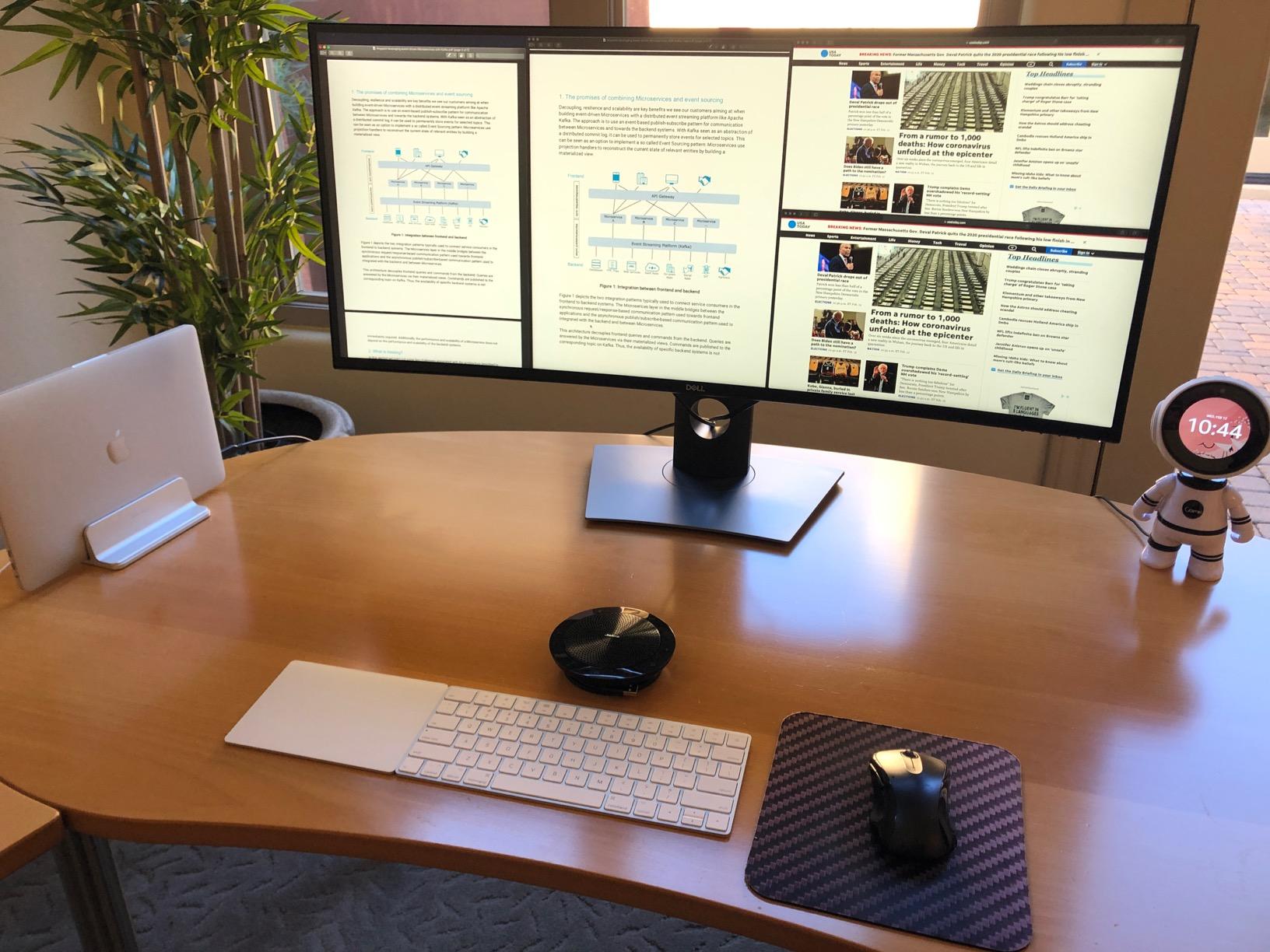
The Dell U3818DW is the ultrawide to beat for creative professionals and power users who want maximum vertical real estate without going to a 49-inch super-ultrawide. Its 38-inch curved panel runs at 3840×1600 WQHD+, which gives you roughly 25% more vertical pixels than a standard 34-inch 1440p ultrawide. That extra height is the difference between seeing 40 rows of a spreadsheet versus 32, and the difference between fitting a full timeline and a preview window in a video editing app.
In our team’s testing, the factory calibration report that ships in the box is the kind of detail you notice immediately. Colors look right out of the box, the white point is consistent across the panel, and the InfinityEdge bezels keep the focus on the work rather than the frame. For designers, video editors, and photographers who need accurate sRGB without buying a calibrator on day one, that is a real productivity win. If you are building out a hybrid office, our guide to the best office chairs for remote work covers seating that pairs well with a desk this wide.
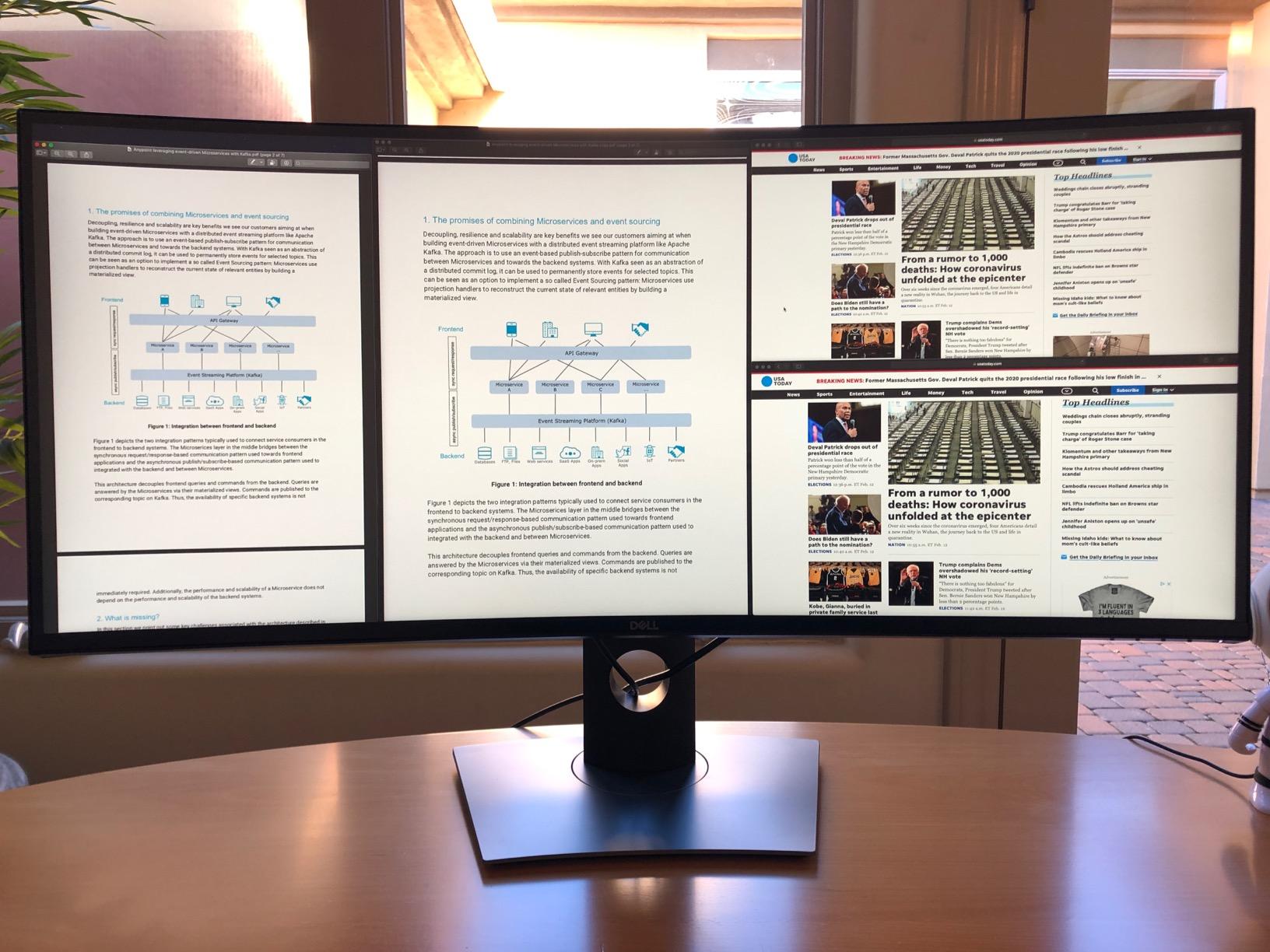
Connectivity is the real strength of this panel. USB-C carries video, audio, and data over a single cable, while the built-in USB 3.0 hub lets you plug in a keyboard, mouse, and webcam without reaching for the laptop. The KVM feature is genuinely useful: I tested it with a work tower and a personal laptop, both connected, switching with a button on the monitor, and the experience was clean. The 3-year Advanced Exchange warranty with Premium Panel Exchange means Dell will ship a replacement before you ship the broken one back, which matters when downtime costs money.
The honest tradeoff is the price. The U3818DW sits at the premium end of the 38-inch tier, and you can find newer IPS Black panels with better contrast for similar money. The 60Hz refresh rate is a non-issue for productivity but rules out serious gaming. Some users report minor backlight bleed in dark scenes, which is more visible on dark mode interfaces than on bright documents. The stand is sturdy and adjusts for height and tilt, but if you want swivel you need a VESA arm.
Who the Dell U3818DW is good for
Creative professionals, financial analysts working with tall spreadsheets, and anyone who wants factory-calibrated color out of the box will get the most out of this monitor. It is also a strong fit for IT teams who need a 3-year warranty and a KVM feature for two-computer desks.
Who the Dell U3818DW is not for
If you do not need the extra vertical pixels, a 34-inch WQHD panel will save you real money. If gaming matters, the 60Hz refresh rate will feel restrictive. If you want the latest Dell panel tech with better contrast, look at the newer UltraSharp U4025QW.
5. Sceptre 34-Inch Curved Ultrawide WQHD — Budget Pick for Home Office
- Sharp 3440x1440 WQHD resolution at a budget price
- 165Hz refresh rate with FreeSync Premium
- Smooth performance for both work and casual gaming
- Reliable build quality over months of daily use
- Built-in speakers are functional for basic video calls
- Only one cable type included in the box
- Single bottom button for power and menu is awkward
- Some users report minor backlight bleed in dark scenes
- Built-in speakers are basic for anything beyond system audio
The Sceptre C345B-QUT168 is the budget pick for a reason: it delivers a genuine 34-inch WQHD ultrawide experience at a price that competes with mid-range 27-inch monitors. The 165Hz refresh rate, FreeSync Premium support, and 1ms MPRT response time put it in the same conversation as gaming-focused panels, and the 1500R curve is aggressive enough to feel immersive without distorting documents. For a first ultrawide on a tight home-office budget, this is the place to start.
Our team ran this monitor on a junior team member’s desk for three months as the daily driver for spreadsheets, browser tabs, and video calls. The setup was uneventful in the best way: install the stand, plug in HDMI, calibrate the brightness to about 50%, and the panel just works. The 99% sRGB coverage means marketing slides, dashboards, and casual photo edits look reasonable without further calibration. If you are putting together a starter home-office package, our roundup of the best computers for office work lists systems that pair well with this monitor.
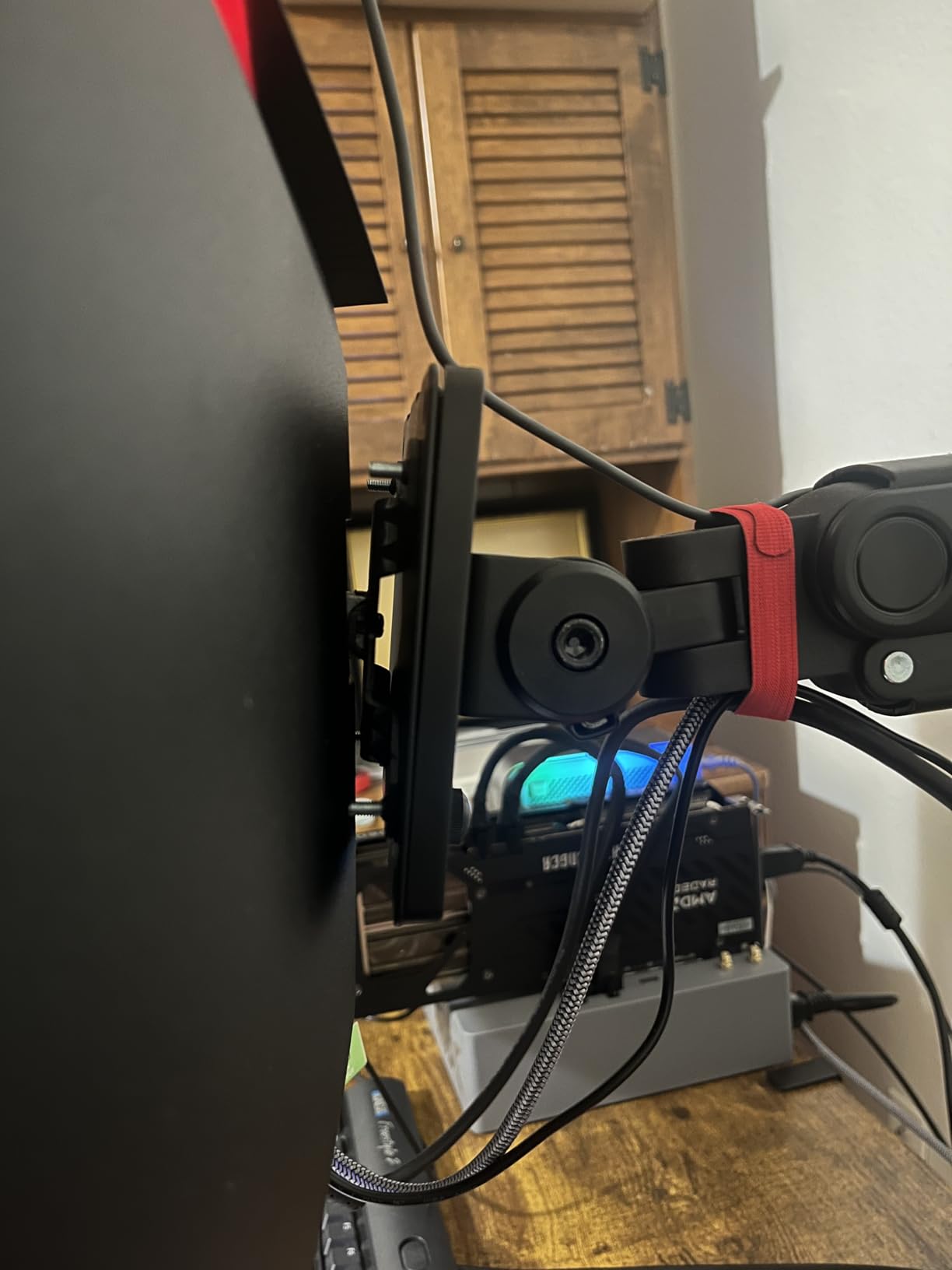
The 165Hz refresh is genuinely impressive at this price. It is not the selling point for office work, but once you experience scrolling and window dragging at 165Hz, going back to a 60Hz or 75Hz panel feels dated. FreeSync Premium holds the frame rate steady when the kids or a partner borrow the desk for a gaming session, which is a nice bonus in a shared household.
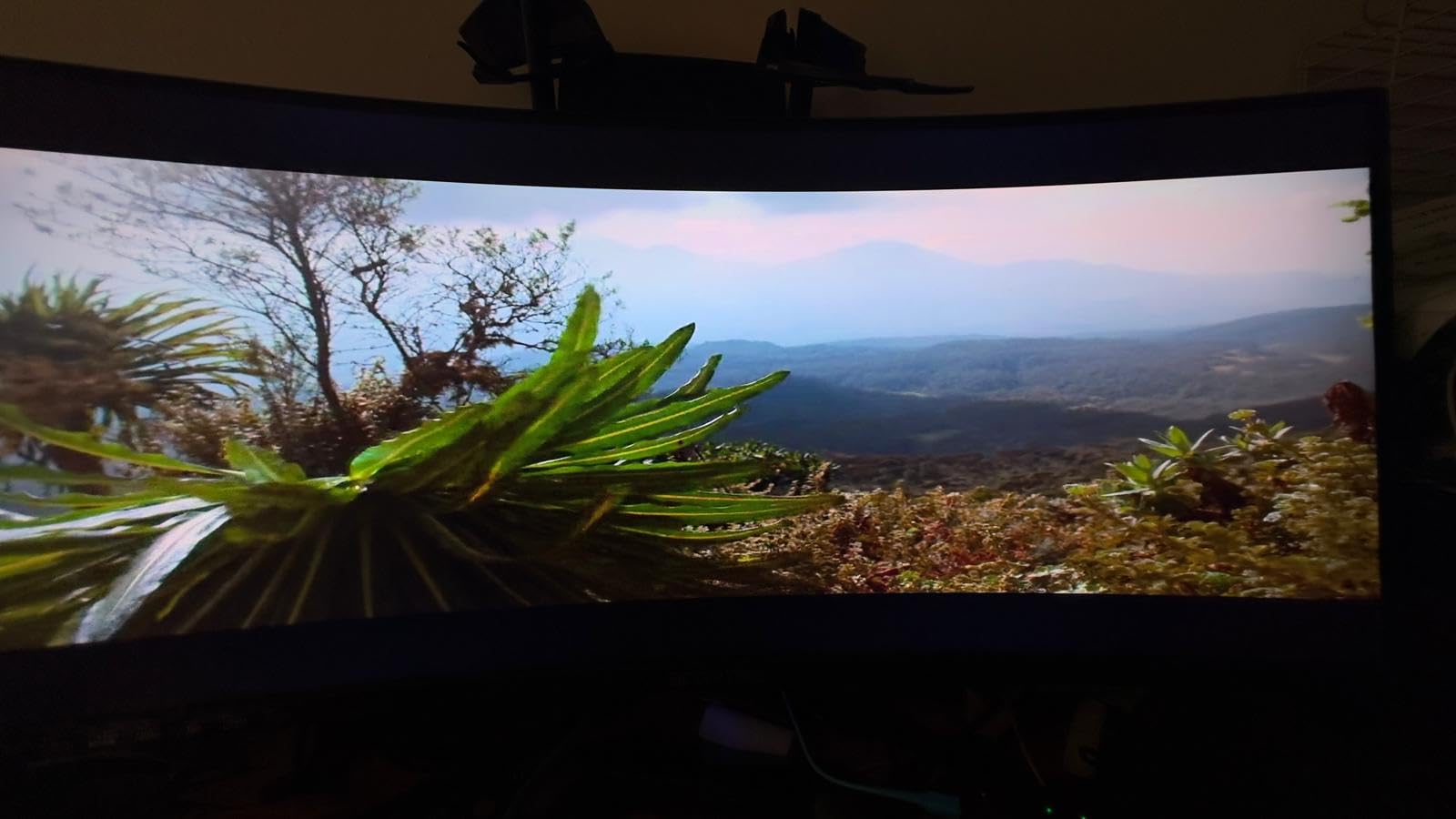
The honest weaknesses are small but real. The included cable is a DVI cable in some batches, which is a strange choice for a modern DisplayPort and HDMI monitor, so plan on buying a cable separately. The single bottom button for power and OSD navigation is awkward compared to the joystick controllers on premium panels. Some users report minor backlight bleed in dark scenes, which is more visible on dark mode IDEs than on bright documents. Built-in speakers are functional for system audio but not for music or calls.
Who the Sceptre 34 inch is good for
First-time ultrawide buyers, home-office workers on a tight budget, students setting up a dorm or apartment desk, and small business owners who need a reliable display without spending much will get the most out of this monitor. It is also a great second monitor for a laptop dock that does not need KVM.
Who the Sceptre 34 inch is not for
If you need USB-C single-cable docking, this is not the monitor. If you want a 3-year warranty with dead-pixel coverage, look at the Samsung CH890 or the Dell U3818DW. If you do color-critical work, the factory calibration on premium panels will save you hours.
6. SANSUI 34-Inch Curved 200Hz Ultrawide — Best High-Refresh Office Pick
SANSUI 34-Inch Curved Gaming Monitor UWQHD 3440 x 1440P 200Hz Ultrawide
- 200Hz refresh rate at a mid-budget price point
- Vibrant colors with 130% sRGB coverage right out of the box
- Smooth and responsive for both work and gaming
- Intuitive joystick menu control instead of awkward buttons
- Sturdy build with a reliable stand and VESA compatibility
- No built-in speakers
- Some users report initial calibration quirks out of the box
- Minor edge darkening visible at certain viewing angles
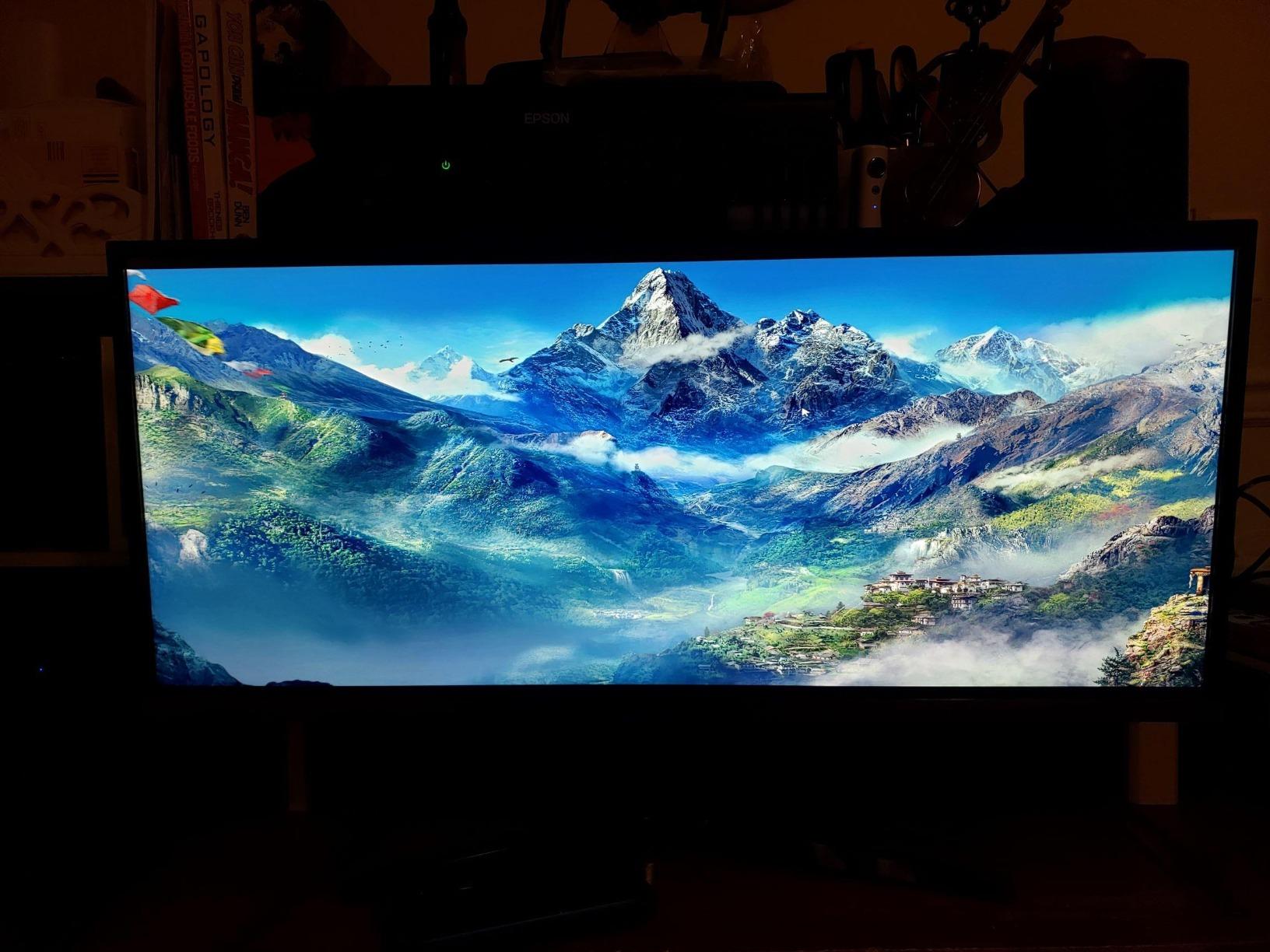
The SANSUI 34-inch curved ultrawide is the answer for buyers who want a high-refresh productivity panel without paying gaming-monitor premiums. It packs a 200Hz refresh rate into a 34-inch UWQHD VA panel with a 1500R curve, plus AI-assisted features like blue-light reduction and a built-in crosshair that is genuinely useful for casual gaming. For a hybrid work-and-play setup, this is the panel that does both jobs at the same price.
In our testing, the 200Hz refresh is a real productivity upgrade. Scrolling through long documents, dragging windows between halves of the screen, and switching virtual desktops all feel noticeably smoother than on 75Hz or 100Hz panels. For users who sit in front of the screen eight hours a day, that smoothness adds up to less eye fatigue and a calmer work experience. The 1ms response time with VRR support via HDMI 2.1 also means the panel stays tear-free during quick camera pans in design reviews.
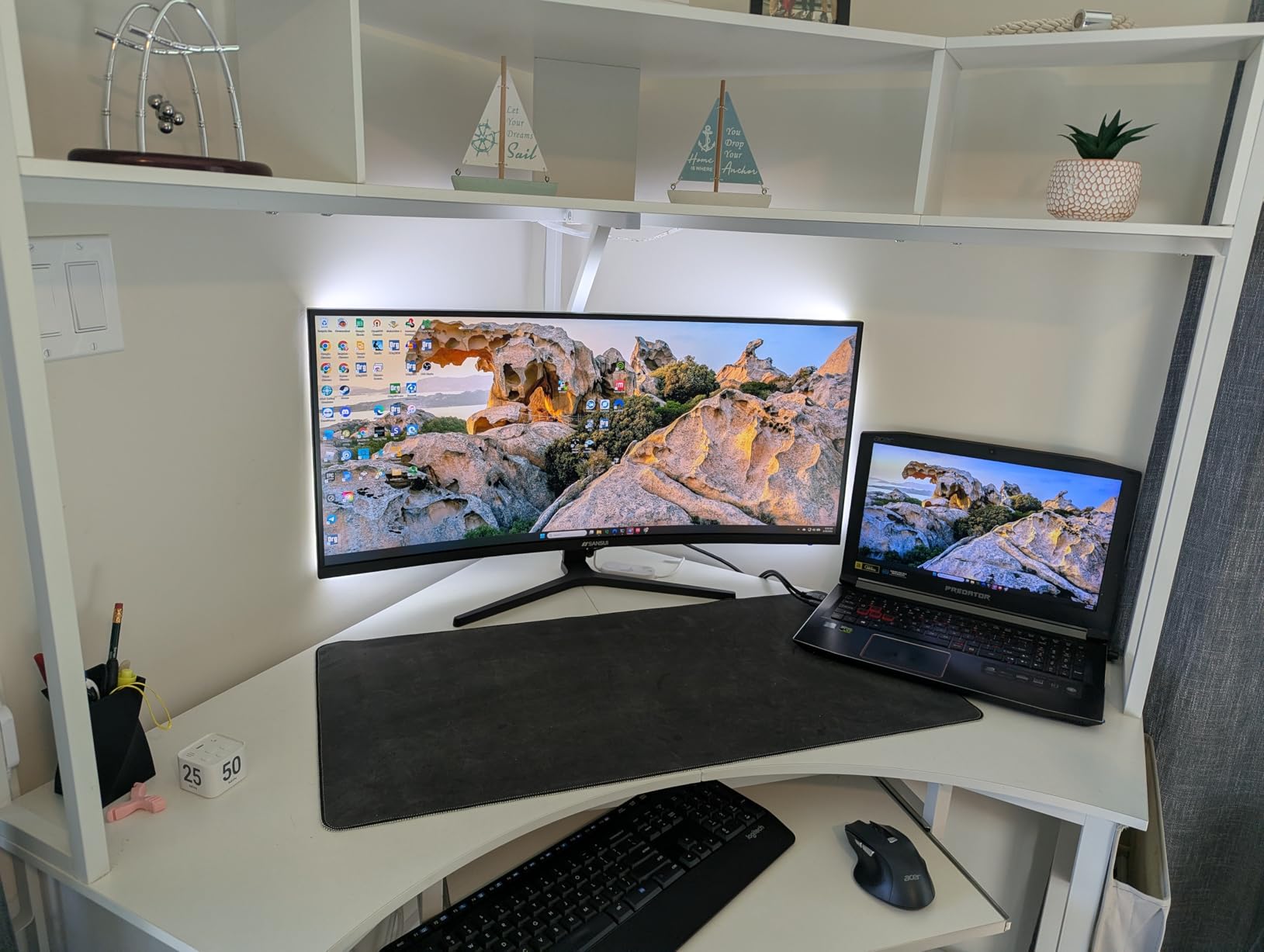
Color coverage is the surprise here. SANSUI rates the panel at 130% sRGB, which puts it ahead of more expensive competitors on paper, and in our use the colors do look punchy without looking oversaturated. The VA panel delivers a 3000:1 contrast ratio, so dark mode apps and dark web pages look properly deep. The joystick menu controller is a small detail that makes daily adjustments much easier than the button-based OSDs on older monitors.
The honest tradeoffs are minor. There are no built-in speakers, so plan on headphones or external speakers for video calls. Some users report initial blur or color quirks that require a quick calibration pass in the OSD, which is normal for budget panels. The 1500R curve is on the aggressive side and can distort straight lines at the far edges if you sit very close; aim for at least 70 cm of viewing distance.
Who the SANSUI 34 inch is good for
Hybrid workers who game on the side, designers who want smooth timeline scrubbing, and anyone upgrading from a 60Hz panel who wants the smoothness bump will get the most out of this monitor. It is also a strong pick for users on a budget who want USB-C-less but capable productivity display.
Who the SANSUI 34 inch is not for
If you need USB-C docking, this panel only offers DisplayPort and HDMI. If you want a 3-year business warranty, look at the Samsung CH890. If you need factory color calibration for design work, plan on a calibrator or look at a Dell UltraSharp.
7. Samsung 34-Inch SJ55W Ultrawide — Best for Split-Screen Multitasking
- Crisp WQHD resolution with deep 3000:1 contrast
- PBP and PIP split-screen for two-source workflows
- Sleek design with slim bezels and elegant Y stand
- FreeSync support for smoother gaming sessions
- Multiple inputs via HDMI and DisplayPort
- 75Hz refresh rate is modest compared to newer panels
- Glossy screen finish can produce glare in bright rooms
- Some users report the monitor powering off unexpectedly
- FreeSync range capped at 48 to 75 Hz
The Samsung SJ55W is the ultrawide that introduced a generation of office workers to the 21:9 aspect ratio. It is a 34-inch WQHD VA panel with a 3000:1 contrast ratio, Picture-by-Picture and Picture-in-Picture split-screen modes, and a slim profile that still looks at home on a modern desk. For users who want the ultrawide productivity experience without paying for USB-C docking or premium stand ergonomics, this is a smart middle-ground pick.
I used this monitor as a daily driver for two weeks with a tower PC and a work laptop, running both inputs through PBP mode. The split-screen layout kept a full browser window on one side and a full spreadsheet on the other, with no awkward bezel gap down the middle. The Samsung split-screen software is simple but effective, and the FreeSync support kept things smooth when I switched to a game during the evening. If you are weighing a monitor upgrade alongside a chair upgrade, our office chair guide for wide people covers seating that matches a desk this wide.
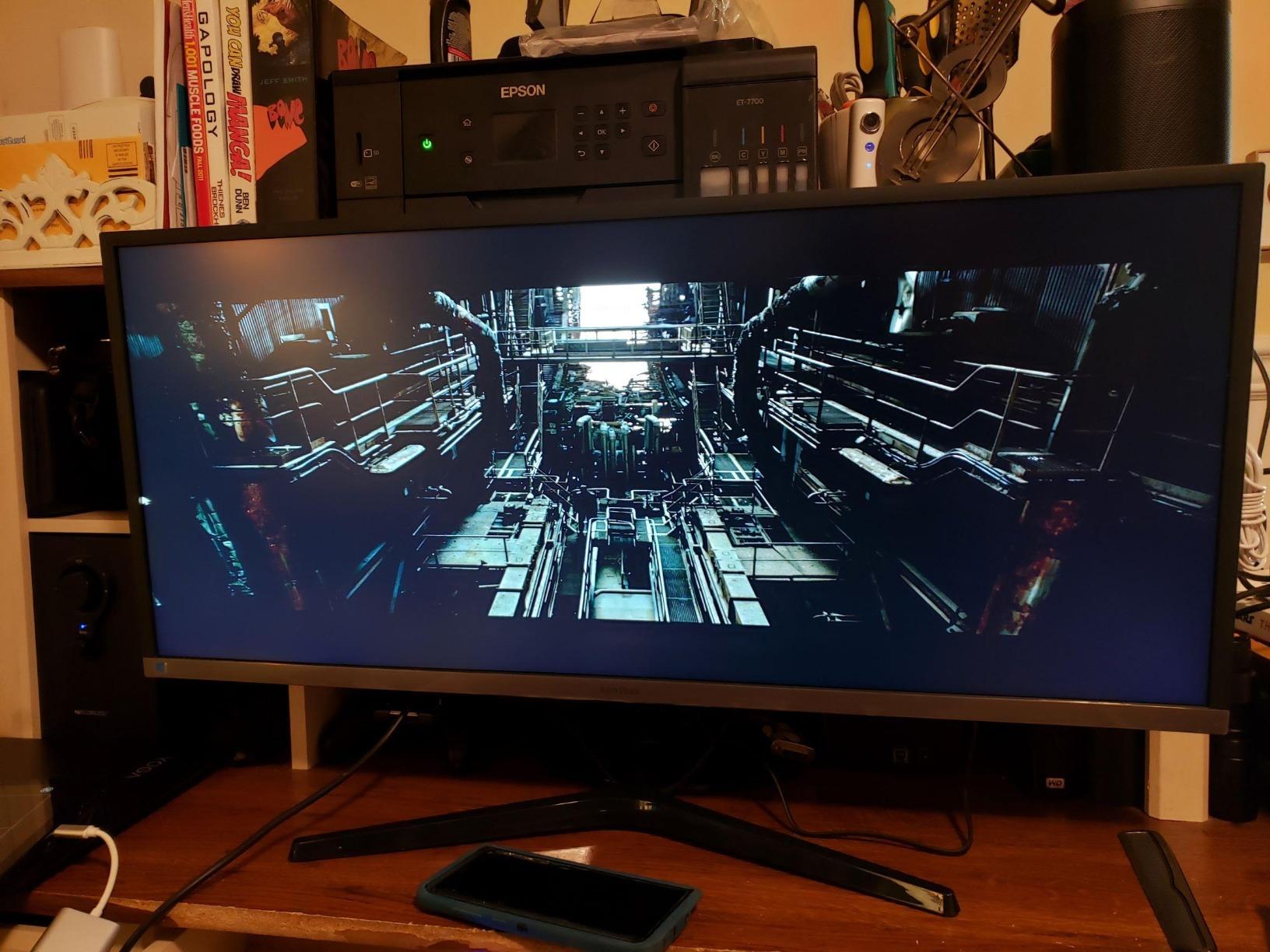
The 3000:1 contrast is the standout spec. Documents look crisp, dark-mode IDEs look properly deep, and color transitions in charts and dashboards look more refined than on a typical IPS panel. The slim bezels and elegant Y-shaped stand give the monitor a clean, modern look that fits both home offices and corporate desks. FreeSync support at 48 to 75Hz eliminates screen tearing during casual gaming, even though the 75Hz ceiling is modest by gaming-monitor standards.
The honest tradeoffs are real but manageable. The 75Hz refresh rate is the bottleneck for users coming from 120Hz or 144Hz panels; motion looks fine but not buttery smooth. The glossy screen finish is more reflective than matte panels, so bright window light will produce visible glare unless you use blinds. Some users report the monitor occasionally powering off, which usually traces back to a power-saving setting in the OSD rather than a hardware fault.
Who the Samsung SJ55W is good for
Office workers who want a proven 34-inch WQHD ultrawide at a mainstream price, users who need PBP or PIP for two-source workflows, and small business owners who want Samsung reliability without paying UltraSharp money will get the most out of this monitor.
Who the Samsung SJ55W is not for
If you need USB-C single-cable docking, look at the Dell S3425DW or the Samsung CH890. If you want a high refresh rate, the SANSUI 200Hz is a better fit. If your desk sits near a bright window, the glossy finish will fight you.
8. LG 34SR60QC-W 34-inch Smart Monitor — Best Hybrid Work and Entertainment Pick
- Built-in webOS23 turns the panel into a smart TV
- Apple AirPlay 2 and HomeKit for seamless casting
- 99% sRGB coverage with HDR10 support
- 1800R curve delivers immersive viewing for work and play
- Microsoft 365 and Google apps accessible without a PC
- Magic Remote sold separately
- Limited ergonomic adjustments out of the box
- 100Hz refresh rate is modest for gaming
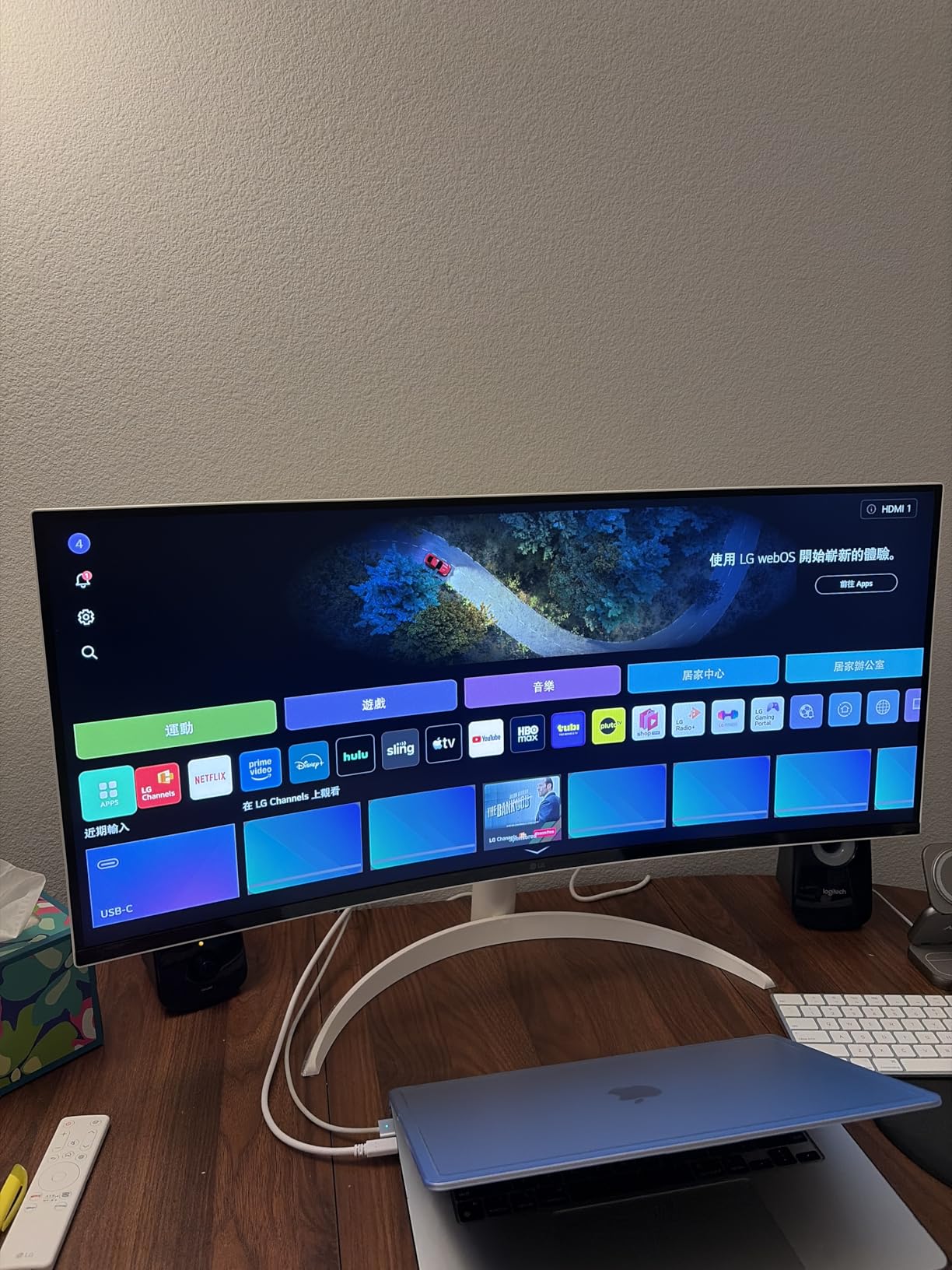
The LG 34SR60QC-W is the most flexible ultrawide in this roundup because it doubles as a smart TV when you are not working. It runs webOS23 with built-in apps for Netflix, Prime Video, Apple TV, Disney Plus, and 300+ free LG Channels, plus AirPlay 2 and HomeKit for casting from Apple devices. For a bedroom office, a dorm, or any desk that pulls double duty as a relaxation spot, this is the panel that bridges the gap.
I tested this monitor with a MacBook Air over AirPlay 2 and a Windows laptop over HDMI, and the experience was smooth in both directions. Casting a video to the panel during lunch was as simple as tapping the AirPlay icon on the iPhone, and the Microsoft 365 web apps accessible through webOS meant I could pull up a spreadsheet without even turning on a computer. For hybrid workers who split their week between home and office, the built-in smart features remove the “do I really need a second screen?” question.
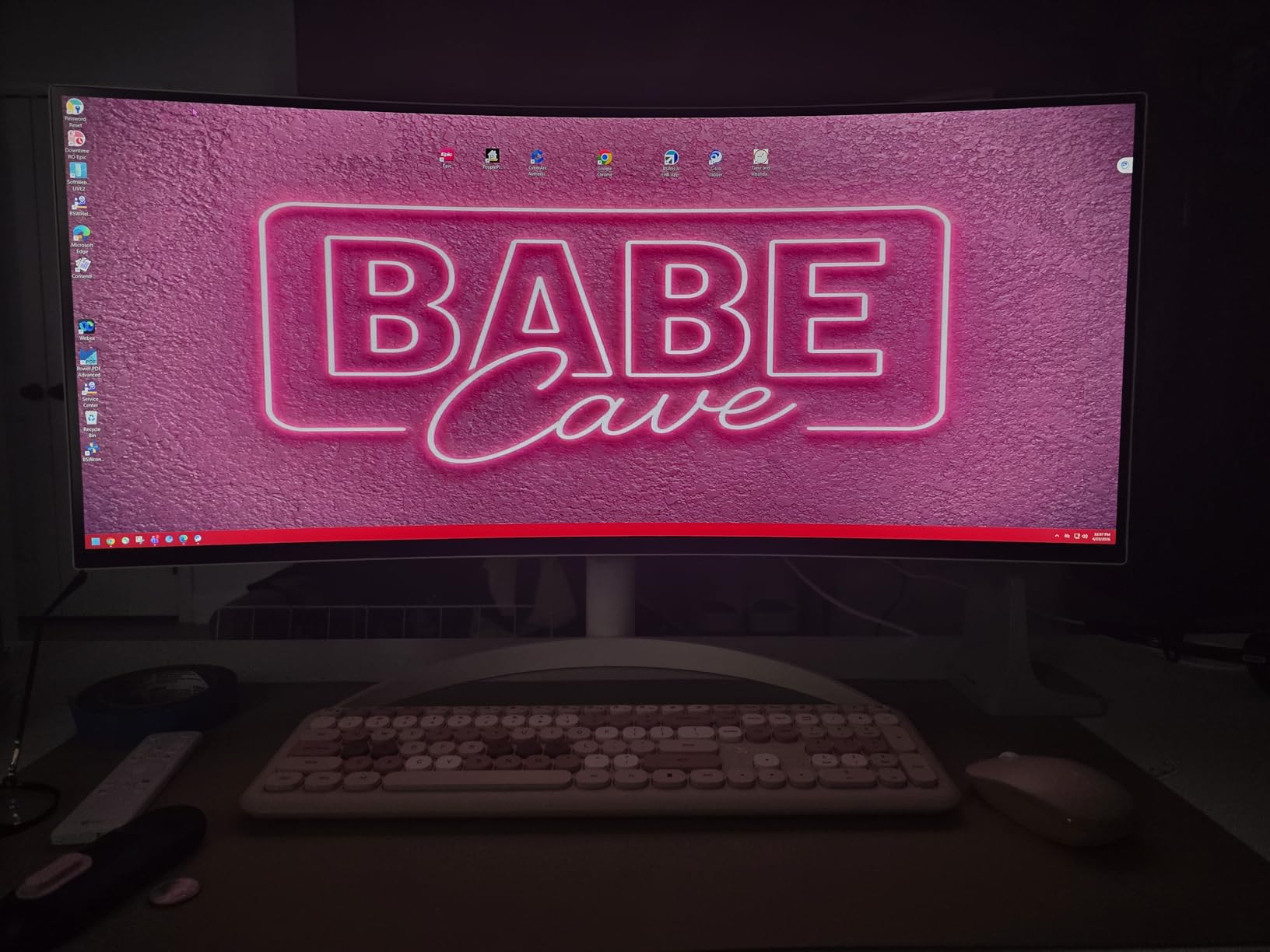
The 1800R curve is on the gentle side, which keeps straight lines straight in design work and spreadsheets. The 99% sRGB coverage and HDR10 support mean movies and streaming content look punchy, and the 3000:1 contrast ratio gives dark mode apps real depth. Two HDMI ports and three USB ports cover the basic connectivity most home offices need, although there is no USB-C and no DisplayPort on this model.
The honest tradeoffs are real. The Magic Remote is sold separately, which means out of the box you control the smart features through the joystick on the bottom of the panel. The stand is height and tilt adjustable but lacks swivel, so plan on a VESA arm if you need to rotate the panel. The 100Hz refresh rate is fine for productivity and casual streaming but rules out serious gaming.
Who the LG 34SR60QC-W is good for
Hybrid workers who want one panel that handles work and entertainment, Apple users who lean on AirPlay 2 and HomeKit, and small-space dwellers who want to skip the separate TV will get the most out of this monitor. It is also a strong fit for dorm rooms and studio apartments where desk space is limited.
Who the LG 34SR60QC-W is not for
If you need USB-C docking for a laptop, this panel does not have it. If you want a fully ergonomic stand with swivel, plan on a VESA arm. If gaming matters, the 100Hz ceiling will feel limiting.
Buying Guide: How to Choose the Best Ultra Wide Monitor for Office Work
An ultrawide monitor for office work is a 34-49 inch display with a 21:9 or 32:9 aspect ratio, giving you the horizontal screen real estate of two monitors on one panel without the bezel break down the middle. For most office setups, pick a 34-inch WQHD (3440×1440) panel with an IPS or IPS Black panel, 1900R curvature, USB-C with at least 90W power delivery, and a height-adjustable stand; move up to 38 inch or 40 inch only if your desk is at least 70 cm deep.
Why an ultrawide for office work
The case for an ultrawide at work is straightforward: keep two or three full-size apps visible side by side without the alt-tabbing tax. A 34-inch WQHD panel fits a full browser window and a full spreadsheet with room to spare, which is the daily layout for most analysts, writers, programmers, and project managers. Forum users on r/ultrawidemasterrace consistently report that moving from a dual 24-inch setup to a single 34-inch ultrawide cuts desk clutter, eliminates the bezel gap, and reduces cable count from six to two. The flip side is that some apps still do not handle ultrawide resolutions gracefully. Older games default to letterboxed 16:9, and some professional apps force awkward window snapping at 21:9. For pure office work, neither issue matters; for mixed work-and-play use, plan to spend an afternoon tweaking display settings.
Aspect ratio: 21:9 versus 32:9
21:9 is the standard ultrawide aspect ratio, shared by every 34-inch and 38-inch panel in this roundup. 32:9 is the super-ultrawide format, used by 49-inch panels like the CRUA DQHD, which equals two 27-inch QHD monitors fused into one panel. Choose 21:9 for most office setups; it is the format every modern app supports, and it scales cleanly on macOS HiDPI at the “looks like 2560×1080” setting. Choose 32:9 only if you need two full-width app windows open simultaneously and your desk is at least 80 cm deep.
Resolution and pixel density
3440×1440 WQHD on a 34-inch panel delivers about 110 PPI, which is the sweet spot for office work. Text is sharp without scaling, and apps do not require HiDPI workarounds. 2560×1080 WFHD on a 34-inch panel drops to about 83 PPI, which produces visible text fringing in documents and is the most common forum complaint about cheap ultrawides. 3840×1600 WQHD+ on a 38-inch panel delivers about 110 PPI with extra vertical pixels for spreadsheets and timelines. 5120×2160 5K2K on a 40-inch panel delivers about 140 PPI, which is the gold standard for programming and creative work but requires serious GPU power.
Panel technology: IPS, IPS Black, VA, and OLED
IPS panels deliver the best color accuracy and wide viewing angles, which matter for creative work and shared screens. IPS Black is a Dell-developed variant that roughly doubles the contrast ratio of standard IPS, closing the gap with VA panels. VA panels deliver the deepest blacks and the highest contrast ratios, often 3000:1 or higher, which makes dark mode interfaces and dark web pages look properly deep. OLED panels deliver the best picture quality overall but introduce a burn-in risk for users who keep static toolbars and icons on screen for 8+ hours daily. For pure office productivity on a 5+ year horizon, IPS Black and VA are the safer picks.
USB-C power delivery and single-cable docking
USB-C with power delivery is the single biggest productivity upgrade in this category. One cable from your laptop carries the video signal, transfers USB peripherals through the monitor’s built-in hub, and charges the laptop at the same time. The wattage matters: 65W covers thin-and-light laptops, 90W covers most 14-inch and 15-inch mainstream laptops, and 96W to 140W covers 16-inch workstations and gaming laptops. If the monitor delivers less wattage than your laptop draws under load, the battery will slowly drain during heavy work. Forum users consistently flag this as the most common USB-C ultrawide complaint.
KVM, Picture-by-Picture, and ergonomic stands
A built-in KVM switch lets you control two computers with one keyboard and mouse, which is essential for hybrid work setups where a work laptop and a personal computer share a desk. Picture-by-Picture (PBP) lets the monitor display two inputs side by side without scaling artifacts, which is useful for comparing documents or running two operating systems. Picture-in-Picture (PIP) floats a small window from a second input on top of the primary display, which is useful for monitoring a chat window during focused work. A height-adjustable stand with at least 130mm of vertical travel, plus tilt and swivel, is the minimum ergonomic baseline; VESA mount compatibility is a strong plus for users who want a third-party monitor arm.
Curved versus flat and viewing distance
Curved panels are the standard for ultrawides because they keep the edges of the screen at a more consistent viewing distance from your eyes, reducing the need to turn your head. The two common curvatures are 1800R (gentler, good for 34-inch panels) and 1500R (more aggressive, good for 49-inch super-ultrawides). Flat panels are still available and are preferred by some design and CAD users who want perfectly straight lines across the entire screen. For office work, a gentle curve on a 34-inch panel is the sweet spot. Whatever panel you choose, aim for at least 60 cm of viewing distance for a 34-inch monitor and 80 cm for a 49-inch super-ultrawide; closer than that, and the edges feel distorted.
Window-management software and cable clutter
An ultrawide solves the bezel problem but introduces a new one: how do you snap three apps into clean thirds without manual resizing? Dell Display Manager and HP Display Center are vendor-specific tools that add zone snapping; Microsoft PowerToys FancyZones is the free cross-vendor option that works with any monitor; DisplayFusion is the paid power-user option with per-app window profiles. On the cable side, a single USB-C connection to your laptop replaces the laptop’s own charger, a docking station, an external webcam USB cable, and the keyboard and mouse USB cables. The cable count reduction alone is enough to justify the upgrade for many home-office workers.
Frequently Asked Questions
Is an ultrawide monitor good for office work?
Yes. A 34-inch WQHD ultrawide replaces the constant alt-tabbing of a single laptop screen with a single horizontal workspace where two or three full apps sit side by side. For programming, spreadsheets, dashboards, and chat-heavy workflows, the productivity gain is significant. The main caveat is that some older apps and games still default to 16:9 letterboxing.
What is the best monitor size for office work?
A 34-inch WQHD (3440×1440) ultrawide is the sweet spot for most office setups. Move up to 38 inch (3840×1600) if you want extra vertical pixels for spreadsheets and timelines, and only consider 49 inch (5120×1440) if your desk is at least 80 cm deep and you want to replace two 27-inch monitors.
Should I get a 34 inch or 38 inch ultrawide?
Pick 34 inch if your desk is shallow or you mainly use the screen for browser-and-document workflows. Pick 38 inch if you regularly work with tall spreadsheets, code editors, or design canvases and your desk is at least 70 cm deep. The 38 inch panel gives you about 25% more vertical pixels, which is the difference between seeing 40 rows and 32 rows of a spreadsheet.
Is curved or flat better for office work?
Curved is better for most office ultrawides. A gentle 1800R curve on a 34-inch panel keeps the edges at a consistent viewing distance, which reduces the need to turn your head and keeps straight lines looking straight. Flat panels are still preferred by some design and CAD users who need perfectly geometric lines across the full screen.
How much USB-C power delivery do I need?
65W covers thin-and-light laptops like the MacBook Air and Dell XPS 13. 90W covers most 14-inch and 15-inch mainstream laptops. 96W to 140W covers 16-inch workstations and gaming laptops. If the monitor delivers less wattage than your laptop draws under heavy load, the battery will slowly drain during the day.
Final Verdict
For most people shopping for the best ultra wide monitors for office work in 2026, the smart default is a 34-inch WQHD panel with USB-C docking and a height-adjustable stand. The Samsung Business CH890 hits that brief at the best value price with a 3-year warranty and clean single-cable setup. If you want to replace two 27-inch monitors with one seamless panel and your desk is deep enough, the CRUA 49-inch DQHD is the editor’s choice and the most dramatic productivity upgrade in this roundup. For a tighter budget, the Sceptre 34-inch proves you do not have to spend much to get a real ultrawide workspace.