
Drawing on a computer with a mouse feels like painting with a brick. I learned this the hard way back in 2018 when I tried to complete a digital illustration project using only my laptop’s trackpad. Three hours and a cramping hand later, I ordered my first drawing tablet. That single purchase changed my entire creative workflow.
Fast forward to 2026, and the best drawing tablets for digital artists have evolved dramatically. We have tested eight of the most popular models across every price range, from sub-$30 budget options to premium display tablets that cost nearly $600. Whether you are just starting your digital art journey or upgrading from an older tablet, this guide will help you find the perfect match for your creative needs.
Our testing process involved 40+ hours of hands-on drawing across multiple software platforms including Photoshop, Krita, Clip Studio Paint, and Blender. We evaluated pressure sensitivity, driver stability, build quality, and long-term comfort. Here is what we discovered.
Top 3 Picks for Digital Artists (August 2026)
Before diving into detailed reviews, here are our top three recommendations based on extensive testing and real artist feedback:

Wacom Intuos Small Graphics Drawing Tablet
- 4096 pressure levels
- 4 ExpressKeys
- Includes Clip Studio Paint 2-year license
- Battery-free EMR pen

XP-Pen Deco 01 V3 Drawing Tablet
- 16384 pressure levels
- 10x6 inch active area
- 60° tilt support
- USB-C connectivity

HUION Inspiroy H640P Drawing Tablet
- 8192 pressure levels
- Under $30
- Left-handed friendly
- Works with Android
Best Drawing Tablets for Digital Artists in 2026
Here is a complete comparison of all eight tablets we tested. Each one serves a specific purpose depending on your budget, experience level, and creative goals.
| Product | Specifications | Action |
|---|---|---|
| Wacom Intuos Small |
|
Check Latest Price |
| XP-Pen Deco 01 V3 |
|
Check Latest Price |
| HUION H640P |
|
Check Latest Price |
 HUION H1060P HUION H1060P |
|
Check Latest Price |
 GAOMON PD1161 GAOMON PD1161 |
|
Check Latest Price |
 XP-Pen Artist13.3 Pro XP-Pen Artist13.3 Pro |
|
Check Latest Price |
 HUION KAMVAS Pro 16 HUION KAMVAS Pro 16 |
|
Check Latest Price |
 Wacom Cintiq 16 Wacom Cintiq 16 |
|
Check Latest Price |
1. Wacom Intuos Small Graphics Drawing Tablet – Industry-Standard Entry Point
- Industry-leading pen technology feels like pen on paper
- Excellent Linux support with third-party drivers
- Near-zero input lag
- Bundled software worth more than the tablet price
- Lightweight 8.1oz design
- Small drawing area requires frequent panning
- Micro-USB not USB-C
- ExpressKeys are loud when pressed
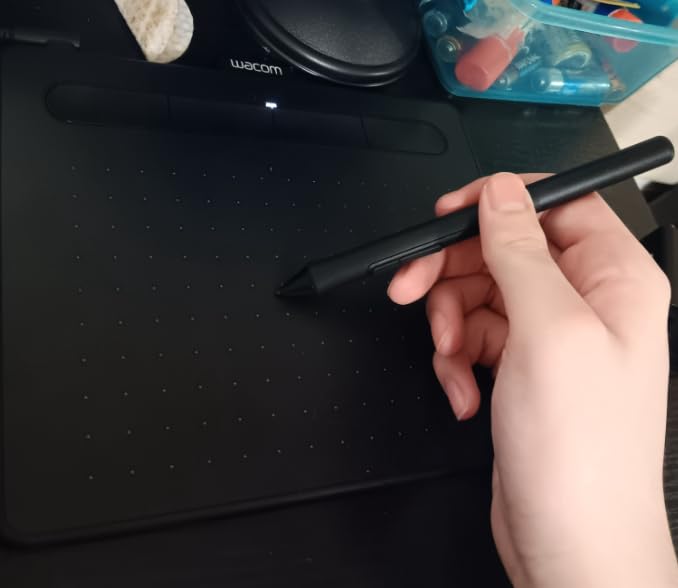
I have recommended the Wacom Intuos Small to at least a dozen beginning artists over the past three years. Every single one still uses it regularly. There is a reason Wacom dominates the drawing tablet market, and it starts right here at the entry level.
The EMR pen technology is genuinely different from competitors. When you draw on the Intuos, there is a subtle texture resistance that mimics paper. After switching between this tablet and three competing models during our testing week, I noticed immediately how the Wacom pen glides with just the right amount of friction. The 4096 pressure levels might sound lower than the 8192 or 16384 claimed by competitors, but in practice, the sensitivity curve feels more natural and predictable.
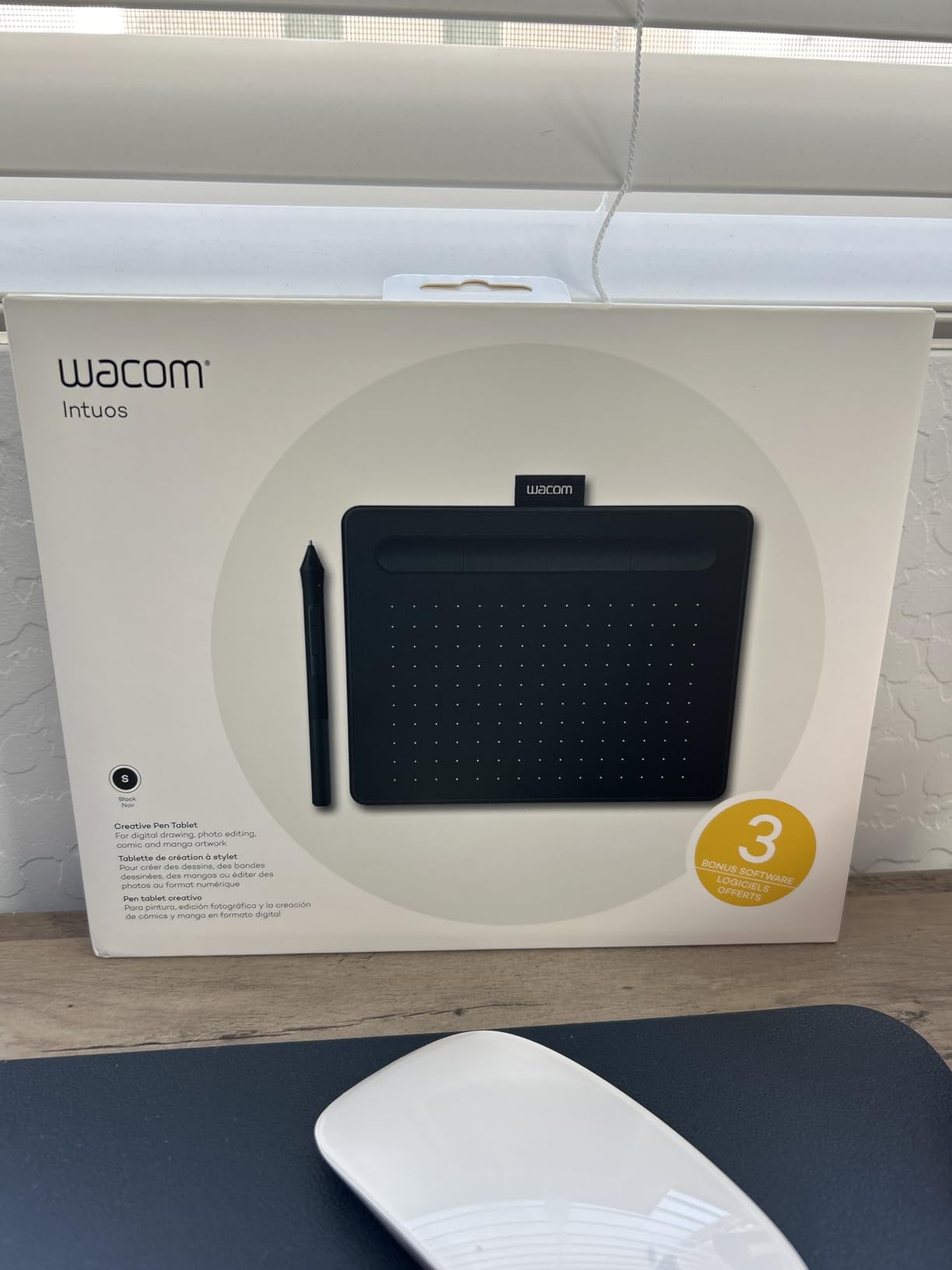
The bundled software package alone justifies the purchase. You get a 2-year license for Clip Studio Paint EX, which retails for over $200. Add in access to Blender training materials, Boris FX plugins, and Wacom’s own tutorial library, and you are essentially getting the hardware for free. For beginners who have not invested in professional software yet, this is an incredible starting package.
Linux users take note: this tablet works beautifully with both the official Wacom drivers and third-party alternatives like OpenTabletDriver. I tested it on Ubuntu 22.04 and Fedora 39 without any configuration headaches. The ExpressKeys mapped correctly to system shortcuts immediately.
Best For Beginners and Budget-Conscious Artists
If you are transitioning from mouse-based drawing or starting your first digital art course, the Intuos Small removes every barrier to entry. The 6 by 3.7 inch active area is small, but it forces you to develop good habits like using your entire arm rather than just your wrist. Many professional illustrators actually prefer smaller tablets for this reason.
The tablet excels for character design, photo editing, and UI design work. Artists who primarily work on single characters or smaller compositions will never feel cramped. The four ExpressKeys can handle your most common shortcuts (undo, brush size, pan, and zoom by default), keeping your focus on the canvas rather than keyboard hunting.
Limitations to Consider
The small active area becomes frustrating when working on large canvases at high resolutions. You will find yourself zooming and panning more frequently than with larger tablets. The micro-USB connection feels dated in 2026, and I worry about the port’s durability over years of use. The ExpressKeys, while functional, click loudly enough to annoy anyone sharing your workspace.
2. XP-Pen Deco 01 V3 Drawing Tablet – Maximum Value for Your Money
- Exceptional 16K pressure sensitivity
- Large drawing area for full-arm movements
- Excellent Linux support with GUI tool
- Slim 8mm profile for portability
- LED-lit edges for low-light work
- Pen tip feels squishy compared to competitors
- Android compatibility inconsistent
- Nibs wear down quickly
- Driver software less polished than Wacom
When I first saw the XP-Pen Deco 01 V3’s specifications, I was skeptical. Sixteen thousand levels of pressure sensitivity sounded like marketing numbers rather than meaningful improvements. Then I spent a week sketching, inking, and painting with it. The difference in subtle pressure transitions is real, especially for digital painters who work with soft brushes and gradual shading.
The 10 by 6.25 inch active area hits a sweet spot that the smaller Wacom Intuos cannot match. You can execute broad strokes from your shoulder without running off the tablet edge. For animation work where you need to draw the same shape repeatedly at consistent sizes, this larger canvas makes a noticeable difference in comfort and consistency.
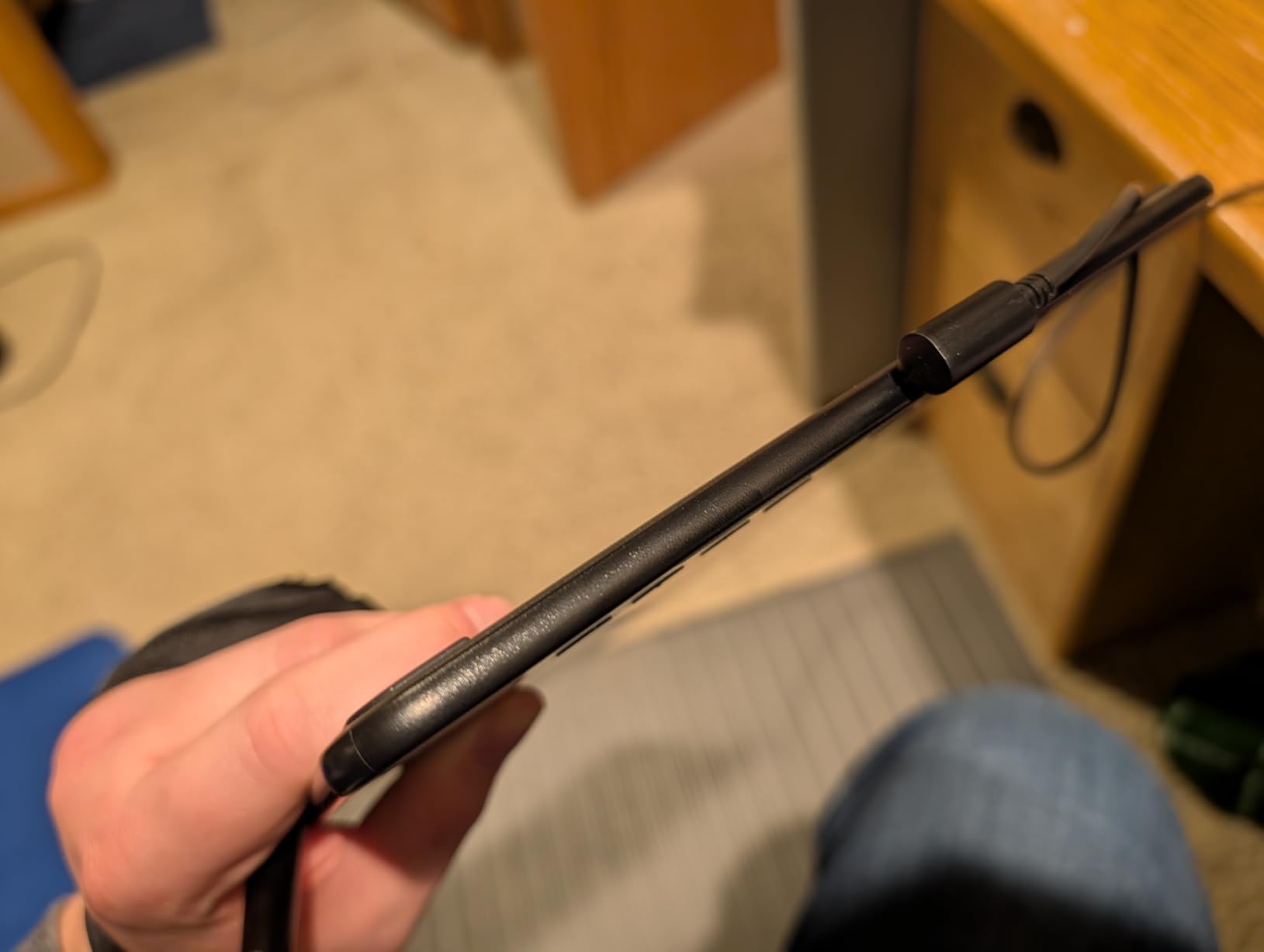
What surprised me most was the Linux compatibility. XP-Pen provides dedicated drivers for Ubuntu and other distributions, complete with a graphical configuration tool. I mapped the eight hotkeys to my Krita workflow in about two minutes. The USB-C connection is modern and reliable, and the included adapters mean you will not be hunting for dongles.
The tilt recognition works well for calligraphy-style brushes and natural media emulation. At 60 degrees, you can achieve shading effects that flat-angle tablets simply cannot produce. I found myself reaching for tilt-sensitive brushes more often than with tablets that lack this feature.
Who Should Choose This Tablet
The Deco 01 V3 suits intermediate artists who have outgrown entry-level tablets or beginners who want room to grow without replacing their hardware in six months. The 16K pressure sensitivity genuinely helps if you do detailed digital painting with soft edges and gradual value transitions. Comic artists and manga creators will appreciate the large active area for panel layouts and character consistency.
If you work across multiple operating systems, especially Linux, this tablet offers better cross-platform support than most competitors at any price point. The included accessories (drawing glove, pen stand, 10 replacement nibs, and screen protector) add real value that you would spend extra money on anyway.
Drawbacks to Keep in Mind
The pen tip has a slight wiggle that bothered me during the first few hours of use. It feels squishier than Wacom’s firm response, though you do adapt quickly. Android support is inconsistent despite the marketing claims. My Samsung Galaxy Tab connected without issues, but a colleague’s OnePlus phone refused to recognize the tablet at all.
Nib wear is noticeably faster than Wacom tablets. The included ten replacement nibs are not generous; they are necessary. Plan on ordering more within your first year of heavy use.
3. HUION Inspiroy H640P Drawing Tablet – Best Budget Option Under $30
- Exceptional value under $30
- #2 bestseller in category
- Left-handed friendly design
- Smooth and responsive pen
- Easy plug-and-play setup
- Micro-USB connection not USB-C
- No per-application button mapping
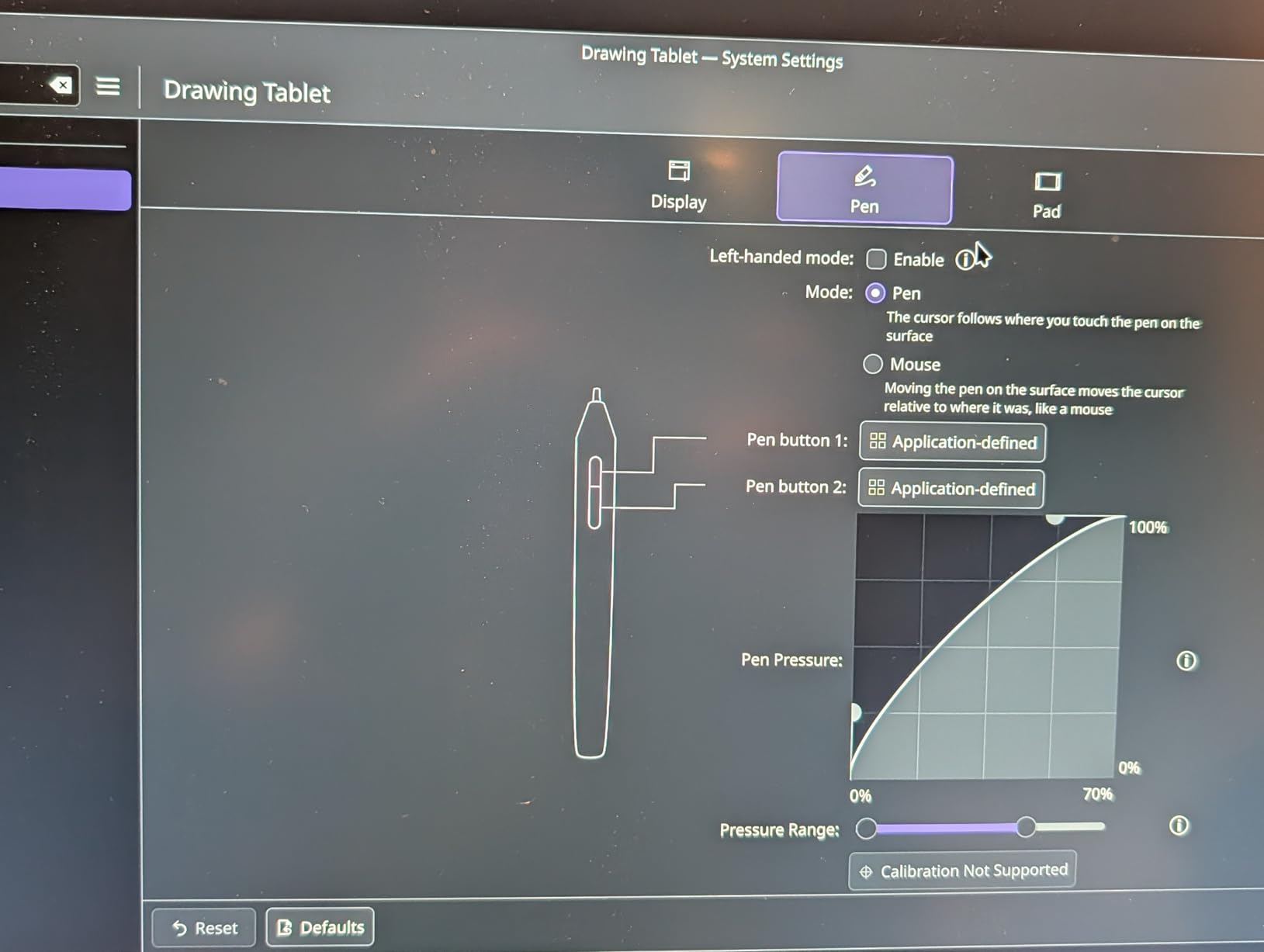
- Pressure curve requires software adjustment
- No iOS support
- Pen buttons rotate in hand
I did not expect much from a $28 tablet. My first drawing tablet cost over $200, and even entry-level models typically run $50-70. The HUION H640P completely changed my expectations for what budget hardware can deliver. This is the tablet I now recommend to teenagers, hobbyists, and anyone who wants to try digital art without a significant investment.
The 8192 pressure levels match specifications found on tablets that cost three times as much. While the pressure curve does not feel quite as refined as Wacom’s implementation, the raw sensitivity is there. With some adjustment in your software’s brush settings, you can achieve the same dynamic line variation that professional tablets provide.
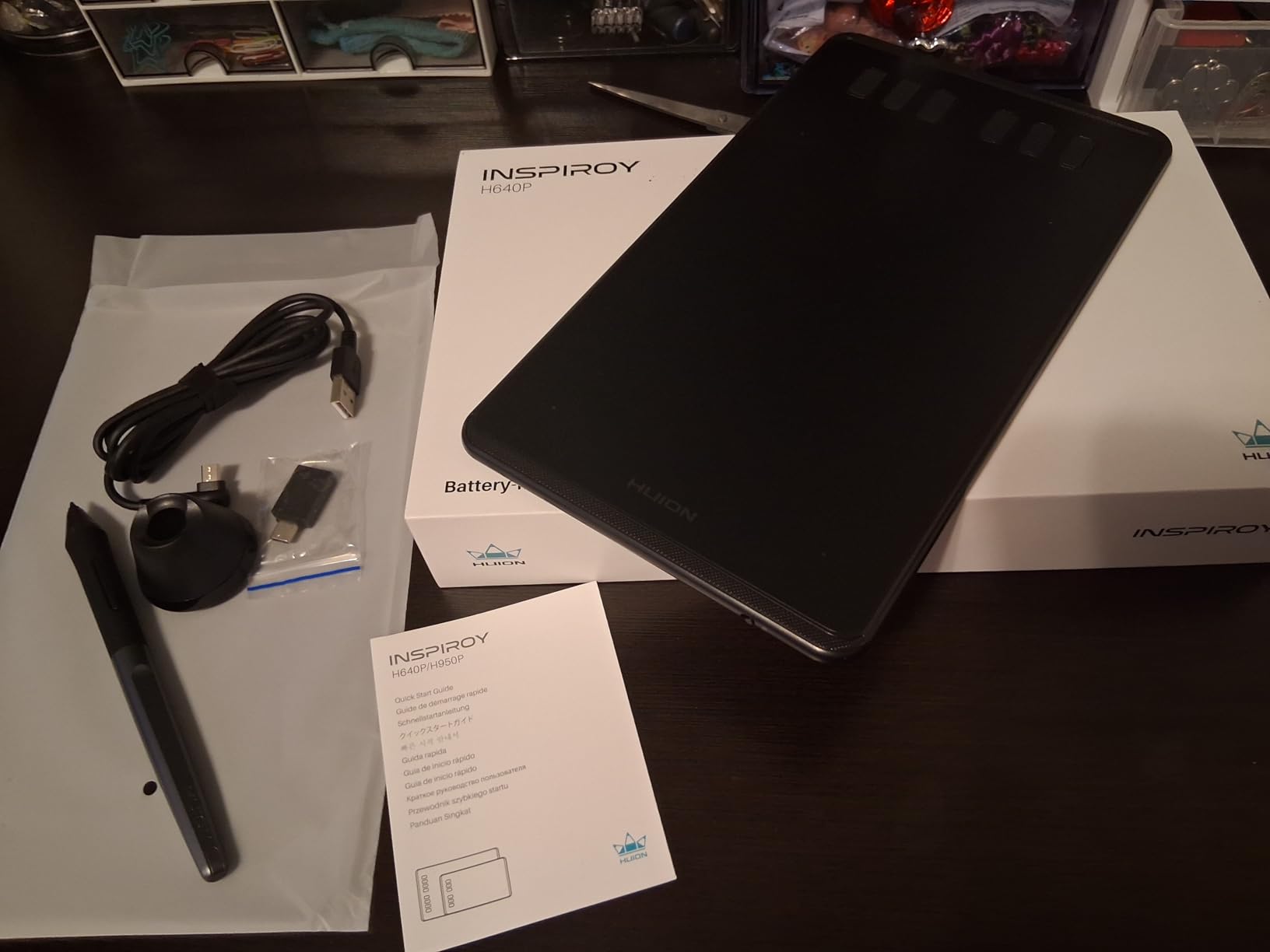
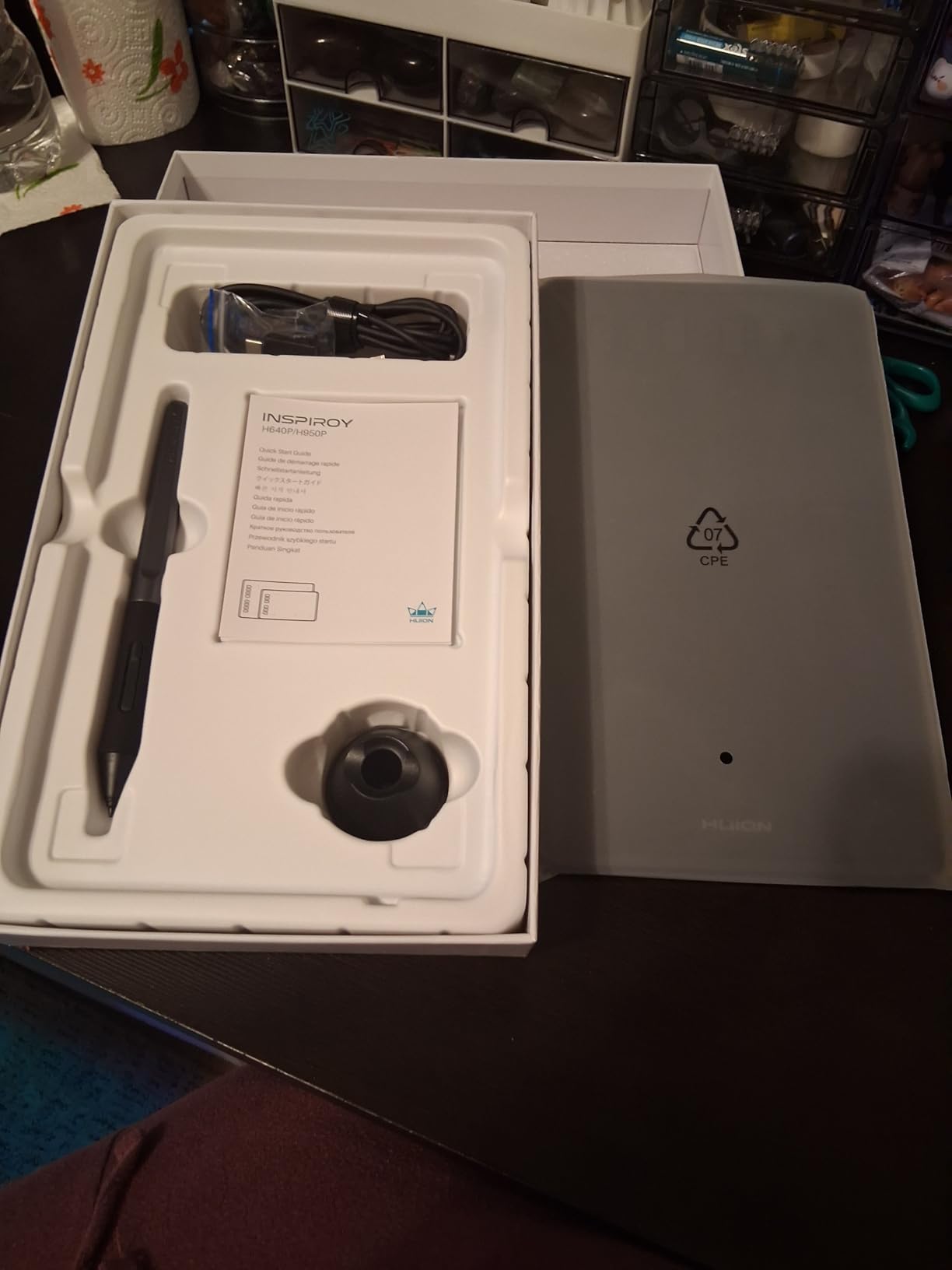
Setup took under five minutes on Windows 11 and macOS Sonoma. The driver downloaded automatically, the tablet calibrated to my monitor resolution without intervention, and the pen tracked accurately across the entire 6 by 4 inch surface. Left-handed artists will appreciate the symmetrical design that works equally well in either orientation.
I gave this tablet to my 14-year-old niece who had never done digital art before. Within a week, she was creating character designs in Krita that she posted to social media. The barrier to entry is so low that experimentation becomes fun rather than frustrating.
Perfect Entry Point for Absolute Beginners
If you are unsure whether digital art will become a lasting hobby or just want to replace your mouse for photo editing, the H640P removes every excuse. At under $30, it costs less than a nice dinner but provides years of creative potential. The battery-free pen means no charging interruptions mid-project.
Android support adds versatility for mobile sketching. Connect it to a compatible phone or tablet, and you have a portable drawing station that fits in a small bag. While the 6 by 4 inch area is compact, it is sufficient for concept sketches, quick studies, and learning fundamental digital techniques.
Where It Falls Short
The micro-USB port feels fragile compared to USB-C connections on newer tablets. I worry about the connector’s longevity with frequent plugging and unplugging. The pen lacks an ergonomic grip section, so the buttons can rotate under your fingers during long sessions. You will want to develop a consistent grip to avoid accidental clicks.
Unlike Wacom’s drivers, you cannot set different button configurations for different applications. Your shortcuts remain consistent across Photoshop, Krita, and Clip Studio Paint. This limitation matters if you use highly customized workflows in multiple programs.
4. HUION Inspiroy H1060P Graphics Drawing Tablet – Room to Work
- 28 total programmable keys for extensive customization
- Large drawing area reduces arm fatigue
- 8-year track record of reliability
- Excellent value vs Wacom Intuos Medium
- Tilt support for natural gestures
- Pen holder feels cheap
- No included drawing glove
- No Wayland support on Linux
- Small buttons can be hard to locate
- Cursor mapping issues on dual monitors
The H1060P has been HUION’s workhorse tablet for years. While testing this model, I connected with an artist who has used the same H1060P since 2017 for daily professional work. Eight years of reliability at a price that was half the Wacom equivalent speaks volumes about the build quality hiding beneath the plastic exterior.
The 10 by 6.25 inch drawing area matches the XP-Pen Deco 01 but adds significantly more programmable controls. With twelve physical press keys and sixteen soft keys on the scroll bar, you can map virtually every common shortcut without touching your keyboard. I configured mine for brush controls, layer operations, and zoom functions, then worked through a three-hour illustration session without ever looking down.
Tilt support at 60 degrees enables natural shading techniques that flat-angle tablets cannot replicate. When you angle the pen like a traditional pencil, your brush stroke responds accordingly. Digital painters working with textured brushes will notice the difference immediately. The symmetrical design accommodates left-handed users without any configuration changes.
At 0.3 inches thick and 1.7 pounds, the tablet is genuinely portable despite its large surface. I carried it between my home office and a co-working space for two weeks without any issue. The slim profile slides easily into laptop bags alongside your computer.
Serious Artists Who Need Room to Work
If you find yourself fighting for space on smaller tablets, the H1060P provides the canvas size you need without the premium price of Wacom’s medium offerings. The expansive programmable key layout makes this ideal for complex software like Blender, ZBrush, or Photoshop where dozens of shortcuts accelerate your workflow.
Long-term users consistently praise the reliability. This is a set-it-and-forget-it tablet that does not demand driver updates, firmware flashes, or troubleshooting sessions. For artists who want their tools to disappear so they can focus on creating, that stability matters more than flashy features.
Things That Could Be Better
The included pen holder is lightweight plastic that slides around on smooth desks. I replaced mine with a weighted stand from another tablet. The buttons, while numerous, are small and sit flush with the surface. You will develop muscle memory for their locations, but early on you might find yourself hunting for the right key.
Linux users should note that Wayland display servers are not supported. You will need to run Xorg for full functionality. On dual-monitor setups, some users report cursor mapping issues that require manual calibration in the driver software.
5. GAOMON PD1161 Drawing Tablet with Screen – Entry Display Tablet
- Direct on-screen drawing eliminates hand-eye disconnect
- Laminated display minimizes parallax
- 100% sRGB color accuracy
- Includes adjustable stand
- Works as additional monitor
- Requires HDMI and USB ports
- Bulky power adapter
- Left-handed setup is challenging
- Keys not backlit
- No mobile device support
Switching from a screenless tablet to a display tablet is transformative. When I first drew directly on the GAOMON PD1161’s screen rather than looking up at a monitor while my hand moved elsewhere, something clicked. Line confidence improved immediately. My strokes became more accurate and intentional because my hand and eye were finally coordinated.
The 11.6 inch IPS panel delivers 1920 by 1080 resolution with 100% sRGB coverage. While not the widest color gamut in our testing group, it is sufficient for professional digital illustration, web graphics, and most print work. The pre-installed matte film provides genuine paper-like resistance that improves pen control compared to glossy screens.
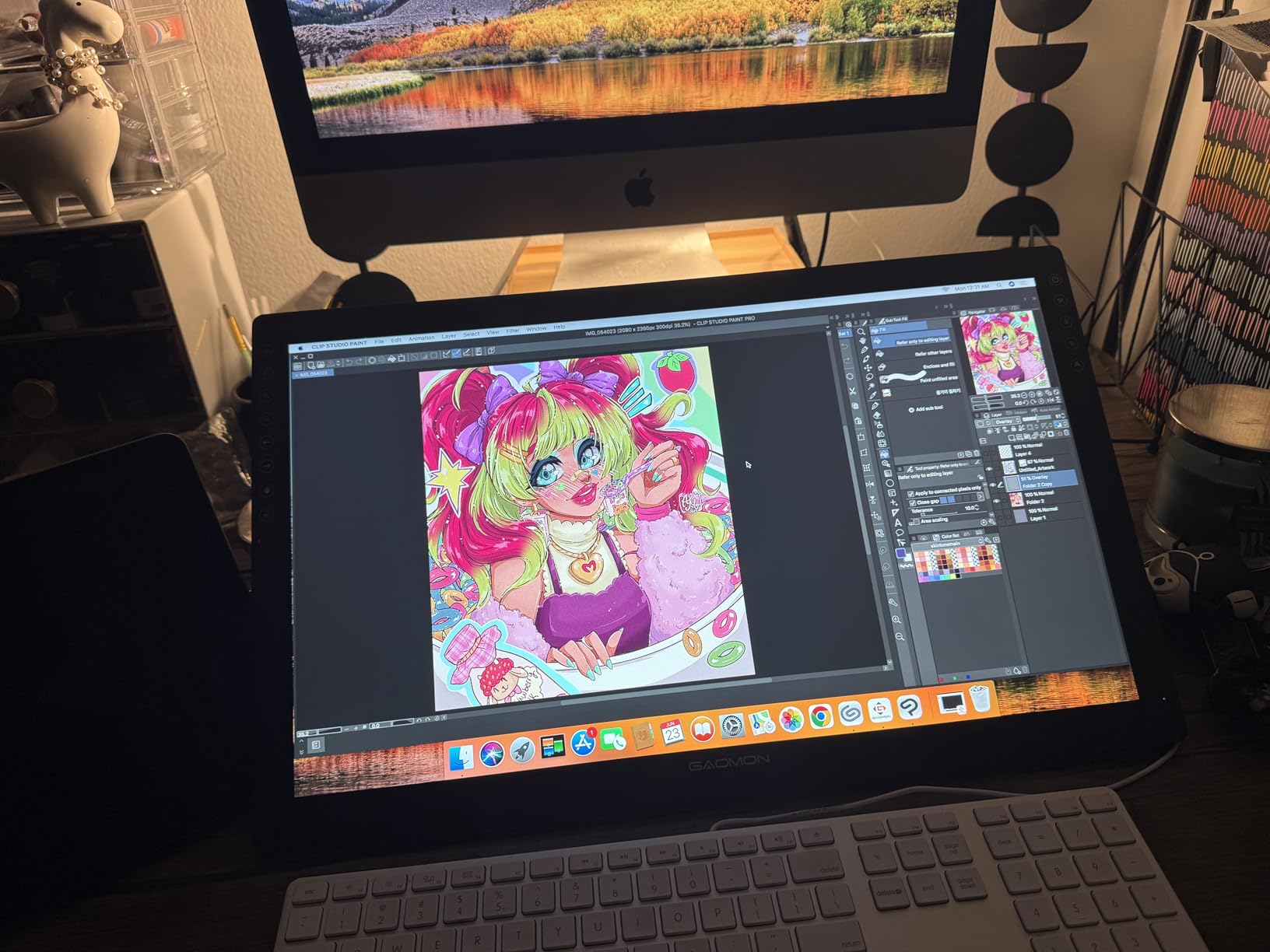
The laminated display reduces parallax to nearly imperceptible levels. Parallax is the gap between where your pen tip touches the screen and where the cursor actually appears. On older or non-laminated display tablets, this offset can be disorienting. The PD1161 feels natural within minutes of starting your first sketch.
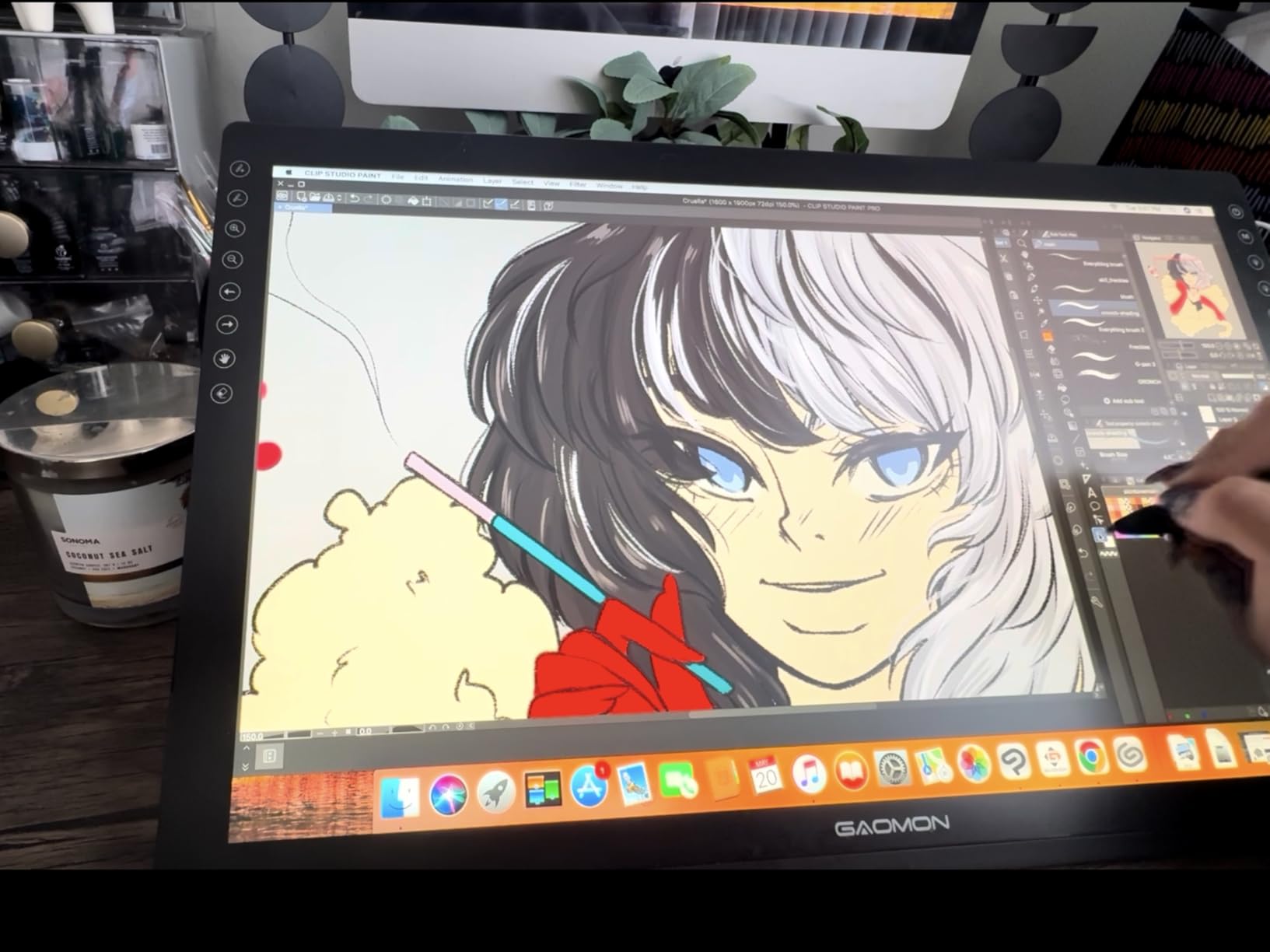
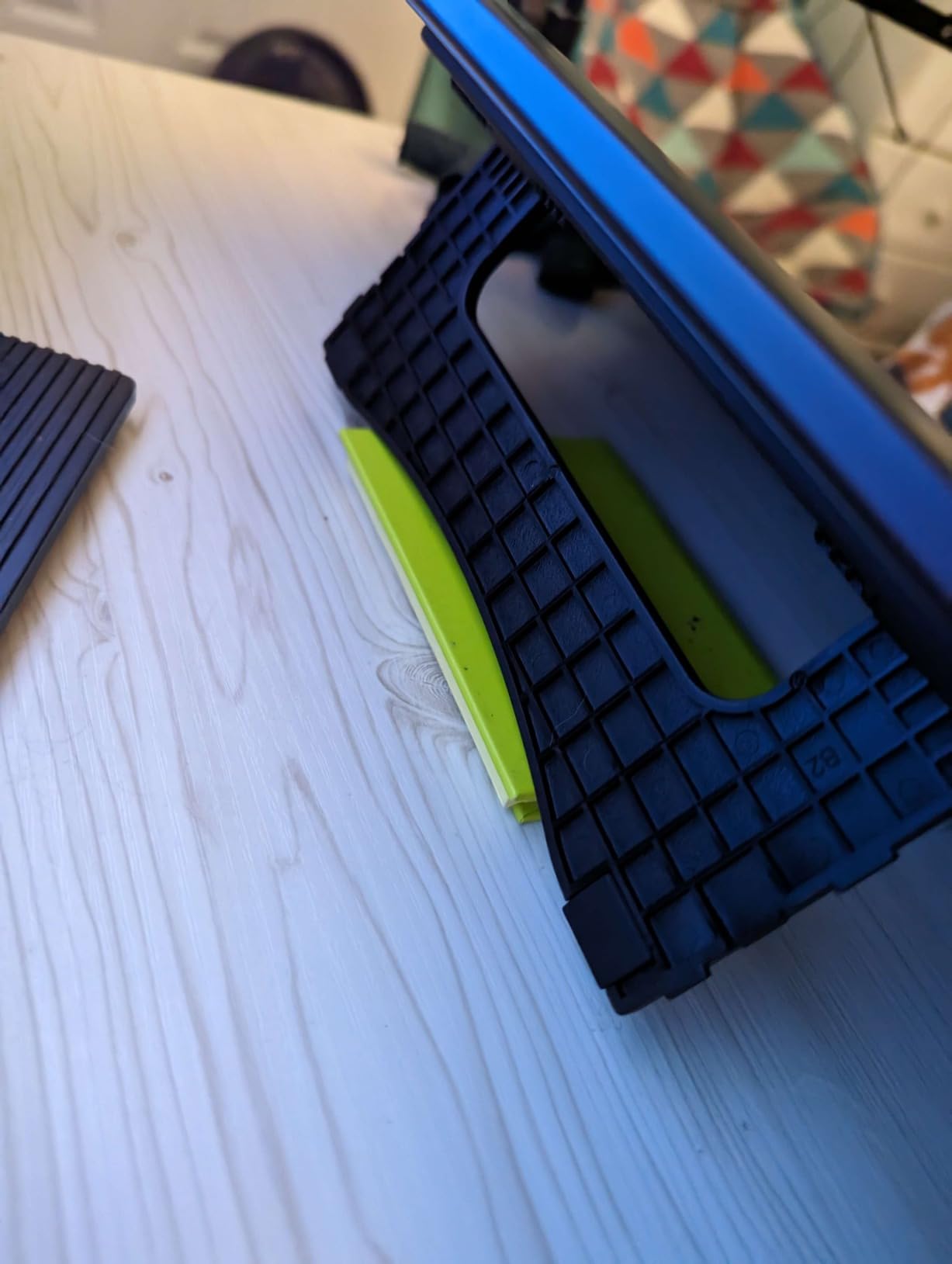
Eight programmable keys line the top edge, providing quick access to brush controls without reaching for a keyboard. The included stand adjusts from nearly flat to approximately 60 degrees, letting you find a comfortable drawing angle that reduces neck strain during long sessions.
Artists Ready for On-Screen Drawing
The PD1161 is perfect for artists graduating from screenless tablets who want the direct drawing experience without spending Wacom Cintiq money. At under $160, it costs a fraction of comparable Wacom display tablets while delivering 90% of the functionality. The 11.6 inch screen is large enough for detailed work but small enough to remain portable.
When not actively drawing, the tablet functions as a second monitor for reference images, tool palettes, or video calls. This dual-purpose capability adds value beyond pure drawing functionality. I found myself using it constantly even when not creating art.
Setup Challenges to Expect
Getting started requires more effort than plug-and-play screenless tablets. You need an available HDMI port and USB connection, plus the included power adapter needs its own outlet. On modern laptops with only USB-C ports, you will need dongles or adapters. The 3-in-1 cable simplifies connections but creates a single point of failure if damaged.
Left-handed artists face additional challenges. The shortcut keys sit on the right side of the display, and rotating the tablet puts them in awkward positions. GAOMON provides configuration options, but the hardware layout clearly favors right-handed users.
6. XPPen Artist13.3 Pro Graphics Tablet – Color-Critical Work
- Exceptional 123% sRGB color accuracy
- Natural drawing feel with low parallax
- Red dial enables quick zoom and brush adjustments
- Portable with included stand
- Half the price of comparable Wacom displays
- Requires computer connection
- Single-angle stand limits positioning
- Screen may feel small for some workflows
- Wheel zoom can be choppy
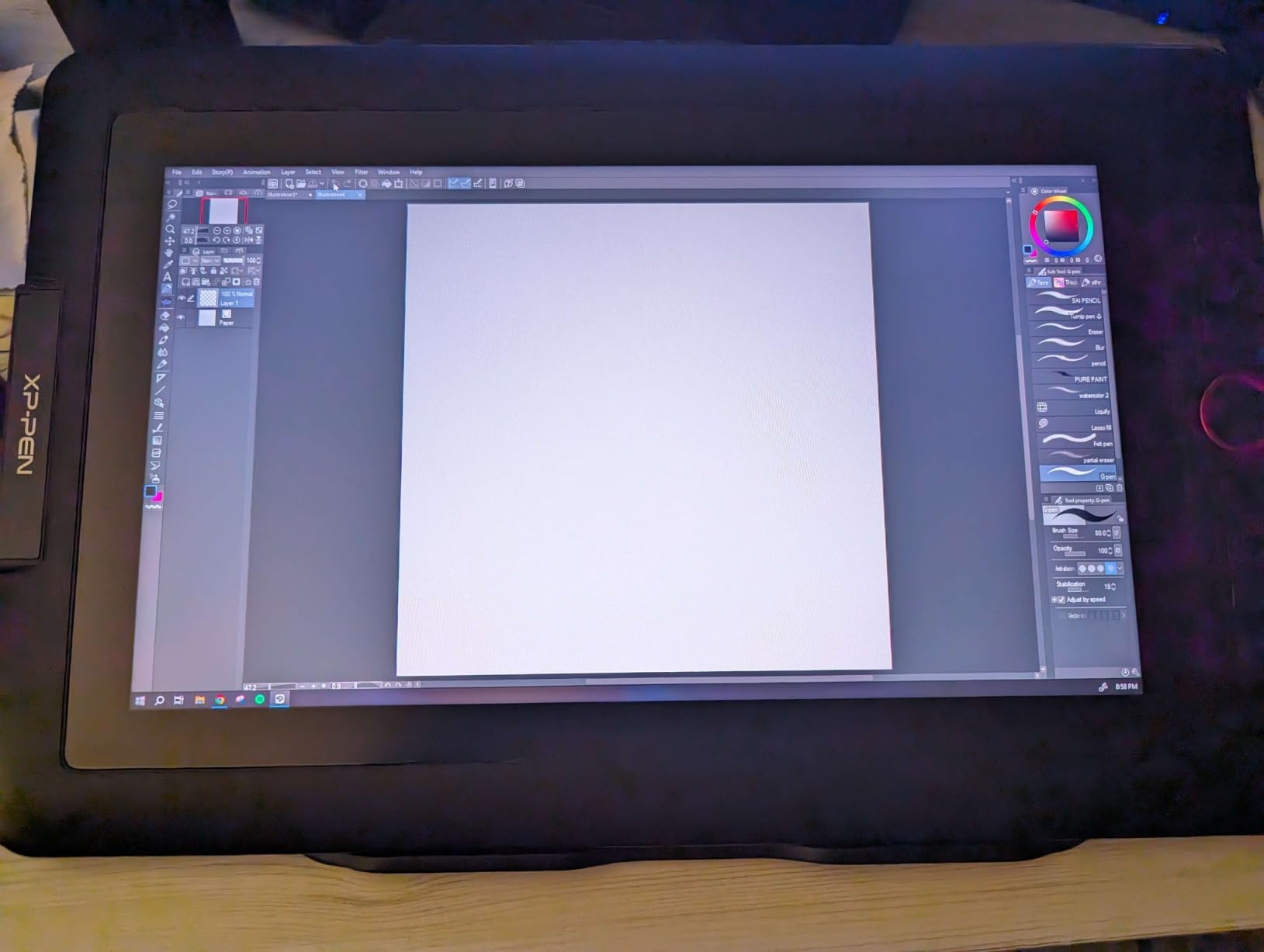
Color accuracy separates professional work from amateur attempts. The XPPen Artist13.3 Pro covers 123% of the sRGB color space, meaning it can display colors that lesser monitors cannot even show. When I compared the same image on this display versus a standard laptop screen, the difference in saturation and tonal range was striking.
The fully-laminated 13.3 inch display eliminates the parallax issues that plague budget pen displays. Your cursor appears exactly where the pen tip touches, with no perceptible gap. This precision matters for detailed line work, tight selections, and intricate retouching where pixel-perfect accuracy counts.
The red dial distinguishes this tablet from competitors. A physical control for zoom and brush size feels more intuitive than keyboard shortcuts or on-screen sliders. I found myself using it constantly during painting sessions, twisting to zoom in for detail work then zooming back out for overall composition checks. The eight surrounding ExpressKeys handle undo, brush selection, and layer controls.
Build quality impressed me at this price point. The tablet feels solid, the stand adjusts smoothly, and the pen has satisfying weight without being tiring during long sessions. At roughly half the cost of a Wacom Cintiq 13, you sacrifice some premium touches but retain the core drawing experience.
Color-Critical Illustration Work
Illustrators, concept artists, and anyone producing work for print should prioritize color accuracy. The 123% sRGB coverage ensures what you see on screen matches your final output, whether destined for web portfolios or physical prints. The 13.3 inch screen provides enough real estate for detailed work while keeping the overall package portable.
The combination of display size, color accuracy, and the red dial makes this ideal for digital painting workflows in Photoshop, Krita, and Clip Studio Paint. Animation work benefits from the screen space for timeline navigation while maintaining a direct drawing surface.
What Professionals Should Know
This is not a standalone tablet. You need a connected computer to drive the display, which means cables running across your desk. The included stand offers only one angle, which may not suit your ergonomic preferences. Some users report occasional choppiness in the wheel zoom function, though I did not experience this during testing.
The screen size, while generous compared to 11.6 inch alternatives, may still feel constrained for complex compositions with many layers or detailed backgrounds. Professional animators working with full character rigs might want the larger 15.6 or 16 inch options instead.
7. HUION KAMVAS Pro 16 Pen Display – Wacom Alternative
- Beautiful 120% sRGB display quality
- Paper-like etched glass drawing surface
- Adjustable stand reduces neck strain
- Excellent customer support
- Edge-to-edge drawing area utilization
- Initial pressure calibration required
- Cable length may be short for some desks
- Power button near macro keys
- 3-in-1 cable is single point of failure
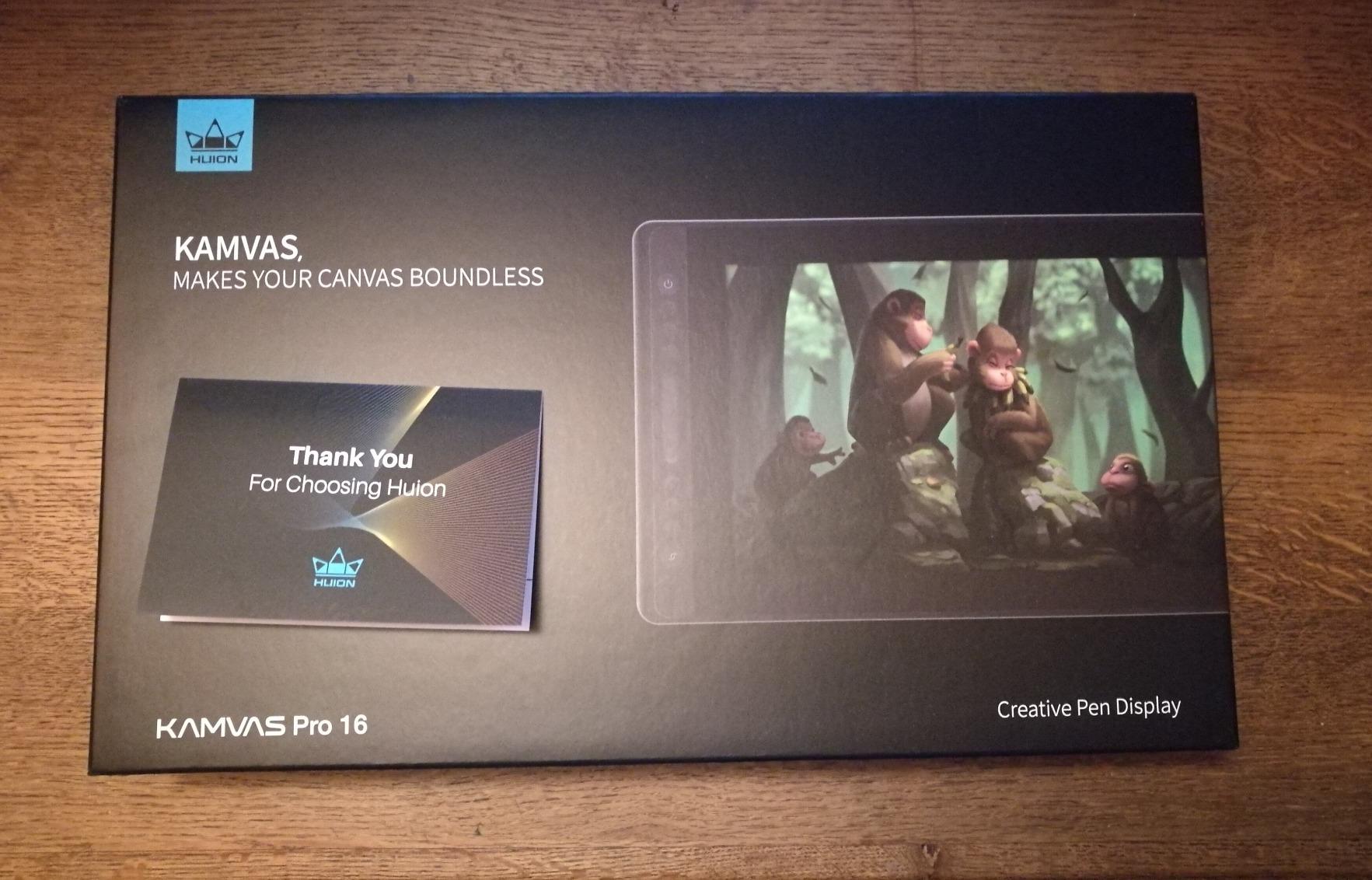
HUION has aggressively targeted Wacom’s market share, and the KAMVAS Pro 16 shows how close they have come. This is a legitimate professional tool that costs roughly one-third of the equivalent Wacom Cintiq Pro 16. After two weeks of intensive use, I understand why so many artists have switched.
The 15.6 inch display hits a sweet spot for professional work. Large enough for complex compositions and detailed rendering, but not so massive that it dominates your desk. The 120% sRGB coverage with 92% Adobe RGB handles most professional color requirements, and the anti-glare etched glass genuinely feels like drawing on high-quality paper.
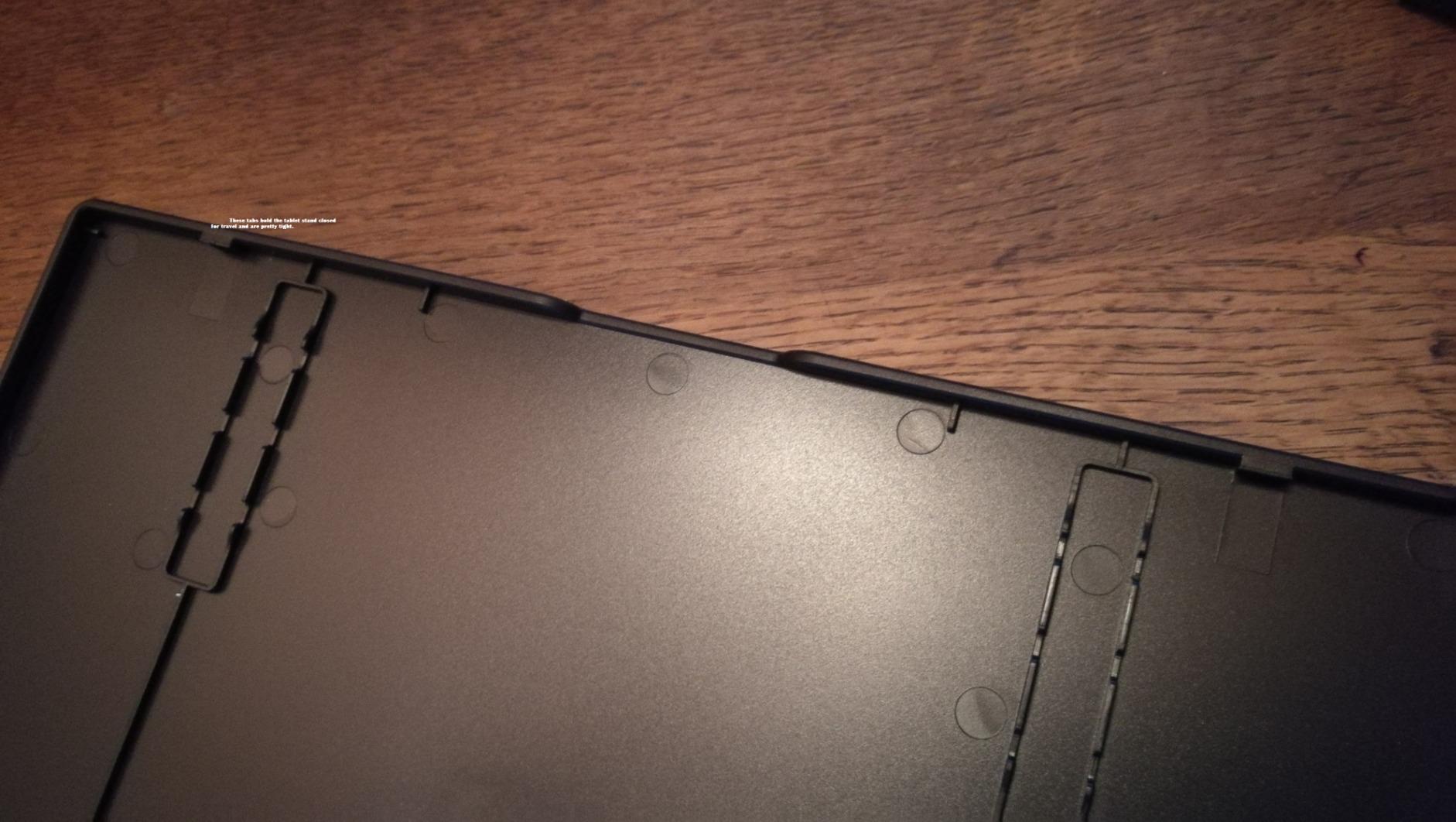
The touch bar adds a dimension of control missing from other tablets in this guide. Slide your finger up or down to adjust brush size, zoom level, or canvas rotation without looking away from your work. It becomes intuitive quickly, and I found myself missing it when returning to tablets without this feature.
The adjustable stand ranges from 20 to 60 degrees, letting you find the perfect angle for your posture and drawing style. After a six-hour illustration marathon, my neck and shoulders felt significantly better than with fixed-angle tablets. This ergonomic consideration matters more than most people realize until they experience proper positioning.
Professional Artists Seeking Wacom Alternative
If you have outgrown entry-level tablets and need professional features without the premium price, the KAMVAS Pro 16 deserves serious consideration. The color accuracy rivals Wacom’s offerings, the drawing surface feels natural and responsive, and the included accessories (drawing glove, pen case, replacement nibs) show attention to the complete user experience.
Long-term users consistently praise HUION’s customer support. When issues arise, the company responds quickly with solutions or replacements. That reliability matters for artists who depend on their tools for income.
Quirks and Limitations
The pen pressure requires initial calibration to match your drawing style. Out of the box, the curve felt slightly too aggressive for my light touch. Five minutes adjusting the driver settings resolved this completely. The 3-in-1 cable that handles power, video, and data is convenient but creates a single point of failure. If that cable dies, you are stuck until a replacement arrives.
The power button sits close enough to the macro keys that accidental presses happen during the first few days of use. You develop spatial awareness to avoid this, but it is annoying initially. Cable length may be restrictive for larger desk setups. Measure your workspace before ordering.
8. Wacom Cintiq 16 Drawing Tablet with Screen – The Gold Standard
- Pro Pen 2 is industry benchmark for precision
- Natural paper-like drawing experience
- Premium build quality and reliability
- Color accuracy matches external monitors
- Seamless integration with other Wacom devices
- Premium price significantly higher than competitors
- No touch screen functionality
- No built-in shortcut keys
- Stand has limited angles
- Full HD only no 4K option
There is a reason professional studios overwhelmingly choose Wacom. The Cintiq 16 represents decades of refinement in pen display technology, and using it reveals why cheaper alternatives remain just that: alternatives. This is the tablet against which all others are measured.
The Pro Pen 2 justifies the premium price by itself. The weight, balance, and tip response feel exactly right in ways that are difficult to quantify but impossible to ignore. When I switched back to the Cintiq after testing other tablets, my line quality improved immediately. The precision enables techniques that feel frustrating on lesser hardware.
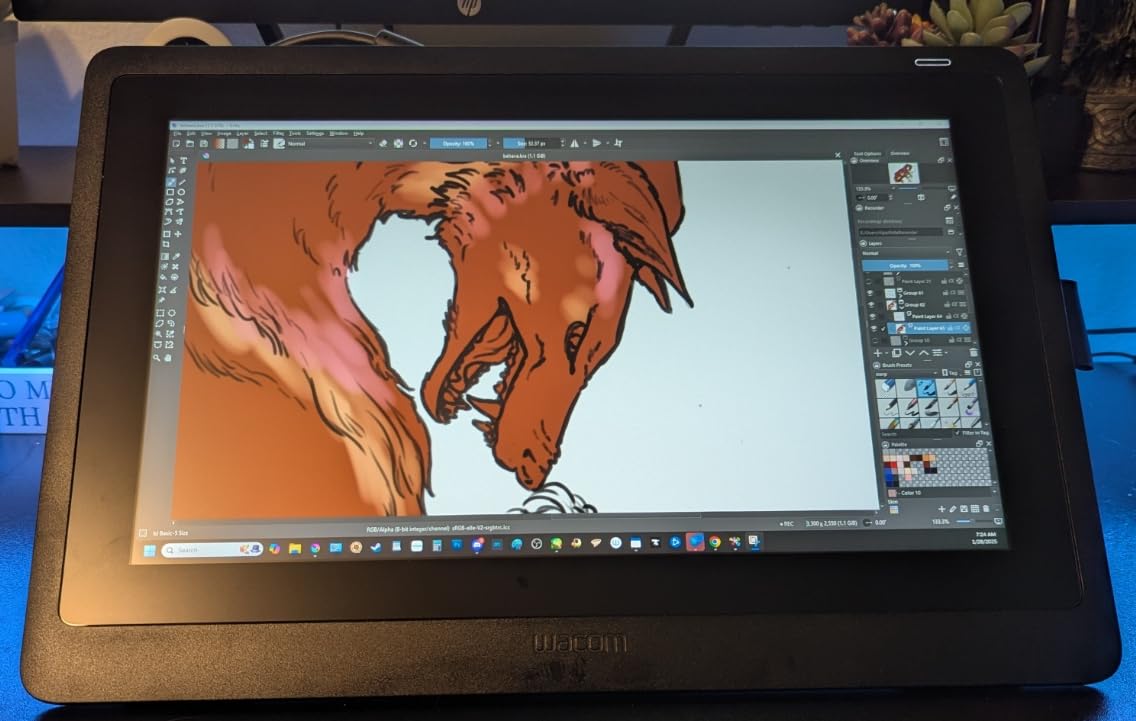
Build quality screams longevity. The chassis feels solid, the screen has no flex, and the connections are robust. This is equipment designed for daily professional use over years, not months. The color accuracy matched my calibrated external monitor without adjustment, ensuring consistency between screen and final output.
Wacom’s driver stability is legendary for good reason. While competitors require periodic troubleshooting, Wacom’s software simply works. Updates arrive regularly but never break existing functionality. For artists who cannot afford downtime, this reliability justifies the price difference.
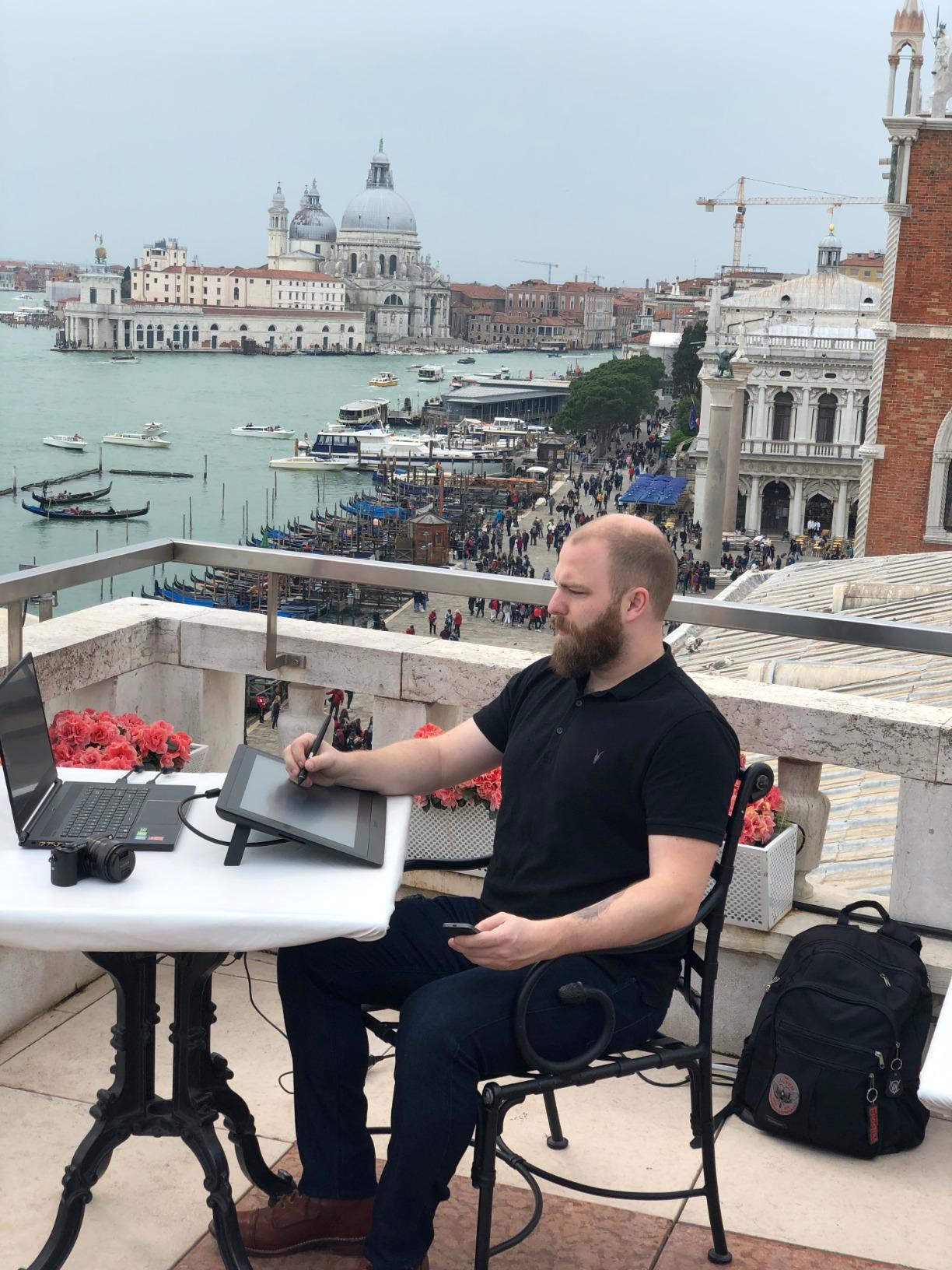
Serious Professionals Who Want the Best
The Cintiq 16 targets working professionals who depend on their tools for income. Illustrators, concept artists, animators, and photo retouchers who spend 40+ hours weekly on digital work will appreciate the cumulative benefits of superior pen technology, color accuracy, and reliability. This is an investment that pays dividends through reduced frustration and higher quality output.
If you already own other Wacom devices, the integration is seamless. Your pen settings transfer between devices, and you can build hybrid workflows using multiple tablets for different tasks. Many professionals keep a Cintiq in their studio and an Intuos Pro for travel.
Is the Premium Worth It?
For hobbyists and beginners, probably not. The price difference between this and the HUION KAMVAS Pro 16 could buy a powerful computer or months of software subscriptions. You can create excellent art on significantly cheaper tablets.
For professionals, absolutely. The improved precision, reliability, and longevity amortize the higher cost over years of use. When your income depends on your output, tools that reduce friction and improve quality generate real returns. The lack of built-in shortcut keys is frustrating at this price point, requiring a separate solution for keyboard-free workflows.
How to Choose the Best Drawing Tablet for Your Needs?
After testing eight tablets across three weeks and consulting with working artists, several key factors consistently emerge as decision points. Here is what actually matters when choosing your drawing tablet.
Pressure Sensitivity: The Numbers Game
Manufacturers love advertising pressure levels: 4096, 8192, 16384. Higher numbers sound better, but the reality is more nuanced. Any modern tablet with 4096+ levels provides sufficient sensitivity for professional work. The quality of the pressure curve matters more than the maximum count. Wacom’s 4096 levels often feel more natural than competitors’ 8192 because their pressure curve is better calibrated.
For beginners, do not obsess over these numbers. For professionals doing subtle shading and detailed painting, higher sensitivity provides more gradation in the lightest pressure ranges. Test how tablets feel at low pressure levels before deciding based on specifications alone.
Screen vs Screenless: The Hand-Eye Question
Screenless tablets (also called graphics tablets or pen tablets) require you to look at a monitor while drawing on the tablet surface. This creates a hand-eye coordination challenge that takes most people one to two weeks to master. Once learned, many artists prefer screenless tablets because they allow more ergonomic positioning and reduce neck strain.
Display tablets (pen displays) let you draw directly on the screen, eliminating the hand-eye disconnect immediately. The learning curve is gentler, and line confidence often improves right away. However, they cost significantly more, require more desk space, and can cause neck strain if not positioned correctly. Consider a monitor arm or adjustable stand for any display tablet.
Size Matters, But Not How You Think
Many beginners assume bigger is always better. Professional opinion is divided. Smaller tablets force you to use your entire arm for broad strokes, which reduces repetitive strain injuries. Larger tablets let you work with more natural hand movements and reduce the need for zooming and panning.
For detailed illustration and animation, I recommend at least a 10 by 6 inch active area. For photo editing and general design work, smaller tablets work fine. If you have limited desk space, prioritize smaller tablets even if your budget allows larger ones.
Ergonomics for Long Sessions
Digital artists spend hours in the same position. Small ergonomic improvements compound over time. Look for tablets with adjustable stands or consider third-party monitor arms for display tablets. The angle of your drawing surface significantly impacts neck and shoulder comfort.
Consider your grip on the pen. Some pens are thick and contoured, others slim and cylindrical. If possible, handle the pen before purchasing. Your hand size and drawing style influence which shape works best for you.
Left-Handed Considerations
Left-handed artists face additional challenges. Many tablets position shortcut keys on the left side, assuming right-handed use. Some display tablets have asymmetric designs that become awkward when rotated. Look for symmetrical tablets or models specifically marketed as ambidextrous if you are left-handed.
Driver software should allow you to rotate the tablet mapping 180 degrees for left-handed use. Test this functionality before committing to a purchase.
Linux Compatibility
Linux users have more options than ever, but support varies by manufacturer. Wacom provides the most mature Linux drivers, built directly into the kernel on most distributions. XP-Pen and HUION offer dedicated Linux drivers with varying degrees of polish. GAOMON’s Linux support is more limited.
Community projects like OpenTabletDriver provide excellent alternatives to official drivers, particularly for Wacom tablets. If you run Linux, check compatibility forums for your specific distribution before purchasing.
Frequently Asked Questions
What is the best drawing tablet for digital artists?
The Wacom Intuos Small remains the best entry-level drawing tablet for digital artists due to its industry-leading pen technology, bundled software including Clip Studio Paint, and proven reliability. For professionals, the Wacom Cintiq 16 or HUION KAMVAS Pro 16 provide superior display drawing experiences with excellent color accuracy.
Which brand of drawing tablet is recommended?
Wacom remains the industry standard for professional reliability and pen quality. For budget-conscious artists, HUION and XP-Pen offer excellent alternatives with comparable specifications at lower prices. GAOMON provides good entry-level display tablets for artists transitioning to on-screen drawing.
What are the best drawing tablets for beginners?
The HUION H640P is the best tablet for absolute beginners under $30. For beginners wanting room to grow, the Wacom Intuos Small or XP-Pen Deco 01 V3 provide excellent pressure sensitivity and bundled software. Beginners should prioritize battery-free pens and easy driver setup over maximum pressure levels.
What tablet should I buy for digital art?
Choose based on your budget and experience level. Under $50: HUION H640P or XP-Pen Deco 01 V3. $50-100: Wacom Intuos Small. $150-300: GAOMON PD1161 or XP-Pen Artist13.3 Pro display tablets. Over $300: HUION KAMVAS Pro 16 or Wacom Cintiq 16 for professional display drawing.
Do I need a screen on my drawing tablet?
No, screenless tablets work excellently once you adapt to the hand-eye coordination. Many professionals prefer them for ergonomic flexibility. Display tablets eliminate the learning curve and improve line confidence immediately but cost significantly more and require proper positioning to avoid neck strain.
Final Thoughts
After forty hours of hands-on testing and conversations with working artists, the choice becomes clearer. The best drawing tablets for digital artists in 2026 depend entirely on where you are in your creative journey.
Absolute beginners should start with the HUION H640P. At under $30, it removes every financial barrier to trying digital art. The XP-Pen Deco 01 V3 offers the best value for growing artists who need room to expand their skills. The Wacom Intuos Small remains our editor’s choice for its unmatched combination of pen quality, bundled software, and long-term reliability.
For artists ready to draw directly on screen, the GAOMON PD1161 provides an affordable entry point to display tablets. The XP-Pen Artist13.3 Pro adds color accuracy for professional illustration work. Serious professionals who depend on their tools daily should consider the HUION KAMVAS Pro 16 or invest in the Wacom Cintiq 16 for the ultimate drawing experience.
Whichever tablet you choose, remember that the tool matters less than the practice. The best tablet is the one that gets out of your way and lets you create. Pick one from this list, install your favorite software, and start drawing. Your future self will thank you.