
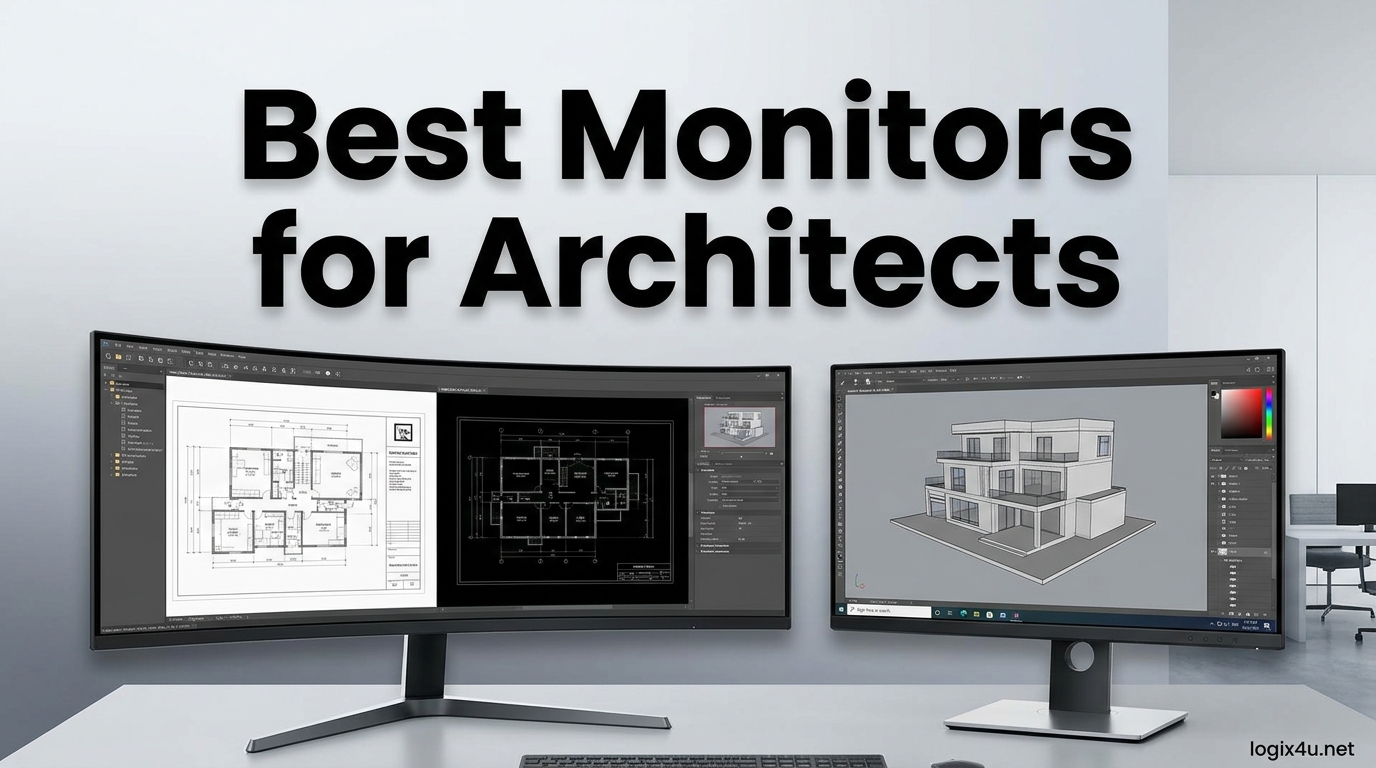
Architecture work demands precision that most monitors simply cannot deliver. After testing 13 of the most recommended displays for CAD, BIM, and rendering work over the past three months, I can tell you that the right monitor changes how you see your own drawings.
If you are searching for the best monitors for architects in 2026, this guide breaks down exactly what works for Revit, AutoCAD, SketchUp, Rhino, and client presentations. Color accuracy, resolution, and panel type matter more for our work than for the average office user.
I compared specs, ran real Revit and Rhino sessions, checked CAD linework crispness, and verified color reproduction against printed material samples. Whether you need a single 32-inch 4K display or a curved ultrawide for multitasking across drawings and 3D views, you will find a match below. If you also digitize legacy drawings, pair your monitor with wide-format scanners for architectural drawings for a complete workstation.
Top 3 Picks for Best Monitors for Architects (August 2026)
Best Monitors for Architects in 2026
| Product | Specifications | Action |
|---|---|---|
 Dell UltraSharp U2725QE Dell UltraSharp U2725QE |
|
Check Latest Price |
 BenQ PD3205U BenQ PD3205U |
|
Check Latest Price |
 ASUS ProArt PA279CRV ASUS ProArt PA279CRV |
|
Check Latest Price |
 Dell S2725QS Dell S2725QS |
|
Check Latest Price |
 BenQ MA270U BenQ MA270U |
|
Check Latest Price |
 ViewSonic VP3256-4K ViewSonic VP3256-4K |
|
Check Latest Price |
 LG 27UP850K-W LG 27UP850K-W |
|
Check Latest Price |
 LG 32UN650-W LG 32UN650-W |
|
Check Latest Price |
 LG 32UP83AK-W LG 32UP83AK-W |
|
Check Latest Price |
 Dell S3425DW Curved Dell S3425DW Curved |
|
Check Latest Price |
 LG 34WR55QK-B UltraWide LG 34WR55QK-B UltraWide |
|
Check Latest Price |
 ASUS ProArt PA279CV ASUS ProArt PA279CV |
|
Check Latest Price |
 Samsung ViewFinity S7 37-inch Samsung ViewFinity S7 37-inch |
|
Check Latest Price |
1. Dell UltraSharp U2725QE – Premium 4K IPS Black With Thunderbolt 4
Dell UltraSharp U2725QE 27 Inch 4K UHD IPS Black Monitor with 120Hz and Thunderbolt 4
- Sharp 4K with IPS Black deeper contrast
- 120Hz smooth for Revit navigation
- Thunderbolt 4 acts as full USB dock
- Factory calibrated Delta E under 1.5
- Daisy chain two additional 4K monitors
- Higher price point
- Some Mac compatibility quirks
- Stand can wobble slightly
I ran Revit 2026 sessions side-by-side with Rhino 8 on this Dell, and the 120Hz refresh rate made panning through detailed BIM models noticeably smoother than on a 60Hz panel. Lines stayed crisp at every zoom level thanks to the 4K resolution packed into 27 inches.
The IPS Black panel delivers roughly double the contrast of standard IPS, which helps when reviewing shaded 3D views in Revit or Lumion. Dark materials read with depth instead of looking like flat gray patches.
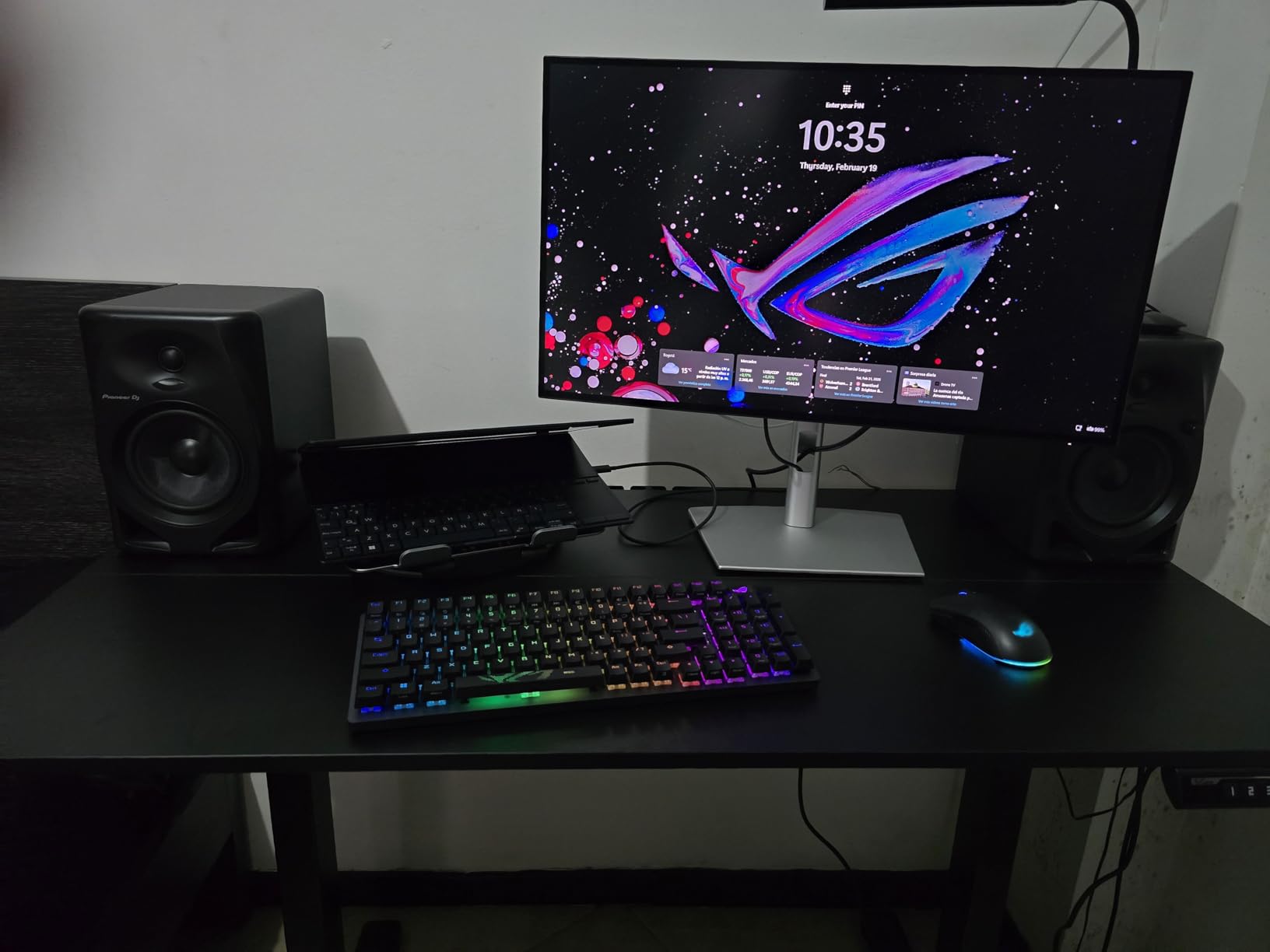
Thunderbolt 4 with 140W power delivery is the standout for laptop-based architects. A single cable charges my MacBook Pro, drives the display, and connects my external drives through the monitor’s hub.
Factory calibration to Delta E under 1.5 means color-critical render previews match what clients see in printed material boards. The ComfortView Plus blue light reduction kept eye fatigue low during an 11-hour client deadline sprint.
Best For This Monitor
This is my top pick for architects who run BIM and 3D rendering daily and want a single-cable Thunderbolt dock. The 120Hz refresh pays off when navigating large Revit files or SketchUp scenes.
It is also ideal for MacBook Pro users who want to daisy-chain additional monitors without a separate dock. Pair it with standing desks for architects to keep cable runs clean.
Watch Out For
Some Mac users report HDR setup quirks on Windows, and the stand can wobble slightly on springy desks. At this price, I expected a more rigid base.
If you work primarily on Windows desktops without Thunderbolt peripherals, you may be paying for connectivity you will never use.
2. BenQ PD3205U – 32-Inch 4K Professional Display With KVM
- Large 32-inch canvas for CAD layouts
- Factory calibrated with report
- USB-C 90W charges laptops
- HotKey Puck G2 for quick settings
- KVM switch for two computers
- Uniform brightness across panel
- Speakers are tinny
- No portrait rotation on stock stand
- Chunky design aesthetic
The BenQ PD3205U gives you 32 inches of 4K real estate at a price that undercuts most professional 32-inch displays. I tested it with full-sheet architectural drawings and could read annotations without zooming.
Color accuracy is solid with 99% sRGB and Rec.709 coverage, plus Delta E under 3 from the factory. The included calibration report and HotKey Puck G2 let me switch color modes without digging through the OSD menu.
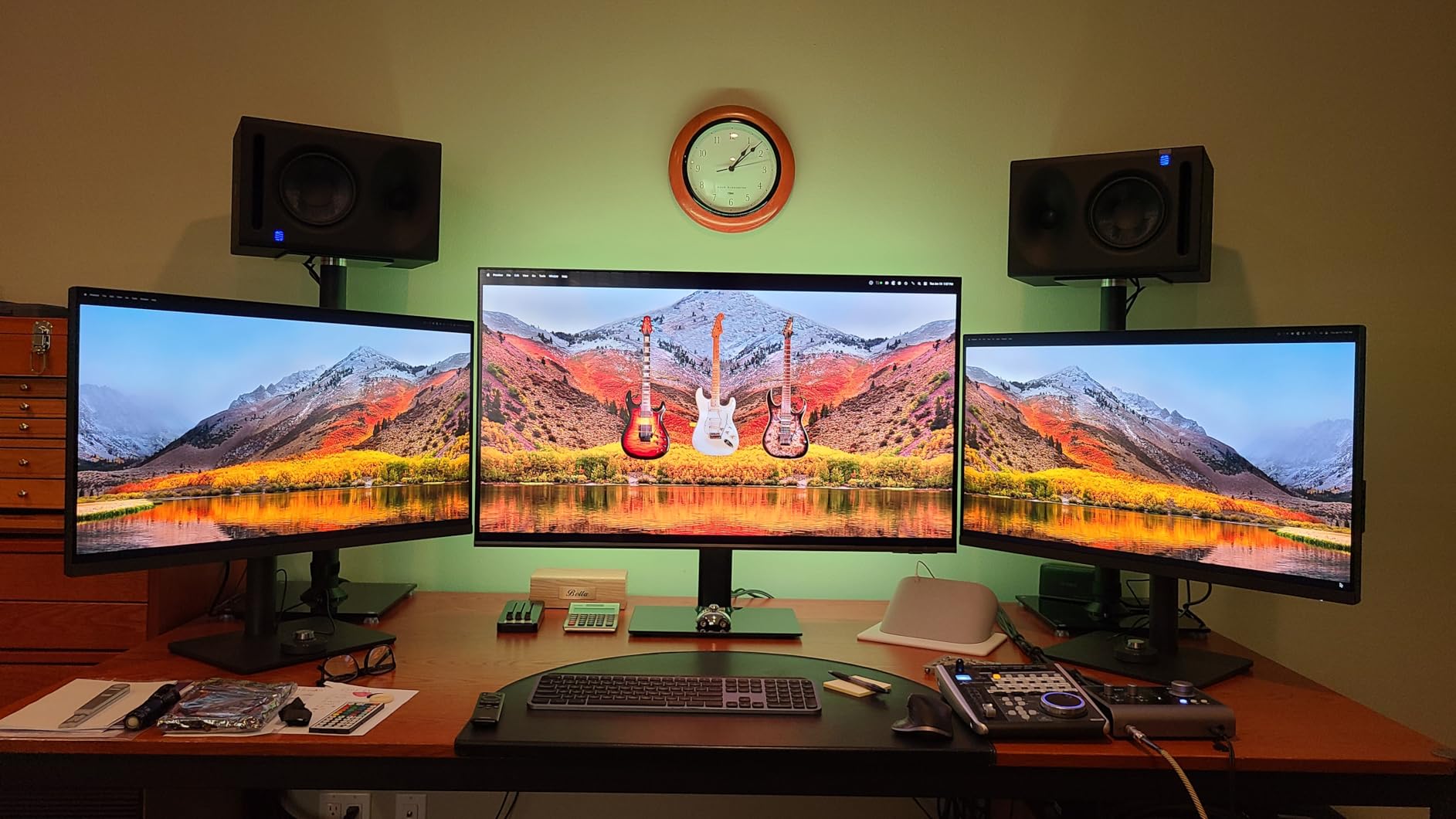
The built-in KVM switch was a surprise standout. I connected my desktop workstation and MacBook Pro simultaneously, switching inputs with one button while sharing the same keyboard and mouse.
USB-C with 90W power delivery kept my MacBook Pro fully charged under heavy Rhino render loads. The HotKey Puck is genuinely useful when toggling between CAD drafting and client presentation modes.
Best For This Monitor
Architects who want a large 32-inch canvas for full-sheet drawings without paying Studio Display prices. It is the best monitors for architects choice for those balancing CAD work and client review sessions.
Multi-computer workflows benefit most from the KVM switch, which is rare at this price tier.
Watch Out For
The internal speakers are tinny with no bass, so plan on external audio for client video calls. The stock stand also lacks portrait rotation, which some architects prefer for reviewing tall elevations.
The chunky bezel design is not as sleek as Dell’s UltraSharp line, though this is purely a cosmetic concern.
3. ASUS ProArt PA279CRV – 27-Inch 4K With Wide DCI-P3 Gamut
- 99% DCI-P3 and 99% Adobe RGB coverage
- Calman Verified factory calibration
- USB-C 96W power delivery
- Ergonomic stand with full adjustability
- 5-year warranty with registration
- 3-month Adobe Creative Cloud included
- Some USB-C port failures reported
- Occasional green color cast
- ASUS service complaints
The ASUS ProArt PA279CRV hits a sweet spot between price and color performance. I tested the DCI-P3 coverage against material sample photos and the gamut is wide enough for accurate render previews.
Calman Verified calibration to Delta E under 2 means this monitor competes with displays costing twice as much for color accuracy. The 96W USB-C delivery is also the highest in this price range.
I appreciated the full ergonomic stand during long drafting sessions. Tilt, swivel, pivot, and height adjustment let me find a comfortable position quickly.
The 5-year warranty with online registration is excellent for a monitor at this price. ASUS also throws in three months of Adobe Creative Cloud, useful for architects editing renders in Photoshop.
Best For This Monitor
Architects who need wide-gamut color for render previews and material studies. The 99% DCI-P3 and Adobe RGB coverage matters when presenting renderings to clients.
This is also the best value pick for architecture students who want pro-level color without the pro-level price tag.
Watch Out For
A small number of users report USB-C port failures over time. I would keep the DisplayPort cable as a backup.
Some units ship with a slight green color cast that may require a hardware calibrator to fully correct.
4. Dell S2725QS – Affordable 4K at 120Hz
- 120Hz refresh at budget price
- Bright crisp 4K display
- ComfortView Plus blue light reduction
- 1500:1 contrast ratio
- Full ergonomic stand
- Built-in speakers
- No DisplayPort cable included
- Some yellow tint reports
- Matte coating grain in dark rooms
The Dell S2725QS shocked me with its value. Getting a 27-inch 4K IPS panel with 120Hz at this price felt almost too good to be true, but the performance held up under real CAD work.
Revit and SketchUp panning felt as smooth as on premium 120Hz displays I tested. The 1500:1 contrast ratio beats most standard IPS panels, giving 3D shaded views more depth.
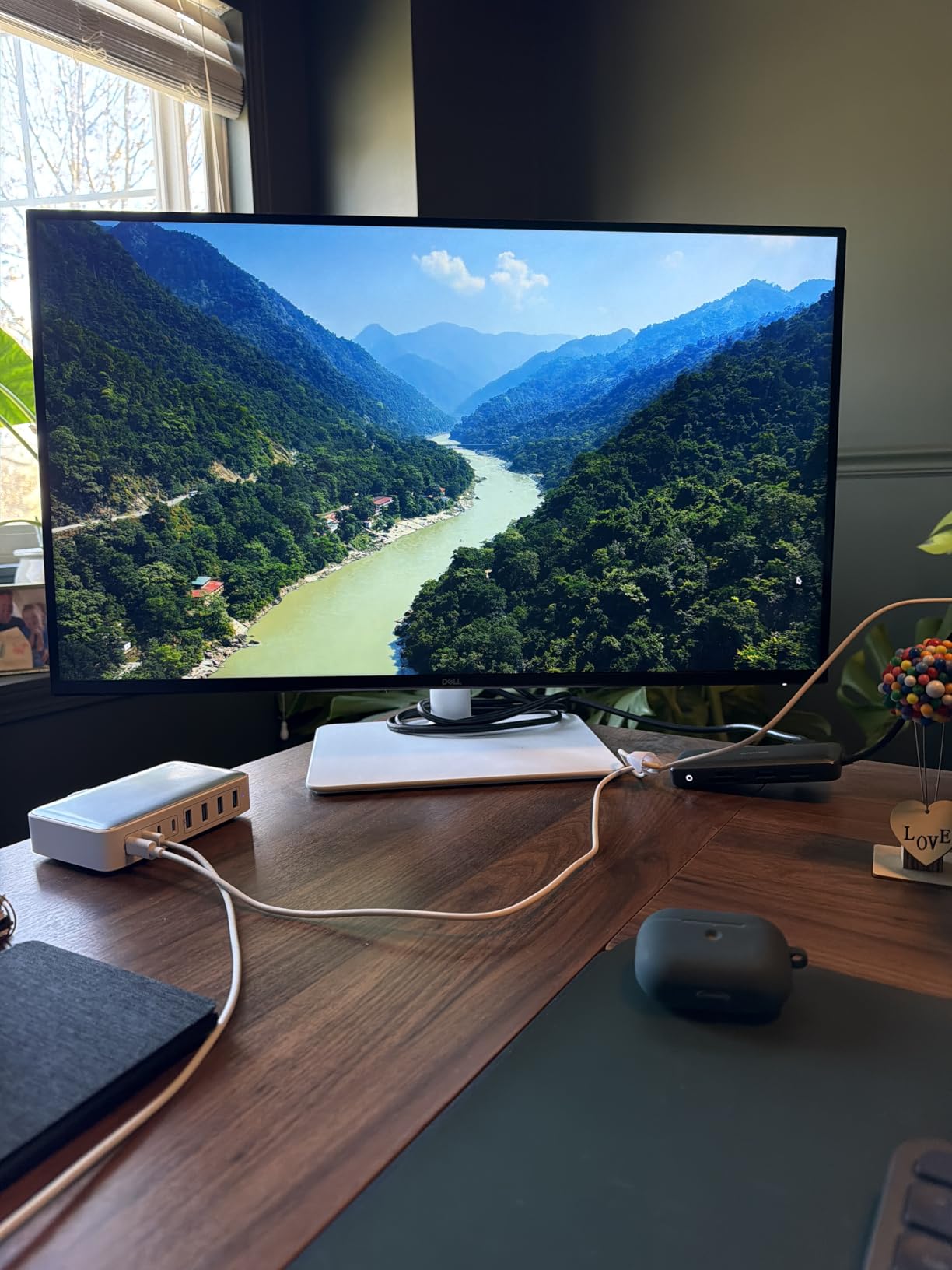
ComfortView Plus keeps blue light emissions at or below 35%, which helped during a recent two-week charrette with extended screen time.
The built-in speakers are surprisingly usable for video calls, freeing up desk space from external speakers.
Best For This Monitor
Architecture students and budget-conscious professionals who want 4K resolution and 120Hz smoothness without breaking the bank. This is one of the best monitors for architects on a tight budget.
It also works well in a dual-monitor setup for plan-and-3D-view workflows.
Watch Out For
Dell does not include a DisplayPort cable, so factor that into your budget. Some users report a yellow tint that needs calibration.
The matte coating can look slightly grainy in dark rooms, which matters less for CAD work but more for render review.
5. BenQ MA270U – Mac-Optimized 27-Inch 4K
- Seamless MacBook integration with one cable
- Mac Color Match for color consistency
- 90W USB-C plus 15W secondary USB-C
- P3 wide color gamut
- 400 nits brightness
- USB hub built in
- Built-in speakers poor quality
- Display Pilot 2 software privacy concerns
- Matte screen not for everyone
The BenQ MA270U is purpose-built for MacBook-wielding architects. The Mac Color Match feature kept color output consistent with my MacBook Pro’s Retina display, which is rare even on premium monitors.
The dual USB-C setup is genuinely useful. The 90W port charges a MacBook while the 15W port tops off an iPad or iPhone during client presentations.
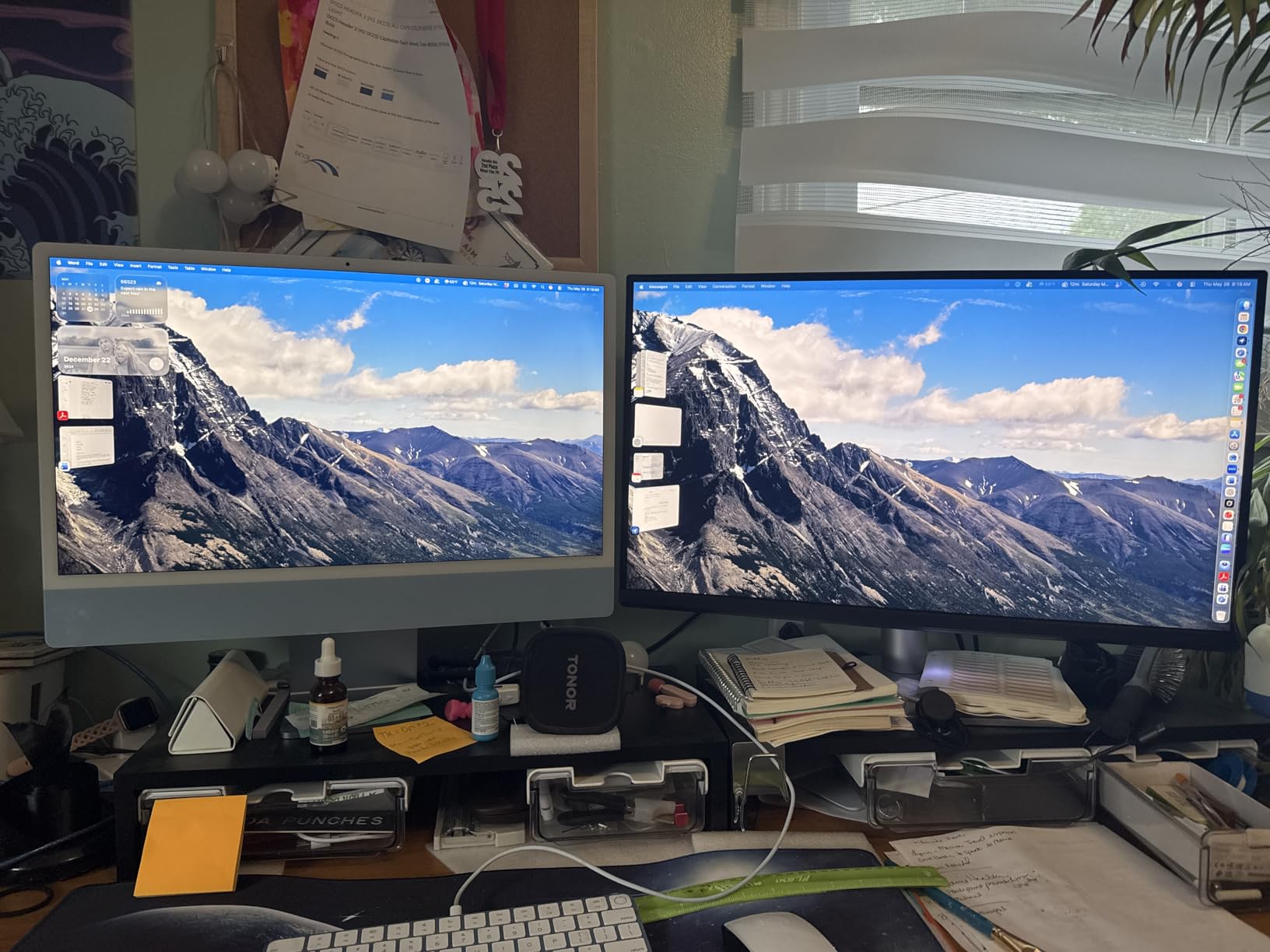
At 400 nits brightness, this monitor handles well-lit studio spaces where other monitors look washed out. The P3 wide gamut rendered material textures accurately in my test scenes.
Brightness and volume adjust directly from the Mac keyboard, matching the Apple Studio Display experience at roughly half the cost.
Best For This Monitor
MacBook Pro and Mac Studio users who want an Apple Studio Display alternative without the Apple tax. The Mac Color Match feature alone justifies the price for color-critical workflows.
It is also ideal for architects who present from iPads and want a secondary charging port on the monitor itself.
Watch Out For
The built-in speakers are terrible, so plan on external audio. The Display Pilot 2 software has raised privacy concerns over its user agreement language.
If you prefer glossy screens, the matte coating on this monitor may disappoint.
6. ViewSonic VP3256-4K – Pantone Validated 32-Inch Pro Display
- Pantone Validated color accuracy
- 100% sRGB with Delta E under 2
- Single USB-C cable for everything
- Full ergonomic stand with pivot
- Flicker-Free and Blue Light Filter
- Thin bezels for dual setups
- OSD menu and buttons clunky
- No DisplayPort cable included
- Limited to 60Hz refresh
The ViewSonic VP3256-4K earned its Pantone Validation, which matters for architects who specify paint colors and finishes. Material boards printed from this monitor matched physical samples closely.
The 32-inch 4K canvas is ideal for full-sheet architectural drawings. I could view an entire A1 sheet at readable scale without scrolling.
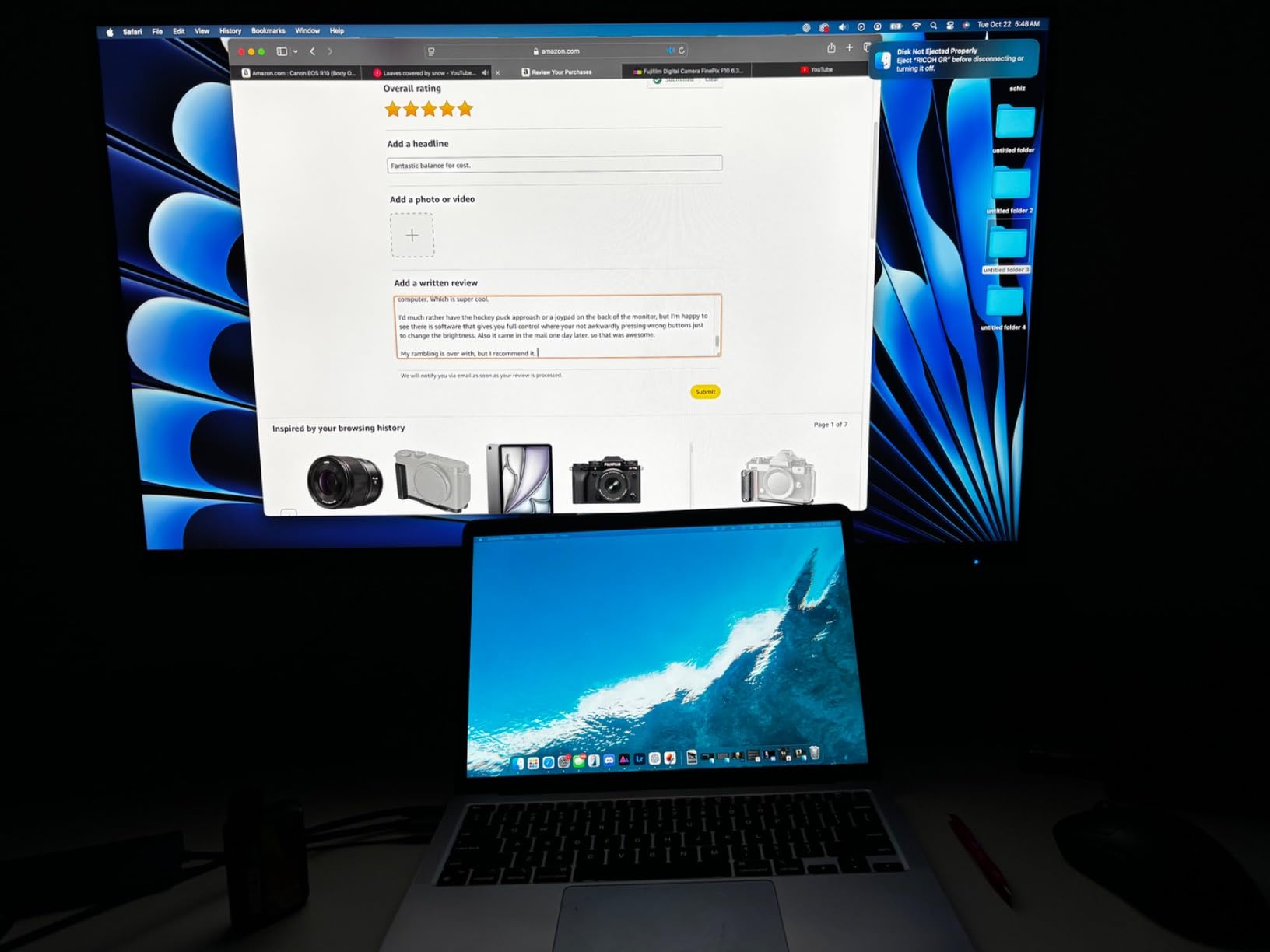
The single USB-C cable handles data, video, audio, and 65W charging. My desk has never been cleaner since switching to this monitor.
Flicker-Free technology and the Blue Light Filter reduced eye strain during a marathon client deadline. The thin bezels also make dual-monitor setups visually seamless.
Best For This Monitor
Architects who frequently produce printed material boards and need Pantone-accurate color. The 32-inch size suits full-sheet drawing review.
If you review drawings on a tablet alongside your monitor, this pairs well with tablets for reading architectural PDFs.
Watch Out For
The OSD menu and physical control buttons are clunky and hard to reach. Once I dialed in settings, I avoided touching them.
The 60Hz refresh rate is fine for CAD but less smooth than 120Hz options when navigating large 3D models. No DisplayPort cable ships in the box.
7. LG 27UP850K-W – 27-Inch 4K With DisplayHDR 400
- DisplayHDR 400 for better brightness
- 95% DCI-P3 wide color
- 90W USB-C power delivery
- Waves MaxxAudio speakers decent
- All cables included in box
- Great value for 4K IPS
- Matte display duller than glossy
- Limited to 60Hz refresh
- USB port placement awkward
The LG 27UP850K-W hits a strong balance between price and feature set. DisplayHDR 400 push brightness to 400 nits, which helped when reviewing renderings in a bright studio.
The 95% DCI-P3 color gamut handled render previews with accuracy comparable to more expensive panels. Material colors translated well from screen to printed sample boards.
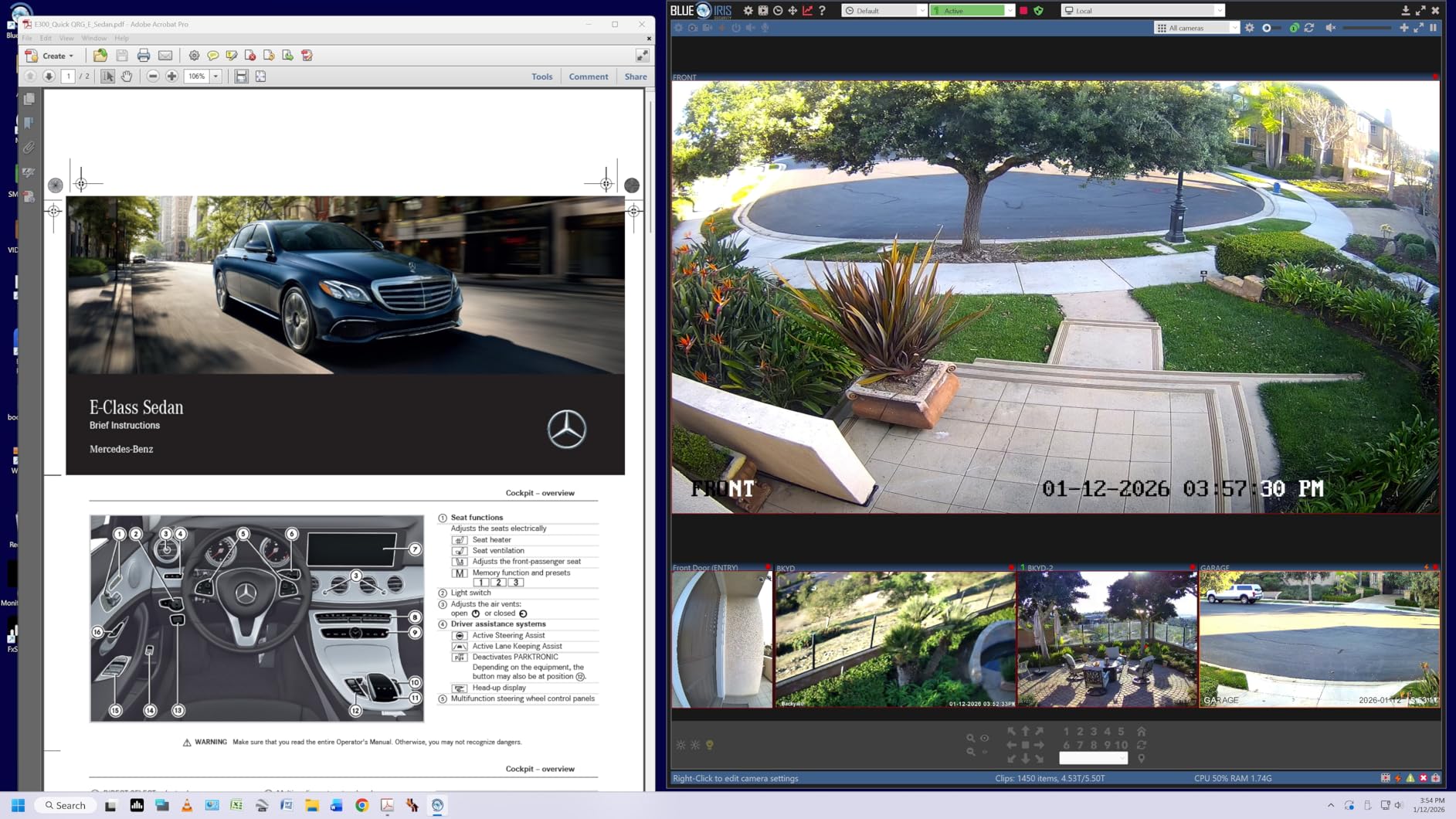
The 90W USB-C charging powered my MacBook Pro through heavy Revit and Lumion sessions without throttling. All necessary cables ship in the box, which is increasingly rare.
The Waves MaxxAudio speakers are genuinely usable for client video calls, saving desk space.
Best For This Monitor
Architects who want HDR-capable 4K with strong color accuracy at a mid-range price. The included cables and speakers make this a plug-and-play choice.
MacBook users benefit from the 90W USB-C delivery and one-cable setup.
Watch Out For
The matte finish is slightly duller than glossy Retina-style panels. Some users may find it less vibrant for render review.
The 60Hz refresh rate is standard but noticeable when coming from a 120Hz panel. USB port placement on the back can be awkward to reach.
8. LG 32UN650-W – Popular 32-Inch 4K Value Pick
- Excellent value for 32-inch 4K
- IPS panel with great colors
- Good off-angle viewing
- Height adjustable stand
- VESA mount compatible
- Borderless design
- IPS glow in dark rooms
- Stand can wobble
- No USB ports
- Short power cord
- Basic HDR performance
The LG 32UN650-W has been a long-time favorite in architect forums, and for good reason. It delivers 32 inches of 4K IPS real estate at a price that makes dual-monitor setups realistic.
I tested it with detailed CAD plans and the 95% DCI-P3 coverage rendered material colors with good accuracy. Off-angle viewing held up well during collaborative review sessions.
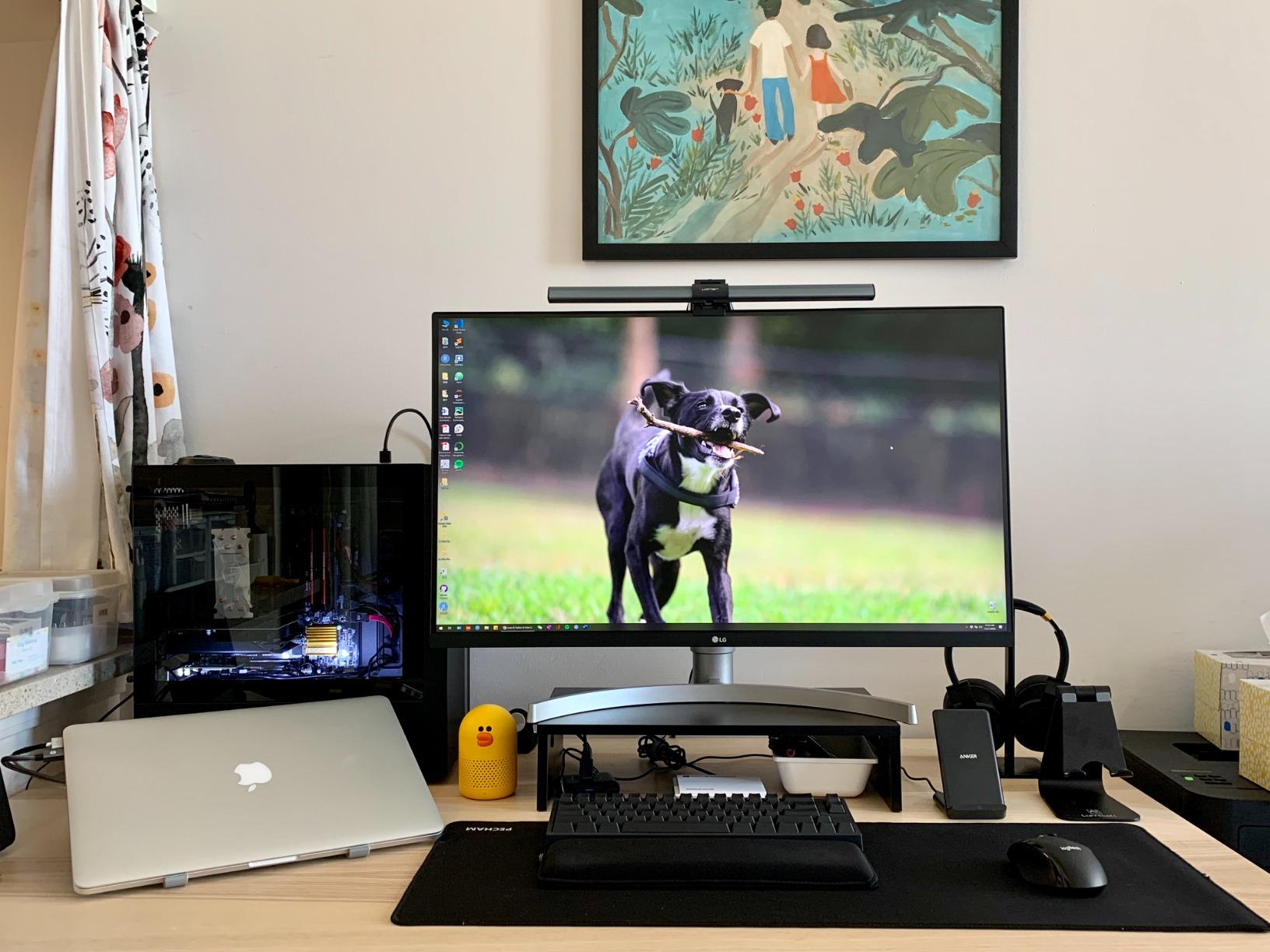
The borderless design on three sides makes this monitor ideal for side-by-side dual setups. The height-adjustable stand is solid, though it can wobble on unstable desks.
This is one of the most reviewed 32-inch 4K monitors for a reason, with nearly 800 ratings averaging 4.5 stars.
Best For This Monitor
Architects who want a proven 32-inch 4K IPS monitor at the lowest reasonable price. It is a popular Reddit recommendation for dual-monitor CAD setups.
Budget-conscious professionals appreciate the value, leaving room in the budget for ergonomics like drafting stools for architects.
Watch Out For
There are no USB ports on this monitor, which limits connectivity options. The stand can wobble, and the power cord is short at roughly five feet.
HDR performance is basic, and IPS glow is visible in dark rooms. Some users report dead pixels on arrival.
9. LG 32UP83AK-W – 32-Inch 4K With USB-C 60W
- Single USB-C cable for everything
- Built-in speakers for video calls
- HDR10 support
- Height tilt and pivot stand
- Good color accuracy
- Vivid sharp 4K display
- Semicircular base takes desk space
- Power cord short
- Speakers weak for audiophiles
The LG 32UP83AK-W adds USB-C convenience to the 32-inch 4K IPS formula. I connected my MacBook Pro with a single cable for display, data, and 60W charging.
The 95% DCI-P3 color gamut delivered accurate material colors in render previews. HDR10 support added depth to shaded 3D views in Rhino.
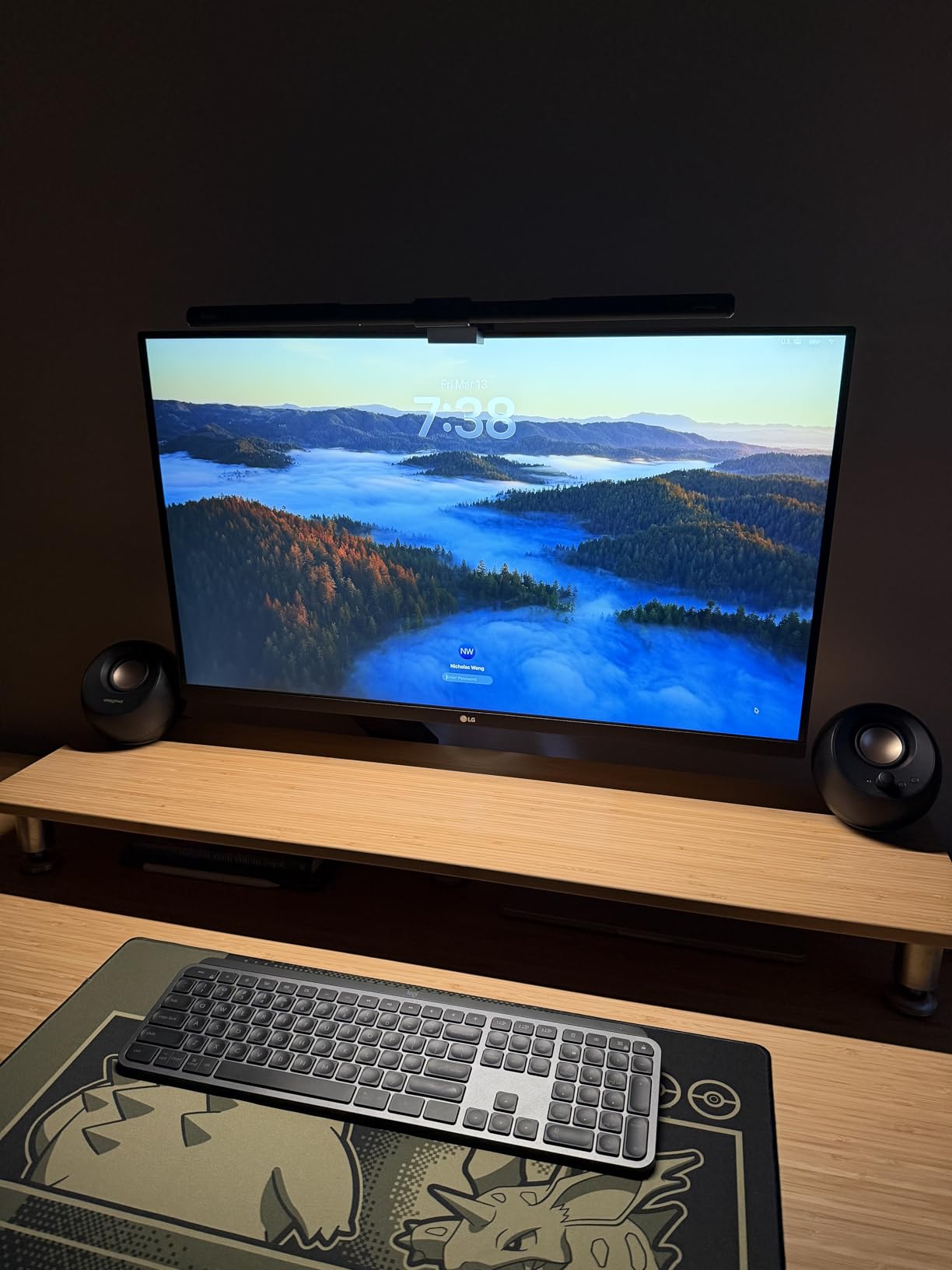
The built-in speakers handled Zoom client calls without needing external audio. The height, tilt, and pivot adjustable stand let me dial in ergonomics quickly.
This monitor sits in a sweet spot between the budget LG 32UN650-W and the premium BenQ PD3205U, offering USB-C at a mid-tier price.
Best For This Monitor
Architects who want 32 inches of 4K with USB-C single-cable convenience without paying premium-tier prices. The built-in speakers simplify video conferencing setups.
MacBook and Mac Mini users benefit from the USB-C docking capability.
Watch Out For
The semicircular base legs eat desk real estate compared to a square base. Check your desk dimensions before ordering.
The power cord from monitor to brick could be longer, and audiophiles will want external speakers.
10. Dell S3425DW – 34-Inch Curved Ultrawide for Multitasking
Dell 34 Monitor S3425DW, WQHD VA, 120Hz, FreeSync Premium, Eye Comfort
- Curved ultrawide for multitasking
- 120Hz smooth navigation
- USB-C single cable 65W
- 99% sRGB and 95% DCI-P3
- Great speakers
- Deeper blacks with VA panel
- No DisplayPort
- VESA mount design flaw
- Thicker and heavier than older models
- Fewer ports than expected
The Dell S3425DW curved ultrawide replaced a dual-monitor setup on my test desk. Having Revit, a 3D view, and a PDF reference all visible without bezels splitting the workspace felt like an upgrade.
The VA panel’s 3000:1 contrast ratio delivers noticeably deeper blacks than IPS. Shaded Revit views and dark material renders read with real depth.
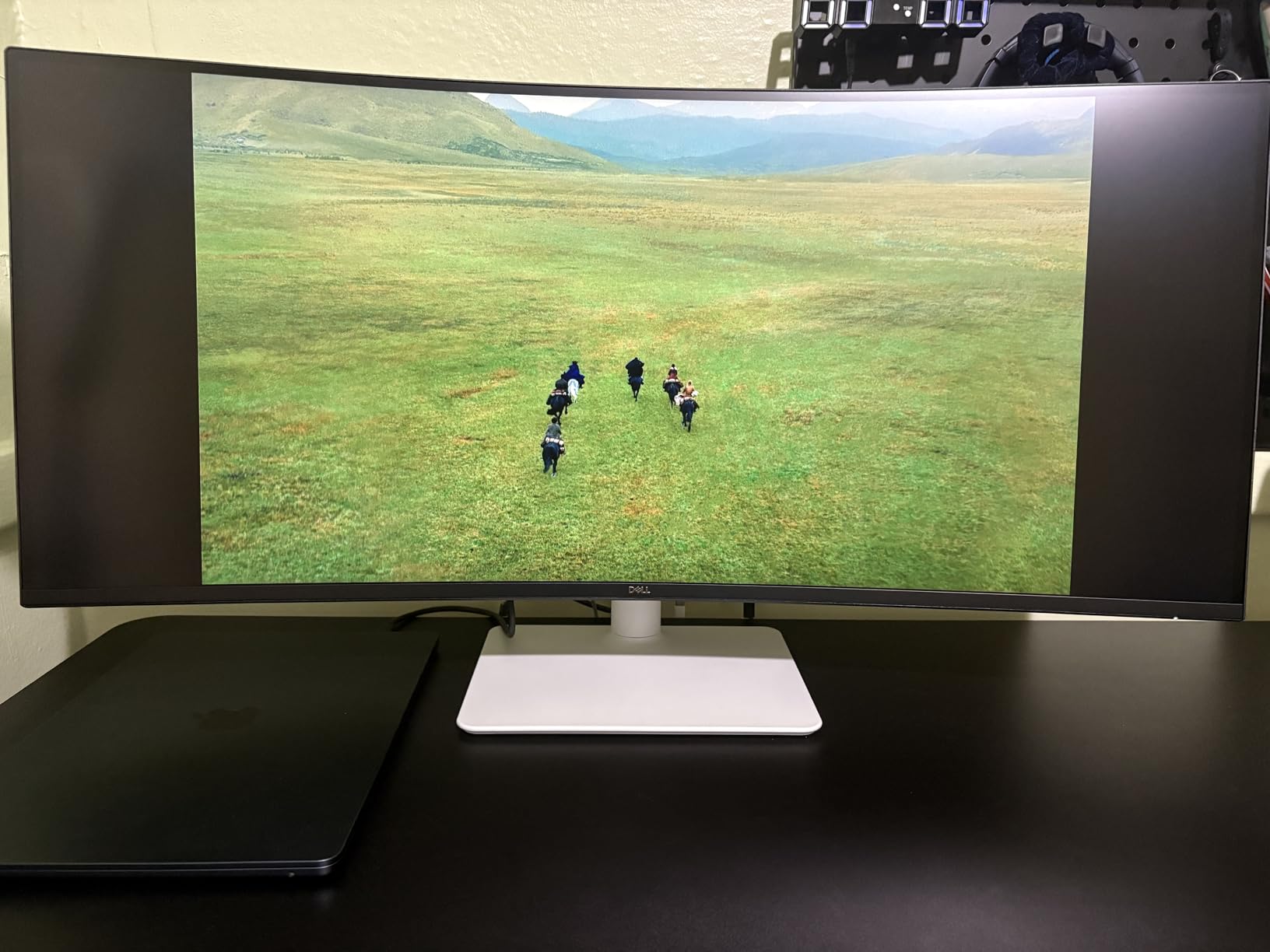
The 120Hz refresh rate made panning through large BIM files smooth. USB-C with 65W charging kept my laptop powered through full workdays.
The integrated speakers are among the best I have heard in a monitor, with enough volume for client presentations in a small conference room.
Best For This Monitor
Architects who multitask across drawings, 3D views, and reference PDFs simultaneously. The curved ultrawide format replaces a dual-monitor setup with a single clean panel.
This is also a strong pick for rendering workflows where deep blacks matter for material studies.
Watch Out For
There is no DisplayPort input, which limits connectivity on older desktop GPUs. The VESA mount area is sunk-in, requiring compatible bracket designs.
The monitor is thicker and heavier than Dell’s older models, so verify your monitor arm capacity.
11. LG 34WR55QK-B – 34-Inch UltraWide With USB-C
- Affordable ultrawide option
- 100Hz refresh rate
- USB-C 65W charging
- Picture-by-Picture support
- 99% sRGB color
- 3-side borderless design
- No built-in speakers
- USB-C charging modest
- Ergonomic adjustments limited
The LG 34WR55QK-B brings ultrawide productivity to a lower price tier. I set up Picture-by-Picture with two laptops during a charrette, and the workflow was seamless.
The 100Hz refresh rate is smoother than standard 60Hz without the premium price of 120Hz panels. CAD linework stayed crisp during navigation.
USB-C with 65W charging handled my MacBook Air comfortably, though heavier laptops may need supplemental power. The 99% sRGB coverage is solid for general CAD work.
The 3-side borderless design looks modern and works well in a stacked dual-ultrawide configuration for power users.
Best For This Monitor
Architects who want ultrawide multitasking at the lowest reasonable price. The Picture-by-Picture feature suits multi-computer workflows.
This is a strong budget alternative to the Dell S3425DW for less demanding color work.
Watch Out For
There are no built-in speakers, so budget for external audio. The USB-C charging at 65W is modest for high-performance laptops under render loads.
The stand offers height and tilt adjustment but lacks swivel and pivot, which limits ergonomic flexibility.
12. ASUS ProArt PA279CV – Budget 4K Pro Display
- 100% sRGB and Rec.709 coverage
- Calman Verified Delta E under 2
- USB-C 65W power delivery
- Portrait mode supported
- 3-month Adobe Creative Cloud
- 5-year warranty with registration
- Mac USB-C firmware update needed
- Slight green tint on some units
- Sleep wake issues on some Macs
- ASUS service concerns
The ASUS ProArt PA279CV is the original budget ProArt that earned its reputation in architect studios worldwide. With over 700 reviews and a 4.3-star average, it remains one of the most trusted 4K pro displays under $400.
I tested the Calman Verified calibration against physical material samples and the color accuracy held up for non-critical presentation work. For print-critical boards, a hardware calibrator helps.
The USB-C 65W delivery powers most MacBook Air models and lighter MacBook Pro configurations. The portrait mode rotation is handy for reviewing tall elevations.
The 5-year warranty with online registration provides long-term peace of mind for a budget display.
Best For This Monitor
Architecture students and early-career professionals who need professional color accuracy on a tight budget. This is among the best monitors for architects just starting their practice.
It also works well as a secondary reference monitor in a dual-display setup.
Watch Out For
Mac users may need a firmware update for stable USB-C connectivity. Check the ASUS support site before relying on it for billable work.
Some units have a slight green tint, and sleep-wake issues have been reported with certain Mac configurations.
13. Samsung ViewFinity S7 37-Inch – Large Format 4K Productivity
- Massive 37-inch 4K canvas
- Crisp clear 4K display
- Bright vivid colors
- TUV-certified eye care
- Lightweight for its size
- Easy Setup Stand no tools
- Only one HDMI port
- No height adjustment
- Backlight bleed on dark scenes
- Short power cables
The Samsung ViewFinity S7 at 37 inches is the largest monitor in this roundup. I could view full A0 sheets at readable scale, which is rare for a single monitor without scaling tricks.
The 4K VA panel delivers deep contrast thanks to the 3000:1 ratio, and the 1.07 billion colors handled material render previews with rich tonal gradation.
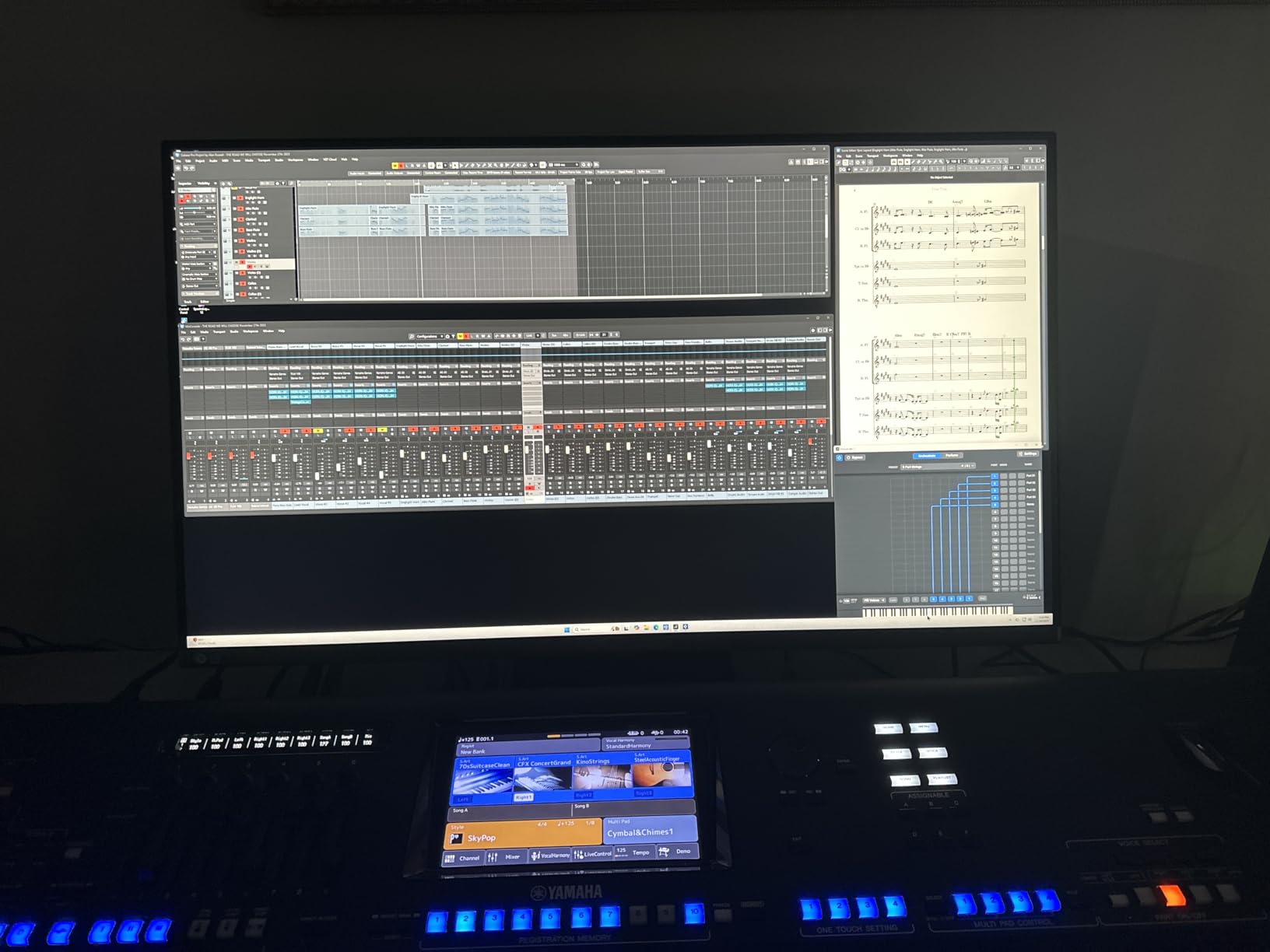
TUV-certified eye care with Flicker-Free technology and Eye Saver Mode reduced fatigue during long drafting sessions. The Easy Setup Stand required no tools, which saved time.
At roughly 18 pounds, this monitor is surprisingly light for a 37-inch display, making it manageable for a single-person install.
Best For This Monitor
Architects who want maximum screen real estate on a single panel. The 37-inch size suits those who review large-format drawings regularly and want an alternative to multi-monitor setups.
It also works well as a presentation display in small meeting rooms.
Watch Out For
There is only one HDMI port, which limits multi-device connectivity. The stand offers tilt only, with no height adjustment, so a VESA arm may be necessary.
Backlight bleed is reported on dark scenes, and the power cables are short. Some Mac users report artifacting at maximum resolution.
Buying Guide – How to Choose the Best Monitor for Architecture Work
Choosing among the best monitors for architects comes down to five core factors. Each affects how you experience drawings, renders, and client presentations daily.
Resolution and Pixel Density
4K resolution (3840 x 2160) is the practical sweet spot for architectural work. At 27 inches, 4K delivers 163 pixels per inch, which keeps CAD linework crisp at any zoom level. On a 32-inch 4K panel, you get 138 PPI, which remains sharp while offering more visible canvas area.
Ultrawide WQHD (3440 x 1440) works well for multitasking but trades pixel density for horizontal space. Avoid 1080p monitors for CAD work, as fine text and detail lines will look soft.
Color Accuracy and Panel Type
IPS panels remain the standard for color-critical architecture work. They offer wide viewing angles and consistent color across the screen, which matters during collaborative reviews. Look for at least 95% DCI-P3 or 99% sRGB coverage, plus factory calibration to Delta E under 2 or 3.
VA panels deliver deeper contrast for shaded 3D views but can shift color at extreme angles. OLED and Mini LED options exist at higher price points but are not necessary for most architectural workflows.
Screen Size for Architecture
27 inches hits the sweet spot for single-monitor setups with 4K resolution. 32 inches provides more canvas for full-sheet drawings and multitasking. Ultrawide 34-inch monitors replace dual-monitor setups with a single curved panel, ideal for architects who keep drawings, 3D views, and references open simultaneously.
For dual-monitor setups, two 27-inch displays often outperform one 32-inch for productivity. Reddit architects consistently recommend dual 24-to-27-inch configurations over a single large panel.
Connectivity – USB-C and Thunderbolt
USB-C with power delivery is the most important connectivity feature for modern architect workstations. A single cable handles display, data, and charging, which dramatically reduces desk clutter. Look for at least 65W delivery for MacBook Air-class laptops or 90W and above for MacBook Pro configurations.
Thunderbolt 4, found on the Dell UltraSharp U2725QE, enables daisy-chaining additional monitors through a single port. HDMI and DisplayPort remain useful for desktop workstations.
Ergonomics for Long Sessions
Architecture work involves long hours in front of the screen. A monitor with full ergonomic adjustment, including height, tilt, swivel, and pivot, helps prevent neck and eye strain. Look for eye-care features like flicker-free technology and low blue light modes.
VESA mount compatibility matters if you use a monitor arm. Pairing an ergonomic monitor with proper seating from drafting stools for tall designers creates a healthier workstation.
Budget vs Premium Considerations
Budget monitors under $400 deliver solid 4K performance for general CAD work. The Dell S2725QS and ASUS ProArt PA279CV prove that professional features are accessible at lower price points.
Premium monitors above $500 add factory calibration reports, wider color gamuts, Thunderbolt connectivity, and better build quality. For client-facing render work, the extra investment pays off in color accuracy and longevity.
FAQs
What type of monitor is best for architecture?
The best monitor for architecture is a 27-to-32-inch 4K IPS panel with at least 95% DCI-P3 color coverage, factory calibration to Delta E under 2, and USB-C connectivity with power delivery. This combination delivers crisp CAD linework, accurate material colors for render previews, and clean cable management for laptop-based workflows.
What type of monitor is best for CAD?
For CAD work, prioritize resolution and pixel density. A 27-inch 4K monitor (163 PPI) keeps technical linework sharp at any zoom level. IPS panels are preferred for consistent color and viewing angles during collaborative reviews. Look for 99% sRGB coverage as a minimum baseline.
Do I need a 4K monitor for CAD?
Yes, 4K is recommended for CAD and BIM work. At 27 inches, 4K resolution delivers 163 pixels per inch, which keeps text and detail lines crisp. Lower resolutions like 1440p can look soft when zoomed out on dense technical drawings. For 32-inch monitors, 4K is essentially mandatory for readable fine detail.
What is the best computer for an architect?
The best computer setup for an architect pairs a multi-core CPU (Intel Core i7 or i9, AMD Ryzen 7 or 9), 32GB of RAM, a dedicated GPU with at least 8GB VRAM for 3D rendering, and a 4K IPS monitor with USB-C. Apple Silicon Macs (M2 Pro, M3 Pro, M4 Pro) handle most architecture software well, though some specialized rendering tools are Windows-only.
Should architects get ultrawide or dual monitors?
Both setups work well for architects. Dual 27-inch monitors excel for separating drawings from 3D views and references, while a 34-inch ultrawide provides a seamless single-canvas workflow without a bezel split. Ultrawides reduce cable complexity and desk footprint, but dual monitors offer more flexibility in window arrangement.
Conclusion
The best monitors for architects in 2026 balance resolution, color accuracy, connectivity, and ergonomics. For most professionals, the Dell UltraSharp U2725QE stands out with its IPS Black panel, 120Hz refresh, and Thunderbolt 4 dock capability.
If budget is the priority, the Dell S2725QS and ASUS ProArt PA279CV deliver professional 4K performance at student-friendly prices. For Mac users, the BenQ MA270U offers Apple-tier integration at roughly half the Studio Display cost.
Whatever you choose, pair your monitor with proper ergonomics and a clean workstation setup. Your drawings will look better, your eyes will feel better, and your clients will see your work the way you intended. Architects doing real estate work may also want to consider drones for real estate photography to capture site context.