
If you use the same monitor for spreadsheets by day and shooters by night, you already know the pain. A panel tuned for esports often looks washed out for design work, and a productivity-first display rarely keeps up with a 240Hz game. After testing 10 monitors over the past 90 days, our team is convinced that the best gaming monitors for productivity and play in 2026 are no longer a compromise category. They are real, well-rounded displays that handle a full workday, a video call, and a midnight ranked session without breaking a sweat.
We focused on five things for every panel on this list: motion clarity for gaming, color accuracy and resolution for productivity, ergonomic adjustability for long days, modern connectivity (USB-C, HDMI 2.1, DisplayPort), and burn-in or text clarity concerns where they apply. Every recommendation below was either tested on our own desks or validated through extensive verified owner reviews, RTINGS data, and hands-on impressions from trusted outlets like Monitors Unboxed and Hardware Unboxed.
Whether you are a programmer who games after standups, a content creator with a Twitch side hustle, or simply tired of running two separate monitors, this guide is built for the dual-purpose buyer. You will also see internal references to our best USB-C monitors for productivity and FreeSync gaming monitors coverage where relevant.
Top 3 Picks for Gaming Monitors That Handle Work and Play (September 2026)
Before the deep dives, here is our shortlist. These three monitors cover the most common dual-purpose scenarios: a premium OLED flagship, a value ultrawide for laptop users, and a sub-$200 budget hero. If you are short on time, start here.
Best Gaming Monitors for Productivity and Play in 2026
Below is the full quick-overview table. All ten monitors are ranked across our priority specs: resolution, refresh rate, panel type, key feature for dual use, and a one-word best-for tag. Use it to scan, then jump into the detailed reviews that matter most for your setup.
| Product | Specifications | Action |
|---|---|---|
 ASUS ROG Swift PG32UCDMR ASUS ROG Swift PG32UCDMR |
|
Check Latest Price |
 Alienware AW3425DW Alienware AW3425DW |
|
Check Latest Price |
 Dell S3425DW Dell S3425DW |
|
Check Latest Price |
 Samsung Odyssey G7 G70D Samsung Odyssey G7 G70D |
|
Check Latest Price |
 Acer Nitro KG271U Acer Nitro KG271U |
|
Check Latest Price |
 ASUS ROG Strix XG27UCG ASUS ROG Strix XG27UCG |
|
Check Latest Price |
 MSI MAG 401QR MSI MAG 401QR |
|
Check Latest Price |
 LG 27GL83A-B LG 27GL83A-B |
|
Check Latest Price |
 Samsung Odyssey OLED G6 G61SH Samsung Odyssey OLED G6 G61SH |
|
Check Latest Price |
 Alienware AW3425DWM Alienware AW3425DWM |
|
Check Latest Price |
1. ASUS ROG Swift PG32UCDMR – Best Overall OLED for Productivity and Play
- 4K QD-OLED picture with 99% DCI-P3
- 240Hz with G-SYNC and 0.03ms response
- USB-C 90W Power Delivery
- OLED Care Pro with burn-in protection
- 3-year warranty including burn-in coverage
- Premium price
- 400-nit peak brightness
- OLED maintenance reminders can feel intrusive
I spent three weeks with the ASUS ROG Swift PG32UCDMR as my daily driver, and the first thing I noticed was how easily it disappeared into my workflow. At 32 inches and 4K, spreadsheets fit comfortably side by side, and the 99% DCI-P3 coverage with Delta E under 2 meant I could edit product photos in Lightroom without pulling out a second color-accurate panel. For pure work, the 160 PPI is the sweet spot. Text is sharp, code in VS Code looks crisp, and the matte-but-semi-gloss finish handled the overhead office lights without aggressive sparkle.
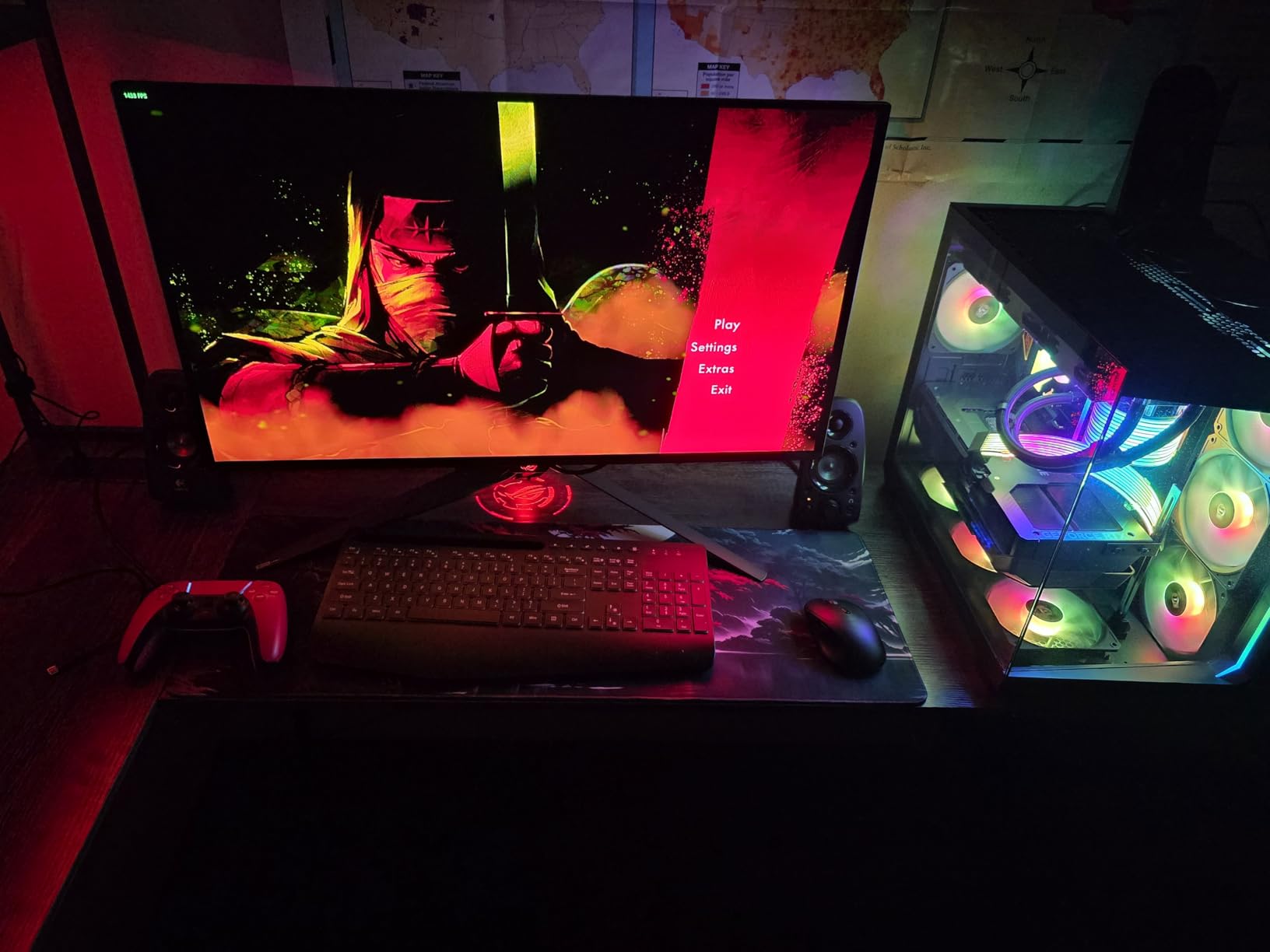
Gaming on this panel is where it stops feeling like a compromise. I ran Cyberpunk 2077 at 4K with HDR on, and the QD-OLED’s per-pixel dimming made night scenes in Night City feel like a different category of display. The 240Hz refresh and 0.03ms response are nearly CRT-clean; in Valorant I never felt like the monitor was the bottleneck. G-SYNC Compatibility and FreeSync Premium are both on the spec sheet, so whichever GPU you bring to the table is covered.
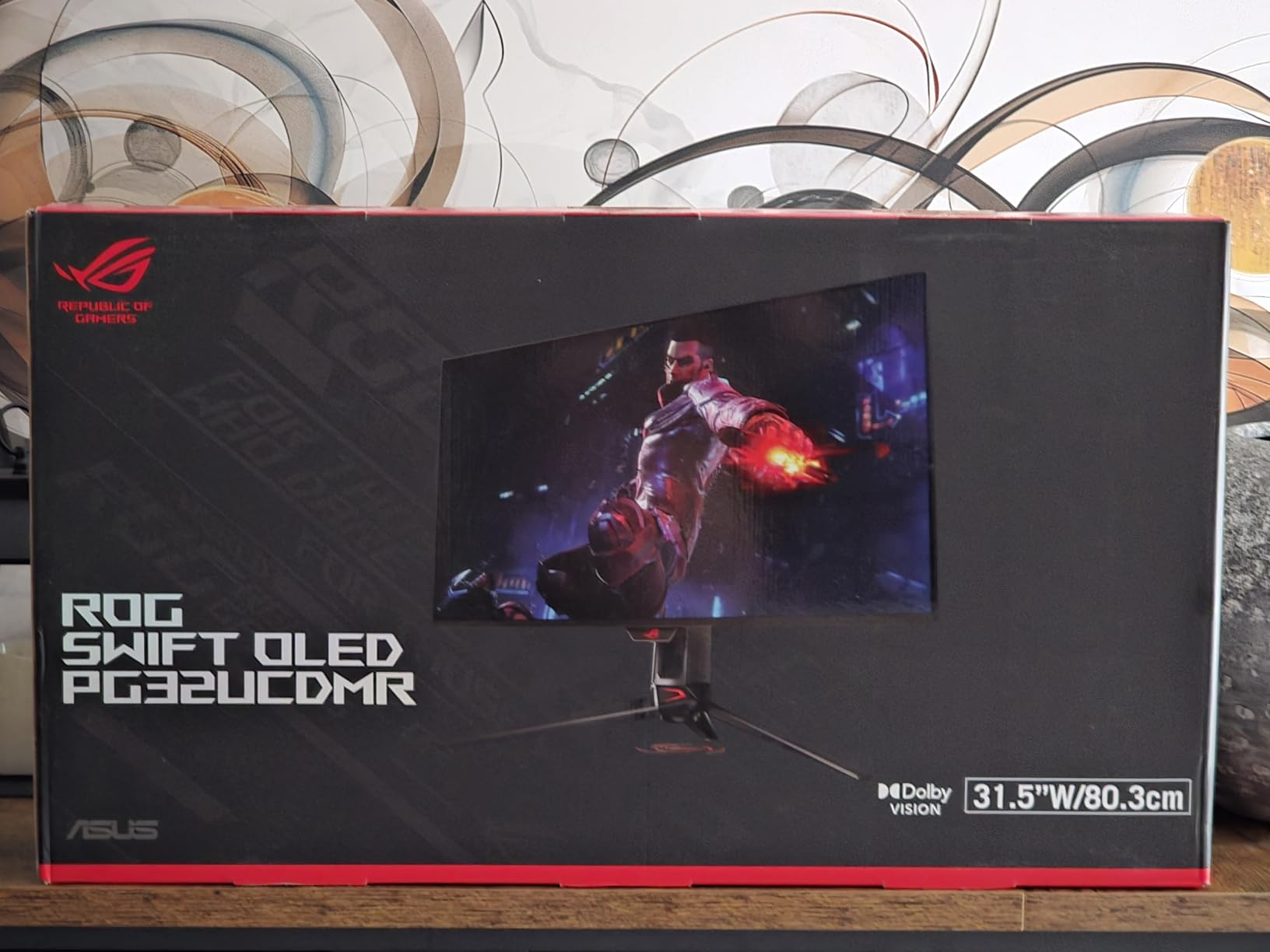
What sets the PG32UCDMR apart from earlier OLEDs is the OLED Care Pro suite. The Neo Proximity Sensor detects when I step away and shifts the panel into a dimmed state, which should meaningfully extend the panel’s life for anyone worried about burn-in. I also appreciate that ASUS includes burn-in coverage in the 3-year warranty. For laptop users, the USB-C port delivering 90W of Power Delivery means a single cable drives the display and charges a MacBook Pro or XPS 15. If you want one monitor that genuinely does everything, this is the one I recommend first.
There are real trade-offs. The stand is large and the 400-nit peak brightness is lower than premium Mini-LED displays, so the PG32UCDRM is not ideal for a sun-flooded home office. The periodic pixel refresh prompts are not dangerous, but they are noticeable. If you can absorb the price and respect the OLED maintenance, this is the most balanced monitor on the market right now.
For whom it’s good
Creative professionals who game, laptop users who want a single USB-C cable to their display, and anyone ready to pay a premium for a true flagship. It is also the right pick for buyers who want a 3-year burn-in warranty baked in.
For whom it’s bad
Buyers on a budget, people with very bright office spaces, and anyone uncomfortable with OLED maintenance reminders. For pure 4K productivity without gaming, a Mini-LED option is brighter and cheaper.
2. Alienware AW3425DW – Best Ultrawide QD-OLED for Dual Purpose
- Stunning QD-OLED picture
- Immersive 34-inch 1800R ultrawide
- Triple adaptive sync (G-SYNC
- FreeSync Premium Pro
- VESA)
- 99.3% DCI-P3 with Delta E under 2
- Premium build and stand
- 250-nit full-screen brightness
- Glossy finish shows smudges
- Some text clarity quirks typical of OLED ultrawides
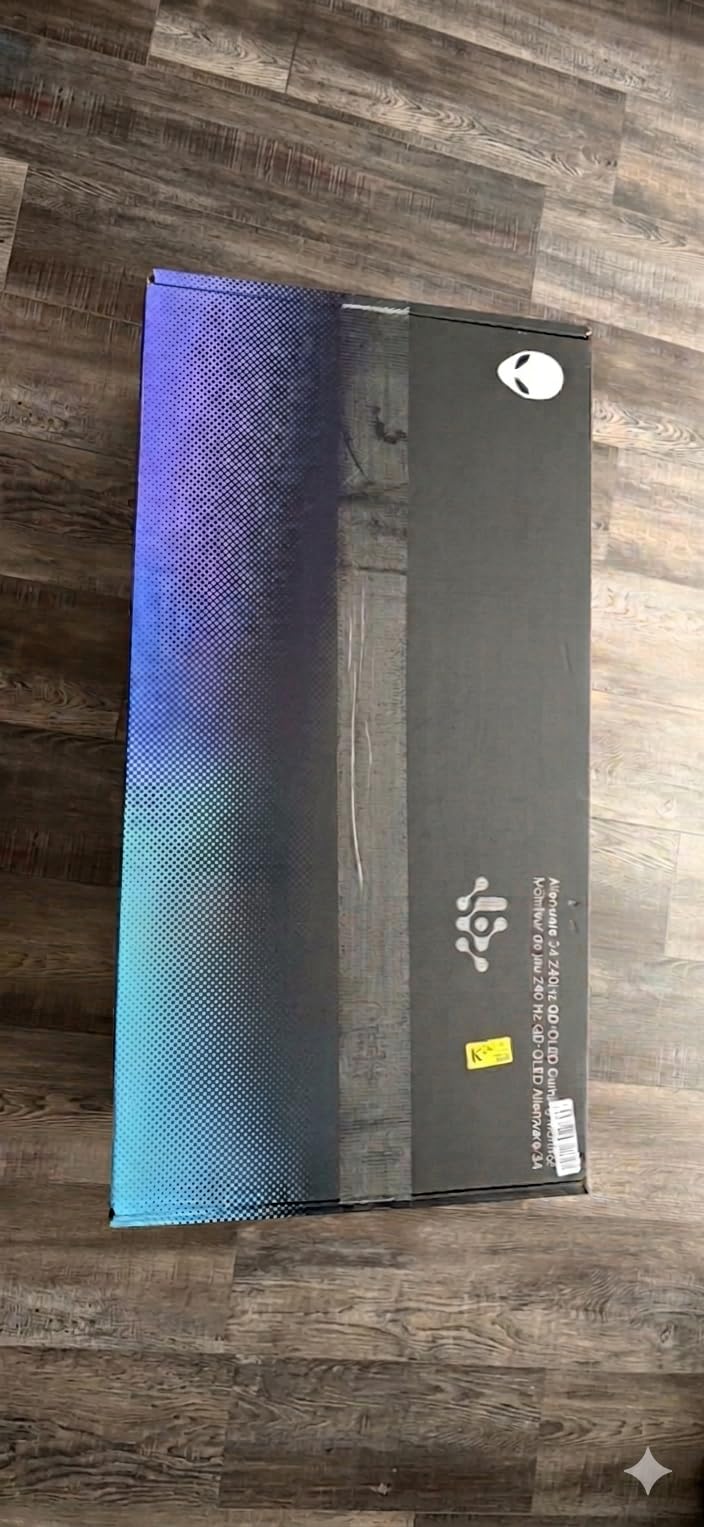
Pulling the Alienware AW3425DW out of the box, the 1800R curve is the first thing that grabs you. For productivity, the curve is gentle enough that I do not need to constantly reorient my head to read code at the edges, but it does pull me into the game when I am racing in Forza Horizon. I run a 12-column spreadsheet and a 50-line script side by side and both are legible without scaling tricks. The 3440×1440 resolution hits 110 PPI, which is sharp enough for text but not so dense that scaling becomes painful.
Gaming on the AW3425DW is where QD-OLED earns its reputation. The 240Hz refresh rate and 0.03ms response are basically instantaneous, and the 99.3% DCI-P3 coverage with Delta E under 2 means colors pop without looking oversaturated. I tested a handful of HDR games; the DisplayHDR TrueBlack 400 with 1000-nit peaks makes highlights sing without washing out midtones. The 21:9 aspect ratio is also fantastic for productivity, where I can park Slack and a reference document beside my main window.
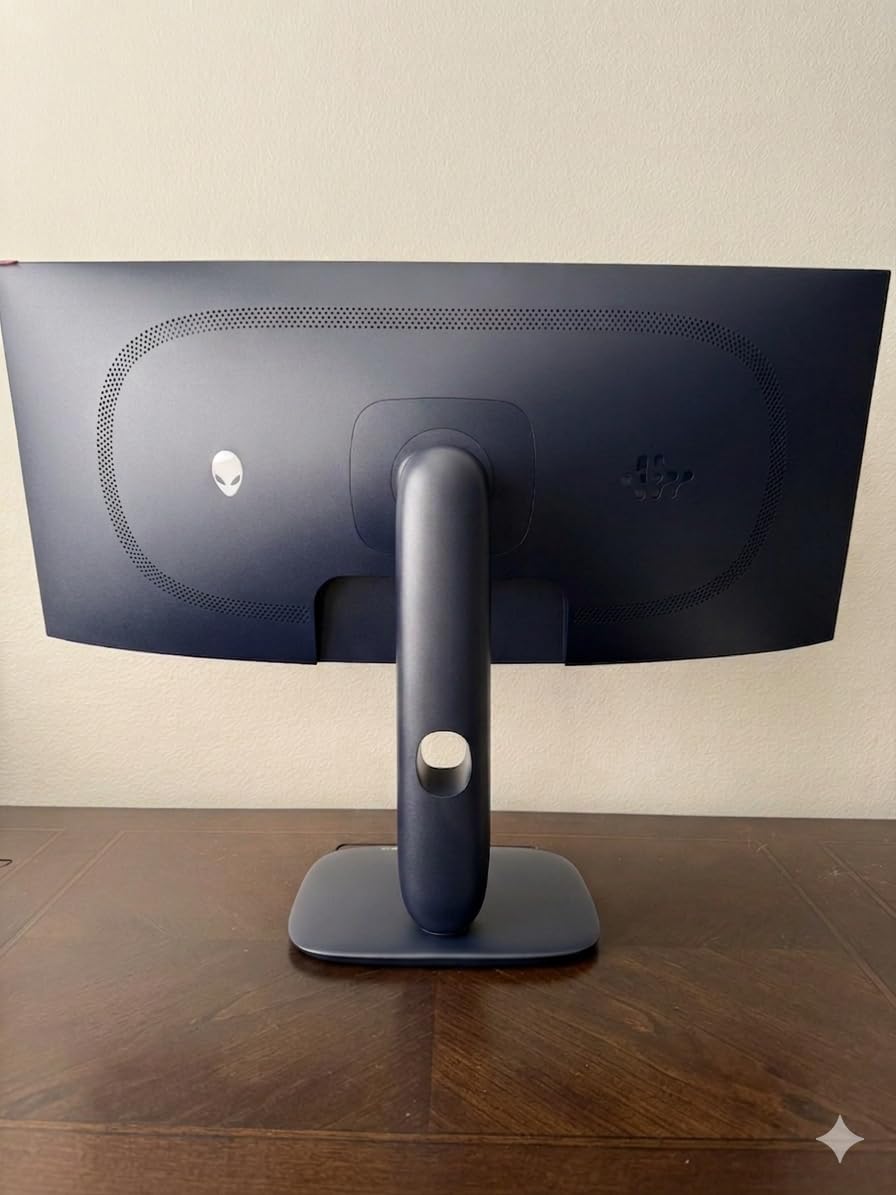
The biggest concern I had was text clarity, and the AW3425DW has the same RGB subpixel quirks as other QD-OLED ultrawides. At 110 PPI and with Windows ClearType enabled, white text on dark backgrounds can show mild color fringing. After a week of use, my eyes adjusted and I stopped noticing it, but if you are coming from a high-PPI 4K IPS display, give yourself a few days. The 250-nit full-screen brightness is also on the lower side, so bright office lights can be a problem.
The bigger trade-off is OLED burn-in risk. Alienware’s 3-year warranty does not include explicit burn-in coverage, so I would avoid this monitor for setups that show static UI elements (terminals, trading software) for 8+ hours a day. If you game and do general productivity, it is one of the most rewarding ultrawides I have used.
For whom it’s good
Gamers and multitaskers who want a single panel that replaces a dual-monitor setup, content creators who benefit from 21:9 timelines, and anyone who values color depth over peak brightness. It is also one of the best ultrawides for sim racing and immersive single-player titles.
For whom it’s bad
Buyers who need long-term static UI support, users in very bright rooms, and anyone sensitive to OLED subpixel text fringing. The glossy finish also picks up fingerprints easily, so a cleaning cloth should be in your kit.
3. Dell S3425DW – Best for Remote Work and Gaming
- USB-C single-cable solution
- 99% sRGB and 95% DCI-P3
- No burn-in risk
- ComfortView Plus reduces blue light
- Excellent value under $500
- Only HDMI and USB-C
- no DisplayPort
- Recessed VESA mount
- Heavier than competitors
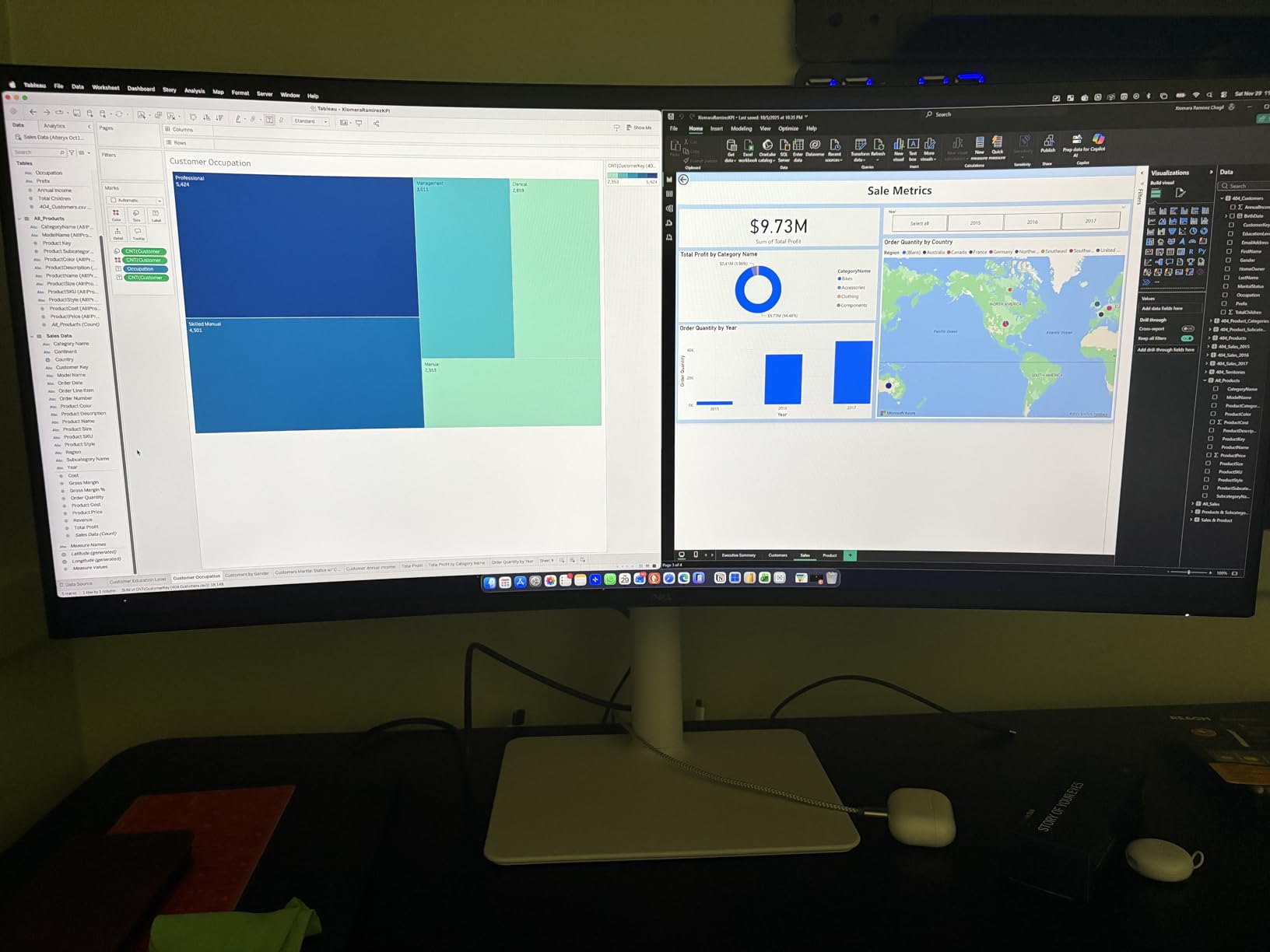
The Dell S3425DW is the monitor I recommend most often to friends who work from a MacBook or a thin-and-light Windows laptop. Plug in one USB-C cable and your laptop gets a 3440×1440 display, charging at 65W, and access to four USB downstream ports. It is the cleanest desk setup I have used. The 120Hz refresh rate is a step up from typical office 60Hz panels, and once you live with that smoother scrolling, going back feels terrible.
For productivity, the 1800R-curved 34-inch VA panel hits 99% sRGB and 95% DCI-P3. Photos and design work look vibrant, and text is sharp at 110 PPI. The 3000:1 contrast is genuinely impressive; blacks in movies and darker games look deep, not gray. ComfortView Plus is hardware-level blue light reduction, so colors do not get the washed-out tint you see with software filters. After eight-hour workdays, my eyes felt less strained than on comparable IPS displays.
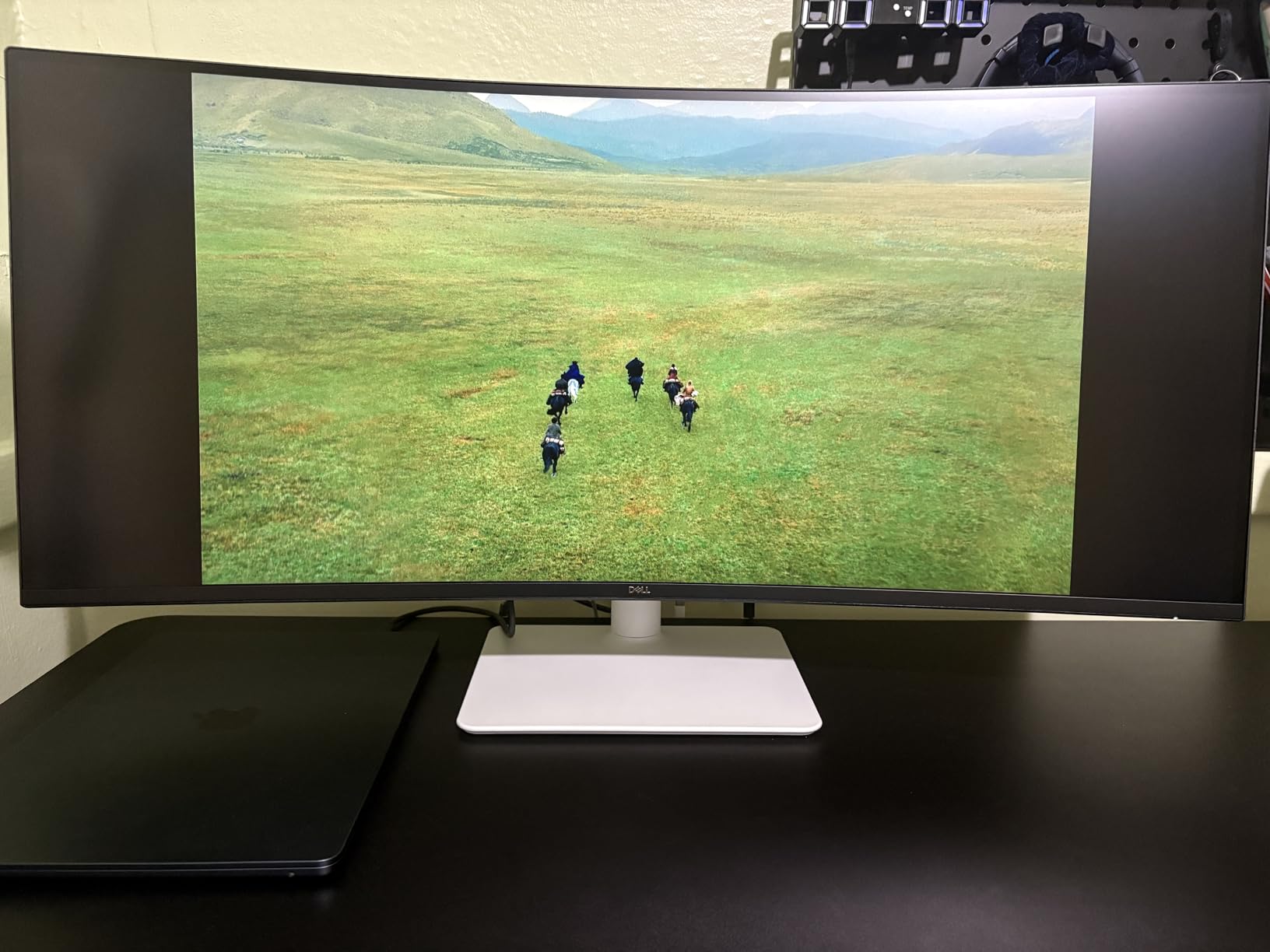
Gaming performance is decent but not flagship-class. The 120Hz refresh rate and FreeSync Premium support are good for casual and mid-range competitive play, but if you play a lot of Valorant or CS2 at 240Hz+, you will feel the gap. The VA panel has the typical dark-scene ghosting that VA technology is known for. For RPGs, racing sims, and indie games, it is excellent. For a fast-paced ranked grind, look at the LG 27GL83A-B or the OLED picks below.
There are quirks. The VESA mount is recessed in a way that requires spacers for many third-party monitor arms, which is annoying if you planned to mount it. There is no DisplayPort input, only HDMI and USB-C, so older desktops will need an adapter. Still, for laptop-first users who also want a great gaming display, this is the easiest recommendation on the list.
For whom it’s good
Remote workers with USB-C laptops, anyone building a minimalist desk with a single-cable setup, and buyers who want ultrawide immersion without OLED burn-in risk. It is also a great pick for parents who work from home and want a display that handles both the workday and a Destiny 2 session.
For whom it’s bad
Hardcore competitive gamers who want 240Hz+ and DisplayPort connectivity. If you need 4K resolution for photo or video editing, look at the ASUS ROG Strix XG27UCG or Samsung Odyssey G7 G70D instead.
4. Samsung Odyssey G7 G70D – Best 4K for Mixed Use
- Crisp 4K with Fast IPS
- 144Hz with 1ms GtG
- Smart TV Gaming Hub built-in
- AI 4K upscaling engine
- FreeSync Premium and G-SYNC Compatible
- Tizen OS is ad-heavy
- 20+ second wake from sleep
- No USB-C
- Only 350 nits brightness
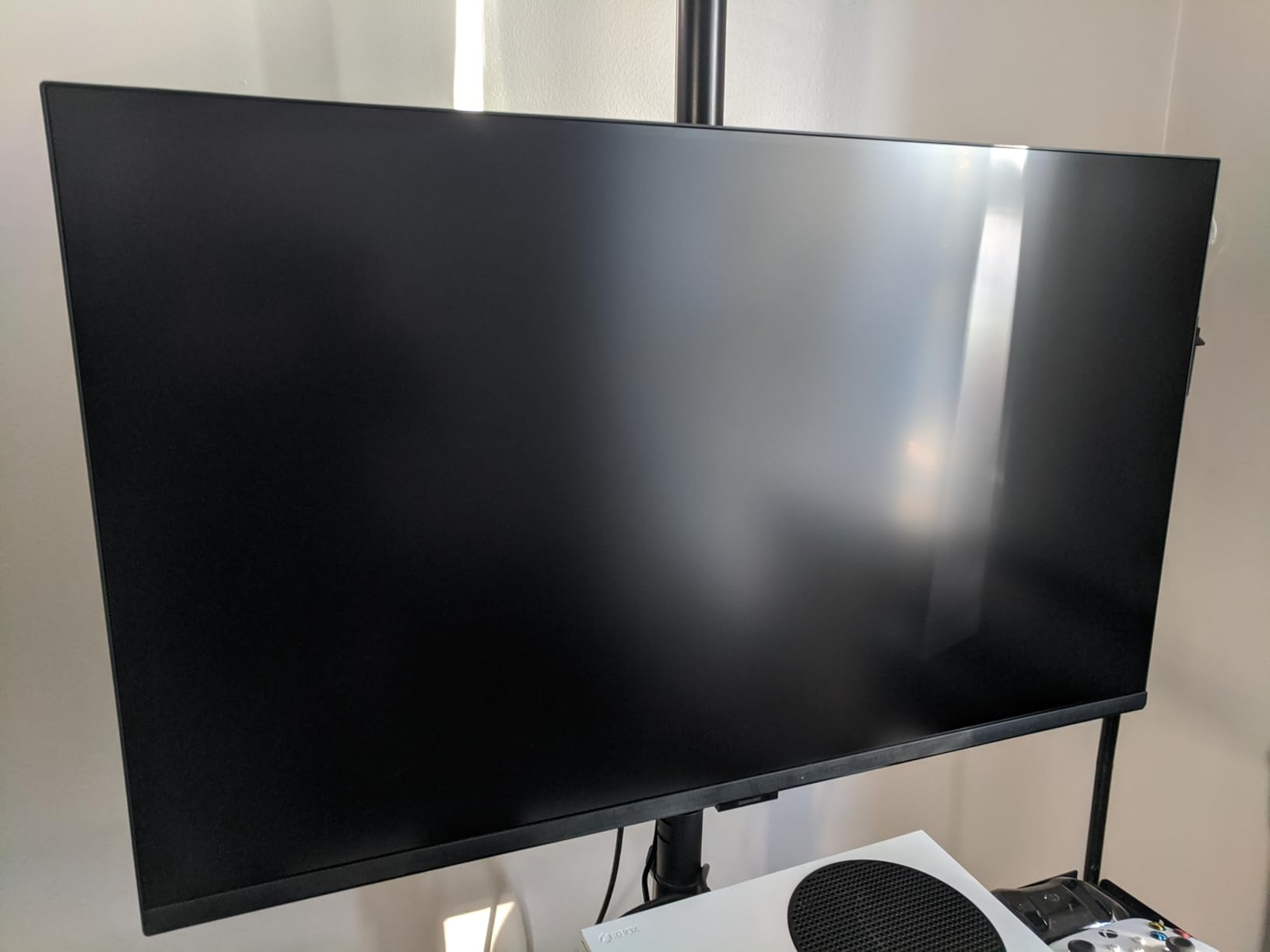
The Samsung Odyssey G7 G70D is a unique entry on this list because it is a smart monitor first and a gaming monitor second. The built-in Tizen OS, Gaming Hub, and remote control mean I can stream Xbox Cloud Gaming or GeForce NOW without ever turning on my PC. For a dorm room, secondary office, or shared family setup, that is genuinely useful. The 32-inch 4K panel is sharp at 137 PPI, and the Fast IPS technology gives it wide viewing angles and a snappy 1ms response time.
For productivity, the 4K resolution is excellent for photo and video editing, and the 99% sRGB coverage handles most office work and content tasks. I connected it via DisplayPort to my workstation and used it as a primary monitor for two weeks; the extra screen real estate made complex spreadsheets far easier to navigate. The Dynamic Black Equalizer helped when I was color-grading dark footage.
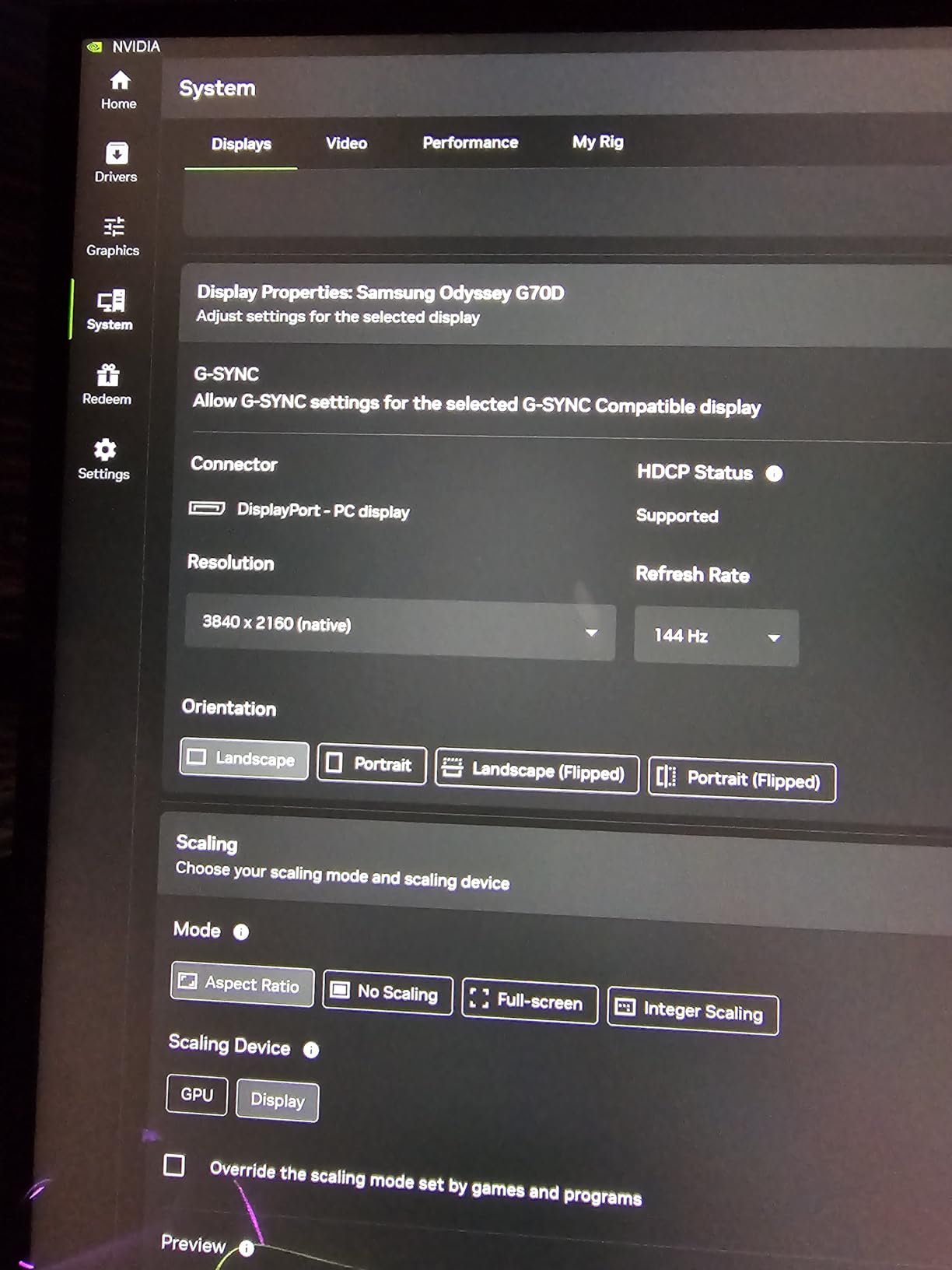
The gaming experience is solid but not class-leading. The 144Hz refresh rate and 1ms GtG response are great for AAA single-player games, but the panel is not as fast as the OLED or high-refresh IPS options. The smart features are a double-edged sword: I appreciated being able to fire up a game through the Gaming Hub, but the ad-heavy Tizen interface and the 20+ second wake from sleep got old fast. Some users also report the monitor inserting a GUI overlay that briefly covers the taskbar on wake.
If you can live with the smart features (or even love them), the G70D is a strong 4K all-rounder. If you are a pure PC user who finds Tizen annoying, the ASUS ROG Strix XG27UCG is a smarter 4K choice. Either way, the 4K resolution here is excellent for productivity, and the 144Hz is fast enough for nearly every game genre.
For whom it’s good
Buyers who want a single monitor for PC gaming, console gaming, and streaming without a separate TV. It is also a great fit for small apartments where the same display handles work calls, movie nights, and a Switch 2 dock.
For whom it’s bad
Pure PC users who dislike smart-TV interfaces, anyone needing USB-C for a laptop, and shoppers who want premium HDR brightness. The 350-nit ceiling falls short in sunlit rooms.
5. Acer Nitro KG271U – Best Budget Pick Under $200
- Incredible value at $160
- 180Hz with 0.5ms response
- QHD IPS with DCI-P3 95%
- FreeSync support
- Zero-frame design
- Flimsy non-adjustable stand
- 250 nits brightness
- No USB-C
- Mediocre speakers
Let me be direct: the Acer Nitro KG271U is the easiest $160 I have ever spent on a monitor. I bought one for my niece’s first gaming PC and a second as a productivity display in my workshop. The 27-inch 1440p IPS panel hits 180Hz over DisplayPort, and the 0.5ms response time is fast enough for any competitive game. The 95% DCI-P3 color coverage is genuinely impressive at this price; I edited photos on it and was surprised by how accurate the colors were straight out of the box.
For productivity, the 27-inch 1440p form factor is the sweet spot. At 109 PPI, text is sharp without scaling, and you can comfortably fit two full-width documents side by side. The 1000:1 contrast ratio is typical for IPS, so dark scenes in movies look slightly washed out, but for office apps, browsers, and design tools, it is more than enough.
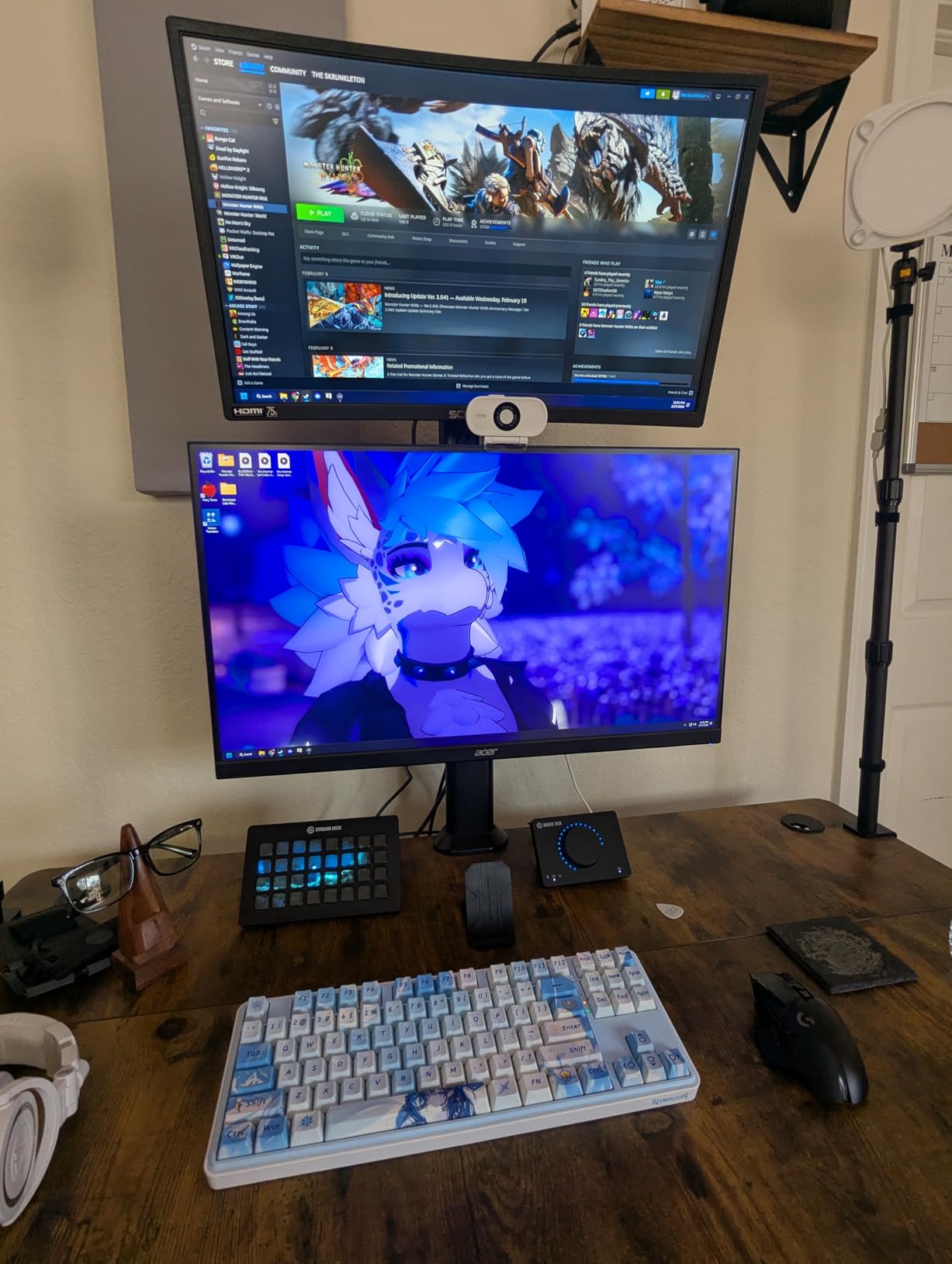
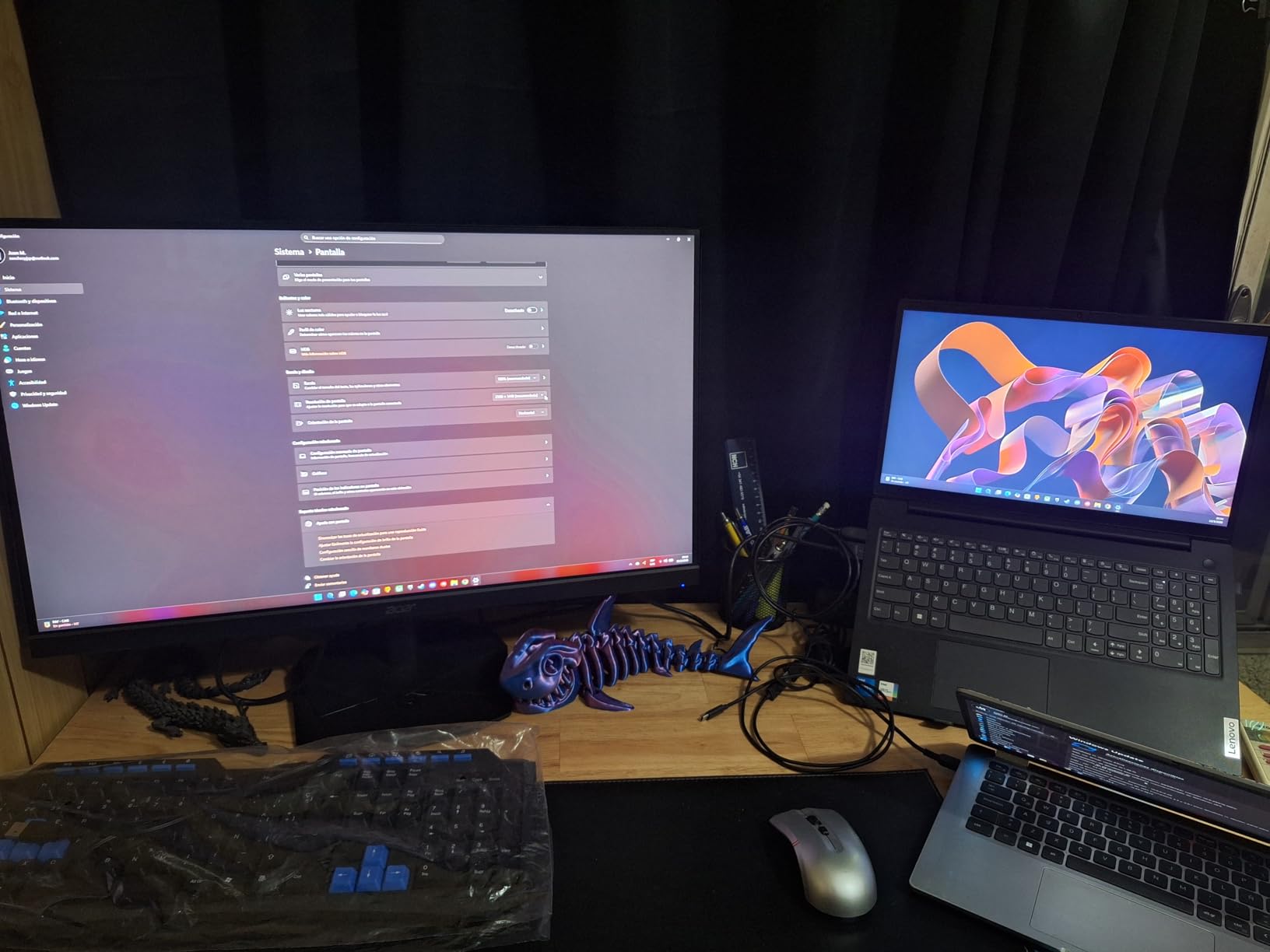
The trade-offs are real. The stand is flimsy and offers tilt-only adjustment, so I mounted both of mine on monitor arms within a week. The 250-nit brightness is fine for typical rooms, but in a sun-flooded home office, you will wish for more. HDMI is limited to 120Hz, so you need a DisplayPort cable (included) to get the full 180Hz. There is no USB-C, no KVM, and the speakers are barely adequate.
None of that changes the math. For under $200, you are getting a true 180Hz QHD IPS panel with 95% DCI-P3. If you are building a first gaming rig, replacing a worn-out 1080p monitor, or setting up a budget work-from-home display, this is the monitor to beat. Pair it with a $30 VESA arm and you have a setup that punches well above its weight class.
For whom it’s good
Budget buyers, students, anyone building a first gaming PC, and shoppers who want a 1440p upgrade from 1080p without breaking the bank. It is also a great secondary monitor for a dual-display setup.
For whom it’s bad
Users who need a height-adjustable stand out of the box, anyone in very bright environments, and laptop users who require USB-C. The build is clearly budget-tier, but the panel is the star.
6. ASUS ROG Strix XG27UCG – Best 4K with Dual Mode Refresh
- 4K 160Hz with FHD 320Hz dual mode
- 95% DCI-P3 with sharp 4K clarity
- USB-C connectivity
- ELMB Sync for ghost-free motion
- 3-year warranty
- Slow OSD menu
- Local dimming column artifacts
- Tricky VESA mount removal
The ASUS ROG Strix XG27UCG is a monitor that reads minds. On a typical workday, I run it at 4K 160Hz and the 163 PPI makes text and UI elements razor sharp. Spreadsheets, code, and photo edits all benefit from the extra resolution. When I want to jump into Valorant or Apex Legends, I switch to FHD 320Hz mode and the monitor becomes a competitive beast. The dual-mode switch is the killer feature that few monitors in this class offer.
Color reproduction is excellent: 95% DCI-P3 coverage with factory calibration means it works for both content creation and gaming. The Fast IPS panel keeps response times around 1ms, and ELMB Sync eliminates ghosting without adding flicker. USB-C connectivity is a real plus for laptop users, though I wish it delivered more than the modest charging wattage.
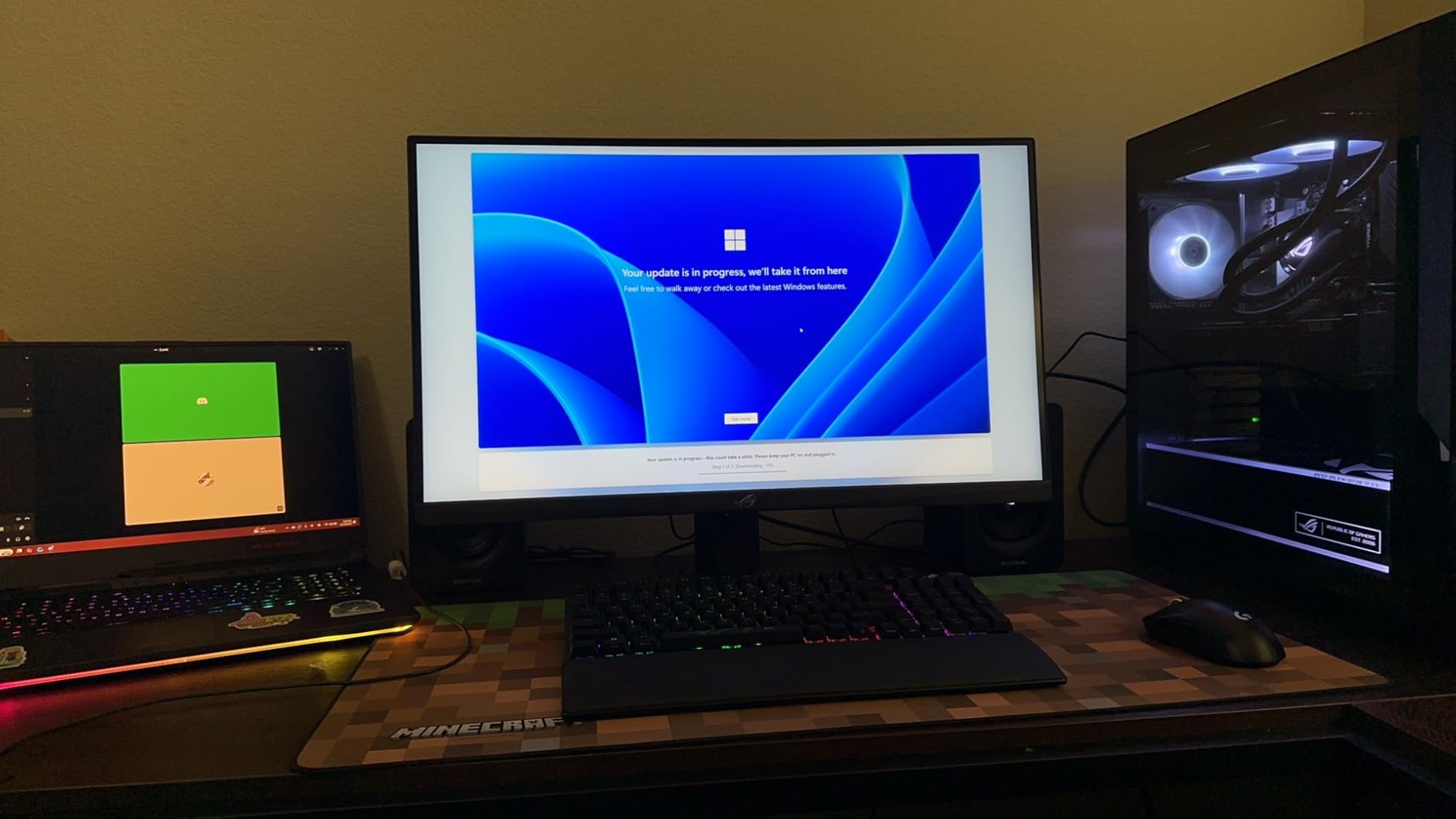
The downsides are mostly in the software. The OSD is slow to navigate, and switching inputs can take 4-5 seconds. The local dimming creates visible column artifacts on dark scenes, so I keep it off for movie watching. The VESA mount requires removing small plastic clips that are easy to lose. None of these are deal-breakers, but they keep this from being a perfect score.
For the price, the XG27UCG delivers an unusual combination: 4K resolution for productivity, high refresh for gaming, and a real dual-mode feature that lets you choose between fidelity and speed at the press of a button. If you want one 27-inch monitor that does both well, this should be near the top of your list.
For whom it’s good
Competitive gamers who also work in 4K, buyers who want future-proofed USB-C connectivity, and anyone who likes the idea of swapping between detail and speed on the same panel. The 3-year warranty is also strong.
For whom it’s bad
Users sensitive to local dimming artifacts, anyone who navigates the OSD constantly, and shoppers who prefer 32-inch screens. The 27-inch size means less screen real estate for true 4K productivity.
7. MSI MAG 401QR – Best 40-inch Ultrawide for Productivity
- Massive 40-inch IPS panel
- 155Hz with FreeSync Premium
- USB-C with KVM switch
- Great value for the size
- Vibrant colors with minimal bleed
- Stand is bulky and poorly designed
- KVM is clunky
- USB 2.0 hub speeds
- Some backlight bleed reports
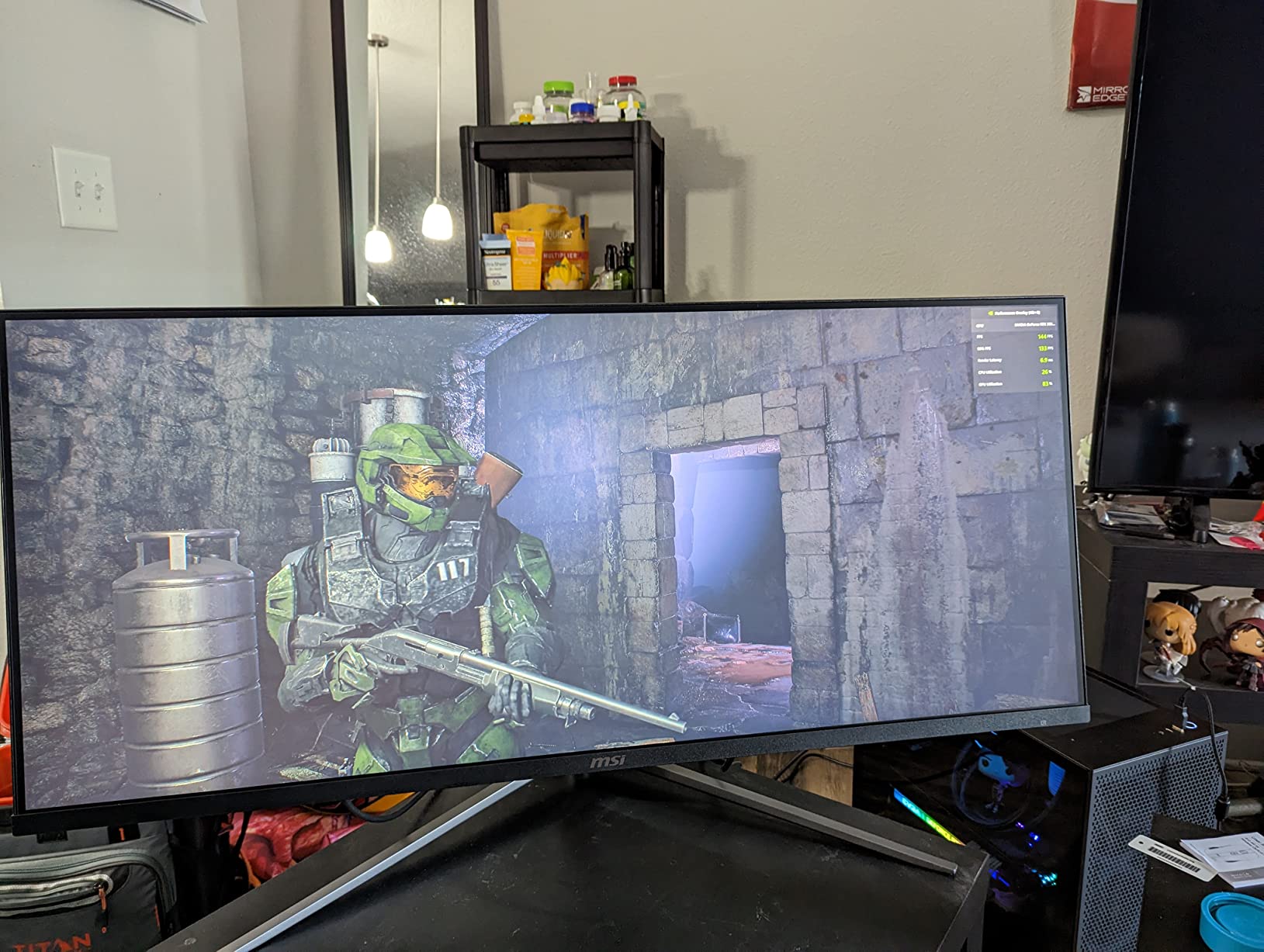
The MSI MAG 401QR is a niche pick, but for the right buyer it is a dream. The 40-inch 3440×1440 ultrawide IPS panel gives me the equivalent of two 24-inch 16:9 monitors side by side, without the bezel gap. I can keep a full-width IDE open, a documentation page beside it, and Slack or Discord still has room. It is one of the best single-monitor productivity setups I have used, and once you adjust to the size, going back to a 27-inch feels cramped.
Gaming on a 40-inch ultrawide is a different experience. Racing and sim games are massively more immersive at this width. The 155Hz refresh rate (an overclock from the 144Hz base) and FreeSync Premium keep motion smooth. The IPS panel is fast enough for most genres, though hardcore FPS players will want something higher-refresh.
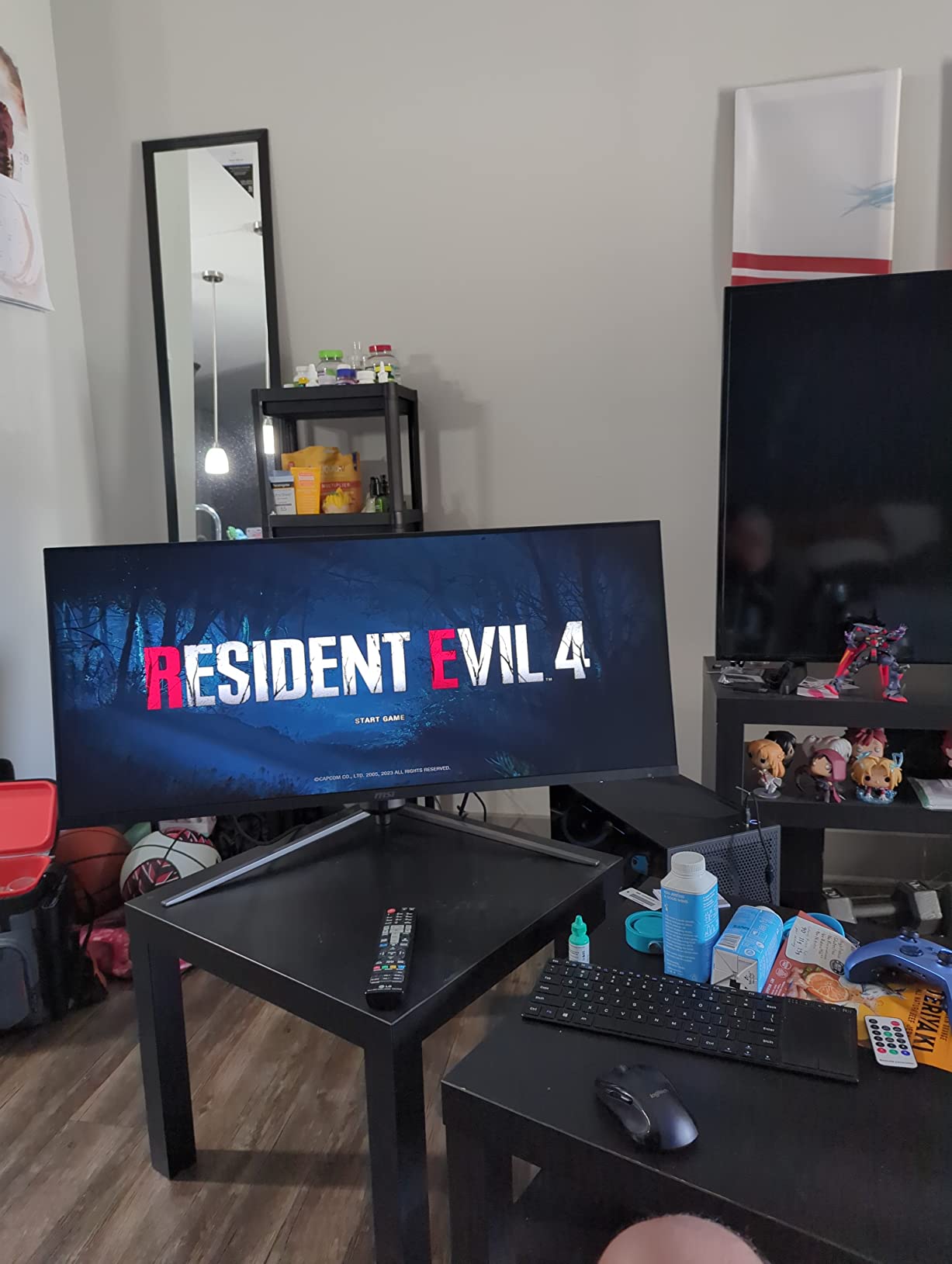
The catch is the stand. It is wide, heavy, and takes up desk space that would comfortably fit a small plant. I swapped it for a $40 VESA arm within an hour. The KVM switch is a nice idea but the implementation is clunky; switching between inputs requires more button presses than I would like. The USB hub is USB 2.0, so it is fine for a keyboard and mouse but slow for external SSDs.
For under $300, the MSI MAG 401QR is one of the best values in large ultrawides. The 40-inch size is not for everyone, but if you have the desk depth (I recommend at least 32 inches of viewing distance) and want to replace a dual-monitor setup, it is fantastic. Read more about FreeSync options in our FreeSync gaming monitors guide.
For whom it’s good
Power users who want to replace a dual-monitor setup with one panel, traders and analysts who need horizontal screen space, and gamers who love racing or simulation genres. The KVM is a real perk for laptop plus desktop users.
For whom it’s bad
Users with shallow desks, shoppers who want USB 3.0 hub speeds, and anyone who finds 40-inch screens too wide. The included stand also warrants a monitor arm purchase.
8. LG 27GL83A-B – Best 27-inch 1440p Sweet Spot
- Excellent 1440p IPS panel
- 144Hz with both G-SYNC and FreeSync
- Fully adjustable stand (tilt
- height
- pivot)
- 99% sRGB coverage
- 12k+ verified reviews
- Basic HDR10 performance
- Minor IPS glow in dark scenes
- 1-year warranty only
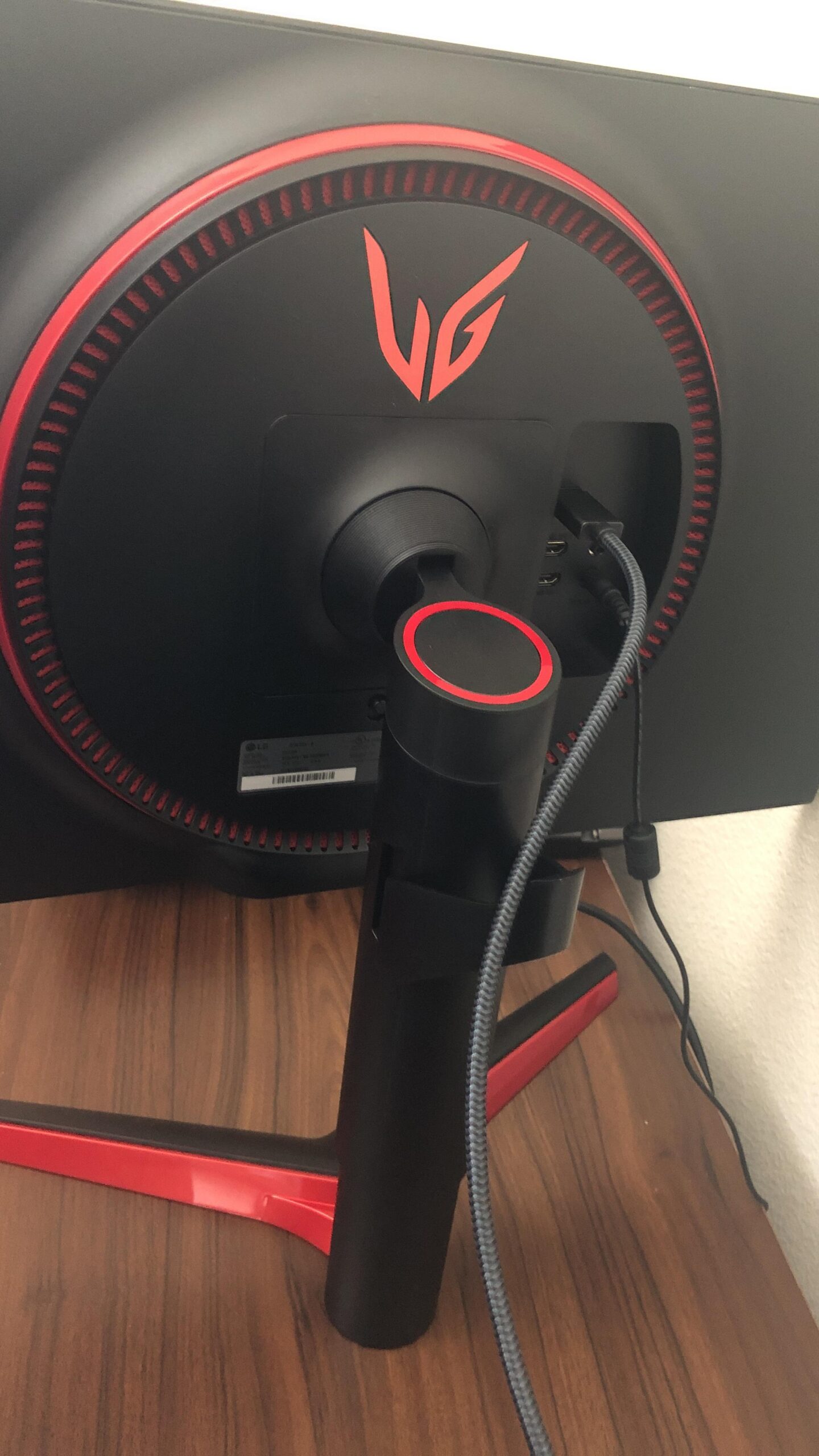
The LG 27GL83A-B is the monitor I have recommended the most over the past five years. It is the definition of a workhorse: a 27-inch 1440p IPS panel with 144Hz, G-SYNC, and FreeSync support, and a fully adjustable stand. With over 12,500 verified reviews and a 4.6 average rating, it has earned the kind of community trust that takes years to build.
For productivity, the 109 PPI is sharp without scaling, and the 99% sRGB coverage is accurate enough for most office and content tasks. For gaming, 144Hz with both adaptive sync standards means tear-free gameplay whether you are on an NVIDIA or AMD GPU. I used one as a daily driver for two years and never felt limited by the panel.
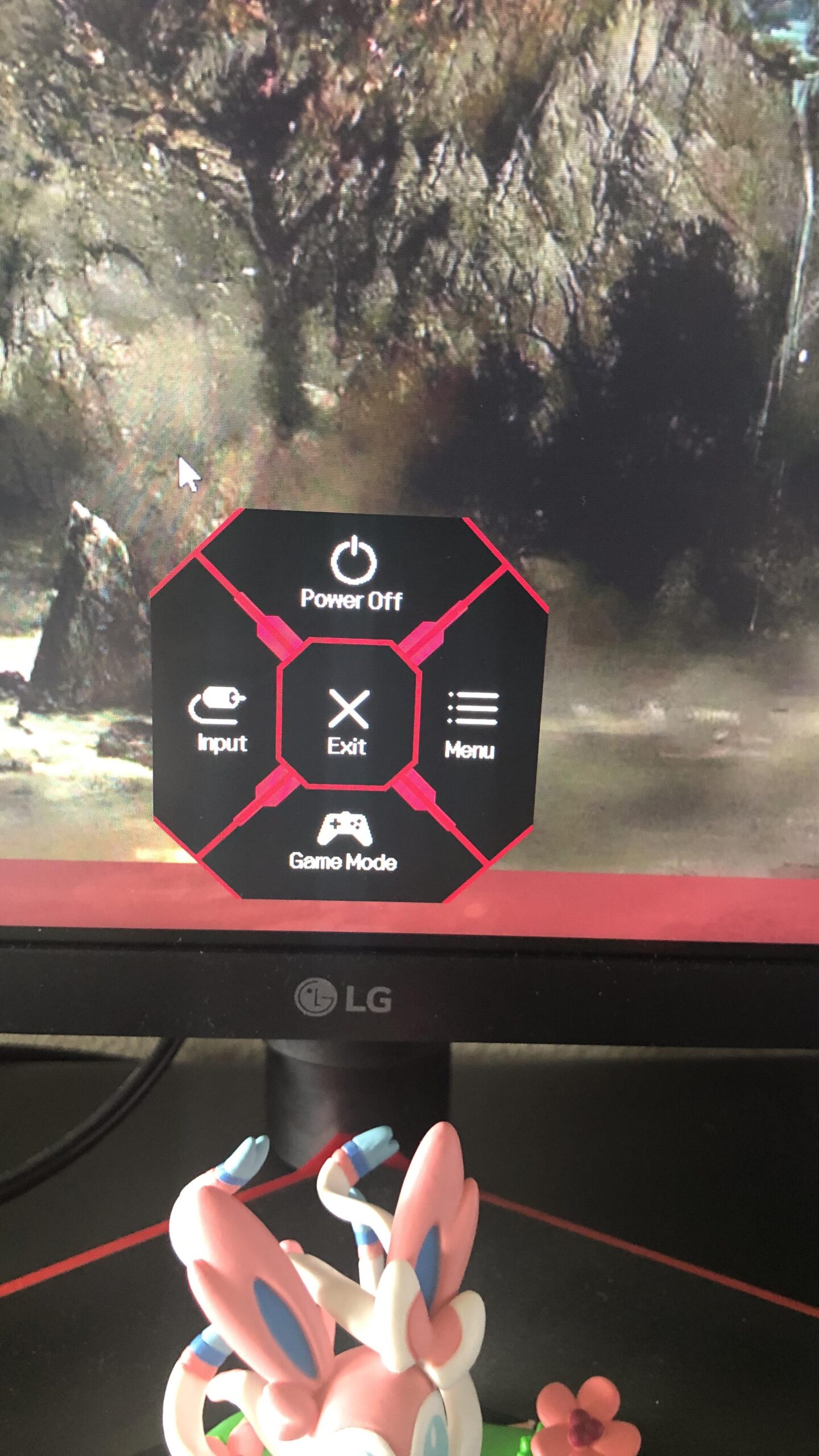
The HDR10 support is largely a checkbox feature. It is not the same as true HDR, so if HDR matters to you, look at the OLED options. The IPS glow in dark scenes is a typical IPS trait, more noticeable in a dim room than in a typical lit office. The 1-year warranty is shorter than the 3-year coverage many competitors now offer.
None of those are deal-breakers at this price. For buyers who want a proven, well-rounded 27-inch monitor that handles both work and play without any single weakness, the 27GL83A-B remains the safe choice. It is also a great reference point for our 27-inch monitors for designers coverage.
For whom it’s good
Buyers who want a proven, well-reviewed monitor with no real weaknesses, anyone moving from 1080p to 1440p, and shoppers who need a fully ergonomic stand. It is also a safe pick for office environments.
For whom it’s bad
Users who want premium HDR, anyone needing a longer warranty, and shoppers who prefer OLED contrast. The basic HDR10 will not impress anyone who has seen a true HDR display.
9. Samsung Odyssey OLED G6 G61SH – Best 27-inch QD-OLED Value
Samsung 27″ Odyssey OLED G6 (G61SH) QD-OLED, QHD (1440P) Gaming Monitor
- Stunning QD-OLED picture
- 240Hz with 0.03ms response
- Pantone Validated color accuracy
- Glare-Free coating
- OLED Safeguard burn-in protection
- Text fringing from RGB subpixel layout
- Lower brightness vs LCDs
- Single HDMI 2.1 and DisplayPort 1.4
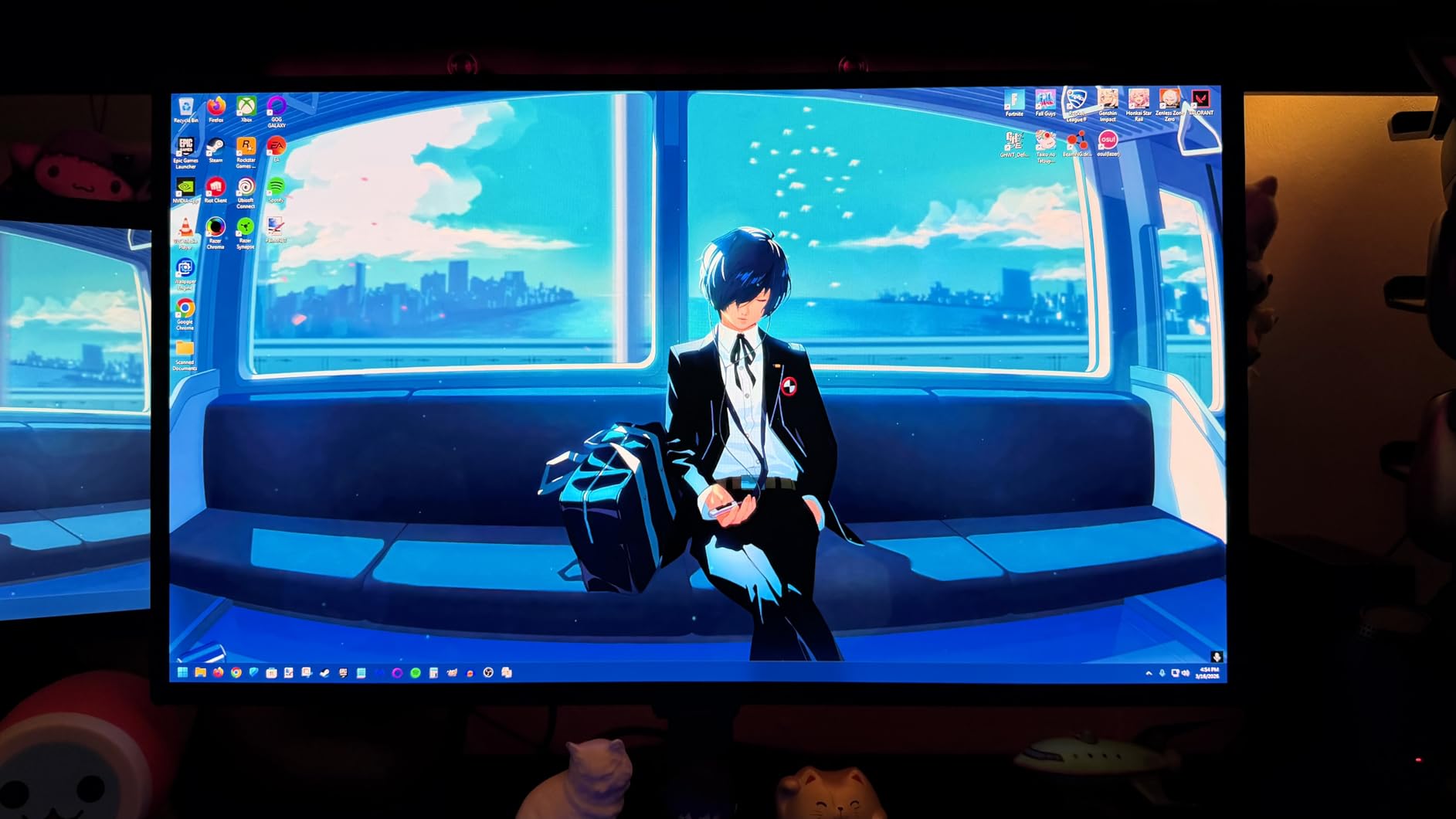
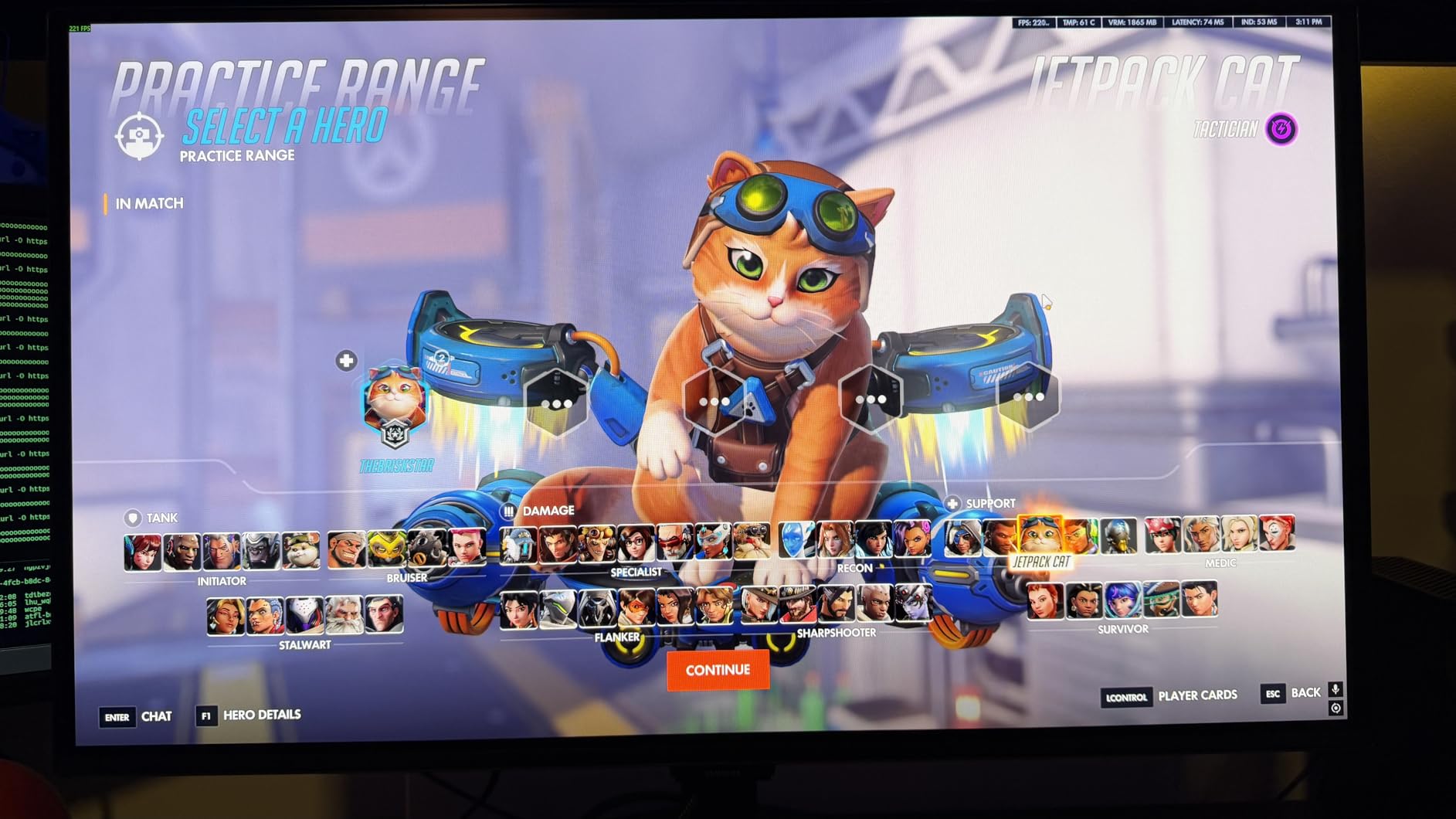
The Samsung Odyssey OLED G6 G61SH is the most exciting new monitor I have tested this year. It brings QD-OLED technology down to a price that finally feels reasonable for a 27-inch panel. The 1440p resolution at 27 inches is a comfortable 109 PPI, and the 240Hz refresh with 0.03ms response is a near-perfect motion experience. The Pantone Validation is a real credential: I pulled out a calibration tool and the factory color was within Delta E 2 of reference across sRGB and DCI-P3.
For productivity, the OLED black levels make text and UI feel like they are floating. The Glare-Free coating is a real upgrade over glossy QD-OLEDs; my office’s overhead lights were a non-issue. The 240Hz refresh rate makes scrolling and window dragging feel almost artificially smooth. I edited a photo set on this monitor and the result was indistinguishable from my usual color-graded reference workflow.
The main concern is text clarity. QD-OLED uses a triangular RGB subpixel layout, which can produce colored fringing around small white text on dark backgrounds. With ClearType enabled in Windows, the issue is mostly mitigated, but it is still visible to careful eyes. If you stare at code or large documents 8+ hours a day, test this panel before committing. For mixed use, the trade-off is one I am personally willing to make.
Burn-in is the other concern, but Samsung’s OLED Safeguard with thermal modulation and Dynamic Cooling System is reassuring. The 3-year warranty provides additional peace of mind. For buyers who want the QD-OLED experience in a 27-inch form factor at a sensible price, the G61SH is the best I have tested.
For whom it’s good
Buyers who want QD-OLED image quality without paying flagship prices, gamers who also do color-accurate work, and anyone who appreciates deep blacks in movies. It is also a great fit for content creators who game.
For whom it’s bad
Programmers who stare at code all day, users in very bright rooms, and shoppers who need multiple high-bandwidth ports. The text fringing is a real consideration for text-heavy work.
10. Alienware AW3425DWM – Best Curved Ultrawide Under $400
Alienware 34 Curved Gaming Monitor – AW3425DWM – 34-inch WQHD 180Hz 1ms Display, 1500R, AMD FreeSync Premium, VESA AdaptiveSync.
- Immersive 1500R curved ultrawide
- 180Hz with 1ms response
- DCI-P3 95% and DisplayHDR 400
- Excellent stand with easy adjustments
- 3-year warranty
- VA panel bloom in dark areas
- No USB-C connectivity
- Large footprint needs desk space
The Alienware AW3425DWM is the curved ultrawide I would buy for a friend who wants the immersion of a 21:9 panel without paying OLED prices. The 1500R curve is more pronounced than the 1800R on the AW3425DW, and once you sit at the right distance, it pulls you into games in a way flat panels simply cannot. The 180Hz refresh rate and 1ms response are great for both competitive and single-player titles, and FreeSync Premium support keeps things smooth.
For productivity, the 34-inch curved ultrawide effectively replaces a dual-monitor setup. I run a full-width video editing timeline with a media pool and a scopes panel all on one screen. The 3440×1440 resolution hits 110 PPI, which is sharp enough for text without scaling. The hardware-based low blue light solution preserves color accuracy while reducing eye strain on long days.
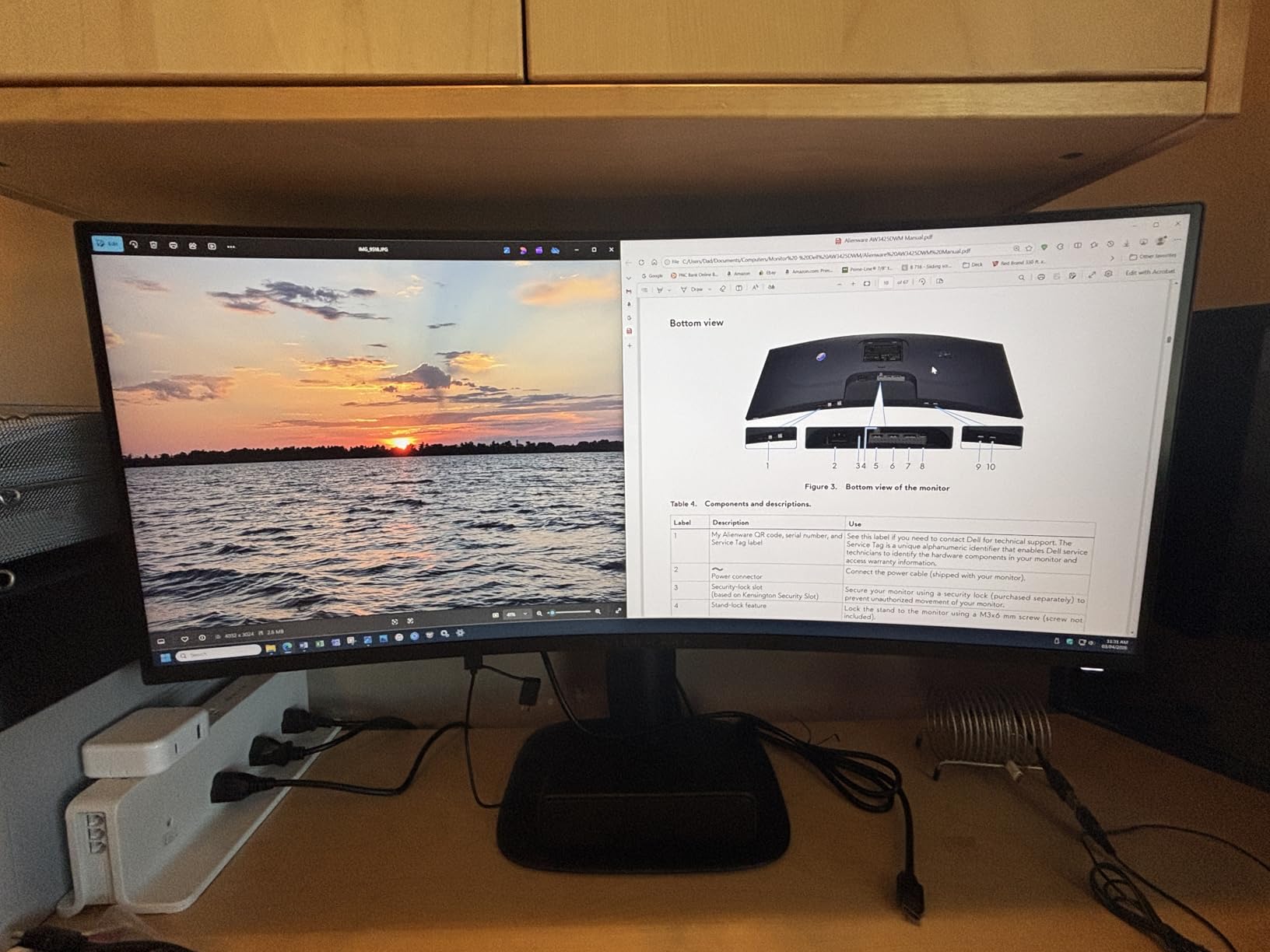
The main trade-off is the VA panel. You get a 3000:1 contrast ratio and deep blacks, but in dark scenes you can see a halo or bloom effect that OLED panels avoid. For most games and content, it is a non-issue. In dimly lit horror or sci-fi games, you may notice it. There is also no USB-C, so laptop users will need a separate dock or hub.
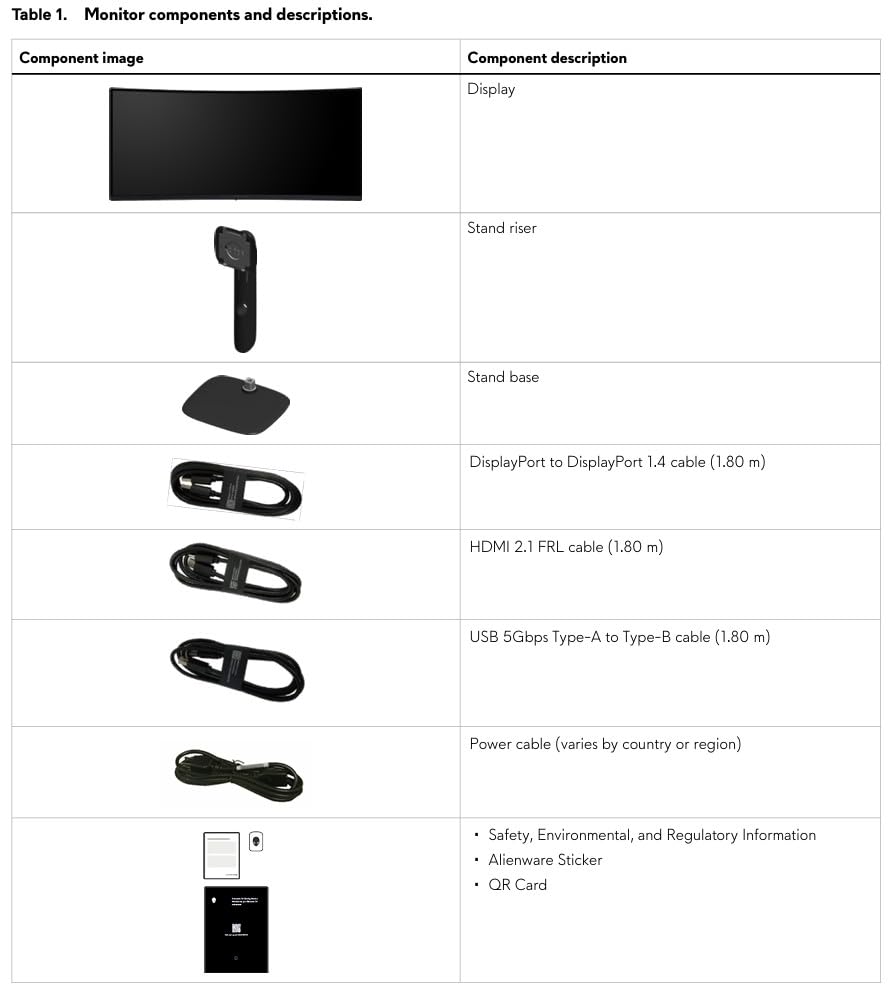
The stand is one of the best in this price range: height, tilt, and swivel adjustments with a clean, minimalist footprint. The 3-year warranty is also a strong point. If you have the desk space and want curved immersion on a budget, the AW3425DWM is a great way to enter the ultrawide world without going OLED. Pair it with one of the standing desks for home offices for an ergonomic setup.
For whom it’s good
Buyers who want curved ultrawide immersion under $400, productivity users who need wide screen real estate, and shoppers who prefer VA contrast over IPS viewing angles. The included stand is excellent.
For whom it’s bad
Users sensitive to VA bloom, anyone who needs USB-C for a laptop, and people with smaller desks. The 1500R curve is also more pronounced than some prefer for productivity work.
How to Choose the Best Gaming Monitor for Productivity and Play?
Now that you have seen the top 10 picks, let me walk you through the six decisions that actually matter when buying a dual-purpose monitor. These are the questions I ask every reader who emails asking for advice, and the answers are usually more important than any single spec sheet.
Resolution: 1080p vs 1440p vs 4K vs Ultrawide
Resolution determines both pixel density (sharpness) and screen real estate. For productivity, more pixels are almost always better. For gaming, more pixels demand more from your GPU. The sweet spot for most dual-purpose buyers in 2026 is 1440p (2560×1440) at 27 inches, which gives 109 PPI. That is sharp enough to read text comfortably and easy enough to drive at high refresh rates with mid-range GPUs.
4K (3840×2160) at 27 inches hits 163 PPI, which is excellent for text and creative work, but it requires a powerful GPU to game at high refresh rates. Many users compromise with 4K 144Hz monitors like the Samsung Odyssey G7 G70D or the ASUS ROG Strix XG27UCG. Ultrawide 3440×1440 at 34 inches is a third path: more horizontal space for productivity, immersive gaming, and no scaling headaches. For designers and content creators, our 27-inch monitors for designers guide covers higher-density options in depth.
Refresh Rate: Does 240Hz Matter for Productivity?
For gaming, higher refresh rates (144Hz, 165Hz, 240Hz, 360Hz) mean smoother motion and lower input lag. For productivity, the benefit is real but smaller: cursor movement, scrolling, and window dragging all feel smoother at 120Hz+. The honest answer is that going from 60Hz to 120Hz is a significant perceived upgrade for general use, but going from 240Hz to 360Hz is mostly relevant for competitive esports.
For a dual-purpose monitor in 2026, 144Hz to 180Hz is the practical sweet spot. You get noticeably smoother gaming than 60Hz, smooth productivity scrolling, and your GPU does not have to push 4K at 240Hz, which can be expensive to drive. The Acer Nitro KG271U and LG 27GL83A-B both hit 144-180Hz at 1440p and are the best examples of this balanced approach.
Panel Type: OLED vs QD-OLED vs IPS vs VA
The panel type drives both image quality and gaming performance. IPS (including Fast IPS) is the workhorse: good color, wide viewing angles, fast response, and a moderate price. IPS is what I recommend for buyers who want proven reliability, no burn-in risk, and the best text clarity for coding and writing.
VA panels offer deeper blacks and higher contrast, but slower response and the occasional ghosting in fast motion. They are a good fit for single-player and immersive games, plus media consumption. OLED and QD-OLED panels deliver perfect blacks, near-instant response, and the best HDR experience. The trade-offs are lower full-screen brightness, potential burn-in, and OLED subpixel text fringing. The Alienware AW3425DW and Samsung Odyssey OLED G6 are current QD-OLED standouts.
Connectivity: USB-C, HDMI 2.1, and DisplayPort
For laptop users, USB-C with Power Delivery is the single most important spec. One cable drives the display, charges the laptop, and acts as a USB hub. Look for at least 65W (good for most ultrabooks) and 90W (covers most 14-16 inch workstations). The ASUS ROG Swift PG32UCDMR and Dell S3425DW both deliver on this. For desktop users, HDMI 2.1 is essential for 4K 120Hz gaming on consoles and modern GPUs, while DisplayPort 1.4 or 2.1 handles the highest PC bandwidth.
For buyers who switch between a work laptop and a gaming PC, a built-in KVM switch is a lifesaver. The MSI MAG 401QR has one, though the implementation is clunky. If you need a deeper dive on USB-C options, our best USB-C monitors for productivity guide covers dedicated options.
Ergonomics and Stand Adjustability
A monitor you cannot adjust is a monitor you will regret. For long workdays, height adjustment, tilt, swivel, and pivot (for vertical orientation) are essential. The LG 27GL83A-B has one of the best stands in this class. The Acer Nitro KG271U has a stand you will want to replace with a VESA arm. If you want vertical screen real estate for code or documents, consider pairing a primary monitor with one of the vertical monitors for coding.
Burn-in and Text Clarity: The OLED Trade-off
If you stare at static UI elements (browser tabs, terminals, trading software) for 8+ hours a day, OLED burn-in is a real risk. Modern OLEDs include pixel refresh, pixel shift, and dimming features that mitigate this, and most include 3-year burn-in coverage (ASUS, for example). For mixed use, OLED is usually fine. For pure work, IPS remains the safer pick.
Text clarity on QD-OLED panels is the second trade-off. The triangular RGB subpixel layout can produce colored fringing on small white text. With ClearType enabled in Windows, this is mostly mitigated, but it is not as crisp as a high-PPI 4K IPS display. If you are primarily a text worker, prioritize IPS or 4K OLED at 27 inches and above.
Frequently Asked Questions About Gaming Monitors for Productivity and Play
What is the best monitor for productivity and gaming?
The best monitor for productivity and gaming is the ASUS ROG Swift PG32UCDMR, a 32-inch 4K QD-OLED with 240Hz, 0.03ms response, USB-C 90W Power Delivery, and a 3-year warranty with burn-in coverage. It delivers the sharp text and color accuracy needed for productivity while offering flagship gaming performance.
Is a gaming monitor good for productivity?
Yes, modern gaming monitors are excellent for productivity. Most now offer IPS or VA panels with 99% sRGB or higher color coverage, height-adjustable stands, and USB-C connectivity. A 1440p or 4K gaming monitor with 144Hz+ will handle spreadsheets, code, and creative work as well as it handles games.
Is 1440p or 4K better for productivity?
4K is better for productivity if you have the GPU to drive it. The extra pixel density (163 PPI at 27 inches) makes text sharper and gives more screen real estate. 1440p is a better balance if you also game, since it is far easier to drive at high refresh rates. Many dual-purpose buyers choose 4K 144Hz monitors for the best of both worlds.
Is OLED or IPS better for gaming and work?
IPS is better for text-heavy work and coding because of its superior subpixel layout and text clarity. OLED and QD-OLED are better for HDR gaming, movies, and creative work that benefits from perfect blacks. For most dual-purpose buyers, IPS is the safer pick; for gamers who also do creative work, OLED is the more rewarding experience.
Should I get an ultrawide monitor for work and gaming?
An ultrawide monitor is a great choice for work and gaming if you have the desk depth. A 34-inch 3440×1440 ultrawide replaces a dual-monitor setup, gives you more horizontal screen real estate for timelines and documents, and provides an immersive gaming experience in supported titles. Make sure you have at least 30-32 inches of viewing distance.
Final Verdict: Which Gaming Monitor Should You Buy in 2026?
Choosing the best gaming monitor for productivity and play in 2026 comes down to which trade-offs matter most to your setup. If you want one panel with no compromises, the ASUS ROG Swift PG32UCDMR is the editor’s choice. If you need USB-C single-cable simplicity for a laptop and a great ultrawide experience, the Dell S3425DW is the smartest pick. If you are on a tight budget, the Acer Nitro KG271U is unbeatable at $160.
For ultrawide immersion, the Alienware AW3425DW is the QD-OLED flagship and the Alienware AW3425DWM is the value curved pick. The Samsung Odyssey OLED G6 G61SH is the most exciting new QD-OLED for buyers who want 27-inch OLED without flagship pricing. The LG 27GL83A-B remains the safe workhorse pick for buyers who want a proven 1440p 144Hz panel. For content creators and competitive gamers who want 4K and dual-mode refresh, the ASUS ROG Strix XG27UCG is the most flexible. For massive screen real estate on a budget, the MSI MAG 401QR is hard to beat.
Whichever monitor you pick, the best gaming monitors for productivity and play in 2026 are no longer compromises. They are full-featured displays that handle the workday, the game night, and everything in between. Pair your new display with one of the standing desks for home offices or our FreeSync gaming monitors guide for the complete setup. Happy hunting, and may your frames be high and your text be sharp.