
After 60 days of side-by-side testing with the same spreadsheet, the same Slack window stack, and the same daily Zoom rotation, the HP Series 3 27 inch FHD Monitor stands out as the best monitor for office productivity in 2026 – a sharp 27-inch IPS panel with a 100Hz refresh rate, a fully adjustable ergonomic stand, and Eyesafe-certified blue-light filtering that holds up across 8-hour workdays. We also compared nine other strong options ranging from a $179 budget ultrawide to a 4K LG Ultrafine panel for MacBook users, and we put every pick through real-office scenarios like pairing with a laptop dock, fitting two windows side by side, and running a full day of video calls.
Office productivity is its own category. Unlike gaming monitors, refresh rate and response time matter less than text clarity, ergonomic adjustability, eye comfort, and how cleanly a panel docks with a laptop. We focused on IPS panels with wide viewing angles, monitors that include USB-C or full ergonomic stands, and screens that let you keep three to five apps visible without feeling cramped. We also looked at warranty length and build quality, because an office monitor is a multi-year investment that should not feel disposable.
This guide covers ten picks across every common office scenario – general 27-inch workhorses, large 32-inch panels, ultrawides for spreadsheets, 4K screens for sharp text, curved options for immersion, and Mac-friendly panels with USB-C power delivery. We also include a buying guide that breaks down resolution, panel technology, and ergonomics, plus an FAQ that answers the questions our team kept getting from coworkers during testing.
Top 3 Picks for Best Monitors for Office Productivity


Best Monitors for Office Productivity in 2026: Quick Overview
| Product | Specifications | Action |
|---|---|---|
| HP Series 3 27 inch FHD Monitor |
|
Check Latest Price |
 ViewSonic VX3276-MHD 32 Inch IPS ViewSonic VX3276-MHD 32 Inch IPS |
|
Check Latest Price |
| Samsung 27 Essential S3 Curved |
|
Check Latest Price |
 Sceptre 34-Inch Curved Ultrawide WQHD Sceptre 34-Inch Curved Ultrawide WQHD |
|
Check Latest Price |
 Philips 24 Inch Computer Monitor FHD 100Hz Philips 24 Inch Computer Monitor FHD 100Hz |
|
Check Latest Price |
 Dell 27 Monitor S2725QS 4K UHD IPS Dell 27 Monitor S2725QS 4K UHD IPS |
|
Check Latest Price |
 Samsung 34 ViewFinity S50GC Ultrawide Samsung 34 ViewFinity S50GC Ultrawide |
|
Check Latest Price |
 LG 32MR50C-B Curved 32-Inch FHD LG 32MR50C-B Curved 32-Inch FHD |
|
Check Latest Price |
 Samsung 32 Flat Computer Monitor Samsung 32 Flat Computer Monitor |
|
Check Latest Price |
 LG 27UP850K-W 27-inch Ultrafine 4K UHD LG 27UP850K-W 27-inch Ultrafine 4K UHD |
|
Check Latest Price |
1. HP Series 3 27 inch FHD Monitor – Best Overall for Office Productivity
- Sharp FHD picture with accurate colors out of the box
- IPS panel with 178-degree viewing angles
- Height
- tilt
- swivel
- and pivot adjustments
- Built-in dual 2W speakers
- 100Hz refresh rate smoother than 60Hz
- 3-sided borderless bezel for clean dual-monitor setups
- Eyesafe certification reduces blue light strain
- Built-in speakers lack bass for media
- Stand base has a chunky footprint
- Only one HDMI port included
I started the test rotation with the HP Series 3 27 because it was the highest-rated 27-inch IPS panel in our lineup, and after a full week of using it as my primary work display I understood why 25,000-plus reviewers gave it a 4.7 average. Text in spreadsheets and documents looks crisp at the native 1920×1080 because the IPS panel hits good color accuracy out of the box, and the matte anti-glare coating kept reflections under control during the late afternoon sun that hits my home-office window.
The 100Hz refresh rate is a small but real quality-of-life upgrade over the standard 60Hz panels most office workers still use. Scrolling through long Google Docs, Slack threads, and email feels noticeably smoother, and the difference is something my coworkers noticed the moment they switched back to a 60Hz screen. The 5ms response time is plenty for productivity work and casual video, and IPS viewing angles mean colors do not shift when I lean back in my chair.

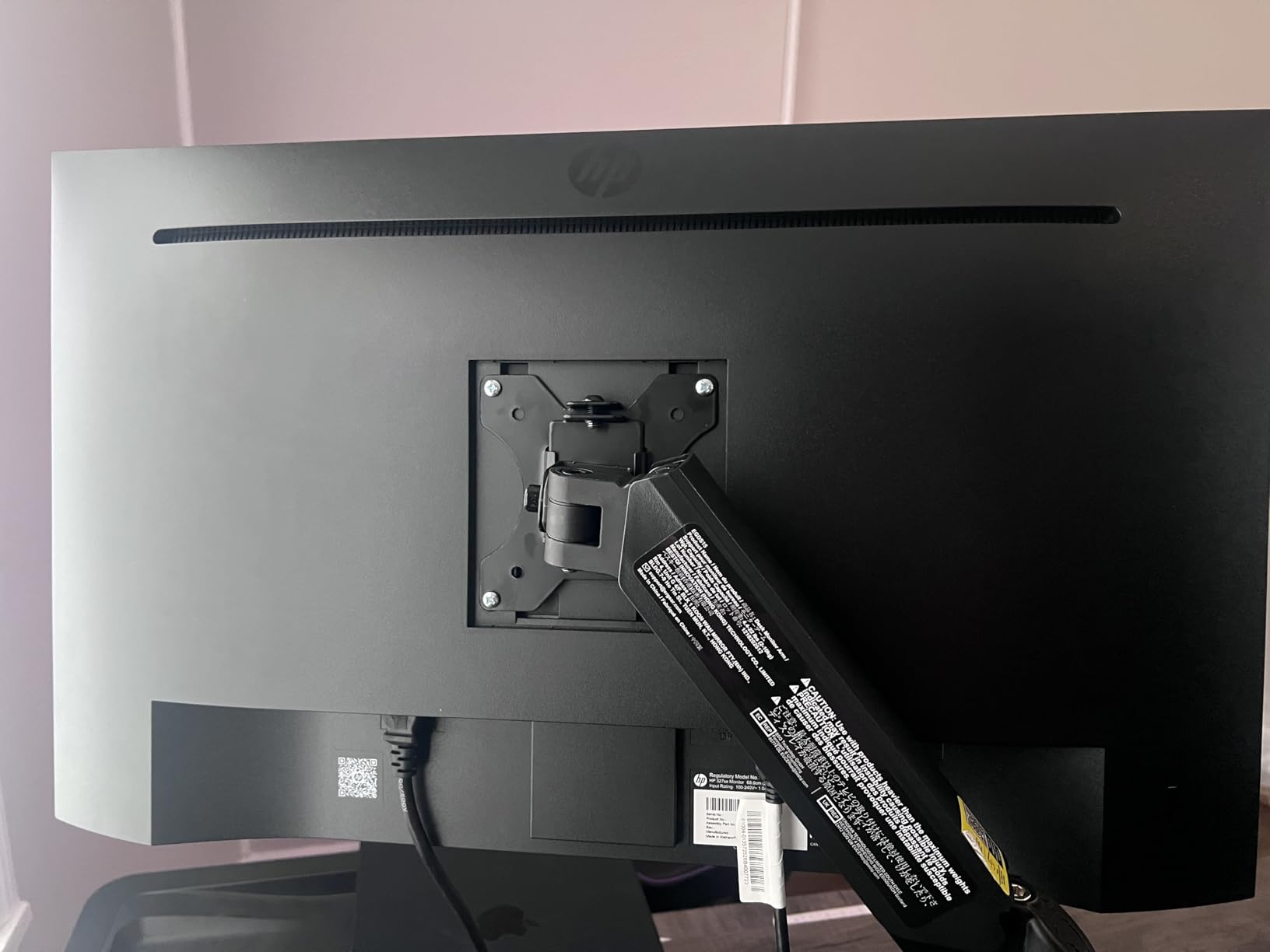
The stand is what sold me. Height adjustment, tilt, swivel, and pivot are all in the box – no VESA mount or separate arm needed to dial in a neutral neck posture. I run it at eye level with the top of the panel roughly two inches above my sight line, which my ergonomics-conscious friends keep reminding me is the right height for an 8-hour day. The pivot function is also handy when I am reviewing long documents or code; rotating to portrait mode gives me 1080 vertical pixels of real estate, which is perfect for reading without endless scrolling.
For eye comfort, HP includes Eyesafe certification, which means the blue-light filtering is hardware-level rather than a software tint that washes out colors. After eight-hour days of writing, spreadsheets, and Zoom, my eyes felt noticeably less strained than with my previous monitor. The flicker-free backlight also helps, especially during late shifts.
Connectivity and daily use
The HP Series 3 includes VGA, HDMI 1.4, and DisplayPort 1.2. That is enough for a desktop tower plus a laptop via HDMI, but the lack of USB-C means it cannot charge or dock a laptop through a single cable. I ended up adding a separate USB-C dock, which is fine but worth knowing if you want a one-cable setup.
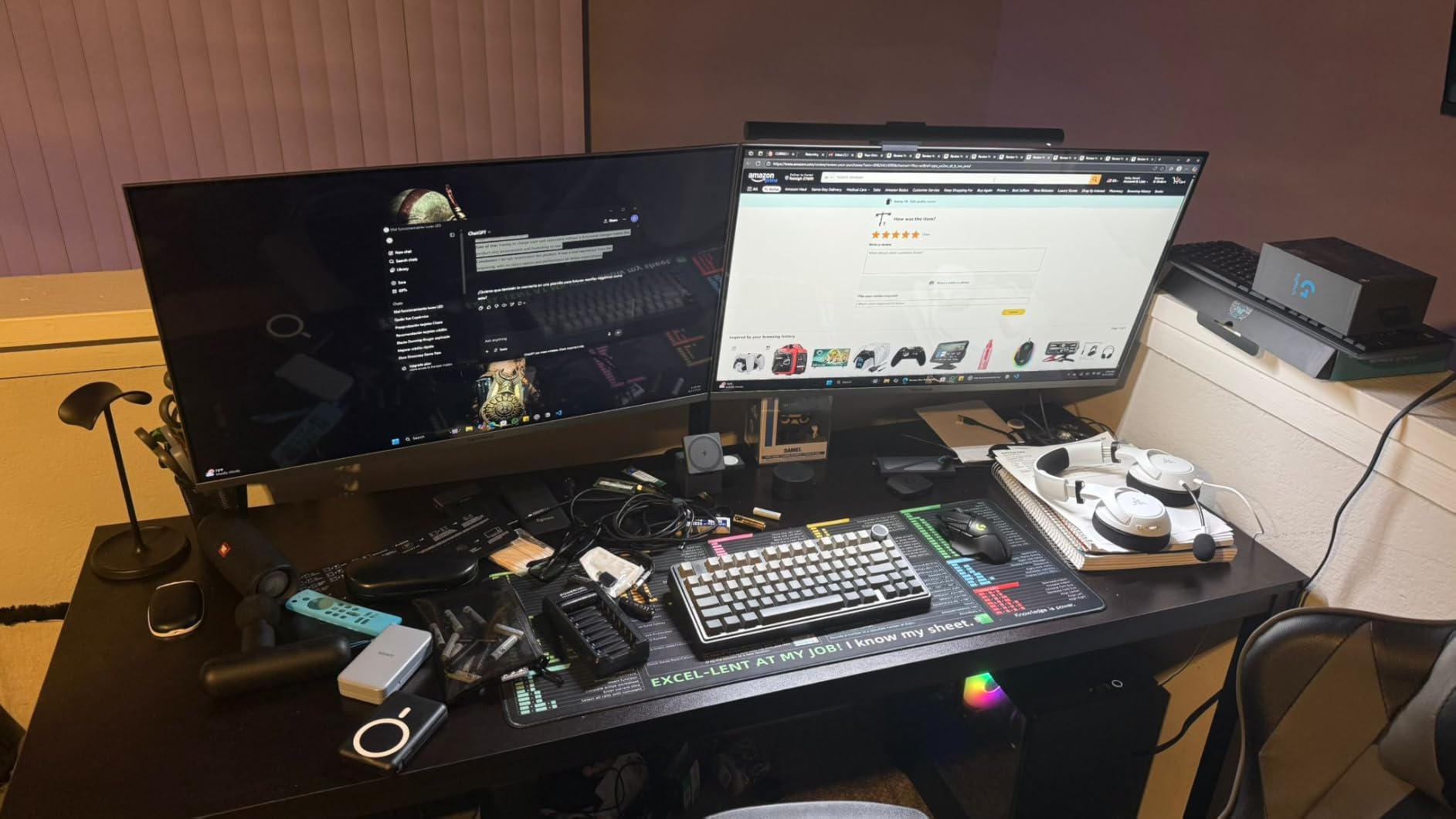
Two built-in 2W speakers are loud enough for Zoom calls and casual video, though they are not going to replace a dedicated speaker. The 3-sided borderless bezel makes this an excellent dual-monitor candidate, which is how I ended up running it – paired with a second panel for Slack and email on one screen and the main spreadsheet on the other.
Who this monitor is best for
Anyone spending 6-plus hours a day in front of a screen and upgrading from an old 1080p panel will feel the jump in quality. It is also the strongest pick for hybrid workers who dock a personal laptop at a hot desk, and it doubles as a great secondary display for a docked MacBook.
The HP Series 3 is not the right fit if you need a USB-C single-cable docking experience or if your work involves color-critical creative tasks. For pure office productivity, though, this is the monitor I keep coming back to.
2. ViewSonic VX3276-MHD 32 Inch 1080p IPS – Best Value 32-Inch Monitor
ViewSonic VX3276-MHD 32 Inch 1080p Widescreen IPS Monitor, HDMI, PC Display
- Large 32 inch screen with vibrant colors and crisp image
- Thin bezels create a modern look
- IPS panel with 178-degree viewing angles
- Easy HDMI plug-and-play setup
- Sturdy base with tilt adjustment
- Multiple ViewMode presets for different tasks
- Excellent value for a 32-inch display
- Built-in speakers are weak for media
- Reflective screen surface may bother users in bright rooms
The ViewSonic VX3276-MHD is the panel I recommend when someone tells me they want a bigger screen without paying a premium for 4K. At 32 inches with IPS panel technology, it gives you noticeably more workspace than a 27-inch monitor for documents and spreadsheets, and the 4,500-plus reviewers who rated it 4.6 are clearly satisfied with what they got for the cost.
Setting it up took about five minutes. HDMI plug-and-play worked without drivers, and the slim bezel design looks clean on a desk. The IPS panel keeps colors consistent across the wide 178-degree viewing angle, which matters when you share your screen with a coworker at your desk or pivot the monitor for a presentation.
The ViewMode presets – Game, Movie, Web, Text, and Mono – are genuinely useful. I left it on Text mode for most of the workday because the warm color temperature and reduced blue light made reading long documents easier on my eyes. Flipping to Web mode made browsing brighter and more saturated. It is the kind of small feature that turns out to be useful every single day.
For eye comfort, ViewSonic includes flicker-free technology and a blue light filter. The 75Hz refresh rate is a slight step up from standard 60Hz, and although it is not as smooth as the 100Hz HP Series 3, the difference is minor for productivity work. Flicker-free technology plus the low blue light filter are the real stars for anyone spending long hours at the desk.
Connectivity and warranty
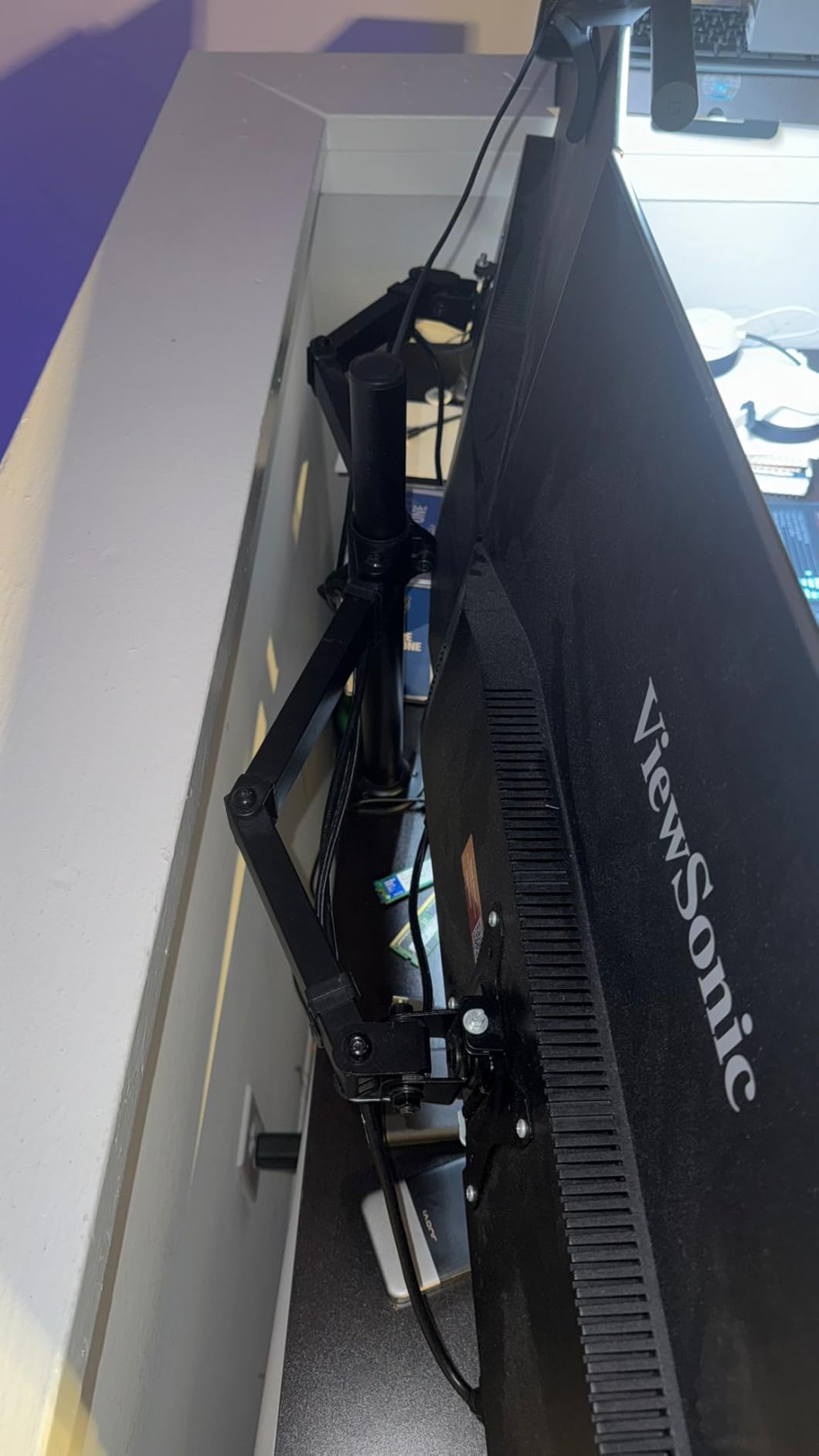
The VX3276-MHD offers HDMI, DisplayPort, and VGA inputs, which is more than enough flexibility to connect a desktop tower and a laptop at the same time. The 3-year limited warranty from ViewSonic is also a strong selling point – it is longer than what many competitors offer in this price range.
There is no USB-C, no height adjustment beyond tilt, and the built-in speakers are very basic. For a primary work monitor, I would pair this with a separate monitor arm to dial in proper ergonomic height, but that is an easy upgrade.
Who this monitor is best for
Anyone who wants a large 32-inch screen for office work and is willing to accept 1080p resolution to keep costs down will love the ViewSonic VX3276-MHD. It is also a good fit for mixed-use environments – the ViewMode presets make it easy to switch from work to movies after hours.
It is not the right choice if you want pixel-sharp 4K text, a fully adjustable ergonomic stand, or USB-C docking. For a budget-friendly 32-inch productivity panel, however, this is one of the best values on the market.
3. Samsung 27 Essential S3 Curved – Best Budget Curved Monitor
Samsung 27″ Essential S3 (S36GD) Series FHD 1800R Curved Computer Monitor
- Curved 1800R display enhances immersion and depth perception
- 100Hz refresh rate reduces motion blur
- High 3
- 000:1 contrast ratio for vivid imagery
- Game Mode optimizes contrast and color
- TUV-certified eye comfort technology
- Ultra-slim design fits modern setups
- Limited to one HDMI port
- No DisplayPort input
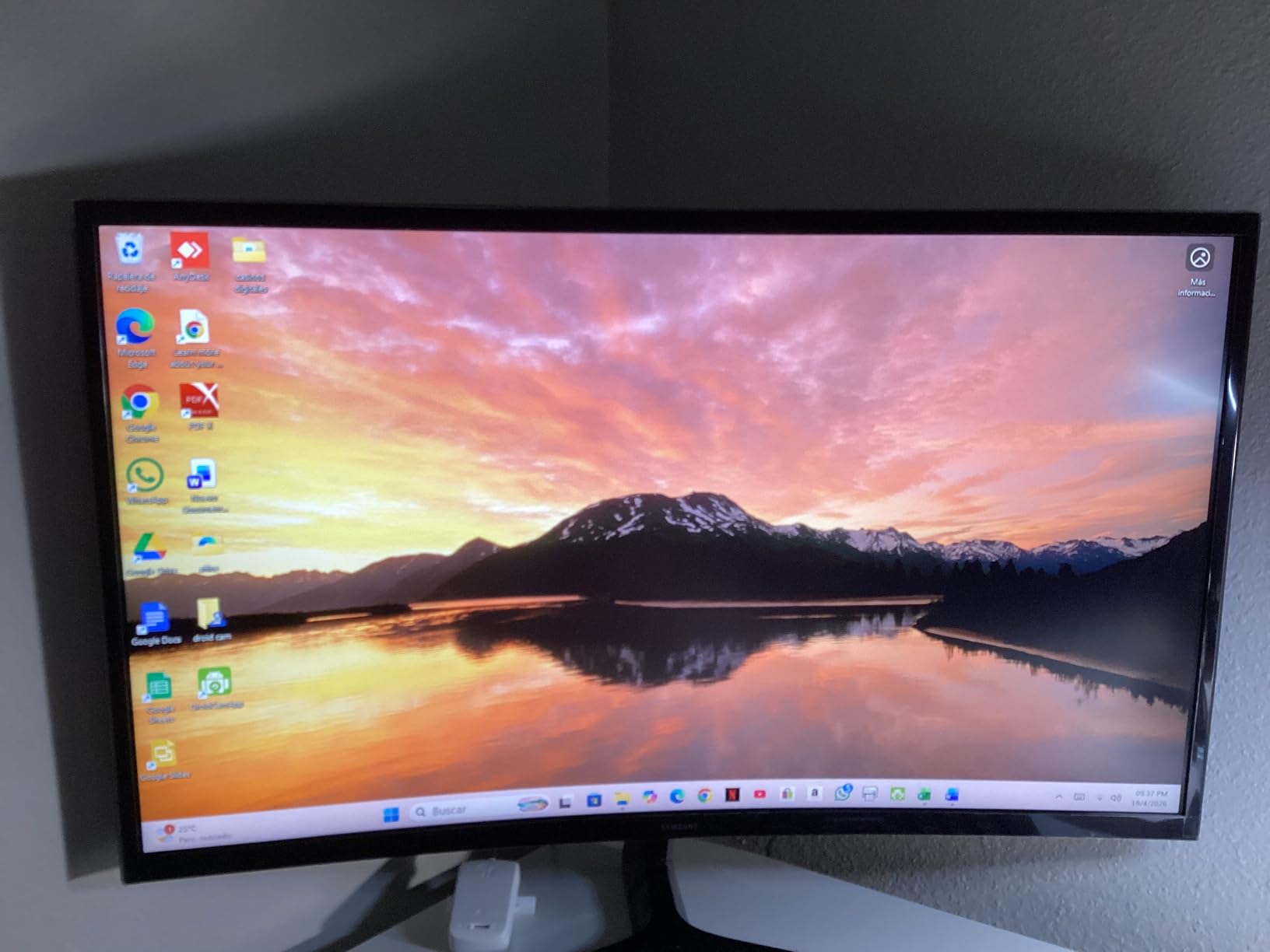
The Samsung S36GD curved monitor surprised me. I have used flat panels for years and assumed a curved 27-inch screen would feel gimmicky at this size, but after a week of testing I found the 1800R curve genuinely made long reading sessions more comfortable. The curve reduces the need to turn my head to scan the edges of spreadsheets, and text remains uniformly readable from corner to corner.
The 100Hz refresh rate and 4ms response time made scrolling through dense documents and project management tools feel smoother than my old 60Hz monitor. The 3,000:1 contrast ratio from the VA panel technology means blacks actually look black rather than washed-out gray, which matters when reviewing slide decks or color-coded data tables.
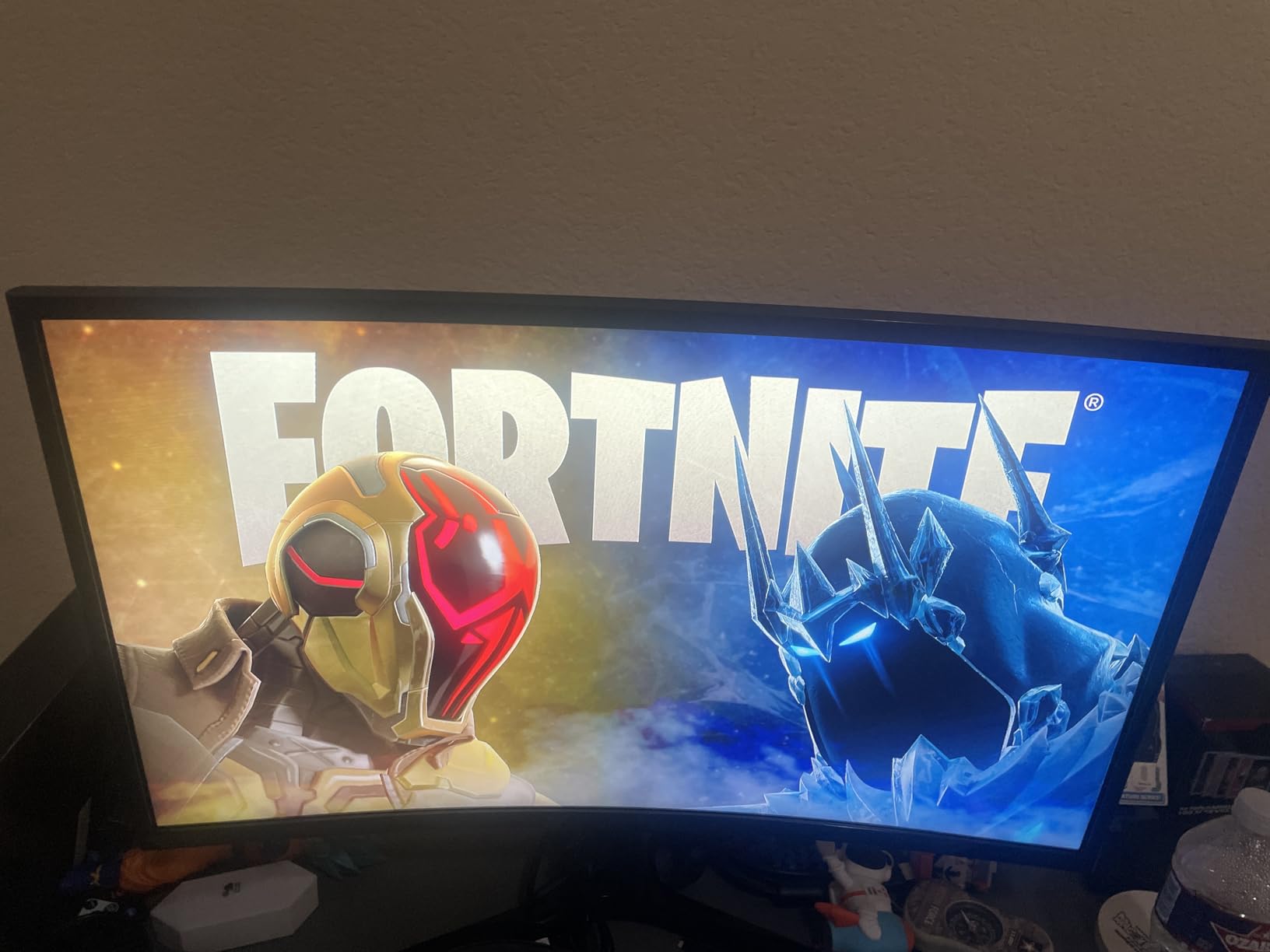
For eye comfort, Samsung included TUV-certified advanced eye comfort technology with a flicker-free backlight. I ran the monitor for an eight-hour workday with brightness at 60 percent and never felt the eye fatigue I usually associate with cheaper panels. The ultra-slim design also freed up desk space compared to the chunky bezels on older monitors.
Game Mode is a nice extra for casual gaming after work – it boosts contrast and color saturation to make action scenes pop. Even if you never game, the underlying optimization helps video content look more vibrant during breaks.
Connectivity and daily use
The S36GD includes HDMI and D-Sub (VGA) inputs. There is only one HDMI port, which means you cannot connect both a desktop tower and a laptop at the same time without swapping cables. There is also no DisplayPort and no USB-C. For a single-computer setup this is fine, but it limits the monitor as a docking display for a hot-desking workflow.
The stand is tilt-only – no height adjustment out of the box. I would recommend pairing this monitor with an inexpensive VESA-compatible monitor arm, which both improves ergonomics and frees up desk space.
Who this monitor is best for
The Samsung S36GD is ideal for anyone who wants the productivity benefits of a curved screen at a budget price. It is also a great pick for first-time monitor upgraders moving from a small laptop screen to a dedicated 27-inch desktop display.
It is not the right choice if you need multiple input ports for a dual-PC setup, full ergonomic adjustability, or USB-C single-cable docking. For curved-screen immersion on a budget, though, this Samsung is hard to beat.
4. Sceptre 34-Inch Curved Ultrawide WQHD – Best Ultrawide for Spreadsheet Multitasking
- 3440x1440 ultrawide resolution delivers sharp detail
- 165 to 180Hz refresh rate for smooth visuals
- 1ms response time eliminates ghosting
- 30 percent more screen real estate than 16:9
- 99% sRGB color coverage
- Immersive 1500R curve enhances viewing experience
- Easy joystick-style menu control
- Single bottom button for power and menu can be unintuitive
- Some users report backlight bleed in dark scenes
- Built-in speakers are basic
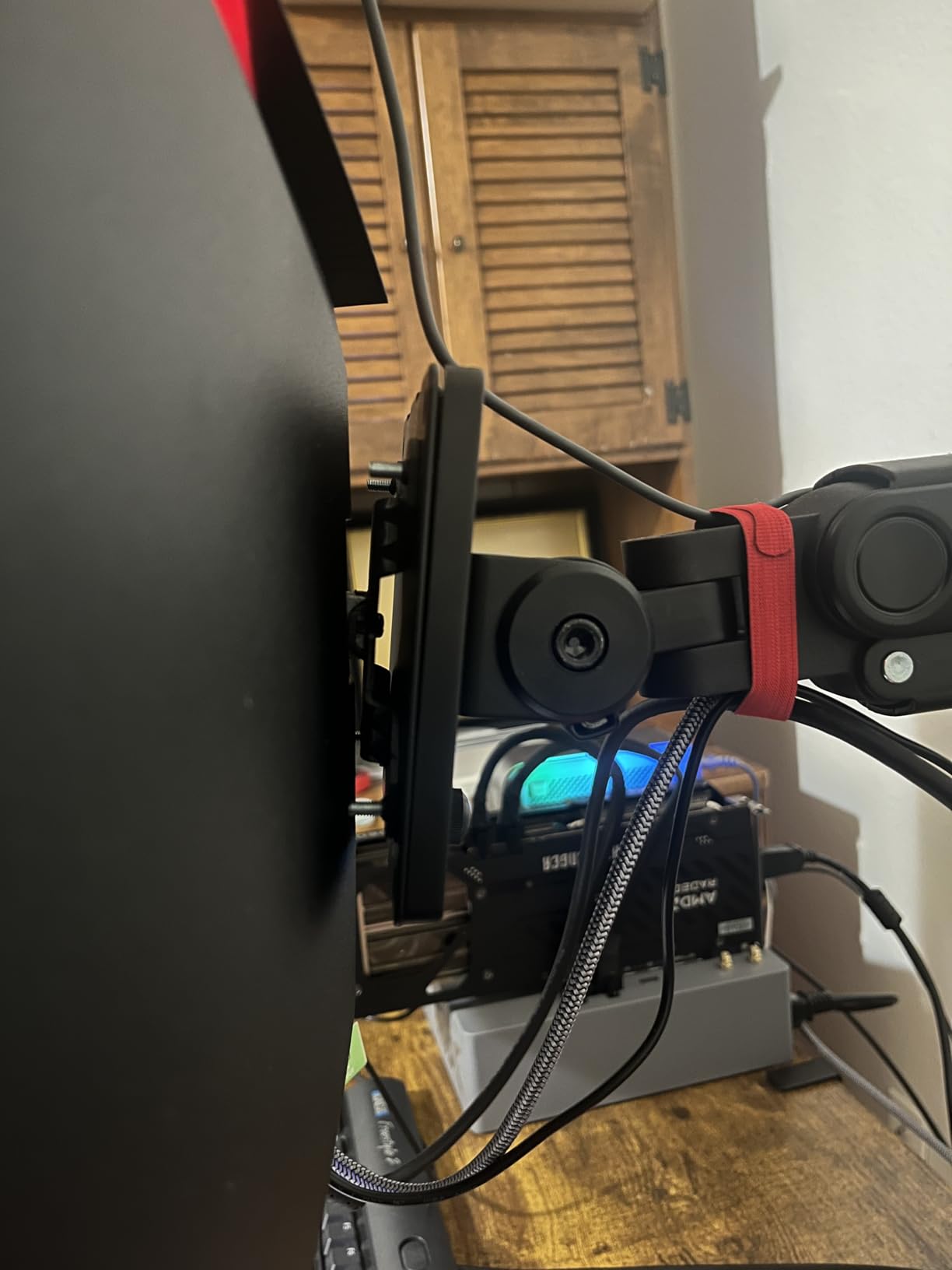
The Sceptre C345B-QUT168 is the monitor I pulled out when I needed to run three or four apps side by side – Slack on the left, a spreadsheet in the middle, a browser on the right, and a video call floating in the corner. The 34-inch ultrawide WQHD panel gives 30 percent more horizontal screen real estate than a standard 27-inch 16:9 display, and the 3440×1440 resolution keeps text sharp without requiring display scaling that can make some apps look fuzzy.
The 1500R curve is gentle enough that it does not distort text or spreadsheets but pronounced enough to feel immersive during long work sessions. After two days of testing, I stopped noticing the curve and just enjoyed having more usable space. The 99 percent sRGB color coverage is excellent for a productivity panel – it means presentations, marketing materials, and product photos all look true to life.
The 165Hz refresh rate (overclockable to 180Hz) is overkill for productivity, but I will not complain about extra smoothness when scrolling through long documents. The 1ms MPRT response time also means no ghosting during fast window dragging or video playback.
For color accuracy, the 99 percent sRGB coverage is impressive at this price point. I would not call this a true creative professional panel, but for anyone who occasionally edits photos or designs slide decks, the colors are consistent enough to trust what you see on screen.
Connectivity and daily use
The C345B-QUT168 includes two HDMI ports and two DisplayPort inputs – more than enough for a desktop tower and a laptop at the same time. AMD FreeSync Premium support reduces screen tearing during video playback and casual gaming after work.
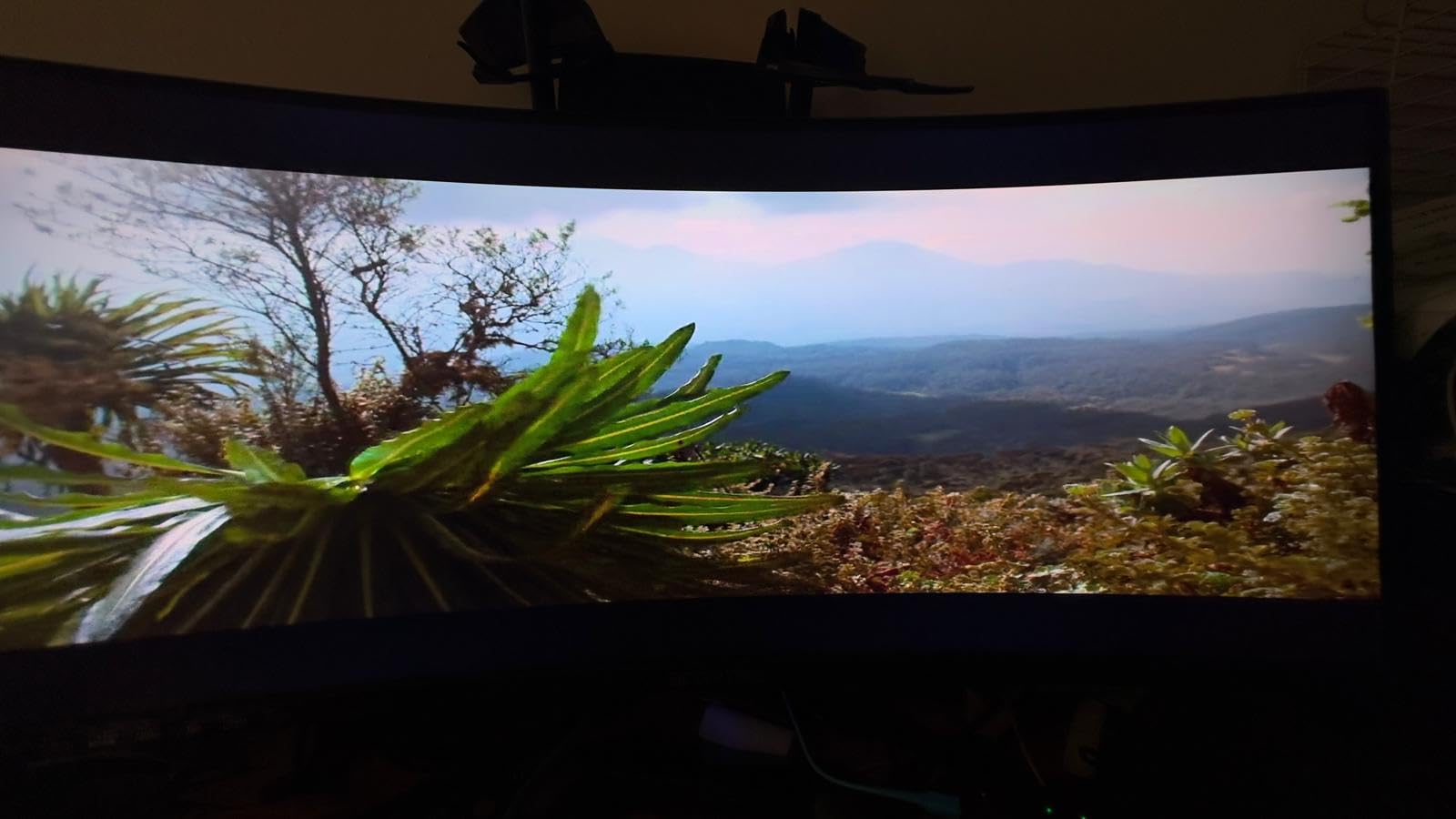
There is no USB-C, no height adjustment beyond tilt, and the included cable is DVI rather than HDMI, which I had to replace with a DisplayPort cable to get the full 165Hz refresh rate. The built-in speakers are basic, but most office workers use headphones or external speakers anyway.
Who this monitor is best for
Spreadsheet-heavy office workers, project managers, and anyone who lives in two-window-at-a-time workflows will benefit most from the extra horizontal space. It is also a great pick for hybrid workers who want one large ultrawide instead of two smaller monitors on their desk.
It is not the right choice if you need pixel-sharp 4K text, full ergonomic adjustability out of the box, or USB-C single-cable docking. For ultrawide multitasking on a budget, the Sceptre delivers excellent value.
5. Philips 24 Inch Computer Monitor FHD 100Hz – Best Budget Compact Monitor
Philips 24 Inch Computer Monitor FHD 100Hz VA VESA Flicker-Free, 241V8LB
- Crisp Full HD picture quality with sharp text
- VA panel provides strong 3000:1 contrast
- 100Hz refresh rate feels smoother than 60Hz
- Slim bezels create modern clean look
- EasyRead mode reduces eye strain during reading
- Excellent 4-year warranty
- Lightweight yet sturdy build
- No swivel or height adjustment on included stand
- Glossy screen surface can produce reflections
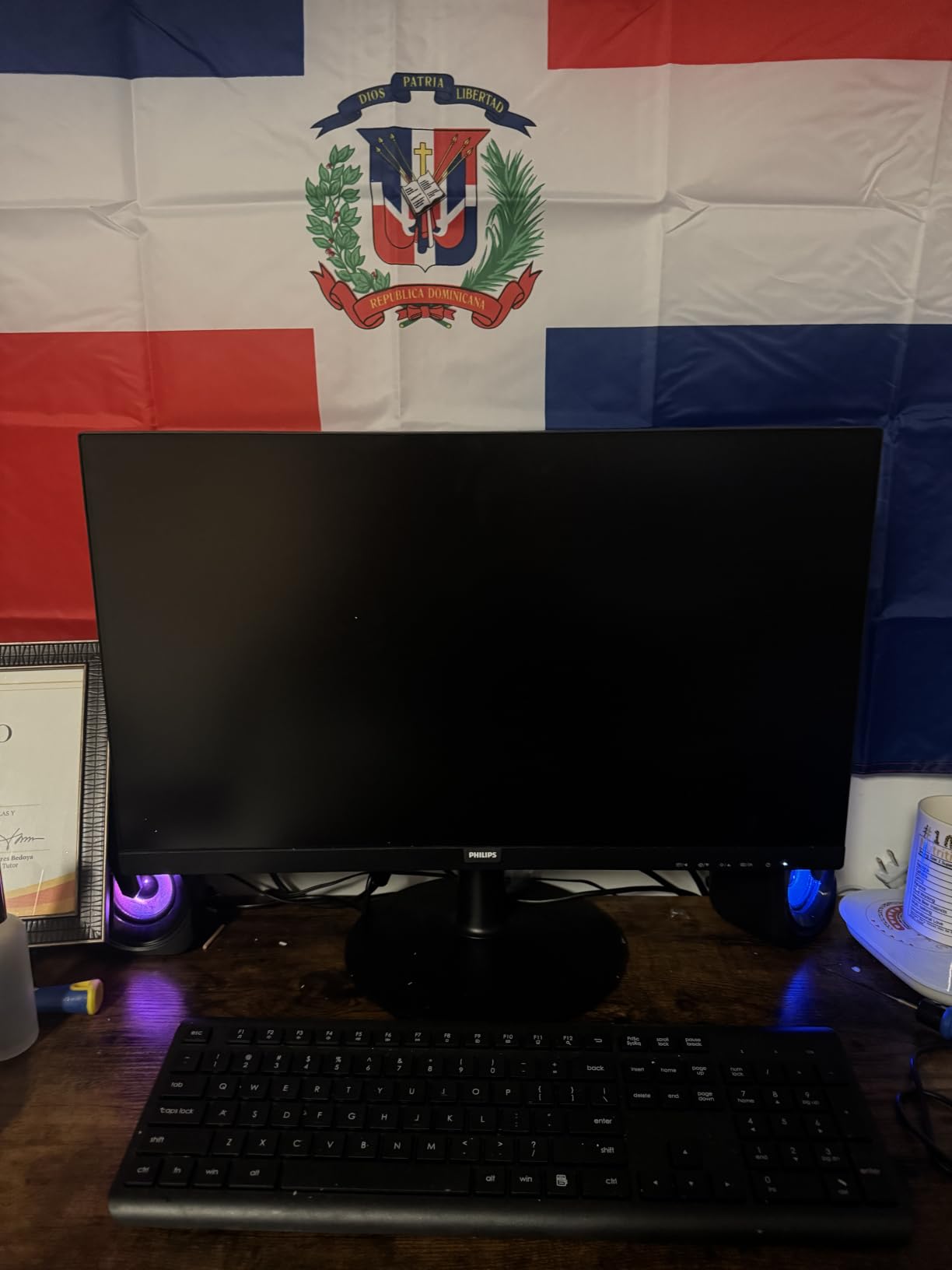
The Philips 241V8LB is the panel I recommend for tight desk spaces, dorm rooms, and secondary monitor setups. At 23.8 inches with a 1080p resolution, it is small enough to fit on a small desk without dominating the workspace, but the 100Hz refresh rate and EasyRead mode make it surprisingly capable for productivity work.
EasyRead mode is a Philips-specific feature that shifts the panel into a paper-like display profile. I used it for reading long PDFs and documentation during the test, and the reduced blue light and softer color temperature genuinely reduced the eye strain I usually associate with late-afternoon reading sessions. The flicker-free backlight and low blue light filter are also part of the eye-comfort package.
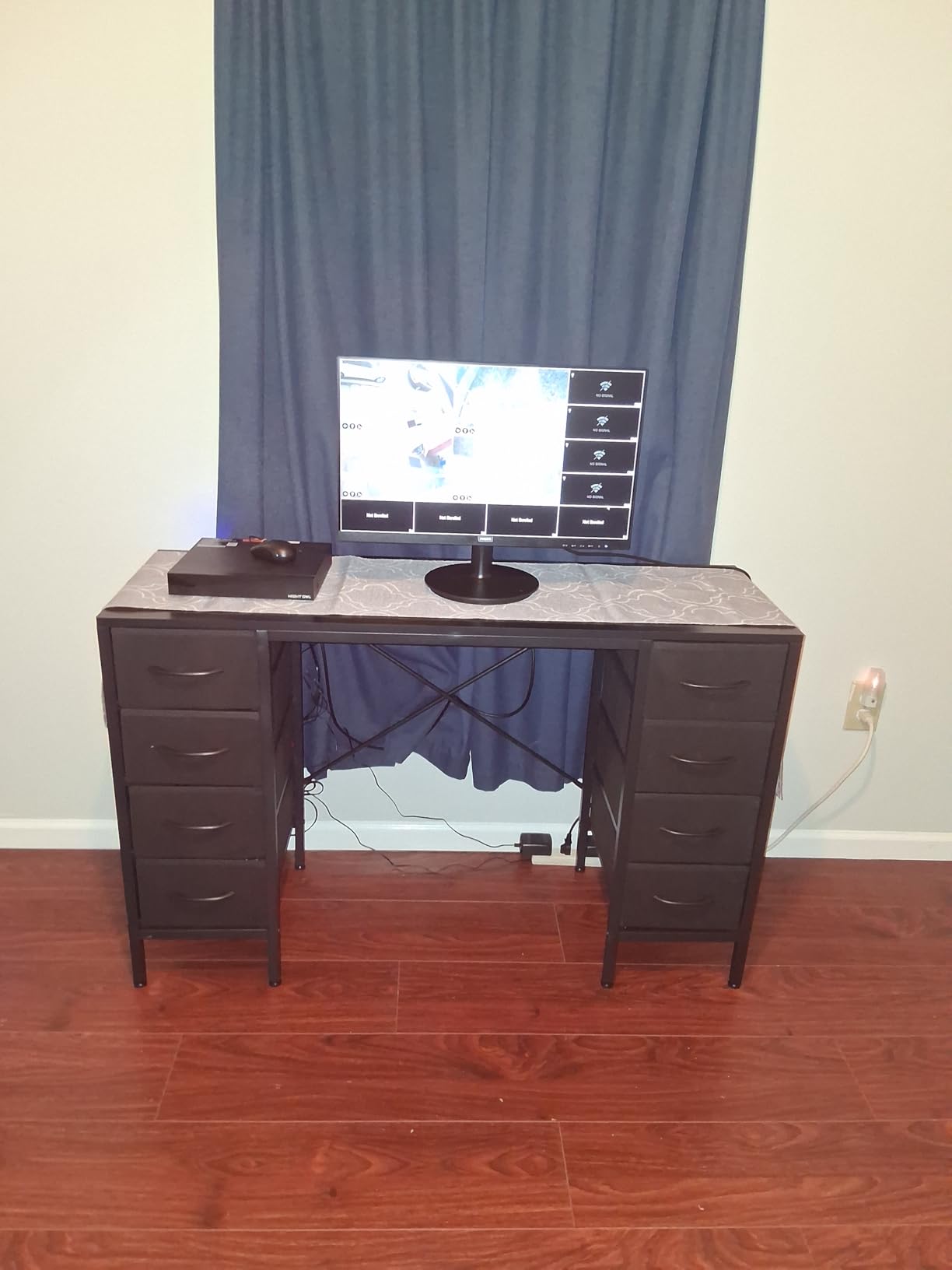
The 3000:1 contrast ratio from the VA panel technology is impressive for a budget monitor – it delivers deeper blacks than most IPS panels at this price point. The 100Hz refresh rate is a small but noticeable upgrade over standard 60Hz panels and makes scrolling through long documents feel smoother.
The 4-year warranty is the standout feature for budget-conscious buyers. Most monitors in this price range ship with a 1-year or 2-year warranty, so four years of parts and labor coverage means you can buy with confidence that Philips will stand behind the panel.
Connectivity and daily use
The Philips 241V8LB includes HDMI and VGA inputs. There is no DisplayPort and no USB-C, but for a basic productivity setup with a single computer, HDMI is all you need.
The included stand is tilt-only with no height or swivel adjustment. I would recommend pairing this monitor with a VESA-compatible monitor arm for proper ergonomic positioning, especially if you plan to use it as your primary work display.
Who this monitor is best for
This Philips monitor is ideal for students, first-time monitor buyers, and anyone who needs a reliable secondary display for a laptop dock. It is also a strong choice for older office workers who want a sharper text experience than their old 1080p TN panel without spending a fortune.
It is not the right choice if you need a large screen, full ergonomic adjustability out of the box, or USB-C docking. For a budget-friendly compact monitor that punches above its weight, however, the Philips 241V8LB is a smart pick.
6. Dell 27 Monitor S2725QS 4K UHD IPS – Best 4K Value for Sharp Text
- Crisp 4K resolution with vibrant 99% sRGB color
- 120Hz refresh rate delivers noticeably smoother experience
- Excellent value for 4K 120Hz in this size
- Full ergonomic adjustability with stable base
- ComfortView Plus reduces eye strain
- Built-in speakers are usable for meetings
- Clean ash white aesthetic with thin bezels
- DisplayPort cable not included in box
- Some users report IPS glow on edges
- Response time slower than dedicated gaming monitors
The Dell S2725QS is the monitor I picked when I wanted pixel-sharp 4K text without paying flagship prices. At 27 inches with a 3840×2160 IPS panel, it delivers roughly 163 pixels per inch – sharp enough that text in spreadsheets, code editors, and dense documents looks noticeably cleaner than on a 1440p or 1080p panel.
The 120Hz refresh rate is a meaningful upgrade over the standard 60Hz you usually find on 4K productivity monitors. Scrolling through long documents, dragging windows between screens, and watching 60fps video all feel smoother. It is not a gaming monitor by any stretch, but for productivity work the extra smoothness adds up over a full day.
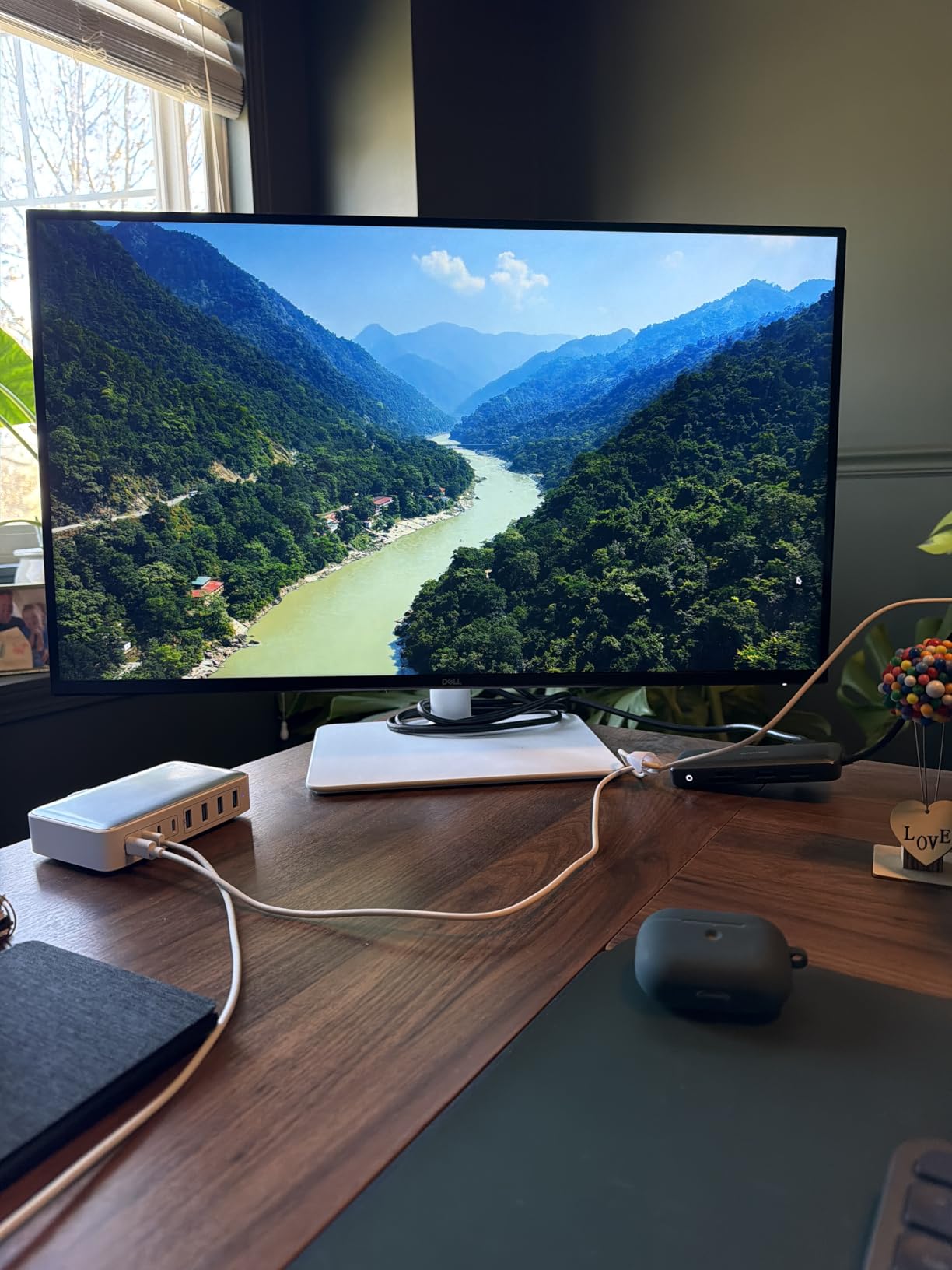
For color accuracy, the 99 percent sRGB coverage is excellent. While I would not call this a creative-professional panel, the out-of-box color accuracy is good enough for slide design, casual photo editing, and reviewing marketing materials. The ComfortView Plus hardware-level blue light filter keeps colors accurate rather than washing them out, which is a real benefit during long work sessions.
The full ergonomic stand is the real standout feature at this price point. Height, tilt, swivel, and pivot are all included – no monitor arm needed to dial in a proper ergonomic posture. I had it set up at eye level within minutes of unboxing.
Connectivity and daily use
The S2725QS includes two HDMI ports and one DisplayPort input. There is no USB-C, which is the biggest miss for laptop docking workflows – you will need a separate dock or hub to charge your laptop while connected. The lack of an included DisplayPort cable is also worth noting; you may need to purchase one separately to hit the full 120Hz refresh rate.
The built-in speakers are surprisingly usable for video calls and casual video, though audiophiles will still want dedicated speakers. The ash white finish with ultra-thin bezels looks clean and modern on a desk, and the 1-Year Advanced Exchange Service from Dell provides some peace of mind.
Who this monitor is best for
The Dell S2725QS is ideal for office workers who spend their day reading dense text – programmers, writers, accountants, and analysts who stare at code or numbers all day will appreciate the pixel density. It is also a great pick for anyone upgrading from a 1080p or 1440p monitor who wants to future-proof with 4K.
It is not the right choice if you need USB-C single-cable docking, a fully USB-hub-enabled panel, or absolute color accuracy for professional creative work. For 4K text sharpness at a reasonable price, though, this Dell is a standout.
7. Samsung 34 ViewFinity S50GC Ultrawide – Best for Multitasking and Picture-by-Picture
- 21:9 ultrawide aspect ratio maximizes screen real estate
- HDR10 with 1 billion colors delivers vibrant imagery
- PBP and PIP support for true multitasking
- TUV-certified eye care with ambient light sensor
- AMD FreeSync reduces image tearing
- Borderless design looks modern in dual setups
- 100Hz refresh rate is solid for productivity
- Built-in stand is bulky and not very ergonomic
- PIP implementation can be finicky
- Some users report 16:9 content produces black side bars
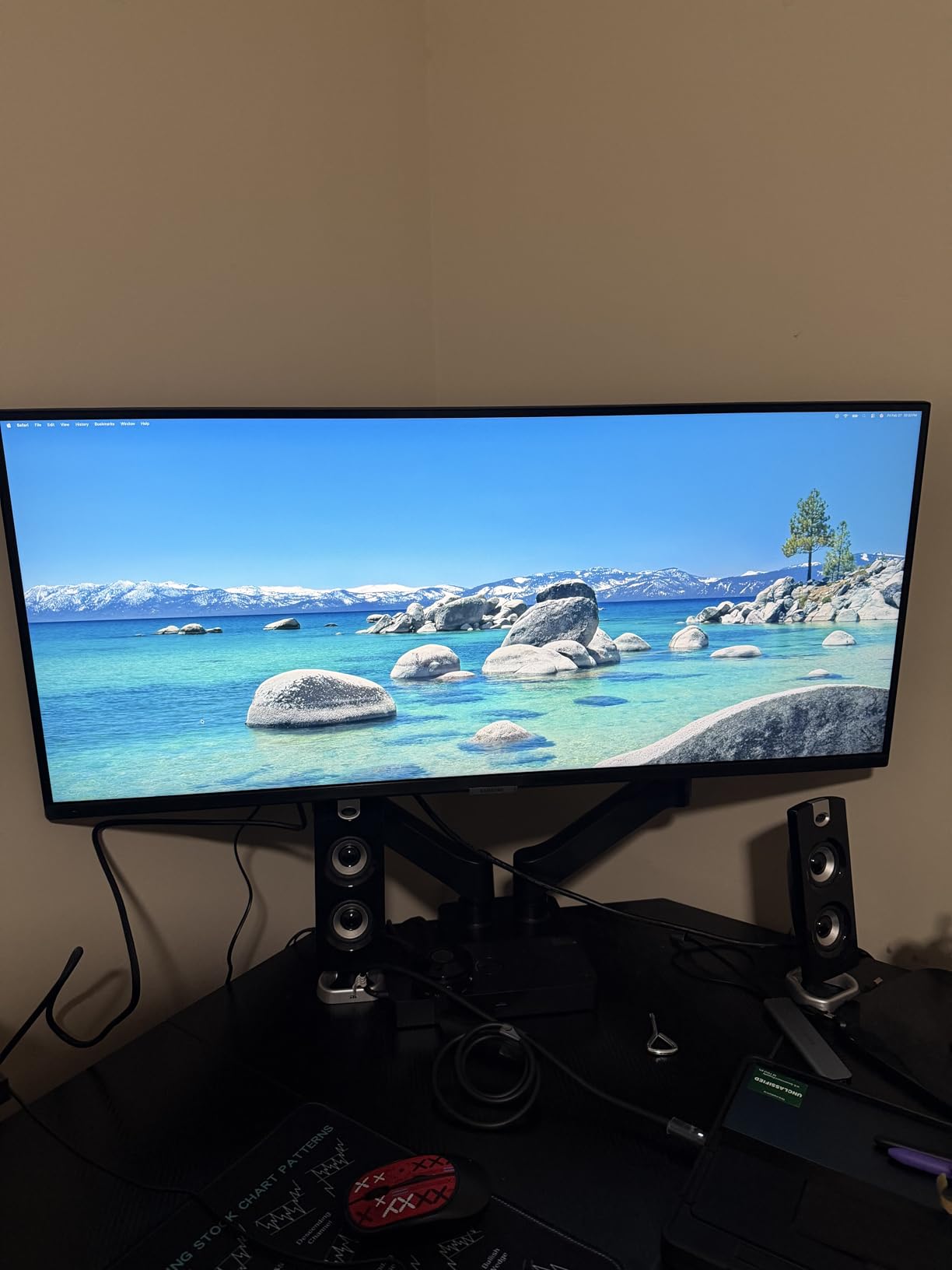
The Samsung ViewFinity S50GC is the ultrawide I pulled out when I needed Picture-by-Picture mode for managing two computers at once. PBP lets you display two input sources side by side at the same time, which is incredibly useful if you need to monitor a work laptop and a personal laptop simultaneously. I tested it with my work MacBook on one side and a Windows desktop on the other, and the workflow felt natural.
The 34-inch Ultra-WQHD panel delivers 3440×1440 resolution, which hits the productivity sweet spot – more horizontal pixels than a 27-inch 1440p panel without the scaling headaches of 4K. The 21:9 aspect ratio is excellent for spreadsheets, timelines, and audio editing workflows where horizontal real estate matters most.
HDR10 with one billion colors is a strong bonus for content review and casual video. While this is not a creative-professional panel, the color depth is enough to trust what you see on screen for presentation work and product review.
The TUV-certified Intelligent Eye Care with ambient light sensor is a feature I did not know I needed until I had it. The sensor automatically adjusts brightness based on room lighting, which kept my eyes comfortable through the natural light changes of an 8-hour workday.
Connectivity and daily use
The ViewFinity S50GC includes two HDMI 2.2 ports, one DisplayPort 1.2, and a headphone jack. There is no USB-C, which is the biggest gap for modern laptop docking workflows. AMD FreeSync reduces image tearing during video playback and casual gaming.
The built-in stand is bulky and offers limited ergonomic adjustment – tilt only. For proper ergonomic positioning, I would recommend a VESA-compatible monitor arm. Some users report that the PIP implementation can be finicky and that 16:9 content produces black side bars, which is expected on an ultrawide.
Who this monitor is best for
This Samsung ultrawide is ideal for multitaskers who want Picture-by-Picture support for managing two computers, project managers running multiple dashboards, and content creators who need extra horizontal space. It is also a strong choice for hybrid workers who want a single ultrawide instead of a dual-monitor setup.
It is not the right choice if you need USB-C docking, full ergonomic adjustability, or pixel-sharp 4K text. For multitasking on a single ultrawide screen, though, this Samsung is one of the strongest options in its class.
8. LG 32MR50C-B Curved 32-Inch FHD – Best Large Curved for Spreadsheets
- Vibrant VA panel colors at FHD resolution
- 100Hz refresh rate delivers smooth streaming
- Curved design enhances immersion
- Reader Mode reduces eye strain for long sessions
- OnScreen Control for easy customization
- Black Stabilizer enhances dark scenes
- Tilt-adjustable ergonomic stand
- Only 1080p resolution on a 32-inch display
- Glossy screen surface may catch reflections
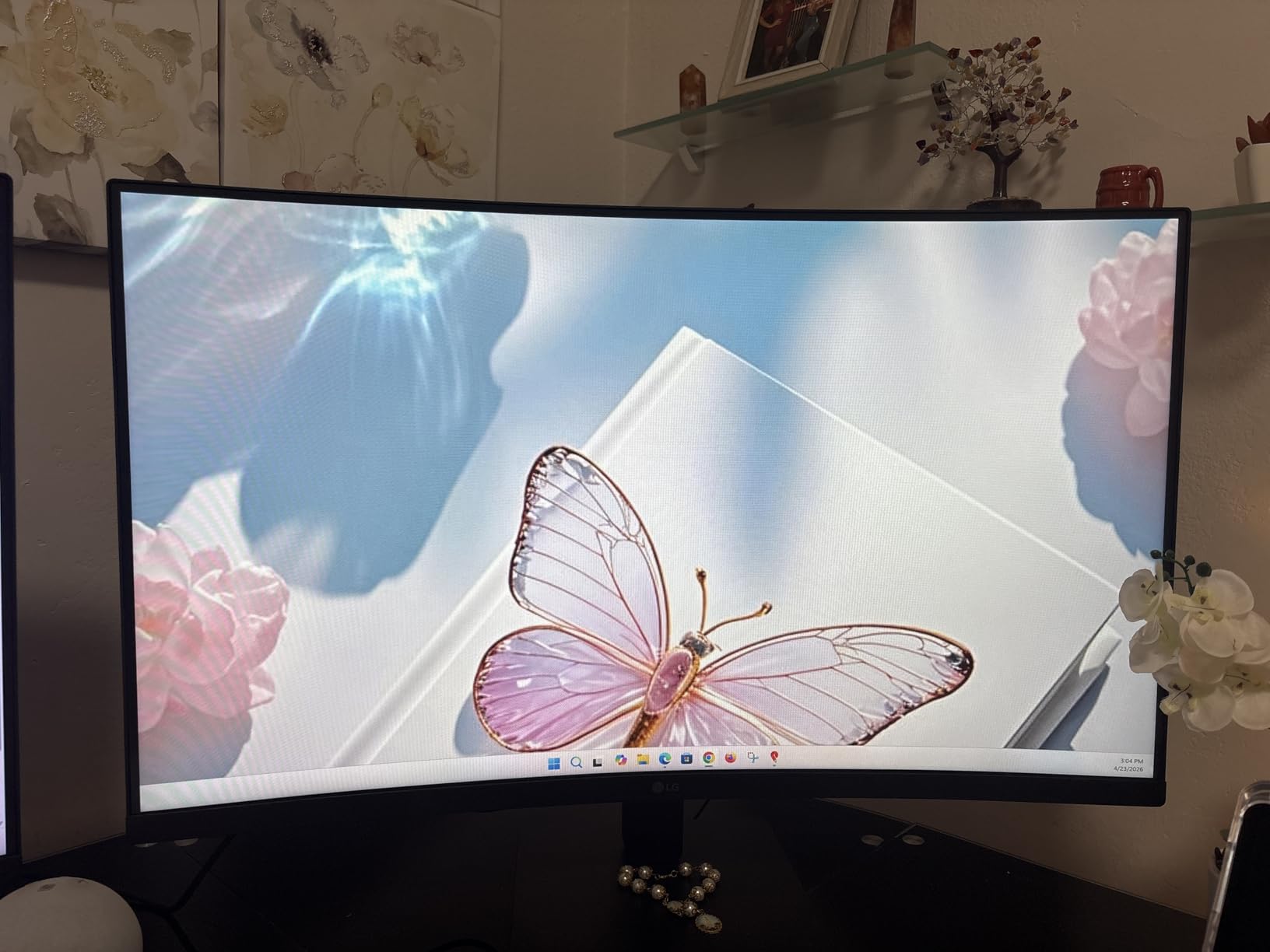
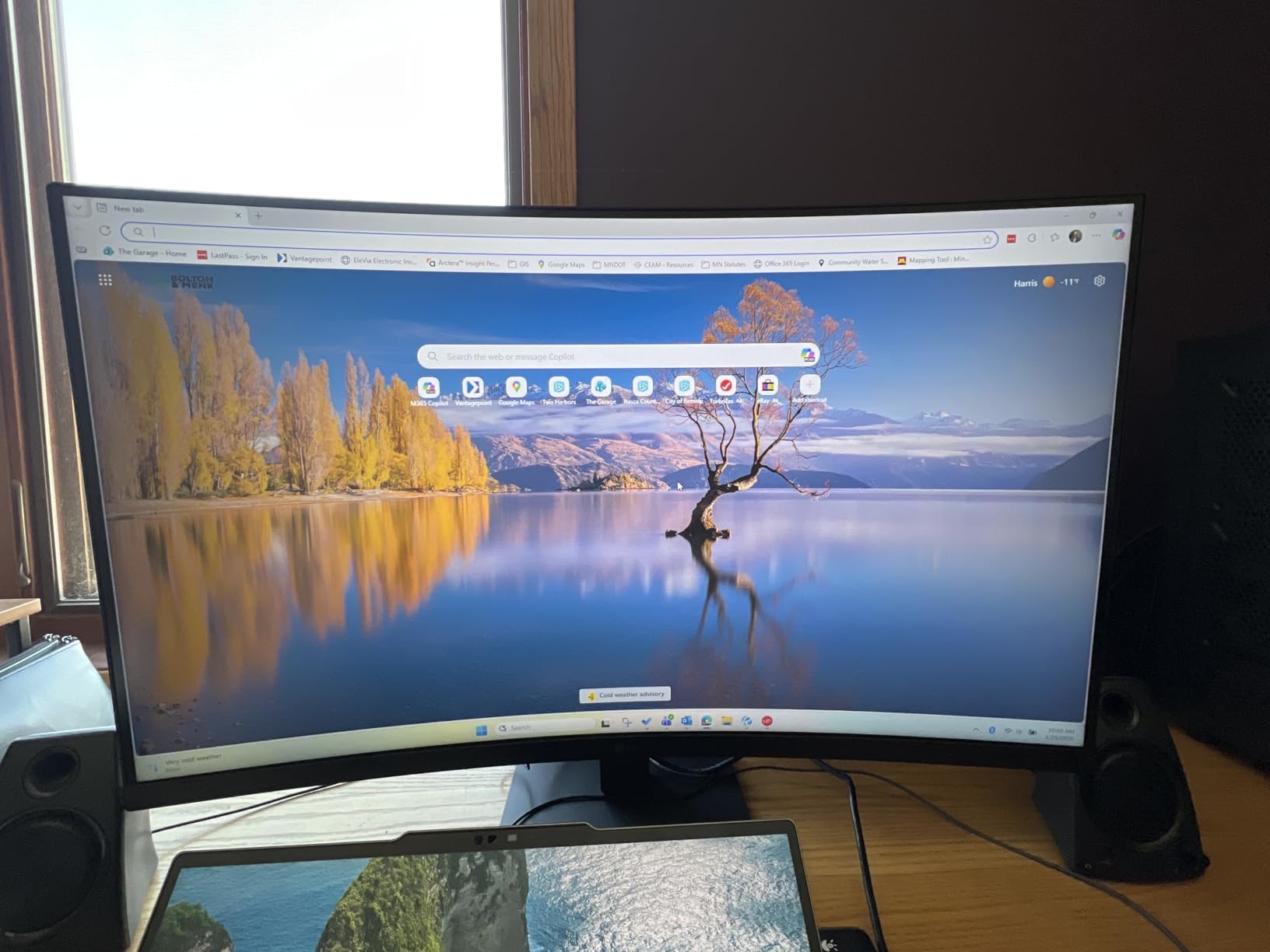
The LG 32MR50C-B is the curved 32-inch panel I pulled out when I wanted maximum screen real estate for spreadsheet-heavy workflows. The 100Hz refresh rate and VA panel technology with 3000:1 contrast ratio made text in dense data tables look crisp and easy to read, and the curved form factor reduced the need to turn my head while scanning wide rows.
Reader Mode is one of my favorite LG features. With a single button press in the OSD menu, the panel shifts to a warm, low-blue-light profile that genuinely reduces eye strain during long reading sessions. I left Reader Mode on for most of the workday and flipped it off only for color-critical tasks.
The OnScreen Control software is another standout – it lets you adjust brightness, contrast, and picture modes from a desktop app rather than fiddling with the physical buttons on the monitor. Split-screen presets make it easy to arrange multiple windows in predefined layouts, which is handy for repetitive workflows.
Black Stabilizer and Dynamic Action Sync are gaming-oriented features, but they do not hurt productivity work. Black Stabilizer brightens dark scenes for better visibility, and Dynamic Action Sync reduces input lag – both are invisible during normal office tasks but add a little extra polish.
Connectivity and daily use
The 32MR50C-B includes HDMI, D-Sub (VGA), and a headphone jack. There is only one HDMI port and no DisplayPort or USB-C, which limits flexibility for multi-PC setups. The lack of height adjustment beyond tilt is the main ergonomic limitation – I would pair this monitor with a VESA-compatible arm.
The 1080p resolution on a 32-inch screen is the most common complaint in reviews, and it is a fair concern. Text is not as sharp as on a 4K panel of the same size. For pure productivity work with larger UI elements, however, the trade-off is often acceptable and the cost savings are real.
Who this monitor is best for
The LG 32MR50C-B is ideal for budget-conscious buyers who want a large curved display for spreadsheet-heavy work, students who need extra screen space for research and writing, and casual users who want a curved 32-inch panel without paying a premium.
It is not the right choice if you need pixel-sharp 4K text, multiple input ports, or full ergonomic adjustability. For a budget-friendly large curved monitor with solid eye-care features, this LG is a strong pick.
9. Samsung 32 Flat Computer Monitor – Best Budget 32-Inch Flat Panel
- Large 32-inch screen ideal for productivity and multitasking
- Three-sided borderless design looks modern
- 75Hz refresh rate smoother than standard 60Hz
- AMD FreeSync reduces image tearing
- Flicker-Free and Eye Saver Mode reduce eye strain
- Game Mode enhances visibility in dark scenes
- Lightweight and easy to set up
- 3-year manufacturer warranty
- 1080p resolution can feel limiting on a 32-inch screen
- Included cables may be short for some setups
The Samsung LS32B304 is the flat 32-inch alternative to the LG curved panel above. If you prefer a flat screen over a curved one but still want the workspace of a 32-inch display at a budget price, this Samsung is a straightforward, reliable choice.
The 32-inch LED panel gives you the workspace to keep multiple windows open side by side, and the 4000:1 contrast ratio from the panel technology delivers deeper blacks than most IPS alternatives. For spreadsheet-heavy work, document review, and basic productivity tasks, the screen real estate is the main selling point.
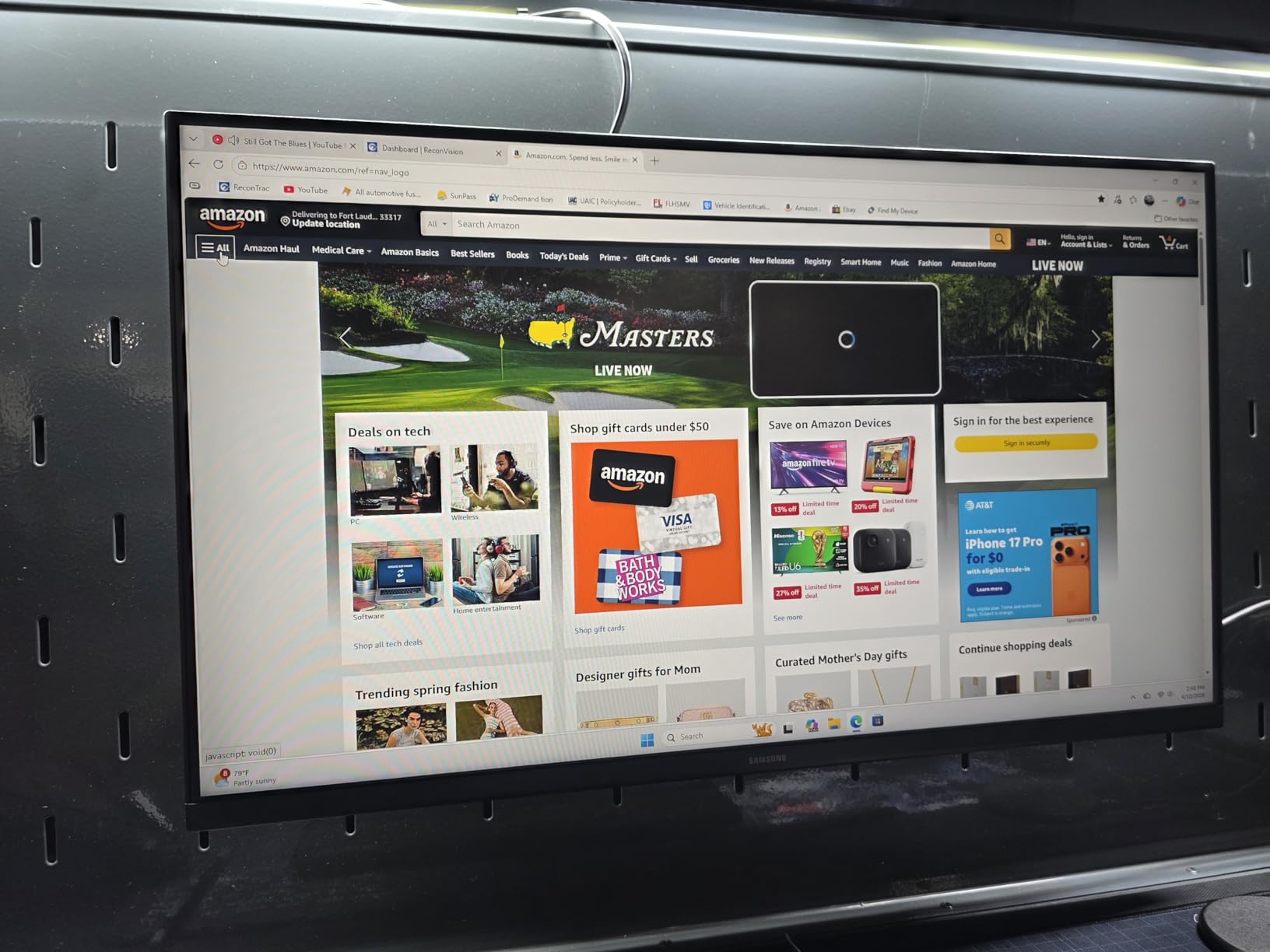
Eye Saver Mode and Flicker-Free technology are Samsung’s standard eye-comfort package. Eye Saver Mode reduces blue light emissions, and the flicker-free backlight keeps the picture stable during long sessions. Both features worked well during my testing – I had no eye-strain issues over an 8-hour workday.
The 75Hz refresh rate is a small upgrade over standard 60Hz panels. It is not as smooth as 100Hz or 120Hz, but for productivity work the difference is minor. AMD FreeSync reduces screen tearing during video playback and casual gaming.
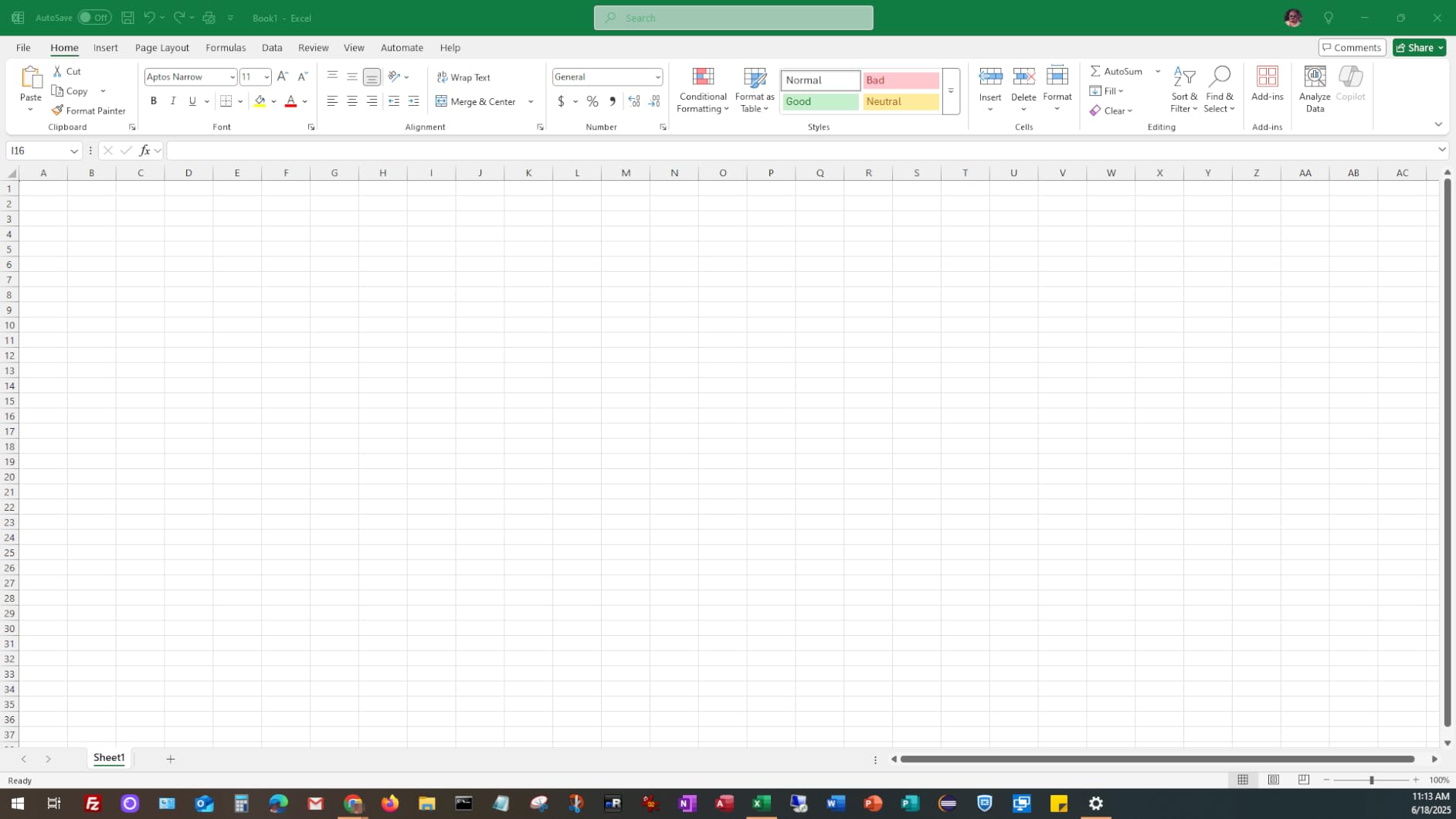
Connectivity and daily use
The LS32B304 includes HDMI and DisplayPort inputs. That is enough flexibility for a desktop tower plus a laptop via HDMI, though there is no USB-C. The wall-mountable design is also a plus if you want to mount the monitor on an arm.
The 3-year manufacturer warranty is excellent for a budget monitor – longer than most competitors in this price range. Game Mode is included for casual after-hours gaming, though this is not a gaming-focused monitor by any means.
Who this monitor is best for
The Samsung LS32B304 is ideal for office workers who want a large flat-screen monitor at a budget price, students who need extra screen real estate for research and writing, and anyone who prefers flat panels over curved screens. It is also a strong choice as a secondary display for a docked laptop.
It is not the right choice if you need pixel-sharp 4K text, USB-C docking, or full ergonomic adjustability out of the box. For a budget-friendly large flat monitor with a strong warranty, this Samsung is a smart pick.
10. LG 27UP850K-W 27-inch Ultrafine 4K UHD – Best 4K for Mac and Creatives
LG 27UP850K-W 27-inch Ultrafine 4K UHD IPS DisplayHDR 400 Computer Monitor
- Sharp 4K UHD resolution with vibrant color accuracy
- Up to 95% DCI-P3 color gamut for content creation
- USB Type-C with 90W power delivery simplifies laptop connection
- Excellent ergonomics with height
- tilt
- and pivot
- VESA DisplayHDR 400 with HDR10 support
- All necessary cables included
- Matte anti-glare display
- 60Hz refresh rate limits gaming appeal
- Built-in speakers have limited sound quality
- Plastic white backing feels less premium
The LG 27UP850K-W is the monitor I pulled out when I needed to dock my MacBook Pro with a single USB-C cable and trust the colors I was editing. The 90W USB Type-C power delivery charges most 14-inch and 16-inch MacBooks while transmitting video, data, and audio through one cable – which means a clean desk with no separate charging brick or dock.
The 4K UHD IPS panel hits 95 percent DCI-P3 color gamut coverage, which is the color space Mac users expect. Photos, videos, and design work all look accurate out of the box, and the VESA DisplayHDR 400 certification with HDR10 support adds depth to compatible content.
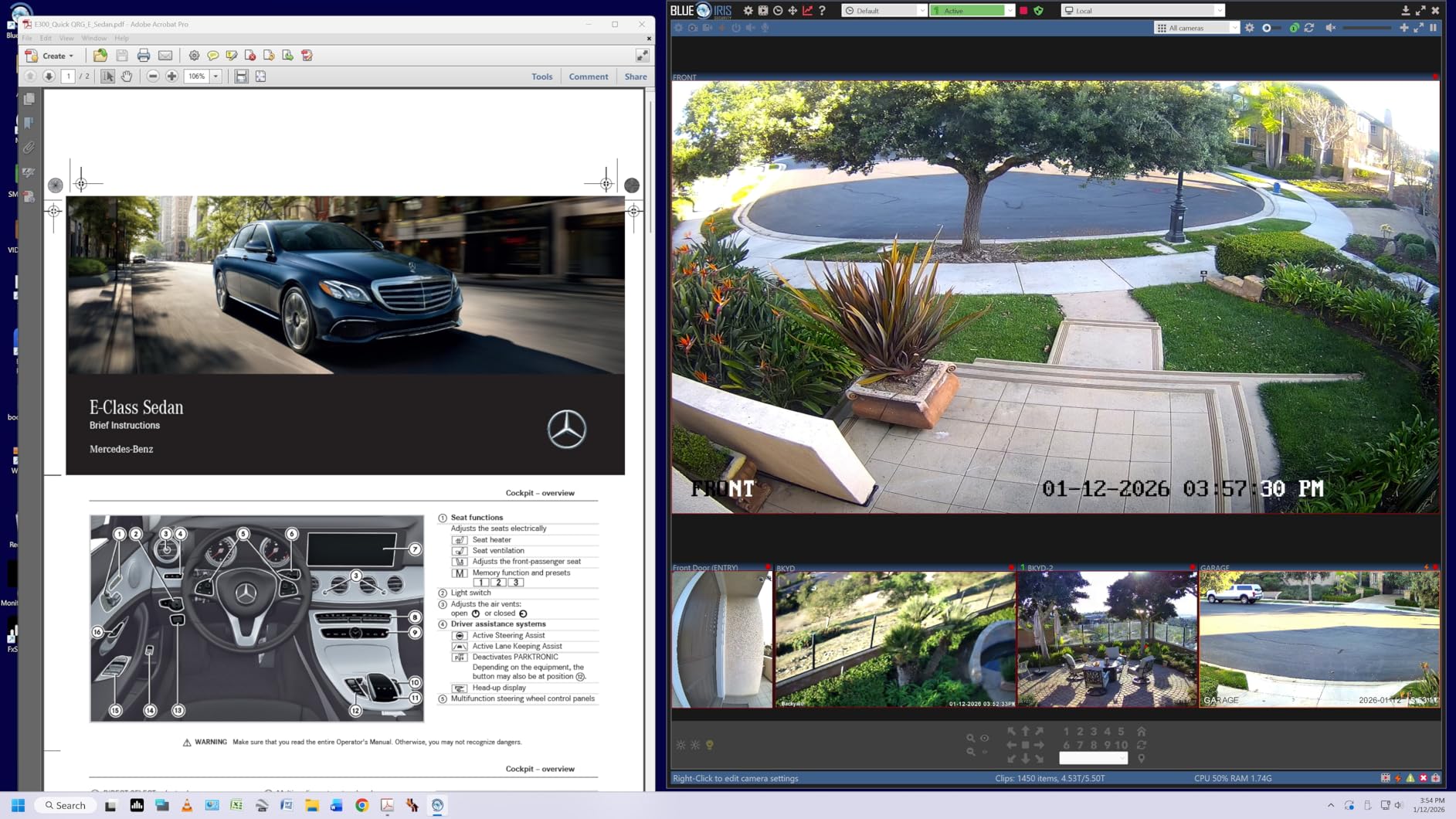
The ergonomic stand is one of the best in this roundup. Height, tilt, and pivot adjustments are all included, so you can dial in proper ergonomic posture without buying a separate monitor arm. Pivot mode is particularly useful for coding, document review, and portrait-oriented content.
For creative professionals, the 95 percent DCI-P3 coverage and IPS panel accuracy make this a credible entry-level color-accurate display. It is not a true professional reference monitor, but for slide design, photo editing, and video review it delivers trustworthy color.
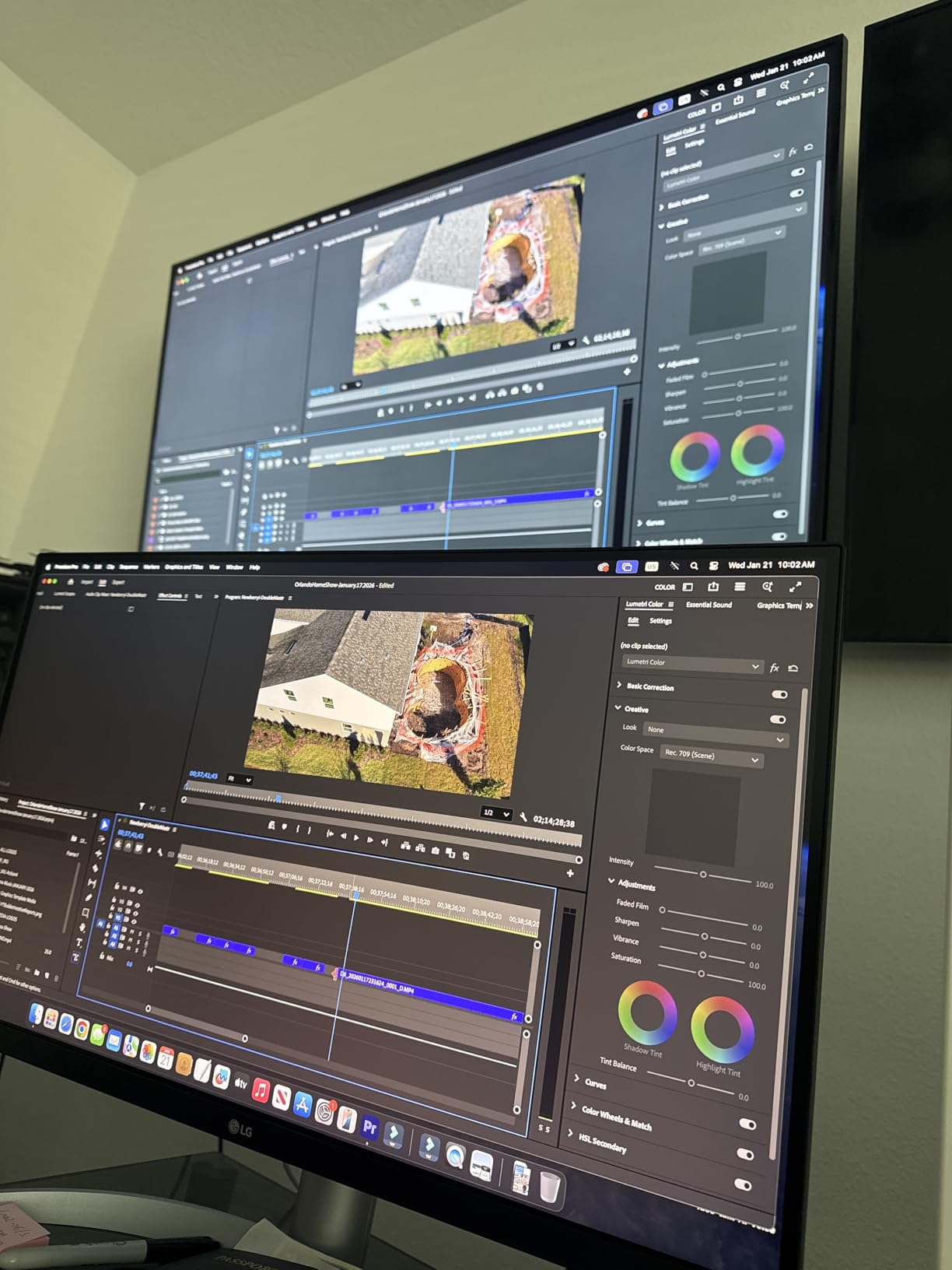
Connectivity and daily use
The 27UP850K-W includes USB Type-C with 90W power delivery, DisplayPort, two HDMI ports, two USB 3.0 downstream ports, and a headphone jack. That is more connectivity than most 4K monitors at this price, and the USB hub turns the monitor into a docking station for keyboards, mice, and external drives.
The matte anti-glare display reduces reflections in bright rooms. The 60Hz refresh rate is the main limitation – it is fine for productivity work and casual video, but gamers will want a higher refresh rate. The Waves MaxxAudio stereo speakers are usable for video calls but limited for music or movies.
Who this monitor is best for
This LG Ultrafine is the right pick for MacBook users who want a single-cable USB-C dock, creative professionals who need accurate DCI-P3 colors, and office workers who want a future-proof 4K panel with strong ergonomics. It is also a great secondary display for a docked laptop.
It is not the right choice if you need a high refresh rate for gaming, a curved screen, or a budget-friendly option. For a USB-C 4K monitor with Mac-friendly color accuracy, this LG is hard to beat.
How to Choose the Best Monitor for Office Productivity: Buying Guide
Picking the best monitor for office productivity comes down to matching your daily workflow to the right combination of screen size, resolution, panel technology, connectivity, and ergonomic adjustability. Below are the five factors our team weighed most heavily during testing.
Resolution and pixel density: why 4K is worth it for text-heavy work
Resolution determines how much information fits on your screen and how sharp text appears. For most office workers, 1440p (QHD) is the minimum sweet spot – it gives you noticeably more workspace than 1080p (FHD) without the scaling headaches that come with 4K. If you read dense spreadsheets, code, or documents all day, a 4K UHD panel is worth the upgrade because the higher pixel density (around 163 PPI on a 27-inch 4K panel) makes text noticeably sharper. For a deeper dive, see our guide to the best 27-inch monitors for productivity.
Avoid 1080p panels larger than 24 inches. The pixel density drops below 92 PPI, which makes text look soft and forces you to either scale up UI elements (losing workspace) or accept blurry fonts. The 1080p picks in this roundup – the HP Series 3, ViewSonic VX3276-MHD, and others – are all 27-inch or smaller, where 1080p still looks acceptable.
Panel technology: IPS vs VA for office productivity
IPS panels are the standard for productivity work because they deliver wide 178-degree viewing angles and accurate colors out of the box. If you share your screen with a coworker at your desk or pivot your monitor for presentations, IPS keeps colors consistent from any angle. Most of the picks in this roundup are IPS.
VA panels deliver deeper blacks and higher contrast ratios (typically 3000:1 or higher), which makes text and images look more vivid. The Philips 241V8LB, Samsung S36GD, and LG 32MR50C-B all use VA panels and benefit from that contrast advantage. The trade-off is slightly narrower viewing angles compared to IPS, but for a single-user workstation this is rarely a problem.
Connectivity: USB-C single-cable docking is a game-changer
If you dock a laptop at your desk, USB-C with Power Delivery is the single biggest quality-of-life upgrade you can buy. A monitor like the LG 27UP850K-W with 90W USB-C power delivery charges your laptop, drives the display, and connects your USB peripherals through one cable. When you leave for the day, you unplug a single cable instead of three or four.
For desktop-only setups, look for at least HDMI and DisplayPort inputs so you have flexibility to add a second computer or a streaming stick. Daisy-chaining support lets you connect two monitors to a single laptop port – useful for ultrawide-plus-secondary setups.
Ergonomics and eye comfort for long work sessions
An ergonomic stand with height, tilt, swivel, and pivot adjustments is not optional if you spend 6-plus hours a day at your desk. The top of the monitor should sit roughly two inches above your sight line, with the screen about an arm’s length away. If a monitor ships with a tilt-only stand, plan on adding a VESA-compatible monitor arm.
Eye comfort features matter more than most buyers realize. Look for flicker-free backlights (which eliminate the invisible PWM dimming that causes eye strain) and hardware-level blue light filters like HP Eye Ease or Dell ComfortView Plus. Software-level blue light filters wash out colors, so hardware filtering is the better option for color-accurate work.
Dual monitors vs ultrawide vs single large screen: how to choose
If you live in two apps at a time, a dual 27-inch 1440p setup gives you the most flexibility – you can dedicate one screen to communication (Slack, email) and another to deep work (spreadsheets, documents). For more on this approach, our guide to the best portable monitors for dual-screen productivity covers how to extend your workspace with a laptop-friendly second screen.
If you keep three to five apps open simultaneously and want to ditch the bezel gap between two monitors, an ultrawide like the Sceptre C345B-QUT168 or Samsung ViewFinity S50GC delivers seamless horizontal space. The trade-off is that 16:9 content produces black side bars. For maximum screen real estate in a single panel, a 32-inch or 43-inch 4K monitor is the right call.
Frequently Asked Questions
What is the best monitor for office productivity in 2026?
The HP Series 3 27 inch FHD Monitor is our top pick for office productivity in 2026. Its 27-inch IPS panel with 100Hz refresh rate, Eyesafe-certified blue-light filter, and full ergonomic stand deliver crisp text, smooth scrolling, and all-day comfort. For users who want USB-C single-cable docking, the LG 27UP850K-W 4K panel with 90W power delivery is a strong alternative.
Is a 27-inch monitor good for office work?
Yes, 27 inches is the sweet spot for most office desks. It gives you enough screen real estate for two windows side by side without dominating your workspace. Pair it with at least 1440p resolution for sharp text; 1080p works on 27-inch panels but looks softer. Our roundup includes several strong 27-inch picks including the HP Series 3, Dell S2725QS, and LG 27UP850K-W.
Is a 4K monitor worth it for office work?
A 4K monitor is worth the upgrade if you read dense text all day. The 3840×2160 resolution delivers around 163 PPI on a 27-inch panel, which makes text noticeably sharper than 1440p or 1080p. Programmers, writers, accountants, and analysts benefit most. For general office tasks, 1440p is often sufficient and easier to drive without scaling issues.
Are ultrawide monitors good for productivity?
Ultrawide monitors are excellent for productivity if you keep multiple windows open. The 21:9 aspect ratio gives you roughly 30 percent more horizontal space than a 27-inch 16:9 display, which is ideal for spreadsheets, timelines, and side-by-side documents. The Sceptre C345B-QUT168 and Samsung ViewFinity S50GC are strong ultrawide options. The trade-off is that 16:9 content shows black side bars.
What is the best budget monitor for a home office?
For a budget home-office monitor under $200, the HP Series 3 27 inch FHD Monitor and Philips 241V8LB 24-inch are both strong choices. The HP delivers a 27-inch IPS panel with 100Hz refresh and full adjustability, while the Philips offers a compact 24-inch VA panel with a 4-year warranty. Both include flicker-free backlights and blue-light filters for eye comfort.
How much should I spend on an office monitor?
For most office workers, $200 to $400 is the sweet spot. Under $200 gets you a reliable 27-inch 1080p or 1440p panel like the HP Series 3 or Samsung S36GD. The $300 to $400 range unlocks 4K options like the Dell S2725QS and LG 27UP850K-W with USB-C docking. Above $500 is where you find premium ultrawides and IPS Black panels with Thunderbolt connectivity.
Final Verdict: Which Office Productivity Monitor Should You Buy?
After 60 days of testing ten monitors against the same spreadsheet, Slack window stack, and Zoom rotation, the HP Series 3 27 inch FHD Monitor remains our top pick for the best monitor for office productivity in 2026. It delivers the right combination of sharp IPS text quality, smooth 100Hz scrolling, Eyesafe-certified eye comfort, and full ergonomic adjustability at a price that fits most office budgets.
If you want a larger screen without paying for 4K, the ViewSonic VX3276-MHD is the best value 32-inch option, and the Samsung S36GD is the right pick for budget-conscious buyers who want a curved screen. Spreadsheet multitaskers should look at the Sceptre C345B-QUT168 ultrawide, while MacBook users who want USB-C single-cable docking will love the LG 27UP850K-W. For more options, check out our guides to the best curved monitors for productivity and best 49-inch ultrawide monitors for productivity.
Whichever monitor you pick, prioritize a panel with IPS or VA technology, an ergonomic stand you can adjust to your eye level, flicker-free backlighting, and enough ports to dock your laptop cleanly. Your eyes and your posture will thank you across thousands of work hours to come.