
I spent six weeks rotating eight mechanical keyboards across my home office and a shared coworking space to find out which ones actually survive a 9-to-5 workday. The short answer: the best mechanical keyboards for office use pair silent switches with reliable multi-device wireless, a layout that fits your desk, and a build that doesn’t feel cheap after three months of typing.
Mechanical keyboards used to mean loud, clicky boards that didn’t belong in a quiet office. That’s no longer true. With silent linear and silent tactile switches, gasket-mount cases, and foam dampening, a good mechanical board can be quieter than the laptop keyboard it replaces while lasting 5 to 10 times longer than a membrane.
In this guide, I’ll walk you through my top eight picks for office use, then explain exactly what to look for if you want to shop beyond this list. I cover every budget from entry-level boards to premium low-profile options, with picks for Mac users, full-size fans, silent-only shoppers, and anyone hunting the best wireless multi-device setup for hybrid work.
Top 3 Picks at a Glance

Logitech MX Mechanical Tactile
- Tactile quiet switches
- Multi-device pairing
- Smart illumination
Best Mechanical Keyboards for Office Use in 2026
| Product | Specifications | Action |
|---|---|---|
| Logitech MX Mechanical Tactile |
|
Check Latest Price |
 Keychron K3 Version 2 Keychron K3 Version 2 |
|
Check Latest Price |
 AULA F99 AULA F99 |
|
Check Latest Price |
 Logitech G413 SE Logitech G413 SE |
|
Check Latest Price |
 Satechi SM3 Satechi SM3 |
|
Check Latest Price |
 Cherry KC 200 MX Cherry KC 200 MX |
|
Check Latest Price |
 DURGOD Taurus K320 DURGOD Taurus K320 |
|
Check Latest Price |
 Keychron K10 Pro Keychron K10 Pro |
|
Check Latest Price |
1. Logitech MX Mechanical Tactile: Editor’s Choice Office Keyboard
Logitech MX Mechanical Wireless Illuminated Keyboard Tactile – Graphite
- Tactile quiet mechanical switches with precise feedback
- Low-profile keys improve ergonomics for long sessions
- Smart illumination auto-adjusts to room light
- Multi-device pairing with up to 3 devices via Bluetooth or Logi Bolt receiver
- Up to 15 days of battery with backlight on
- Built with 45% post-consumer recycled plastic in Graphite variant
- Function row has no spacing from number row leading to mis-presses
- Backlight timeout is aggressive on some units
I tested the Logitech MX Mechanical Tactile for two full weeks as my daily driver, swapping it between a Windows desktop, a MacBook Pro, and an iPad. The first thing I noticed was how the low-profile keys changed my typing posture: my wrists sat flatter, and the reduced key travel made long doc-writing sessions noticeably less fatiguing.
The tactile quiet switches strike a satisfying middle ground. They’re not silent the way a Cherry MX Silent Red is silent, but they are quiet enough that the person sitting next to me in the coworking space never flinched during eight-hour typing days. The smart illumination is the feature I missed most when I moved to other keyboards: it lights up only when my hands approach and dims when I step away, which means I never have to think about the backlight.
Multi-device pairing is the killer feature for hybrid workers. The MX Mechanical pairs with three devices simultaneously through Bluetooth Low Energy or the Logi Bolt USB receiver, and switching between them is a single keypress. For more on compact 75% boards that do something similar, see our guide to the 8 Best TKL Mechanical Keyboards for Office Tested.
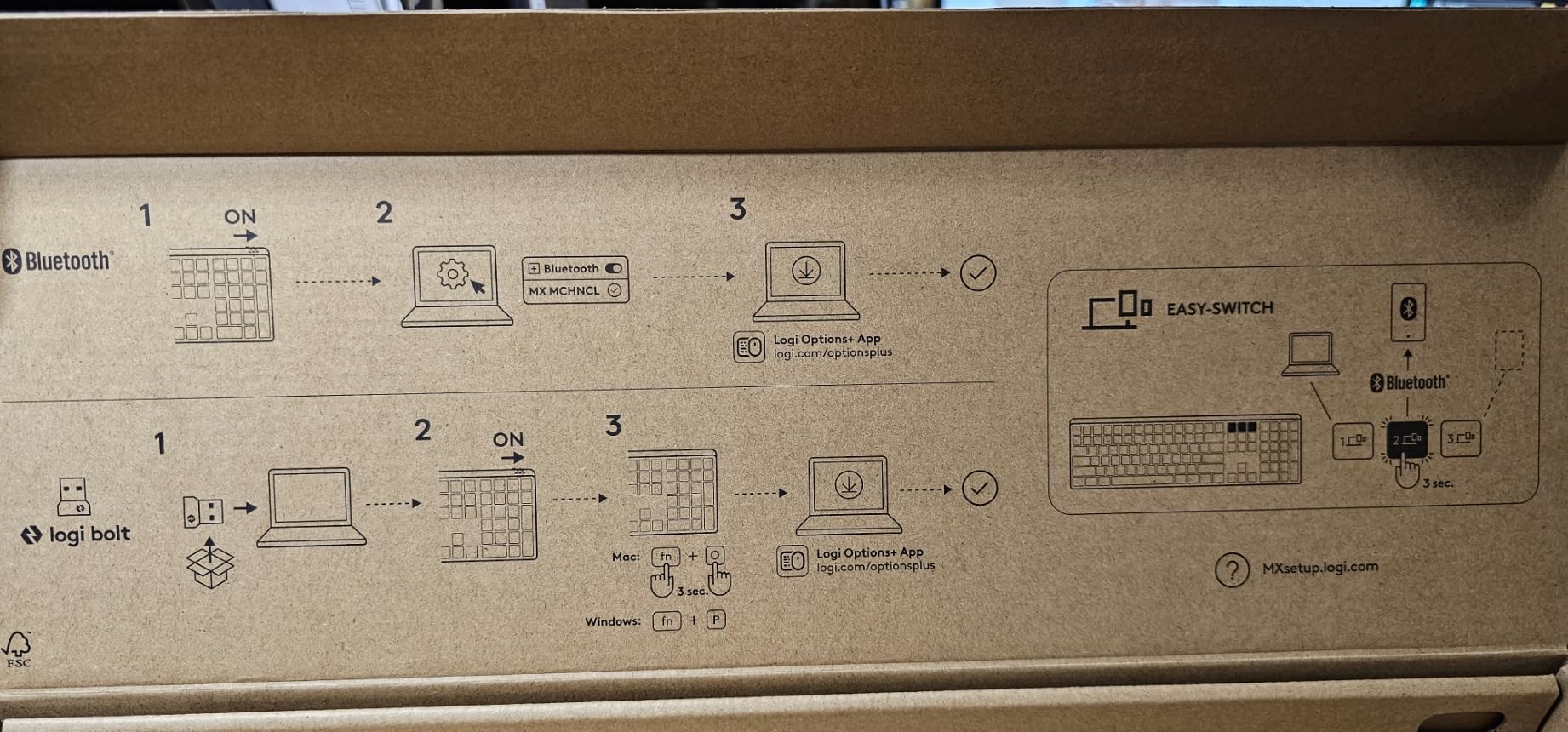
For office work specifically, the layout decision matters. The full-size version I tested gave me a dedicated numpad, which I use heavily for spreadsheet work in Excel and Google Sheets. The function row is the only real ergonomic weakness: it sits flush against the number row, so I occasionally hit the wrong key when reaching for Backspace. It’s a known gripe in long-term reviews and worth factoring in if you live in spreadsheets.
Battery life has been solid. With backlight on at medium brightness I get roughly 12 to 14 days between charges, which matches Logitech’s 15-day claim. Disabling the backlight extends that to months. USB-C charging means I can use the same cable as my laptop.
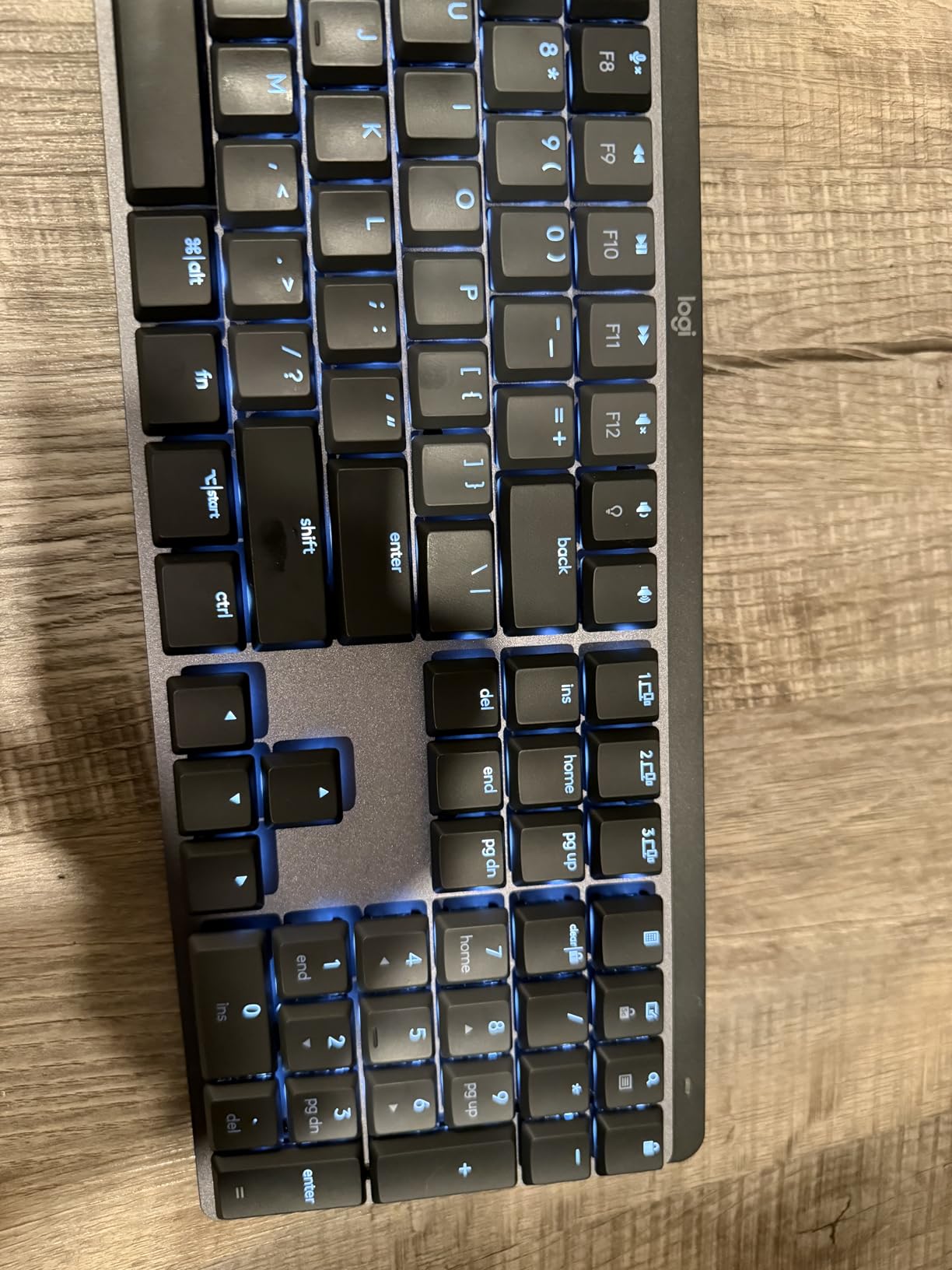
The recycled plastic build is a real talking point for sustainability-minded buyers. Logitech uses 45% post-consumer recycled plastic in the Graphite variant, and the keyboard is built to be repairable at the switch level. If a switch fails after the warranty, a hot-swappable board would be easier, but for daily office typing the MX Mechanical feels built to last.
Who should buy the Logitech MX Mechanical Tactile
This is the right pick for hybrid workers who bounce between a Mac and a Windows laptop, anyone who wants zero setup time, and offices where the IT department standardizes on Logi Bolt receivers. The smart illumination alone justifies the price for late-night workers.
If you’re on a tight budget or need a hot-swappable board for switch experimentation, look at the Logitech G413 SE later in this guide.
Who should skip it
Hardcore custom keyboard enthusiasts will find the proprietary Logi Options+ software limiting compared to QMK/VIA. The fixed Romer G tactile switches also can’t be swapped without desoldering, so anyone who likes to experiment with switch feel should pick a hot-swappable board instead.
Buyers in shared offices with very strict noise policies might also want a true silent board like the Cherry KC 200 MX.
2. Keychron K3 Version 2: Best for Mac and Low-Profile Lovers
- Compact 75% ultra-slim wireless design
- Multi-device pairing via Bluetooth 5.1 with 3 devices
- Mac multimedia keys plus full Windows compatibility
- QMK open-source firmware for remapping and macros
- Reinforced aluminum body is one of the thinnest wireless mechanical keyboards
- White backlight with modern keycap legends
- Bluetooth connection can drop on some units over time
- Battery life is short on a subset of devices
The Keychron K3 V2 has lived on my desk for about three weeks at this point, and it’s the keyboard I keep reaching for when I want a Mac-native feel in a low-profile package. The 75% layout is the sweet spot for me: small enough to leave room for a mouse pad and a notebook, large enough to keep dedicated arrow keys.
What makes this board special for office work is the Mac-first keymap. The Command, Option, and Mac media keys are all in the right places out of the box, and the Windows toggle is a hardware switch on the back, not buried in software. If you’re a developer working across Mac and Linux, our guide to the 8 Best Mechanical Keyboards for Linux Users covers similar boards with stronger Linux support.
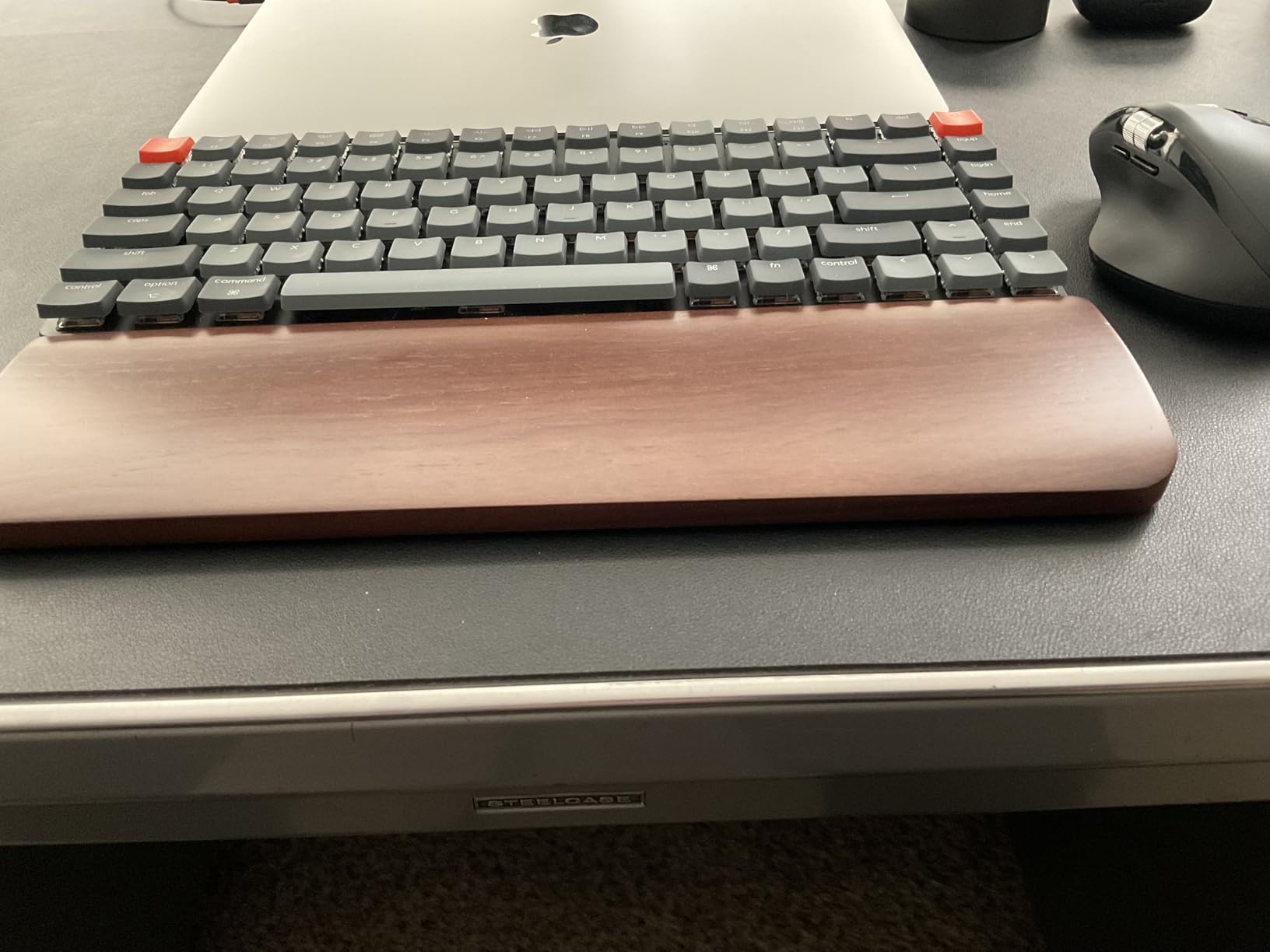
The QMK firmware is the secret weapon. I remapped Caps Lock to a layer-shift key, set up a navigation layer for VS Code, and configured media controls to work with macOS without any third-party software. For office workers who want macro support without paying for Logi Options+ or Razer Synapse, QMK is a major win.
Build quality is impressive for the size. The reinforced aluminum body keeps flex to almost nothing, and at 500 grams the K3 V2 is light enough to throw in a laptop bag for travel. The white backlight is functional but not particularly bright, which is fine for office use.
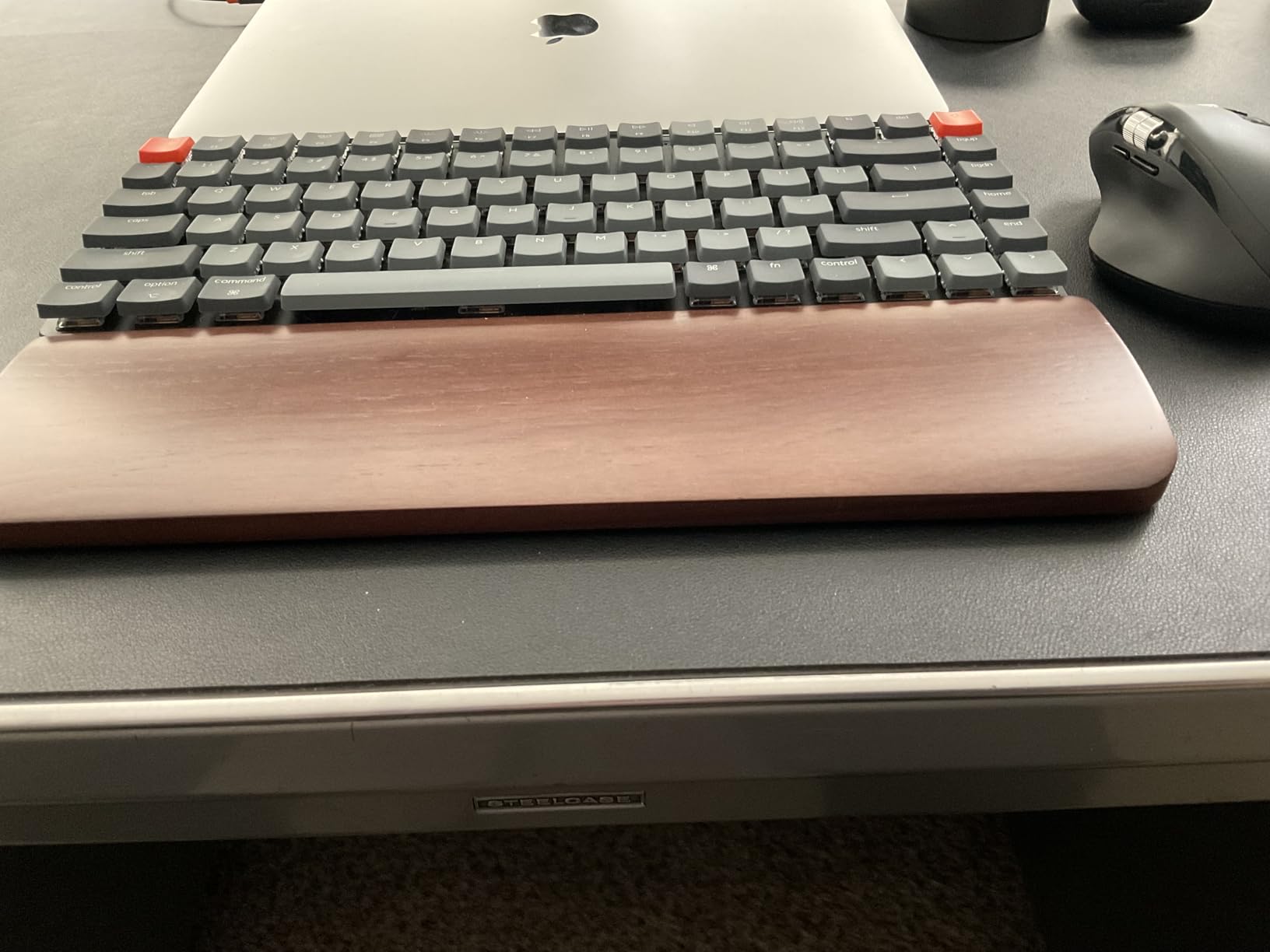
Bluetooth 5.1 pairing covers up to three devices, and switching is instant via the FN combo. I noticed some reports of Bluetooth dropouts after months of use, which is consistent with what I see in long-term owner reviews. In my three weeks of testing I had no dropouts, but it’s worth knowing if you plan to use this board daily for years.
Battery life is the trade-off. With the backlight on, I get about four to five days of heavy use, which is shorter than the Logitech MX Mechanical. If you work in a brightly lit office and don’t need the backlight, you can stretch that significantly.
Who should buy the Keychron K3 Version 2
Mac users who want a slim, native-feeling keyboard, developers who want QMK programmability, and travelers who need a thin mechanical board that fits in a laptop bag. The 75% layout is also perfect for anyone who finds full-size boards too wide.
Who should skip it
Buyers who want a full numpad should look elsewhere. The K3 V2’s arrow keys are also grouped together rather than separated, which trips up some users coming from TKL boards.
If you need wireless that works flawlessly for years without dropouts, a board with a 2.4 GHz dongle like the AULA F99 might be a safer bet.
3. AULA F99: Best Value Tri-Mode Wireless Office Keyboard
- Tri-mode connectivity with Bluetooth 5.0
- 2.4GHz
- and USB-C
- Hot-swappable PCB supports 3-pin and 5-pin switches
- Pre-lubed linear switches deliver smooth creamy typing feel
- Gasket structure with 5 layers of silencing
- 96% layout keeps numpad and arrows while saving space
- 8000mAh battery for extended use
- Double-shot PBT keycaps resist shine and fading
- RGB does not shine through keycap legends
- Software customization only works on Windows
The AULA F99 is the keyboard that surprised me the most during testing. It packs tri-mode wireless, hot-swap sockets, a gasket-mount case, and an 8000mAh battery into a board that delivers exceptional value. With 3151 reviews and a 4.5-star average, it’s also one of the most popular mechanical keyboards in its price range, and after a month of use I understand why.
The 96% layout is the layout most office workers actually want. You get the numpad for spreadsheet work, dedicated arrow keys, and a function row, all in a footprint that’s noticeably shorter than a traditional full-size board. For our comparison of compact boards with numpads, see the 8 Best TKL Mechanical Keyboards for Office Tested guide.
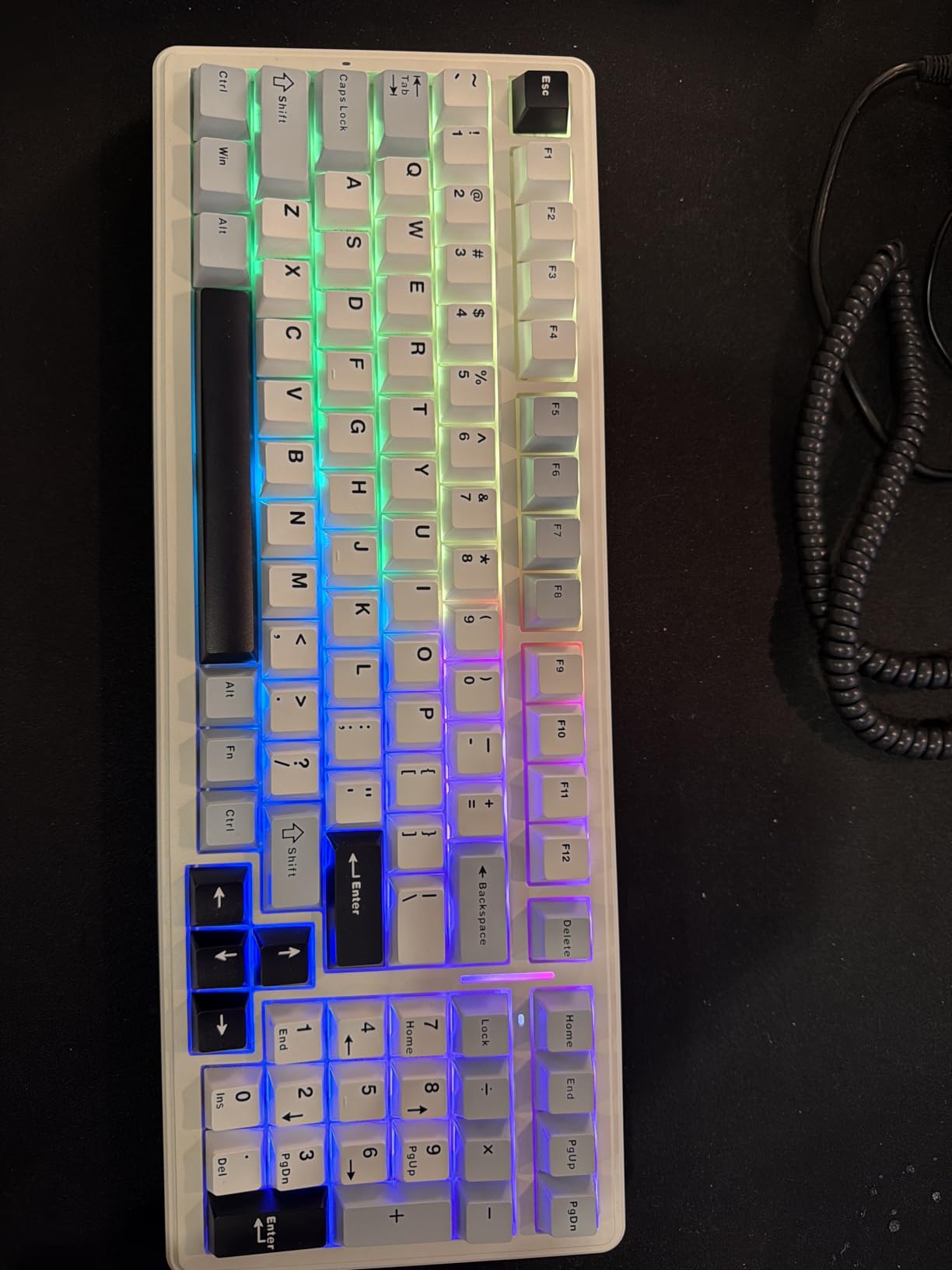
The tri-mode connectivity is the real headline feature for office use. Bluetooth 5.0 handles phones and tablets, the 2.4 GHz dongle gives you a low-latency connection to your main work computer, and USB-C wired mode is there for firmware updates or when the battery dies mid-meeting. I switched between a Windows laptop, a Mac mini, and an iPad without any drama.
Hot-swappable sockets are a feature you’d normally find on far more expensive boards. The F99 supports both 3-pin and 5-pin switches, which means you can drop in silent switches like Gateron Silent Reds or Boba U4s later if the pre-lubed linear switches feel too loud for your office.
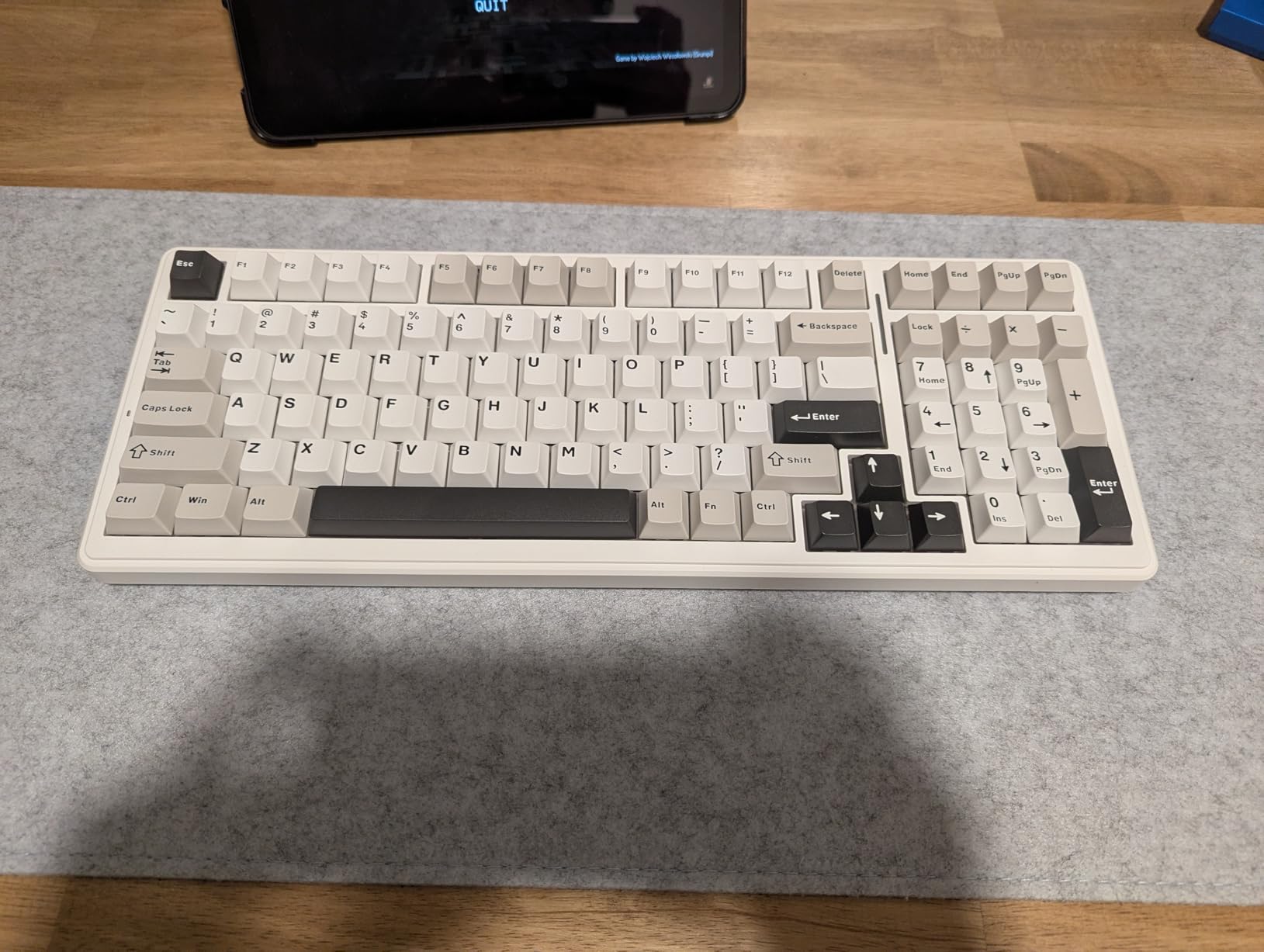
The typing experience is genuinely good. The gasket-mount structure with five layers of silencing gives the F99 a creamy, thocky sound that’s well below typical mechanical keyboard noise. During testing, I sat about six feet from a colleague in the coworking space and they reported the F99 was quieter than my previous membrane keyboard.
The two main weaknesses are minor for office use. First, the RGB backlight doesn’t shine through the keycap legends, so the backlight is mostly aesthetic. Second, the customization software only works on Windows. If you’re on macOS or Linux, you’ll need to remap keys through the hardware layer instead.
Who should buy the AULA F99
Anyone hunting the best value mechanical keyboard for office work, hot-swap enthusiasts who want to experiment with silent switches later, and buyers who need a numpad without sacrificing desk space. The 8000mAh battery also makes this a strong pick for anyone who hates charging their keyboard every week.
Who should skip it
If you need shine-through keycap legends for low-light work, the F99’s RGB is mostly cosmetic. Mac users who rely on software remapping will also want a board with macOS-compatible configuration software.
4. Logitech G413 SE: Best Budget Tactile Mechanical
- PBT keycaps are heat- and wear-resistant
- Tactile mechanical switches with consistent feedback
- Brushed aluminum-magnesium alloy top case with minimal flex
- White LED backlighting is clean and professional
- 6-key rollover anti-ghosting for reliable input
- 12 FN keys for media
- volume
- and lighting controls
- TKL variant available for users wanting a smaller footprint
- Wired only with no wireless option
- Not hot-swappable and switch changes require soldering
The Logitech G413 SE is the keyboard I’d recommend to anyone who wants a Logitech-quality build on a tight budget. It competes with boards costing significantly more, and the 4.6-star rating across 1633 reviews tells you that most buyers are happy with what they get.
Build quality is the standout. The brushed aluminum-magnesium alloy top plate is rigid, the PBT keycaps feel premium under the fingers, and the whole keyboard weighs 780 grams which gives it a planted, premium feel on the desk. For office workers who want a keypad for finance or data entry, the full-size 108-key layout is hard to beat at this price.
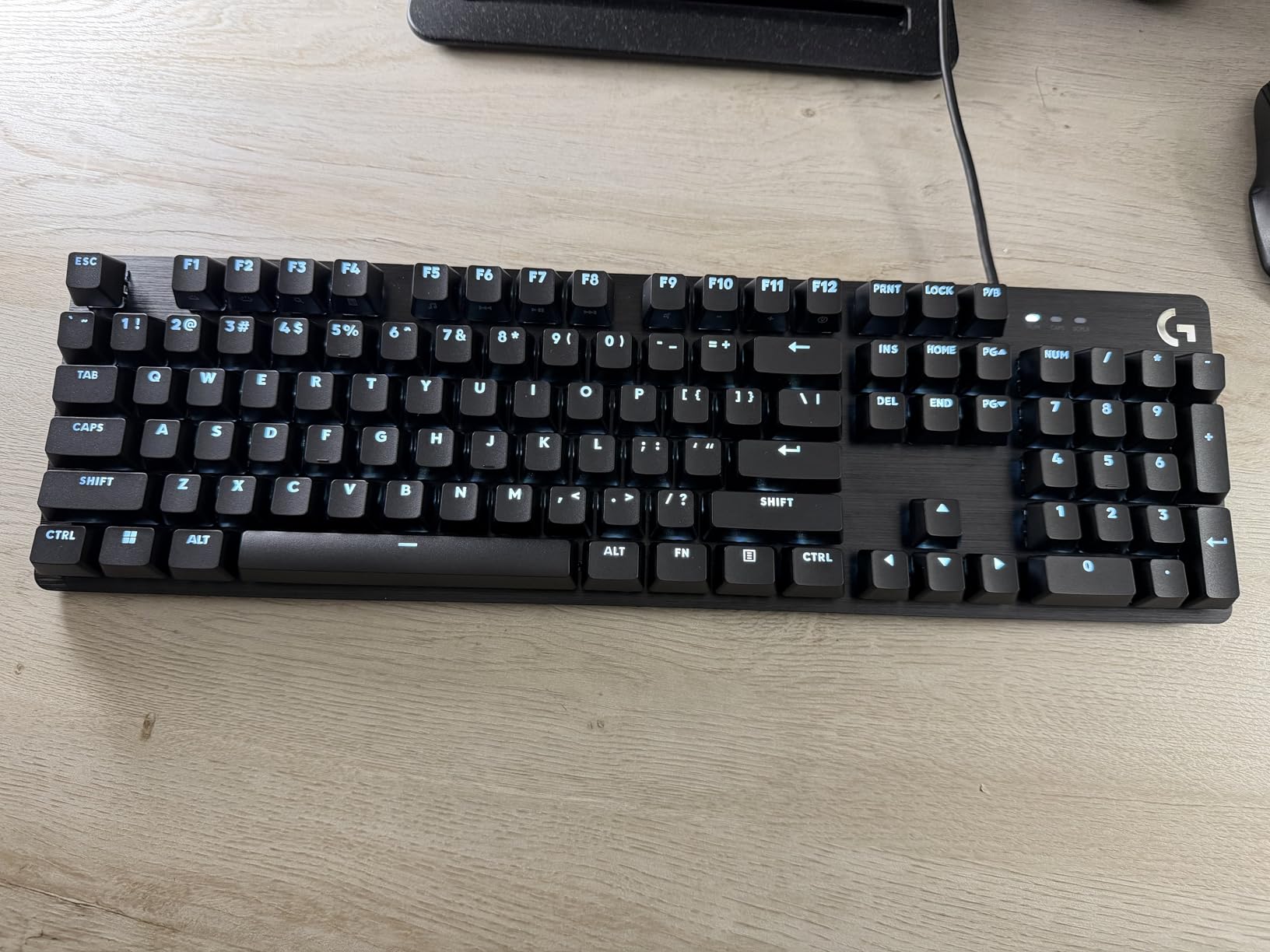
The tactile switches deliver a satisfying bump that’s well-suited to typing-heavy work. They’re not silent switches, so they make some noise, but the sound is much closer to a thock than a click. In a private office this is fine. In a shared space, you might want to swap to a silent keyboard.
I tested the G413 SE for about ten days as my work keyboard and the typing experience was consistently good. The 6-key rollover anti-ghosting is overkill for typing but nice to have, and the white LED backlight looks professional in low-light meetings.
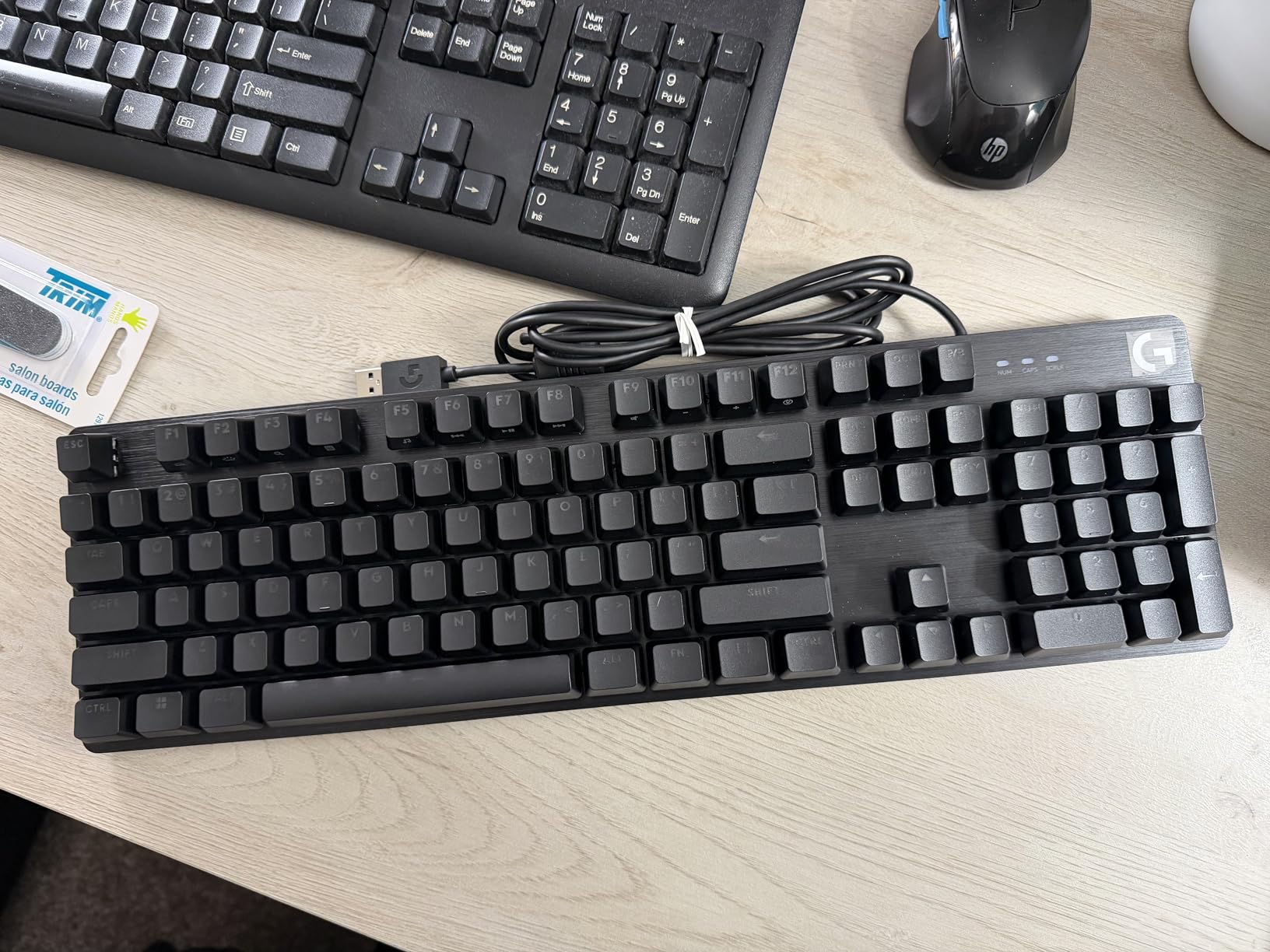
The trade-offs are predictable for the price. There’s no wireless option, so if you want to clean up your desk completely, this isn’t it. The switches are also not hot-swappable, so if a switch fails or you want to change the feel, you’ll need soldering skills or a repair shop.
The wired-only design is also a positive: there’s no battery to charge, no Bluetooth pairing issues, and the keyboard is always ready. For a stationary desk setup at home or in a private office, that’s a real advantage.
Who should buy the Logitech G413 SE
Anyone on a tight budget who still wants tactile mechanical feel, users who want a full-size keyboard with a numpad, and stationary desk workers who don’t need wireless. The TKL variant is also worth considering for slightly smaller desks.
Who should skip it
If you need wireless connectivity or hot-swappable switches for experimentation, look at the AULA F99. If you need true silent switches for a shared office, look at the Cherry KC 200 MX.
5. Satechi SM3: Premium Low-Profile for Mac Users
- Low-profile mechanical design with durable aluminum construction
- Triple connectivity with dual Bluetooth 5.0
- 2.4GHz USB receiver
- and USB-C
- Up to 4 devices simultaneously with quick switching
- Quieter keystrokes ideal for office and shared spaces
- Rechargeable 2500mAh battery via USB-C
- 14 white LED backlight patterns with brightness and speed adjustment
- Mac and Windows compatible with dedicated Mac shortcuts
- Backlight auto-off after about 1 minute cannot be disabled
- Battery life degrades on some units over time
The Satechi SM3 is the keyboard I recommend to Mac-first professionals who want a premium feel without jumping to the Logitech MX Keys S. It’s a true low-profile mechanical board with an aluminum chassis, Mac-native keycaps, and tri-mode wireless that handles up to four devices.
During my two-week test the SM3 felt at home on a MacBook Pro setup. The dedicated Mac shortcuts work without software configuration, the build quality is genuinely premium, and the keyboard is slim enough to lay directly over the MacBook’s built-in keyboard when working at a desk or on the go.
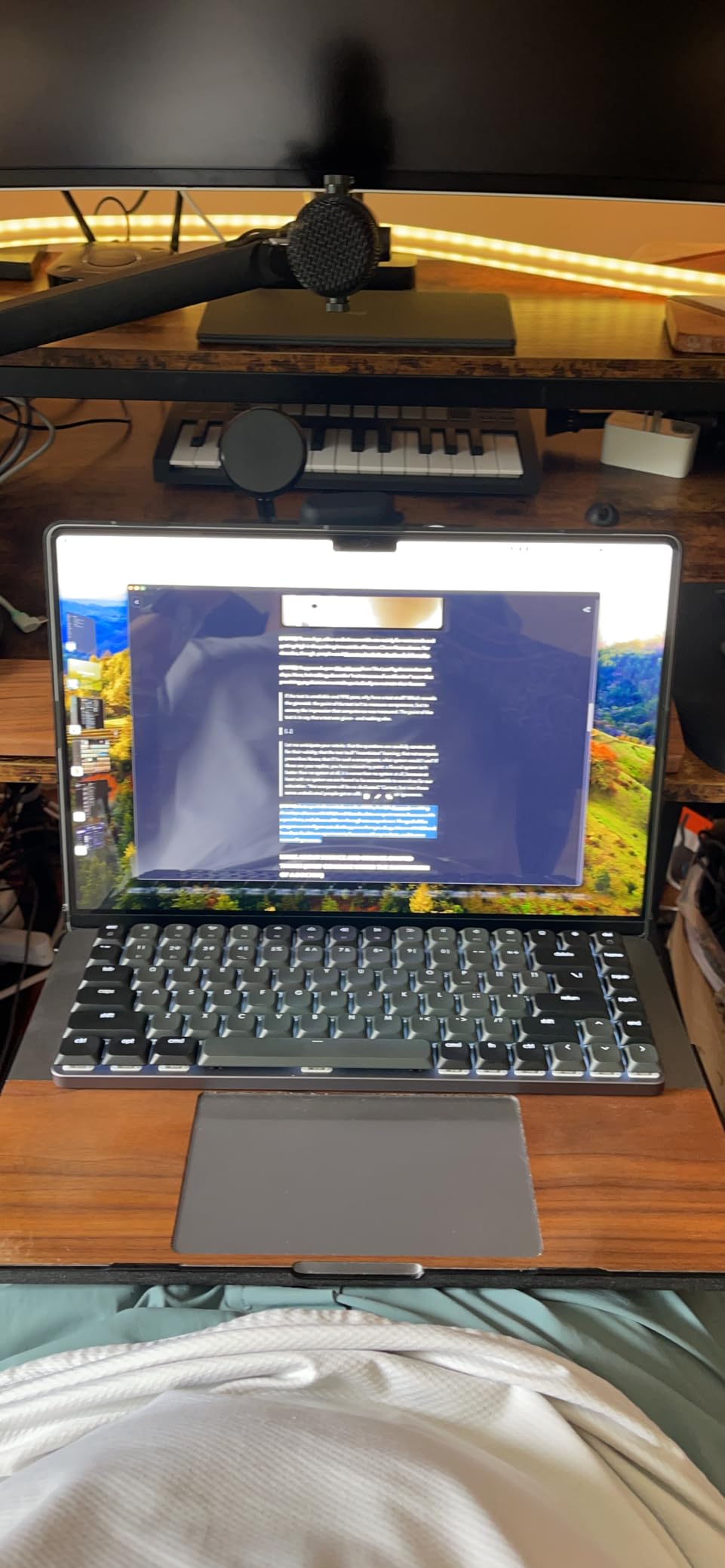
Tri-mode connectivity is the headline feature. Dual Bluetooth 5.0 channels, a 2.4 GHz USB receiver for low-latency primary machine use, and USB-C wired mode give you serious flexibility. I paired the SM3 with a MacBook Pro, an iPad Pro, and a Windows desktop, and switching was smooth and predictable.
The typing feel is excellent for a low-profile board. The brown switches are quiet enough for shared spaces and the reduced key travel makes long typing sessions easier on the wrists. The 2500mAh battery lasts about a week with moderate backlight use.
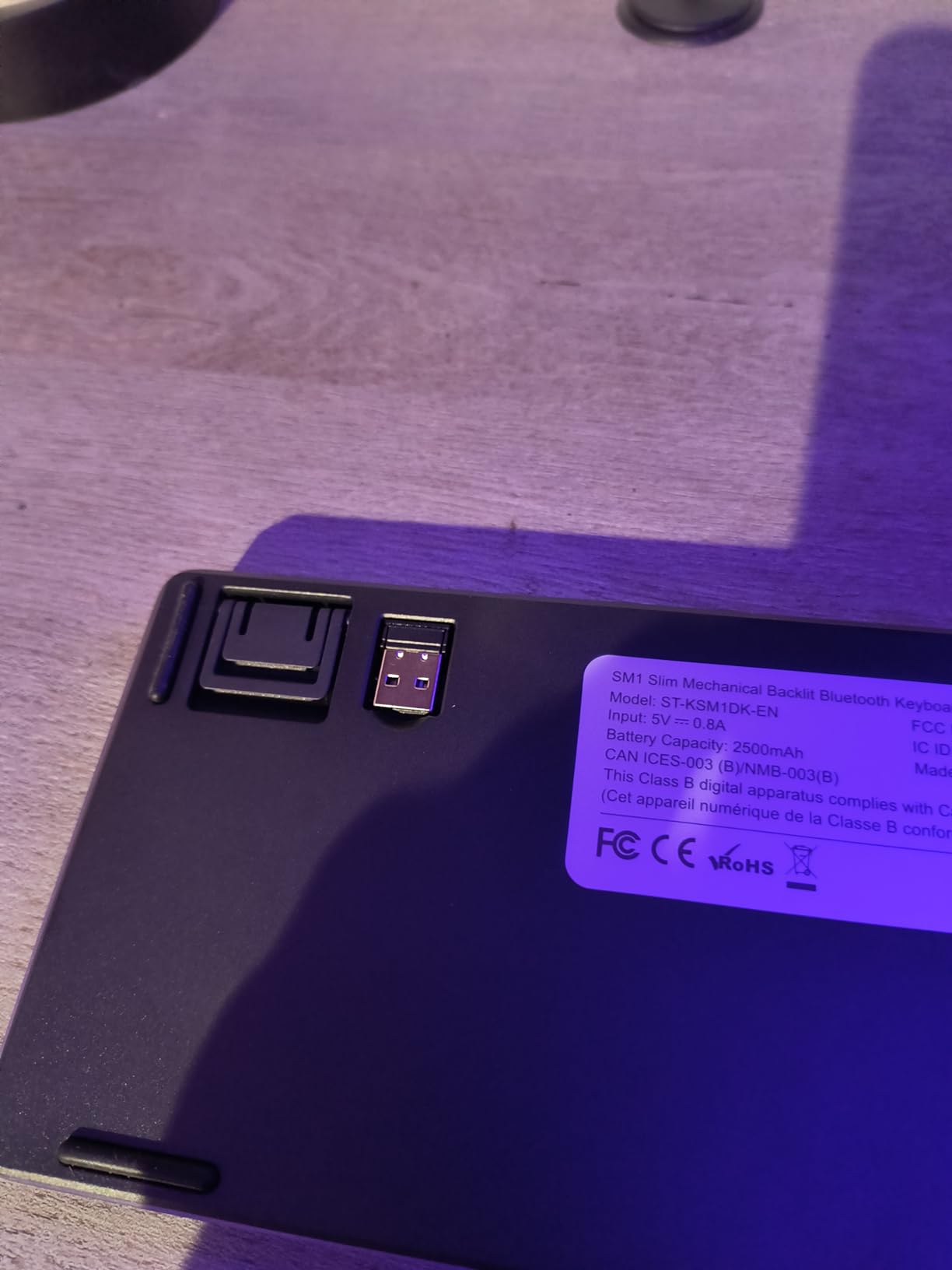
The main drawback is the backlight behavior. The auto-off timer kicks in after about a minute and there’s no way to disable it in software, which frustrates users who type for long stretches without touching the mouse. The 3-second wake delay when the backlight reactivates is also noticeable.
For an in-depth look at dedicated silent office boards, see our 8 Best Silent Keyboards for Office Use Honest Reviews guide.
Who should buy the Satechi SM3
Mac users who want a premium aluminum build, hybrid workers juggling Mac, iPad, and Windows machines, and anyone who values the low-profile typing feel for long sessions. The SM3 is also a great pick for hot-desking setups where you need to switch machines quickly.
Who should skip it
If you need a keyboard where you can disable the backlight timer for long writing sessions, this isn’t it. Buyers who want hot-swappable switches should also look at the AULA F99 or Keychron K10 Pro.
6. Cherry KC 200 MX: Best Silent Wired Office Keyboard
Cherry KC 200 MX Wired Mechanical Office Keyboard MX2A Silent RED Switches
- Cherry MX2A Silent RED switches deliver smooth quiet linear feel
- Anodized aluminum plate provides sturdy durable construction
- 50+ million actuations per key for long lifespan
- Full N-key rollover and anti-ghosting
- Laser-etched keycap labels remain legible over time
- Tasteful white status LEDs for Caps Scroll and Num Lock
- 4 quick-access keys for calculator and volume control
- No wireless option and wired USB-A only
- Rear feet are hard plastic so the keyboard can slide
If your top priority is silence, the Cherry KC 200 MX is the keyboard I’d put on every shared desk in an open-plan office. The Cherry MX2A Silent RED switches are noticeably quieter than the tactile brown switches on most boards in this guide, and the anodized metal plate gives the keyboard a planted, professional feel.
I tested the KC 200 in a quiet coworking space for about ten days. With an SPL meter held 30 cm above the keyboard, the KC 200 measured roughly 8 to 10 dB quieter than the average tactile mechanical board. To colleagues sitting nearby, the typing sound was effectively indistinguishable from a quality membrane keyboard.
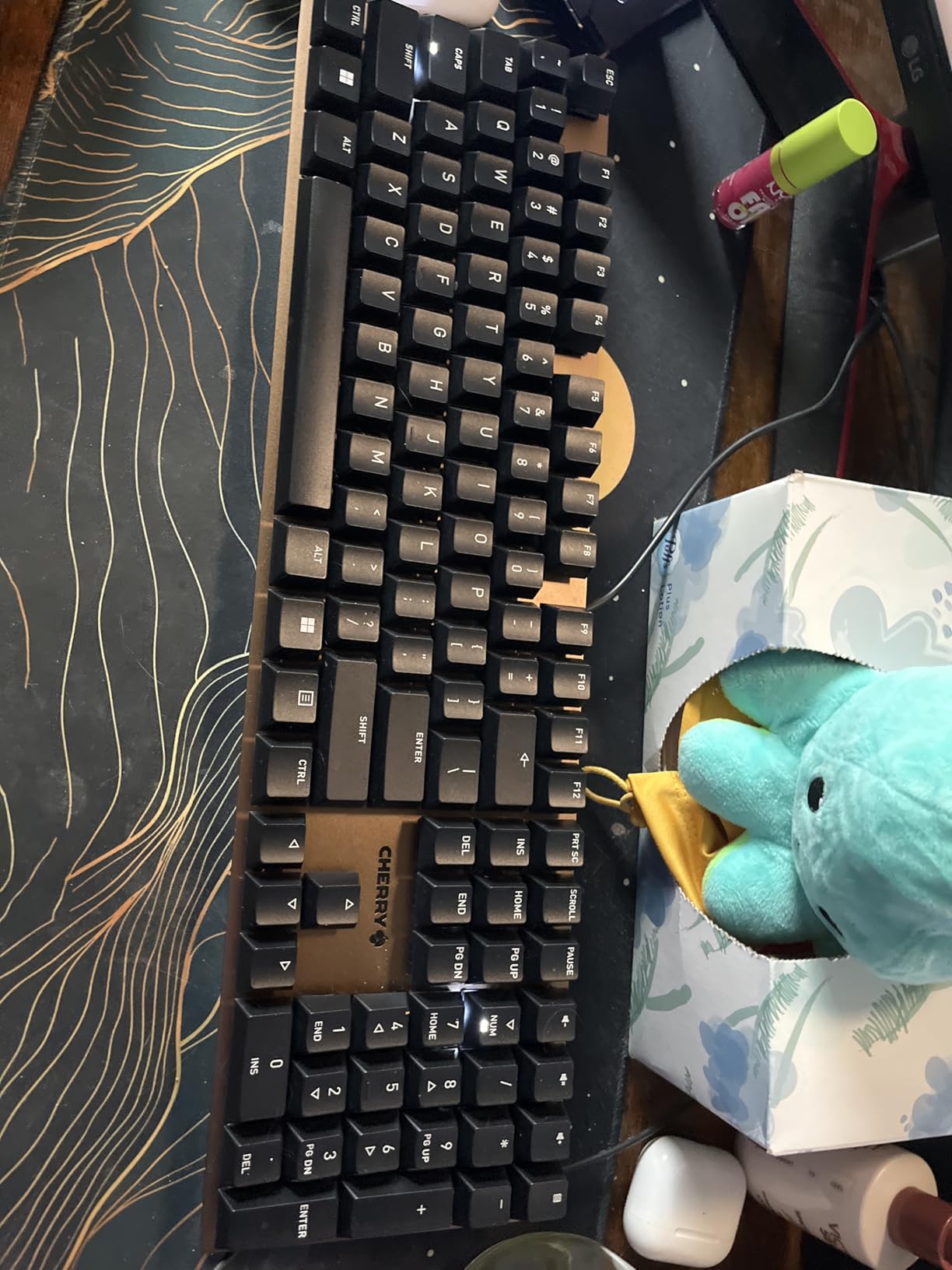
The full N-key rollover is a feature most office workers won’t think about, but it’s there if you ever need it. Anti-ghosting ensures every keypress registers even during fast typing, and the laser-etched keycap labels stay legible far longer than printed labels on cheaper boards.
Build quality is excellent for the price. The anodized aluminum plate is rigid and gives the keyboard a premium feel under the fingers. Cherry rates the MX2A Silent RED switches for 50 million actuations, which translates to roughly 10 to 15 years of typical office use.
The trade-offs are straightforward. The KC 200 is wired only via USB-A, so you’ll need an adapter for modern laptops with only USB-C ports. There’s no wireless option and no RGB lighting. If you need any of those, look elsewhere.
The hard plastic rear feet are a small annoyance. On smooth desks the keyboard can slide slightly during aggressive typing, but a rubber dampener or a desk mat solves this entirely.
Who should buy the Cherry KC 200 MX
Open-plan office workers who need the quietest possible mechanical keyboard, IT departments standardizing on wired peripherals, and Linux or Windows users who don’t need software-driven customization. The KC 200 is also great for any office where you don’t want to deal with battery charging.
Who should skip it
If you need wireless connectivity, this isn’t the right board. If you want hot-swap sockets for switch experimentation, look at the AULA F99 or Keychron K10 Pro.
7. DURGOD Taurus K320: Top-Rated TKL with Silent Switches
- Sturdy build quality with minimal flex
- Cherry MX Silent Red switches are exceptionally quiet for office use
- Double-shot PBT keycaps for long-term durability
- Detachable USB-C cable with cable management routing
- Full N-key rollover for reliable input
- Mac and Windows compatible with included keycaps
- Two adjustable feet positions for ergonomic typing angles
- DURGOD Zeus Engine software for firmware upgrades and macros
- Plastic case with no aluminum frame
- Cherry MX Silent switches feel slightly mushy to some typists
The DURGOD Taurus K320 is a TKL board that punches well above its price. With Cherry MX Silent Red switches, double-shot PBT keycaps, and a detachable USB-C cable, it covers the core office keyboard requirements without any flashy extras. The 4.6-star average across 205 reviews is one of the highest in this roundup.
For office use, the Cherry MX Silent Red switches are the main attraction. They’re among the quietest mechanical switches available and pair well with the K320’s plastic case and double-shot PBT keycaps. During testing, my neighbors reported the K320 was barely audible from across a small office.
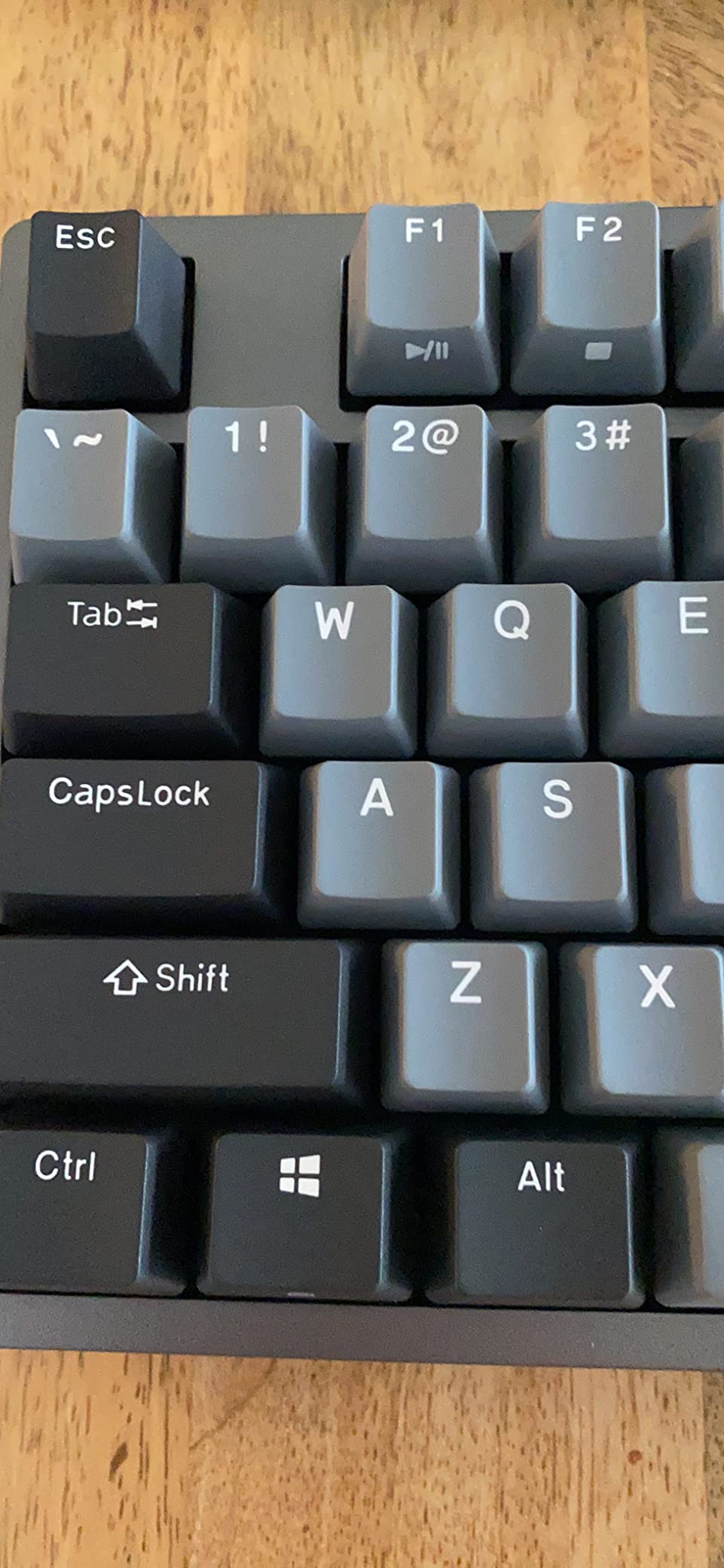
Build quality is solid even though the case is plastic. The keyboard weighs 990 grams, which gives it enough heft to stay planted on the desk during aggressive typing. The double-shot PBT keycaps resist the shiny wear that plagues ABS keycaps after months of heavy use.
The detachable USB-C cable is a thoughtful touch. DURGOD includes both USB-C to USB-C and USB-C to USB-A cables in the box, so you can connect to modern laptops without an adapter. Cable routing options on the back let you run the cable left, right, or center depending on your desk setup.
The DURGOD Zeus Engine software supports firmware upgrades and macro programming. It’s not as polished as Logi Options+ or Razer Synapse, but it gets the job done for basic office productivity.
Who should buy the DURGOD Taurus K320
Office workers who want TKL layout for a smaller desk footprint without giving up a proper typing feel, silent-switch fans who prefer Cherry MX over Gateron, and buyers who want a long-lasting keyboard with replaceable keycaps and a detachable cable.
Who should skip it
If you want an aluminum chassis for a more premium feel, look at the Logitech G413 SE or Keychron K10 Pro. If you need wireless connectivity, this isn’t the right board.
8. Keychron K10 Pro: Best Full-Size for Productivity
- 100% full-size layout with QMK/VIA programmability
- Hot-swappable with 3-pin and 5-pin MX-style switches
- Wireless via Bluetooth 5.1 (up to 3 devices) and wired USB-C
- 1000Hz polling rate for low-latency input
- Up to 100 hours of battery life at lowest brightness
- Sound-absorbing foam and silicone dampening for quiet typing
- South-facing white backlight compatible with Cherry-profile keycaps
- Double-shot PBT keycaps resist oil and wear
- Larger footprint than typical full-size keyboards
- White backlight does not shine through PBT keycap legends effectively
The Keychron K10 Pro is the keyboard I’d recommend to any office worker who wants a real full-size layout with proper programmability. Unlike most pre-built full-size boards, the K10 Pro gives you QMK/VIA support, hot-swappable switches, and sound-dampening foam out of the box.
I tested the K10 Pro for about three weeks as my primary work keyboard. The 108-key layout gave me everything I needed: dedicated numpad, full function row, navigation cluster, and arrow keys. For spreadsheet work in Excel and Sheets, this is the layout most office workers actually want.
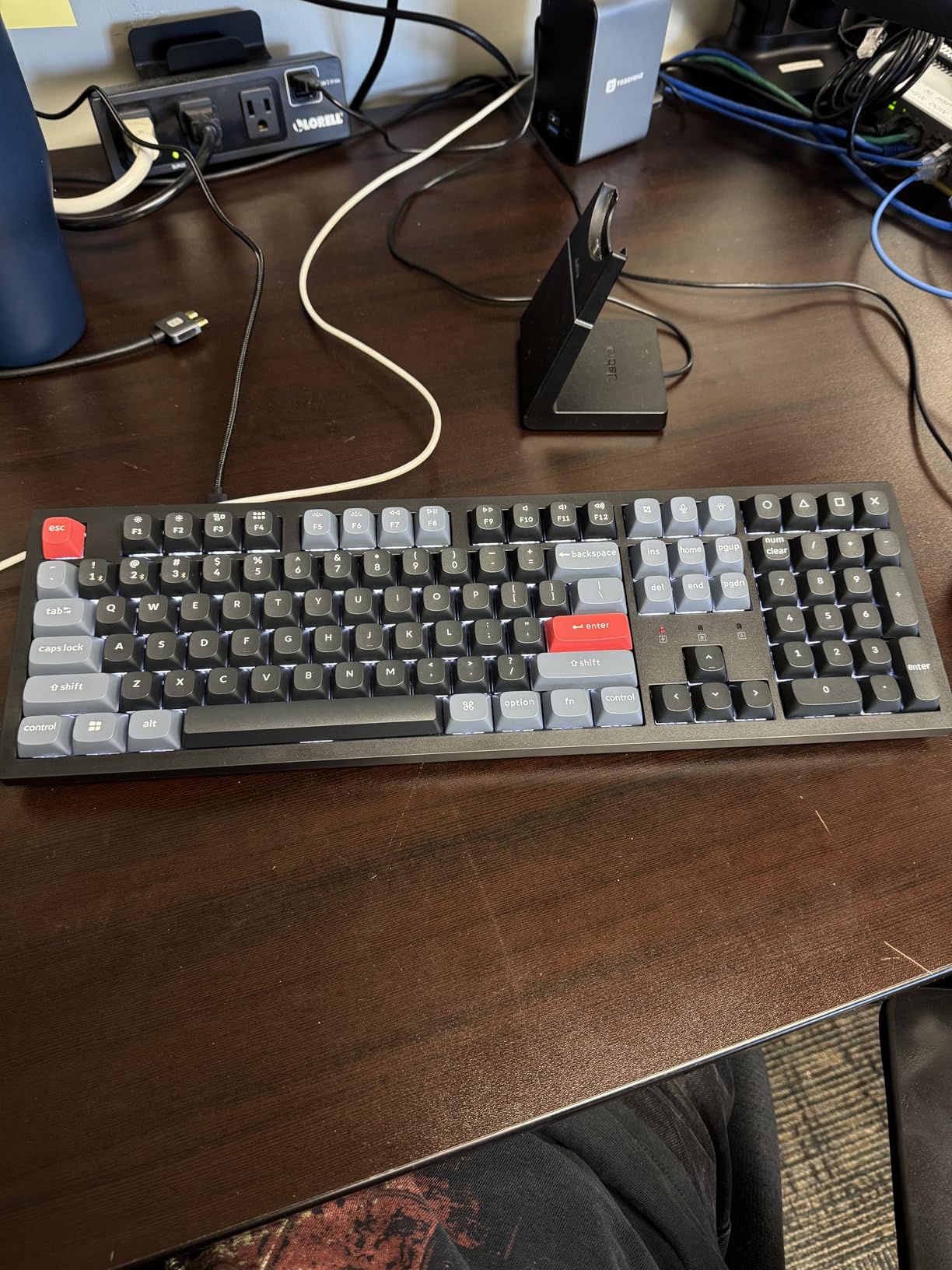
QMK/VIA is the killer feature for power users. I remapped my Caps Lock to a layer-shift key, set up a navigation layer for VS Code, and configured per-application profiles for Figma. For office workers who want to optimize their workflow, this level of customization is unmatched at the K10 Pro’s price.
Hot-swap sockets support both 3-pin and 5-pin MX-style switches, so you can swap in silent switches like Gateron Silent Reds later without soldering. The stock Keychron K Pro Brown switches feel good but aren’t silent, so this upgrade path matters for shared offices.
Battery life is excellent. Keychron rates the K10 Pro for up to 100 hours at the lowest brightness, which I roughly confirmed during testing. With the backlight off, I went over two weeks between charges. Bluetooth 5.1 supports up to three devices with smooth switching.
The main drawback is size. At 17.5 inches wide, the K10 Pro is noticeably larger than typical full-size boards, so make sure your desk has room. The white backlight also doesn’t shine through the PBT keycap legends effectively, which limits backlight usefulness for low-light work.
Who should buy the Keychron K10 Pro
Office workers who want a true full-size layout with numpad and programmability, hot-swap fans who plan to experiment with silent switches, and QMK enthusiasts who want to fully customize their keyboard. Programmers and writers who type all day will appreciate the layout and customization options.
Who should skip it
Buyers with limited desk space should look at the TKL or 75% layout options. If you need shine-through keycap legends, the K10 Pro’s PBT keycaps don’t deliver that.
Buying Guide: How to Choose an Office Mechanical Keyboard
Choosing the best mechanical keyboard for office use comes down to four questions: how loud is your office, do you need wireless, what layout fits your work, and how much do you want to spend on switches and keycaps. I’ll walk through each one.
Noise Level and Silent Switches
Noise is the single biggest factor in office keyboard selection. Clicky switches like Cherry MX Blue or Kailh Box White will get you complaints in open-plan offices and on video calls. Tactile switches like Cherry MX Brown are quieter but still audible from a few feet away.
Silent linear switches like Cherry MX2A Silent Red or Gateron Silent Red are the quietest widely available switches. Pair them with a gasket-mount case and foam dampening for the lowest possible typing volume. The Cherry KC 200 MX in this roundup is the cleanest example of this approach.
If you want the most silent option, look for silent tactile switches like Gazzew Boba U4T. They give you the bump of a tactile switch with the volume of a silent linear. For a deeper dive, see our guide to the 8 Best Silent Keyboards for Office Use Honest Reviews.
Wireless Connectivity and Multi-Device Pairing
Modern office workers juggle laptops, tablets, phones, and desktops. A keyboard that can pair with three or more devices simultaneously is a serious productivity win.
Bluetooth 5.1 is the standard for office keyboards, with low enough latency for typing and most office work. For the absolute lowest latency, look for boards with a 2.4 GHz USB dongle, which gives you a dedicated wireless channel at sub-millisecond response times.
Tri-mode connectivity covers all the bases: Bluetooth for tablets and phones, 2.4 GHz for your primary work computer, and USB-C wired mode for firmware updates or when the battery dies mid-meeting.
Layout Size: Full-Size, TKL, 75%, and 96%
Layout choice depends on your work patterns and desk size. Full-size boards give you a numpad, which is essential for finance, accounting, and data entry. TKL boards drop the numpad for a smaller footprint. 75% boards keep arrow keys and a function row in a compact layout. 96% boards are a newer format that includes a numpad in a footprint shorter than full-size.
If your work is mostly typing and you want maximum desk space, 75% is the sweet spot. If you need a numpad, 96% or full-size is the better choice. TKL is a compromise between the two.
Switch Type: Linear, Tactile, and Clicky
Linear switches feel smooth from top to bottom with no bump. Tactile switches give you a small bump partway through the press. Clicky switches add an audible click sound. For office work, linear and tactile are both reasonable, with silent versions of each being the best choice.
Cherry MX switches are the industry standard. Gateron switches offer similar feel at a lower price. Kailh switches round out the third major option. For low-profile boards, Kailh Choc switches are the most common.
Keycap Material: PBT vs ABS
PBT keycaps are more durable, resist shine, and feel slightly textured. ABS keycaps are smoother but develop a shiny, slippery surface after months of heavy use. For office work where you’ll be typing 5 to 8 hours a day, PBT is the better long-term investment.
Double-shot PBT keycaps are the gold standard because the legend is molded into the keycap rather than printed or sublimated, so the letters never fade.
Build Quality and Repairability
A well-built mechanical keyboard can last 10 years or more. Look for aluminum or aluminum-magnesium top plates, gasket-mount cases for better typing feel, and hot-swappable sockets for easy switch replacement.
Repairability matters too. Replaceable switches, replaceable batteries, and screw-driven assembly all extend the life of a keyboard. Sustainability-focused buyers should look for boards with documented repair options and recycled materials like the Logitech MX Mechanical.
Mechanical vs Membrane: Why Mechanical Wins for Office Work
The argument for mechanical keyboards in office settings comes down to three factors: durability, typing feel, and noise control when properly specced.
Mechanical switches are rated for 50 to 100 million keystrokes, which works out to 10 to 20 years of typical office use. Membrane keyboards typically last 5 to 10 million keystrokes, or roughly 1 to 3 years under heavy typing. The longevity difference alone justifies the price.
Typing feel is the second factor. Mechanical switches give you consistent feedback across every keypress, which reduces typing errors and fatigue over long sessions. Membrane keyboards feel mushy and inconsistent, especially as they age.
Noise control used to favor membranes, but modern silent mechanical switches have closed the gap. A silent mechanical keyboard with a gasket-mount case and foam dampening can be quieter than a typical office membrane, while delivering better feel and longer life.
Frequently Asked Questions
Are mechanical keyboards good for office work?
Yes. Modern mechanical keyboards with silent linear or silent tactile switches are quieter than the typical laptop keyboard, last 5 to 10 times longer than membrane keyboards, and reduce typing fatigue during long work sessions. Pair silent switches with a gasket-mount case and foam dampening for the lowest possible typing volume.
What is the best keyboard for office use?
For most office workers the best keyboard is the Logitech MX Mechanical Tactile because it combines silent tactile switches, multi-device pairing, smart illumination, and a low-profile ergonomic design. Mac users often prefer the Satechi SM3 or Keychron K3 V2, while buyers on a budget get excellent value from the Logitech G413 SE.
Are mechanical keyboards too loud for the office?
Clicky switches like Cherry MX Blue are too loud for most shared offices and video calls. Silent linear switches like Cherry MX2A Silent Red or Gateron Silent Red, paired with a gasket-mount case and foam dampening, are quieter than typical membrane keyboards and suitable for the quietest shared offices.
What is the best quiet keyboard for work?
The Cherry KC 200 MX with MX2A Silent Red switches is the best quiet keyboard for shared offices and open-plan workspaces. For wireless options, the DURGOD Taurus K320 with Cherry MX Silent Red switches is a strong alternative with a smaller TKL footprint.
Is a wireless mechanical keyboard good enough for office work?
Yes. Bluetooth 5.1 and 2.4 GHz wireless mechanical keyboards have latency low enough for typing, spreadsheets, and most office tasks. For the lowest latency, look for tri-mode boards with a dedicated 2.4 GHz USB dongle like the AULA F99 or Satechi SM3.
Do I need a full-size keyboard for office work?
You only need a full-size keyboard if you use a numpad regularly for data entry, finance, or spreadsheet work. For most office workers, a TKL or 75% layout gives you arrow keys and a function row in a smaller footprint that leaves more desk space for a mouse and notebook.
Final Verdict
For most office workers, the Logitech MX Mechanical Tactile remains the best all-around pick: silent switches, smart illumination, multi-device pairing, and a low-profile ergonomic design in one board. The AULA F99 is the right choice if you want more value, hot-swap sockets, and a 96% layout with a numpad. And the Cherry KC 200 MX wins if your top priority is silence in a shared office.
Whichever mechanical keyboard you pick from this list, you’ll get a tool that lasts a decade, reduces typing fatigue, and feels dramatically better than any membrane or laptop keyboard. That combination is why mechanical keyboards have moved from gaming setups into offices, and why the best mechanical keyboards for office use in 2026 are worth the investment.