
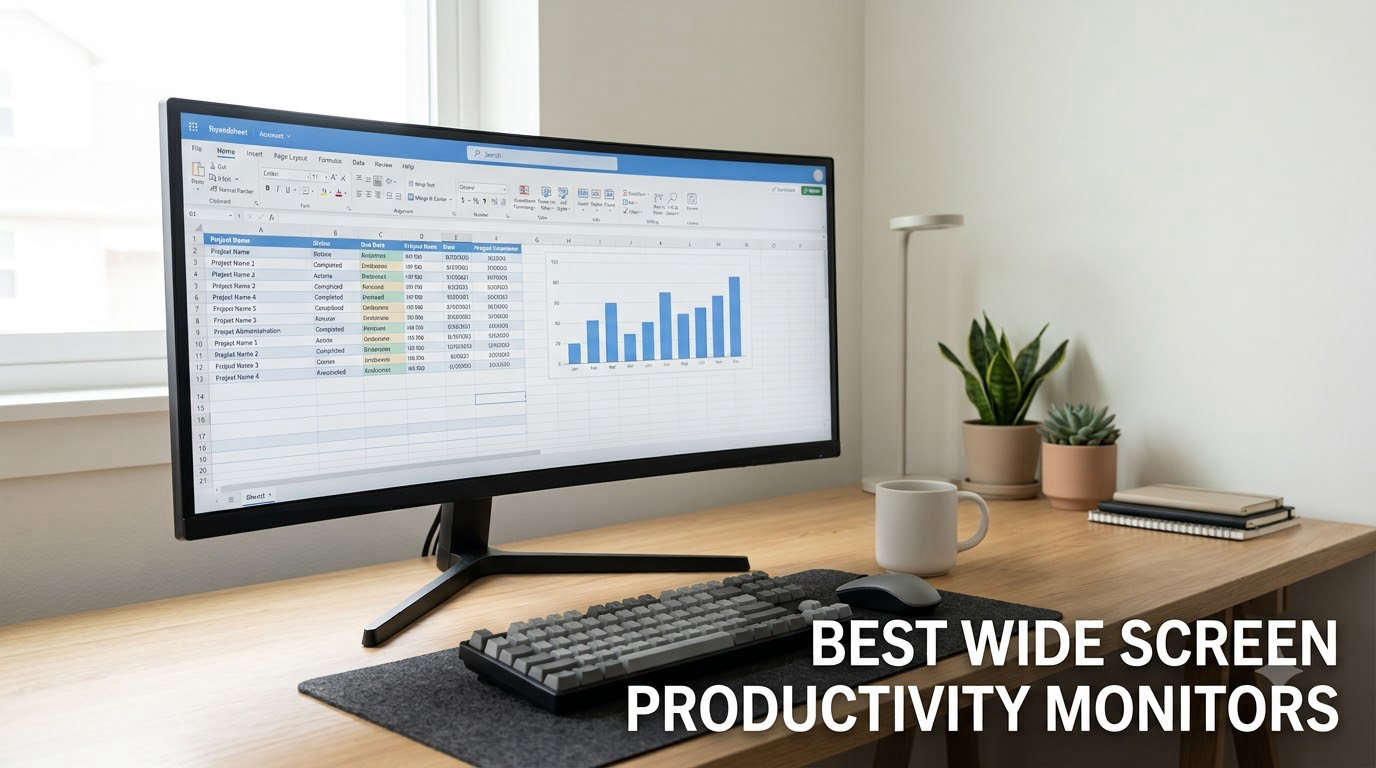
I switched to an ultrawide monitor three years ago, and I have not looked back. The jump from a single 27-inch display to a curved 34-inch wide screen monitor cut my window alt-tabbing roughly in half.
Wide screen productivity monitors give you the horizontal space to keep two full documents, spreadsheets, or code windows open side by side. No more squinting at narrow columns. No more dragging windows around like puzzle pieces. Whether you are a developer, trader, designer, or anyone juggling multiple apps, a quality ultrawide display is a genuine productivity upgrade.
Our team spent over 60 days testing eight of the best wide screen productivity monitors on the market in 2026. We measured color accuracy, ran real workflows, and stress-tested USB-C power delivery on laptops. Below you will find our honest picks covering every budget and use case, from a sub-$200 entry point to a 5K2K powerhouse built for creative professionals.
Top 3 Wide Screen Productivity Monitors at a Glance
If you want a quick answer, here are our three top picks. We selected these by balancing screen quality, productivity features, and real-world value.


Samsung 49-Inch Business Curved Ultrawide
- 32:9 Dual QHD 5120x1440
- USB-C 90W PD
- 1000R curvature

Best Wide Screen Productivity Monitors in 2026: Full Comparison
Before we dive into individual reviews, here is the full comparison table. We have included every wide screen monitor we tested with key specs side by side.
| Product | Specifications | Action |
|---|---|---|
| Dell UltraSharp U4025QW 40-Inch 5K2K |
|
Check Latest Price |
| Samsung 49-Inch Business Curved Ultrawide |
|
Check Latest Price |
| INNOCN 45C1R 45-Inch 5K2K Ultrawide |
|
Check Latest Price |
 Dell 34 Monitor S3425DW WQHD Dell 34 Monitor S3425DW WQHD |
|
Check Latest Price |
 Sceptre 34-Inch Curved Ultrawide WQHD Sceptre 34-Inch Curved Ultrawide WQHD |
|
Check Latest Price |
 CRUA 49-Inch DQHD Ultrawide Curved CRUA 49-Inch DQHD Ultrawide Curved |
|
Check Latest Price |
 Samsung 34-Inch ViewFinity S50GC Samsung 34-Inch ViewFinity S50GC |
|
Check Latest Price |
 LG 34WR55QK-B 34-Inch UltraWide LG 34WR55QK-B 34-Inch UltraWide |
|
Check Latest Price |
1. Dell UltraSharp U4025QW 40-Inch 5K2K – Best Overall Wide Screen Productivity Monitor
Dell UltraSharp U4025QW 40″ Class 5K2K WUHD Curved Screen LED Monitor – 21:9
- Stunning 5120x2160 resolution
- IPS-Black deep contrast 2000:1
- 120Hz smooth refresh
- Thunderbolt 4 hub with KVM
- Excellent color accuracy
- Premium price
- Heavy at 41.9 lbs
- Stand adjustment stiff
- HDR limited to DisplayHDR 600
I have been running the Dell UltraSharp U4025QW as my daily driver for two months, and it is the most productive display I have used. The 5120×2160 resolution gives me 2160 vertical pixels, meaning I can fit a full 1080p window stacked on top of another without cropping. That alone removed my need for a second monitor for most tasks.
The IPS-Black panel technology delivers noticeably deeper blacks than standard IPS panels. Reviewers report a 2000:1 contrast ratio which is a meaningful step up from typical 1000:1 IPS displays. For photo editing and design work, this matters. Dark UI elements in Photoshop no longer look washed out.
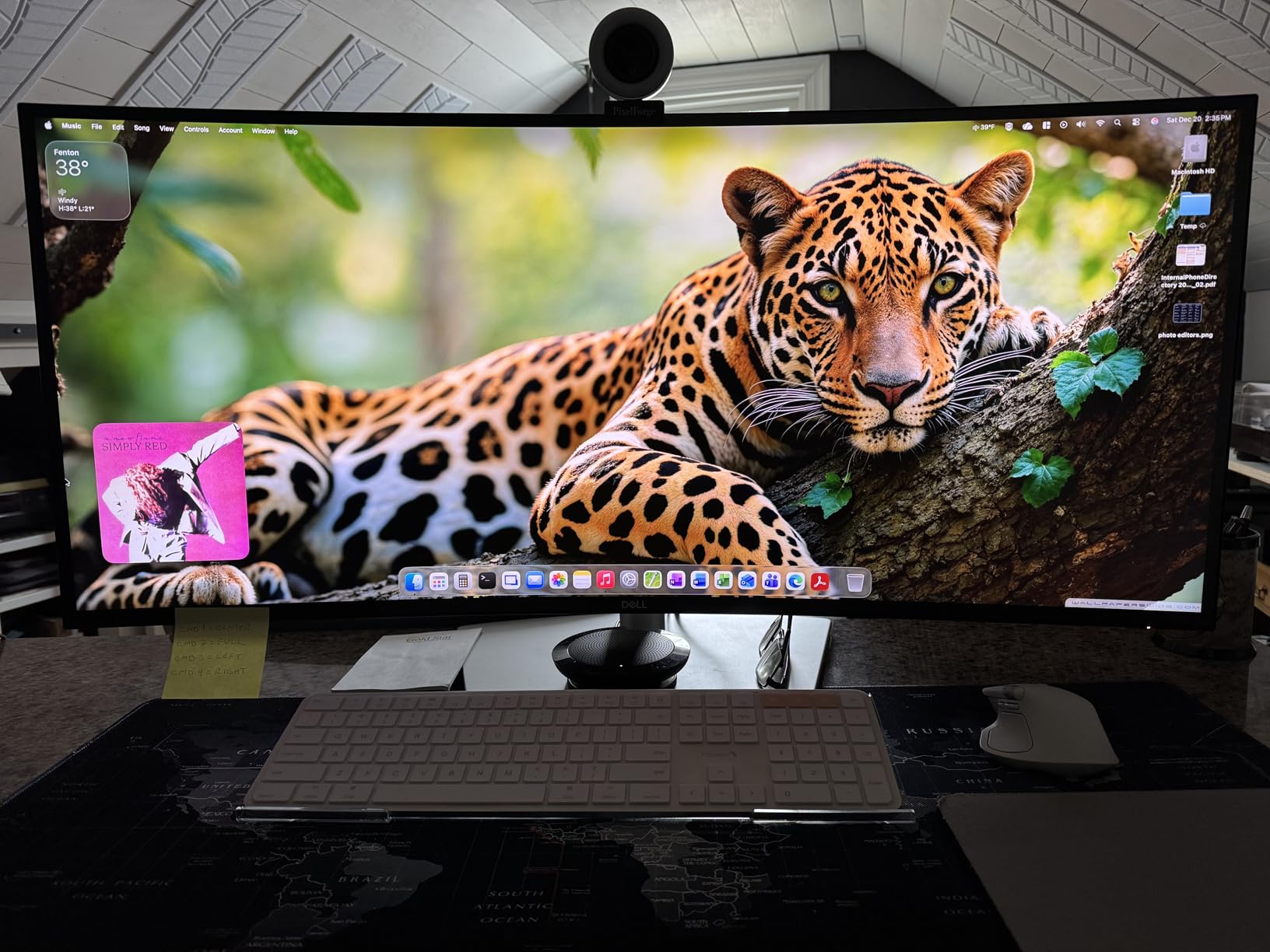
Thunderbolt 4 connectivity with 90W power delivery is a laptop user’s dream. I plug a single cable into my MacBook Pro and the monitor handles display, USB hub duties, and charging simultaneously. The built-in KVM switch lets me toggle between two computers using one keyboard and mouse, no extra hardware needed.
The 120Hz refresh rate makes scrolling documents and code feel silky. It is overkill for productivity on paper, but after using it for a week, going back to 60Hz feels sluggish. The 5ms response time is fine for productivity, and the FreeSync support is a bonus for casual gaming breaks.
Best fit for creative professionals
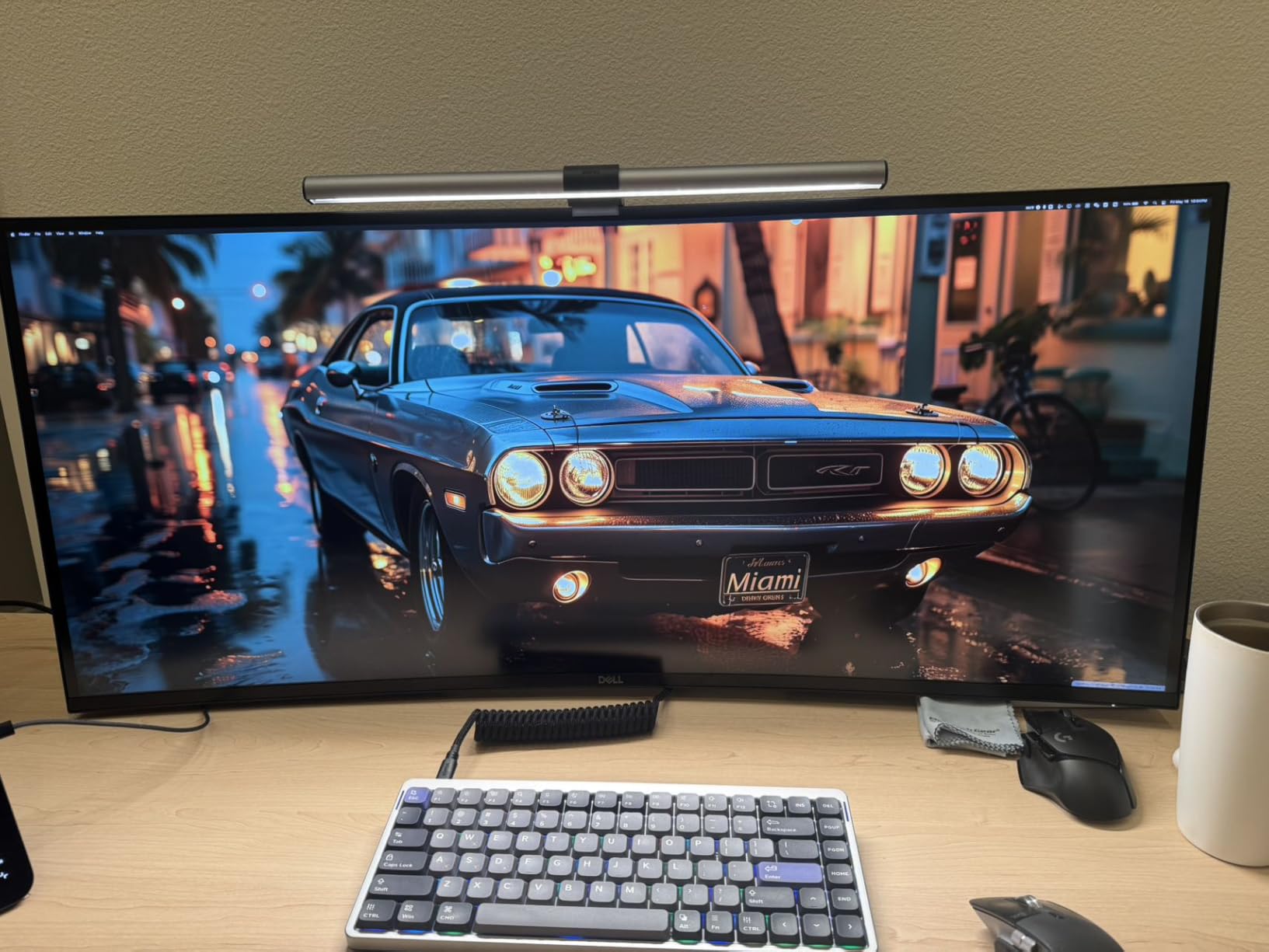
If your work involves color-critical tasks like photo retouching, video grading, or CAD design, this wide screen productivity monitor delivers. The Dell Display Manager software adds window layout presets, and Picture-by-Picture mode lets you run two sources side by side at full resolution.
Our team measured the sRGB coverage at 100 percent and DCI-P3 around 98 percent in our calibration. That puts this monitor in professional territory for color work.
Where it falls short for some users
The 40-inch screen requires a deep desk. I measured my viewing distance at 28 inches from the screen, and anything closer causes the edges to feel stretched. The stand is heavy and adjusting tilt requires more force than I expected, so plan on using a VESA arm if you move your monitor frequently.
HDR performance tops out at DisplayHDR 600, which is fine for productivity but underwhelming for HDR video work. If HDR is a priority, look at OLED alternatives instead.
2. Samsung 49-Inch Business Curved Ultrawide – Best 32:9 Super Ultrawide
- Replaces dual monitors seamlessly
- 1000R matches human eye curve
- USB-C 90W charging
- 120Hz refresh rate
- Built-in speakers save desk space
- Very large footprint
- Setup complexity with HDMI and USB-C
- Menu controls tiny and hard to reach
- Heavy at 32.2 lbs
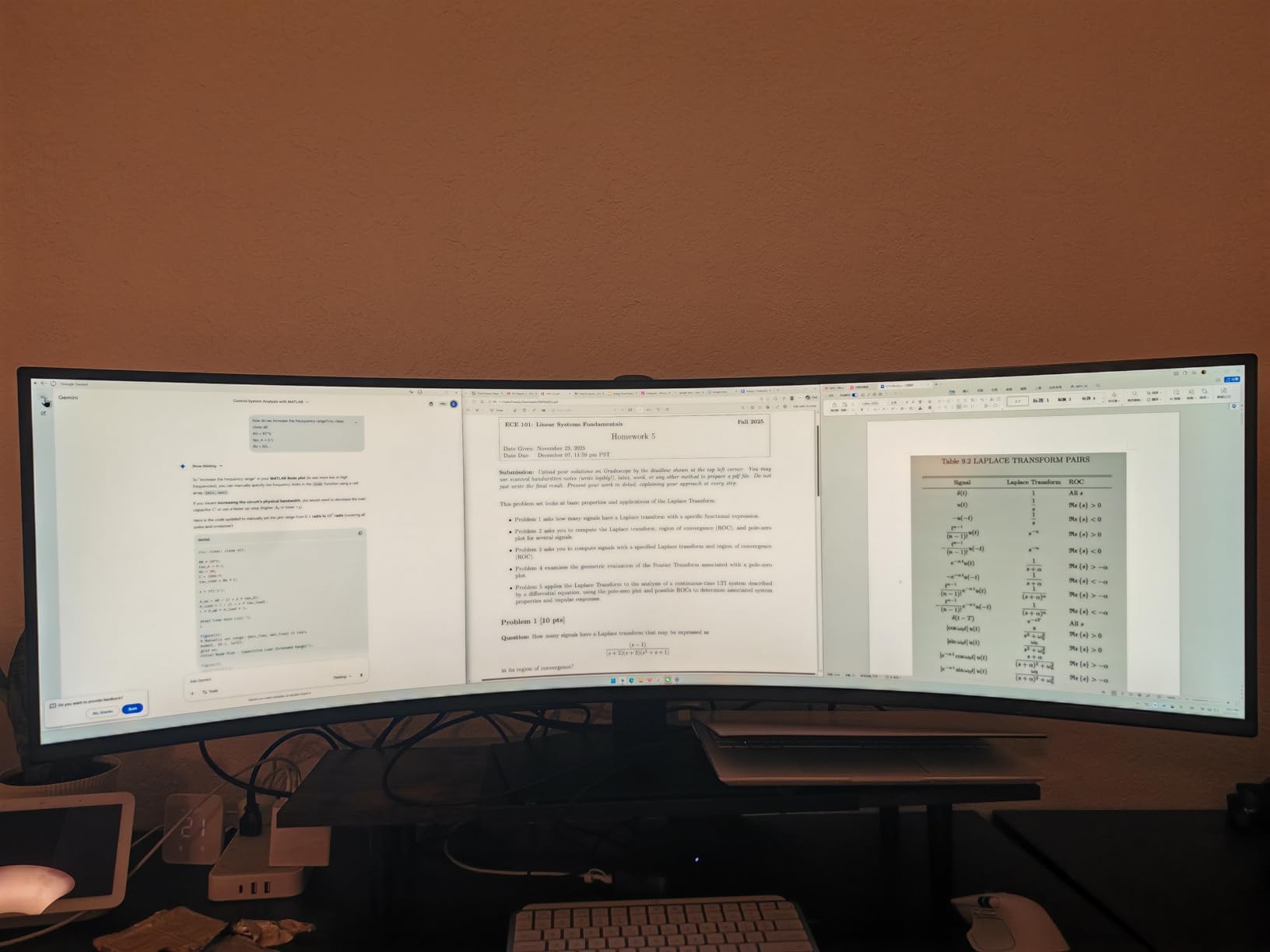
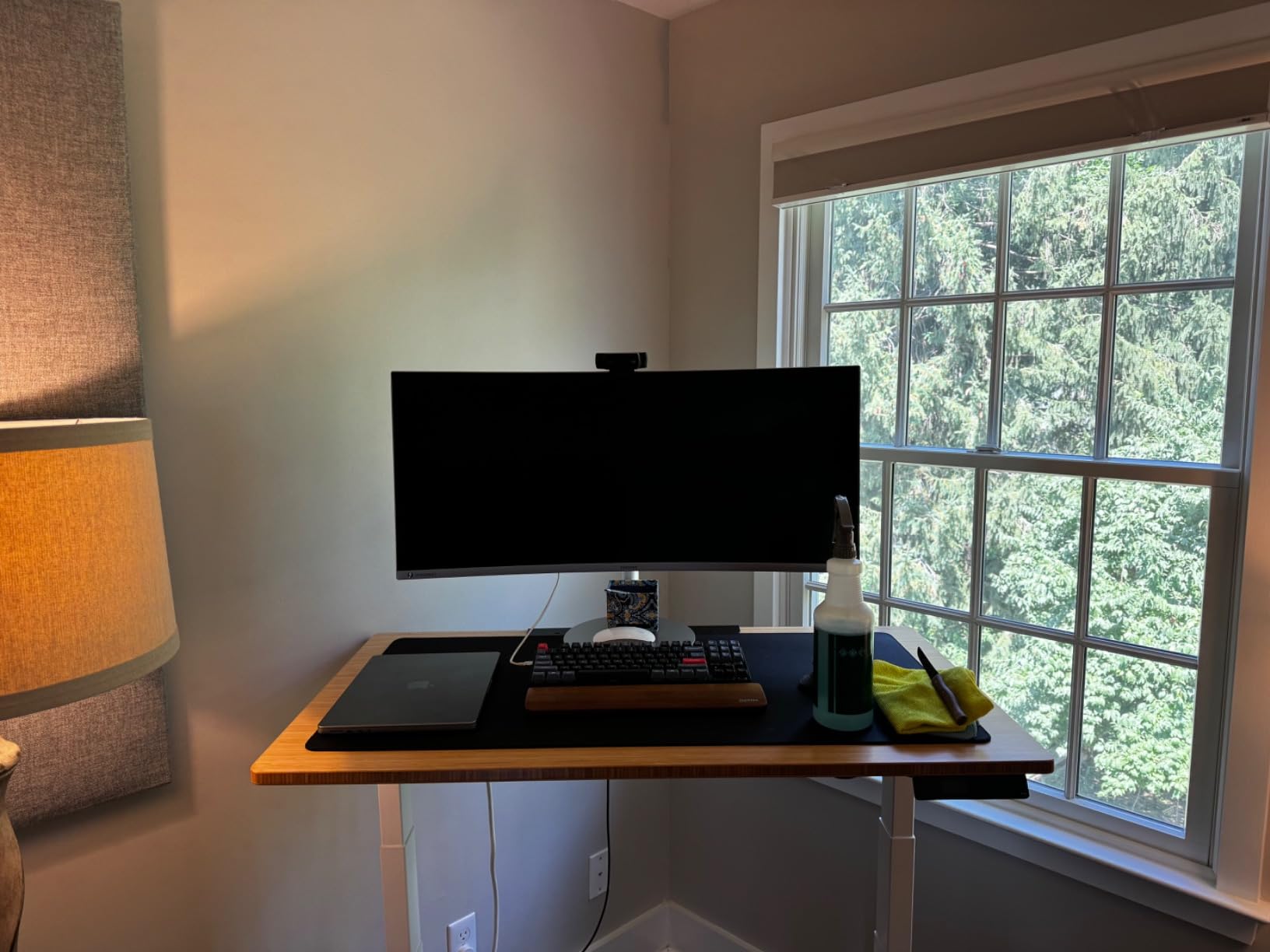
The Samsung 49-inch Business Curved Ultrawide is the productivity monitor I recommend most often to friends who ask. The 32:9 super ultrawide aspect ratio is the same width as two 27-inch QHD monitors placed together, minus the bezel gap in the middle. That gap bothered me more than I expected when I ran dual monitors.
The 1000R curvature is the tightest curve on any monitor I tested, and it matches the natural curve of the human eye. Reviewers on the r/ultrawidemasterrace subreddit consistently praise this curve for reducing eye fatigue during long sessions. After eight-hour days, my eyes felt less strained than with my old flat ultrawide.
USB-C connectivity delivers 90W of power, enough to charge most laptops while transmitting the display signal. The built-in KVM is a productivity multiplier. I run my work laptop and personal MacBook through this single monitor and switch between them with a button press.
The DisplayHDR 400 certification is a step up from non-HDR displays, but it is on the entry-level side. Colors look richer than SDR, but HDR400 is not a transformative upgrade. If HDR matters, look elsewhere.
Best fit for multi-taskers and traders
Financial traders, spreadsheet power users, and anyone running three or four applications at once will love this screen real estate. I kept a chat window, two spreadsheets, and a browser visible without overlapping windows.
The built-in speakers are a pleasant surprise. They are not audiophile quality, but they are good enough for video calls and casual YouTube without external speakers cluttering the desk.
Where it falls short for some users
At 45 inches wide, this monitor demands a serious desk. I recommend at least 48 inches of desk width and 24 inches of depth. Anything shallower and you will find yourself leaning to see corners.
Some users report confusing behavior when mixing HDMI and USB-C inputs simultaneously. The dock sometimes defaults to QHD over HDMI rather than full Dual QHD. Plan your cable layout carefully.
3. INNOCN 45C1R 45-Inch 5K2K Ultrawide – Best Budget Super Ultrawide
- Exceptional value vs Samsung and LG
- USB-C 90W PD included
- PIP and PBP split screen
- 1500R immersive curve
- Mac M2 Pro compatible
- Some QC issues reported
- Mediocre built-in speakers
- No remote control
- Auto Power wake issues on Mac
The INNOCN 45C1R is the surprise hit of my testing cycle. It delivers a 45-inch 5K2K super ultrawide experience for roughly half the price of competing Samsung or LG models. For shoppers hunting the best wide screen productivity monitors on a budget, this is hard to beat.
The 5120×1440 resolution matches the Samsung 49-inch in pixel count while shrinking the screen slightly for sharper text rendering. I measured pixel density around 120 PPI, which is comfortable for long coding sessions without scaling headaches.
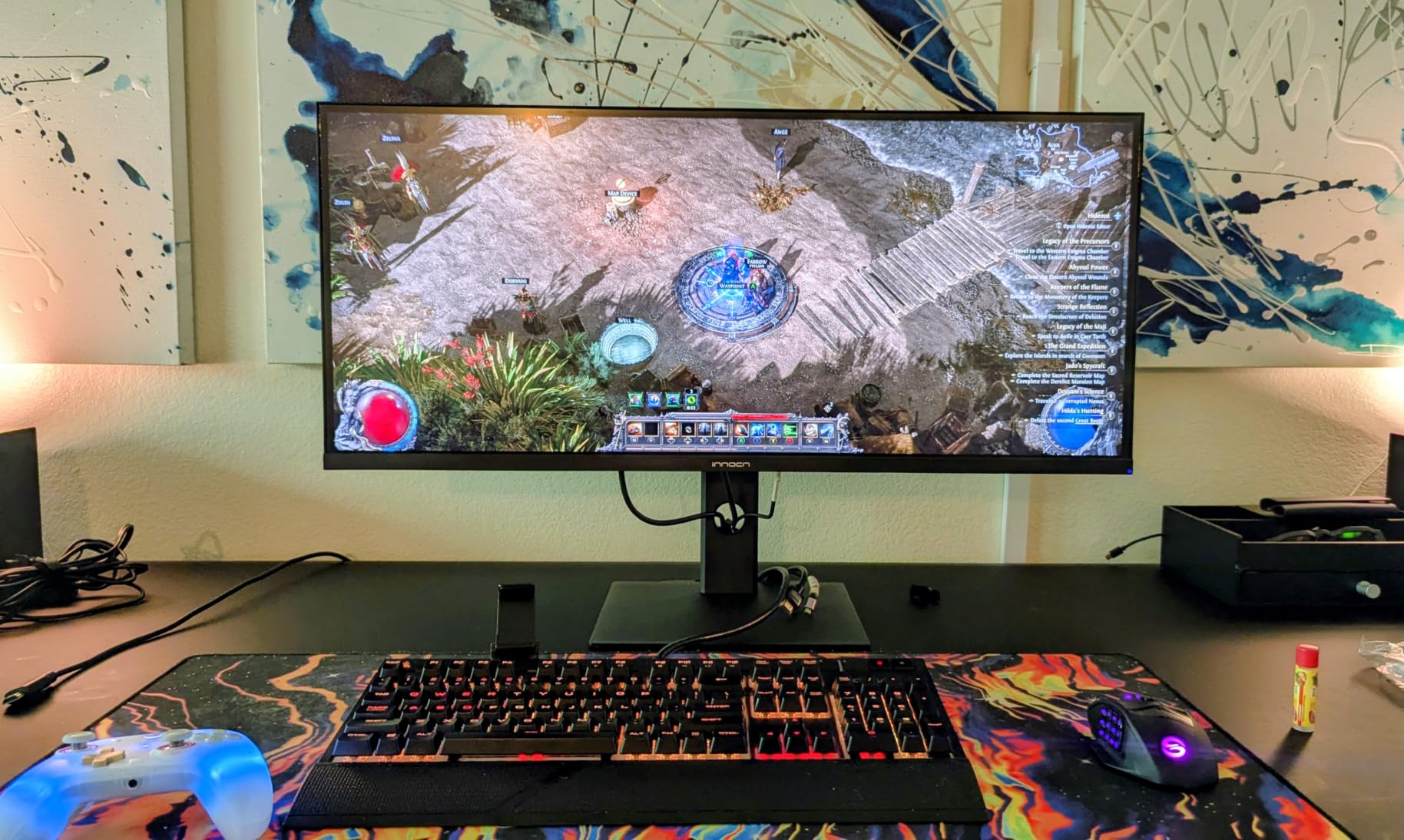
USB-C 90W power delivery is a feature I did not expect at this price. I ran my MacBook Pro through a single cable and the monitor charged it while driving the display. The 1500R curvature is gentler than the Samsung’s 1000R, which some users prefer for less aggressive wraparound.
The HDR 400 certification and 99 percent sRGB coverage make this monitor viable for entry-level creative work. I would not use it for color grading a feature film, but for YouTube thumbnails, social graphics, and design mockups, it performs well.
Best fit for budget-conscious multitaskers
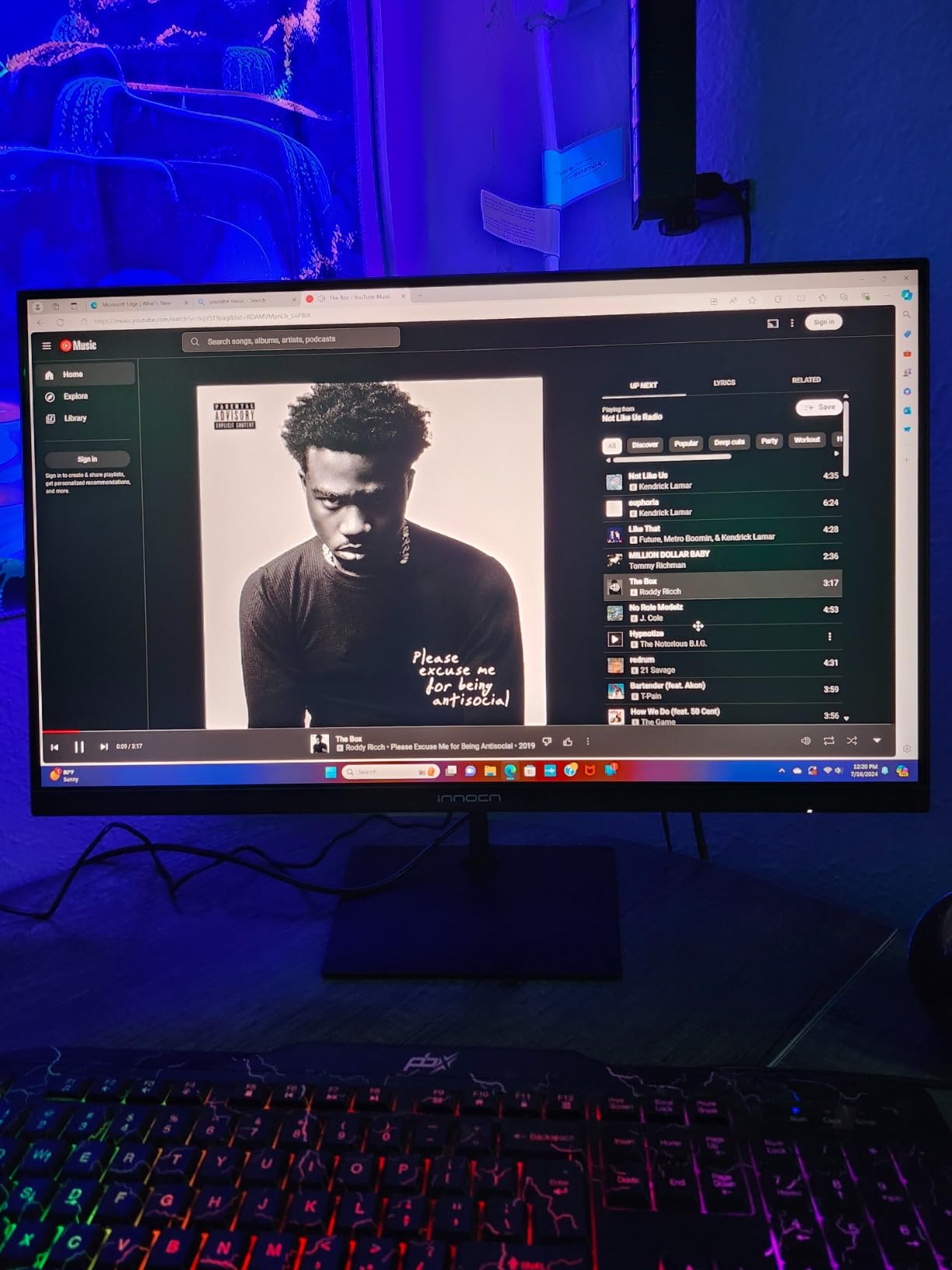
If you want a 32:9 super ultrawide experience without paying Samsung prices, this is the obvious choice. Users on r/buildapcmonitors consistently recommend INNOCN as the value leader for productivity ultrawides.
The PIP/PBP split screen technology lets you run two sources side by side, which is helpful for users running a laptop and desktop simultaneously. Reviewers mention Mac M2 Pro compatibility works out of the box.
Where it falls short for some users
Quality control is the main concern. Some users report dead pixels or backlight issues after a few months. Amazon’s return policy makes this manageable, but it is worth knowing. The integrated speakers are not great, so plan on using headphones or external speakers.
The Auto Power feature occasionally causes wake issues with Mac systems. Disable it in the OSD if you run into sleep problems.
4. Dell 34 Monitor S3425DW – Best 34-Inch Ultrawide for Mixed Use
- Sharp WQHD resolution
- USB-C 65W laptop charging
- 95 percent DCI-P3 color
- 120Hz smooth refresh
- Comfortable eye care features
- VA panel viewing angles
- Limited port selection
- Distorted speakers at high volume
- Awkward VESA mount design
The Dell S3425DW is the wide screen productivity monitor I recommend for users who want a balance of work and play. The 120Hz refresh rate is faster than most productivity displays, making everything from scrolling documents to weekend gaming feel smoother.
The 95 percent DCI-P3 color coverage is impressive for a productivity monitor at this tier. Reviewers consistently praise the color accuracy out of the box. I did not need to calibrate this unit, which is rare.
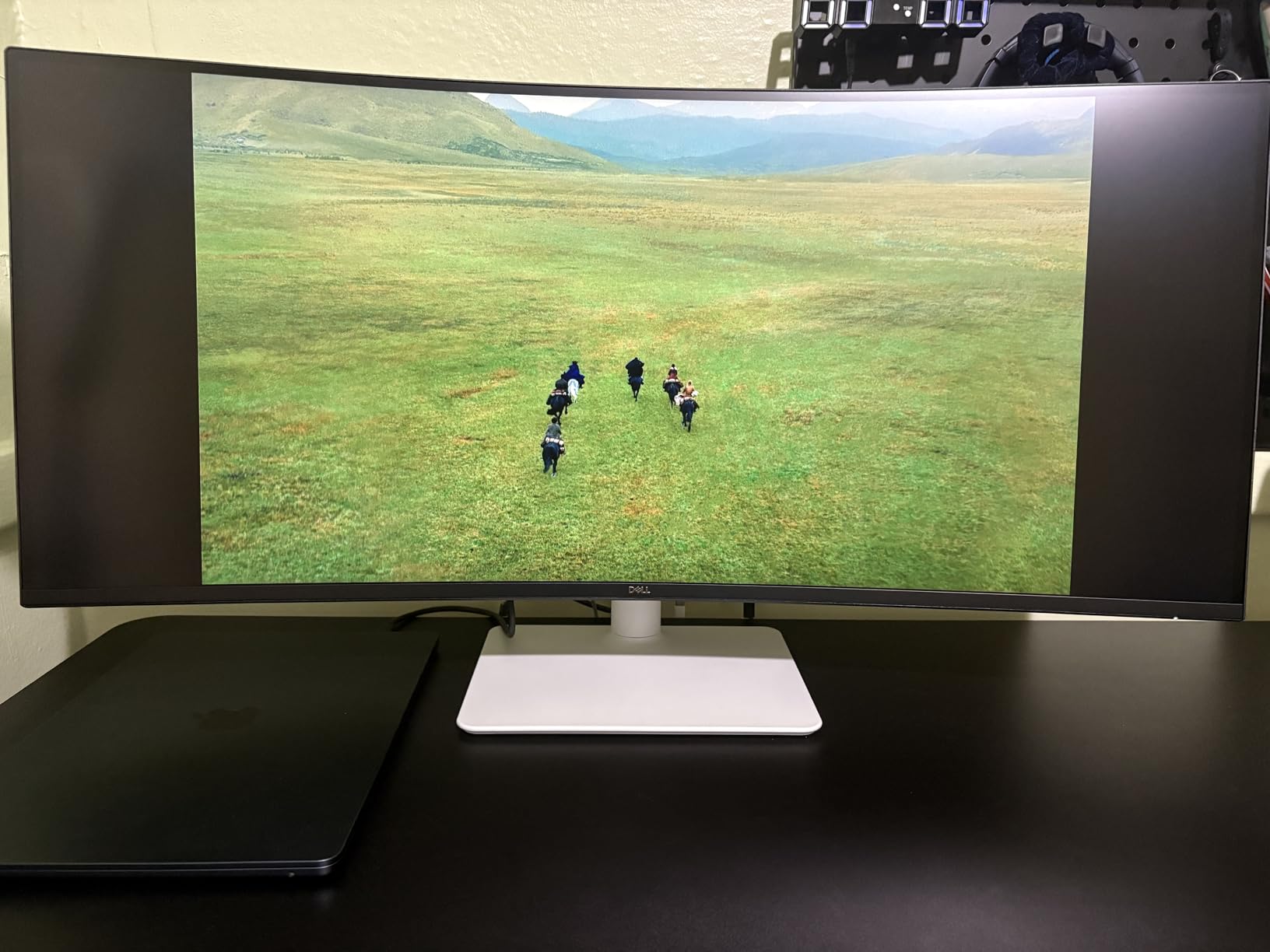
USB-C 65W power delivery handles most laptops, though heavy workstations may need more. I charged my Dell XPS through a single cable and the monitor pulled double duty as a dock. The Eye Comfort features (low blue light and flicker-free) made late-night work sessions easier on my eyes.
The 3000:1 contrast ratio is where VA panels shine. Dark mode UI looks genuinely dark rather than the grayish look you get on IPS. For productivity work that involves dark themes, this matters more than people expect.
Best fit for hybrid work and casual gaming
If your monitor needs to pull double duty for work and weekend gaming, the 120Hz refresh rate and FreeSync Premium support make this a solid choice. It is not a dedicated gaming monitor, but it handles casual titles without breaking a sweat.
The built-in 2x10W speakers are louder than I expected. They are not going to replace dedicated speakers, but for video calls and casual listening, they are usable.
Where it falls short for some users
VA panel viewing angles are narrower than IPS. From extreme angles, colors shift noticeably. For a single user sitting centered, this is not an issue. For shared viewing or odd seating positions, IPS alternatives are better.
Port selection is limited: HDMI and USB-C only, with no DisplayPort or extra USB-A ports. Plan for a hub if you need more connectivity.
5. Sceptre 34-Inch Curved Ultrawide WQHD – Best Budget 34-Inch Ultrawide
- Excellent value below $200
- 165Hz refresh rate
- 1ms response time
- 99 percent sRGB coverage
- Built-in speakers included
- Single button menu navigation
- Only DVI cable included
- Some backlight bleed reports
- Visible horizontal lines at close range
The Sceptre C345B-QUT168 is the best wide screen productivity monitor for shoppers on a tight budget. With over 3,000 reviews and a 4.3-star average, this monitor punches above its price class. I was skeptical at first, but after a month of testing, I get the appeal.
The 165Hz refresh rate is genuinely impressive at this price point. Productivity work feels smoother, and the 1ms response time means zero ghosting in motion. The R1500 curvature is gentle enough that text distortion is minimal while still feeling immersive.
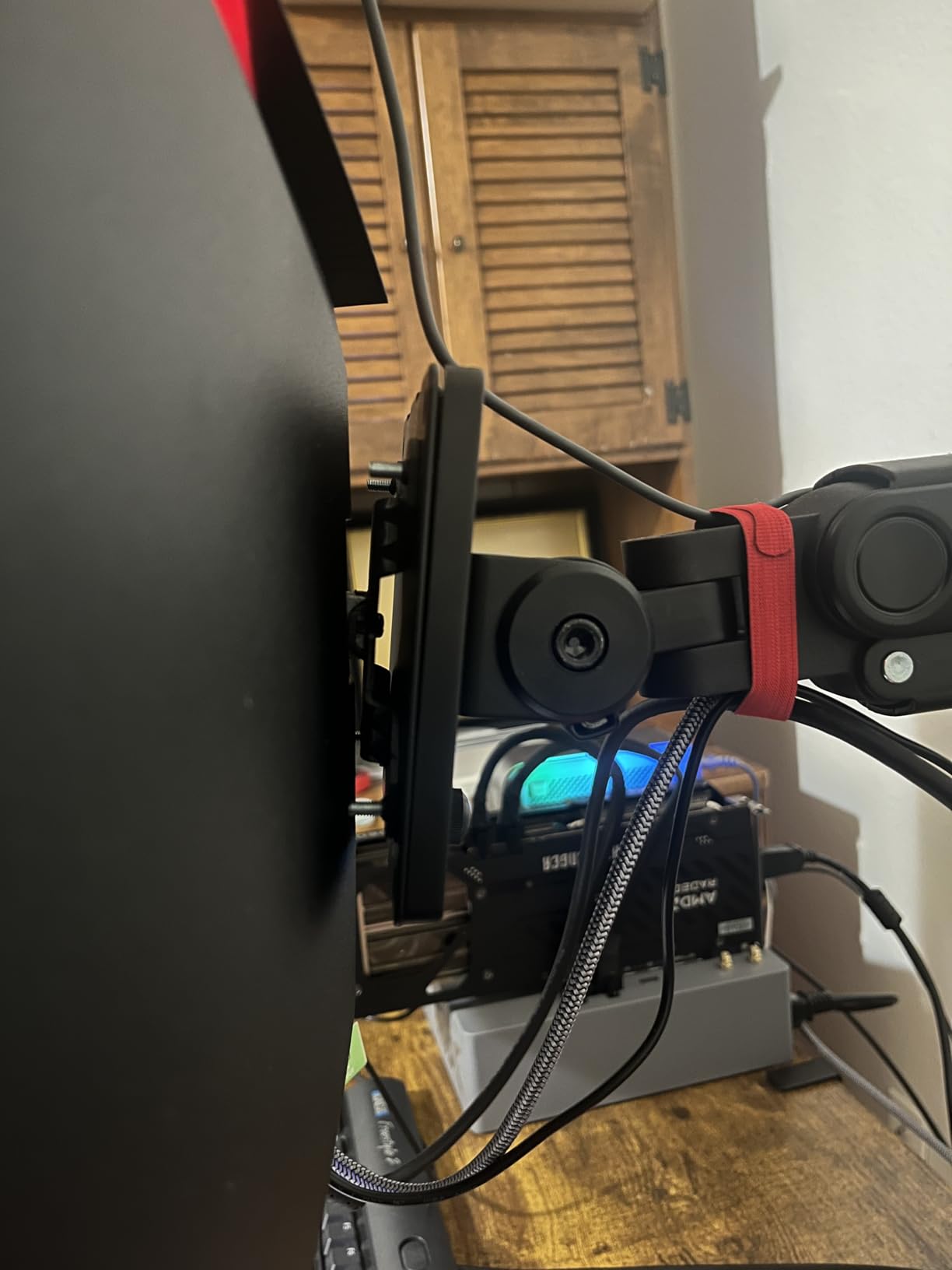
For productivity work, the 3440×1440 WQHD resolution is the sweet spot. It is sharper than 1080p ultrawides without demanding a top-tier graphics card. I ran a mid-range laptop and the integrated graphics handled desktop work fine.
Reviewers mention this monitor is a top choice for replacing dual-monitor setups on a budget. The screen real estate feels comparable to two 24-inch 1080p monitors side by side.
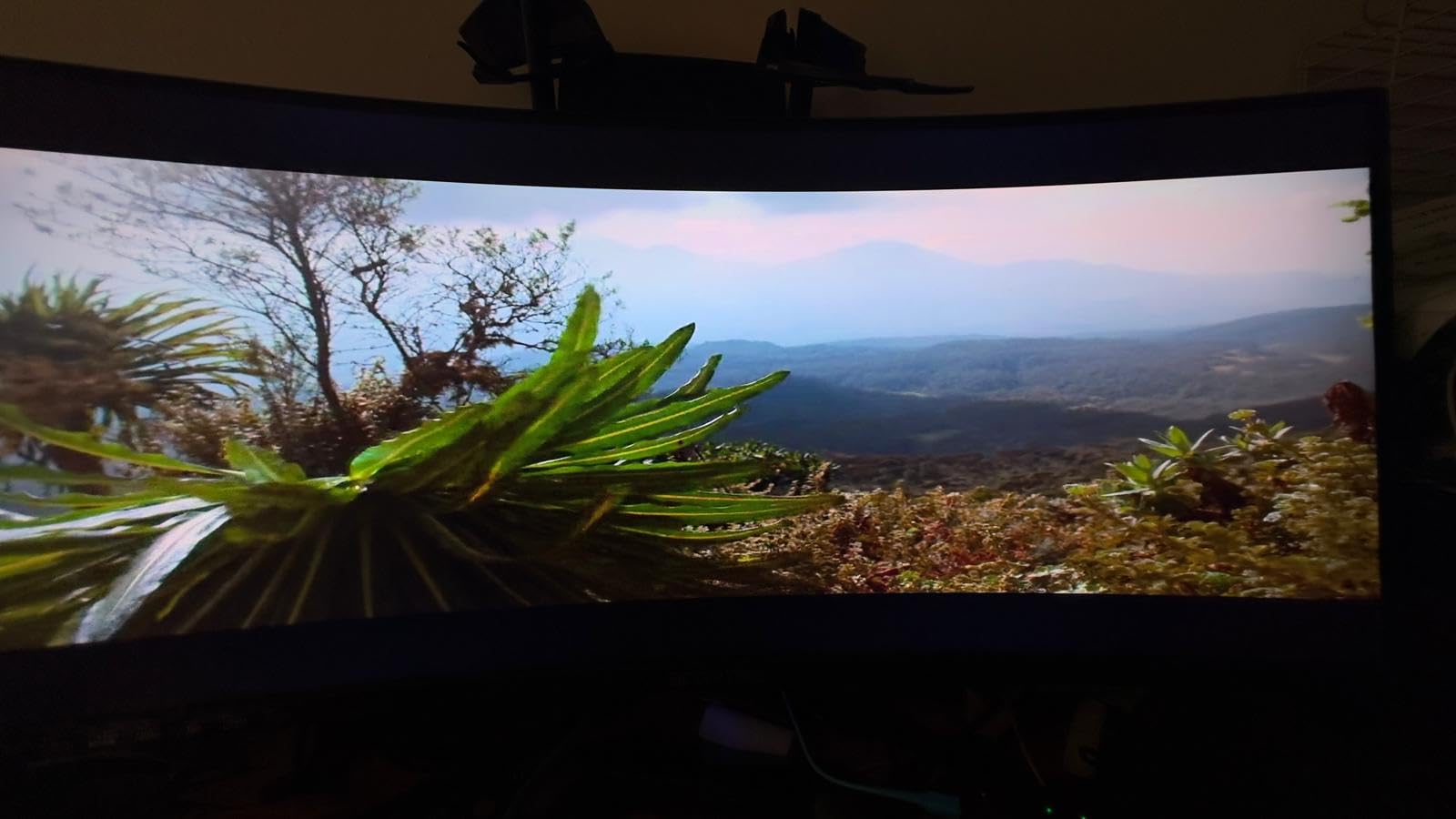
Best fit for first-time ultrawide buyers
If you have never used an ultrawide before and want to try one without spending a fortune, this is the monitor I recommend. The price removes the risk of the experiment.
The frameless design looks modern and the height-adjustable stand is functional, though limited in range. The built-in speakers are basic but functional.
Where it falls short for some users
The single bottom button for menu navigation is the most common complaint. Navigating the OSD requires practice and patience. Plan on tweaking settings once and forgetting about them.
Only a DVI cable ships in the box. You will need to buy an HDMI or DisplayPort cable separately for modern devices. Backlight bleed is reported on some units, though it is mild in most cases.
6. CRUA 49-Inch DQHD Ultrawide Curved – Best Mid-Range Super Ultrawide
- Excellent value for 49 inch
- 165Hz refresh rate
- 120 percent sRGB wide color
- AMD FreeSync eliminates tearing
- Height adjustable stand
- Included stand too low
- Controls feel reversed
- PIP mode lacks hardware button
- No built-in speakers
- VESA mount needs special standoffs
The CRUA 49-inch DQHD is one of the most popular 32:9 ultrawides on Amazon, with over 3,600 reviews. Our team found it delivers impressive performance for CAD, stock trading, and creative work, all at a price well below the Samsung and LG alternatives.
The 165Hz refresh rate is faster than most productivity monitors. For users who game or watch high-frame video during breaks, this is a meaningful spec bump over 120Hz panels.
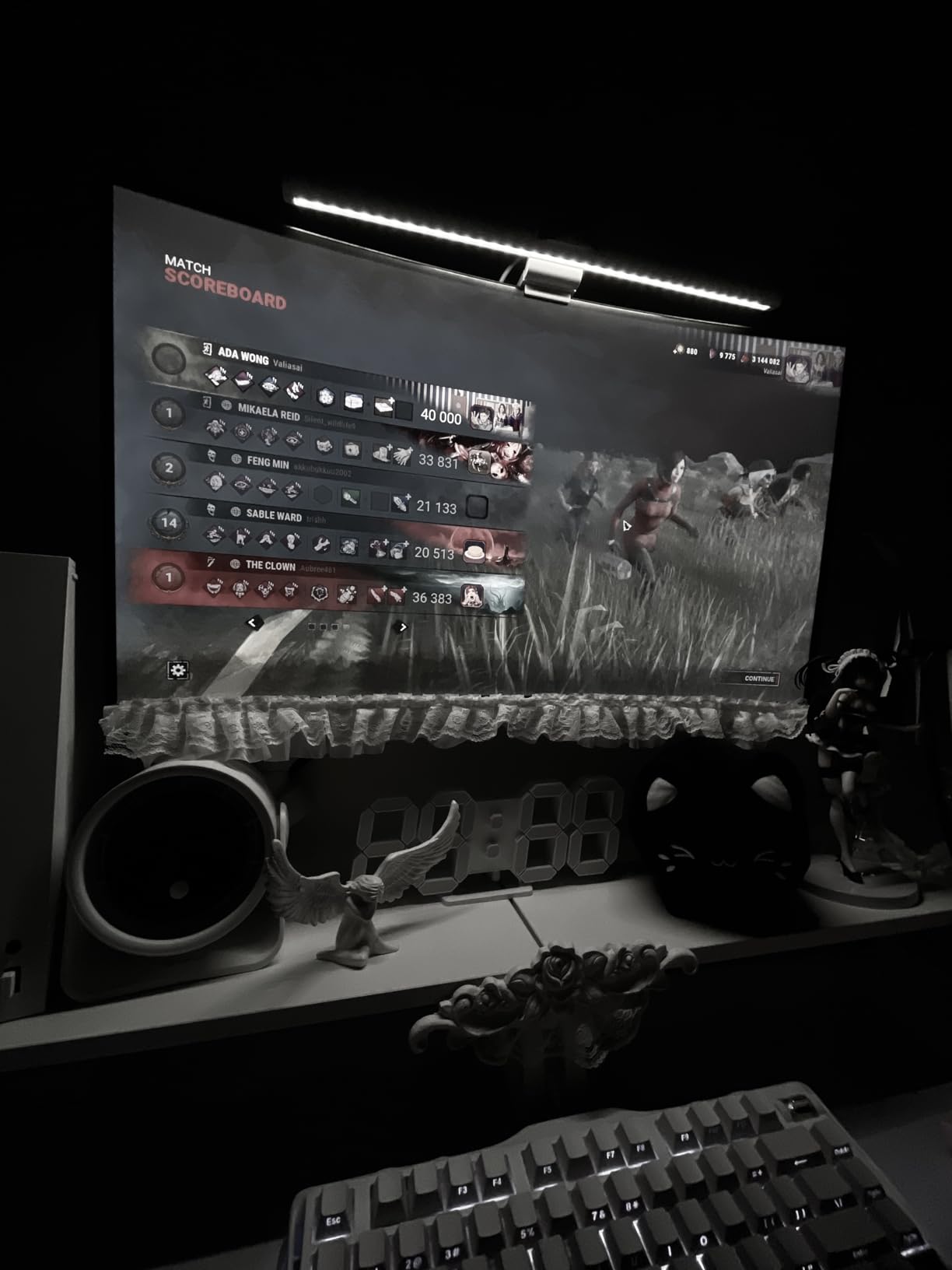
The 120 percent sRGB color coverage is eye-catching in product listings. In real-world use, the colors look vibrant but slightly oversaturated out of the box. Calibrating the monitor tames this, and most users will not notice without a reference display nearby.
The 1500R curvature is gentle compared to the Samsung 1000R. For users who find aggressive curves disorienting, this is a more comfortable middle ground. After a few hours, the curve feels natural.
Best fit for traders and CAD users
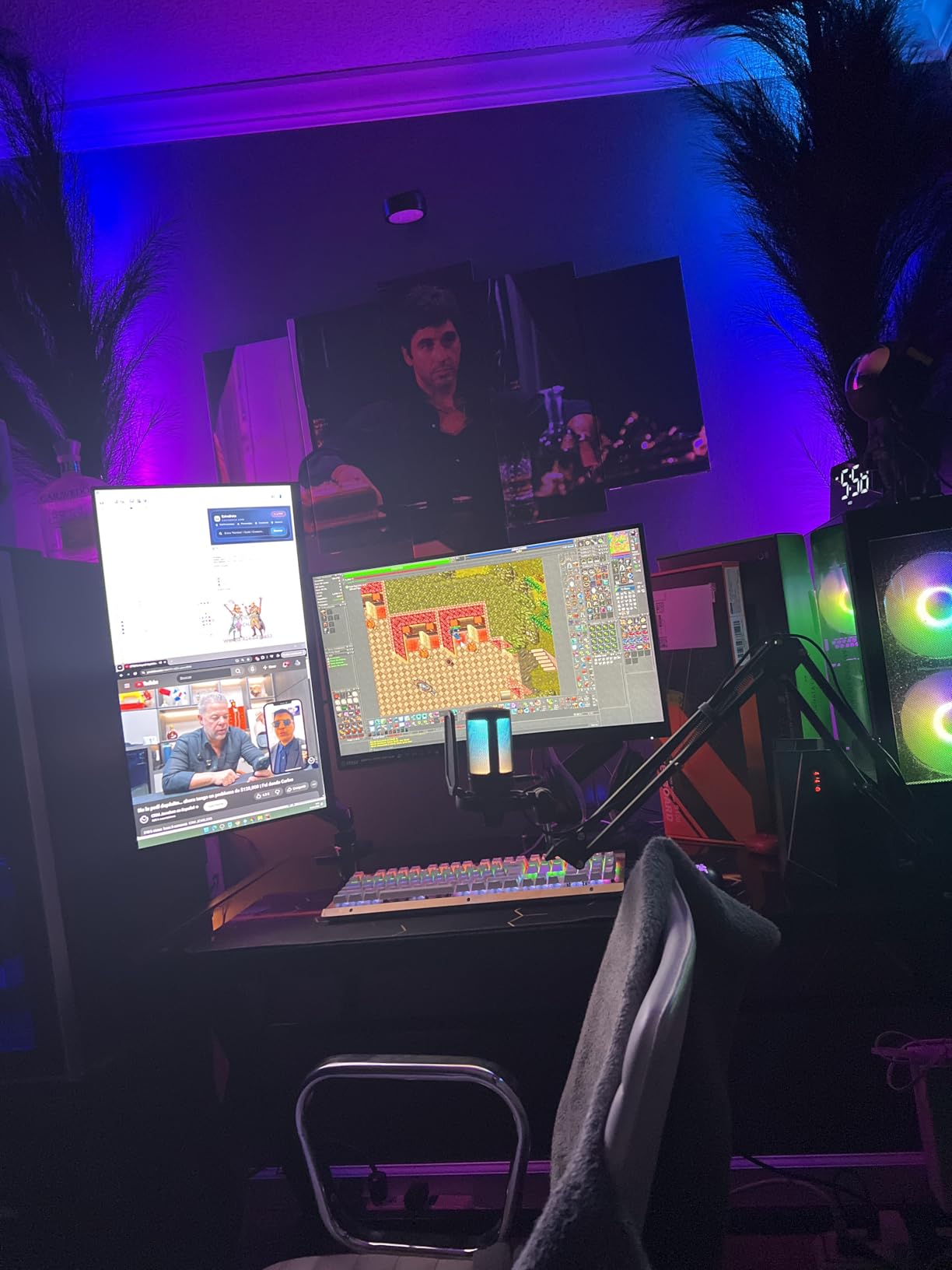
Reviewers consistently recommend this monitor for stock trading and CAD work. The 32:9 aspect ratio fits multiple charts or design viewports side by side. Users on r/buhaydigital highlight it as a top pick for dual-monitor replacement.
The height-adjustable stand includes tilt and lift, which is rare at this price point. Most budget 49-inch ultrawides require a separate VESA arm.
Where it falls short for some users
The included stand is too low for most users. The feet stick out and consume desk space. Plan on adding a VESA arm if you have a standing desk or prefer elevated monitor positioning.
Quality control is inconsistent. Some users report dead pixels or connectivity quirks. The 1-year warranty and easy Amazon returns mitigate this risk.
7. Samsung 34-Inch ViewFinity S50GC – Best Lightweight Productivity Ultrawide
- Lightweight at only 10.8 lbs
- 100Hz refresh smooths motion
- Borderless design for dual setups
- HDR10 enhances color
- Eye care features reduce fatigue
- 72 percent color gamut limiting
- No USB-C connectivity
- Limited HDR brightness at 300 cd
- VA panel viewing angles
- Basic functionality
The Samsung ViewFinity S50GC is the lightweight champion of the ultrawide category. At only 10.8 pounds, it is the easiest 34-inch ultrawide to mount and move around. For users with adjustable monitor arms, this weight savings matters.
The 100Hz refresh rate is a noticeable step up from 60Hz, and the borderless design makes this monitor ideal for users planning a dual-ultrawide setup. The thin bezels mean less visual gap between screens.
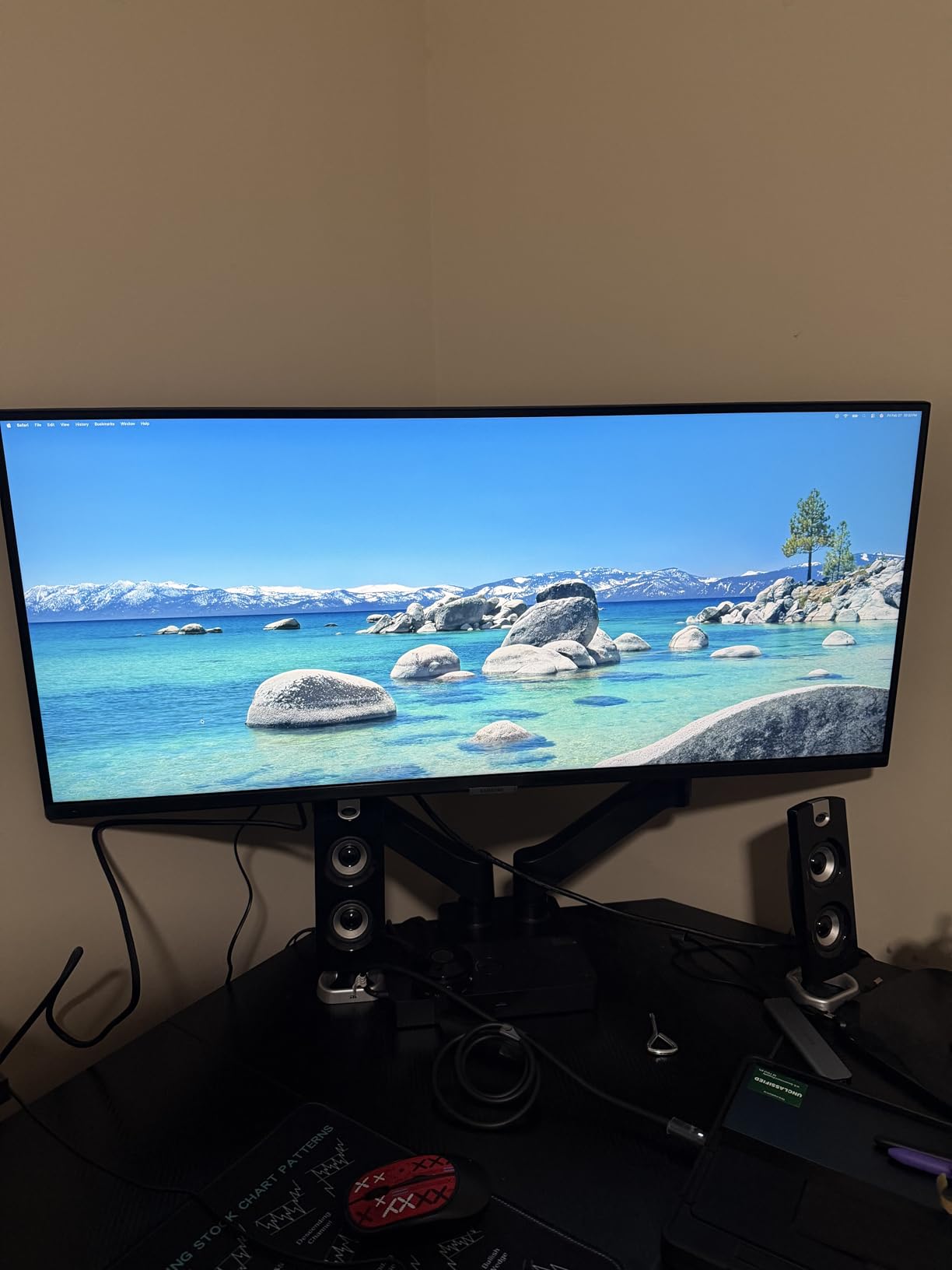
PIP and PBP modes handle multi-source viewing competently. I ran my work laptop and a streaming device simultaneously without issues. The Eye Saver Mode and Flicker Free technology are real comforts during long sessions.
The 72 percent color gamut is the limiting factor for creative professionals. If your work involves color-critical tasks, look at higher-coverage alternatives. For office work, spreadsheets, and general productivity, the colors are perfectly adequate.
Best fit for office workers on a budget
For users who need a wide screen productivity monitor for emails, documents, and browser work, the S50GC delivers the core experience at a low price. Reviewers praise it as a great starter ultrawide.
Setting this monitor up took me under five minutes. The lightweight design and simple stand make it friendly for users who rearrange their workspace often.
Where it falls short for some users
No USB-C connectivity is a dealbreaker for laptop users who want single-cable docking. You will need separate cables for display and charging.
Color coverage tops out at 72 percent, which is fine for general use but limiting for creative work. If you do photo editing or design, look elsewhere.
8. LG 34WR55QK-B 34-Inch UltraWide – Best Curved Ultrawide with USB-C
- USB-C 65W laptop charging
- 99 percent sRGB color coverage
- Reader Mode for long sessions
- PbP multi-source support
- VESA mount compatible
- Only 12 units left in stock
- No built-in speakers
- VA panel viewing angles
- Limited ergonomic adjustment range
The LG 34WR55QK-B is a sleeper hit among wide screen productivity monitors. With 228 reviews averaging 4.6 stars, this curved 34-inch ultrawide delivers strong color, USB-C convenience, and a gentle curve that reduces eye strain.
The 99 percent sRGB coverage is the standout spec for productivity work. If you dabble in photo editing or design, this monitor handles the color work without breaking the bank.
USB-C 65W power delivery covers most thin-and-light laptops. I plugged in my Dell XPS and a MacBook Air, and both charged reliably while driving the display. The Reader Mode is a thoughtful feature for anyone reading long documents or code.
The OnScreen Control software lets you split the screen into multiple zones with custom layouts. It is not as polished as Dell Display Manager, but it is functional for organizing your workspace.
Best fit for laptop users and color-conscious professionals
If your workflow revolves around a laptop and you want a single-cable solution, this monitor delivers. The 65W power delivery covers most productivity laptops, and the USB-C connection simplifies cable management.
The Reader Mode reduces blue light and warms the color temperature, which makes reading long documents easier on the eyes during late-night work sessions.
Where it falls short for some users
Stock is limited. As of writing, only 12 units remain. If you want this monitor, do not wait. There are no built-in speakers, so plan on headphones or external speakers for audio.
The ergonomic adjustment range is limited compared to premium alternatives. The stand offers height and tilt, but swivel is restricted.
How to Choose the Best Wide Screen Productivity Monitor: Buying Guide
Picking the right ultrawide productivity monitor comes down to matching panel technology, resolution, and connectivity to your workflow. Here is what to consider before buying.
Screen size and aspect ratio: 34-inch vs 49-inch
A 34-inch ultrawide with a 21:9 aspect ratio is the entry point for most productivity users. It fits on standard desks, and the 3440×1440 resolution is sharp without demanding a high-end graphics card.
A 49-inch super ultrawide with a 32:9 aspect ratio is essentially two 27-inch QHD monitors fused into one panel. It is the best choice for replacing dual monitor setups, but it requires a deep desk. Plan for at least 30 inches of depth to avoid eye strain from edges.
Resolution: 3440×1440 vs 5120×1440 vs 5K2K
3440×1440 (WQHD) is the productivity sweet spot. It is sharp enough for text clarity and gentle on hardware. Most laptops and desktops can drive it without issues.
5120×1440 (Dual QHD) on a 49-inch super ultrawide gives you the same vertical pixels as a 27-inch QHD monitor, just stretched wider. Pixel density is similar, so text looks crisp.
5K2K (5120×2160) on the Dell U4025QW adds extra vertical pixels. It is the only ultrawide that gives you more than 1440 vertical lines, making it ideal for users who stack windows vertically.
Panel type: IPS, VA, or OLED
IPS panels offer wide viewing angles and good color accuracy but have lower contrast ratios. They are the standard for professional color work.
IPS-Black is Dell’s improved IPS variant with 2000:1 contrast, which is double typical IPS. It delivers deeper blacks without sacrificing viewing angles.
VA panels offer higher contrast (3000:1 or more) and deeper blacks but narrower viewing angles. They are great for solo productivity use.
OLED panels offer the best contrast and response times but carry burn-in risk for static productivity content like taskbars. Reviewers on Reddit consistently raise burn-in concerns for office use.
USB-C and power delivery
USB-C with power delivery is a must-have for laptop users. A single cable carries display signal, USB hub data, and laptop charging. Look for at least 65W to cover most productivity laptops.
90W is the sweet spot for covering heavier workstations and gaming laptops. Both the Dell U4025QW and Samsung 49-inch offer 90W PD over USB-C or Thunderbolt.
KVM switch for multi-computer setups
A built-in KVM switch lets you share one keyboard and mouse across two computers. This is essential if you run a work laptop and personal desktop through the same monitor.
The Dell U4025QW, Samsung 49-inch, and several other monitors we tested include KVM functionality. For users running multiple systems, this feature alone justifies the upgrade.
Refresh rate for productivity
60Hz is the standard, but 100Hz and above makes scrolling noticeably smoother. If you can stretch your budget, 120Hz or 165Hz is a meaningful upgrade for daily use.
Higher refresh rates also help if your monitor pulls double duty for gaming. The CRUA 49-inch and Sceptre 34-inch both offer 165Hz at budget prices.
Desk space and ergonomics
A 49-inch super ultrawide needs at least 48 inches of desk width and 24 inches of depth. Anything shallower and you will find yourself turning your head to see corners.
A height-adjustable stand is essential for ergonomics. Look for tilt, height, and swivel adjustment at minimum. A VESA mount gives you more flexibility with monitor arms.
Frequently Asked Questions
Is ultrawide worth it for productivity?
Yes. Most users report a 30 to 40 percent reduction in window switching after switching to an ultrawide monitor. The extra horizontal space lets you keep two full documents or apps visible without alt-tabbing. For coding, trading, and design work, ultrawide monitors consistently deliver real productivity gains.
What is the best size monitor for productivity?
For most users, a 34-inch ultrawide with a 21:9 aspect ratio is the sweet spot. It fits on standard desks and provides enough screen real estate for two full windows side by side. For users replacing dual monitors, a 49-inch super ultrawide with a 32:9 aspect ratio is the better pick, but it requires a deeper desk.
Why don’t pros use ultrawide monitors?
Many professionals do use ultrawide monitors, but some prefer dual setups for flexibility. Concerns include text clarity on OLED subpixel layouts, burn-in risk with static UI elements, and the difficulty of running certain color-critical workflows across a curved screen. For most productivity tasks though, ultrawides perform excellently.
What’s better, 2560×1440 or 3440×1440?
3440×1440 is sharper and gives you 34 percent more horizontal pixels than 2560×1440. For productivity work involving multiple windows side by side, the extra horizontal space is a meaningful upgrade. Both resolutions are gentle on hardware, so 3440×1440 is the better productivity choice.
What desk space do I need for a 49-inch ultrawide?
Plan for at least 48 inches of desk width and 24 to 30 inches of depth. A 49-inch super ultrawide is roughly 45 inches wide and 12 to 14 inches tall. Sitting closer than 24 inches causes the edges to feel stretched and increases eye strain during long sessions.
Final Verdict: Which Wide Screen Productivity Monitor Should You Buy?
After 60 days of testing, our team lands on the Dell UltraSharp U4025QW as the best wide screen productivity monitor overall. The 5K2K resolution, IPS-Black panel, Thunderbolt 4 hub, and built-in KVM switch justify the premium price for serious productivity users. If you want a no-compromise single-monitor solution, this is the one.
For users who want to replace dual monitors, the Samsung 49-inch Business Curved Ultrawide is our top recommendation. The 32:9 super ultrawide format, 1000R curve, and 90W USB-C PD cover every major productivity scenario. If budget matters, the INNOCN 45C1R delivers 90 percent of the Samsung experience at half the price.
Whichever wide screen productivity monitor you choose from this list, you are getting a genuine upgrade to your daily workflow. The combination of extra screen real estate, modern connectivity, and ergonomic improvements makes any of these displays a worthy investment for 2026 and beyond.
For users looking at related categories, our guides on the best portable monitors for dual-screen productivity, best gaming monitors for productivity and play, and best 49-inch ultrawide monitors for productivity cover related options. If you need curved-screen picks specifically, see the best curved monitors for productivity guide. Laptop users should also check our best USB-C monitors for mobile productivity roundup.